Home Interests Google Docs

How to Search in Google Docs (Find Words)

Try ⌘ + F.
howchoo   (467)
December 13, 2023
3 minutes

Share

You’ll Need 1

What you’ll need
Interests
Howchoo is reader-supported. As an Amazon Associate, we may earn a small affiliate commission at no cost to you when you buy through our links.
Posted in these interests:
google • 9 guides
googledocs • 4 guides
googleworkspace • 6 guides

If you just need to search and find a single word or multiple words in Google Docs, press ⌘ + F.

If you want to find and replace words in your Google Doc, then we’ll show you how to do that too!

1 – Press cmd + F

To find a word (or words) in your Google Doc:

  • Press ⌘ (cmd) + F on your keyboard.
  • Type the word (or words) you’re looking to find.
  • Scroll through the found words by using the arrows next to the search box.

2 – Bonus: find and replace words in Google Docs

If you want to both find and replace words in your Google Doc:

  • Go to Edit.
  • Choose Find and replace.
  • In “Find,” type the word you want to replace.
  • In “Replace with,” type the word or words you want to auto-replace it with.

You can choose to replace a single instance of the word, or you can choose to replace all instances by selecting Replace all.

NEXT UP

How to Create a CSV From a Google Spreadsheet

howchoo   (467)
November 29, 2023

A CSV (Comma Separated Values) file is the default file format for importing and exporting data between various applications. The default file extension for a Google spreadsheet is .gsheet. Often, after you create your spreadsheet in Google Sheets, you’ll need to download the file as a .csv file in order to make use of it. Fortunately, downloading a Google spreadsheet

Continue Reading

howchoo

 467 guides

Introducing Howchoo, an enigmatic author whose unique pen name reflects their boundless curiosity and limitless creativity. Mysterious and multifaceted, Howchoo has emerged as a captivating storyteller, leaving readers mesmerized by the uncharted realms they craft with their words. With an insatiable appetite for knowledge and a love for exploration, Howchoo’s writing transcends conventional genres, blurring the lines between fantasy, science fiction, and the surreal. Their narratives are a kaleidoscope of ideas, weaving together intricate plots, unforgettable characters, and thought-provoking themes that challenge the boundaries of imagination.

Home Interests Home

How to Properly Dispose of a Worn or Damaged American Flag

howchoo   (467)
December 7, 2023
8 minutes

Share

You’ll Need 1

What you’ll need
Interests
Howchoo is reader-supported. As an Amazon Associate, we may earn a small affiliate commission at no cost to you when you buy through our links.
Posted in these interests:
america • 1 guides
flags • 1 guides
home • 7 guides

Since our country was conceived, the U.S. Flag has been a symbol of our country’s freedom. Our country’s Flag Code provides specific guidelines for how to “retire” a damaged or worn-out American flag.

When should my American flag be retired? The US Flag Code (4 USC Sec 8 Para (k) Amended 7 July 1976) dictates that a flag should be destroyed “when it is in such condition that it is no longer a fitting emblem of display”. This includes the flag becoming tattered or overly worn or sun-bleached.

How do I dispose of my American flag? The same section of our Flag Code states that the flag “should be destroyed in a dignified way, preferably by burning”. When I was first researching how to properly dispose of my U.S. flag, I was surprised to find that the proper method is to burn the flag. Burning the flag just seemed wrong — but apparently this is how it is done. This short guide will show you how to perform a flag retirement ceremony properly.

What if I can’t burn my American Flag? Burning the flag is the only preferred method of flag disposal per the U.S. flag code. However, if you live in an area where you cannot perform the burning ceremony, there are still many other accepted options for respectfully retiring your flag: – Contact your local VFW Post and they can perform the flag ceremony for you. – Bury and/or shred the flag: use a pair of scissors to carefully and methodically separate the thirteen stripes and leave the blue star-spangled section intact. Then, place in a wooden box and bury the flag, giving it a short “funeral” ceremony (e.g. recite the Pledge of Allegiance or other respectful words).

1 – Determine whether your American flag should be destroyed

My American flag had a hole in it (presumably from a falling branch) and appeared very worn. Nylon flags, when flown continuously outdoors, generally last less than a year. This is why most government buildings remove their flags at sundown and raise them at sunup.

2 – Remove and fold your flag

Remove the flag from its flagpole and fold it into a triangle. Do not let the flag touch the ground.

3 – Build a fire

Build a campfire in a safe area and wait for the coals to get hot (think “cooking” hot).

4 – Carefully place and burn the flag

Carefully place the flag in the center of the fire. I say carefully because you want to be able to collect all of the flag ashes later. While the flag is burning, it is customary to recite the Pledge of Allegiance.

Wait until the flag material has been completely converted into ash. Then, you can either wait for the fire to go out on its own or use a fire extinguisher to put the fire out.

5 – Bury the flag

Bury the flag in an area where people won’t often walk over it. It is also customary to leave a marker of some kind to mark its location.

🛈 Do not bury hot coals — this can be dangerous to the feet around you, especially if performing the ceremony in a public area.

6 – Raise a new flag

And of course, after disposing of your old flag, be sure to replace it with a new one!

NEXT UP

How to See If I’m Eligible for Amazon Prime Free Same-Day Delivery

howchoo
howchoo   (467)
November 24, 2023

So Amazon just announced free same-day delivery in 14 different metro areas. How do you know if you apply? 1 – Check your zip code Go to this page. Wait for the page to finish loading completely, scroll down, and enter your zip code. This will tell you if you live in an area that is

Continue Reading

howchoo

 467 guides

Introducing Howchoo, an enigmatic author whose unique pen name reflects their boundless curiosity and limitless creativity. Mysterious and multifaceted, Howchoo has emerged as a captivating storyteller, leaving readers mesmerized by the uncharted realms they craft with their words. With an insatiable appetite for knowledge and a love for exploration, Howchoo’s writing transcends conventional genres, blurring the lines between fantasy, science fiction, and the surreal. Their narratives are a kaleidoscope of ideas, weaving together intricate plots, unforgettable characters, and thought-provoking themes that challenge the boundaries of imagination.

Home Interests MacOS

How to Always Show File Extensions in MacOS

Doing this saves you loads of time in the long run!
howchoo   (467)
December 7, 2023
2 minutes

Share

Interests
Posted in these interests:
finder • 2 guides

Mac

mac • 24 guides
macos • 20 guides

As a website designer, I work with a lot of files—and a lot of file types. Nothing’s worse than wasting time trying to fix a problem caused by an overseen missing file extension.

Here are the three easy steps to always show file extensions in macOS.

1 – Open a Finder window

At the bottom-left of your dock, click on the Finder icon.

2 – Open Preferences

Go to Finder > Preferences.

3 – Select “Show all filename extensions”

Make sure that “Show all filename extensions” is checked. Now, you should always see file extensions in macOS.

NEXT UP

How to Enable the “Popping” Sound When Adjusting the Volume on Your Mac

howchoo
howchoo   (467)
December 13, 2023

Starting with MacOS Sierra and High Sierra, your Mac will no longer play a “pop” sound when you adjust your volume. If you prefer to have this sound when you adjust volume up and down (as I do), this guide will teach you how to reenable it. 1 – Open Sound System Preferences Navigate to System

Continue Reading

howchoo

 467 guides

Introducing Howchoo, an enigmatic author whose unique pen name reflects their boundless curiosity and limitless creativity. Mysterious and multifaceted, Howchoo has emerged as a captivating storyteller, leaving readers mesmerized by the uncharted realms they craft with their words. With an insatiable appetite for knowledge and a love for exploration, Howchoo’s writing transcends conventional genres, blurring the lines between fantasy, science fiction, and the surreal. Their narratives are a kaleidoscope of ideas, weaving together intricate plots, unforgettable characters, and thought-provoking themes that challenge the boundaries of imagination.

Home Interests InDesign

How to Resize an Image in InDesign

There are two options for resizing in InDesign: the easy way and the precise way.
howchoo (467)
December 7, 2023
4 minutes

Share

You’ll Need 1
What you’ll need
Interests
Series
Howchoo is reader-supported. As an Amazon Associate, we may earn a small affiliate commission at no cost to you when you buy through our links.
Posted in these interests:
 
adobe • 7 guides
design • 4 guides
indesign • 4 guides
You might think that resizing an image would be as simple as dragging the corner of the frame. Well, it is, and it isn’t! Remember that when resizing an image in InDesign, you’re essentially resizing the image’s frame. For more information, on inserting an image in InDesign and frames, check our guide.
How to Insert an Image in InDesign Knowing how to insert images is an essential skill for indesign work. We can show you how!
In this guide, we’ll show you the two ways to resize an image: an easy solution and a more precise method.

1 – Easy method: click and drag

You can easily click and drag an image to resize it in InDesign, if you don’t need to make it a precise size.
  1. Select the image by clicking it.
  2. Click and drag any corner of the image frame to resize.
You may need to adjust the image in the frame again by using the Frame Fitting tool (see below). You can select to Auto-Fit to have it automatically resize as you adjust the size of the frame.

2 – Precise method: manually resize image

You might need to resize an image in InDesign using precise measurements for a particular project. Here’s how.
  1. Select the image you want to resize
  2. In the Transform toolbar of the Properties screen (see below), select the point of reference using the tic-tac-toe-like grid on the left. This affects how the image will resize (in which direction).
  3. From here, you can change the image’s width, height, and X/Y coordinates.
If you need to change the units of measurement, we made a great guide for that!
How to Change Pixels to Inches in InDesign From Picas to Pixels to Inches and more. This guide will show you how.
NEXT UP

How to Remove a Background in Illustrator

And transparency to your work in Illustrator.
howchoo (467)
November 21, 2023
Adobe Illustrator has a few tools available that allow users to remove the background from their work. This process makes it possible to create artwork with transparent areas anywhere they want. In guide this, I’ll go over the easiest ways to do this, as there are more complex processes don’t always apply to general use
Continue Reading

howchoo

 467 guides
Introducing Howchoo, an enigmatic author whose unique pen name reflects their boundless curiosity and limitless creativity. Mysterious and multifaceted, Howchoo has emerged as a captivating storyteller, leaving readers mesmerized by the uncharted realms they craft with their words. With an insatiable appetite for knowledge and a love for exploration, Howchoo’s writing transcends conventional genres, blurring the lines between fantasy, science fiction, and the surreal. Their narratives are a kaleidoscope of ideas, weaving together intricate plots, unforgettable characters, and thought-provoking themes that challenge the boundaries of imagination.
Home Interests Verizon

How to Enable Verizon Call Forwarding

Direct your calls elsewhere.
howchoo (467)
December 1, 2023
7 minutes

Share

You’ll Need 1
What you’ll need
Interests
Series
Howchoo is reader-supported. As an Amazon Associate, we may earn a small affiliate commission at no cost to you when you buy through our links.
Posted in these interests:
verizon • 6 guides
wireless • 6 guides
Call forwarding is the process of directing phone calls from one number to another. Verizon allows its customers to enable call forwarding at no additional charge. Your typical call rates will still apply. This process works for all Verizon customers regardless of your carrier—including Samsung, Apple, LG, Lenovo, and more. Note: International numbers can not be used when call forwarding.

1 – Enable call forwarding using a mobile device

You can enable call forwarding with the mobile phone you want to direct calls from. You need to be on the Verizon network for this step to work.
  1. Open the Phone app.
  2. Type *72 followed by the 10-digit phone number you want to direct calls to. Example: *72-123-456-7890
  3. Press Call.
  4. Listen for a message or tone to confirm the call forwarding has been set.
  5. Disconnect the call.

2 – Enable call forwarding using a computer

If you’re unable to use your phone, you can also use the Verizon website.
  1. Log into My Verizon.
  2. Navigate to the Call Forwarding page.
  3. Select the phone number you want to direct calls from.
  4. Enter the number you want to direct calls to.
  5. Choose whether or not to forward all calls or just some of them.
  6. Select Update Call Forwarding Status to save the changes and enable call forwarding.

3 – Disable call forwarding using a mobile device

Disabling call forwarding is even easier than setting it up.
  1. Open the Phone app from the phone with call forwarding enabled.
  2. Dial *73.
  3. Press the Call button.
  4. You will hear a confirmation message or tone to signify the call forwarding is now disabled.
  5. Disconnect the call.

4 – Disable call forwarding using a computer

Call forwarding can be disabled from the Verizon website.
  1. Log into My Verizon.
  2. Navigate to the Call Forwarding page.
  3. Select the phone number with call forwarding enabled.
  4. Choose Cancel Call Forwarding.

5 – Change a call forwarding number

If you’ve already set a call forwarding number, you can change it. On the phone with call forwarding enabled, dial *72 followed by the new number you want to direct calls to. You can also use a computer to change the call forwarding settings.
  1. Log into My Verizon.
  2. Navigate to the Call Forwarding page.
  3. Select the phone number you want to change.
  4. Remove the current call forwarding number.
  5. Set a new number to forward calls to.
  6. Select Update Call Forwarding Status to save the changes.

6 – Troubleshooting

It might be a good idea to test your call forwarding settings after putting them in place. Here are the most common issues you’ll face while setting up call forwarding.

Calls Don’t Forward

Pay attention to what happens when calling. Does the original phone still ring? If so, the call forwarding setting did not set properly. Try setting it up again.

Callers Hear A Busy Signal

This happens when the call forwarding number is invalid. Remove the call forward and try setting it up again. Next, learn how to unlock your Verizon phone.
How to Unlock Your Verizon Phone Use your Verizon phone with any carrier.
NEXT UP

How to Change Your Verizon FiOS Wi-Fi Network Name

howchoo
howchoo (467)
September 29, 2023
Changing your Wi-Fi network name has never been easier. From web interfaces to mobile support, Verizon has prepared its users with many options for network security. This guide covers the network tools you need to change your Wi-Fi network name on your Verizon FiOS Router. 1 – Change Wi-Fi name via router (192.168.1.1) To begin,

howchoo

 467 guides
Introducing Howchoo, an enigmatic author whose unique pen name reflects their boundless curiosity and limitless creativity. Mysterious and multifaceted, Howchoo has emerged as a captivating storyteller, leaving readers mesmerized by the uncharted realms they craft with their words. With an insatiable appetite for knowledge and a love for exploration, Howchoo’s writing transcends conventional genres, blurring the lines between fantasy, science fiction, and the surreal. Their narratives are a kaleidoscope of ideas, weaving together intricate plots, unforgettable characters, and thought-provoking themes that challenge the boundaries of imagination.
Home Interests iPhone

How to Block a Website with Screen Time on Your iPhone

Block inappropriate or spammy websites with screen time!
howchoo   (467)
November 30, 2023
7 minutes

Share

You’ll Need 1

What you’ll need
Interests
iPhone x 1
Howchoo is reader-supported. As an Amazon Associate, we may earn a small affiliate commission at no cost to you when you buy through our links.
Posted in these interests:
 
apple • 18 guides

iOS

ios • 5 guides
iphone • 9 guides

Screen time gives iPhone users the opportunity to track and manage their iPhone usage, making staying productive easier than ever before. Since screen time holds iPhone users accountable for their iPhone use, it’s become increasingly popular among those who want and need to unplug during various time frames.

However, that’s not all screen time is capable of. There are many features available to those who set up screen time so that they can restrict purchases, restrict changes within the Settings app, or even restrict web content. To be honest, this isn’t even half of it. There is so much screen time can do to help you manage your device or even manage your child’s device.

For the purpose of this guide, we will get into blocking those spammy, inappropriate, and annoying websites. Sometimes, you just want to block that website that allows seems to pop up, or maybe you want to avoid your child seeing certain types of content. You can block websites and other web content on your own iPhone or on a child’s managed device. Either way, the steps are pretty much the same!

Let’s block those websites!

1 – Open Settings

First, go to your home screen and find the Setting app, then give it a click. It can often be found in the utilities folder.

2 – Click “Screen Time”

Then, select “Screen Time.”

3 – Click “Content & Privacy Restrictions”

Now, choose “Content & Privacy Restrictions.”

4 – Click “Content Restrictions”

Click “content restrictions,” so that you can specify the restrictions you want to create. If you don’t already have content and privacy restrictions enabled, you will have to first click the toggle to the right of “Content & Privacy Restrictions.”

5 – Enter in Your Screen Time Passcode

You will be prompted for your screen time passcode here. Enter your passcode in to move to the next step.

6 – Click “Web Content”

Click “Web Content.” By default, this will be set to “Unrestricted access.” Don’t worry. We are about to change this.

7 – Choose “Limit Adult Websites”

There are three separate options as to how you can restrict web content. Let’s dive into them briefly before choosing the one best for the purposes of this guide.

Web content restriction options:

  • Unrestricted access- This one is pretty self-explanatory. Everything is accessible.
  • Limit adult websites- Don’t let the wording of “adult websites” scare you. This just means you can choose to limit or restrict certain, specific sites. You can also make sure some are always allowed in this same category.
  • Allowed websites only- Here you have to specify the sites that are allowed to be visited on this device. This means, if you haven’t added it to the list, you cannot visit it. So, it can be pretty restrictive in terms of being able to browse the web. All websites will be blocked that are not manually allowed by you.

To block a specific website, choose “Limit Adult Websites.”

8 – Click “Add Website”

Click “Add Website” so we can enter the website we no longer want to be able to access.

9 – Add the Website

Now, type in your website and you are good to go! That’s it.

You can add as many websites as you want but try to add only websites you truly want to block for an extended timeframe.

NEXT UP

How to Enable the “Popping” Sound When Adjusting the Volume on Your Mac

howchoo
howchoo   (467)
December 13, 2023

Starting with MacOS Sierra and High Sierra, your Mac will no longer play a “pop” sound when you adjust your volume. If you prefer to have this sound when you adjust volume up and down (as I do), this guide will teach you how to reenable it. 1 – Open Sound System Preferences Navigate to System

Continue Reading

howchoo

 467 guides

Introducing Howchoo, an enigmatic author whose unique pen name reflects their boundless curiosity and limitless creativity. Mysterious and multifaceted, Howchoo has emerged as a captivating storyteller, leaving readers mesmerized by the uncharted realms they craft with their words. With an insatiable appetite for knowledge and a love for exploration, Howchoo’s writing transcends conventional genres, blurring the lines between fantasy, science fiction, and the surreal. Their narratives are a kaleidoscope of ideas, weaving together intricate plots, unforgettable characters, and thought-provoking themes that challenge the boundaries of imagination.

Home Interests Google

How to Create a CSV From a Google Spreadsheet

howchoo   (467)
November 29, 2023
2 minutes

Share

You’ll Need 1

What you’ll need
Interests
Howchoo is reader-supported. As an Amazon Associate, we may earn a small affiliate commission at no cost to you when you buy through our links.
Posted in these interests:
google • 9 guides
googledocs • 4 guides
googlesheets • 2 guides

CSV (Comma Separated Values) file is the default file format for importing and exporting data between various applications. The default file extension for a Google spreadsheet is .gsheet. Often, after you create your spreadsheet in Google Sheets, you’ll need to download the file as a .csv file in order to make use of it.

Fortunately, downloading a Google spreadsheet as a file is easy! Here are the three easy steps to download a Google spreadsheet as a CSV file.

1 – Open your Google spreadsheet

Either from Google Drive or Google Sheets, double-click on the file you wish to open.

2 – Download the file as a CSV

  • Go to File > Dowload.
  • Click Comma-separated values to download as a CSV.
NEXT UP

How to Search in Google Docs (Find Words)

Try ⌘ + F.
howchoo   (467)
December 13, 2023

If you just need to search and find a single word or multiple words in Google Docs, press ⌘ + F. If you want to find and replace words in your Google Doc, then we’ll show you how to do that too! 1 – Press cmd + F To find a word (or words) in

Continue Reading

howchoo

 467 guides

Introducing Howchoo, an enigmatic author whose unique pen name reflects their boundless curiosity and limitless creativity. Mysterious and multifaceted, Howchoo has emerged as a captivating storyteller, leaving readers mesmerized by the uncharted realms they craft with their words. With an insatiable appetite for knowledge and a love for exploration, Howchoo’s writing transcends conventional genres, blurring the lines between fantasy, science fiction, and the surreal. Their narratives are a kaleidoscope of ideas, weaving together intricate plots, unforgettable characters, and thought-provoking themes that challenge the boundaries of imagination.

Home Interests Raspberry Pi

HeaterMeter: Control your Grill Using a Raspberry Pi!

Fire up the summer with a new Pi project.
howchoo   (467)
November 28, 2023
9 minutes

Share

You’ll Need 4

What you’ll need
Interests
Howchoo is reader-supported. As an Amazon Associate, we may earn a small affiliate commission at no cost to you when you buy through our links.
Posted in these interests:

BBQ

bbq • 1 guides
food • 7 guides
pi • 92 guides

With summer right around the corner, it’s time to fire up the grill! But who will watch the grill while you’re beating the heat?

This year, kick things up a notch with your own Raspberry Pi-powered HeaterMeter. Don’t just throw a BBQ, be a part of it. HeaterMeter lets you keep a close eye on your grill and food temperature no matter where you are. Just pull out your phone, check the status of your grill, and make temperature adjustments in real-time.

What’s a HeaterMeter?

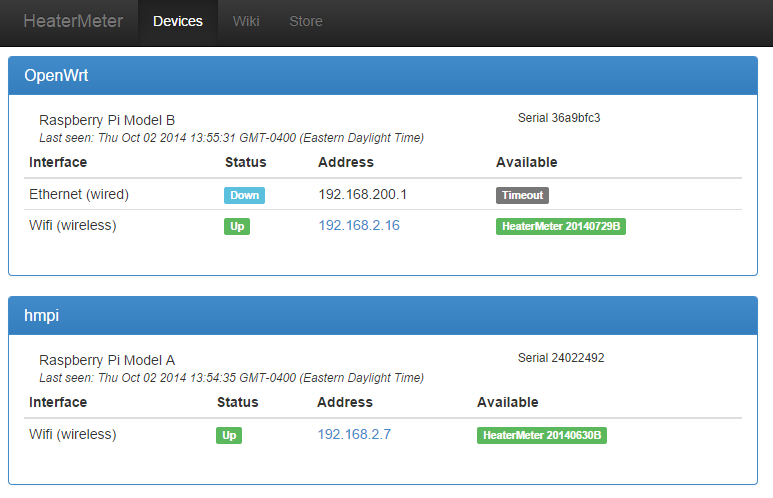
HeaterMeter is an open-source BBQ platform. This project uses heat probes to monitor the temperature of your grill and even posts the current status information in a web-based interface.

How does it work?

Heat sensors relay information to the HeaterMeter box. This is a 3D-printed box with buttons and an LCD screen. You can use it to check the current temperature status and make manual adjustments to things like fan speed to keep the grill temperature where you want it. You can add additional probes to monitor the meat you’re cooking. More components can be added like a servo-controlled damper.

The Raspberry Pi makes it possible to monitor your food from a distance. You can also trigger custom notifications, texts, or emails when certain temperatures are reached.

1 – The final product: HeaterMeter

This project was created by Bryan Mayland. He’s worked on this project for years, perfecting this heat-sensing project.

Now you can get in on the action. Bryan sells HeaterMeter kits on his website to help others who are interested in the same project. He’s saved us all a great deal of time by consolidating these resources together. More time for grilling, right?

2 – Gather tools

First things first, you’re going to need a couple of tools. Even if you start off with the official Heater Meter kit, you’ll probably need a few extra items.

The kit doesn’t include:

  • Raspberry Pi
  • Wifi adapter (if you’re not using a Pi 3B or Pi Zero W)
  • SD card
  • 12V Power supply
  • Pit probes
  • 3D printed case

3 – Build the pit probe(s)

This is where things get hot! Unfortunately, the puns also get worse.

The pit probes need to be built to spec. If you’re not sure where to get started, check out this amazing pit probe tutorial by Dave Selinger. He does a great job walking you through the construction process from start to finish. The pit probes are crucial to the project. Definitely don’t skip over any details.

4 – Install HeaterMeter on your Pi

HeaterMeter will run on any Raspberry Pi. But not every Pi is the same, some have serious benefits that make all the difference in a project like this. If you can, aim for a newer model—these often perform better and some come with built-in wifi adapters which are really useful for this project.

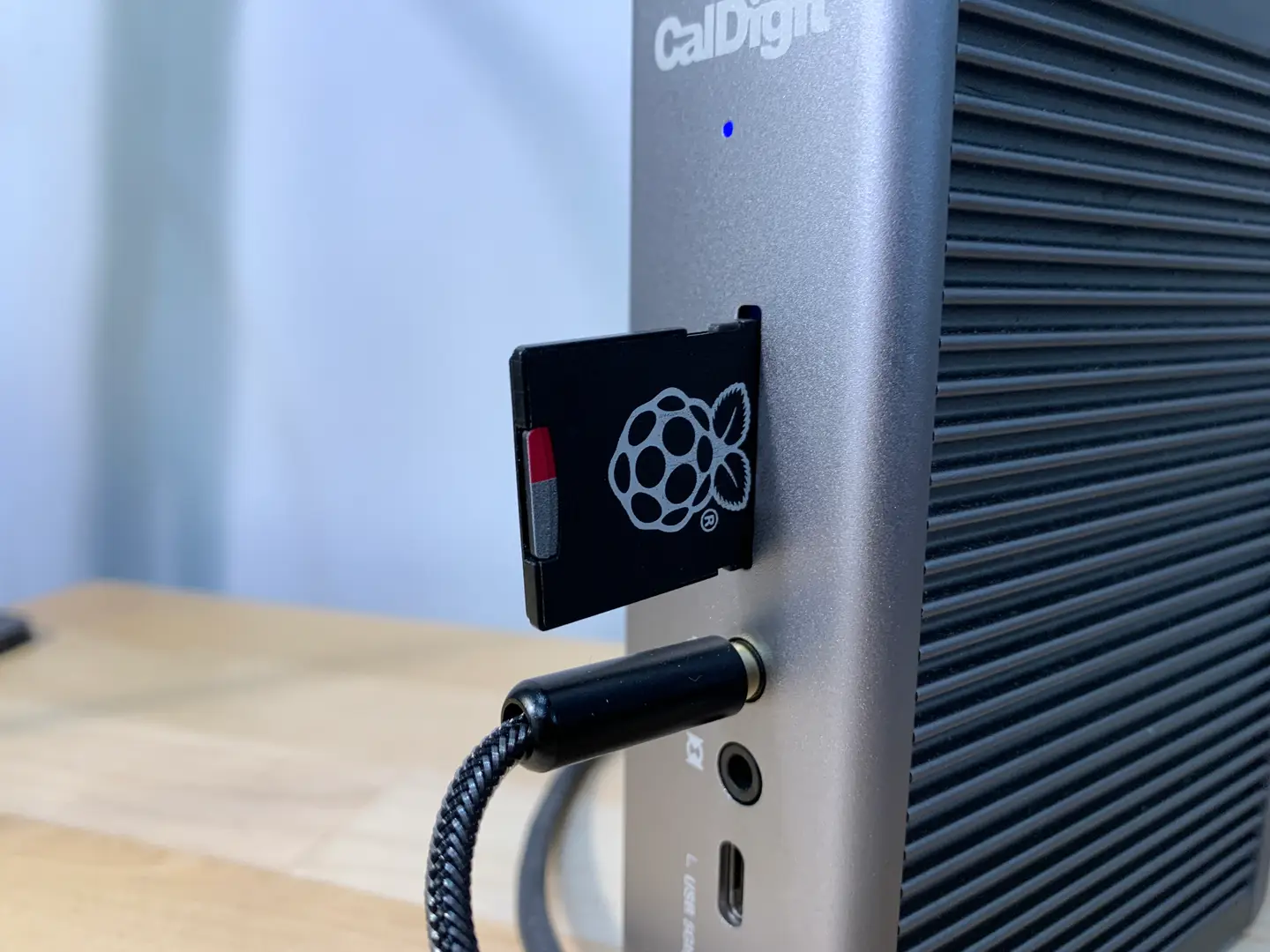
To install the HeaterMeter software, visit the HeaterMeter downloads page and find the appropriate image for your Pi. The image needs to be flashed to the SD card with an imaging program like Etcher.

5 – Assemble everything together

Once you have your components created, it’s time to gather them together! Your pit probes should be installed and connected to the HeaterMeter. There are thorough instructions available on the HeaterMeter wiki. I highly recommend this resource, especially if you’re using extra components like multiple pit probes or a damper.

6 – Time to get grilling!

Congratulations! Once everything is assembled, it’s time to fire up the grill.

Don’t worry about what’s going on across the yard, now you can check it out for yourself. This is your time to grill with mobility. Want to check on those steaks you put on a moment ago? Just take out your phone and load up HeaterMeter in the browser. Does it feel like the future yet? I think so.

NEXT UP

How to Run a Minecraft Server on the Raspberry Pi

A whole world trapped inside your Pi.
howchoo   (467)
December 7, 2023

There are several ways to go about running a Minecraft server on the Raspberry Pi. In this guide, I’ll cover how to install Nukkit—a cross-platform Minecraft server that’s super easy to set up on the Raspberry Pi. This server should work with PCs, consoles, and tablets running Minecraft 1.14. I’ll be using a Raspberry Pi

Continue Reading

howchoo

 467 guides

Introducing Howchoo, an enigmatic author whose unique pen name reflects their boundless curiosity and limitless creativity. Mysterious and multifaceted, Howchoo has emerged as a captivating storyteller, leaving readers mesmerized by the uncharted realms they craft with their words. With an insatiable appetite for knowledge and a love for exploration, Howchoo’s writing transcends conventional genres, blurring the lines between fantasy, science fiction, and the surreal. Their narratives are a kaleidoscope of ideas, weaving together intricate plots, unforgettable characters, and thought-provoking themes that challenge the boundaries of imagination.

Home Interests Guides

How to Connect Your Child’s Messenger Kids account to a Classroom, Team, or Group

howchoo (467)
November 27, 2023
5 minutes

Share

Interests
Posted in these interests:
guides • 10 guides
Facebook’s Messenger Kids is a free app that allows children to make video calls and send messages on smartphones and tablets, but with more control than just giving your child access to a phone. With Messenger Kids, parents can control their child’s online experience through a variety of functions that allow them to have a safe and secure online experience. Part of that online experience through Messenger Kids can include being a part of a classroom or a team. The groups feature in Messenger Kids allows kids to connect with classmates, teammates, and friends in a safe and secure way online. This guide will show you how to add your child’s Messenger Kids account to a group.

1 – Approved Adults

In order for your child to connect with a group or class, parents and guardians can approve a teacher or adult to connect their child with other children through Messenger Kids. An important aspect of this feature is that the approved adult can only connect your child with other children whose parents have also approved this adult to connect their child. This approved adult will be added as a contact in your child’s Messenger Kids, and will be able to add your child to group conversations with other kids, even if they are not in your child’s contacts. That being said, you can feel safe knowing that every child in that group had to approve the adult just like you did. Once in the group, all members of the group will be automatically added as contacts in your child’s contact list and will also be able to chat individually. If you have concerns about a contact, parents and guardians will still be able to manage these contacts in the Parent Dashboard.

2 – Approving a request from an approved adult

  1. You will receive a generated link from the adult seeking to add your child to a group.
  2. Click the shared link.
  3. Select ‘Allow.’
  4. Select your child’s name.
  5. Using the dropdown arrow, you can set a duration of time for your child to be allowed in the group. Once the duration has ended, the adult will no longer be able to add your child to groups or add contacts to your child’s contact list.
  6. Select ‘Next.’
NEXT UP

How to Change the Windows 11 Start Menu and Button

howchoo (467)
December 13, 2023
As with every update, Microsoft has changed Windows 11 to look different than its predecessors, and while the update looks modern and clean there are some interesting changes. Arguably the most jarring of all the changes is the one made to the Windows 11 Start Menu, which looks completely different. Instead of a clean, easy-to-navigate
Continue Reading

howchoo

 467 guides
Introducing Howchoo, an enigmatic author whose unique pen name reflects their boundless curiosity and limitless creativity. Mysterious and multifaceted, Howchoo has emerged as a captivating storyteller, leaving readers mesmerized by the uncharted realms they craft with their words. With an insatiable appetite for knowledge and a love for exploration, Howchoo’s writing transcends conventional genres, blurring the lines between fantasy, science fiction, and the surreal. Their narratives are a kaleidoscope of ideas, weaving together intricate plots, unforgettable characters, and thought-provoking themes that challenge the boundaries of imagination.
Home Interests Mac

How to Disable Local Time Machine Backups in macOS

howchoo (467)
November 27, 2023
3 minutes

Share

Interests
Posted in these interests:
 
apple • 18 guides

Mac

mac • 24 guides
timemachine • 2 guides
Your Mac has a “feature” that will put time machine backups on your local disk if your primary Time Machine drive isn’t available. I’m not sure the details about how often it writes to your local drive, but I don’t know that you can’t delete it easily. This short guide will show you how to disable local Time Machine backups in macOS and OS X. Looking to disable other annoyances on your Mac? Check out our guide on disabling the Mac touchbar, disabling Mac messages, and disabling the Mac empty trash warning.

1 – Open Terminal

You can open Terminal but navigating to Applications->Utilities in Finder. Or, you can type cmd + spacebar which will open Spotlight. Then, search for Terminal.

2 – Use ‘tmutil’ to disable local backups

There is a handy feature on your mac called tmutil that stands for Time Machine Utility. To disable the local backups, in Terminal type tmutil disablelocal and you should see your local backups are gone.

3 – More on ‘tmutil’

In order to read more about tmutil open Terminal and type man tmutil which will open the manual for tmutil. Here you can find out to restore local backups if you’d like. If your machine has already backed up data, you can browse for individual files in Time Machine. Check out our guide to get started.
NEXT UP

How to Enable the “Popping” Sound When Adjusting the Volume on Your Mac

howchoo
howchoo (467)
December 13, 2023
Starting with MacOS Sierra and High Sierra, your Mac will no longer play a “pop” sound when you adjust your volume. If you prefer to have this sound when you adjust volume up and down (as I do), this guide will teach you how to reenable it. 1 – Open Sound System Preferences Navigate to System
Continue Reading

howchoo

 467 guides
Introducing Howchoo, an enigmatic author whose unique pen name reflects their boundless curiosity and limitless creativity. Mysterious and multifaceted, Howchoo has emerged as a captivating storyteller, leaving readers mesmerized by the uncharted realms they craft with their words. With an insatiable appetite for knowledge and a love for exploration, Howchoo’s writing transcends conventional genres, blurring the lines between fantasy, science fiction, and the surreal. Their narratives are a kaleidoscope of ideas, weaving together intricate plots, unforgettable characters, and thought-provoking themes that challenge the boundaries of imagination.