
Share
How to Access the Parent Dashboard on Messenger Kids

Share
Interests
Posted in these interests:

Facebook’s Messenger Kids is a free app that allows children to make video calls and send messages on smartphones and tablets, but with more control than just giving your child access to a phone. With Messenger Kids, parents can control their child’s online experience through a variety of functions that allow them to have a safe and secure online experience.
The Parent Dashboard is the hub for all the means to control your child’s online experience in Messenger Kids. Here, you’ll be able to add and remove contacts, block contacts, edit your child’s information, see the images your child is sending and receiving, and more.
This guide will show you how to access the Parent Dashboard in Messenger Kids.
1 – How to Access Parent Dashboard on iPhone or Android
- Open the Facebook app and tap the three horizontal lines in the bottom right.
- Scroll down and select ‘Messenger Kids‘
- Click your child’s photo
The Parent Dashboard is organized in to three sections: Activity – View recent contacts, groups, blocked contacts, reports, and images sent and received in chats. Contacts – add and remove contacts here. * Controls – access parent controls. You can add additional parents and guardians here.
2 – How to Access Parent Dashboard on Desktop
Please Note: there are some Parent Dashboard features that are exclusively available on mobile.
- Open Facebook on your desktop and navigate to the ‘Explore‘ section on the left side.
- Select ‘Messenger Kids‘
- Select your child’s name.
Slow Media Modern Waldorf & Montessori Kids Can Watch!
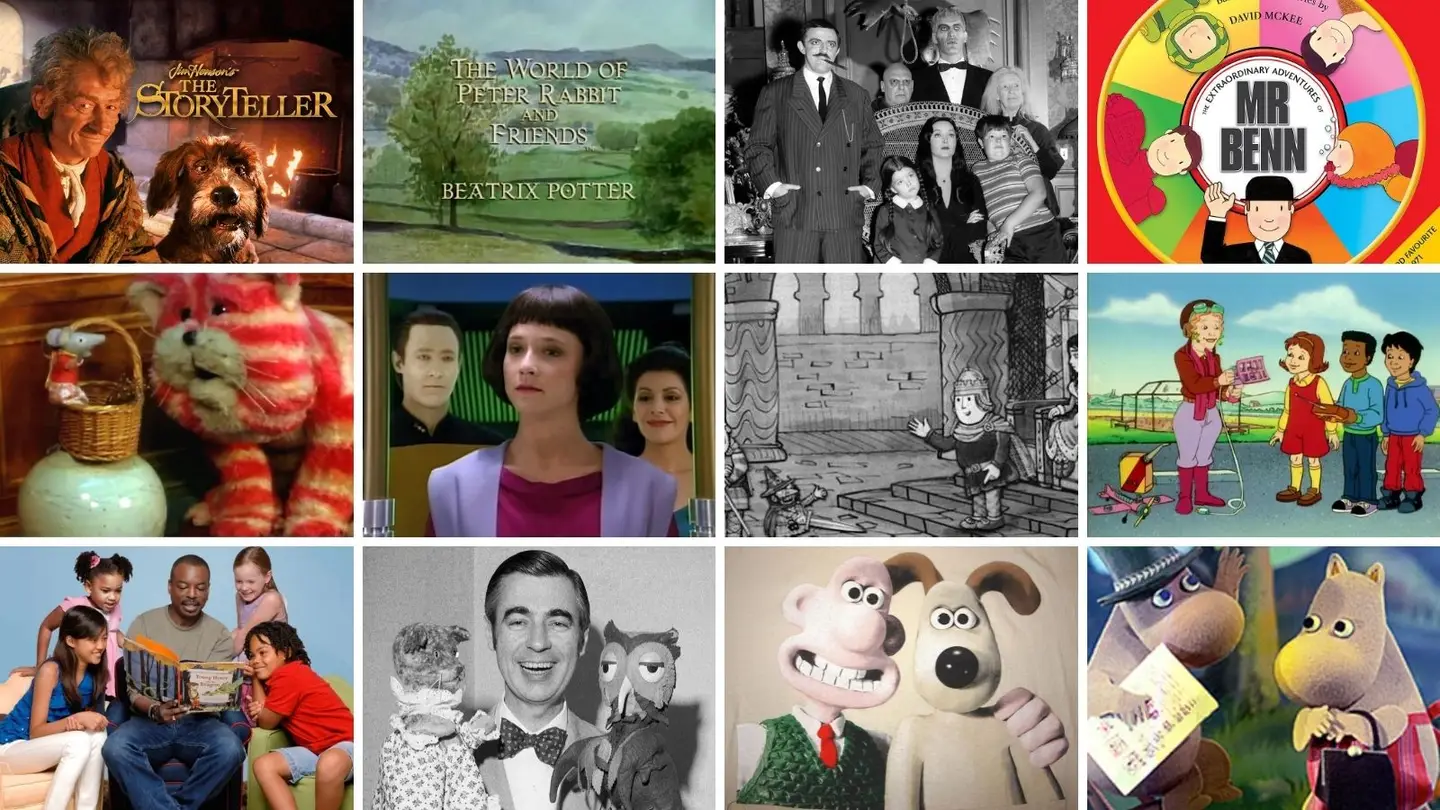

Figuring out what constitutes “slow media” for Waldorf-inspired education is not easy. But media that Waldorf kids can watch does exist! However, the criteria for what media is acceptable to expose kids to is so vastly different for media-conscious parents than the typical age recommendations. Common Sense Media, for instance, offers age recommendations for kids, but
In these interests
Kids kids • 3 guides
Introducing Howchoo, an enigmatic author whose unique pen name reflects their boundless curiosity and limitless creativity. Mysterious and multifaceted, Howchoo has emerged as a captivating storyteller, leaving readers mesmerized by the uncharted realms they craft with their words. With an insatiable appetite for knowledge and a love for exploration, Howchoo’s writing transcends conventional genres, blurring the lines between fantasy, science fiction, and the surreal. Their narratives are a kaleidoscope of ideas, weaving together intricate plots, unforgettable characters, and thought-provoking themes that challenge the boundaries of imagination.
Related to this guide:
Slow Media Modern Waldorf & Montessori Kids Can Watch!
Figuring out what constitutes “slow media” for Waldorf-inspired education is not easy. But media

How To Add and Remove Contacts From Your Child’s Messenger Kids Account
Facebook’s Messenger Kids is a free app that allows children to make video calls and send mess