How to Set Up Bluetooth on a Raspberry Pi

Setting up Bluetooth on a Raspberry PiSetting up Bluetooth on a Raspberry Pi
The only Raspberry Pi Bluetooth guide you’ll ever need.
Ben Ben (6)
Total time: 10 minutes 
Updated: June 8th, 2020

The Raspberry Pi single-board computer has had built-in Bluetooth connectivity since the release of the Raspberry Pi 3 in 2016, allowing you to connect wireless peripherals such as keyboards, game controllers, headsets, and more to your device.

If you don’t have a model of Raspberry Pi that has Bluetooth built-in, you can use a third-party USB adapter to add support. You may need to install additional software packages to do this, depending on the adapter you use.

If you’re using using Raspberry Pi OS (previously Raspbian), then Bluetooth should be enabled by default, but you’ll need to follow these additional steps to connect and set up your devices.

These instructions will work for Raspberry Pi OS users, including Raspberry Pi OS Lite, which lacks a graphical desktop environment by default.

Here’s everything you’ll need to complete this guide:

Raspberry PiRaspberry Pi×1

The “full” version of Raspberry Pi OS has a basic Bluetooth settings menu that allows you to enable or disable the service and connect to nearby Bluetooth devices. This is available from the taskbar at the top of your screen.

It’s quite a basic tool, however, and doesn’t allow you to easily control certain types of Bluetooth devices like game controllers or wireless speakers. You can overcome these issues by installing an additional set of packages to manage your Bluetooth settings.

While the additional Bluetooth software packages you’ll install here can be useful for Raspberry Pi OS Lite users, you won’t be able to use the Blueman Bluetooth Manager tool itself, as Lite users don’t have a desktop environment installed. You’ll need to skip to the next section and follow the instructions for setting up Bluetooth using the terminal instead if this is the case.
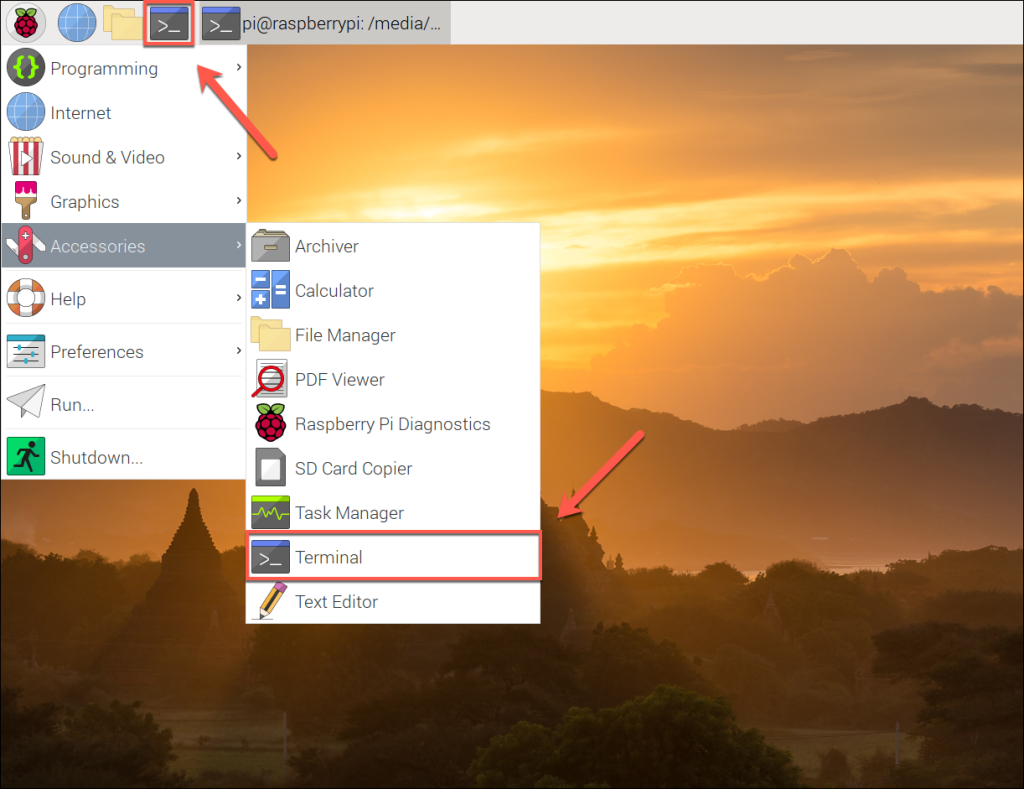
Accessing the terminal on a Raspberry PiAccessing the terminal on a Raspberry Pi
  1. To start, open a terminal window by clicking the Terminal icon on your menubar (or press the Raspberry Pi menu > Accessories > Terminal).
  2. In the open terminal window, type sudo apt update && sudo apt upgrade to check for new software packages and device firmware updates.
  3. Once this process has completed, type sudo apt install bluetooth pi-bluetooth bluez blueman to install the necessary additional packages.

Once the required Bluetooth software packages have finished installing, restart your Raspberry Pi. Upon rebooting, you should see a second Bluetooth icon with a blue circular background in the top-right corner of your menu bar.

The Raspberry Pi Bluetooth menu iconThe Raspberry Pi Bluetooth menu icon

From here, you can begin to control your Bluetooth connectivity and connect with other nearby devices.

  1. To begin controlling your Bluetooth settings, click this Bluetooth icon on the menu bar. If Bluetooth isn’t already active, click Turn Bluetooth On in the drop-down menu to switch it on.
  2. Once Bluetooth is active, click the Make Discoverable option. This will allow other Bluetooth-capable devices to find your Raspberry Pi, allowing them to connect.
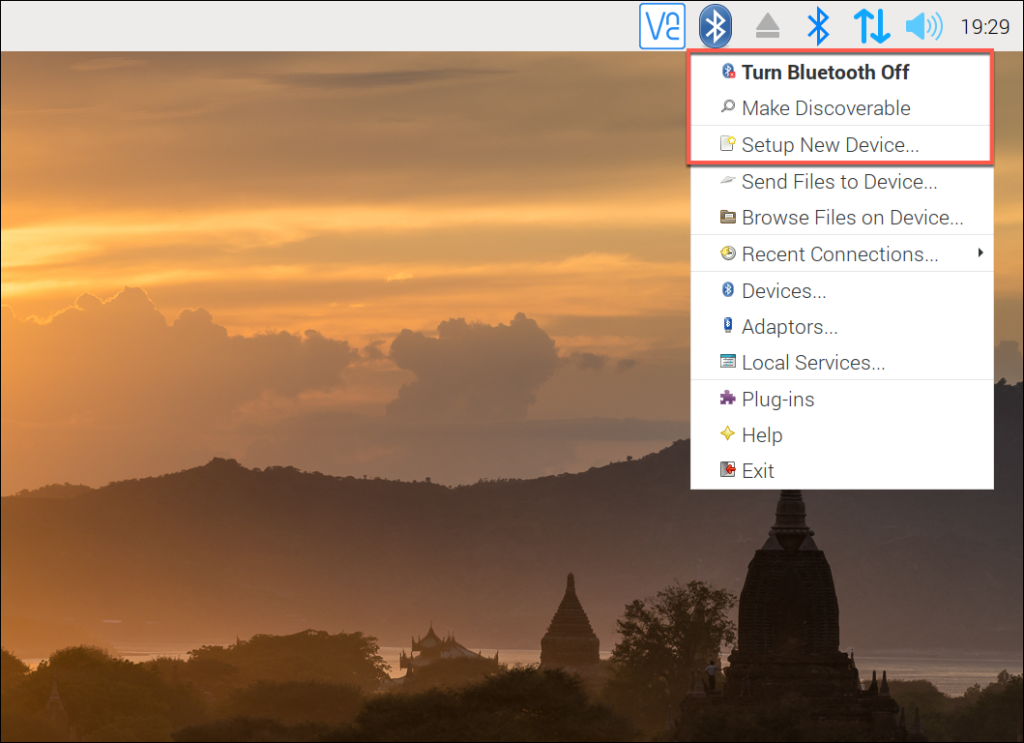
    Raspberry Pi Bluetooth menu settingsRaspberry Pi Bluetooth menu settings
  3. With Bluetooth enabled, click the Setup New Device option.
  4. This will launch the Bluetooth device setup assistant, which will help you to connect with and pair a Bluetooth device. Press Next to begin.
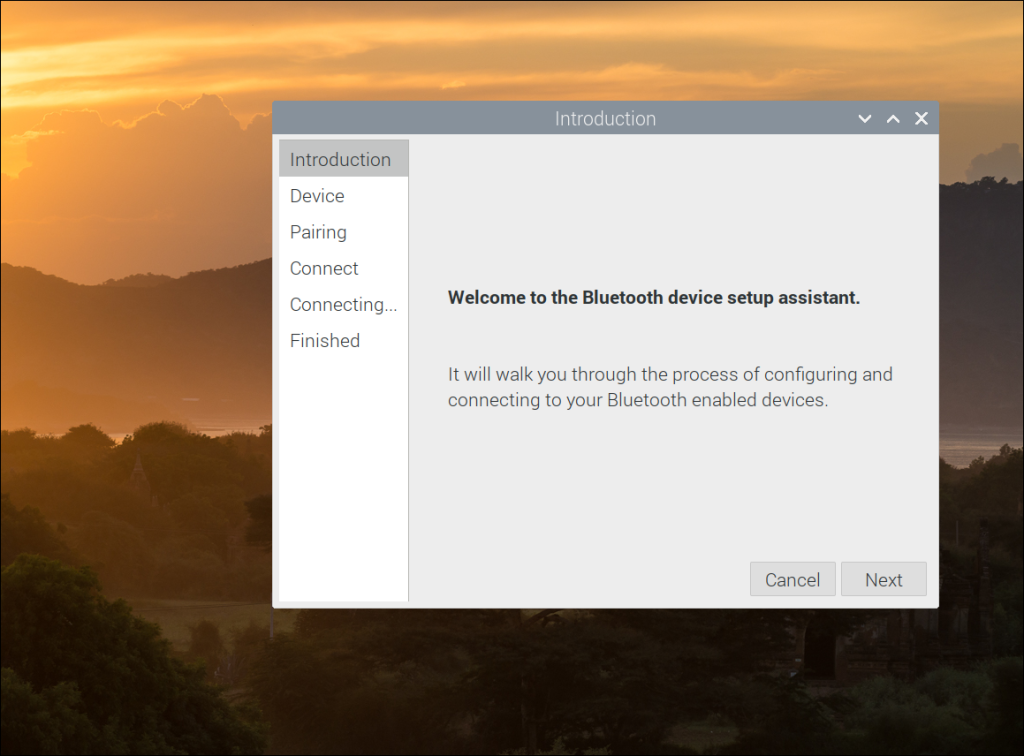
    Raspberry Pi Bluetooth device setup assistantRaspberry Pi Bluetooth device setup assistant
  5. A list of visible local Bluetooth devices will appear at the next stage. Click the search icon in the bottom-left to scan for any additional devices.
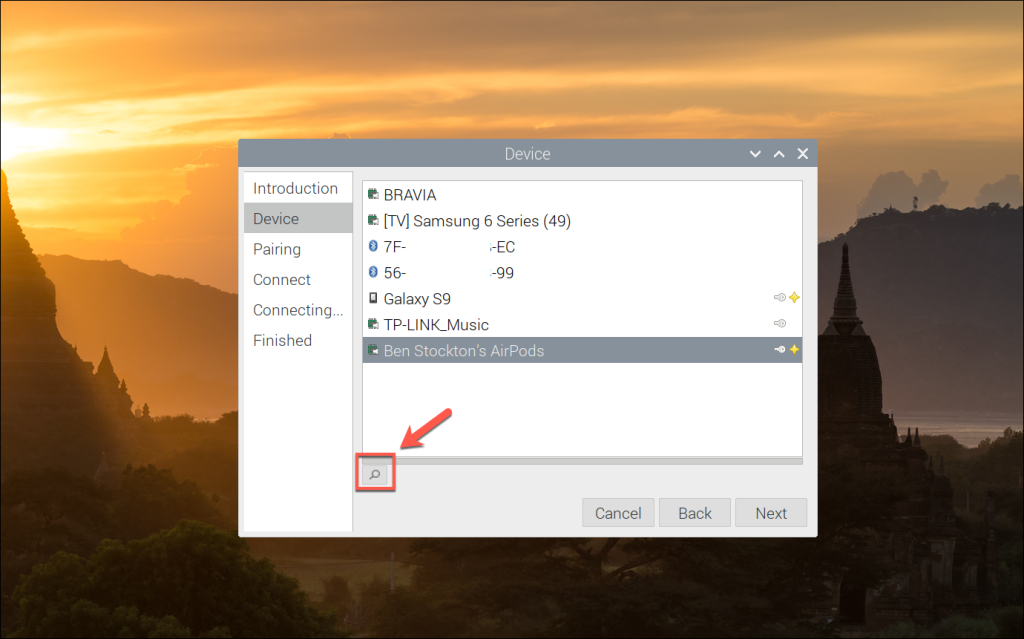
    Scanning for local Bluetooth devices on a Raspberry PiScanning for local Bluetooth devices on a Raspberry Pi
  6. Once your Bluetooth device appears, select it, then click Next.
  7. Select the Pair Device option to begin pairing your Bluetooth device, then click Next to proceed.
  8. If required, click Confirm to authorize the device pairing. You may need to follow similar steps on your Bluetooth device.
  9. A list of available connection methods will appear at the next stage. Select the appropriate option (for instance, Handsfree to use your Bluetooth device as a handsfree headset for your Pi), then click Next.
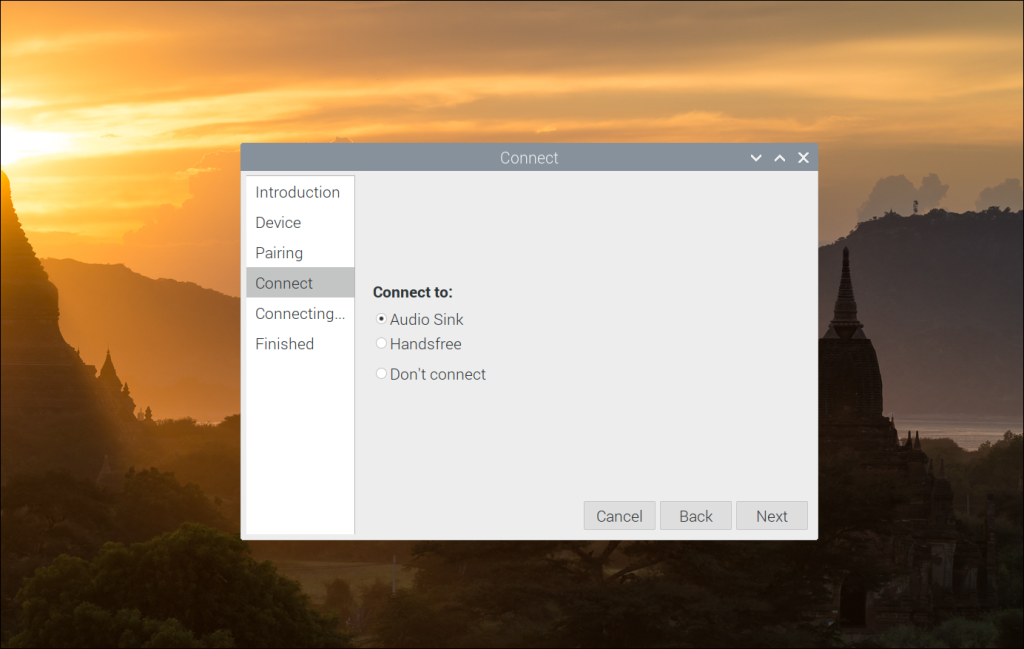
    Final Bluetooth device configuration on a Raspberry PiFinal Bluetooth device configuration on a Raspberry Pi
  10. This should complete the pairing and connection process. If it doesn’t, click Close and repeat the steps above.
  11. Once the pairing process has completed successfully, you’ll be able to view the device (and available services) by clicking the Bluetooth menu icon and selecting the Devices option. From here, you’ll be able to view a list of local Bluetooth devices, as well as devices you’ve paired with — press the Search button to run a new scan for additional devices.
  12. You can connect to any of these devices manually by right-clicking a device and clicking Pair or Setup to begin the setup process. You can unpair any Bluetooth device by clicking Unpair instead, or Untrust to remove it from your trusted device list.
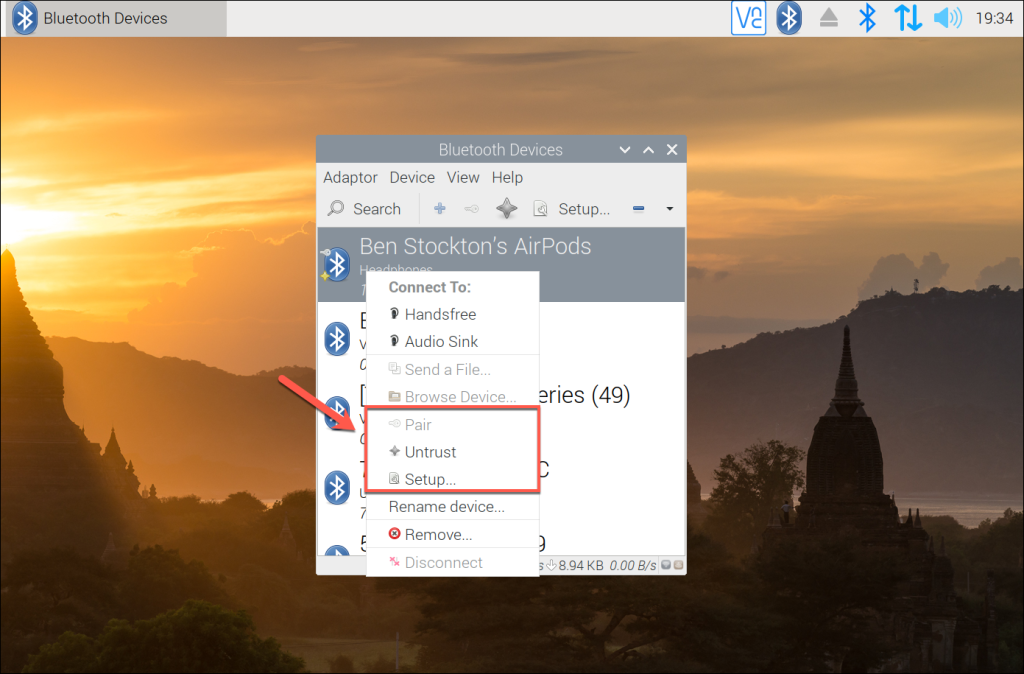
    Raspberry Pi Bluetooth Devices control menuRaspberry Pi Bluetooth Devices control menu

If your Bluetooth device successfully pairs with your Raspberry Pi, you should be able to control and use it as intended. Additional configuration may be required to use or configure your device, depending on the type of device you’re using.

If you don’t have a graphical desktop environment installed (for instance, if you’re using Raspberry Pi OS Lite) or if you want to set up Bluetooth remotely over SSH, you can use commands from the terminal to set up your Bluetooth connections.

You can also follow these instructions if you prefer to use the terminal from the Raspberry Pi desktop environment, or if you’re unable to connect using the Bluetooth Manager tool.

  1. To start, open a terminal window by clicking the Raspberry Pi menu icon. From there, click Accessories > Terminal to open a new terminal window. If you’re connecting remotely using SSH, connect to your Raspberry Pi using your Pi’s username and password.
  2. As the default Bluetooth packages are quite basic, you’ll need to install the additional Bluetooth management tools. Type sudo apt update && sudo apt upgrade to update your Raspberry Pi first. Once this process is complete, type sudo apt install bluetooth pi-bluetooth bluez to install the necessary additional packages.
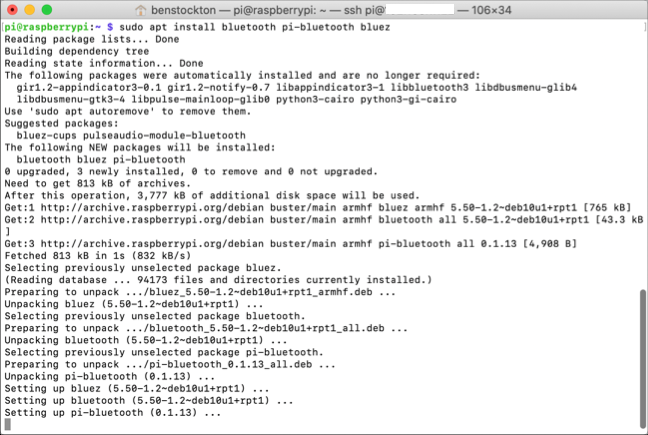
    Installing necessary Bluetooth packages on a Raspberry Pi via SSHInstalling necessary Bluetooth packages on a Raspberry Pi via SSH
  3. Once these packages have installed, reboot your Raspberry Pi by typing sudo reboot. You’ll need to re-establish your SSH connection if you’re connecting remotely.
  4. With a terminal window (or remote SSH connection) open, type sudo bluetoothctl. You may need to type your username and password again to confirm this. This will launch the Bluetooth terminal configuration tool.
  5. Type scan on to begin searching for local devices. A list of visible devices will appear, with Bluetooth MAC addresses (the device’s hardware ID) and device names.
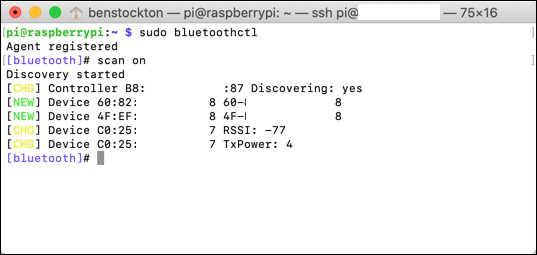
    Scanning for Bluetooth Devices using bluetoothctlScanning for Bluetooth Devices using bluetoothctl
  6. To connect to one of these devices, you’ll need the Bluetooth MAC address for your device. If you see your device in the list, type pair XX:XX:XX:XX:XX:XX, replacing this string with your device’s Bluetooth MAC address.
  7. This will begin the pairing process — you may need to confirm this on your device. If instructed, type yes to confirm the Bluetooth passkey is correct.
  8. If the pairing process is complete, the terminal message will change to reflect the device name, and you may see a pairing successful message.
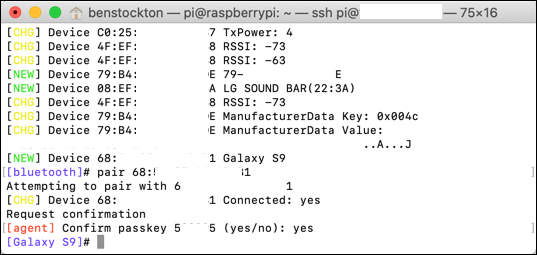
    Successful Bluetooth device pairing using bluetoothctlSuccessful Bluetooth device pairing using bluetoothctl
  9. Once the pairing process has completed, type connect XX:XX:XX:XX:XX:XX (using your Bluetooth device’s MAC address) to connect to it. If the connection is complete, a connection successful message (along with other log messages) will appear in the terminal.
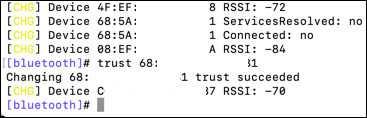
  10. If you want to use this device regularly, type trust XX:XX:XX:XX:XX:XX to place the device in your Bluetooth trusted devices list. This will save you time, meaning you won’t need to pair it again in the future. If this is successful, a trust succeeded message will appear in the terminal.
    Trusing a Bluetooth device using bluetoothctlTrusing a Bluetooth device using bluetoothctl
  11. Type exit to close the bluetoothctl tool once you’re done.

As with the GUI Bluetooth Manager tool, you may need to follow additional steps to configure and use your device further, depending on the device itself.

You should (at this point) be able to use your Bluetooth device with your Raspberry Pi. Your Bluetooth devices should be paired, connected, and available for you to use, however you like.

Thanks to the Bluetooth Manager and bluetoothctl tools, it’s easy to connect and use multiple Bluetooth devices on your Raspberry Pi. If you’re using an older Pi without built-in Bluetooth, many third-party USB adapters should be supported out of the box, allowing you to connect Bluetooth peripherals with little additional setup required.

There are plenty of Raspberry Pi projects that you can tweak to make full use of Bluetooth connectivity – from wireless speakers to a Raspberry Pi-powered Amazon Echo Furby, where a Bluetooth microphone could be used over a wired alternative.

How to Set Up Bluetooth on a Raspberry Pi

Setting up Bluetooth on a Raspberry PiSetting up Bluetooth on a Raspberry Pi
The only Raspberry Pi Bluetooth guide you’ll ever need.
Ben Ben (6)
Total time: 10 minutes 
Updated: June 8th, 2020

The Raspberry Pi single-board computer has had built-in Bluetooth connectivity since the release of the Raspberry Pi 3 in 2016, allowing you to connect wireless peripherals such as keyboards, game controllers, headsets, and more to your device.

If you don’t have a model of Raspberry Pi that has Bluetooth built-in, you can use a third-party USB adapter to add support. You may need to install additional software packages to do this, depending on the adapter you use.

If you’re using using Raspberry Pi OS (previously Raspbian), then Bluetooth should be enabled by default, but you’ll need to follow these additional steps to connect and set up your devices.

These instructions will work for Raspberry Pi OS users, including Raspberry Pi OS Lite, which lacks a graphical desktop environment by default.

Here’s everything you’ll need to complete this guide:

Raspberry PiRaspberry Pi×1

The “full” version of Raspberry Pi OS has a basic Bluetooth settings menu that allows you to enable or disable the service and connect to nearby Bluetooth devices. This is available from the taskbar at the top of your screen.

It’s quite a basic tool, however, and doesn’t allow you to easily control certain types of Bluetooth devices like game controllers or wireless speakers. You can overcome these issues by installing an additional set of packages to manage your Bluetooth settings.

While the additional Bluetooth software packages you’ll install here can be useful for Raspberry Pi OS Lite users, you won’t be able to use the Blueman Bluetooth Manager tool itself, as Lite users don’t have a desktop environment installed. You’ll need to skip to the next section and follow the instructions for setting up Bluetooth using the terminal instead if this is the case.

Accessing the terminal on a Raspberry PiAccessing the terminal on a Raspberry Pi
  1. To start, open a terminal window by clicking the Terminal icon on your menubar (or press the Raspberry Pi menu > Accessories > Terminal).
  2. In the open terminal window, type sudo apt update && sudo apt upgrade to check for new software packages and device firmware updates.
  3. Once this process has completed, type sudo apt install bluetooth pi-bluetooth bluez blueman to install the necessary additional packages.

Once the required Bluetooth software packages have finished installing, restart your Raspberry Pi. Upon rebooting, you should see a second Bluetooth icon with a blue circular background in the top-right corner of your menu bar.

The Raspberry Pi Bluetooth menu iconThe Raspberry Pi Bluetooth menu icon

From here, you can begin to control your Bluetooth connectivity and connect with other nearby devices.

  1. To begin controlling your Bluetooth settings, click this Bluetooth icon on the menu bar. If Bluetooth isn’t already active, click Turn Bluetooth On in the drop-down menu to switch it on.
  2. Once Bluetooth is active, click the Make Discoverable option. This will allow other Bluetooth-capable devices to find your Raspberry Pi, allowing them to connect.
    Raspberry Pi Bluetooth menu settingsRaspberry Pi Bluetooth menu settings
  3. With Bluetooth enabled, click the Setup New Device option.
  4. This will launch the Bluetooth device setup assistant, which will help you to connect with and pair a Bluetooth device. Press Next to begin.
    Raspberry Pi Bluetooth device setup assistantRaspberry Pi Bluetooth device setup assistant
  5. A list of visible local Bluetooth devices will appear at the next stage. Click the search icon in the bottom-left to scan for any additional devices.
    Scanning for local Bluetooth devices on a Raspberry PiScanning for local Bluetooth devices on a Raspberry Pi
  6. Once your Bluetooth device appears, select it, then click Next.
  7. Select the Pair Device option to begin pairing your Bluetooth device, then click Next to proceed.
  8. If required, click Confirm to authorize the device pairing. You may need to follow similar steps on your Bluetooth device.
  9. A list of available connection methods will appear at the next stage. Select the appropriate option (for instance, Handsfree to use your Bluetooth device as a handsfree headset for your Pi), then click Next.
    Final Bluetooth device configuration on a Raspberry PiFinal Bluetooth device configuration on a Raspberry Pi
  10. This should complete the pairing and connection process. If it doesn’t, click Close and repeat the steps above.
  11. Once the pairing process has completed successfully, you’ll be able to view the device (and available services) by clicking the Bluetooth menu icon and selecting the Devices option. From here, you’ll be able to view a list of local Bluetooth devices, as well as devices you’ve paired with — press the Search button to run a new scan for additional devices.
  12. You can connect to any of these devices manually by right-clicking a device and clicking Pair or Setup to begin the setup process. You can unpair any Bluetooth device by clicking Unpair instead, or Untrust to remove it from your trusted device list.
    Raspberry Pi Bluetooth Devices control menuRaspberry Pi Bluetooth Devices control menu

If your Bluetooth device successfully pairs with your Raspberry Pi, you should be able to control and use it as intended. Additional configuration may be required to use or configure your device, depending on the type of device you’re using.

If you don’t have a graphical desktop environment installed (for instance, if you’re using Raspberry Pi OS Lite) or if you want to set up Bluetooth remotely over SSH, you can use commands from the terminal to set up your Bluetooth connections.

You can also follow these instructions if you prefer to use the terminal from the Raspberry Pi desktop environment, or if you’re unable to connect using the Bluetooth Manager tool.

  1. To start, open a terminal window by clicking the Raspberry Pi menu icon. From there, click Accessories > Terminal to open a new terminal window. If you’re connecting remotely using SSH, connect to your Raspberry Pi using your Pi’s username and password.
  2. As the default Bluetooth packages are quite basic, you’ll need to install the additional Bluetooth management tools. Type sudo apt update && sudo apt upgrade to update your Raspberry Pi first. Once this process is complete, type sudo apt install bluetooth pi-bluetooth bluez to install the necessary additional packages.
    Installing necessary Bluetooth packages on a Raspberry Pi via SSHInstalling necessary Bluetooth packages on a Raspberry Pi via SSH
  3. Once these packages have installed, reboot your Raspberry Pi by typing sudo reboot. You’ll need to re-establish your SSH connection if you’re connecting remotely.
  4. With a terminal window (or remote SSH connection) open, type sudo bluetoothctl. You may need to type your username and password again to confirm this. This will launch the Bluetooth terminal configuration tool.
  5. Type scan on to begin searching for local devices. A list of visible devices will appear, with Bluetooth MAC addresses (the device’s hardware ID) and device names.
    Scanning for Bluetooth Devices using bluetoothctlScanning for Bluetooth Devices using bluetoothctl
  6. To connect to one of these devices, you’ll need the Bluetooth MAC address for your device. If you see your device in the list, type pair XX:XX:XX:XX:XX:XX, replacing this string with your device’s Bluetooth MAC address.
  7. This will begin the pairing process — you may need to confirm this on your device. If instructed, type yes to confirm the Bluetooth passkey is correct.
  8. If the pairing process is complete, the terminal message will change to reflect the device name, and you may see a pairing successful message.
    Successful Bluetooth device pairing using bluetoothctlSuccessful Bluetooth device pairing using bluetoothctl
  9. Once the pairing process has completed, type connect XX:XX:XX:XX:XX:XX (using your Bluetooth device’s MAC address) to connect to it. If the connection is complete, a connection successful message (along with other log messages) will appear in the terminal.
  10. If you want to use this device regularly, type trust XX:XX:XX:XX:XX:XX to place the device in your Bluetooth trusted devices list. This will save you time, meaning you won’t need to pair it again in the future. If this is successful, a trust succeeded message will appear in the terminal.
    Trusing a Bluetooth device using bluetoothctlTrusing a Bluetooth device using bluetoothctl
  11. Type exit to close the bluetoothctl tool once you’re done.

As with the GUI Bluetooth Manager tool, you may need to follow additional steps to configure and use your device further, depending on the device itself.

You should (at this point) be able to use your Bluetooth device with your Raspberry Pi. Your Bluetooth devices should be paired, connected, and available for you to use, however you like.

Thanks to the Bluetooth Manager and bluetoothctl tools, it’s easy to connect and use multiple Bluetooth devices on your Raspberry Pi. If you’re using an older Pi without built-in Bluetooth, many third-party USB adapters should be supported out of the box, allowing you to connect Bluetooth peripherals with little additional setup required.

There are plenty of Raspberry Pi projects that you can tweak to make full use of Bluetooth connectivity – from wireless speakers to a Raspberry Pi-powered Amazon Echo Furby, where a Bluetooth microphone could be used over a wired alternative.

Jump to step

How to Set Up Bluetooth on a Raspberry Pi

Setting up Bluetooth on a Raspberry PiSetting up Bluetooth on a Raspberry Pi
The only Raspberry Pi Bluetooth guide you’ll ever need.
Ben Ben (6)
Total time: 10 minutes 
Updated: June 8th, 2020

The Raspberry Pi single-board computer has had built-in Bluetooth connectivity since the release of the Raspberry Pi 3 in 2016, allowing you to connect wireless peripherals such as keyboards, game controllers, headsets, and more to your device.

If you don’t have a model of Raspberry Pi that has Bluetooth built-in, you can use a third-party USB adapter to add support. You may need to install additional software packages to do this, depending on the adapter you use.

If you’re using using Raspberry Pi OS (previously Raspbian), then Bluetooth should be enabled by default, but you’ll need to follow these additional steps to connect and set up your devices.

These instructions will work for Raspberry Pi OS users, including Raspberry Pi OS Lite, which lacks a graphical desktop environment by default.

Here’s everything you’ll need to complete this guide:

Raspberry PiRaspberry Pi×1

The “full” version of Raspberry Pi OS has a basic Bluetooth settings menu that allows you to enable or disable the service and connect to nearby Bluetooth devices. This is available from the taskbar at the top of your screen.

It’s quite a basic tool, however, and doesn’t allow you to easily control certain types of Bluetooth devices like game controllers or wireless speakers. You can overcome these issues by installing an additional set of packages to manage your Bluetooth settings.

While the additional Bluetooth software packages you’ll install here can be useful for Raspberry Pi OS Lite users, you won’t be able to use the Blueman Bluetooth Manager tool itself, as Lite users don’t have a desktop environment installed. You’ll need to skip to the next section and follow the instructions for setting up Bluetooth using the terminal instead if this is the case.

Accessing the terminal on a Raspberry PiAccessing the terminal on a Raspberry Pi
  1. To start, open a terminal window by clicking the Terminal icon on your menubar (or press the Raspberry Pi menu > Accessories > Terminal).
  2. In the open terminal window, type sudo apt update && sudo apt upgrade to check for new software packages and device firmware updates.
  3. Once this process has completed, type sudo apt install bluetooth pi-bluetooth bluez blueman to install the necessary additional packages.

Once the required Bluetooth software packages have finished installing, restart your Raspberry Pi. Upon rebooting, you should see a second Bluetooth icon with a blue circular background in the top-right corner of your menu bar.

The Raspberry Pi Bluetooth menu iconThe Raspberry Pi Bluetooth menu icon

From here, you can begin to control your Bluetooth connectivity and connect with other nearby devices.

  1. To begin controlling your Bluetooth settings, click this Bluetooth icon on the menu bar. If Bluetooth isn’t already active, click Turn Bluetooth On in the drop-down menu to switch it on.
  2. Once Bluetooth is active, click the Make Discoverable option. This will allow other Bluetooth-capable devices to find your Raspberry Pi, allowing them to connect.
    Raspberry Pi Bluetooth menu settingsRaspberry Pi Bluetooth menu settings
  3. With Bluetooth enabled, click the Setup New Device option.
  4. This will launch the Bluetooth device setup assistant, which will help you to connect with and pair a Bluetooth device. Press Next to begin.
    Raspberry Pi Bluetooth device setup assistantRaspberry Pi Bluetooth device setup assistant
  5. A list of visible local Bluetooth devices will appear at the next stage. Click the search icon in the bottom-left to scan for any additional devices.
    Scanning for local Bluetooth devices on a Raspberry PiScanning for local Bluetooth devices on a Raspberry Pi
  6. Once your Bluetooth device appears, select it, then click Next.
  7. Select the Pair Device option to begin pairing your Bluetooth device, then click Next to proceed.
  8. If required, click Confirm to authorize the device pairing. You may need to follow similar steps on your Bluetooth device.
  9. A list of available connection methods will appear at the next stage. Select the appropriate option (for instance, Handsfree to use your Bluetooth device as a handsfree headset for your Pi), then click Next.
    Final Bluetooth device configuration on a Raspberry PiFinal Bluetooth device configuration on a Raspberry Pi
  10. This should complete the pairing and connection process. If it doesn’t, click Close and repeat the steps above.
  11. Once the pairing process has completed successfully, you’ll be able to view the device (and available services) by clicking the Bluetooth menu icon and selecting the Devices option. From here, you’ll be able to view a list of local Bluetooth devices, as well as devices you’ve paired with — press the Search button to run a new scan for additional devices.
  12. You can connect to any of these devices manually by right-clicking a device and clicking Pair or Setup to begin the setup process. You can unpair any Bluetooth device by clicking Unpair instead, or Untrust to remove it from your trusted device list.
    Raspberry Pi Bluetooth Devices control menuRaspberry Pi Bluetooth Devices control menu

If your Bluetooth device successfully pairs with your Raspberry Pi, you should be able to control and use it as intended. Additional configuration may be required to use or configure your device, depending on the type of device you’re using.

If you don’t have a graphical desktop environment installed (for instance, if you’re using Raspberry Pi OS Lite) or if you want to set up Bluetooth remotely over SSH, you can use commands from the terminal to set up your Bluetooth connections.

You can also follow these instructions if you prefer to use the terminal from the Raspberry Pi desktop environment, or if you’re unable to connect using the Bluetooth Manager tool.

  1. To start, open a terminal window by clicking the Raspberry Pi menu icon. From there, click Accessories > Terminal to open a new terminal window. If you’re connecting remotely using SSH, connect to your Raspberry Pi using your Pi’s username and password.
  2. As the default Bluetooth packages are quite basic, you’ll need to install the additional Bluetooth management tools. Type sudo apt update && sudo apt upgrade to update your Raspberry Pi first. Once this process is complete, type sudo apt install bluetooth pi-bluetooth bluez to install the necessary additional packages.
    Installing necessary Bluetooth packages on a Raspberry Pi via SSHInstalling necessary Bluetooth packages on a Raspberry Pi via SSH
  3. Once these packages have installed, reboot your Raspberry Pi by typing sudo reboot. You’ll need to re-establish your SSH connection if you’re connecting remotely.
  4. With a terminal window (or remote SSH connection) open, type sudo bluetoothctl. You may need to type your username and password again to confirm this. This will launch the Bluetooth terminal configuration tool.
  5. Type scan on to begin searching for local devices. A list of visible devices will appear, with Bluetooth MAC addresses (the device’s hardware ID) and device names.
    Scanning for Bluetooth Devices using bluetoothctlScanning for Bluetooth Devices using bluetoothctl
  6. To connect to one of these devices, you’ll need the Bluetooth MAC address for your device. If you see your device in the list, type pair XX:XX:XX:XX:XX:XX, replacing this string with your device’s Bluetooth MAC address.
  7. This will begin the pairing process — you may need to confirm this on your device. If instructed, type yes to confirm the Bluetooth passkey is correct.
  8. If the pairing process is complete, the terminal message will change to reflect the device name, and you may see a pairing successful message.
    Successful Bluetooth device pairing using bluetoothctlSuccessful Bluetooth device pairing using bluetoothctl
  9. Once the pairing process has completed, type connect XX:XX:XX:XX:XX:XX (using your Bluetooth device’s MAC address) to connect to it. If the connection is complete, a connection successful message (along with other log messages) will appear in the terminal.
  10. If you want to use this device regularly, type trust XX:XX:XX:XX:XX:XX to place the device in your Bluetooth trusted devices list. This will save you time, meaning you won’t need to pair it again in the future. If this is successful, a trust succeeded message will appear in the terminal.
    Trusing a Bluetooth device using bluetoothctlTrusing a Bluetooth device using bluetoothctl
  11. Type exit to close the bluetoothctl tool once you’re done.

As with the GUI Bluetooth Manager tool, you may need to follow additional steps to configure and use your device further, depending on the device itself.

You should (at this point) be able to use your Bluetooth device with your Raspberry Pi. Your Bluetooth devices should be paired, connected, and available for you to use, however you like.

Thanks to the Bluetooth Manager and bluetoothctl tools, it’s easy to connect and use multiple Bluetooth devices on your Raspberry Pi. If you’re using an older Pi without built-in Bluetooth, many third-party USB adapters should be supported out of the box, allowing you to connect Bluetooth peripherals with little additional setup required.

There are plenty of Raspberry Pi projects that you can tweak to make full use of Bluetooth connectivity – from wireless speakers to a Raspberry Pi-powered Amazon Echo Furby, where a Bluetooth microphone could be used over a wired alternative.

How to Set Up Bluetooth on a Raspberry Pi

Setting up Bluetooth on a Raspberry PiSetting up Bluetooth on a Raspberry Pi
The only Raspberry Pi Bluetooth guide you’ll ever need.
Ben Ben (6)
Total time: 10 minutes 
Updated: June 8th, 2020

The Raspberry Pi single-board computer has had built-in Bluetooth connectivity since the release of the Raspberry Pi 3 in 2016, allowing you to connect wireless peripherals such as keyboards, game controllers, headsets, and more to your device.

If you don’t have a model of Raspberry Pi that has Bluetooth built-in, you can use a third-party USB adapter to add support. You may need to install additional software packages to do this, depending on the adapter you use.

If you’re using using Raspberry Pi OS (previously Raspbian), then Bluetooth should be enabled by default, but you’ll need to follow these additional steps to connect and set up your devices.

These instructions will work for Raspberry Pi OS users, including Raspberry Pi OS Lite, which lacks a graphical desktop environment by default.

Here’s everything you’ll need to complete this guide:

Raspberry PiRaspberry Pi×1

How to Set Up Bluetooth on a Raspberry Pi

pi
The only Raspberry Pi Bluetooth guide you’ll ever need.
Ben Ben (6)
Total time: 10 minutes 
Updated: June 8th, 2020
Ben
1
 
1
Mentioned here
The Ultimate RetroPie Controller Guide The Ultimate RetroPie Controller GuidePress A! Press A! No no no…not B!
The Ultimate RetroPie Controller Guide

Here’s everything you’ll need to complete this guide:

Raspberry PiRaspberry Pi×1
Raspberry Pi
Jump to step
Calling all writers!

We’re hiring. Write for Howchoo

1
 
1
In these interests
pi
PRIMARY
216 guides
pi
PRIMARY
216 guides
PRIMARY
Jump to step
Series: Raspberry Pi Basics
Raspberry Pi 3, Pi Zero, and USB WiFi dongleSetting up Bluetooth on a Raspberry PiRaspberry Pi SSHRaspberry Pi Starter KitRaspberry Pi 4 case fanRaspberry Pi commandsRaspberry Pi power buttonRaspberry Pi Projects

The “full” version of Raspberry Pi OS has a basic Bluetooth settings menu that allows you to enable or disable the service and connect to nearby Bluetooth devices. This is available from the taskbar at the top of your screen.

It’s quite a basic tool, however, and doesn’t allow you to easily control certain types of Bluetooth devices like game controllers or wireless speakers. You can overcome these issues by installing an additional set of packages to manage your Bluetooth settings.

While the additional Bluetooth software packages you’ll install here can be useful for Raspberry Pi OS Lite users, you won’t be able to use the Blueman Bluetooth Manager tool itself, as Lite users don’t have a desktop environment installed. You’ll need to skip to the next section and follow the instructions for setting up Bluetooth using the terminal instead if this is the case.

Accessing the terminal on a Raspberry PiAccessing the terminal on a Raspberry Pi
  1. To start, open a terminal window by clicking the Terminal icon on your menubar (or press the Raspberry Pi menu > Accessories > Terminal).
  2. In the open terminal window, type sudo apt update && sudo apt upgrade to check for new software packages and device firmware updates.
  3. Once this process has completed, type sudo apt install bluetooth pi-bluetooth bluez blueman to install the necessary additional packages.

Once the required Bluetooth software packages have finished installing, restart your Raspberry Pi. Upon rebooting, you should see a second Bluetooth icon with a blue circular background in the top-right corner of your menu bar.

The Raspberry Pi Bluetooth menu iconThe Raspberry Pi Bluetooth menu icon

From here, you can begin to control your Bluetooth connectivity and connect with other nearby devices.

  1. To begin controlling your Bluetooth settings, click this Bluetooth icon on the menu bar. If Bluetooth isn’t already active, click Turn Bluetooth On in the drop-down menu to switch it on.
  2. Once Bluetooth is active, click the Make Discoverable option. This will allow other Bluetooth-capable devices to find your Raspberry Pi, allowing them to connect.
    Raspberry Pi Bluetooth menu settingsRaspberry Pi Bluetooth menu settings
  3. With Bluetooth enabled, click the Setup New Device option.
  4. This will launch the Bluetooth device setup assistant, which will help you to connect with and pair a Bluetooth device. Press Next to begin.
    Raspberry Pi Bluetooth device setup assistantRaspberry Pi Bluetooth device setup assistant
  5. A list of visible local Bluetooth devices will appear at the next stage. Click the search icon in the bottom-left to scan for any additional devices.
    Scanning for local Bluetooth devices on a Raspberry PiScanning for local Bluetooth devices on a Raspberry Pi
  6. Once your Bluetooth device appears, select it, then click Next.
  7. Select the Pair Device option to begin pairing your Bluetooth device, then click Next to proceed.
  8. If required, click Confirm to authorize the device pairing. You may need to follow similar steps on your Bluetooth device.
  9. A list of available connection methods will appear at the next stage. Select the appropriate option (for instance, Handsfree to use your Bluetooth device as a handsfree headset for your Pi), then click Next.
    Final Bluetooth device configuration on a Raspberry PiFinal Bluetooth device configuration on a Raspberry Pi
  10. This should complete the pairing and connection process. If it doesn’t, click Close and repeat the steps above.
  11. Once the pairing process has completed successfully, you’ll be able to view the device (and available services) by clicking the Bluetooth menu icon and selecting the Devices option. From here, you’ll be able to view a list of local Bluetooth devices, as well as devices you’ve paired with — press the Search button to run a new scan for additional devices.
  12. You can connect to any of these devices manually by right-clicking a device and clicking Pair or Setup to begin the setup process. You can unpair any Bluetooth device by clicking Unpair instead, or Untrust to remove it from your trusted device list.
    Raspberry Pi Bluetooth Devices control menuRaspberry Pi Bluetooth Devices control menu

If your Bluetooth device successfully pairs with your Raspberry Pi, you should be able to control and use it as intended. Additional configuration may be required to use or configure your device, depending on the type of device you’re using.

If you don’t have a graphical desktop environment installed (for instance, if you’re using Raspberry Pi OS Lite) or if you want to set up Bluetooth remotely over SSH, you can use commands from the terminal to set up your Bluetooth connections.

You can also follow these instructions if you prefer to use the terminal from the Raspberry Pi desktop environment, or if you’re unable to connect using the Bluetooth Manager tool.

  1. To start, open a terminal window by clicking the Raspberry Pi menu icon. From there, click Accessories > Terminal to open a new terminal window. If you’re connecting remotely using SSH, connect to your Raspberry Pi using your Pi’s username and password.
  2. As the default Bluetooth packages are quite basic, you’ll need to install the additional Bluetooth management tools. Type sudo apt update && sudo apt upgrade to update your Raspberry Pi first. Once this process is complete, type sudo apt install bluetooth pi-bluetooth bluez to install the necessary additional packages.
    Installing necessary Bluetooth packages on a Raspberry Pi via SSHInstalling necessary Bluetooth packages on a Raspberry Pi via SSH
  3. Once these packages have installed, reboot your Raspberry Pi by typing sudo reboot. You’ll need to re-establish your SSH connection if you’re connecting remotely.
  4. With a terminal window (or remote SSH connection) open, type sudo bluetoothctl. You may need to type your username and password again to confirm this. This will launch the Bluetooth terminal configuration tool.
  5. Type scan on to begin searching for local devices. A list of visible devices will appear, with Bluetooth MAC addresses (the device’s hardware ID) and device names.
    Scanning for Bluetooth Devices using bluetoothctlScanning for Bluetooth Devices using bluetoothctl
  6. To connect to one of these devices, you’ll need the Bluetooth MAC address for your device. If you see your device in the list, type pair XX:XX:XX:XX:XX:XX, replacing this string with your device’s Bluetooth MAC address.
  7. This will begin the pairing process — you may need to confirm this on your device. If instructed, type yes to confirm the Bluetooth passkey is correct.
  8. If the pairing process is complete, the terminal message will change to reflect the device name, and you may see a pairing successful message.
    Successful Bluetooth device pairing using bluetoothctlSuccessful Bluetooth device pairing using bluetoothctl
  9. Once the pairing process has completed, type connect XX:XX:XX:XX:XX:XX (using your Bluetooth device’s MAC address) to connect to it. If the connection is complete, a connection successful message (along with other log messages) will appear in the terminal.
  10. If you want to use this device regularly, type trust XX:XX:XX:XX:XX:XX to place the device in your Bluetooth trusted devices list. This will save you time, meaning you won’t need to pair it again in the future. If this is successful, a trust succeeded message will appear in the terminal.
    Trusing a Bluetooth device using bluetoothctlTrusing a Bluetooth device using bluetoothctl
  11. Type exit to close the bluetoothctl tool once you’re done.

As with the GUI Bluetooth Manager tool, you may need to follow additional steps to configure and use your device further, depending on the device itself.

You should (at this point) be able to use your Bluetooth device with your Raspberry Pi. Your Bluetooth devices should be paired, connected, and available for you to use, however you like.

Thanks to the Bluetooth Manager and bluetoothctl tools, it’s easy to connect and use multiple Bluetooth devices on your Raspberry Pi. If you’re using an older Pi without built-in Bluetooth, many third-party USB adapters should be supported out of the box, allowing you to connect Bluetooth peripherals with little additional setup required.

There are plenty of Raspberry Pi projects that you can tweak to make full use of Bluetooth connectivity – from wireless speakers to a Raspberry Pi-powered Amazon Echo Furby, where a Bluetooth microphone could be used over a wired alternative.

The “full” version of Raspberry Pi OS has a basic Bluetooth settings menu that allows you to enable or disable the service and connect to nearby Bluetooth devices. This is available from the taskbar at the top of your screen.

It’s quite a basic tool, however, and doesn’t allow you to easily control certain types of Bluetooth devices like game controllers or wireless speakers. You can overcome these issues by installing an additional set of packages to manage your Bluetooth settings.

While the additional Bluetooth software packages you’ll install here can be useful for Raspberry Pi OS Lite users, you won’t be able to use the Blueman Bluetooth Manager tool itself, as Lite users don’t have a desktop environment installed. You’ll need to skip to the next section and follow the instructions for setting up Bluetooth using the terminal instead if this is the case.

Accessing the terminal on a Raspberry PiAccessing the terminal on a Raspberry Pi
  1. To start, open a terminal window by clicking the Terminal icon on your menubar (or press the Raspberry Pi menu > Accessories > Terminal).
  2. In the open terminal window, type sudo apt update && sudo apt upgrade to check for new software packages and device firmware updates.
  3. Once this process has completed, type sudo apt install bluetooth pi-bluetooth bluez blueman to install the necessary additional packages.

The “full” version of Raspberry Pi OS has a basic Bluetooth settings menu that allows you to enable or disable the service and connect to nearby Bluetooth devices. This is available from the taskbar at the top of your screen.

It’s quite a basic tool, however, and doesn’t allow you to easily control certain types of Bluetooth devices like game controllers or wireless speakers. You can overcome these issues by installing an additional set of packages to manage your Bluetooth settings.

While the additional Bluetooth software packages you’ll install here can be useful for Raspberry Pi OS Lite users, you won’t be able to use the Blueman Bluetooth Manager tool itself, as Lite users don’t have a desktop environment installed. You’ll need to skip to the next section and follow the instructions for setting up Bluetooth using the terminal instead if this is the case.

Accessing the terminal on a Raspberry PiAccessing the terminal on a Raspberry Pi
  1. To start, open a terminal window by clicking the Terminal icon on your menubar (or press the Raspberry Pi menu > Accessories > Terminal).
  2. In the open terminal window, type sudo apt update && sudo apt upgrade to check for new software packages and device firmware updates.
  3. Once this process has completed, type sudo apt install bluetooth pi-bluetooth bluez blueman to install the necessary additional packages.

Installing the Bluetooth manager tool (desktop environment required)

Once the required Bluetooth software packages have finished installing, restart your Raspberry Pi. Upon rebooting, you should see a second Bluetooth icon with a blue circular background in the top-right corner of your menu bar.

The Raspberry Pi Bluetooth menu iconThe Raspberry Pi Bluetooth menu icon

From here, you can begin to control your Bluetooth connectivity and connect with other nearby devices.

  1. To begin controlling your Bluetooth settings, click this Bluetooth icon on the menu bar. If Bluetooth isn’t already active, click Turn Bluetooth On in the drop-down menu to switch it on.
  2. Once Bluetooth is active, click the Make Discoverable option. This will allow other Bluetooth-capable devices to find your Raspberry Pi, allowing them to connect.
    Raspberry Pi Bluetooth menu settingsRaspberry Pi Bluetooth menu settings
  3. With Bluetooth enabled, click the Setup New Device option.
  4. This will launch the Bluetooth device setup assistant, which will help you to connect with and pair a Bluetooth device. Press Next to begin.
    Raspberry Pi Bluetooth device setup assistantRaspberry Pi Bluetooth device setup assistant
  5. A list of visible local Bluetooth devices will appear at the next stage. Click the search icon in the bottom-left to scan for any additional devices.
    Scanning for local Bluetooth devices on a Raspberry PiScanning for local Bluetooth devices on a Raspberry Pi
  6. Once your Bluetooth device appears, select it, then click Next.
  7. Select the Pair Device option to begin pairing your Bluetooth device, then click Next to proceed.
  8. If required, click Confirm to authorize the device pairing. You may need to follow similar steps on your Bluetooth device.
  9. A list of available connection methods will appear at the next stage. Select the appropriate option (for instance, Handsfree to use your Bluetooth device as a handsfree headset for your Pi), then click Next.
    Final Bluetooth device configuration on a Raspberry PiFinal Bluetooth device configuration on a Raspberry Pi
  10. This should complete the pairing and connection process. If it doesn’t, click Close and repeat the steps above.
  11. Once the pairing process has completed successfully, you’ll be able to view the device (and available services) by clicking the Bluetooth menu icon and selecting the Devices option. From here, you’ll be able to view a list of local Bluetooth devices, as well as devices you’ve paired with — press the Search button to run a new scan for additional devices.
  12. You can connect to any of these devices manually by right-clicking a device and clicking Pair or Setup to begin the setup process. You can unpair any Bluetooth device by clicking Unpair instead, or Untrust to remove it from your trusted device list.
    Raspberry Pi Bluetooth Devices control menuRaspberry Pi Bluetooth Devices control menu

If your Bluetooth device successfully pairs with your Raspberry Pi, you should be able to control and use it as intended. Additional configuration may be required to use or configure your device, depending on the type of device you’re using.

Once the required Bluetooth software packages have finished installing, restart your Raspberry Pi. Upon rebooting, you should see a second Bluetooth icon with a blue circular background in the top-right corner of your menu bar.

The Raspberry Pi Bluetooth menu iconThe Raspberry Pi Bluetooth menu icon

From here, you can begin to control your Bluetooth connectivity and connect with other nearby devices.

  1. To begin controlling your Bluetooth settings, click this Bluetooth icon on the menu bar. If Bluetooth isn’t already active, click Turn Bluetooth On in the drop-down menu to switch it on.
  2. Once Bluetooth is active, click the Make Discoverable option. This will allow other Bluetooth-capable devices to find your Raspberry Pi, allowing them to connect.
    Raspberry Pi Bluetooth menu settingsRaspberry Pi Bluetooth menu settings
  3. With Bluetooth enabled, click the Setup New Device option.
  4. This will launch the Bluetooth device setup assistant, which will help you to connect with and pair a Bluetooth device. Press Next to begin.
    Raspberry Pi Bluetooth device setup assistantRaspberry Pi Bluetooth device setup assistant
  5. A list of visible local Bluetooth devices will appear at the next stage. Click the search icon in the bottom-left to scan for any additional devices.
    Scanning for local Bluetooth devices on a Raspberry PiScanning for local Bluetooth devices on a Raspberry Pi
  6. Once your Bluetooth device appears, select it, then click Next.
  7. Select the Pair Device option to begin pairing your Bluetooth device, then click Next to proceed.
  8. If required, click Confirm to authorize the device pairing. You may need to follow similar steps on your Bluetooth device.
  9. A list of available connection methods will appear at the next stage. Select the appropriate option (for instance, Handsfree to use your Bluetooth device as a handsfree headset for your Pi), then click Next.
    Final Bluetooth device configuration on a Raspberry PiFinal Bluetooth device configuration on a Raspberry Pi
  10. This should complete the pairing and connection process. If it doesn’t, click Close and repeat the steps above.
  11. Once the pairing process has completed successfully, you’ll be able to view the device (and available services) by clicking the Bluetooth menu icon and selecting the Devices option. From here, you’ll be able to view a list of local Bluetooth devices, as well as devices you’ve paired with — press the Search button to run a new scan for additional devices.
  12. You can connect to any of these devices manually by right-clicking a device and clicking Pair or Setup to begin the setup process. You can unpair any Bluetooth device by clicking Unpair instead, or Untrust to remove it from your trusted device list.
    Raspberry Pi Bluetooth Devices control menuRaspberry Pi Bluetooth Devices control menu

If your Bluetooth device successfully pairs with your Raspberry Pi, you should be able to control and use it as intended. Additional configuration may be required to use or configure your device, depending on the type of device you’re using.

Using the Blueman Bluetooth Manager tool (desktop environment required)

If you don’t have a graphical desktop environment installed (for instance, if you’re using Raspberry Pi OS Lite) or if you want to set up Bluetooth remotely over SSH, you can use commands from the terminal to set up your Bluetooth connections.

You can also follow these instructions if you prefer to use the terminal from the Raspberry Pi desktop environment, or if you’re unable to connect using the Bluetooth Manager tool.

  1. To start, open a terminal window by clicking the Raspberry Pi menu icon. From there, click Accessories > Terminal to open a new terminal window. If you’re connecting remotely using SSH, connect to your Raspberry Pi using your Pi’s username and password.
  2. As the default Bluetooth packages are quite basic, you’ll need to install the additional Bluetooth management tools. Type sudo apt update && sudo apt upgrade to update your Raspberry Pi first. Once this process is complete, type sudo apt install bluetooth pi-bluetooth bluez to install the necessary additional packages.
    Installing necessary Bluetooth packages on a Raspberry Pi via SSHInstalling necessary Bluetooth packages on a Raspberry Pi via SSH
  3. Once these packages have installed, reboot your Raspberry Pi by typing sudo reboot. You’ll need to re-establish your SSH connection if you’re connecting remotely.
  4. With a terminal window (or remote SSH connection) open, type sudo bluetoothctl. You may need to type your username and password again to confirm this. This will launch the Bluetooth terminal configuration tool.
  5. Type scan on to begin searching for local devices. A list of visible devices will appear, with Bluetooth MAC addresses (the device’s hardware ID) and device names.
    Scanning for Bluetooth Devices using bluetoothctlScanning for Bluetooth Devices using bluetoothctl
  6. To connect to one of these devices, you’ll need the Bluetooth MAC address for your device. If you see your device in the list, type pair XX:XX:XX:XX:XX:XX, replacing this string with your device’s Bluetooth MAC address.
  7. This will begin the pairing process — you may need to confirm this on your device. If instructed, type yes to confirm the Bluetooth passkey is correct.
  8. If the pairing process is complete, the terminal message will change to reflect the device name, and you may see a pairing successful message.
    Successful Bluetooth device pairing using bluetoothctlSuccessful Bluetooth device pairing using bluetoothctl
  9. Once the pairing process has completed, type connect XX:XX:XX:XX:XX:XX (using your Bluetooth device’s MAC address) to connect to it. If the connection is complete, a connection successful message (along with other log messages) will appear in the terminal.
  10. If you want to use this device regularly, type trust XX:XX:XX:XX:XX:XX to place the device in your Bluetooth trusted devices list. This will save you time, meaning you won’t need to pair it again in the future. If this is successful, a trust succeeded message will appear in the terminal.
    Trusing a Bluetooth device using bluetoothctlTrusing a Bluetooth device using bluetoothctl
  11. Type exit to close the bluetoothctl tool once you’re done.

As with the GUI Bluetooth Manager tool, you may need to follow additional steps to configure and use your device further, depending on the device itself.

If you don’t have a graphical desktop environment installed (for instance, if you’re using Raspberry Pi OS Lite) or if you want to set up Bluetooth remotely over SSH, you can use commands from the terminal to set up your Bluetooth connections.

You can also follow these instructions if you prefer to use the terminal from the Raspberry Pi desktop environment, or if you’re unable to connect using the Bluetooth Manager tool.

  1. To start, open a terminal window by clicking the Raspberry Pi menu icon. From there, click Accessories > Terminal to open a new terminal window. If you’re connecting remotely using SSH, connect to your Raspberry Pi using your Pi’s username and password.
  2. As the default Bluetooth packages are quite basic, you’ll need to install the additional Bluetooth management tools. Type sudo apt update && sudo apt upgrade to update your Raspberry Pi first. Once this process is complete, type sudo apt install bluetooth pi-bluetooth bluez to install the necessary additional packages.
    Installing necessary Bluetooth packages on a Raspberry Pi via SSHInstalling necessary Bluetooth packages on a Raspberry Pi via SSH
  3. Once these packages have installed, reboot your Raspberry Pi by typing sudo reboot. You’ll need to re-establish your SSH connection if you’re connecting remotely.
  4. With a terminal window (or remote SSH connection) open, type sudo bluetoothctl. You may need to type your username and password again to confirm this. This will launch the Bluetooth terminal configuration tool.
  5. Type scan on to begin searching for local devices. A list of visible devices will appear, with Bluetooth MAC addresses (the device’s hardware ID) and device names.
    Scanning for Bluetooth Devices using bluetoothctlScanning for Bluetooth Devices using bluetoothctl
  6. To connect to one of these devices, you’ll need the Bluetooth MAC address for your device. If you see your device in the list, type pair XX:XX:XX:XX:XX:XX, replacing this string with your device’s Bluetooth MAC address.
  7. This will begin the pairing process — you may need to confirm this on your device. If instructed, type yes to confirm the Bluetooth passkey is correct.
  8. If the pairing process is complete, the terminal message will change to reflect the device name, and you may see a pairing successful message.
    Successful Bluetooth device pairing using bluetoothctlSuccessful Bluetooth device pairing using bluetoothctl
  9. Once the pairing process has completed, type connect XX:XX:XX:XX:XX:XX (using your Bluetooth device’s MAC address) to connect to it. If the connection is complete, a connection successful message (along with other log messages) will appear in the terminal.
  10. If you want to use this device regularly, type trust XX:XX:XX:XX:XX:XX to place the device in your Bluetooth trusted devices list. This will save you time, meaning you won’t need to pair it again in the future. If this is successful, a trust succeeded message will appear in the terminal.
    Trusing a Bluetooth device using bluetoothctlTrusing a Bluetooth device using bluetoothctl
  11. Type exit to close the bluetoothctl tool once you’re done.

As with the GUI Bluetooth Manager tool, you may need to follow additional steps to configure and use your device further, depending on the device itself.

Setting up Bluetooth using a terminal or SSH connection

Mentioned here
How to Connect to a Raspberry Pi Remotely via SSH How to Connect to a Raspberry Pi Remotely via SSHThe preferred (and most common) method of connecting to your Pi to run commands.
How to Connect to a Raspberry Pi Remotely via SSH

You should (at this point) be able to use your Bluetooth device with your Raspberry Pi. Your Bluetooth devices should be paired, connected, and available for you to use, however you like.

Thanks to the Bluetooth Manager and bluetoothctl tools, it’s easy to connect and use multiple Bluetooth devices on your Raspberry Pi. If you’re using an older Pi without built-in Bluetooth, many third-party USB adapters should be supported out of the box, allowing you to connect Bluetooth peripherals with little additional setup required.

There are plenty of Raspberry Pi projects that you can tweak to make full use of Bluetooth connectivity – from wireless speakers to a Raspberry Pi-powered Amazon Echo Furby, where a Bluetooth microphone could be used over a wired alternative.

You should (at this point) be able to use your Bluetooth device with your Raspberry Pi. Your Bluetooth devices should be paired, connected, and available for you to use, however you like.

Thanks to the Bluetooth Manager and bluetoothctl tools, it’s easy to connect and use multiple Bluetooth devices on your Raspberry Pi. If you’re using an older Pi without built-in Bluetooth, many third-party USB adapters should be supported out of the box, allowing you to connect Bluetooth peripherals with little additional setup required.

There are plenty of Raspberry Pi projects that you can tweak to make full use of Bluetooth connectivity – from wireless speakers to a Raspberry Pi-powered Amazon Echo Furby, where a Bluetooth microphone could be used over a wired alternative.

Using Bluetooth on your Raspberry Pi

Mentioned here
Raspberry Pi Projects Raspberry Pi ProjectsFind amazing Pi projects for any skill level!
Raspberry Pi ProjectsI turned a Furby into an Amazon Echo. Introducing: Furlexa
Series: Raspberry Pi Basics
Raspberry Pi WiFi SetupRaspberry Pi SSHRaspberry Pi 3, Pi Zero, and USB WiFi dongleSetting up Bluetooth on a Raspberry PiRaspberry Pi SSHRaspberry Pi Starter KitRaspberry Pi 4 case fanRaspberry Pi commandsRaspberry Pi power buttonRaspberry Pi Projects
Calling all writers!

We’re hiring. Write for Howchoo

Ben's profile pictureBen
Joined in 2020
Ben Stockton is a tech writer and former college lecturer from the UK. He enjoys gaming, gadgets, and helping others.
Ben's profile picture
Share this guide!
RedditEmailTextPinterest
Related to this guide:
Two Kids Learning to Code with Digital Making at HomeTwo Kids Learning to Code with Digital Making at Home
Raspberry Pi livestreams each Thursday with new things for kids to code!
Michael's profile picture MichaelView
In these interests: kidsnewspi
Best Raspberry Pi Beginngers BooksBest Raspberry Pi Beginngers Books
For Raspberry Pi beginners who still love to follow along in a book.
Michael's profile picture MichaelView
In these interests: booksretropiepi
Astro Pi on the ISSAstro Pi on the ISS
What’s better than an experiment? An experiment in space!
Michael's profile picture MichaelView
In these interests: kidspinews
Two Kids Learning to Code with Digital Making at HomeTwo Kids Learning to Code with Digital Making at Home
Raspberry Pi livestreams each Thursday with new things for kids to code!
Michael's profile picture MichaelView
In these interests: kidsnewspi
Michael's profile pictureViewkidsnewspi
Best Raspberry Pi Beginngers BooksBest Raspberry Pi Beginngers Books
For Raspberry Pi beginners who still love to follow along in a book.
Michael's profile picture MichaelView
In these interests: booksretropiepi
Michael's profile pictureViewbooksretropiepi
Astro Pi on the ISSAstro Pi on the ISS
What’s better than an experiment? An experiment in space!
Michael's profile picture MichaelView
In these interests: kidspinews
Michael's profile pictureViewkidspinews
People also read:
The Kali Linux and Raspberry Pi logos, side by side
Kali Linux is a great distribution for Raspberry Pi users who want to get to grips with security testing.
Raspberry Pi Web Server LAMP Stack
The Raspberry Pi micro-computer grows in power with each new model release, with more resources that make it a more capable, low-cost content server for your media and resources.
NEMS and Raspberry Pi Logos
Laptops, smartphones, tablets, even lightbulbs—an endless number of devices now have the ability to connect to your local network and the wider internet.
How to Boot Your Raspberry Pi 4 From a USB Drive
The Raspberry Pi was designed to boot from an SD card, but in some cases, it’s convenient to boot from a USB drive.
Raspberry Pi OS
Get the new official Raspberry Pi OS on your Pi.
Raspberry Pi FAQ
New to the Raspberry Pi? Start here.
The Pi-hole logo
Blocking ads just got easier with Pi-hole, a network-wide ad blocker for the Raspberry Pi
Raspberry Pi 4 Cases 2020
Don’t skip out on a proper case for your Pi 4.
Raspberry Pi Windows
Your favorite MS OS on the Pi.
The Kali Linux and Raspberry Pi logos, side by side
Kali Linux is a great distribution for Raspberry Pi users who want to get to grips with security testing.
Raspberry Pi Web Server LAMP Stack
The Raspberry Pi micro-computer grows in power with each new model release, with more resources that make it a more capable, low-cost content server for your media and resources.
NEMS and Raspberry Pi Logos
Laptops, smartphones, tablets, even lightbulbs—an endless number of devices now have the ability to connect to your local network and the wider internet.
How to Boot Your Raspberry Pi 4 From a USB Drive
The Raspberry Pi was designed to boot from an SD card, but in some cases, it’s convenient to boot from a USB drive.
PiCar-V V2.0 Kit
PiCar-V V2.0 KitDIY Raspberry Pi RC Car: SunFounder’s PiCar-V V2.0 Kit
The Kali Linux and Raspberry Pi logos, side by side
The Kali Linux and Raspberry Pi logos, side by sideHow to Install Kali Linux on a Raspberry Pi
Raspberry Pi Web Server LAMP Stack
Raspberry Pi Web Server LAMP StackHow to Set Up a Raspberry Pi Web Server
NEMS and Raspberry Pi Logos
NEMS and Raspberry Pi LogosHow to Set Up a Raspberry Pi Network Monitor
How to Boot Your Raspberry Pi 4 From a USB Drive
How to Boot Your Raspberry Pi 4 From a USB DriveHow to Boot Your Raspberry Pi 4 From a USB Drive
Raspberry Pi OS
Get the new official Raspberry Pi OS on your Pi.
Raspberry Pi FAQ
New to the Raspberry Pi? Start here.
The Pi-hole logo
Blocking ads just got easier with Pi-hole, a network-wide ad blocker for the Raspberry Pi
Raspberry Pi 4 Cases 2020
Don’t skip out on a proper case for your Pi 4.
Raspberry Pi Windows
Your favorite MS OS on the Pi.
Raspberry Pi OS
Raspberry Pi OSHow to Install Raspberry Pi OS on Your Raspberry Pi
Raspberry Pi FAQ
Raspberry Pi FAQRaspberry Pi FAQ – Everything You Need To Know
The Pi-hole logo
The Pi-hole logoPi-hole: How to Set Up and Configure Pi-hole on Raspberry Pi
Raspberry Pi 4 Cases 2020
Raspberry Pi 4 Cases 2020Best Raspberry Pi 4 Cases of 2020
Raspberry Pi Windows
Raspberry Pi WindowsHow to run Windows on the Raspberry Pi
Posted in these interests:
pipi
pi
PRIMARY
The Raspberry Pi is a small, inexpensive computer developed by the Raspberry Pi Foundation in the United Kingdom.
pipi
pi
PRIMARY
The Raspberry Pi is a small, inexpensive computer developed by the Raspberry Pi Foundation in the United Kingdom.
PRIMARY
Explore
Discuss this guide:
We’re hiring!
Are you a passionate writer? We want to hear from you!
We’re hiring!
Are you a passionate writer? We want to hear from you!
View openings

Want to support Howchoo? When you buy a tool or material through one of our Amazon links, we earn a small commission as an Amazon Associate.

Donate

Leave a Reply

Your email address will not be published. Required fields are marked *