Home Interests Webdev

How to Set Up a LAMP server in macOS

howchoo
howchoo   (467)
August 14, 2023
9 minutes

Share

Interests
Posted in these interests:
linux • 12 guides
macos • 20 guides
webdev • 10 guides

This guide will show you how to set up a LAMP environment in macOS and OS X.

1 – L is for Linux

To start off, it might be odd to call it a LAMP server on Mac OSX, but that’s what it’s called. OSX is actually built off of BSD, not Linux. Either way, the “L” refers to the operating system that will be running our web server.

2 – A is for Apache

Apache is a very popular web server software, and it’s already install on your Mac! It’s easy to configure and quick to get started with. On your Mac, you’ll need to get familiar with a command to manage your web server: apachectl. This command requires root to run so you’ll actually run it like this:

sudo apachectl 

The basic commands you’ll use are:

start

sudo apachectl start

stop

sudo apachectl stop

restart

sudo apachectl restart

3 – M is for MySQL

MySQL is a very popular open source database software. Unfortunately, MySQL does not come install on the Mac so you’ll have to install it. I recommend using homebrew (a great Mac package manager) to install it. First, install homebrew. To install go to Brew.sh and follow the instructions. Next use homebrew to install MySQL. Open the Terminal application – Applications > Utilities > Terminal and type:

brew install mysql

Now get familiar with some basic MySQL commands:

start

mysql.server start

restart

mysql.server restart

stop

mysql.server stop

4 – P is for PHP

PHP is already installed on your Mac! This is the programming language used to perform logical operations on user input, interact with the database, and build the response to send back to the user.

5 – Get familiar with the apache configuration

In order to get started no configuration changes are necessary, but you will benefit from learning about the apache configuration files. The primary configuration file you should find is httpd.confhttpd is the name of the apache daemon (don’t worry if you don’t know what a daemon is) so the configuration file is called httpd.conf and it’s usually found in /etc/apache2/httpd.conf. Another file you’ll wanted to find is httpd-vhosts.conf. This is the file where you can set up virtual hosts. A virtual host lets you setup multiple domain names for this web server. A basic vhost configuration lets you specify the hostname and the document root. Again, no changes are required to get started.

6 – The document root

The document root is where you put your application. On your Mac, the default document root is /Library/WebServer/Documents. If you don’t believe me, open up your httpd.conf file and search for DocumentRoot.

7 – Your first web page

Now that you’ve got the basics, we’ll build a basic web page. Use Finder (or Terminal) to navigate to your document root /Library/WebServer/Documents. Create a file called index.php and edit it. Keep in mind that you will have to use sudo to edit this file. One way to do this is to open Terminal and type:

sudo open -a TextEdit /Library/WebServer/Documents/index.php

Add the following to this file:


    My first web page


echo date("F jS, Y"); ?>

Apache will look in the document root for a file called index.html or index.php. So you may have to delete or rename any other files in this folder that start with index. Now, restart the web server.

sudo apachectl restart

And open your browser and go to:

http://localhost

Our web page is a little boring as it only prints the current date, but this is all we need to get started!

NEXT UP

How to Enable the “Popping” Sound When Adjusting the Volume on Your Mac

howchoo
howchoo   (467)
December 13, 2023

Starting with MacOS Sierra and High Sierra, your Mac will no longer play a “pop” sound when you adjust your volume. If you prefer to have this sound when you adjust volume up and down (as I do), this guide will teach you how to reenable it. 1 – Open Sound System Preferences Navigate to System

Continue Reading

howchoo

 467 guides

Introducing Howchoo, an enigmatic author whose unique pen name reflects their boundless curiosity and limitless creativity. Mysterious and multifaceted, Howchoo has emerged as a captivating storyteller, leaving readers mesmerized by the uncharted realms they craft with their words. With an insatiable appetite for knowledge and a love for exploration, Howchoo’s writing transcends conventional genres, blurring the lines between fantasy, science fiction, and the surreal. Their narratives are a kaleidoscope of ideas, weaving together intricate plots, unforgettable characters, and thought-provoking themes that challenge the boundaries of imagination.

Home Interests iPhone

The Difference Between iCloud and Internal Storage

howchoo
howchoo   (467)
August 14, 2023
18 minutes

Share

You’ll Need 1

What you’ll need
Interests
iPhone x 1
Howchoo is reader-supported. As an Amazon Associate, we may earn a small affiliate commission at no cost to you when you buy through our links.
Posted in these interests:
 
apple • 18 guides

iOS

ios • 5 guides
iphone • 9 guides

During many years of working in the tech industry, one of the biggest problems I dealt with was the dreaded and confusing: storage. Most of us have been there, you go to save a picture only to get a notification that your phone doesn’t have enough storage or a random popup appears telling you that you have no storage left, but you aren’t sure what that means or how to fix it.

More often than not, iPhone users are taking a lot of pictures, screenshots, and videos that are responsible for the bulk of their storage issues. In my experience, there is a lot of confusion between what could be defined as internal storage, meaning part of their physical phone’s storage capacity, and what was external storage, meaning in iCloud.

In this guide, I will demystify the difference between your iPhone’s internal storage and iCloud storage. I will also delve into how to fix internal storage issues on your iPhone, and clarify the purpose of iCloud storage.

1 – The Difference Between Internal and iCloud Storage

While many iPhone users believe iCloud storage is additional storage, as in an extension of the iPhone’s already allotted storage, this is not the case. An iPhone’s storage capacity cannot be extended or increased. These two types of storage differ greatly, and here’s how:

Internal storage

Your iPhone’s internal storage is simply the amount of storage that came with your iPhone. If you bought an iPhone 11 with 64 GB, then the internal storage on your iPhone is 64 GB and that amount of storage is not something you will be able to alter in the future. This storage type is something to be extremely mindful of when purchasing an iPhone, because it isn’t extendable. If you are someone who takes a lot of pictures, and think this may not be enough storage for you, you might want to consider getting an iPhone with more storage.

When your iPhone’s internal storage is full, that cannot be fixed by using iCloud, unless you are getting creative and using features like optimizing the photo library or offloading data into iCloud when iCloud is not being used on the iPhone, so that it isn’t taking up physical space on the iPhone.

iCloud storage

iCloud is meant to act as an external storage facility for your data, not an extension of your internal storage. iCloud can be used for its intended purposes by backing up to iCloud or syncing different data types and apps to iCloud via wifi. iCloud is also there to create opportunities for continuity features like handoff, universal clipboard, text message forwarding, iPhone cellular calls, instant hotspot, and auto-unlock. If data is in iCloud, your products meet the continuity requirements, you are using the same Apple ID across your devices, and your settings are as required, you can access these features and data types across all your Apple devices.

If you are wondering, there are benefits to using iCloud storage versus backing up to iTunes, but I will get into those differences in another guide.

2 – All About the iCloud

Main purpose of iCloud

What is the iCloud for if it isn’t to extend the iPhone’s internal storage?

  • Backing up manually to iCloud.
  • Automatic backups to iCloud.
  • Syncing data to iCloud such as pictures, app data, and more.
  • Providing convenient continuity features along with other convenient iCloud related features.

What’s in iCloud

iCloud is meant to store the data you personally choose to include within your iCloud settings. If you go to settings > click your name > and click iCloud, you will see that there is an entire list of data types and apps labeled “Apps Using iCloud.” Whatever is turned on in that list, is taking up space in your iCloud.

However, there are most likely other data types in iCloud that are not on this list. This list is specific to data that is syncing to iCloud via wifi instantaneously. If apps or data are on in this list, they are not being backed up to iCloud (even if you set up automatic backups); instead, that app and data are being synced to iCloud via wifi. If data is not in the “Apps Using iCloud” list and you back up to the cloud, it is backing up to the iCloud instead of syncing.

With iCloud, you are always either syncing your data or backing it up (you are never doing both consecutively). If you are not doing either, you need to consider setting up automatic backup or start doing manual backups to a Mac or PC using iTunes in order to avoid data loss.

Are you using iCloud?

In short, yes. Even if you decide you do not want to use the storage features and don’t back up to the iCloud, or put any data manually into the iCloud, your Apple ID is an iCloud account, which is there to be used to whatever capacity you would like. You do not have to back up your iPhone or store your app data in the iCloud. Alternatively, you can back up your phone to iTunes.

However, there are many features within your iPhone, and other Apple products for that matter, that require iCloud to some capacity, and if you are not using iCloud (maybe you aren’t even signed in to iCloud), you may not have access to those many features, including continuity features.

iCloud storage options

Whenever you set up an Apple ID for your Apple products, that Apple ID is allotted a free 5 GB of iCloud storage. If you plan on using the iCloud, this 5 GB will not be enough and you will eventually need to upgrade your storage to the 50 GB (.99 USD), 200 GB (2.99 USD), or 2 TB (9.99 USD) iCloud storage plans available.

3 – How To Check Your iPhone’s Internal Storage

If you are having a storage issue, the first thing you want to do is see what data is taking up space and where. Is it an internal storage issue, or an iCloud issue? What data is the bulk of the problem? Once you can answer these questions, you can fix the issue easily. To check your iPhone’s internal storage follow these steps:

  1. Open the settings app.
  2. Navigate to “general.”
  3. Click “iPhone Storage.”

Here you can see what is taking up space on the physical iPhone, what is getting you too close to the iPhone’s storage capacity. The golden rule is that you want to have a minimum of 500 GB available on your iPhone at all times. This is simply for your iPhone to be able to function properly. If you have less than 500 GB of space, you may experience extreme performance issues on your iPhone including unexpected shutdowns and the inability to open applications. You will want to have at least an additional 4 GB of space allotted for upcoming updates.

If you have reached your iPhone’s storage capacity try the following:

  1. Consider any of the “recommendations” listed (in this spot is usually: “review large attachments” and “optimize the photo library.”
  2. Scroll through the list of apps below the recommendations. To the right of each app is how much space it’s taking up. Consider deleting any of those applications and their app data to create more space (the further down the list you go, the less space the app is taking up).
  3. Follow our guide on how to free up iPhone storage space.

How to Free Up iPhone Storage Space

4 – How to Check Your iCloud Storage

Since an iPhone’s internal storage and iCloud storage need to be handled separately and have their separate homes within the settings app, here’s how to navigate to your iCloud storage settings so you can check out your iCloud storage and see if you’ve reached its capacity:

  1. Open the settings app.
  2. Click on your name up top.
  3. Select “iCloud.”

Here you can see what apps are taking up what space, if your iCloud is full, and what apps are syncing to iCloud. If iCloud is at the end of its capacity (or getting close), follow my guide for clearing up iCloud storage.

How To Clear Up iCloud Storage
Clear up your iCloud storage today!

NEXT UP

How to Enable the “Popping” Sound When Adjusting the Volume on Your Mac

howchoo
howchoo   (467)
December 13, 2023

Starting with MacOS Sierra and High Sierra, your Mac will no longer play a “pop” sound when you adjust your volume. If you prefer to have this sound when you adjust volume up and down (as I do), this guide will teach you how to reenable it. 1 – Open Sound System Preferences Navigate to System

Continue Reading

howchoo

 467 guides

Introducing Howchoo, an enigmatic author whose unique pen name reflects their boundless curiosity and limitless creativity. Mysterious and multifaceted, Howchoo has emerged as a captivating storyteller, leaving readers mesmerized by the uncharted realms they craft with their words. With an insatiable appetite for knowledge and a love for exploration, Howchoo’s writing transcends conventional genres, blurring the lines between fantasy, science fiction, and the surreal. Their narratives are a kaleidoscope of ideas, weaving together intricate plots, unforgettable characters, and thought-provoking themes that challenge the boundaries of imagination.

Home Interests Code

How to check PHP syntax using the command line

howchoo   (467)
August 14, 2023
2 minutes

Share

You’ll Need 2

What you’ll need
Interests
shell x 1
PHP x 1
Howchoo is reader-supported. As an Amazon Associate, we may earn a small affiliate commission at no cost to you when you buy through our links.
Posted in these interests:
code • 11 guides

PHP

php • 1 guides
programming • 1 guides
webdev • 10 guides

If you’re using PHP for web development, you may often want to check the syntax of your file without opening it in a browser. Checking syntax is quite easy from the command line.

Visit this guide to learn how to check your PHP version.

1 – Open Terminal or any other unix shell

If you’re on a Mac you can open Terminal which is located in:

Applications/Utilities

You can navigate to your project folder by using the change directory or cd command followed by the directory. For me it is: cd /Users/josephtylerjones/Developer/scripts/

3 – Use the php command with the -l option

Now you can check the syntax of your script by running php -l followed by the file name. For me it is:

php -l testfile.php

This command will detect any syntax errors in your script!

NEXT UP

Secure Your Sensitive Data with Kubernetes Secrets

Learn how to create and use Kubernetes secrets.
howchoo   (467)
November 26, 2023

Kubernetes secrets are objects that store and manage sensitive data inside your Kubernetes cluster. One mistake developers often make is storing sensitive information like database passwords, API credentials, etc in a settings file in their codebase. This is very bad practice (hopefully for obvious reasons). Most developers know this, but still choose the option because it’s easy.

Continue Reading

howchoo

 467 guides

Introducing Howchoo, an enigmatic author whose unique pen name reflects their boundless curiosity and limitless creativity. Mysterious and multifaceted, Howchoo has emerged as a captivating storyteller, leaving readers mesmerized by the uncharted realms they craft with their words. With an insatiable appetite for knowledge and a love for exploration, Howchoo’s writing transcends conventional genres, blurring the lines between fantasy, science fiction, and the surreal. Their narratives are a kaleidoscope of ideas, weaving together intricate plots, unforgettable characters, and thought-provoking themes that challenge the boundaries of imagination.

Home Interests Router

How to Change Your Arris WiFi Password

howchoo
howchoo   (467)
August 14, 2023
4 minutes

Share

You’ll Need 1

What you’ll need
Interests
Series
Howchoo is reader-supported. As an Amazon Associate, we may earn a small affiliate commission at no cost to you when you buy through our links.
Posted in these interests:
arris • 3 guides
internet • 36 guides
router • 32 guides

Changing your WiFi password is an easy way to add a little more security to your wireless network or change the random default password to something you can remember.

If you want to update the WiFi password on your Arris router, connect a computer to it directly with an ethernet cable.

1 – Log into your Arris router

Open a browser window, and log in to your Arris router. Visit our guide on how to log into an Arris router for specific details on this process.

You’ll need to find your network security key, if you don’t already have it.

2 – Locate Security Settings

Once you’ve logged into the web portal, look for security settings. You may need to scroll down or check the sidebar depending on the exact model of your router. The field we’re looking for is labeled “Pre-shared key”.

3 – Set your new WiFi password

Enter the new WiFi password in the “Pre-shared key” field. Making the password more complex will be safer than using a simple one. Consider using a few rules when creating a new password. For example:

  1. Avoid using dictionary words.
  2. Use numbers and special characters.
  3. Use uppercase and lowercase letters.

Enter the password again if asked to confirm the new key.

4 – Save the new changes

Click Save once the new password has been entered. Once the changes have saved, restart your Arris device, and test the new WiFi password.

NEXT UP

How to Change Your Frontier WiFi Password

howchoo
howchoo   (467)
November 25, 2023

There are a few reasons you might want to update or reset your WiFi password: making your network more secure, and making your password easier to remember and type. Improved network security You can add an extra layer of security to your network by changing the WiFi password. As long as your new password is

Continue Reading

howchoo

 467 guides

Introducing Howchoo, an enigmatic author whose unique pen name reflects their boundless curiosity and limitless creativity. Mysterious and multifaceted, Howchoo has emerged as a captivating storyteller, leaving readers mesmerized by the uncharted realms they craft with their words. With an insatiable appetite for knowledge and a love for exploration, Howchoo’s writing transcends conventional genres, blurring the lines between fantasy, science fiction, and the surreal. Their narratives are a kaleidoscope of ideas, weaving together intricate plots, unforgettable characters, and thought-provoking themes that challenge the boundaries of imagination.

Home Interests MacOS

How to Disable the Double Spacebar Auto Period in macOS

Holy . crap . this . is . annoying. Let’s fix it.
howchoo   (467)
August 14, 2023
3 minutes

Share

You’ll Need 1

What you’ll need
Interests
macOS x 1
Howchoo is reader-supported. As an Amazon Associate, we may earn a small affiliate commission at no cost to you when you buy through our links.
Posted in these interests:
macos • 20 guides

I thought I was going crazy because . kept showing up while I was typing in Sublime Text. I realized that my terrible MacBook keyboard wasn’t [fully] to blame—it turns out there’s a new(ish) feature in macOS that automatically adds a period when you double-tap the keyboard, carrying over functionality from iOS.

This guide will teach you how to prevent macOS from adding a dot, or period, when you press the space bar twice.

1 – Open System Preferences

In the menu bar, Navigate to  Apple Icon > System Preferences.

2 – Access Keyboard Settings

Select the Keyboard menu item to access Keyboard Settings and then select the Text tab.

3 – Disable the macOS double-space period

Uncheck Add period with double-space. Then, close System Preferences.

You’re all done!

Speaking of ways to optimize your workflow, did you know you can also minimize applications in macOS by double-clicking the menu bar? Check out our guide to see how it’s done.

NEXT UP

How to Enable the “Popping” Sound When Adjusting the Volume on Your Mac

howchoo
howchoo   (467)
December 13, 2023

Starting with MacOS Sierra and High Sierra, your Mac will no longer play a “pop” sound when you adjust your volume. If you prefer to have this sound when you adjust volume up and down (as I do), this guide will teach you how to reenable it. 1 – Open Sound System Preferences Navigate to System

Continue Reading

howchoo

 467 guides

Introducing Howchoo, an enigmatic author whose unique pen name reflects their boundless curiosity and limitless creativity. Mysterious and multifaceted, Howchoo has emerged as a captivating storyteller, leaving readers mesmerized by the uncharted realms they craft with their words. With an insatiable appetite for knowledge and a love for exploration, Howchoo’s writing transcends conventional genres, blurring the lines between fantasy, science fiction, and the surreal. Their narratives are a kaleidoscope of ideas, weaving together intricate plots, unforgettable characters, and thought-provoking themes that challenge the boundaries of imagination.

Home Interests Kids

How to Access the Parent Dashboard on Messenger Kids

howchoo   (467)
August 14, 2023
4 minutes

Share

Interests
Posted in these interests:
kids • 3 guides

Facebook’s Messenger Kids is a free app that allows children to make video calls and send messages on smartphones and tablets, but with more control than just giving your child access to a phone. With Messenger Kids, parents can control their child’s online experience through a variety of functions that allow them to have a safe and secure online experience.

The Parent Dashboard is the hub for all the means to control your child’s online experience in Messenger Kids. Here, you’ll be able to add and remove contacts, block contacts, edit your child’s information, see the images your child is sending and receiving, and more.

This guide will show you how to access the Parent Dashboard in Messenger Kids.

1 – How to Access Parent Dashboard on iPhone or Android

  1. Open the Facebook app and tap the three horizontal lines in the bottom right.
  2. Scroll down and select ‘Messenger Kids
  3. Click your child’s photo

The Parent Dashboard is organized in to three sections: Activity – View recent contacts, groups, blocked contacts, reports, and images sent and received in chats. Contacts – add and remove contacts here. * Controls – access parent controls. You can add additional parents and guardians here.

2 – How to Access Parent Dashboard on Desktop

Please Note: there are some Parent Dashboard features that are exclusively available on mobile.

  1. Open Facebook on your desktop and navigate to the ‘Explore‘ section on the left side.
  2. Select ‘Messenger Kids
  3. Select your child’s name.
NEXT UP

Slow Media Modern Waldorf & Montessori Kids Can Watch!

If you’re looking for slow media for your modern Waldorf child, this list is for you.
howchoo   (467)
September 27, 2023

Figuring out what constitutes “slow media” for Waldorf-inspired education is not easy. But media that Waldorf kids can watch does exist! However, the criteria for what media is acceptable to expose kids to is so vastly different for media-conscious parents than the typical age recommendations. Common Sense Media, for instance, offers age recommendations for kids, but

Continue Reading

howchoo

 467 guides

Introducing Howchoo, an enigmatic author whose unique pen name reflects their boundless curiosity and limitless creativity. Mysterious and multifaceted, Howchoo has emerged as a captivating storyteller, leaving readers mesmerized by the uncharted realms they craft with their words. With an insatiable appetite for knowledge and a love for exploration, Howchoo’s writing transcends conventional genres, blurring the lines between fantasy, science fiction, and the surreal. Their narratives are a kaleidoscope of ideas, weaving together intricate plots, unforgettable characters, and thought-provoking themes that challenge the boundaries of imagination.

Home Interests Minecraft

How To Create a World With a Custom Seed in Minecraft

howchoo   (467)
August 14, 2023
4 minutes

Share

Interests
Posted in these interests:
READY PLAYER 1
gaming • 85 guides
Minecraft is an epic sandbox video game developed by Swedish game developer Mojang Studios.
minecraft • 66 guides

Minecraft’s worlds are infinitely generated, and each new world has its own unique seed code. What you might not know, is that you can generate a world with a specific seed. Whether you want to write in something silly, or found a fantastic seed online, follow our guide on how to generate a custom seed world!

1 – Open Minecraft

Open up Minecraft from wherever it’s installed. You can use CurseForge and other mod loaders for this guide!

2 – Create a Singleplayer world

To create a custom world, press “Singleplayer”.

3 – Open the Create a World menu

As shown above, click the “Create New World” button at the bottom.

4 – Add a custom seed

To generate the world with a custom seed, press “More World Options” and an additional menu will appear. Here you can add your custom seed, change the world type, or choose to generate structures.

In the text box at the top of the screen, add in whatever seed you want. Since version 1.18, Mojang has added the seed parity feature. This allows it that all seeds can be shared between Bedrock and Java editions.

You can enter letters and numbers into the text box, as shown above!

5 – Generate a world

At the bottom of the screen, press “Create New World” and your new world will generate.

If you’d like to view a seed map of your world, read this easy guide!

Happy travels!

NEXT UP

Top 10 Enchantments in Minecraft

howchoo   (467)
March 25, 2024

The longer you play Minecraft, the more you realize that early-game tools just won’t cut it. Exploring the enchantment feature of Minecraft can be exciting, but also intimidating. Rather than worry about researching enchantments, below are the best enchantments in Minecraft! To learn how to enchant items, check out this guide! In this guide, you’ll see

Continue Reading

howchoo

 467 guides

Introducing Howchoo, an enigmatic author whose unique pen name reflects their boundless curiosity and limitless creativity. Mysterious and multifaceted, Howchoo has emerged as a captivating storyteller, leaving readers mesmerized by the uncharted realms they craft with their words. With an insatiable appetite for knowledge and a love for exploration, Howchoo’s writing transcends conventional genres, blurring the lines between fantasy, science fiction, and the surreal. Their narratives are a kaleidoscope of ideas, weaving together intricate plots, unforgettable characters, and thought-provoking themes that challenge the boundaries of imagination.

Home Interests Nintendo

How to Connect a GameCube Controller to the Wii

It’s easier than it sounds!
howchoo   (467)
August 14, 2023
5 minutes

Share

You’ll Need 1

What you’ll need
Interests
Howchoo is reader-supported. As an Amazon Associate, we may earn a small affiliate commission at no cost to you when you buy through our links.
Posted in these interests:
nintendo • 13 guides
retrogaming • 29 guides

The Nintendo Wii is compatible with GameCube controllers. The console natively supports them and even has dedicated ports just for them. Setting everything up is easy, all you need is a Nintendo Wii and a GameCube controller.

For more information, check out the Nintendo website for details about how the original GameCube hardware is officially supported.

1 – Choose a GameCube controller

Any style of GameCube controller will work, including most third-party controllers that use the GameCube proprietary port like this GameCube controller by Cippon. USB controllers will not work.

If you’re using an old original GameCube controller, you may have to test it to see if it’s working. You can do that on a GameCube or the Wii by following through this guide.

The wireless GameCube controller known as the WaveBird is also compatible with the Wii.

GameCube controllers can also be connected to your PC, or even to a Nintendo Switch, if you’re wanting to upgrade your gaming setup on either of those devices.

2 – Locate the GameCube controller ports

The port location for connecting GameCube controllers is on the side of the Wii. If you’re propping yours upright, they will be accessible through the top. You need to open a small hatch to access them.

3 – Connect your GameCube controller

Plug the GameCube controller into the Wii. If you’re using a WaveBird, connect the wireless adapter to the Wii.

4 – Use the GameCube controller on the Wii

The GameCube controller should be automatically recognized. If you aren’t able to maneuver through the menu with it, try launching a game with the Wiimote that you want to use it with.

5 – Troubleshooting

No technical endeavor is complete without a hangup or two! Here are a few common issues encountered when using a GameCube controller on the Wii.

  • No input from controller – Double-check the connection, unplug, and reconnect the controller. You can also try restarting the Wii. As a last resort, you may have to test the controller on another console to see if it’s still working.
  • WaveBird not working – Always use a fresh set of batteries when digging out an old WaveBird. These guys also need to be dialed into the right channel to communicate properly with the receiver. Double-check to confirm the controller and receiver dials are on the same channel number.
NEXT UP

RetroPie scrapers: what they are and how to use them

Wait, which game is this?
howchoo   (467)
September 29, 2023

You’ve put so much work into setting up RetroPie or EmulationStation. You load it up with legally obtained ROMs only to find that custom theme you installed—you remember, the one from my RetroPie themes guide—has a big blank spot for box art! The Best RetroPie Themes (And How to Install Them)You deserve some personal flair! RetroPie: Build Your

Continue Reading

howchoo

 467 guides

Introducing Howchoo, an enigmatic author whose unique pen name reflects their boundless curiosity and limitless creativity. Mysterious and multifaceted, Howchoo has emerged as a captivating storyteller, leaving readers mesmerized by the uncharted realms they craft with their words. With an insatiable appetite for knowledge and a love for exploration, Howchoo’s writing transcends conventional genres, blurring the lines between fantasy, science fiction, and the surreal. Their narratives are a kaleidoscope of ideas, weaving together intricate plots, unforgettable characters, and thought-provoking themes that challenge the boundaries of imagination.

Home Interests MacOS

How to partition a hard drive on macOS

One hard drive—many partitions.
howchoo   (467)
August 14, 2023
5 minutes

Share

Interests
Posted in these interests:
 
apple • 18 guides
macos • 20 guides

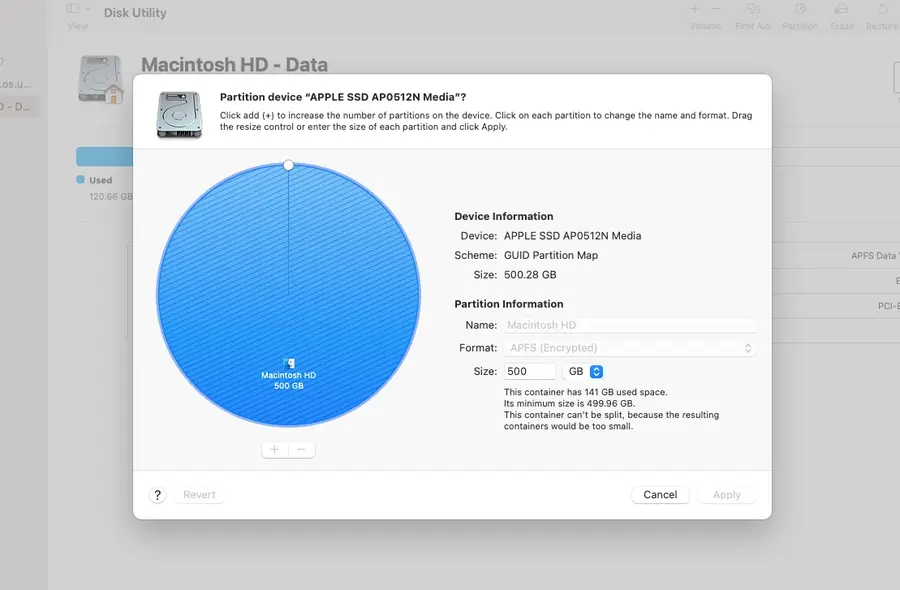
Today we’re covering the easiest way to partition a hard drive on macOS. These steps will work on both internal hard drives and external devices like USB drives. Partitioning is useful for things like virtual machines or dual boot rigs. But it can also be a useful troubleshooting tool.

Partitioning involves splitting a hard drive into individually usable chunks. The capacity of the hard drive is split between the partitions, not shared. So a 100GB hard drive can make two 50GB partitions. But the split doesn’t have to be even. You can specify any amount you need. One partition can be 22Gb while the other is 78GB.

1 – Partition a hard drive using Disk Utility

Navigate to Applications > Utilities > Disk Utility. Or search for Disk Utility in Mac’s Spotlight Search.

When Disk Utility is open, select the hard drive you want to break into a partition on the left side of the window.

  • Click Partition from the top menu bar.
  • Select Add Volume to create a new partition.
  • Choose a size and name for your new partition.
  • Click Apply.

It may take a few minutes for the process to complete.

2 – Partition a hard drive using Terminal

Navigate to Applications > Utilities > Terminal.

Use the diskutil list command to see a list of drives connected to your computer. Take note of the disk name on the drive you want to partition.

This is the command to create a single partition:

diskutil partitionDisk /dev/disk2 GPT JHFS+ NewPartition 0b

Replace /dev/disk2 with the name of your hard drive. Replace JHFS+ with the formatting of your choice. Changing NewPartition will change the name of your new partition. Lastly, 0b represents the size of the new partition. Adjust this to create a specific partition size.

Here’s an example showing the creation of multiple 10GB partitions:

diskutil partitionDisk /dev/disk2 GPT JHFS+ Partition1 10g JHFS+ Partition2 10g

It may take a few minutes for the partition to be created. Congratulations! You’ve successfully split your hard drive.

NEXT UP

How to Enable the “Popping” Sound When Adjusting the Volume on Your Mac

howchoo
howchoo   (467)
December 13, 2023

Starting with MacOS Sierra and High Sierra, your Mac will no longer play a “pop” sound when you adjust your volume. If you prefer to have this sound when you adjust volume up and down (as I do), this guide will teach you how to reenable it. 1 – Open Sound System Preferences Navigate to System

Continue Reading

howchoo

 467 guides

Introducing Howchoo, an enigmatic author whose unique pen name reflects their boundless curiosity and limitless creativity. Mysterious and multifaceted, Howchoo has emerged as a captivating storyteller, leaving readers mesmerized by the uncharted realms they craft with their words. With an insatiable appetite for knowledge and a love for exploration, Howchoo’s writing transcends conventional genres, blurring the lines between fantasy, science fiction, and the surreal. Their narratives are a kaleidoscope of ideas, weaving together intricate plots, unforgettable characters, and thought-provoking themes that challenge the boundaries of imagination.

kitchenkitchen
kitchen

kitchen3 guides

This user wrote the first guide in this interest.

brokenlamp245's profile picturebrokenlamp245's profile picture
brokenlamp245
Joined in 2015
About h/kitchen
3
5
About h/kitchen
3
5
Started By
brokenlamp245's profile picturebrokenlamp245's profile picture
brokenlamp245
Joined in 2015
brokenlamp245's profile picturebrokenlamp245's profile picture
brokenlamp245
Joined in 2015
brokenlamp245's profile picture
A small kitchen.A small kitchen.
A small kitchen.20 Ways to Make Your Small Kitchen Feel Largerkitchenhomediy
Cat leaping to counter.Cat leaping to counter.
Cat leaping to counter.Does Your Cat Live on the Counter? How to Keep Cats Off Counters!kitchenpets
How to Make Doing Dishes Easierhouseworkbachelorlivingcleaningdisheskitchen
Finding guides
Finding guides

This user wrote the first guide in this interest.

brokenlamp245's profile picturebrokenlamp245's profile picture
brokenlamp245
Joined in 2015

This user wrote the first guide in this interest.

brokenlamp245's profile picturebrokenlamp245's profile picture
brokenlamp245
Joined in 2015
brokenlamp245's profile picturebrokenlamp245's profile picture
brokenlamp245
Joined in 2015
brokenlamp245's profile picture
Discover interesting things!
Explore Howchoo’s most popular interests.
Explore

Follow @howchoo and learn cool things:

Are you a passionate writer? We’re hiring!

Write for Howchoo

Like what we do?

Donate

Want to support Howchoo? When you buy a tool or material through one of our Amazon links, we earn a small commission as an Amazon Associate.

Write for HowchooDonate