Home Interests U-verse

How to Reset an AT&T U-Verse Router or Modem

howchoo
howchoo (467)
August 16, 2023
2 minutes

Share

You’ll Need 2
What you’ll need
Interests
Series
Howchoo is reader-supported. As an Amazon Associate, we may earn a small affiliate commission at no cost to you when you buy through our links.
Posted in these interests:

internet • 36 guides
router • 32 guides
uverse • 1 guides
Whether you’re troubleshooting or setting up a new network, factory resetting your router or modem is sometimes necessary. AT&T U-Verse users can reset their devices to factory default, as well. Resetting your device will erase data like your WiFi name and password. Be sure you’re ready to reset the device before proceeding.

1 – Locate the factory reset button

Look for the factory reset button on your AT&T U-Verse device. The reset button is usually red in color and located on the back of the device.

2 – Hold the reset button

To initiate the factory reset, press and hold the reset button for at least 20 seconds. When you release the button, the device will begin the factory reset.

3 – Wait for the reset to complete

Allow some time for the reset to complete. After about 5 minutes, restart the AT&T U-Verse device. Your router should boot up with factory default settings.
NEXT UP

How to Change Your Frontier WiFi Password

howchoo
howchoo (467)
November 25, 2023
There are a few reasons you might want to update or reset your WiFi password: making your network more secure, and making your password easier to remember and type. Improved network security You can add an extra layer of security to your network by changing the WiFi password. As long as your new password is

Continue Reading

howchoo

 467 guides
Introducing Howchoo, an enigmatic author whose unique pen name reflects their boundless curiosity and limitless creativity. Mysterious and multifaceted, Howchoo has emerged as a captivating storyteller, leaving readers mesmerized by the uncharted realms they craft with their words. With an insatiable appetite for knowledge and a love for exploration, Howchoo’s writing transcends conventional genres, blurring the lines between fantasy, science fiction, and the surreal. Their narratives are a kaleidoscope of ideas, weaving together intricate plots, unforgettable characters, and thought-provoking themes that challenge the boundaries of imagination.
Home Interests Time Machine

Browse for Individual Files in a Time Machine Backup

howchoo (467)
August 16, 2023
2 minutes

Share

Interests
Posted in these interests:
 
apple • 18 guides

Mac

mac • 24 guides
timemachine • 2 guides
If you backed up your Mac using Time Machine and would only like to recover specific files, don’t worry. I needed to do this recently when I cloned my hard drive onto my new solid state drive.

1 – Open Finder

Open a new Finder window.

2 – Find your Time Machine disk (backup drive) in Finder

Locate and select your Time Machine drive in Finder.

3 – Search for the “Backups.backupdb” folder

Search or browse the Time Machine drive for the Backups.backupdb folder. This folder to find the individual files and folders you’re looking for.
NEXT UP

How to Enable the “Popping” Sound When Adjusting the Volume on Your Mac

howchoo
howchoo (467)
December 13, 2023
Starting with MacOS Sierra and High Sierra, your Mac will no longer play a “pop” sound when you adjust your volume. If you prefer to have this sound when you adjust volume up and down (as I do), this guide will teach you how to reenable it. 1 – Open Sound System Preferences Navigate to System

Continue Reading

howchoo

 467 guides
Introducing Howchoo, an enigmatic author whose unique pen name reflects their boundless curiosity and limitless creativity. Mysterious and multifaceted, Howchoo has emerged as a captivating storyteller, leaving readers mesmerized by the uncharted realms they craft with their words. With an insatiable appetite for knowledge and a love for exploration, Howchoo’s writing transcends conventional genres, blurring the lines between fantasy, science fiction, and the surreal. Their narratives are a kaleidoscope of ideas, weaving together intricate plots, unforgettable characters, and thought-provoking themes that challenge the boundaries of imagination.
Home Interests Facebook

How to Create a Custom URL for a Facebook Group

howchoo
howchoo   (467)
August 16, 2023
2 minutes

Share

Interests
Posted in these interests:
facebook • 1 guides
socialmedia • 2 guides

You can create a custom URL for your Facebook Group—similar to how you can change your Facebook profile URL.

Did you know you can delete a Facebook group too?

1 – Access your Group Settings

Click the [••• More] button in the top-right of your Facebook Group. Then, select Edit Group Settings.

2 – Find the Customize Address button

In the Web Address section, click the Change Address button.

3 – Set your page URL in the popup window

Enter a name in the “facebook.com/groups/” box. The name you enter into this box will allow users to gain quick access to your Facebook Group by setting it as your custom URL.

🛈 The minimum length for a URL is 5 characters. Only alphanumeric (A-Z and 0-9) and the dot (.) character is allowed.
NEXT UP

How to Turn Off “Safe Mode” on Tumblr: An In-depth Look

Misinformation on Tumblr’s “Safe Mode” abounds, but there is a way through.
howchoo   (467)
August 17, 2023

There is a lot of conflicting information on Tumblr’s “Safe Mode” (the content filter which hides explicit content from Tumblr search) as well as extensive user interest in the possibility of navigating around, or turning off, said mode. Unfortunately for those hoping for a latter option, there is none, but for those willing to take

Continue Reading

howchoo

 467 guides

Introducing Howchoo, an enigmatic author whose unique pen name reflects their boundless curiosity and limitless creativity. Mysterious and multifaceted, Howchoo has emerged as a captivating storyteller, leaving readers mesmerized by the uncharted realms they craft with their words. With an insatiable appetite for knowledge and a love for exploration, Howchoo’s writing transcends conventional genres, blurring the lines between fantasy, science fiction, and the surreal. Their narratives are a kaleidoscope of ideas, weaving together intricate plots, unforgettable characters, and thought-provoking themes that challenge the boundaries of imagination.

Home Interests Raspberry Pi

How to Find the Current Raspberry Pi Wi-Fi Network Name (SSID)

Learn how to remove a saved wireless network in about a minute.
howchoo   (467)
August 16, 2023
3 minutes

Share

You’ll Need 1

What you’ll need
Interests
Howchoo is reader-supported. As an Amazon Associate, we may earn a small affiliate commission at no cost to you when you buy through our links.
Posted in these interests:
networking • 8 guides
pi • 92 guides

This short guide will show you how to list the network name (SSID) for the active wireless (Wi-Fi) network your Raspberry Pi is connected to.

1 – Open the Raspberry Pi command line

To figure out which network your Raspberry Pi is connected to, you’ll need to access the command line. To do this, you can either SSH in from your main computer or connect a keyboard, mouse, and monitor to your Pi.

How to Connect to a Raspberry Pi Remotely via SSH
The preferred (and most common) method of connecting to your Pi to run commands.

2 – Use the iwgetid utility

Run the following command to return the network name, or SSID, the Wi-Fi network that your Pi is connected to:

iwgetid

iwgetid is similar to the iwconfig utility you may have used before, except that its output is easier to parse.

If no network name is returned, you might need to set up your Raspberry Pi’s wireless network once more. Next, learn how to forget a Wi-Fi network on your Rasberry Pi.

How to Forget a Saved Wi-Fi Network on Your Raspberry Pi
Learn how to remove a saved wireless network in about a minute.

NEXT UP

How to Run a Minecraft Server on the Raspberry Pi

A whole world trapped inside your Pi.
howchoo   (467)
December 7, 2023

There are several ways to go about running a Minecraft server on the Raspberry Pi. In this guide, I’ll cover how to install Nukkit—a cross-platform Minecraft server that’s super easy to set up on the Raspberry Pi. This server should work with PCs, consoles, and tablets running Minecraft 1.14. I’ll be using a Raspberry Pi

Continue Reading

howchoo

 467 guides

Introducing Howchoo, an enigmatic author whose unique pen name reflects their boundless curiosity and limitless creativity. Mysterious and multifaceted, Howchoo has emerged as a captivating storyteller, leaving readers mesmerized by the uncharted realms they craft with their words. With an insatiable appetite for knowledge and a love for exploration, Howchoo’s writing transcends conventional genres, blurring the lines between fantasy, science fiction, and the surreal. Their narratives are a kaleidoscope of ideas, weaving together intricate plots, unforgettable characters, and thought-provoking themes that challenge the boundaries of imagination.

Home Interests Linksys

How to Change Your Linksys WiFi Password

howchoo
howchoo   (467)
August 16, 2023
4 minutes

Share

You’ll Need 2

What you’ll need
Interests
Series
Howchoo is reader-supported. As an Amazon Associate, we may earn a small affiliate commission at no cost to you when you buy through our links.
Posted in these interests:
internet • 36 guides
linksys • 2 guides
router • 32 guides

Changing your WiFi password is a great way to help keep your network secure. If you have a Linksys router, the process is easy. I’ve included instructions below for both standard and Smart WiFi users.

1 – Change or reset your Linksys WiFi Password

If you’re using a standard Linksys router, you can reset your WiFi password through the router.

  1. Access the router by opening a browser window and visiting http://192.168.1.1 in the address bar.
  2. Log into your router with the current username and password. Visit our guide to find more info on how to log in to a Linksys router. If you’re unable to log in, you may need to reset the router to factory default settings.
  3. Once you’ve accessed the router, go to Wireless > Wireless Security. Older models will say Wireless Settings instead of Wireless Security.
  4. Enter a new WiFi password in the Passphrase field.
  5. Save the changes.

How to Reset a Linksys Router or Modem
Reset your Linksys device to factory default settings.

2 – Change or reset your Linksys Smart WiFi password

Users can change the Linksys Smart WiFi login through their Linksys cloud account.

  1. Log into your Linksys cloud account.
  2. On the left navigation pane, look under Router Settings, and select Wi-Fi Settings.
  3. Choose the Basic tab, and look for Wi-Fi Settings.
  4. Click Edit.
  5. On this screen, you can enter a new name and password for your WiFi network.
  6. To save the changes, click Apply then OK.
NEXT UP

How to Change Your Frontier WiFi Password

howchoo
howchoo   (467)
November 25, 2023

There are a few reasons you might want to update or reset your WiFi password: making your network more secure, and making your password easier to remember and type. Improved network security You can add an extra layer of security to your network by changing the WiFi password. As long as your new password is

Continue Reading

howchoo

 467 guides

Introducing Howchoo, an enigmatic author whose unique pen name reflects their boundless curiosity and limitless creativity. Mysterious and multifaceted, Howchoo has emerged as a captivating storyteller, leaving readers mesmerized by the uncharted realms they craft with their words. With an insatiable appetite for knowledge and a love for exploration, Howchoo’s writing transcends conventional genres, blurring the lines between fantasy, science fiction, and the surreal. Their narratives are a kaleidoscope of ideas, weaving together intricate plots, unforgettable characters, and thought-provoking themes that challenge the boundaries of imagination.

Home Interests Running

DIY Phone Armband for Running

The simplest guide to making an armband you’re likely to find!
howchoo   (467)
August 15, 2023
4 minutes

Share

You’ll Need 2

What you’ll need
Interests
Scissors x 1
Sock x 1
Howchoo is reader-supported. As an Amazon Associate, we may earn a small affiliate commission at no cost to you when you buy through our links.
Posted in these interests:

DIY

diy • 17 guides
fitness • 5 guides
running • 2 guides

Who doesn’t have an extra sock or two that’s missing a pair – lost forever to the black hole in the dryer! Grab that extra sock and a pair of scissors, and you have yourself a DIY armband for running!

Seriously, you’re going to be amazed about how easy this DIY Running Armband is to make and how comfortable it is to wear. You might even wonder why you doled out money for a fancy running armband!

The Top Ten Best Running Accessories (2022)
For some active self-improvement during the summer of social distancing!

1 – Grab your sock and scissors

Pretty much any trouser or knee-high sock will do. But why not go with one that has a little color!

I wouldn’t recommend a wool sock, as it might feel scratchy. And make sure the sock hasn’t lost so much of its elasticity that it won’t stay on your upper arm while running.

2 – Cut sock just above the heel

When you cut the sock in half, you’re generally looking to have a top half that’s about twice the length of your phone.

3 – Turn inside out

Take the top half of your sock (which is now your armband), and turn it inside out.

4 – Put on arm

I prefer to put the hemmed side on the top of my arm, but it doesn’t matter which way.

5 – Place phone over armband

Place your phone on your arm and over your armband, so that it’s about halfway up the band.

6 – Roll up bottom of armband

Bring up the bottom of the armband over the phone, so that it holds the phone snuggly. And that’s it! You have the best darn DIY armband for running out there!

Now get running!

NEXT UP

How to Clean Vibram Five Finger Toe Shoes Without Ruining Them

howchoo   (467)
November 22, 2023

Vibram Five Finger shoes are awesome pieces of running gear. But you can also use them for hiking and looking weird around town. Unfortunately, toe shoes start to smell if you don’t wear socks with them every time you wear them. While Vibram claims that the shoes are machine washable, you will ruin them if you wash

Continue Reading

howchoo

 467 guides

Introducing Howchoo, an enigmatic author whose unique pen name reflects their boundless curiosity and limitless creativity. Mysterious and multifaceted, Howchoo has emerged as a captivating storyteller, leaving readers mesmerized by the uncharted realms they craft with their words. With an insatiable appetite for knowledge and a love for exploration, Howchoo’s writing transcends conventional genres, blurring the lines between fantasy, science fiction, and the surreal. Their narratives are a kaleidoscope of ideas, weaving together intricate plots, unforgettable characters, and thought-provoking themes that challenge the boundaries of imagination.

Home Interests Web Design

Use Chrome Developer Tools to Check Whether Resources Are Loading over SSL

howchoo   (467)
August 15, 2023
3 minutes

Share

Interests
Posted in these interests:
chrome • 7 guides
webdesign • 5 guides
webdev • 10 guides

In the wake of Google’s announcement that it will start giving a ranking boost to full-SSL sites, many companies are converting their sites to be full-https. In wake of this, it’s useful to check whether the resources (scripts, images, etc.) on your page are being loaded over http or https in preparation for converting your site. While you could technically view the source of a file and use CMD-F (or CTRL-F) to search for http:// or https://, this is not a preferable solution since the page source is not the full rendered version of the file. For example, there may be CSS or JS files on the page which load non-secure images. Therefore, using the Chrome Developer Console is the best option.

1 – Navigate to the Network Tab

Open Chrome Developer Tools and open the Network tab.

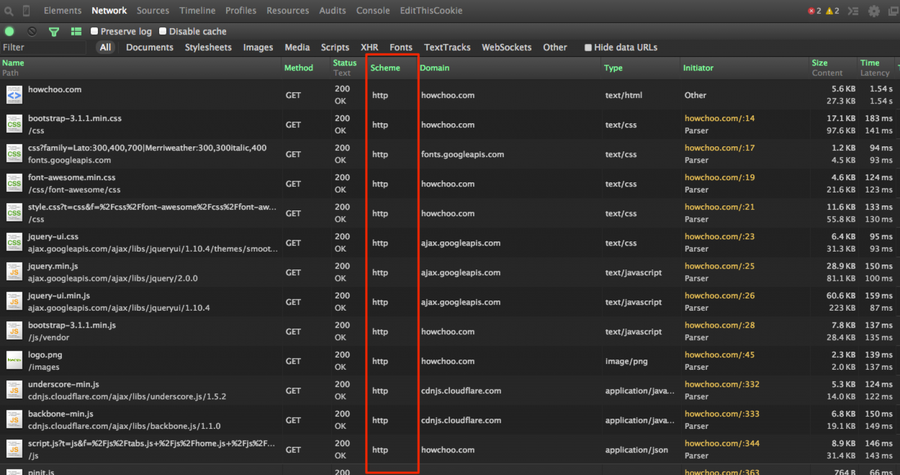
2 – Enable the Scheme column

Right click any table heading (i.e. Name, Domain, Type, etc.) and check “Scheme”.

3 – Reload the page

Reload the page and you will now see a column for http/https. Keep in mind, any time you open the Network panel in Developer Tools, you will need to refresh the current page; the Network panel only displays files which are loaded while Chrome Developer Tools is open.

NEXT UP

How to Clear Your Browser Cache for Any Browser

Trouble loading web pages? Try clearing your cache!
howchoo   (467)
November 22, 2023

Clearing your browser cache is a great way to solve common internet issues. If a webpage isn’t loading properly, one of the first things you should try is clearing your browser cache. This guide includes steps for the most common internet browsers—Chrome, Firefox, Safari, Internet Explorer, and Edge. If your browser isn’t listed, visit the

Continue Reading

howchoo

 467 guides

Introducing Howchoo, an enigmatic author whose unique pen name reflects their boundless curiosity and limitless creativity. Mysterious and multifaceted, Howchoo has emerged as a captivating storyteller, leaving readers mesmerized by the uncharted realms they craft with their words. With an insatiable appetite for knowledge and a love for exploration, Howchoo’s writing transcends conventional genres, blurring the lines between fantasy, science fiction, and the surreal. Their narratives are a kaleidoscope of ideas, weaving together intricate plots, unforgettable characters, and thought-provoking themes that challenge the boundaries of imagination.

Home Interests Router

How to Reset a Charter Spectrum Router or Modem

howchoo
howchoo   (434)
August 14, 2023
5 minutes

Share

You’ll Need 1

What you’ll need
Interests
Series
Howchoo is reader-supported. As an Amazon Associate, we may earn a small affiliate commission at no cost to you when you buy through our links.
Posted in these interests:
internet • 36 guides
router • 32 guides

If you’re having trouble with your Spectrum internet connection, it may be necessary to reset the router/modem combination or gateway to factory defaults. We’ll also show you how to reset a standalone Spectrum modem used with a separate router.

This is one of the most useful troubleshooting steps and definitely one of the first things you should try before contacting tech support.

1 – Reset gateway (modem/router combination)

If you have a modem/router combination device, also known as a gateway, you can easily reset it.

  1. Disconnect the modem from power. Unplug the power cords and remove any batteries from the device.
  2. Leave the gateway alone for at least 30 seconds.
  3. Reinsert the batteries and reconnect the power cord.
  4. Leave the device alone for at least 2 minutes. The lights will be solid for this step instead of blinking.
  5. Verify your network connection. You should be able to reach the internet.

If this doesn’t work, attempt to locate a small recessed button on the back of your modem. If this reset button exists, depress it with a pen for 30 seconds until the router reboots itself.

2 – Reset modem with a separate router

If you use two devices—a modem and router—you will need to follow this process to reset them both.

  1. Disconnect the modem from power by unplugging the power cord and taking out any batteries.
  2. Disconnect the power cord from the router.
  3. Leave both devices alone for at least 30 seconds.
  4. Plug the power cord back into the modem and put any removed batteries back in place.
  5. Leave the modem alone for 2 minutes, at a minimum. The lights on the modem will be solid instead of blinking.
  6. Plug the power cord back into the router.
  7. Leave the router alone for about 2 minutes while it comes back online.
  8. Verify your network connection. You should be able to reach the internet.

3 – More help

It’s possible that resetting the devices won’t resolve your issue. It may be necessary to factory reset the devices. For further assistance, Charter Spectrum recommends contacting their support team or using their Internet Troubleshooting Tool.

NEXT UP

How to Change Your Frontier WiFi Password

howchoo
howchoo   (434)
November 25, 2023

There are a few reasons you might want to update or reset your WiFi password: making your network more secure, and making your password easier to remember and type. Improved network security You can add an extra layer of security to your network by changing the WiFi password. As long as your new password is

Continue Reading
Home Interests Router

How to Change Your Arris WiFi Password

howchoo
howchoo   (436)
August 14, 2023
4 minutes

Share

You’ll Need 1

What you’ll need
Interests
Series
Howchoo is reader-supported. As an Amazon Associate, we may earn a small affiliate commission at no cost to you when you buy through our links.
Posted in these interests:
arris • 3 guides
internet • 36 guides
router • 32 guides

Changing your WiFi password is an easy way to add a little more security to your wireless network or change the random default password to something you can remember.

If you want to update the WiFi password on your Arris router, connect a computer to it directly with an ethernet cable.

1 – Log into your Arris router

Open a browser window, and log in to your Arris router. Visit our guide on how to log into an Arris router for specific details on this process.

You’ll need to find your network security key, if you don’t already have it.

2 – Locate Security Settings

Once you’ve logged into the web portal, look for security settings. You may need to scroll down or check the sidebar depending on the exact model of your router. The field we’re looking for is labeled “Pre-shared key”.

3 – Set your new WiFi password

Enter the new WiFi password in the “Pre-shared key” field. Making the password more complex will be safer than using a simple one. Consider using a few rules when creating a new password. For example:

  1. Avoid using dictionary words.
  2. Use numbers and special characters.
  3. Use uppercase and lowercase letters.

Enter the password again if asked to confirm the new key.

4 – Save the new changes

Click Save once the new password has been entered. Once the changes have saved, restart your Arris device, and test the new WiFi password.

NEXT UP

How to Change Your Frontier WiFi Password

howchoo
howchoo   (436)
November 25, 2023

There are a few reasons you might want to update or reset your WiFi password: making your network more secure, and making your password easier to remember and type. Improved network security You can add an extra layer of security to your network by changing the WiFi password. As long as your new password is

Continue Reading
Home Interests MacOS

How to Disable the Giant “Shake to Find” Cursor in MacOS

howchoo   (467)
August 14, 2023
3 minutes

Share

Interests
Posted in these interests:

Mac

mac • 24 guides
osx • 6 guides
macos • 20 guides

At this point, we could make a whole series here on Howchoo on removing distractions like the Creative Cloud icon or the start screen in Adobe Illustrator. We hate them that much! The giant cursor is another one.

By default, the cursor in macOS and OS X gets really big when you shake the mouse or when you move it too quickly. This feature allows you to find your cursor by shaking the mouse but mostly it’s just distracting.

This short guide will show you how to disable the giant cursor.

1 – Open Accessibility settings

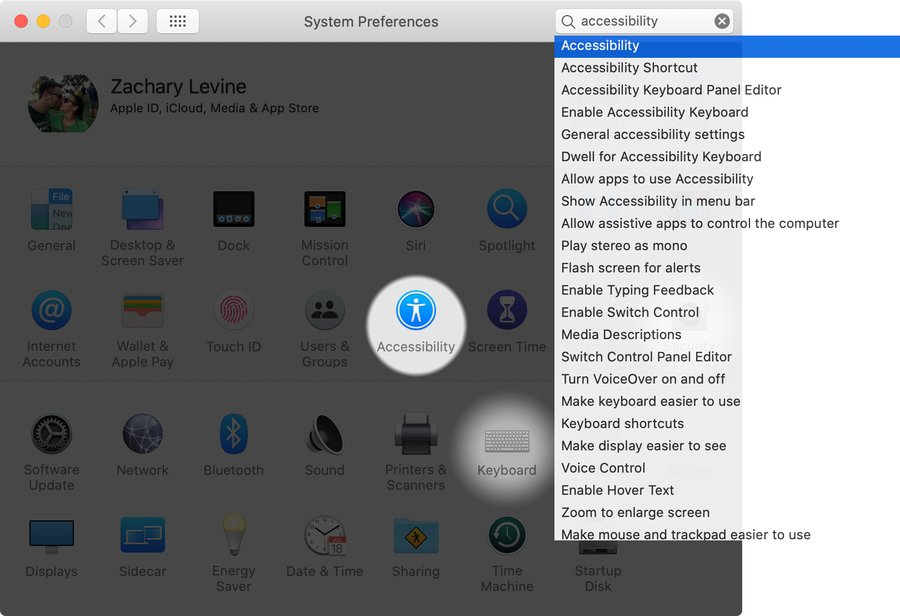
Open System Preferences and click on Accessibility.

2 – Access Cursor settings

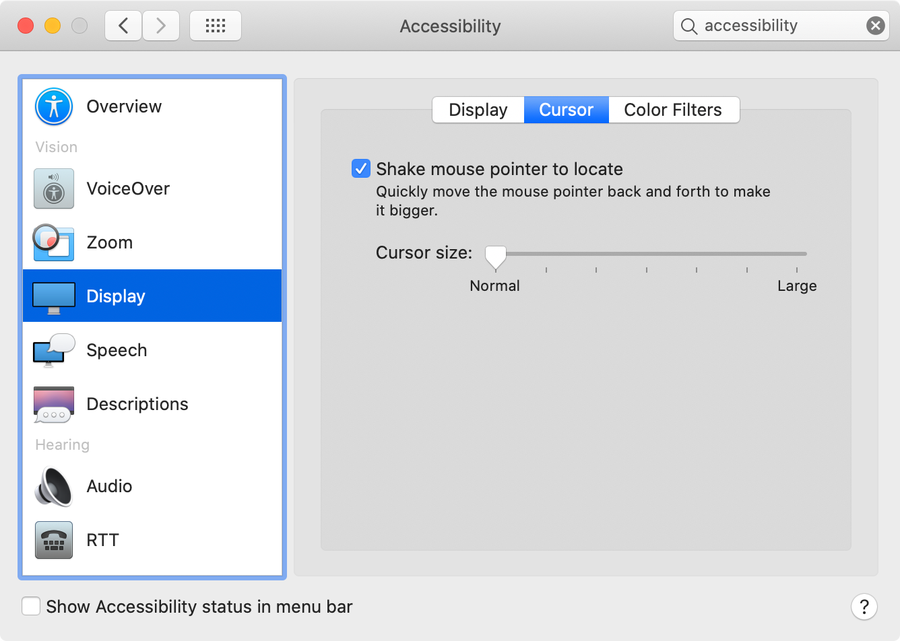
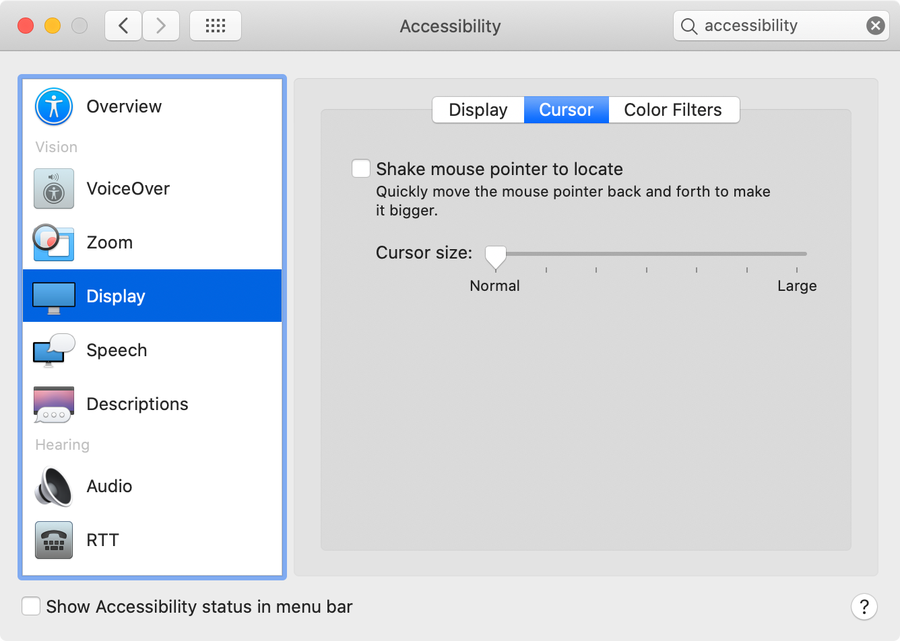
Select Display in the sidebar and then select the Cursor tab.

🛈 In older versions of macOS and OS X, there is no Cursor tab and you can continue to the next step.

3 – Disable the giant cursor

Uncheck the Shake mouse pointer to locate checkbox to prevent the cursor from getting bigger when you shake your mouse.

NEXT UP

How to Enable the “Popping” Sound When Adjusting the Volume on Your Mac

howchoo
howchoo   (467)
December 13, 2023

Starting with MacOS Sierra and High Sierra, your Mac will no longer play a “pop” sound when you adjust your volume. If you prefer to have this sound when you adjust volume up and down (as I do), this guide will teach you how to reenable it. 1 – Open Sound System Preferences Navigate to System

Continue Reading

howchoo

 467 guides

Introducing Howchoo, an enigmatic author whose unique pen name reflects their boundless curiosity and limitless creativity. Mysterious and multifaceted, Howchoo has emerged as a captivating storyteller, leaving readers mesmerized by the uncharted realms they craft with their words. With an insatiable appetite for knowledge and a love for exploration, Howchoo’s writing transcends conventional genres, blurring the lines between fantasy, science fiction, and the surreal. Their narratives are a kaleidoscope of ideas, weaving together intricate plots, unforgettable characters, and thought-provoking themes that challenge the boundaries of imagination.