Home Interests Kubernetes

How to install Apache Superset on a GKE Kubernetes Cluster

Obviously we’d call this “Supernetes”
howchoo   (467)
September 16, 2023
21 minutes

Share

Interests
Posted in these interests:

kubernetes • 6 guides

In this guide, I’m going to show you how to install Apache Superset in your Kubernetes cluster (on GKE). I’m using Cloud SQL (Postgres) for the database backend, Memorystore (redis), and BigQuery as the data source. However, even if you’re using some different components this guide should still provide enough guidance to get you started with Superset on Kubernetes.

There’s a Github repository that accompanies this guide. If you’re already a Kubernetes master, you can probably just head over to the repository and get the configs. But the purpose of this guide is to provide instructions as well as an explanation of the configs.

With that said, if you’re ready to install Superset on your Kubernetes cluster, I recommend reading through this guide before taking action. Then, clone the Github repo and start working through the instructions when you’re ready.

What is Superset?

Superset is an open-source business intelligence tool. In short, it’s a web application that lets you connect to various data sources to query and visualize data.

What is GKE?

GKE stands for Google Kubernetes Engine. It is Google Cloud Platform’s (GCP) hosted Kubernetes service.

1 – Using Helm

I’m going to start by mentioning Helm because it’s the simplest option, and if you’re happy to use Helm and this chart works for you, then you should use it!

Install helm

Head here to learn how to install helm. Once installed, you need to initialize helm in your cluster.

helm init

Install superset using helm

Head here for details on the superset helm chart. I’ll provide an example of the basic installation, but there are many more configuration options to set if desired.

helm install stable/superset

Hopefully this works swimmingly for you. However, I’ve found that this chart is not quite what I need. Because of the way the Google Cloud SDK authenticates, I need to mount my service account key file secret as a volume on the Superset pod, and it didn’t seem clear how to accomplish this. I’m also slightly biased against using helm, so I didn’t keep digging.

With that said, the remainder of this guide will show you how to install superset manually — that is, by building the configs by hand.

2 – Setup for a manual Superset installation

Before we begin, I want to discuss the setup. Configuring each of these tools is outside the scope of this guide, but I will explain each component and provide some useful tips.

Cloud SQL

I’m using a Cloud SQL Postgres instance. Setting this up is pretty simple, but make sure you enable Private IP on your instance.

Whether you’re using Cloud SQL or something else, you’ll need to create a superset database, and a user with all privileges granted to this database.

Memorystore

Configuring a Memorystore redis instance on GCP is pretty easy. You can also run a redis deployment in your GKE cluster with very little work. Either solution is fine.

GKE Cluster

We’re going to use a Kubernetes cluster running on GKE. This process is a little more involved, and again, I’m not going to go into detail here.

I will say that you need make sure your cluster is a VPC Native cluster so your cluster can connect to your DB using the private IP.

Local environment

You need to install the Google Cloud SDK on your local computer if you haven’t already. Then authenticate with your GKE cluster:

gcloud container clusters get-credentials  --zone  --project 

3 – The superset config

The following is our superset config. In short, it configures our database backend connection, redis connection, and celery.

If you’re using Cloud SQL (Postgres), like we configured previously, then you should need to modify this file at all. If you’re using another database backend, you’ll have to modify the config to build the correct sql alchemy database URI.

import os

def get_env_variable(var_name, default=None):
    """Get the environment variable or raise exception.

    Args:
        var_name (str): the name of the environment variable to look up
        default (str): the default value if no env is found
    """
    try:
        return os.environ[var_name]
    except KeyError:
        if default is not None:
            return default
        raise RuntimeError(
            'The environment variable {} was missing, abort...'
            .format(var_name)
        )


def get_secret(secret_name, default=None):
    """Get secrets mounted by kubernetes.

    Args:
        secret_name (str): the name of the secret, corresponds to the filename
        default (str): the default value if no secret is found
    """
    secret = None

    try:
        with open('/secrets/{0}'.format(secret_name), 'r') as secret_file:
            secret = secret_file.read().strip()
    except (IOError, FileNotFoundError):
        pass

    if secret is None:
        if default is None:
            raise RuntimeError(
                'Missing a required secret: {0}.'.format(secret_name)
            )
        secret = default

    return secret


# Postgres

POSTGRES_USER = get_secret('database/username')
POSTGRES_PASSWORD = get_secret('database/password')
POSTGRES_HOST = get_env_variable('DB_HOST')
POSTGRES_PORT = get_env_variable('DB_PORT', 5432)
POSTGRES_DB = get_env_variable('DB_NAME')

SQLALCHEMY_DATABASE_URI = 'postgresql://{0}:{1}@{2}:{3}/{4}'.format(
    POSTGRES_USER,
    POSTGRES_PASSWORD,
    POSTGRES_HOST,
    POSTGRES_PORT,
    POSTGRES_DB,
)


# Redis

REDIS_HOST = get_env_variable('REDIS_HOST')
REDIS_PORT = get_env_variable('REDIS_PORT', 6379)


# Celery

class CeleryConfig:
    BROKER_URL = 'redis://{0}:{1}/0'.format(REDIS_HOST, REDIS_PORT)
    CELERY_IMPORTS = ('superset.sql_lab',)
    CELERY_RESULT_BACKEND = 'redis://{0}:{1}/1'.format(REDIS_HOST, REDIS_PORT)
    CELERY_ANNOTATIONS = {'tasks.add': {'rate_limit': '10/s'}}
    CELERY_TASK_PROTOCOL = 1


CELERY_CONFIG = CeleryConfig

4 – Create a configmap for the superset config

We’re going to create a configmap named superset-config. This is how we’ll add our superset-config.py file to the superset pods.

I’m going to create the configmap object directly using kubectl.

kubectl create configmap superset-config --from-file superset

You can confirm with:

kubectl get configmap

5 – Add secrets to the cluster

We’ll need to add our database secrets and our google cloud service account key secret.

If you look in the secrets directory, you’ll see a directory structure like this:

secrets
├── database
│   └── password
│   └── username
└── gcloud
    └── google-cloud-key.json

We’re going to create two secrets: database and gcloud. You’ll need to edit the files in each of these directories so they include the applicable secrets.

Then create the secrets using kubectl.

kubectl create secret generic database --from-file=secrets/database
kubectl create secret generic gcloud --from-file=secrets/gcloud

Note: This directory is here simply to make it easy for you to create the appropriate secrets. You would never check these into any repository.

You can confirm the secrets exist with:

kubectl get secret

6 – The superset deployment

Check out the file called superset-deployment.yaml. This deployment defines and manages our superset pod:

apiVersion: apps/v1beta1
kind: Deployment
metadata:
  name: superset-deployment
  namespace: default
spec:
  selector:
    matchLabels:
      app: superset
  template:
    metadata:
      labels:
        app: superset
    spec:
      containers:
      - env:
        - name: DB_HOST
          value: 10.10.10.10
        - name: REDIS_HOST
          value: redis
        - name: DB_NAME
          value: superset
        - name: GOOGLE_APPLICATION_CREDENTIALS
          value: /secrets/gcloud/google-cloud-key.json
        - name: PYTHONPATH
          value: "${PYTHONPATH}:/home/superset/superset/"
        image: amancevice/superset:latest
        name: superset
        ports:
        - containerPort: 8088
        volumeMounts:
        - mountPath: /secrets/database
          name: database
          readOnly: true
        - mountPath: /secrets/gcloud
          name: gcloud
          readOnly: true
        - mountPath: /home/superset/superset
          name: superset-config
      volumes:
      - name: database
        secret:
          secretName: database
      - name: gcloud
        secret:
          secretName: gcloud
      - name: superset-config
        configMap:
          name: superset-config

The only things you’ll need to configure are the DB_HOST and REDIS_HOST environment variables, so update these values with the IP or hostname of your instances.

7 – The superset service

This service will send incoming traffic on port 8088 to the superset pods.

apiVersion: v1
kind: Service
metadata:
  name: superset
  labels:
    app: superset
spec:
  type: NodePort
  ports:
  - name: http
    port: 8088
    targetPort: 8088
  selector:
    app: superset

8 – Apply the configs

Once you’ve added the configmap and secrets, and you’ve customized any configs as desired, you’re ready to apply the configs.

kubectl apply --recursive -f kubernetes/

It will take a little bit of time for the image to pull and for the containers to start up, but you can check your progress with:

kubectl get pod | grep superset

9 – Create the admin user

Now let’s create an admin user.

SUPERSET_POD=$(kubectl get pod | grep superset | awk '{print $1}')
kubectl exec -it $SUPERSET_POD -- fabmanager create-admin --app superset

You’ll be given a series of prompts to complete. Make sure to save your password!

10 – Forward port 8088 and log in

Since our service isn’t exposed to the world, we’ll need to forward port 8088 to our superset service.

kubectl port-forward service/superset 8088

Now we can open a browser and go to: http://localhost:8088

You should be able to log in to superset using the admin username and password you set previously.

11 – Setting up a BigQuery data source
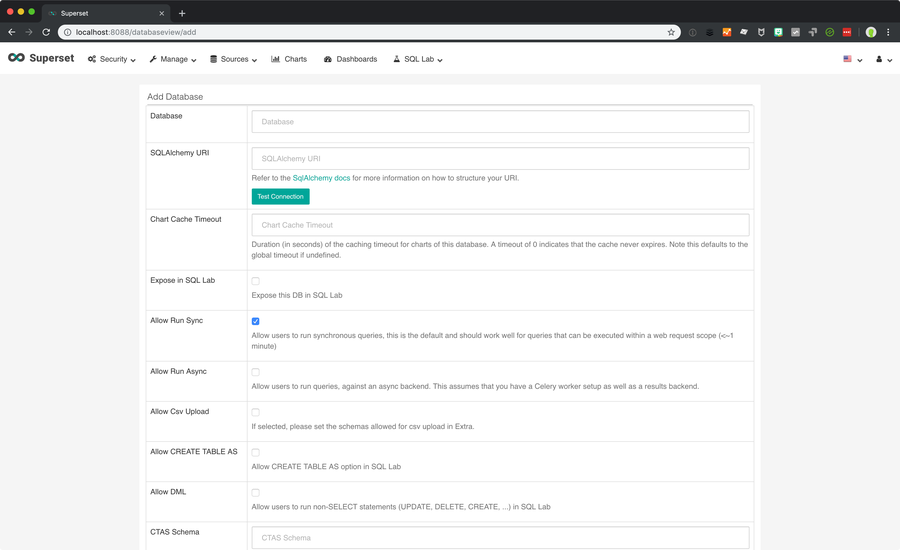
Now you’re ready to add a data source. If you’re using BigQuery and you mounted your service account key as I’ve show in this guide, you’re very close.

In Superset, click on Sources > Databases.

Then click the + icon that says Add a new record.

Now fill out the details for your database. The SQLAlchemy URI structure for bigquery is simple:

bigquery://

12 – Next steps

Now you’ll need to configure your tables and start building charts and dashboards. Refer to the Superset docs for this part.

If you’ve gotten to this point, and you’re pretty sure that Superset is going to be a permanent part of your stack, you may want to set up DNS and access this using a nicer hostname and without having to set up port forwarding every time. If there’s enough interest, I can update this guide with instructions!

Grafana and Prometheus can be powerful data analysis tools. Check out this guide to install both Grafana and Prometheus on your Kubernetes cluster.

NEXT UP

Secure Your Sensitive Data with Kubernetes Secrets

Learn how to create and use Kubernetes secrets.
howchoo   (467)
November 26, 2023

Kubernetes secrets are objects that store and manage sensitive data inside your Kubernetes cluster. One mistake developers often make is storing sensitive information like database passwords, API credentials, etc in a settings file in their codebase. This is very bad practice (hopefully for obvious reasons). Most developers know this, but still choose the option because it’s easy.

Continue Reading

howchoo

 467 guides

Introducing Howchoo, an enigmatic author whose unique pen name reflects their boundless curiosity and limitless creativity. Mysterious and multifaceted, Howchoo has emerged as a captivating storyteller, leaving readers mesmerized by the uncharted realms they craft with their words. With an insatiable appetite for knowledge and a love for exploration, Howchoo’s writing transcends conventional genres, blurring the lines between fantasy, science fiction, and the surreal. Their narratives are a kaleidoscope of ideas, weaving together intricate plots, unforgettable characters, and thought-provoking themes that challenge the boundaries of imagination.

Home Interests MacOS

How to Open URLs in Google Chrome from the macOS Terminal

howchoo
howchoo   (467)
September 16, 2023
9 minutes

Share

Interests
Posted in these interests:
bash • 2 guides
chrome • 7 guides
macos • 20 guides

If you spend any amount of time working on the command line in macOS, you’ll realize it’s much more capable than just finding your IP address. It can do plenty of useful tasks, like running Python scripts and even automating the process of opening URLs in your favorite browser. In this guide, we’ll learn how to open Chrome from the command line (or a shell script) on macOS.

In the following steps, we’ll learn a few variations of the open command to learn how to:

  • Bring the Chrome window into focus
  • Open a specific URL in Chrome
  • Open a URL in a specific Chrome profile


1 – Use the `open -a` command

The open command accepts a -a option that allows us to specify which application we want to open.

So if you just want to open Google Chrome from the command line, it’s as simple as this:

open -a "Google Chrome"

This will do nothing more than bring the Google Chrome window into focus.

2 – Open a URL in Chrome

To open a specific URL in Chrome, simply pass the URL as the first argument of the command, like this:

open -a "Google Chrome" 

This will open your favorite website in your favorite browser.

3 – Open a URL in Chrome using a specific profile

If you’re like me and use multiple Chrome profiles, you’ll want to be able to specify which profile to use when opening the URL. For this, we’ll have to move away from the convenient open command.

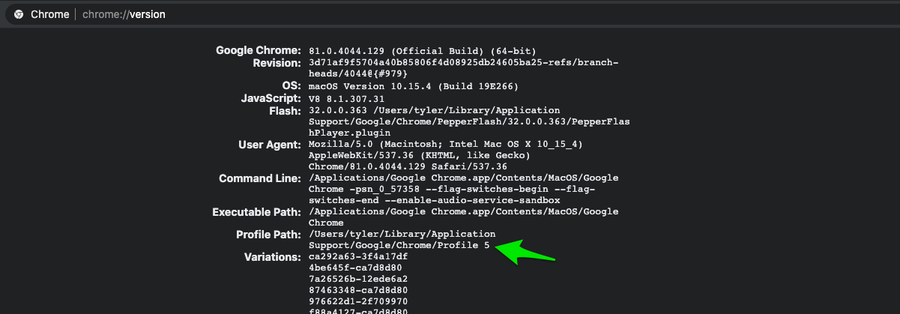
Before we get to the command, we’ll need to figure out the correct profile directory to use. Sadly, this will not be the same value as your profile name. To get your profile directory, open Chrome in the profile you want to use and navigate to chrome://version/. Find the item labeled Profile Path, and copy only the last part of the path. In my case, it’s Profile 5.

/Applications/Google Chrome.app/Contents/MacOS/Google Chrome  --profile-directory=Profile 5

I know its not realistic to type this every time you want to open a URL. You could bake this into a script or see the next step where I’ll cover using aliases and bash functions to make this less painful.

4 – Helpful aliases

If you’re going to open URLs frequently, there are a few ways to dramatically increase efficiency. The easiest way is to use bash aliases. An alias allows you to basically create a shortcut for longer commands.

Alias for opening URLs in Chrome

Here are a few examples (you can add them to your ~/.bash_profile).

alias gc="open -a Google Chrome"

Or if you’d like to create an alias to the command that let’s you specify a profile, you could do the following:

alias gc="/Applications/Google Chrome.app/Contents/MacOS/Google Chrome --profile-directory=Profile 5"

Anytime you edit your bash_profile, you need to run source ~/.bash_profile or open a new shell to see the changes take effect.

With this, you can run:

gc  # Open or focus on the Chrome window
gc   # Open the url in Chrome

Similarly, the gc {url} command will open the url in Chrome, but it will use the specified profile every time.

Alias that accepts a URL from STDIN

In some cases, you might want to accept a URL from STDIN. The open command handles stdin the way we’d like, so if you’re using the first alias, you don’t need to do anything.

If you’re using the alias for Google Chrome, one easy way is to create a second alias (using xargs) like this:

alias gcx="xargs /Applications/Google Chrome.app/Contents/MacOS/Google Chrome --profile-directory=Profile 5"

This will allow you to do something like this:

echo "" | gcx

If you’ve got a better way of doing this, let me know in the comments below 🙂

NEXT UP

How to Enable the “Popping” Sound When Adjusting the Volume on Your Mac

howchoo
howchoo   (467)
December 13, 2023

Starting with MacOS Sierra and High Sierra, your Mac will no longer play a “pop” sound when you adjust your volume. If you prefer to have this sound when you adjust volume up and down (as I do), this guide will teach you how to reenable it. 1 – Open Sound System Preferences Navigate to System

Continue Reading

howchoo

 467 guides

Introducing Howchoo, an enigmatic author whose unique pen name reflects their boundless curiosity and limitless creativity. Mysterious and multifaceted, Howchoo has emerged as a captivating storyteller, leaving readers mesmerized by the uncharted realms they craft with their words. With an insatiable appetite for knowledge and a love for exploration, Howchoo’s writing transcends conventional genres, blurring the lines between fantasy, science fiction, and the surreal. Their narratives are a kaleidoscope of ideas, weaving together intricate plots, unforgettable characters, and thought-provoking themes that challenge the boundaries of imagination.

Home Interests VS Code

VS Code: How to Move Search from the Sidebar to the Bottom Panel

howchoo
howchoo   (467)
September 16, 2023
4 minutes

Share

Interests
Posted in these interests:
code • 11 guides
vscode • 1 guides

This short guide will show you how to move the search box in Visual Studio Code from the sidebar to the footer panel, making it easier to find and replace files. This is similar to how things look in Sublime Text.

Note: The old “Search: Location” option no longer exists, so this guide will show you the new way of moving the panel. If you updated VSCode and were surprised to find the search panel has moved back to its original position, this is why.

This method works on both Mac and Windows.

If you want to sync VS Code settings across all of your machines, then check out our comprehensive guide on syncing them.

1 – Launch VSCode

Obviously, you’ll need to open VSCode.

2 – Show the Panel

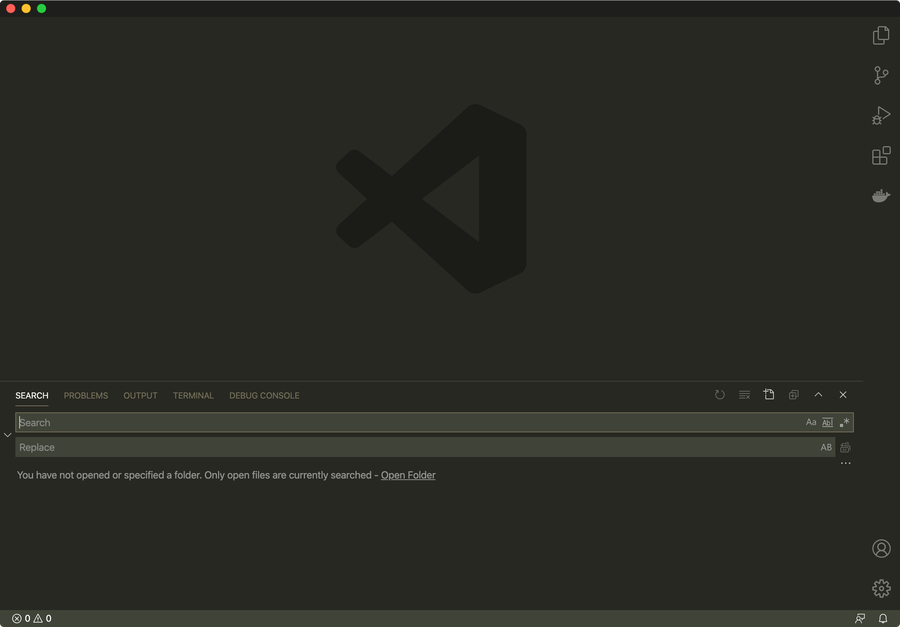
Show the [bottom] panel by navigating to View > Appearance > Show Panel.

🛈 By default, the Panel itself loads at the bottom. If you’ve changed this at some point, you can move it back to the bottom by modifying the “workbench.panel.defaultLocation” setting.

3 – Drag the search icon to the bottom panel

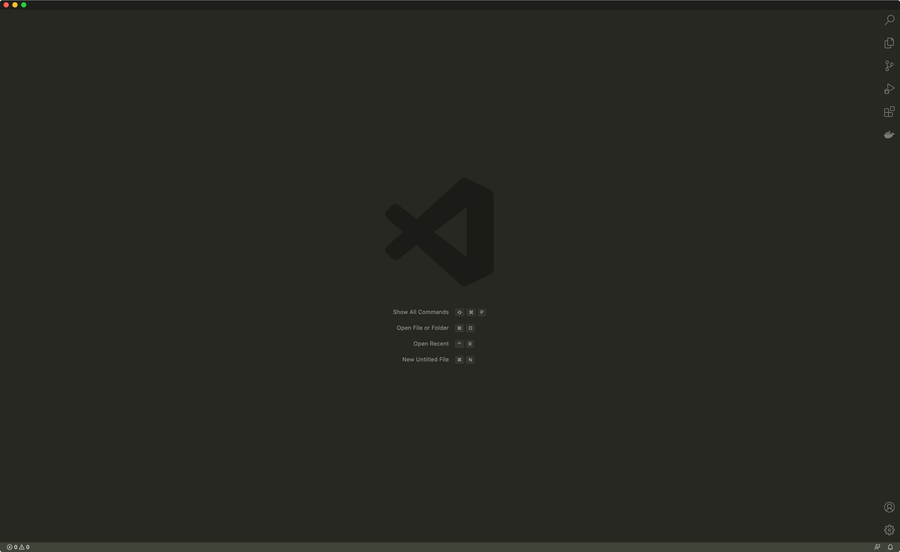
From the right sidebar, drag the search icon into the header area of the bottom panel. A | pipe character will indicate its final position. I chose to move it all the way to the left.

4 – VS Code search is now at the bottom!

As you can see the search pane is now at the bottom of the VS Code window, where it will stay until the devs decide to change this again. If that happens, I’ll update this guide—so feel free to bookmark or favorite it.

NEXT UP

Secure Your Sensitive Data with Kubernetes Secrets

Learn how to create and use Kubernetes secrets.
howchoo   (467)
November 26, 2023

Kubernetes secrets are objects that store and manage sensitive data inside your Kubernetes cluster. One mistake developers often make is storing sensitive information like database passwords, API credentials, etc in a settings file in their codebase. This is very bad practice (hopefully for obvious reasons). Most developers know this, but still choose the option because it’s easy.
Continue Reading

howchoo

 467 guides

Introducing Howchoo, an enigmatic author whose unique pen name reflects their boundless curiosity and limitless creativity. Mysterious and multifaceted, Howchoo has emerged as a captivating storyteller, leaving readers mesmerized by the uncharted realms they craft with their words. With an insatiable appetite for knowledge and a love for exploration, Howchoo’s writing transcends conventional genres, blurring the lines between fantasy, science fiction, and the surreal. Their narratives are a kaleidoscope of ideas, weaving together intricate plots, unforgettable characters, and thought-provoking themes that challenge the boundaries of imagination.

Home Interests Subaru Crosstrek

How to Replace the Subaru XV Crosstrek Cabin Air Filter (2013+)

Change your Crosstrek’s cabin air filter in 5 minutes for less than $15.
howchoo   (467)
September 15, 2023
8 minutes

Share

You’ll Need 1

What you’ll need
Interests
Howchoo is reader-supported. As an Amazon Associate, we may earn a small affiliate commission at no cost to you when you buy through our links.
Posted in these interests:
autos • 4 guides
subaru • 3 guides
crosstrek • 3 guides

Why pay the dealership hundreds of dollars to replace your cabin air filter when you can do it in 5 minutes for less than $15? This guide requires no tools. Just pick up a compatible cabin air filter such as this one and get started.

How often should you replace your Crosstrek cabin air filter?

Your Subaru Crosstrek’s cabin air filter should be replaced every 12 months, or 12,000 miles, whichever comes first. If you live in a particularly dusty area or one with a lot of tree debris, it would be a good idea to replace it sooner.

Subaru Crosstrek cabin air filter location

The Subaru a Crosstrek air filter is located behind the glove compartment and requires no tools to change.

Why replace your Crosstrek cabin air filter?

Your cabin air filter should be replaced regularly not only to ensure cleaner air in your car, but to reduce strain on your air conditioning components. A clogged in-cabin air filter increases strain on your A/C blower motor and even your compressor.

Also, you’ll be surprised how fresh your car will smell!

1 – Empty your glovebox

Temporarily remove all the papers and other junk that’s collected in your glove compartment over the years.

🛈 Don’t worry, you can shove it all back in there when you’re done.

2 – Remove the glovebox door

The glove box is held in place using two small stoppers: one on each side.

Gently push both sides inward until the stoppers clear the sides of the glove compartment opening.

3 – Unclip the glovebox retaining arm

Gently push the glovebox retaining arm out of the way to unclip it.

Then, slowly and carefully lower the glovebox door towards the floor. Or, in my case, the glovebox door will just fall off immediately.

4 – Locate the cabin air filter

This photo shows the location of the Crosstrek’s cabin air filter. It might be in the top left in certain model years.

The cabin air filter on the Subaru XV Crosstrek is located behind the glove compartment in the either the upper left or directly center, depending on model year. See the attached image for reference.

5 – Remove the old cabin air filter

To remove the Crosstrek’s cabin air filter, pinch the two fasteners on either side of it and pull it straight out.

🛈 If you have a vacuum handy, it’s a good idea to stick the nozzle in there and suck out any particles that might be in there.

6 – Behold how disgusting the old filter is

If you live under a thousand oak trees, as I do, your filter will be extra gross.

Bask in how truly awful the old filter is and pat yourself on the back for choosing to replace it.

7 – Replace the air filter

This is the filter I used for my 2014 XV Crosstrek and the listing includes a model year checker.

Slide the new cabin air filter into place until both of the side fasteners click.

🛈 The filter has an arrow indicating which side goes up.

8 – Reassemble everything

Carefully push the glovebox retaining arm back into place and close the glovebox.

When you close the glovebox, the two side stoppers will automatically re-seat themselves.

Finally, put all your stuff back into your glove compartment. While you’re at it, maybe toss the trillion papers you’ve accumulated or relocate them into your home.

You’re done!

Turn on your AC and smell the fresh air. You’ll be able to notice a difference immediately!

Next: Disable that awful beep

While you’re still in the car, disable the Crosstrek unlock sound in about 30 seconds of work (your ears will thank you). 🙂

NEXT UP

Build Your Own Raspberry Pi Car Computer, or “Carputer”, with AutoPi

Bring your car into the future!
howchoo   (467)
September 29, 2023

Have you ever wanted to add an entertainment system to your car, only to find that most units are expensive, come with a lackluster feature set, and feature a terrible interface? Well, now you can build your own Raspberry Pi-powered car computer with AutoPi! Monitor your car’s vitals, watch movies, play retro games wiith RetroPie, use open

Continue Reading

howchoo

 467 guides

Introducing Howchoo, an enigmatic author whose unique pen name reflects their boundless curiosity and limitless creativity. Mysterious and multifaceted, Howchoo has emerged as a captivating storyteller, leaving readers mesmerized by the uncharted realms they craft with their words. With an insatiable appetite for knowledge and a love for exploration, Howchoo’s writing transcends conventional genres, blurring the lines between fantasy, science fiction, and the surreal. Their narratives are a kaleidoscope of ideas, weaving together intricate plots, unforgettable characters, and thought-provoking themes that challenge the boundaries of imagination.

Home Interests Minecraft

How To Install Shaders in Minecraft

Because you deserve nice graphics.
howchoo   (467)
September 15, 2023
6 minutes

Share

Interests
Posted in these interests:

READY PLAYER 1
gaming • 85 guides
Minecraft is an epic sandbox video game developed by Swedish game developer Mojang Studios.
minecraft • 66 guides

Shaders, also known as shader packs, are a way to bring your Minecraft gameplay to a new level of beautiful. Minecraft Shaders improve the game’s visual elements, such as color enhancement, improved lighting, and generally make the game look more realistic. Depending on the shader, players can customize their world to their preference. So if you want a purple sky and realistic clouds, shader packs are the way to make it happen.

Before you dive into our guide on how to install shaders in Minecraft, make sure you already have OptiFine installed. We have a helpful guide on how to do that here! Without OptiFine, the shaders won’t work, so make sure to do that and return here after!

1 – Find your file path

Before moving into the actual installation of shaders, it’s important to know where your Minecraft game is installed. To do so, follow these steps:

  1. Open the Minecraft Launcher.
  2. Make sure the launch option is the game version you plan on using.
  3. Go to the Installations tab at the top of the window.
  1. Hover your mouse over the game version you want to find and click the folder icon to the right of the Play button. See the image above for help.

2 – Create a shaders folder

Unfortunately, Minecraft doesn’t automatically create a folder to place shaders into. Inside the Minecraft folder you found in the last step, create a new folder called shaderpacks. Make sure to spell it exactly or else the game won’t recognize where you’ve placed your shaders.

3 – Choose a shader pack

There are plenty of websites out there for finding shaders, but some are safer than most. We recommend CurseForge or Shaders Mods. Alternatively, you can download directly from a developer’s website as well!

Make sure it’s compatible with your Minecraft game version and then move on to the next step!

4 – Install shaders

Download the correct game version of the shader you’ve chosen and place it within the shaders folder you made in step 2. Make sure you don’t unzip the downloaded file!

5 – Activate shaders

Now it’s time to run Minecraft and activate your shaders! Once the game has launched, follow these steps:

  1. Click Options then Video Settings.
  2. Click Shaders… as shown in the image above.
  1. In the Shaders menu, choose the shader you want to activate. A loading screen will appear and return you back to the Shaders menu when its finished rendering.

From this menu you can either click the Shader Options button on the bottom right to customize the shader pack or click Done and return to the main menu!

NEXT UP

Top 10 Enchantments in Minecraft

howchoo   (467)
March 25, 2024

The longer you play Minecraft, the more you realize that early-game tools just won’t cut it. Exploring the enchantment feature of Minecraft can be exciting, but also intimidating. Rather than worry about researching enchantments, below are the best enchantments in Minecraft! To learn how to enchant items, check out this guide! In this guide, you’ll see

Continue Reading

howchoo

 467 guides

Introducing Howchoo, an enigmatic author whose unique pen name reflects their boundless curiosity and limitless creativity. Mysterious and multifaceted, Howchoo has emerged as a captivating storyteller, leaving readers mesmerized by the uncharted realms they craft with their words. With an insatiable appetite for knowledge and a love for exploration, Howchoo’s writing transcends conventional genres, blurring the lines between fantasy, science fiction, and the surreal. Their narratives are a kaleidoscope of ideas, weaving together intricate plots, unforgettable characters, and thought-provoking themes that challenge the boundaries of imagination.

Home Interests MacOS

How to Set the Default View Options for All Finder Windows in macOS

howchoo
howchoo   (467)
September 15, 2023
7 minutes

Share

Interests
Posted in these interests:
finder • 2 guides
osx • 6 guides
macos • 20 guides

If you’re using a Mac and you’ve found yourself in a place where every Finder window is opening up with a different set of view options (that is icons, list, columns or Cover Flow), there’s a way to quickly remedy this.

If your workspace is cluttered, it’s worth noting it’s also possible to close all Finder windows at once.

1 – First, understand how Mac saves your Finder settings

You may have seen a file in some of your folders called .DS_Store. The dot means this is a hidden file so it won’t usually show up in Finder. .DS_Store stands for Desktop Services Store and is used to store folder specific settings. If many of your folders have different view options, it’s because their unique .DS_Store files have different settings.

2 – Set the default view options

First, we want to set the default view options for all new Finder windows. To do so, open Finder and click on the view setting that you want to use. The settings are four icons and the top of your Finder window.

If you don’t see the Finder toolbar type:

cmd + option + t

After selecting the option you want, type:

cmd + j

to open the view options window.

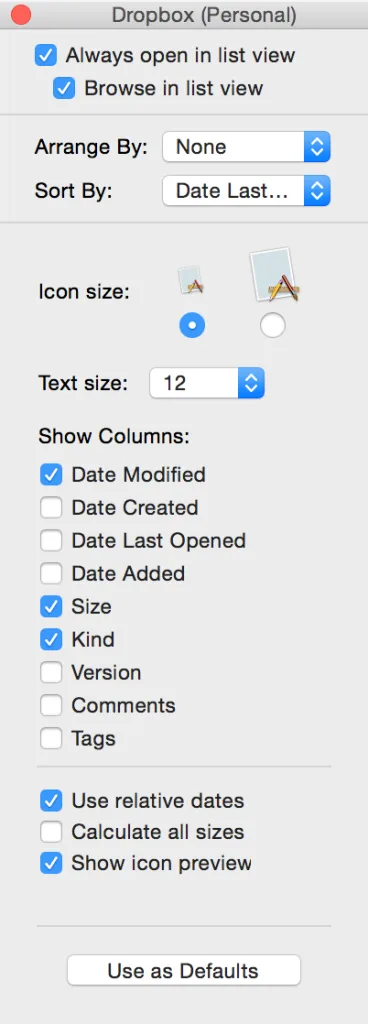
Make sure you check the top two checkboxes that say Always open in list view and Browse in list view. Keep in mind it will reflect whichever view you’ve selected.

Now click the button at the bottom that says “Use as Defaults”.

🛈 The “Use as Defaults” button won’t appear for the “Column” view type, only the other 3 view types. This is intentional as your view settings for Column View will save without clicking the button.

3 – Delete all .DS_Store files on your computer

Chances are you’ve opened some Finder windows in the past. Individual folder options will override this default setting that we just set.

In order reset your folder settings across the entire machine we have to delete all .DS_Store files. This will ensure that all folders start fresh. Open up the Terminal application (Applications/Utilities/Terminal), and type:

sudo find / -name .DS_Store -delete; killall Finder

You will then be prompted for your password. You won’t see your password as you type, so type carefully. This may take a minute or two because it’s going to search your entire computer for .DS_Store files.

🛈 In the future, whenever you switch views, it will automatically save in the new .DS_Store file. This will override the default settings.

4 – The slow, careful way

If you’re worried about losing precious settings, you can simply change the view options for each folder individually. So whenever you navigate to a folder in Finder that doesn’t have your preferred layout, simply change it. This won’t be an instant fix, but it will ensure that you don’t lose any of your existing settings.

NEXT UP

How to Enable the “Popping” Sound When Adjusting the Volume on Your Mac

howchoo
howchoo   (467)
December 13, 2023

Starting with MacOS Sierra and High Sierra, your Mac will no longer play a “pop” sound when you adjust your volume. If you prefer to have this sound when you adjust volume up and down (as I do), this guide will teach you how to reenable it. 1 – Open Sound System Preferences Navigate to System

Continue Reading

howchoo

 467 guides

Introducing Howchoo, an enigmatic author whose unique pen name reflects their boundless curiosity and limitless creativity. Mysterious and multifaceted, Howchoo has emerged as a captivating storyteller, leaving readers mesmerized by the uncharted realms they craft with their words. With an insatiable appetite for knowledge and a love for exploration, Howchoo’s writing transcends conventional genres, blurring the lines between fantasy, science fiction, and the surreal. Their narratives are a kaleidoscope of ideas, weaving together intricate plots, unforgettable characters, and thought-provoking themes that challenge the boundaries of imagination.

Home Interests Raspberry Pi

How to Control a DC Motor (Or Motors) Using Your Raspberry Pi

howchoo   (467)
September 15, 2023
15 minutes

Share

You’ll Need 3

What you’ll need
Interests
Howchoo is reader-supported. As an Amazon Associate, we may earn a small affiliate commission at no cost to you when you buy through our links.
Posted in these interests:
python • 18 guides
pi • 92 guides

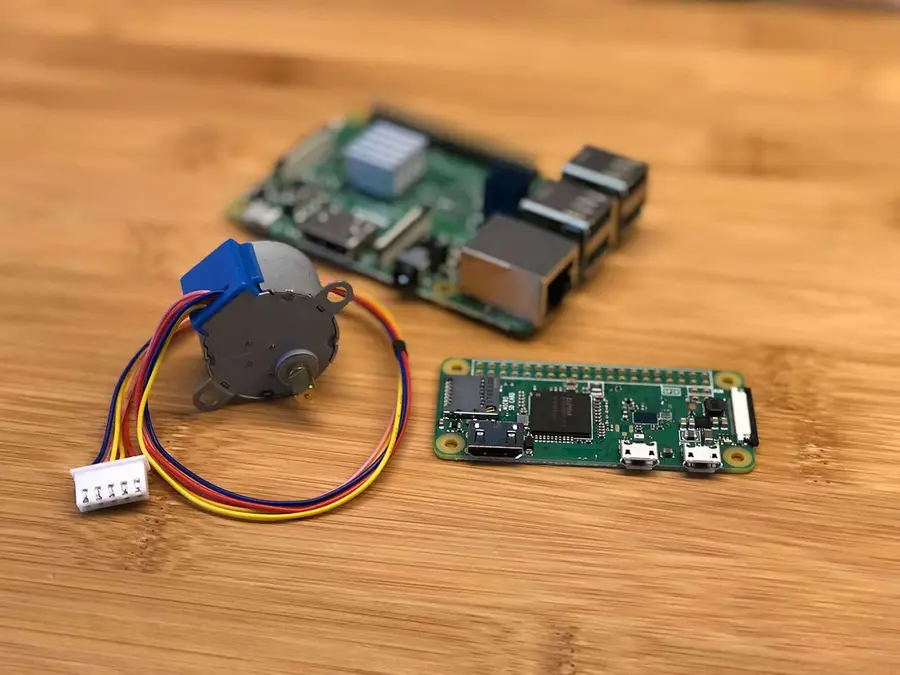
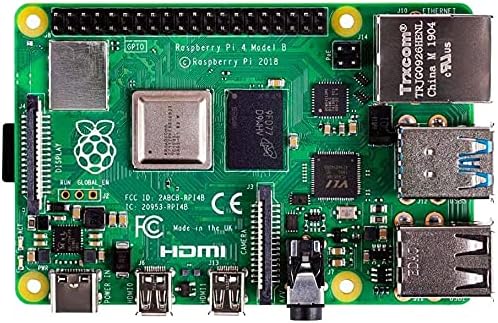
Controlling DC motors from your Raspberry Pi is quite easy! Whether you want to control a single motor or build a Raspberry Pi NERF tank, the principles are the same — but the hardware needed will vary. You can use any Raspberry Pi for this project (Zero, Zero W, 3, 4, etc.)

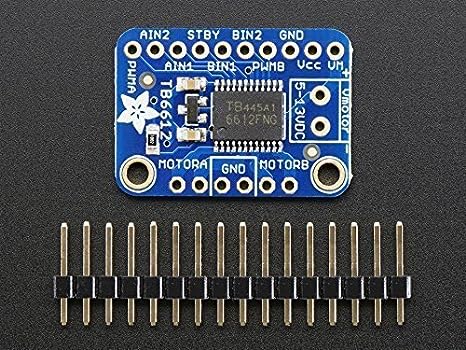
This guide will cover a basic example — using the TB6612 to drive a single DC motor for use in my Amazon Echo Furby project. This little chip is offered by Adafruit (and others), but I prefer the Adafruit version as it includes diodes to protect both the Pi and motors. Some chips require you solder your own diode circuit (such as the Sparkfun TB6612FNG), and I’d rather avoid this.

This little chip can drive either two DC motors or one stepper motor. Also, the chip is only $5. Not bad.

Hardware

There are a few components that make Raspberry Pi DC motor control work:

  1. Motor driver/controller (TB6612, in this example).
  2. Motor power supply (e.g. battery).
  3. Your Pi itself.

GPIO and PWM

Basically, your Pi’s GPIO (general purpose input/output) pins connect to the driver board, supplying both board power and data signals that will tell the motor when to run using PWM (pulse-width modulation). We’ll then write a simple Python script that will toggle the GPIO pins HIGH or LOW, thus activating the motor!

Power

A separate power source supplies power to the driver board which gets passed directly to the motors. Thus, there are two power sources in total:

  1. Power for the motors (provided by an external battery/power supply), and
  2. Power for the motor driver (provided by the Pi’s GPIO pins).

Anyways, this is a very simple project that’s a great foray into both Raspberry Pi GPIO and PWM. Let’s get started!

1 – Choosing a driver board and motor(s)

For my project, I only need to run one motor. However, if you wanted to build a Raspberry Pi robot or rover of some kind, you might need to drive many motors. In this case, you’ll want to use a driver board that supports more motors (and a larger power supply to drive them as well). For this guide, we’re going to work with the Adafruit TB6612 (same as TB6612FNG).

This board can drive two DC motors or a single stepper motor — with a maximum current of 1.2A. When choosing your motor, be sure you don’t exceed this maximum amperage.

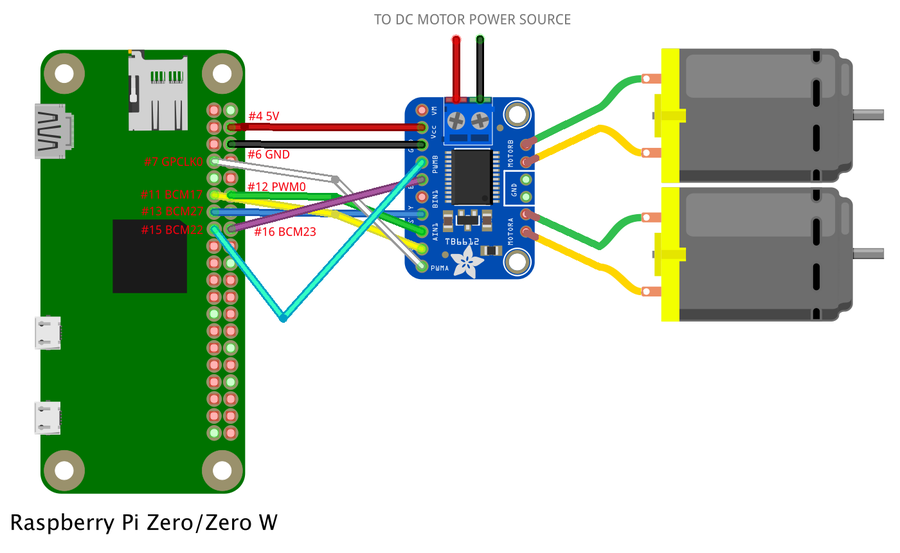
2 – Building the circuit

I recommend using a breadboard to prototype and test your connections prior to soldering.

The attached wiring diagram shows the connections you need to make to build your TB6612 driver board circuit. I also created a Fritzing diagram if you’re into that sort of thing.

Remember (per the diagram), the power provided to the motor is different than the power provided to the motor driver’s logic circuit!

STBY = Pin 13 (GPIO #21)

Motor A:
PWMA = Pin 7 (GPIO #4)
AIN2 = Pin 11 (GPIO #17)
AIN1 = Pin 12 (GPIO #18)

Motor B:
BIN1 = Pin 15 (GPIO #22)
BIN2 = Pin 16 (GPIO #23)
PWMB = Pin 18 (GPIO #24)

 If you’re only using one motor, simply don’t make the BIN1, BIN2, or PWMB connections.

3 – Writing the code

The following code can be used to drive your DC motors. This sample code will drive the motors clockwise for 5 seconds and then counterclockwise for 5 seconds.

Log into your Raspberry Pi and create a new file:

How to Connect to a Raspberry Pi Remotely via SSH
The preferred (and most common) method of connecting to your Pi to run commands.

sudo nano ~/motor/motor.py

Paste the following code, save, and exit:

Drive a single motor:

#!/usr/bin/env python

# Import required modules
import time
import RPi.GPIO as GPIO

# Declare the GPIO settings
GPIO.setmode(GPIO.BOARD)

# set up GPIO pins
GPIO.setup(7, GPIO.OUT) # Connected to PWMA
GPIO.setup(11, GPIO.OUT) # Connected to AIN2
GPIO.setup(12, GPIO.OUT) # Connected to AIN1
GPIO.setup(13, GPIO.OUT) # Connected to STBY

# Drive the motor clockwise
GPIO.output(12, GPIO.HIGH) # Set AIN1
GPIO.output(11, GPIO.LOW) # Set AIN2

# Set the motor speed
GPIO.output(7, GPIO.HIGH) # Set PWMA

# Disable STBY (standby)
GPIO.output(13, GPIO.HIGH)

# Wait 5 seconds
time.sleep(5)

# Drive the motor counterclockwise
GPIO.output(12, GPIO.LOW) # Set AIN1
GPIO.output(11, GPIO.HIGH) # Set AIN2

# Set the motor speed
GPIO.output(7, GPIO.HIGH) # Set PWMA

# Disable STBY (standby)
GPIO.output(13, GPIO.HIGH)

# Wait 5 seconds
time.sleep(5)

# Reset all the GPIO pins by setting them to LOW
GPIO.output(12, GPIO.LOW) # Set AIN1
GPIO.output(11, GPIO.LOW) # Set AIN2
GPIO.output(7, GPIO.LOW) # Set PWMA
GPIO.output(13, GPIO.LOW) # Set STBY

Drive two motors:

#!/usr/bin/env python

# Import required modules
import time
import RPi.GPIO as GPIO

# Declare the GPIO settings
GPIO.setmode(GPIO.BOARD)

# set up GPIO pins
GPIO.setup(7, GPIO.OUT) # Connected to PWMA
GPIO.setup(11, GPIO.OUT) # Connected to AIN2
GPIO.setup(12, GPIO.OUT) # Connected to AIN1
GPIO.setup(13, GPIO.OUT) # Connected to STBY
GPIO.setup(15, GPIO.OUT) # Connected to BIN1
GPIO.setup(16, GPIO.OUT) # Connected to BIN2
GPIO.setup(18, GPIO.OUT) # Connected to PWMB

# Drive the motor clockwise
# Motor A:
GPIO.output(12, GPIO.HIGH) # Set AIN1
GPIO.output(11, GPIO.LOW) # Set AIN2
# Motor B:
GPIO.output(15, GPIO.HIGH) # Set BIN1
GPIO.output(16, GPIO.LOW) # Set BIN2

# Set the motor speed
# Motor A:
GPIO.output(7, GPIO.HIGH) # Set PWMA
# Motor B:
GPIO.output(18, GPIO.HIGH) # Set PWMB

# Disable STBY (standby)
GPIO.output(13, GPIO.HIGH)

# Wait 5 seconds
time.sleep(5)

# Drive the motor counterclockwise
# Motor A:
GPIO.output(12, GPIO.LOW) # Set AIN1
GPIO.output(11, GPIO.HIGH) # Set AIN2
# Motor B:
GPIO.output(15, GPIO.LOW) # Set BIN1
GPIO.output(16, GPIO.HIGH) # Set BIN2

# Set the motor speed
# Motor A:
GPIO.output(7, GPIO.HIGH) # Set PWMA
# Motor B:
GPIO.output(18, GPIO.HIGH) # Set PWMB

# Disable STBY (standby)
GPIO.output(13, GPIO.HIGH)

# Wait 5 seconds
time.sleep(5)

# Reset all the GPIO pins by setting them to LOW
GPIO.output(12, GPIO.LOW) # Set AIN1
GPIO.output(11, GPIO.LOW) # Set AIN2
GPIO.output(7, GPIO.LOW) # Set PWMA
GPIO.output(13, GPIO.LOW) # Set STBY
GPIO.output(15, GPIO.LOW) # Set BIN1
GPIO.output(16, GPIO.LOW) # Set BIN2
GPIO.output(18, GPIO.LOW) # Set PWMB

Special thanks to Alex Wilkinson for providing the basis for this sample code!

Obscure note: Certain Pi HATs might make use of some of the pins above—so if you have some sort of HAT/board connected to your Pi’s GPIO header, you may need to adjust the pins selected above to output things properly.

For example, I’m using a Pimoroni Speaker pHAT on my motorized Pi; I checked the Speaker pHAT pinout and discovered that GPIO pin 12 is in use by the HAT, so I’m using an alternate pin (16) instead.

4 – Execute the code

To drive your motor(s), run the Python script:

sudo python ~/motor/motor.py
NEXT UP

How to Run a Minecraft Server on the Raspberry Pi

A whole world trapped inside your Pi.
howchoo   (467)
December 7, 2023

There are several ways to go about running a Minecraft server on the Raspberry Pi. In this guide, I’ll cover how to install Nukkit—a cross-platform Minecraft server that’s super easy to set up on the Raspberry Pi. This server should work with PCs, consoles, and tablets running Minecraft 1.14. I’ll be using a Raspberry Pi

Continue Reading

howchoo

 467 guides

Introducing Howchoo, an enigmatic author whose unique pen name reflects their boundless curiosity and limitless creativity. Mysterious and multifaceted, Howchoo has emerged as a captivating storyteller, leaving readers mesmerized by the uncharted realms they craft with their words. With an insatiable appetite for knowledge and a love for exploration, Howchoo’s writing transcends conventional genres, blurring the lines between fantasy, science fiction, and the surreal. Their narratives are a kaleidoscope of ideas, weaving together intricate plots, unforgettable characters, and thought-provoking themes that challenge the boundaries of imagination.

Home Interests DevOps

How to Add a Health Check to Your Docker Container

howchoo   (467)
September 15, 2023
12 minutes

Share

Interests
Posted in these interests:

devops • 3 guides
docker • 4 guides

This guide will cover Docker health checks. First, we’ll talk about what health checks are and why they’re valuable, then will talk about implementation. I’ll be cover the material in the form of a tutorial, so feel free to grab a shell and follow along.

1 – What is a health check?

Health checks are exactly what they sound like – a way of checking the health of some resource. In the case of Docker, a health check is a command used to determine the health of a running container.

When a health check command is specified, it tells Docker how to test the container to see if it’s working. With no health check specified, Docker has no way of knowing whether or not the services running within your container are actually up or not.

In Docker, health checks can be specified in the Dockerfile as well as in a compose file. I’ll cover both implementations in a later step.

2 – An example using Flask

Let’s see how health checks work by building a simple Flask app.

Before we begin, note that all of this code is available in a Github repository: Howchoo/docker-flask.

Let’s start with the requirements.txt:

Flask==0.12.2

And the Dockerfile:

FROM python:3.6-alpine

COPY . /app

WORKDIR /app

RUN pip install -r requirements.txt

CMD ["python", "app.py"]

And finally, app.py:

from flask import Flask

app = Flask(__name__)


@app.route('/')
def hello_world():
    return 'Hello world'


if __name__ == '__main__':
    app.run(host='0.0.0.0')

Now let’s build the container:

docker build -t docker-flask .

This should build pretty quickly. Then we’ll run the container.

docker run --rm --name docker-flask -p 5000:5000 docker-flask

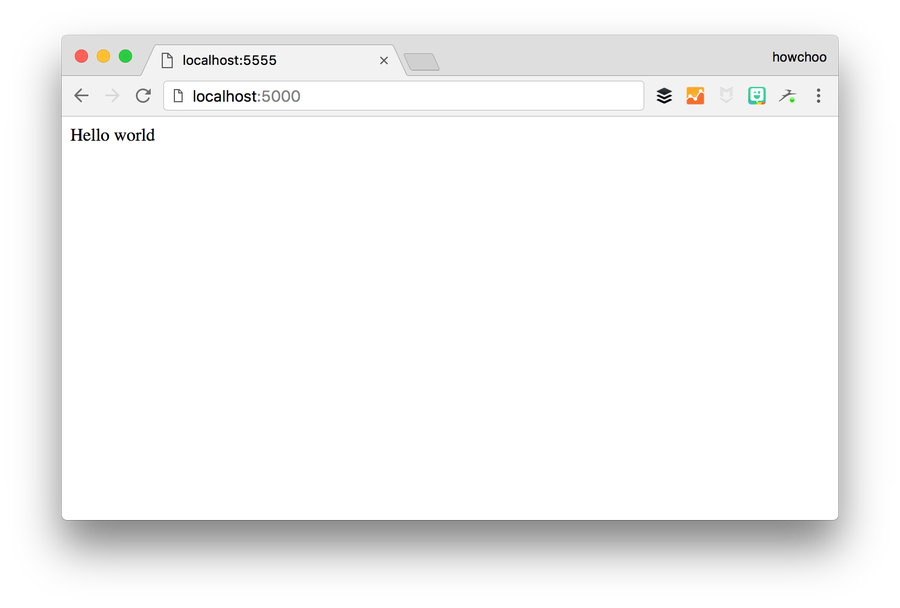
Now test by opening up your browser to localhost:5000. You should see “Hello world”.

3 – Why do we need a health check?

Well, to be honest, in our case it may not make that much of a difference because we’re just running the development server, but in a production environment we’d probably be running a few different processes. We’d probably serve our Flask app using nginx and uwsgi, possibly using supervisor.

In this case, we could theoretically lose our Flask app, but the container would still be running. So the normal state of the container would be “running” even though we are no longer serving traffic.

If we’re running this service in a swarm, the swarm will still think everything is OK because the container is running. But actually, we’d prefer the swarm to know that things aren’t healthy and restart the container so we can serve traffic again.

4 – Add a health check to the Dockerfile

Since the goal of our container is to serve traffic on port 5000, our health check should make sure that is happening.

A health check is configured in the Dockerfile using the HEALTHCHECK instruction. There are two ways to use the HEALTHCHECK instruction:

HEALTHCHECK [OPTIONS] CMD command

or if you want to disable a health check from a parent image:

HEALTHCHECK NONE

So we’re obviously going to use the first. So let’s add the HEALTHCHECK instruction, and we’ll use curl to ensure that our app is serving traffic on port 5000.

So add this line to the Dockerfile right before the last line (CMD).

HEALTHCHECK CMD curl --fail http://localhost:5000/ || exit 1

In this case, we are using the default options, which are interval 30s, timeout 30s, start-period 0s, and retries 3. Read the health check instruction reference for more information on the options.

5 – See the health status

Let’s rebuild and run our container.

docker build -t docker-flask .
docker run --rm --name docker-flask -p 5000:5000 docker-flask

Now let’s take a look at the health status. Notice we have the –name option to the above command so we can easily inspect the container.

docker inspect --format='{{json .State.Health}}' docker-flask 

If you run this immediately after the container starts, you’ll see Status is starting.

{"Status":"starting","FailingStreak":0,"Log":[]}

And after the health check runs (after the default interval of 30s):

{"Status":"healthy","FailingStreak":0,"Log":[{"Start":"2017-07-21T06:10:51.809087707Z","End":"2017-07-21T06:10:51.868940223Z","ExitCode":0,"Output":"Hello world"}]}

We have a little more information here. We see the Status is healthy as well as some details about the health check.

We can also see the health status by running docker ps.

docker ps

You’ll see the following:

CONTAINER ID        IMAGE                  COMMAND                  CREATED             STATUS                   PORTS                    NAMES
9f89662fc56a        howchoo/docker-flask   "python app.py"          2 minutes ago       Up 2 minutes (healthy)   0.0.0.0:5555->5000/tcp   docker-flask

Notice under STATUS, the status is Up with (healthy) next to it. The health status appears only when a health check is configured.

6 – Configure the health check using a compose file

We can also configure the health check using a compose file. Let’s make a file called docker-compose.yml.

version: '3.1'

services:
  web:
    image: docker-flask
    ports:
      - '5000:5000'

And we deploy our stack to a swarm using:

docker stack deploy --compose-file docker-compose.yml flask

Now, the health check was specified in the Dockerfile, but we can also specify (or override) the health check settings in our compose file.

version: '3.1'

services:
  web:
    image: docker-flask
    ports:
      - '5000:5000'
    healthcheck:
      test: curl --fail -s http://localhost:5000/ || exit 1
      interval: 1m30s
      timeout: 10s
      retries: 3

7 – In conclusion

Hopefully you have a better understanding of Docker health checks and how to implement them. If you have any questions or would like to suggest improvements to this guide, please comment below.

NEXT UP

Secure Your Sensitive Data with Kubernetes Secrets

Learn how to create and use Kubernetes secrets.
howchoo   (467)
November 26, 2023

Kubernetes secrets are objects that store and manage sensitive data inside your Kubernetes cluster. One mistake developers often make is storing sensitive information like database passwords, API credentials, etc in a settings file in their codebase. This is very bad practice (hopefully for obvious reasons). Most developers know this, but still choose the option because it’s easy.

Continue Reading

howchoo

 467 guides

Introducing Howchoo, an enigmatic author whose unique pen name reflects their boundless curiosity and limitless creativity. Mysterious and multifaceted, Howchoo has emerged as a captivating storyteller, leaving readers mesmerized by the uncharted realms they craft with their words. With an insatiable appetite for knowledge and a love for exploration, Howchoo’s writing transcends conventional genres, blurring the lines between fantasy, science fiction, and the surreal. Their narratives are a kaleidoscope of ideas, weaving together intricate plots, unforgettable characters, and thought-provoking themes that challenge the boundaries of imagination.

Home Interests Raspberry Pi

How to Configure a Static IP Address on the Raspberry Pi

Making things a little less dynamic.
howchoo   (467)
September 15, 2023
8 minutes

Share

You’ll Need 1

What you’ll need
Interests
Howchoo is reader-supported. As an Amazon Associate, we may earn a small affiliate commission at no cost to you when you buy through our links.
Posted in these interests:

pi • 92 guides

The network capabilities on the Raspberry Pi make it possible to create some really fun projects. Once in a while, you’ll come across a project that could benefit from a static IP address. If you’re using your Raspberry Pi for storage as a NAS device, an FTP server—or any other kind of server for that matter—a static IP address can be a big help.

1 – Update Raspberry Pi OS

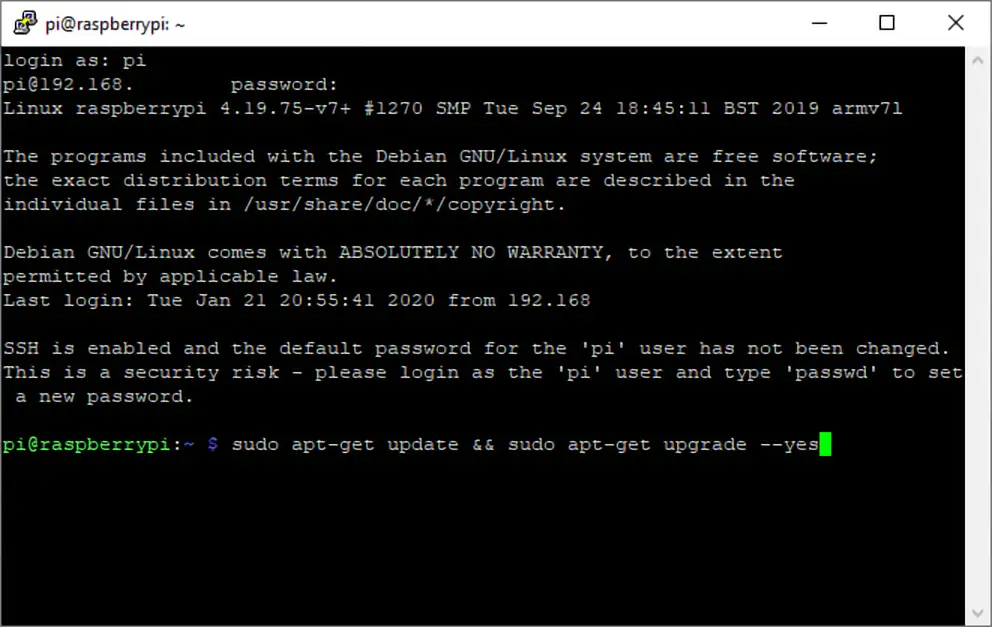
This guide should work with any Raspberry Pi using Raspberry Pi OS (formerly Raspbian). Make sure your copy of is up to date. If you’re not sure where to begin, visit our guide on how to update Raspberry Pi OS.

How to Install Raspberry Pi OS on Your Raspberry Pi
Get the new official Raspberry Pi OS on your Pi.

2 – Find your router IP address

We’ll need both your router IP address and name server IP. We can find this information by running a few commands in a terminal on the Pi. Remote into the Pi using SSH or open a terminal window from within Raspberry Pi OS.

How to Connect to a Raspberry Pi Remotely via SSH
The preferred (and most common) method of connecting to your Pi to run commands.

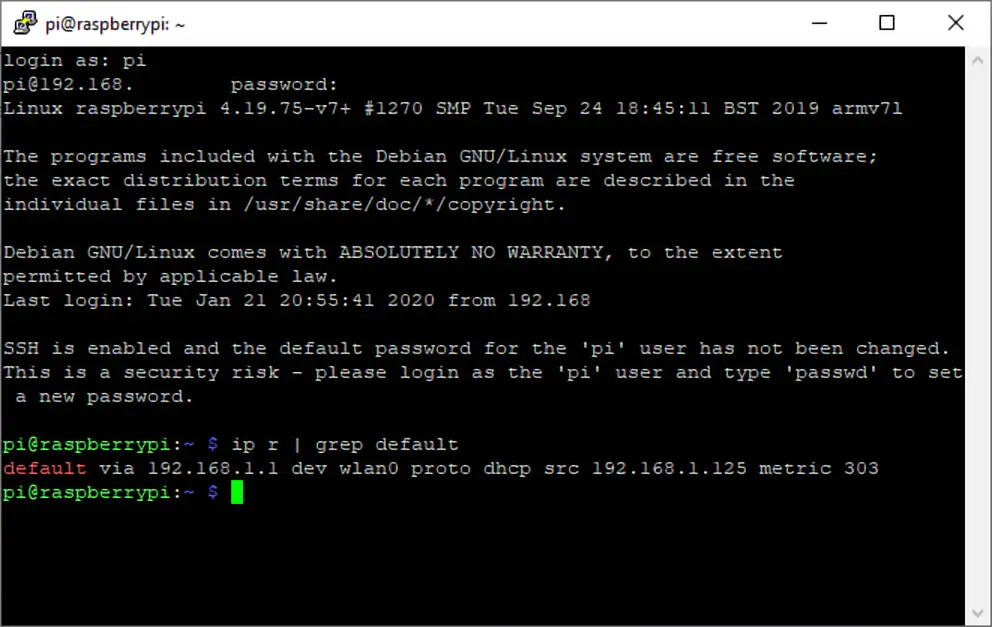
To find your router IP address, enter the following command:

ip r | grep default

The router IP address will appear after the text “default via”—take note of it. The name server can be found in the resolv.conf file. Open it using the following command.

sudo nano /etc/resolv.conf

Take note of the name server IP address and close the file with CTRL + X.

3 – Edit the dhcpcd file on the Raspberry Pi

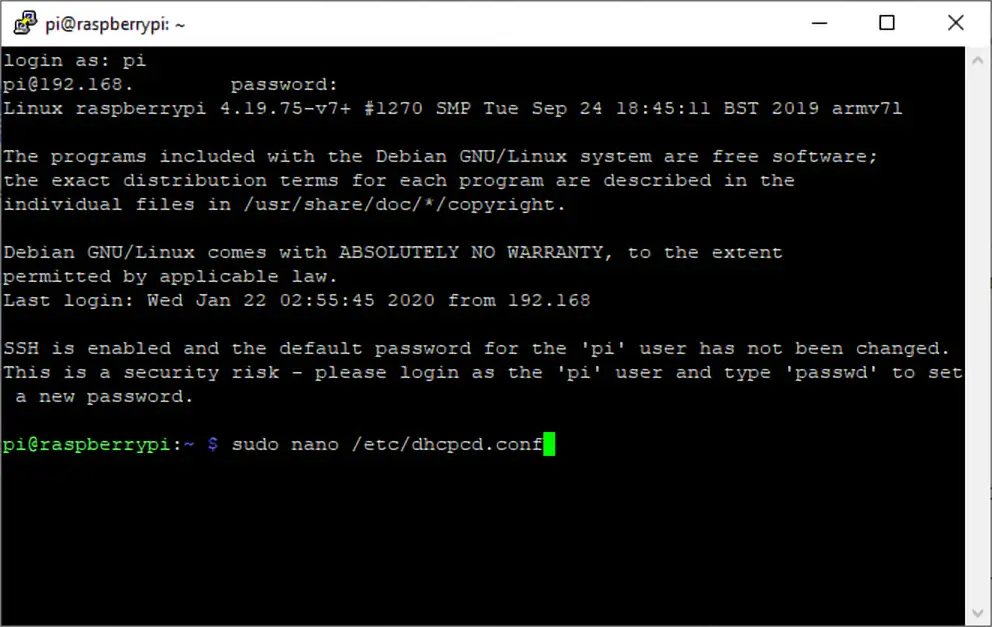
The static IP is set by adding it to a file on the Raspberry Pi. In the terminal window, run the following command to edit the dhcpcd.conf file.

sudo nano /etc/dhcpcd.conf

4 – Set the static IP address

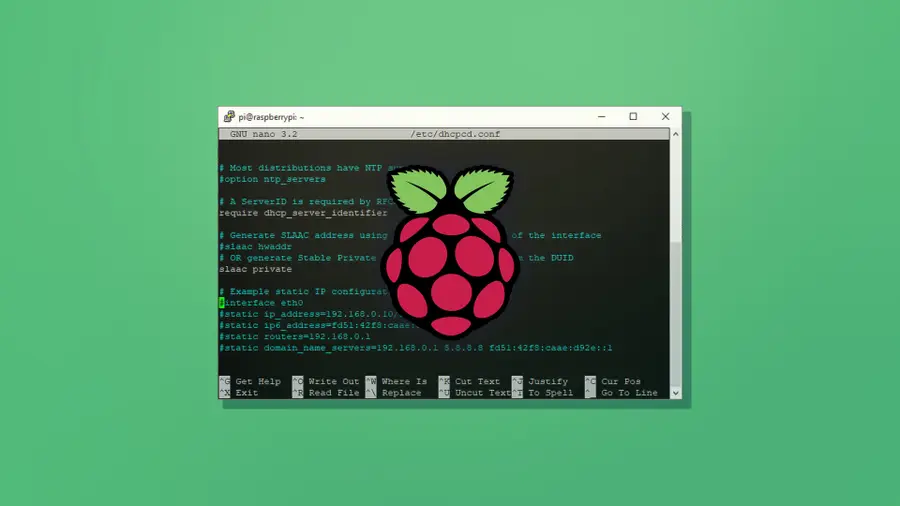
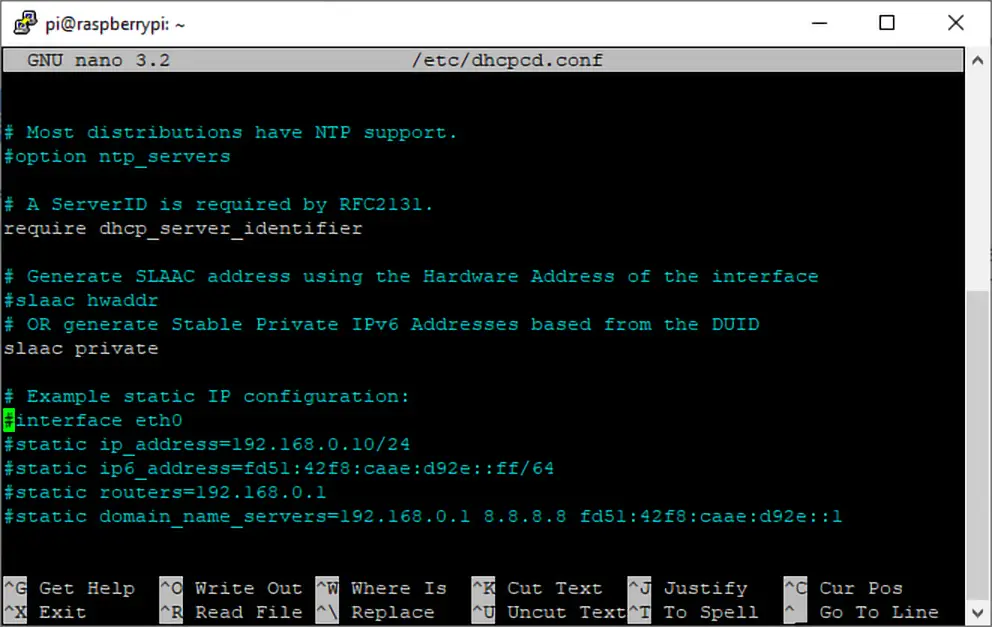
This document has a few lines of code that can be activated by removing the # to the left of each line. Use the following ledger to properly set your static IP address.

  • Network = If you’re using a wired connection, set this to eth0. If you’re using a wireless connection, set this to wlan0.
  • Static_IP = This is the static IP address you want to assign to the Raspberry Pi.
  • Router_IP = This is the IP address for the router.
  • Name_Server = This is the name server address. You can use another DNS IP here if you’d like.

Enter your information into the file, be sure to remove the  brackets. Check the screenshot for an example.

interface 
static ip_address=/24
static routers=
static domain_name_servers=

When that’s completed, save the file using CTRL + X.

5 – Test the static IP address

When the changes have been made, restart the Raspberry Pi. Now is a good time to test your project and make sure the IP address isn’t changing. Disconnect and reconnect your Pi from the network. If the IP address changes, verify the information in the previous step saved properly. If it stays the same, congratulations! You’ve set a static IP on the Raspberry Pi.

NEXT UP

How to Run a Minecraft Server on the Raspberry Pi

A whole world trapped inside your Pi.
howchoo   (467)
December 7, 2023

There are several ways to go about running a Minecraft server on the Raspberry Pi. In this guide, I’ll cover how to install Nukkit—a cross-platform Minecraft server that’s super easy to set up on the Raspberry Pi. This server should work with PCs, consoles, and tablets running Minecraft 1.14. I’ll be using a Raspberry Pi

Continue Reading

howchoo

 467 guides

Introducing Howchoo, an enigmatic author whose unique pen name reflects their boundless curiosity and limitless creativity. Mysterious and multifaceted, Howchoo has emerged as a captivating storyteller, leaving readers mesmerized by the uncharted realms they craft with their words. With an insatiable appetite for knowledge and a love for exploration, Howchoo’s writing transcends conventional genres, blurring the lines between fantasy, science fiction, and the surreal. Their narratives are a kaleidoscope of ideas, weaving together intricate plots, unforgettable characters, and thought-provoking themes that challenge the boundaries of imagination.

Home Interests Security

How to Find Your Network Security Key (And Protect It!)

First, check your router. If it’s not there, then we can help you find it!
howchoo (467)
September 15, 2023
12 minutes

Share

Interests
Posted in these interests:

internet • 36 guides
security • 6 guides
wifi • 2 guides
Feel free to skip ahead to see how to find the network security key. A network security key is a fancy way of saying a Wi-Fi password. Whatever you call it, you’ll want to know how to find the network security key and protect it. It is extremely important to keep your personal or business network safe from all kinds of threats. The simple truth is that anytime you install a router, the Wi-Fi signal can be detected and connected to anyone nearby. While this may be less of an issue if you’re on your private island, for most of us, that puts us at great risk of people gaining control of networks and inflicting all kinds of damage if we don’t have one. For these reasons, we decided to put together an informative guide that includes everything you need to keep your home or business Wi-Fi safe.

Why Your Network Security Key is So Important

Stop and think for a second about some of the things you do on the internet. You probably work, socialize, manage your finances, shop, and more. All of this data is fed through your router, and when somebody manages to get unauthorized access, they can intercept it. From here, they might track your identity or sell your personal information on the dark web. That’s not all. Cybercriminals can also implant malware or spyware on your network to continue inflicting harm even long after they are gone. Last but not least, even if their intentions aren’t bad and the person just wants a free internet connection, then they’re stealing away bandwidth you pay for!

The Types of Network Security Keys

To you, it might just seem like a Wi-Fi password. But there’s actually a lot going on behind the scenes. There are now four main types of Wi-Fi security keys:
  • WEP (Wired Equivalent Privacy)
  • WPA (Wi-Fi Protected Access)
  • WPA 2 (Wi-Fi Protected Access 2)
  • WPA 3 (Wi-Fi Protected Access 3)
The most recent and secure standard is WPA 3, and you’ll definitely want to look for routers that support it. However, WPA 2 is also still pretty good. WPA and WEP, however, are outdated and more susceptible to attack. You should look to upgrade your router to one that supports one of the newer standards. Now here’s how to figure out your network security key and how you can change it to a good option for you!

1 – How to find your default network security key

Arris
Once you unbox your router, you can generally find the preset password on a small sticker usually located on the router’s underside. If you can’t find it there, you should also check inside the box the router came in or any accompanying materials. Generally, out-of-the-box passwords are very complex, which makes them quite secure. However, you know who may have gotten access to your router, so it’s best to change it by going into your router settings.

2 – Changing your network password

It’s quite easy to change any Wi-Fi password. You’ll first need to connect to the network either via Wi-Fi or ethernet. Next, you’ll need to connect to the router admin setting. Each router is different, but usually, you can get to it by typing: 192.168.1.1/ into your URL bar. Check your router manual, however, as your address might be different. You can also see our router interest page, where we have instructions for logging into most major routers. Then enter the admin information. In some cases, this is the same password as your default Wi-Fi. In others, there’s a separate admin login. You’ll again be able to find this information in the manual. Once you’re in, you’ll be able to change the router settings. We recommend changing the login credential and creating a secure password.

How to Create a Secure Wi-Fi Password

The general advice in the world of passwords is that you need some complex, lengthy, and a combination of lower and uppercase letters, numbers, and special characters. You’re looking to make a random, secure password that’s nearly impossible to hack
How to Generate a Random, Secure Password
You might be thinking that it will be a nightmare to remember and share with the people to whom you want to give your Wi-Fi password. However, it’s easier than you imagine. You can use a password manager like 1Password or NordPass to create, manage, and store these passwords then securely share them when necessary.

3 – How to find your network security key in Windows 10

If you can’t find your password, you can retrieve it through Windows, provided you have a computer that has already connected to your router. Follow these steps to find the password in Windows 10:
  1. Open Network Connections.
  2. Select the Network and Sharing Center icon.
  3. Tap on Wireless network.
  4. Select Wireless Properties.
  5. Open Security.
  6. Click “Show characters to make the network security visible:“.

4 – How to find your network security key using a Mac

It’s quite similar to find your password using a Mac.
  1. Search for “Keychain Access” in Spotlight Search.
  2. In Keychain Access, enter the name of your Wi-Fi network or scroll down to it.
  3. Click on your network.
  4. Check Show Password to see your network security key.
  5. Enter your Mac password to be able to see it.
Do note, you can also set up an automation to share your password via iOS, but that does take a little time. That’s why we generally recommend using a password manager like NordPass instead.
NordPass Review: Finally a Free Password Manager We Can Love Label us “impressed” with this relatively new password manager.
NEXT UP

How to Change Your Frontier WiFi Password

howchoo
howchoo (467)
November 25, 2023
There are a few reasons you might want to update or reset your WiFi password: making your network more secure, and making your password easier to remember and type. Improved network security You can add an extra layer of security to your network by changing the WiFi password. As long as your new password is
Continue Reading

howchoo

 467 guides
Introducing Howchoo, an enigmatic author whose unique pen name reflects their boundless curiosity and limitless creativity. Mysterious and multifaceted, Howchoo has emerged as a captivating storyteller, leaving readers mesmerized by the uncharted realms they craft with their words. With an insatiable appetite for knowledge and a love for exploration, Howchoo’s writing transcends conventional genres, blurring the lines between fantasy, science fiction, and the surreal. Their narratives are a kaleidoscope of ideas, weaving together intricate plots, unforgettable characters, and thought-provoking themes that challenge the boundaries of imagination.