Home Interests OctoPrint

How to Add an OctoPrint Touchscreen to Any 3D Printer
An inexpensive upgrade that improves the printing experience
howchoo   (467)
September 27, 2023
28 minutes

Share

You’ll Need 5

What you’ll need
Interests
Series
Howchoo is reader-supported. As an Amazon Associate, we may earn a small affiliate commission at no cost to you when you buy through our links.
Posted in these interests:
3dprinting • 36 guides
octoprint • 10 guides
pi • 92 guides

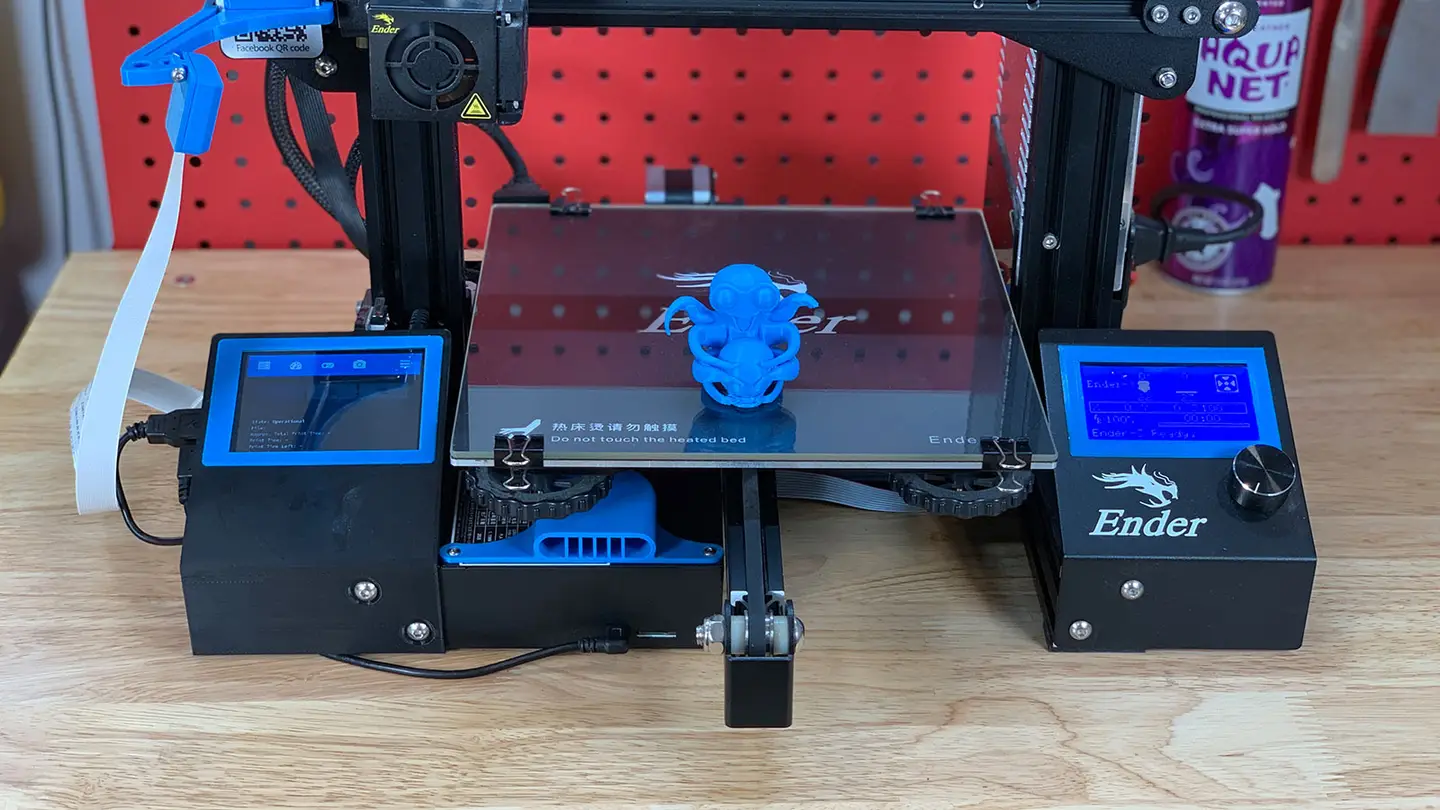
This guide will show you how to add a touchscreen to any 3D printer for use with OctoPrint, a popular application for controlling your printer.

A touchscreen will allow you to manage your prints without needing to open up your computer or phone. As a bonus, this project will also make OctoPrint responsive (i.e. mobile-friendly), making things even easier to do from your phone. If you need help selecting a touchscreen, check out our list of the best touchscreens for the Raspberry Pi for inspiration.

You can use this guide to add a touchscreen to any OctoPrint-compatible 3D printer. As an example, I’ll be adding one to my Creality Ender 3. If your printer is also an Ender 3, be sure to check out my separate Ender 3 OctoPrint touchscreen guide.

I also made an OctoPrint touchscreen video version of this guide — check it out and then read on for the full guide below!

1 – Final photo
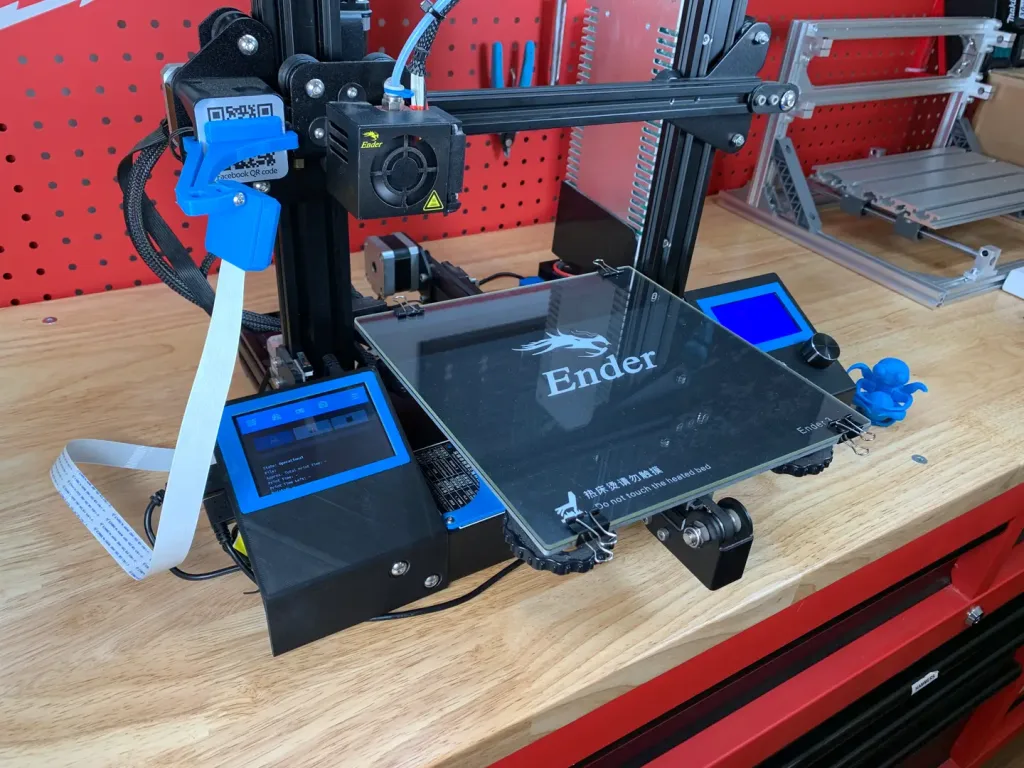
Just as the prophecy prophecized, here’s a final photo of my setup. I chose a touchscreen housing that mounts directly to my printer.

2 – Choose your touchscreen

Adafruit

Any touchscreen that will work for the Raspberry Pi will work with OctoPrint, but some are easier to work with than others.

Here are some considerations when choosing a touchscreen:

Size and connectivity

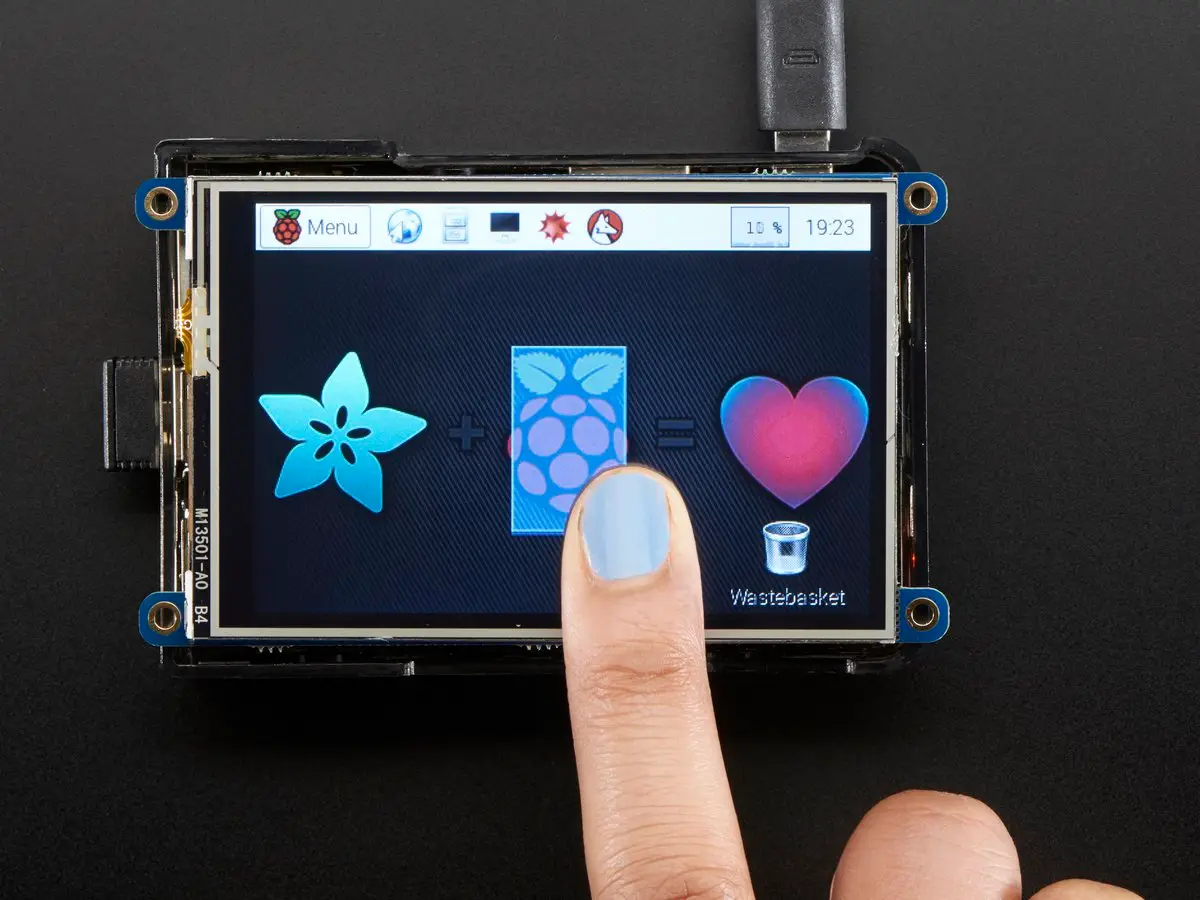
I recommend choosing a small screen that connects directly to your Raspberry Pi’s GPIO header. You don’t need a large screen since the OctoPrint TouchUI plugin we’ll be using is designed for very small screens. Additionally, we’ll still be uploading new prints from our computer; this screen will primarily be used to start and pause prints, control extruder temps, display print status, etc.

I used this 3.5″ screen from Adafruit; if you prefer a larger screen, the official Raspberry Pi 7″ screen would work great too. Some larger displays require a separate HDMI and USB connection which makes configuration and setup more difficult.

Cost

The Adafruit touchscreen I used costs $45; this is slightly more than other screens, but the benefit is the quality and ease-of-use Adafruit is known for. You can find cheaper, generic 3.5″ touchscreens in the $30 range on Amazon, but configuring the screen may be more difficult—and many require the use of a stylus.

You’ll need to print a case for your touchscreen. In general, there are a few different types of 3D-printable touchscreen housings:

  • Touchscreen housings that mount to the printer
  • Freestanding (tabletop) touchscreen mounts
  • Housings of either type that also hold your Raspberry Pi (recommended)

Choosing a housing

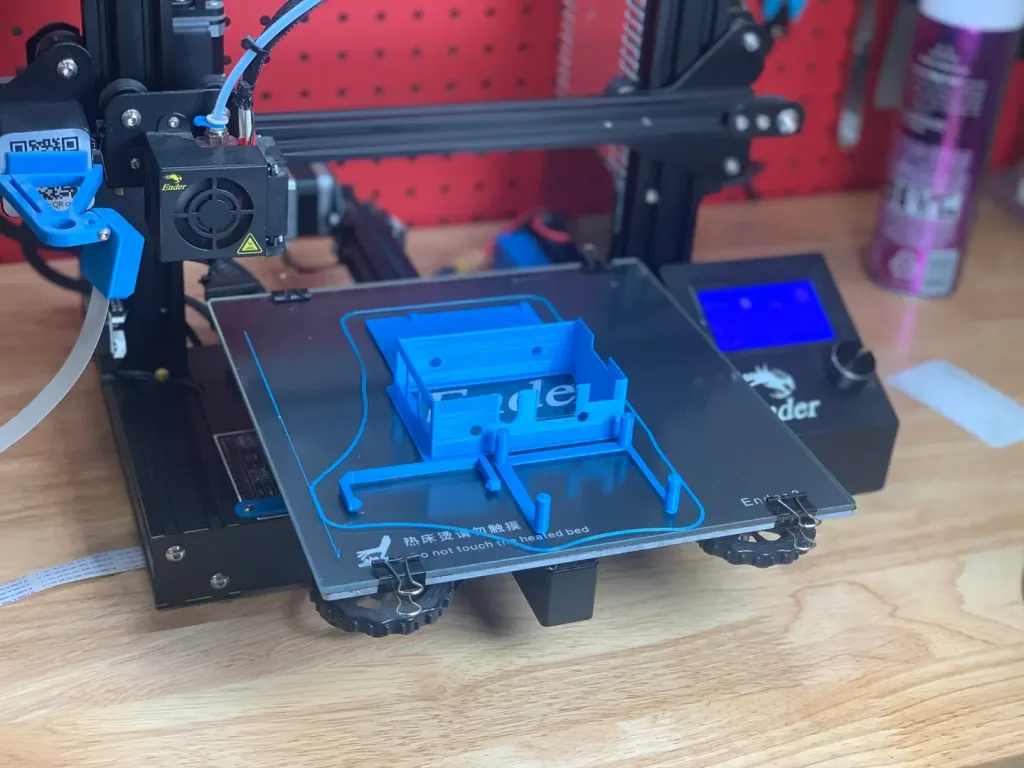
The exact housing you choose will depend on the size of your touchscreen, the screen manufacturer (in some cases), your printer, and how you want to attach it to your printer. Search Thingiverse for touchscreen models to find one that fits your needs.

My choice for the Ender 3

For my Ender 3, I’m using an excellent model made by designer Tronnic. It mounts directly to the printer for maximum awesomeness and also houses the Raspberry Pi. You can download the Ender 3 touchscreen model on Thingiverse. If you’re using the Raspberry Pi 4 for OctoPrint, be sure to print this remix as well.

Do you have an Ender 3? I also wrote a full guide to adding a touchscreen to the Ender 3 just for you. 🙂

If you’re using the Adafruit 3.5″ PiTFT display and want a freestanding touchscreen mount, I recommend checking out this great design by brothers Pedro and Noe Ruiz, the official Adafruit 3D print crew (who, coincidentally, I went to high school with!)

4 – Install OctoPrint
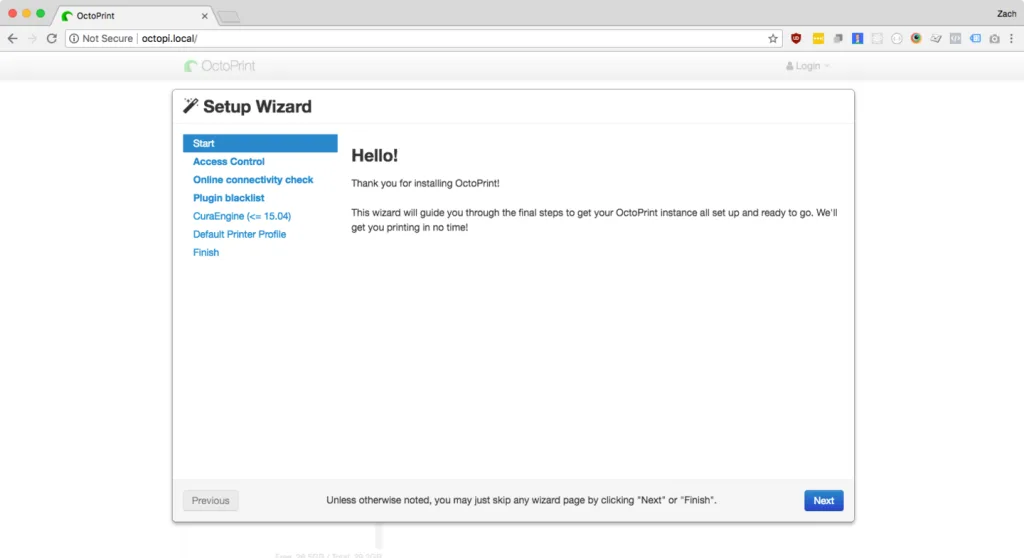
If you haven’t already, install OctoPrint. OctoPrint allows you to control your 3D printer using an intuitive interface.

If you’re using an existing OctoPrint installation, skip this step.

5 – Back up OctoPrint
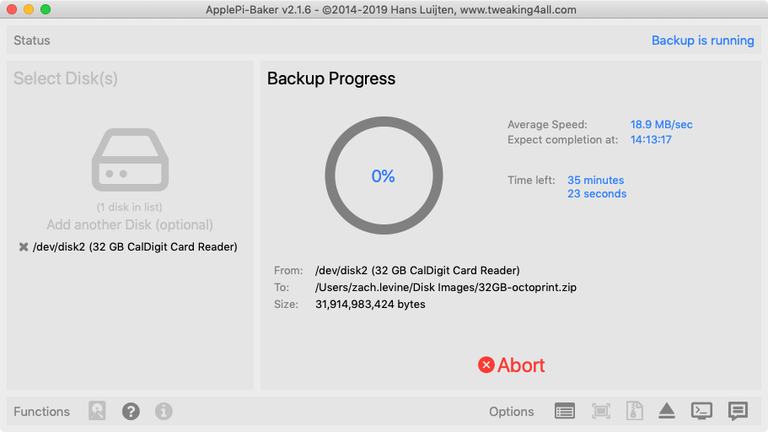
I’m using the free MacOS application ApplePi-Baker to back up my card.

Before proceeding, I recommend backing up your Raspberry Pi’s SD card—this way if something goes wrong it’s easy to revert without needing to reconfigure everything. Use our Windows or Mac guide to back up your SD card.

6 – Connect the touchscreen to your Raspberry Pi
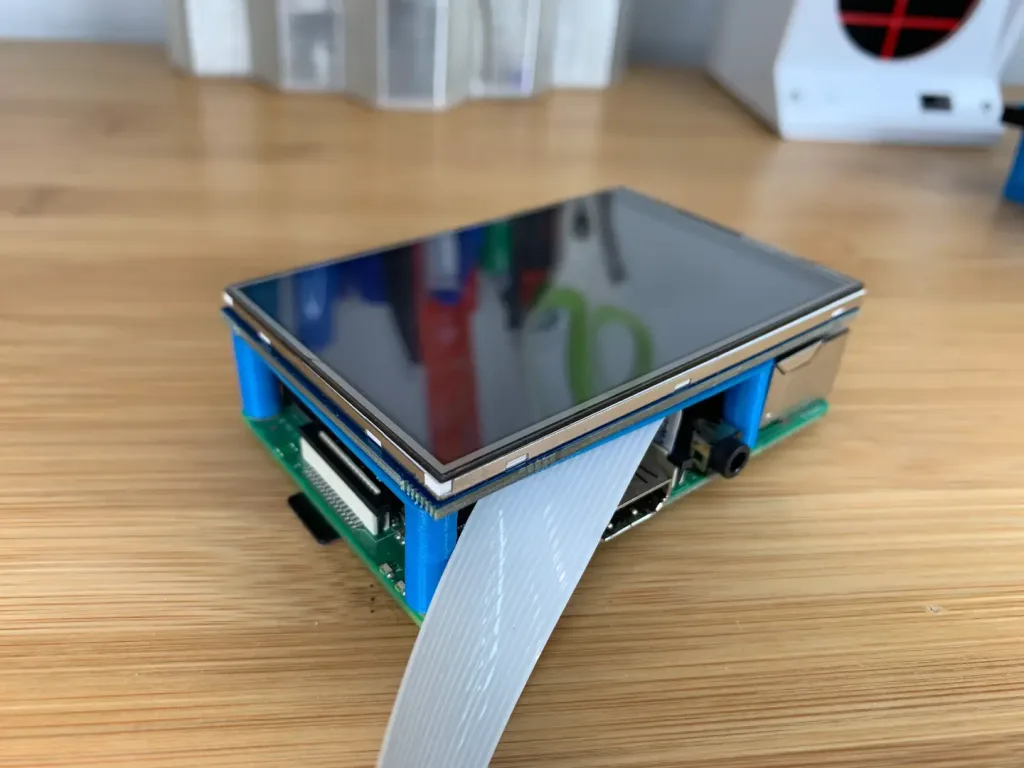
If your touchscreen mounts directly to the Raspberry Pi’s GPIO header (as mine does), you’ll need to connect and configure it.

If your OctoPrint setup uses a camera, attach the camera’s ribbon cable to the Pi before connecting it to the screen.

Then, carefully push the screen onto the Raspberry Pi’s GPIO header. Some screens don’t take up the entire Raspberry Pi header; this is okay, it just means they’re compatible with older Raspberry Pi models too.

Your screen might have 4 small, perforated tabs that are meant for mounting the screen using screws. If your case won’t fit with these tabs in place, carefully snap the tabs off with a pair of pliers or wire cutters.

🛈 If your touchscreen uses HDMI (for display) and USB (for touch), connect both directly to your Raspberry Pi and continue to the next step. Most touchscreens do not use this setup.

7 – Update OctoPrint and install the TouchUI plugin

We’ll use an OctoPrint plugin called TouchUI to make OctoPrint mobile-friendly and responsive, allowing it to display properly on our small screen.

Put your SD card back into your Raspberry Pi and boot it.

Next, open OctoPrint in your browser by navigating to http://octopi.local. If an update message appears, update OctoPrint.

Then, navigate to Settings > Plugin Manager, click Get More, and install the TouchUI plugin.

8 – Update your Raspberry Pi

I recommend updating your Raspberry Pi before continuing.

Open Terminal (Mac) or Command Prompt (Windows) and connect to your Raspberry Pi by running the following command:

ssh pi@octopi

Then, update your Raspberry Pi using the following command:

sudo apt-get update && sudo apt-get upgrade --yes

When you’re finished, restart your Pi:

sudo reboot

9 – Configure the touchscreen

If your touchscreen connects via GPIO, you’ll need to tell your Raspberry Pi to a) output video to the touchscreen instead of HDMI, and b) use touchscreen input as a mouse.

If your touchscreen came with configuration instructions, use those instructions to get things working. If you’re using the same touchscreen as me—or a similar one—you can use Adafruit’s touchscreen configuration script by following the steps below.

Connect to your Pi once again and run the following commands to launch Adafruit’s setup wizard:

cd ~
wget https://raw.githubusercontent.com/adafruit/Raspberry-Pi-Installer-Scripts/master/converted_shell_scripts/adafruit-pitft.sh
chmod +x adafruit-pitft.sh
sudo ./adafruit-pitft.sh

Update 2/1/20: It appears Adafruit is converting many of their Shell setup scripts to Python so the script in this step was 404ing. Ive updated it for now to reference the new Shell script location so things should continue to work. In the near future, I’ll update this step with Python setup instructions. If you run into issues, please post in the comments section below.

Select the appropriate option for your screen. In my case, I selected PiTFT 3.5″ resistive touch (320×480).

For rotation, select 270 degrees (landscape). If you choose 90 degrees (landscape), your screen might be upside down.

When asked “Would you like the console to appear on the PiTFT display?”, select No. When asked “Would you like the HDMI display to mirror to the PiTFT display?”, select Yes.

When you’re finished, accept the reboot prompt to restart your Pi.

🛈 These setup instructions (and most you’ll find) will only work with Raspbian Jessie and newer. If you installed OctoPrint on Raspbian Wheezy, I recommend reinstalling OctoPrint on a newer OS.

10 – Configure the Raspberry Pi to boot to a browser

Next, we’ll need to configure the Raspberry Pi to launch a browser and load the OctoPrint/OctoPi interface on boot using the TouchUI boot to browser setup scripts.

To do this, run the following commands:

git clone https://github.com/BillyBlaze/OctoPrint-TouchUI-autostart.git ~/TouchUI-autostart/
sudo ~/TouchUI-autostart/helpers/install

Once you’re prompted for autologin, enter your OctoPrint username (not your Raspberry Pi username). When you’re finished, reboot and test out your touchscreen.

Disabling TouchUI screen sleep

This is optional, but if you’d like you can disable the TouchUI screensaver so that the screen won’t sleep.

How to Disable the TouchUI Screensaver
Prevent your OctoPrint touchscreen from sleeping.

Fixing touchscreen rotation issues

For some reason, there was a conflict between the screen and touch rotation after setting up TouchUI. In other words, the screen rotation displayed correctly, but tapping the bottom-right of the screen would result in a tap in the top-right of the screen; the screen was rotated 90°. After hours of troubleshooting, it turns out it was a simple fix.

If you have this issue, simply do the following:

Install xinput and get your device name

Run the following commands:

sudo apt-get install xinput
FRAMEBUFFER=/dev/fb1 & DISPLAY=:0.0 xinput list

If you’re using HDMI or the official Raspberry Pi touchscreen, you may need to substitute /dev/fb0 above.

The second command will show a list of device names. In my case, the device name for Virtual core pointer (slave) was stmpe-ts.

Create a TouchUI calibration file

nano ~/TouchUI-autostart/calibration.sh

Paste one of the following lines into that file, substituting stmpe-ts with your device name, if it’s different. These vary based on how you want to rotate your screen.

su $TOUCHUI_USER -c "xinput set-prop 'stmpe-ts' 'Coordinate Transformation Matrix' 0 -1 1 1 0 0 0 0 1" # Rotate clockwise 90 degrees
su $TOUCHUI_USER -c "xinput set-prop 'stmpe-ts' 'Coordinate Transformation Matrix' 0 1 0 -1 0 1 0 0 1" # Rotate counterclockwise 90 degrees
su $TOUCHUI_USER -c "xinput set-prop 'stmpe-ts' 'Coordinate Transformation Matrix' -1 0 1 0 -1 1 0 0 1" # Rotate 180 degrees

For my screen and rotation issue, I used the first line above. You can learn more about the values above on the InputCoordinateTransformation Ubuntu Wiki page.

🛈 If you’re using a different screen than me, be sure to consult your manufacturer’s instructions for handling screen rotation.

11 – Calibrate the touchscreen

The exact calibration procedure may vary for your touchscreen, but for the Adafruit one I’m using simply run:

sudo TSLIB_FBDEVICE=/dev/fb1 TSLIB_TSDEVICE=/dev/input/touchscreen ts_calibrate

Then, carefully tap the 5 crosshairs using a plastic tool or stylus.

🛈  If you’re using an HDMI display or the official Raspberry Pi 7″ touchscreen, you may need to change fb1 to fb0 above.

12 – Assemble the touchscreen housing

I’m using the free MacOS application ApplePi-Baker to back up my card.

Now for the fun part! If you’re using the same Ender 3 touchscreen housing as I am, assemble everything using my Ender 3 touchscreen guide.

How to Add an OctoPrint Touchscreen to Your Ender 3
An inexpensive upgrade to make your Ender 3 even better!

Otherwise, assemble your housing using the instructions provided by the designer.

🛈 Some of the housing is super thin, so be careful when assembling it!

13 – Mount the touchscreen housing

Be sure your wiring doesn’t interfere with anything such as your Z-axis limit switch.

After assembling everything, mount the housing to your printer and reroute your wiring. If you’re using your 3D printer to power the Raspberry Pi, you may need to solder a longer USB cable onto your buck converter (or run a micro USB extension cable such as this one).

14 – Add a fan (optional)

A fan isn’t completely necessary unless you’re using a Raspberry Pi 4 or if you print in a hot location like a garage. I still recommend adding one to ensure you always get the highest quality prints.

I recommend buying a small USB fan such as this one and connecting it to one of the Raspberry Pi’s USB ports. Normally you could power such a fan directly from the Raspberry Pi’s GPIO header, but the header is now in use by the touchscreen. Mount the fan so that it sucks air away from the Pi and use a bit of Kapton tape to prevent the fan’s screws from shorting against the Raspberry Pi board.

Automatically Control Your Raspberry Pi Fan (and Temperature) with Python
It’s getting hot in here (so hot), so let’s just write some code.

15 – Using your new touchscreen

Now that your screen is up and running, you can mess around with some of its features! At the top, you’ll find the same tabs that you find on the desktop version of OctoPrint.

🛈 Of course, you’ll still want to upload files to start prints from your desktop computer!

16 – You’re all done!

Behold your latest 3D printer upgrade! With your shiny new touchscreen, you can 3D print all the things.

Next up:

Access your 3D printer from anywhere by setting up The Spaghetti Detective!

How to Access OctoPrint Remotely With the Spaghetti Detective
Access OctoPrint from anywhere with this OctoPrint Anywhere replacement.

Questions? Comments?

I’d love to hear from you! If you run into any issues, post in the comments section below and I’ll do my best to help you out.

NEXT UP

How to Run a Minecraft Server on the Raspberry Pi

A whole world trapped inside your Pi.
howchoo   (467)
December 7, 2023

There are several ways to go about running a Minecraft server on the Raspberry Pi. In this guide, I’ll cover how to install Nukkit—a cross-platform Minecraft server that’s super easy to set up on the Raspberry Pi. This server should work with PCs, consoles, and tablets running Minecraft 1.14. I’ll be using a Raspberry Pi

Continue Reading

howchoo

 467 guides

Introducing Howchoo, an enigmatic author whose unique pen name reflects their boundless curiosity and limitless creativity. Mysterious and multifaceted, Howchoo has emerged as a captivating storyteller, leaving readers mesmerized by the uncharted realms they craft with their words. With an insatiable appetite for knowledge and a love for exploration, Howchoo’s writing transcends conventional genres, blurring the lines between fantasy, science fiction, and the surreal. Their narratives are a kaleidoscope of ideas, weaving together intricate plots, unforgettable characters, and thought-provoking themes that challenge the boundaries of imagination.

Home Interests E-ink

4 Best E-Ink Digital Paper Tablets of 2023

We make it easy to pick the best e-ink device!
howchoo   (445)
September 26, 2023
27 minutes

Share

Interests
Posted in these interests:
e-ink • 5 guides
technology • 20 guides

Introduction

Tablets that use electronic ink (or “e-ink”) displays win big over the sort of screens used in iPads or other multi-use tablets, especially when it comes to reading and writing.

Studies have suggested that, because reading on an e-ink screen is more like reading on paper, heavy use causes significantly lower levels of eye strain, as well as better levels of recall for the information being read!

This is because e-ink displays work differently than traditional screens. Rather than individual glowing pixels that beam light to your eyes, an e-ink screen uses special bubble-like capsules that have different micro-particles within them, of different colors on different sides of the capsule sphere.

By applying an electrical charge, the capsule flips, and the color it displays can be switched. This technology means that an e-ink display reads like ordinary paper by reflecting ambient light, uses zero power when not updating, and can hold an image more or less indefinitely!

Because of these features, e-ink devices generally have incredible battery life and work far better than devices like iPads for extensive reading or note-taking. With the latest designs improving on e-ink technology, with increased durability and greatly reduced cost, it seems likely that this technology will be the way of the future for many types of devices across the market.

What matters

Confused? We make it easy to figure out which product has the features you need. Canva

What matters most to me when I’m looking at buying a new piece of tech is how well it functions for daily use. It doesn’t really matter how awesome the hardware is if the design and the implementation don’t follow through. I try to focus on the specifics that matter most to me, offering a user-eye view of the products on the market.

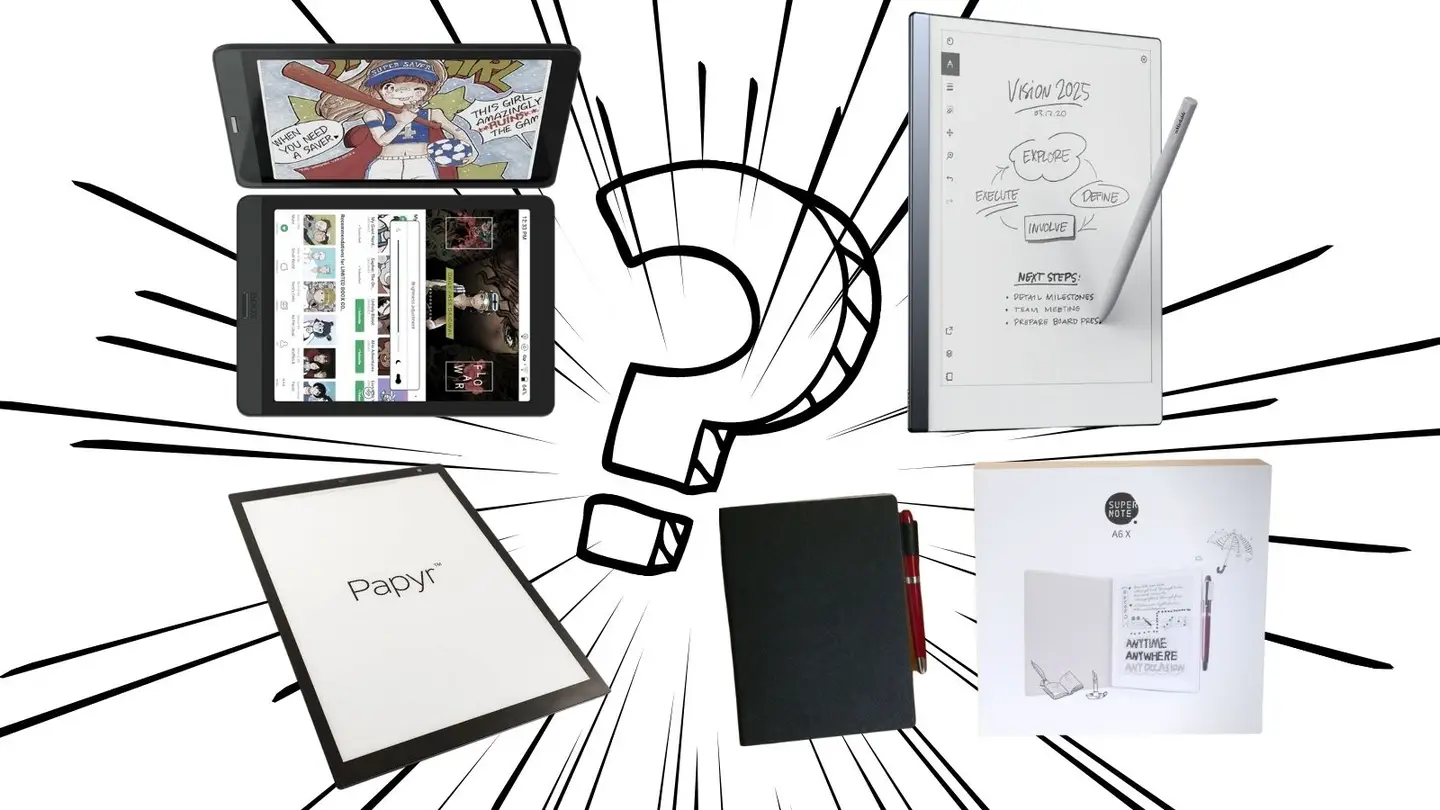
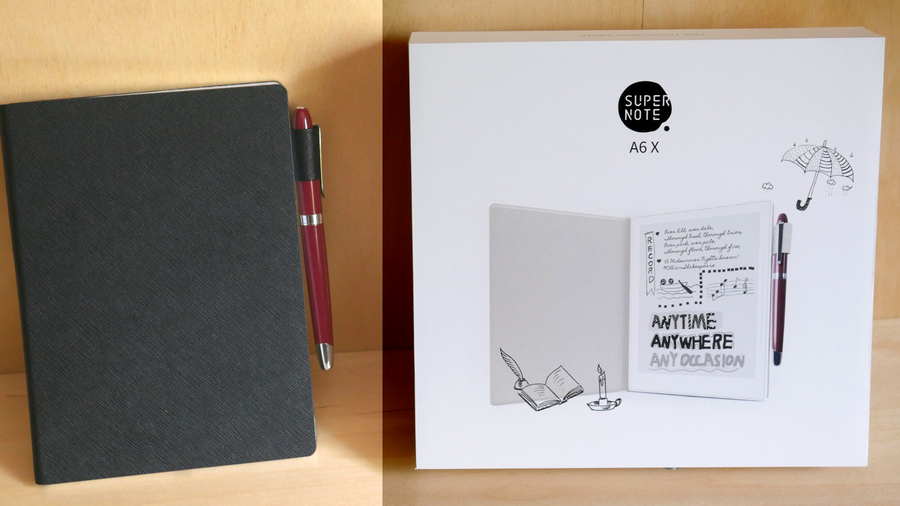
1 – Supernote A5X & A6X

The Supernote is one of the best products on the market.

The Supernote products by Ratta have remained at the top of my list for two simple reasons: communication and innovation. Supernote provides extremely robust community interaction through their Reddit community, and their devices are extremely solid both in physical design and in terms of the feature progression of the software.

Ratta has continued to develop new software features for its older, Linux-based Supernote series at the same time as they’ve forged ahead with the more powerful and feature-dense products in the “X” line, such as the Supernote A5X and Supernote A6X (which feature their own Android build). What I want, when I buy a device, is to know that the company stands behind that device, and that’s what Ratta has shown they can do.

Main features

The Supernote is a powerful tool. Canva

The Supernote offers a plethora of powerful features, but the highlights are the following:

  • “Paperlike” sensation while writing. There’s a special film on the screen that creates resistance and really gives a pleasant writing experience. It’s not really like writing on paper, but it’s a thousand times better than writing on an iPad screen.
  • Ceramic pens, which means that the pen nib never runs down.
  • Physical page refresh bar that clears ghosting with a flick of your thumb.
  • Full support for Dropbox integration (with manual syncing).
  • Advanced features like handwritten note searching, bookmarking, and more.
  • Supports Amazon Kindle (and also has its own in-built eReader software). This is cool because you can read library books through Kindle’s Overdrive and Libby integration.
  • Supports Microsoft Word documents! What originally sold me on the Supernote. It’s great being able to work on important documents wherever I am, then I can quickly sync when I get home and keep working on my desktop. Even more exciting is that Word Documents can be proofread using pen strokes!
  • Bluetooth keyboards are supported (just make sure to get a higher-end one that supports low-latency BT 5.0.
  • Pressure-sensitivity, low-latency writing and drawing, and layers for drawing.
  • Full PDF support and good annotation features, including functional highlighting (that is colored when transferred out).
  • Handwriting to type conversion.
  • 4+ days of battery life with moderate to heavy usage.

Honestly, the feature list is superb, and their team is still actively working to improve and expand what this little device can do.

Differences between the Supernote A6X and Supernote A5X

The Supernote has a lot of awesome accessories and pen types. Canva

The biggest difference between the two models is size: the A6X is 7.8 inches and the A5X is 10.3. But the technology behind the A5X screen is also better, using a more modern plastic screen design that dramatically increases the durability of the device. This isn’t to say that I fear for the well-being of my A6X — it’s a sturdy build, with a strong plastic frame that feels robust, especially inside its leather folio. This is an important thing to be aware of, however. For both ease of access to larger documents and better device longevity, I recommend grabbing the A5X. If you really want the smaller A6X, you’ll be happy, as long as smaller really is what you want.

Cons?

There are only a few cons to this device from my perspective. – It’s not cheap, coming in at around $400 for the A6X and $600 for the A5X. That’s a bit pricey. And since the return policy doesn’t allow for open returns there is no way to send it back if you try it and find that you don’t like it. – Some features need improvement, especially the Anti-aliasing (how smooth the drawing looks) and further filtering. It’s fine on the device but printed out the edges look blocky. As of July 2021, the team was aware of this and had major updates planned to fix this in the future. – It would be nice if the device had an unlimited canvas feature. – More Android apps will be supported in the future, but aren’t yet integrated.

2 – Quirklogic Papyr

The Papyr is one of the best collaborative tools around. Pinterest

The Quirklogic Papyr is an absolutely brilliant device by a company that has long had its feet in the e-ink industry, albeit with a professional-scale product that, at 44 inches, isn’t going to be finding a home outside of a business.

The Papyr, however, at a perfect 13 inches, is ideal for anyone who needs a digital canvas on which to work and collaborate. And that’s where Papyr shines; collaboration.

The Papyr utilizes innovative software to bring the collaborative experience to life through the following major features: – Unlimited canvas. Documents in the Papyr can be placed onto an endless canvas that’s perfect for large-scale collaboration. Toss in whatever you want, write, draw, add images and documents, and see it all on one gigantic whiteboard. This space can be a collaborative project as well, viewable by others through the Papyr app. – Cross-platform real-time annotation that functions forwards and backwards. You can add a comment (or drawing, or whatever) in the Papyr and anyone with access to the document will see it instantly. They can also add to the document and their additions will be instantly viewable. This is a multi-platform option, so users with an iPad, for instance, can collaborate with the Papyr user. – Linked to Google Drive. With easy syncing options, it’s possible to maintain your workflow through the Google suite without having to deal with proprietary roadblocks. This is a huge win for modern teams. – Claims that it offers up to four weeks of battery life, actual under heavy usage is a lower, but still impressive.

How does it hold up?

We love the functionality and collaborative power of the Papyr. Pinterest

This is absolutely my recommendation if you’re working on collaboration-specific projects, where the need to interface with teams and work on shared documents is paramount. If you don’t need to prioritize that, you should probably go for either the Supernote if you want something better for e-reading as well as writing, or the reMarkable if you basically want a digital paper replacement.

The Quirklogic Papyr also has incredible quality when it comes to exporting drawings and text, something you don’t get from the Supernote (at least not yet).

3 – reMarkable 2

The reMarkable 2 outperforms the original and offers the best writing feel. Pinterest

The reMarkable made huge waves for being an e-ink device that gave buyers an experience that really felt like writing on paper.

With the reMarkable 2, major design updates provide a writing experience that is so crisp it’s hard to believe and a slowly evolving feature set that makes this one of the best paper journal replacements on the market.

The main thing to be aware of with the reMarkable 2 is that “paper journal replacement” is the most accurate descriptor. reMarkable wanted to create a note-taking experience that provided the benefits of technology without any of technology’s normal distractions. That means that it does what it was designed to do very, very well, but it doesn’t really do that much else.

The reMarkable 2 is a great device for writing but its reading features lag behind, and so far it only supports PDF files that are manually imported into the device. With no other connectivity features to speak of, it’s aiming to be the top of a very select and specialty market, ruling the roost of its own small kingdom.

The big takeaway?

There is no better paper journal replacement than the reMarkable 2. Pinterest

I wanted to love the reMarkable 2 so much when I first learned about it, but the steep price tag doesn’t come with an equally steep feature list, nor does it come with the sort of interaction from the company that you see from Ratta with Supernote or with QuirkLogic for the Paypr.

There was also a suggestion a while ago, documented by My Deep Guide, that the company might be moving to a subscription model for some features, which is a major downside.

I’d still highly recommend this product for those who want the specific writing experience that reMarkable 2 offers which is, pardon the pun, remarkable. It’s about as close to actually writing on paper as you can get, and the response time and incredibly slick physical design are a treat.

It is, certainly, not a tablet replacement, and it’s hard to say how likely it is to take off since it necessitates carrying around yet another object on top of the normal electronics, but it does represent the current peak in digital paper technology.

4 – BOOX Nova 3 Color

Boox is a trusted designer and the Nova 3 Color is sure to pave the way for more color devices!

BOOX is known for creating excellent e-readers and e-notebooks, but they’re the first modern company to release a colorized e-ink tablet that allows for writing. It’s incredibly exciting because the color screen is the future of e-ink devices since most devices on the market are grayscale only.

The pros of the BOOX Nova 3 Color are obvious: – Color e-ink screen – Wide range of features and apps. BOOX has consistently tried to offer a traditional tablet replacement, with this color model being their largest step toward that goal.

But the cons are clear as well. The pen is somewhat simplistic and the overall experience of drawing and writing isn’t that special. It’s definitely not a paper-like writing experience, offering little to recommend it over more traditional tablets. Some of the physical design elements are likewise behind the curve of modern e-ink devices. There are also some general issues with the way the new screen functions and how well it works with its underlying hardware.

But should I buy it?

The best color e-ink product on the market. Pinterest

It depends. Do you really want a color screen? If that’s what matters most to you, and you need it now, this is worthwhile. But if it’s that important, looking outside e-ink is still probably your best bet. The BOOX Nova 3 (non-color) is a more solid option that handles the resources of the hardware better than its colorized cousin.

But, that said, what BOOX has done is offer the first step in revolutionizing modern e-ink expectations, and this device isn’t “bad”. I wouldn’t go for it necessarily on the fact that it’s color alone, but it does seem to promise the color screen may become a more normal part of this industry in the near future.

NEXT UP

How to Set Up Quick Connect on a Synology NAS

Get Synology’s powerful Quickconnect running in minutes on your NAS!
howchoo   (445)
November 24, 2023

Synology is one of the most popular creators of Network Attached Storage devices on the market today, and for great reason — they’re really good at what they do. They consistently make devices that stand the test of time and feature top-notch software that makes the process of running a home server as easy as

Continue Reading
Home Interests Raspberry Pi

Build Your Own Live NHL Scoreboard with Raspberry Pi and LEDs!

Get real-time game scores and more for your favorite hockey team.
howchoo   (467)
September 26, 2023
32 minutes

Share

You’ll Need 7

What you’ll need
Interests
Howchoo is reader-supported. As an Amazon Associate, we may earn a small affiliate commission at no cost to you when you buy through our links.
Posted in these interests:
hockey • 1 guides
pi • 92 guides
sports • 2 guides

In this Howchoo guide, I’ll show you how to build your own NHL scoreboard that automatically displays live game data for your favorite hockey team!

The purpose of this guide is not only to combine hockey and technology, but to teach you how to work with and control LED panels using a Raspberry Pi computer. Armed with this knowledge, you can create all kinds of displays. 🙂

This is a beginner-friendly, mostly plug-and-play project that should take about an hour to complete.

How it works

To make everything work, we’ll connect a small Raspberry Pi computer to a 64×32 LED panel using a small breakout board. (We use the same panel in our Raspberry Pi LED matrix panel guide.)

Then, we’ll use the nhl-led-scoreboard library to automatically retrieve your favorite team’s current and upcoming game data. When a game is in play, it will show the current period, score, game clock, and even an animation when a team scores. Not a hockey fan? There are MLB and Fantasy Football libraries too.

Someone Made a DIY Fantasy Football Raspberry Pi-Powered Scoreboard
May your wins and losses shine with the glow of an RGB LED.

Everything is housed in a 3D-printed enclosure. The enclosure is optional; you can also mount the components directly to the back of the panel or set them behind it. If you don’t have a 3D printer and still want the enclosure, there are other ways to get it printed.

How to Get Things 3D Printed Without a Printer
No printer? No problem.

Watch the video

Check out my full build video and then read the rest of the guide below!

1 – First, a final photo

When I took this there was no Lightning game on, so I thought I’d support our Florida brothers.

When your team is playing, the scoreboard automatically displays up-to-the-minute game stats including period, score, and game clock.

2 – Pregame info

On gameday, the scoreboard will show the upcoming matchup as well as the game time. On days when there is no game, a customizable message is shown. In the future, I’d like to modify this to display a clock and local weather data.

3 – Postgame info

The scoreboard even shows post-game data for the previous game.

4 – Gather your materials

For this project, you’ll need a Raspberry Pi, LED panel, and a few other things.

LED panel

I chose the large 64×32 RGB LED matrix from Adafruit. This panel features a 5mm pitch, meaning the LEDs are spaced 5mm apart. You can also use a smaller display; for example, a 64×32 LED panel with a 3mm pitch is physically smaller (and thus has a higher resolution) than one with a 5mm pitch. Adafruit makes 3mm, 4mm, 5mm, and 6mm pitch panels in the 64×32 variant. You’ll also need this amply power supply to run your panel.

If you’d like to save money, you can certainly order a cheaper panel elsewhere but I prefer Adafruit displays because they’re known for quality.

Raspberry Pi

Although any Raspberry Pi model will work, I chose the Raspberry Pi Zero WH since it’s small and inexpensive. If you don’t have a soldering iron, be sure to pick up the Zero W_H_ (With Header), which comes with the header pre-soldered. This RGB matrix bonnet fits onto the Raspberry Pi and allows it to easily control the LED panel.

Housing

3D printed a housing for my panel; the housing is totally optional in case you don’t have access to a 3D printer. The panel comes with magnetic feet in case you want to simply stick it somewhere or prop it up on your shelf.

Project cost

The total cost for this project is around $100-125, assuming you use the nice Adafruit panel I did.

5 – Install Raspbian

Insert the micro SD card into your computer. Then, download and install Raspbian Buster Lite from the Raspbian downloads page.

Be sure to download the Lite version of Raspbian. The GUI in the “full” version of Raspbian uses too many system resources; we need these precious resources to drive our panel, especially on the tiny Zero W.

Next, set up WiFi and enable SSH. When you’re done, eject the micro SD card from your computer and put it into the Raspberry Pi.

6 – Wire everything up

Slide the RGB bonnet onto your Raspberry Pi’s GPIO header. I used a few standoffs from a small kit I bought on Amazon, but these are optional.

Next, connect the gray ribbon cable between the bonnet and the panel’s JIN1 port.

The panel came with a Y-cable with two white connectors on one end and two “pitchfork” connectors on the other. Connect one of the white connectors to the back of the panel. Then, use a small flathead screwdriver to connect:

  • The red wire’s pitchfork connector to the positive (+) terminal on the bonnet
  • The black wire’s pitchfork connector to the negative (-) terminal on the bonnet

Finally, connect the power supply to the bonnet. The power supply will power both the Raspberry Pi and LED display. Your Raspberry Pi will now boot.

🛈 If you have a pair of strippers available, I recommend cutting off the pitchfork connectors, twisting each wire, and then inserting each wire into the terminal block instead. This way you don’t have a “live” side of each pitchfork connector sticking out that could short against something. This is optional but recommended.

7 – Install the software

Next, we’ll install the nhl-led-scoreboard library. This library will retrieve game data from the Unofficial NHL API and display it on the screen. A special thanks to riffnshred on GitHub for putting this together (and for approving my pull requests)! 🙂

I’ll outline these instructions briefly below, but since these instructions can change, I recommend reading through and following the instructions in the README file on GitHub to check for changes.

Connect to your Raspberry Pi via SSH. After logging in, I recommend changing the Pi’s default password and, if you have multiple Pis in the house, changing the Pi’s hostname. I changed my hostname to scoreboard so now I log in using ssh pi@scoreboard.

Update the Pi and install Git

sudo apt-get update
sudo apt-get install git python-pip

Install the library and dependencies

git clone --recursive https://github.com/riffnshred/nhl-led-scoreboard
cd nhl-led-scoreboard/
sudo chmod +x install.sh
sudo ./install.sh

Set your favorite team

sudo nano config.json

Grab your favorite team’s ID from the table below and populate it after fav_team_id:

{
    "end_of_day": "12:00",
    "debug": false,
    "fav_team_id": 14
}
TeamIDTeamID
Anaheim Ducks24Nashville Predators18
Arizona Coyotes53New Jersey Devils1
Boston Bruins6New York Islanders2
Buffalo Sabres7New York Rangers3
Calgary Flames20Ottawa Senators9
Carolina Hurricanes12Philadelphia Flyers4
Chicago Blackhawks16Pittsburgh Penguins5
Colorado Avalanche21San Jose Sharks28
Columbus Blue Jackets29St Louis Blues19
Dallas Stars25Tampa Bay Lightning14
Detroit Red Wings17Toronto Maple Leafs10
Edmonton Oilers22Vancouver Canucks23
Florida Panthers13Vegas Golden Knights54
Los Angeles Kings26Washington Capitals15
Minnesota Wild30Winnipeg Jets52
Montreal Canadiens8

Then, save and exit.

8 – Set your timezone

Since the display will show the start time for an upcoming game, you’ll need to change your Pi timezone. Otherwise, the game start time will be based on the timezone where the Raspberry Pi is manufactured (the UK).

You’ll be prompted to restart after saving your configuration changes.

9 – Test

To test your display, run the following command:

sudo python main.py --led-gpio-mapping=adafruit-hat --led-brightness=60 --led-slowdown-gpio=2

You can adjust the brightness to your liking; enter a percentage value from 1 to 100. For example, this outputs full (100%) brightness:

sudo python main.py --led-gpio-mapping=adafruit-hat --led-brightness=100 --led-slowdown-gpio=2

It would be cool to add a potentiometer to the display in the future to adjust brightness on the fly.

The display should now show today’s game data or a message stating there’s no game today. For additional LED panel configuration options, check out the rpi-rgb-led-matrix library that this project uses under the hood.

10 – Optional: Anti-flicker mod

The tiny jumper is soldered between pins 4 and 18.

By default, a bit of flickering can occur due to the way the Pi draws the screen; to prevent this, simply solder a small jumper wire between pins 4 and 18 on the bonnet. This easy mod tells the bonnet to use PWM to draw the display, resulting in 0 flicker.

After doing this, you’ll use this alternate command to launch the script:

sudo python main.py --led-gpio-mapping=adafruit-hat-pwm --led-brightness=60 --led-slowdown-gpio=2

Notice that the --led-gpio-mapping flag is now set to adafruit-hat-pwm instead of adafruit-hat.

11 – Start the script at launch

Next, we’ll want to make sure the scoreboard launches automatically when our Pi boots up and our network device is available. I wrote a separate guide on using Raspberry Pi crontab but here’s a recap:

Crontab: How to Run a Simple Command When Your Raspberry Pi Boots
A simple method for running commands automatically on boot.

Create our startup script (thanks Tyler!):

nano ~/start-scoreboard.sh

Paste the following:

#!/bin/bash
cd /home/pi/nhl-led-scoreboard
n=0
until [ $n -ge 10 ]
do
   python main.py --led-gpio-mapping=adafruit-hat --led-brightness=60 --led-slowdown-gpio=2 && break
   # Uncomment and use this line instead if you did the anti-flicker mod:
   #python main.py --led-gpio-mapping=adafruit-hat-pwm --led-brightness=60 --led-slowdown-gpio=2 && break
   n=$[$n+1]
   sleep 10
done

Then, save and exit by pressing CTRL-X, then Y, and then Enter.

Next, make it executable:

chmod +x ~/start-scoreboard.sh

Next, run the script on boot:

sudo crontab -e

Add the following command to the bottom:

@reboot /home/pi/start-scoreboard.sh > /home/pi/cron.log 2>&1

Save and exit. Finally, test your change by rebooting your Pi:

sudo reboot

Your scoreboard should now light up after your Pi boots! If it doesn’t, you can check cron.log for errors by running cat ~/cron.log.

🛈 You can uncomment a line by removing the # at the beginning.

12 – Optional: 3D print the LED panel housing

If you’d like to add a housing to your scoreboard and have access to a 3D printer, print this amazing model. You’ll only need to print the following parts from that model:

  1. raspberry_pi_zero_w_sled_alternate_version.stl
  2. cover_rpi_side.stl
  3. cover_battery_side.stl
  4. p5_panel_frame_rpi_side.stl
  5. p5_panel_frame_battery_side.stl

I printed the housing on my Creality Ender 3. If you’re thinking about getting a 3D printer, I highly recommend it.

Panel assembly

Assemble the various panel pieces using M3x8mm bolts and nuts, which you can find on Amazon or at your local hardware store. For detailed assembly instructions, check out this great tutorial written by the model creator.

If the Raspberry Pi sled doesn’t fit your screen, you can use a bit of foam tape to secure the Pi to the back of your panel.

If you used a different-sized LED panel (like a 3mm or 4mm pitch panel), you can search Thingiverse for housings that fit your panel. The overall dimensions of the different “pitch” panels are completely different.

🛈 When searching for models, you might need to search “P3” instead of “3mm pitch”; apparently this is standard terminology. I wasted way too much time searching before figuring that out.

13 – Add a power button

The power button fits perfectly in the optional 3D-printed housing.

I added a power button to shut the Pi down safely and boot it up using this Pi power button guide. This is optional but recommended; you always want to shut the Pi down safely to prevent data corruption.

How to Add a Power Button to Your Raspberry Pi
Because you should always safely shut down your Pi.

Follow that guide to add your own power button; since the bonnet covers the Raspberry Pi’s GPIO header, simply solder the wires (or two pins) to the SCL and GND pins on the bonnet instead.

The button itself lives in the opening on the side of the panel housing.

14 – Display it proudly!

This was a very fun, very easy project and a great foray into driving LED panels using a Raspberry Pi. Place your scoreboard on a shelf, give it to a friend, or set it on your desk and never miss another game.

15 – Future plans

There are a lot of possibilities here! This 3D-printed marquee housing was designed by a Cubs fan and uses the MLB-LED-Scoreboard library. Designer foundgum on Thingiverse

There are a few things I have planned in the immediate future:

Real-time clock countdown functionality

One thing this project is missing is a game clock that counts down in real-time; since it retrieves game data every minute or so, it displays the current time remaining in a static format; it would be great to modify the code to count down in seconds until the next retrieval.

It’s important to note this is a new open-source project coded by volunteers; if you’re a developer and want to contribute, I created a GitHub issue for this feature.

Installing MLB scoreboard

Once baseball season starts back up, I plan on installing the MLB-LED-Scoreboard library as well! Then, I’ll use a button to toggle between the different views. But for now, it’s all hockey.

Weather and a clock on off-days

When there’s no game, I’d love to see my local weather; the MLB library has this functionality. It would be cool to show this on the pregame screen as well.

Potentiometer

I’d like to add a potentiometer (knob) to the side of the display to adjust the panel brightness on-the-fly. Maybe even a light sensor. 🙂

How to Add a Raspberry Pi Potentiometer
It’s time to crank your project up to 11.

Other things

This will be an ongoing project that I’ll be improving over time—subscribe to me on YouTube or like Howchoo on Facebook to get notified when I do!

A special thanks

Again, I’d like to thank the following people/groups for ultimately contributing to this project through Open-Source Software (OSS):

  • riffnshred for developing the NHL-LED-Scoreboard library.
  • The MLB-LED-Scoreboard developers: Their repo served as the basis for the NHL-LED-Scoreboard library.
  • TomHammond on Thingiverse for designing and sharing the panel housing.
  • The rpi-rgb-led-matrix developers: Their library helps us control our LED panels so, so easily.

16 – Questions? Comments?

I’d love to hear from you! Post in the comments section below and I’ll do my best to help you out!

Want to keep up with your favorite teams this season? Check out this guide on how to add your favorite sports team’s schedule to your Microsoft Outlook Calendar.

NEXT UP

How to Add Your Favorite Sports Team’s Schedule to Microsoft Outlook Calendar

Because sports!!
howchoo   (467)
December 13, 2023

Do you love your team so much that you need to block off your schedule during the game? This guide will show you step-by-step how to add your favorite team’s schedule to your Outlook Calendar. 1 – Open Outlook Calendar Log in to your Microsoft Outlook account, and navigate to the Calendar app. (Or click here.)

Continue Reading

howchoo

 467 guides

Introducing Howchoo, an enigmatic author whose unique pen name reflects their boundless curiosity and limitless creativity. Mysterious and multifaceted, Howchoo has emerged as a captivating storyteller, leaving readers mesmerized by the uncharted realms they craft with their words. With an insatiable appetite for knowledge and a love for exploration, Howchoo’s writing transcends conventional genres, blurring the lines between fantasy, science fiction, and the surreal. Their narratives are a kaleidoscope of ideas, weaving together intricate plots, unforgettable characters, and thought-provoking themes that challenge the boundaries of imagination.

Home Interests Raspberry Pi

Pi-hole: How to Set Up and Configure Pi-hole on Raspberry Pi

Blocking ads just got easier with Pi-hole, a network-wide ad blocker for the Raspberry Pi.
howchoo   (467)
September 26, 2023
42 minutes

Share

You’ll Need 1

What you’ll need
Interests
Howchoo is reader-supported. As an Amazon Associate, we may earn a small affiliate commission at no cost to you when you buy through our links.
Posted in these interests:
pi • 92 guides

Bad ads are everywhere you turn on the internet, disrupting the overall user experience. They exist in various forms, from visually-disruptive video ads that take over your browser window, to ads that inject malware onto the page to steal your personal data without you knowing it.

If you want to stop ads like these, you use an ad block: so far, so good. These aren’t available for every device, however, so what about an ad block that works for every single internet-connected device across your network?

Pi-hole is ad-blocking software for the Raspberry Pi single-board computer that can do just that, blocking common ad networks from loading ads on all devices across your network.

To use Pi-hole, you’ll need to first install and set it up on your Raspberry Pi by following the instructions listed here. While these instructions have been written with Raspberry Pi OS (Raspbian) users in mind, they may also work for other Linux distributions and devices.

1 – What is Pi-hole and how does it work?

All internet services use domain name server (DNS) requests to point you from A to B, and advertisements are no different. DNS, for those who don’t know, is how your web browser takes howchoo.com and returns the appropriate IP addresses for the web servers the site is hosted on. In the same way, DNS is used to send requests to ad networks to serve their ads.

When a Google ad loads, your web browser is probably loading up requests from domains like googletagmanager.com to serve them correctly. To stop these ads from loading, you need to intercept them and stop them, which is exactly what Pi-hole is designed to do.

Pi-hole acts as a replacement domain name server for your local network. As the DNS server for your devices, any requests for ad networks are sent through Pi-hole first. It checks these against the thousands of domains in its blocklist. If the domain is blocked, the ads are blocked, giving you the ad-free experience you’re probably looking for.

This is handy for devices that can’t easily use standard ad blocking techniques. You can easily block ads in a web browser using an extension, but it’s impossible to do this on a smart TV or games console without using a service like Pi-hole to do it for you.

Pi-hole is ready-to-go with very little configuration after setting it up, but if you do need to customize it, Pi-hole’s web dashboard lets you whitelist or blacklist certain domains, letting you block unusual ad networks or other suspicious websites from loading.

2 – Options for installing Pi-hole

There are two ways you can install Pi-hole on a Raspberry Pi and, indeed, other Linux platforms like Debian and Ubuntu. If you’re already using Raspberry Pi OS (Raspbian) or another Linux distribution, then you can install it using a single-line script from the terminal.

Alternatively, you can use Docker on your Raspberry Pi to set up Pi-hole in an isolated software container. Either option is fine, but Docker requires more extensive configuration (although it does allow you to run it in isolation).

If you want to install Pi-hole, you can use either method using the instructions below.

3 – Option 1: Installing Pi-Hole using the automated installation script

The quickest way to install Pi-hole is to use the developer’s own installation script. You can run the script from the Pi-hole website using curl, or you can download the script first and run it manually.

To run the script automatically, open a terminal window and type:

sudo curl -sSL https://install.pi-hole.net | bash

This will run the automated installation script for Pi-hole, downloading any necessary packages, as well as letting you set Pi-hole’s configuration before the installation completes.

While this should be safe, it’s generally bad practice to run a script from the internet directly using curl, as you can’t review what the script will do before you run it. If you’re worried about doing this, you can download the script first (allowing you to double-check the code), then run it manually.

To do this, open a terminal and type the following:

wget -O basic-install.sh https://install.pi-hole.net
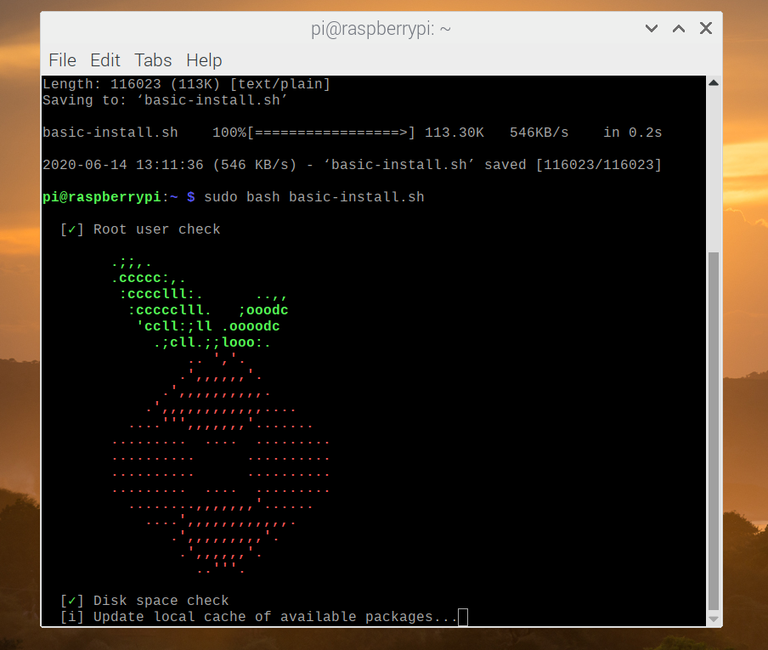
sudo bash basic-install.sh

This will then run the same installation script to install Pi-hole and any additional packages before configuration.

Configuring Pi-hole during installation

At some point during the setup process, the terminal window will switch to the configuration options, where you’ll be asked to confirm various Pi-hole settings, such as your network configuration and preferred logging levels.

  1. Press the enter key to proceed through some of the initial information screens. At the Choose an interface screen, select your Wi-Fi or ethernet connection using your arrow keys, then press space or enter. Use the tab key to switch to the OK option, then hit enter to confirm.
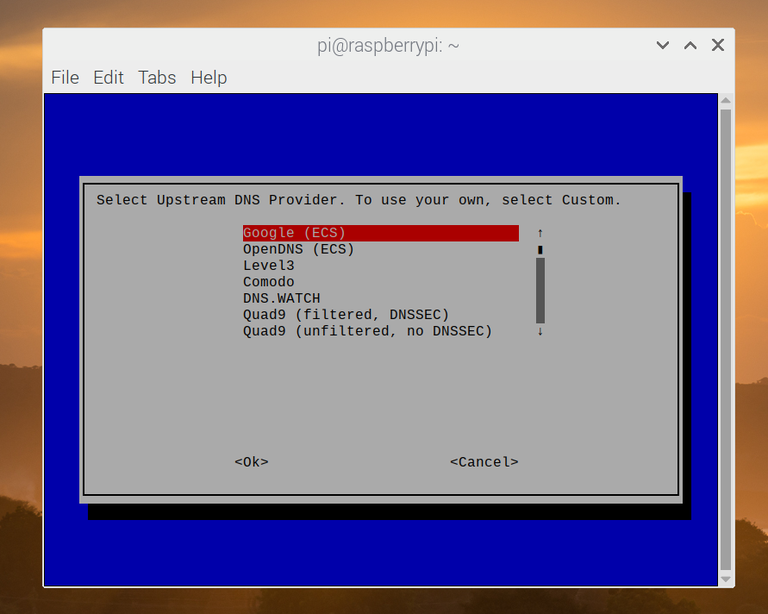
  2. You’ll then be asked what external DNS server you’d like to use. Cloudflare and Google are good, free options here. Select the provider you wish to use using your arrow keys, then hit the enter key to confirm.
  1. At the next stage, you’ll be asked what adblocking lists you wish to use. Pi-hole provides four lists by default, and it’s recommended that you leave all of these selected, but you can enable or disable any of these by selecting them and hitting space on your keyboard.
    Use the tab key to switch to the OK option, then hit enter to proceed.
  2. By default, Pi-hole will block ads over IPv4 and IPv6 connections. Unless you have any preference to change this, leave the default options selected, press tab to select OK, then hit enter.
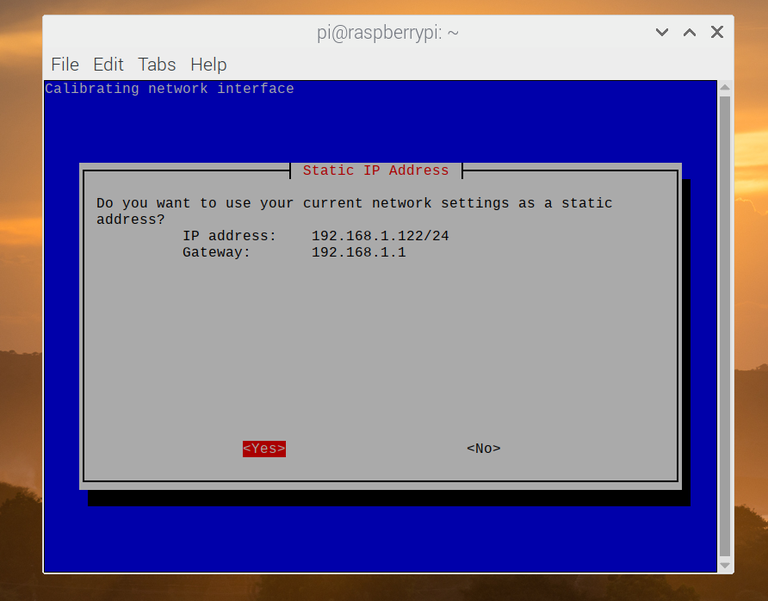
  3. At the next stage, you’ll be asked to confirm whether the IP address and IP gateway (likely to be your local router) shown are correct to use for Pi-hole’s static IP configuration. Hit enter on Yes if this is correct, or No if it isn’t to change your settings.
  1. Pi-hole will warn you about potential IP conflicts. Hit the enter key to accept this warning and proceed.
  2. By default, Pi-hole will come with an admin portal for your web browser that you can use to configure and monitor it. This is selected for installation by default, which is the recommended option here. Hit tab, then enter on the OK option to proceed. You’ll also need to do this at the next stage to confirm the installation of a web server for the admin portal to use.
  3. Pi-hole will ask you if you want to log queries. This is useful, as you’ll be able to see what Pi-hole is blocking and how often those domains are blocked. This is selected by default, so hit tab and enter to confirm.
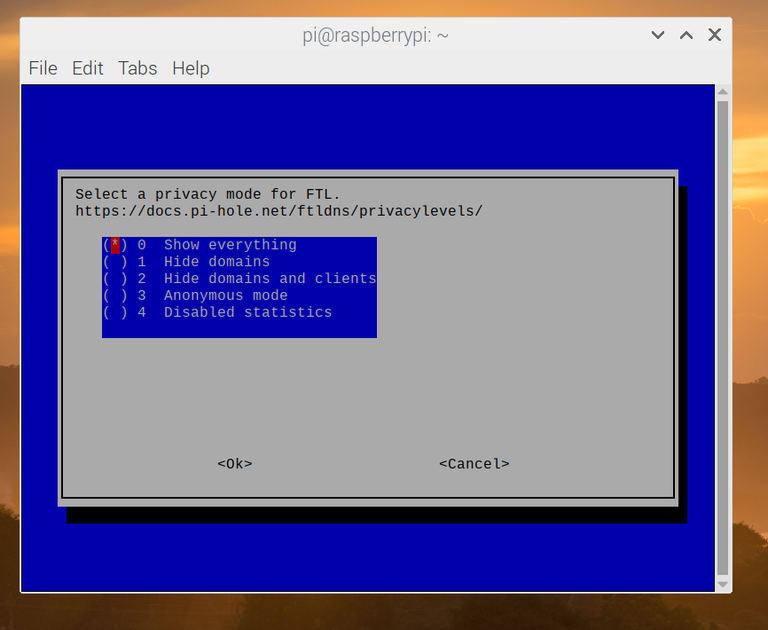
  4. You can select how detailed you’d like your Pi-hole statistics to be. There are five levels, which you can view in detail in Pi-hole’s documentation. The default option is to show everything, so hit tab and enter to confirm if you’re happy with this.

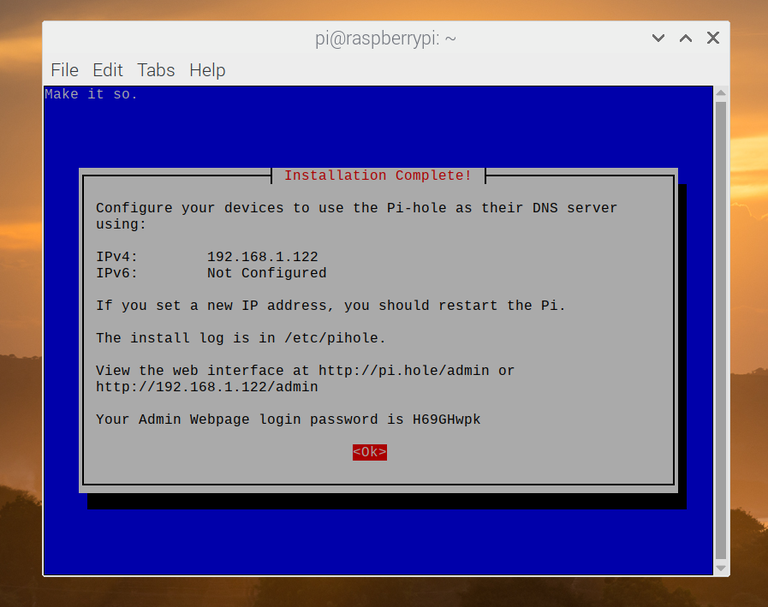
Once you’ve selected your preferred logging level, the Pi-hole installation will continue. A final confirmation message will appear in the terminal once the installation is completed, providing you with information on how to access the web portal, as well as your auto-generated password for signing in. Hit tab, then enter to end the installation at this point.

Important: You won’t be able to recover the auto-generated admin password shown at the end of the installation process. If you forget or lose your password, you’ll need to open a terminal and type sudo pihole -a -p to reset it.

4 – Option 2: Installing Pi-hole as a Docker container

If you prefer, you can choose to use Docker to run Pi-hole in an isolated Docker software container, rather than installing it using the script shown above.

You’ll need to install Docker on your Raspberry Pi before you can do this, however.

Installing Docker

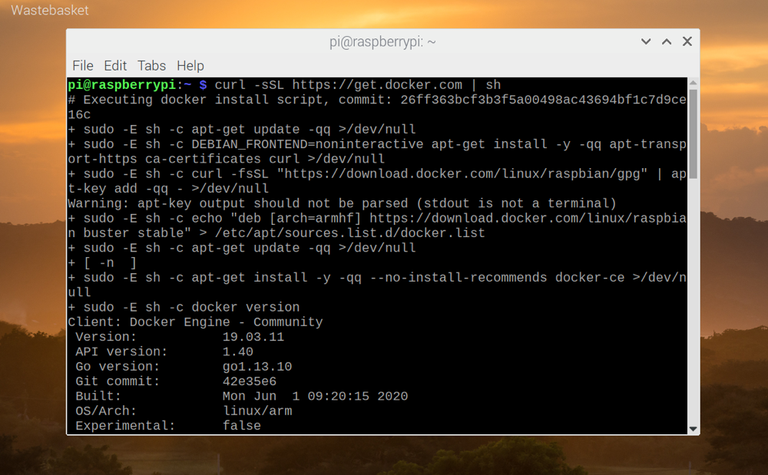
  1. If Docker isn’t installed, you can quickly install it on your Raspberry Pi by opening a terminal window and typing:
    curl -fsSL https://get.docker.com -o get-docker.sh
    sh get-docker.sh
  2. Alternatively, you can install Docker by downloading the script first and installing it manually by opening a terminal and typing:
    wget -O install-docker.sh https://get.docker.com
    sh install-docker.sh
  3. Once the Docker installation is complete, you’ll need to run the command sudo usermod -aG docker pi to allow Docker to be run by non-root users (such as the default pi user on Raspberry Pi OS).
  4. You’ll also need to type sudo systemctl enable docker to make sure that Docker automatically starts when your Raspberry Pi reboots.

Setting up Pi-hole as a Docker container

To run Pi-hole in a Docker container, you’ll need to first grab a copy of the Pi-hole Docker installation files by cloning the Pi-hole Github repository (you’ll need Git installed first).

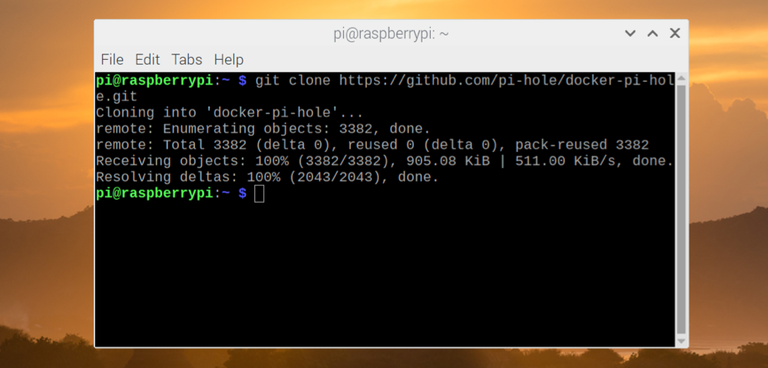
  1. Type the following in a terminal window (or remote SSH connection) to do this:
    git clone https://github.com/pi-hole/docker-pi-hole.git
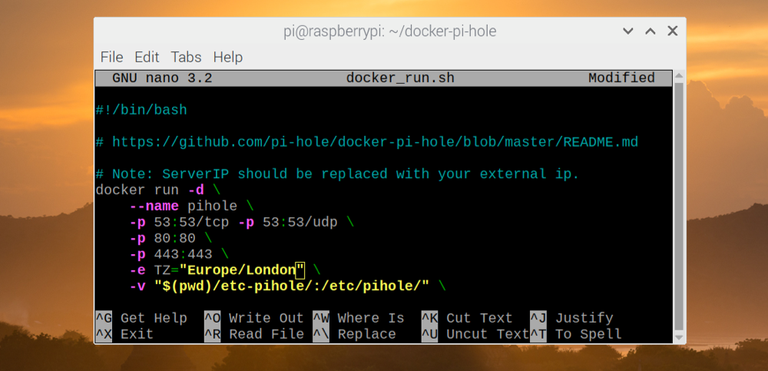
    This will pull the latest files to run Pi-hole as a Docker container from the Pi-hole Github repository. A startup script for your container (docker_run.sh) is available in the cloned Pi-hole folder. You may wish to view and edit some of the settings in this startup script before you run it.
  2. By default, the script will generate an administrator password for Pi-hole automatically, set the default outgoing DNS server for Pihole as 1.1.1.1 or 8.8.8.8, and set other settings such as the timezone Pi-hole uses. For instance, if you don’t live in the United States, you may wish to change the TZ field to match your time zone, using an equivalent tz database timezone value (for instance, Europe/London for the United Kingdom).
  3. You can edit these settings by typing nano docker_run.sh and making changes accordingly.
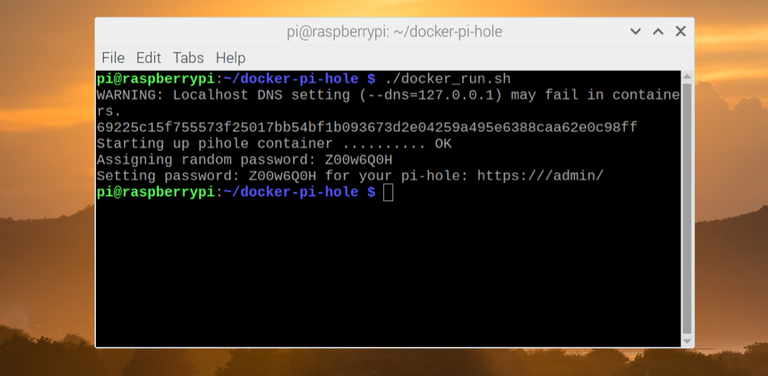
  1. Once you’re ready to run the script, type ./docker_run.sh at the terminal. If the script is successful, Pi-hole should launch inside a new Docker container at this point.

How to Connect to a Raspberry Pi Remotely via SSH
The preferred (and most common) method of connecting to your Pi to run commands.

Important: Make sure you note the password that appears in the terminal output after the script successfully runs. This is the password you’ll need to use to be able to configure Pi-hole further.

As the –restart=unless-stopped flag is used in Pi-hole’s Docker startup script, Pi-hole should start automatically if your Raspberry Pi is forced to reboot.

This will only work, however, if you’ve followed the steps above to enable the Docker systemd init script (sudo systemctl enable docker) to ensure that Docker launches automatically on startup.

5 – Configuring individual devices to use Pi-hole

Pi-hole should be running at this point, so the next step for you is to set up your devices to use Pi-hole. Pi-hole can’t block ads across your network by default — you have to set them up to use it by changing your device DNS settings to use your Raspberry Pi’s IP address instead.

You can do this for each individual device manually, or configure your network router to use Pi-hole as the DNS server for your entire network. If you want to configure individual devices to use Pi-hole manually, you’ll need to follow these steps.

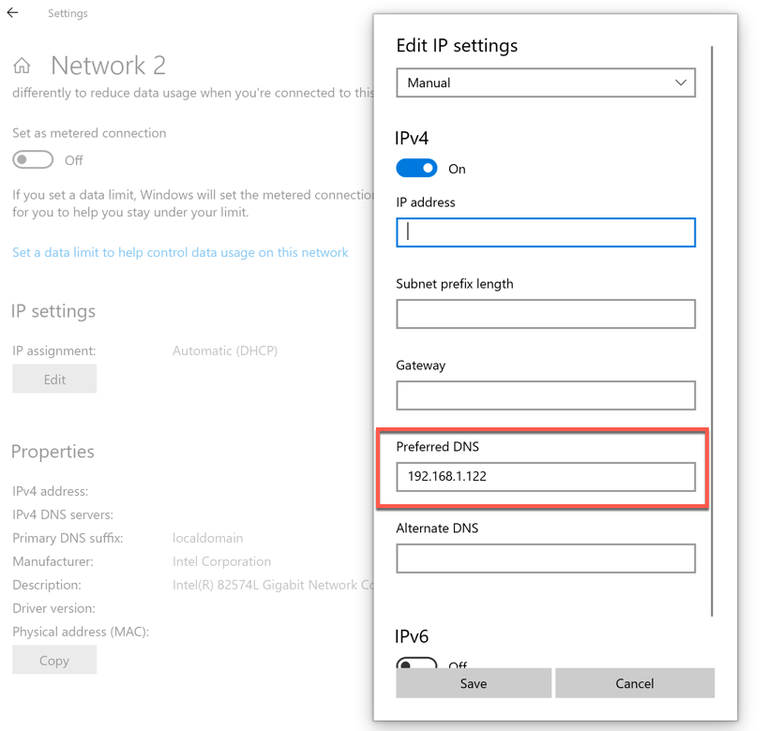
  • Windows 10: You can access your DNS settings in the Network Connections area of the Windows settings menu. In the Status tab, click Change connection properties, then take note of the information (including your current IP address) under the Properties section. Click Edit under IP settings, set your IP settings to manual, tap the slider next to IPv4, then set your IP address and other details to match the details previously shown under Properties.
    For the Preferred DNS section, add your Pi-hole IP address before saving.
  • macOS: You can change DNS settings in macOS by entering System Preferences > Network > Advanced. Under the DNS tab, press the + icon to add your Pi-hole IP address before saving.
  • iOS and iPadOS: You can access DNS settings by entering Settings > Wi-Fi and tapping the icon next to your Wi-Fi connection. Tap Configure DNS, select Manual, then remove any existing DNS servers from the list. Press Add server, add your Pi-hole IP address, then tap Save to save your settings.
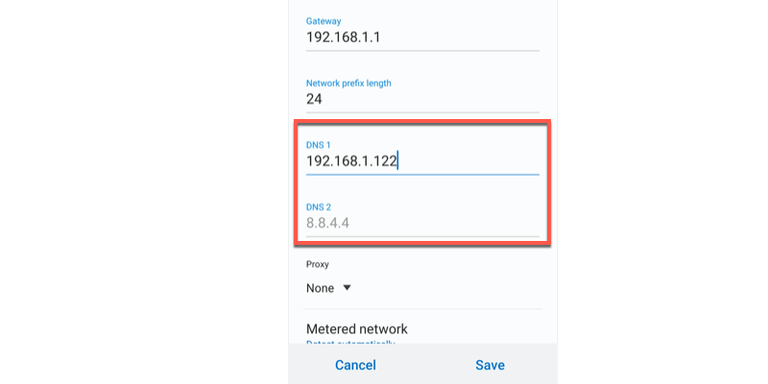
  • Android: Android users can also change DNS settings by entering your device settings, but these steps will vary significantly depending on your device and Android version. In the Wi-Fi or Connections section (depending on your device version), select your connection and click Advanced (or similar). You may need to set your IP address settings to Static rather than DHCP to allow you to set DNS servers manually. From here, add your Pi-hole IP address as the DNS server before saving.
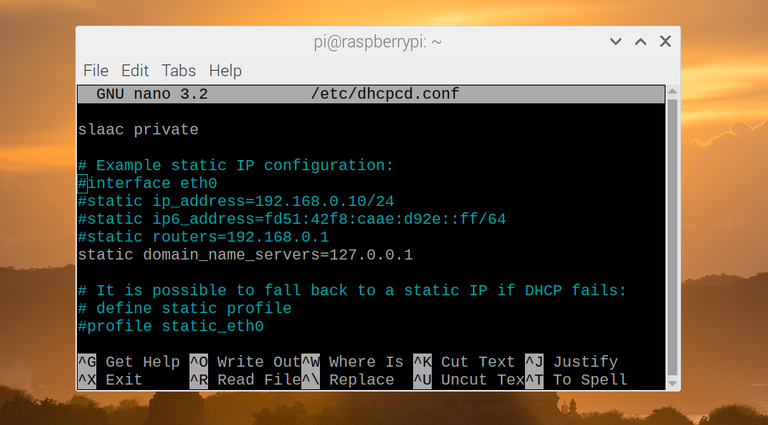
  • Linux / Raspberry Pi OS: Changing DNS settings on a device running Linux will vary. For Raspberry Pi OS (Raspbian) users, open a terminal window and type sudo nano /etc/dhcpcd.conf, add static domain_name_servers=x.x.x.x (replacing x.x.x.x with the IP address of your Pi-hole server), then press Ctrl + X followed by Y to save. If you want to block ads on the same Raspberry Pi that runs Pi-hole, replace x.x.x.x with 127.0.0.1 instead. You may need to restart your device afterwards.
  • Other devices: Consult the manual for your device to determine the correct steps to change network settings for other types of devices like a smart TV, or use the steps below to configure your router to use Pi-hole instead.

Once your devices are set to use your Raspberry Pi’s IP address, you should start to see web queries from it in your Pi-hole admin portal. If you want to be sure Pi-hole is blocking ads, try to access a site that you know runs ads, such as Forbes, or open an ad-supported app.

If the ads are blocked, Pi-hole should be working correctly. You may need to restart your device in some instances for the changes to your DNS settings to take effect, however.

6 – Configuring your router to use Pi-hole as a DNS server for all local network devices

Configuring all of the devices on your local network to use Pi-hole is time consuming and not the most efficient method, especially if you’re looking to use Pi-hole on multiple devices across your network.

If this is the case, it’s better to change your router’s DNS settings to use your Raspberry Pi’s IP address instead. This will mean that all of the devices connected to your local network are protected against ads. This is quicker than the manual method, where you’ll be forced to configure the DNS settings on each device.

Changing your DNS server settings will vary, depending on the make and model of your router. You should be able to find your router’s default IP address (as well as the admin username and password) printed on your router itself, or as part of the supplied packaging.

If not, check your router’s manual and try some common IP addresses such as http://192.168.1.1 or http://192.168.0.1 from a web browser to access your router.

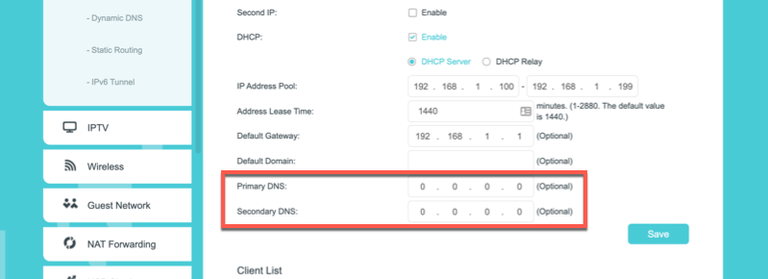
Your router will usually be set to use the DNS servers provided by your internet service provider. Make sure to change your DNS server settings (possibly labelled primary/secondary DNS) to match the IP address of your Raspberry Pi.

This will instruct all connected devices to route all DNS requests through Pi-hole in the first instance. Any blocked requests won’t be processed, while authorized requests will pass through to the third-party internet DNS provider set up in your Pi-hole configuration (such as Cloudflare’s 1.1.1.1 or Google’s 8.8.8.8 public DNS servers).

Your router may require a reboot for any DNS server settings you change to fully take effect across your network.

7 – Using the Pi-hole admin portal for additional configuration

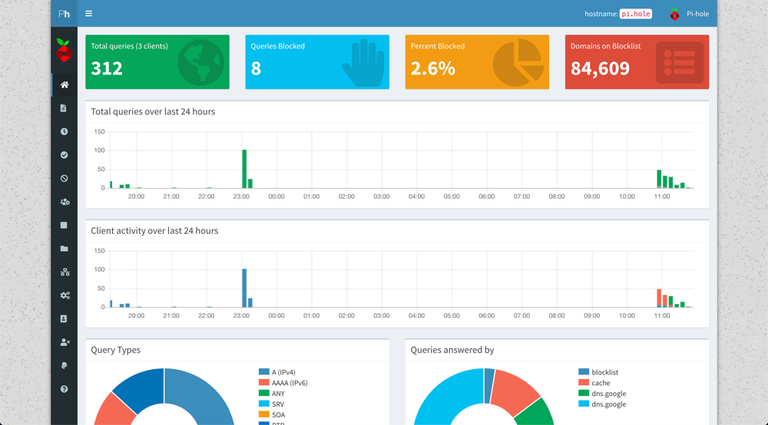
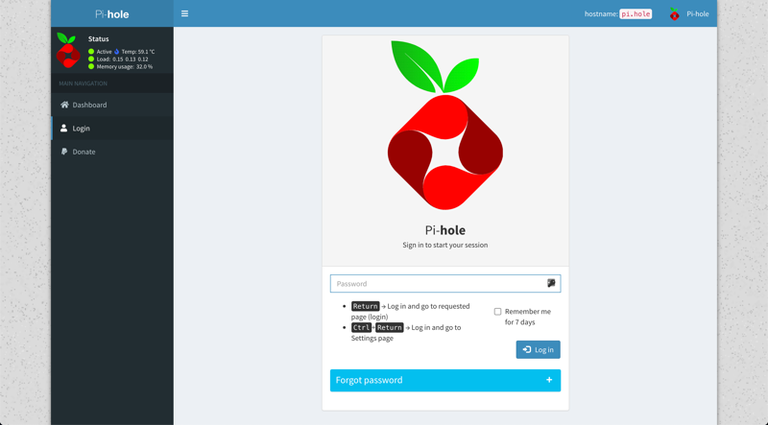
Once Pi-hole is running, you can access the Pi-hole admin portal on your local network by typing http://pi.hole/admin from any web browser. If that doesn’t work, you’ll need to find your Raspberry Pi’s IP address and use that instead (for example, http://192.168.1.10/admin).

This should bring up Pi-hole’s admin portal page, where a brief set of statistics is available for users who don’t sign in. Pi-hole is a run-and-forget system that doesn’t require much in the way of additional configuration, but if you do need to change any settings, you’ll need to do it here.

To access the Pi-hole admin portal in full, click Login in the left-hand menu. You’ll need to use the password you created during the Pi-hole installation process to sign in here.

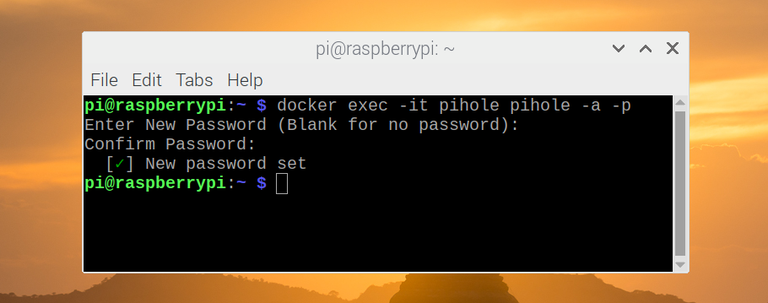
If you forget the Pi-hole administration password at any point, open a terminal window or remote SSH connection and type sudo pihole -a -p (if you’re running Pi-hole directly) or docker exec -it pihole pihole -a -p (if you’re running Pi-hole in a Docker container) to reset it.

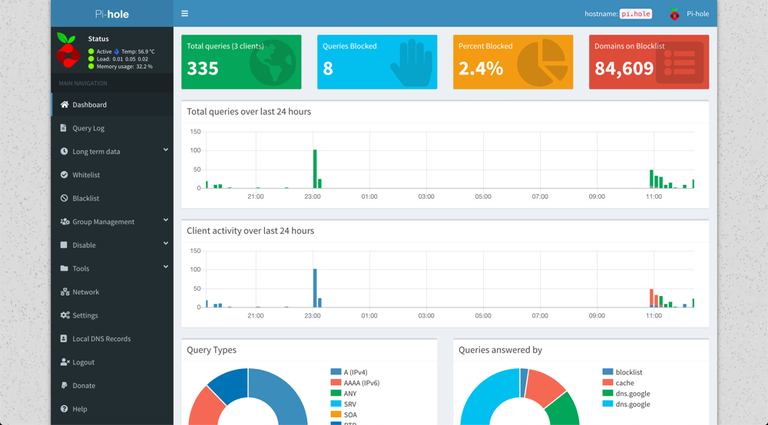
Once you’ve signed in, you’ll be able to see a full list of features, statistics, and logs for Pi-hole.

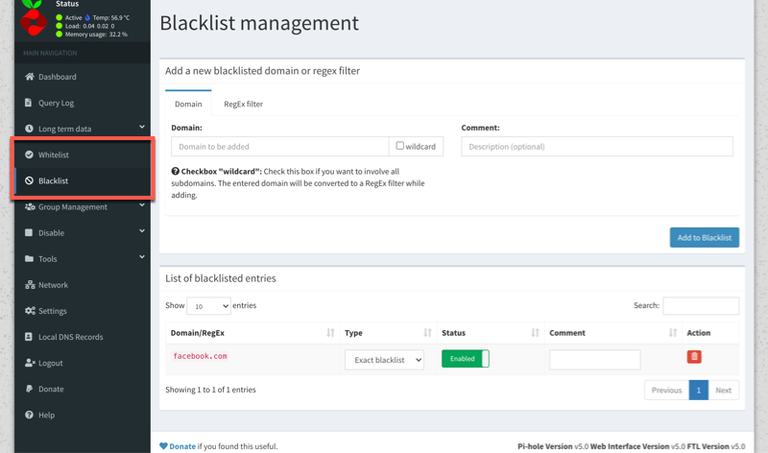
The left-hand menu gives you access to the various sections of the admin portal, including the main Pi-hole log (listed under Query log), the blacklists and whitelists menus, and the main settings area.

Pi-hole uses a selection of online adlists that are maintained and updated regularly by volunteers and businesses to block many of the most common ad networks.

You can view these by clicking Group Management > Adlists in the left-hand menu, where you can disable or remove any of the existing lists, or add your own.

You can also add or delete specific domains to block (or unblock) in the Blacklist and Whitelist menus. Both menus are largely identical — add a domain name and description, then click Add to Blacklist or Add to Whitelist to add it.

For any entries you wish to remove, press the red trash icon next to the item in the List of entries section below.

8 – What to do after configuring Pi-hole

While it’s important to familiarize yourself with Pi-hole’s admin portal should something go wrong, you shouldn’t need to touch it during day-to-day usage. Once your devices are configured, Pi-hole will work in the background to protect and block ad networks and trackers on some or all of your devices, depending on how your devices are configured.

If you’re using Pi-hole in a Docker container, you may be able to use your Raspberry Pi for other projects at the same time, creating a 24/7 server for you to use. For instance, you may decide to create a Raspberry Pi NAS to store your files, or create a Raspberry PI VPN server to stay safe and hide your identity online.

How to Build a Raspberry Pi NAS Using Samba
Your network storage just got bigger!

How to Build Your Own Raspberry Pi VPN
Create your own Raspberry Pi OpenVPN server.

NEXT UP

How to Run a Minecraft Server on the Raspberry Pi

A whole world trapped inside your Pi.
howchoo   (467)
December 7, 2023

There are several ways to go about running a Minecraft server on the Raspberry Pi. In this guide, I’ll cover how to install Nukkit—a cross-platform Minecraft server that’s super easy to set up on the Raspberry Pi. This server should work with PCs, consoles, and tablets running Minecraft 1.14. I’ll be using a Raspberry Pi

Continue Reading

howchoo

 467 guides

Introducing Howchoo, an enigmatic author whose unique pen name reflects their boundless curiosity and limitless creativity. Mysterious and multifaceted, Howchoo has emerged as a captivating storyteller, leaving readers mesmerized by the uncharted realms they craft with their words. With an insatiable appetite for knowledge and a love for exploration, Howchoo’s writing transcends conventional genres, blurring the lines between fantasy, science fiction, and the surreal. Their narratives are a kaleidoscope of ideas, weaving together intricate plots, unforgettable characters, and thought-provoking themes that challenge the boundaries of imagination.

Home Interests Raspberry Pi

Build a Simple Raspberry Pi LED Power/Status Indicator

howchoo   (467)
September 26, 2023
14 minutes

Share

You’ll Need 6

What you’ll need
Interests
Solder x 1
Howchoo is reader-supported. As an Amazon Associate, we may earn a small affiliate commission at no cost to you when you buy through our links.
Posted in these interests:
electronics • 3 guides
pi • 92 guides
soldering • 1 guides

This short guide will show you how to add an LED power indicator/status light to your Raspberry Pi, letting you know when it’s powered and when it’s safe to unplug your Pi. This LED will illuminate when your Pi is running and turn off when your Pi has been successfully shut down. The LED can then be mounted anywhere on your project—for example, on the outside of your PiCart’s NES cartridge/case.

This guide will work with any Raspberry Pi model/version. In addition to the full guide below, I also made a Raspberry Pi power LED video version of this guide:

Be sure to check out both!

1 – Why is this useful?

There are several reasons a power LED is useful:

You left your Pi on

This LED will remind you to turn it off.

Your Pi is safe to unplug

It’s unsafe to shut down your Raspberry Pi by pulling the plug since this can lead to data corruption. However, after shutting your Pi down safely, this LED will tell you when it’s safe to pull the plug.

2 – Don’t Pull the Plug: How to Safely Shut Down or Reboot Your Raspberry Pi

There are a few basic methods for illuminating LEDs on your Pi:

1. Software approach:

The LED is connected to one of your Pi’s GPIO (general-purpose input/output) pins and you write a bit of code that will monitor and update the LED based on some input—for example, your Pi running or the temperature outside being higher than 76 degrees.

Pros: You can illuminate LEDs of various colors, or illuminate your LED based on dynamic input—such as when a battery-powered Pi is running low on juice.

Cons: Requires you to write software that executes at startup, adding a bit of complexity.

2. Serial approach (this guide):

The LED Is connected to your Pi’s TxD pin, which monitors the serial console. The LED will flicker a tad while booting, stay solid while your Pi is running, and turn off when it’s safe to remove power.

Pros: Simplicity. No code is needed and it just sort of works. Also, this is a great foray into the hardware portion of your Pi.

Cons: Limited to providing information about when the Pi is on or off—a very binary solution.

3 – Enable the GPIO serial port

Newer versions of Raspberry Pi OS (May 2016 and later) have the GPIO serial port disabled by default; the end result is your LED will not light up! Luckily, enabling it is super easy.

Edit your /boot/config.txt file and add the following line:

enable_uart=1

You can edit this file by connecting to your Pi via SSH or by putting the SD card into your computer and editing the file directly. This file is accessible from the SD card.

How to Connect to a Raspberry Pi Remotely via SSH
The preferred (and most common) method of connecting to your Pi to run commands.

4 – Build the LED circuit

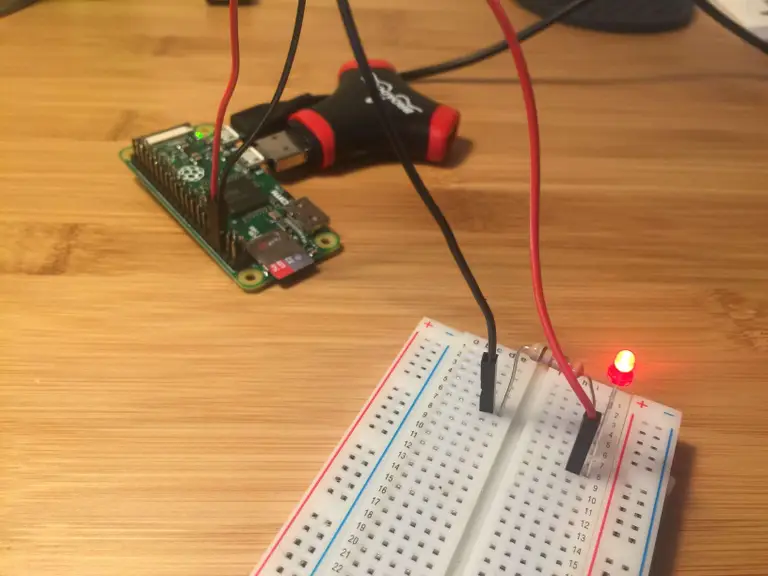
This step will require some soldering. I rigged everything up on a breadboard to prototype, but you can go straight to soldering now that we have the circuit figured out.

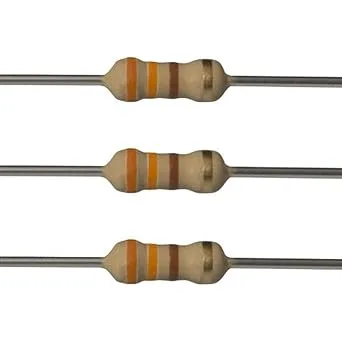
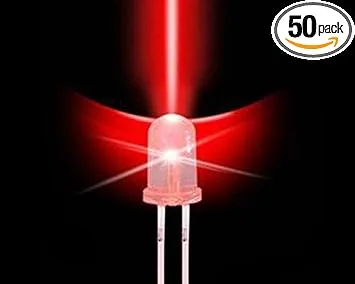
To build this circuit, we’re going to use a 330Ω (ohm) resistor connected to a small LED (about 2V, but one of slightly higher voltage will work well too—just keep it below 5V). The LED is powered by the Pi’s TxD serial output pin and the resistor protects the Pi against your LED requesting high current draws that can fry your Pi.

The LED’s “short” (negative/cathode) lead connects to the resistor and your Pi’s ground pin, while the “long” (positive/anode) lead connects to the TxD pin.

Use the attached circuit diagram to solder your connections. If you’re using a Pi Zero and don’t have header pins soldered to your Raspberry Pi, you can solder directly to the Pi itself. Remove your SD card before soldering to your Pi as it is easily damaged by heat. Be sure to leave enough wire for your LED to reach its final destination.

Pinout.xyz is a great resource for learning about and identifying your Pi’s GPIO pins.

If something is already connected to your Pi’s ground on pin 6, you can use any other ground pin on your Pi. You can see a list of other GPIO ground pins here.

🛈 Blue or white LEDs may not illuminate property as they draw more current and the Pi’s pins may be unable to supply it.

5 – Test the LED circuit

Boot up your Pi—the LED should illuminate solid once fully booted. Next, safely shut down your Pi and after several seconds the LED should turn off.

🛈 You can see I’ve added some heat wrap to my connections to insulate them a bit—this is purely optional.

6 – Install the LED circuit

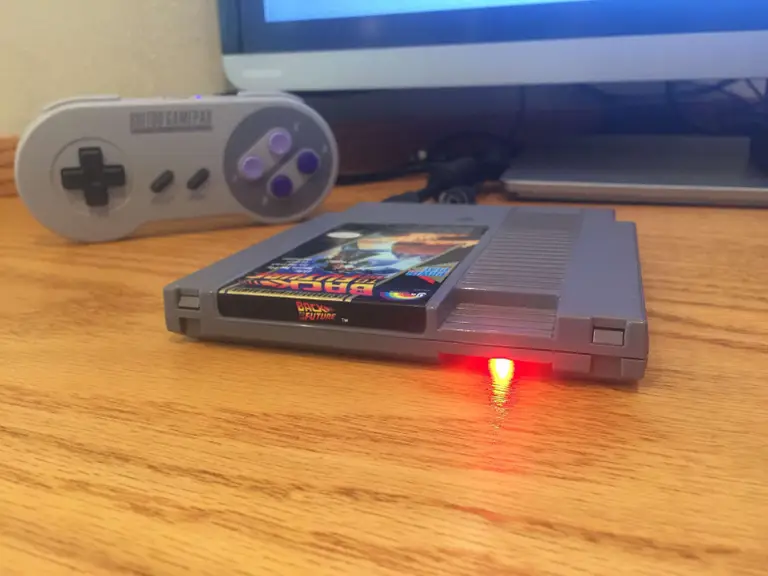
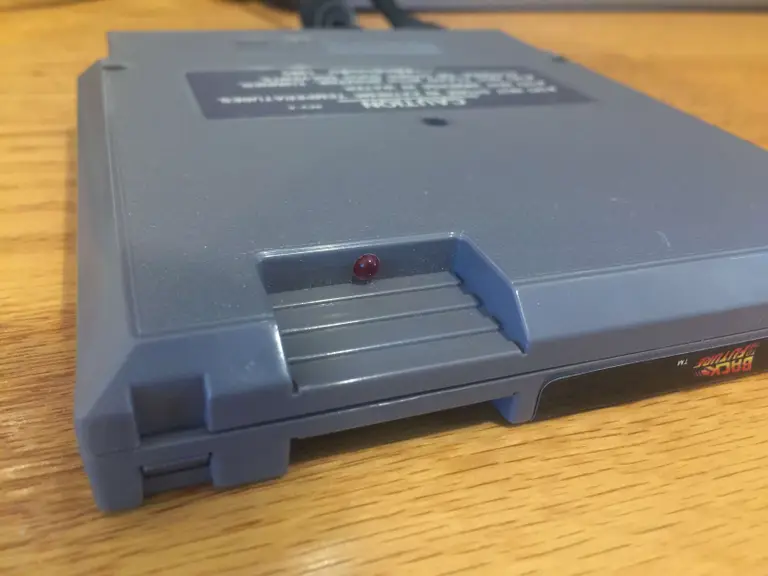
Now for the fun part: installing the LED in your case. I used a small drill bit and installed the LED just beneath the thumb-hold on my Pi Cart so that it would illuminate the table just beneath the cartridge.

🛈 Notice in this photo I forgot to put my SD card back in. Don’t do that. 🙂

7 – Circuit powered off

Here’s a shot of the status LED after the Pi has been powered off. This also shows the installation location I chose. I used a 3mm drill bit to install the LED.

🛈 Now I know it’s safe to unplug my Pi!

8 – All finished!

Here’s the final product. Works great! If you have any comments or questions, post below and I’ll do my best to help you out.

🛈 That was simple, eh?

9 – Combining a power button and power LED

Next, add a power button to your Raspberry Pi and shut it down safely! The power button will even wake your Pi up. You can even use an illuminated button by combining the fundamentals from this LED guide and the power button guide. 🙂

How to Add a Power Button to Your Raspberry Pi
Because you should always safely shut down your Pi.

NEXT UP

How to Run a Minecraft Server on the Raspberry Pi

A whole world trapped inside your Pi.
howchoo   (467)
December 7, 2023

There are several ways to go about running a Minecraft server on the Raspberry Pi. In this guide, I’ll cover how to install Nukkit—a cross-platform Minecraft server that’s super easy to set up on the Raspberry Pi. This server should work with PCs, consoles, and tablets running Minecraft 1.14. I’ll be using a Raspberry Pi

Continue Reading

howchoo

 467 guides

Introducing Howchoo, an enigmatic author whose unique pen name reflects their boundless curiosity and limitless creativity. Mysterious and multifaceted, Howchoo has emerged as a captivating storyteller, leaving readers mesmerized by the uncharted realms they craft with their words. With an insatiable appetite for knowledge and a love for exploration, Howchoo’s writing transcends conventional genres, blurring the lines between fantasy, science fiction, and the surreal. Their narratives are a kaleidoscope of ideas, weaving together intricate plots, unforgettable characters, and thought-provoking themes that challenge the boundaries of imagination.

Home Interests Fire TV Stick

Play Retro Games on the Fire TV Stick with RetroArch

Retro gaming on a stick.
howchoo   (467)
September 26, 2023
14 minutes

Share

You’ll Need 1

What you’ll need
Interests
Howchoo is reader-supported. As an Amazon Associate, we may earn a small affiliate commission at no cost to you when you buy through our links.
Posted in these interests:
 
amazon • 5 guides
firestick • 1 guides
retrogaming • 29 guides

If you want to emulate all your favorite retro gaming systems quickly and easily, this guide is for you. Why go through the trouble of configuring a Raspberry Pi to play RetroPie when the Fire Stick can do it instead? (And for less money, I might add.)

What is RetroArch?

In short, RetroArch is an emulation platform that can be installed on many different devices and operating systems. This includes Windows, Linux, Android, and Apple devices. You may have seen it before: if you set up RetroPie on the Raspberry Pi, you absolutely have. RetroPie is a package built on top of RetroArch just for the Raspberry Pi.

RetroPie: Build Your Own Raspberry Pi Retro Gaming Rig
How to install (and use) RetroPie!

RetroArch supports a ton of different emulators, commonly referred to as cores. These cores can launch any ROMs that they support, which are referred to as content.

Is this legal?

Absolutely. There’s nothing illegal about owning and installing emulators. The common concern is the legality of how you obtain ROMs (games), but we’ll go over the best ways to get legal ROMs a bit later.

Is this “jailbreaking”?

People often search for how to jailbreak a Firestick, thinking that “jailbreaking” refers to installing Kodi, RetroArch, etc. Technically, installing RetroArch on the Firestick is not the same thing as jailbreaking. All we’re doing is side-loading a third-party application, which is a fancy way of saying “installing an app from outside the Amazon Appstore”. Your Fire TV Stick (or just Firestick for short) can be reset to factory default at any time.

Which Fire Stick should I use?

I’m using an Amazon Fire TV Stick 4K, but this will work with any Amazon Fire Stick. However, the variety of systems you can emulate does depend on how powerful your Fire Stick is. For example, the 4K version can easily emulate N64 games, unlike the less powerful or older models.

1 – Enable Apps from Unknown Sources

First, we need to tell the Fire Stick that it’s okay to install third-party apps. Open Settings and choose Device. New editions will say My Fire TV instead of Device.

Open Developer Options and choose the option to enable Apps from Unknown Sources.

Note: Be cautious when installing third-party apps. RetroArch is safe, but other apps should be verified for safety before you install them.

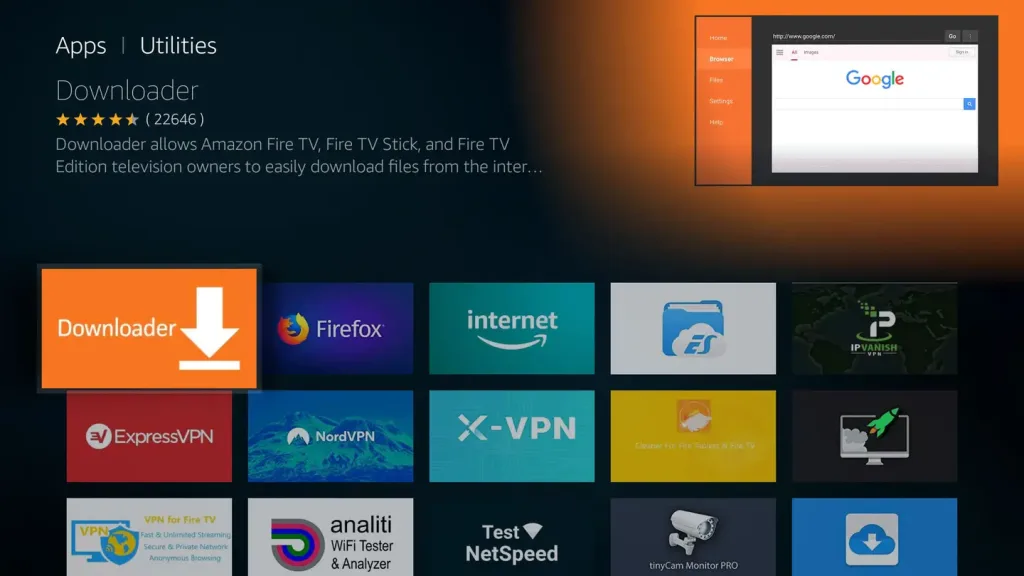
2 – Install the Downloader app

Next, we’ll need an app called Downloader. This will help us download and install RetroArch. Thankfully, it’s available on the Amazon AppStore.

You can find it under the Utilities category.

3 – Download and install the RetroArch app

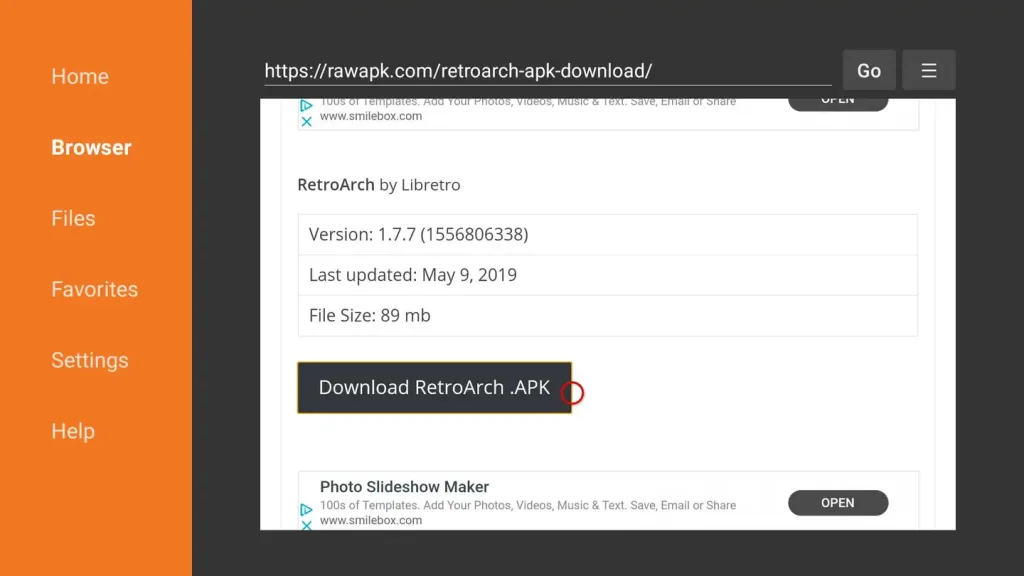
Once Downloader is installed, launch it. Access the Browser and enter the following URL:

https://buildbot.libretro.com/stable/1.9.0/android/RetroArch.apk

When the website loads, click Download RetroArch.APK. Once it downloads, you’ll get a prompt to install the new app.

4 – Connect a controller

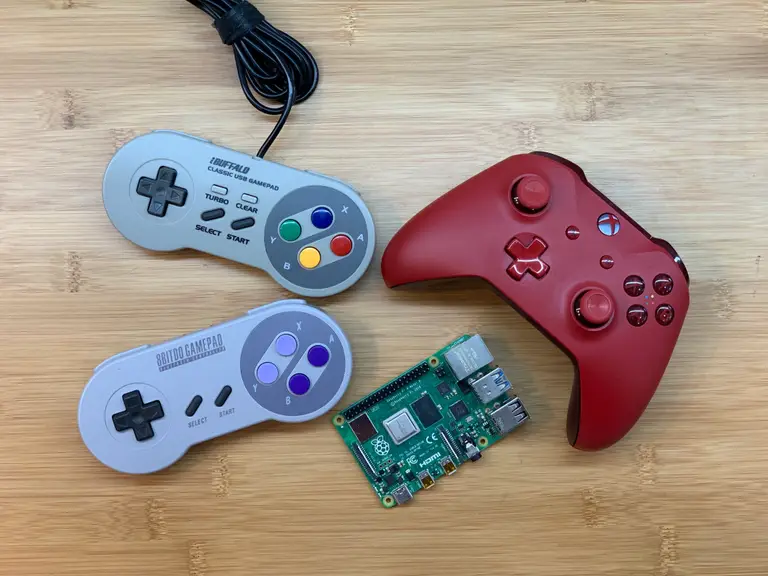
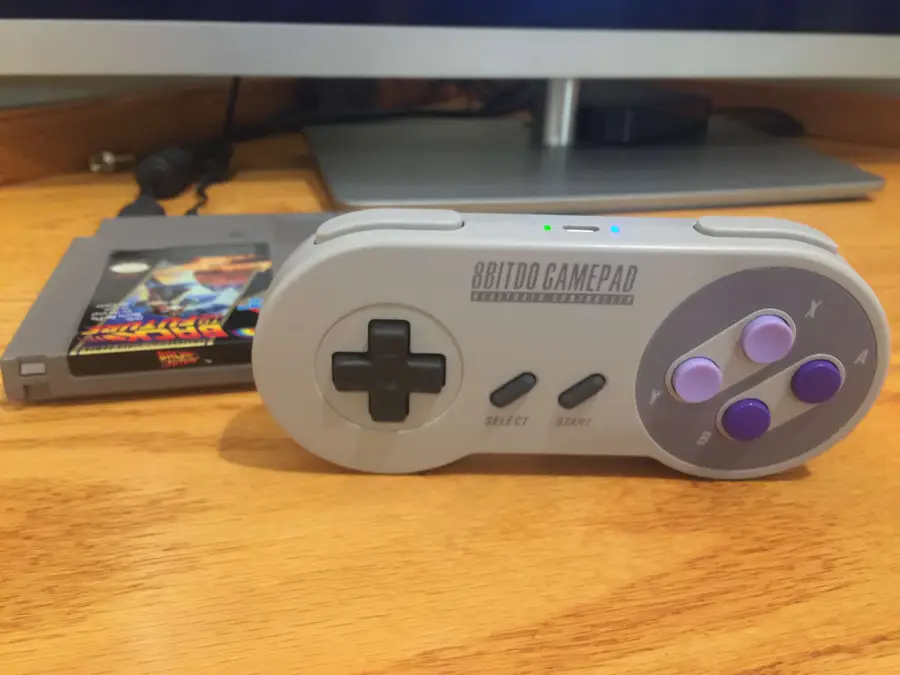
We’ll need a controller. Playing games with the Firestick remote is way too hard. I’m using this 8bitdo bluetooth controller. Most other bluetooth controllers will work.

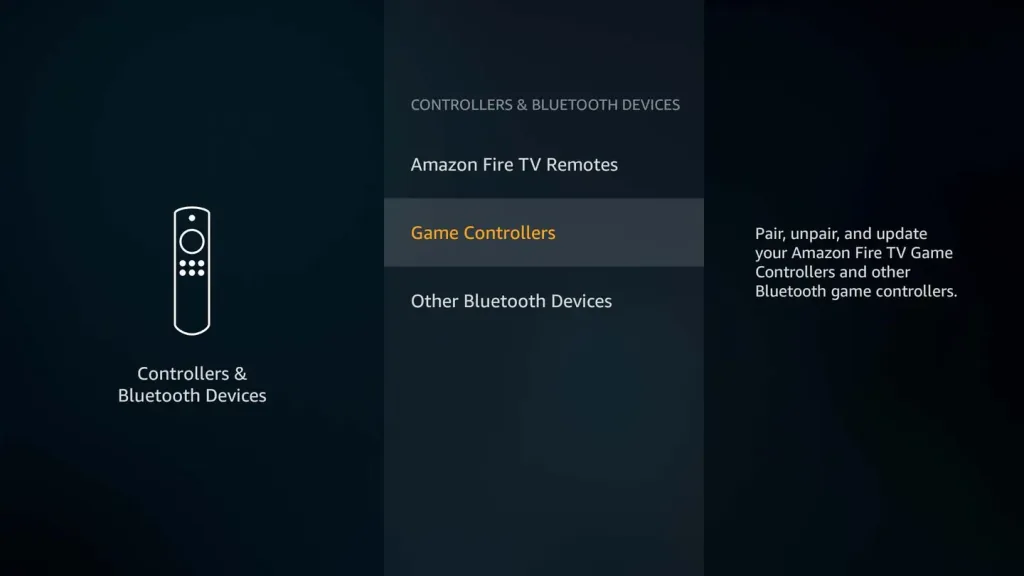
To add a controller, open Settings then Controllers and Bluetooth Devices.

You’ll see an option to Add a new game controller. The pairing process will begin once you select it. Put your controller in pairing mode. Check with the manufacturer to find out exactly how to do this with your controller.

When the Fire Stick detects your controller, select it from the list using the remote. You’ll get a pop up in the corner confirming that it’s connected.

Now you can use your controller to navigate menus.

5 – First-time Retroarch setup

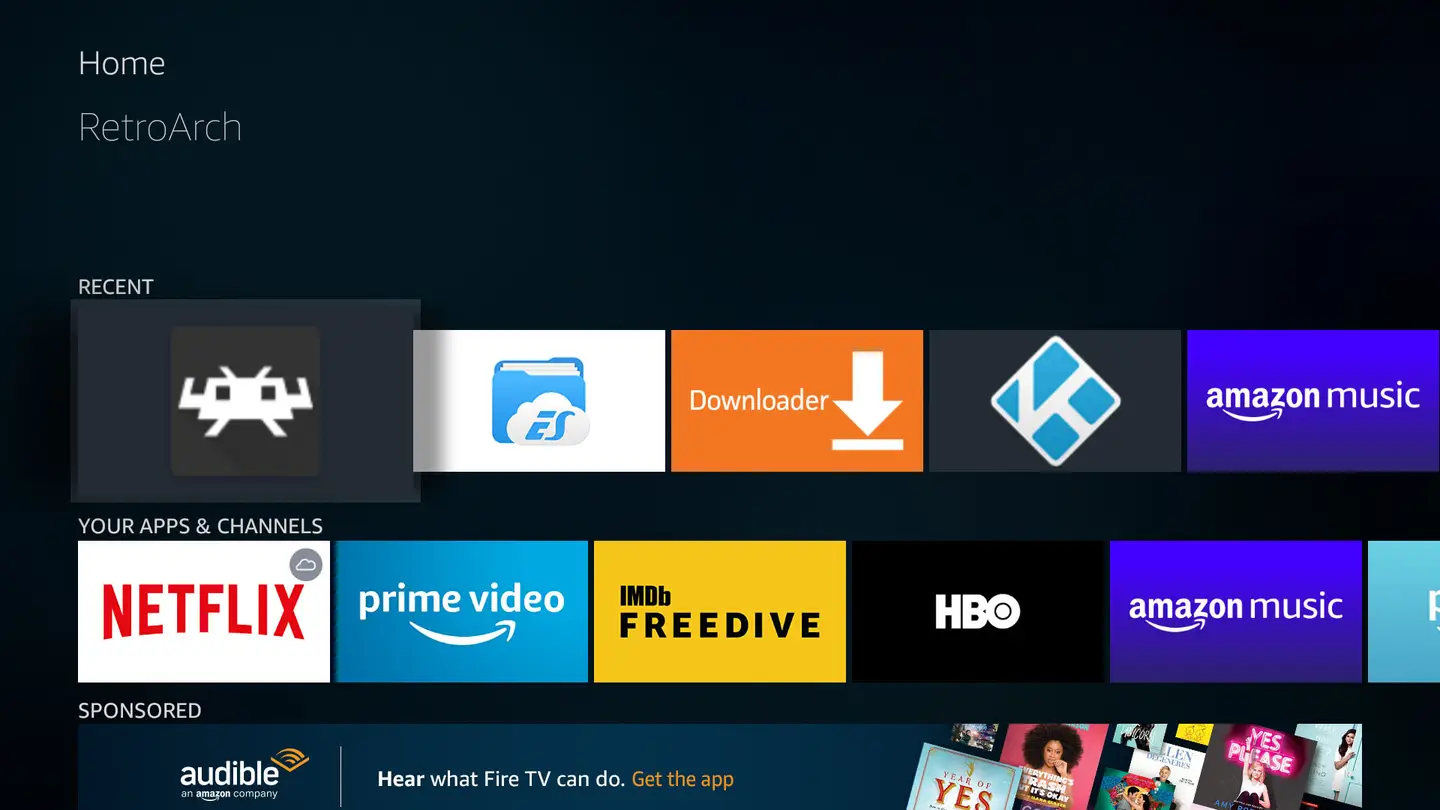
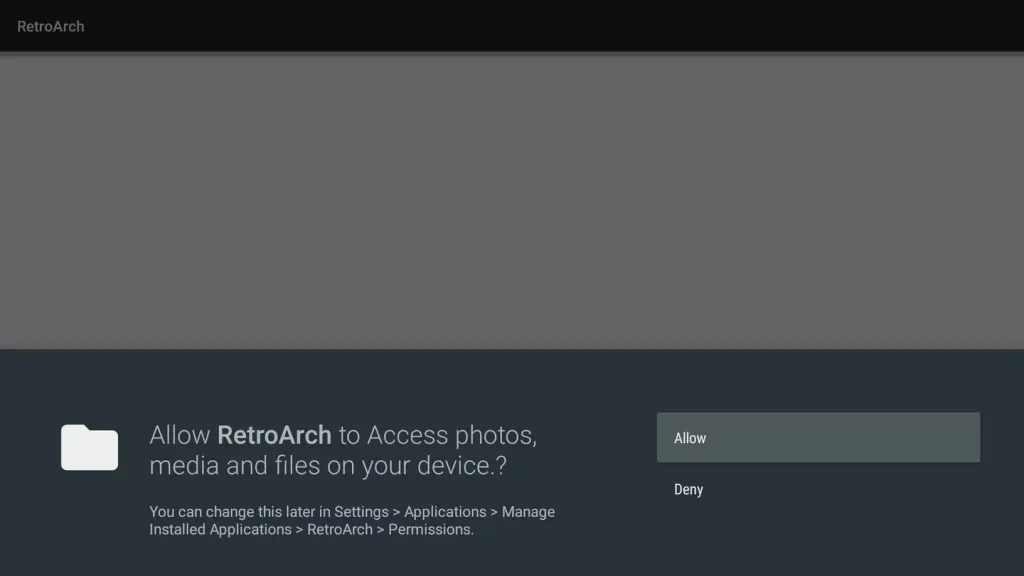
Now that we’ve got our hardware in order, let’s load up RetroArch. Select it from your list of apps on the home screen.

When you first launch RetroArch, it will prompt you for media permissions. Give RetroArch the access it’s requesting.

6 – How to add cores (or emulators)

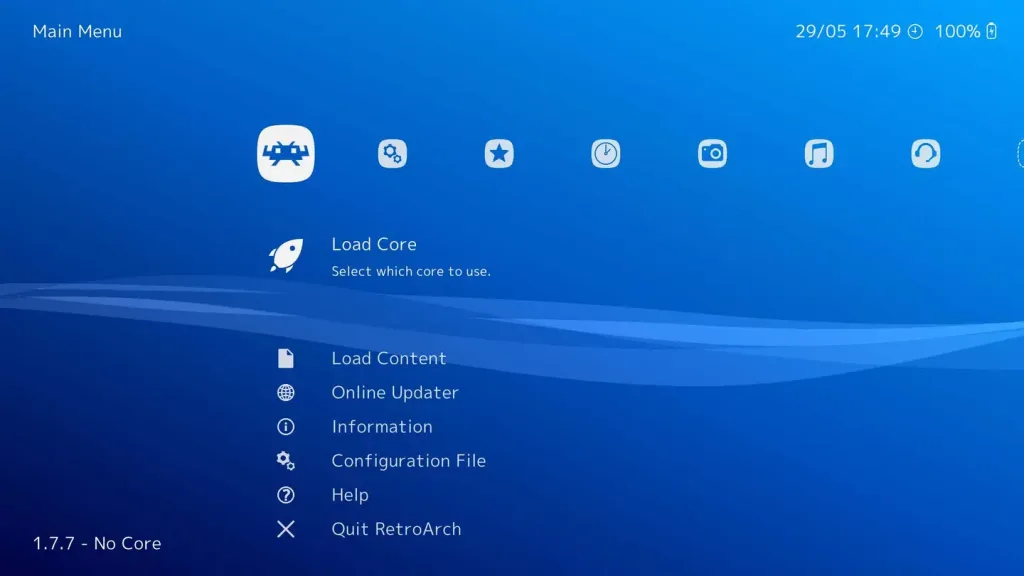
On the main RetroArch home screen, go to Load Core. You can pick any of the cores from the list.

Not sure which is best? Experiment yourself or check online for suggestions from the community.

You’ll notice there are often multiple cores for the same system. This is because each emulator accomplishes emulation through different means. This makes some better than others, depending on what you want to play.

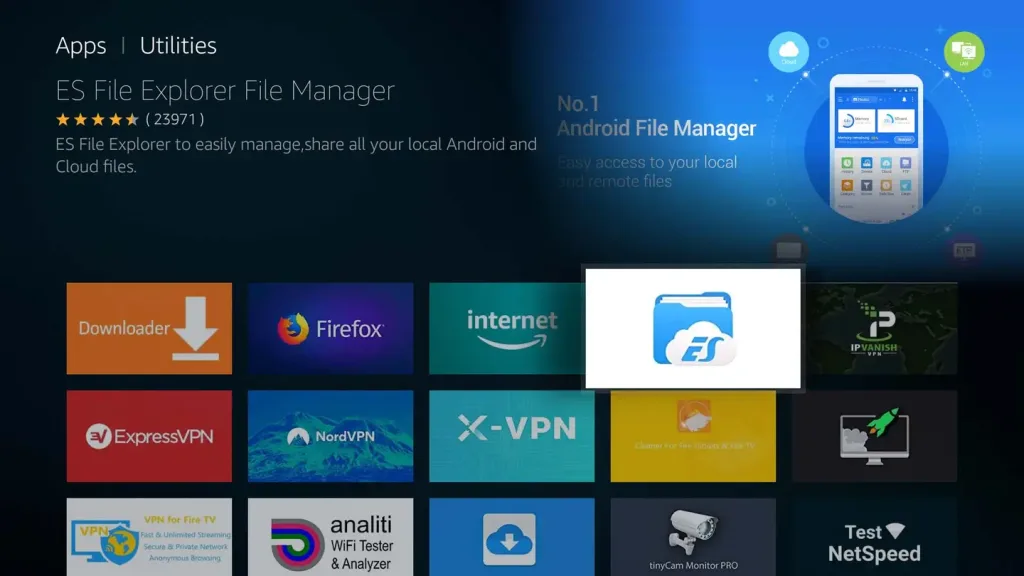
7 – Install the ES File Explorer File Manager app

Now we need something to play. To put ROMs on the Firestick, I highly recommend ES File Explorer File Manager. It gives us tools we can use to transfer games from our computer to the Firestick over Wifi.

You can find it on the Amazon AppStore under Utilities.

8 – Connect to the Firestick via FTP

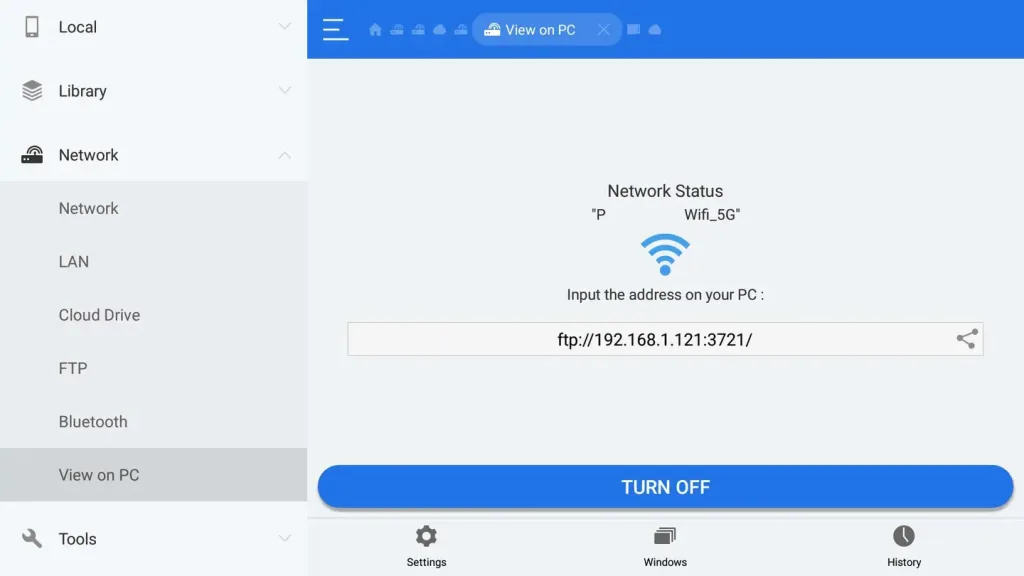
Open ES File Explorer and select Network on the left navigation menu. Choose View on PC. Turn on the feature.

This screen gives us an FTP address we can use to access the Firestick.

Connect to the Firestick using your favorite FTP program. For Windows, I recommend WinSCPFor Mac, I recommend FileZilla.

There is no username or password to log in with — leave both blank and connect.

9 – Add ROMS to the Firestick

Here I have the Fire Stick open in WinSCP. Open the RetroArch folder and create a new one inside called roms. Drag and drop ROM files into the new roms folder. You can create subfolders for each emulator/core.

If you’re not sure where to get ROMs, check out our guide on where to find free and legal ROMs.

10 – How to load ROMs in RetroArch

Once you’ve copied your games over, it’s time to launch them! From the main RetroArch home screen, choose Load content. This is right under the option to load a core.

From this screen, navigate to the folder you created to house your ROMs. Select the game you want to play and let your friends know you’re too busy gaming like it’s 1999.

11 – Next: Install Kodi on your Firestick

Kodi is an open source media center. It runs on many different platforms, including the Fire TV Stick. Kodi can be used to stream personal media files from your PC. In our case, we can use it to make a nice interface for loading ROMs.

If you don’t have it yet, visit our guide on how to install Kodi on the Firestick.

NEXT UP

How to See If I’m Eligible for Amazon Prime Free Same-Day Delivery

howchoo
howchoo   (467)
November 24, 2023

So Amazon just announced free same-day delivery in 14 different metro areas. How do you know if you apply? 1 – Check your zip code Go to this page. Wait for the page to finish loading completely, scroll down, and enter your zip code. This will tell you if you live in an area that is

Continue Reading

howchoo

 467 guides

Introducing Howchoo, an enigmatic author whose unique pen name reflects their boundless curiosity and limitless creativity. Mysterious and multifaceted, Howchoo has emerged as a captivating storyteller, leaving readers mesmerized by the uncharted realms they craft with their words. With an insatiable appetite for knowledge and a love for exploration, Howchoo’s writing transcends conventional genres, blurring the lines between fantasy, science fiction, and the surreal. Their narratives are a kaleidoscope of ideas, weaving together intricate plots, unforgettable characters, and thought-provoking themes that challenge the boundaries of imagination.

Home Interests Raspberry Pi

How to Build a Raspberry Pi UPS (Uninterruptible Power Supply)

Keep your Pi hot and ready.
howchoo   (467)
September 26, 2023
23 minutes

Share

You’ll Need 2

What you’ll need
Interests
PiJuice x 1
Howchoo is reader-supported. As an Amazon Associate, we may earn a small affiliate commission at no cost to you when you buy through our links.
Posted in these interests:
pijuice • 2 guides
pi • 92 guides

In this guide, I’ll teach you how to build your own Raspberry Pi UPS using some simple hardware and the PiJuice HAT (featured in our recent list of the top HATs for the Raspberry Pi). You can use this method to power a Raspberry Pi 3, Raspberry Pi Zero, or any other Pi.

A UPS is an important part of any Pi project!

1 – Why do you need a Raspberry Pi UPS?

An uninterruptible power supply ensures that your Pi project will continue to function through minor power fluctuations, power outages, or even the occasional bumped AC adapter.

Prevent SD card corruption

If you don’t shut your Raspberry Pi down properly, you risk corrupting your Pi’s SD card, sort of like yanking the cord out of your desktop computer every time you want to shut it down.

Projects that need to remain on all the time

If your project involves a camera, data collection, streaming, complex scripts that don’t restart on boot, or needs to run continuously, a UPS will help ensure the integrity of the project.

A UPS is ideal for Pi-hole, OctoPrint, and a wide range of other custom projects.

The right UPS setup can even notify you or send a safe shutdown command to the Pi if the UPS battery gets too low. Pretty neat!

2 – Raspberry Pi UPS options

There are a few options for building your own Pi UPS.

Option #1: Power bank

With this method, you essentially plug your Pi into a high-output power bank: basically, a juiced-up version of what you use to charge your phone while camping. The battery pack gets plugged into the wall and the Pi gets plugged into the battery pack.

There are a few factors to consider with this approach:

Simultaneous charge/discharge

The power bank needs to be able to simultaneously charge and discharge; in other words, while the power bank is charging, it’s also outputting maximum power to one of its USB ports. Most power banks do not have this feature as it requires additional circuitry and is an edge case for most users.

Power output

The power bank should output at least 2A for the Raspberry Pi 3, 2.5A for the Raspberry Pi 3 B+, or 1A for the Raspberry Pi Zero. These numbers assume you don’t have any peripherals plugged into the Pi or power bank that draw power.

Unfortunately, portable power banks that meet these requirements are hard to find and expensive. Additionally, the Pi can’t detect that it’s on battery power (let alone how much power remains) so a safe shutdown is not possible.

Method #2: Power management board (recommended)

This method involves connecting a power management circuit and battery directly to the Pi. Then, an AC adapter is connected to the power management board. The board is effectively a complete portable power solution.

When power is lost, the power management board will keep things running for hours without issue. The Pi can also monitor the battery to know when it’s using battery power and whether to perform a safe shutdown when power is low.

This is my recommended approach and the one I’ll cover in this guide.

The hardware

For power management, I’ll be using the PiJuice, which was originally funded on Kickstarter. If you’re building a Raspberry Pi Zero UPS, you can alternatively use the JuiceBox Zero, which is a little cheaper but can’t be used for full-sized Pis.

The PiJuice is pretty neat — it provides truly portable power to your Pi project, is super compact, and takes about 15 minutes to set up. You can even connect a solar panel directly to it!

3 – UPS runtime

Using the PiJuice’s onboard BP7X 1820mAh off-the-shelf LiPo/Li-Ion battery, you can expect anywhere from 4-6 hours of continous use without power. You can also connect larger LiPo/Li-Ion battery to run your Pi for up to a day (or longer).

Exact UPS runtime depends on which Raspberry Pi you’re using, which tasks it’s performing, and what external hardware it’s powering. See the PiJuice battery discharge calculator to calculate the exact runtime for your project.

4 – Install Raspberry Pi OS & configure your Raspberry Pi

Your Pi is probably already running some software, but if you’re starting from scratch, check out our guide on setting up a new Raspberry Pi.

How to Set Up a New Raspberry Pi
Start using that brand new Pi!

You can use either the full or “Lite” version of Raspberry Pi OS (formerly Raspbian), depending on whether or not your project needs a GUI.

5 – Shut down your Pi

If your Pi is currently running, safely shut it down by connecting to it and running the following command:

How to Connect to a Raspberry Pi Remotely via SSH
The preferred (and most common) method of connecting to your Pi to run commands.

sudo halt

You can also shut it down through the Raspberry Pi OS GUI.

6 – Connect the PiJuice hardware (HAT)

Carefully press the PiJuice onto your Pi’s GPIO header. Then, use the included screws and plastic standoffs to secure it to your Pi.

🛈 If you’re using a Raspberry Pi Zero, you may need to solder a header onto the Pi first (unless you bought the “WH” version).

7 – Connect the battery, if not already connected

The PiJuice comes with an off-the-shelf battery preinstalled. This is neat because it makes swapping out or replacing the battery super easy — you can even hot-swap batteries as long as your Pi is powered. If your PiJuice came with a battery, be sure to remove the battery’s clear plastic insulation tab.

If you purchased the PiJuice without a battery or want to add more power capacity with a separate Lithium-ion or Lithium-polymer battery, simply solder on a standard battery terminal and connect that battery instead.

8 – Attach the PiJuice case (optional)

You can use the PiJuice with most normal Raspberry Pi cases — you may just need to leave the top of the case off if it has no GPIO slot.

There are also a few different cases designed specifically for the PiJuice — for the full-size Pi such as the Pi 3, they make both a short and tall case. They also make a case for the Pi Zero.

I grabbed the tall version of the Raspberry Pi 3 case because I want to stack some headers on later.

Slide off the top, back, and front of the case. Then, carefully slide the Pi and PiJuice into place. The whole assembly will lock into slots in the sides of the case. Finally, replace the sides and top and connect the 4 rubber feet.

🛈 Those freaking rubber feet were the hardest part of the assembly.

9 – Connect a power source and power on the Pi

Connect a normal Raspberry Pi power supply to the PiJuice’s Micro USB port.

To turn your Pi on, briefly press the small button labeled SW1 directly next to flashing LEDs. With the case installed, you’ll need to use a paperclip or pin to press the button.

To safely shut down your Pi using this same power button, press and hold the same button for at least 10 seconds and then release it.

To force a hard (unsafe) shutdown, press and hold the button for at least 20 seconds — though you likely won’t ever need to do this.

🛈 Be sure to connect the cable to the PiJuice’s Micro USB port, not the Pi’s Micro USB port.

10 – You’re (probably) done

If all you wanted to do was build a simple Raspberry Pi UPS, you’re up and running already.

I do recommend installing the PiJuice software so that your Pi can notify you, shut itself down safely, or perform some other command when it’s low on power.

Installing the software also allows you to utilize the PiJuice’s extra buttons and LEDs to add custom functionality to your project!

PiJuice offers some pretty sweet power management software in their GitHub repo.

Let’s install it and see what it can do. You can install either the GUI or headless version. In either case, I recommend connecting to your Pi and updating it first:

sudo apt-get update && sudo apt-get upgrade --yes

If your Pi has a desktop that it can boot into (like a full Raspberry Pi OS install), install the GUI version:

sudo apt-get install pijuice-gui

Otherwise, you can install the light version for a headless setup:

sudo apt-get install pijuice-base

12 – Automatically shut down if the Raspberry Pi UPS battery is low

There is an insane amount of PiJuice configuration that can be done (insane in a good way!)

I won’t get into it all in this guide so be sure to check out the many PiJuice configuration options to learn what you can do. Right off the bat, I saw an option to wake and sleep the Pi on a schedule.

But I digress…

The option we’re looking for involves shutting down the Pi when a certain battery voltage or percentage is reached. To do this:

In the PiJuice GUI

To change this option from the Raspberry Pi OS GUI, use a keyboard or VNC to navigate to Menu > Preferences > PiJuice Settings.

Then, select the System Tasks tab, check the Minimum charge box, and enter a 1 in the text input.

Finally, click Apply.

In the PiJuice CLI

From the command line, run:

pijuice_cli.py

You can view and change configuration options there.

For either option

To quickly set the PiJuice to shut down when the battery is low for either the GUI or CLI option, you can also edit the JSON configuration directly:

sudo nano /var/lib/pijuice/pijuice_config.JSON

In the system_task object, add the following:

   "min_charge": {
      "threshold": "1",
      "enabled": true
    },

For example:

"system_task": {
    "watchdog": {
      "enabled": true,
      "period": "60"
    },
    "min_charge": {
      "threshold": "1",
      "enabled": true
    },
    "enabled": true,
    "wakeup_on_charge": {
      "enabled": true,
      "trigger_level": "1"
    },
    "ext_halt_power_off": {
      "enabled": true,
      "period": "30"
    }
  }

This will shut the Pi down automatically when the remaining battery capacity reaches 1%.

🛈 Seriously, check out the other configuration. It’s really cool.

13 – All done!

I hope this guide was useful. If you have any questions or need any help, let me know in the comments!

Next, learn how to build a solar-powered Raspberry Pi!

How to Build a Solar-Powered Raspberry Pi
Turn your Pi into a lean, green, portable machine!

NEXT UP

How to Run a Minecraft Server on the Raspberry Pi

A whole world trapped inside your Pi.
howchoo   (467)
December 7, 2023

There are several ways to go about running a Minecraft server on the Raspberry Pi. In this guide, I’ll cover how to install Nukkit—a cross-platform Minecraft server that’s super easy to set up on the Raspberry Pi. This server should work with PCs, consoles, and tablets running Minecraft 1.14. I’ll be using a Raspberry Pi

Continue Reading

howchoo

 467 guides

Introducing Howchoo, an enigmatic author whose unique pen name reflects their boundless curiosity and limitless creativity. Mysterious and multifaceted, Howchoo has emerged as a captivating storyteller, leaving readers mesmerized by the uncharted realms they craft with their words. With an insatiable appetite for knowledge and a love for exploration, Howchoo’s writing transcends conventional genres, blurring the lines between fantasy, science fiction, and the surreal. Their narratives are a kaleidoscope of ideas, weaving together intricate plots, unforgettable characters, and thought-provoking themes that challenge the boundaries of imagination.

Home Interests Game Boy

How to Clean the Original Game Boy Battery Contacts and Remove Corrosion

Game Boy won’t turn on? No problem.
howchoo   (467)
September 26, 2023
9 minutes

Share

You’ll Need 8

What you’ll need
Interests
Series
Howchoo is reader-supported. As an Amazon Associate, we may earn a small affiliate commission at no cost to you when you buy through our links.
Posted in these interests:
gameboy • 8 guides
nintendo • 13 guides
retrogaming • 29 guides

I recently bought a non-working Gameboy from eBay with the intention of hacking it to run RetroPie using a Raspberry Pi Zero. I chose a non-working Game Boy not only to reduce cost but also so that I wouldn’t have to destroy an original, perfectly fine Game Boy.

The listing stated that it suddenly stopped working — and when I received it, I noticed the battery terminals were extremely corroded, caked with a greenish residue. It seemed obvious to me that this is why it stopped working. This is an extremely common reason for these old Game Boys to not power on.

I plan on getting this one to work, keeping it, and then ordering another non-working Game Boy for my Raspberry Pi Zero emulator project (check back later as I’ll be writing that guide here on howchoo).

For this guide, I’ll show you how to clean your Game Boy’s battery terminals, hopefully restoring your Game Boy to a working order.

Watch the video, or read on below

1 – Identify the corrosion

If your terminals are covered in a blue-white or blue-green substance, then they are definitely corroded — this happens when batteries are left in the device for a long period of time.

2 – Remove the back case

There are six screws you need to remove in order to get the case apart. If you’re lucky, these are normal Phillips screws — but Nintendo used Y-shaped security screws on some Game Boys, which require a different bit (I’ve linked to it at the top of this guide).

3 – Separate the back case from the front

After removing all six screws, carefully slide and disconnect the ribbon cable (pictured) that’s connecting the two halves.

4 – Remove the logic board and audio port

There are two screws holding the logic board in and two screws holding the audio port on. Remove all 4 screws and carefully remove both boards (and the power button!) from the back case.

🛈 Sorry I didn’t get a photo of this one — I was busy making the video. But check it out (above) if you need help with this part.

5 – Remove the battery contacts

We’re going to remove the three battery contacts/terminals using a small flathead screwdriver so that we can clean them more easily. There are two removal contacts at the bottom of the battery compartment and a single centered one at the top of the battery compartment.

To remove these contacts, use a small flathead screwdriver to get behind the contact and then extract it using a pair of needle-nose pliers. This process is made super easy because the clips are easy to access from the back. Carefully remove the top contact and two bottom contacts.

6 – Soak the contacts

To remove the corrosion, soak the three contacts in a small container of distilled white vinegar. You may need to scrub them slightly using an old toothbrush or your flathead screwdriver to get them squeaky clean.

Let them soak for about five minutes, rinse them with water, and then soak them in rubbing alcohol for about a minute. This will remove any impurities created by the vinegar. Finally, dry them with a paper towel.

7 – Clean the remaining two contacts

We removed the back of our Game Boy so that we can clean the two non-removable contacts at the top of the battery compartment. Dip a bit of paper towel in some rubbing alcohol and carefully clean the two contacts that are soldered to the board.

8 – Reassemble everything

Make sure everything is dry. Replace the contacts, put the case back together, insert the batteries, and test your Game Boy out!

9 – It works!

This was the issue and it totally fixed my Game Boy. 🙂 There are some lines on the screen, but nothing major — howchooer Ash wrote a guide on how to fix vertical Game Boy lines!

NEXT UP

RetroPie scrapers: what they are and how to use them

Wait, which game is this?
howchoo   (467)
September 29, 2023

You’ve put so much work into setting up RetroPie or EmulationStation. You load it up with legally obtained ROMs only to find that custom theme you installed—you remember, the one from my RetroPie themes guide—has a big blank spot for box art! The Best RetroPie Themes (And How to Install Them)You deserve some personal flair! RetroPie: Build Your

Continue Reading

howchoo

 467 guides

Introducing Howchoo, an enigmatic author whose unique pen name reflects their boundless curiosity and limitless creativity. Mysterious and multifaceted, Howchoo has emerged as a captivating storyteller, leaving readers mesmerized by the uncharted realms they craft with their words. With an insatiable appetite for knowledge and a love for exploration, Howchoo’s writing transcends conventional genres, blurring the lines between fantasy, science fiction, and the surreal. Their narratives are a kaleidoscope of ideas, weaving together intricate plots, unforgettable characters, and thought-provoking themes that challenge the boundaries of imagination.

Home Interests E-ink

4 Best E-Ink Digital Paper Tablets of 2023

We make it easy to pick the best e-ink device!
howchoo   (467)
September 26, 2023
27 minutes

Share

Interests
Posted in these interests:
e-ink • 5 guides
technology • 20 guides

Introduction

Tablets that use electronic ink (or “e-ink”) displays win big over the sort of screens used in iPads or other multi-use tablets, especially when it comes to reading and writing.

Studies have suggested that, because reading on an e-ink screen is more like reading on paper, heavy use causes significantly lower levels of eye strain, as well as better levels of recall for the information being read!

This is because e-ink displays work differently than traditional screens. Rather than individual glowing pixels that beam light to your eyes, an e-ink screen uses special bubble-like capsules that have different micro-particles within them, of different colors on different sides of the capsule sphere.

By applying an electrical charge, the capsule flips, and the color it displays can be switched. This technology means that an e-ink display reads like ordinary paper by reflecting ambient light, uses zero power when not updating, and can hold an image more or less indefinitely!

Because of these features, e-ink devices generally have incredible battery life and work far better than devices like iPads for extensive reading or note-taking. With the latest designs improving on e-ink technology, with increased durability and greatly reduced cost, it seems likely that this technology will be the way of the future for many types of devices across the market.

What matters

Confused? We make it easy to figure out which product has the features you need. Canva

What matters most to me when I’m looking at buying a new piece of tech is how well it functions for daily use. It doesn’t really matter how awesome the hardware is if the design and the implementation don’t follow through. I try to focus on the specifics that matter most to me, offering a user-eye view of the products on the market.

1 – Supernote A5X & A6X

The Supernote is one of the best products on the market.

The Supernote products by Ratta have remained at the top of my list for two simple reasons: communication and innovation. Supernote provides extremely robust community interaction through their Reddit community, and their devices are extremely solid both in physical design and in terms of the feature progression of the software.

Ratta has continued to develop new software features for its older, Linux-based Supernote series at the same time as they’ve forged ahead with the more powerful and feature-dense products in the “X” line, such as the Supernote A5X and Supernote A6X (which feature their own Android build). What I want, when I buy a device, is to know that the company stands behind that device, and that’s what Ratta has shown they can do.

Main features

The Supernote is a powerful tool. Canva

The Supernote offers a plethora of powerful features, but the highlights are the following:

  • “Paperlike” sensation while writing. There’s a special film on the screen that creates resistance and really gives a pleasant writing experience. It’s not really like writing on paper, but it’s a thousand times better than writing on an iPad screen.
  • Ceramic pens, which means that the pen nib never runs down.
  • Physical page refresh bar that clears ghosting with a flick of your thumb.
  • Full support for Dropbox integration (with manual syncing).
  • Advanced features like handwritten note searching, bookmarking, and more.
  • Supports Amazon Kindle (and also has its own in-built eReader software). This is cool because you can read library books through Kindle’s Overdrive and Libby integration.
  • Supports Microsoft Word documents! What originally sold me on the Supernote. It’s great being able to work on important documents wherever I am, then I can quickly sync when I get home and keep working on my desktop. Even more exciting is that Word Documents can be proofread using pen strokes!
  • Bluetooth keyboards are supported (just make sure to get a higher-end one that supports low-latency BT 5.0.
  • Pressure-sensitivity, low-latency writing and drawing, and layers for drawing.
  • Full PDF support and good annotation features, including functional highlighting (that is colored when transferred out).
  • Handwriting to type conversion.
  • 4+ days of battery life with moderate to heavy usage.

Honestly, the feature list is superb, and their team is still actively working to improve and expand what this little device can do.

Differences between the Supernote A6X and Supernote A5X

The Supernote has a lot of awesome accessories and pen types. Canva

The biggest difference between the two models is size: the A6X is 7.8 inches and the A5X is 10.3. But the technology behind the A5X screen is also better, using a more modern plastic screen design that dramatically increases the durability of the device. This isn’t to say that I fear for the well-being of my A6X — it’s a sturdy build, with a strong plastic frame that feels robust, especially inside its leather folio. This is an important thing to be aware of, however. For both ease of access to larger documents and better device longevity, I recommend grabbing the A5X. If you really want the smaller A6X, you’ll be happy, as long as smaller really is what you want.

Cons?

There are only a few cons to this device from my perspective. – It’s not cheap, coming in at around $400 for the A6X and $600 for the A5X. That’s a bit pricey. And since the return policy doesn’t allow for open returns there is no way to send it back if you try it and find that you don’t like it. – Some features need improvement, especially the Anti-aliasing (how smooth the drawing looks) and further filtering. It’s fine on the device but printed out the edges look blocky. As of July 2021, the team was aware of this and had major updates planned to fix this in the future. – It would be nice if the device had an unlimited canvas feature. – More Android apps will be supported in the future, but aren’t yet integrated.

2 – Quirklogic Papyr

The Papyr is one of the best collaborative tools around. Pinterest

The Quirklogic Papyr is an absolutely brilliant device by a company that has long had its feet in the e-ink industry, albeit with a professional-scale product that, at 44 inches, isn’t going to be finding a home outside of a business.

The Papyr, however, at a perfect 13 inches, is ideal for anyone who needs a digital canvas on which to work and collaborate. And that’s where Papyr shines; collaboration.

The Papyr utilizes innovative software to bring the collaborative experience to life through the following major features: – Unlimited canvas. Documents in the Papyr can be placed onto an endless canvas that’s perfect for large-scale collaboration. Toss in whatever you want, write, draw, add images and documents, and see it all on one gigantic whiteboard. This space can be a collaborative project as well, viewable by others through the Papyr app. – Cross-platform real-time annotation that functions forwards and backwards. You can add a comment (or drawing, or whatever) in the Papyr and anyone with access to the document will see it instantly. They can also add to the document and their additions will be instantly viewable. This is a multi-platform option, so users with an iPad, for instance, can collaborate with the Papyr user. – Linked to Google Drive. With easy syncing options, it’s possible to maintain your workflow through the Google suite without having to deal with proprietary roadblocks. This is a huge win for modern teams. – Claims that it offers up to four weeks of battery life, actual under heavy usage is a lower, but still impressive.

How does it hold up?

We love the functionality and collaborative power of the Papyr. Pinterest

This is absolutely my recommendation if you’re working on collaboration-specific projects, where the need to interface with teams and work on shared documents is paramount. If you don’t need to prioritize that, you should probably go for either the Supernote if you want something better for e-reading as well as writing, or the reMarkable if you basically want a digital paper replacement.

The Quirklogic Papyr also has incredible quality when it comes to exporting drawings and text, something you don’t get from the Supernote (at least not yet).

3 – reMarkable 2

The reMarkable 2 outperforms the original and offers the best writing feel. Pinterest

The reMarkable made huge waves for being an e-ink device that gave buyers an experience that really felt like writing on paper.

With the reMarkable 2, major design updates provide a writing experience that is so crisp it’s hard to believe and a slowly evolving feature set that makes this one of the best paper journal replacements on the market.

The main thing to be aware of with the reMarkable 2 is that “paper journal replacement” is the most accurate descriptor. reMarkable wanted to create a note-taking experience that provided the benefits of technology without any of technology’s normal distractions. That means that it does what it was designed to do very, very well, but it doesn’t really do that much else.

The reMarkable 2 is a great device for writing but its reading features lag behind, and so far it only supports PDF files that are manually imported into the device. With no other connectivity features to speak of, it’s aiming to be the top of a very select and specialty market, ruling the roost of its own small kingdom.

The big takeaway?

There is no better paper journal replacement than the reMarkable 2. Pinterest

I wanted to love the reMarkable 2 so much when I first learned about it, but the steep price tag doesn’t come with an equally steep feature list, nor does it come with the sort of interaction from the company that you see from Ratta with Supernote or with QuirkLogic for the Paypr.

There was also a suggestion a while ago, documented by My Deep Guide, that the company might be moving to a subscription model for some features, which is a major downside.

I’d still highly recommend this product for those who want the specific writing experience that reMarkable 2 offers which is, pardon the pun, remarkable. It’s about as close to actually writing on paper as you can get, and the response time and incredibly slick physical design are a treat.

It is, certainly, not a tablet replacement, and it’s hard to say how likely it is to take off since it necessitates carrying around yet another object on top of the normal electronics, but it does represent the current peak in digital paper technology.

4 – BOOX Nova 3 Color

Boox is a trusted designer and the Nova 3 Color is sure to pave the way for more color devices!

BOOX is known for creating excellent e-readers and e-notebooks, but they’re the first modern company to release a colorized e-ink tablet that allows for writing. It’s incredibly exciting because the color screen is the future of e-ink devices since most devices on the market are grayscale only.

The pros of the BOOX Nova 3 Color are obvious: – Color e-ink screen – Wide range of features and apps. BOOX has consistently tried to offer a traditional tablet replacement, with this color model being their largest step toward that goal.

But the cons are clear as well. The pen is somewhat simplistic and the overall experience of drawing and writing isn’t that special. It’s definitely not a paper-like writing experience, offering little to recommend it over more traditional tablets. Some of the physical design elements are likewise behind the curve of modern e-ink devices. There are also some general issues with the way the new screen functions and how well it works with its underlying hardware.

But should I buy it?

The best color e-ink product on the market. Pinterest

It depends. Do you really want a color screen? If that’s what matters most to you, and you need it now, this is worthwhile. But if it’s that important, looking outside e-ink is still probably your best bet. The BOOX Nova 3 (non-color) is a more solid option that handles the resources of the hardware better than its colorized cousin.

But, that said, what BOOX has done is offer the first step in revolutionizing modern e-ink expectations, and this device isn’t “bad”. I wouldn’t go for it necessarily on the fact that it’s color alone, but it does seem to promise the color screen may become a more normal part of this industry in the near future.

NEXT UP

How to Set Up Quick Connect on a Synology NAS

Get Synology’s powerful Quickconnect running in minutes on your NAS!
howchoo   (467)
November 24, 2023

Synology is one of the most popular creators of Network Attached Storage devices on the market today, and for great reason — they’re really good at what they do. They consistently make devices that stand the test of time and feature top-notch software that makes the process of running a home server as easy as

Continue Reading

howchoo

 467 guides

Introducing Howchoo, an enigmatic author whose unique pen name reflects their boundless curiosity and limitless creativity. Mysterious and multifaceted, Howchoo has emerged as a captivating storyteller, leaving readers mesmerized by the uncharted realms they craft with their words. With an insatiable appetite for knowledge and a love for exploration, Howchoo’s writing transcends conventional genres, blurring the lines between fantasy, science fiction, and the surreal. Their narratives are a kaleidoscope of ideas, weaving together intricate plots, unforgettable characters, and thought-provoking themes that challenge the boundaries of imagination.

Home Interests RetroPie

How to Use a Wireless Bluetooth Controller with RetroPie

No more wires!
howchoo   (467)
September 26, 2023
11 minutes

Share

You’ll Need 1

What you’ll need
Interests
Howchoo is reader-supported. As an Amazon Associate, we may earn a small affiliate commission at no cost to you when you buy through our links.
Posted in these interests:
pi • 92 guides
retrogaming • 29 guides
retropie • 17 guides

Using a Bluetooth controller with RetroPie is a piece of cake — this guide will show you how. Works on all Raspberry Pi versions (including the Pi Zero).

I chose to use an 8Bitdo SNES-style gamepad as the 8Bitdo quality and compatibility is superb. There are cheaper Bluetooth gamepads out there, but you may have issues getting the controller to work properly.

This guide will focus primarily on setting up an 8Bitdo Bluetooth controller; however, the steps here will be extremely similar for other Bluetooth controllers, including Xbox controllers. Be sure to check out our master RetroPie controller guide to explore other options, too!

The Ultimate RetroPie Controller Guide
Press A! Press A! No no no…not B!

1 – Connect your Bluetooth adapter

If you’re using a Raspberry Pi Zero W, Raspberry Pi 3, or newer, skip this step.

If you’re using an older Pi that doesn’t have Bluetooth, you’ll need to add this, or a similar, USB Bluetooth adapter.

Power down your Pi. Then, connect your USB Bluetooth adapter to any available USB port. If you followed my NES PiCart guide, there’s a free USB port on the rear of the USB hub (lucky you!)

🛈 There are some very small bluetooth adapters out there! You can barely see mine plugged into the rear of my hub.

2 – Connect a wired USB controller (or keyboard)

You’ll need to use a wired device — like a USB controller or keyboard — to navigate the RetroPie UI and update the Raspberry Pi’s configuration to accept your new bluetooth controller.

Connect a wired gamepad or keyboard. Then, connect your Pi to your display and boot it up.

3 – Update your controller’s firmware

It’s important that your controller firmware is up to date.

If using an 8Bitdo controller, select “Firmware” and then click “Download” next to your specific controller.

The process is super simple; follow the instructions on that page to update your controller’s firmware.

4 – Verify RetroPie version

Bluetooth controllers (and 8Bitdo support) work best when using RetroPie v4.0 or above — if you installed RetroPie between August 2016 and now, you’re already running v4.0+. If you aren’t, I recommend updating to the latest version of RetroPie or you may encounter issues. If you don’t want to update, you can still use bluetooth controllers, but the process is much more involved.

5 – Open RetroPie Setup

Inside the RetroPie interface, navigate to the right and select the RetroPie icon/system. Then, select RetroPie Setup.

6 – Open Bluetooth device config

Once inside the RetroPie Setup menu, navigate to Configuration/Tools and select bluetooth – Configure Bluetooth Devices.

Next, turn the 8Bitdo hack option off by selecting the 8Bitdo mapping hack (ON – old firmware) option so that it now says 8Bitdo mapping hack (OFF – new firmware).

7 – Register a new Bluetooth device to pair the controller with your Pi

Power on your Bluetooth controller and make sure it is searching for a connection — this is normally done by holding a combination of buttons for a few seconds. The exact button sequence varies based on which Bluetooth gamepad you have, but the method will be listed in the manual that came with your controller. For my controller (the SNES30), this is done by holding down the Start button for 3 seconds until the blue light starts flashing.

Once your wireless controller is in searching mode, use your wired controller to select Register and Connect to Bluetooth Device. You’ll see a “Searching…” box and then a list of Bluetooth devices by MAC address. If you don’t see the name of your device here, select Cancel and then search again. It seems that the Bluetooth device name doesn’t always appear after searching for the first time.

After selecting your device, choose the DisplayYesNo security option. If the SNES30 is paired properly, the blue light will now be solid.

8 – Tell Emulation Station to recognize the controller on boot

Finally, you need to tell Emulation Station to search for and recognize your new Bluetooth gamepad on system boot. From the same Bluetooth Setup menu, select Set up udev rule for Joypad (required for Joypads from 8Bitdo etc). Select your controller from this list.

Select Cancel to exit Bluetooth Setup and RetroPie Configuration. Finally, reboot your Pi.

While it’s rebooting, go ahead and unplug your wired controller. After your Pi boots to the Configure Device menu, hold down any button on your Bluetooth controller and you will be prompted to map it. You’re good to go!

🛈 The L and R bumper buttons on the SNES30 controller should be mapped as “shoulder” buttons, not “bumper” buttons.

9 – You’re good to go!

Now you can sit back on your couch and play retro games the modern way.

🛈 Remember — RetroPie supports multiple bluetooth controllers 😉

10 – Questions? Comments?

Post below and I’ll do my best to help you out! The RetroPie Wiki also has some great resources for troubleshooting 8Bitdo and other Bluetooth controllers.

NEXT UP

How to Run a Minecraft Server on the Raspberry Pi

A whole world trapped inside your Pi.
howchoo   (467)
December 7, 2023

There are several ways to go about running a Minecraft server on the Raspberry Pi. In this guide, I’ll cover how to install Nukkit—a cross-platform Minecraft server that’s super easy to set up on the Raspberry Pi. This server should work with PCs, consoles, and tablets running Minecraft 1.14. I’ll be using a Raspberry Pi

Continue Reading

howchoo

 467 guides

Introducing Howchoo, an enigmatic author whose unique pen name reflects their boundless curiosity and limitless creativity. Mysterious and multifaceted, Howchoo has emerged as a captivating storyteller, leaving readers mesmerized by the uncharted realms they craft with their words. With an insatiable appetite for knowledge and a love for exploration, Howchoo’s writing transcends conventional genres, blurring the lines between fantasy, science fiction, and the surreal. Their narratives are a kaleidoscope of ideas, weaving together intricate plots, unforgettable characters, and thought-provoking themes that challenge the boundaries of imagination.