Home Interests Password Managers

1Password vs NordPass: Who Wins Might Surprise You!

We put the two password managers side by side for you!
howchoo   (467)
September 28, 2023
18 minutes

Share

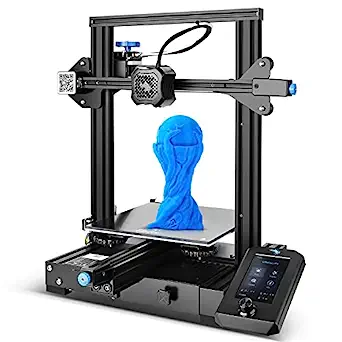
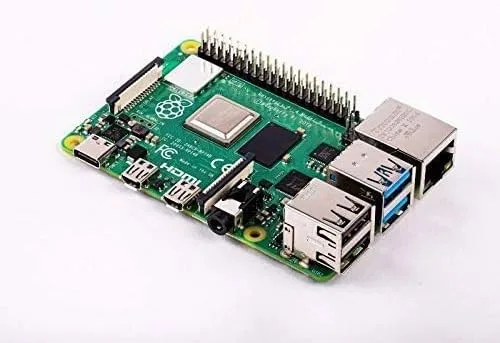
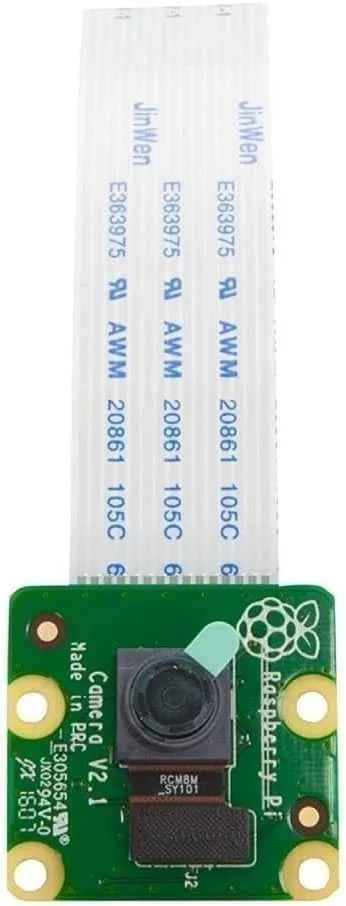
You’ll Need 2

What you’ll need
Interests
1Password x 1
NordPass x 1
Howchoo is reader-supported. As an Amazon Associate, we may earn a small affiliate commission at no cost to you when you buy through our links.
Posted in these interests:
passwordmanagers • 1 guides
security • 6 guides

You might be thinking: 1Password versus NordPass? It’s no contest! 1Password is huge, while NordPass is tiny! Well, it turns out we thought the same thing too. But when we reviewed each in all the major password manager categories, we discovered that it wasn’t the blow-out we would have imagined.

We’ve tested each individually

We’ve been using 1Password as our team password manager at Howchoo for quite a while now. We’ve even written a comprehensive review of 1Password that we recommend you check out supplementally to this head-to-head review. So we have quite a grasp on what 1Password is capable of.

1Password Review: Our New Favorite Password Manager
Intuitive. Secure. A great option for families and small businesses.

We also recently started using NordVPN, which is a phenomenal VPN, and thought we’d give its password manager, NordPass, a shot.

So you can be sure we’ve tried each and understand exactly what each password manager is capable of!

1 – Ease of use

It’s a little uncanny just how similar 1Password and NordPass are in terms of both their user interfaces and methods of use. Here’s a head-to-head comparison GIF of each so you can see what I mean:

NordPass’s Method of Use

1Password’s Method of Use

1Password and NordPass are both extremely user-friendly, while not sacrificing security for easy auto-filling.

As you can see each password manager makes you first unlock the password manager to use its autofill feature, which prevents certain kinds of robots from accessing your accounts.

Both 1Password and NordPass use a vault system that allows you put your saved passwords in various vaults that you can set as private or shared. They also allow you to access your saved credit cards, personal information, and other login info from the application on your desktop.

In fact, both 1Password and NordPass are so similar in design and UI that we suspect NordPass may have taken some cues from 1Password in their design. Given how intuitive the overall UI is for 1Password, that really wasn’t a bad idea at all!

Winner: Draw

How could anyone choose a winner when you can hardly tell the difference between 1Password and NordPass’s applications? We certainly can’t. You’ll have to check another category when deciding which you want to use—that’s for sure!

2 – Security

Encryption

Both 1Password and NordPass use 256-bit encryption with one major difference. While 1Password uses the industry-standard AES 256-bit encryption, NordPass uses the new XChaCha20 256-bit encryption. This is a newly developed method of encrypting data that could stand the test of time if the AES method becomes crackable in the near future (as it’s showing signs of becoming).

Total Encrption / Zero-knowledge architecture

They both mean the same thing—namely, that your encrypted data is unavailable to anyone but you. Even the password managers themselves do not have your encrypted password data.

NordPass and 1Password both offer this for their users in a completely identical way.

Security Checks

And both NordPass and 1Password run security checks periodically to make sure your passwords weren’t involved in any security breaches and that you’re as secure as you can be. This feature is only available on the paid version of NordPass.

Winner: NordPass (by a small margin)

How can that be? Well…each password manager offers identical security features with NordPass offering a more advanced encryption method.

3 – Password sharing

1Password

Both 1Password and NordPass allow users to share passwords in encrypted vaults with their group plans. What this means is that you will no longer have to send the username and passwords in an email or text, which is very dangerous, but can store the username and password in an encrypted vault.

Whenever someone needs to use a shared password, they will simply access the encrypted vault and get the login info.

Here’s what it looks like at 1Password:

And at NordPass:

Cloudwards.net

Winner: draw

1Password and NordPass are identical in the way they allow you to share passwords.

4 – Device and browser compatibility

Testsigma
OS/browser1PasswordNordPass
Windows
MacOS
Linux
ChomeOS
Command Line
iOS
Android
Chrome
Firefox
Safari
Edge
Brave
Opera
Chromium

Winner: 1Password

Each offers support for most of the major operating systems and browsers with 1Password slightly edging out NordPass by offering support for ChromeOS, Chromium, and Command Line. So unless you use those often, there might be little here that changes your mind either way.

5 – Extra features

1Password

Here’s where 1Password jumps ahead of NordPass. 1Password definitely offers more goodies with their plans than NordPass at the moment—and some of those goodies might be worth a lot.

Data storage

1Passwords offers every account 1 GB (5 GB for Business accounts) of data storage. This means that you can securely store files you want to keep safe like passports, driver’s licenses, wills, etc.

NordPass does not offer this.

Identity storage

Both NordPass and 1Password offer the ability to store and autofill your identity information online.

Travel Mode

This one sets 1Password apart. With 1Password you can turn on “Travel Mode,” which allows you to essentially remove ALL of your stored password-data on your device. This means that a border agent who takes your computer, for instance, will not be able to access any of your accounts or personal information.

NordPass does not offer this.

iCloud and Dropbox sync

Only 1Password offers the ability to sync with iCloud and Dropbox.

Unlock with your Apple watch

You can only activate 1Password with an Apple watch at the moment. NordPass does not offer this capability.

How to Unlock 1Password With Your Apple Watch

Winner: 1Password

We think that having secure data storage is pretty valuable. And, given that every 1Password account comes with this, it could be the deciding factor for anyone trying to decide between the two.

6 – Price

Free Version (Winner: NordPass)

Only NordPass offers a free personal version to use that they claim will always remain free.

NordPass’s Free Version

  • Only can have 1 device active
  • Can’t share passwords
  • Can store unlimited passwords and credit cards

Individual Paid Version (Winner: NordPass)

NordPass offers more options to pay for their premium paid service, such as month-to-month ($4.99/mo), annual ($1.99/mo), and 2-year up-front ($1.49/mo).

1Password offers only the annual billing plan at a rate of $2.99/mo.

Both plans offer the same things, except that NordPass only allows you to be actively using the password manager on 6 devices at the same time. But, honestly, we have a hard time imagining an individual using more than 6 devices at the same time with a password manager. So NordPass gets the nod here.

Family Version (Winner: NordPass)

Again, both plans are identical. Both 1Password and NordPass allow up to 5 family members to share the family account and share passwords. They both offer the same features for families, as well.

NordPass’s family plan price is $3.99/mo., billed annually. 1Password’s family plan price is $4.99/mo., billed annually.

Teams/Small Businesses (Winner: 1Password)

We trust 1Password as a small team at Howchoo, and they do offer up-front flexible pricing that’s hassle-free. With NordPass, you have to request a custom quote for your business before you can have any idea of what the cost will be.

1Password for teams currently costs $3.99/mo per user, while their business plan (with unlimited users) runs $7.99/mo. and offers free family accounts.

Discounts (Winner: NordPass)

Only NordPass seems to offer any kind of discount. They currently have a student discount of 10% off when you sign up with your student email address.

Overall Price Winner: NordPass

Except for teams and small businesses, just in terms of price, NordPass is certainly a better deal and even offers a free version, which 1Password does not.

7 – Overall winner

Drumroll please…

And the winner is…

NordPass

How can that be?, you ask.

Well…unless you’re needing the secure data storage we mention above or are using a password manager for a team/business, then we recommend you give NordPass a shot. In all the major categories, NordPass and 1Password offer the same things, with NordPass edging out 1Password in terms of security.

NordPass has a free version that most individuals users will find is enough without having to upgrade, and their paid plans are less expensive across the board.

NEXT UP

How to Send and Receive Encrypted Messages Using GPG

Another tale of Alice and Bob.
howchoo   (467)
November 22, 2023

GPG (GnuPG) is a free and complete implementation of PGP (pretty good privacy). It is a tool used for encrypting, decrypting, and signing messages (or many forms of data). In this guide, we’ll cover the steps to send and receive secure messages using GPG. For this guide, we’ll assume you want to exchange messages with your good

Continue Reading

howchoo

 467 guides

Introducing Howchoo, an enigmatic author whose unique pen name reflects their boundless curiosity and limitless creativity. Mysterious and multifaceted, Howchoo has emerged as a captivating storyteller, leaving readers mesmerized by the uncharted realms they craft with their words. With an insatiable appetite for knowledge and a love for exploration, Howchoo’s writing transcends conventional genres, blurring the lines between fantasy, science fiction, and the surreal. Their narratives are a kaleidoscope of ideas, weaving together intricate plots, unforgettable characters, and thought-provoking themes that challenge the boundaries of imagination.

Home Interests Raspberry Pi

Raspberry Pi Models and Specs: A Comprehensive Guide

What flavor of Pi is your favorite?
howchoo   (467)
September 28, 2023
15 minutes

Share

Interests
Posted in these interests:
pi • 92 guides

The Raspberry Pi has become an iconic machine in the world of tiny computers. This pocket sized board is so cool—and I know I sound biased. But it’s true! You can use them for so many projects.

Finding the best Pi model can sometimes be tricky. That’s why we took the time to break down each Raspberry Pi into this list. Compare specs and learn a little about the history of how the Raspberry Pi has evolved over the last few years.

Raspberry Pi specs

Raspberry Pi ModelReleasedUSB PortsCPURAMBluetoothWiFi
Raspberry Pi 1 BFeb 20122x USB 2.0700MHz512MBNoNo
Raspberry Pi 1 B+July 20144x USB 2.0700MHz512MBNoNo
Raspberry Pi 1 A+Nov 20141x USB700MHz512MBNoNo
Raspberry Pi 2Feb 20154x USB900MHz1GBNoNo
Raspberry Pi ZeroNov 20151x Micro USB1GHz512MBNoNo
Raspberry Pi 3Feb 20164x USB1.2GHz1GB4.1 LEYes
Raspberry Pi Zero WFeb 20171x Micro USB1GHz512MB4.1Yes
Raspberry Pi 3 B+Mar 20184x USB 2.01.4GHz1GB4.2, BLEYes
Raspberry Pi 3 A+Nov 20181x USB 2.01.4GHz512MB4.2, BLEYes
Raspberry Pi 4June 20192X USB 3.0, 2X USB 2.01.5GHz1GB, 2GB, 4GB, or 8GB5.0, BLEYes
Raspberry Pi 400November 20202X USB 3.0, 2X USB 2.01.8GHz4GB5.0, BLEYes
Raspberry Pi PicoJanuary 2021USB C133MHz264KBNoNo

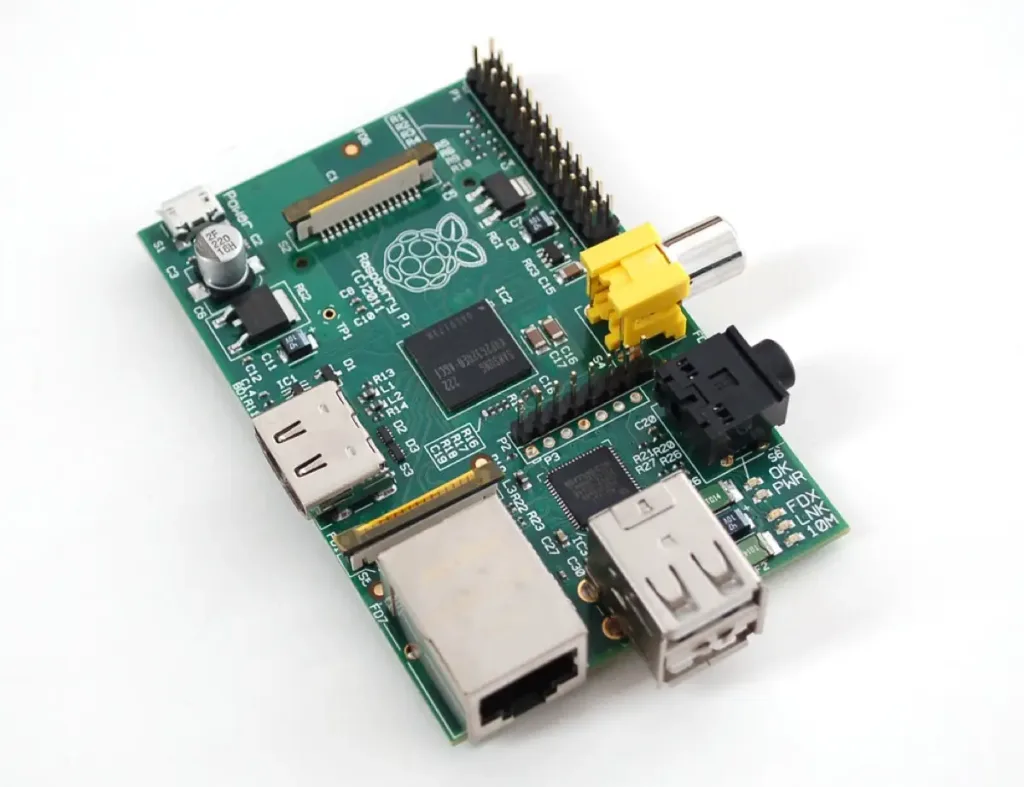
1 – Raspberry Pi 1 B

Raspberry Pi 1 B

The first Raspberry Pi was released in 2012. This original edition, known as Raspberry Pi 1 B, was met with great success. Everyone wanted to get their hands on this tiny computer to see what it could do.

Raspberry Pi 1 specs

ReleasedUSB PortsCPURAMBluetoothWiFi
Feb 20122x USB 2.0700 MHz512MBNoNo

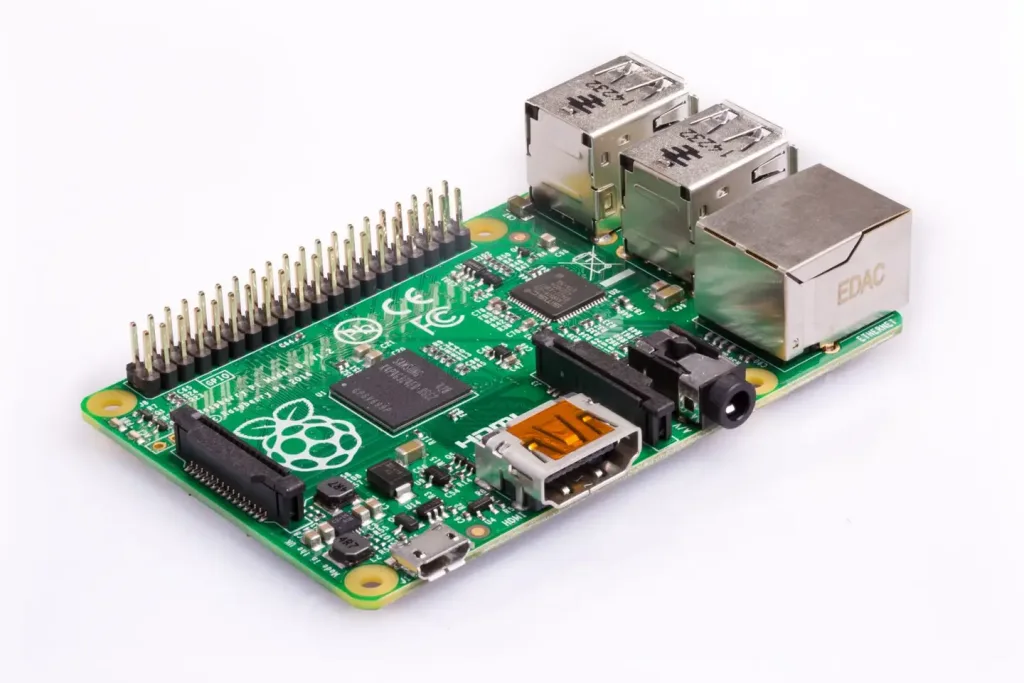
2 – Raspberry Pi 1 B+

Raspberry Pi 1 B+, a revised edition of the Raspberry Pi 1 B which released in 2014.

The Raspberry Pi 1 B was followed with an updated edition known as the Raspberry Pi 1 B+. The most noticeable change was the addition of two additional USB ports.

Raspberry Pi 1 B+ Specs

ReleasedUSB PortsCPURAMBluetoothWiFi
July 20144x USB 2.0700 MHz512MBNoNo

3 – Raspberry Pi 1 A+

Raspberry Pi A+

This model follows the release of the Raspberry Pi B. The Raspberry Pi A+ is smaller than the Pi B, but just as powerful. It has the same processing speed in a slimline package. Unlike the Pi B, it only features 1 USB port and no Ethernet port.

Raspberry Pi A+ Specs

ReleasedUSB PortsCPURAMBluetoothWiFi
Nov 20141x USB700 MHz512MBNoNo

4 – Raspberry Pi 2

Raspberry Pi 2

What’s better than one Raspberry Pi? Two! This is the Raspberry Pi 2, a wonderful successor to the original Raspberry Pi. It comes with 4 USB ports and more CPU power than before, clocking in at 900 MHz.

Raspberry Pi 2 Specs

ReleasedUSB PortsCPURAMBluetoothWiFi
Feb 20154x USB900 MHz1GBNoNo

5 – Raspberry Pi Zero

Raspberry Pi Zero

Raspberry Pi meets shrink ray with this super teeny model known as the Raspberry Pi Zero. This super slim model comes with a few upgraded features. The CPU on this edition can reach speeds up to 1GHz. The USB ports have been dropped in favor of a Micro USB port and Micro OTG port.

Raspberry Pi Zero Specs

ReleasedUSB PortsCPURAMBluetoothWiFi
Nov 20151x Micro USB1 GHz512MBNoNo

6 – Raspberry Pi Zero W

Raspberry Pi Zero W

The Pi Zero was seriously upgraded with the release of the Raspberry Pi Zero W. This tiny computer is packed with a micro USB port, a micro OTG port, and a 1 GHz processor like the Pi Zero. But the team took their efforts a step further by including both Bluetooth and Wireless capabilities—making it perfect for small, mobile projects.

Raspberry Pi Zero W Specs

ReleasedUSB PortsCPURAMBluetoothWiFi
Feb 20171x Micro USB1 GHz512MB4.1Yes

7 – Raspberry Pi 3

Raspberry Pi 3 Model B

The Pi reached new heights with the release of the Raspberry Pi 3. This model is just a little bit faster and a lot more versatile. Long gone are the days of isolation, these Pi’s are open to multiple wireless channels including both WiFi and Bluetooth.

Raspberry Pi 3 Specs

ReleasedUSB PortsCPURAMBluetoothWiFi
Feb 20164x USB1.2 GHz1GB4.1 LEYes

8 – Raspberry Pi 3 B+

Raspberry Pi 3 B+

The Raspberry Pi 3 B+ is an excellent edition to the lineup of modern Pis. It’s my go-to board for most projects and it’s no wonder why! This board comes with a 1.4 GHz processor, Bluetooth, WiFi, 4 USB ports, and a reputation to back it up!

Raspberry Pi 3B+ Specs

ReleasedUSB PortsCPURAMBluetoothWiFi
Mar 20184x USB 2.01.4 GHz1GB4.2, BLEYes

9 – Raspberry Pi 3 A+

Raspberry Pi 3 A+

The Raspberry Pi 3 A+ is a slimmed-down edition of the B+. It has the same processor as the B+, reaching speeds up to 1.4 GHz. In lieu of 4 USB ports, the Pi 3 A+ has only 1 USB port. In keeping with the recent Pi models, it comes with both Bluetooth and WiFi capabilities.

Raspberry Pi 3 A+ Specs

ReleasedUSB PortsCPURAMBluetoothWiFi
Nov 20181x USB 2.01.4 GHz1GB4.2, BLEYes

10 – Raspberry Pi 4

The Raspberry Pi 4. Raspberry Pi 4

The Raspberry Pi 4 really packs a punch compared to its predecessors. You can choose from one of three RAM upgrades, there are four USB ports, and it comes with the most powerful CPU yet. The Pi 4 is quickly taking the stage as developers create software to take advantage of all of the new features.

Raspberry Pi 4 Specs

ReleasedUSB PortsCPURAMBluetoothWiFi
June 20192X USB 3.0, 2X USB 2.01.5GHz1GB, 2GB, or 4GB5.0, BLEYes

11 – Raspberry Pi 400

Raspberry Pi Foundation

The Raspberry Pi 400 is an all-in-one keyboard containing a Raspberry Pi 4. It features mostly the same specs as the Pi 4, except the internal board is a different form factor. The CPU also has a higher clock speed of 1.8GHz vs. the 1.5GHz that the Pi 4 has.

The New Raspberry Pi 400: The Keyboard With a Pi Inside
New official Raspberry Pi hardware!

Check out our Raspberry Pi 400 review video to learn more!

Raspberry Pi 4 Specs

ReleasedUSB PortsCPURAMBluetoothWiFi
October 20202X USB 3.0, 1X USB 2.01.8GHz4GB5.0, BLEYes

12 – The Compute Module

The Raspberry Pi Compute Module has gone through several iterations; it lacks the normal interface ports and functionality of a normal Pi, and is meant more for business and scientific users. I won’t cover the versioning of this one in great detail but you can read more about the Compute Module on the Raspberry Pi website.

13 – Raspberry Pi Pico

Raspberry Pi Foundation

This is the Raspberry Pi Foundation’s first official microcontroller. It uses a custom chip made by the team known as the RP2040. It’s the smallest board yet and one of the most flexible.

Raspberry Pi Pico Specs

ReleasedUSB PortsCPURAMBluetoothWiFi
Raspberry Pi PicoJanuary 2021USB C133MHz264KBNo

14 – Choosing the best Raspberry Pi model

Finding the best Raspberry Pi for your project depends on your project needs. Consider factors like size, mobility, and necessity of each hardware component. In general, you’ll find the newer models have more power and features that open your Raspberry Pi projects to a myriad of potential.

For example, the Pi Zero is suited for small projects. We were able to fit the Pi Zero inside an old NES controller just to run RetroPie!

But the Pi 3 B+ is great for things like setting up a Raspberry Pi media server or Pi powered MIDI synthesizer.

If you want the latest and greatest—you may want to snag a Pi 4 to see what it’s capable of while the Pico is an excellent choice for anyone who needs a low-power unit for simple control processing.

Looking for new Pi project ideas? Check out our list of Raspberry Pi projects to get started.

NEXT UP

How to Run a Minecraft Server on the Raspberry Pi

A whole world trapped inside your Pi.
howchoo   (467)
December 7, 2023

There are several ways to go about running a Minecraft server on the Raspberry Pi. In this guide, I’ll cover how to install Nukkit—a cross-platform Minecraft server that’s super easy to set up on the Raspberry Pi. This server should work with PCs, consoles, and tablets running Minecraft 1.14. I’ll be using a Raspberry Pi

Continue Reading

howchoo

 467 guides

Introducing Howchoo, an enigmatic author whose unique pen name reflects their boundless curiosity and limitless creativity. Mysterious and multifaceted, Howchoo has emerged as a captivating storyteller, leaving readers mesmerized by the uncharted realms they craft with their words. With an insatiable appetite for knowledge and a love for exploration, Howchoo’s writing transcends conventional genres, blurring the lines between fantasy, science fiction, and the surreal. Their narratives are a kaleidoscope of ideas, weaving together intricate plots, unforgettable characters, and thought-provoking themes that challenge the boundaries of imagination.

<!–
–> <!–

Discuss

–> <!–
–> <!–
–> <!–
–>
Home Interests Minecraft

Best World Generation Mods for Minecraft (Fabric)

Fabric mods that improve the base game’s biomes or adds in new ones!
howchoo   (467)
September 28, 2023
16 minutes

Share

<!–
–> <!–

Discuss

–> <!–
–> <!–
–> <!–
–>
Interests
Posted in these interests:
READY PLAYER 1
gaming • 85 guides <!– –>
Minecraft is an epic sandbox video game developed by Swedish game developer Mojang Studios.
minecraft • 66 guides <!– –>
minecraftfabric • 8 guides <!– –>

The variety of mods available for Minecraft is just as vast as the worlds within the game itself. Most likely, any mod you could want or dream of has already been developed. As an avid Minecraft player, I’ve recently become obsessed with Fabric Minecraft mods and expanding the world of Minecraft, literally.

This guide will go through mods available for Minecraft Fabric that either improve the base game’s biomes or adds in new ones! If you’ve ever wanted to roam and explore new environments or dive deep into a cave, below you’ll find a mod for either. So whether you’re hosting a survival multiplayer server or you’re playing alone, you’ll find a mod that opens up your world even more!

If you’re interested in more mods for Minecraft, check out the Minecraft Forge interest!

Note that the game versions available may change since the time of publishing. Most photos were taken using BSL Shaders and Optifine in 1.16.5.

1 – Nature’s Compass

By Chaosyr

Game Versions: 1.12, 1.14, 1.15, 1.16, 1.17

A perfect welcome gift for players! Nature’s Compass is an item that allows players to search for a biome’s location in the world. It automatically will list biomes added from mods, so all you need to worry about is the travel time!

2 – BetterNether

By paulevs

Game Versions: 1.12, 1.15, 1.16, 1.17

The BetterNether mod fills up the boring world that is the Nether dimension. It adds a bunch of new blocks, items, and structures. It’s also compatible with a handful of other mods, even ones that add other Nether biomes!

3 – Repurposed Structures

By telepathicgrunt

Game Versions: 1.16, 1.17

This mod takes vanilla Minecraft structures and makes them better! By adding biome variants or just new versions of structures, each building feels like it belongs in the world instead of standing out. It’s perfect for any servers that wants the players to explore.

4 – Oh the Biomes You’ll Go

By AOCAWOL

Game Version: 1.16

This is my new favorite biome mod to add to a survival world. It adds over 80 biomes that each are unique. They’re not just for the Overworld either! Oh the Biomes You’ll Go adds new biomes to discover in both the Nether and End! It comes with over 40 trees, 28 wood types, and 200 new blocks and items. It’s a great mod if you’re tired of seeing the same places over and over again.

5 – YUNG’s Better Mineshafts

CurseForge

By YUNGNICKYOUNG

Game Versions: 1.15, 1.16, 1.17

If you’re bored with Minecraft’s standard mineshafts, then download this mod to your world. It expands mineshafts with tunnels, loot, abandoned workstations, and more! There are nine biome variants, including a rare mushroom mineshaft.

6 – YUNG’s Better Caves

CurseForge

By YUNGNICKYOUNG

Game Version: 1.16

Much like the Better Mineshafts mod above, this one overhauls cave systems. It adds in lava caverns, underground lakes and rivers, flooded caverns and more! It’s perfect for those wanting more exploration in caves!

7 – Stoneholm, Underground Villages

By TheGrimsey

Game Versions: 1.16, 1.17

With this mod, you’ll discover underground settlements of villagers that are filled with loot and resources to gain. Each village has multiple rooms and floors, with abandoned sections for players to explore.

8 – Mo’ Structures

By ffrannny

Game Versions: 1.15, 1.16, 1.17

If you’ve ever felt like the Minecraft world felt a little empty, then add Mo’ Structures to your modpack. It generates new structures throughout the world, like towers and dungeons. Each structure is meant to implement an RPG element, which occurs when players find a secret chest or books with lore inside them.

9 – River Redux

CurseForge

By SuperCoder79

Game Versions: 1.15, 1.16, 1.17

Minecraft rivers really o lack variety and proper generation. River Redux fixes that by improving generation and adding four new biome variations. This is a smaller generation mod that makes a big impact on the world’s atmosphere.

10 – Traverse

By ProspectorDev

Game Versions: 1.14, 1.15, 1.16

Traverse aims to not overshadow the vanilla Minecraft biomes, but add biomes that blend in as if they were there all along. Biomes include are autumnal woods, lush swamp, desert shrubland, wooded island, and more!

11 – The Aether Reborn

CurseForge

By ImmortalDevs

Game Versions: 1.16, 1.17

This mod is a remake of an older dimension mod of a similar name. It features The Aether, a dimension located in the sky filled with floating islands. It adds new ores, structures, creatures, and dungeons to create for a risky yet rewarding adventure!

12 – Mining Dimensions

By kwpugh

Game Versions: 1.16, 1.17

If the server you’re running is quite large in members, I recommended getting the Mining Dimensions mod. It’ll help from having players cross each other in caves or caverns. This mod adds four mining dimensions for players to use for hunting mobs and mining.

13 – Lakeside

By Juicebus

Game Versions: 1.15, 1.16, 1.17

Much like the River Redux mod, this mod overhauls lakes and ponds that are naturally generated in the world. It adds four new lake variations and works with modded biomes too!

14 – Promenade

By Hugman_76

Game Versions: 1.16, 1.17

This is a smaller biome mod, as it only adds in seven new biomes to the world. Still, Promenade’s biomes are beautiful and it even comes with a new duck mob!

15 – DimensionalDoors

By DimensionalDevelopment

Game Versions: 1.12, 1.17

This mod adds exactly what it sounds like. There are seven included doors that lead to various areas, dungeons, and unique player dimensional pockets to build whatever they want! It also includes a rift feature which is created when a door has been destroyed and can grow in size over time. DimensionalDoors is mod that is deceptively in depth!

16 – Smoother Bedrock

By haykam

Game Versions: 1.16, 1.17

Smoother Bedrock is a simple mod, not does one thing: smooths out bedrock. This will help prevent weird caverns or pockets of bedrock within the world!

17 – Cinderscapes

By wtoll1

Game Versions: 1.16

Cinderscapes is a biome mod that as six new biomes for the Nether. They look similar to vanilla biomes, so they won’t feel too out of place in the world.

18 – Ecotones

By SuperCoder79

Game Versions: 1.16, 1.17

While biomes generated in the base game of Minecraft are beautiful, they lack a certain realistic chaos in their flora. Ecotones changes that by overhauling the designs of trees, shrubs, and even rocks to be unique to each biome. It has over 70 distinct biomes with 218 variants of flora.

19 – EnvironmentZ

CurseForge

By Globox_Z

Game Versions: 1.16, 1.17

If you’ve ever played survival games before, you’ll recognize the main component of this mod. EnvironmentZ adds environment temperatures to your world. Spend too much time in the snowy mountains, and you risk freezing to death.

20 – Fabric Seasons

CurseForge

By D4rkness_King

Game Versions: 1.16, 1.17

This is another mod that greatly improves the realism of Minecraft. Fabric Seasons adds the four seasons to Minecraft that includes seasonal colormaps for foliage and grass and extend weather functions in biomes depending on season.

NEXT UP

Top 10 Enchantments in Minecraft

howchoo   (467)
March 25, 2024

The longer you play Minecraft, the more you realize that early-game tools just won’t cut it. Exploring the enchantment feature of Minecraft can be exciting, but also intimidating. Rather than worry about researching enchantments, below are the best enchantments in Minecraft! To learn how to enchant items, check out this guide! In this guide, you’ll see

Continue Reading

howchoo

 467 guides

Introducing Howchoo, an enigmatic author whose unique pen name reflects their boundless curiosity and limitless creativity. Mysterious and multifaceted, Howchoo has emerged as a captivating storyteller, leaving readers mesmerized by the uncharted realms they craft with their words. With an insatiable appetite for knowledge and a love for exploration, Howchoo’s writing transcends conventional genres, blurring the lines between fantasy, science fiction, and the surreal. Their narratives are a kaleidoscope of ideas, weaving together intricate plots, unforgettable characters, and thought-provoking themes that challenge the boundaries of imagination.

Home Interests OctoPrint

How to Set Up and Use OctoPrint on the Creality Ender 3 V2

Remotely control your Ender 3 V2 with OctoPrint.
howchoo   (467)
September 28, 2023
26 minutes

Share

You’ll Need 8

What you’ll need
Interests
Series
Howchoo is reader-supported. As an Amazon Associate, we may earn a small affiliate commission at no cost to you when you buy through our links.
Posted in these interests:
3dprinting • 36 guides
ender3 • 19 guides
octoprint • 10 guides

With the release of the Creality Ender 3 V2, many of the Ender’s biggest fans who upgraded to the latest version are noticing many small differences in setting up mods like OctoPrint. While we have a great guide on the original Ender 3 OctoPrint, the differences are substantial enough to warrant a completely new guide on setting up OctoPrint specifically on the Ender 3 V2.

While making this guide I ran into many Ender 3 V2-specific bumps and stops, and I’ve worked through them all so you don’t have to spend the time.

Let’s get you set up with OctoPrint on your Ender 3 V2!

1 – Ender 3 V2 OctoPrint settings

Setup OctoPrint on Raspberry Pi

First, you should follow our full guide to learn how to set up OctoPrint on your Raspberry Pi. Then hop back over this guide for the Ender 3 V2 specifics.

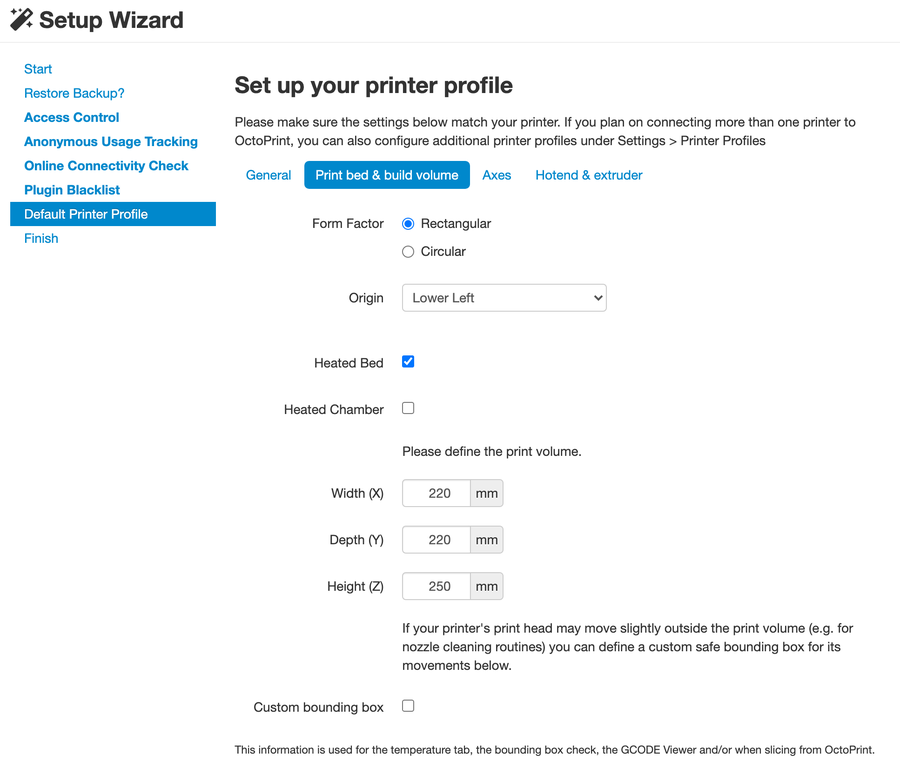
Printer Settings

Form factor: Rectangular
Origin: Lower Left
Heated Bed: Yes (checked)
Heated Chamber: No (unchecked)
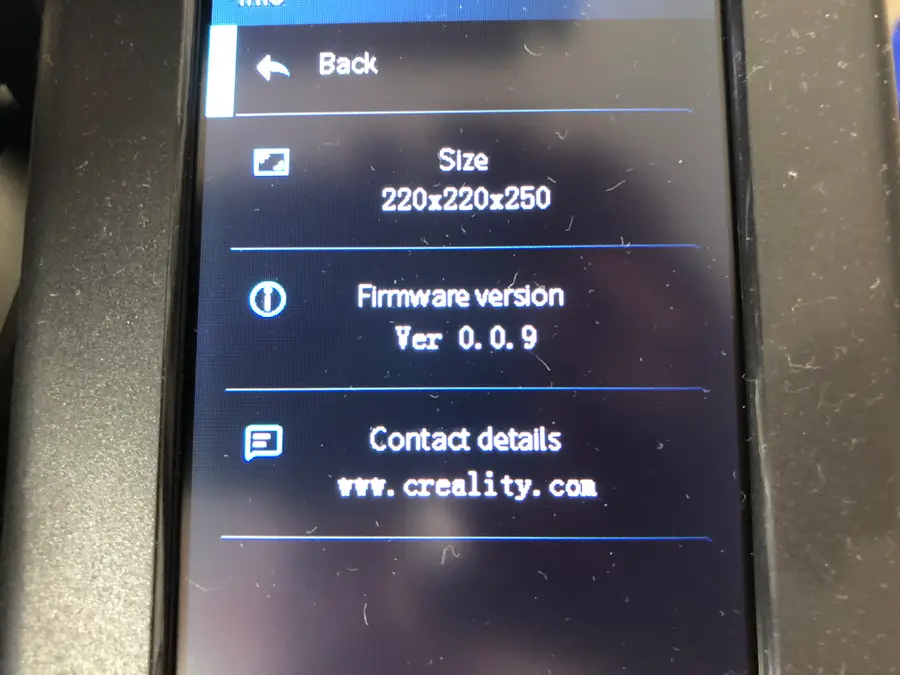
Width: 220mm
Depth: 220mm
Height: 250mm
Axes: Default**
Custom Bounding Box: No (unchecked)
Nozzle Diameter: 0.4mm
Number of Extruders: 1

** The Axes setting is only used for manually controlling the printer — as I slice my models before putting them into OctoPrint, I didn’t bother filling this out. However, you can if you choose; remember the Axes speed settings are per minute, whereas the settings in most slicing programs are per second.

Connection settings

Serial Port: AUTO
Baudrate: AUTO

Most of the settings are the same as with the original Ender 3, with the noticeable difference being that OctoPi can now detect the serial port automatically.

Download Ender 3 V2 OctoPrint Plugins

As of the writing of this guide (Nov. 2020), there are two mandatory plugins you need to install for the Ender 3 V2 in OctoPrint:

Check out our guide on installing OctoPrint plugins to see how to find and install these.

The Most Popular OctoPrint Plugins (And How to Install Them)
Wrap your tentacles around these sweet plugins!

Update your Firmware

Updating your firmware may be required when using the Ender 3 V2 with OctoPrint. After connecting to the printer inside of OctoPrint, you might see the following message: “Warning: Firmware Broken”. In this case, you’ll need to have the latest firmware version to print remotely from your Raspberry Pi.

Even without this warning, OctoPrint caused my print speed to max out, no matter what setting I used. When I updated the firmware, however, this issue disappeared. So I recommend updating the firmware either way.

Thankfully, updating the firmware on the Ender 3 V2 is much easier than it was on V1.

How to Update the Firmware on the Ender 3 V2
Check for new firmware regularly.

If you update your firmware and still get the “Warning: Firmware Broken” message, install this plugin to solve the issue until Creality can fix it in an upcoming firmware version (the message will persist but the underlying issue will be fixed).

🛈  Make sure your Pi is connected to the Ender 3 V2 when trying to change the connection settings.

2 – Print the Ender 3 V2 OctoPrint parts

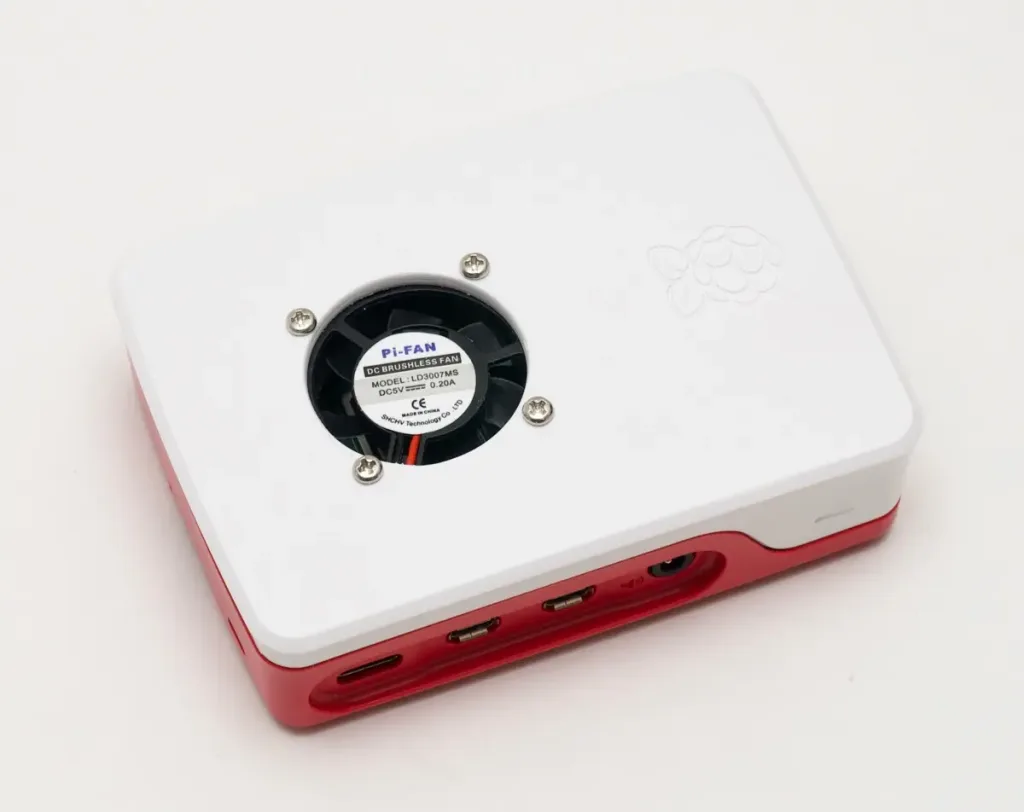
Before I begin, I should note that I had a heck of a time finding components on Thingiverse that would work for my Ender 3 V2 OctoPrint setup. With the Ender 3 V2 still being relatively new (as of November 2020), there aren’t as many specific models for the printer. I am also using a Raspberry Pi 4, which needs a fan, so I needed to find a case specifically with a fan.

That said, here are the Ender 3 V2 components that I used for setting up OctoPrint. Depending on what Pi and fan you’re using, you’ll likely need to adjust these parts as noted below.

Ender 3 V2 Camera Mount

Mounting a camera to your Ender 3 V2 really turns the OctoPrint experience from “this is pretty cool” to “this is freakin’ awesome!” As the Z-axis stepper motor travels up during your 3D printing, the camera follows it. You get to watch the whole print take place remotely on your computer or anywhere—if you want to use our guide to access OctoPrint from anywhere. You can even record the entire print as a time-lapse if you choose.

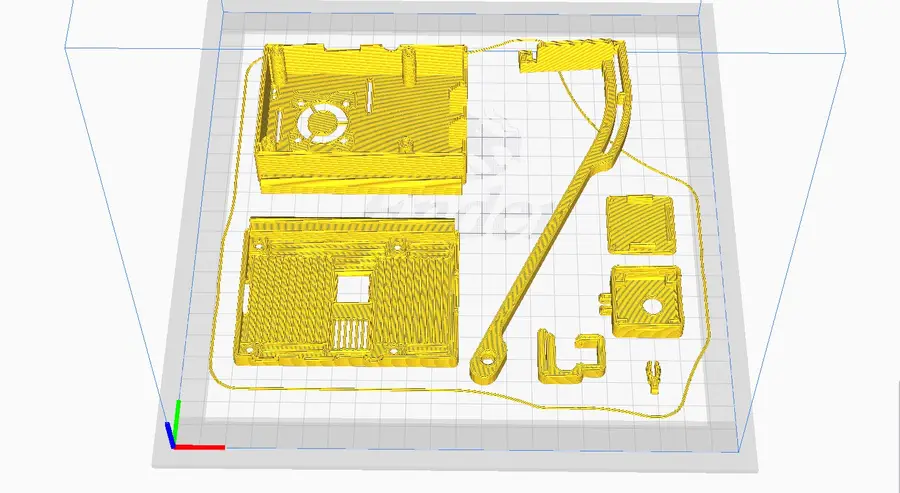
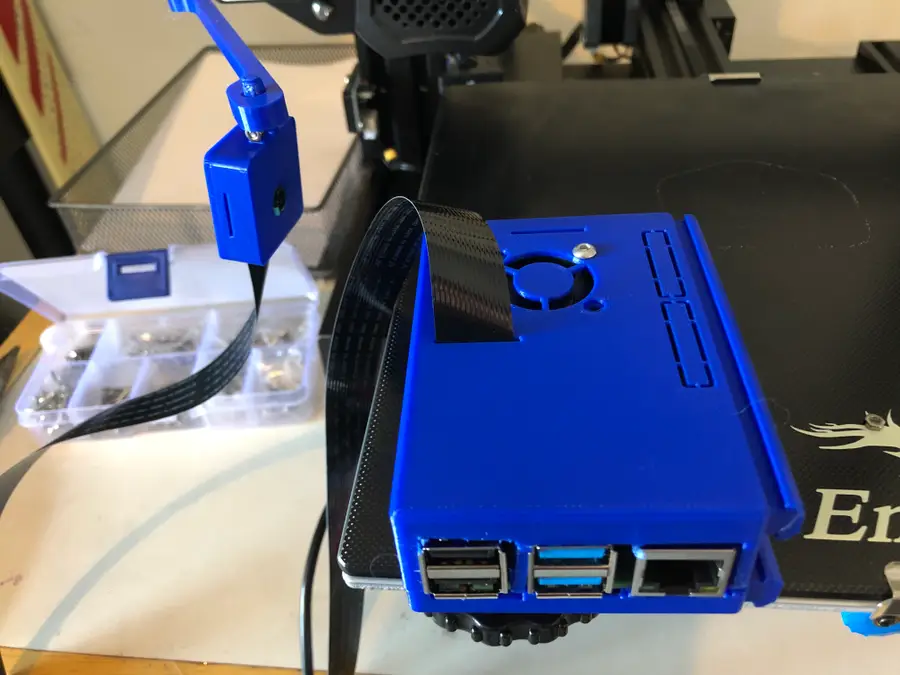
Print out the camera case and camera mount. If you’re using my components, you should have no trouble. Do note that the case attaches to the mount very tightly. You need a tight fit so the camera does not shake when the printer is on.

There are two additional options for a shorter boom-arm and a bolt-less installation. I like the long boom arm personally because of the low angle it allows while viewing the print.

Ender 3 V2 Raspberry Pi Enclosure

The case I linked to earlier is for the Raspberry Pi 3 with a 25mm fan. You likely aren’t using the exact same fan, so here’s the same case for the 30mm fan. It does fit the Ender 3 V2 and attaches to the side 80/20 aluminum rail. By the time you read this, there may be even more available on Thingiverse, so feel free to browse around.

Notes

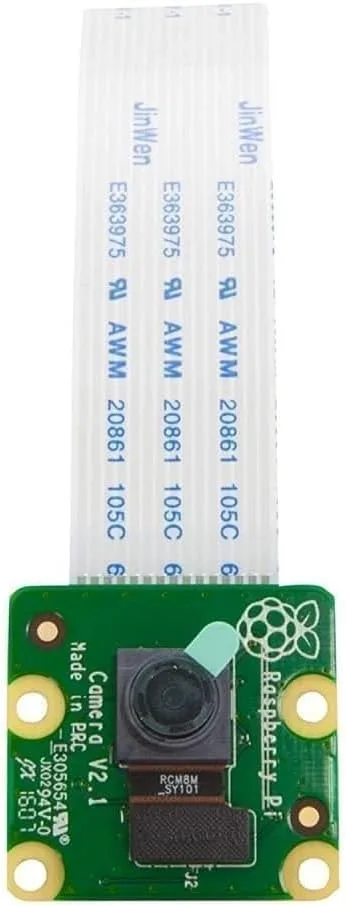
The camera I used was the official Raspberry Pi Camera Module V2.

You’re looking for a camera mount that attaches across the front Ender 3 V2 Z-axis motor, as that has the same specs as the Ender 3. Do not use an original Ender 3 camera mount that attaches to the side of the motor, as it might not fit properly.

The camera mount and case I used do fit easily and even have an option for installation without the recommended 2mm bolt/nut.

3 – Mount the Raspberry Pi Camera on the Ender 3 V2

Do this step prior to putting your Raspberry Pi into its case so you can more easily connect the ribbon cable to it.

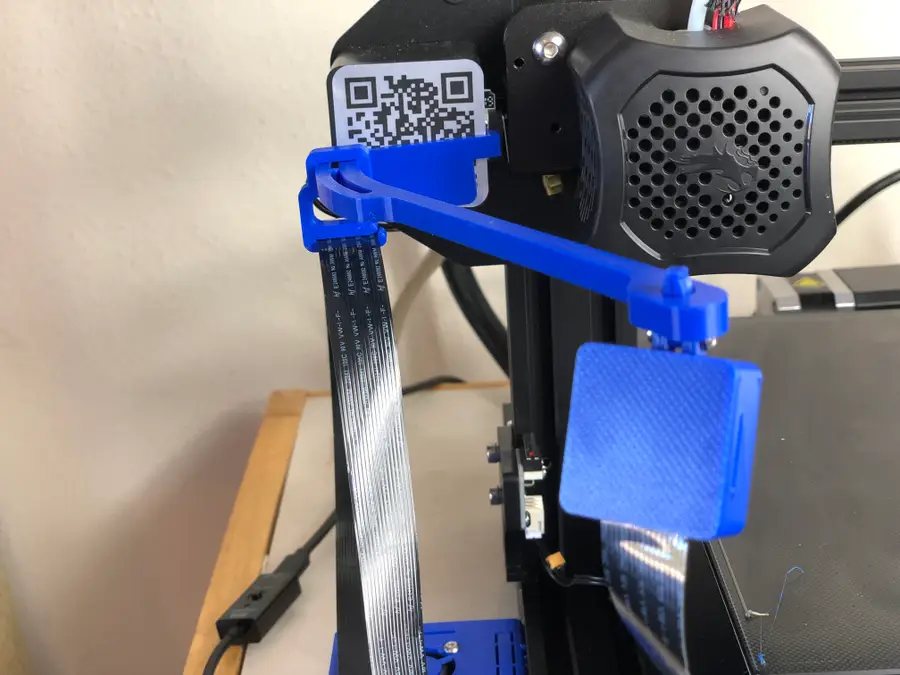
  • Decide if you want to mount the camera above the boom-arm or below. (I mounted mine below, as I think it gives a better view of the print.)
  • Insert your printed swivel pin accordingly, until it snaps in place.
  • Use an M2 x 20mm bolt to connect the camera case to the mount.

Note: If you’re using the mount I selected, it will be difficult to get the bolt through. This is intentional, as everything needs to be tight so the camera holds its position. Just take your time. – Connect the Raspberry Pi ribbon cable to the camera. – Carefully click the camera into place. – Snap the back of the camera case into place.

Ender 3 V2 Raspberry Pi camera cable length

You’re absolutely going to need to use this extension cable when connecting your camera to your Raspberry Pi. The cable that comes with the Pi camera is not long enough and will break if you try to use it.

As with anything you do, when connecting the ribbon cable—take your time and be careful not to break the camera.

We like using the official Raspberry Pi camera for OctoPrint, but there are other OctoPrint cameras and webcams that you can use too.

Optional ribbon clip

If you printed the optional ribbon clip that comes with the camera mount, then you can use this to guide your extension cable some. Don’t loop it on the clip. Only put it through once, leaving plenty of slack for when the Z-axis motor raises up on high prints.

4 – Put the Raspberry Pi into the case

You should have two 3D-printed pieces—a faceplate (with the fan opening) and the case itself.

Fan installation

If your case fits the fan size properly, then simply bolt the fan to the case using 4 M3 x 12mm bolts/nuts.

If it doesn’t work perfectly or you need help installing a fan on the case, head over to our guide on adding a Raspberry Pi 4 fan to a case.

raspberry pi 4 case with fan

How to Add a Fan to the Raspberry Pi 4 for Proper Cooling (You Need One)
It’s getting hot in here, a fan will cool your Pi.

Pi camera ribbon cable

You’ll need to slide your camera ribbon cable through the slot on your Raspberry Pi case. If your case does not have a slot, then you’ll need to manually cut one.

Bolt case together

Carefully add the four M3 x 16mm bolts to connect the case. Lightly tighten each bolt one at a time. Then, fully tighten each bolt.

🛈 If you’re using a Raspberry Pi 4, then you should definitely install the fan.

5 – Mount the Raspberry Pi

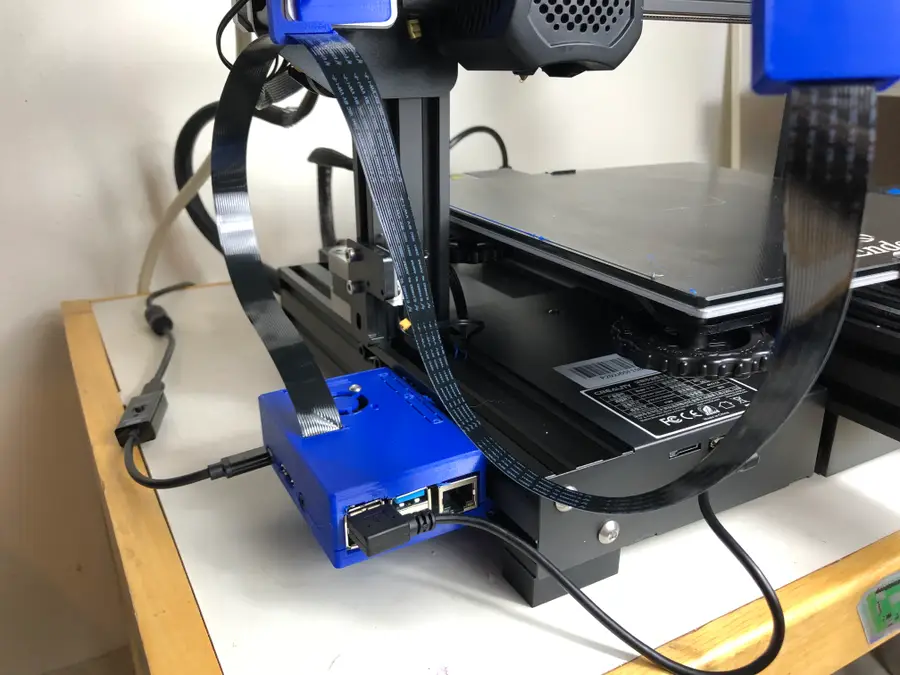
The case that I chose slides into the side rail of the Ender 3 V2, so you won’t need any nuts or bolts.

  • Optional: file down the brackets on the case some to loosen the fit. It will be a very tight fit otherwise.
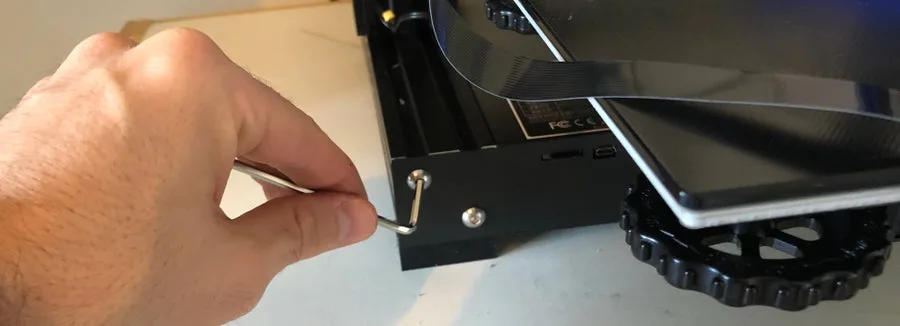
  • Unbolt the front-left cover of the Ender 3 V2, so you can create room in which to slide the case. Make sure your MicroSD is removed.
  • Push the case brackets through the sidebar slowly. Don’t damage your Pi. If you need to, you can file down the brackets more.
  • Reattach the front cover.

Route camera cable

Route the camera cable up through the cable clip (if using one), and into your camera. Make sure the ribbon cable is straight and not bent.

🛈 You may find you need to tilt/move your Ender 3 V2 some when sliding the case into the brackets. Just be careful when doing this.

6 – Connect the Raspberry Pi to your Ender 3 V2

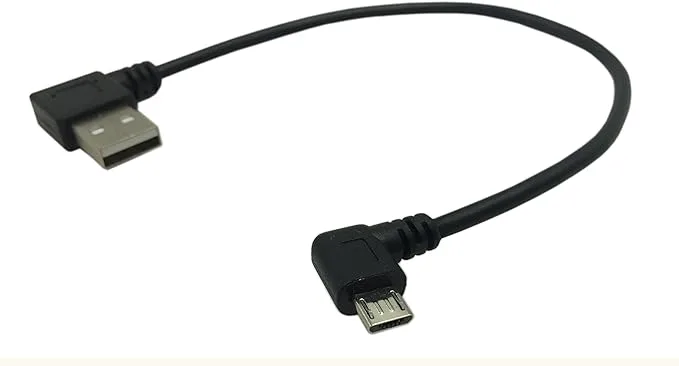
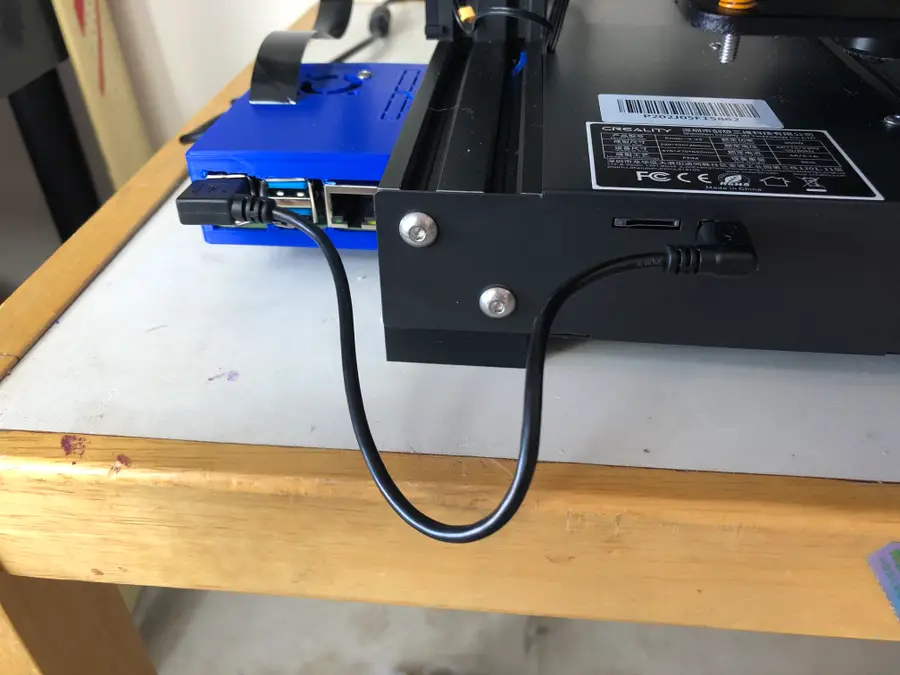
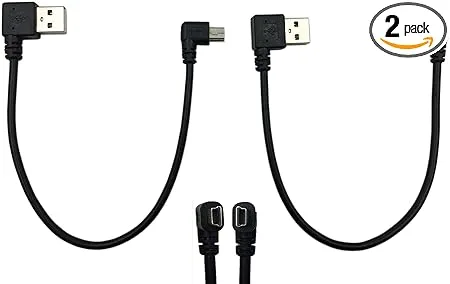
Lastly, use a short Micro-USB cable to connect the Raspberry Pi to your Ender 3 V2.

7 – Optional: Power the Pi from the Ender 3 V2

If you want to power your Raspberry Pi directly from your Ender 3 V2, then you’ll need to modify our guide on powering the pi from the original Ender 3. We only recommend you do this if you have enough knowledge of electronics and power supplies.

I’m fine with my Raspberry Pi being plugged directly into the wall, so I did not do this.

8 – Focus the Pi Camera

While viewing the camera feed in the OctoPi/OctoPrint interface:

  • Slide your bed to center it.
  • Place a small object in the center of the bed on which to focus the camera. (I chose a small bottle with some text, so I could easily focus the camera.)
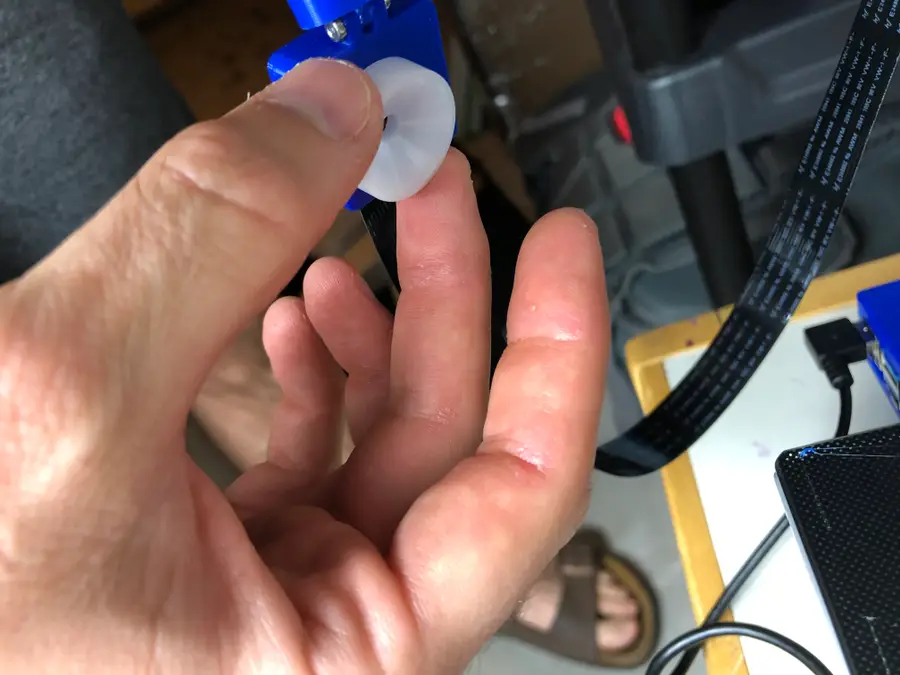
  • Use the small white wheel that came with your Raspberry Pi camera to turn the camera lens until the object is perfectly focused.

Now, make sure your Ender 3 V2 bed is leveled, and you’re ready to print.

🛈 Turn the wheel slowly, as it’s very sensitive.

9 – Final setup

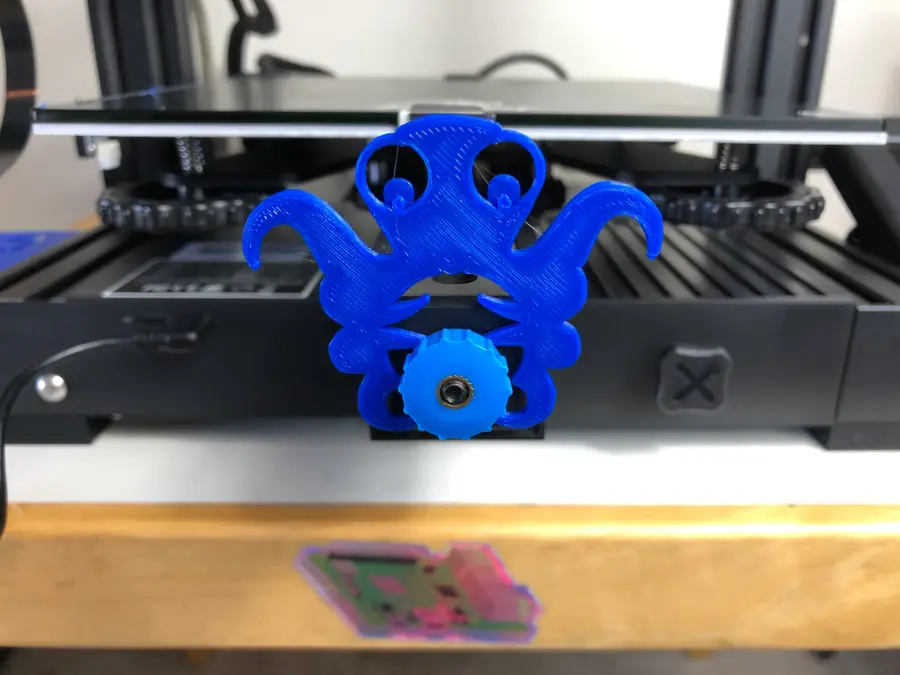
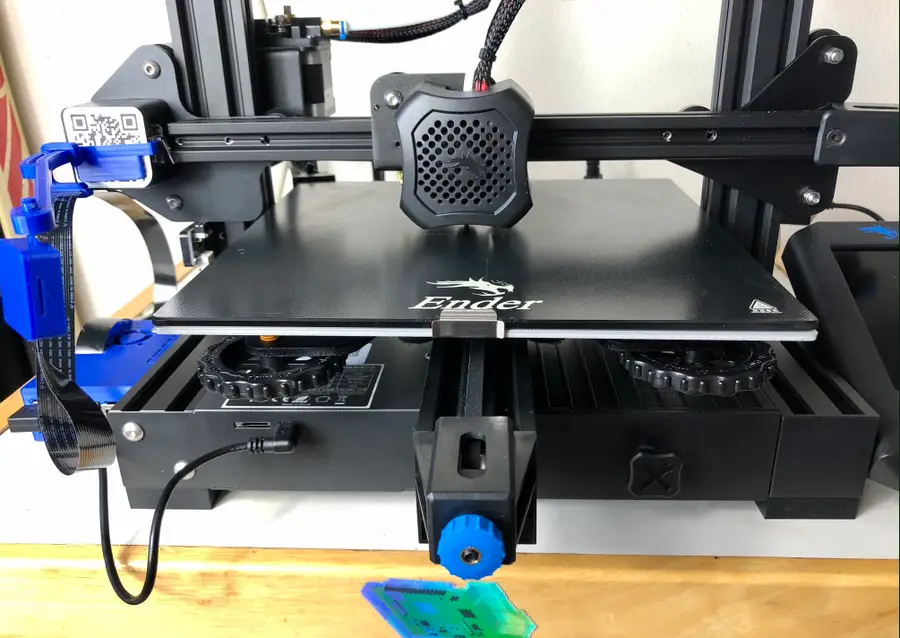
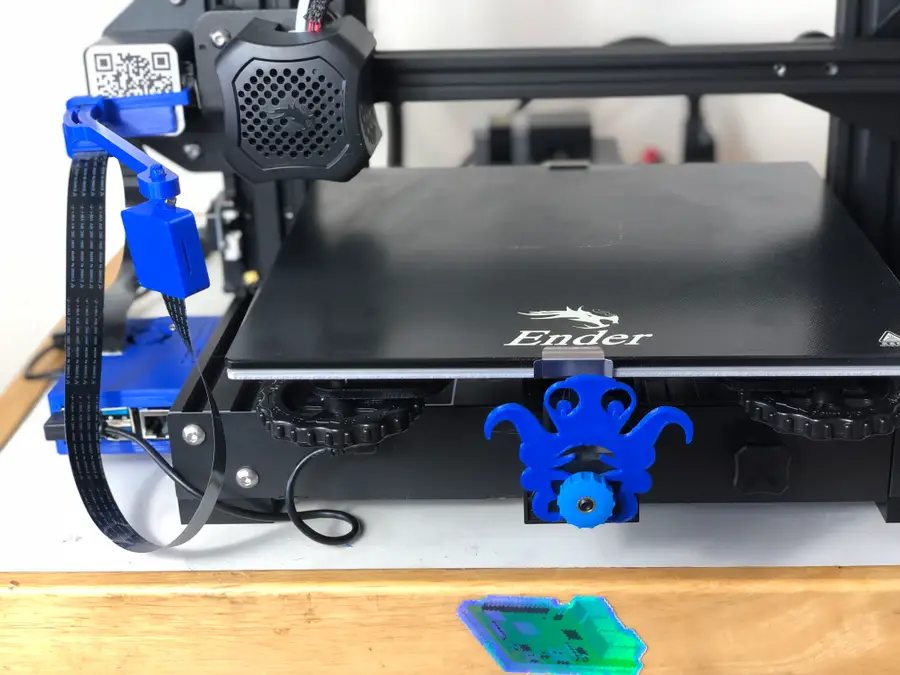
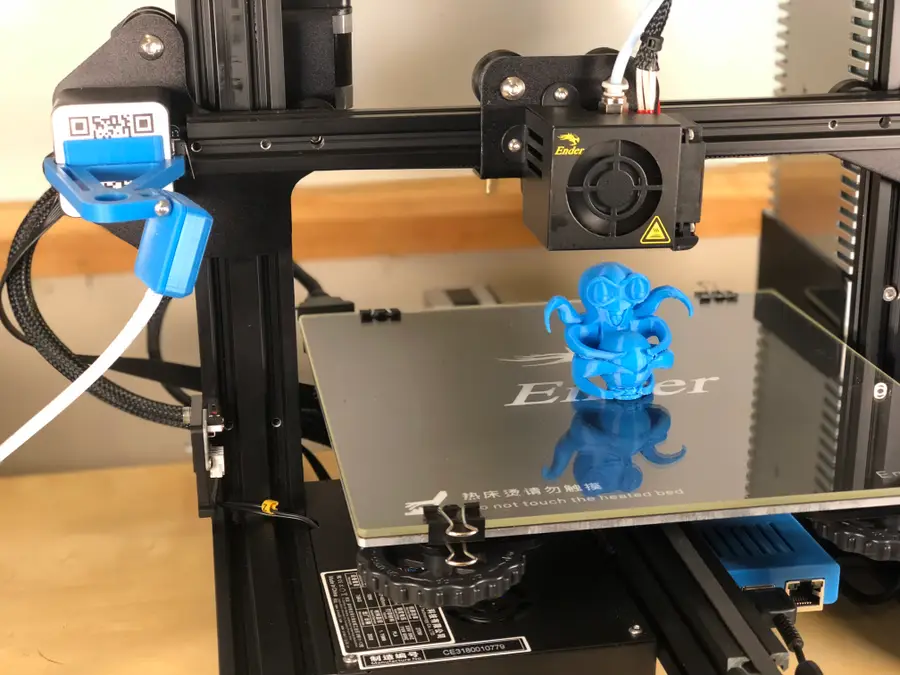
Here’s what your setup will look like when everything is set up and ready! (Minus the little OctoPrint figure on the front, of course!)

Again, I point you to my fellow Howchooer, Zach’s, wonderful OctoPrint setup guide to get the program up and running. It’s the guide that I used!

10 – My first Octolapse

Here’s my first Ender 3 V2 Octolapse time-lapse!

How did we do?

Feel free to comment below letting us know what worked for you and what did not. And share your own OctoPrint setup with us over at Facebook and Twitter.

Be sure to check out our OctoPrint FAQs if you have any questions about using OctoPrint. We also have a full OctoPrint interest!

OctoPrint FAQ – Everything You Need to Know About Octoprint
What’s got 8 legs and tons of questions?

NEXT UP

How to Update Blender

Get the latest Blender has to offer.
howchoo   (467)
November 24, 2023

Blender is one of the most popular open-source 3D creation suites today. It doesn’t cost a dime to use and everything you create is yours to own for good. The community is robust and the dev team still releases new updates on the regular. If you want to get the latest version, you may have

Continue Reading

howchoo

 467 guides

Introducing Howchoo, an enigmatic author whose unique pen name reflects their boundless curiosity and limitless creativity. Mysterious and multifaceted, Howchoo has emerged as a captivating storyteller, leaving readers mesmerized by the uncharted realms they craft with their words. With an insatiable appetite for knowledge and a love for exploration, Howchoo’s writing transcends conventional genres, blurring the lines between fantasy, science fiction, and the surreal. Their narratives are a kaleidoscope of ideas, weaving together intricate plots, unforgettable characters, and thought-provoking themes that challenge the boundaries of imagination.

<!–
–> <!–

Discuss

–> <!–
–> <!–
–> <!–
–>
Home Interests Minecraft

Best Technology Mods for Minecraft (Fabric)

Fabric mods that let players create tools or machines within Minecraft!
howchoo   (467)
September 28, 2023
10 minutes

Share

<!–
–> <!–

Discuss

–> <!–
–> <!–
–> <!–
–>
Interests
Posted in these interests:

READY PLAYER 1
gaming • 85 guides <!– –>
Minecraft is an epic sandbox video game developed by Swedish game developer Mojang Studios.
minecraft • 66 guides <!– –>
minecraftfabric • 8 guides <!– –>

Most likely, any mod you could want or dream of for Minecraft has already been developed, which is where this guide comes in! As an avid Minecraft player, I’ve recently become obsessed with Fabric Minecraft mods and expanding my technological skills.

This guide will go through the best technology mods available for Minecraft Fabric that let players create tools or machines within Minecraft. While some add simple building tools, others let you build usable computers or automated machinery! So whether you’re hosting a survival multiplayer server or you’re playing alone, you’ll find a mod that opens up your world even more!

If you’re interested in more mods for Minecraft, check out the Minecraft Forge interest!

Note that the game versions available may change since the time of publishing. Most photos were taken using BSL Shaders and Optifine in 1.16.5.

1 – Tech Reborn

CurseForge

By moduss50

Game Versions: 1.12, 1.14, 1.15, 1.16, 1.17

This is a standalone tech mod that includes tools and machines players can use throughout the world. They can process materials, gather resources, and progress through challenging but rewarding achievements from the mod itself.

2 – Industrial Revolution

CurseForge

By GabrielHOIv

Game Versions: 1.16, 1.17

The main goal of Industrial Revolution is to allow players to build standard processing machines, like the chopper, farmer, pump, and mining rig. Currently, the mod is in early development, so expect lots of new machines in the future.

3 – Wooden Hoppers

By haykam

Game Version: 1.16

Hoppers are a useful block for a wide range of needs, but they can be costly when needed in the beginning of a playthrough. Wooden Hoppers add the wooden variation of hoppers so that players can get farms or automation going, at the cost of a cooldown and lower storage capacity.

4 – Astromine

CurseForge

By bolkor_

Game Version: 1.16

For the sci-fi lovers, Astromine is a mod that adds futuristic technology to Minecraft. It even has a space dimension and spacesuit to go exploring with!

5 – Linkart

By bolkor_

Game Versions: 1.15, 1.16

One of the most annoying parts about carts in Minecraft are how difficult it can be to transport multiple carts along a rail. Linkart allows carts to be connected together to create a locomotive-like chain of carts, thus making it easier to transport items, mobs, or villagers!

6 – Iron Jetpacks

By shedaniel

Game Versions: 1.15, 1.16

One of the best type of mods out there, are the ones that let you create custom items. While Iron Jetpacks includes pre-designed jetpacks, it also allows for players or server administrators to configure custom ones! The directions are easy to follow and explain everything you might need to know about designing a jetpack for the mod. I highly recommend this for those who want a unique gameplay or just like tinkering with mods!

7 – Golden Hoppers

By haykam

Game Version: 1.16

I normally try to avoid adding in mods nearly identical, but Golden Hoppers does something so useful that I just had to. This mod adds in golden hoppers which are filterable. That’s right. No more fighting with hoppers to filter the correct item, this mod just lets it happen!

8 – Lifts

By D4rkness_King

Game Versions: 1.16, 1.17

While building a base on top of a mountain comes with beautiful views, it also comes with vertical travel challenges. Whether you’re trying to get livestock to a new home or just don’t want to jump, Lifts turns adjacent blocks into moveable elevators.

Watch this video for a preview of what the mod can do:

9 – Mechanical Tech

CurseForge

By Eng1N33R

Game Version: 1.16

In worlds that mimic medieval or fantasy themes, technology may not seem to fit. Mechanical Tech adds technology based upon mechanical power, such as, water wheels, windmills, and manual cranking. It’s meant to be as close to vanilla Minecraft as possible, so it can still fit in with more primitive playstyles.

10 – TIS-3D

CurseForge

By Sangar_

Game Versions: 1.14, 1.15, 1.16, 1.17

This is a unique Minecraft mod because it’s heavily inspired by another video game called TIS-100. Using programmable modules, players can create multi-block computers to execute anything they can dream of. Automate redstone, create music, or just make a silly machine!

NEXT UP

Top 10 Enchantments in Minecraft

howchoo   (467)
March 25, 2024

The longer you play Minecraft, the more you realize that early-game tools just won’t cut it. Exploring the enchantment feature of Minecraft can be exciting, but also intimidating. Rather than worry about researching enchantments, below are the best enchantments in Minecraft! To learn how to enchant items, check out this guide! In this guide, you’ll see

Continue Reading

howchoo

 467 guides

Introducing Howchoo, an enigmatic author whose unique pen name reflects their boundless curiosity and limitless creativity. Mysterious and multifaceted, Howchoo has emerged as a captivating storyteller, leaving readers mesmerized by the uncharted realms they craft with their words. With an insatiable appetite for knowledge and a love for exploration, Howchoo’s writing transcends conventional genres, blurring the lines between fantasy, science fiction, and the surreal. Their narratives are a kaleidoscope of ideas, weaving together intricate plots, unforgettable characters, and thought-provoking themes that challenge the boundaries of imagination.

Home Interests Ender 3

How to Install BLTouch on the Creality Ender 3, Ender 3 V2, and Ender 3 Pro

This upgrade is going to level the playing field!
howchoo   (467)
September 28, 2023
37 minutes

Share

You’ll Need 2

What you’ll need
Interests
Series
M3 nuts x 1
Howchoo is reader-supported. As an Amazon Associate, we may earn a small affiliate commission at no cost to you when you buy through our links.
Posted in these interests:

3dprinting • 36 guides
ender3 • 19 guides

Remember the days when you found yourself hunkered down over your Ender 3, Ender 3 V2, or Ender 3 Pro with a sheet of paper in your hand, literally spinning your wheels? Was that yesterday? Well, with a BLTouch installed, it doesn’t have to be tomorrow! Forget about leveling your Ender 3 bed or adjusting a Z-offset ever again.

Setting up and installing the BLTouch on the Ender 3 V2 is made easier due to the ability to flash firmware onto the Ender 3 V2 via an SD card and the added support that Creality gives to the BLTouch now. But we’ll also show you how to set up the BLTouch on the Ender 3 and Ender 3 Pro.

Still, we found the process to be not-so-straightforward and a bit frustrating at times. (What serious upgrade for the Ender 3 isn’t?!) Because the V2 is so new, there’s very little information available on how to properly set up the BLTouch on the Ender 3 V2, and what is available is often so slight that it really wasn’t helpful at all.

That’s where we come in! In this guide, we’ll walk you through the process of installing and setting up your BLTouch auto-bed leveling sensor on your Ender 3-series printer, as well as anticipate any issues that may arise for you.

Ready to get started? Skip ahead to begin your BLTouch setup.

A note on the product used

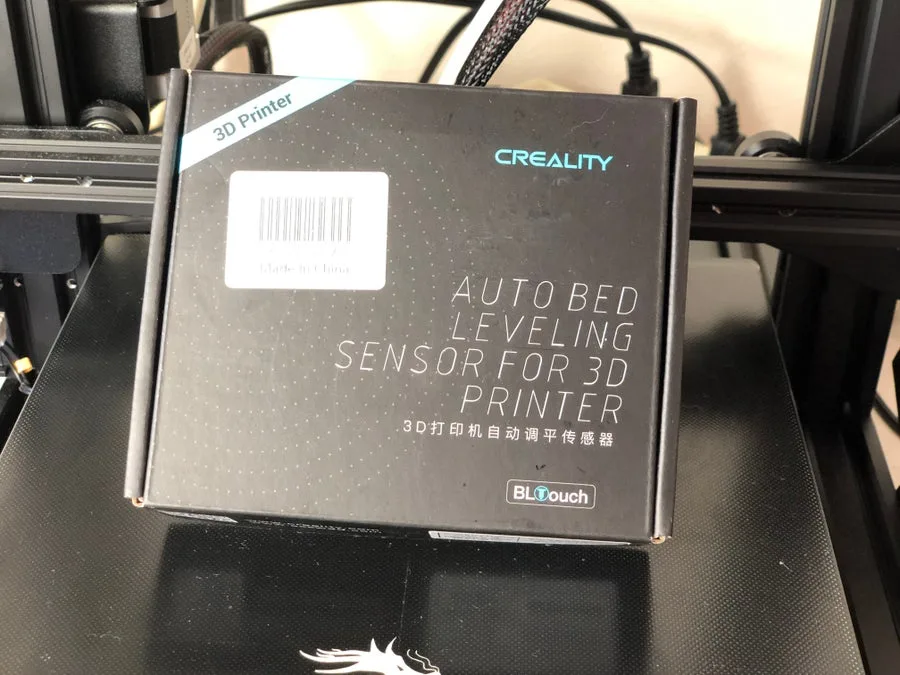
The BLTouch kit we used comes with EVERYTHING you need to install and set up the BLTouch on your Ender 3, Ender 3 V2, or Ender 3 Pro. It has a different bracket for each of the printers, so make sure to select the right printer on Creality’s website. You’re welcome to save a little money and buy everything separately, as well as 3D print the BLtouch mount—but, honestly, for the extra cost, it’s just easier to get the official Creality kit.

Will this guide work with different hardware?

Sure! If you already have your hardware, then the instructions below will absolutely still work. We’ll simply note slight changes if you’re using something different.

1 – How does BLTouch work?

Antclabs

It’s important to know a little about how the BLTouch auto-bed leveling sensor works with 3D printers like the Ender 3 V2 to understand the small adjustments you’ll need to make later on.

What is BLTouch?

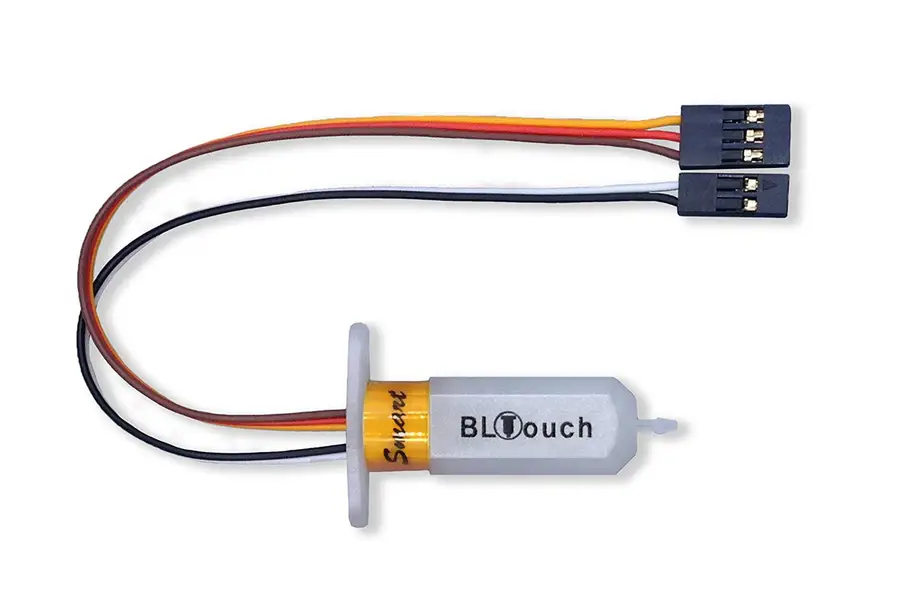
First appearing in 2015, the BLTouch by Antclabs is an add-on electrical component for a 3D printer that uses a sensor stem to detect any tilt in the bed surface. It’s built to use very little power at idle and use so that it can be installed directly in the Ender 3’s motherboard, without any heat issues.

If you want to learn more about the BLTouch, here’s a nifty video from the creators themselves. This isn’t specific to the Ender 3 or Ender 3 V2.

What types of surfaces will it work for?

Any! The latest version of the BLTouch does not use any optical sensors or proximity sensors. Instead, it uses a plastic sensor stem that makes physical contact with the build surface so that any surface can be used.

BLTouch versus other auto-bed leveling methods

The main difference between BLTouch and other auto-leveling methods has to do with the kind of sensor used.

Other sensor methods

Other auto-leveling methods use an optical or proximity sensor to determine any inaccuracies in the slope of the build surface. Those methods have the benefit of being able to adjust while the printing is happening. But have the downsides of not working with certain bed materials and being expensive to repair.

BLTouch

With the BLTouch, you can use any type of bed and need only swap out the plastic nozzle if it’s damaged. There’s also a ton of support and articles that can help you if you run into trouble using your BLTouch.

2 – Choose your BLTouch and accessories

As stated above, we highly recommend you save yourself some hassle and go with the BLTouch kit we used for the install.

If using the BLTouch kit

Again, it has everything you need to install the BLTouch on the Ender 3 V2, original Ender 3, or Ender 3 Pro. It includes:

  • The BLTouch
  • Extension cable
  • Bolts
  • Mounting bracket (for Ender 3 V2, Ender 3, and Ender 3 Pro)
  • Zip ties for wires
  • Replacement sensor stem for the BLTouch

If buying pieces separately

Below you’ll find links to each product you’ll need if you’re buying pieces separately.

  • BLTouch with extension cable (We use the latest version (V 2.0), which Creality supports directly with its firmware update.)
  • Mounting bracket As of this writing, you can’t purchase a separate bracket for the Ender 3 V2, but you can 3D print one! (Make sure it’s the correct bracket for the Ender 3 V2! You’ll need different brackets for the Ender 3 or Ender 3 Pro.)
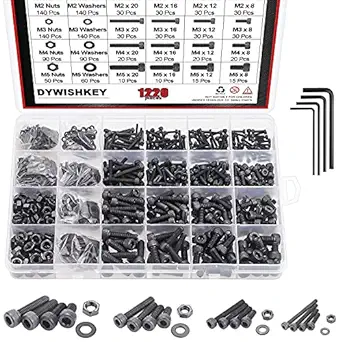
  • 2 M2 x 6 + 2 M2 x 8 bolts (We linked to a small kit that includes the required bolt sizes.)
  • Zip ties

3 – Unplug your printer

Because you’ll be working with the Ender 3, Ender 3 V2, Ender 3 Pro motherboard to install the BLTouch, you definitely want to unplug the wire from the printer’s power supply.

It’s located at the back of all of the Ender 3-series units.

4 – Remove the Z-axis limiter

Because you’ll be using the BLTouch to level your Ender 3 V2’s bed and setting the Z-axis manually, you won’t need the limiter switch.

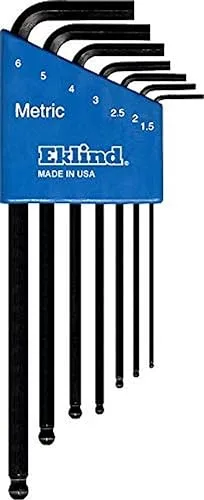
  • Using your hex key, unscrew the two bolts attached to your Z-axis limiter to the Ender 3 V2.
  • You can either remove the wire from the mainboard when you open it up later on, or you can simply zip-tie the wire behind the frame.

5 – Wire and mount the BLTouch

Wire

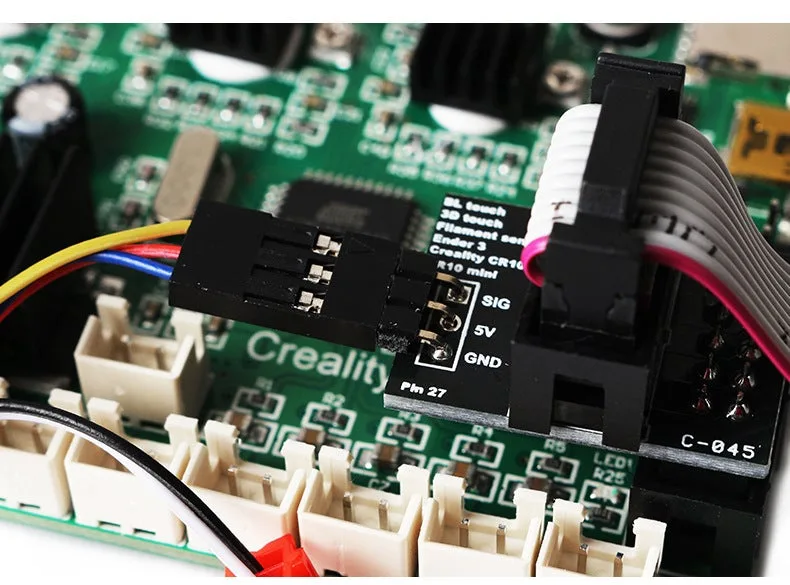
Insert the small end of your extension cable into the back of the BLTouch. We recommend you do this step first, as it will be harder to insert once it’s been mounted. Below you’ll find the order of the wires, in case you have to solder.

Mount

  • Using your hex key and the two M3 x 8 bolts, screw the BLTouch into your mounting bracket so that it will face towards the build surface.
  • Next, using the remaining two bolts, mount the mounting bracket just to the left of your Ender 3 V2’s fan. The holes should be predrilled.

Optional

If you have one of the nifty small nuts and bolts kit, then you can add two M3 nuts to further secure the BLTouch to the mounting bracket, as pictured below.

6 – Secure wires

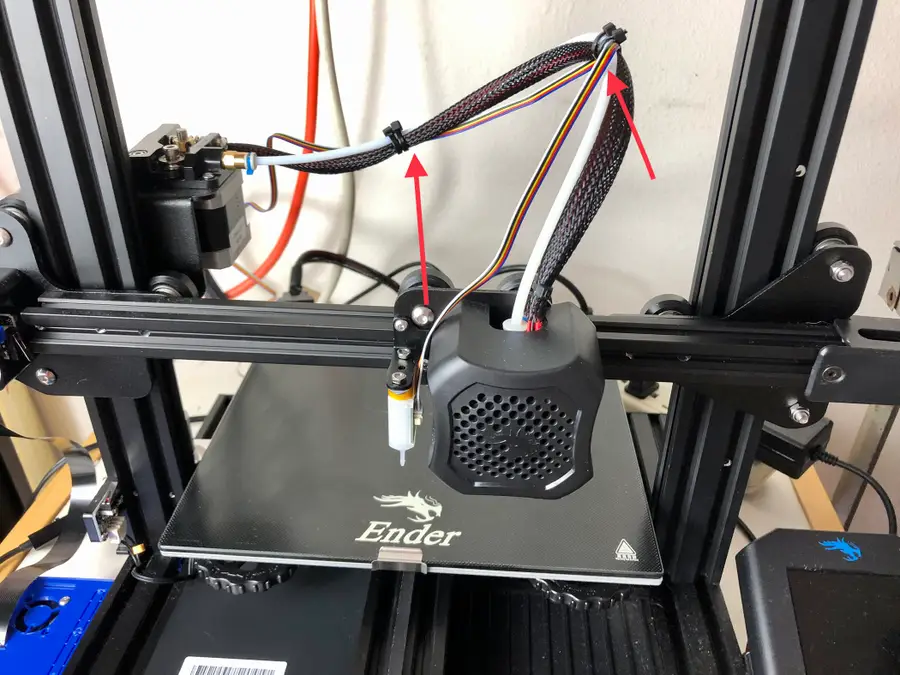
  • String your extension cable to the fan’s wiring harness, which extends out of the fan and along the back of your Ender 3 V2.
  • Continue to string the extension cable, following the main wire harness path around the back of the unit to the motherboard.
  • Secure with zip ties at key locations to keep the wire secure.

7 – Open the control box

  • Using your M2 hex key, unscrew the bolts from the bottom of the control box (located on the front-left of your Ender 3 V2). (See below.)
  • And unscrew the bolt on top, as well.
  • Carefully remove the control box enough to access the motherboard, paying special attention to the fan.
  • Note the wiring location of the fan and unplug the fan from the motherboard. (This will ensure you don’t break the wire as you install the BLTouch.)

8 – Wire BLTouch to the mainboard

For Ender 3 V2

If you’re using the BLTouch kit, then you should be able to just plug the connector in the slot labeled “BLTouch” on the mainboard. (See image above for its location.)

If soldering

If you’re needing to solder, then I would remove some of the wires from the mainboard to give you some space. Here’s the ordering of the wires from top to bottom:

  1. Blue
  2. Red
  3. Yellow
  4. Black
  5. White

For Ender 3 and Ender 3 Pro

The BLTouch wiring connects to the Ender 3 mainboard by splicing into the Z Endstop connector. This connector is labeled with a small yellow label that reads “Z”.

There are two options for connecting the BLTouch to your Ender 3’s existing wiring: if you have a soldering iron, you can splice a wire in. If you don’t, you may want to purchase this extension board so that you can connect it without soldering.

Breakout board

I recommend using the breakout board as it’s simpler and saves a lot of time. Most BLTouch kits for the Ender 3 come with this now.

  • Remove the LCD connector out of its housing to gain access to the pins next to it. The LCD connector is the wide strip of gray wires.
  • Remove the Z-endstop plug (labeled with a “Z”).
  • Carefully switch the wires out of the Z-endstop plug with the black and white wires from the BLTouch (White on left; Black on right).
  • Plug it back in the same slot with the BLTouch wires installed.
  • If you’re using the adapter board, place the adapter board into the connector where the LCD ribbon cable used to be. (It will only fit one way.)
  • The remaining three wires should fit in the plug on the adapter.
  • Before you do this make sure the wires are in the correct order. (Shown below.) You may need to reverse wires in the plug itself.
  • Reattach the LCD ribbon cable.
  • Close the control box up.
🛈 Before you close it up, note the version of your mainboard (4.2.2 or 4.2.7). It’s written in the center of your mainboard.

9 – Close control box

  • Plug the fan back into the correct slot on the motherboard.
  • Use your hex key to screw back in the bolts to the Ender 3’s control box.
🛈 It’s easiest if you start with the two bolts nearest the front of the printer.

10 – Update your Ender’s firmware

Because Creality now supports BLTouch directly in its firmware, it makes installing and using the BLTouch with the Ender 3 V2 and Ender 3 Pro super easy!

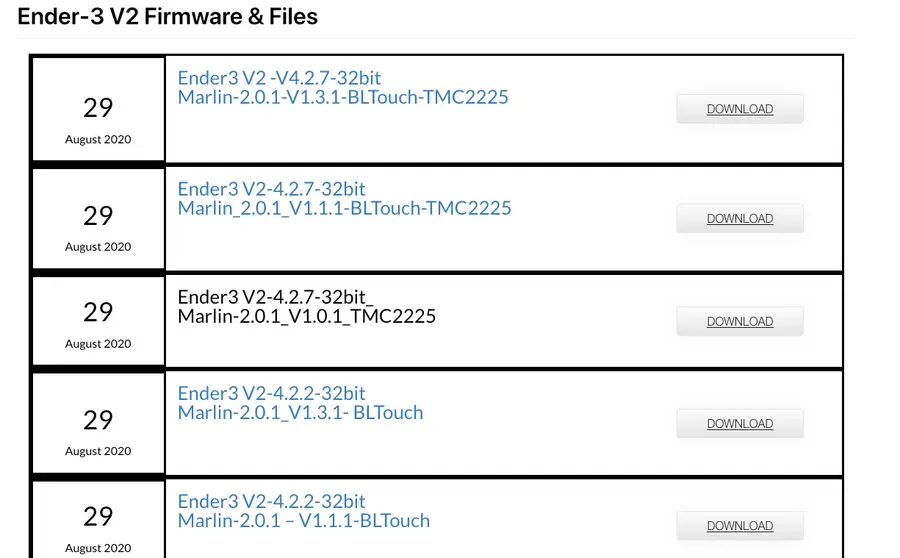
Ender 3 V2 Firmware —Fetch the correct firmware from the Creality Ender 3 V2 downloads page and install it on your printer.

Ender 3 Pro Firmware— Here you can find the official BLTouch firmware for the Ender 3 Pro.

Check out our guide on installing firmware on the Ender 3 V2 to see how to update your firmware. (The same guide works for the Ender 3 Pro.)

How to Update the Firmware on the Ender 3 V2
Check for new firmware regularly.

For Ender 3

It’s a bit trickier to update the firmware on the original Ender 3, but not a big deal. You’ll need to modify your printer’s firmware to add a few lines that BLTouch needs in order to function. I wrote a separate Ender 3 bootloader/firmware update guide; use that guide to get started.

Ender 3: How to Install a Bootloader and Update Marlin Firmware
Update your 3D printer’s firmware and add thermal runaway protection.

Ender 3 Firmware— You can find the official Creality Ender 3 source code and files on the Creality firmware page. Just make sure you download the correct package (saying BLTouch).

Language reset

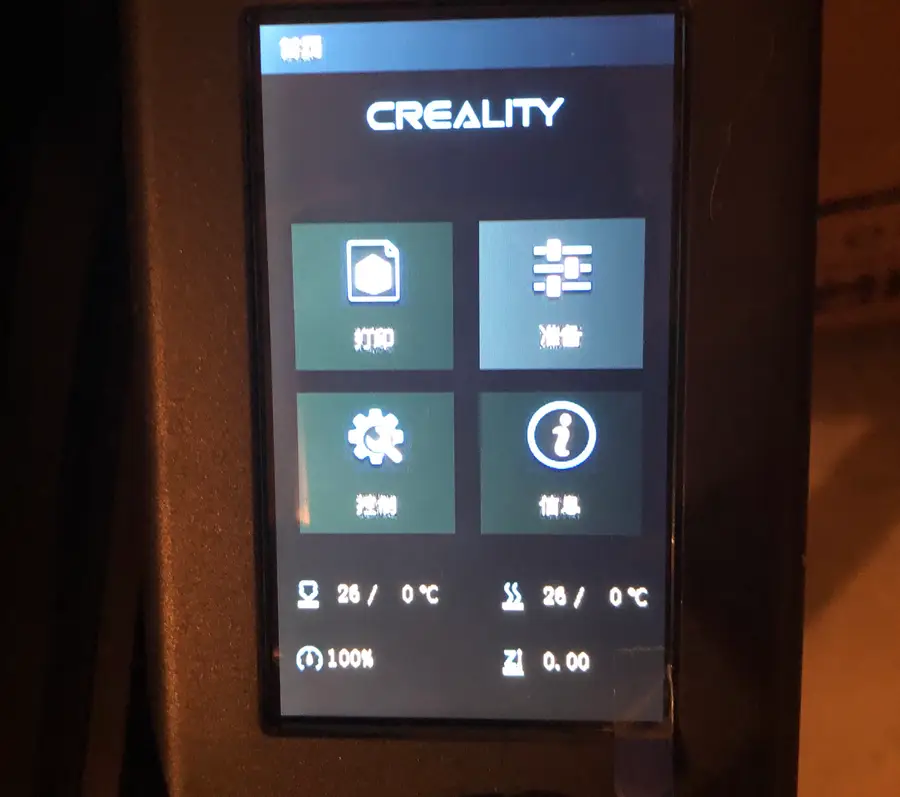
In some cases, you may find that your language resets to Chinese by default. If this happens, follow our guide to change the language back to English on the Ender 3 V2.

How to Change the Language on Your Ender 3 V2
Because maybe you can’t read the default Chinese Ender 3 menu.

Which is the correct firmware for Ender 3 V2?

You may notice a variety of options for the new Ender 3 V2 firmware. Here’s what you need to figure out.

Motherboard type

The first thing you need to know is which mainboard you’re running for your Ender 3 V2. Hopefully, you noted this earlier when opening your control box. If you don’t know, then here’s a little table to help you figure it out.

4.2.24.2.7
On some pre-2021 Ender 3 V2sOn ALL 2021 + Ender 3 V2s
Louder operationQuiter operation

Listening to the operation should tell you. If it’s operating loudly, you likely have the 4.2.2. Otherwise, you’ll have to look on the motherboard itself.

BLTouch

Make sure the firmware you select says BLTouch.

Version

The last thing you’ll need to figure out is which version you need V1.3.1- BLTouch or V1.1.1- BLTouch. The easiest way is to try the latest version. If that does not work, then repeat the firmware install with V1.1.1. (V1.1.1 is the version that worked for our Ender 3 V2.)

Is BLTouch working?

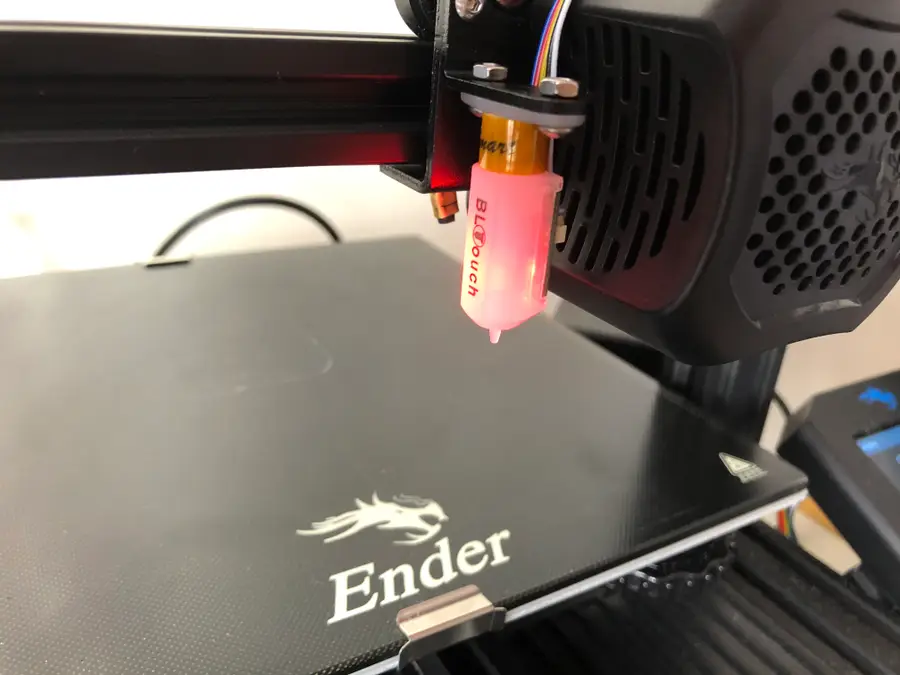
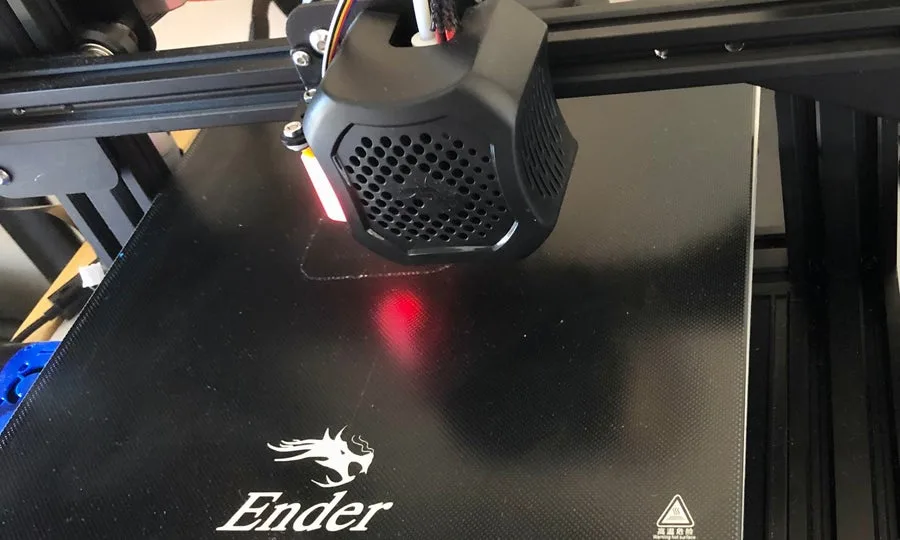
Once you update your firmware, you should see the BLTouch light-up red after turning the printer on. If it is, then it’s working thus far! Congrats!

11 – Change Z-axis location

  • “Auto home” the nozzle by going to Prepare > Auto home.
  • Change the Z-axis by going to Move > Move Z and rotating the knob to turn the Z-axis to Ø.

12 – Configure the Z-offset

Now, you’re going to adjust the Z-offset on your Ender 3 V2 so that it’s flush with the print bed.

Adjust the Z-offset down a little at a time to avoid running the nozzle into your print bed and damaging it.

  • In the Prepare screen, select Z-offset (misspelled in our firmware version as “Z-offest”).
  • Turn the knob, adjusting the Z-offset a little at a time until the nozzle just begins to touch the print bed. Use a piece of paper, like you do when you manually level the Ender 3 V2 print bed.
  • Continue to adjust the Z-offset negatively until the paper is hard to move.

Ender 3 Pro Adjustment

The process is essentially the same on the Ender 3 Pro, except that you need to save your settings after adjusting the Z-offset properly.

After you auto-home with the Ender 3 Pro:

  • Go to Motion > Move Axis > Move Z.
  • Now, you’re going to move the Z-axis down by small increments until the nozzle just grips a piece of paper you place underneath.
  • Note the value of the Z-offset!
  • Go back to the main screen on the Ender 3 Pro.
  • Go to Prove Z-offset.
  • Put in the value you recorded earlier (ex. -2.4).
  • Go back to the main screen.
  • Go to Configuration and click Store Settings.

And now you’re ready to begin leveling!

🛈 Don’t worry if you don’t get this perfect the first time. We’ll show you how to adjust this later on.

13 – Level the printer

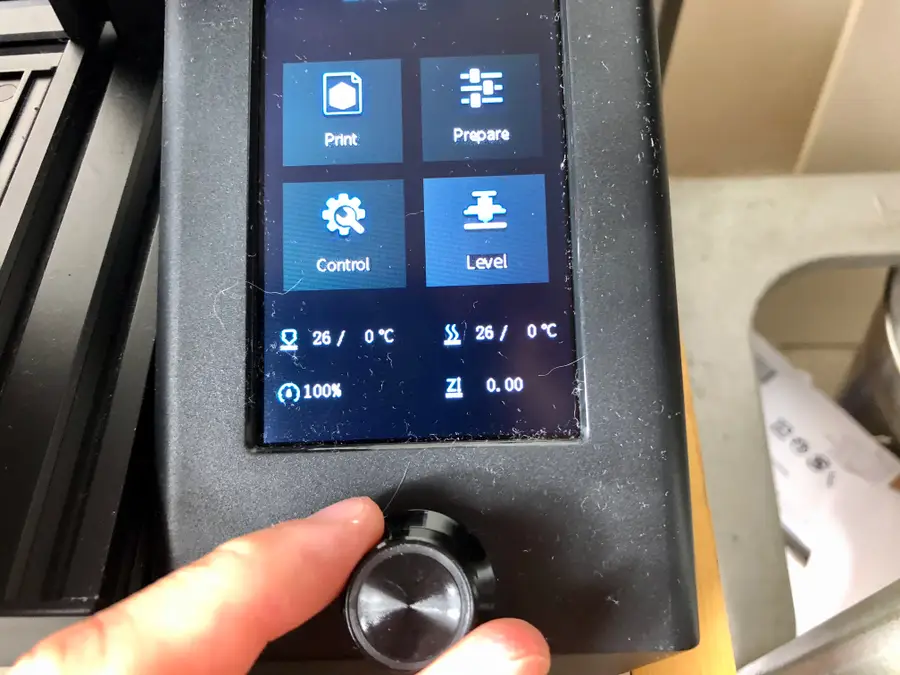
Now for the fun part! Select Level on the Ender 3, Ender 3 V2, or Ender 3 Pro screen to run the BLTouch’s auto-leveling program. You should see the BLTouch measure 12 different points on the print bed to determine its slope.

It takes about 2-3 minutes and will return to the center when it’s complete.

14 – Update your slicer settings

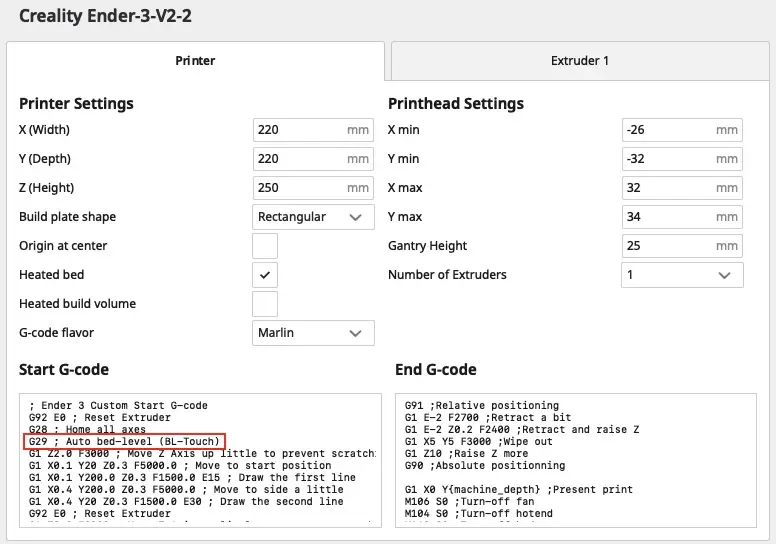
Now, you’ll need to update the G-code settings of whatever slicing program you use, such as Cura or Simplify3D. We use Cura as our slicer, so we’ll show you how to update the settings there. But whichever slicer program you’re using, you’ll need to add just one line right below G28:

G29 ; Auto bed-level (BL-Touch)

Changing Cura settings

  • In Cura, click on Ultimaker Cura at the very top-left of your screen.
  • Go to Preferences > Printers > [Name of your Ender 3 V2 Printer]
  • Click Machine Settings
  • Under “Start G-code,” add G29 ; Auto bed-level (BL-Touch) below line G28.

Now, every time you print something you’ve sliced, the printer will automatically level and use the settings to print the object.

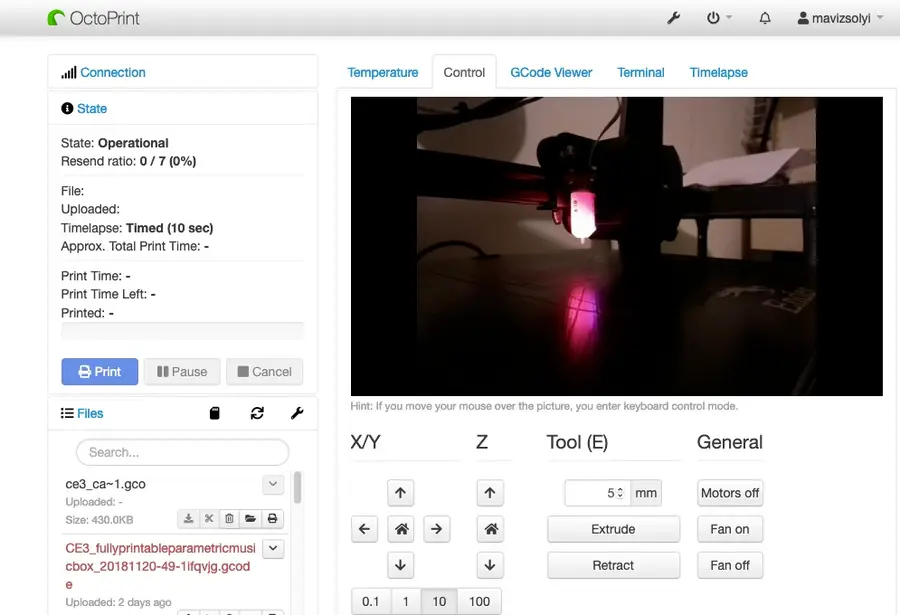
15 – Optional: Octoprint with the BLTouch

If you’re using the official firmware supporting BLTouch from Creality, you shouldn’t have any issues using Octoprint with the BLTouch. It should work just fine, so long as you update the slicer settings with the G29 code.

However, you may run into trouble when using a 3rd-party firmware for the BLTouch, such as the Smith3D firmware for the Ender 3 V2, which doesn’t natively support Octoprint. In those cases, you’ll need to customize the Marlin code in the firmware to run with Octoprint.

BLTouch plugin for Octoprint

The BLTouch plugin can be installed in Octoprint to give you some nifty features so that you can control the BLTouch remotely from the Octoprint server. It can be found in the Plugin Repository in Octoprint. Check out our guide on finding and installing Octoprint plugins if you need help. You can also install it manually, using the Github link.

The Most Popular OctoPrint Plugins (And How to Install Them)
Wrap your tentacles around these sweet plugins!

16 – Test BLTouch and adjust if needed

Run a test print to ensure that your BLTouch is auto-leveling before the print and that the filament is adhering perfectly to the print bed. You may need to slightly adjust the Z-offset in either direction, depending on the issue you’re having.

Adjusting after a test print

You may find you need to adjust this slightly if your filament either doesn’t stick the bed or the nozzle is too close to the bed. Here’s what you do.

If the filament doesn’t stick (nozzle too far away from bed)

Adjust the Z-offset just a bit (0.01) in the negative direction. This will bring the extruder closer to the print bed.

If the filament is too close to bed (nozzle too close to bed)

Adjust the Z-offset a bit (0.01) in the positive direction. This will move the extruder further from the print bed.

NEXT UP

How to Update Blender

Get the latest Blender has to offer.
howchoo   (467)
November 24, 2023

Blender is one of the most popular open-source 3D creation suites today. It doesn’t cost a dime to use and everything you create is yours to own for good. The community is robust and the dev team still releases new updates on the regular. If you want to get the latest version, you may have

Continue Reading

howchoo

 467 guides

Introducing Howchoo, an enigmatic author whose unique pen name reflects their boundless curiosity and limitless creativity. Mysterious and multifaceted, Howchoo has emerged as a captivating storyteller, leaving readers mesmerized by the uncharted realms they craft with their words. With an insatiable appetite for knowledge and a love for exploration, Howchoo’s writing transcends conventional genres, blurring the lines between fantasy, science fiction, and the surreal. Their narratives are a kaleidoscope of ideas, weaving together intricate plots, unforgettable characters, and thought-provoking themes that challenge the boundaries of imagination.

Home Interests Guides

8 Unique Ways To Hide Your Router & Modem Without Blocking The Signals

Hide your router and modem without blocking signals with these 8 creative ways.
howchoo   (467)
September 28, 2023
19 minutes

Share

Interests
Posted in these interests:

guides • 10 guides

It is no secret that WiFi routers have hardly appealing designs. As much as you appreciate your WiFi connectivity, thanks to your router, it does not mean that you want it to sit on your beautiful furniture, standing out in stark contrast to your other aesthetically-pleasing decorative ornaments.

If you are looking for ideas to hide your router without blocking its signal, you have come to the right place.

In this guide, we will tell you what you need to consider when choosing the best hiding spot and give you some ideas on how you can keep your router out of sight.

1 – How to Hide Router Without Blocking Signal

Before you simply tuck your router away, you need to understand that your WiFi signal can be affected if you approach this incorrectly. There are several things to consider when you are thinking of hiding a router or modem without blocking its signal.

Let Heat Escape

Source

Before hiding your router in a specific location, you need to consider the heat that the router will emit and the surroundings in which you intend to place it.

Remember that a router is an electronic device, and electronic devices do produce heat. Furthermore, electronics do not work well when they are overheated. This is why you need to ensure that the heat is able to dissipate.

If you are considering where to hide your router, it needs to be in a place with good ventilation to allow the heat to escape. This is why most people prefer to place them in boxes or baskets with holes to allow ventilation.

If your router feels extremely warm or you smell plastic burning, be sure to check your router, as those are possible signs of your router overheating. Also, check your router often for dust, as any dirt or dust clogging its vents can also cause overheating.

Don’t obstruct WiFi Signal and Strength

Source

To prevent any disruption to your work or WiFi usage, you need a strong WiFi signal and strength to connect seamlessly to your devices. Do not hide your router somewhere where the signal strength will be too low or where you will be losing your WiFi signal.

Instead, try hiding your router in something made of lightweight material. Avoid placing your router in metal or dense materials, which might interfere with your WiFi signal.

Ensure Correct Wiring

Source

Ensure that your wiring is set up correctly and with the right power cable. If you are hiding your router in a container, it should not be completely sealed. Find a neat way of connecting it and ensuring that the cords can get through the container your router will be hidden in.

Avoid Hiding It Inside or Behind Metallic Objects

Source

There are various objects where you can conceal a router, but as mentioned, the type of materials matters.

A metallic object is the last thing you want to use to hide your router. Metal is a common material, but it can be quite problematic. Concealing your router in a metallic container or mesh basket can affect your WiFi strength and coverage.

This also includes all containers or items with some kind of metal mesh-like metal boxes, metal bookshelves, or behind a metal decoration such as a tin sign or such. For example, avoid placing your router on the wall behind your TV since most TVs have a large metal shield inside.

Avoid Putting It in Thick-Walled Boxes/Containers or Behind Heavy Books

Source

WiFi routers transmit signals in the form of waves and energy on the electromagnetic spectrum. By hiding your router inside something too thick, such as a heavy decorative box, you are interfering with the signal.

Heavy books also block the signal transmission, acting as radio-wave absorbing barriers that affect the signal. Therefore, it is not advised to hide your router on a bookshelf behind heavy books. You should always try to place your router in an open-air space where nothing is blocking it on all sides.

Leave the Antennas Projecting Out

Source

Ensure that the container you hide your router in can be left open on the upper side and that you can leave the router antennas sticking out. A router with actual external antennas has to be positioned in a vertical position where the antenna can project out of the container.

Use Thin-Walled Containers or Coverings

Source

A container that is not metallic and has thin walls will be able to conceal your router. You can also cover the container with a light cloth that would hide the router but still allow signal transmission due to the light material that permits WiFi signal transmission.

If you have to hide the router in a basket, use a basket with an open top and side walls with openings or materials that do not block the WiFi radio waves. This can either be a thin and transparent piece of cloth or woven grass material.

A woven grass basket is an excellent option since its sides enhance ventilation, allowing signal transmission while preventing the router from overheating at the same time.

In short, when you are looking for a container to hide your router, the material has to be non-metallic and as thin as possible.

Avoid Covering Router Body or Vents

Source

You may assume that because your router does not feel hot, it is not overheating. However, it is still not a good idea to cover the vents.

Even if your router has a small fan, you still need to leave an opening for the vents. Leaving your router at risk of overheating can cause your WiFi signal to be unstable.

2 – Ideas to Hide Router Without Blocking Signal

In a Mesh Basket

A mesh basket provides a great way of hiding your router. Most people already use mesh baskets to hide items like shoes, clothes, dog toys, children’s toys, mail, etc.

Simply hide your router inside one of these mesh baskets and buy a mesh basket made of grass that allows your router to be well-ventilated. It will also make your router work smoothly since your signal will not be significantly reduced due to opaque materials.

Style your basket with a few other items on your kitchen counter or hallway table, and no one will know you have hidden your router inside.

Screw the Router Onto the Tv Cabinet

Routers often come with screw slots that you can drill onto a wooden surface. You can screw the router onto the back of your TV cabinet, where it will not be seen.

Apart from the router, other electronics can also be screwed to the back of the TV stand. However, if you do not want your TV cabinet to be damaged with screws, this might not be the best option for you.

Behind a Frame

Once you have set up your cables, you can place the router behind a picture frame on one of your tables or shelf. A picture frame or piece of art can easily cover up the router without anybody noticing. You can also attach a box to the back of the picture or art frame.

Among Books on Your Bookshelf

While you should not place your router behind heavy books, you can always place your router among all your books and try to make it blend in.

People often decorate their bookshelves with decorative ornaments and photo frames, so place your router among the items laid out on your bookshelf, and it might not stand out very much. Talk about hiding in plain sight!

Under Other Furniture

A good hiding spot where nobody bothers to take a peek is underneath your furniture. Use velcro straps or cable ties to attach your router underneath your furniture.

This might not work with all furniture but if you manage to find an ideal spot, remember to ensure that your router still gets a lot of air ventilation and access to power outlets.

In a Cane Cabinet

Cane cabinets are ideal, thanks to all their small holes, which allow for good air ventilation. Your router’s WiFi signal will not be blocked too. Simple place your router inside your cane cabinet, tuck away its cords neatly, or you can even try drilling into the back of the cabinet to let the cords pass through neatly.

On the Floor

You might not have thought about this, but strategically hiding your router on the floor can work too. Instead of leaving it on the floor in the open, use a tall basket to conceal your router. Or hide it on the floor behind a small couch or magazine rack.

3 – Conclusion

There are many ways to hide your router while ensuring it can still do its job well. We have given you a list of ideas here, so give them a try, and you will be able to enjoy the benefits of your router without having it affect your decor.

NEXT UP

How to Change the Windows 11 Start Menu and Button

howchoo   (467)
December 13, 2023

As with every update, Microsoft has changed Windows 11 to look different than its predecessors, and while the update looks modern and clean there are some interesting changes. Arguably the most jarring of all the changes is the one made to the Windows 11 Start Menu, which looks completely different. Instead of a clean, easy-to-navigate

Continue Reading

howchoo

 467 guides

Introducing Howchoo, an enigmatic author whose unique pen name reflects their boundless curiosity and limitless creativity. Mysterious and multifaceted, Howchoo has emerged as a captivating storyteller, leaving readers mesmerized by the uncharted realms they craft with their words. With an insatiable appetite for knowledge and a love for exploration, Howchoo’s writing transcends conventional genres, blurring the lines between fantasy, science fiction, and the surreal. Their narratives are a kaleidoscope of ideas, weaving together intricate plots, unforgettable characters, and thought-provoking themes that challenge the boundaries of imagination.

elcapitan
brokenlamp245
Joined in 2015
Finding guides
brokenlamp245
Joined in 2015
Home Interests OctoPrint

How to Add an OctoPrint Touchscreen to Any 3D Printer

An inexpensive upgrade that improves the printing experience
howchoo   (467)
September 27, 2023
28 minutes

Share

You’ll Need 5

What you’ll need
Interests
Series
Howchoo is reader-supported. As an Amazon Associate, we may earn a small affiliate commission at no cost to you when you buy through our links.
Posted in these interests:

3dprinting • 36 guides
octoprint • 10 guides
pi • 92 guides

This guide will show you how to add a touchscreen to any 3D printer for use with OctoPrint, a popular application for controlling your printer.

A touchscreen will allow you to manage your prints without needing to open up your computer or phone. As a bonus, this project will also make OctoPrint responsive (i.e. mobile-friendly), making things even easier to do from your phone. If you need help selecting a touchscreen, check out our list of the best touchscreens for the Raspberry Pi for inspiration.

You can use this guide to add a touchscreen to any OctoPrint-compatible 3D printer. As an example, I’ll be adding one to my Creality Ender 3. If your printer is also an Ender 3, be sure to check out my separate Ender 3 OctoPrint touchscreen guide.

I also made an OctoPrint touchscreen video version of this guide — check it out and then read on for the full guide below!

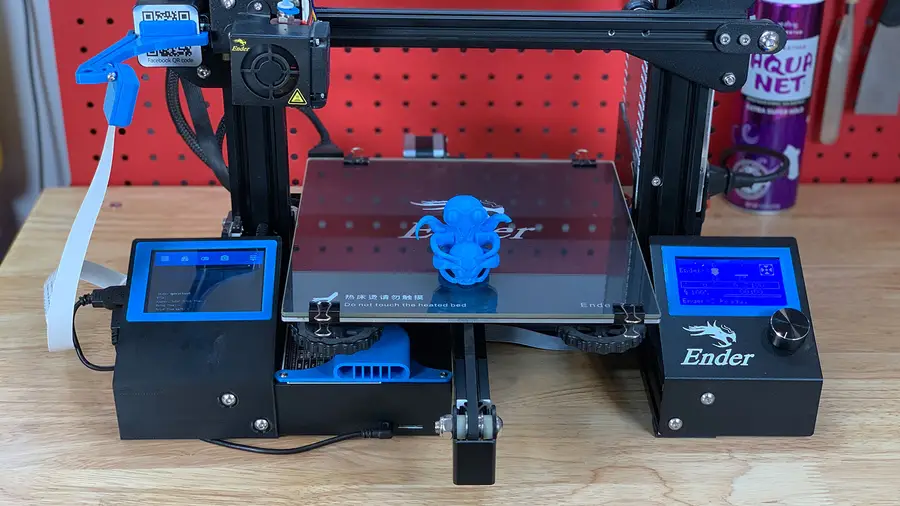
1 – Final photo

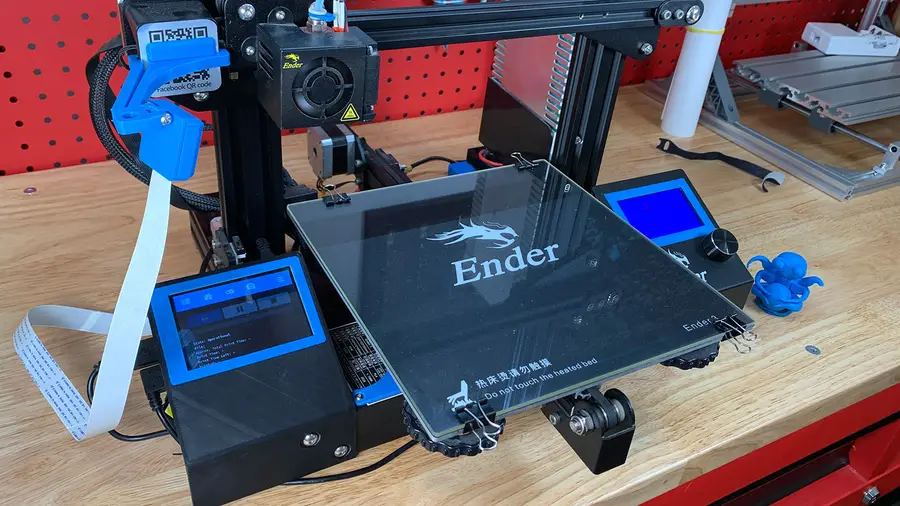
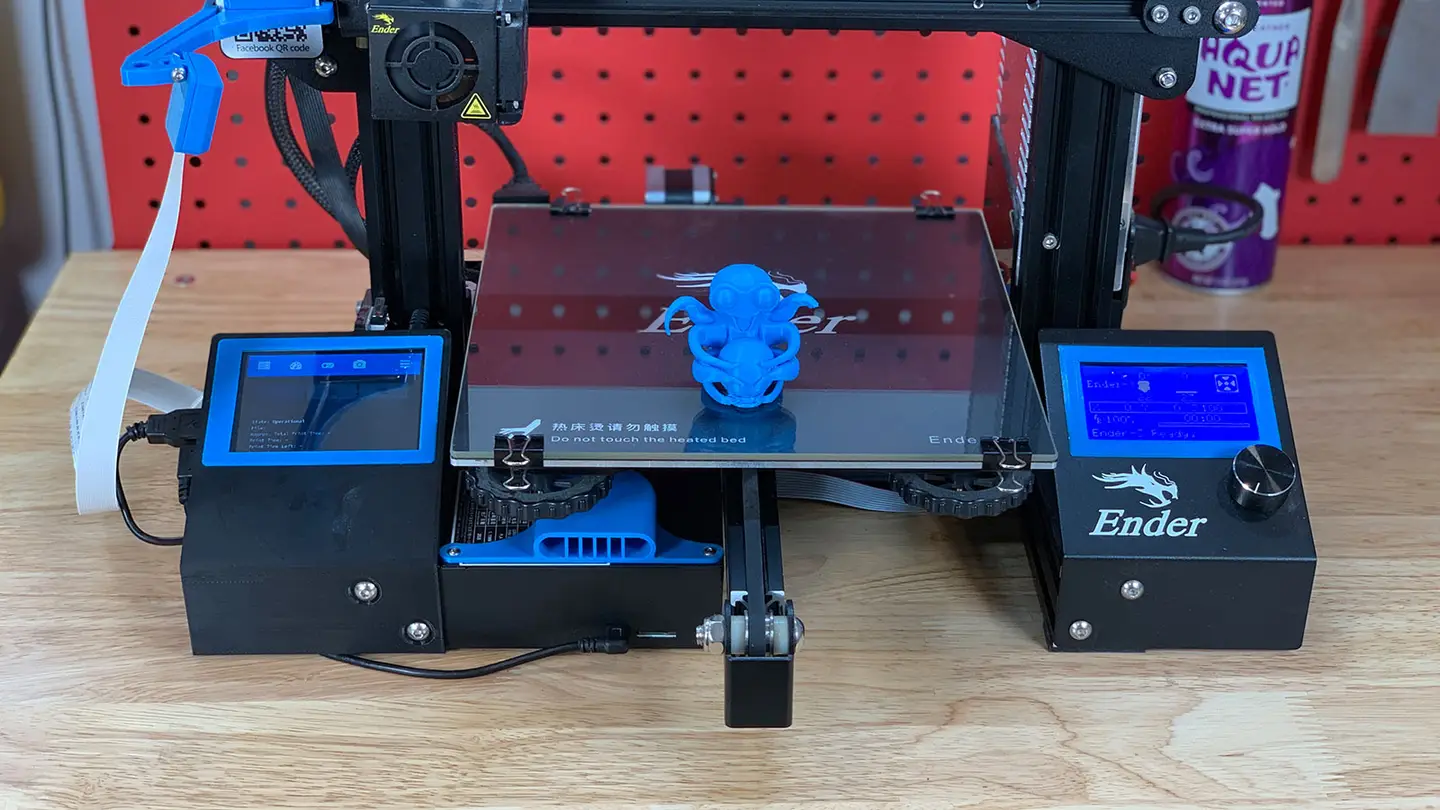
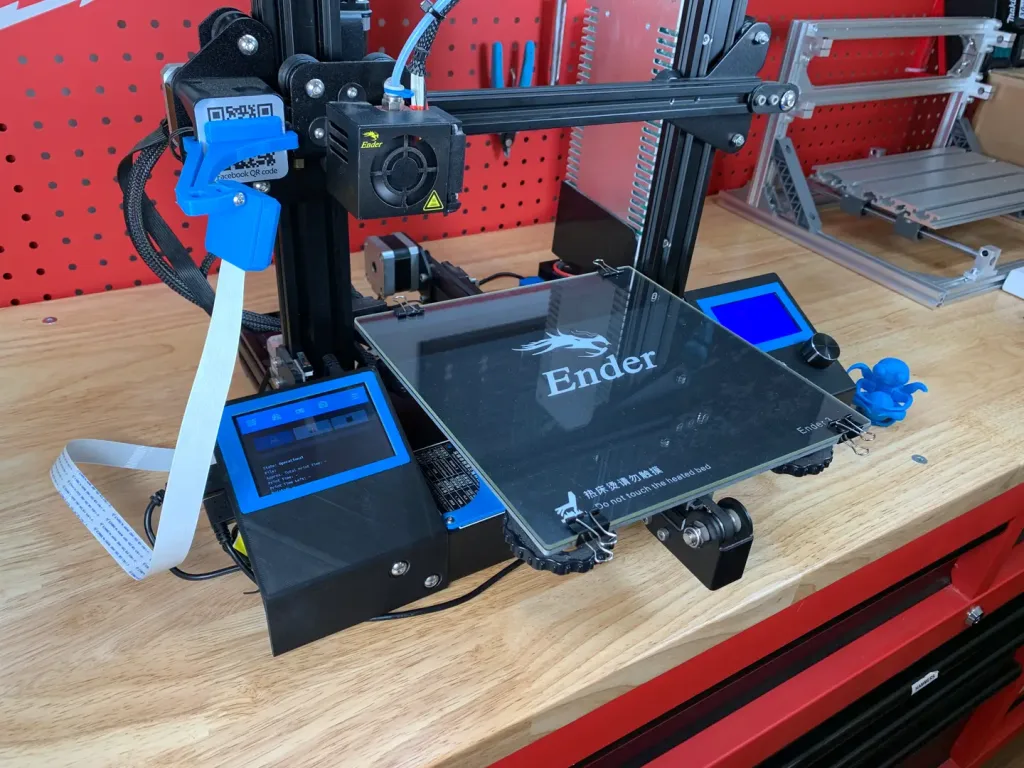
Just as the prophecy prophecized, here’s a final photo of my setup. I chose a touchscreen housing that mounts directly to my printer.

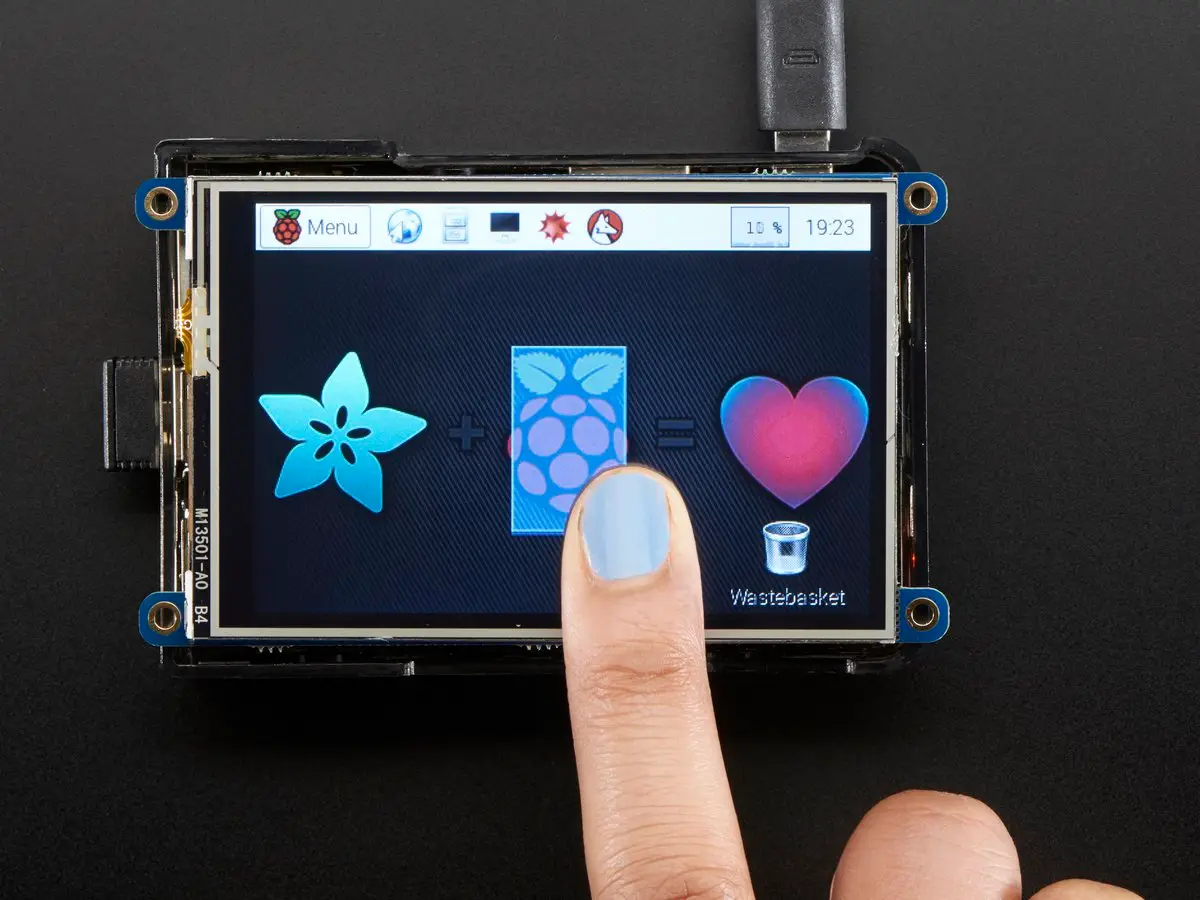
2 – Choose your touchscreen

Adafruit

Any touchscreen that will work for the Raspberry Pi will work with OctoPrint, but some are easier to work with than others.

Here are some considerations when choosing a touchscreen:

Size and connectivity

I recommend choosing a small screen that connects directly to your Raspberry Pi’s GPIO header. You don’t need a large screen since the OctoPrint TouchUI plugin we’ll be using is designed for very small screens. Additionally, we’ll still be uploading new prints from our computer; this screen will primarily be used to start and pause prints, control extruder temps, display print status, etc.

I used this 3.5″ screen from Adafruit; if you prefer a larger screen, the official Raspberry Pi 7″ screen would work great too. Some larger displays require a separate HDMI and USB connection which makes configuration and setup more difficult.

Cost

The Adafruit touchscreen I used costs $45; this is slightly more than other screens, but the benefit is the quality and ease-of-use Adafruit is known for. You can find cheaper, generic 3.5″ touchscreens in the $30 range on Amazon, but configuring the screen may be more difficult—and many require the use of a stylus.

You’ll need to print a case for your touchscreen. In general, there are a few different types of 3D-printable touchscreen housings:

  • Touchscreen housings that mount to the printer
  • Freestanding (tabletop) touchscreen mounts
  • Housings of either type that also hold your Raspberry Pi (recommended)

Choosing a housing

The exact housing you choose will depend on the size of your touchscreen, the screen manufacturer (in some cases), your printer, and how you want to attach it to your printer. Search Thingiverse for touchscreen models to find one that fits your needs.

My choice for the Ender 3

For my Ender 3, I’m using an excellent model made by designer Tronnic. It mounts directly to the printer for maximum awesomeness and also houses the Raspberry Pi. You can download the Ender 3 touchscreen model on Thingiverse. If you’re using the Raspberry Pi 4 for OctoPrint, be sure to print this remix as well.

Do you have an Ender 3? I also wrote a full guide to adding a touchscreen to the Ender 3 just for you. 🙂

If you’re using the Adafruit 3.5″ PiTFT display and want a freestanding touchscreen mount, I recommend checking out this great design by brothers Pedro and Noe Ruiz, the official Adafruit 3D print crew (who, coincidentally, I went to high school with!)

4 – Install OctoPrint

If you haven’t already, install OctoPrint. OctoPrint allows you to control your 3D printer using an intuitive interface.

If you’re using an existing OctoPrint installation, skip this step.

5 – Back up OctoPrint

I’m using the free MacOS application ApplePi-Baker to back up my card.

Before proceeding, I recommend backing up your Raspberry Pi’s SD card—this way if something goes wrong it’s easy to revert without needing to reconfigure everything. Use our Windows or Mac guide to back up your SD card.

6 – Connect the touchscreen to your Raspberry Pi

If your touchscreen mounts directly to the Raspberry Pi’s GPIO header (as mine does), you’ll need to connect and configure it.

If your OctoPrint setup uses a camera, attach the camera’s ribbon cable to the Pi before connecting it to the screen.

Then, carefully push the screen onto the Raspberry Pi’s GPIO header. Some screens don’t take up the entire Raspberry Pi header; this is okay, it just means they’re compatible with older Raspberry Pi models too.

Your screen might have 4 small, perforated tabs that are meant for mounting the screen using screws. If your case won’t fit with these tabs in place, carefully snap the tabs off with a pair of pliers or wire cutters.

🛈 If your touchscreen uses HDMI (for display) and USB (for touch), connect both directly to your Raspberry Pi and continue to the next step. Most touchscreens do not use this setup.

7 – Update OctoPrint and install the TouchUI plugin

We’ll use an OctoPrint plugin called TouchUI to make OctoPrint mobile-friendly and responsive, allowing it to display properly on our small screen.

Put your SD card back into your Raspberry Pi and boot it.

Next, open OctoPrint in your browser by navigating to http://octopi.local. If an update message appears, update OctoPrint.

Then, navigate to Settings > Plugin Manager, click Get More, and install the TouchUI plugin.

8 – Update your Raspberry Pi

I recommend updating your Raspberry Pi before continuing.

Open Terminal (Mac) or Command Prompt (Windows) and connect to your Raspberry Pi by running the following command:

ssh pi@octopi

Then, update your Raspberry Pi using the following command:

sudo apt-get update && sudo apt-get upgrade --yes

When you’re finished, restart your Pi:

sudo reboot

9 – Configure the touchscreen

If your touchscreen connects via GPIO, you’ll need to tell your Raspberry Pi to a) output video to the touchscreen instead of HDMI, and b) use touchscreen input as a mouse.

If your touchscreen came with configuration instructions, use those instructions to get things working. If you’re using the same touchscreen as me—or a similar one—you can use Adafruit’s touchscreen configuration script by following the steps below.

Connect to your Pi once again and run the following commands to launch Adafruit’s setup wizard:

cd ~
wget https://raw.githubusercontent.com/adafruit/Raspberry-Pi-Installer-Scripts/master/converted_shell_scripts/adafruit-pitft.sh
chmod +x adafruit-pitft.sh
sudo ./adafruit-pitft.sh

Update 2/1/20: It appears Adafruit is converting many of their Shell setup scripts to Python so the script in this step was 404ing. Ive updated it for now to reference the new Shell script location so things should continue to work. In the near future, I’ll update this step with Python setup instructions. If you run into issues, please post in the comments section below.

Select the appropriate option for your screen. In my case, I selected PiTFT 3.5″ resistive touch (320×480).

For rotation, select 270 degrees (landscape). If you choose 90 degrees (landscape), your screen might be upside down.

When asked “Would you like the console to appear on the PiTFT display?”, select No. When asked “Would you like the HDMI display to mirror to the PiTFT display?”, select Yes.

When you’re finished, accept the reboot prompt to restart your Pi.

🛈 These setup instructions (and most you’ll find) will only work with Raspbian Jessie and newer. If you installed OctoPrint on Raspbian Wheezy, I recommend reinstalling OctoPrint on a newer OS.

10 – Configure the Raspberry Pi to boot to a browser

Next, we’ll need to configure the Raspberry Pi to launch a browser and load the OctoPrint/OctoPi interface on boot using the TouchUI boot to browser setup scripts.

To do this, run the following commands:

git clone https://github.com/BillyBlaze/OctoPrint-TouchUI-autostart.git ~/TouchUI-autostart/
sudo ~/TouchUI-autostart/helpers/install

Once you’re prompted for autologin, enter your OctoPrint username (not your Raspberry Pi username). When you’re finished, reboot and test out your touchscreen.

Disabling TouchUI screen sleep

This is optional, but if you’d like you can disable the TouchUI screensaver so that the screen won’t sleep.

How to Disable the TouchUI Screensaver
Prevent your OctoPrint touchscreen from sleeping.

Fixing touchscreen rotation issues

For some reason, there was a conflict between the screen and touch rotation after setting up TouchUI. In other words, the screen rotation displayed correctly, but tapping the bottom-right of the screen would result in a tap in the top-right of the screen; the screen was rotated 90°. After hours of troubleshooting, it turns out it was a simple fix.

If you have this issue, simply do the following:

Install xinput and get your device name

Run the following commands:

sudo apt-get install xinput
FRAMEBUFFER=/dev/fb1 & DISPLAY=:0.0 xinput list

If you’re using HDMI or the official Raspberry Pi touchscreen, you may need to substitute /dev/fb0 above.

The second command will show a list of device names. In my case, the device name for Virtual core pointer (slave) was stmpe-ts.

Create a TouchUI calibration file

nano ~/TouchUI-autostart/calibration.sh

Paste one of the following lines into that file, substituting stmpe-ts with your device name, if it’s different. These vary based on how you want to rotate your screen.

su $TOUCHUI_USER -c "xinput set-prop 'stmpe-ts' 'Coordinate Transformation Matrix' 0 -1 1 1 0 0 0 0 1" # Rotate clockwise 90 degrees
su $TOUCHUI_USER -c "xinput set-prop 'stmpe-ts' 'Coordinate Transformation Matrix' 0 1 0 -1 0 1 0 0 1" # Rotate counterclockwise 90 degrees
su $TOUCHUI_USER -c "xinput set-prop 'stmpe-ts' 'Coordinate Transformation Matrix' -1 0 1 0 -1 1 0 0 1" # Rotate 180 degrees

For my screen and rotation issue, I used the first line above. You can learn more about the values above on the InputCoordinateTransformation Ubuntu Wiki page.

🛈 If you’re using a different screen than me, be sure to consult your manufacturer’s instructions for handling screen rotation.

11 – Calibrate the touchscreen

The exact calibration procedure may vary for your touchscreen, but for the Adafruit one I’m using simply run:

sudo TSLIB_FBDEVICE=/dev/fb1 TSLIB_TSDEVICE=/dev/input/touchscreen ts_calibrate

Then, carefully tap the 5 crosshairs using a plastic tool or stylus.

🛈  If you’re using an HDMI display or the official Raspberry Pi 7″ touchscreen, you may need to change fb1 to fb0 above.

12 – Assemble the touchscreen housing

I’m using the free MacOS application ApplePi-Baker to back up my card.

Now for the fun part! If you’re using the same Ender 3 touchscreen housing as I am, assemble everything using my Ender 3 touchscreen guide.

How to Add an OctoPrint Touchscreen to Your Ender 3
An inexpensive upgrade to make your Ender 3 even better!

Otherwise, assemble your housing using the instructions provided by the designer.

🛈 Some of the housing is super thin, so be careful when assembling it!

13 – Mount the touchscreen housing

Be sure your wiring doesn’t interfere with anything such as your Z-axis limit switch.

After assembling everything, mount the housing to your printer and reroute your wiring. If you’re using your 3D printer to power the Raspberry Pi, you may need to solder a longer USB cable onto your buck converter (or run a micro USB extension cable such as this one).

14 – Add a fan (optional)

A fan isn’t completely necessary unless you’re using a Raspberry Pi 4 or if you print in a hot location like a garage. I still recommend adding one to ensure you always get the highest quality prints.

I recommend buying a small USB fan such as this one and connecting it to one of the Raspberry Pi’s USB ports. Normally you could power such a fan directly from the Raspberry Pi’s GPIO header, but the header is now in use by the touchscreen. Mount the fan so that it sucks air away from the Pi and use a bit of Kapton tape to prevent the fan’s screws from shorting against the Raspberry Pi board.

Automatically Control Your Raspberry Pi Fan (and Temperature) with Python
It’s getting hot in here (so hot), so let’s just write some code.

15 – Using your new touchscreen

Now that your screen is up and running, you can mess around with some of its features! At the top, you’ll find the same tabs that you find on the desktop version of OctoPrint.

🛈 Of course, you’ll still want to upload files to start prints from your desktop computer!

16 – You’re all done!

Behold your latest 3D printer upgrade! With your shiny new touchscreen, you can 3D print all the things.

Next up:

Access your 3D printer from anywhere by setting up The Spaghetti Detective!

How to Access OctoPrint Remotely With the Spaghetti Detective
Access OctoPrint from anywhere with this OctoPrint Anywhere replacement.

Questions? Comments?

I’d love to hear from you! If you run into any issues, post in the comments section below and I’ll do my best to help you out.

NEXT UP

How to Run a Minecraft Server on the Raspberry Pi

A whole world trapped inside your Pi.
howchoo   (467)
December 7, 2023

There are several ways to go about running a Minecraft server on the Raspberry Pi. In this guide, I’ll cover how to install Nukkit—a cross-platform Minecraft server that’s super easy to set up on the Raspberry Pi. This server should work with PCs, consoles, and tablets running Minecraft 1.14. I’ll be using a Raspberry Pi

Continue Reading

howchoo

 467 guides

Introducing Howchoo, an enigmatic author whose unique pen name reflects their boundless curiosity and limitless creativity. Mysterious and multifaceted, Howchoo has emerged as a captivating storyteller, leaving readers mesmerized by the uncharted realms they craft with their words. With an insatiable appetite for knowledge and a love for exploration, Howchoo’s writing transcends conventional genres, blurring the lines between fantasy, science fiction, and the surreal. Their narratives are a kaleidoscope of ideas, weaving together intricate plots, unforgettable characters, and thought-provoking themes that challenge the boundaries of imagination.

Home Interests OctoPrint

OctoPrint FAQ – Everything You Need to Know About Octoprint

What’s got 8 legs and tons of questions?
howchoo   (467)
September 27, 2023
22 minutes

Share

You’ll Need 7

What you’ll need
Interests
Howchoo is reader-supported. As an Amazon Associate, we may earn a small affiliate commission at no cost to you when you buy through our links.
Posted in these interests:

3dprinting • 36 guides
octoprint • 10 guides
pi • 92 guides

1 – What is OctoPrint?

OctoPrint is 3D printing software. You install it onto a computer, typically a Raspberry Pi, which is then connected to a 3D printer.

OctoPrint provides features and tools that help optimize and control your 3D printer. With OctoPrint, you can control your printer remotely, send gcode files to print, and even monitor the progress with a camera.

2 – What is OctoPi?

OctoPi is the name of an OctoPrint image created for the Raspberry Pi. The image is built on top of Raspberry Pi OS (formerly Raspbian) and comes with OctoPrint pre-installed. OctoPi provides tools to control your 3D printer remotely, send new files to print, and more.

In a nutshell, it removes much of the manual work by packaging up OctoPrint into an easy-to-deploy package.

You can find more details and official download instructions on the OctoPrint website.

3 – How do I access OctoPrint remotely?

The Spaghetti Detective plugin allows you to access your OctoPrint server over the internet. You can connect to OctoPrint using your computer or phone. The plugin is compatible with OctoPi builds. To get started, visit our guide on how to access OctoPrint remotely.

How to Access OctoPrint Remotely With the Spaghetti Detective
Access OctoPrint from anywhere with this OctoPrint Anywhere replacement.

4 – How do I log into OctoPrint?

OctoPrint is accessed via your favorite web browser. There are two ways to navigate to your OctoPrint server. The default login address is:

http://octopi.local

If that doesn’t work, you can try to access it using the IP address of the OctoPrint server. Enter the following into a browser, replacing the IP address with the proper one for your Raspberry Pi.

http://127.0.0.1

The default OctoPrint login credentials are:

Username: pi
Password: raspberry

5 – How do I setup OctoPrint?

OctoPrint can be installed on desktop clients but is most commonly installed on a Raspberry Pi using OctoPi. Check out our guide to set up OctoPrint on a Raspberry Pi. The process is like flashing any other SD card for the Pi.

You can find desktop client instructions on the official OctoPrint download page. Supported systems include Windows, Linux, and Mac.

6 – How do I use OctoPrint?

First and foremost, you’ll need a Raspberry Pi with OctoPi installed and connected to your 3D printer. This is the most common OctoPrint setup. Check out our OctoPi setup guide to control your 3D printer via Raspberry Pi and OctoPrint.

OctoPrint is accessed via web browser. Navigate to octoprint.local while on the same network. Once you’ve logged in, use the navigational menu to choose the OctoPrint features you need. You can send gcodes directly to the 3D printer from your PC. Queue up a list of things you want to print and edit that list through OctoPrint. Once a print job has started, you can watch the progress using the live camera feed.

For more details on OctoPrint and its full capability, visit this official OctoPrint documentation.

7 – What do I need for OctoPrint?

To use OctoPrint, you’ll need a 3d printer. The server needs to be installed on a computer, often Raspberry Pi. You’ll need a 4GB minimum SD card for the installation.

  • 3D Printer
  • Raspberry Pi / Computer
  • 4GB SD card
  • Network Connection

8 – Which Raspberry Pi is best for OctoPrint?

OctoPi can be installed onto any Raspberry Pi. However, the recommended model is the Raspberry Pi 3 B+. While OctoPrint can run on the Raspberry Pi Zero W, it isn’t recommended due to significant performance issues. If you aren’t sure about the compatibility of your current Pi, try installing OctoPi for a test run.

9 – Can I run two printers with OctoPrint?

You can only run one printer at a time with OctoPrint. Running multiple printers at the same time isn’t officially supported and would require running multiple instances of OctoPrint on the Pi.

You can, however, control multiple printers with OctoPrint — just not at the same time. When one print finishes, select the printer you want to use and start printing!

10 – How do I update the OctoPrint OS?

OctoPrint is updated from within the browser window. It’s always best to back up your current server before starting the update. You can find more details on this process using our guide on how to update OctoPrint and OctoPi.

How to Update OctoPrint
Keep your OctoPrint setup up to date.

11 – What size SD card do I need for OctoPrint?

The OctoPi image is under 1GB, but you need some wiggle room to use the software. It’s recommended to use a 4GB card minimum. The bigger the card, the more storage you can use for print files. I’m sure you know how big some gcode files can get!

12 – How do I connect a camera to OctoPrint?

Connect your camera to the Raspberry Pi. USB cameras can be connected using the USB ports on the Raspberry Pi. Most USB cameras are automatically detected by OctoPrint and work immediately. The official Raspberry Pi camera can be connected to the camera port on the Raspberry Pi.

Once your camera is connected, you can access the video feed under the Control tab. Adjust camera settings under Settings > Webcam. You can use multiple cameras using the MultiCam plugin. If you’ve never set up a plugin for OctoPrint before, check out our guide on how to install OctoPrint plugins.

The Most Popular OctoPrint Plugins (And How to Install Them)
Wrap your tentacles around these sweet plugins!

13 – Which cameras can I use with OctoPrint?

You can use almost any USB camera with OctoPrint, including webcams. You can also use the official Raspberry Pi camera which connects directly to the Raspberry Pi. Although, we do recommend this long ribbon cable to give your camera additional slack. The camera is automatically detected by OctoPi and can be accessed in the OctoPrint browser interface.

Check out the OctoPrint wiki for a specific list of USB webcams known to work, as well as our best of the best OctoPrint cameras.

14 – How do I add plugins to OctoPrint?

Plugins are added from within the OctoPrint browser interface. You can use this method to pull approved add-ons from the official list.

Visit my OctoPrint plugin guide for detailed instructions on how to add plugins to OctoPrint and OctoPi.

The Most Popular OctoPrint Plugins (And How to Install Them)
Wrap your tentacles around these sweet plugins!

15 – What is OctoPrint Anywhere?

OctoPrint Anywhere is a plugin for OctoPrint servers. It gives you the ability to monitor your 3D printer from any place that has an internet connection. It can be accessed via a computer, tablet, and even phone. The plugin is easy to install and is part of the approved plugins list.

OctoPrint Anywhere: Access OctoPrint Remotely Over the Internet
Now you can monitor your prints from the coffee shop!

While you can open a port on your own router to run your own server, it’s often more secure to route through OctoPrint Anywhere’s servers. Your first printer is completely free. For additional printers, you can find the latest pricing information on the OctoPrint Anywhere website.

Note: OctoPrint Anywhere is being deprecated and replaced by the developer with a new service called The Spaghetti Detective.

How to Access OctoPrint Remotely With the Spaghetti Detective
Access OctoPrint from anywhere with this OctoPrint Anywhere replacement.

16 – How do I set up the OctoPrint Anywhere plugin?

OctoPrint Anywhere can be installed from the built-in plugin manager. You’ll first need to access the web interface for your OctoPrint server. Open the plugin manager and search for OctoPrint Anywhere. Visit our OctoPrint Anywhere set up guide for more details and thorough instructions.

OctoPrint Anywhere: Access OctoPrint Remotely Over the Internet
Now you can monitor your prints from the coffee shop!

Note: OctoPrint Anywhere is being deprecated and replaced by the developer with a new service called The Spaghetti Detective.

How to Access OctoPrint Remotely With the Spaghetti Detective
Access OctoPrint from anywhere with this OctoPrint Anywhere replacement.

17 – Which printers does OctoPrint support?

OctoPrint works on many commercial 3D printers. This is by no means a complete list, but it does give you an idea of how many machines work with OctoPrint. Some printers won’t be able to use all of the OctoPrint functions and some will only work with specific settings in place. The best way to see if your printer will work is to check the OctoPrint supported printers list and check for others online who use the same printer as you.

  • 3DR Reprap
  • 3DRAG
  • ADIMLab Gantry
  • Anet A6
  • Anet A8
  • Anet E10
  • Anycubic I3 MEGA
  • AnyCubic Kossel Linear Plus (Delta)
  • Bukobot
  • Custom milling platform w/Xylotex
  • Dagoma Discovery 200
  • DiamondMind v2
  • Ender 2
  • Ender 3 – See our Ender 3 OctoPrint guide
  • Ender 3 V2 – See our Ender 3 V2 OctoPrint guide
  • Felix 2.0/3.0
  • FlashForge Creator Pro
  • Gen-7 electronics with Teacup firmware
  • Geeetech A30
  • Geeetech A20M – Check out our A20M review
  • JGAurora A5
  • JGAurora Z-603S
  • KLONER3D 240
  • Kossel
  • Kuttercraft PK3
  • Leapfrog Creatr
  • LulzBot AO-101 (MendelMax 1.5)
  • LulzBot Mini
  • LulzBot TAZ
  • LulzBot TAZ 4
  • MakerGear M2
  • MakerGear Prusa
  • Makibox A6
  • Mendel90
  • MendelMax 3
  • Mondrian and Foldarap with marlin Software and Minitronics
  • Monoprice Maker Select (v2.0)
  • Monoprice Maker Select Plus
  • Monoprice Maker Ultimate 3D
  • Monoprice Select Mini 3D
  • ORD Bot Hadron
  • PolyPrinter
  • Portabee
  • PrintrBot Plus Metal (Model 1504)
  • Printrbot Jr
  • Printrbot LC
  • Printrbot LCv2
  • Printrbot Simple (Beta/Final)
  • Printrbot Simple Metal
  • PrismX
  • Prusa i2
  • Prusa i3
  • RAMPS electronics with Teacup or Marlin firmware
  • Renkforce RF100
  • Renkforce RF1000
  • RepRap Micro delta
  • RepRapBCN 3d+
  • RepRapPro Huxley
  • RepRapPro Mendel
  • RigidBot
  • Robo 3D R1 Plus
  • Robo 3D C2
  • Robo 3D R2
  • RostockMax
  • Series 1
  • Smartrap
  • SmoothieBoard on Aluminatus
  • Solidoodle 2
  • Solidoodle 3
  • Solidoodle 4
  • Solidoodle Press
  • Spiderbot V1.x with Dual Head
  • Tantillus
  • Tevo Tarantula
  • Tevo Tornado
  • Tinkerine Ditto Pro
  • TiZYX EVY
  • UltiBots D300VS
  • Ultimaker
  • Ultimaker2
  • Velleman K8200
  • Wanhao Duplicator 10

Geeetech A20M Review: A Large 3D Printer
Geee, what a printer! And it mixes colors?!

NEXT UP

How to Run a Minecraft Server on the Raspberry Pi

A whole world trapped inside your Pi.
howchoo   (467)
December 7, 2023

There are several ways to go about running a Minecraft server on the Raspberry Pi. In this guide, I’ll cover how to install Nukkit—a cross-platform Minecraft server that’s super easy to set up on the Raspberry Pi. This server should work with PCs, consoles, and tablets running Minecraft 1.14. I’ll be using a Raspberry Pi

Continue Reading

howchoo

 467 guides

Introducing Howchoo, an enigmatic author whose unique pen name reflects their boundless curiosity and limitless creativity. Mysterious and multifaceted, Howchoo has emerged as a captivating storyteller, leaving readers mesmerized by the uncharted realms they craft with their words. With an insatiable appetite for knowledge and a love for exploration, Howchoo’s writing transcends conventional genres, blurring the lines between fantasy, science fiction, and the surreal. Their narratives are a kaleidoscope of ideas, weaving together intricate plots, unforgettable characters, and thought-provoking themes that challenge the boundaries of imagination.