Home Interests Supernote

Ratta Supernote A6X and A5X: A Comprehensive E-ink Device Overview
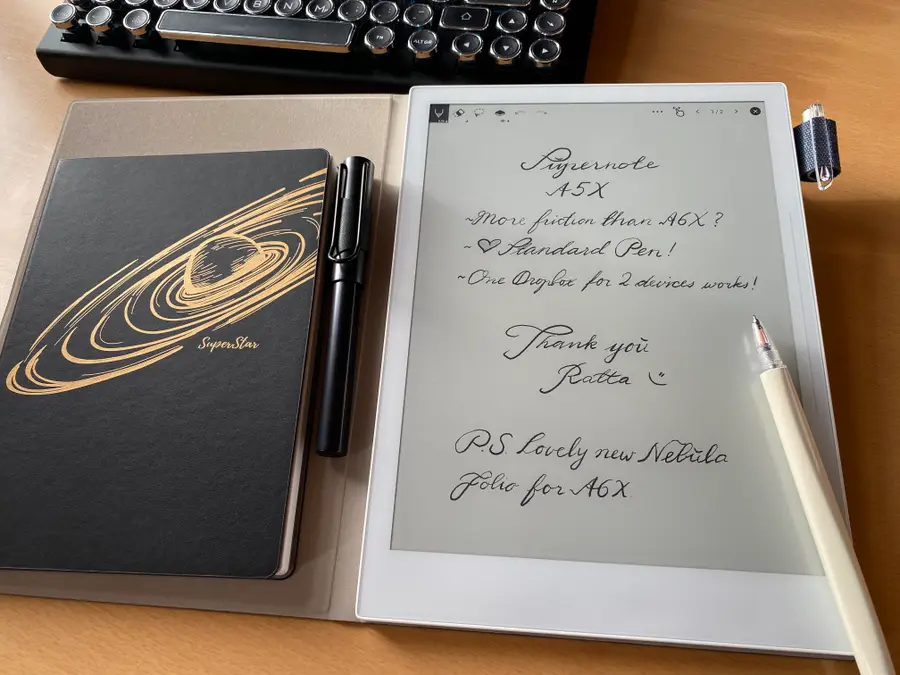
The Supernote is the best e-ink device around, this guide explains why.
howchoo   (467)
September 29, 2023
44 minutes

Share

You’ll Need 2

What you’ll need
Interests
Howchoo is reader-supported. As an Amazon Associate, we may earn a small affiliate commission at no cost to you when you buy through our links.
Posted in these interests:
e-ink • 5 guides
supernote • 5 guides
technology • 20 guides
writing • 3 guides

⭐⭐⭐⭐⭐
OUR RATING: 5/5

In the 1970s, Nick Sheridon made a breakthrough while working at Xerox’s Palo Alto laboratory. By suspending special spheres, mere micrometers in size, within an oil bubble inside a sheet of silicon, electrical voltage could then be applied to decide whether the black side of the sphere or the white side faced up. This allowed the spheres to create a black or a white pixel and, from this, a new revolution in electronic paper technology was born.

Electronic paper (Side view of Electrophoretic display). By FREEscanRIP

Well, not quite. Electronic paper remained a relative specialty item due to the fast evolution of LCD and other screen technology. As demand for those technologies rose, the price for consumers dropped, and it never seemed worth it for companies to dive deeply into the world of electronic paper. Still, the technology did continue to evolve.

An example of old-school electronic paper technology.

In the 1990s, researchers at MIT made a breakthrough that allowed for higher resolution images through a new suspension technique. This led to the creation of the E Ink Corporation and the rise of the technology that’s now ubiquitous with devices like Amazon’s Kindle. E-Ink is a household name even for those who don’t own an E-Ink device, and as its popularity grows the technology behind it evolves at ever-increasing speeds.

Health and E-Ink

In a traditional computer, screen light is emitted out of the screen into the viewer’s eyes. With E-Ink, ambient light is reflected off the screen in much the same way that it would be with a piece of paper.

There’s some evidence that suggests that reading on bright light-emitting screens causes problems for concentration and increases eye-strain, a problem solved by electronic-ink devices. In a world increasingly beset by screens, any improvements that could lead to healthier screen technology are welcome.

The Evolution of the notebook

Amazon’s Kindle has become a common device, promoted by the retail and media giant as the central nexus from which to access the whole range of Amazon services. There are other excellent contenders, such as the Kobo or Onyx brands of e-readers, both of which are arguably superior to Kindle in terms of design. But, until recently, e-ink devices capable of doing more than displaying text (with some very crude note-taking) have been in short supply.

A market is quickly growing, however, for e-ink journal replacements, devices capable of handling your pen-on-paper workflow but with all the added benefits of an electronic device baked in. Early devices produced crude pixelated perversions of handwriting, suitable for only the most elementary note-taking. But the potential existed, if untapped, for so much more. And that’s where we discover that spunky up-and-comer, Ratta, a Chinese company making big waves in the e-ink market through its Supernote series of e-ink devices.

Note
Supernote was kind enough to send me a free A5X for review. However, I was a fan long before that, and my reviews of their products are completely my own opinions.

1 – Enter the Ratta Supernote

Ratta’s Supernote has some super features.

There are several great e-ink devices now on the market, a few of which have taken the capabilities of the hardware to exciting new dimensions. Limitless paper, team integration, and a paper-like writing experience are only some of the advances being made — color displays are now on the market, an explosive event for the e-ink community which has largely operated only in black and white.

What to look for in an e-ink device

When I went looking for an e-ink device, I spent months researching the contenders on the market. I knew that a few things mattered to me:

  • I wanted a paper-like, not a glassy, writing feel. I love writing by hand so if it felt the same as writing on the surface of my iPad, I might as well just stick with the paper journal.
  • It should be able to tackle some basic tasks beyond note-taking. I’m an active academic and student, and I need to be able to read .pdf files and e-books for my various projects.
  • It needed to be able to handle typing as well as handwriting. Ideally, the device could become my go-to travel companion and, alongside my phone, would fulfill all my technology needs.

I figured that finding a device capable of handling all of these would be impossible, and had nearly settled on an entirely different device when the Supernote A6X drifted into my attention sphere.

An e-ink device that does it all… with a great service team?

Ratta is a small e-ink company just getting off the ground. Without the same sort of pre-existing infrastructure as some of the bigger companies, or the clever marketing of devices like the ReMarkable, the Supernote lived in the background of my searches, never quite making it into the top line-up. And then I happened to look closer.

  • A screen with a “textured writing feel”?
  • Can handle .PDF files, Microsoft Word, and e-books?
  • Support for layers when drawing?
  • Pressure sensitivity?
  • Customer support that responded within hours to most support needs, bug reports, and even feature requests — a company that honored feature requests within a reasonable monthly time-frame?

The more I learned, the more I felt flabbergasted that Ratta hadn’t dominated the market. But, of course, their new line of “X” brand devices had just become realized. These devices deviated from their previous reliance on Linux architecture and were built on a customized Android suite to provide a greater range of integration possibilities.

To byte or not to byte?

Ratta’s warranty and extremely limited return options stymied me for a time. I had no way of testing the device before I made a final call. If I opened the box, that would be it. I’d either have to resell on my own or stick with my purchase. Finally, a review by MyDeepGuide swayed me—it was for an earlier model, but the positive points were extremely compelling. I bit the line.

Month by month, the improvements climb!

I first received my Ratta Supernote A6X just after release, and it felt a little like a device participating in a public beta. Some of the features I felt most excited by, like the Microsoft Word integration, were “in development” and the Supernote could not yet hook up to a Bluetooth keyboard for typing. But, as of 2022, Ratta has transformed its product into one of the most powerful E-ink devices on the market.

It’s vital to look for only recent reviews for the Supernote, since older reviews are going to be wildly out of date. The Supernote team delivers monthly updates that dramatically improve existing performance, fine-tune features, and add entirely new features as well.

And yet, even in its earliest release state, my new Supernote proved competent when it came to its most basic function: note-taking by hand. The build quality, plain and wonderfully solid, captured my attention as well, and pretty soon the Supernote became a daily part of my workflow. As did a steady back and forth communication with the Supernote customer service and engineering team via the Supernote Reddit forum. I constantly updated them on bugs and the features I most wanted, and they kept me and the community in the know regarding their development process.

These days, connecting with a company’s customer service arm feels like some sort of bizarre psi-ops exercise, a prelude to a Cold War-era interrogation. But with Ratta, it felt like being an extended part of the team. The folks in charge wanted to know what worked for us and continually sought to communicate all their decisions and processes to us as they went.

When they took a week off for holidays, users in the forums cheered and sent them wishes for a happy vacation. It felt less like being part of a capitalist mechanism and more like being part of a cooperative project in something that mattered. Sure, they were producing something we valued, but we were also invited to take part in that process of creation, afforded the choice to make ourselves honestly heard.

Now, after owning the Supernote A6X for some time, I find myself using it for everything. It’s become invaluable for my job, my scheduling, even my weekly Dungeons&Dragons game. And, even well after its initial release, the team is still hard at work improving the software even further. That’s the sort of pride in workmanship that gets my attention. With the arrival of my review copy of the A5X, I can safely say that Supernote remains a vital part of my daily scaffolding and Deep Work productivity system.

2 – Ratta Supernote hardware

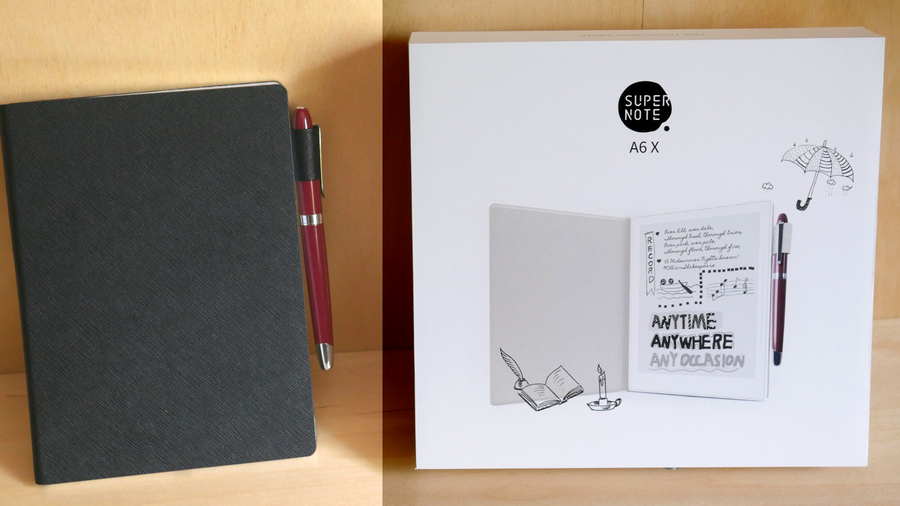
Comparing the Supernote A5X and A6X – the best e-ink devices.

The X-series of Supernote comes in two sizes, the 7.8-inch A6X or the 10.3-inch A5X. There is an important difference between them in terms of technology, however, not just size.

Supernote A6X

Screen technology

The older A6X uses a glass HD Carta screen to keep the costs down, which is more prone to breakage. That said, the cushioning of the soft film technology overlaying the A6X makes accidental damage far less likely than it would be for a device with a glass front exposed to the world. I own an A6X and use it regularly without feeling any concern for its safety, but there’s no doubt that the newer Mobius technology is a surefire way to ensure the longevity of your device.

Battery

The A6X uses a 2900 mAH battery which provides around 4 days of battery life, at around two hours of use per day (always on). Note that Supernote continues to optimize their devices, and battery life displays regular improvements. Battery life will go down significantly if the device is being used for extended daily note-taking. Under these circumstances, a “top-up” every day or two will be needed. Luckily, the device charges to 80+% in about a half-hour.

Connectivity

Bluetooth 5.0, Wi-Fi 5Ghz, and USB-C.

Stylus

The stylus is another place where things get exciting for Supernote owners. There are two main options for stylus technology when it comes to the Supernote, either the LAMY pen (which Ratta has partnered to provide) or Ratta’s ceramic pen nib. The writing-feel for both is excellent, but the ceramic nib has the benefit of never wearing down and the LAMY pen has a clever “erase” button built into the shaft, making it incredibly intuitive to erase mistakes while working.

Case

The outer design of the Supernote is clean and simple, even a bit blocky, but I find it refreshing in a world of tech aesthetics that too-frequently slides into the garish or unwieldy. There are a couple of powerful aspects of the deceptively simple design that allow for great functionality, however. The first is the slide-and-lock mechanism that connects the Supernote’s outer folio cover to the device itself. The folios that Supernote offers are sleek and classy and provide a nice layer of additional protection for the main body of the device. It also allows the Supernote’s auto-sleep function to work; whenever the folio is closed, the screen automatically turns off and the device is placed into standby mode.

Finally, there’s the control bar on the Supernote’s face. This is a powerful tactile innovation whereby the user can control some of the basic elements of the Supernote simply by sliding their thumb up or down the groove. By sliding up, the screen quickly refreshes, eliminating any ghosting effect (a condition with e-ink screens where weak afterimages from old screens can remain behind a new screen. In other e-ink devices, the process of refreshing to avoid this can be clunky, but the Supernote makes it a breeze). By sliding down, the main context menu of the Supernote is accessed, allowing the user to quickly switch notes as needed, navigate to folders, or open programs like email or Kindle.

Supernote A5X

Screen technology

The newer and larger A5X uses a relatively new type of electronic paper display (EPD) called Mobius. Mobius is a flexible display technology with a couple of large benefits over hard glass counterparts, the first and foremost being its extreme resistance to damage via impact. Where a glass screen might crack with an impact, a Mobius screen will only flex. This type of screen is also much lighter than other designs, thereby creating a much lighter device overall. Like the A6X, the A5X feature’s Ratta’s signature “soft film technology” which creates resistance while writing.

Battery

The A5X uses a 3800 mAH battery, which should provide a battery life of 4+ days, given the estimates experienced from the A6X.

Connectivity

Bluetooth 5.0, Wi-Fi 5Ghz, and USB-C.

Stylus

WACOM G14 with 4096 levels of pressure sensitivity. The stylus is another place where things get exciting for Supernote owners. There are two main options for stylus technology when it comes to the Supernote, either the LAMY pen (which Ratta has partnered to provide) or Ratta’s ceramic pen nib. The writing-feel for both is excellent, but the ceramic nib has the benefit of never wearing down and the LAMY pen has a clever “erase” button built into the shaft, making it incredibly intuitive to erase mistakes while working.

Case

The case design and technology for the A5X is undeviated from the A6X. Aside from size and the type of screen technology itself, the bodies of the two devices are nearly identical.

3 – Software and firmware of the Ratta Supernote A6X and A5X

Supernote offers two devices sized packing the same great software.

I’ve already mentioned some of the things that the Ratta Supernote can handle, but there’s so much more detail to explore.

Operating system

The old Supernote devices ran on a Linux-base that provided powerful functionality at a low overhead in terms of hardware needs. The X-series changed that with a shift to a custom OS that Ratta has named Chauvet.

What is Chauvet?

Chauvet is based on Android and therefore allows for easier integration to the already-existing host of Android programs, like Kindle and Microsoft Word. This necessitated an increase in hardware for the X-series and a corresponding jump in cost, but the added functionality more than makes up for that. Within a few years, there may be only one name in the worldwide e-ink device market: Ratta’s Supernote. Read on for a comprehensive overview of the various main software functions that the X-series Supernote provides.

Microsoft Word

It’s exciting enough to be able to access Microsoft Word on a device like the Supernote, an area where comparable devices like the ReMarkable have failed to apply any attention. But the software functionality extends beyond simply being able to type into a Word Document. In a Word document, the user can manipulate the text directly using their stylus to execute traditional proofreading marks!

For example: striking through text with the pen creates a strike-through in the Word file. This is a major focus for Ratta’s design ideology, which seems to be all about redefining how technology functions—doing away with many of the traditional file structure and access systems in favor of creating new interfaces that improve intuitive user access.

Dropbox Integration

Supernote offers two primary forms of software backup and cloud integration: their own Supernote cloud service with servers based in Japan, or through Dropbox integration. The latter is inspired, not only because it makes users comfortable to use a known system for their data, but because Dropbox so easily integrates with the vast majority of common software currently in use elsewhere. That said, Ratta’s own cloud offers a massive amount of storage space for users’ notes.

It’s wonderfully easy to transfer Word files and PDFs back and forth between the Supernote and my laptop, making it possible to secure the safety of my work easily and access whatever I need, no matter where I am (if I have a Wi-Fi connection).

PDF Reading

Speaking of PDFs, the Supernote handles them swimmingly, especially since the February 2021 update that allows for pinch-to-zoom functionality. With my Supernote A6X, the small screen size makes reading PDF files in their native size difficult, but with the new zoom functionality, I can handle reading and annotating full-size PDFs easily.

Note-taking

Note-taking is one of the fundamental points for buying this device. It works great as an e-reader, too, but there are cheaper options on the market if reading is all you care about. Not only do I feel that the writing experience is extremely favorable when compared to writing on a device like the iPad, but I’m also impressed with the range of tools and software capabilities that the Supernote offers.

Everything from different pens and markers to a lasso-select tool, to supporting multiple layers within a note file (great for artists). The one downside I will note is that the handwriting, when exported to PDF and printed out on full-size paper, tends to look pixelated and chunky. This is something that the Supernote team is aware of, however, and has promised to investigate. With another company, this promise might feel suspect, but Ratta has consistently shown itself to be dedicated to improving the capabilities of its devices, making me feel sure that somewhere down the road the notes I print from my Supernote will look clean and sharp. For now, it still looks great on my Supernote’s screen.

Supernote’s Kindle Integration

I’ve mentioned the Supernote as an e-reader already, and this is an important aspect of the device to consider. While there are other dedicated e-readers out there that offer some features specific to reading on an e-ink screen (such as a backlight), the Supernote handles reading eBooks well, even in just its native e-reader application.

A library of books

The thing about having an e-reader, though, is the ease of accessing a vast library of content. If it’s difficult to add books to your e-reader, it removes some of the usefulness of the device. The Supernote comes with full Kindle integration, and that changes everything. Not only is Kindle a known and excellent e-reading application, but it also provides access to the whole wealth of the Kindle store infrastructure. You can purchase books and have them sent directly to the Supernote, or even connect your local library through Overdrive or Libby’s Amazon integration (allowing you to borrow available e-books and read them on your Supernote at your leisure).

Future software and support

Okay, but what else can the Supernote do? For the price, is it worth it? Well, considering the dual superb capabilities of e-reader and pleasing writing experience, I’d already say “yes.” Supernote, however, is all about continued design and evolution. They even stress this directly in their promotional materials. If you purchase one of their devices, you’re not just getting the device itself, you’re getting monthly firmware updates and continued compatibility updates.

To date, the Supernote team has been working on several advanced integrations including Google Drive, different productivity and calendar applications, note-taking software such as Obsidian, and e-reading software that completely bypasses the Amazon Marketplace (such as native Overdrive and Libby support rather than as passed-through Kindle).

4 – Final thoughts

Supernote has a great Reddit community space.

Ultimately, this is what has impressed me most about Ratta and the Supernote team: their ideology and methodology seem entirely different from almost any other technology company I’ve encountered. Their engineers frequently communicate with the wider community through the Supernote Reddit, and they take the feedback they get very seriously — they even go out of their way to elicit that feedback for major design changes.

Every other company I considered when looking into an e-ink device proved to have somewhat substandard customer support. Supernote did away with “customer support” altogether and dove straight into the creation of a “user community” within which the Supernote engineers and marketing staff are constantly involved. Through this community, Supernote not only provides support but actively helps users engage with each other, the team behind the device, and the features of the device itself. Am I impressed? You bet I am. I also bet that Supernote is poised to dominate the e-reader and e-ink-note-taker environment if they continue to maintain this level of commitment to design improvement and user-base interaction.

Also, for those of you desperately wishing for a writing experience like the ReMarkable, which boasts a true “paper-like” writing experience… Ratta has plans in that direction as well, so hold on to your hats. At some point in the future, all your e-ink needs could be handled by Ratta and Ratta alone.

If you’ve been on the fence so-far, I highly recommend you give the Supernote A5X or Supernote A6X a try!

NEXT UP

How to Set Up Quick Connect on a Synology NAS

Get Synology’s powerful Quickconnect running in minutes on your NAS!
howchoo   (467)
November 24, 2023

Synology is one of the most popular creators of Network Attached Storage devices on the market today, and for great reason — they’re really good at what they do. They consistently make devices that stand the test of time and feature top-notch software that makes the process of running a home server as easy as

Continue Reading

howchoo

 467 guides

Introducing Howchoo, an enigmatic author whose unique pen name reflects their boundless curiosity and limitless creativity. Mysterious and multifaceted, Howchoo has emerged as a captivating storyteller, leaving readers mesmerized by the uncharted realms they craft with their words. With an insatiable appetite for knowledge and a love for exploration, Howchoo’s writing transcends conventional genres, blurring the lines between fantasy, science fiction, and the surreal. Their narratives are a kaleidoscope of ideas, weaving together intricate plots, unforgettable characters, and thought-provoking themes that challenge the boundaries of imagination.

Home Interests Plex

How to Use Plex to Easily Create Playlists for PlexAmp

PlexAmp rocks but doesn’t easily create playlists. Luckily, there’s an easy workaround.
howchoo   (467)
September 29, 2023
16 minutes

Share

Interests
Posted in these interests:

music • 4 guides
plex • 1 guides
plexamp • 1 guides
streaming • 2 guides

I love Plex, the self-hosting solution for movies, TV shows, music, and even audiobooks (though this last is still only partly supported). I usually try to go more towards the FOSS (or at least Open Source) end of the market, but, while Jellyfin and Kodi are friggen awesome, their development lags way behind Plex and even Emby.

I have a massive media library that I’ve built over the years, and I wanted to be able to access it quickly and easily without having to pay out monthly fees. The one-time $100 fee to become a lifetime PlexPass member was absolutely worth it in terms of how many services I was able to compress into a single app.

In the last couple of years, PlexAmp (Plex’s music-centered app that plays content stored in your Plex server) has become known as one of the go-to music clients out there, offering a modern and powerful app for your music collection needs. But, as with any app, it still needs work, and Plex’s development has always been a little laggy in odd ways. The largest lag I’ve encountered with PlexAmp is the inability to easily create playlists from within the app. Sure, you can create a playlist by manually clicking on each song and choosing “add to playlist”, but if you’re like me and have playlists featuring hundreds of songs that are already curated, then this feature just doesn’t make sense.

The other problem is that because PlexAmp is just a client app, it doesn’t let you create playlists from inside the app that anyone with access to your server can see! If you want to share your cool music collection with your family, therefore, what are you supposed to do?

The answer is surprisingly simple and comes about by setting things up in the main Plex web-app. By setting things up directly inside your server, you can not only create customized playlists from your music with ease, you can set up collections that everyone with server access will be able to create their own playlists from in just two clicks, offering massive library customization for all of your server members.

1 – Using Plex to create collections for music in PlexAmp

Using Plex to create collections for music in PlexAmp

The first thing you’ll want to do is set up a collection from inside the main Plex web-app.

  • Navigate to music library and change the search view to “albums”

You could also change it to “tracks”, just don’t leave it on “Artists” or, when you create collections, it will create links to artist profiles in your library instead of their actual media, and that will mess up how Plex transfers music to PlexAmp

2 – Add an album to a collection in Plex

Add an album to a collection in Plex
  • Select the album you want to move to a collection
  • Click the vertical ellipsis (or “kebab” menu icon)
  • Select “add to”
  • Select “add to collection”
  • Set the name of your collection if creating a new one, or add to an existing one!

3 – Add multiple albums to music collections in Plex

Add an album to a collection in Plex

This also makes adding multiple items to a collection really easy. Just click the little transparent circle in the upper right of the album artwork to mark it with an orange check mark. Then continue for as many albums as you would like! The top of the screen will now display how many items you have selected and provide the controls for adding to a collection.

4 – Add multiple songs to a collection in Plex for PlexAmp

Add an album to a collection in Plex

It’s really easy to add multiple songs from an album to a collection as well, by selecting the transparent circle next to a song’s name, check marking it, and then using the menu that appears at the top of the screen to add them wherever you want.

5 – Find your new music collection in the Plex collections tab

Find your new music collection in the Plex collections tab

You’ll see your new collection in the Plex collections tab, and you can continue to add music to it however you wish! The best part about collections in Plex is that they can be accessible to users across the server, not just a single user. This means that anyone who has access to your server cans see the collections you have created. However, collections will not show up in PlexAmp. For that, you need playlists that are curated to individual user accounts.

6 – Create your first Plex playlist

Create your first Plex playlist

Now that you have a collection created in which you have your cool music stored, you need to turn it into a playlist. Luckily, this is really simple.

  • Select your playlist
  • Click on the vertical ellipses (kebab menu)
  • Select “Add to”
  • Select “Add to Playlist”

You can either create a new playlist (the name will automatically fill in the name of the collection that you’re adding), or add to an existing playlist.

7 – Profit in PlexAmp with your new Plex-created Playlist!

Profit in PlexAmp with your new Plex-created Playlist!

As soon as you launch PlexAmp you’ll see your new playlist that you created over in Plex appear in the “Recent Playlists” tab of the home screen.

8 – Finding your playlists in PlexAmp

Finding your playlists in PlexAmp

If you don’t just want to see the latest playlist but actually find all your created playlists, just click on the library tab.

  • Once on the library window, tap playlists

Note: there’s sometimes an error regarding how PlexAmp sees playlists, and it may read your library as having an incorrect number of playlists (in this image, zero). If you’ve followed the previous steps, ignore it and click through anyway, you’ll see them all there!

9 – Your new Plex Playlist is now added to PlexAmp’s Playlists section

Your new Plex Playlist is now added to PlexAmp’s Playlists section

And, just like that, your new playlist is visible in your PlexAmp application! This makes curating your music really easy in Plex, since PlexAmp itself doesn’t really have any features for managing the library (only for playing from the server).

10 – Sharing your Plex music playlists with other server members for PlexAmp?

Sharing your Plex music playlists with other server members for PlexAmp?

Collections are shared across your Plex server, but playlists are not! If you create collections, anyone can view them, making it easy to share your cool music playlists, but it’s up to each individual member to go through the trouble of adding those collections to their own playlists and therefore being able to then view the playlist inside PlexAmp. This allows each server member to curate their own content as they see fit, even going so far as to add or remove their own tracks and albums from a specific playlist without affecting the main collection and any other member’s listening experience.

NEXT UP

The 30 Most Viewed YouTube Videos of All Time (2021)

Welcome to the billion views club.
howchoo   (467)
September 29, 2023

Did you know that the number of views on the most-viewed YouTube video is higher than the number of people on the entire globe?! Yup. We’re talking in the billions…and then some. While YouTube formed YouTube Music, due to music videos and music playlists’ popularity, people still tend to head over to YouTube to listen

Continue Reading

howchoo

 467 guides

Introducing Howchoo, an enigmatic author whose unique pen name reflects their boundless curiosity and limitless creativity. Mysterious and multifaceted, Howchoo has emerged as a captivating storyteller, leaving readers mesmerized by the uncharted realms they craft with their words. With an insatiable appetite for knowledge and a love for exploration, Howchoo’s writing transcends conventional genres, blurring the lines between fantasy, science fiction, and the surreal. Their narratives are a kaleidoscope of ideas, weaving together intricate plots, unforgettable characters, and thought-provoking themes that challenge the boundaries of imagination.

Home Interests iPhone

What the Symbols on Your Apple iPhone Mean

iPhone symbols demystified!
howchoo   (467)
September 29, 2023
21 minutes

Share

You’ll Need 1

What you’ll need
Interests
Howchoo is reader-supported. As an Amazon Associate, we may earn a small affiliate commission at no cost to you when you buy through our links.
Posted in these interests:
 
apple • 18 guides

iOS

ios • 5 guides
iphone • 9 guides

Over the years, as iOS versions improve and advance, the symbols and status indicators on our iPhones have changed too. Oftentimes, this creates confusion, curiosity, and even stress surrounding particular symbols, especially those that indicate the use of microphones and other privacy concerns.

This is totally understandable, and it’s another reason why knowledge is power. First off, I was to make sure you know that these symbols and status indicators are here for your benefit and to assist you and only you. They are there to let you know what is being used or accessed on your iPhone, as well as to alert you that certain apps may be accessing certain information.

Secondly, also know that when you are downloading third-party applications you are often giving that app access to your microphone, data, or camera. Luckily, this is nothing to fear, because Apple has recently included a feature that allows to disable or enable access to certain privacy concerning parts of your data or iPhone. Also, you can always alter what apps you have and don’t have access to.

To take it one further, also consider that some of these accesses are completely normal. For example, a third-party messaging and calling application might need access to your mic to allow you to make calls, or a photo editing app might need access to your photos to edit them. Regardless, it’s important to know what the symbols mean on your iPhone, especially the more ambiguous ones so that you can make the necessary changes.

In this guide, I will cover some of the most asked about iPhone symbols meanings and indications, I will provide steps on how to see a third-party app’s access and alter that access, and I will also provide a full list of all iPhone symbols and what they represent.

1 – Green Dot

Apple (Edited)

The green dot is a newer iPhone symbol that sparked some concern by iPhone users, but don’t worry. This green dot will appear at the top of your iPhone screen when your iPhone’s camera and/or microphone are being accessed.

Examples of when the green dot will appear:

  • When using FaceTime or other third-party video chatting apps
  • When taking pictures
  • When scanning documents using the camera
  • When using Snapchat
  • When recording video
  • When scanning QR codes

These are only a few examples of what might prompt the green dot.

To disable an app’s camera access:

  1. Open Settings.
  2. Click “privacy.”
  3. Click “camera.”
  4. Disable and enable any app you prefer from the list below.

Consider that these apps might need access to the camera to be fully functional.

2 – Orange Dot

Apple (Edited)

The orange dot will appear at the top of your screen when the microphone is being used. This is pretty standard behavior for many apps, and is usually harmless. If you do not want an app to have access, and want to disable it, follow the steps below. First, check out some of the apps that prompt this indicator.

Examples of when the orange dot will appear:

  • When using the Voice Memo app
  • When voice chatting via Snapchat, Messenger, and other third-party apps
  • When calling your voicemail
  • When on the phone

To disable an app’s microphone access:

  1. Open Settings.
  2. Click “privacy.”
  3. Click “microphone.”
  4. Disable and enable any app you prefer from the list below.

Consider that these apps might need access to the microphone to be fully functional.

3 – Status Bar (blue, green, or red)

Apple (Edited)
Status bars are another ambiguous symbol on iPhones that most iPhone users feel uncertain of, and understandably so. They aren’t self-explanatory and haven’t always been an iOS feature. Don’t worry, these symbols are there to let you know what your iPhone is currently up to.

Each of the three status bars you will see on your iPhone have different but similar meanings that indicate certain parts of your iPhone are being used or accessed at that moment.

Status bar meanings

  • Blue status bar- The blue status bar is the more complex of the three status bars because it can indicate multiple uses. The blue status bar is most commonly associated with screen sharing because that’s when it’s generally noticed is on-screen sharing sessions with tech support. However, it can also appear when you are screen mirroring (sharing your screen to another device), or if an app is currently using your location. You will notice this appears when using the Maps app to navigate somewhere.

  • Green status bar- This one is simple. If you are on a call, the green status bar will appear.
  • Red status bar- The red status bar indicates that your screen and/or your microphone are being recorded. This is especially apparent when recording your own screen or using the Voice Memo app.

To find out which app is doing this, simply click the status bar, and it will either open the app or prompt you with a pop-up asking you if you want to close the app and which app it is.

It’s important to note that these bars are there to tell you what your iPhone is currently doing, not to scare you. Many third-party apps do have access to different apps, data, and features on your iPhone because permission is given when you download the app. However, you can also go to an app’s settings to alter some of them.

To change an app’s settings:

  1. Open Settings.
  2. Scroll down until you find the app.
  3. Disable any of the following: location services, face ID, tracking, Camera, Photos, or microphone.
Rember, some apps might need the above access to be fully functional, so depending on the app’s function, you may not want to disable all access.

4 – Do Not Disturb

Apple (Edited)

Do Not Disturb is one of my favorite iOS features since it allows me to unplug when needed, but the symbol can be confusing for those who don’t know much about DND.

This symbol can pop up next to a particular message thread in Messages if you have turned it on for that person. It can also appear at the top of your screen if DND is on at that moment. This is important to know, especially if you noticed you haven’t been hearing your calls or notification and aren’t sure why.

5 – Location Services

Apple (Edited)
Location services is a big one, but don’t worry. This little symbol will tell you when your location is being accessed, so that you can disable that access if you would like, though it is completely normal for some apps to access your location services.

Apps that use location services:

  • Uber
  • Lyft
  • Pokémon Go
  • Uber Eats
  • DoorDash
  • Google Maps
  • Maps
  • Weather (and other weather apps)
  • Road Trippers
  • Compass
  • Google (when searching for restaurants, etc. near you)

How to disable location services:

  1. Open Settings.
  2. Click “privacy.”
  3. Click “location services.”
  4. Disable and enable any app you prefer from the list below.

Some of these apps may need access to location services to provide accurate information.

6 – Orientation Lock

Apple (Edited)
If you bring up, or down depending on your iPhone model, you will see the orientation lock symbol there. If it is on, that is when the symbol will appear at the top of the screen. This can be turned on and off in the command center.

Its purpose is to stop your screen from orienting every time you move. For example, if you are reading in bed, you may notice the screen flips if you put it at too much of an angle, and this feature will prevent that so that you can turn the phone without the screen flipping each time you do.

7 – Syncing to iTunes

Apple (Edited)
This is a good one to be aware of, especially if you plug your iPhone into a computer that isn’t yours and you are syncing to a computer at home. This symbol shows up when your iPhone is syncing to a computer via iTunes.

8 – A Full List

Here is a full, simple list of the symbols on your iPhone as referenced from support.apple.com. These may change over time and with different iOS versions. So, make sure you are up to date before viewing this list.
If your iPhone has plateaued and cannot update to the most recent version, you may just notice some of these symbols don’t apply to your iPhone.

SymbolMeaning
Blue Status AppleBlue status bar can indicate a few things, specifically location services, hotspot, or screen mirroring
Green Status AppleGreen status bar indicates an ongoing call
Red Status AppleRed status bar indicates screen or mic recording
Orange Dot AppleYour microphone is being used by one or more applications on your iPhone.
Green Dot AppleYour camera is being used by one or more applications on your iPhone.
AirDrop AppleAirDrop
Hotspot AppleHotspot
Cellular Data AppleCellular data
Bluetooth AppleBluetooth
Airplane Mode AppleAirplane mode
5G Apple5G available
5G High Frequency AppleHigh frequency 5G
5G E Apple5G E available
LTE AppleLTE
3G Apple3G available
4G Apple4G available
GPRS AppleGPRS available
Edge AppleEdge available
Cellular Service AppleCellular service
Dual Sim Service AppleDual sim cellular service
Wi-Fi Calling AppleWi-Fi calling available
Wi-Fi Connection AppleWi-Fi connection
VPN AppleVPN connected
VPN Not Connected AppleVPN not connected
Location Services AppleLocation services is being used
Network activity AppleNetwork activity or loading
Call Forwarding AppleCall forwarding is on
TTY AppleTTY (teletypewriter) is on
Airplane Mode On AppleAirplane mode is on
DND AppleDND is on
Syncing AppleiPhone is currently sycning to iTunes
Orientation Lock AppleOrientation lock is enabled
Headset AppleHeadset or earbuds connected (wireless)
iPhone is Locked AppleiPhone is Locked via touch ID, face ID, or passcode
Alarm AppleYou currently have an alarm set
Hotspot Connected AppleYour iPhone is currently connected to a hotspot
Battery Level AppleCurrent battery charge level
Bluetooth Battery AppleBluetooth battery charge level
CarPlay AppleCarPlay is currently connected to your iPhone
NEXT UP

How to Enable the “Popping” Sound When Adjusting the Volume on Your Mac

howchoo
howchoo   (467)
December 13, 2023

Starting with MacOS Sierra and High Sierra, your Mac will no longer play a “pop” sound when you adjust your volume. If you prefer to have this sound when you adjust volume up and down (as I do), this guide will teach you how to reenable it. 1 – Open Sound System Preferences Navigate to System

Continue Reading

howchoo

 467 guides

Introducing Howchoo, an enigmatic author whose unique pen name reflects their boundless curiosity and limitless creativity. Mysterious and multifaceted, Howchoo has emerged as a captivating storyteller, leaving readers mesmerized by the uncharted realms they craft with their words. With an insatiable appetite for knowledge and a love for exploration, Howchoo’s writing transcends conventional genres, blurring the lines between fantasy, science fiction, and the surreal. Their narratives are a kaleidoscope of ideas, weaving together intricate plots, unforgettable characters, and thought-provoking themes that challenge the boundaries of imagination.

Home Interests RetroPie

RetroPie scrapers: what they are and how to use them

Wait, which game is this?
howchoo   (467)
September 29, 2023
8 minutes

Share

You’ll Need 1

What you’ll need
Interests
Series
Howchoo is reader-supported. As an Amazon Associate, we may earn a small affiliate commission at no cost to you when you buy through our links.
Posted in these interests:
pi • 92 guides
retrogaming • 29 guides
retropie • 17 guides

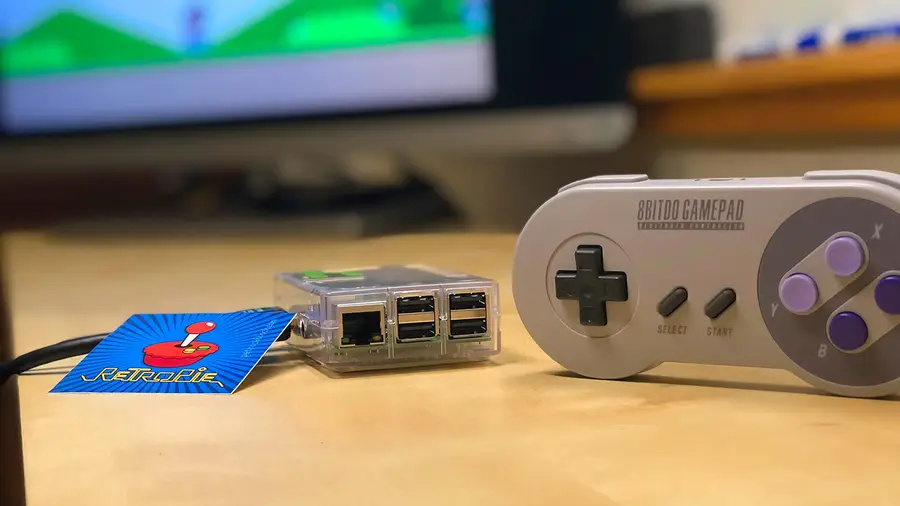
You’ve put so much work into setting up RetroPie or EmulationStation. You load it up with legally obtained ROMs only to find that custom theme you installed—you remember, the one from my RetroPie themes guide—has a big blank spot for box art!

The Best RetroPie Themes (And How to Install Them)
You deserve some personal flair!

build your own raspberry pi retro gaming rig

RetroPie: Build Your Own Raspberry Pi Retro Gaming Rig
How to install (and use) RetroPie!

How can we fill in this information for all of those ROMs?

That’s where a process known as scraping comes in. To tackle this problem, you’ll need something referred to as a scraper.

1 – What is scraping?

While playing games may be the ultimate goal of running RetroPie or Emulation Station, there’s still something to be said about a well made user interface. When you select your ROMs, seeing the box art and game information adds a clean, professional touch.

The additional box art and info is referred to as metadata. The process of putting this metadata onto your Pi is called scraping. In this guide, we’ll take a closer look at a scraper and how to use it to put metadata on your RetroPie.

2 – How it works

Scraping pulls metadata for your ROMS from the internet and integrates it with your list automatically. As long as you have a connection to the database, updating your collection is as easy as pressing a button.

One of the easiest scrapers to use with RetroPie is already built in to the system. The RetroPie scraper can be accessed from the main menu under the option labeled “Scraper”.

3 – How to use the built in Scraper

By default, the ROMs will be synchronized with metadata from TheGamesDB.net. To synchronize your ROM list, choose “Scrape Now”. There are several options you can adjust throughout the syncing process. For example, you can synchronize specific systems or choose to include ratings.

The amount of time this process takes depends on several factors including your list of ROMs, its size, your internet connection speed, and abstract forces in the universe that occasionally act at random against electronics when you want to do something fun.

If it seems to take a while, leave your Pi overnight to finish synchronizing the information.

4 – Third party scrapers

Some users prefer to use third party scrapers to pull their information. These scrapers need to be manually installed. Here are a few common scrapers with installation instructions.

Sselph’s Scraper

[Official Installation Instructions] – Steven Selph’s Scraper is an easy to use third party scraper. It’s not hard to setup and can be a fast way to scrape metadata to your RetroPie.

Skyscraper

[Official Installation Instructions] – Skyscraper is a highly customizable option with an interesting level of depth in the kind of information it scrapes. It was created by Lars Muldjord. This scraper is one the most versatile and regularly maintained scrapers available for the RetroPie.

5 – Troubleshooting common scraper issues

Slow Synchronization Time

If you’re using the default scraper, this is a commonly heard of side effect. The database has been known to experience intermittent downtime. However, you may want to investigate additional factors that may be affecting your internet connection speed.

No Database Connection

The first thing you need to check is your internet connection. Verify your Raspberry Pi is connected to your network. Ensure the Pi is able to reach the internet. If it can’t, make sure other devices on the network aren’t having a similar problem.

If you’re using the default scraper, you may just need to try again later.

Low Res Artwork

The database you pull metadata from is responsible for the quality of artwork. If you’re not happy with the results, you may want to experiment with a different scraper.

NEXT UP

How to Run a Minecraft Server on the Raspberry Pi

A whole world trapped inside your Pi.
howchoo   (467)
December 7, 2023

There are several ways to go about running a Minecraft server on the Raspberry Pi. In this guide, I’ll cover how to install Nukkit—a cross-platform Minecraft server that’s super easy to set up on the Raspberry Pi. This server should work with PCs, consoles, and tablets running Minecraft 1.14. I’ll be using a Raspberry Pi

Continue Reading

howchoo

 467 guides

Introducing Howchoo, an enigmatic author whose unique pen name reflects their boundless curiosity and limitless creativity. Mysterious and multifaceted, Howchoo has emerged as a captivating storyteller, leaving readers mesmerized by the uncharted realms they craft with their words. With an insatiable appetite for knowledge and a love for exploration, Howchoo’s writing transcends conventional genres, blurring the lines between fantasy, science fiction, and the surreal. Their narratives are a kaleidoscope of ideas, weaving together intricate plots, unforgettable characters, and thought-provoking themes that challenge the boundaries of imagination.

Home Interests Home

Keep Raccoons Out of Your Trash Can Using Bleach

howchoo
howchoo   (467)
September 29, 2023
2 minutes

Share

You’ll Need 3

What you’ll need
Interests
Bleach x 1
Howchoo is reader-supported. As an Amazon Associate, we may earn a small affiliate commission at no cost to you when you buy through our links.
Posted in these interests:
home • 7 guides
pestcontrol • 1 guides
raccoons • 1 guides

1 – Apply cap full of bleach to top of the trash can

This will only keep the raccoons away from the trash can for several hours. However if you know when the garbage men are coming, you only need an hour or so.

2 – Reapply

Reapply the bleach as needed. You can use larger amounts when your trash can will be out for a longer period of time—like weekends or holidays where there’s a trash-pickup delay.

3 – You’re done!

Raccoons should be repelled by the bleach and leave your garbage alone.

NEXT UP

How to Properly Dispose of a Worn or Damaged American Flag

howchoo   (467)
December 7, 2023

Since our country was conceived, the U.S. Flag has been a symbol of our country’s freedom. Our country’s Flag Code provides specific guidelines for how to “retire” a damaged or worn-out American flag. When should my American flag be retired? The US Flag Code (4 USC Sec 8 Para (k) Amended 7 July 1976) dictates that a flag

Continue Reading

howchoo

 467 guides

Introducing Howchoo, an enigmatic author whose unique pen name reflects their boundless curiosity and limitless creativity. Mysterious and multifaceted, Howchoo has emerged as a captivating storyteller, leaving readers mesmerized by the uncharted realms they craft with their words. With an insatiable appetite for knowledge and a love for exploration, Howchoo’s writing transcends conventional genres, blurring the lines between fantasy, science fiction, and the surreal. Their narratives are a kaleidoscope of ideas, weaving together intricate plots, unforgettable characters, and thought-provoking themes that challenge the boundaries of imagination.

Home Interests Raspberry Pi

Gamepad Zero: A Raspberry Pi Retro Gaming Rig Inside an Original NES Controller

howchoo (467)
September 29, 2023
26 minutes

Share

You’ll Need 17
What you’ll need
Interests
Posted in these interests:
3dprinting • 36 guides
pi • 92 guides
retropie • 17 guides
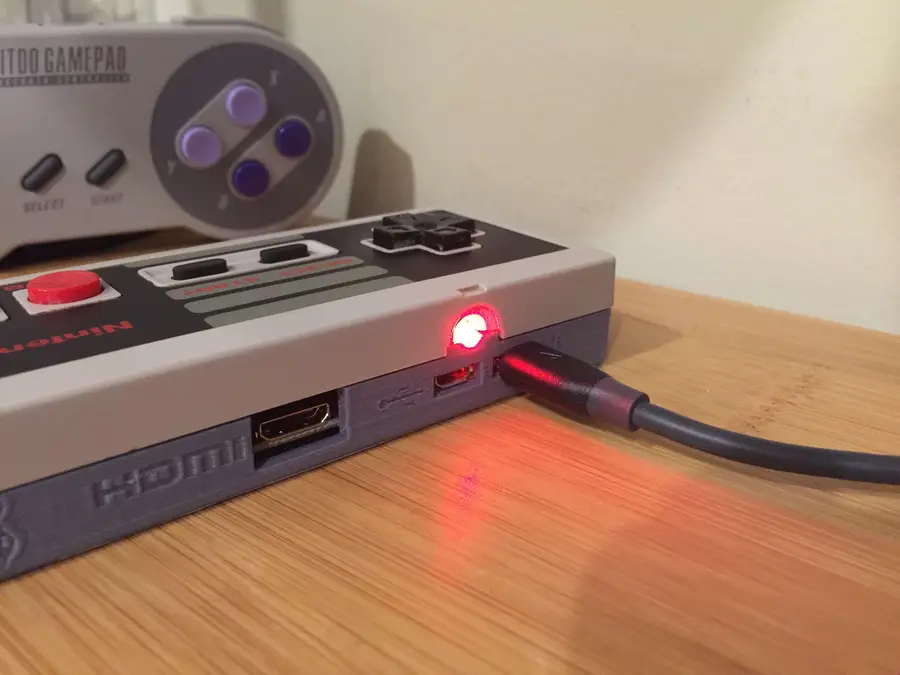
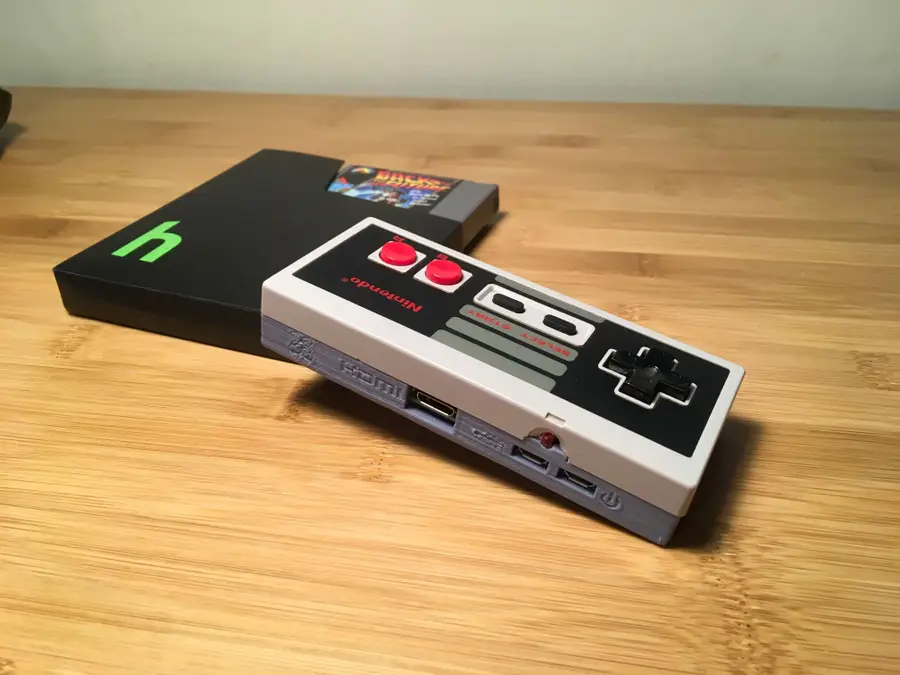
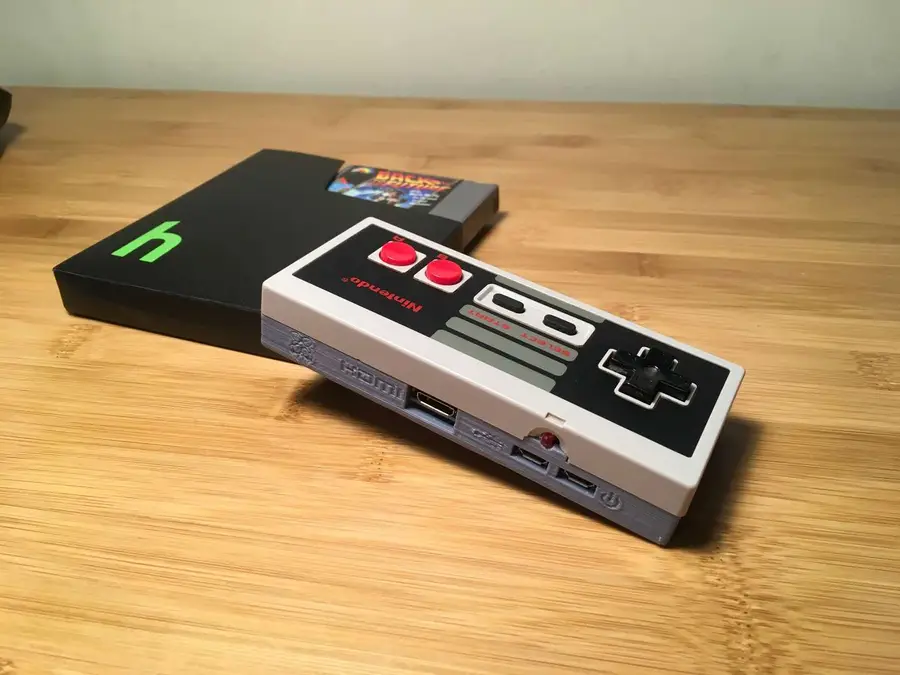
What’s cooler than running all your favorite emulated games on a $10 computer? Putting that computer into an original NES controller, of course. Introducing: the Gamepad Zero. I decided to install a Raspberry Pi Zero W (wireless) into an original Nintendo controller, solder the original controller’s circuit board to the Pi’s GPIO (general-purpose input/output) pins, and 3D print a new bottom half of the controller housing to store it all neatly. This allows us to play games using the original controller. Pretty neat. 🙂
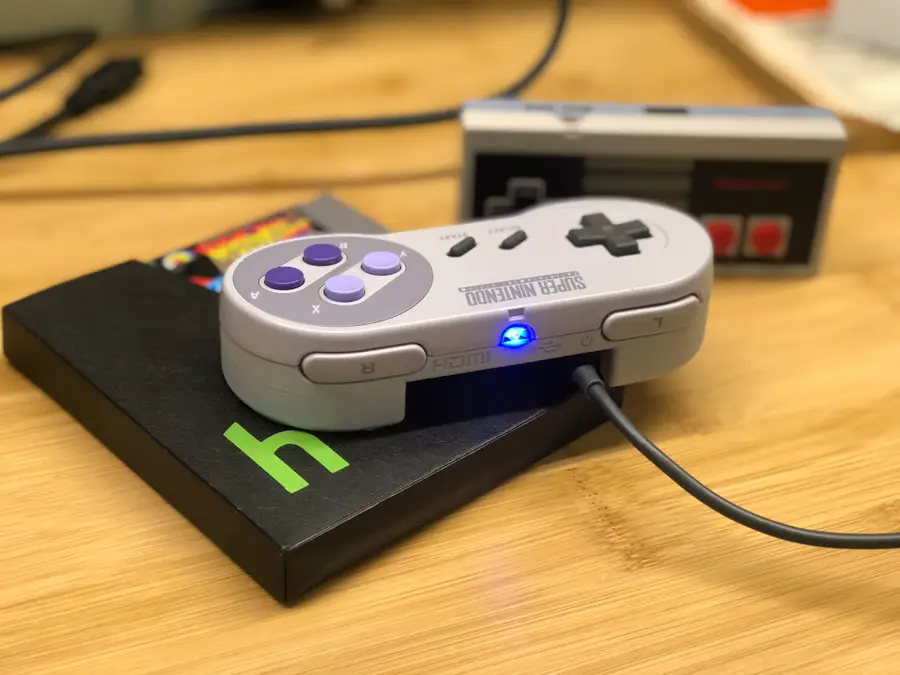
New: Be sure to check out my followup to this guide — the Super Gamepad Zero — a Raspberry Pi retro gaming rig in an original Super Nintendo controller!
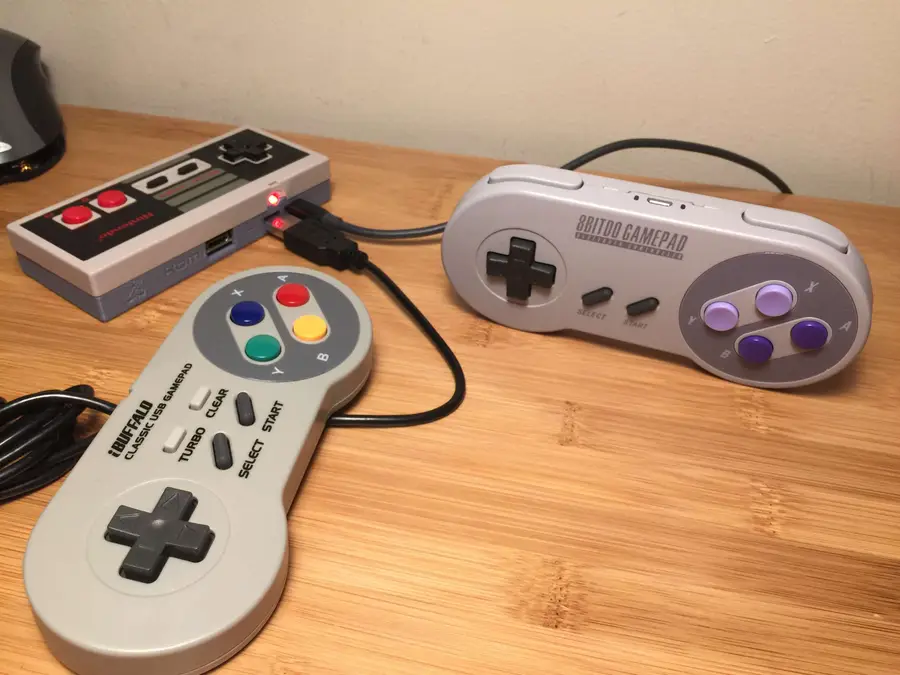
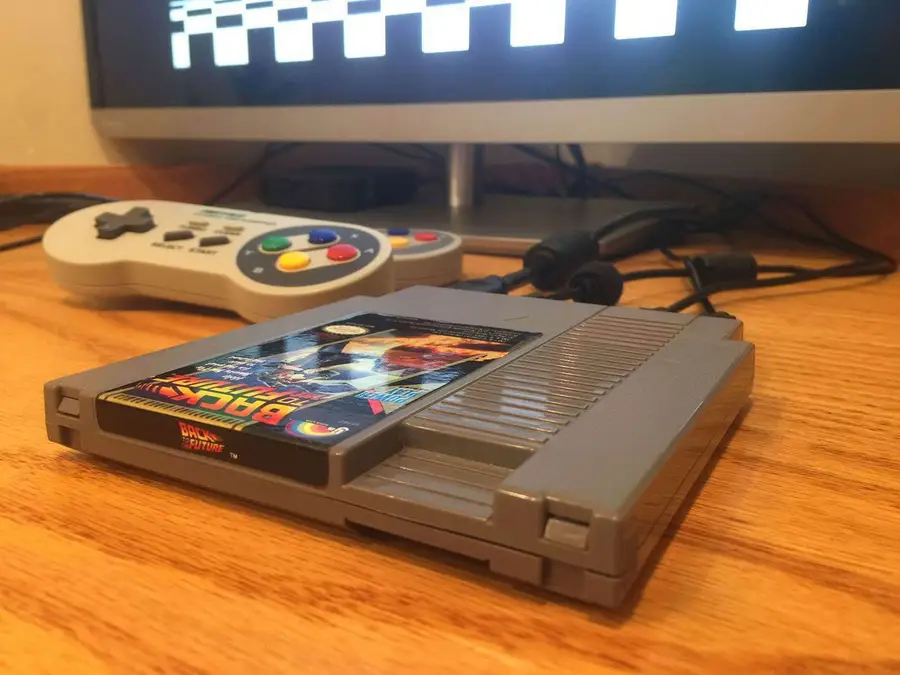
Don’t have a 3D printer? No worries! Read on, and I’ll explain several options for getting your model printed. The Gamepad Zero connects directly to your TV or monitor using an HDMI cable and is powered using a normal Micro USB power supply. You can also connect a secondary bluetooth or wired USB controller. With ultimate portability in mind, you can now fit 5000+ retro games in your pocket, bring them over to a buddy’s house, and plug right in. This is a super simple, super fun build. If you’re familiar with my PiCart build where I built a similar rig inside an NES cartridge, this might interest you! This build is even easier. Today I’m going to show you how to make your own. I also created a full video for this build. Check it out below!

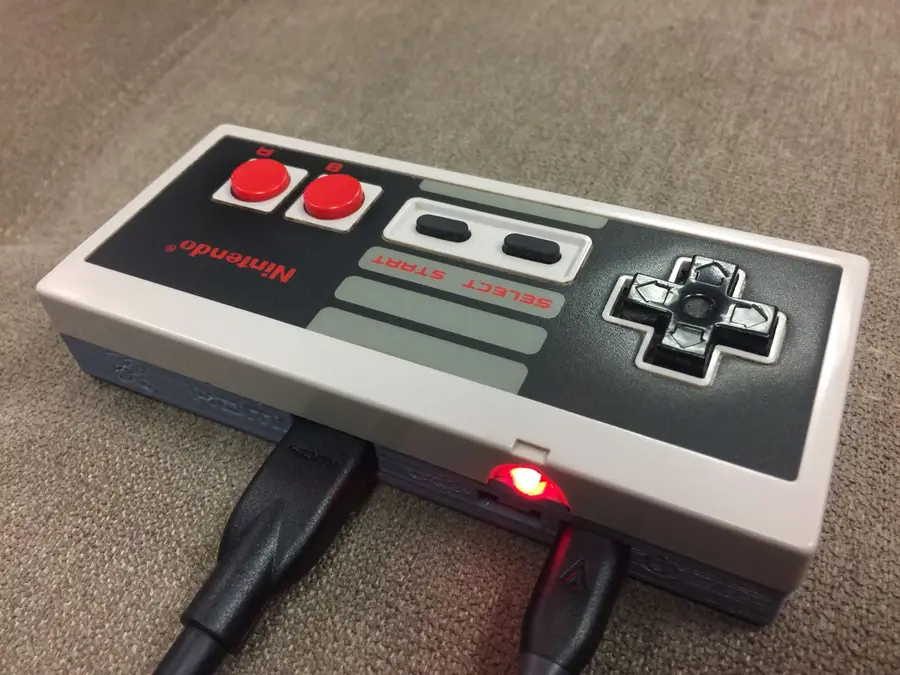
1 – The completed project

Once again, the prophecy prophesizes that I include a final photo of the completed Gamepad Zero.

2 – Overview

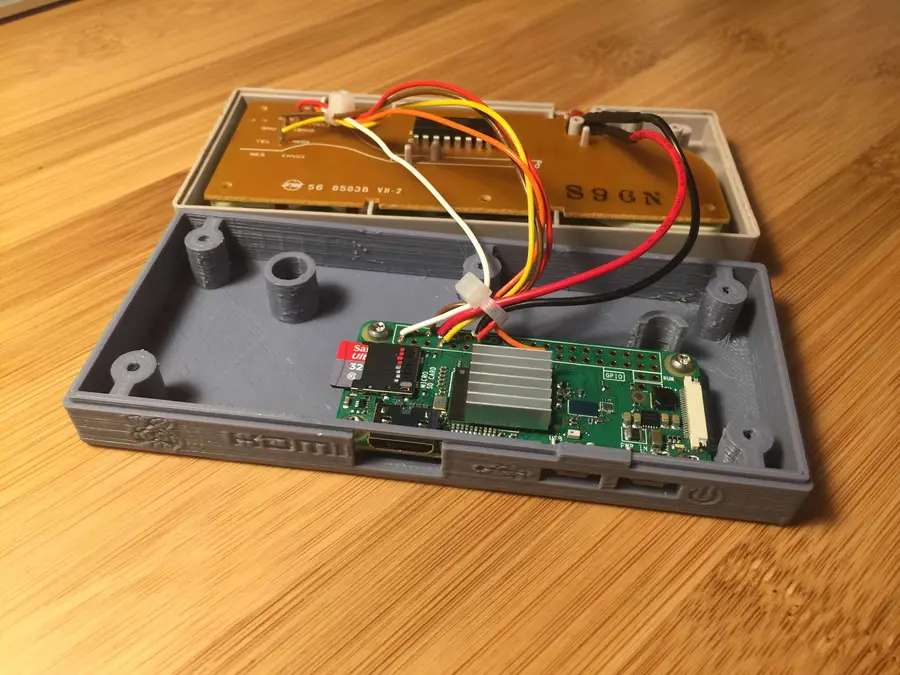
For this project, we’re going to build a Raspberry Pi retro gaming rig inside of an original NES controller. The top half of the controller will be reused, along with the original printed circuit board and button. Of course, we’ll be installing RetroPie. We’re going to print a new bottom half to hold our Raspberry Pi using a model by bfesser from Thingiverse, and then solder the existing NES controller circuit board to the Raspberry Pi so that it can be used to play games. Don’t have access to a 3D printer? Read on! Finally, we’ll install RetroPie, and the Gamepad Zero will connect directly to your television or computer monitor using a power and HDMI cable. I chose to use a 10′ version of each so I can sit way back on my TV, but you could also use a shorter one. You can even plug an additional USB controller into your Gamepad Zero to let a buddy play (or if you require more buttons than the NES controller contains — remember, some games require many buttons). 🙂 You can also use a bluetooth controller to connect to the Gamepad Zero (more on this later!).

Project cost

The total materials for this project cost me about $50. I already had most of the tools needed.

Project time

The actual time to assemble this project was only about 30 minutes — the print took about 4 hours, and I just ran it while I was doing things around the house (and napping).

3 – Choose your Zero

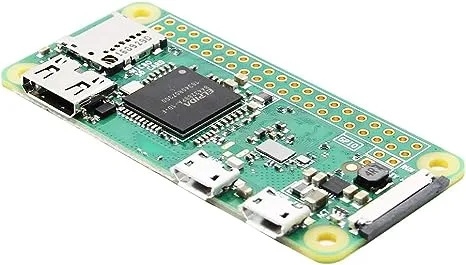
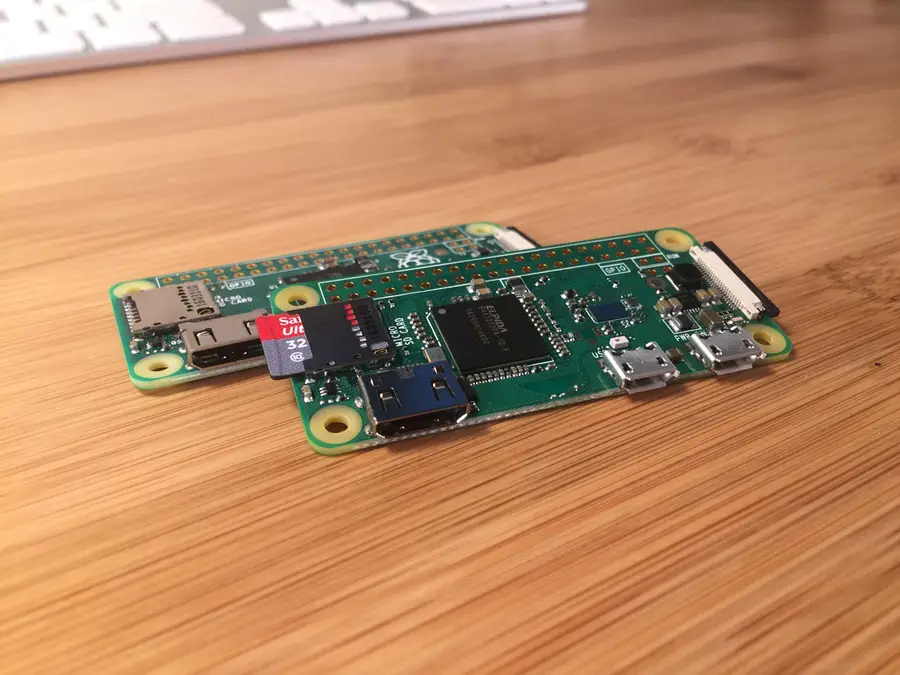
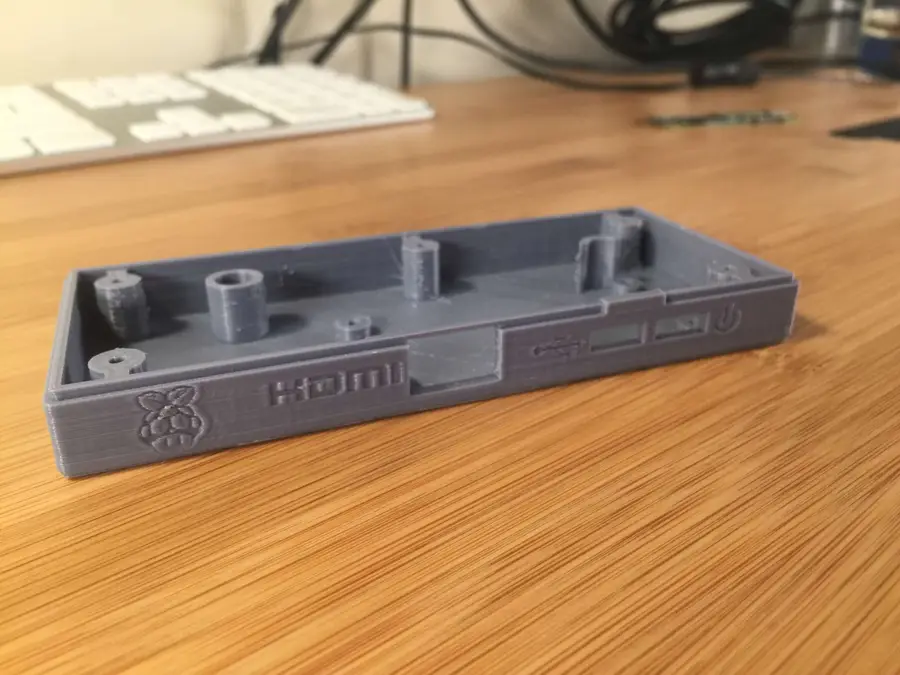
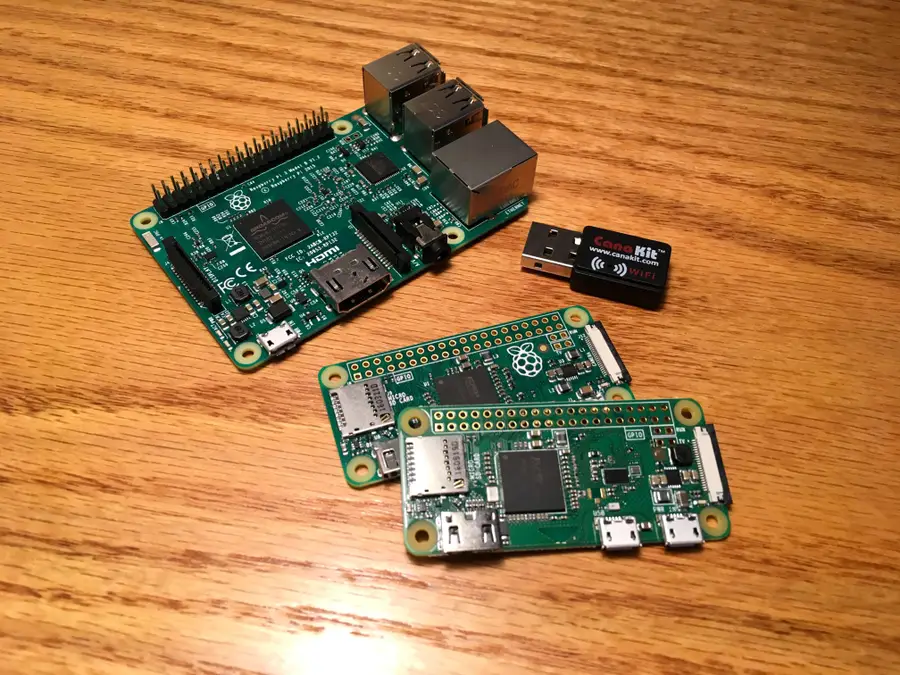
You can use either a normal Raspberry Pi Zero or the Raspberry Pi Zero W for this project. The Pi Zero W adds WiFi and bluetooth into the mix. However, since you don’t technically need wireless connectivity to run RetroPie or play any games, a Raspberry Pi Zero will do just fine. I decided to use the Raspberry Pi Zero W because it has bulit-in WiFi/bluetooth and I wanted to have the option of using my wireless bluetooth controller as a primary or secondary controller. Even without bluetooth, your buddy can still join you by plugging his or her controller directly into yours. For this project, we’re going to 3D print a model that designer bfesser created and uploaded to Thingiverse. bfesser did an amazing job on this model and was the inspiration for this project. This model will serve as the housing for the bottom half of the controller and will securely store our Raspberry Pi. Download the model and print it using your filament of choice (I used PLA+, which is a slightly stronger variant of PLA).
🛈 Thanks bfesser!

5 – Don’t have a 3D printer?

Until very recently, neither did I. But that’s okay — there are tons of other ways to get the model printed. Here are a few:

Use an online 3D printing service

Many online services exist that will print your model and ship it to you. However, make sure the model you use has a license that allows a service to print it commercially. You can order this model 3D printed on Shapeways.

Find your local hackerspace/makerspace

Chances are, there’s one near you. Most have “Open Make Nights” where you can pop in and use the equipment without needing a membership. You can find your local hackerspace using this tool.

Check your local library

You may be surprised to find that many libraries now have 3D printers available for your use. If you’re a student, your university can provide you with access to one.

Check Craigslist

Many people advertise their printing services on Craigslist.

Buy a 3D printer

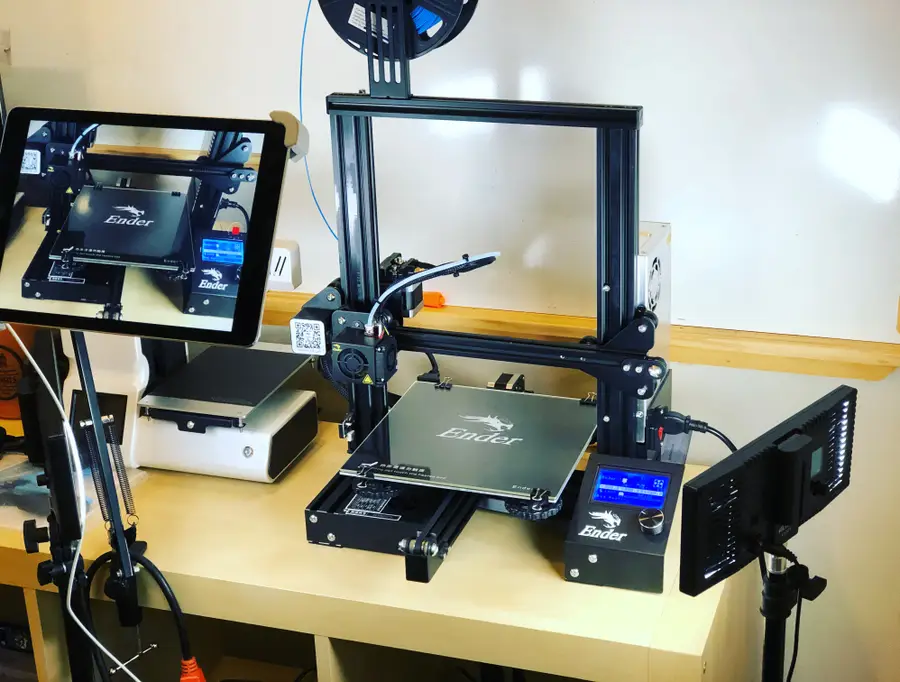
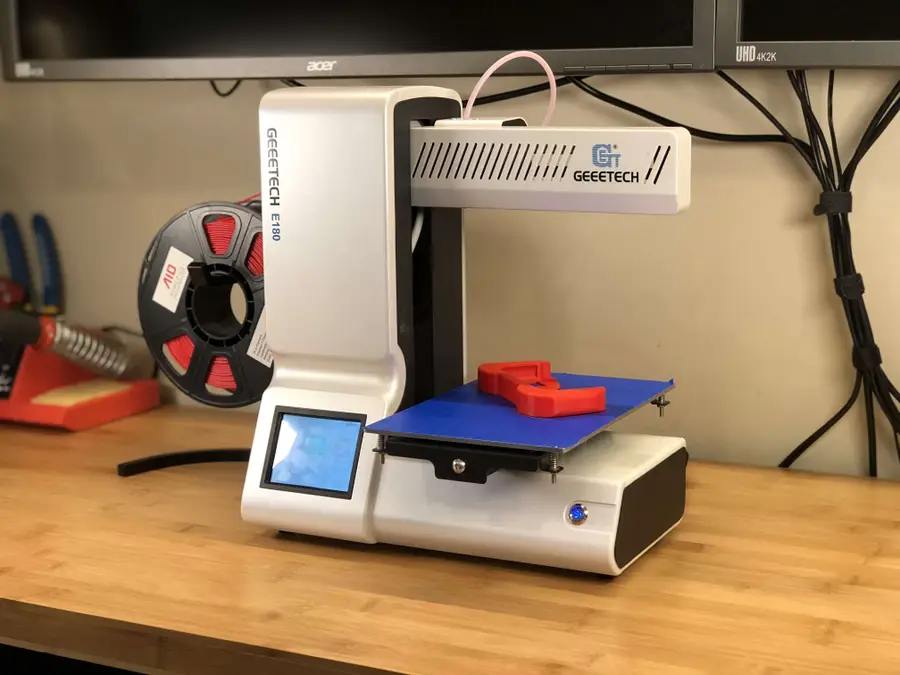
3D printers have never been cheaper. I picked up my Creality Ender 3 for under $200 here and I couldn’t be happier. For more information on the Ender 3 budget 3D printer, be sure to check out my full Ender 3 review — I highly recommend it for any 3D printing beginner or professional. If you’re looking for a smaller budget 3D printer, also check out my recent Geeetech E180 review.
Geeetech E180 3D Printer Review: A Mini Budget 3D Printer This tiny printer packs a lot of punch.

6 – Install RetroPie

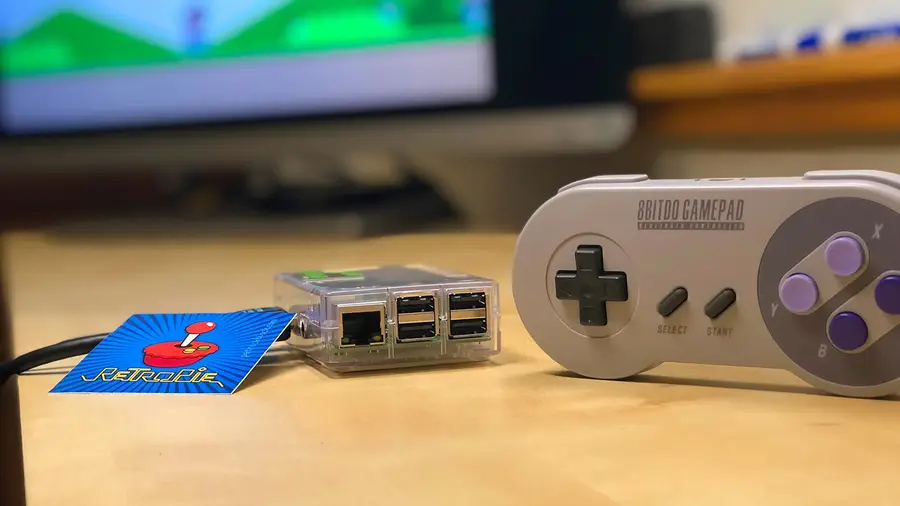
Now is a good time to install RetroPie. RetroPie will allow us to play emulated retro video games. I wrote a separate guide on how to install RetroPie — it’s a super simple process.
RetroPie: Build Your Own Raspberry Pi Retro Gaming Rig How to install (and use) RetroPie!

7 – Disassemble your NES controller

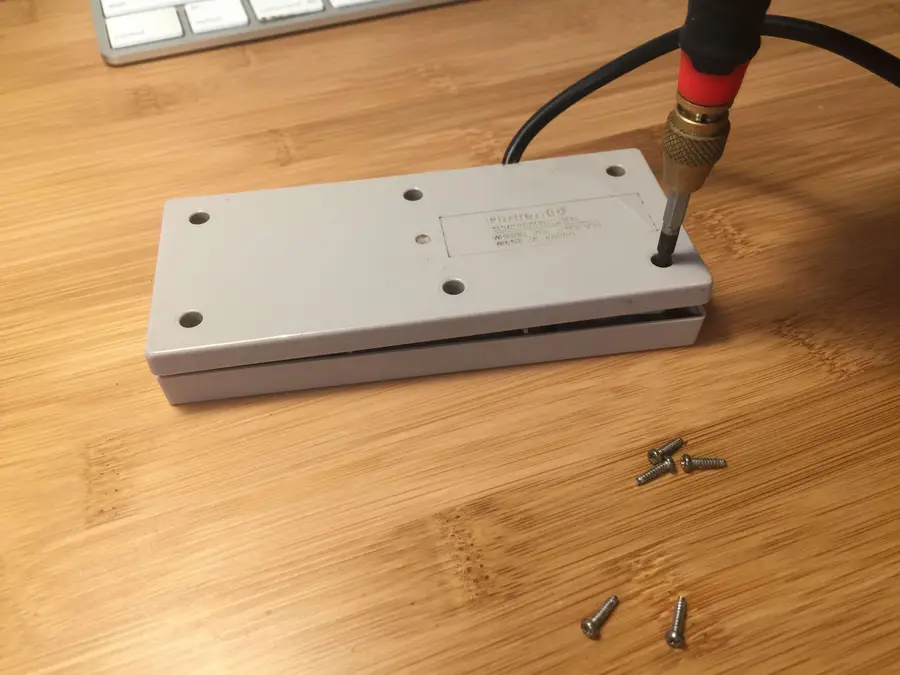
I used an original NES controller made by Nintendo, as that’s what the model calls for. It’s possible that aftermarket NES controllers will also work, but I can’t guarantee that. You can pick up an original NES controller on eBay for about 10 bucks. To disassemble the controller, use a small Phillips screwdriver to remove the six small screws from the back of the controller. You can either toss these screws or reuse them — I decided to toss and replace them with some stainless steel Torx screws (linked at the top of this guide) to prevent them from stripping in case I need to open my controller a few times.
🛈 Once inside, you may want to give your controller a good cleaning with some rubbing alcohol and Q-tips. There’s going to be a lot of strange build-up in there after 30+ years.

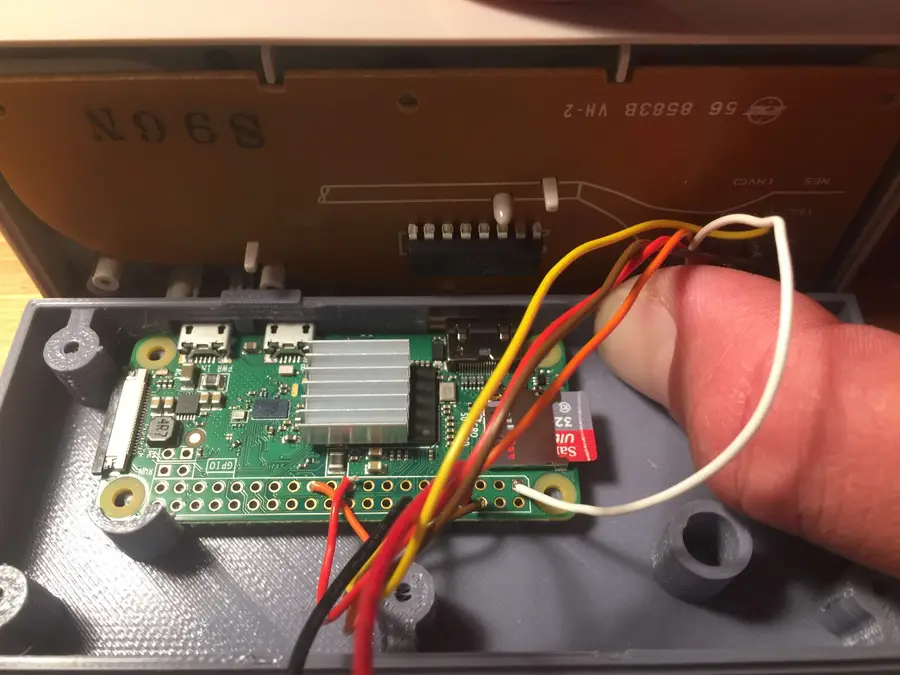
8 – Solder your connections

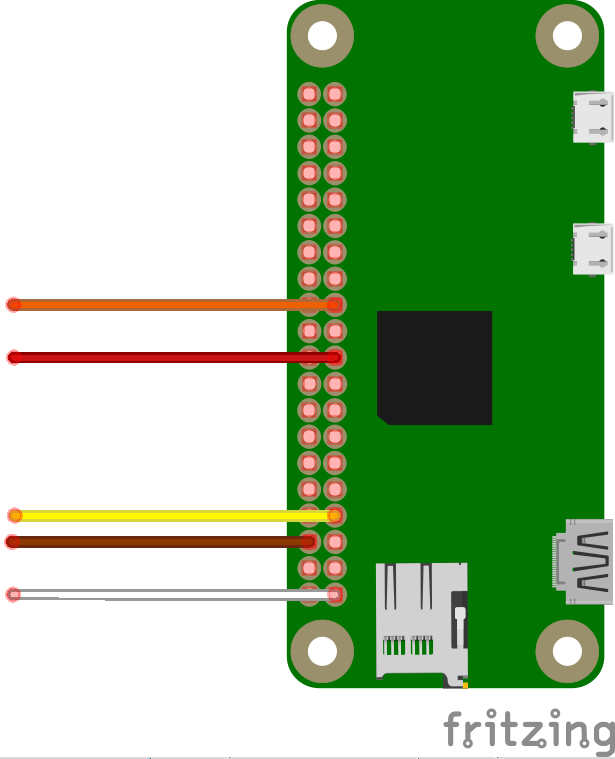
Cut the cord off your NES controller, leaving about 6″ of excess wire. We’re going to reuse the old wires and solder them directly to the Pi Zero. Using the attached wiring diagram, solder the 5 wires from your original NES controller onto the Pi Zero’s GPIO header. I also uploaded the Fritzing file I created for this, in case you’re into that sort of thing. 🙂

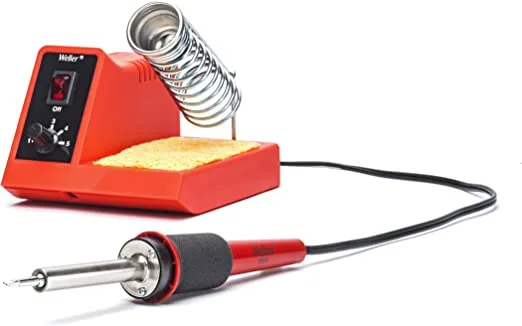
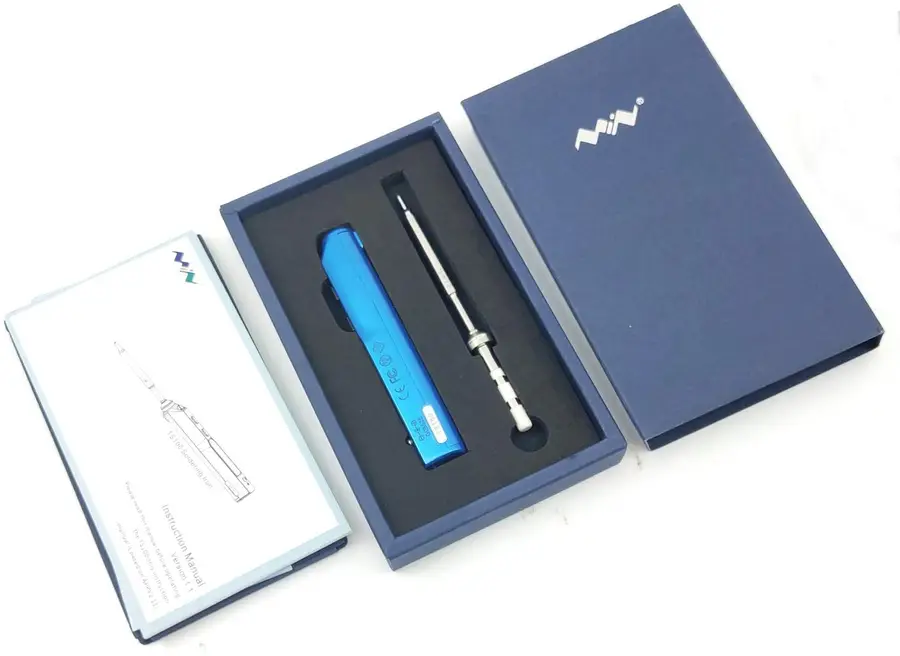
Need a good soldering iron?

We got you. Check out our guide on the best soldering irons for different tasks.
The Best Soldering Irons: Read This Before You Invest (2022) We’ve put together a guide to help you find the best soldering iron for your next project.

Don’t know how to solder?

No worries, it’s easy and this is a great opportunity to learn! This video will get you started.

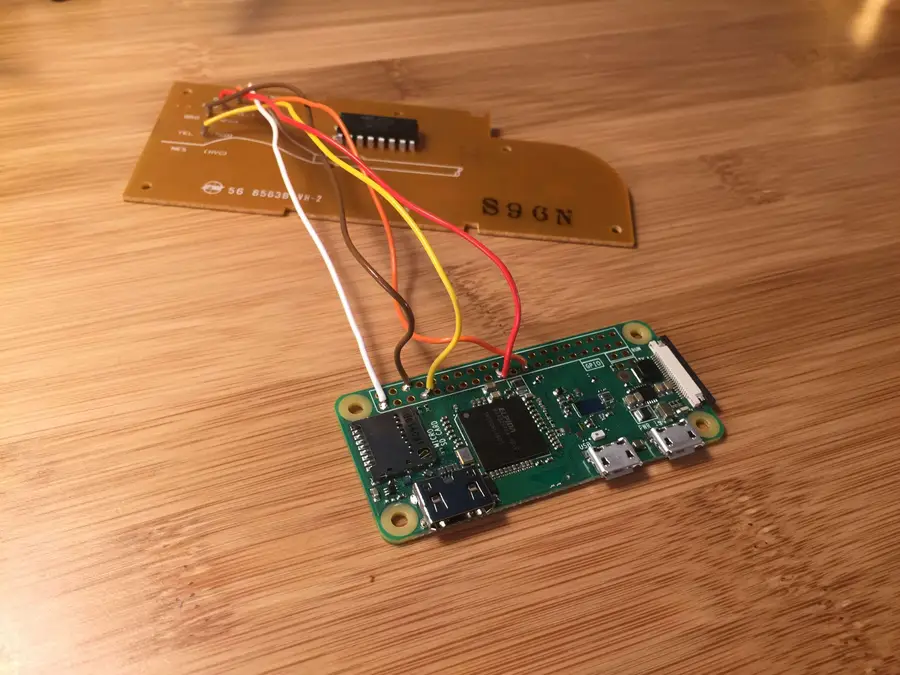
9 – All soldered up!

Looking good.

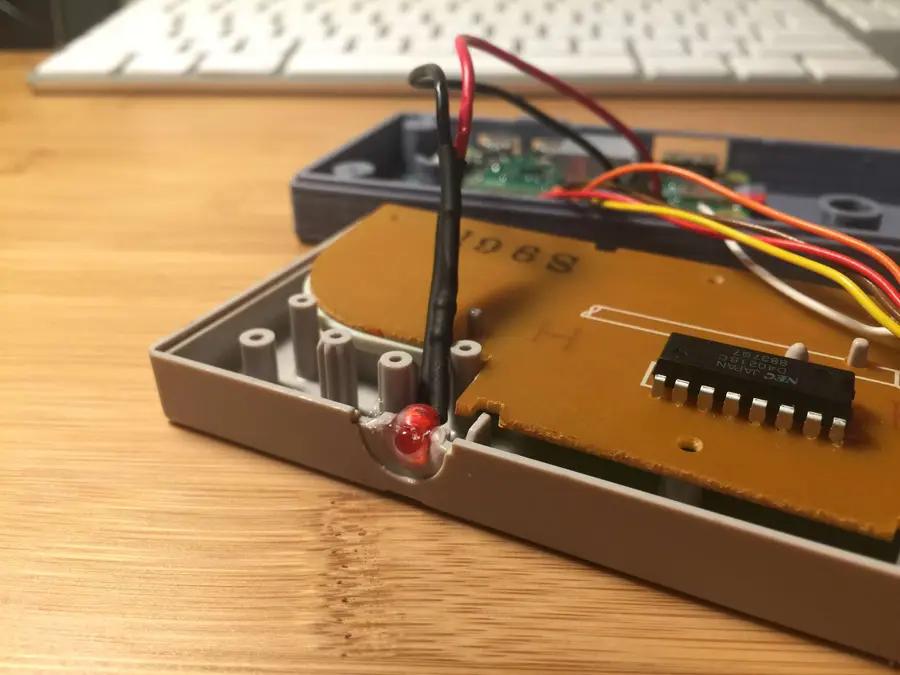
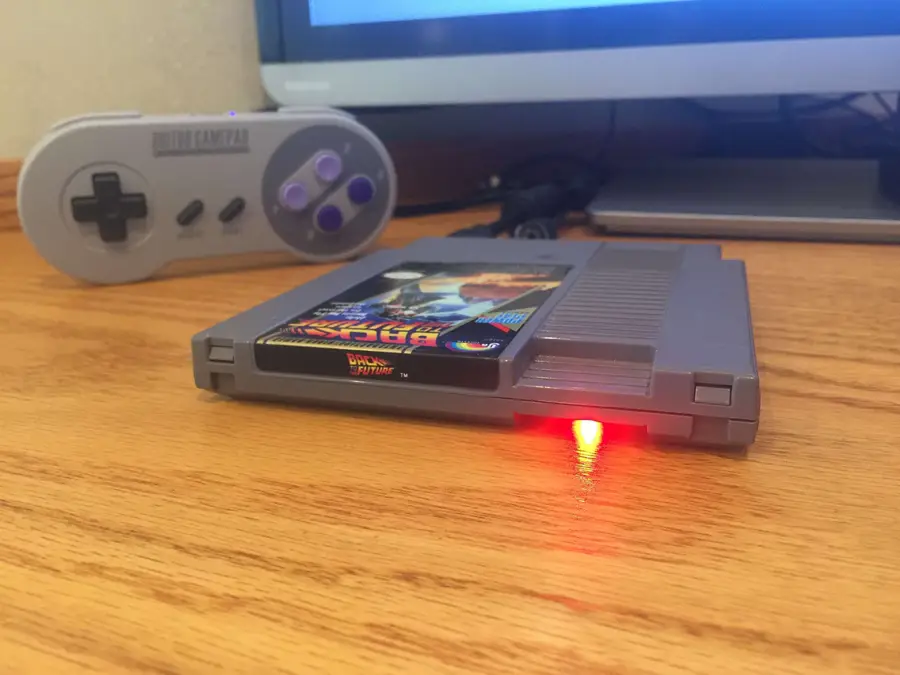
10 – Add a power LED (Optional)

I decided to add a small LED that will tell me when the Pi is powered on. I wrote a separate guide for adding a Raspberry Pi power LED in case this interests you!

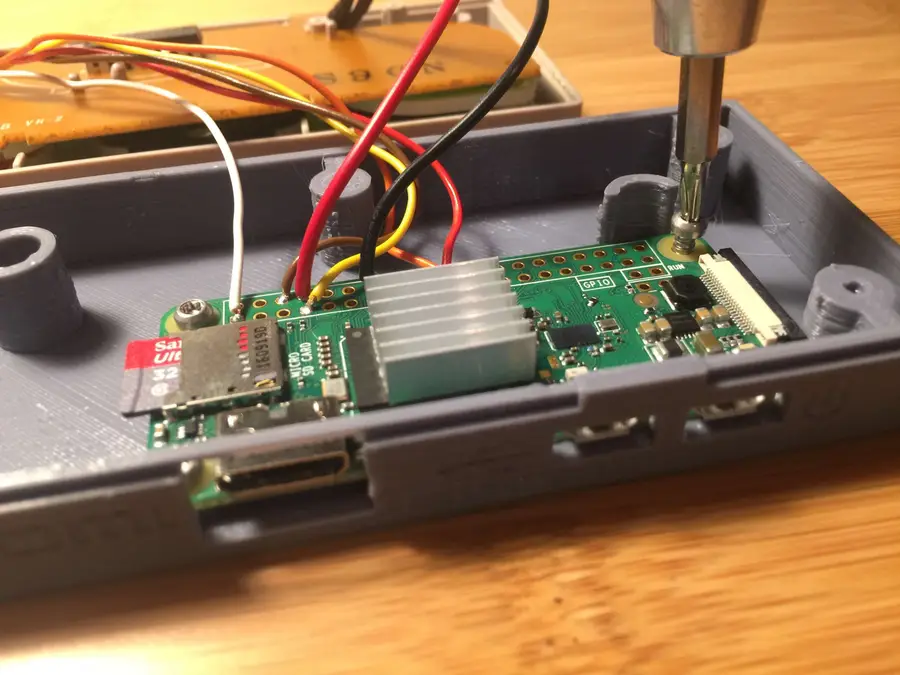
11 – Add a heatsink (Optional)

This is optional, but will keep your Pi cool during GPU-intensive games. You’ll need to offset it slightly to avoid it hitting the controller board chip when the case is closed (see photo). It only costs a few bucks so I think it’s completely worth it.

12 – Mount your Pi

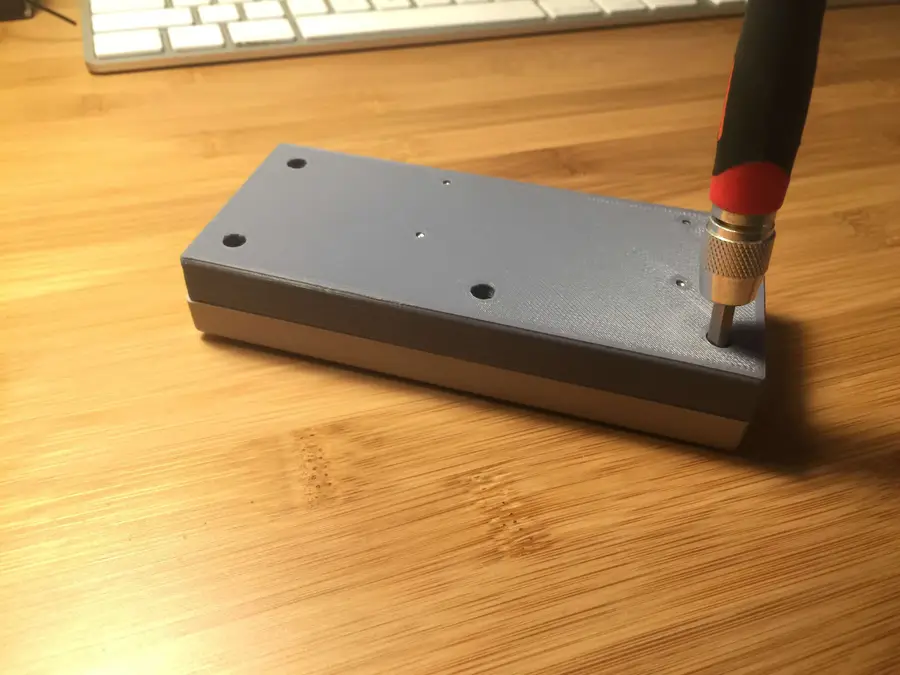
Use four 5mm screws (linked above) to secure your Pi Zero into the controller housing.

13 – Reassemble the housing

Finally, reassemble the controller using five 8mm screws.
🛈 You can also use the controller’s original screws here if you want to save a few bucks.

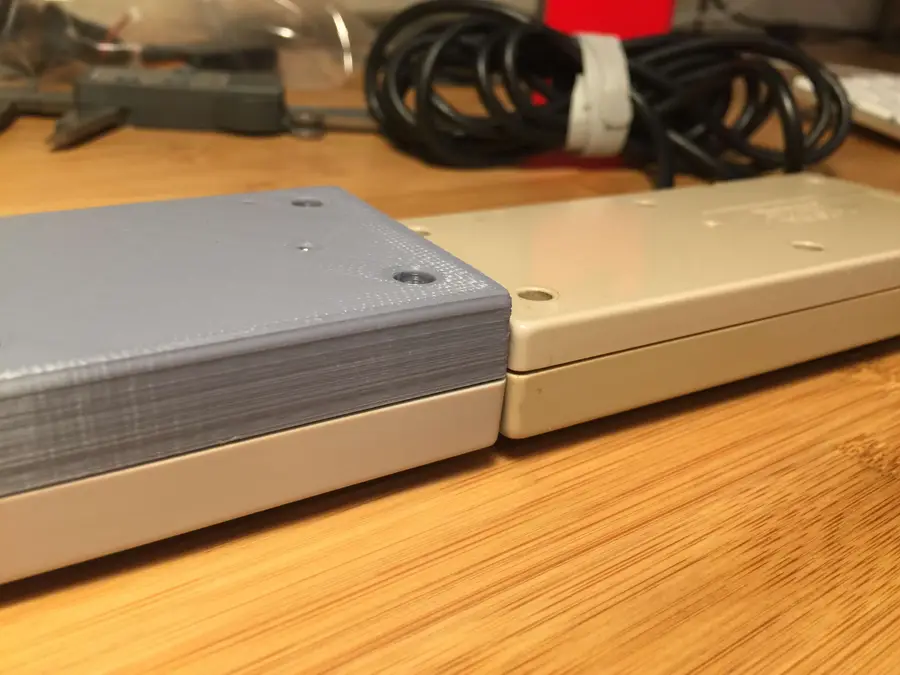
14 – Size comparison

The original NES controller is 17mm thick and the Gamepad Zero is 22mm thick. The difference is nominal, which leads to a nice, comfortable gaming experience.

15 – Configure your NES controller for RetroPie

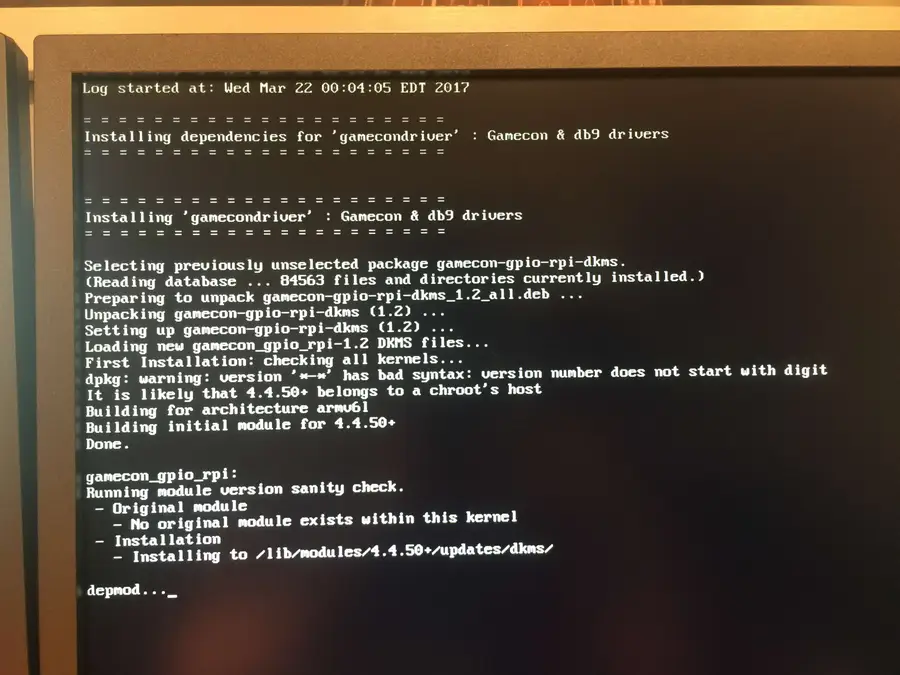
You’ll need to add a bit of configuration to let RetroPie recognize your original NES controller. You will need to use a USB keyboard or separate USB gamepad to do this. Navigate to RetroPie Setup > Manage Packages > Manage Driver Packages and select Option 809: gamecondriver. Note: Different versions of RetroPie might list gamecondriver as a different index (e.g. 813: gamecondriver). Just select whichever gamecondriver listing you have. Install from binary, accept the firmware warning, wait for everything to install, and select “no” if prompted to install SNES configs. Exit the setup menu. Next, you’ll need internet access to connect to your Pi — you can connect to your wireless network using either the RetroPie settings menu or by dropping a file on your SD card.
How to Set up WiFi on Your Raspberry Pi Without a Monitor (Headless) No monitor, keyboard, or mouse? No problem.
Finally, connect to your Raspberry Pi and run the following command:
sudo sh -c 'echo "gamecon_gpio_rpi" >> /etc/modules && echo "options gamecon_gpio_rpi map=0,0,2,0,0,0" > /etc/modprobe.d/gamecon.conf && reboot'
Finally, while your PI is rebooting unplug your keyboard or USB controller and you will see the configuration menu for your NES controller! Woot woot Note: If you don’t see the configuration menu, don’t panic. Connect a keyboard or different controller and use it to navigate to Start > Configure Input, and then use your GamePad Zero to fill out the confirmation options.
🛈 If you’re using the non-wireless version of the Raspberry Pi Zero, you’ll need to connect a USB WiFi or ethernet adapter before you can connect to your Pi.

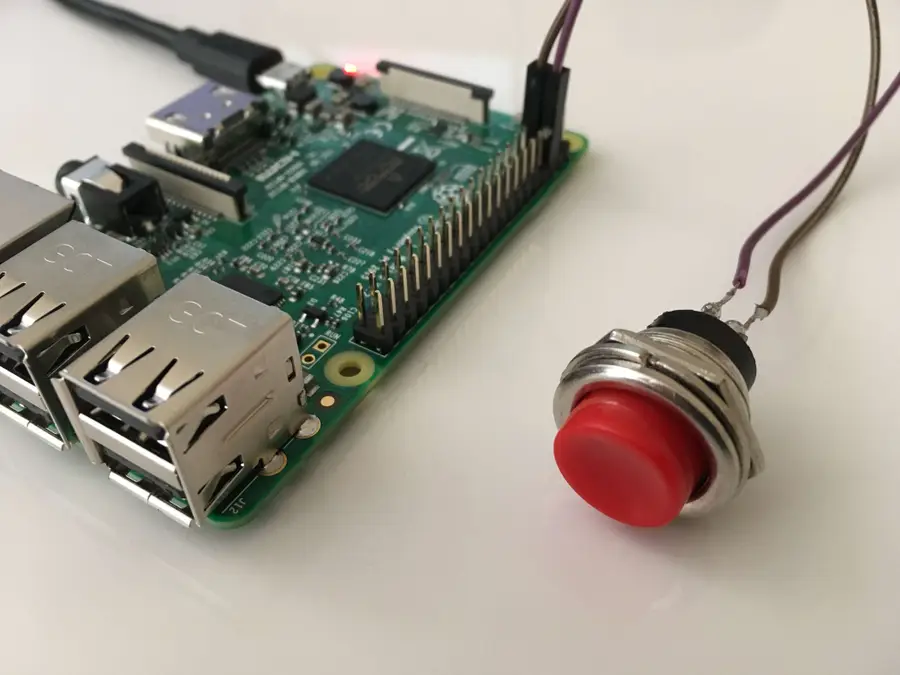
16 – Add a power button (Optional)

I decided not to do this since I was afraid I’d hit the button by mistake, but if you’re daring enough, howchooer Tyler wrote a guide on adding a Raspberry Pi power button (be sure to use a tiny one).
How to Add a Power Button to Your Raspberry Pi Because you should always safely shut down your Pi.

17 – Ready Player Two!

To play with a buddy or to play games that require more buttons than the NES controller offers, you have two options:

1. Connect a USB gamepad:

You can connect a second USB controller directly into your Gamepad Zero. You’ll need a small USB to Micro USB adapter to make the connection.

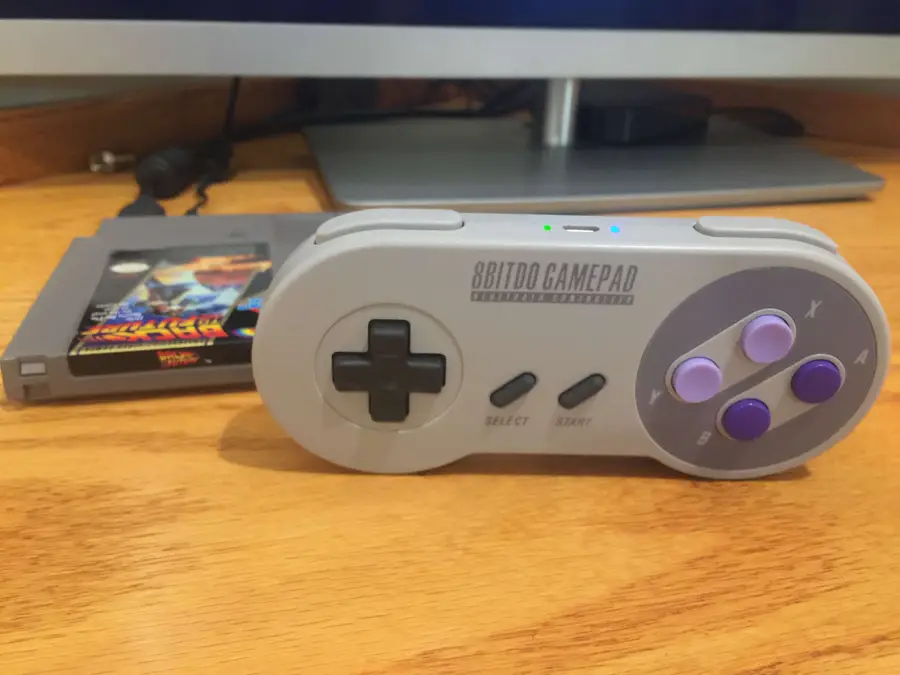
2. Use a bluetooth controller:

I wrote yet another guide on configuring RetroPie bluetooth controllers that will get you started.
🛈 To use a bluetooth controller, you’ll need to use the Raspberry Pi Zero W or a USB bluetooth dongle.

18 – All done!

This was a super easy but fun project — especially in comparison to my original Pi Cart project — and I hope you enjoyed reading it. If you have any comments or questions, post in the comments section below and I’ll do my best to help you out! 🙂
NEXT UP

How to Run a Minecraft Server on the Raspberry Pi

A whole world trapped inside your Pi.
howchoo (467)
December 7, 2023
There are several ways to go about running a Minecraft server on the Raspberry Pi. In this guide, I’ll cover how to install Nukkit—a cross-platform Minecraft server that’s super easy to set up on the Raspberry Pi. This server should work with PCs, consoles, and tablets running Minecraft 1.14. I’ll be using a Raspberry Pi
Continue Reading

howchoo

 467 guides
Introducing Howchoo, an enigmatic author whose unique pen name reflects their boundless curiosity and limitless creativity. Mysterious and multifaceted, Howchoo has emerged as a captivating storyteller, leaving readers mesmerized by the uncharted realms they craft with their words. With an insatiable appetite for knowledge and a love for exploration, Howchoo’s writing transcends conventional genres, blurring the lines between fantasy, science fiction, and the surreal. Their narratives are a kaleidoscope of ideas, weaving together intricate plots, unforgettable characters, and thought-provoking themes that challenge the boundaries of imagination.
Home Interests Woodworking

DIY Danish Oil: How to Make Homemade Own Danish Oil

Get the easiest and safest wood finish with homemade Danish Oil.
howchoo   (467)
September 29, 2023
7 minutes

Share

You’ll Need 3

What you’ll need
Interests
Howchoo is reader-supported. As an Amazon Associate, we may earn a small affiliate commission at no cost to you when you buy through our links.
Posted in these interests:
woodworking • 4 guides

Danish oil is a general purpose natural finish for wood. It adds depth and richness to any wood species and protects and seals at the same time. It is extremely easy to apply or reapply with a rag, and it is not sticky or toxic like most off the shelf stains and finishes.

There is no one definition of danish oil but generally, it refers to a mixture of oil, some type of varnish or polyurethane, and a thinner. A couple of brands make their own “Danish oil” and don’t disclose the exact recipe, but it is accepted that it is some combination of these three ingredients.

I’m going to show you my very basic recipe that you can then tweak as you get more experienced with it.

1 – Oil

The most common oil to use is boiled linseed oil. Commonly shortened to the acronym BLO, this oil has likely been used to protect wood for a couple hundred years. It is produced by extracting oil from the flax plant and concentrating it. It soaks into the wood, preventing other things like moisture and bugs from getting in, and it darkens the wood almost as if it were wet.

Make sure you buy something that is just boiled linseed oil as there are many products on the market that are not 100% BLO. This one from amazon does the job. You can experiment with other oils, but this one has served me and many other woodworkers extremely well.

I use BLO as 1/3 of my danish oil recipe.

2 – Varnish (or poly)

Using the term “varnish” as an umbrella term for polyurethane, shellac, and actual varnish is a bit of a misnomer, but it’s quite common. In this case, we are referring to any finish whose purpose is for sealing and protecting wood.

When making your own danish oil, you need a “varnish”. I typically reach for a satin polyurethane like this one from Minwax.

I also use about 1/3 in my recipe however, if you’re going to tweak the recipe for your specific project, I would start here. Both with the type of varnish you use and the quantity. A great example would be if you wanted something a bit more water resistant, I would recommend using more varnish. If you like a more shiny finish, use a high gloss poly like this one.

3 – Thinner

In order to go on evenly, the mixture needs a thinner like mineral spirits or paint thinner. Some people believe that only mineral spirits will work, but I’ve used both and cannot tell a difference (besides the price).

I would stick to 1/3 for this one.

4 – Apply the finish

Application is very easy. It generally follows this pattern:

  1. Apply the oil with a rag until the wood no longer soaks up the oil
  2. Wait 20 minutes
  3. Wipe off excess
  4. Let it dry for 24-48 hours
  5. Sand with high grit sandpaper (320 or higher)
  6. Repeat as needed
NEXT UP

How to Make the Perfect Dovetail Joint Using Traditional Woodworking Tools

Learn how to make the perfect dovetail joint every time!
howchoo   (467)
September 29, 2023

There are plenty of helpful videos on this subject, but I find guides with pictures to be useful with a project like this. I’ve added a lot of close ups for each step so the pictures should help guide you. 1 – Determine which piece of wood will be the tail board and which will

Continue Reading

howchoo

 467 guides

Introducing Howchoo, an enigmatic author whose unique pen name reflects their boundless curiosity and limitless creativity. Mysterious and multifaceted, Howchoo has emerged as a captivating storyteller, leaving readers mesmerized by the uncharted realms they craft with their words. With an insatiable appetite for knowledge and a love for exploration, Howchoo’s writing transcends conventional genres, blurring the lines between fantasy, science fiction, and the surreal. Their narratives are a kaleidoscope of ideas, weaving together intricate plots, unforgettable characters, and thought-provoking themes that challenge the boundaries of imagination.

Home Interests Router

How to Change Your Charter Spectrum WiFi Password

howchoo
howchoo   (467)
September 29, 2023
4 minutes

Share

You’ll Need 1

What you’ll need
Interests
Series
Howchoo is reader-supported. As an Amazon Associate, we may earn a small affiliate commission at no cost to you when you buy through our links.
Posted in these interests:
internet • 36 guides
router • 32 guides

If you’re a Charter WiFi user, you need to keep your network secure. Changing your WiFi password is a simple and effective way to add an additional layer of security to your network. This guide covers the best ways to manage your Charter Spectrum Network password.

1 – Change Wifi Password

You can change the Charter WiFi password using a browser. First, connect to the network. If you’re not sure what the WiFi password is, then use our guide to help you locate your network security key. Alternatively, you can use an ethernet cable to connect directly to your router.

  1. Open a browser window and go to this address: http://192.168.0.1
  2. Log in to your router with the admin username and password.
  3. Look through the menu options for an option to edit your WiFi network. The name of the network may be labeled with SSID, Gateway name, or Wireless Network.
  4. The password field will probably be labeled WPA Pre-Shared Key. Once you find it, create a new WiFi password and save the changes.

2 – View current WiFi information

You can view your WiFi network name and password using the official Charter Spectrum website. There are two ways to access the information.

Access using Manage Account

  1. Open Manage Account
  2. Choose Services
  3. Select Internet

Access using My Internet

  1. Log in to Spectrum
  2. Select My Internet
  3. Go to Manage WiFi Settings

3 – Default WiFi information

You can locate the default network login information on your Charter Spectrum WiFi router. Look underneath for a sticker containing your network name and key. Sometimes a technician will give you a separate note with the default Wi-Fi information.

If you still need assistance, visit the Spectrum Support page for more help.

NEXT UP

How to Change Your Frontier WiFi Password

howchoo
howchoo   (467)
November 25, 2023

There are a few reasons you might want to update or reset your WiFi password: making your network more secure, and making your password easier to remember and type. Improved network security You can add an extra layer of security to your network by changing the WiFi password. As long as your new password is

Continue Reading

howchoo

 467 guides

Introducing Howchoo, an enigmatic author whose unique pen name reflects their boundless curiosity and limitless creativity. Mysterious and multifaceted, Howchoo has emerged as a captivating storyteller, leaving readers mesmerized by the uncharted realms they craft with their words. With an insatiable appetite for knowledge and a love for exploration, Howchoo’s writing transcends conventional genres, blurring the lines between fantasy, science fiction, and the surreal. Their narratives are a kaleidoscope of ideas, weaving together intricate plots, unforgettable characters, and thought-provoking themes that challenge the boundaries of imagination.

Home Interests Raspberry Pi

Build Your Own Raspberry Pi Car Computer, or “Carputer”, with AutoPi

Bring your car into the future!
howchoo   (467)
September 29, 2023
10 minutes

Share

You’ll Need 7

What you’ll need
Interests
Howchoo is reader-supported. As an Amazon Associate, we may earn a small affiliate commission at no cost to you when you buy through our links.
Posted in these interests:
autos • 4 guides
news • 3 guides
pi • 92 guides

Have you ever wanted to add an entertainment system to your car, only to find that most units are expensive, come with a lackluster feature set, and feature a terrible interface?

Well, now you can build your own Raspberry Pi-powered car computer with AutoPi! Monitor your car’s vitals, watch movies, play retro games wiith RetroPie, use open source mapping tools, browse Spotify, and more — not while driving, of course.

build your own raspberry pi retro gaming rig

RetroPie: Build Your Own Raspberry Pi Retro Gaming Rig
How to install (and use) RetroPie!

What is AutoPi?

AutoPi is a complete IoT platform for your car, allowing you to quickly and easily build your own extensible car computer using a Raspberry Pi.

Thanks to a successfully funded Kickstarter campaign, AutoPi allows you to build a Raspberry Pi car computer complete with touchscreen — and add it to any vehicle using an ODB-II port.

Will this work on my car?

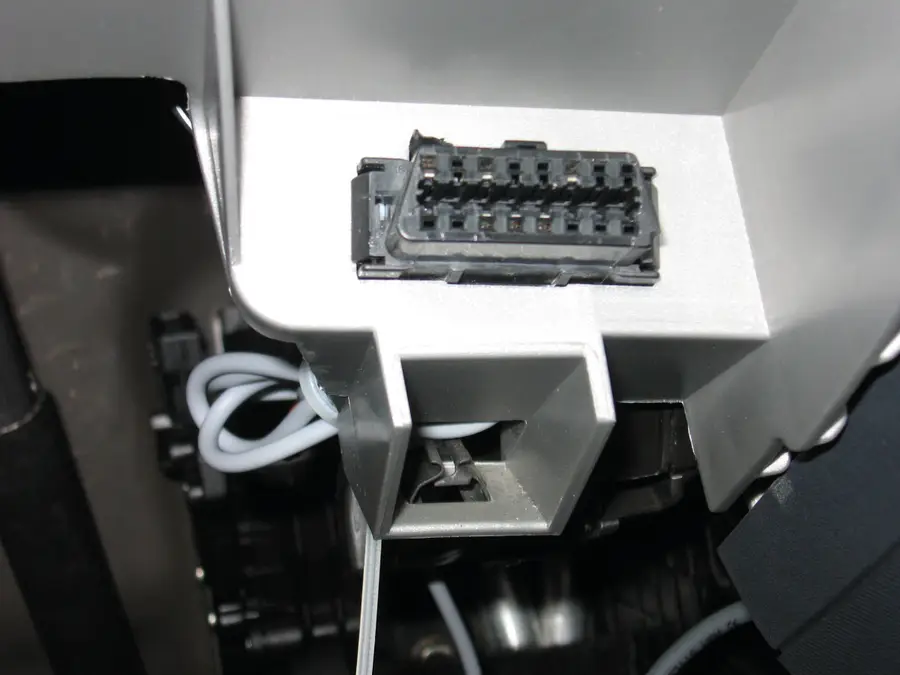
Nearly* any vehicle built in 1996 or later uses a standardized ODB-II port to allow communication with the car’s computer. This is the same port used to diagnose issues when your “Check Engine” light turns on. If you look beneath your dash, you’ll see this port!

* A small number of vehicles built in or after 1996, including certain electric vehicles, are exempt from the ODB-II port requirement. Thanks to howchooer sh4un for pointing this out!

Legal note: Be sure to check the laws in your state/country before building your own AutoPi. Some locales forbid “entertainment” systems from being visible to the driver.

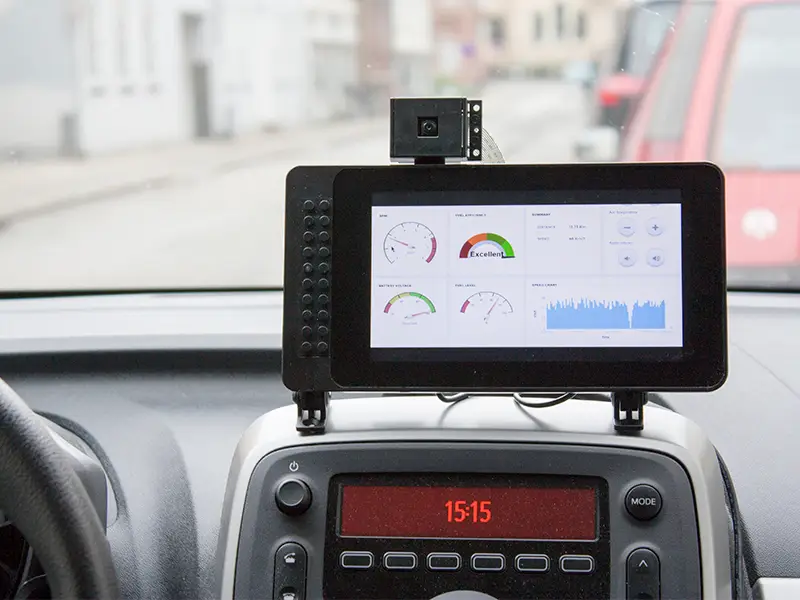
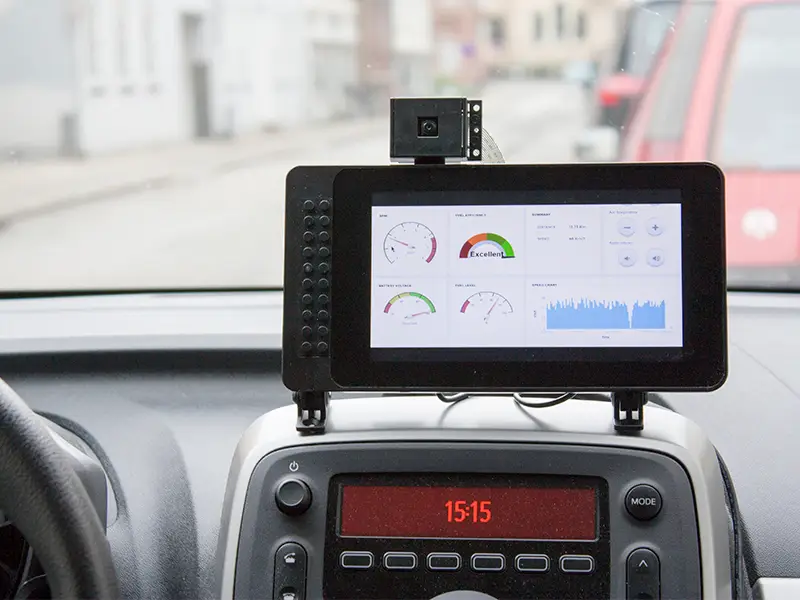
1 – The final setup

Because the AutoPi connects to your car’s ODB-II port, it can monitor your car’s vitals and alert you to issues.

2 – Assemble the case

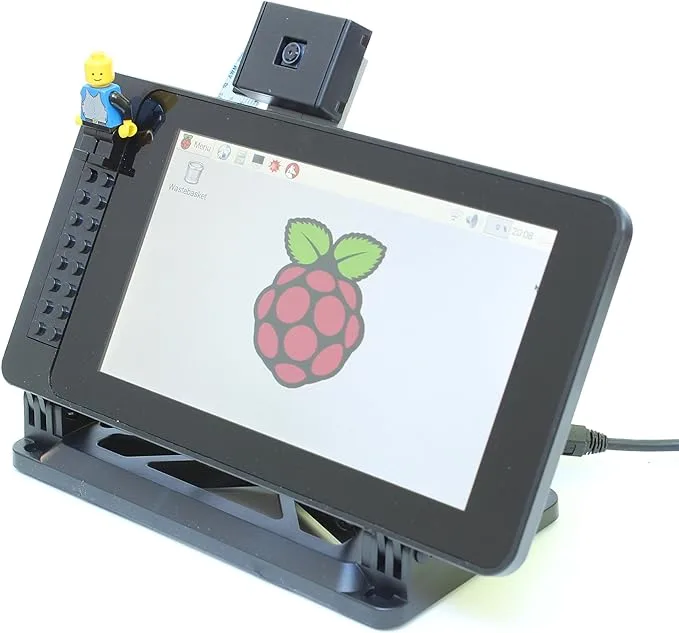
Rather than requiring custom hardware or a 3D-printed case, the AutoPi utilizes the SmartPi Touch case. See the following video for detailed instructions on assembling the case:

3 – Install the AutoPi adapter

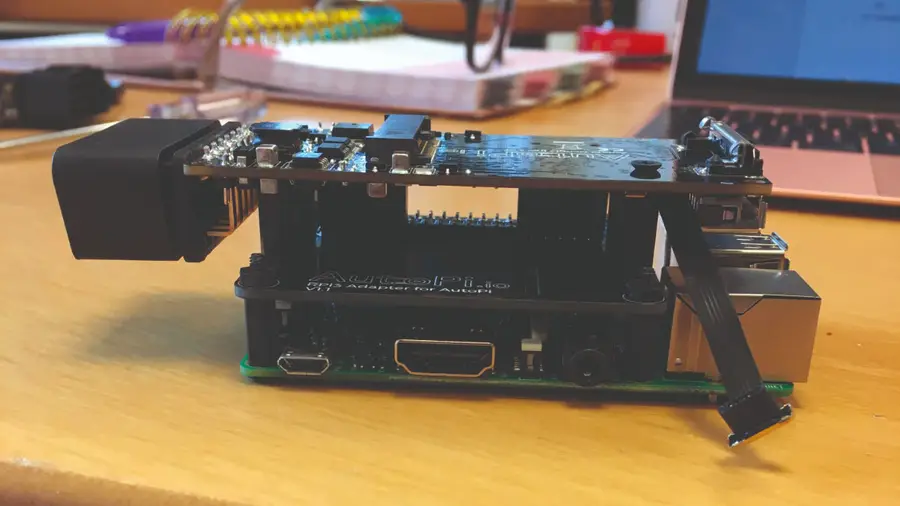
MagPi Magazine

The AutoPi adapter is made up of two parts: a board that connects to the Raspberry Pi 3 itself, and a dongle that connects to your car’s ODB-II data port.

4 – Install the AutoPi SD card image

The AutoPi library itself is available as a pre-made SD card image. Use a tool such as Etcher to burn the SD card image directly onto your Pi’s SD card.

5 – Mount the AutoPi

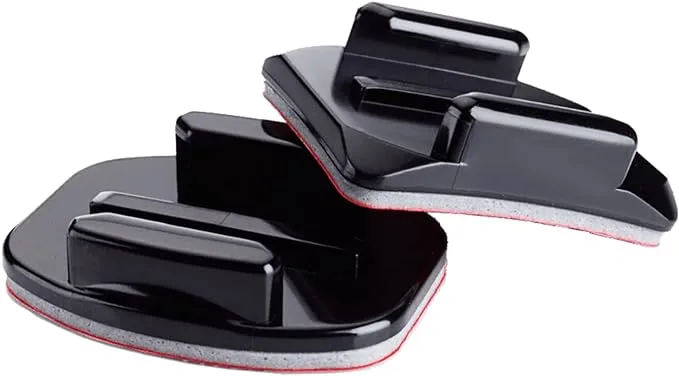
Using GoPro mounts, the AutoPi can mount anywhere. If you want to get fancy, you can integrate it directly into your dashboard. Otherwise, just mount it to your dashboard or windshield.

🛈 Obviously, mount it somewhere that won’t block your visibility.

6 – Connect the dongle

MagPi Magazine

Connect the AutoPi dongle to your car’s ODB-II port. This port can be found beneath the steering wheel, somewhere on the driver’s side.

There are several versions of the AutoPi dongle available. A few of them come with a Raspberry Pi Zero preinstalled, but there’s also a cheaper version where you “bring your own Pi”. The DIY version should be enough, especially if you want to use the larger, more powerful Raspberry Pi 3.

🛈 If your car is older than 1996, it probably has an ODB-I port, not an ODB-II port; thus, the AutoPi will not work with your car.

7 – Create your AutoPi account

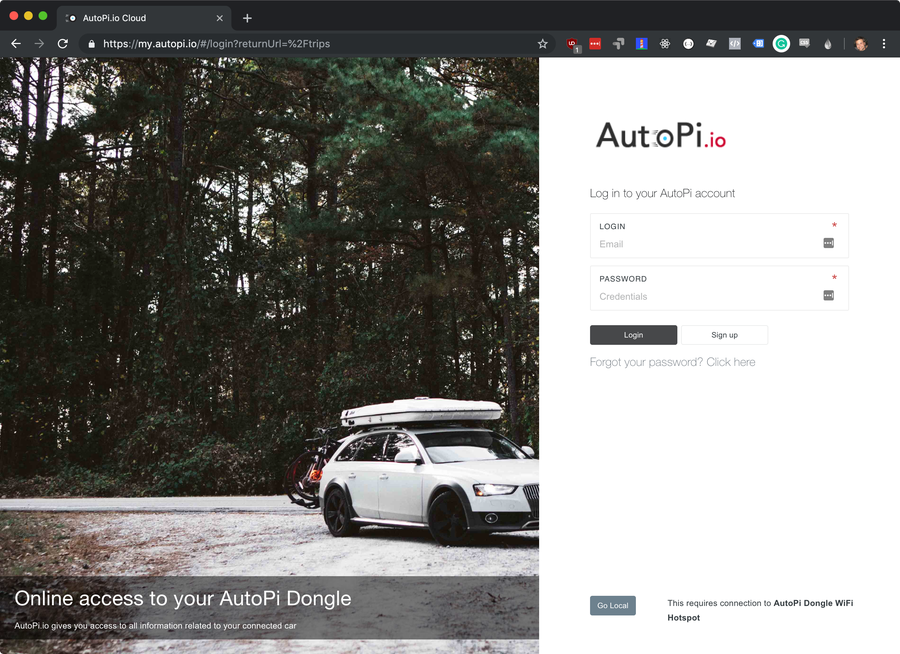
Visit AutoPi.io to create your AutoPi account. You’ll need to connect to your Raspberry Pi and run the following command to generate your unique ID:

How to Connect to a Raspberry Pi Remotely via SSH
The preferred (and most common) method of connecting to your Pi to run commands.

grains.get id

8 – Install and configure the AutoPi GUI

By default, the AutoPi has no graphical user interface. We’ll need to install one.

Install the interface

The graphical interface is technically a website that needs to run in Chromium’s Kiosk mode. You can learn how to install the interface using this guide.

Configure the interface

Once you’ve installed the interface and logged in, you’ll be able to configure it.

9 – Further customizations

MagPi Magazine

You can add tons of other customizations to your Raspberry Pi car computer, including:

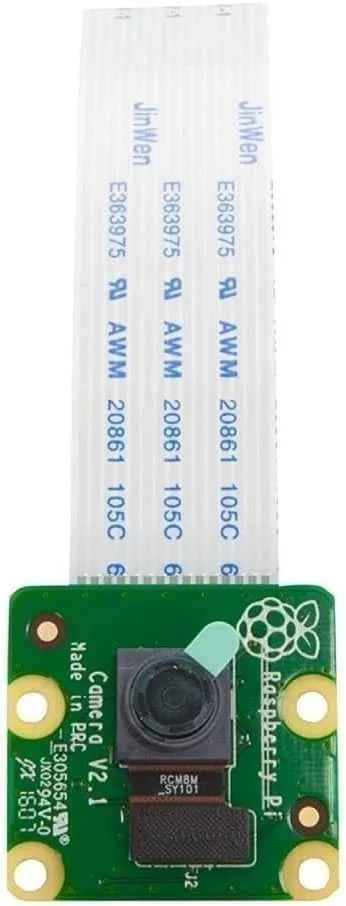
  • A dash cam using the official Raspberry Pi camera
  • Parking sensors
  • Voice control, similar to building a Raspberry Pi Echo
  • Auto-lock/unlock functionality
  • In-car mobile hotspot
  • And more! See AutoPi.io’s use cases section for more ideas.

Build Your Own Raspberry Pi Amazon Echo
Hello, Alexa Voice Service.

10 – Learn more

For more details on installing, configuring, and using the AutoPi, visit AutoPi.io. Be sure to also check MagPi Magazine’s excellent coverage of the AutoPi!

NEXT UP

How to Run a Minecraft Server on the Raspberry Pi

A whole world trapped inside your Pi.
howchoo   (467)
December 7, 2023

There are several ways to go about running a Minecraft server on the Raspberry Pi. In this guide, I’ll cover how to install Nukkit—a cross-platform Minecraft server that’s super easy to set up on the Raspberry Pi. This server should work with PCs, consoles, and tablets running Minecraft 1.14. I’ll be using a Raspberry Pi

Continue Reading

howchoo

 467 guides

Introducing Howchoo, an enigmatic author whose unique pen name reflects their boundless curiosity and limitless creativity. Mysterious and multifaceted, Howchoo has emerged as a captivating storyteller, leaving readers mesmerized by the uncharted realms they craft with their words. With an insatiable appetite for knowledge and a love for exploration, Howchoo’s writing transcends conventional genres, blurring the lines between fantasy, science fiction, and the surreal. Their narratives are a kaleidoscope of ideas, weaving together intricate plots, unforgettable characters, and thought-provoking themes that challenge the boundaries of imagination.

Home Interests Raspberry Pi

The Best Raspberry Pi HATs for Your Next Project (2022)

No need to measure your head for these HATs—just make sure they fit your Pi!
howchoo   (467)
September 29, 2023
19 minutes

Share

Interests
Posted in these interests:
pi • 92 guides

There are so many cool HAT extensions for the Raspberry Pi to make your next project literally sing (if that’s what you want)! HATs are great pre-built add-ons that enhance what your Raspberry Pi is capable of. From turning your Pi into an all-in-one recording device—to running the Raspberry Pi on solar power—to creating an awesome LED discoball—these HATs will make it easy to do some incredible things on your Raspberry Pi.

What is HAT?

HAT stands for “Hardware Attached on Top.” Essentially, a HAT is a pre-built extension for your Raspberry Pi that allows it to perform some desired function. Most HATs are plug-and-play, requiring no soldering. And the best HATs automatically configure themselves. The EEPROM module communicates with the Raspberry Pi, telling it which IO pins it’s using, how to configure them, and which drivers need to be installed.

What kinds of things can a Raspberry HAT do?

Anything! Well, that’s not actually true. But you’re certainly going to be surprised when you scroll down our list of Raspberry Pi HATs and learn all the cool things you can do just by plugging in an extension!

Unless noted otherwise, HATs do not come with a Raspberry Pi unit.

1 – Best Audio (DAC) HAT for the Raspberry Pi

Raspiaudio Audio Soundcard ++

The Raspiaudio Soundcard DAC HAT gives you everything you need to build an all-in-one stereo output sound machine with your Raspberry Pi. It includes onboard stereo speakers, two onboard microphones, and two 1.3 watt amplifiers. A great all-around audio HAT for the Raspberry Pi used in many audio projects.

Compatible Raspberry Pi Models
Pi Zero / 3 / 4

Honorable Mentions

We would be remiss not to specifically mention this mini speaker from Pimoroni, since it helped us make one of our biggest projects to date.

Pimoroni Pirate Audio Mini Speaker

One of these would look great on your desk! Comes with a full-color LCD screen and built-in Pirate audio software to turn your Raspberry Pi into a mini speaker.

We used an older version of this HAT in the Amazon Echo Furby known as Furlexa:

3 – iQaudio Pi

IQaudio Pi Modules Relaunched Under Raspberry Pi Umbrella
Add some audio support to your next Pi project.

Now owned by Raspberry Pi, these are official!

2 – Best GPS HAT for the Raspberry Pi

Adafruit Ultimate GPS HAT

This GPS HAT is hands-down the best HAT for locating your Raspberry Pi, even when using it outdoors on a cloudy day. Adafruit has a built-in antenna to help with finding your location even in the worst of weather.

The Adafruit GPS HAT includes a real-time clock and a backup battery for 7 + years of timekeeping even if the Raspberry Pi is off. It features 165 dBm sensitivity, 10 Hz updates, and 66 channels. It comes preassembled and ready to use!

Add location data and atomic-precision timekeeping by plugging this HAT into your Pi.

Compatible Raspberry Pi Models
Pi A + / B +

3 – Best PoE HAT for the Raspberry Pi

Official Raspberry Pi PoE HAT

If you’re looking to power your Raspberry Pi over a PoE (Power over Ethernet) enabled network and skirt the need for a power supply, then you’ll want a dependable PoE HAT. As we all know by now, the official Raspberry Pi Foundation hardware tends to set the gold standard by which other things aspire. So, yes, this is a more expensive PoE HAT, but it’s a piece of hardware on which it’s important not to skimp.

The official PoE HAT comes with a built-in fan and is compatible with an adapter for the Raspberry Pi 4.

Compatible Raspberry Pi Models
Pi 3 + / 4

Honorable Mention

PoE Texas Raspberry Pi PoE Hat

If you’re looking for a budget PoE Hat, then a great option is this one from PoE Texas. Because PoE Texas specialized in PoE’s, you can be relatively comfortable with the quality of this PoE HAT. Note that this one does not come with a fan, so it may not be the best option for a Raspberry Pi 4, which tends to run hot.

4 – Best TRIAC HAT

Waveshare 2-Channel TRIAC HAT

There aren’t many options when it comes to quality TRIAC HATs for the Raspberry Pi. If you need to switch voltages (up to 4400W max) across two devices without the traditional downfall of relays, then this is the HAT you’ll want to get for your Raspberry Pi.

Other features include:

  • Onboard STM32F0 microcontroller which supports direct command control
  • Optocoupler isolation preventing interference from the circuit
  • RC snubber circuit to protect it from power fluctuations
  • A reserved UART and I2C interface for working with other host control boards

What is a TRIAC HAT and what is it used for?

TRIAC stands for “triode for alternating current.” If we break down again, that is a three-electrode semiconductor device that will conduct in either direction when triggered by a positive or negative signal at the gate electrode. Let’s break it down again. It’s a relay that allows a current to flow in both directions.

The most common application for a TRIAC is in a light-dimmer or adjustable speed electric fan. The TRIAC allows the current to be adjusted in both directions to allow the light to dim or brighten.

Be careful! Do not touch the high voltage section with bare hands!

PiHut
Compatible Raspberry Pi Models
All

5 – Best HAT for kids and learning

Official Raspberry Pi Sense HAT

I’m going to say it. Every kid should have a Raspberry Pi and Sense HAT. With the Sense HAT from the Raspberry Pi, kids can easily see the results of their programming in addition to a host of other cool features. It was constructed specifically for the AstroPi mission for kids to see their programs on the International Space Station, which we reported on.

The Raspberry Pi Sense HAT includes an 8×8 RGB LED matrix, a five-button joystick, and the following sensors:

  • Gyroscope
  • Accelerometer
  • Magnetometer
  • Temperature
  • Barometric pressure
  • Humidity

Python module

Here’s a great Python module for controlling the Sense HAT.

Compatible Raspberry Pi Models
Pi 2, 3, 4

6 – Best case for a Raspberry Pis with HATs

Official Raspberry Pi HAT Enclosure

The perfect case for the Sense HAT mentioned above.

Now, you should probably realize that when you put certain HATs on your Raspberry Pi that the Pi may not fit in a standard case. So be sure to get a case that states it will Raspberry Pis with a HAT installed, like this official HAT case from the Raspberry Pi Foundation.

We love that this case has a pop-up clear top, so you can access and interact with your Raspberry Pi HAT. This should make it usable for most HATs that you’ll get for your Pi. Note: you’ll still need to make sure your HAT does not have plugs that this case will not support.

7 – Other cool HATs for the Raspberry Pi

JuiceBox Zero

The JuiceBox Zero HAT for the Raspberry Pi Zero lets you power it from a battery! What makes this even cooler is that even works and charges your battery via a micro USB cable built-in. It has status indicator lights indicating low-battery, on/off, charging, and charge completely. It has a built-in camera mount if you want to use this as a truly mobile security camera. Best of all, it requires absolutely no code to use! We featured this HAT in our solar-powered Raspberry Pi build guide.

Here’s a video that shows you how it works:

PUD (Pull Up/Down) HAT

With this nifty little HAT from ModMyPi, you can forget about the wiring when adding a pull up / down resistor to a circuit. Wire up the sensor output to the pin on the PUD HAT, add a shunt jumper to either pull up or down. When you apply a signal voltage from your sensor or switch, the Raspberry Pi can sense into which logic state the pin has been pulled! So cool!

The PiHut has made a great guide showing you how to use the PUD HAT.

Pimoroni Grow Kit

Perfect for any gardener and Pi fanatic! This a complete compact grow system featuring the Grow HAT from Pimoroni that helps you monitor and take the best care of your plants and herbs. There are built-in moisture sensors to let you know when your plants need some watering. You can even custom tailor the specifications for different plants’ water and food needs.

Adafruit RGB Matrix Bonnet

Another HAT we’ve used in our projects is the Adafruit RGB Matrix Bonnet, which allows you to program full color LED displays and light shows. Works with 16×32, 32×32, 32×64 or 64×64 RGB LED Matrices to create a great display. For more details on how to use this, see our guide on building an LED Matrix with a Raspberry Pi.

And for more inspiration, see how the RGB Matrix Bonnet helped us make an LED NHL scoreboard!

Build Your Own Live NHL Scoreboard with Raspberry Pi and LEDs!
Get real-time game scores and more for your favorite hockey team.

NEXT UP

How to Run a Minecraft Server on the Raspberry Pi

A whole world trapped inside your Pi.
howchoo   (467)
December 7, 2023

There are several ways to go about running a Minecraft server on the Raspberry Pi. In this guide, I’ll cover how to install Nukkit—a cross-platform Minecraft server that’s super easy to set up on the Raspberry Pi. This server should work with PCs, consoles, and tablets running Minecraft 1.14. I’ll be using a Raspberry Pi

Continue Reading

howchoo

 467 guides

Introducing Howchoo, an enigmatic author whose unique pen name reflects their boundless curiosity and limitless creativity. Mysterious and multifaceted, Howchoo has emerged as a captivating storyteller, leaving readers mesmerized by the uncharted realms they craft with their words. With an insatiable appetite for knowledge and a love for exploration, Howchoo’s writing transcends conventional genres, blurring the lines between fantasy, science fiction, and the surreal. Their narratives are a kaleidoscope of ideas, weaving together intricate plots, unforgettable characters, and thought-provoking themes that challenge the boundaries of imagination.