Home Interests Internet

How to Clear Your Browser Cache for Any Browser

Trouble loading web pages? Try clearing your cache!
howchoo   (467)
November 22, 2023
6 minutes

Share

Interests
Posted in these interests:
chrome • 7 guides
internet • 36 guides
safari • 1 guides

Clearing your browser cache is a great way to solve common internet issues. If a webpage isn’t loading properly, one of the first things you should try is clearing your browser cache.

This guide includes steps for the most common internet browsers—Chrome, Firefox, Safari, Internet Explorer, and Edge. If your browser isn’t listed, visit the developer’s website to look for instructions.

1 – Clear Chrome browser cache

The Chrome browser cache can be cleared from within the browser itself.

  1. Open Google Chrome.
  2. In the upper-right hand corner, select the icon that looks like three dots. This will open a menu.
  3. Go to More tools.
  4. Choose Clear browsing data.
  5. Select a time period to remove data from, or opt to delete everything.
  6. There are boxes next to the type of cached data you can delete—Browsing HistoryCookies and other site data, and Cached images and files. Check the boxes to remove the data.
  7. To delete the cache, click Clear data.

2 – Clear Firefox browser cache

Firefox has a built-in feature to help remove the cache from your browser.

  1. Open Firefox.
  2. In the upper-right hand corner, open the menu using the icon that looks like three lines.
  3. Go to Options.
  4. On the left, choose Privacy & Security.
  5. Scroll until you see Cookies and Site Data. Choose Clear Data….
  6. Place a checkmark in the box next to each type of cached data you want to remove.
  7. Click Clear and close the page.

3 – Clear Safari browser cache

You can clear the cache in Safari using the Develop drop-down menu.

  1. Open Safari.
  2. Open the Develop drop-down menu.
  3. Choose Empty Cache.

You can also use the extension Option + Command + E

If you’re missing the Develop drop-down menu, you may need to make it visible.

Show the Develop menu in Safari

  1. Open Safari.
  2. Under the Safari drop-down menu, go to Preferences.
  3. Go to the Advanced tab.
  4. Select Show Develop menu in menu bar.

4 – Clear Internet Explorer

The cache in Internet Explorer can be cleared from the browser window.

  1. Open Internet Explorer.
  2. Click on the gear-shaped icon in the upper-right hand corner of the browser.
  3. Go to Safety.
  4. Choose Delete Browsing History….
  5. Check the boxes next to the data you want to delete or options you want to use. You may not want IE to preserve your favorite website data when clearing the cache.
  6. Click Delete.

5 – Edge browser cache

Edge has a built-in feature to help clear the browser cache.

  1. Open Edge.
  2. Click the menu icon in the upper-right hand corner that looks like three dots. A drop-down menu will appear.
  3. Choose History.
  4. In the upper right, click Clear History.
  5. Check the boxes next to the type of cached data you want to remove.
  6. Choose Clear.
NEXT UP

How to Change Your Frontier WiFi Password

howchoo
howchoo   (467)
November 25, 2023

There are a few reasons you might want to update or reset your WiFi password: making your network more secure, and making your password easier to remember and type. Improved network security You can add an extra layer of security to your network by changing the WiFi password. As long as your new password is
Continue Reading

howchoo

 467 guides

Introducing Howchoo, an enigmatic author whose unique pen name reflects their boundless curiosity and limitless creativity. Mysterious and multifaceted, Howchoo has emerged as a captivating storyteller, leaving readers mesmerized by the uncharted realms they craft with their words. With an insatiable appetite for knowledge and a love for exploration, Howchoo’s writing transcends conventional genres, blurring the lines between fantasy, science fiction, and the surreal. Their narratives are a kaleidoscope of ideas, weaving together intricate plots, unforgettable characters, and thought-provoking themes that challenge the boundaries of imagination.

Home Interests Chrome

How To Save Tab Groups in Google Chrome (Two Ways!)

Don’t lose all the work you’ve tabbed!
howchoo   (467)
November 22, 2023
4 minutes

Share

You’ll Need 1

What you’ll need
Interests
Howchoo is reader-supported. As an Amazon Associate, we may earn a small affiliate commission at no cost to you when you buy through our links.
Posted in these interests:
chrome • 7 guides
google • 9 guides
googleworkspace • 6 guides

Being able to create tab groups in Google Chrome is great, but being able to save them for the next time you open Chrome is even better. Keeping your Chrome open all the time is impractical and can negatively affect your computer’s RAM, so you need a better solution that will make accessing your tabs easy.

Great news for you: we’ve got two ways to save your tab groups in Google Chrome that you’ll be able to access whatever device you’re logged into.

1 – Changing On Startup options (Recommended)

  1. Click the three dots menu.
    – Located in the top right of the window, this is where you go for Chrome settings.
  2. Navigate to the settings page.
    – It will open in a new tab.
  3. Change the on startup settings.
    – You can navigate there by searching “on startup” in the search box or scrolling down to the bottom for the on startup box.
    – Once there, check off the “continue where you left off” option.

2 – Bookmark your Tabs

Unlike the first option, this won’t open your tabs automatically from your last session in Google Chrome. However, it will enable you to find them again should you need them.

There are a couple of easy ways to bookmark all your tabs at once! 1. Right-click in an open space beside the tabs, then select “Bookmark all tabs.” 2. Press Ctrl+Shift+D for Windows or Cm+Shift+D on Mac to bookmark all the tabs.

Chrome will save a new folder in your bookmarks for you to click on later. You can also rename it to whatever fits!

NEXT UP

How to Search in Google Docs (Find Words)

Try ⌘ + F.
howchoo   (467)
December 13, 2023

If you just need to search and find a single word or multiple words in Google Docs, press ⌘ + F. If you want to find and replace words in your Google Doc, then we’ll show you how to do that too! 1 – Press cmd + F To find a word (or words) in

Continue Reading

howchoo

 467 guides

Introducing Howchoo, an enigmatic author whose unique pen name reflects their boundless curiosity and limitless creativity. Mysterious and multifaceted, Howchoo has emerged as a captivating storyteller, leaving readers mesmerized by the uncharted realms they craft with their words. With an insatiable appetite for knowledge and a love for exploration, Howchoo’s writing transcends conventional genres, blurring the lines between fantasy, science fiction, and the surreal. Their narratives are a kaleidoscope of ideas, weaving together intricate plots, unforgettable characters, and thought-provoking themes that challenge the boundaries of imagination.

Home Interests MacOS

How to Get Dashboard on MacOS Big Sur

It’s as close to the old Dashboard as you’ll get!
howchoo   (467)
November 22, 2023
7 minutes

Share

Interests
Posted in these interests:

Mac

mac • 24 guides
macos • 20 guides

With the introduction of the new macOS, Big Sur, many things like even securely emptying your trash bin have changed. Now, Apple has permanently removed the beloved Dashboard from its operating systems. For many, this caused feelings ranging from mild discontent to full-on rage!

MacOS Big Sur users—we’re here to tell you to relax—not just because it’s good for your health, but because we’ve got a decent alternative to the classic Mac Dashboard that you might grow to love even more.

In this guide, we’ll show you how to use widgets and hot corners on your Mac to simulate your previous experience with Dashboard.

What is a widget?

Widgets are small programs like a calculator that used to appear when you opened up your dashboard. They haven’t disappeared, fortunately.

What is a hot corner?

Apple created “hot corners” that activate some applications when you hover your mouse on a selected corner of your screen. We’ll be setting one up for the Notification Center.

1 – Head over to “Mission Control”

  • Go to your Mac’s Settings.
  • Click Mission Control.

2 – Select “Hot Corners”

Mission Control is where you used to activate your Dashboard. Now, you’ll use it to activate Hot Corners.

3 – Add “Notification Center” to your desired hot corner

Using the drop-down menu arranged at your desired “hot corner”:

  • Select and add Notification Center.
  • Click OK.

I chose the bottom-left of the screen because I rarely use that part of the screen on my Mac for anything else.

4 – Use the “hot corner” to bring up your Notification Center

  • Hover your mouse on the corner of the screen you selected for your “hot corner.” (Mine is on the bottom-left.)

You should see the notification center pop-up on the right-hand side of your desktop.

How is Notification Center like the Dashboard?

The Notification Center contains many of the same tools and widgets to which you were accustomed on your previous Dashboard. Things like calculator, weather, stock prices, etc. can all be added or deleted from your Notification Center. In the next step, I’ll show you how to customize it with your favorite Dashboard widgets!

In addition, you can also see notifications from apps, calendars, etc. in the Notifications tab on the upper-right of the window.

5 – Customize the Notification Center

You can add and remove widgets from your Notification Center.

  • Click the small edit button at the bottom of the Notification Center.
  • Click and drag the widgets you want into your Notification Center
  • Drag the ones you want to remove outside.
  • Click Done.

What about other widgets?

Don’t see the widget you want? You can download more widgets in the Apple App store by clicking the App Store button at the bottom of the editing screen.

Right now there aren’t too many widgets from which to choose. There are some new ones coming out soon, however, like the addition of the universal clipboard. But we’re certain that developers will be making many more widgets in the near future.

Enjoy your new Dashboard-like Notification Center!

NEXT UP

How to Enable the “Popping” Sound When Adjusting the Volume on Your Mac

howchoo
howchoo   (467)
December 13, 2023

Starting with MacOS Sierra and High Sierra, your Mac will no longer play a “pop” sound when you adjust your volume. If you prefer to have this sound when you adjust volume up and down (as I do), this guide will teach you how to reenable it. 1 – Open Sound System Preferences Navigate to System

Continue Reading

howchoo

 467 guides

Introducing Howchoo, an enigmatic author whose unique pen name reflects their boundless curiosity and limitless creativity. Mysterious and multifaceted, Howchoo has emerged as a captivating storyteller, leaving readers mesmerized by the uncharted realms they craft with their words. With an insatiable appetite for knowledge and a love for exploration, Howchoo’s writing transcends conventional genres, blurring the lines between fantasy, science fiction, and the surreal. Their narratives are a kaleidoscope of ideas, weaving together intricate plots, unforgettable characters, and thought-provoking themes that challenge the boundaries of imagination.

Home Interests Windows

How to Sculpt in Blender

Let’s work with open source digital clay!
howchoo (467)
November 21, 2023
11 minutes

Share

Interests
Posted in these interests:
3dprinting • 36 guides

Mac

mac • 24 guides
 
windows • 6 guides
Blender has made a name for itself over the years as the go-to open source 3D modeling application. It’s free price tag and no limitation regarding commercial use makes it an ideal candidate for many developers, artists, and more. The latest edition has a selection of sculpting tools that make Blender a viable option that stands up to many commercial-grade competitors. Sculpting makes it possible to work with 3D shapes in real time by manipulating them as you might an actual piece of clay. These digital creations have a range of use cases from video games to 3D printing and much more.

1 – Make sure Blender is up to date

Before you begin any new project in Blender, make sure you’re running the most recent version. Unless you’re using a specific version for a particular reason, it’s good practice to keep your software up to date. Check out our guide on how to update Blender if you’ve never done this before.

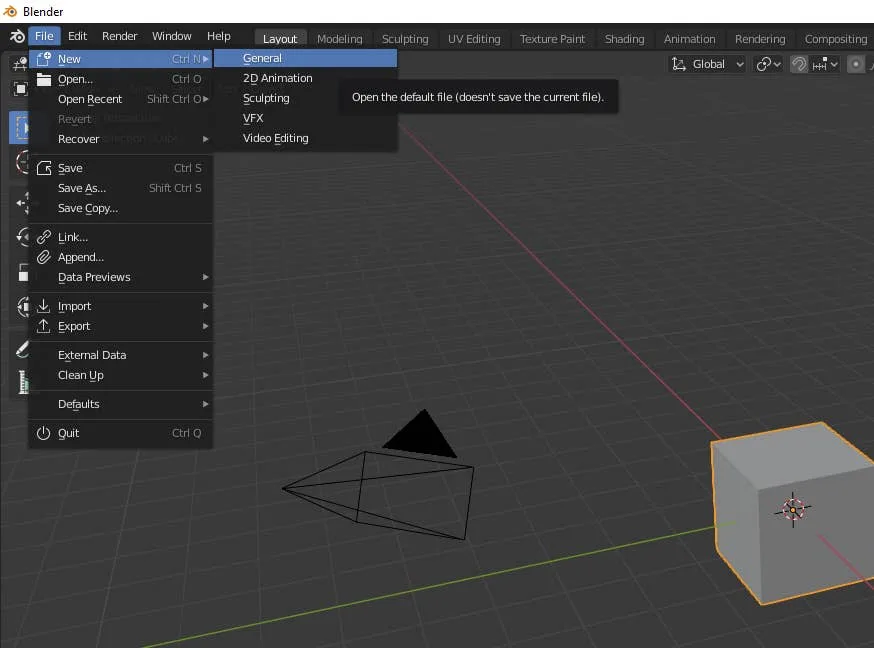
2 – Start a new file

Open Blender and create a new project file. You can start with anything but choose ‘General’ if you aren’t sure. It’s important to understand how to access Sculpting mode. You can also choose to create a new Sculpting file which will take you directly into Sculpting mode.

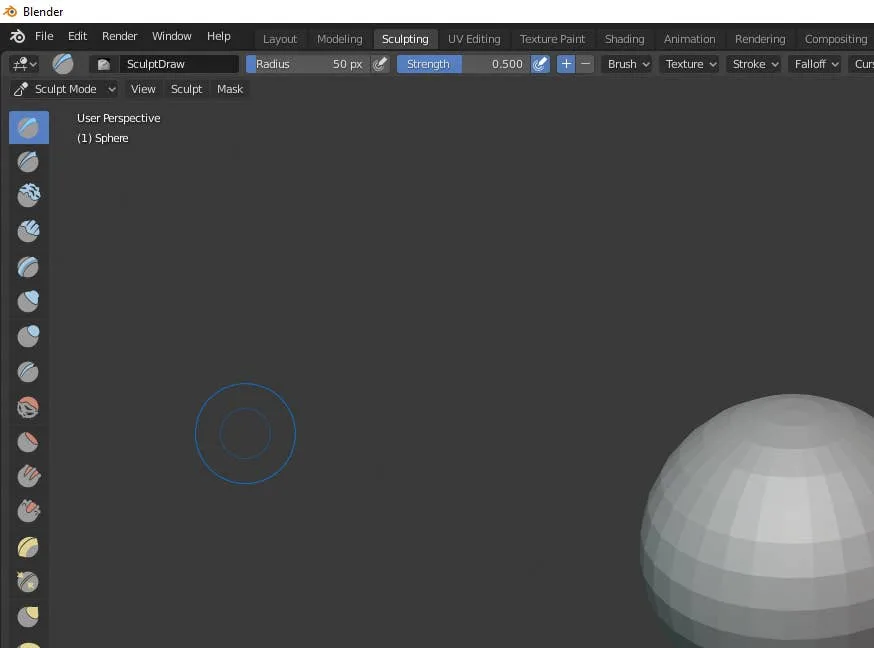
3 – Choose the sculpting tab

Along the top of the Blender window is a series of tabs that will take you into different types of editing modes. Select the Sculpting tab if it’s not already enabled.

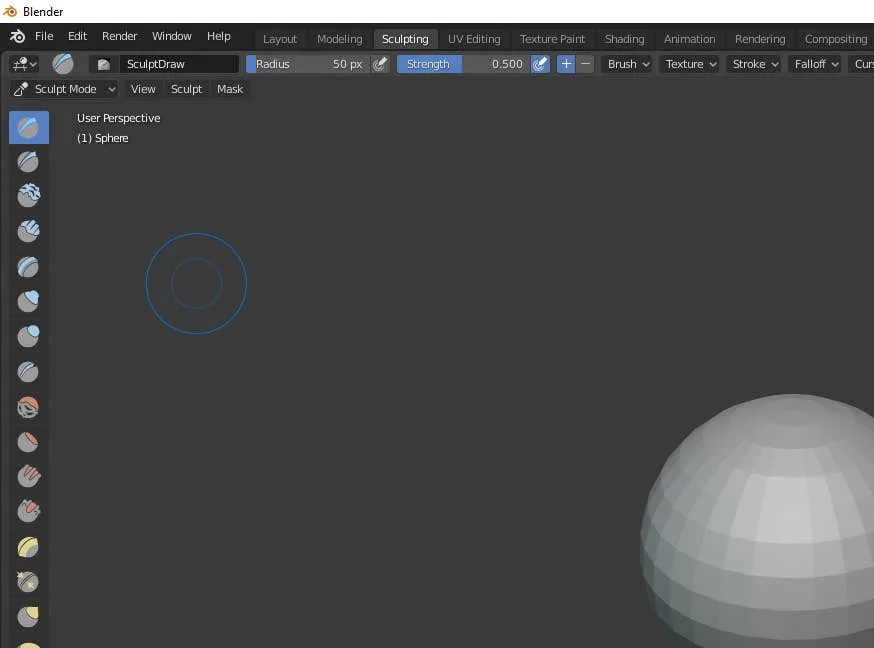
4 – Familiarize with the sculpting tools

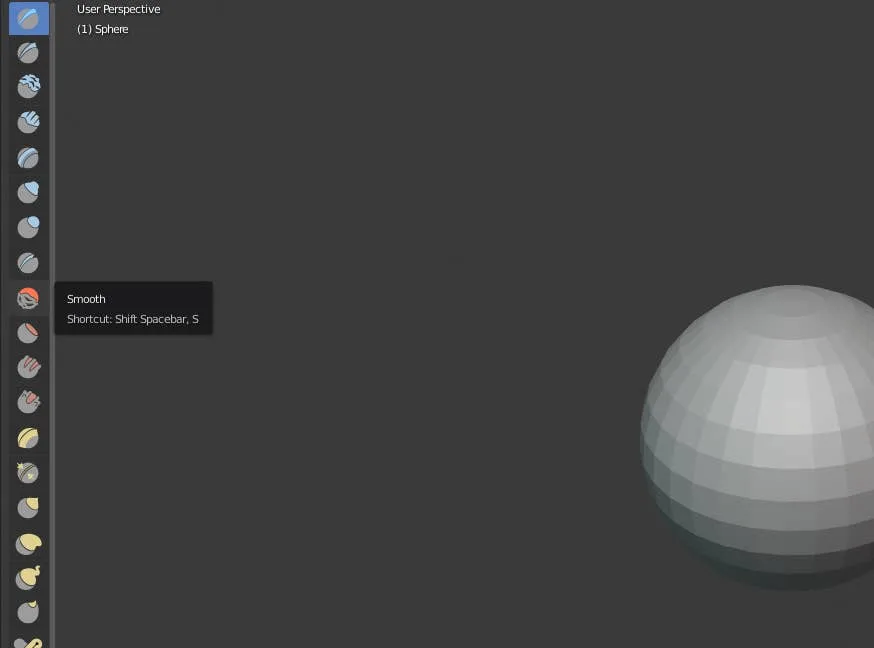
On the left hand panel is a list of Sculpting tools that let you draw freehand, inflate faces, add crease, make blobs, and more. The more faces your object has, the more detail you can add with Sculpting. Explore each tool individually to get a feel for what they do. We also have a complete list of Blender Sculpting tools below if you’re looking for something specific.

5 – Blender Sculpting Tools List

  • Draw – This tool allows you to paint with a 3D brush, moving vertices either in or out.
  • Clay – The clay tool paints inward or outward but only on a specific plane.
  • Clay Strips – The Clay Strips tool works just like the Clay tool but uses a cube-shaped brush instead of a spherical one.
  • Layer – With the layer tool, the height of each brush stroke is capped. Letting go of the button and starting a new stroke will reset the height cap.
  • Inflate – This tool expands (or contracts when using Deflate mode) vertices based on the direction of their normals.
  • Blob – Using this tool will round meshes outward or inward into a spherical shape.
  • Crease – This tool makes sharp crevices.
  • Smooth – The Smooth tool evens out vertices touched by the brush.
  • Flatten – With Flatten, you can make solid, flat, planes on an otherwise bumpy surface.
  • Fill – This tool pulls vertices up level with others to fill in gaps. The Deepen mode will push them down.
  • Scrape – The Scrape tool is similar to both Flatten and Fill by moving vertices in relation to a plane. Its inverse is the Peak tool which pushes vertices upwards and away from a given plane.
  • Pinch – Wherever the brush is placed when pressing the mouse button will attract vertices to the center of that point. The inverse of the tool is Magnify which moves them away from the brush center.
  • Grab – The Grab tool allows you to pick and move vertices by clicking and dragging.
  • Snake Hook – Vertices are pulled along each brush stroke to form a snake-like pattern.
  • Thumb – When using the Thumb tool, vertices within the brush area are flattened towards the direction of the stroke.
  • Nudge – The Nudge tool lets you push vertices with the stroke of a brush.
  • Rotate – Clicking and dragging will rotate the vertices within the brush. Moving the brush will determine how far and which direction the rotation goes.
  • Simplify – This tool will address any short edges by collapsing them but only if dynamic topology is enabled under the Brush > Sculpt Tool menu.
  • Mask – Use this tool to select vertices that you don’t want to be affected by other brushes.
  • Annotate – Annotate offers a selection of annotation tools including lines, free-hand, and polygonal options.

6 – Sculpt your object

There’s no way to tell you exactly how to sculpt something without knowing what you want to sculpt. You can always learn through trial and error but I always recommend researching tutorials on how to create the objects you want to make. Without directly copying other makers, tutorials can provide insights on how to use these tools to create your own variations. Take your time and be sure to pace yourself. Digital sculpting has a steep learning curve. A little patience and diligence will pay off faster than you might think. Congratulations and welcome to the world of sculpting!
NEXT UP

How to Enable the “Popping” Sound When Adjusting the Volume on Your Mac

howchoo
howchoo (467)
December 13, 2023
Starting with MacOS Sierra and High Sierra, your Mac will no longer play a “pop” sound when you adjust your volume. If you prefer to have this sound when you adjust volume up and down (as I do), this guide will teach you how to reenable it. 1 – Open Sound System Preferences Navigate to System
Continue Reading

howchoo

 467 guides
Introducing Howchoo, an enigmatic author whose unique pen name reflects their boundless curiosity and limitless creativity. Mysterious and multifaceted, Howchoo has emerged as a captivating storyteller, leaving readers mesmerized by the uncharted realms they craft with their words. With an insatiable appetite for knowledge and a love for exploration, Howchoo’s writing transcends conventional genres, blurring the lines between fantasy, science fiction, and the surreal. Their narratives are a kaleidoscope of ideas, weaving together intricate plots, unforgettable characters, and thought-provoking themes that challenge the boundaries of imagination.
Home Interests Google Docs

How to Save a Word Document as a Google Doc

Convert your Word Doc to a Google Doc…
howchoo   (467)
November 21, 2023
5 minutes

Share

You’ll Need 1

What you’ll need
Interests
Howchoo is reader-supported. As an Amazon Associate, we may earn a small affiliate commission at no cost to you when you buy through our links.
Posted in these interests:
googledocs • 4 guides
googleworkspace • 6 guides
microsoft • 2 guides

Many people choose to convert a Word file because it’s much easier to share it in Google Docs.

To save a Word document as a Google Doc, it must first be converted via Google Drive. Word docs generally convert pretty well into Google Docs, so you shouldn’t have to make too many edits once it’s complete. Once it’s a Google Doc, then it will be saved as one, too. Note that this process works for saving both .doc and .docx files to Google Docs.

We’ll walk you through the steps to save a Word document as a Google Doc.

1 – Open the Word document in Google Docs

On the main Google Docs screen, select the “Open file picker” folder icon.

2 – Select your Word file

Either drag the Word document file into the selector or click select file from your device to search through your computer for the Word doc file.

Once you upload it, Google Docs will automatically convert the Word document and open it.

3 – Change the file name and fix any formatting issues

Now that your Word document is open in Google Docs, it is automatically saved in Google Docs under the file name of the Microsoft Word doc.

Change Google Doc file name

You may want a different file name for the Word document that you converted to a Google Doc. If so, simply click the file name on the top-left and edit it how you wish.

Fix formatting issues from conversion

While Google does a great job converting Word documents to Google Docs, it’s still not a perfect process. You should go through your new Google Doc to ensure that the formatting is the way you want it. You may find that you need to change the marginsdouble-space, or make other changes to the Google Doc.

How to Double-Space in Google Docs
What’s better than one space…that’s right.

How to Change Margins in Google Docs
There’s two options for changing a page’s margins.

Can I convert it back to a Word document?

Sure! If you need to convert a Google Doc to a Word document, then we have a guide for that.

NEXT UP

How to Search in Google Docs (Find Words)

Try ⌘ + F.
howchoo   (467)
December 13, 2023

If you just need to search and find a single word or multiple words in Google Docs, press ⌘ + F. If you want to find and replace words in your Google Doc, then we’ll show you how to do that too! 1 – Press cmd + F To find a word (or words) in

Continue Reading

howchoo

 467 guides

Introducing Howchoo, an enigmatic author whose unique pen name reflects their boundless curiosity and limitless creativity. Mysterious and multifaceted, Howchoo has emerged as a captivating storyteller, leaving readers mesmerized by the uncharted realms they craft with their words. With an insatiable appetite for knowledge and a love for exploration, Howchoo’s writing transcends conventional genres, blurring the lines between fantasy, science fiction, and the surreal. Their narratives are a kaleidoscope of ideas, weaving together intricate plots, unforgettable characters, and thought-provoking themes that challenge the boundaries of imagination.

Home Interests Illustrator

How to Remove a Background in Illustrator

And transparency to your work in Illustrator.
howchoo   (467)
November 21, 2023
5 minutes

Share

You’ll Need 1

What you’ll need
Interests
Howchoo is reader-supported. As an Amazon Associate, we may earn a small affiliate commission at no cost to you when you buy through our links.
Posted in these interests:
 
adobe • 7 guides
digitalillustration • 2 guides
illustrator • 3 guides

Adobe Illustrator has a few tools available that allow users to remove the background from their work. This process makes it possible to create artwork with transparent areas anywhere they want. In guide this, I’ll go over the easiest ways to do this, as there are more complex processes don’t always apply to general use cases.

I’ll provide a simple example as we go along, but be aware that’s possible to create more complex images with a little bit of patience and familiarity with Illustrator.

1 – Enable transparency

You’ll first need to ensure the image you’re working with is a vector. If it’s a picture, you can turn it into a vector by going to the top menu and choosing Window > File Trace.

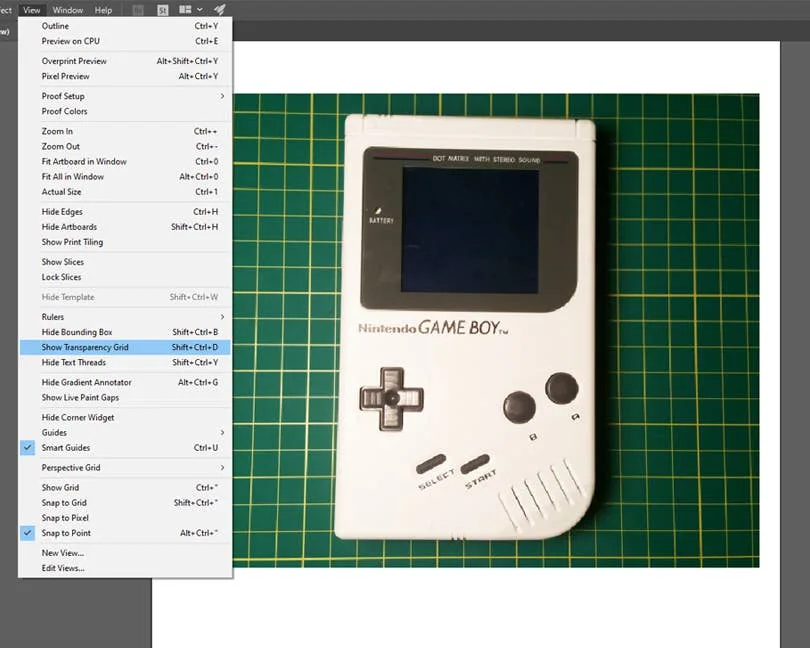
Next, we need to enable transparency in order to delete the background, otherwise it defaults to a plain white background. To do this, go to the top menu and navigate to View > Show Transparency Grid. The Shift + Ctrl/Command + D keyboard shortcut will also enable transparency.

2 – Select the background

Select the image and go to Object > Expand from the top menu to show all of the points in your vector image. Select only the points that pertain to the background you want to remove.

3 – Delete the background

Once you’ve selected the background, press Delete on your keyboard. This will remove anything that was selected and replace it with transparency.

Now that your background is removed, you can save and export the image or continue your work in Illustrator.

4 – Alternative method: us a clipping mask

Alternatively, you can use a clipping mask to remove the background. You will need to enable transparency from step one and then follow our guide on how to use a Clipping Mask in Illustrator to make the background transparent.

How to Make a Clipping Mask in Illustrator
Cut out images with custom shapes in Illustrator.

NEXT UP

How to Resize an Image in InDesign

There are two options for resizing in InDesign: the easy way and the precise way.
howchoo   (467)
December 7, 2023

You might think that resizing an image would be as simple as dragging the corner of the frame. Well, it is, and it isn’t! Remember that when resizing an image in InDesign, you’re essentially resizing the image’s frame. For more information, on inserting an image in InDesign and frames, check our guide. How to Insert an Image

Continue Reading

howchoo

 467 guides

Introducing Howchoo, an enigmatic author whose unique pen name reflects their boundless curiosity and limitless creativity. Mysterious and multifaceted, Howchoo has emerged as a captivating storyteller, leaving readers mesmerized by the uncharted realms they craft with their words. With an insatiable appetite for knowledge and a love for exploration, Howchoo’s writing transcends conventional genres, blurring the lines between fantasy, science fiction, and the surreal. Their narratives are a kaleidoscope of ideas, weaving together intricate plots, unforgettable characters, and thought-provoking themes that challenge the boundaries of imagination.

Home Interests Raspberry Pi

How to Set Up a New Raspberry Pi

Start using that brand new Pi!
howchoo (467)
November 21, 2023
9 minutes

Share

You’ll Need 4
What you’ll need
Interests
Series
Howchoo is reader-supported. As an Amazon Associate, we may earn a small affiliate commission at no cost to you when you buy through our links.
Posted in these interests:
pi • 92 guides
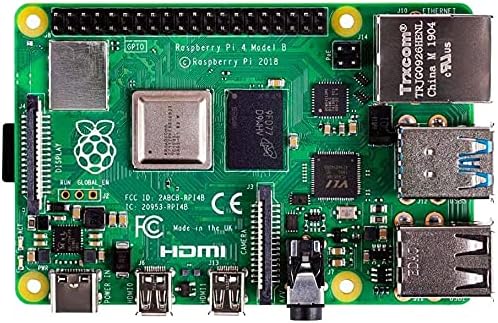
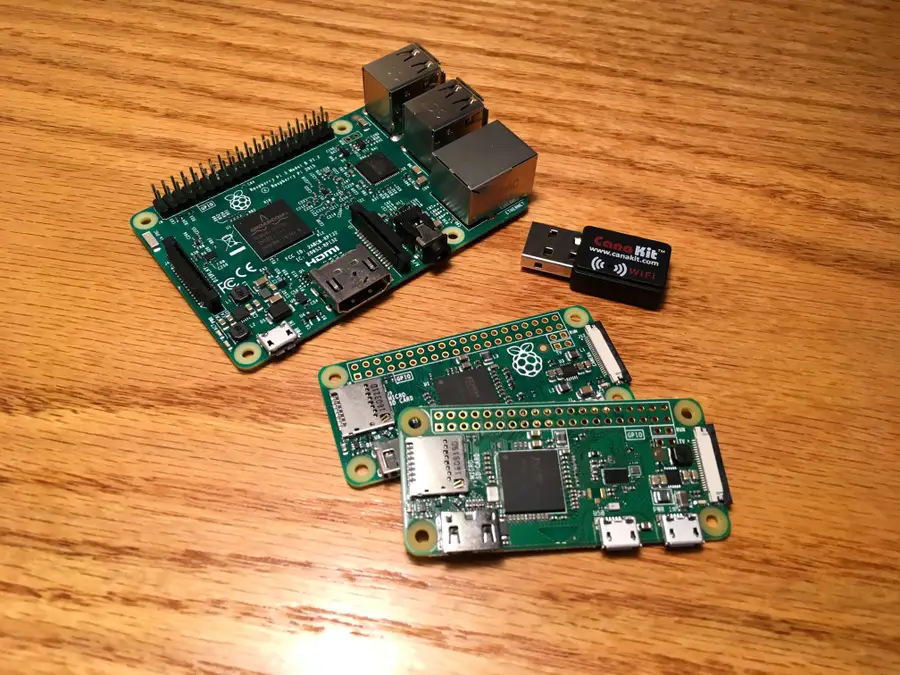
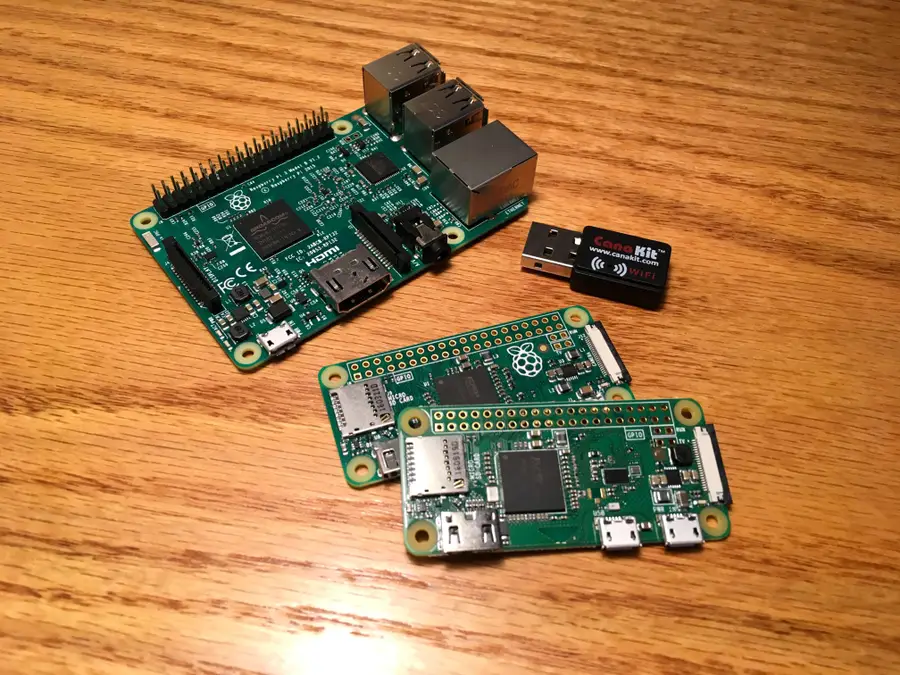
So you just got your brand new Raspberry Pi. Awesome! This guide will show you how to set up a brand new Raspberry Pi. We will cover everything from the basic accessories to installing Raspberry Pi OS to logging in via SSH and more! This guide will work for any Raspberry Pi model.
Raspberry Pi Models and Specs: A Comprehensive Guide What flavor of Pi is your favorite?

1 – Gather your accessories

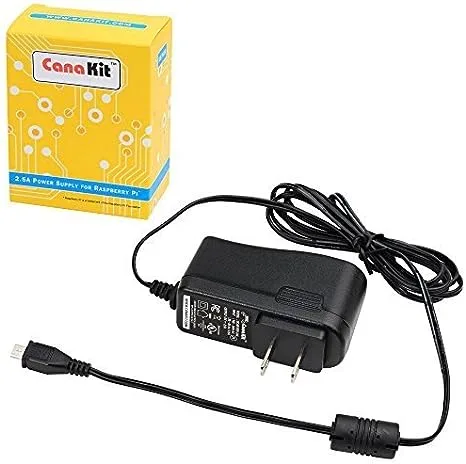
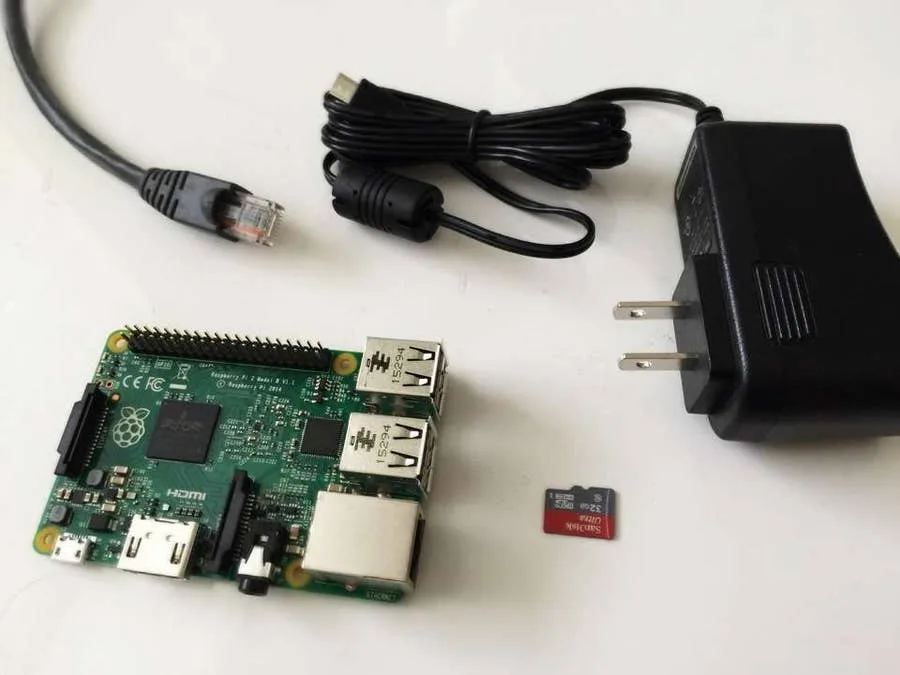
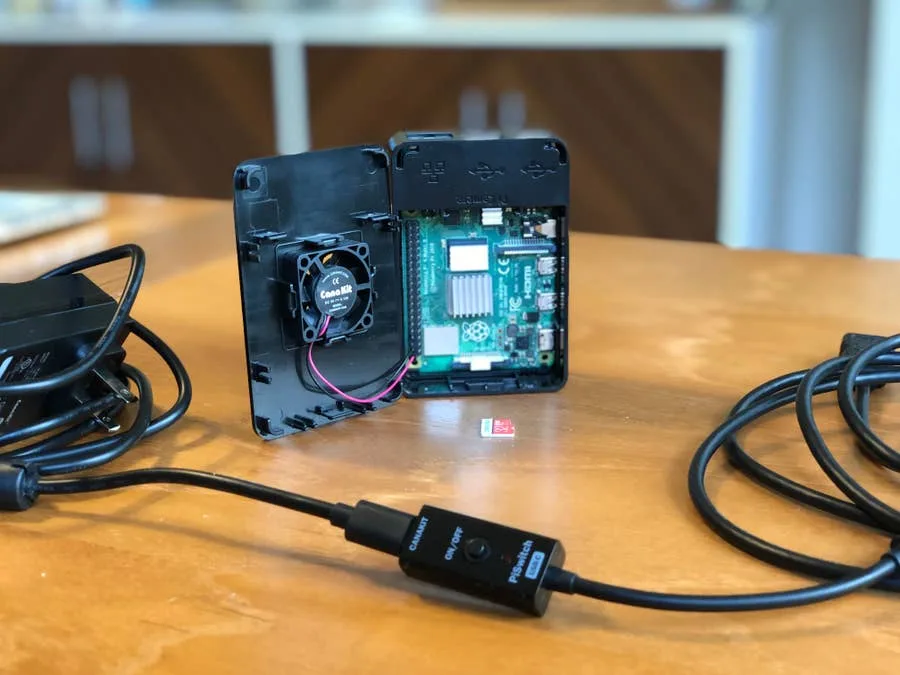
You’ll want to make sure you have all of the required accessories. For this project, you’ll need, at a minimum, the Raspberry Pi, a 2.5A power supply, and a Micro SD card. Links to the required accessories are available on this guide in the “Tools” section. If you have a kit, then that should have everything you need to get started. Check out our review of the Canakit for the Raspberry Pi 4 for an example of a good kit.
Canakit Raspberry Pi 4 Starter Kit Review: No Nonsense Quality Great for newcomers and seasoned Raspberry Pi veterans, alike.

2 – Flash the SD card

The first thing you’ll want to do is flash your SD card with the Raspberry Pi OS image of your choice. There are a few versions available with older editions known as Raspbian. Check out our Raspberry Pi OS installation guide to get the latest edition and then return here!
How to Install Raspberry Pi OS on Your Raspberry Pi Get the new official Raspberry Pi OS on your Pi.

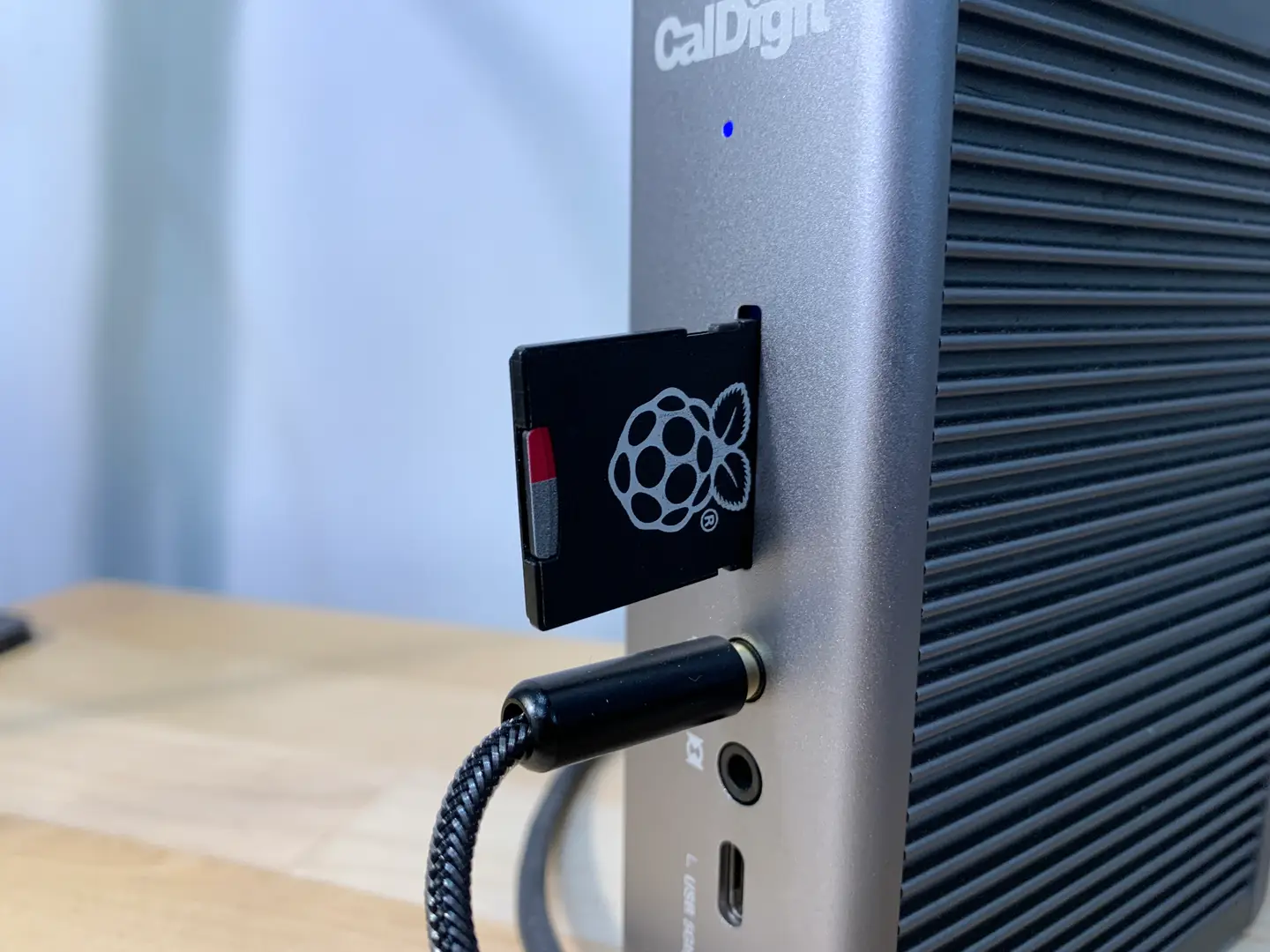
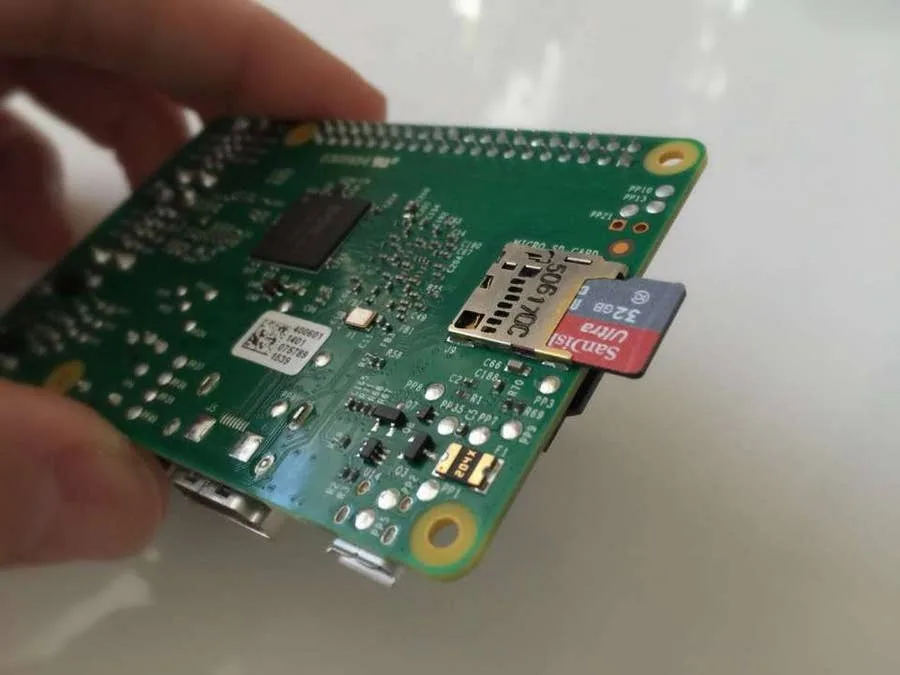
3 – Insert the Micro SD card into the Raspberry Pi

If necessary remove the SD card from the adapter and push it into the reader on the Raspberry Pi. Push down until you feel and hear it click into place.

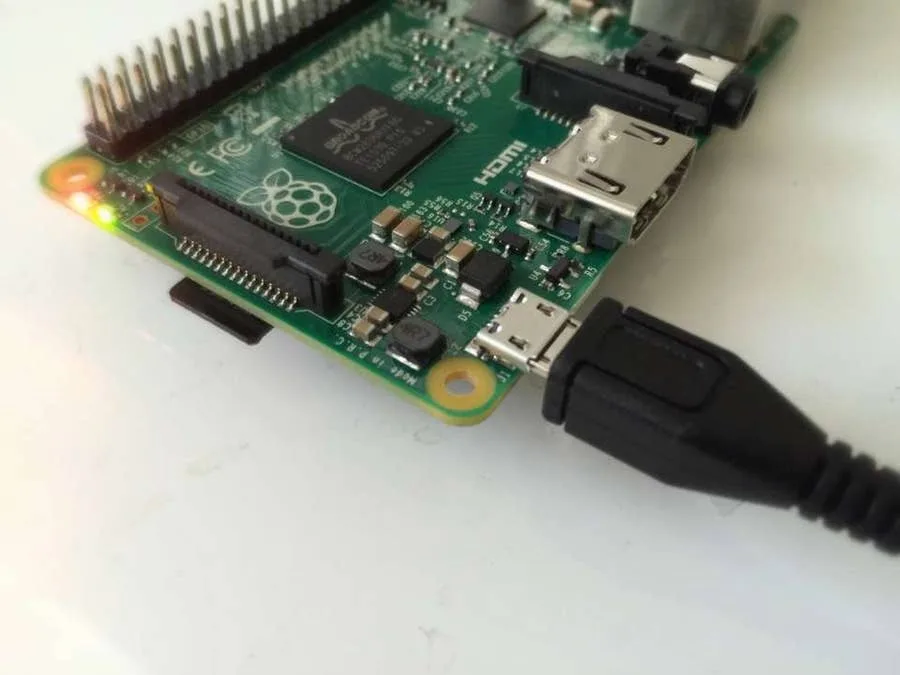
4 – Plug in the power cable

Plug in the power cable to the wall and then the Raspberry Pi. It will power on as soon as it’s plugged in. Learn how to safely shutdown the Raspberry Pi when you’re finished.

5 – SSH

Now, with your pi powered on and connected to your local network, you should be able to ssh into your pi. SSH comes installed and enabled on Rasppberry Pi OS, so you should be able to SSH in without any prior setup. First we’ll ping the Raspberry Pi to make sure we can find it. The default hostname for the Raspberry Pi is unsurprisingly: raspberrypi.
ping raspberrypi
You should see output like this:
PING raspberrypi.attlocal.net (192.168.1.243): 56 data bytes
64 bytes from 192.168.1.243: icmp_seq=0 ttl=64 time=81.131 ms
Then press Ctrl+C to stop. Since we can reach our pi, now we’ll SSH in. The default username and password for the Raspberry Pi is pi and raspberry.
ssh -l pi raspberrypi
The -l option specifies the username, which in our case is pi. Then we’ll type in the password: raspberry. For security reasons, you won’t see the password as you type. Now you should be logged into your pi, and you should see a prompt like this:
pi@raspberrypi:~ $

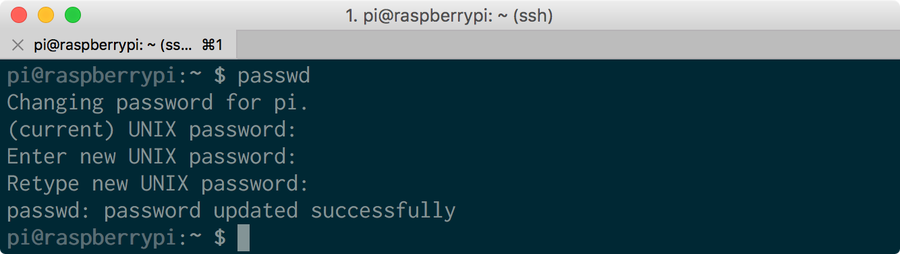
6 – Change the password

At this point, you’ll want to change the password for the pi user on your Raspberry Pi. This can be done using the passwd command.
passwd
Follow the linked guide for more details.

7 – Change your timezone

Don’t forget to set your Raspberry Pi timezone after connecting to your Pi.

8 – Connect to the Internet

Check out our guide on connecting to WiFi on the Pi.
How to Set up WiFi on Your Raspberry Pi Without a Monitor (Headless) No monitor, keyboard, or mouse? No problem.
Once you’re connected to the internet, you should consider configuring Pi-hole on your Raspberry Pi to browse pop-up free!
Pi-hole: How to Set Up and Configure Pi-hole on Raspberry Pi Blocking ads just got easier with Pi-hole, a network-wide ad blocker for the Raspberry Pi
NEXT UP

How to Run a Minecraft Server on the Raspberry Pi

A whole world trapped inside your Pi.
howchoo (467)
December 7, 2023
There are several ways to go about running a Minecraft server on the Raspberry Pi. In this guide, I’ll cover how to install Nukkit—a cross-platform Minecraft server that’s super easy to set up on the Raspberry Pi. This server should work with PCs, consoles, and tablets running Minecraft 1.14. I’ll be using a Raspberry Pi
Continue Reading

howchoo

 467 guides
Introducing Howchoo, an enigmatic author whose unique pen name reflects their boundless curiosity and limitless creativity. Mysterious and multifaceted, Howchoo has emerged as a captivating storyteller, leaving readers mesmerized by the uncharted realms they craft with their words. With an insatiable appetite for knowledge and a love for exploration, Howchoo’s writing transcends conventional genres, blurring the lines between fantasy, science fiction, and the surreal. Their narratives are a kaleidoscope of ideas, weaving together intricate plots, unforgettable characters, and thought-provoking themes that challenge the boundaries of imagination.
Home Interests Roomba

How to Replace the Edge-Sweeping Brush on Your Roomba i7

howchoo (467)
November 20, 2023
5 minutes

Share

You’ll Need 3
What you’ll need
Interests
Howchoo is reader-supported. As an Amazon Associate, we may earn a small affiliate commission at no cost to you when you buy through our links.
Posted in these interests:
robotvacuum • 4 guides
roomba • 3 guides
Your Edge-Sweeping Brush needs to be replaced about once a year. Use this guide to learn how to replace the Edge-Sweeping Brush on your Roomba i7.

What is the Edge-Sweeping Brush?

The Edge-Sweeping Brush is the spinning brush on the right side of the robot. The Roomba uses this brush to clean around the edges of your home and ensure dust and debris is cleared from the hard-to-reach corners and edges. It is designed to sweep the debris into the path of the vacuum. Along with unclogging the Roomba i7 Clean Base and replacing the Roomba i7 filter, replacing the Edge-Sweeping Brush is a part of routine Roomba maintenance.

1 – Turn your Roomba upside down

To replace the brush, you’ll need to turn the Roomba upside down.

2 – Unscrew the screw securing the Edge-Sweeping Brush

Use a flathead screw driver to unscrew the brush. You may need to hold the brush in place with one hand to keep it still. Note: A phillips head screw driver can work as well. With the brush unscrewed, pull the brush assembly away from the robot to remove it. The screw will remain attached to the robot.

3 – Screw in the new Edge-Sweeping Brush

Grab your replacement brush, and screw it into place. Notice the new brush comes with its own screw. Don’t attempt to over-tighten. Once the screw is in properly, it will be very difficult to keep turning. Quick tip! I’ve linked to the official replacement parts kit for this vacuum, but you can also try a much cheaper, off-brand kit as well.

4 – Back to work

Now you’re ready to put your Roomba i7 back to work! If your Roomba doesn’t reach the charging dock at night, it’s probably time to change your Roomba’s batteries. Check out our guide for tips on replacing them with fresh ones.
NEXT UP

How to Unclog Your Roomba i7+ Clean Base

howchoo (467)
September 8, 2023
The Roomba i7+ Clean Base is amazing because it automatically removes dirt and debris from the Roomba after completing a job. This means you don’t have to worry about cleaning out the Roomba’s dust bin all the time. After a while, however, you’ll eventually get notified that your Clean Base is clogged. This means something
Continue Reading

howchoo

 467 guides
Introducing Howchoo, an enigmatic author whose unique pen name reflects their boundless curiosity and limitless creativity. Mysterious and multifaceted, Howchoo has emerged as a captivating storyteller, leaving readers mesmerized by the uncharted realms they craft with their words. With an insatiable appetite for knowledge and a love for exploration, Howchoo’s writing transcends conventional genres, blurring the lines between fantasy, science fiction, and the surreal. Their narratives are a kaleidoscope of ideas, weaving together intricate plots, unforgettable characters, and thought-provoking themes that challenge the boundaries of imagination.
Home Interests Food

How to Make Whiskey Simple Syrup

No whisk, no reward.
howchoo   (467)
November 20, 2023
11 minutes

Share

You’ll Need 7

What you’ll need
Interests
1 ea
Sauce pot
1 cup
Water
1 cup
Sugar
1/4 cup
Whiskey
Howchoo is reader-supported. As an Amazon Associate, we may earn a small affiliate commission at no cost to you when you buy through our links.
Posted in these interests:

DIY

diy • 17 guides
food • 7 guides
recipes • 1 guides

When I was first offered a beverage flavored with whiskey simple syrup, I was in a coffee shop in San Jose, California. I wasn’t even really interested in drinking coffee. It was later in the day; I was already feeling a little tired; I figured coffee was the last thing I needed.

But when the barista mentioned their homemade simple syrup made from whiskey, I knew I had to try it.

I couldn’t resist, and it was amazing. It gave the coffee a warm, nutty, caramelly flavor that was distinctly whiskey without the burn of the alcohol. It tasted, in many ways, like a better version of whiskey, and it was the perfect addition to coffee.

Of course, they wouldn’t impart with their homemade recipe (who could blame them), but I had to recreate it. It was too good not to.

Unlike several of the simple syrup recipes we’ve featured lately, like our Cherry Simple Syrup or our Rose Simple Syrup recipes, this whiskey simple syrup doesn’t require any extra steps other than boiling and storing.

Here’s possibly the easiest whiskey simple syrup recipe you’ll ever find.

1 – Buy whiskey

When it comes to selecting a whiskey to use, it really boils down to personal preference.

If you have a favorite whiskey or a bottle that you’ve been sampling, feel free to tap into whatever is in your bar! Since you only need 1/4 cup, you won’t diminish your reserves too much.

If you already have the whiskey, you’re going to us, skip to the 2nd step for the recipe. Otherwise, here are a few whiskey options and their flavor profiles!

How to pick a whiskey

For starters, you can use scotch or whiskey.

Whiskey is a liquor made from fermenting grain mash (such as wheat, rye, barley, or corn), while scotch is whiskey made in Scotland from barley or a mix of grains.

Scotch has a smokey, malty flavor. Whiskey, on the other hand, finishes with sweet, nutty, caramel-y notes.

While you’re going to be cooking the whiskey down and adding sugar to it, different whiskeys will offer distinct flavors, which provides a great level of customization.

If you’re not a whiskey connoisseur, don’t worry. You don’t have to be to make this simple syrup recipe. We’ve included a list of popular whiskeys with some of the different flavors they offer. Here’s a fun fact: you can even use bourbon!

10 Popular Whiskeys and their flavor

WhiskeyFlavor
1. Jack DanielsFruity sweetness, vanilla custard, oak, and banana.
2. ArdbegSmoky fruit, peat, hints of citrus.
3. Maker’s MarkChocolate, vanilla, hazelnut, and tobacco.
4. Dewar’s WhiteVanilla, oak, and a hint of spice.
5. Johnnie Walker BlackSmoky, complex, and slightly salty.
6. Monkey ShoulderSweet vanilla, brown sugar, and creamy toffee.
7. Crown RoyalSugarcane, caramel, oak, toffee
8. JamesonSemi-sweet caramel, grain, smoke
9. Gentleman JackHoney, nut, oak, leather, tobacco, and coffee.
10. Eagle Rare SingleWoody, dark toffee, nutty, with hints of vanilla and spearmint.

Don’t be afraid to experiment with your whiskey choices! Now that you have a whiskey picked out, you’re ready for the simple syrup recipe.

Please note: The alcohol burns off during the cooking process, leaving behind a rich syrup that will taste like a sweeter version of your whiskey. You won’t be consuming alcohol.

2 – Measure your whiskey, sugar, and water

Measure 1 cup of sugar and pour it into your pot.

Measure 1 cup of water and pour it into your pot.

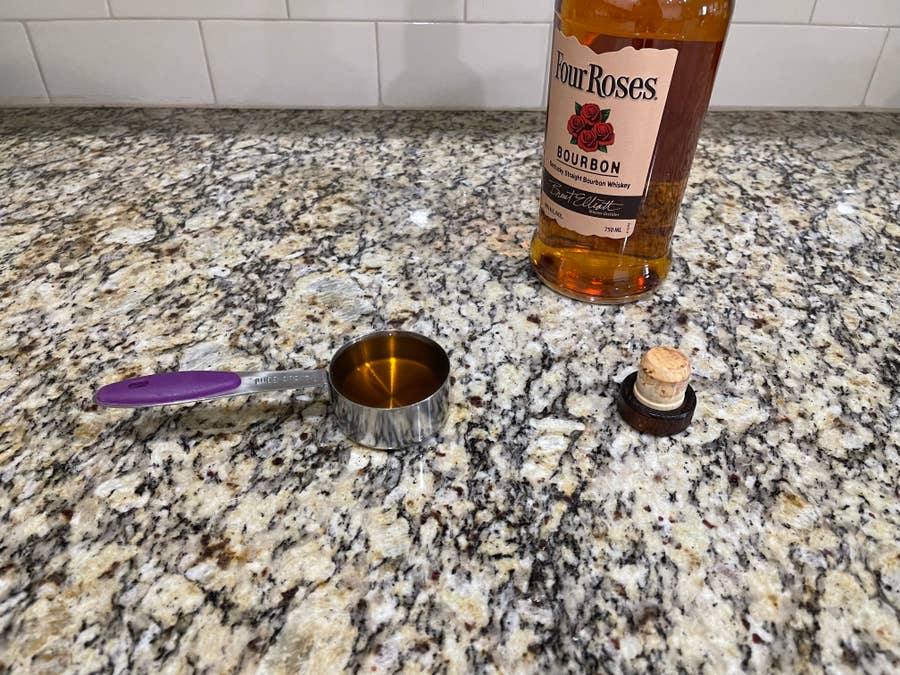
Measure 1/4 cup of whiskey and pour it into your pot. Take a small sip for, you know, courage.

As you can see, I’m using what I had on hand: bourbon.

Fun fact!

While bourbon is technically a type of whiskey in that it’s a mixture of grains that have been fermented and aged, bourbon is classified as such because it is made from, at least, 51% corn!

3 – Heat your ingredients in your sauce pot

Place your sugar-whiskey water on your favorite stove burner and heat over medium-high. Give your mixture a good stir to encourage the sugar to break up.

Bring your syrup to a simmer and heat until your sugar has dissolved. Your whiskey simple syrup will be thick and a light shade of brown. Turn off your stove and remove your pot from heat.

4 – Allow your syrup to cool

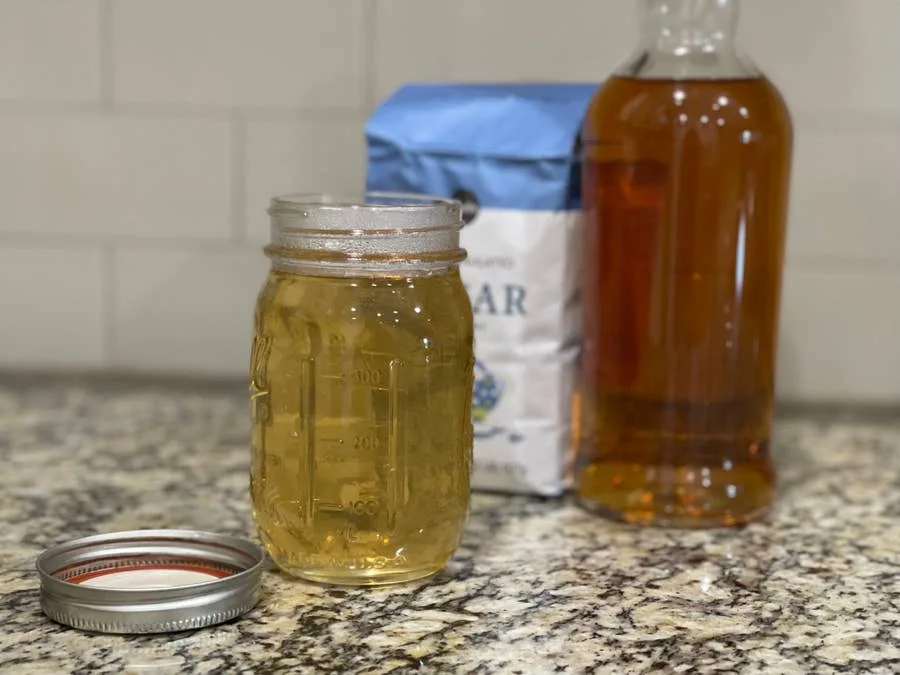
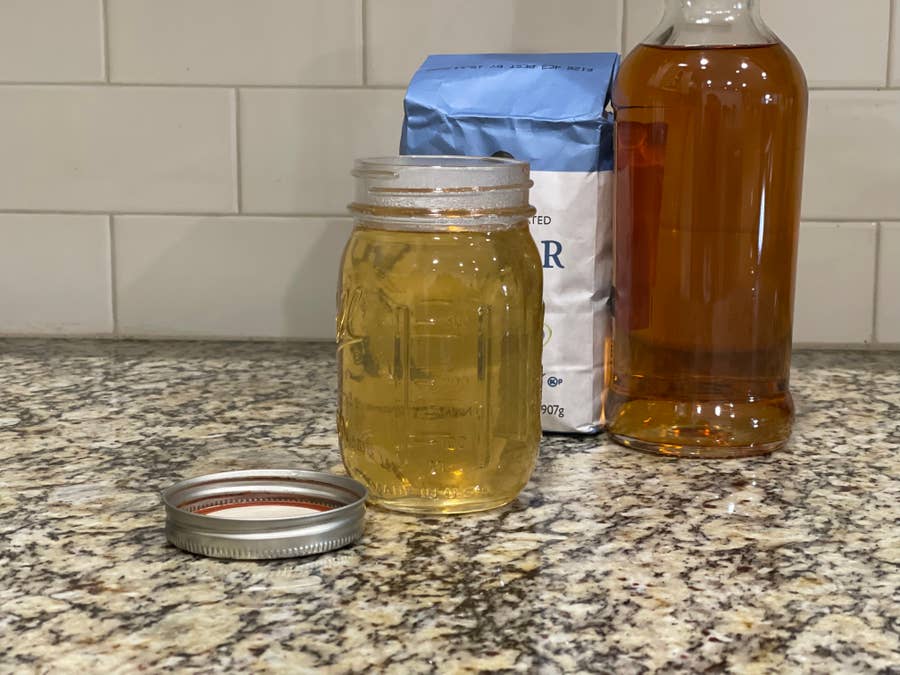
Allow your simple syrup to cool for 10 minutes before transferring it to an airtight container like a mason jar. Your syrup will keep in the fridge for a few months!

If you’re impatient like me, you can transfer your syrup from your pot to your mason jar and let it cool there with the lid off.

Pro tip: If you’ve tuned into other simple syrup recipes, you’ll know that I’m a big fan of cleaning the pot right after transferring it to the mason jar.

Sugar that has had the opportunity to crystalize against the pan’s surface is much harder to remove.

Pro tip no. 2: Looking for more inspiration on how to use your simple syrup? Add a little bit to your morning coffee or brush a little bit on top of a freshly baked batch of muffins!

NEXT UP

HeaterMeter: Control your Grill Using a Raspberry Pi!

Fire up the summer with a new Pi project.
howchoo   (467)
November 28, 2023

With summer right around the corner, it’s time to fire up the grill! But who will watch the grill while you’re beating the heat? This year, kick things up a notch with your own Raspberry Pi-powered HeaterMeter. Don’t just throw a BBQ, be a part of it. HeaterMeter lets you keep a close eye on

Continue Reading

howchoo

 467 guides

Introducing Howchoo, an enigmatic author whose unique pen name reflects their boundless curiosity and limitless creativity. Mysterious and multifaceted, Howchoo has emerged as a captivating storyteller, leaving readers mesmerized by the uncharted realms they craft with their words. With an insatiable appetite for knowledge and a love for exploration, Howchoo’s writing transcends conventional genres, blurring the lines between fantasy, science fiction, and the surreal. Their narratives are a kaleidoscope of ideas, weaving together intricate plots, unforgettable characters, and thought-provoking themes that challenge the boundaries of imagination.

Home Interests 3D Printing

How to 3D print custom rubber stamps

APPROVED! REJECTED! APPROVED!
howchoo   (467)
November 20, 2023
10 minutes

Share

You’ll Need 2

What you’ll need
Interests
Howchoo is reader-supported. As an Amazon Associate, we may earn a small affiliate commission at no cost to you when you buy through our links.
Posted in these interests:
3dprinting • 36 guides

Art

art • 2 guides

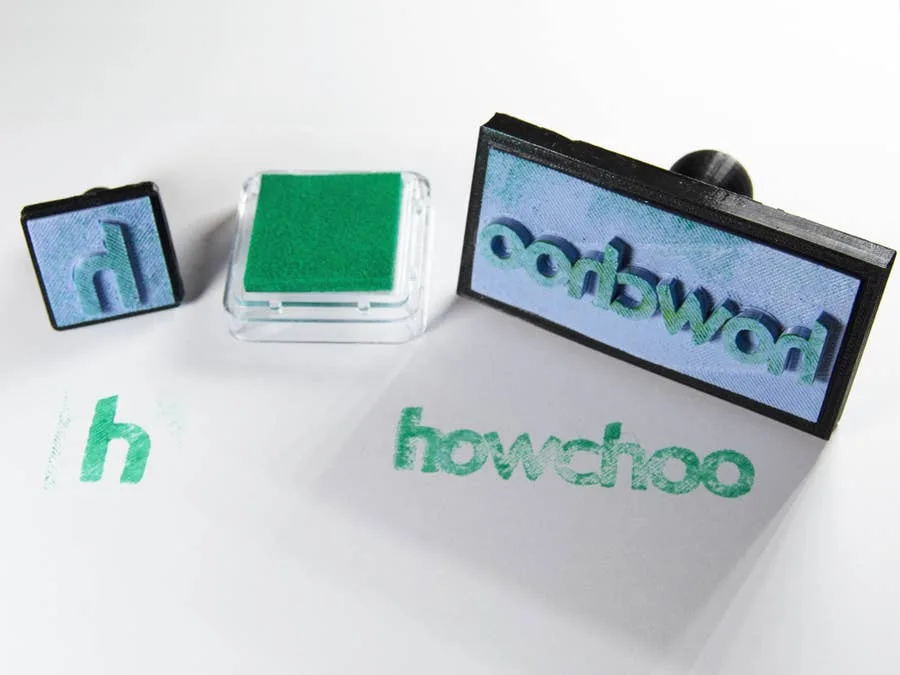
Let’s make some stamps! Why bother buying a pre-made design when you can create one yourself? In this guide, we’ll be creating our own howchoo logo stamp using a 3D printer.

I’ve designed a couple of handles to 3D print for my stamps. You can download them from Thingiverse to use yourself. I’ve created a wide rectangle and square shaped designs.

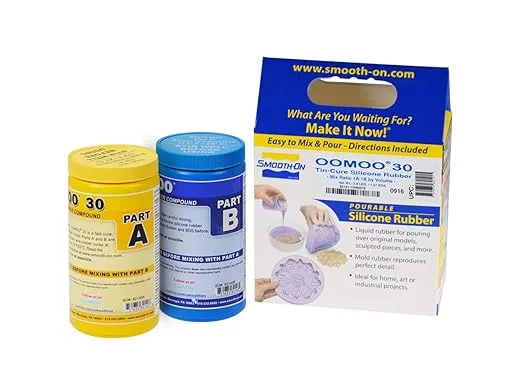
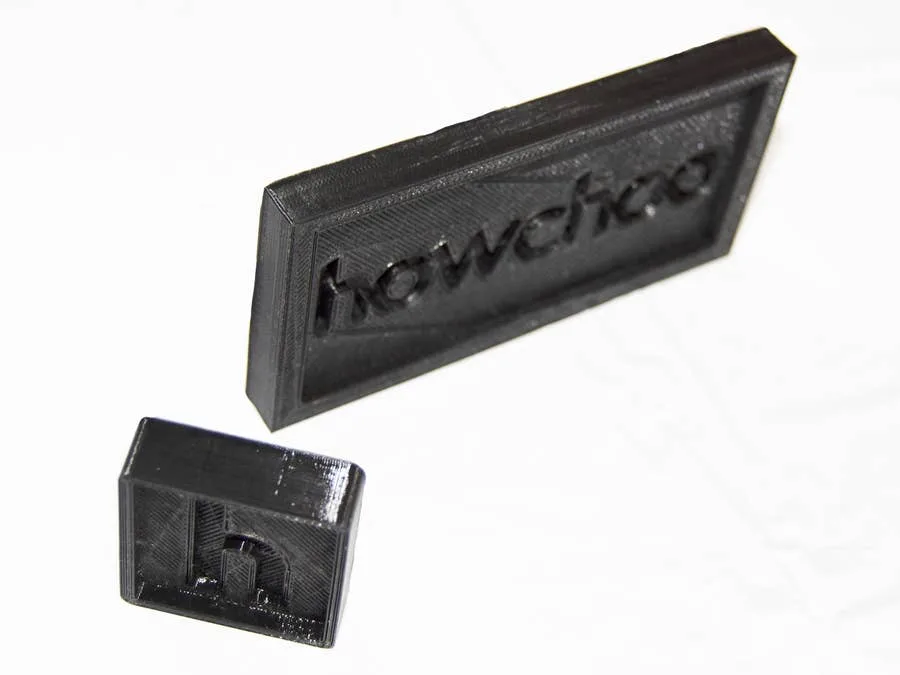
For the actual stamp part, we’ll be designing our own mold to 3D print and filling it with silicone rubber.

1 – Create the stamp design using an image or logo

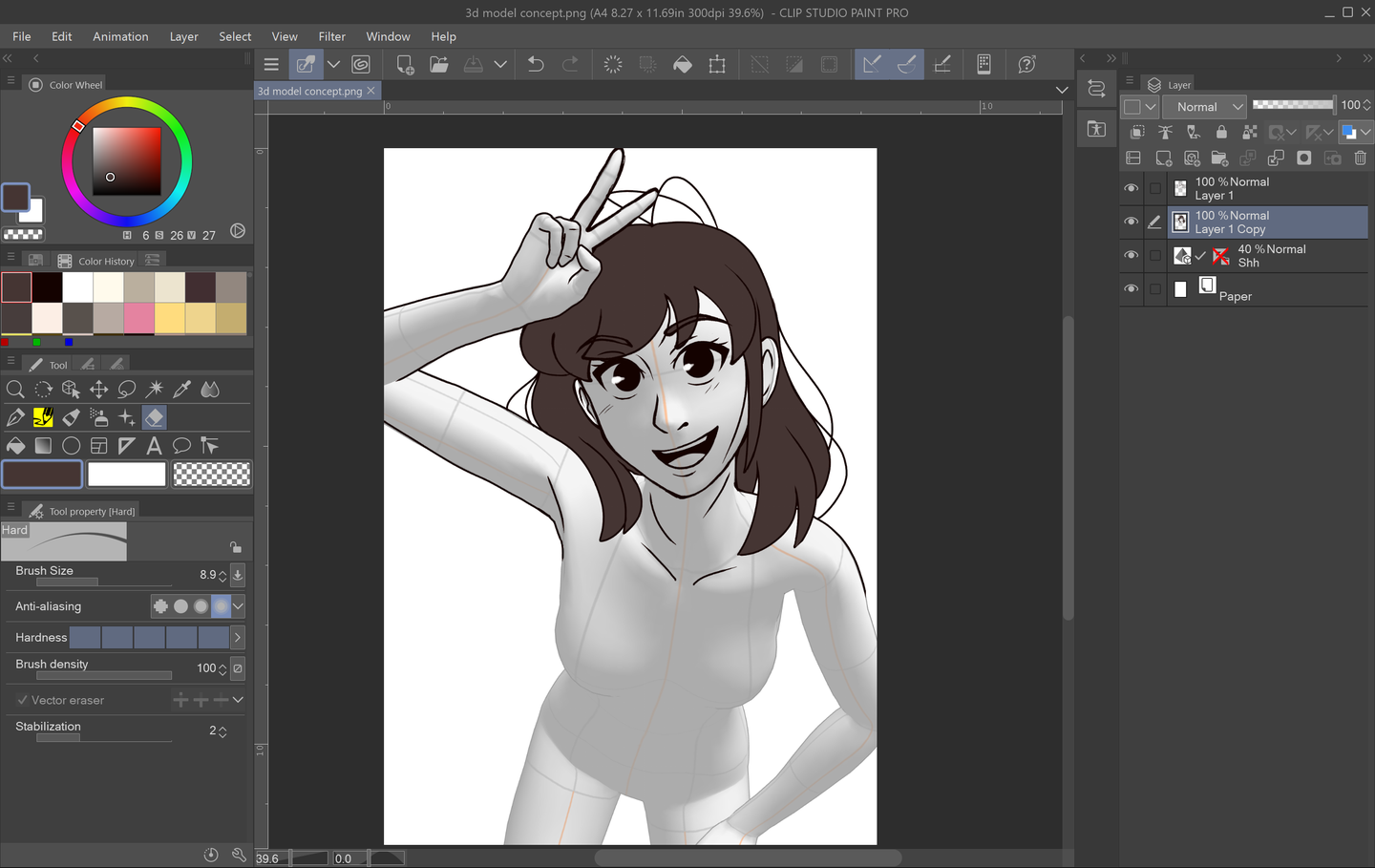
You can use any 3D design software you like, I’ll be using Blender. The idea is to trace the logo and create a 3D shape from the outline. If you’d like to follow along with me, download a copy of Blender and keep reading.

Upload the design as a background image

To open the sidebar we need, press N. Under the Background Images section, upload the stamp design. Press 5 on the numpad to orient the camera and expose the background image. If it’s missing, try pressing 5 again.

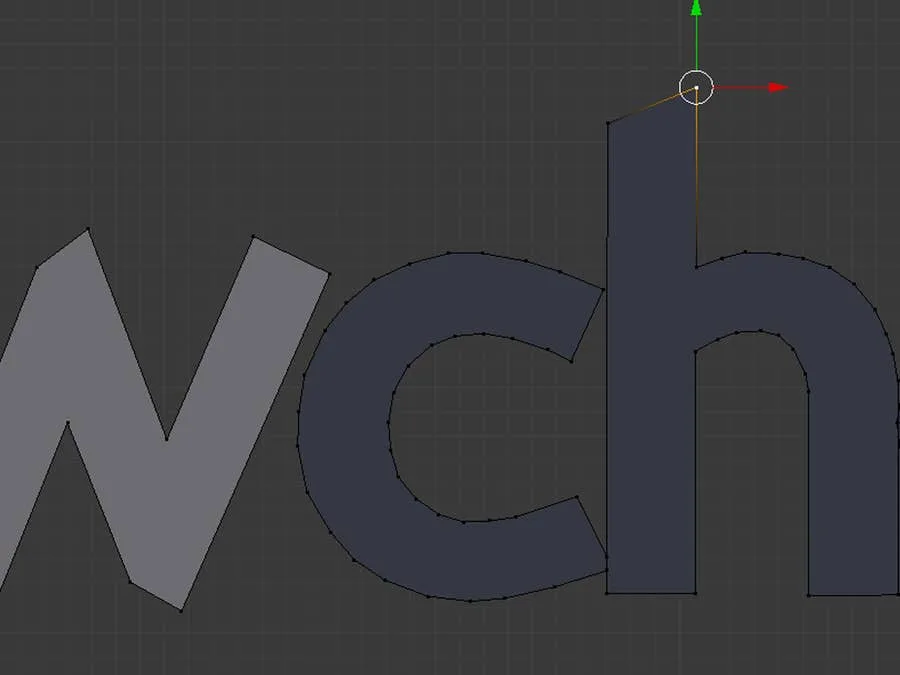
Outline the design

Create a plane and delete three of the vertices, this will leave you with a single point. Position this point over the edge of your stamp design. Press e to generate a new point and draw a line from this one. Using this technique, outline the design of your stamp, merging the final points together.

Make a 3D shape from the outline

To create a face from the new outline, press A. This will highlight all of the points around the design. Press F to turn the selected points into a face. Select the new face and press E + Z to extrude the face up. This will turn the design into a 3D shape.

2 – Make a base for the stamp design

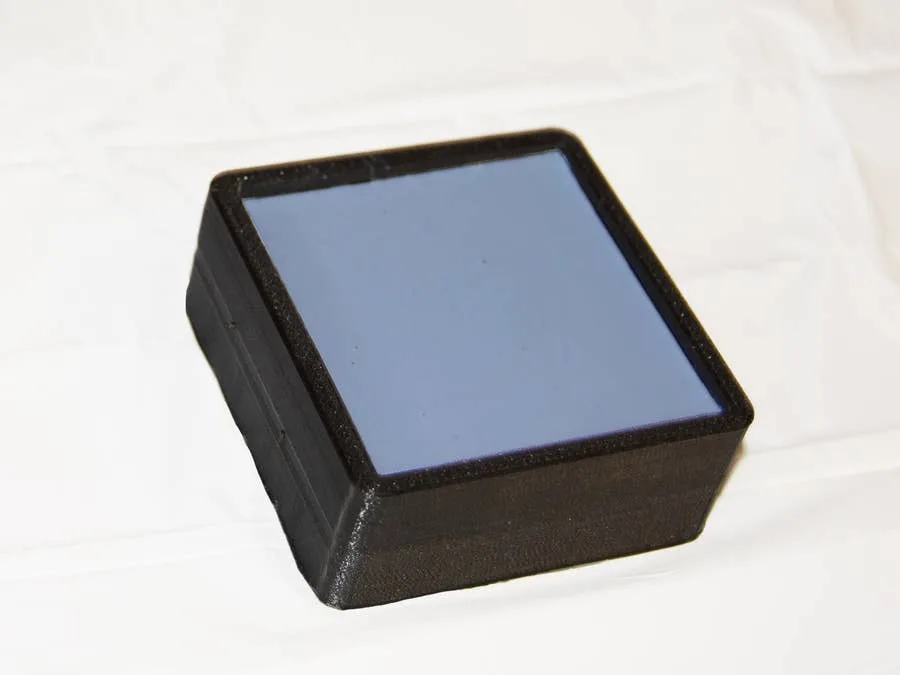
We’ll need a base for our stamp design. This base will fit inside our 3D printed handle. After creating the base, we’ll punch a hole out in the shape of our design. This will make an empty cavity that can be filled with silicone. Follow the steps below to create your own, or download the one I created from Thingiverse.

Design the stamp base

The design I made will need to fit on a 4cm x 9cm base. To create the base, I’ll create a 4cm x 9cm plane and extrude the top face up.

Punch the base out of the mold block

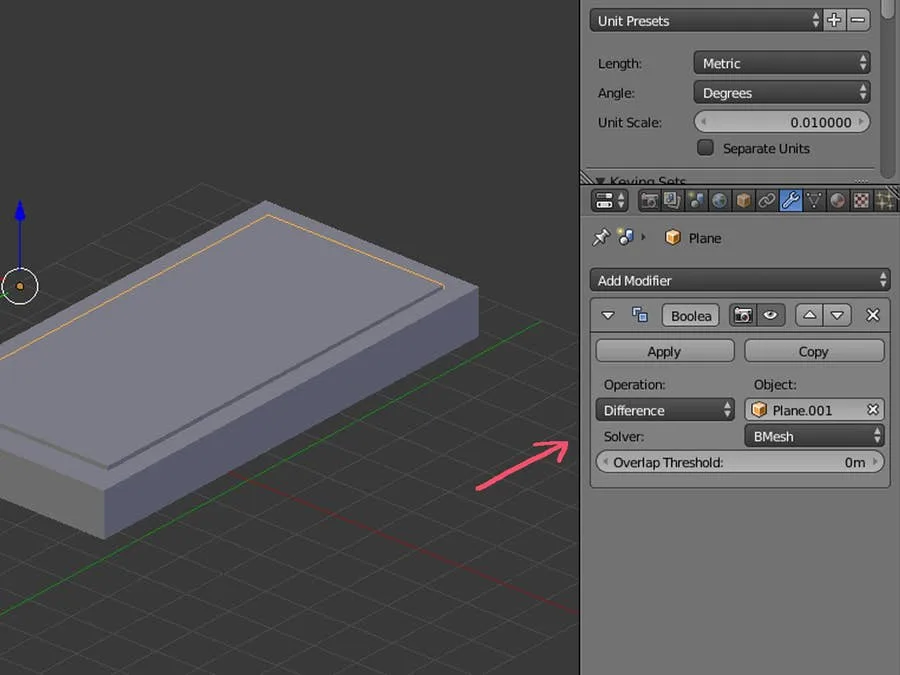
This prism will need to be punched out of our mold block. We’ll do this using a boolean modifier. Overlap the 3D base with the silicone mold block until it’s lined up as desired. I’m leaving enough room for the edges to retain some stability so I don’t break the mold when removing the silicone.

Once the base object is overlapping the mold block, apply a Difference boolean modifier to the block. The modifier should be set to use the base object.

3 – Punch out the stamp design

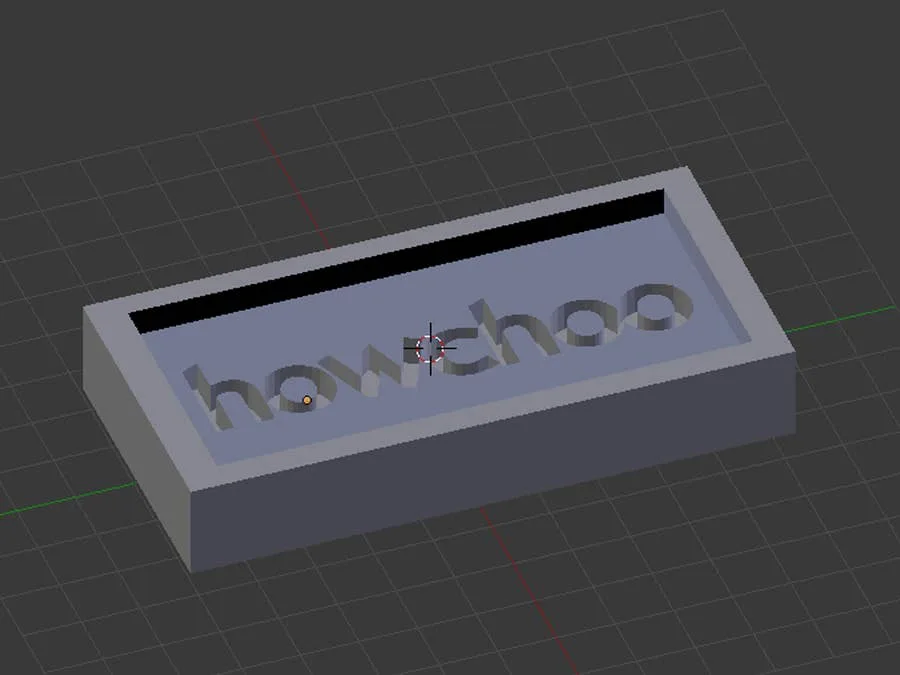
Just like the base for our stamp, we’ll be using a boolean modifier to punch out a shape with our 3D design. Overlap the stamp design object with the mold block and apply the difference modifier.

Export the final mode to an stl and prepare it for printing with your favorite slicer. I’ll be using Cura to prepare my printer file. You will need to experiment with your 3D printer to find the most ideal settings to print your mold with. I’m using PLA filament at 240° with a .2mm layer height. Smoothing out your molds or printing them with fine lines can help preserve design quality. As with any project, you’ll need to experiment to find the most desirable results.

5 – Fill the mold with silicone rubber

Now that everything is printed, it’s time to fill them with silicone. I’ll be using Oomoo for my project, but you can experiment with other materials. You’ll find that certain materials work better than others depending on the design and filament used.

6 – Time to stamp!

Once enough time has passed to cure your molds, it’s time for a test stamp. Just glue the stamp, base, and handle pieces together. Congratulations—your stamps are ready to go. Find an ink pad and get stamping!

NEXT UP

How to Update Blender

Get the latest Blender has to offer.
howchoo   (467)
November 24, 2023

Blender is one of the most popular open-source 3D creation suites today. It doesn’t cost a dime to use and everything you create is yours to own for good. The community is robust and the dev team still releases new updates on the regular. If you want to get the latest version, you may have

Continue Reading

howchoo

 467 guides

Introducing Howchoo, an enigmatic author whose unique pen name reflects their boundless curiosity and limitless creativity. Mysterious and multifaceted, Howchoo has emerged as a captivating storyteller, leaving readers mesmerized by the uncharted realms they craft with their words. With an insatiable appetite for knowledge and a love for exploration, Howchoo’s writing transcends conventional genres, blurring the lines between fantasy, science fiction, and the surreal. Their narratives are a kaleidoscope of ideas, weaving together intricate plots, unforgettable characters, and thought-provoking themes that challenge the boundaries of imagination.