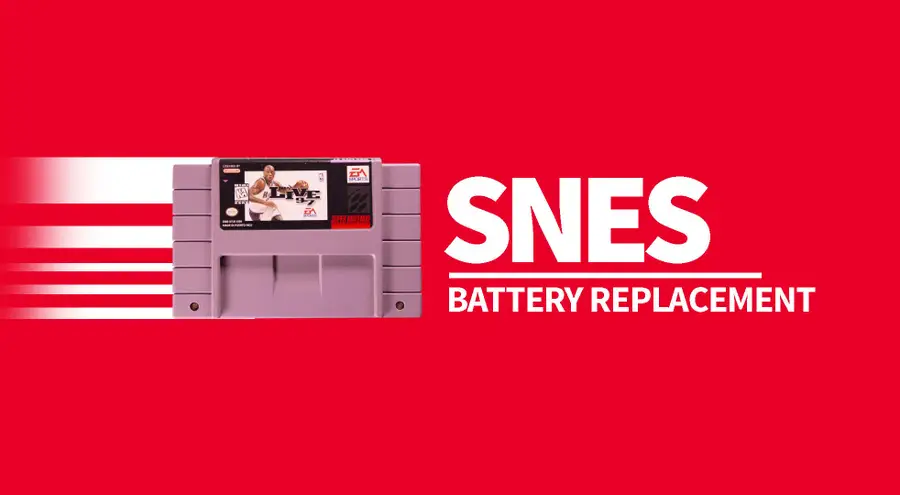
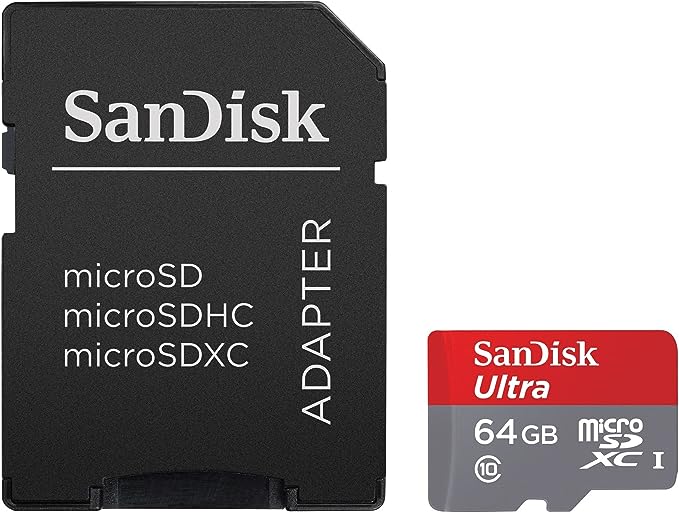
It’s never too late to replay your favorite Super Nintendo games. But it has been a while since these games were new. You may find your save file isn’t working and new save files aren’t saving on the SNES cartridge. This is likely due to an old battery. Failing batteries won’t necessarily affect the gameplay—but they will affect save data.
In this guide, we’ll go over how to replace old Super Nintendo batteries so you can continue saving your progress into the future.
Removing the existing battery will eliminate all current save data. Proceed with caution.
Which SNES games use a battery?
Not every SNES game uses a battery. The cartridges that have them use the power to store save data and unlockable content. You can find a complete list of SNES games that use a battery on DKoldies.
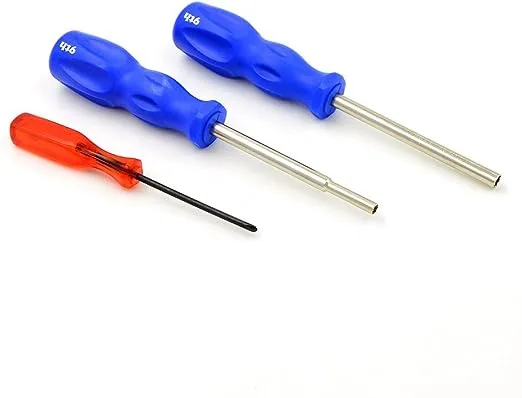
Use a 3.8mm SNES security bit screwdriver to remove the screws from the cartridge. The cartridge shell should easily separate. There are two screws used during this step.
2 – Remove the board from the SNES cartridge shell
There are no tabs holding the board in place, it rests inside the cartridge. Lift the board from the shell.
3 – Desolder the old battery
Flip the board over so the battery is facing down.
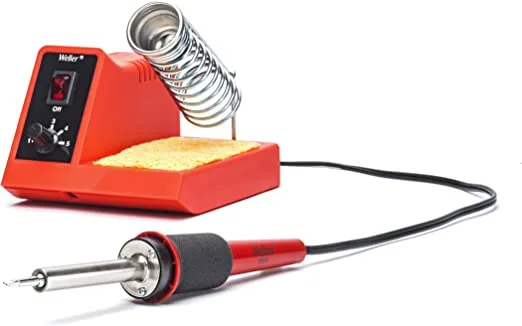
Use a soldering iron to heat the old solder that holds the current battery in place. Remove the melted solder with a solder sucker. When enough has been removed, the battery can be wiggled loose.
4 – Fit the new battery into place
Fit the new battery inside the SNES battery slot.
You’ll need a this CR2032 battery with pre-soldered tabs for this step. Be sure to line up the positive and negative ends properly. Use the images in this guide for reference.
I’m using a CR2025, which will technically work, except that it has slightly different tabs that will need to be clipped. We had some left over after replacing a Game Boy cartridge battery.
🛈 You cannot use just any CR2032. It must have pre-soldered tabs. Soldering to a battery can cause it to explode.
5 – Solder the new battery to the SNES board
Flip over the board and solder the new battery into place. I always recommend using a bit of flux when soldering.
6 – Screw the shell together
Using the 3.8mm SNES security bit, screw the cartridge shell back together. There are two screws used during this step.
7 – Test the finished product
Who’s up for some NBA Live ’97?
It’s time to test your progress. Load up your SNES game and play enough to warrant a save. Our goal is to create new save data on the cartridge. After you save the game, restart the SNES and see if it loads.
Congratulations! You’ve added a few more years to the life of your SNES game.
The longer you play Minecraft, the more you realize that early-game tools just won’t cut it. Exploring the enchantment feature of Minecraft can be exciting, but also intimidating. Rather than worry about researching enchantments, below are the best enchantments in Minecraft! To learn how to enchant items, check out this guide! In this guide, you’ll see
Introducing Howchoo, an enigmatic author whose unique pen name reflects their boundless curiosity and limitless creativity. Mysterious and multifaceted, Howchoo has emerged as a captivating storyteller, leaving readers mesmerized by the uncharted realms they craft with their words.
With an insatiable appetite for knowledge and a love for exploration, Howchoo’s writing transcends conventional genres, blurring the lines between fantasy, science fiction, and the surreal. Their narratives are a kaleidoscope of ideas, weaving together intricate plots, unforgettable characters, and thought-provoking themes that challenge the boundaries of imagination.
If you’re trying to keep your important files and folders synced across all of your devices, one of the best methods is to use a cloud storage provider like Dropbox. Dropbox allows you to sync your files across all kinds of devices and platforms, from PCs to smartphones, with a copy of the files stored on Dropbox’s own servers.
When it comes to using Dropbox on a Raspberry Pi, however, there are two main issues you’ll face:
Raspberry Pis use ARM processors, which Dropbox doesn’t officially support.
Dropbox is typically used in a web browser or using the Dropbox client, but many people use Raspberry Pis in “headless” mode without a screen or keyboard, making it impossible to do this.
To get around these issues, you’ll need to use a workaround to install Dropbox on a Raspberry Pi and sync your files. This guide will walk you through what you’ll need to do to install Dropbox.
However, the model of Raspberry Pi you personally use doesn’t matter, as these steps should work for all Raspberry Pi models. If you prefer to use a graphical interface for your machine, simply open up a new Terminal window to get started. Otherwise, you’ll need to connect remotely using SSH to run the necessary commands instead.
On the software side, you’ll need to use an open-source program called rclone. Often described as “The Swiss army knife of cloud storage”, rclone acts as a third-party interface to over 40 different cloud storage products and protocols.
This means you can use rclone to access any files or folders stored on Dropbox using your Raspberry Pi, even without official Dropbox support.
2 – Installing rclone
Before you begin installing rclone, you’ll need to make sure your Raspberry Pi is up-to-date. To this, open your terminal window or SSH connection and run the following commands:
sudo apt update && sudo apt upgrade.
To be sure that everything is in order after it finishes, go ahead and reboot the system with sudo reboot.
Once you’ve updated your system, your next step is to install rclone, but you won’t be using apt to do this. This is because the version currently available in Raspbian’s repository is pretty old, while rclone itself is updated more often.
Instead, type and run curl https://rclone.org/install.sh | sudo bash in the terminal or SSH window.
This runs an automated installation script for rclone and runs it as the superuser. If you’re worried about running an unknown script from the internet, you can download the script first by typing https://rclone.org/install.sh > install.sh followed by cat install.sh or nano install.sh to view the script contents locally.
The script is completely safe to run, but it’s always best to be cautious.
3 – Configuring rclone
Rclone refers to any cloud service that it connects to as a remote. As such, you’ll need to configure your own Dropbox account as a new remote.
Run rclone config in the terminal or SSH window and type n to add a new remote. It will ask for a name to identify it in the system, so type in dropbox or another suitable name. If you’re running a more complex setup (with multiple Dropbox accounts, for instance), you can use a different descriptive name instead.
After choosing a name, rclone shows a list of supported services. Note that the specific list will depend on the version of rclone in use, so don’t worry if your list doesn’t match the screenshots below. In this example, Dropbox appears as number 10, so typing 10 will select Dropbox.
When asked for client_id and client_secret, leave those fields blanks and hit the Enter key instead, as the advanced configuration isn’t required.
At this point, if your Pi has a screen and you’re using the graphical interface, you can let it use the auto configuration method to authorize rclone and provide it with access to your Dropbox account.
If your Pi is running headless, however, you will need to install rclone on your main desktop machine in order to authorize Dropbox and not use auto config. This is because the authorization is based on oAuth2, a protocol that needs to “talk back” to Dropbox using an open web browser (something a headless Raspberry Pi doesn’t have).
Installing rclone on a different machine is beyond the scope of this guide, but on Mac or Linux, you should be able to use the same command as above. A Windows binary file can be found on rclone’s download page and should work in a similar way.
Once you have rclone on your main computer, run rclone authorize "dropbox" on it (not on the Pi!), replacing dropbox with the remote name you used in the previous step. The quote marks in this case make no difference since the name contains no spaces, but it doesn’t hurt to include them. You’ll need to provide them if you use a remote name that uses spaces, however.
A browser window should open on your main computer with a Dropbox login page. If not, rclone will provide a link to copy and paste, but note that it will only work on that same computer.
After logging in and authorizing the app in the browser, the terminal window will display an access token. Select this (excluding the lines with the arrows) and paste it back into the Pi’s terminal.
Confirm the setup process by answering y when it asks if your configuration is okay, and then type q to quit the configuration.
4 – Installing rclonesync
Since rclone by default does not allow for bidirectional sync to allow you to make changes back and forth between your Dropbox storage and your local devices (as Dropbox should support), you’ll need to use an additional script called rclonesync to enable support for it.
Type the following two commands in the terminal window or via SSH to download rclonesync and set it up on your Raspberry Pi:
As before, the files will download a script to run from the internet. If you’re unsure about this, type the following command in your terminal or SSH window first:
This will download the file to your /usr/local/bin directory, allowing you to view the file before you run it using cat or nano.
5 – Configuring rclonesync
For this example, rclone will synchronize a folder named MyStuff located in Dropbox with a local folder called dropbox in the Raspberry Pi’s home directory. You can replace these example directory names with your own in the commands below.
First, create the local folder by typing mkdir ~/dropbox into the terminal or SSH window (with ~ referring to the Pi’s home directory).
You’ll then need to set up rclonesync by running rclonesync --first-sync dropbox:/Mystuff ~/dropbox in the terminal or via SSH. Note that the dropbox before the colon is the remote name used earlier (so replace this if you used something else), while the other folder is the local folder.
After that, you can trigger a sync with Dropbox’s servers by running the same command without the –first-sync parameter:
rclonesync dropbox:/Mystuff ~/dropbox
You can test this by creating an empty file in the local sync folder with touch ~/dropbox/testfile.txt or by removing a file on Dropbox using your web browser or another computer. You can then run the command again, possibly with the –verbose option to see more information:
rclonesync --verbose dropbox:/Mystuff ~/dropbox,
If the connection is working, new files should appear or deleted files should disappear, depending on the action you performed.
6 – Automating the sync process
Manually running the rclonesync command every time you want to sync your files isn’t the best solution. To automate the sync process with Dropbox, you’ll need to use the Cron tool.
Cron allows us to run specific commands on a schedule, while Crontab allows us to configure this schedule.
In the terminal or SSH window, type crontab -e to begin changing your Crontab schedule. If it asks you to choose an editor, select nano.
At the bottom of the file, add the following statement, making sure to replace the directories named with the correct directories on your Raspberry Pi and Dropbox storage:
Save and exit Crontab by typing Ctrl + X, Y and Enter in sequence.
At this point, the system will run the rclonesync command every single minute (that’s what the asterisks mean). To test that it works, try making a change on Dropbox, give it a minute (literally) and see the file appear on your Raspberry Pi, or vice versa.
7 – Next Steps
Once you’ve set up rclonesync, you should be able to sync your files using Dropbox to your Raspberry Pi (and back again). If you need to change the sync schedule or the folders that you sync, just repeat the steps above to change your Crontab schedule and alter the rclonesync command.
Installing Dropbox on a Raspberry Pi is a great way to keep your important files backed up, but it isn’t the only thing you can do with your Pi. There are plenty of Raspberry Pi projects you can try, from building your own RetroPie retro gaming rig to building a Raspberry Pi DIY NAS solution for all your important files.
Do you use Dropbox on your Pi, or do you prefer a different cloud storage solution? Let us know how you use your Pi for storage in the comments below.
NEXT UP
HeaterMeter: Control your Grill Using a Raspberry Pi!
With summer right around the corner, it’s time to fire up the grill! But who will watch the grill while you’re beating the heat? This year, kick things up a notch with your own Raspberry Pi-powered HeaterMeter. Don’t just throw a BBQ, be a part of it. HeaterMeter lets you keep a close eye on
Introducing Howchoo, an enigmatic author whose unique pen name reflects their boundless curiosity and limitless creativity. Mysterious and multifaceted, Howchoo has emerged as a captivating storyteller, leaving readers mesmerized by the uncharted realms they craft with their words.
With an insatiable appetite for knowledge and a love for exploration, Howchoo’s writing transcends conventional genres, blurring the lines between fantasy, science fiction, and the surreal. Their narratives are a kaleidoscope of ideas, weaving together intricate plots, unforgettable characters, and thought-provoking themes that challenge the boundaries of imagination.
If you’re an Amazon Prime member you understand just how great the benefits are. From free shipping and discounts to streaming and media sharing, Amazon has something for every member of the family.
With this guide, you’ll receive a comprehensive tour of Amazon Households, and you’ll click away knowing how to set up an account, establish your family members in your household, share music and movies, and more.
Let’s get started!
What is Amazon Household?
Amazon Household is a system that allows Amazon Prime members to share their Prime benefits with the family. Up to two adult, four teen, and four child profiles can be added to a Household.
How is it Different from Amazon Family?
While browsing through Amazon you may have come across something called Amazon Family, which is different from Amazon Household, and here’s how:
Amazon Family is a program that gives Prime members some serious discounts on items like diapers, baby food, and more. In Amazon Family, you have access to a database of articles full of tips and tricks to raising children.
A Quick Note About Amazon Household
In order to sign up for Household, you have to have at least one adult, which is defined as someone over the age of 18. You can only add one more adult to your account.
Only with two adults can you add four teen and four child accounts.
1 – Benefits of Amazon Household
There are many benefits to creating an Amazon Household, especially if you want to share with the whole family. Here is a list of a few of my favorites!
Adults can share Prime benefits with their children and teenagers while monitoring their activities.
Free two-day shipping is shared with the entire family.
Unlimited photo storage that comes with enhanced search and storage options.
Discounted prices on monthly memberships for Prime Video Channels like HBO, SHOWTIME, and STARZ.
The ability to easily and safely share media between members.
A Quick Note About Teen Accounts
Teen accounts are young adults from ages 13 to 17, and they’re able to log in to their own Amazon accounts and stream content. They can link any card to their account, but adults have to approve the card as well as any charges applied to the card.
They can also set up a text message alert for any intended cost over a certain price. Adults on the account can see a list of everything the teen purchased, but they can’t see anything the adult purchases.
Let’s dive into how to set up a Household account!
2 – How to create an Amazon Household
Time for the fun part – setting up your Amazon Household account!
In order to start your account, you need to have an Amazon prime account, which you can set up for $12.99 a month. You might also be eligible for discounts! If you don’t already have an account, see this guide on getting Amazon Prime for Free (or cheap).
The Amazon system is pretty intuitive to set up, but I’ll walk you through the process too! Let’s jump into the steps of setting up your own account:
Log in to your Amazon Prime account. To do this, navigate to the Amazon homepage and log in to your account by clicking on the Accounts & Lists icon at the top of the page, to the right of the search bar.
Once you’ve logged in to your account using your email and password, you’ll be redirected to the homepage again. Click on the same Accounts & Lists icon again.
Scroll down to the box titled Shopping programs and rentals. Click the Amazon Household option. This is where you can begin the process of adding people to your Household.
3 – How to add an adult to your Amazon Household
There are three options for adding people to your household and I’ll break them down for you below!
Adding an Adult
Start by clicking the Add Adult option at the top of the screen.
Here, you’ll have two options. Either enter their name and their email before clicking the Continue option, which will just add them to the account or click on the Sign up together on this device. This will make them the secondary adult on the account. For this guide, I’ll walk you through the second option.
From here, the second adult will be asked to verify their account by logging in using their email and password. Next click Verify second adult’s account.
From here you’ll be asked if you want to share your payment options and Amazon Prime benefits with the person. If you agree, simply click on the circles to the left of each of the options and click on the Create Household option highlighted in the standard Amazon gold at the bottom right of the screen.
You’ll then be redirected to a screen that will show the two profiles side-by-side. Click on the new adult and click Complete at the bottom right. This screen will verify the card information on each account, whether you’re sharing the same card or using two.
From here, you’ll be asked to verify how much you want to share in terms of apps, games, and eBooks. This is completely up to you. Feel free to mark everything to your needs and click on the Next option in the bottom right.
4 – How to add a teen to your Amazon Household
Start by clicking on the Add a Teen option on the Amazon Household homepage.
This will redirect you to the Teen Page that details how adding a teen to your account works. Click on the Sign up now option at the top of the page to start the process.
Follow the prompts to set up your teen account and select account preferences including payment options, shipping addresses, and notifications. The notifications page is important because this is where you can enter your phone number if you want notifications about your teen’s orders. Just click on the Add Phone Number option and enter in your phone number on the next page before clicking Continue.
Next, connect your teen’s email or phone number and click Continue.
This will send out an invitation to the teen which they have 14 days to accept. To accept, they need to follow the prompted text or email, which will redirect them to the stage where they can sign in to their account or create a new one.
5 – How to add a child to your Amazon Household
Start by clicking on the Add a Child option on the Amazon Household homepage.
A small window will pop up where you can enter the child’s name, gender, and date of birth. Click Save in the bottom right of the page when you’ve entered the information.
With that, your child’s account has been added. You, the adult, control everything the child has access to. You will then be redirected to the page where you can manage your Household and their benefits.
6 – How to monitor your Amazon Household
If you ever need to monitor what the members of your household are doing, visit the Manage your Household Benefits page where, at any time, you can change any aspect of your account.
To reach this page, click on the Accounts & Lists option on the Amazon homepage and click on Amazon Household. On the Amazon Household page, click on the option to Manage Your Household in the bottom right of the banner at the top.
Once you have all of your members added (in the case of the screenshot provided, I’ve only listed myself as an adult and Tay, my nickname, as a child to give you guys an example!), click the downward-facing arrows to the right of their descriptions to open and edit their access.
Each description will have a more detailed breakdown that will pop up once you click on the arrows. There will be embedded links that you can press if you want to learn even more or edit the information.
7 – How to remove someone from your Amazon Household
Deleting someone from your Household is easy and can be done at any time. Just follow the steps below!
On the Manage your Household Benefits page, scroll down to the member you’d like to remove.
Click on the Edit option beneath their name.
The account’s information will pop up (in the case of the screenshot, I’m deleting the child account I created for “Tay”). Click the Remove Child option at the bottom to remove the child’s account from your Household.
8 – How to share movies and music with your Household
One of the coolest parts of having an Amazon Household account is the ability to share media, such as movies, music, and pictures, with the members of your family. To share media with your family, you must first make sure that each person you invited to your account has access to all media.
This was completed during the process of adding people to your Household.
Click on the Accounts & Lists icon in the upper right-hand corner of the screen.
Scroll down to the Digital content and devices box and click on the first option, Manage content and devices. This will redirect you to a new page.
Along the upper part of the screen, right beneath your address in the upper left-hand corner, click on the Content tab.
Select the Show Family Library option right beside the options to sort your content. I’ve indicated this with a red square.
With this option selected, you can determine which content your teen or child can see and access. You can filter your content according to books, videos, or music, though you must have a subscription to the services such as Prime Video and Prime Audio. If you have access and you want your teen/child to have access to certain programs. I’ll show you how to specify which one.
To share, click on the empty box beneath the Select list on the far left.
With your items selected, click the Add to Library button at the top of the list. This is where you can add items to your Family Library. Once the items have been added, click OK in the bottom left-hand corner.
When you’re done, feel free to exit to the Amazon homepage!
Viola! You now have all of the tools and walk-throughs to make sure your Household is set up and functioning, so you and your family can enjoy Amazon separately while remaining connected.
NEXT UP
How to See If I’m Eligible for Amazon Prime Free Same-Day Delivery
So Amazon just announced free same-day delivery in 14 different metro areas. How do you know if you apply? 1 – Check your zip code Go to this page. Wait for the page to finish loading completely, scroll down, and enter your zip code. This will tell you if you live in an area that is
Introducing Howchoo, an enigmatic author whose unique pen name reflects their boundless curiosity and limitless creativity. Mysterious and multifaceted, Howchoo has emerged as a captivating storyteller, leaving readers mesmerized by the uncharted realms they craft with their words.
With an insatiable appetite for knowledge and a love for exploration, Howchoo’s writing transcends conventional genres, blurring the lines between fantasy, science fiction, and the surreal. Their narratives are a kaleidoscope of ideas, weaving together intricate plots, unforgettable characters, and thought-provoking themes that challenge the boundaries of imagination.
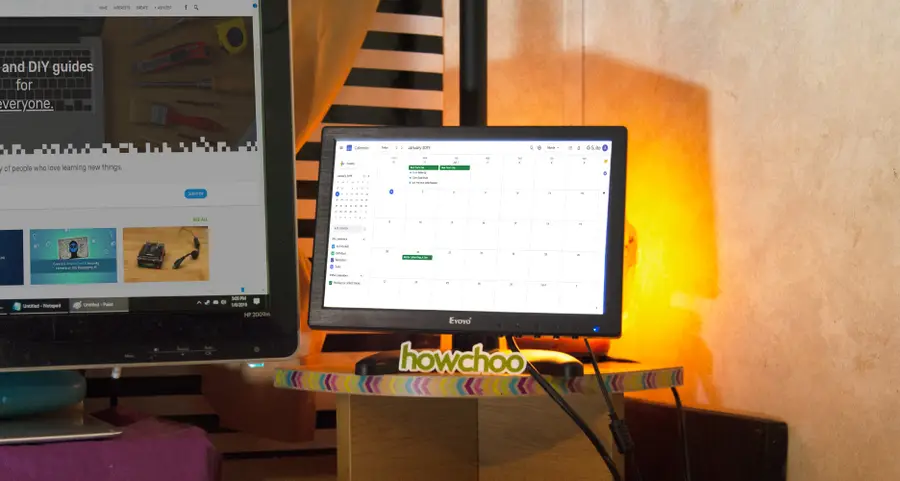
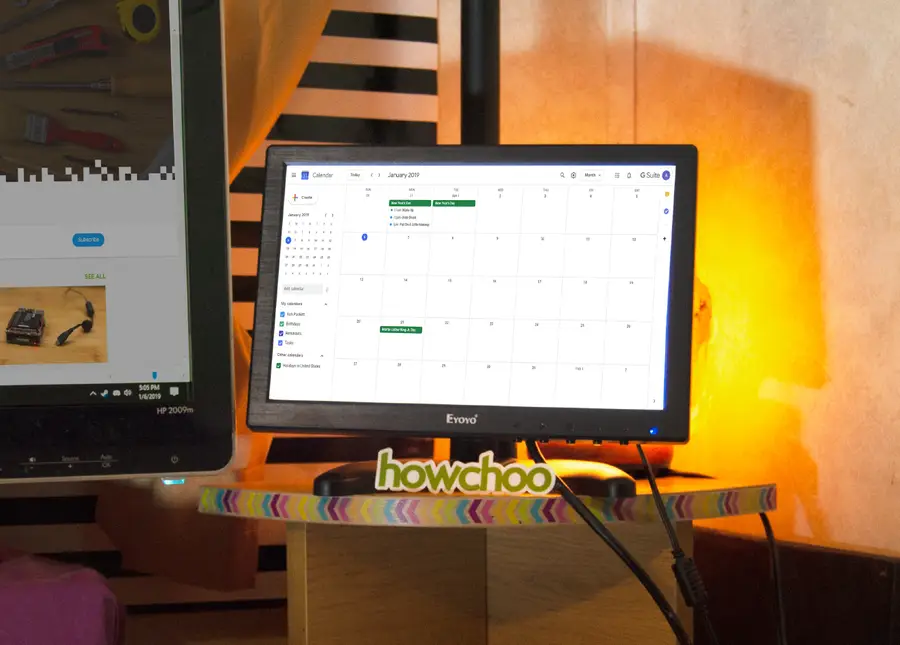
You’ll never need to buy another calendar again. This is a Raspberry Pi calendar that can sit on your desk, nightstand, or even be mounted on the wall. The Pi is synced with Google Calendarâmaking it easy to update from any device, display events for your family, and see changes in real time! Want to update your calendar? Just use your phone!
We only need a few things to get started. You’ll need a Raspberry Pi, I’m using a Raspberry Pi 3 B+ model. As far as a display is concerned, you can use any screen you like. I have a small Eyoyo screen that connects using HDMI. It comes with a small stand, making it a perfect desktop calendar. However, you could easily go one step further and use a wall mounted display.
1 – Install and update Raspberry Pi OS
We’ll need a fresh OS to get started. I’ll be using Raspberry Pi OS (formerly Raspbian). If you’d like to join me, visit our guide on how to install and update Raspberry Pi OS.
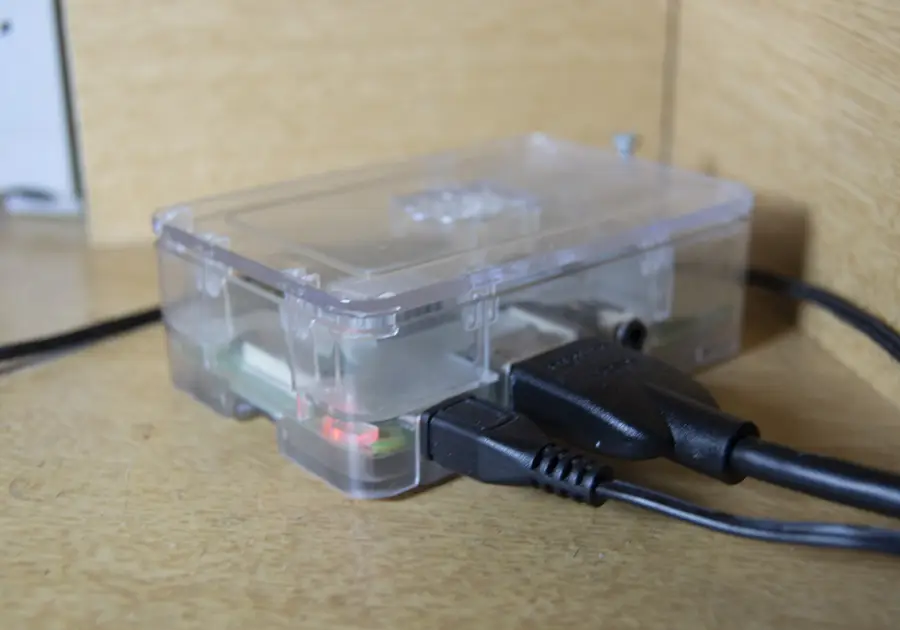
Once you have Raspberry Pi OS installed, it’s time to plug in our peripherals. Connect the screen to the Pi and plug in the power adapter.
3 – Adjust the first time boot settings
When the Pi first boots, Raspberry Pi OS will prompt you through a setup process. It typically guides you through creating a password, defining a timezone, and connecting to the internet. Once you have completed this phase, you’ll be presented with a desktop. Itâs highly recommended to change the Raspberry Pi host name.
You may need to enable SSH. If so, open the start menu, highlight Preferences, and choose Raspberry Pi Configuration. Under the Interfaces tab, enable SSH and select OK. Restart the Raspberry Pi.
4 – Configure Chromium for your Google Calendar
Launch the chromium browser and access https://calendar.google.com. Log into your Google account and save the authentication information in Chromium. This will ensure your account is logged in each time the browser is launched.
5 – Create a custom bootup script
Next, we’ll tell the Pi to open Chromium to the Google Calendar page every time it’s powered on. To accomplish this, we will create a startup script that launches everything for us.
Create the startup script
You can use any text editor you like, I’ll be using Notepad++. Create a file with the following script.
Note: Chromium has trouble rendering the Calendar properly, this is resolved by running Chromium with a different user agent. You donât need to do anything extra for this, I included the user agent information in the script below. Feel free to experiment with other user agents.
chromium-browser https://calendar.google.com --user-agent="Mozilla/5.0 (Windows; U; Windows NT 6.1; rv:2.2) Gecko/20110201" --disable-infobars --disable-session-crashed-bubble --kiosk &
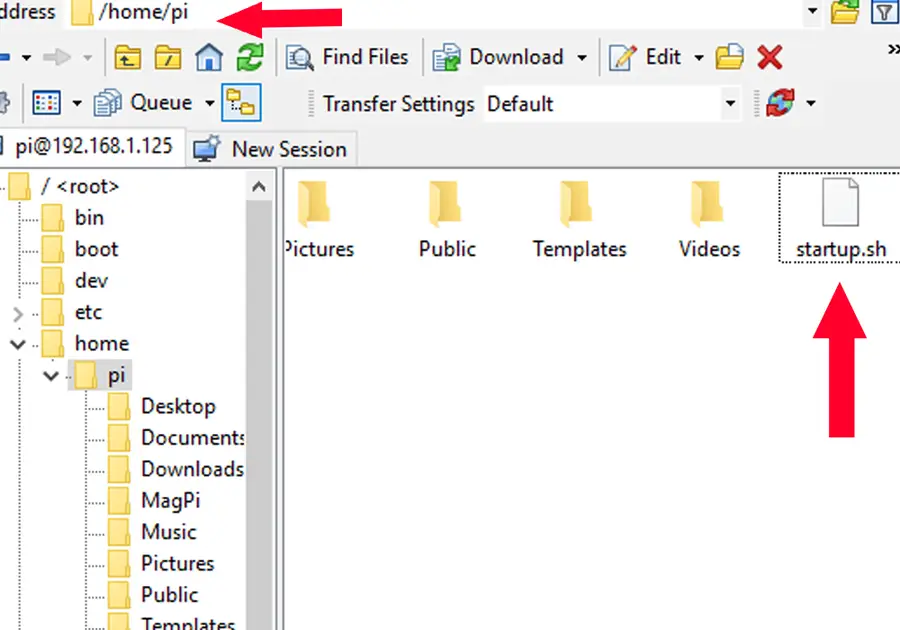
Enter a filename like startup and save it with a .shfile extension. Drop the file in the /home/pi/ directory.
Edit the autostart file
Now we need to tell the Pi to use our new script when it turns on. We’ll do this by editing the autostart file. Connect to the Pi using a terminal, like PuTTY, and run the following command.
sudo nano ~/.config/lxsession/LXDE-pi/autostart
At the bottom of the file, include the following string. Be sure to replace startup.sh with the filename you chose.
@sh /home/pi/startup.sh
Save the file using ctrl+x, press y, then enter.
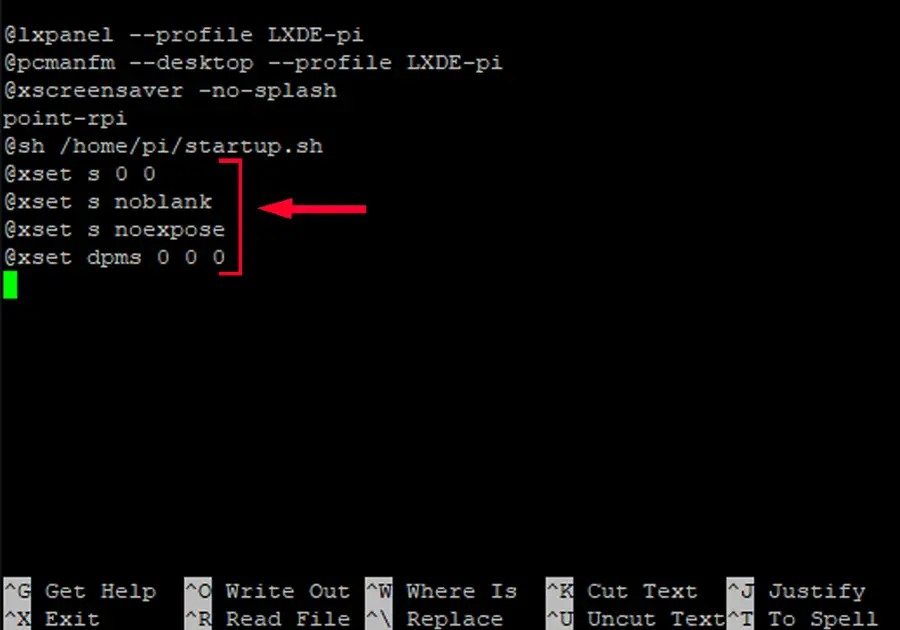
6 – Disable sleep mode
The Pi will disable the screen display automatically. It’s rather difficult to check a calendar that isn’t there, so we’ll need to turn it off entirely. To do this, connect to the pi using a terminal, like PuTTY, and run the following command.
sudo nano ~/.config/lxsession/LXDE-pi/autostart
At the bottom of the file, include the following.
@xset s 0 0
@xset s noblank
@xset s noexpose
@xset dpms 0 0 0
Save the file using ctrl+x, press y, then enter.
7 – Auto-hide the taskbar
We will need to hide our taskbar so it doesn’t interfere with our display. Right click an empty place on the task bar and choose Panel Settings. Under the Advanced tab, select the option to Minimize panel when not in use.
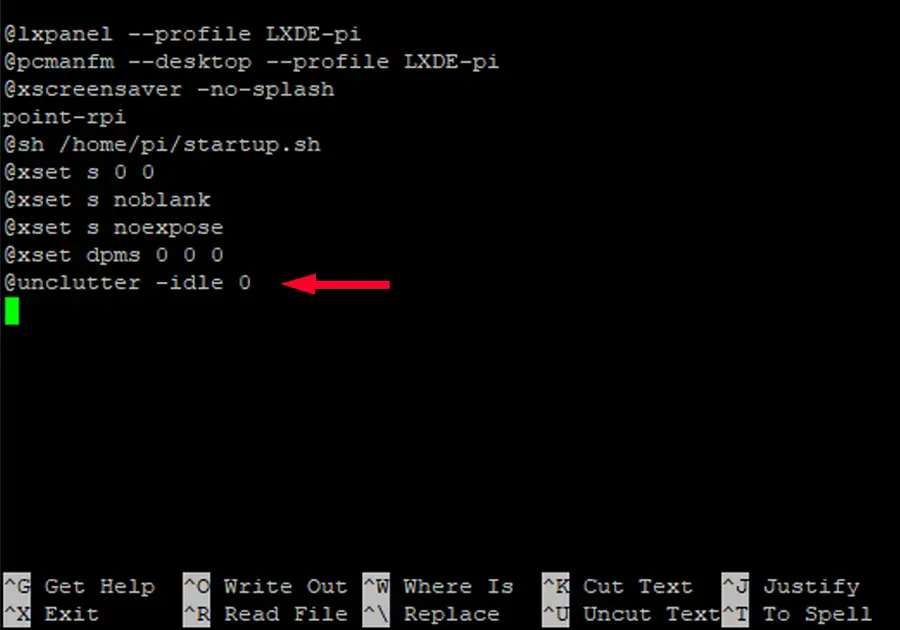
8 – Hide the cursor on boot
Weâll use a program called unclutter to hide our cursor. Install it using the following command.
sudo apt-get install unclutter
Next we’ll need to update our autostart file. Access it again using the following command.
sudo nano ~/.config/lxsession/LXDE-pi/autostart
At the bottom of the file, include this string.
@unclutter -idle 0
Save the file using ctrl+x, press y, then enter.
9 – Mark your calendarâitâs done!
Restart the Raspberry Pi for a final test of your work. If everything works, the calendar should launch in full screen with no errors and a hidden cursor.
Congratulations! You’ve created your own automated Raspberry Pi calendar. Now itâs time to set it up and enjoy your new device. Good work!
There are several ways to go about running a Minecraft server on the Raspberry Pi. In this guide, I’ll cover how to install Nukkitâa cross-platform Minecraft server that’s super easy to set up on the Raspberry Pi. This server should work with PCs, consoles, and tablets running Minecraft 1.14. I’ll be using a Raspberry Pi
Introducing Howchoo, an enigmatic author whose unique pen name reflects their boundless curiosity and limitless creativity. Mysterious and multifaceted, Howchoo has emerged as a captivating storyteller, leaving readers mesmerized by the uncharted realms they craft with their words.
With an insatiable appetite for knowledge and a love for exploration, Howchoo’s writing transcends conventional genres, blurring the lines between fantasy, science fiction, and the surreal. Their narratives are a kaleidoscope of ideas, weaving together intricate plots, unforgettable characters, and thought-provoking themes that challenge the boundaries of imagination.
This short guide will show you how to quickly and easily add ROMs to RetroPie using the USB flash drive method. There are other methods for transferring ROMs to RetroPie, but the USB drive approach is the fastest and easiest. If you’re using a Pi Zero (e.g. building a PiCart), this is a also a good approach since the regular Pi Zero doesn’t have built-in WiFi and this approach does not require an internet connection.
ROM stands for “Read-Only Memory”, a type of memory meant to be read but not written to. Originally, video games were stored on ROM chips soldered to a printed circuit board (and later on read-only mediums like CD-Rs). A game ROM that RetroPie uses is essentially a copy of the original ROM.
Transferring ROMs to RetroPie
Using the USB drive approach, you will copy ROMs to your USB drive, connect it to your Pi, and RetroPie will automatically copy them to the SD card and make them available in Emulation Station (and the RetroPie UI).
Where can I find ROMs for RetroPie?
Need more games to play? Check out our complete guide to finding RetroPie ROMs.
Note: You should NOT download any copyrighted ROMs. In some countries, it’s legal to use a ROM for which you own a physical copy (as this is considered a backup). Be smart and don’t do illegal things. 🙂
1 – Format your USB flash drive to work with Raspberry Pi
First, you’ll need to format the USB/thumb drive as FAT32. Connect it to your computer.
If you’re on Windows, open up Explorer, locate the USB drive, right-click it, and select Format from the context menu. Select the FAT32 option and click the Start button.
If you’re on a Mac, open Disk Utility by navigating to Applications > Utilities > Disk Utility. Select your USB drive in the left pane. For Yosemite and older, navigate to the Erase tab, select MS-DOS (FAT) as the Format, give it a name, and click the Erase button. For El Capitan and newer, simply click the Erase button, select MS-DOS (FAT) as the format, give it a name, and click the Erase button.
🛈 I recommend using a normal USB thumb drive — not a high-powered external USB hard drive — as the Pi may not have enough power to run the hard drive unless said external hard drive has its own power supply.
2 – Create the RetroPie folder
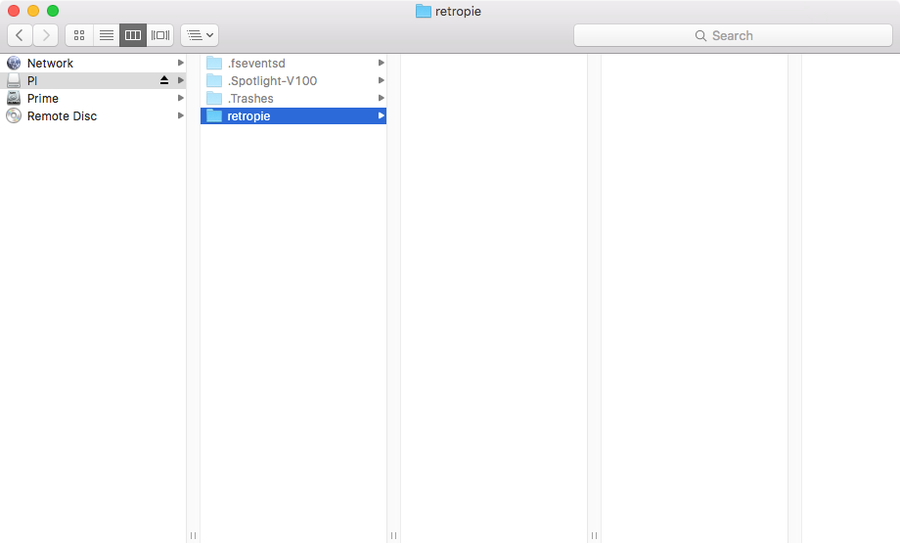
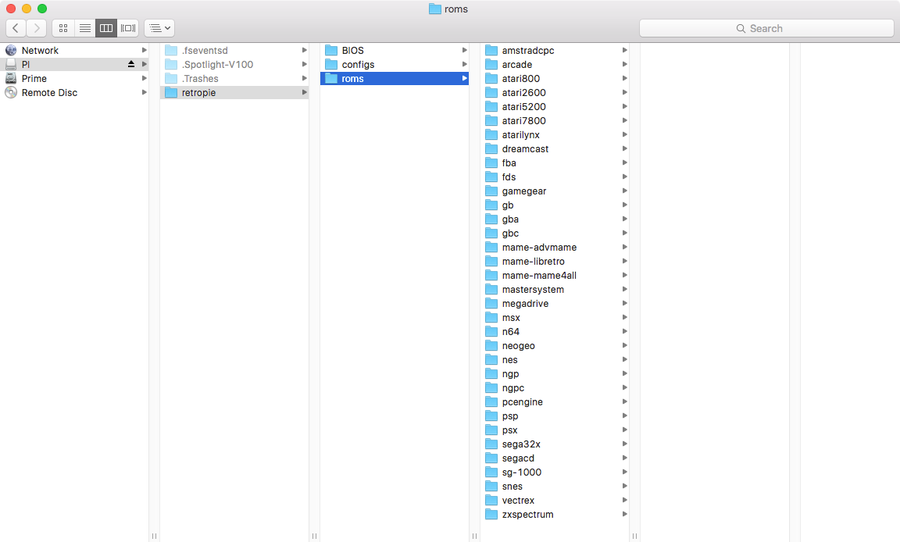
Create a folder on the newly-formatted USB drive called retropie (in lowercase).
3 – Create the ROM folder structure
How this process works is we’re going to ask RetroPie to populate a set of folders on the USB drive for us. Then, we’ll paste our ROMs into these folders.
Boot up your Pi, safely eject your USB drive and connect it to your Pi. Now, the Pi will create our set of folders. When the process is complete, the LED on your USB drive will stop blinking. If your USB drive doesn’t have an LED on it, just wait a few minutes to make sure the process has completed.
Remove the USB drive from your Pi and plug it back into your computer.
4 – Unzip and add your ROMs
You’ll need to unzip all of your ROMs (except for MAME) before transferring them. With the exception of MAME, RetroPie cannot read ROMs ending in .zip. So unzip the ROMs for your other systems before transferring.
Copy and paste the unzipped ROMs into the corresponding folder for each emulator/system.
See our guide on unzipping RAR files, should you find any ROMs packaged that way.
🛈 Sega Genesis ROMs go in the “megadrive” folder, as this is what the system was called when originally released in Japan.
5 – Transfer your ROMs to your Raspberry Pi
Safely eject the USB drive from your computer and connect it to your Pi. RetroPie will now begin automatically transferring your ROMs.
This may take some time. The LED on your USB drive will stop blinking when the process is complete. Again, if your USB drive doesn’t have an LED on it, you’ll need to do some math (fun!) to know when it’s safe to pull your USB drive. Here we go:
USB 2.0 has a maximum theoretical transfer rate of 480 megabits per second. There are 8 bits in a byte, so that’s about 60 megabytes per second. Note: your USB drive (and the Pi itself) may not be capable of these speeds, so your results may vary.
For example, if you have 1 gigabyte of ROMs, simply convert that to megabytes (1000MB) and divide it by the USB 2.0 maximum transfer rate (60 megabytes per second) — 1000MB / 60MB — so your 1GB transfer should take about 17 seconds.
Add a bit of padding time just in case; it’s possible that RetroPie is processing ROMs one by one rather than just batch copying them.
🛈 Or, if you don’t want to do any math, just plug it in before going to bed and it’ll be finished by the morning.
6 – Restart Emulation Station
Once the transfer is complete, unplug your USB drive from the Pi.
Before Emulation Station/RetroPie can read your ROMs, you’ll need to restart it. You can do this by pressing Start and using the Shut Down option to reboot your Pi.
Once you’ve rebooted, you will see system icons appear for every system that has ROMs installed. If no ROMs are installed for a system, its icon will not appear.
7 – Adding more ROMs later
When you go to add more ROMs later through the same process, it will not remove all your existing ROMs — it will add the new ROMs and replace those with the exact same filename.
So you can add more ROMs later without losing the ROMs you already have on your system! 🙂
8 – You’re good to go!
Questions? Comments? Post in the comments section below and I’ll do my best to help you out.
There are several ways to go about running a Minecraft server on the Raspberry Pi. In this guide, I’ll cover how to install Nukkit—a cross-platform Minecraft server that’s super easy to set up on the Raspberry Pi. This server should work with PCs, consoles, and tablets running Minecraft 1.14. I’ll be using a Raspberry Pi
Introducing Howchoo, an enigmatic author whose unique pen name reflects their boundless curiosity and limitless creativity. Mysterious and multifaceted, Howchoo has emerged as a captivating storyteller, leaving readers mesmerized by the uncharted realms they craft with their words.
With an insatiable appetite for knowledge and a love for exploration, Howchoo’s writing transcends conventional genres, blurring the lines between fantasy, science fiction, and the surreal. Their narratives are a kaleidoscope of ideas, weaving together intricate plots, unforgettable characters, and thought-provoking themes that challenge the boundaries of imagination.
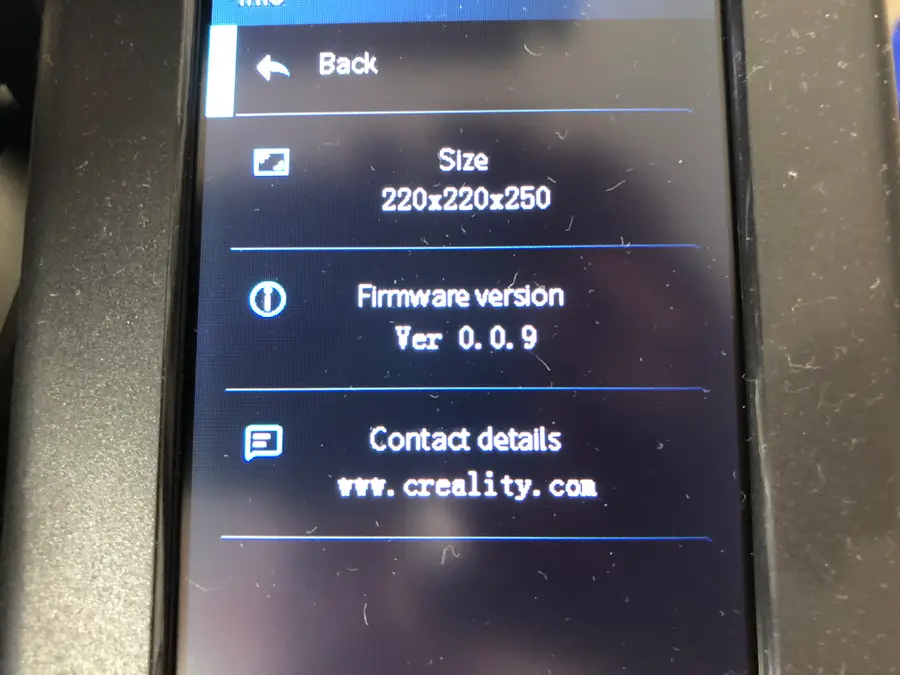
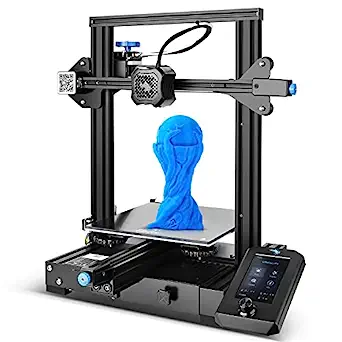
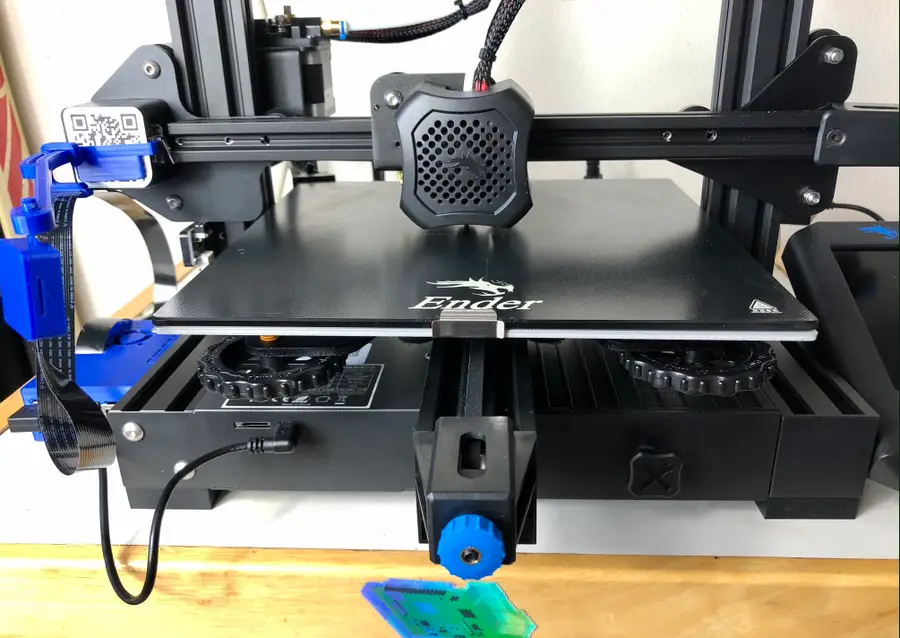
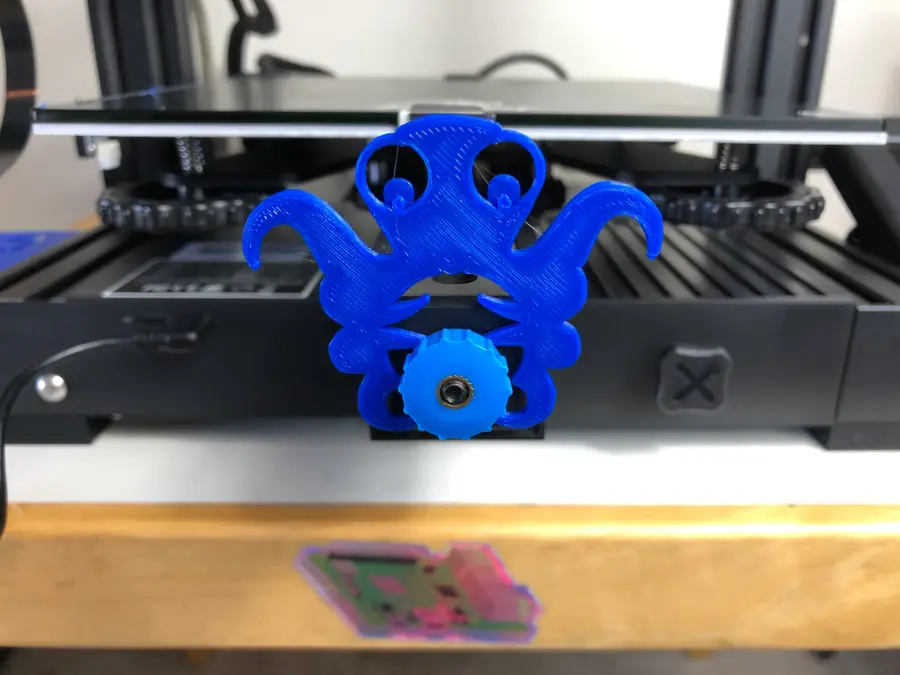
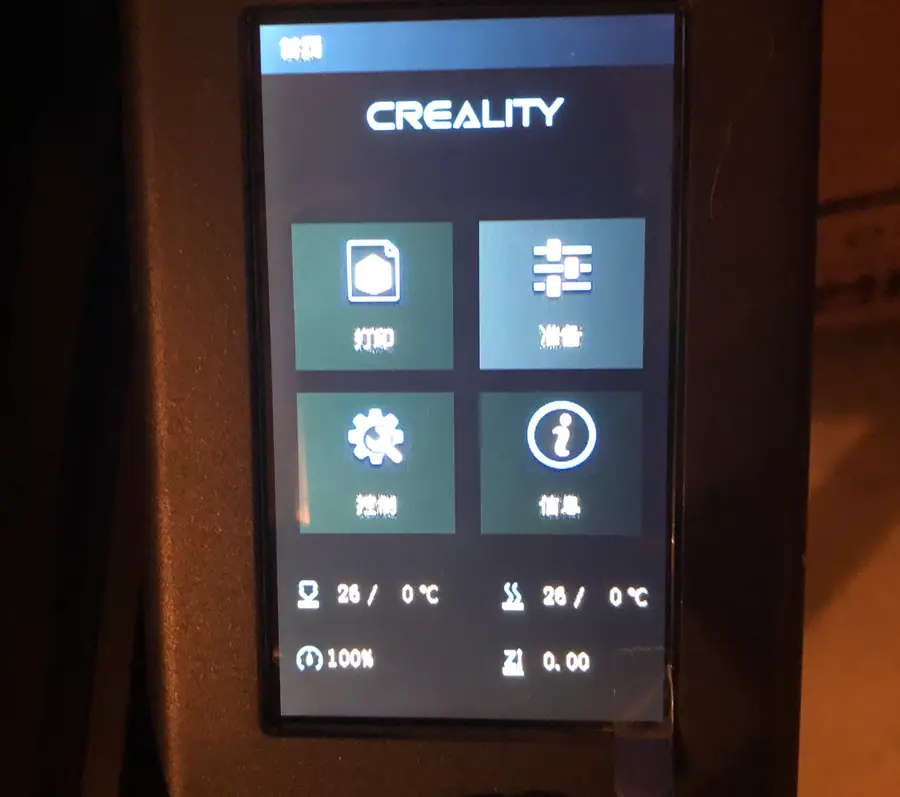
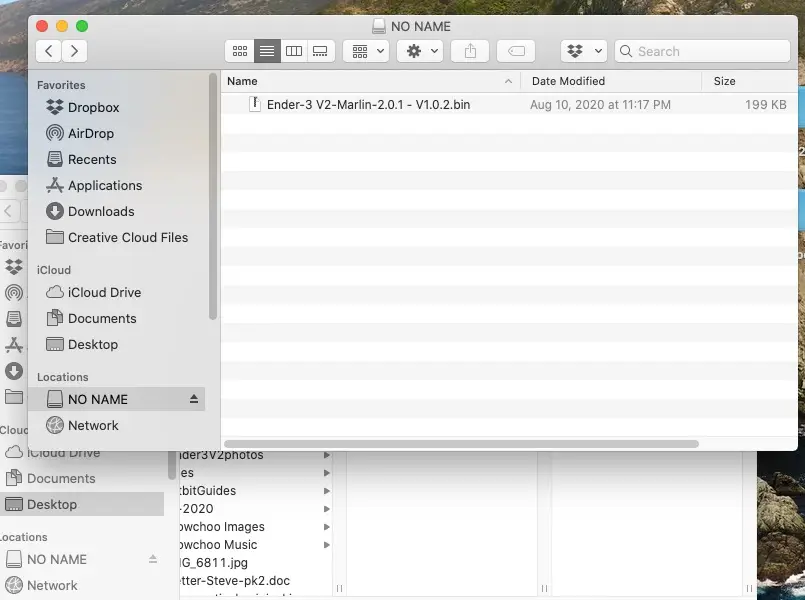
Before my recent firmware update on my Ender 3 V2, my firmware was at least three versions behind the latest. This caused some issues when I updated my Cura slicer and set up OctoPrint on my Ender 3 V2. Creality updates its firmware to ensure that the printer works properly with third-party applications, among other things.
Not updating your firmware will eventually cause issues, so spend the five minutes running the update before your next print. It might just save a big print project from failure (which is the worst!).
On the left side of the page, navigate to Ender Series > Ender-3 V2 3D Printer.
Do not select the original Ender 3. Make sure you select the V2.
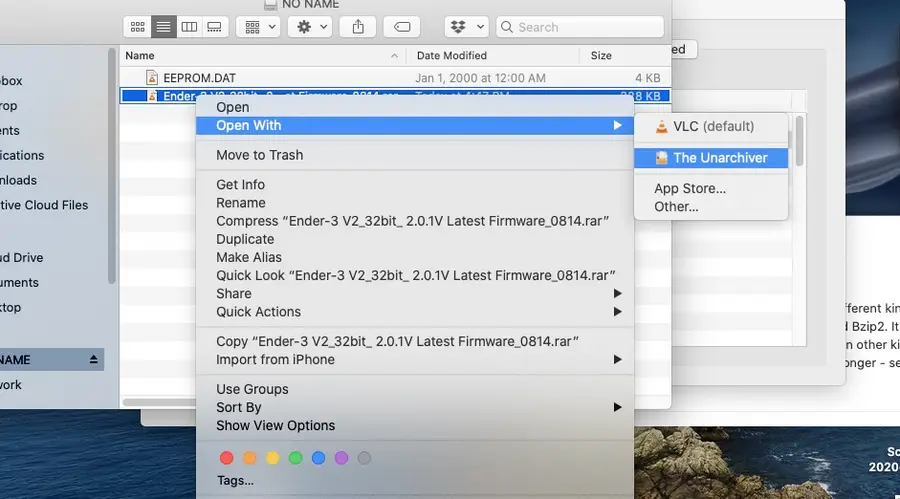
Find the download link for the “Latest Firmware.” They will be Zip files containing the different firmware versions. As of this writing, they look like this:
Note that there are now two different firmware versions depending on whether your Ender 3 V2 is running the 4.2.2 motherboard or the quiet 4.2.7 motherboard.
Blender is one of the most popular open-source 3D creation suites today. It doesn’t cost a dime to use and everything you create is yours to own for good. The community is robust and the dev team still releases new updates on the regular. If you want to get the latest version, you may have
Introducing Howchoo, an enigmatic author whose unique pen name reflects their boundless curiosity and limitless creativity. Mysterious and multifaceted, Howchoo has emerged as a captivating storyteller, leaving readers mesmerized by the uncharted realms they craft with their words.
With an insatiable appetite for knowledge and a love for exploration, Howchoo’s writing transcends conventional genres, blurring the lines between fantasy, science fiction, and the surreal. Their narratives are a kaleidoscope of ideas, weaving together intricate plots, unforgettable characters, and thought-provoking themes that challenge the boundaries of imagination.
If you’re like me, you’ve got way more Raspberry Pi’s than you have monitors. While I typically use a headless Pi for most projects, there are some that require a display. Recently, I got my hands on the official Raspberry Pi 7″ touch display, and I wanted to get it set up for daily use. In this guide, I’m going to show you how to get the touchscreen display completely set up, as well as a few other tips for using it.
You’ll need to supply your own Raspberry Pi, but fortunately, everything else you need is included with the touch display.
2 – Connect the ribbon cable to the display
We will install the ribbon cable first because it’s much more difficult after the Pi is mounted. The connector is very similar on both the Pi and the display board. Start by pulling the black tabs (one on each side) away from the display board’s connector. Then insert the cable with the blue strip facing down.
After the cable is inserted, press the black tabs back into the connector. This will lock the cable in place.
🛈 Be careful when locking and unlocking the cable. The black tabs can break if you use too much force.
3 – Secure the Pi to the display
The touchscreen display kindly provides standoffs and screws that can be used to mount the Raspberry Pi. Position the Pi on the standoffs (with the display connector on the same side as the ribbon cable). Use a small Philips head screwdriver to fasten the Pi to the standoffs.
A keen eye will notice that the image shows the ribbon cable already connected to the Pi. Yes, I assembled this in a slightly different order, but I wanted to re-order things for this guide because it makes more sense to connect the cable after the Pi is secured.
4 – Insert the ribbon cable on the Pi
With the Raspberry Pi in place, go ahead and insert the other end of the ribbon cable. You attach this cable the same way you did on the display board. Pull the black tabs out, insert the cable with the blue side facing away from the board, and push the black tabs back to lock it in place.
5 – Connect the jumper cables to power the display
There are a few options for powering the Pi and the display. If you wanted, you could power the Pi and the display using separate power adapters, but we’re going to power the Pi directly, then use jumper cables to supply power to the display board.
The kit comes with four jumper cables, but, for a Raspberry Pi 4, you need cables for only two pins: 5V and GND. Connect one cable to the 5V pin on the Pi and the 5V pin on the display board. Then connect to a GND pin on the Pi and the GND pin on the display board. See the image for details.
6 – (Optional) Use a case or stand
There are many options for cases and stands, and what you need depends entirely on your use case. I’m going to keep my Pi and touchscreen display at my desk, and I don’t mind the boards and wiring exposed (I think it looks cool), so I designed and printed a minimalist stand. If you’ve got a 3D-printer and want to print the stand I designed, here’s the model on Thingiverse.
7 – (Optional) Install the on-screen keyboard
Again, depending on your use case, you might find yourself wanting to type something! To do so, you’ll either need to connect a physical keyboard or install the on-screen keyboard. In this step, we’ll cover how to install and use the on-screen keyboard.
To open the on-screen keyboard, click on the Pi icon at the top left. Then choose Accessories then Keyboard. To close the keyboard, just hit the X at the top right of the keyboard.
8 – Enjoy!
Hopefully, this guide is enough to get you up and running with the Raspberry Pi 7″ Touch Display. If you have any questions or feedback, feel free to comment below!
There are several ways to go about running a Minecraft server on the Raspberry Pi. In this guide, I’ll cover how to install Nukkit—a cross-platform Minecraft server that’s super easy to set up on the Raspberry Pi. This server should work with PCs, consoles, and tablets running Minecraft 1.14. I’ll be using a Raspberry Pi
Introducing Howchoo, an enigmatic author whose unique pen name reflects their boundless curiosity and limitless creativity. Mysterious and multifaceted, Howchoo has emerged as a captivating storyteller, leaving readers mesmerized by the uncharted realms they craft with their words.
With an insatiable appetite for knowledge and a love for exploration, Howchoo’s writing transcends conventional genres, blurring the lines between fantasy, science fiction, and the surreal. Their narratives are a kaleidoscope of ideas, weaving together intricate plots, unforgettable characters, and thought-provoking themes that challenge the boundaries of imagination.
This guide teaches you how to run a Bitcoin full node, which is not the same as mining. You won’t earn bitcoins by running a full node. You run a full node because you love Bitcoin and want to support the network.
What is a full node?
The beauty of a fully decentralized currency, like Bitcoin, is that it doesn’t require a financial institution to govern the network. Rather, government happens by consensus. This means that transactions and the full historical ledger of transactions (blockchain) are determined and verified by computers (nodes) attached to the Bitcoin network.
Some nodes, called miners, record new transactions by publishing them in “blocks”. Other nodes, simply called full nodes, verify the transactions and ensure that miners are following the consensus rules. If a miner tries to publish a block that doesn’t follow the rules, it will simply be ignored.
When a miner (or mining pool) is the first to publish a new block, it receives a mining reward. And while mining can be lucrative, it also requires an upfront investment and uses a considerable amount of energy.
In order for the Bitcoin network to operate securely, it requires many additional full nodes to ensure the miners are following the consensus rules and help relay transactions to other nodes in the network.
And since there is no direct financial incentive to run a full node (unlike mining), it requires good Bitcoin citizens to step up and help out.
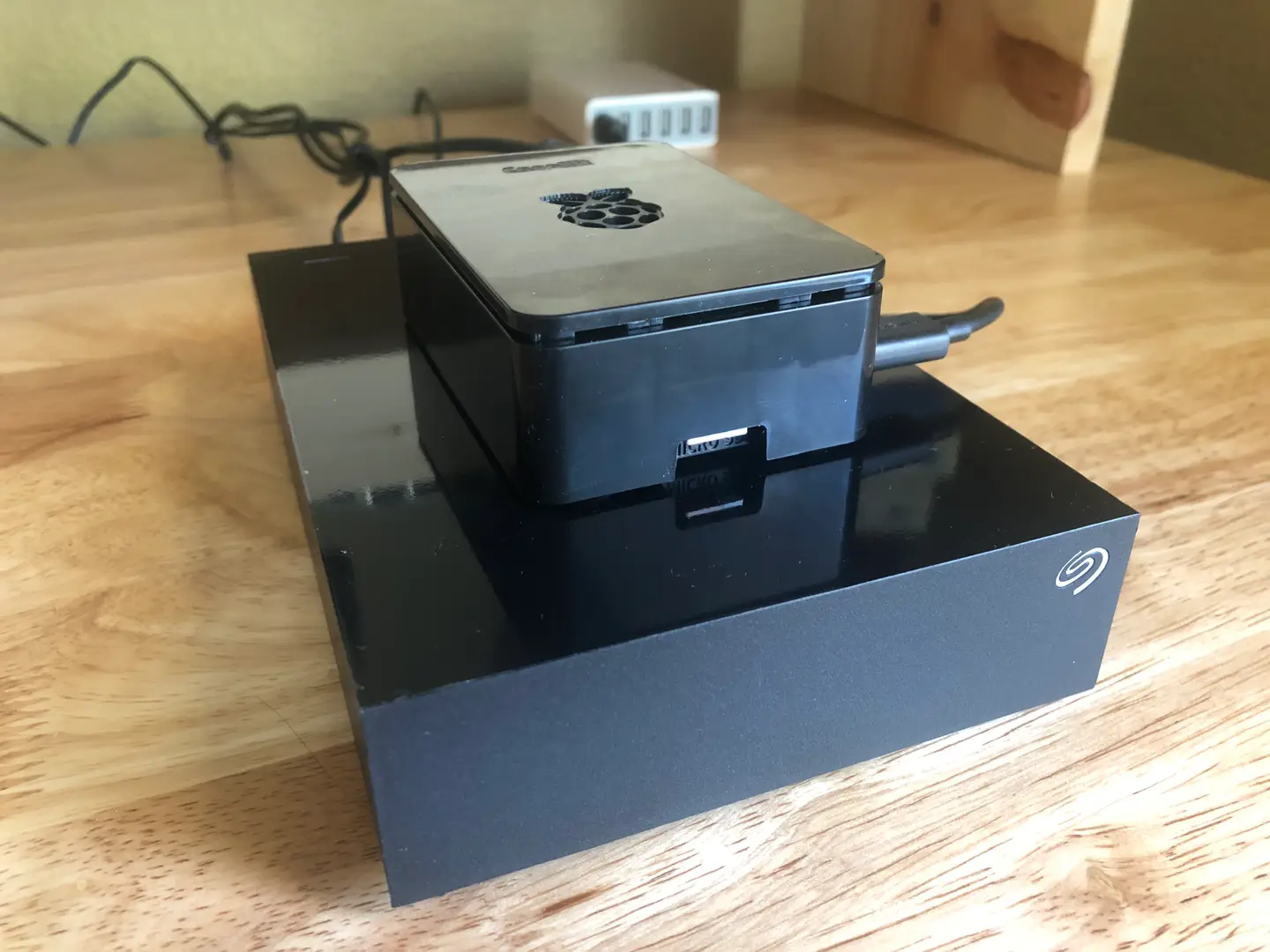
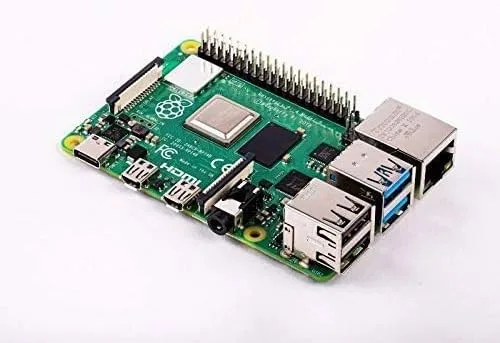
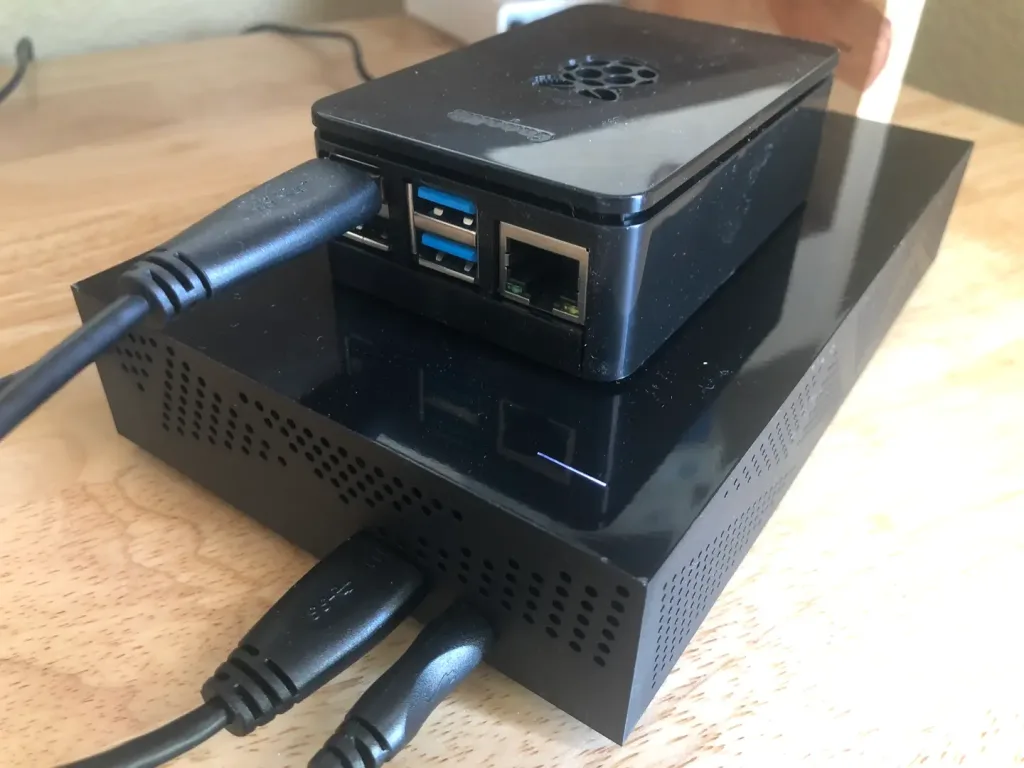
In this guide, we’re going to learn how to run a full node using a Raspberry Pi 4 and an external hard drive.
Why Raspberry Pi?
The Raspberry Pi is small, inexpensive, and meets the minimum requirements for running a Bitcoin full node. A machine running a full node can also be used for other tasks, but because a full node should be connected to the network at least six hours a day (and ideally continuously), it makes sense to use an inexpensive computer dedicated to the task.
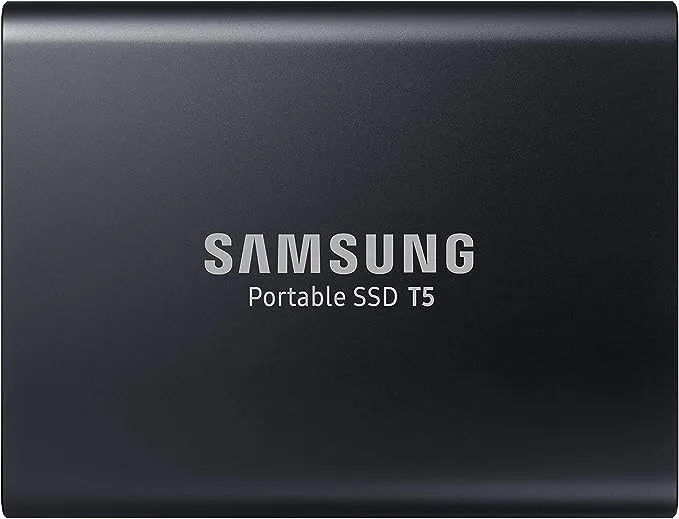
One thing you might notice is that the Raspberry Pi doesn’t ship with storage. So generally Raspberry Pi users will run the operating system on a small-ish micro SD card. But because running a full node involves downloading the entire Bitcoin blockchain, which is a few hundred gigabytes (and growing), we’re going to add an external hard drive to the setup. You could also use a high capacity micro SD card or a high capacity thumb drive. Just make sure that with any option you choose, you have over 350GB of available space.
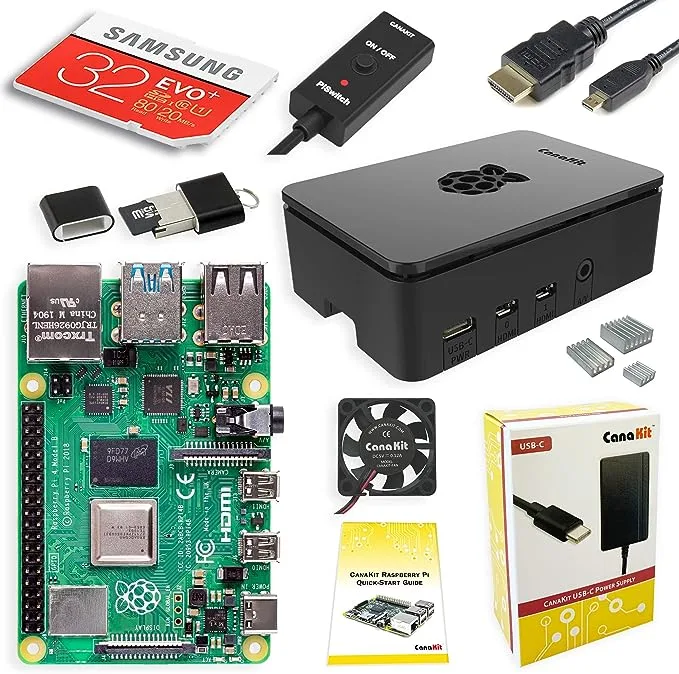
If you’re new to Raspberry Pi, then you’ll likely want to get a kit like the Canakit for the Raspberry Pi 4 that I’m using for this guide.
CLI vs GUI
As we get started, please note that I prefer command-line tools to graphical tools, especially for a project like this. So throughout this guide, you’ll be exposed to commands that need to be executed in the Terminal application running a Unix-based shell. The reason for choosing CLI (command-line interface) over GUI (graphical user interface) is that graphical tools require peripherals (monitor, keyboard, mouse).
If you prefer graphical tools, you can still follow along with this guide, and I will point out which steps will need to be modified.
While you’ve got your SD card mounted on your laptop, now is a good time to configure WiFi and enable SSH.
2 – Connect the external hard drive
Connect the Raspberry Pi to the External Hard Drive
Because the entire blockchain is a few hundred gigabytes, you’ll need to either get a massive SD card or use an external hard drive. I recommend using an external hard drive as long as the read/write speeds are sufficient. The bitcoin.org documentation recommends a storage device with at least 100 MB/s. I’m using a hard drive with 160 MB/s, but I after having gone through this process, I highly recommend using a 1TB+ SSD (solid-state drive). The initial block download (that we’ll cover in more depth later) will take quite a bit of time and using an SSD will make your life easier.
With the hard drive connected, you can now boot the Raspberry Pi.
3 – Connect to the Raspberry Pi
If you’re using the Raspberry Pi desktop and have a monitor, keyboard, and mouse available, you can go ahead and boot the operating system and log in.
Otherwise, you’ll need to connect to the Pi via SSH. We’ve written a detailed guide on how to connect to your Raspberry Pi via SSH, so please refer to that guide if you need additional help.
Unless you’ve changed it, the password is “raspberry”.
4 – Configure the external hard drive
In order to use the hard drive to store blockchain data, you’ll need to configure the Pi and mount the drive.
Install the necessary storage drivers
Depending on the hard drive you purchase, you’ll need to install the necessary storage driver for the Pi. The storage driver depends on the file system type used on the hard drive.
You can also reformat the hard drive using a different file system type, but that’s beyond the scope of this guide.
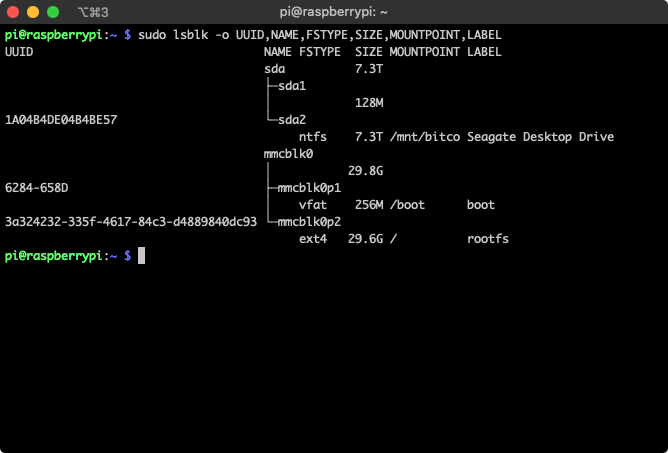
To find the file system type of your hard drive, you can type:
Use the LABEL column to identify your storage device and the FSTYPE column to find the file system type.
ntfs
For ntfs devices, use:
sudo apt-get update
sudo apt install ntfs-3g
exFAT
For exFAT, use:
sudo apt-get update
sudo apt install exfat-fuse
Mount the drive
Get the disk partition location
Next, you’ll need to mount the storage device onto your Raspberry Pi. First, get the location of the disk partition we want to mount using:
sudo blkid
Again, look for the label and copy the first column. It’s often something like /dev/sda1 or /dev/sda2. Mine is /dev/sda2.
Create the mount point and mount the disk
It’s customary (but not required) to put disk mounts in /mnt. Because the device will hold Bitcoin data, we’ll name the mount point “bitcoin”.
sudo mkdir /mnt/bitcoin
sudo mount /dev/sda2 /mnt/bitcoin
Verify the disk was mounted properly
To verify that the disk was mounted correctly, run:
df -h
You should see something like the following:
Filesystem      Size  Used Avail Use% Mounted on
/dev/root        30G  3.0G   25G  11% /
...
/dev/sda2       7.3T  320M  7.3T   1% /mnt/bitcoin
Set up automatic mounts
So far, you’ve mounted the external hard drive manually, but the next time you boot the machine you’ll have to do it again. Fortunately, we can automatically mount the device each time we boot using fstab.
To do this, we’ll need to get the PARTUUID. To get this value, run:
sudo blkid
Again, find the device by the LABEL and take note of the PARTUUID.
Now open /etc/fstab to edit, and append the following line:
PARTUUID= defaults,auto,users,rw,nofail 0 0
Replace , , and with the correct values. If the fstype is ntfs or fat, add ,umask=000 immediately after nofail.
Now it’s time to download and install bitcoind. To do so, go to the bitcoin downloads page and find the option to download Bitcoin Core for ARM Linux. Right click, and copy the link URL.
Back in your shell session on your Raspberry Pi, type:
That’s it! You should be able to see output with the following commands:
bitcoind --help
bitcoin-cli --help
6 – Run the bitcoind daemon
At this point, if you’re using the Raspberry Pi OS Desktop and would prefer to use a GUI, you can skip this step and follow the instructions found here.
With the external hard drive configured and bitcoind installed, you can now run the bitcoind daemon. Using the following command will start the bitcoind daemon specifying our external hard drive as the data directory.
bitcoind -daemon --datadir=/mnt/bitcoin
If everything is successful, you should see the following output:
Bitcoin Core starting
A note on the data directory
Since we’re starting the daemon with a non-standard data directory, we’ll need to specify the datadir every time we use the bitcoin-cli command, like this:
bitcoin-cli -datadir=/mnt/bitcoin
However, if you want to avoid this, you can simply add an alias in your bashrc file. Open ~/.bashrc and append the following:
alias bitcoin-cli='bitcoin-cli -datadir=/mnt/bitcoin'
Save the file, then run:
source ~/.bashrc
What is happening?
The daemon will take some time to start up, but once it does your node will begin to download the entire Bitcoin blockchain.
The entire blockchain is just under 300GB at the moment, so you can imagine that this will take some time. If you need to pause for whatever reason, you can simply run:
bitcoin-cli stop
This will pause everything. When you start up the daemon again, it will pick up where it left off.
7 – Starting the daemon on startup
In the previous step, you manually started the daemon. But if you’re using the Raspberry Pi as a dedicated Bitcoin full node, you’ll likely want the daemon to start whenever the machine boots.
To do so, edit your crontab by running the following command:
Save the file and exit. Now the bitcoin daemon will start whenever your system boots.
8 – Test your connection
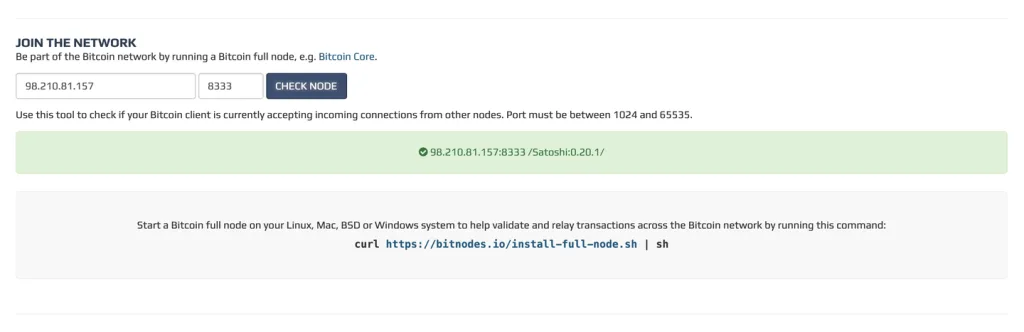
Enter your IP address and click “Check Node”.
Assuming you’re using your full node to support the Bitcoin network, you’ll need to make sure your node accepts inbound connections.
You can test inbound connections by visiting https://bitnodes.io/#join-the-network. Enter your IP address and the port, if you happened to modify it (the default port is 8333).
9 – Forward port 8333 to your Raspberry Pi, if necessary
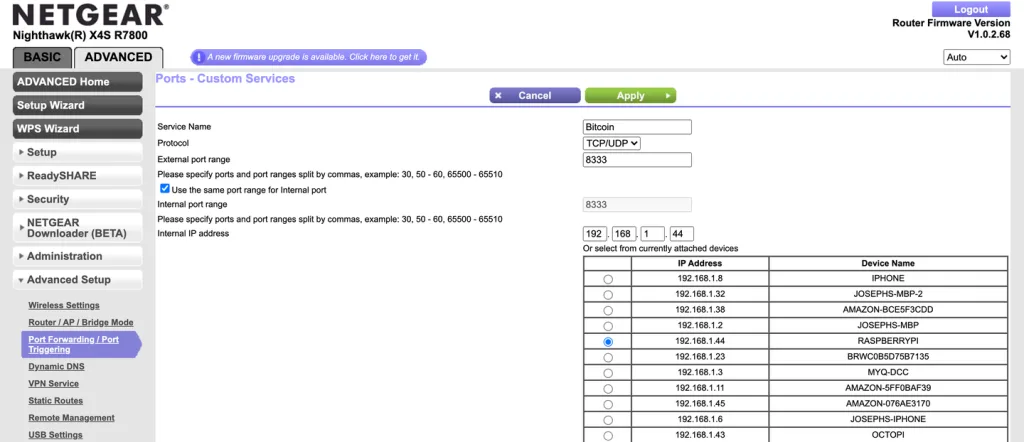
The port forwarding configuration may be under “Advanced”. Every router is different.
Chances are you’re running your full node on your home network, which means you likely saw an error in the previous step. To resolve this, you’ll need to forward port 8333 from your WiFi router to your Raspberry Pi.
Every router is different, so you may have to do some digging around. Fortunately, we’ve written a guide on how to open a port on your router that should give you some direction.
How to Open a Port on a Router Manually configure the port settings on your router.
After you’ve set up port forwarding, test your connection again using the instructions from the previous step.
10 – Tips for speeding up the IBD (initial block download)
When you spin up your full node for the first time, your node will have no knowledge of the existing blockchain history. So the very first thing it needs to do is sync with the rest of the network by downloading and verifying all blocks. This is a very time and resource consuming operation because it needs to download and verify over 340Gb of data (at the time I’m writing this).
So in this step I’ll provide a few optional suggestions for speeding up the initial block download.
Use an SSD
As I mentioned previously, I opted for an 8TB HDD but should’ve gone with a 1TB SSD at a similar price. Read/write speeds are much faster on the SSD, so this is the best way to eliminate a potential bottleneck on disk IO.
Use a more powerful computer to do the initial download
While doing the initial block download on my Raspberry Pi, I noticed that it was CPU constrained the entire time. So to speed things up, I opted to spin up a powerful, compute-optimized virtual machine on GCE. If you’re curious, I used a c2-standard-8, which comes with 8 CPUs and 32GB of memory. I attached a 500GB SSD and a 500GB HDD (I would’ve just used a 1TB SSD, but I needed to get a quota lifted first). The entire blockchain was downloaded and verified within 12 hours.
If you’d like to use this method, be warned that you’ll still need to transfer the entire blocks and chainstate directories from the virtual machine to your Pi, replacing the existing directories.
If using a high-power virtual machine on GCP or AWS isn’t an option, you can try any other more powerful desktop or laptop you have available.
11 – What’s next?
Downloading the blockchain will take a LONG time. Check your ISP account and make sure you have enough data available on your plan; otherwise, you might get throttled or shut down. Once the blockchain downloads, you’ll be in business.
bitcoin-cli
Take some time to learn the bitcoin-cli. You can start by listing all of the commands:
bitcoin-cli help
Use your wallet
If you’d like, you can use the wallet on your full node to store Bitcoin. In reality, this isn’t the most convenient or safe way to store Bitcoin, as it’s hard to use and connected to the Internet at all times.
There are several ways to go about running a Minecraft server on the Raspberry Pi. In this guide, I’ll cover how to install Nukkit—a cross-platform Minecraft server that’s super easy to set up on the Raspberry Pi. This server should work with PCs, consoles, and tablets running Minecraft 1.14. I’ll be using a Raspberry Pi
Introducing Howchoo, an enigmatic author whose unique pen name reflects their boundless curiosity and limitless creativity. Mysterious and multifaceted, Howchoo has emerged as a captivating storyteller, leaving readers mesmerized by the uncharted realms they craft with their words.
With an insatiable appetite for knowledge and a love for exploration, Howchoo’s writing transcends conventional genres, blurring the lines between fantasy, science fiction, and the surreal. Their narratives are a kaleidoscope of ideas, weaving together intricate plots, unforgettable characters, and thought-provoking themes that challenge the boundaries of imagination.
‘90s cartoons were the best. They were funny, the art was epic, they were child-friendly (most of them at least), and they taught us millennials fundamental lessons that made us who we are today. Now, I don’t want to say they are better than today’s cartoons, because I am sure there are some good cartoons out there teaching kids all the lessons they need to know while keeping them occupied until dinner is ready, but ‘90s cartoons were pretty revolutionary.
They were experimental, unique, hilarious, and though millennials certainly didn’t know it, a majority of cartoons, The Ren & Stimpy Show being one of them, were interesting and entertaining enough to entertain our parents who were probably tired of hearing The Barney Theme Song for the millionth time. From Angry Beavers to Powerpuff GirlsBeavis and Butthead, ‘90s cartoons had a plethora of options for every type of kid with every type of interest. Even my dad had a special appreciation for a few of the kid’s shows and cartoons I watched over my morning cereal (he loved watching The Ren & Stimpy Show).
So, this list includes all the best ’90s cartoons that millennials miss, and where to watch them today, if you are feeling the need to take a trip down nostalgia lane.
1 – CatDog
Pinterest (Edited)
CatDog is pretty legendary as far as ’90s cartoons go. In CatDog, these conjoined siblings are complete opposites, one a cat and one a dog, who do everything together, though I’m not sure Cat is always happy about that. Cat, who often finds himself annoyed by his brother, Dog, is always up to something when it comes to his somewhat clueless brother. Dog, who is a bit more happy-go-lucky and oblivious, doesn’t usually catch on to Cat’s not-so-nice plans, but at the end of the day, they usually come together when dealing with Winslow and the Greaser Dogs.
What made this show so great was the characters, the situations Cat and Dog seemed to get into, and the catchy theme song that I may or may not be humming as I write these words. It was definitely one of the best theme songs of all time, Nickelodeon really hit it out of the park with this wacky show, and, as a millennial, I miss it a ton.
Dates aired
CatDog first aired on April 4, 1998, and aired its final episode on June 15, 2005.
The Angry Beavers is another ’90s cartoon with two brothers who are very different from one another. These total opposites, Norbert and Daggett Beaver, are constantly encountering wild situation after wild situation. The adjective “angry” being used front and center to describe the brothers is really all prospective watchers needed to know things were going to get interesting when it came to those shenanigans. Norbert, who is a bit angrier and easily agitated, can’t handle all of Dagget’s pranks and jokes, resulting in several arguments and prank wars.
The show was cute, funny, and had just enough action to keep my parents and me interested! Because Norbert and Dagget are two beavers who are newly entering adulthood, the cartoon is one millennials of all ages miss, myself included.
Dates aired
The Angry Beavers first aired on April 19, 1997, and aired its final episode on June 11, 2001.
Where you can watch The Angry Beavers today
Vudu
Amazon Prime Video
Apple TV
3 – Recess
Pinterest (Edited)
Third Street School really has a problem with bullying in the epic ’90s cartoon, Recess. What’s great, and pretty revolutionary about this ’90s show is that the kids decide to band together and fight back against the school’s biggest and meanest bullies. T.J, Gretchen, Ashley, Vince, Mikey, and Gus all experienced bullying at one point in time at Third Street School and decided enough is enough. Even though none of them really have much in common, they become close friends that stand up for other kids. Amid the bullying, other various fourth-grade politics come into play and the kids handle them as ethically and soundly as possible, but, most importantly, they handle them as a team.
I know that I learned a thing or two watching Recess, and, as far as ’90s shows go, it was a pretty revolutionary show. Imagine being bullied and coming home to watch this cartoon! There are so many lessons within the show that millennials could put to practical use, which is just lovely and I miss it a bunch!
Dates aired
Recess first aired on September 13, 1997, and aired its final episode on January 16, 2006.
Where you can watch Recess today
Disney+
4 – The Powerpuff Girls
Pinterest (Edited)
Professor Utonium had absolutely no idea what he was getting himself into when he created these cute, little superheroes. Even though Buttercup, Blossom, and Bubbles are mere kindergarteners, they pack a mean punch and they don’t mess around when it comes to defeating evil and messing up bad guys. Townsville is definitely much safer with these girls around, saving the day.
What was so great about The Powerpuff Girls were the villains. There was such a vast variety of villains such as Mojo Jojo, HIM, and Sedusa. Millennials know this ’90s cartoon helped to pave the way for cartoon villains.
Dates aired
The Powerpuff Girls first aired on November 18, 1998, and aired its final episode on March 25, 2005.
X-Men: The Animated Series is the animated version of the X-Men universe. As the X-Men, mutated humans with special powers and skillsets, and Charles Xavier try to defeat the always-growing evil in various corporations and the government, they go through a variety of obstacles. Magneto, also a mutant, is another nemesis of the X-Men, since he has decided to fight for evil instead of for good. These superheroes have tight bonds and complicated relationships that come into play throughout the series.
X-Men: The Animated Series set a high bar in the ’90s for future animated superhero-based series and still has a cult-following, which I am sure is mostly made up of millennials.
Dates aired
X-Men: The Animated Series aired its first episode on October 31, 1992, and its final episode aired on September 20, 1997.
Where you can watch X-Men: The Animated Series today
Amazon Prime Video
Google Play Movies & TV
Disney+
YouTube
Apple TV
Vudu
6 – Daria
Pinterest (Edited)
Daria was as ’90s as they come in terms of animated series. A moody, ’90s grunge, teenage girl named Daria Morgendorffer tries to survive high school while being the black sheep of her cheery family. Daria’s low, monotone voice, self-esteem and confidence issues, and feeling like nobody understands her (excluding her best friend Jane Lane), is what makes Daria a unique and enjoyable ’90s cartoon.
Though Daria is a bit more grown-up in terms of content, being more appropriate for teens than kids, it was the ’90s animated series that every millennial remembers as one of the best cartoons in the ’90s.
Dates aired
Daria first aired on March 3, 1997, and its final episode aired on January 21, 2002.
Where you can watch Daria today
YouTube
Amazon Prime Video
Apple TV
MTV
Google Play Movies & TV
7 – Courage the Cowardly Dog
Pinterest (Edited)
The name Courage is pretty ironic. Courage the Cowardly Dog is a bit of a scaredy-cat. Courage, however, is constantly put in situations in which he must overcome his extreme fear and help protect his parents who own the farm they all live on. Even though Courage tries to constantly alert his loved ones to the ongoing danger, the lack of human-to-dog communication usually results in Courage getting a bit of a scalding and never receiving the kudos he so rightly deserves for keeping his family and home safe.
What made Courage the Cowardly Dog so great was the humor, unique artistry, and cute, family-loving Courage. Millenials definitely miss this wholesome dog.
Dates aired
Courage the Cowardly Dog aired on February 18, 1996, and aired its final episode on November 22, 2002.
Where you can watch Courage the Cowardly Dog today
Amazon Prime Video
Apple TV
YouTube
Google Play Movies & TV
Boomerang
8 – Rugrats
Pinterest
Rugrats is the ’90s cartoon that took it back to the early years and showed life, friendships, family, and growth from the point of view of the main characters, all of who happen to be… babies. These babies are not to be underestimated. Tommy Pickles, Chuckie Finster, Angelica Pickles, along with other little ones are brave, smart, and caring babies who take on big adventures and are constantly learning and growing through daily life.
Rugrats was an ingenious show in the ’90s making millennials everywhere wonder what the life of a baby looked and felt like. Though some creative, unrealistic liberties were taken, Rugrats is the wholesome ’90s show this millennial certainly misses.
Dates aired
Rugrats aired its first episode on August 11, 1991, and its final episode aired on August 1, 2004.
Where you can watch Rugrats today
Hulu
Vudu
Amazon Prime Video
Apple TV
YouTube
Google Play Movies & TV
9 – Doug
Pinterest (Edited)
Doug is a cartoon about an imaginative boy named Doug Funnie who moved to a new town, Bluffington, with his parents. Doug is 11 years old and is working hard to make friends while going through the typical growing pains most 11-year-olds experience. He has a dog named Porkchop, a best friend named Skeeter Valentine, and a pretty obvious crush on Patti Mayonnaise. All of this would be pretty normal for an 11-year-old, except Doug likes to journal and pretend that he is actually a superhero called Quailman.
Doug made me try liver and onions, Doug’s favorite food, which I still regret, but the point is: it was an iconic ’90s cartoon that millennials loved enough to try liver and onions.
Dates aired
Doug first aired on August 11, 1991, and aired its final episode on June 26, 1999.
Where you can watch Doug today
Hulu
Vudu
Amazon Prime Video
Apple TV
YouTube
Google Play Movies & TV
Disney+
10 – The Simpsons
Pinterest
The Simpsons is a cartoon about the Simpsons family, who experience their share of challenges in Springfield. Homer and Marge have three kids: Bart, Lisa, and Maggie. Bart is a skateboarding troublemaker with a secret soft side, Lisa is a do-gooder who thrives in academia, and Maggie is a baby with impressive skills and awareness. While this group of misfits really have very little in common, and Homer fails at the typical dad stuff, they stick together and do their best.
The Simpsons has been around for ages, but started in 1989, and because an American household must-watch. It was such a commonplace occurrence for the family to gether around the TV for the new episode of The Simpsons in the ’90s that there is no doubt millennials miss it.
Dates aired
The Simpsons aired its first episode on December 17, 1989, and aired its final episode on May 23, 2021.
Where you can watch The Simpsons today
Amazon Prime Video
FOX Now
Google Play Movies & TV
Disney+
YouTube
Apple TV
Vudu
Hulu
Sling TV
fuboTV
11 – Aaahh!!! Real Monsters
Pinterest (Edited)
Aaahh!!! Real Monsters is about three unique-looking monsters who, much like Monster’s, Inc. (not released until after the creation of Aaahh!!! Real Monsters) are learning how to scare people as monsters would do. The monsters, named Oblina, Krumm, and Ickis, are just young monsters starting out the scare community and at the monster training school that they go to. So, they tend to get in a bit more trouble than the average monster would during their daily scares.
Aaahh!!! Real Monsters was perhaps the most unique cartoon of the ’90s. The art, unique premise, and creative characters made Aaahh!!! Real Monsters an incredibly well-done ’90s cartoon, which no doubt inspired many other cartoons following it.
Dates aired
Aaahh!!! Real Monsters aired on October 29, 1994, and aired its final episode on December 6, 1997.
Where you can watch Aaahh!!! Real Monsters today
Amazon Prime Video
Apple TV
12 – Dexter’s Laboratory
Dexter’s Laboratory
In Dexter’s Laboratory, Dexter is a prodigy with some serious scientific skills, hence “laboratory.” Even though Dexter is only eight years old, he is constantly sneaking off to his very hush-hush laboratory to create mind-blowing inventions and creations that eventually help save the world. He even has an arch-enemy, Mandark. However, with his intelligence and his sister Dee Dee’s support and help, there’s really nothing he cannot do and no tragedy he cannot prevent.
What’s was so exciting about Dexter’s Laboratory in the ’90s, was that the characters were interesting, the dialogue was often hilarious, the style of the cartoon was beautifully done, and there were side-cartoons like Justice Friends.
Dates aired
Dexter’s Laboratory first aired on April 27, 1996, and its final episode aired on November 20, 2003.
Where you can watch Dexter’s Laboratory today
Amazon Prime Video
Google Play Movies & TV
Apple TV
HBO Max
13 – The Wild Thornberrys
Pinterest (Edited)
The Wild Thornberrys is a cartoon about a rather unusual family, with an anything-but-average lifestyle. Eliza Thornberry and her family, who make documentaries for a living, travel the world, and Eliza uses her special power to help animals. Eliza can speak to animals. She uses this power to honor and save animals in need, often having to sneak around in the process with her chimpanzee. While Nigel narrates the documentaries, Marianne (his wife) works behind the camera.
The family dynamics and wholesome content of this ’90s cartoon made is a must-watch. Not only that, but it was pretty funny at times, particularly when Nigel did something a bit absent-mindedly like hurt himself for the millionth time. I definitely miss this show, and The Wild Thornberrys Movie.
Dates aired
The Wild Thornberrys first aired on September 1st, 1998, and its final episode aired on June 11th, 2004.
Where you can watch The Wild Thornberrys today
Amazon Prime Video
Apple TV
Vudu
14 – The Ren & Stimpy Show
Pinterest (Edited)
The Ren & Stimpy Show, if we boil it down to the basics, was just a cartoon about a dog and cat. Except, it was so much more than that. This Chihuahua, Ren has a bit of an anger issue. He also doesn’t always appreciate his cat friend, who happens to be a bit clueless, Stimpy. While Stimpy considers them best friends, Ren cannot always handle Stimpy’s cluelessness, and that results in some interesting encounters between the two, who really are opposites. The two get themselves into crazy scenarios, travel to space, and the whole nine yards.
Before you think this sounds like CatDog, trust me The Ren & Stimpy Show is its own unique show. I’ve used the word unique in this list a bit more than I would care to admit, but that was what ’90s cartoons were. They were so unique. None was too much like the last. The Ren & Stimpy Show, however, has them all beat in the area of uniqueness. If even my parents laughed watching this show, you know it was good.
Dates aired
The Ren & Stimpy Show first aired on August 11, 1991, and its final episode aired on October 20, 1996.
Where you can watch The Ren & Stimpy Show today
Amazon Prime Video
15 – Johnny Bravo
Pinterest (Edited)
In Johnny Bravo, Johnny Bravo is a pretty conceded guy with big har, iconic sunglasses, and greaser-style clothes. Though Johnny Bravo is a muscular, handsome guy, he pretty much scares women away with his overconfidence. As Johnny Bravo gets himself into some crazy situations, various celebrities make appearances as cartoons characters as well, making Johnny Bravo an exciting watch, since you never knew what celebrity would appear next.
Johnny Bravo was a silly, funny, ironic comedy-cartoon in the ’90s and early ’00s. If you are a millennial, you didn’t even need to watch the cartoon to remember it, making it a crucial part of ’90s popculture.
Dates aired
Johnny Bravo first aired on July 14, 1997, and its last episode aired on August 27, 2004.
Where you can watch Johnny Bravo today
Amazon Prime Video
Google Play Movies & TV
Apple TV
YouTube
16 – The Magic School Bus
Pinterest (Edited)
In The Magic School Bus, the iconic science teacher Ms. Frizzle takes a hands-on approach to teaching and learning. She takes her students on trips in the magic school bus to show them real-life examples of science, letting them swim with the fishes, explore plant anatomy, and so much more. Ms. Frizzle is the ideal science teacher, who understands that science can be interesting and that hands-on learning is so much better!
The Magic School Bus is perhaps the most ’90s of the bunch. Scholastic really hit it out of the park with The Magic School Bus. It was fun, taught me so much as a growing millennial, and there was a cute lizard (a chameleon named Liz). What else does a good ’90s cartoon need?
Dates aired
The Magic School Bus first aired on September 10, 1994, and its final episode aired on December 6, 1997. However, there is a new, modern-day reboot.
Where you can watch The Magic School Bus today
Amazon Prime Video
Netflix
Google Play Movies & TV
Vudu
YouTube
17 – Ed, Edd n Eddy
Pinterest (Edited)
Ed, Edd n Eddy is a classic late ’90s cartoon about three best friends who happen to have the same name. this trio is iconic for the many tricks they attempt to play on others to make more money. As they try to fatten their wallets, fail at figuring out girls, and live their “normal” lives on the cul-de-sac they live on, these 12-year-olds make quite the mess of things.
Ed, Edd n Eddy might have come out in the final year of the decade, but it was, nonetheless, a ’90s favorite among millennials, and one I am sure many millennials often reminisce about.
Dates aired
Ed, Edd n Eddy aired its first episode on January 4, 1999, and aired its final episode on June 29, 2008.
Where you can watch Ed, Edd n Eddy today
Amazon Prime Video
Google Play Movies & TV
YouTube
Apple TV
HBO Max
18 – Hey Arnold!
Pinterest (Edited)
Hey Arnold! is a cartoon about a boy named Arnold who has a head shaped like a football. Even though Arnold has a football-shaped head, which is clearly unique, that isn’t really the point of the show. Instead, Hey Arnold! focuses on the many moral, ethical, and relevant experiences that Arnold encounters as a fourth-grader who lives with his grandparents (Phil and Gertrude) and misses his parents. As Arnold navigates life without them, he makes friends, deals with bullies, and deals with a girl who has a major crush on him but isn’t very nice about it, named Helga.
The beautiful ethical moments throughout this before-its-time cartoon, are what made it one of the best ’90s cartoons ever and so memorable for millennials.
Dates aired
Hey Arnold! aired its first episode on July 10, 1996, and its final episode aired on June 8, 2004.
Where you can watch Hey Arnold! today
Hulu
Vudu
Amazon Prime Video
Apple TV
YouTube
Google Play Movies & TV
19 – Rocko’s Modern Life
Pinterest
Rocko is a wallaby in Rocko’s Modern Life, who is living daily life in his new place after moving from Australia (as a wallaby would). Rocko makes finds some genuine friendships in Filburt (a turtle) and Heffer (a cow), plus he has a dog named Spunky. However, Rocko is overwhelmed by his new life in the states, adulthood, and his rude neighbor, Mr. Bighead (a toad). Rocko is really like most modern-day adults who are trying t survive adulthood in this cartoon that is entertaining for kids and adults alike.
Rocko’s Modern Life was this millennial’s favorite ’90s cartoon. Hands down, absolutely obsessed with this cartoon as a kid. What makes it so relevant is the topic, of course, but the art and humor were quintessential ’90s gold. I miss this show so much.
Dates aired
Rocko’s Modern Life first aired on September 18, 1993, and its final episode aired on November 24, 1996.
Where you can watch Rocko’s Modern Life today
Amazon Prime Video
Netflix
Google Play Movies & TV
Vudu
YouTube
Apple TV
20 – Pinky and the Brain
Pinterest (Edited)
In Pinky and the Brain, Brain is a diabolical genius who also happens to be a mouse. Pinky, his right-hand mouse, who is not his first pick, tries his best to assist Brain in his evil plans to take over the world, but doesn’t quite grasp the plans and ends up being a constant source of frustration for Brain. These lab mice have actually been genetically altered at Acme Labs, where they are tested on, making Brain’s plans even more difficult. If only he had a better side-kick!
Pinky and the Brain is a super ’90s cartoon with an inventive and unique premise: lab mice taking over the world, or trying to at least. Every millennial knows this show was fun and funny and packed with twists and turns we never saw coming.
Dates aired
Pinky and the Brain first aired on September 9, 1995, and its final episode aired on November 14, 1998.
Where you can watch Pinky and the Brain today
Amazon Prime Video
Google Play Movies & TV
Hulu
YouTube
Apple TV
21 – Pepper Ann
Pinterest (Edited)
Pepper Ann Pearson is a young girl’s hero in this cartoon, Pepper Ann. She is a radical girl who stands up for herself and what she believes in as she goes through the growing pains of middle school at Hazelnut Middle School. Pepper Ann was pretty before its time in the ’90s, showcasing a girl who defied the norm, followed her heart, and was really a bit of a feminist in her time. She was constantly speaking out about wrongdoing she experiences as a 12-year-old in middle school, and she still knew how to have a good time and enjoy life in the process.
Pepper Ann was another one of my favorite shows, because I so related to her struggles and mindset. Pepper Ann is another big miss for me and many fellow millennials.
Dates aired
Pepper Ann aired its first episode on September 13, 1997, and aired its final episode on November 18, 2000.
Where you can watch Pepper Ann today
Amazon Prime Video
Google Play Movies & TV
Hulu
YouTube
Apple TV
22 – Pokémon (Animated TV Series)
Pinterest (Edited)
In Pokémon (Animated TV Series), Ash Ketchum has to catch all the Pokémon with Pikachu. Ash beating the Pokémon League is a big deal. So, he explores, catches Pokémon, and works toward being a Pokémon Master. Ash has a nemesis and a ton of obstacles during the process, but he never gives up hope and never stops working toward his goal.
Pokémon is one of the highest grossing anime franchises of all time, with its start in the ’90s. Growing up in the ’90s meant getting gold Pokémon cards with your happy meal, carrying Pokémon trading cards everywhere you went, and watching this genius animated series. While Pokémon is still going strong, there is nothing like the oldies, especially when it comes to cartoons.
Dates aired
Pokémon aired its first episode on April 1, 1997, and though many changes have occurred over the years, is still going strong… kind of. The original release was exponentially different than the show many watch today.
Where you can watch Pokémon today
Google Play Movies & TV
YouTube TV
Disney NOW
Netflix
Hulu
Amazon Prime Video
YouTube
Apple TV
23 – Franklin and Friends
Pinterest
Franklin and Friends is another book-based cartoon series with an animal cast. Franklin and his best friend Bear, along with some of the other neighborhood pals their age, tackle some serious, real-life stuff. They learn lessons, grow, develop long-lasting friendships, and teach their watchers how to do the same.
Franklin and Friends is another cute watch that holds a special place in my millennial heart. Watching this show in the late ’90s and early ’00s with my little brother is a priceless memory I cherish, as I’m sure many millennials do!
Dates aired
Franklin and Friends aired its first episode on November 3, 1997, and its final episode aired on August 8, 2004.
Where you can watch Franklin and Friends today
Vudu
Sling TV
Amazon Prime Video
24 – Arthur
Pinterest
In Arthur, Arthur Read and his best friend Buster Baster deal with a variety of unfortunate everyday scenarios that most kids encounter while attending school as many eight-year-olds do. Arthur is shy and a bit unsure of himself as he grows and tries to thrive. As he overcomes many obstacles with his two sisters, who often seem to be in a rivalry with him, he finds a way to deal with things and learn from difficult scenarios and discovers they are usually on the same team.
Arthur is chock-full of life lessons, meaningful relationships, and mindful examinations, making it ’90s gold. Arthur is surely missed greatly by millennials everywhere.
Dates aired
Arthur aired its first episode on October 7, 1996, and it is still running today!
Where you can watch Arthur today
Google Play Movies & TV
YouTube TV
Amazon Prime Video
Vudu
YouTube
PBS Kids
25 – Animaniacs
Pinterest (Edited)
Animaniacs is an extremely comedic cartoon with Dot, Yakko, Wakko, and other various characters that tend to have a knack for chaos. There is always something bonkers happening on the Warne Bros. Studio and the water tower the siblings live in. While they mean well, they are known for the messes they create and bring into the lives of friends and acquaintances. Where the animaniacs go, trust me, chaos follows.
Animaniacs is major ’90s popculture. Millennials all know the show, even though the timeframe of the cartoon was short-lived in comparison to many other ’90s cartoons. Perhaps, the revivals of the original show or the premise and humor kept it alive. Regardless, Millennials loved and miss this show dearly.
Dates aired
Animaniacs aired its first episode on September 13, 1993, and aired its final episode on November 14, 1998. However, there were revivals. So, the show didn’t stop there.
Where you can watch Animaniacs today
Amazon Prime Video
Google Play Movies & TV
Hulu
YouTube
Apple TV
Vudu
26 – Beavis and Butt-Head
Pinterest (Edited)
Beavis and Butt-Head is a comedic show about two brothers, known as Beavis and Butt-Head, who comment on ’90s popculture from the comfort of their couch. Though their comments are all pretty unintelligent and immature, they do tend to be funny in a slapstick comedy kind of way.
Beavis and Butt-Head is known for the brother’s iconic laughs, ridiculous comments, and popculture significance, since the ’90s were extremly MTV-centric. Definitely an iconic, if not a bit unrefined, duo.
Dates aired
Beavis and Butt-head aired its first episode on March 8, 1993, and its final episode aired on November 28, 1997. However, there have been two revivals since, and one of those revivals is currently in the works.
Where you can watch Beavis and Butt-head today
Google Play Movies & TV
Vudu
YouTube
Apple TV
27 – Chip ‘n Dale Rescue Rangers
Pinterest (Edited)
Chip ‘n Dale Rescue Rangers was a cartoon about cute, lovable, and talented chipmunk detectives. These chipmunks, Chip and Dale and their friends, run Rescue Rangers. Rescue Rangers is their detective agency, and when it comes to solving crimes these guys don’t mess around! They get hands-on, go on adventures, and solve the crimes. These little guys are the real deal and have a lot of passion for what they do.
Chip ‘n Dale Rescue Rangers is perhaps the cutest of all ’90s cartoons. Millennials are sure to reminisce about these chipmunk heroes.
Dates aired
Chip ‘n Dale Rescue Rangers first aired on March 4, 1989, and aired its final episode on November 19, 1990.
Where you can watch Chip ‘n Dale Rescue Rangers today
Google Play Movies & TV
YouTube
Disney+
28 – Tiny Toon Adventures
Pinterest (Edited)
Tiny Toon Adventures was a classic ’90s show including all the memorable Acme characters such as Bugs Bunny, Tasmanian Devil, and Hamton J. Pig (my personal favorite). However, this is only a small part of a ginormous cast of lovable characters. Tiny Toon Adventures follows those characters as they train at Acme Looniversity to become official Looney Tunes! The cast was bright, funny, and a little chaotic, much like Animaniacs.
Though Animaniacs ended up acting as the cartoon’s replacement, it was a lovely ’90s show with iconic characters, bright and happy art, and nonstop action.
Dates aired
Tiny Toon Adventures aired its first episode on September 14, 1990, and its final episode aired on December 6, 1992.
Where you can watch Tiny Toon Adventures today
Amazon Prime Video
Google Play Movies & TV
YouTube
Apple TV
Hulu
29 – Little Bear
Pinterest (Edited)
Little Bear is a cartoon based on a book series by Else Holmelund Minarik. This bear cub, the main character, has some amazing friendships that he’s built with Cat, Owl, Hen, and Emily. They explore the world of play, letting their imaginations go to wondrous places. They also learn valuable lessons and build meaningful bonds.
Little Bear is another wholesome addition to this list. These cute friends stick together through thick and thin, took play time very seriously, and I know they taught this millennial a lesson or two.
Dates aired
Little Bear aired its first episode on November 6, 1995, and its final episode aired on November 7, 2003.
Where you can watch Little Bear today
Apple TV
Sling TV
Amazon Prime Video
30 – TaleSpin
Pinterest (Edited)
In TaleSpin, and the city of Cape Suzette, millennials take a trip back to the 1930s with Baloo von Bruinwald XIII. Baloo is a pilot who hauls cargo and makes different deliveries, all while his pal Kit Cloudkicker is by his side. This The Jungle Book spinoff is wholesome, sweet, and all about true friendship. Balloo, in a way, unofficially adopts Kit, making this show unbelievably sweet and heartwarming. Together they encounter many dangerous adventures, where they work together as a team to pull through.
As far as the ’90s go, I am not sure a cartoon got sweeter than this. Kit and Balloo are missed by this millennial big time.
Dates aired
TaleSpin aired its first episode on September 7, 1990, and aired its final episode on August 8, 1991.
Where you can watch TaleSpin today
Google Play Movies & TV
Disney+
YouTube
31 – Spider-Man: The Animated Series
Pinterest (Edited)
Spider-Man: The Animated Series is the animated story of Peter Parker and his evolution into Spider-Man. From the super-smart boy next door to the Spider-Man responsible for saving the city all day every day, Spider-Man: The Animated Series. How he saves the city, attends Empire State University, works as a photographer, and maintains his sanity is beyond my comprehension. However, this once normal boy does his best.
The Spider-Man franchise was huge in the ’90s and early ’00s, remember Tobey McGuire and Kirsten Dunst kissing upside down in the rain? This animated series was a huge part of that. It even maintains a pretty big following to this day!
Dates aired
Spider-Man: The Animated Series aired its first episode on November 19, 1994, and its final episode aired on January 31, 1998.
Where you can watch Spider-Man: The Animated Series today
Board games may not be the first thing on your mind when you think of collectibles, and yet there is a deep and not-so-hidden world of board game hoarding, collecting, and trading as complex as that found within any other area of interest — perhaps deeper! There is a huge range of wonderful old games
Introducing Howchoo, an enigmatic author whose unique pen name reflects their boundless curiosity and limitless creativity. Mysterious and multifaceted, Howchoo has emerged as a captivating storyteller, leaving readers mesmerized by the uncharted realms they craft with their words.
With an insatiable appetite for knowledge and a love for exploration, Howchoo’s writing transcends conventional genres, blurring the lines between fantasy, science fiction, and the surreal. Their narratives are a kaleidoscope of ideas, weaving together intricate plots, unforgettable characters, and thought-provoking themes that challenge the boundaries of imagination.
It’s not super apparent how to save games in RetroPie. This short guide will show you how to save and load your saved games, as well as how to utilize RetroPie’s multiple save game slots!
Some games automatically save your progress if you exit the game correctly. If your game has a built-in save feature, such as the Save Stations in Super Metroid, then the game is automatically saved when you use Start+Select to exit the game.
2 – Manually saving a game
This is the method you’ll use for most games. To save a game, simply press Select+R1.
3 – Loading a saved game
To load a saved game in RetroPie, launch the game and press Select+L1.
4 – Using multiple save game slots
RetroPie supports multiple game slots! To change a game slot, press Select+Left or Select+Right on the D-Pad.
5 – Using special controllers and remapping these commands
The instructions here will work for most controllers.
However, If you’re using a keyboard or non-standard controller to play games (and can’t figure out which button/key is mapped to L1, R1, etc.), you can change the mappings for these commands quite easily to accommodate your particular setup.
You’ve put so much work into setting up RetroPie or EmulationStation. You load it up with legally obtained ROMs only to find that custom theme you installed—you remember, the one from my RetroPie themes guide—has a big blank spot for box art! The Best RetroPie Themes (And How to Install Them)You deserve some personal flair! RetroPie: Build Your
Introducing Howchoo, an enigmatic author whose unique pen name reflects their boundless curiosity and limitless creativity. Mysterious and multifaceted, Howchoo has emerged as a captivating storyteller, leaving readers mesmerized by the uncharted realms they craft with their words.
With an insatiable appetite for knowledge and a love for exploration, Howchoo’s writing transcends conventional genres, blurring the lines between fantasy, science fiction, and the surreal. Their narratives are a kaleidoscope of ideas, weaving together intricate plots, unforgettable characters, and thought-provoking themes that challenge the boundaries of imagination.