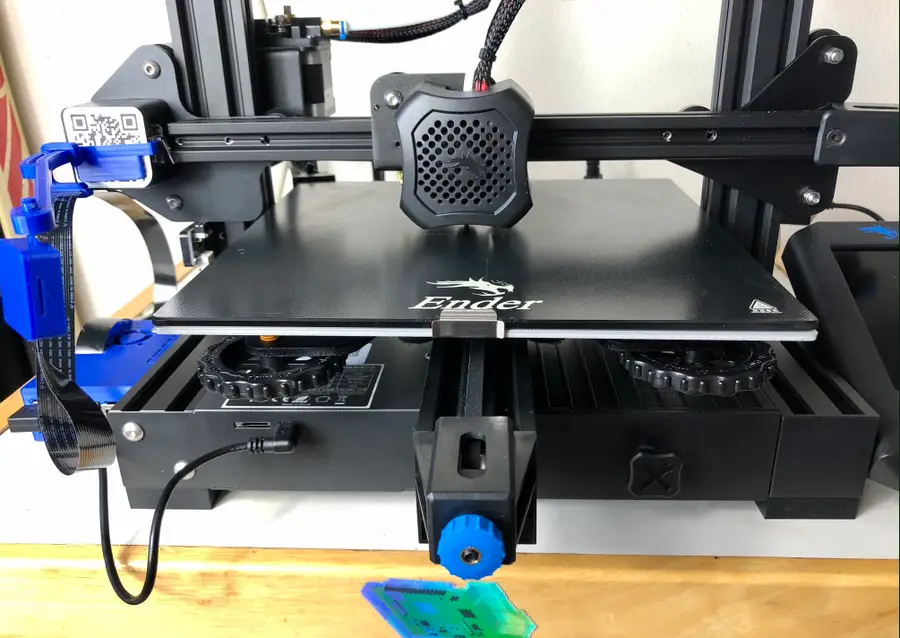
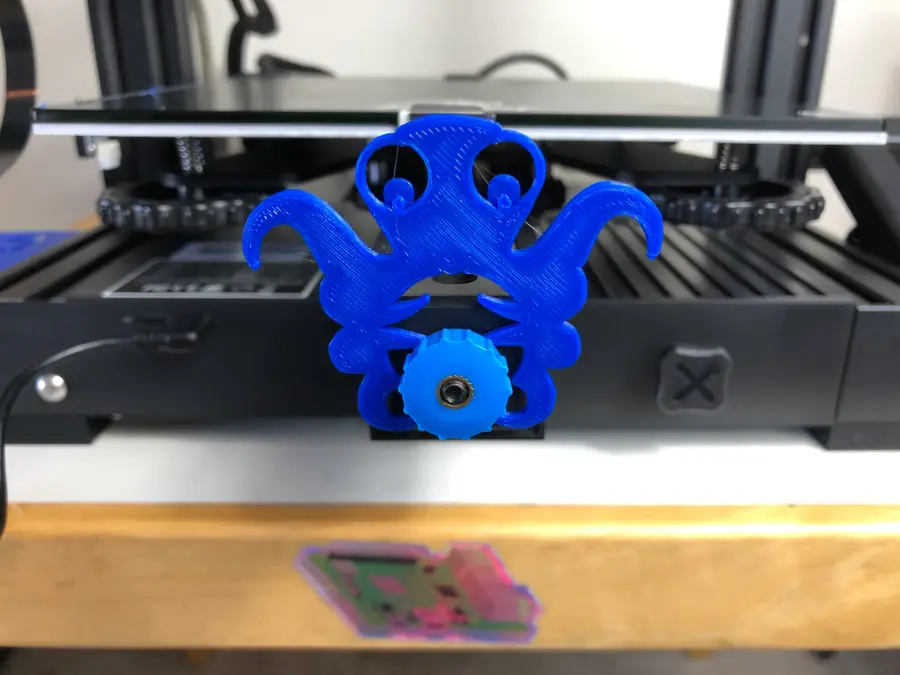
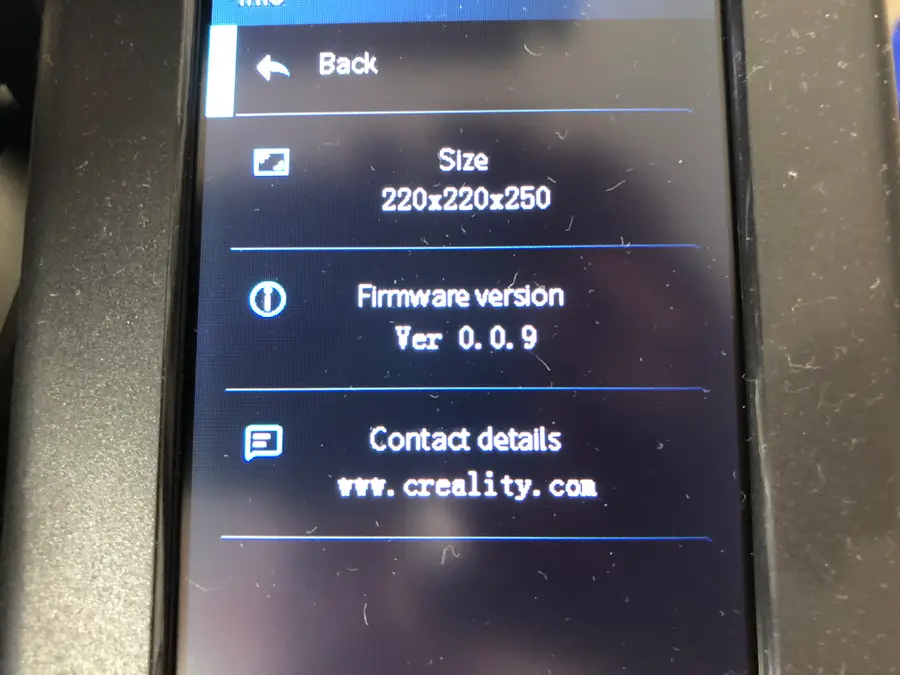
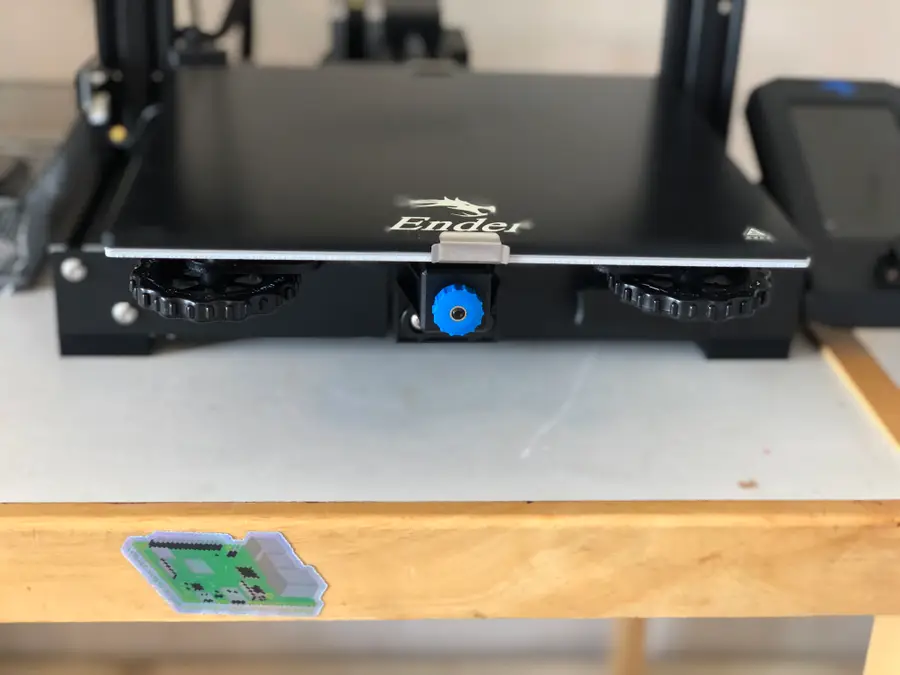
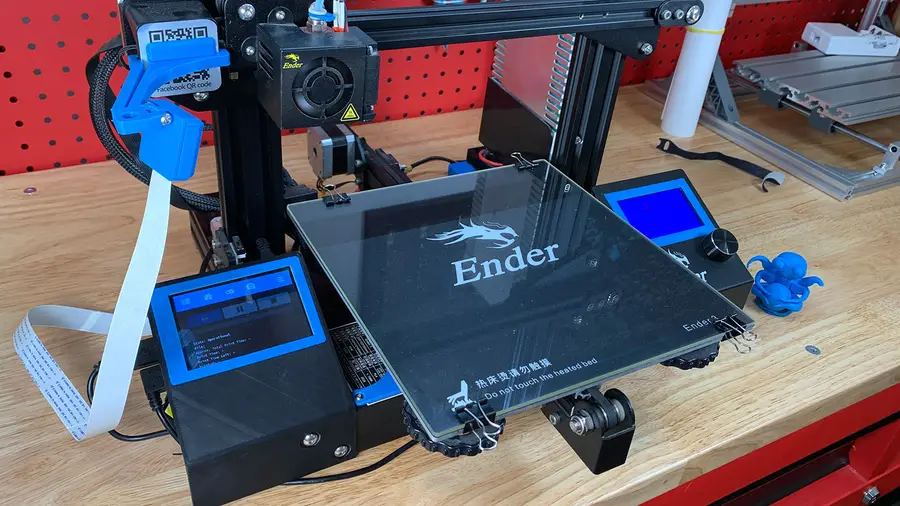
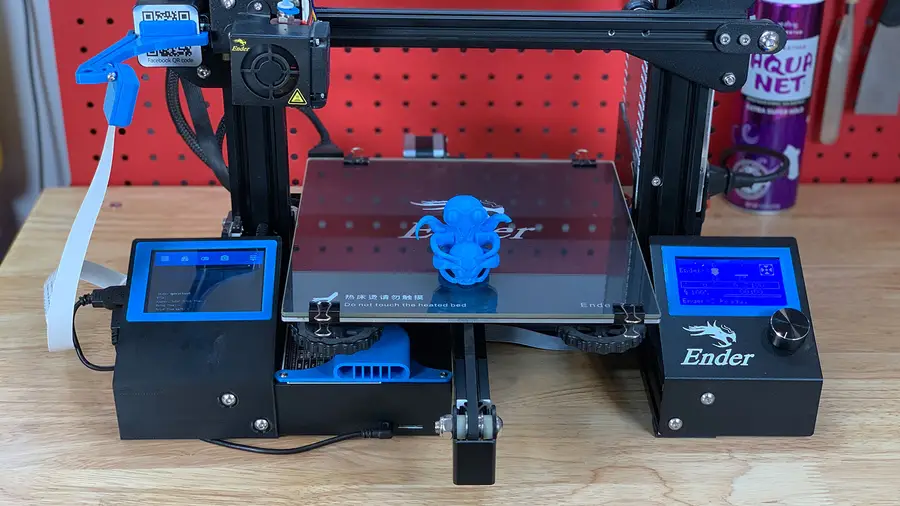
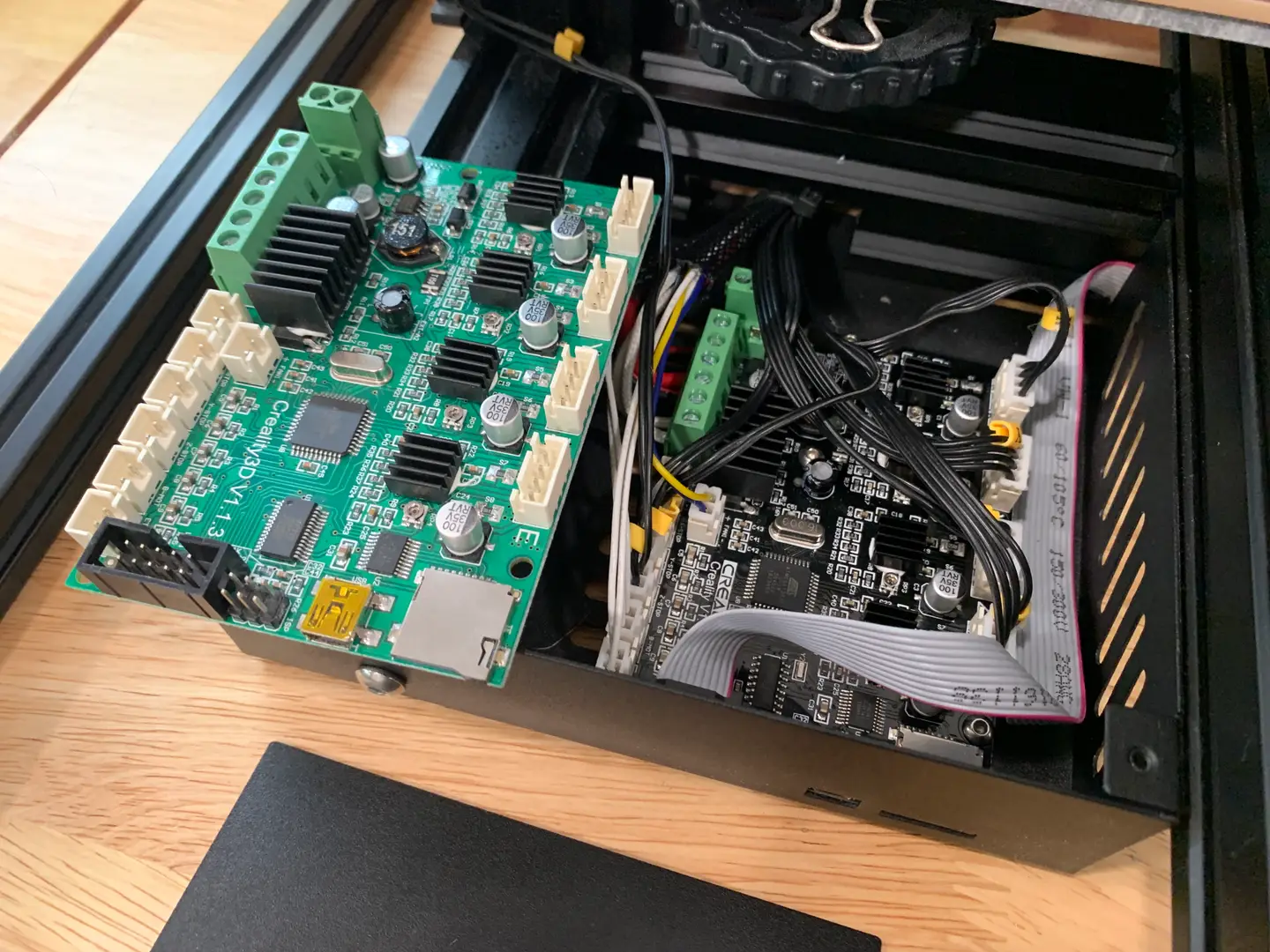
Ah…bed leveling. It’s the first thing you absolutely need to learn how to do with your Ender 3 V2. And don’t feel bad if you get this wrong at first. I did.
The directions for bed leveling that come with the Creality Ender 3 V2 instructional booklet are stupefyingly subpar and definitely will not make sense to those with little to no experience with 3D printers. And getting this wrong could not only mess up your 3D prints but also cause some damage to your beautiful new Ender 3 V2, which you definitely don’t want.
That’s why I’m here to make sure you don’t make the same mistakes that I did, and, say…scratch the printing surface. You haven’t done that already, have you?
Why you need to level the bed
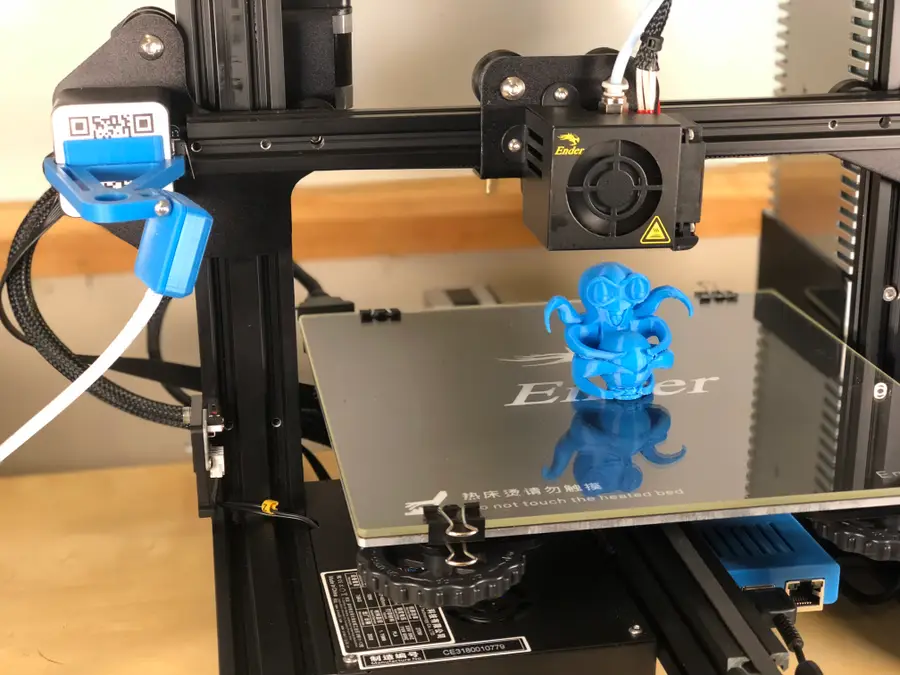
Really what you’re doing when you’re leveling the bed is ensuring that—as the extruder nozzle moves along the x and y-axis of your printing bed—it’s neither too close nor too far away from the printing surface.
If it’s too close, it will either scratch your printing bed or stop the nozzle from extruding any filament.
If it’s too far away, the plastic filament will not stick to the bed and your 3D print will be—well—it won’t be.
Auto-bed leveling with the BLTouch
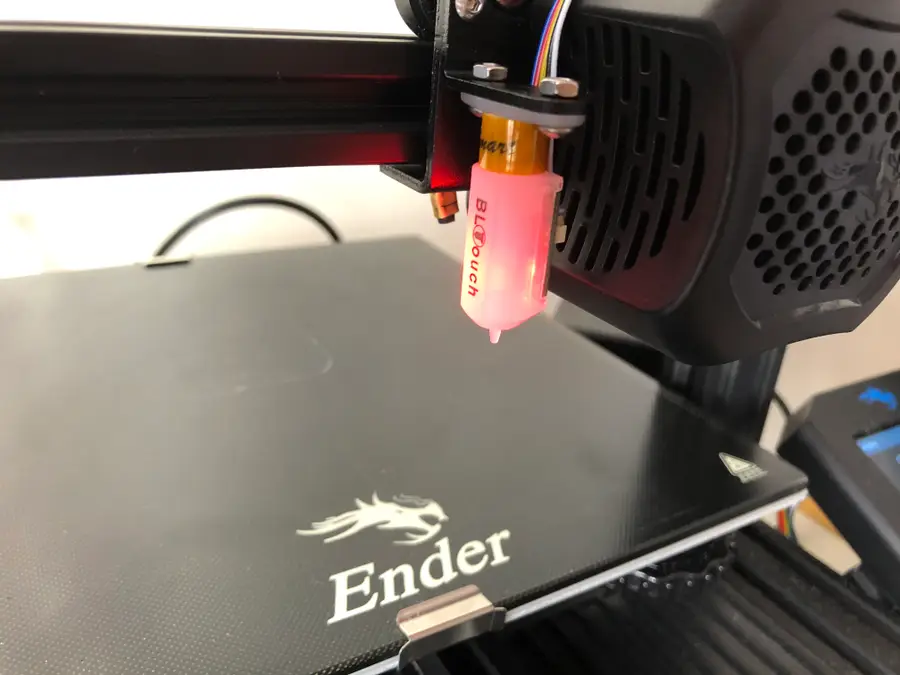
We highly recommend you install the BLTouch on your Ender 3 V2 to avoid having to repeat the process of manually leveling your bed. It’s an easy to install upgrade that’s going to make your life a million times easier.
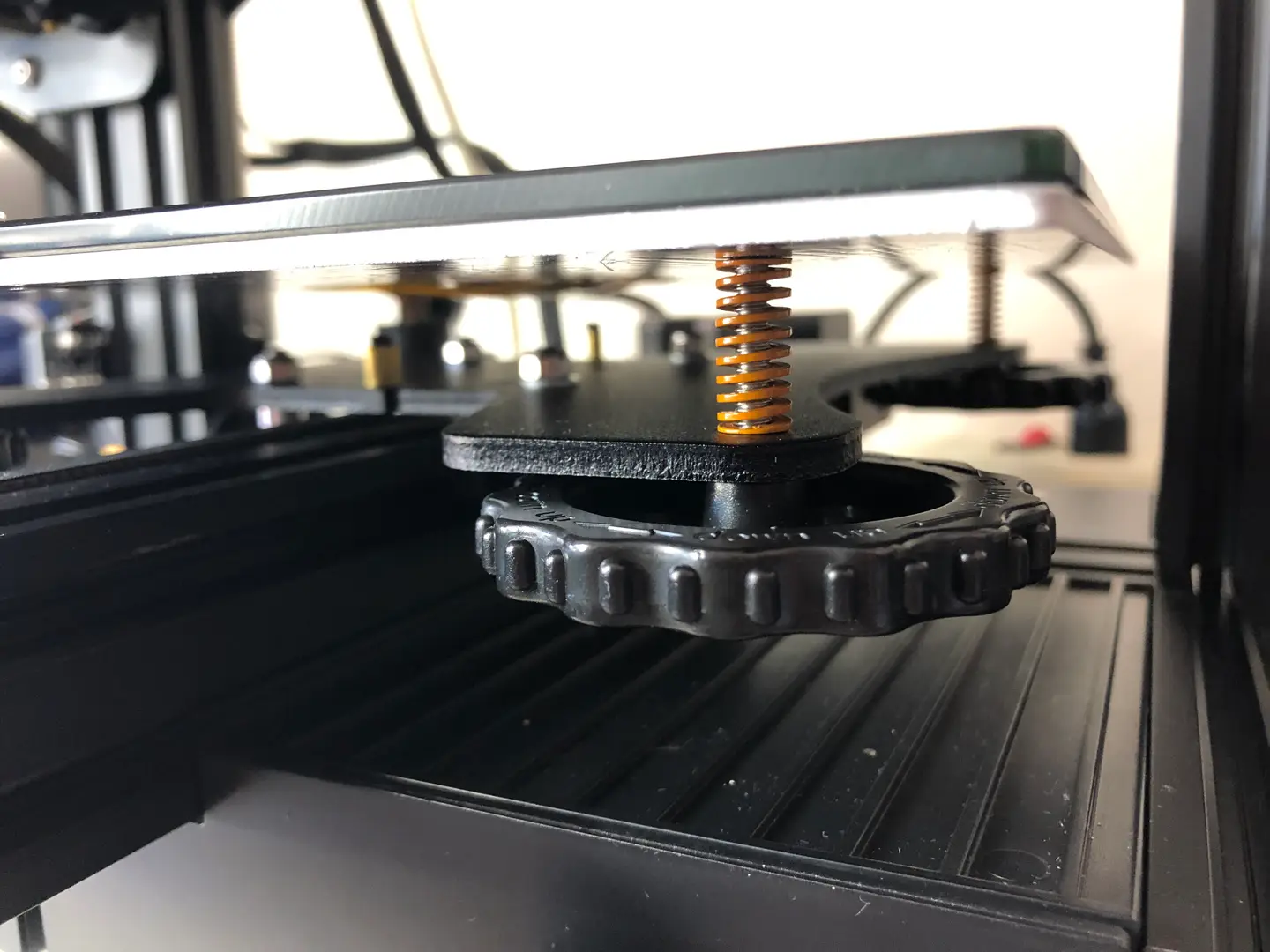
Turn the bed adjustment wheel counter-clockwise a few times or until you’re sure that the nozzle will not hit the surface as it lowers.
🛈 If you’re unsure how low this is, then just lower it completely at first until you get a better sense of it.
2 – Run “Auto home”
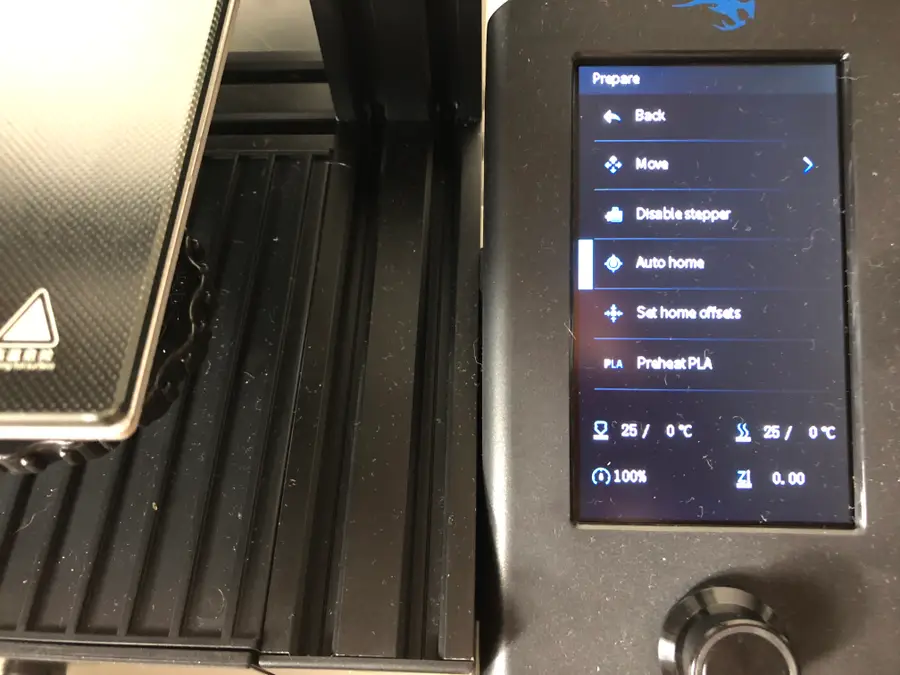
On your Ender 3 V2 screen, go to Prepare > Auto home.
This will run an automatic program that will move the print bed until the nozzle aligns with the left corner.
3 – Disable stepper
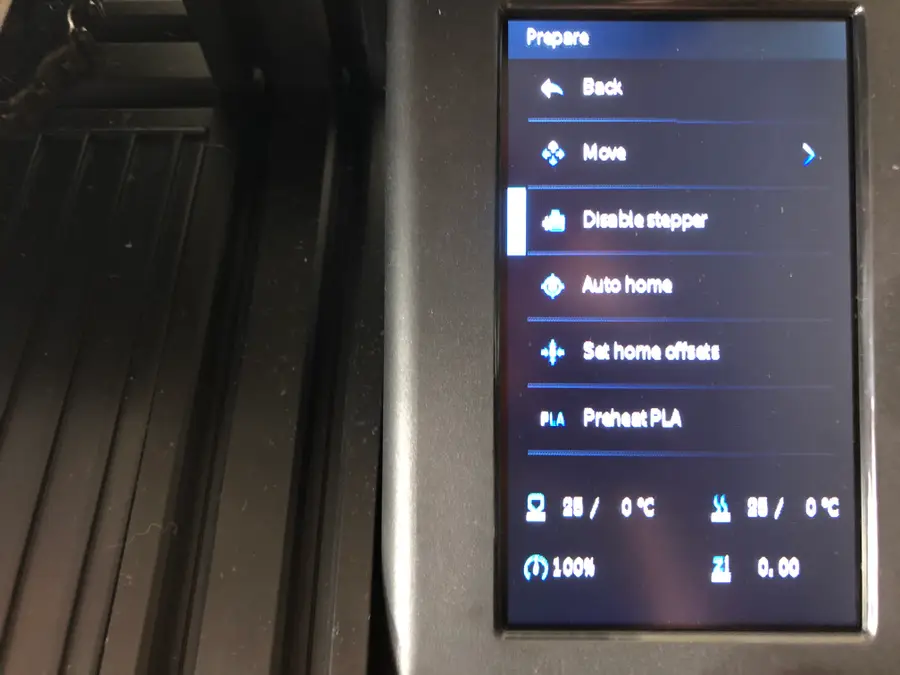
On your Ender 3 V2 screen, select Disable stepper.
This will allow you to move the print bed freely while you level it.
4 – Use sheet of paper to find the right level
This is the trickiest part of bed leveling and certainly one that you’ll get better at with practice.
Slide a sheet of paper between the printing nozzle and the print bed.
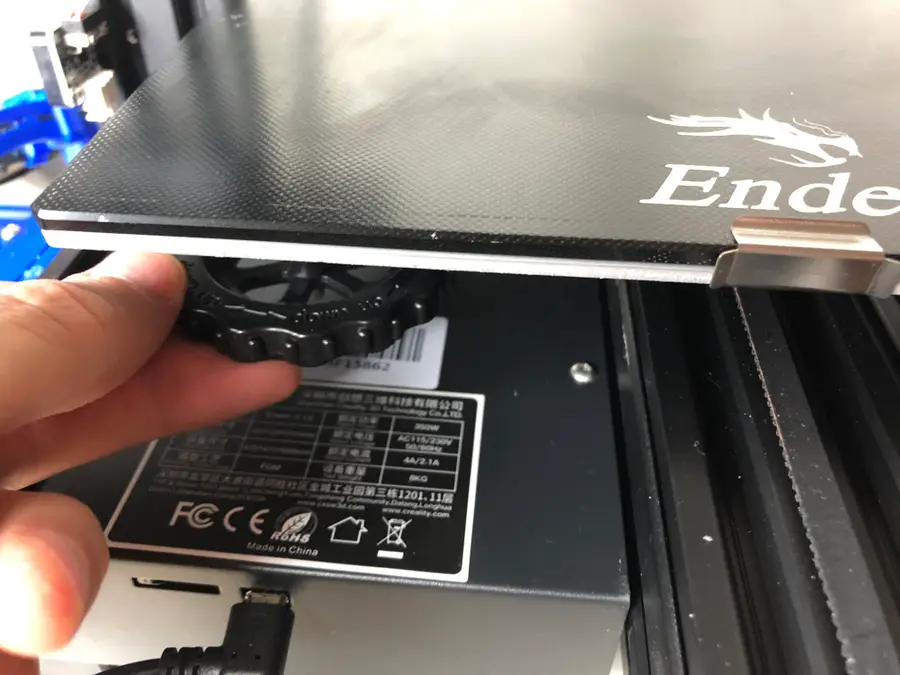
Simultaneously raise the print bed toward the nozzle by rotating the wheel clockwise, while sliding the sheet of paper back and forth.
When you feel the slightest tension on the paper, stop. It feels almost like the paper is vibrating.
Repeat this process two times around, on each corner of the print bed, moving to the bottom-right, top-right, and top-left.
You’ll need to move the print bed to get the nozzle on the different corners of the printing surface. Make sure you’re not scratching the surface with the nozzle as you move the print bed.
Did you manage to level the bed on your Ender 3 V2? Any suggestions or tips for others looking to level their beds? We’d love to hear more suggestions!
Troubleshooting tip: Z-offset
Many people are running into an issue with an improperly aligned Z-offset. This means that your extruder sits too close or too far away from the print bed when trying to level it.
Blender is one of the most popular open-source 3D creation suites today. It doesn’t cost a dime to use and everything you create is yours to own for good. The community is robust and the dev team still releases new updates on the regular. If you want to get the latest version, you may have
Introducing Howchoo, an enigmatic author whose unique pen name reflects their boundless curiosity and limitless creativity. Mysterious and multifaceted, Howchoo has emerged as a captivating storyteller, leaving readers mesmerized by the uncharted realms they craft with their words.
With an insatiable appetite for knowledge and a love for exploration, Howchoo’s writing transcends conventional genres, blurring the lines between fantasy, science fiction, and the surreal. Their narratives are a kaleidoscope of ideas, weaving together intricate plots, unforgettable characters, and thought-provoking themes that challenge the boundaries of imagination.
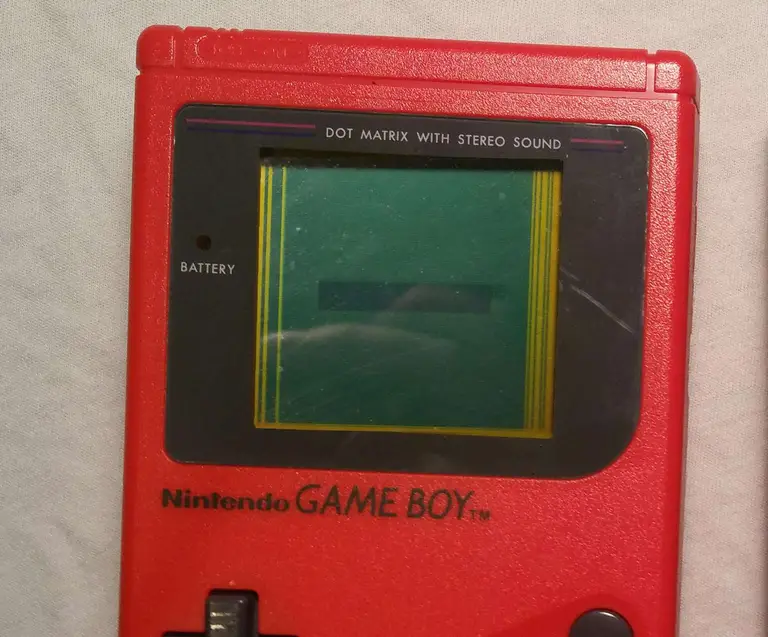
Finding your old Game Boy can produce a wave of nostalgia like no other. But nothing fades that feeling faster than finding vertical lines on the screen. Many retro consoles are prone to wear and tear and the Nintendo Game Boy from 1989 is no exception.
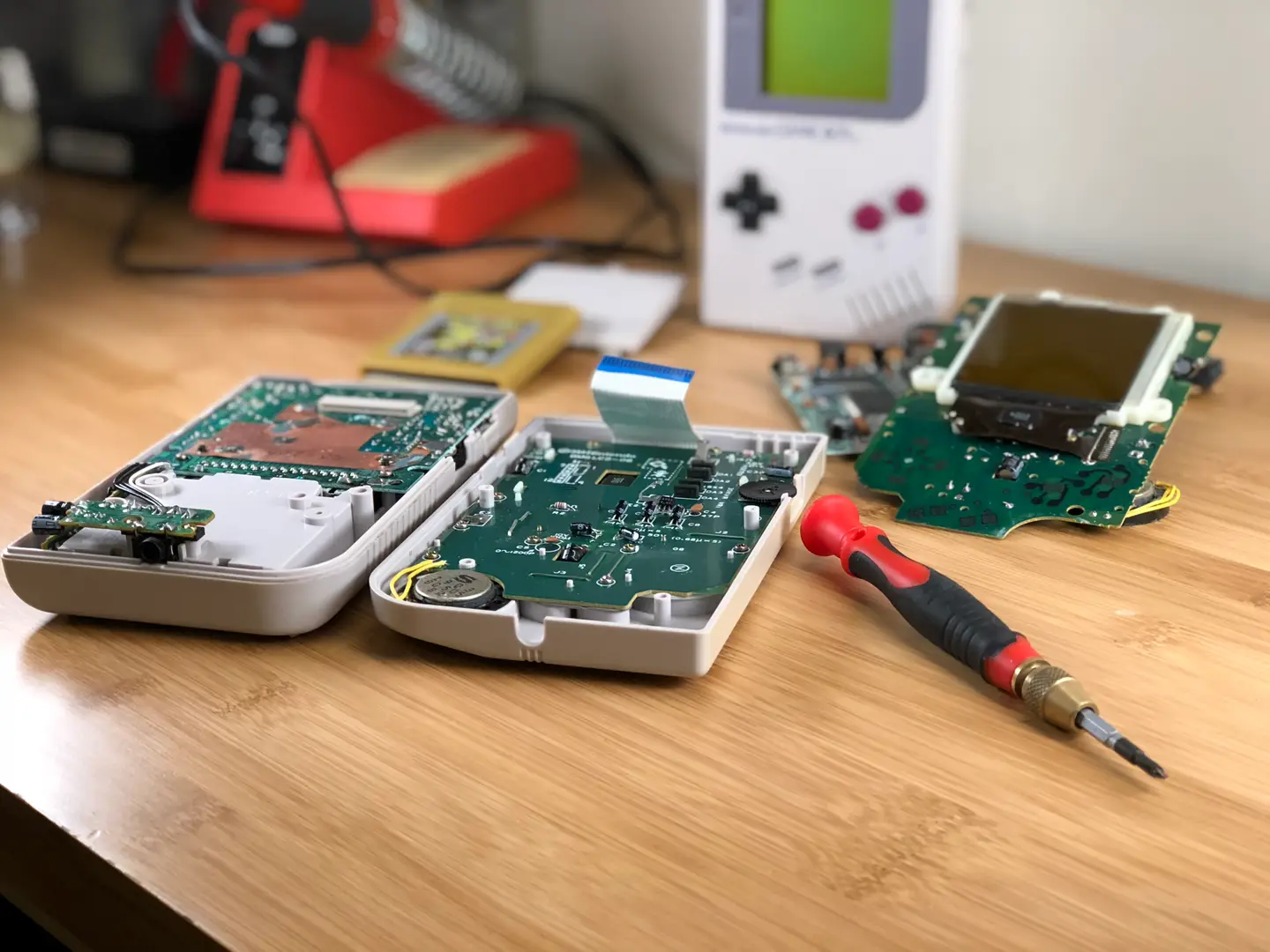
The Game Boy is comprised of two motherboards that connect with a ribbon cable. Over time, the wires in this cable can deteriorate causing vertical lines to appear on the display. In this guide, we’ll be repairing the vertical lines on a classic red Game Boy.
1 – Turn off and examine the Game Boy
Turn off the Game Boy, there’s no way we’re going to play it like this. It’s time for a thorough examination.
Look for any missing screws, there are six used to hold the shell together. Take note of the screw type used—many Game Boys are opened with a tri-wing screwdriver. However, a few early models are made with phillips screws.
Be careful of battery acid damage which may affect internal components but is often repairable.
If everything looks good, then it should be safe to proceed.
2 – Open the Game Boy
Using an appropriate screwdriver, remove all the screws from the back of the shell. You will need to remove the battery cover and batteries to reach the final screws. There are 6 total.
The Game Boy should open with ease, be mindful of the ribbon cable used to connect the boards.
3 – Unmount the front motherboard
Using a Phillips number 1 screwdriver, unscrew the front motherboard from its shell. There will be 10 screws total.
The motherboard can be removed without disconnecting the ribbon cable. This cable is fragile, even the act of disconnecting and reconnecting can cause damage to the display. Exercise extreme caution when handling this cable.
4 – Remove the front shell
Carefully pull the motherboard from the shell.
The front half of the Gameboy is responsible for many things, one of which is housing the buttons. As such, there will be a few components to account for during this step:
A Button
B Button
A/B Buttons Silicone Pad
D-Pad Button
D-Pad Button Silicone Pad
Start/Select Buttons (One Piece)
5 – Remove the black foam strip
Once the front shell is removed, you will need to locate a small black strip of foam under the screen. This strip covers wires from the ribbon cable and will need to be removed. The strip is held on with a thin layer of glue.
Using a flat head screwdriver or something equally flat, pry the foam piece from the Game Boy. Be sure there is no glue residue on the wires. It should peel from the hardware as one piece.
Set the strip aside.
6 – Heat the soldering iron
It’s time to whip out the power tools! Does a soldering iron count as a power tool?
If you haven’t already, heat up the soldering iron. We’ll be using the heat to reform the deteriorated connection in the ribbon wires.
7 – Turn on the Game Boy
With the soldering iron set aside and warming up, it’s time to prep the Game Boy. The screen will need to be on during the repair. This is to ensure each wire is properly fixed.
Insert four—preferably charged—AA batteries into the back of the Game Boy. Snap the battery cover in place and set the power switch to on. Adjust the contrast until the lines are easily visible.
8 – Apply heat to affected wires
Do not touch the soldering iron to the wires.
Wave the soldering iron over the wires that line up with the unwanted vertical lines. Do not hold the soldering iron in one place for long, it’s best to keep the soldering iron moving throughout the repair.
Be patient and carefully sweep over the wires until the vertical lines have disappeared. When finished, place the foam strip back into place.
9 – Turn off the Game Boy
When the vertical lines are completely gone, it’s time to turn off the Game Boy. Set the power switch to “off” in the upper left corner.
10 – Install the front components
The buttons should fit gently into the front shell. There will be a silicone pad to place behind the A/B buttons and D-pad. Each silicon pad is seated into place using a small notch.
To install the front board, fit the speaker into its slot. The speaker uses a small notch to guide it into place. The rest of the board should fall into place with a gentle push, no force should be necessary.
11 – Mount the front motherboard
Using a Phillips number 1 screwdriver, screw the motherboard into place. There will be 10 screws used during this step.
12 – Screw the shell together
Remove the battery cover and any batteries used earlier.
Place both halves of the shell together. Everything should fit together nicely with no force. If the shell doesn’t fit together, investigate the source to ensure the motherboards are flush and level.
Once both halves are aligned, screw the shell together. There will be 6 screws used during this step.
13 – Time for a test run
Congratulations! It’s time to install the batteries for a test run. Find a nice lamp, get comfortable, and enjoy the experience with a nice clean display.
NEXT UP
RetroPie scrapers: what they are and how to use them
You’ve put so much work into setting up RetroPie or EmulationStation. You load it up with legally obtained ROMs only to find that custom theme you installed—you remember, the one from my RetroPie themes guide—has a big blank spot for box art! The Best RetroPie Themes (And How to Install Them)You deserve some personal flair! RetroPie: Build Your
Introducing Howchoo, an enigmatic author whose unique pen name reflects their boundless curiosity and limitless creativity. Mysterious and multifaceted, Howchoo has emerged as a captivating storyteller, leaving readers mesmerized by the uncharted realms they craft with their words.
With an insatiable appetite for knowledge and a love for exploration, Howchoo’s writing transcends conventional genres, blurring the lines between fantasy, science fiction, and the surreal. Their narratives are a kaleidoscope of ideas, weaving together intricate plots, unforgettable characters, and thought-provoking themes that challenge the boundaries of imagination.
Printing invoices and receipts for your customers should be a built-in Shopify feature, but it isn’t. Luckily, there’s a free Shopify app for generating and printing invoices and receipts called Order Printer.
The Order Printer app is 100% free, always, and is made by Shopify themselves!
1 – Install the Order Printer app
Install the completely free Order Printer app from the Shopify app listing by clicking the “Add app” button.
You’ll be prompted to log in to your store using your store admin URL. For example, howchoo.myshopify.com.
Finally, you’ll be prompted to grant access to the specific features that the app needs.
ð? If you don’t have correct user permissions to install apps, contact your Shopify store admin.
2 – Print an invoice in Shopify
Navigate to Apps > Order Printer. You’ll see a list of your most recent orders.
Select an order from the list. In the Templates section, check the Invoice checkbox. You can also print packing slips from this page if you so wishâthough packing slips are already a built-in Shopify feature.
Click the Print button to print the invoice.
ð? Users have reported issues using this app in Safari. If you’re using Safari and the app does not work, try visiting the page in Chrome.
3 – Customize the Shopify invoice
To look more professional, I recommend customizing the invoice with your company logoâsimilar to what you probably already did for packing slips.
To do this, you’ll need to upload a logo for use in the template and then edit the invoice template to use it.
Upload your logo
From the Shopify admin, navigate to Settings > Files and upload an image. I recommend a .png file with a white or transparent background. After uploading, copy the file URL somewhere.
Use the logo in your invoices
Next, change the following line in your template:
{{ shop_name }}
To:
Of course, change https://cdn.shopify.com/s/files/1/2391/4483/files/logo-100.png?v=1506290081 to the file URL for your image, not ours.
4 – Print a receipt in Shopify
Generally, invoices are the same things as receiptsâand the customer is emailed a receipt upon purchasing. However, if for some reason you’d like to generate a different template for the receipt, click the Add template button, paste in the HTML from the Invoice template, and customize it as you wish. Then, name it “Receipt” and save it.
Introducing Howchoo, an enigmatic author whose unique pen name reflects their boundless curiosity and limitless creativity. Mysterious and multifaceted, Howchoo has emerged as a captivating storyteller, leaving readers mesmerized by the uncharted realms they craft with their words.
With an insatiable appetite for knowledge and a love for exploration, Howchoo’s writing transcends conventional genres, blurring the lines between fantasy, science fiction, and the surreal. Their narratives are a kaleidoscope of ideas, weaving together intricate plots, unforgettable characters, and thought-provoking themes that challenge the boundaries of imagination.
Options for smartwatches that are both secure and respect privacy are few and far between, but not impossible to find. Of course, going with a major brand like Apple is a good bet if you’re looking for the closest thing to standards that exist in the smartwatch market and, at least on paper, Withings offers good security practices for their technology and health data. But, if you want to take total control of your data, while still having all the great features we’ve come to expect from a smartwatch, some exciting options do exist.
Some of these watches are closer to Steve Wozniak’s DIY watch, the sort of thing you get if you love messing around with new technology, or prefer to have a highly individuated watch design. Others are a bit closer to what you’d find on the open market, however, and it seems likely that even better devices are just a short way down the road.
For those of you who already own a smartwatch, however, or for those looking to get something with a more polished set of features, don’t fret. There are some neat software projects out there that might be able to take an ordinary smartwatch and put you in total control over how your data is shared.
1 – Smartwatches designed for privacy and security
Smartwatches designed for privacy and security
There are not as many smartwatches designed for the privacy-conscious individual as there should be, which sadly drives more users toward the large commercial products. However, the last couple of years have seen a rise in open-source projects that seek to rectify this issue by bringing affordable and privacy-centered smartwatch technology to the public sphere.
When considering these smartwatches, you primarily need to figure out what features are indispensable for your needs. If you absolutely must have advanced blood pressure monitoring, only a few major brands will do. Likewise, if you want to be able to conduct payments through your smartwatch, the limitations quickly begin to stack up. If, however, you want a functional watch that contains fitness tracking and other core features, the sheer drop in price that some of these specialized smartwatches offer will likely be enough to encourage you to at least give them a run around the block (perhaps literally).
2 – The PineTime smartwatch by PINE64
The PineTime smartwatch by PINE64
PINE64 is a community platform, where the community drives the design and creation of new hardware and then works collectively to build advanced software for those devices. Working from the ground up, these Linux developers have come up with a vast array of exciting projects, all of which focus on privacy and security as native aspects of the design.
The PineTime features an Apple Watch style and all the basic features anyone could want, easily matching any sub-$100 watches on the market. Truthfully, though, since you have active support from a dedicated community, and software you can reliably trust not to be snooping on you (or simply horribly buggy), the PineTime is the main watch I’d recommend to anyone looking to get into the realm of smartwatches without breaking the bank.
The main downside of the PineTime is the lack of IP68 rating. Since it’s rated at IP67, the PineTime provides protection from water damage for 30 minutes and up to one meter, but that means it’s not going to work for those who use smartwatches to monitor swimming.
The PineTime is best, though, for people who like messing around with their electronics. You can totally use it out of the box, but the real advantages of any PINE64 product comes from interacting with the community and trying out the different community-developed apps.
3 – The Watchy by Squarofumi
The Watchy by Squarofumi
This is a geek’s happy project, an open-source, Arduino-powered smartwatch with a 1.54-inch e-paper screen. There’s also Wi-Fi, Bluetooth, a 3-axis accelerometer and four programmable buttons. The design of The Watchy is actually kinda sleek, even if some form of case is added (the Printed Circuit Board itself acts as a basic case). The catch? You’re going to be putting this together yourself, and, probably, coding it yourself as well.
While this is absolutely a project for DIYers out there, rather than something ready to go on the open market, it’s a lovely step forward in the realm of open-source smartwatch design. Hopefully, five years down the road, we start seeing these projects rival some of the established brands in terms of ease of use and features. Until then, what better way to teach your kids, or yourself, about the basics of hardware and software!
4 – The Open-SmartWatch by @pauls_3d_things
The Open-SmartWatch by @pauls_3d_things
This little beauty is another highly DIY project, though you can purchase a prebuilt model from MakerFabs. Created by “Paul’s 3D Things”, this little device has only the most basic smartwatch functions built in, but it actually looks pretty nifty. Besides, there is an updated version in the works, and its creator looks like the sort of guy who might take this project in some seriously cool directions.
5 – Bangle.js 2 smartwatch
Bangle.js 2 smartwatch
Aside from the PineTime, the Bangle.js 2 is the only open-source smartwatch that’s got the ability to appeal to a non-DIY audience. It’s a lot sleeker than the PineTime, however, and has a better feature-set out of the box. An active community provides support as well as all manner of new apps and, as with all of these projects, you can learn how to code this little beauty yourself (using JavaScript or a graphical programming language like Blockly).
I’d recommend this one over the PineTime in most cases, largely due to the excellent battery life of the Bangle. It is lacking PineTime’s Bluetooth 5, but hopefully, we see a new version before long that upgrades the hardware to a modern level. It would be nice if they offered models with some better preinstalled features and IP68 waterproofing (the Bangle only offers IP67), but the truth is that the Bangle still beats out a large swatch of similarly-priced smartwatches on the market (none of which will boast the ability to self-program or the privacy factors of the Bangle).
6 – Big name brand smartwatches good for privacy?
Big name brand smartwatches good for privacy?
But how do regular smartwatches stack up? With the deluge of smartwatches on the market these days, and the vast array of complicated differences between models, it can be hard to know which models are going to be the best for privacy and security.
Generally speaking, Apple does maintain a higher internal privacy standard than other companies at its level. That’s not to say that this internal standard is anywhere near as good as what we should have (standards imposed by an international regulatory body), but they do help set a basic benchmark for the industry. To that end, Apple’s watch is probably the best in terms of privacy and security, as long as you’ve already taken steps to secure your other Apple devices. Of course, Apple’s watch is useless without the rest of the Apple products to create the ecosystem, so you either need to have already bought in, or you’re looking at a pretty expensive switch.
Withings is another smartwatch maker to take note of, though there are some serious concerns that their company has failed to address. Mostly, Withings designs various “smart” medical devices such as thermometers, scales, and blood pressure sensors. Their watches are unique in the industry for looking great (like actual watches), having many of the same health features that the Apple Watch does (including advanced heart rate monitoring functions), and a month-long batter life. Their privacy policy and security information are a little hard to find, but they seem to have relatively good protections in place, conforming to GDPR and HIPAA standards. They don’t go out of their way to support customers in finding this information, however. Questions on their forums are unanswered, and there wasn’t any obvious notice that they never sell or provide your data to 3rd parties beyond those contractually obligated to use that data for specific functions. That’s a bit frustrating, and I hope Withings can offer greater insights in the future.
Finally, despite some recent severe data breaches, Garmin watches are a great choice because the user doesn’t need to connect their real information to the Garmin account, nor do they need to use the online connection between the Garmin app and the watch. Some users, with some models of Garmin watches, have even been able to use GadgetBridge to bypass Garmin’s app altogether, others just use a physical connection to a PC to transfer data when needed.
Whatever you do, avoid all watches “for kids” since these tend to be the worst offenders for tracking problems and security breaches. In the extremely unlikely case that your child needs a high-tech computer strapped to their wrist 24/7, get them one of the privacy-respecting models that offers limited features.
7 – AsteroidOS free and open source smartwatch software
AsteroidOS free and open source smartwatch software
One of the most promising projects in terms of open-source smartwatch software is AsteroidOS, the fully functional operating system designed for maximum privacy and security. It’s got a superb feature base, a dedicated community, and the benefit of not sharing your most personal biometric and locational data with your watch’s company. The main downside is how few watch models are supported by the OS.
Synology is one of the most popular creators of Network Attached Storage devices on the market today, and for great reason — they’re really good at what they do. They consistently make devices that stand the test of time and feature top-notch software that makes the process of running a home server as easy as
🛈 For other versions of windows, simply search your computer for the Command Prompt application.
2 – Enable SSH
Older versions of Raspberry Pi OS like Raspbian Jessie, Raspbian Stretch, and Raspbian Buster have SSH disabled by default for security reasons. If you’re using an up-to-date version of Raspberry Pi OS (as you should!), you’ll need to enable SSH on your Raspberry Pi before proceeding.
Of course, if you’ve changed the password you’ll need to use the updated password.
4 – Use the SSH command
The default hostname for the Pi is raspberrypi, so in your command line app, enter the following and press enter:
ssh pi@raspberrypi
Note: Certain distributions (like RetroPie) change the hostname by default — for example, the default hostname for RetroPie is retropie, so you’d connect using that in place of raspberrypi. You can quickly check whether your Pi uses a certain hostname by pinging it and trying each hostname:
.. where 192.168.X.X is your Pi’s IP address. You can obtain your Pi’s IP address using the ping command above.
Type the password when you see the password prompt. For security purposes you won’t see the password as you type.
You might encounter a host verification warning that ends with something like this:
The authenticity of host 'abc (abc)' can't be established.
RSA key fingerprint is 3f:1b:f4:bd:c5:aa:c1:1f:bf:4e:2e:cf:53:fa:d8:59.
Are you sure you want to continue connecting (yes/no)?
Just type “yes” and hit enter. This is a security measure to let you know you’re trying to connect to a host for the first time. After connecting, the host will be added to the known_hosts file, and you won’t see this warning again.
🛈 Make sure your computer is on the same network as your Pi.
NEXT UP
HeaterMeter: Control your Grill Using a Raspberry Pi!
With summer right around the corner, it’s time to fire up the grill! But who will watch the grill while you’re beating the heat? This year, kick things up a notch with your own Raspberry Pi-powered HeaterMeter. Don’t just throw a BBQ, be a part of it. HeaterMeter lets you keep a close eye on
Ready to play? You’ll need some ROMs first! Today we’re going over the many different ways you can transfer ROMs to RetroPie on the Raspberry Pi. If you’re not sure where to start, one of these methods is guaranteed to put you on the right path.
What is RetroPie?
RetroPie is an open-source emulation platform. In simple terms, it’s for emulating retro video games! RetroPie is built on top of RetroArch and runs perfectly on the Raspberry Pi. You can use RetroPie to emulate both consoles and computer systems. Visit our guide to learn how to set up RetroPie on a Raspberry Pi.
Using Samba—a software suite built into RetroPie—you can send files to RetroPie over a network. First, make sure that your Raspberry Pi and computer with ROMs are on the same network.
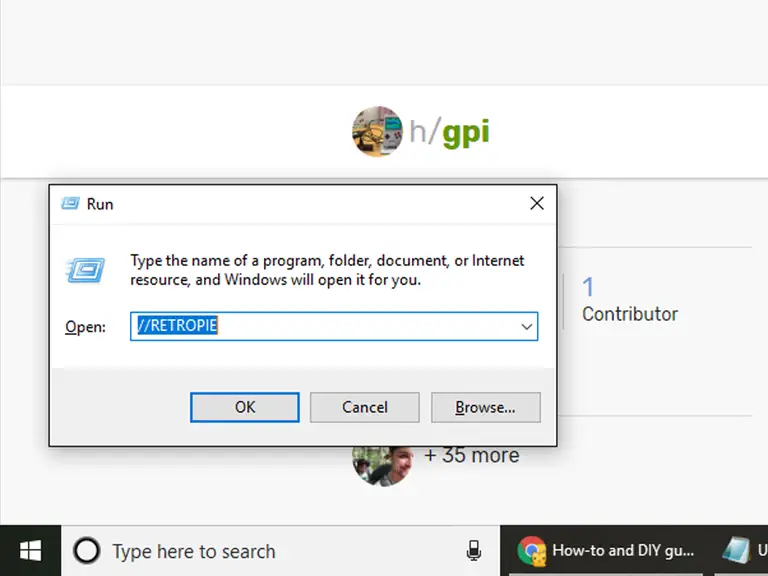
On the same computer that has your ROMs, hold down the Windows key and press R. In the Run dialogue, enter the following:
\RETROPIE
Alternatively, you can replace \RETROPIE with an IP address like this:
\127.0.0.1
Press Enter or click OK. This will open a window with folders you can move content into and out of.
ROMs need to go in the ~/RetroPie/roms/ folder. You will need to sort them by console/OS for RetroPie to launch them properly. For example, SNES games would go in the ~/RetroPie/roms/SNES folder.
2 – Transfer ROMs via Network share on Mac
Samba is built into RetroPie, it lets us add and remove content for RetroPie over the network. Make sure your Pi and computer with ROMs are on the same network.
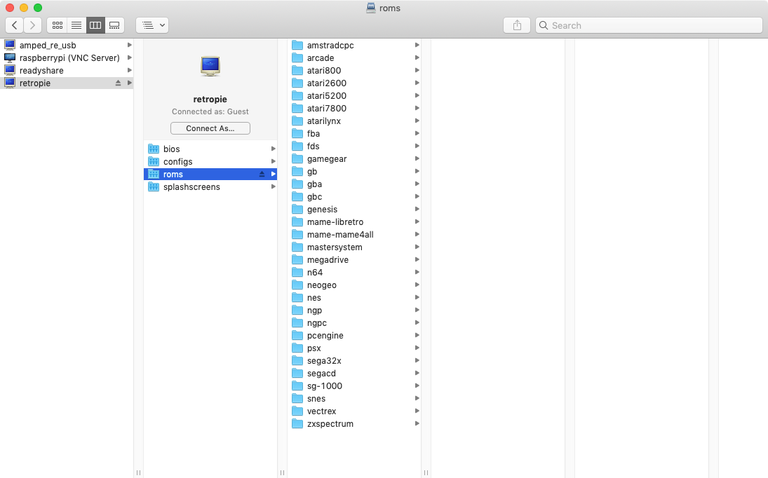
Access the computer with your ROMs and open the Finder tool on macOS.
Browse to Network > retropie > roms
This will open the RetroPie ROMs directory on your Pi. Now you can drag and drop files directly to RetroPie. You will need to sort ROMs by console and OS. For example, you should put NES games in the ~/RetroPie/roms/NES folder.
3 – Transfer ROMs via USB
It’s also possible to transfer ROMs using a USB flash drive. Make sure it’s formatted to FAT32 to work with RetroPie.
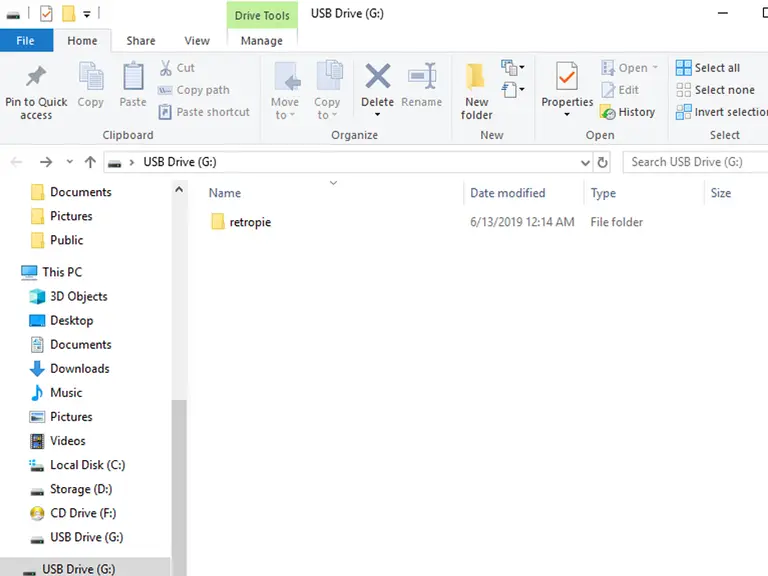
First, connect the flash drive to your computer and create a folder named retropie on the drive.
Unplug the flash drive from your computer and connect it to the Raspberry Pi. The Pi needs to be on for this step. You will see a flashing light on the drive when it’s connected.
When the flash drive LED stops blinking, remove it from the Raspberry Pi and connect it to your computer again. Now you can add ROMs to the flash drive. Sort the ROMs into the appropriate folder for each console or system.
After the ROMs have been loaded, plug the flash drive back into the Pi. Wait for the LED to stop blinking and remove the flash drive from the Pi. You may need to relaunch RetroPie or reboot the Pi altogether to locate the new ROMs.
4 – Transfer ROMs via FTP (SFTP) on Windows
It’s really easy to transfer ROMs to RetroPie directly using an FTP setup.
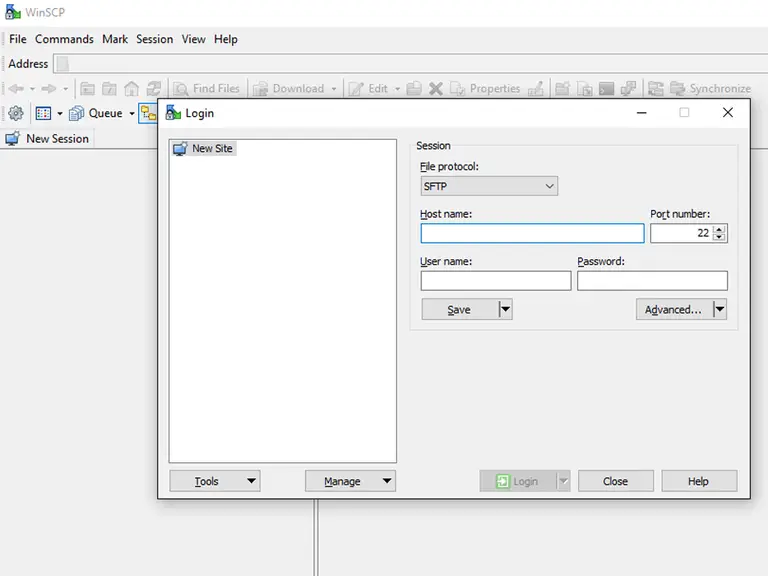
There are many FTP programs available for Windows 10. My personal favorite is WinSCP. It has everything we need and also comes recommended by the RetroPie devs on Github.
Open WinSCP (or your FTP client of choice) and enter the IP address of your Raspberry Pi. You can choose SFTP or enter port 22 if needed. The default username and password is:
Username: pi
Password: raspberry
WinSCP will load the complete directory for your Raspberry Pi. From here, navigate to the appropriate folder for each console or system you want to add ROMs to. You can typically find this under a path similar to ~/RetroPie/roms/*[console folder]*.
Drag and drop your ROM files directly to the Pi.
5 – Transfer ROMs via FTP (SFTP) on Mac
ROMs can be transferred to RetroPie directly using FTP.
First things first—we need to enable SSH. Check out our guide on how to enable SSH on the Raspberry Pi real quick. I’ll wait.
There are many different FTP applications supported by macOS. Cyberduck is officially recommended by the Github devs and will work perfectly for us.
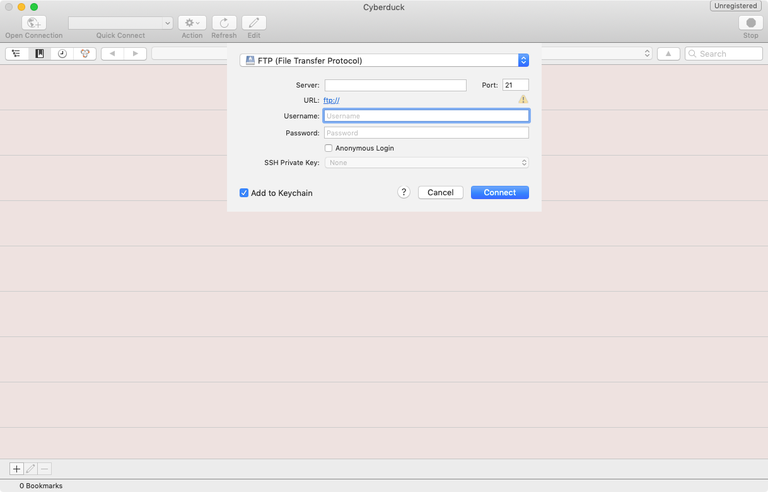
Launch Cyberduck (or your preferred FTP client) and enter the IP address for your Pi. You can specify port 22, if necessary. The default username and password is:
Username: pi
Password: raspberry
Once logged in, you can navigate the Raspberry Pi directory from your computer. We’re looking for a specific folder to load our ROMs into. It’s usually similar to this path: ~/RetroPie/roms/*[console folder]*
From here, you can drag and drop ROMs directly to RetroPie! Be sure to sort the ROMs into the correct console or system folder.
6 – Where to find more ROMs
Looking for more ROMs? I don’t blame you. There’s tons of great content out in the world, why not build up a collection?
We have a dedicated list of free and legal ROMs for emulators on RetroPie. Check out our RetroPie ROMs guide to work on your game library!
With summer right around the corner, it’s time to fire up the grill! But who will watch the grill while you’re beating the heat? This year, kick things up a notch with your own Raspberry Pi-powered HeaterMeter. Don’t just throw a BBQ, be a part of it. HeaterMeter lets you keep a close eye on
A cluster is a group of computers performing the same task, operating as a single system. Although Raspberry Pi’s are pretty incredible devices, a single Pi can only do so much.
A Raspberry Pi cluster can be used anytime you want to improve performance or availability, and there are many use cases including serving web content, mining cryptocurrency, processing large amounts of data (using tools like hadoop), and much more. This guide will show you how to run a Raspberry Pi cluster using Docker Swarm.
Table of Contents
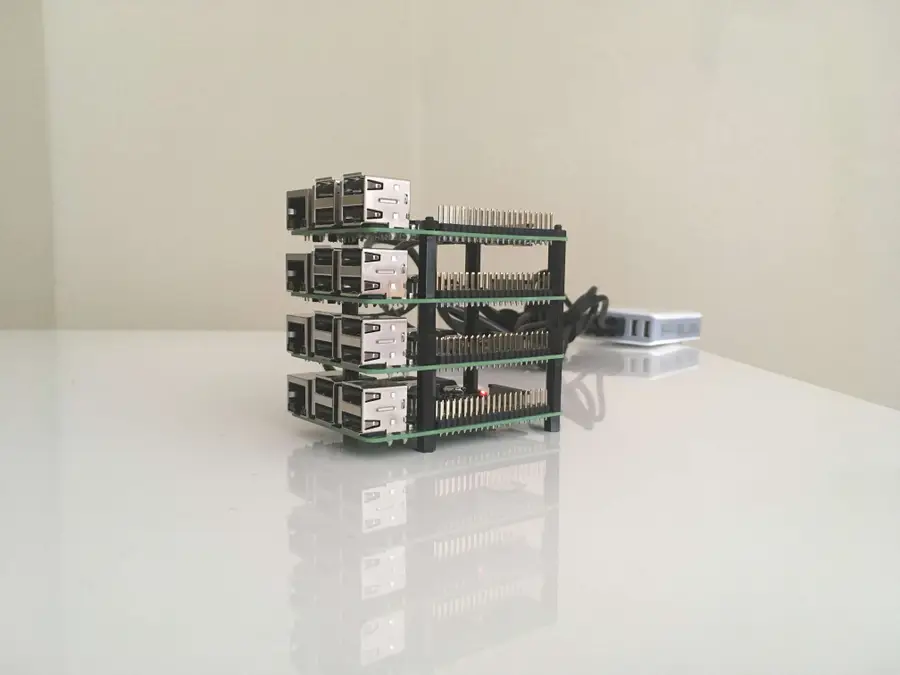
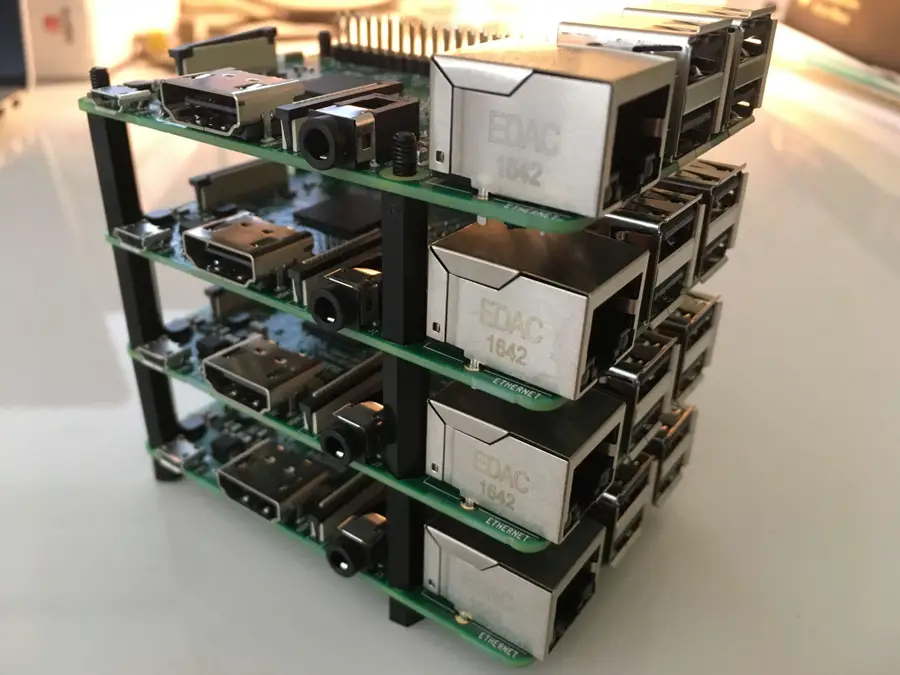
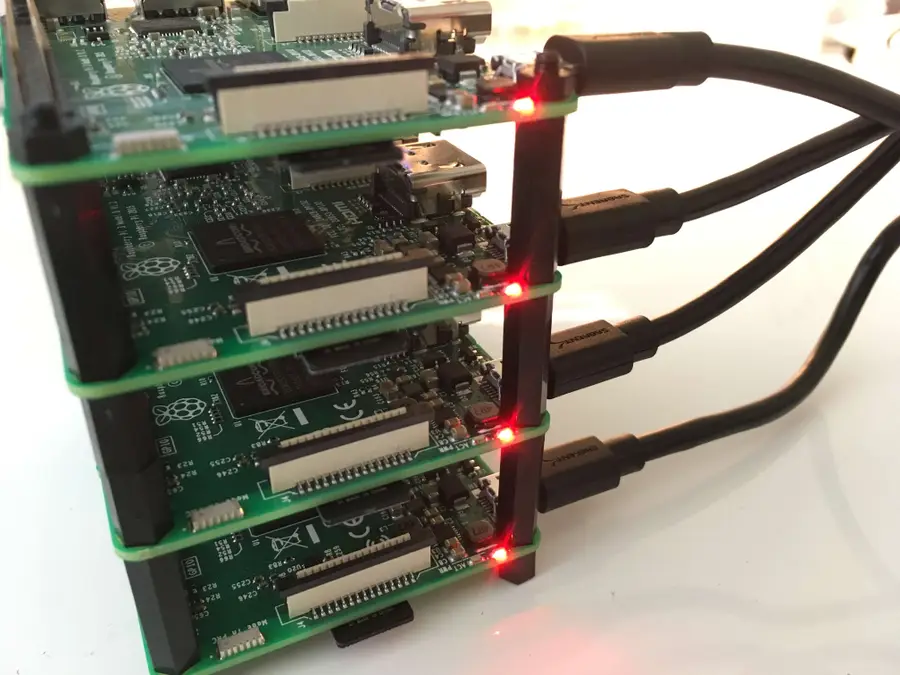
1 – Build your tower
This is fun part.
You don’t actually need a tower, but you might as well build one. Using a tower like this makes everything more organized and easier to work with.
2 – Install Raspbian Jessie on all four SD cards
We’ve written a detailed guide that will walk you through the process of installing Jessie on your Raspberry Pi. Since we’re dealing with multiple Pi’s, you’ll have to do this for each one.
Note: For each Pi we’re going to do some configuration while the SD card is in your computer. So read the next step to see what to do after installing Raspbian on each SD card.
3 – Configure Raspbian from the SD card
After installing Jessie, and while the SD card is still in your computer, we’re going make a few changes to the configuration. Follow the links in this step for detailed instructions on each change.
Once you’ve installed and configured each SD card, insert one into each Raspberry Pi.
*Protip: Once you’ve configured one SD card, you can use a utility such as ApplePi Baker to clone it onto the other SD cards.
4 – Power up and test
Connect your Raspberry Pi’s to their power supplies, and make sure they boot properly. Near the USB connector, you should see a solid red LED. This indicates that the Pi has power. Then you should see a green flashing LED, which indicates there is SD card activity.
Note: You might need to use a different subnet range. Follow the guide for more information on finding the correct subnet.
This will list all of the devices connected to the network, so we should see all four of our Raspberry Pi’s. When you spot them, take note of the IP address for each. Here is my output:
Starting Nmap 7.40 ( https://nmap.org ) at 2017-03-21 15:52 PDT Nmap scan report for Chromecast.attlocal.net (192.168.1.78) Host is up (0.063s latency). MAC Address: 54:60:09:06:76:0A (Google) Nmap scan report for unknownc24b2b235d18.attlocal.net (192.168.1.178) Host is up (0.0059s latency). MAC Address: C2:4B:2B:23:5D:18 (Unknown) Nmap scan report for raspberrypi.attlocal.net (192.168.1.181) Host is up (0.29s latency). MAC Address: B8:27:EB:79:49:F2 (Raspberry Pi Foundation) Nmap scan report for raspberrypi.attlocal.net (192.168.1.183) Host is up (0.17s latency). MAC Address: B8:27:EB:95:6D:7A (Raspberry Pi Foundation) Nmap scan report for raspberrypi.attlocal.net (192.168.1.184) Host is up (0.22s latency). MAC Address: B8:27:EB:6E:DE:EF (Raspberry Pi Foundation) Nmap scan report for raspberrypi.attlocal.net (192.168.1.185) Host is up (0.22s latency). MAC Address: B8:27:EB:B6:4A:6E (Raspberry Pi Foundation)
So the IP addresses for all four of my Raspberry Pi’s are:
For each Raspberry Pi (node) in our cluster, I’m going to change the hostname so it’s easier to access. Since I’ve got four nodes I’m going to name them docker1, docker2, docker3, and docker 4.
You’ll also want to add an entry in your local /etc/hosts file that maps the new hostname to the IP address for each Pi. The end of my /etc/hosts now looks like this:
This step is optional, but it will allow us to easily SSH into each node without using a password. I’ll use the ssh-copy-id command to copy my public key to the remote server.
If you don’t have a key generated already, you can do so with:
ssh-keygen -t rsa
Hit enter twice and leave the passphrase empty (unless you really want to use a passphrase).
Then copy the key to each node with:
ssh-copy-id pi@docker1
You’ll have to enter your password to copy the key. Do this for each node.
8 – Install Docker on each node
You can use this simple bash one-liner to install docker on each node.
for host in docker1 docker2 docker3 docker4; do ssh pi@$host curl -sSL https://get.docker.com | sh; done
Now that Docker is installed we need to create our swarm. We only need to do this on one of the nodes. So the order of operations will be: 1. create swarm on a single node (this node will be a manager node), 2. join one more node as a manager, and 3. join two more nodes as workers. So we’ll have a total of 2 managers and 2 workers in our swarm.
So in this step, I’ll create the swarm on docker1.
To do this, we’ll first have to get the IP address of the node. If you’re following this guide step by step, we already have the IP address in our local /etc/hosts file. If not, you can use this guide as a reference.
Keep track of this command. Although you can regenerate a token if necessary, we’re going to use this in the next step.
Now we’ve got our swarm with one manager node. You can confirm by typing:
sudo docker node ls
10 – Add the rest of the nodes to the swarm
Now we’ve got to add the rest of the nodes to the swarm. As I mentioned in the previous step, we’re going to add one more manager and two more workers.
Let’s start by adding our next manager node on docker2. To do this, we’ll have to generate a manager token. While still logged into docker1, type:
sudo docker swarm join-token manager
This will generate another join command like the one from the previous step. So we’ll grab this command, ssh into docker2 (from our local machine), and use the manager join command.
Keep in mind that the two swarm join commands look similar, so we’ll have to keep track of which is which. We just joined docker2 to the swarm as a manager, so now we’ll use the other token and join docker3 and docker4 as workers.
Now all of our nodes have joined the swarm. Let’s run our node ls command again to confirm.
ssh pi@docker1 sudo docker node ls
And you should see all of the nodes listed:
7x52m1rsps550g89n1zngqqw2 docker4 Ready Active nck7h1z5ka7q5x05ek73iw3p2 docker3 Ready Active q0p4wnzs9wg58yj8m10fk41t3 * docker1 Ready Active Reachable tunc46ypfdl9uhvin4g4ofddz docker2 Ready Active Leader
11 – Run our first service
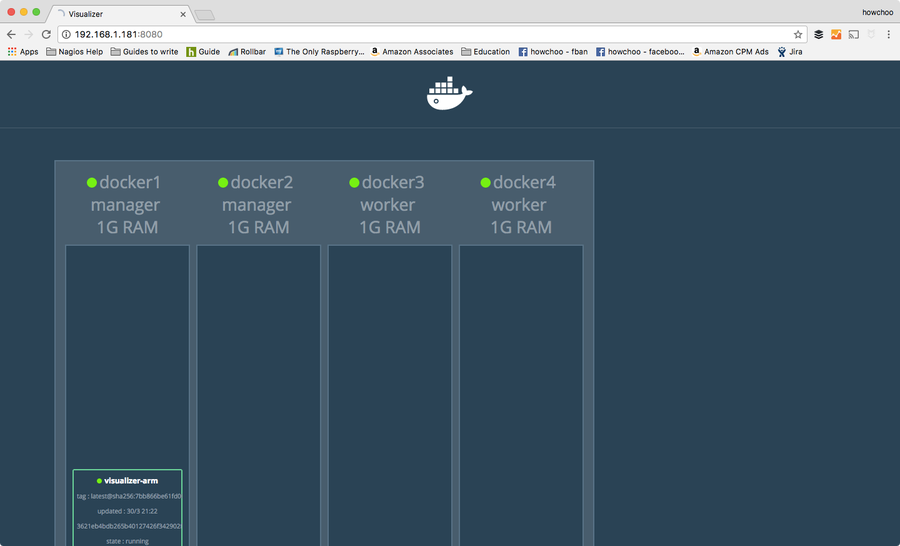
At this point we’ve accomplished the purpose of the guide, but we might as well run a service to demonstrate how to use the swarm. Our swarm can run any number of services and they can be scaled and distributed across the nodes in our cluster according to our preferences. To begin, we can run a visualizer service that will provide a web interface to visualize how the containers are distributed across the swarm.
This service is built from an image called “visualizer” originally created by Github user ManoMarks. But we’ll have to use a version of this image that was built to work on the Raspberry Pi and other ARM devices.
So let’s log on to docker1 and create our visualizer service:
ssh pi@docker1 sudo docker service create --name viz --publish 8080:8080/tcp --constraint node.role==manager --mount type=bind,src=/var/run/docker.sock,dst=/var/run/docker.sock alexellis2/visualizer-arm:latest
This will probably take a few minutes to spin up because it has to download the image. We can check the status by typing:
sudo docker service ls
Until the service is ready, you’ll see the REPLICAS value as 0/1.
lqejzqrv0le8 viz replicated 0/1 alexellis2/visualizer-arm:latest
It will say 1/1 when it’s ready.
Once it’s ready, you can visit http://192.168.1.181:8080 (the IP of docker1 and port 8080). This will show you a nice visualization of the swarm and which containers are running on which nodes.
Of course, for your purpose you’ll be creating at least one other service. There is a lot of pertinent information about docker that won’t (and can’t) be covered in this guide, but check out the official docker documentation for more information and of course check out the Docker interest on howchoo.
NEXT UP
HeaterMeter: Control your Grill Using a Raspberry Pi!
With summer right around the corner, it’s time to fire up the grill! But who will watch the grill while you’re beating the heat? This year, kick things up a notch with your own Raspberry Pi-powered HeaterMeter. Don’t just throw a BBQ, be a part of it. HeaterMeter lets you keep a close eye on
This guide will show you how to install a bootloader and update the Marlin firmware on your Ender 3 or Ender 3 Pro. If you’re using an Ender 3 V2, then there’s a different guide for updating firmware on the Ender 3 V2.
Why update your Ender 3’s firmware?
Most Ender 3s ship with a customized, outdated Marlin firmware version that lacks thermal runaway protection and other safety features.
If you use OctoPrint, you may even have seen the following error message: “Warning! Your printer’s firmware is known to lack mandatory safety features (e.g. thermal runaway protection). This is a fire risk.” Many 3D printer fires happen as a result of thermal runaway.
In a nutshell, your printer contains both a temperature sensor, or “thermocouple”, and a heating element. When you start a print, your heating element reads data from the thermocouple and continues to heat until reaching the predefined print temperature. Thermal runaway is a condition that exists when the thermocouple becomes dislodged or damaged and your printer continues heating, forever, until something like this happens (read: 🔥🔥🔥):
What is thermal runaway protection?
Thermal runaway protection is a feature of most modern firmware that shuts down the heating element if the thermocouple isn’t responding properly. To get technical, it generally polls for a temperature change every N seconds and expects an increase. No increase? Shut it down.
Guide overview
Before updating the Creality Ender 3 firmware, we’ll load a custom bootloader onto the Ender 3 using a cheap Arduino Uno or Arduino Uno clone. You can pick an Uno up for about $15 on Amazon.
What’s a bootloader?
A bootloader is a program that loads an operating system when a computer (in this case, the printer) is turned on. Because the Ender 3 doesn’t come with a bootloader, we’ll need to install one. This will allow the printer to boot using a newer version of the Marlin firmware. After installing the bootloader, we’ll be able to easily update the firmware in the future, too.
This guide will work for Mac, Windows, and Linux!
Let’s get started!
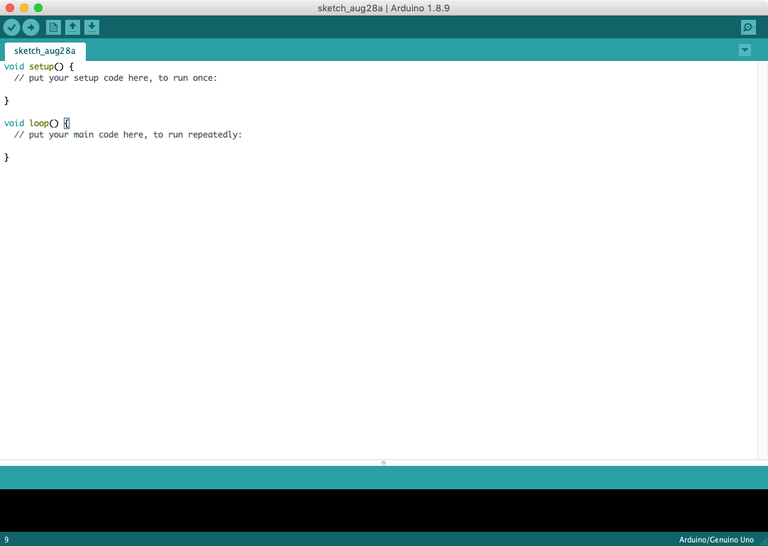
1 – Download and install the Arduino IDE
Files in Arduino are called “sketches”. The Arduino IDE will open to a blank sketch.Download and install the Arduino IDE for Mac, Windows, or Linux.
2 – Add the U8glib library
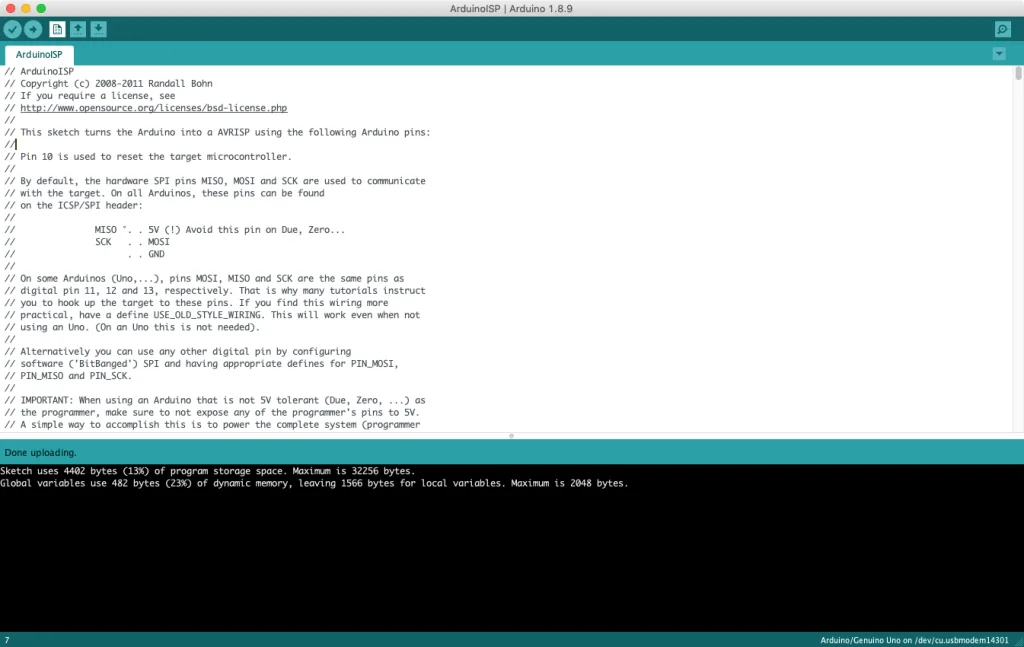
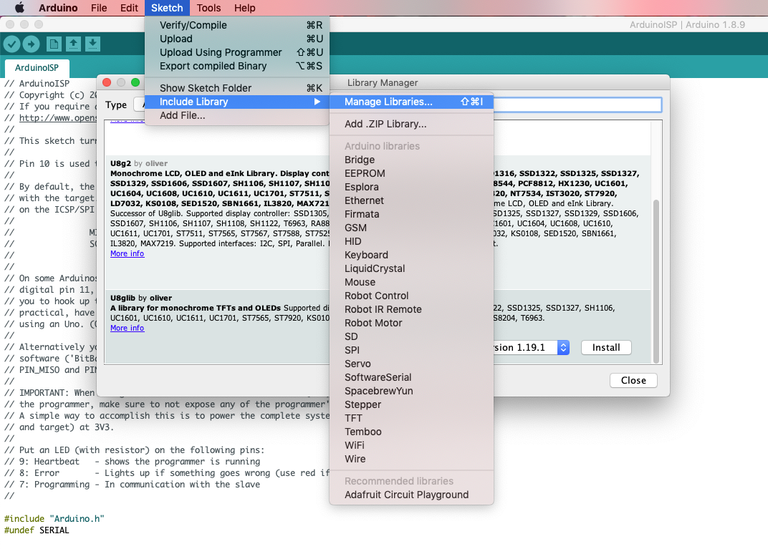
In the main menu, navigate to File > Examples or Example Sketches and select Arduino ISP.
Then, navigate to Manage Libraries and install the U8glib library.
3 – Install the Sanguino board
Next, we’ll need to install the Sanguino board.
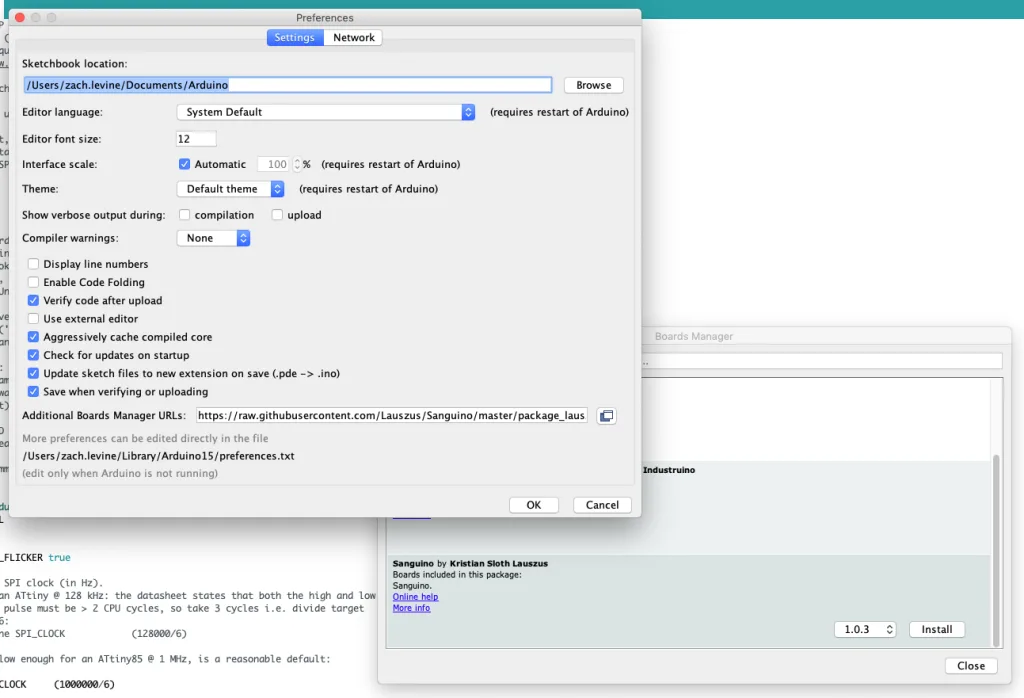
Open Arduino Preferences and paste the following under Additional Boards Manager URLs:
Then, navigate to the Boards Manager and install Sanguino.
4 – Upload the sketch to your Arduino Uno
Connect your Arduino Uno (or Arduino Uno clone) to your computer using a USB cable.
Under Tools, select Arduino Uno as the board.
Then, select either Arduino Uno or COM as the port, depending on your computer.
Finally, click Upload to upload the Arduino ISP sketch. After uploading, keep the Uno connected to your computer.
🛈 The Arduino will need to remain connected to your computer for the entire process. Therefore, you’ll need to move your computer to wherever your printer is (or vice-versa).
5 – Connect the Arduino to your Ender 3
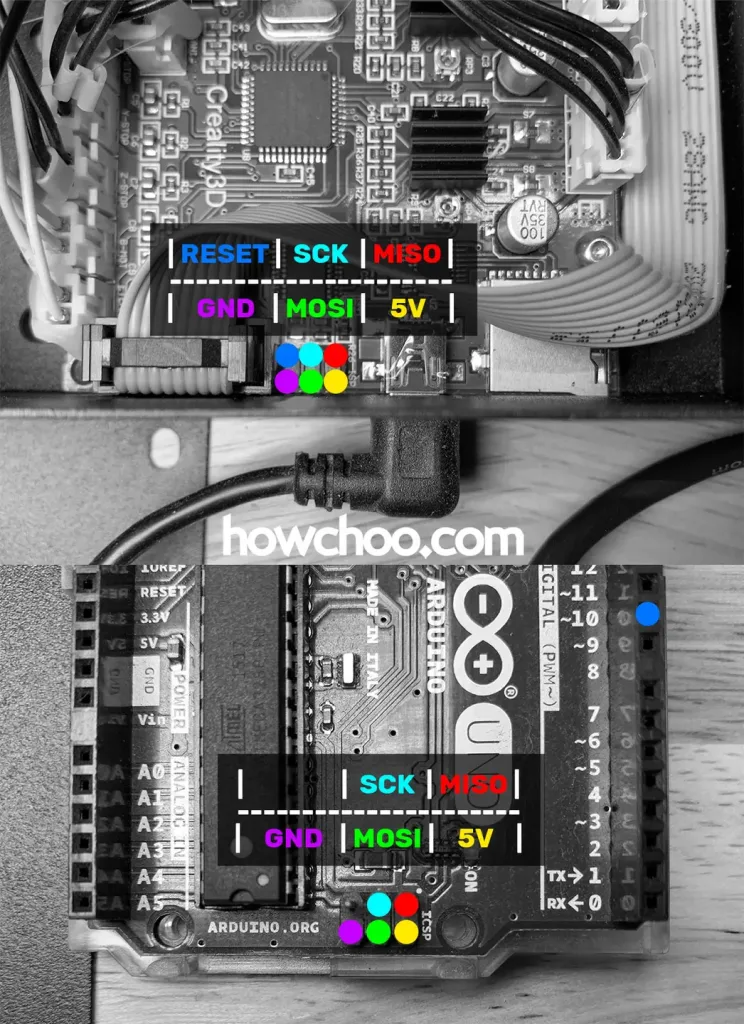
This pinout diagram identifies the Ender 3 and Arduino Uno pins needed to make your connections.
Turn your printer OFF. Then, use the small hex key that came with your printer to remove the 3 screws from the Ender 3 control box—this is the box located beneath your bed.
Finally, use your “Dupont” jumper wires to connect your Arduino to your printer as follows:
Arduino Ender 3 bootloader connections
Ender 3 Pin
Arduino Uno Pin
MISO
MISO
5V
5V
SCK
SCK
MOSI
MOSI
RESET
~10
GND
GND
Matching up the pins
You may have noticed these pins aren’t labeled on either the Ender 3 or Arduino Uno. No worries—you might also have noticed there’s an identical small 2×3 header (2 rows of 3 pins in each row) on both the Arduino and Ender 3. We basically want to “match up” the two headers, with the exception of the RESET pin.
Use the attached Ender 3 Arduino wiring diagram to connect the two headers properly.
🛈 Your Ender 3’s screen will light up as you connect things and it begins to draw power from your USB port.
6 – Burn the bootloader
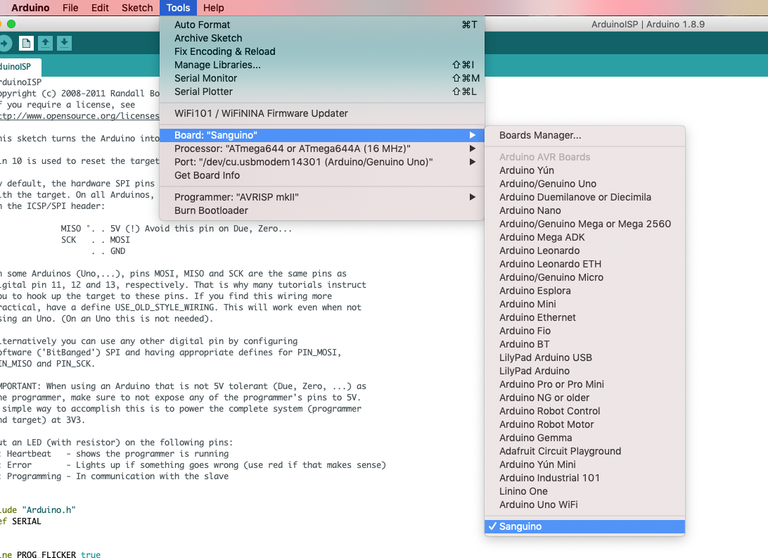
Select the Sanguino board from the Tools menu. Then, change the Programmer from AVRISP mkII to Arduino as ISP. Finally, click Burn bootloader.
When the process is finished, you’ll see a message stating “Output bootloader burned successfully”.
Troubleshooting
If you run into issues, try the following:
Double-check your settings and connections
Swap out your jumper wires in case yours are defective
Make sure you downloaded the Arduino IDE directly from the Arduino website (not the Windows store)
If you see an error such as the one below (especially if you’re running macOS), try installing the TH3D United Firmware Package and running the included preconfigured Arduino IDE instead of the normal Arduino IDE. Then, select Sanguino (1284P Boards) as the board. If you’re using a Mac, don’t forget to follow the Mac setup instructions for the TH3D Arduino IDE.
avrdude: stk500_getparm(): (a) protocol error, expect=0x14, resp=0x14
avrdude: stk500_getparm(): (a) protocol error, expect=0x14, resp=0x01
avrdude: stk500_initialize(): (a) protocol error, expect=0x14, resp=0x10
avrdude: initialization failed, rc=-1
Double check connections and try again, or use -F to override
this check.
avrdude: stk500_disable(): unknown response=0x12
Error while burning bootloader.
When the bootloader is done burning, carefully disconnect the jumper wires from your Ender 3, secure the control box cover, and unplug the Arduino from your computer.
7 – Download and prepare the latest Marlin firmware
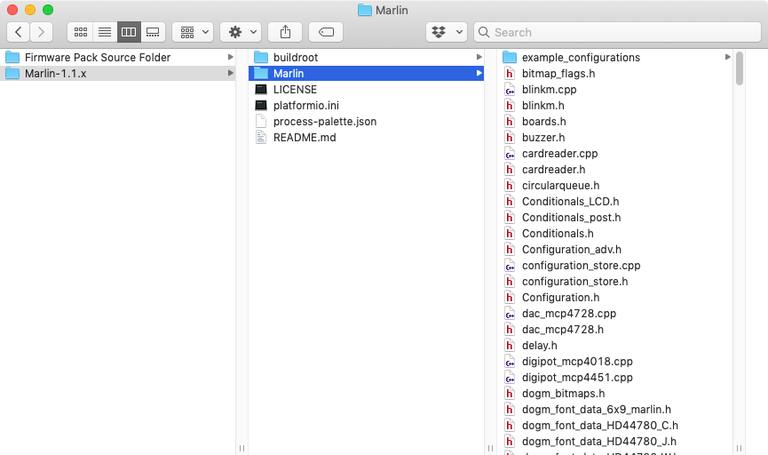
Download the latest Marlin release to your computer and unzip it.
Then, navigate to Marlin/example_configurations/Creality/Ender-3 and copy all those files into the Marlin directory, replacing all files when prompted.
8 – Connect and transfer the firmware
Connect a mini USB to USB cable between your computer and the Ender 3’s front USB port. If you’re already using OctoPrint with the Ender 3, simply move the USB cable from the Raspberry Pi to your computer. 🙂
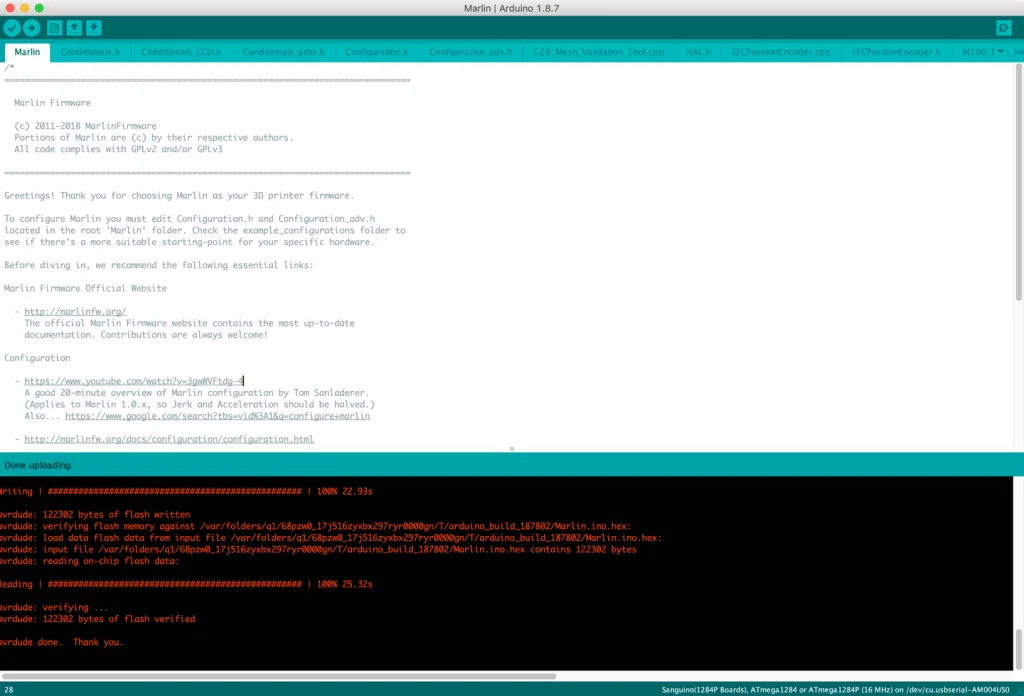
Back in the Arduino IDE, select File > Open and locate the Marlin.ino file from the Marlin directory you unzipped early.
Then, make sure the port is still selected as Sanguino or Sanguino (1284P Boards), the programmer is Arduino as ISP, and the proper serial port is selected.
Finally, click the Upload button. The firmware transfer process should take about a minute.
9 – Wrapping up
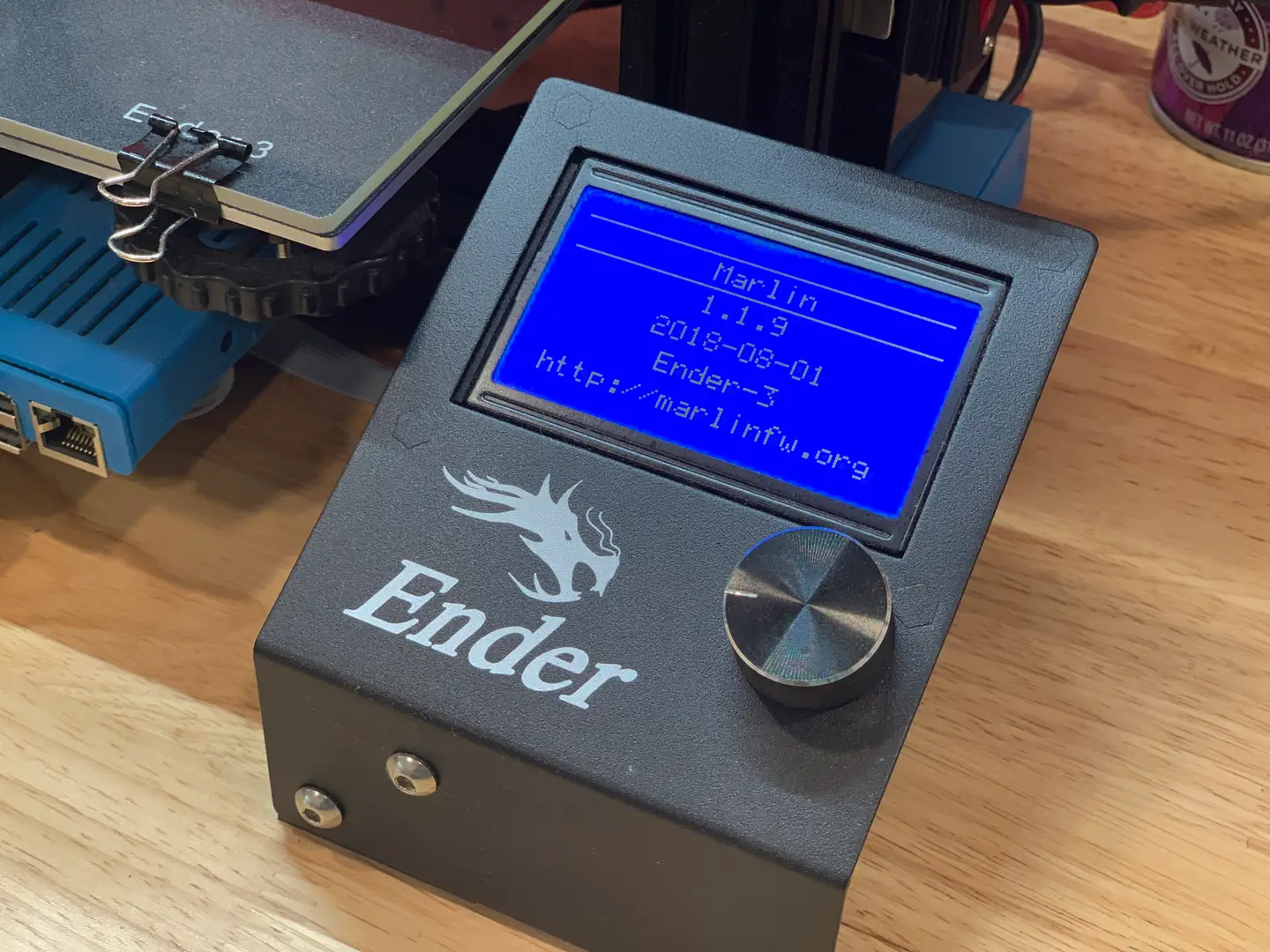
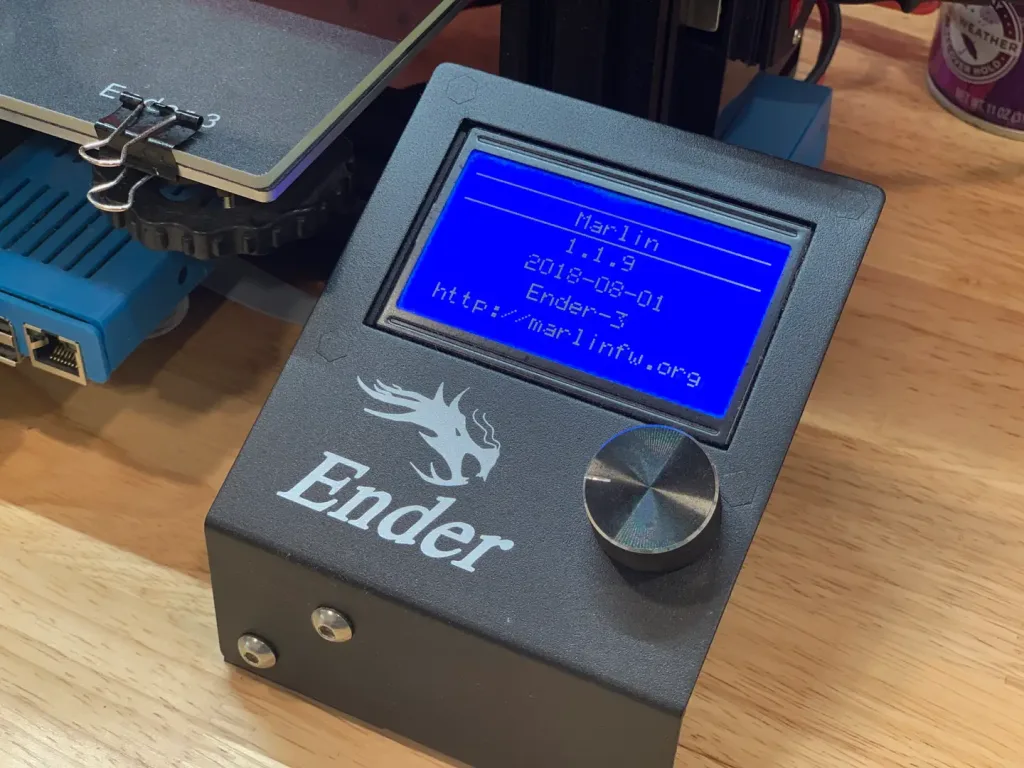
Disconnect your computer and power on your printer. Your printer will take a bit longer than normal to start up. You should now see a different boot screen since your firmware has been updated.
Blender is one of the most popular open-source 3D creation suites today. It doesn’t cost a dime to use and everything you create is yours to own for good. The community is robust and the dev team still releases new updates on the regular. If you want to get the latest version, you may have
Introducing Howchoo, an enigmatic author whose unique pen name reflects their boundless curiosity and limitless creativity. Mysterious and multifaceted, Howchoo has emerged as a captivating storyteller, leaving readers mesmerized by the uncharted realms they craft with their words.
With an insatiable appetite for knowledge and a love for exploration, Howchoo’s writing transcends conventional genres, blurring the lines between fantasy, science fiction, and the surreal. Their narratives are a kaleidoscope of ideas, weaving together intricate plots, unforgettable characters, and thought-provoking themes that challenge the boundaries of imagination.
Magic Mirror is essentially a webpage that runs on a web server housed inside your Raspberry Pi. It displays tons of cool information and can even be used to create your very own smart mirror!
Note: I recommend using either the Raspberry Pi 4 or 3 to complete this project, but the Raspberry 2/Zero/Zero W will also work.
1 – Install Raspberry Pi OS
First, you’ll need to install the latest version of Raspberry Pi OS (formerly Raspbian), the official Raspberry Pi operating system (based on Debian Linux). Check out our guide for Raspberry Pi OS installation instructions.
Unmount the SD card from your computer and insert it into your Pi. Connect your keyboard, mouse, HDMI cable and, lastly, the Pi’s power cable. You will now see the Raspberry Pi OS desktop (GUI).
3 – Connect to your wireless network
Our Magic Mirror needs to be wifi-enabled so that it can connect to the internet and so that we can access it remotely to set things up.
In the top right of your screen, click on the network icon (two computers with an X). Select your network, enter your wifi password, and click OK.
The Raspberry Pi 3 and Raspberry Pi Zero W have built-in wifi, older Pis (and the normal Pi Zero) do not. If you’re using a Pi without built-in wifi, you’ll need to connect a wifi dongle to your Raspberry Pi.
4 – Find your Pi’s IP
We’ll need our Pi’s IP so that we can connect to it from our regular computer and complete the rest of the installation from there.
On your Pi, navigate to Menu > Accessories > Terminal. Type the following and press enter:
ifconfig
Your Pi’s IP will be located next to inet addr.
Alternatively, you can also ping your Pi from your computer to obtain the IP address; I wrote a short guide on pinging the Raspberry Pi.
5 – Connect to your Pi from your computer
On newer versions of Raspberry Pi OS, SSH is disabled by default. You can either enable SSH using the SD card or, on your Pi, navigate to Preferences > Raspberry Pi Configuration > Interfaces and enable it there.
After enabling SSH, open Terminal (Mac) or Command Prompt (Windows). Type the following command and press enter:
ssh pi@your-pis-ip-address
When prompted for your password, use the default Raspberry Pi password: raspberry. If you see an authenticity of host warning, type yes and press enter.
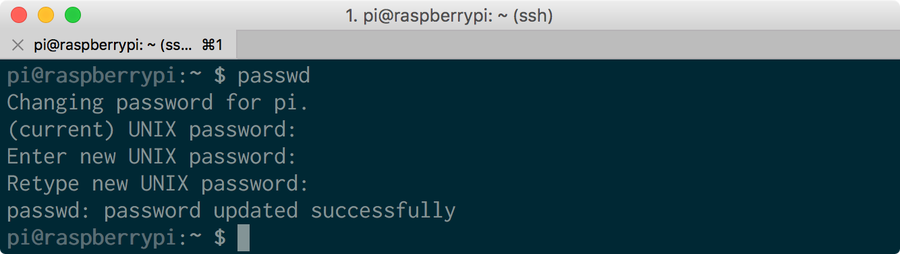
Change the default password For better security, I recommend you change you Pi’s default password to something else. Type the following, press enter, and follow the prompts:
Expand your Pi’s filesystem to utilize all available space, and also to boot into the GUI Type the following and press enter:
sudo raspi-config
Select Expand Filesystem and press enter. Then, reboot your Pi:
sudo reboot
Update your Pi
sudo apt-get update
sudo apt-get upgrade --yes
🛈 Updating may take some time.
7 – Install the interface
There are a number of great Magic Mirror dashboards available — I went with one created by Michael Teeuw since it’s beautiful and he’s a bit of a Magic Mirror pioneer. More information for the MagicMirror dashboard can be found on its Github repo.
We’re going to use the automatic installer to save us some time. To do this, run the following command:
Note: The automatic installer officially supports the Pi 2, 3, and 4. If you want to run MagicMirror on a Pi 1 or Pi Zero, you’ll need to use the server-only version and install a full-screen browser manually. Save yourself some time and just use a Pi 3. 🙂
When prompted whether you want to use pm2 for auto starting of your MagicMirror, select “yes” by typing y and pressing enter.
MagicMirror should start automatically! If it doesn’t, run:
cd ~/MagicMirror && DISPLAY=:0 npm start
🛈 The installer could take anywhere from 10-25 minutes to run.
8 – Start MagicMirror on system boot
Now we’ll tell MagicMirror to start on system boot. While connected to your Pi, run the following command:
pm2 startup
That command will output another command for you to run. Run that command. It may vary for your system, but for me it was:
sudo env PATH=$PATH:/usr/bin /usr/lib/node_modules/pm2/bin/pm2 startup systemd -u pi --hp /home/pi
Next, create a startup shell script:
cd ~
nano mm.sh
Add the following to that file, save, and exit:
cd ~/MagicMirror
DISPLAY=:0 npm start
Make sure the script is executable:
chmod +x mm.sh
Next, start MagicMirror and force it to start on boot:
Time to configure the interface for your location and needs!
cd ~/MagicMirror
nano config/config.js
Configure weather Change both the “currentweather” and “weatherforecast” weather module settings to your location.
Change the JavaScript config object to add your city’s name, location ID, and free OpenWeatherMap API key:
config: {
location: "Tampa",
locationID: "4174757",
appid: "YOUR_OPENWEATHER_API_KEY",
units: "imperial" // Use Fahrenheit instead of Celsius
}
Configure compliments MagicMirror spins through an array of complements based on the time of day. If you’d like, you can change these compliments to something different — famous quotes, perhaps?
Configure your calendar By default, MagicMirror shows a calendar containing US holidays. You can change these by pasting a calendar’s public URL here.
For now, I decided to remove both and instead subscribe to the Tampa Bay Rays schedule and a Google Calendar containing a list of national holidays. These calendar URLs normally end in .ics, and you can Google the one you’re looking for.
Down the road, I’ll add authentication so I can link up my Google Calendar. You can also change the icon that’s loaded by changing the value of calendar.urls.symbol; this value should be from the list of FontAwesome icons found here, with the “fa-” portion removed. For example, ‘fa-bullhorn’ becomes just ‘bullhorn’.
When you’re finished configuring, save and exit.
12 – Explore other modules
There are tons of other fun and useful MagicMirror modules you can play around with. Find a really great one? Post in the comments section below and I’ll include it here!
13 – Back up your SD card (optional)
Now that your MagicMirror setup is working, I highly recommend you create a backup of your SD card image. This is totally optional, but if something gets messed up when installing Jasper it will be easy to revert. I wrote a guide on how to back up your SD card for Mac or, if you have Windows, Lifehacker wrote a great guide as well.
Make your magic mirror voice-enabled by installing Google Assistant. Be sure to check out my Google Home-enabled magic mirror guide to learn how to do this.
Jasper is an open-source text-to-speech and speech-to-text processing platform, allowing you to speak commands to your Raspberry Pi such as to play a Spotify playlist, add things to your Google Calendar, or integrate with openHAB to control your entire house. Jasper is definitely a cool feature to add to your mirror — if you’re up for the task!
I wrote an exhaustive guide on how to install Jasper on your Pi. You can also see my completed Magic Mirror build here, which is a great read if you’re also into woodworking.
There are several ways to go about running a Minecraft server on the Raspberry Pi. In this guide, I’ll cover how to install Nukkit—a cross-platform Minecraft server that’s super easy to set up on the Raspberry Pi. This server should work with PCs, consoles, and tablets running Minecraft 1.14. I’ll be using a Raspberry Pi
Introducing Howchoo, an enigmatic author whose unique pen name reflects their boundless curiosity and limitless creativity. Mysterious and multifaceted, Howchoo has emerged as a captivating storyteller, leaving readers mesmerized by the uncharted realms they craft with their words.
With an insatiable appetite for knowledge and a love for exploration, Howchoo’s writing transcends conventional genres, blurring the lines between fantasy, science fiction, and the surreal. Their narratives are a kaleidoscope of ideas, weaving together intricate plots, unforgettable characters, and thought-provoking themes that challenge the boundaries of imagination.
🛈 For other versions of windows, simply search your computer for the Command Prompt application.
2 – Enable SSH
Older versions of Raspberry Pi OS like Raspbian Jessie, Raspbian Stretch, and Raspbian Buster have SSH disabled by default for security reasons. If you’re using an up-to-date version of Raspberry Pi OS (as you should!), you’ll need to enable SSH on your Raspberry Pi before proceeding.
Of course, if you’ve changed the password you’ll need to use the updated password.
4 – Use the SSH command
The default hostname for the Pi is raspberrypi, so in your command line app, enter the following and press enter:
ssh pi@raspberrypi
Note: Certain distributions (like RetroPie) change the hostname by default — for example, the default hostname for RetroPie is retropie, so you’d connect using that in place of raspberrypi. You can quickly check whether your Pi uses a certain hostname by pinging it and trying each hostname:
.. where 192.168.X.X is your Pi’s IP address. You can obtain your Pi’s IP address using the ping command above.
Type the password when you see the password prompt. For security purposes you won’t see the password as you type.
You might encounter a host verification warning that ends with something like this:
The authenticity of host 'abc (abc)' can't be established.
RSA key fingerprint is 3f:1b:f4:bd:c5:aa:c1:1f:bf:4e:2e:cf:53:fa:d8:59.
Are you sure you want to continue connecting (yes/no)?
Just type “yes” and hit enter. This is a security measure to let you know you’re trying to connect to a host for the first time. After connecting, the host will be added to the known_hosts file, and you won’t see this warning again.
🛈 Make sure your computer is on the same network as your Pi.
There are several ways to go about running a Minecraft server on the Raspberry Pi. In this guide, I’ll cover how to install Nukkit—a cross-platform Minecraft server that’s super easy to set up on the Raspberry Pi. This server should work with PCs, consoles, and tablets running Minecraft 1.14. I’ll be using a Raspberry Pi
Introducing Howchoo, an enigmatic author whose unique pen name reflects their boundless curiosity and limitless creativity. Mysterious and multifaceted, Howchoo has emerged as a captivating storyteller, leaving readers mesmerized by the uncharted realms they craft with their words.
With an insatiable appetite for knowledge and a love for exploration, Howchoo’s writing transcends conventional genres, blurring the lines between fantasy, science fiction, and the surreal. Their narratives are a kaleidoscope of ideas, weaving together intricate plots, unforgettable characters, and thought-provoking themes that challenge the boundaries of imagination.