Home Interests Amazon

How to See If I’m Eligible for Amazon Prime Free Same-Day Delivery

howchoo
howchoo   (467)
November 24, 2023
2 minutes

Share

Interests
Posted in these interests:
 
amazon • 5 guides
home • 7 guides

So Amazon just announced free same-day delivery in 14 different metro areas. How do you know if you apply?

1 – Check your zip code
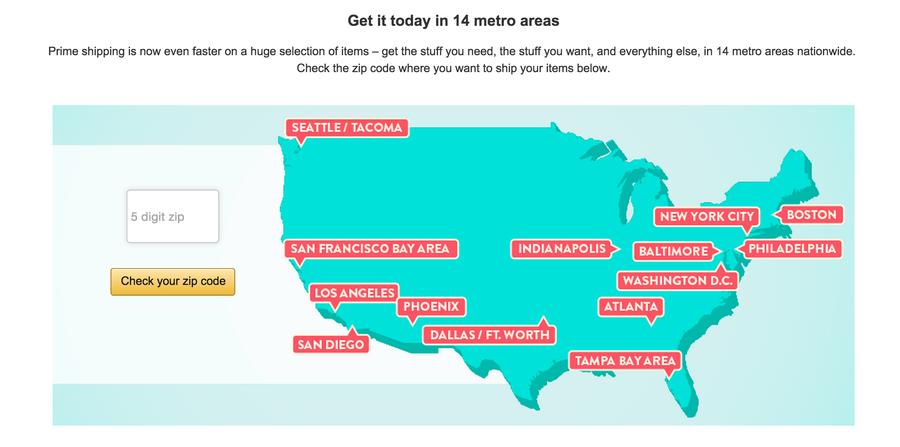
Go to this page. Wait for the page to finish loading completely, scroll down, and enter your zip code. This will tell you if you live in an area that is eligible for free same-day delivery.

2 – Or simply try to check out on Amazon

If you add at least $35 of eligible products to your cart, you should see same-day delivery as a shipping option. Also, eligible items will display “Prime FREE Same-Day” or “Prime FREE One-Day” on their detail page. If you don’t see this, it doesn’t apply!

NEXT UP

How to Properly Dispose of a Worn or Damaged American Flag

howchoo   (467)
December 7, 2023

Since our country was conceived, the U.S. Flag has been a symbol of our country’s freedom. Our country’s Flag Code provides specific guidelines for how to “retire” a damaged or worn-out American flag. When should my American flag be retired? The US Flag Code (4 USC Sec 8 Para (k) Amended 7 July 1976) dictates that a flag

Continue Reading

howchoo

 467 guides

Introducing Howchoo, an enigmatic author whose unique pen name reflects their boundless curiosity and limitless creativity. Mysterious and multifaceted, Howchoo has emerged as a captivating storyteller, leaving readers mesmerized by the uncharted realms they craft with their words. With an insatiable appetite for knowledge and a love for exploration, Howchoo’s writing transcends conventional genres, blurring the lines between fantasy, science fiction, and the surreal. Their narratives are a kaleidoscope of ideas, weaving together intricate plots, unforgettable characters, and thought-provoking themes that challenge the boundaries of imagination.

Home Interests Windows

How to Update Blender

Get the latest Blender has to offer.
howchoo (467)
November 24, 2023
6 minutes

Share

Interests
Posted in these interests:
3dprinting • 36 guides

Mac

mac • 24 guides
 
windows • 6 guides
Blender is one of the most popular open-source 3D creation suites today. It doesn’t cost a dime to use and everything you create is yours to own for good. The community is robust and the dev team still releases new updates on the regular. If you want to get the latest version, you may have noticed there is no in-software option to update. There are also no notifications that appear when new versions are released. In fact, updating Blender is a manual process unless intervening with third-party applications. In this guide, I’ll touch on both how to update Blender and how to arrange for automatic updates in the future. If you’re looking for something else, here’s our guide on how to move in Blender, once you’ve got it updated.

1 – Check your Blender version

If you need a specific version or don’t know if you even need an update, you should check your Blender version. There are a couple of ways to go about it, but here are the easiest:
  1. Launch Blender.
  2. Look for the version number in the splash screen pop-up.
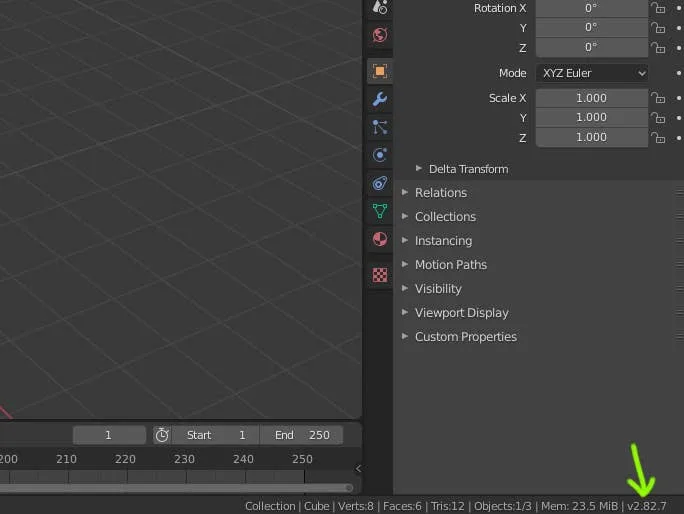
  3. If the splash screen is closed, look in the bottom right-hand corner for the version number. It should appear next to the letter v. For example, v2.82.7.

2 – Manually update Blender

To manually update Blender, you need to both remove and download the newest version from Blender. Here’s how:
  1. Uninstall Blender from your computer.
  2. Download the latest version of Blender from the Blender website.
  3. Run the installer.
  4. Reboot and launch Blender to make sure the version installed is the one you wanted.

3 – Automatically update Blender with Steam

Because Blender is available as a free application in Steam, we can take advantage of Steam’s software updating features to ensure Blender is always up to date. The only drawback is that this method requires the installation of Steam and the creation of a Steam account. Blender is free through Steam. Steam will automatically keep installed games and apps up to date.
  1. Download and launch Steam.
  2. Log into your Steam account.
  3. Download Blender from the Steam Store.
  4. Use Steam to launch Blender.
Steam automatically keeps installed apps up to date unless manually flagged. To adjust update settings for an individual game on Steam do the following:
  1. Go to your software Library and right-click the title.
  2. Choose Properties.
  3. Then click Updates.
  4. Make sure the box is checked to “Always keep this game updated”.
NEXT UP

How to Enable the “Popping” Sound When Adjusting the Volume on Your Mac

howchoo
howchoo (467)
December 13, 2023
Starting with MacOS Sierra and High Sierra, your Mac will no longer play a “pop” sound when you adjust your volume. If you prefer to have this sound when you adjust volume up and down (as I do), this guide will teach you how to reenable it. 1 – Open Sound System Preferences Navigate to System
Continue Reading

howchoo

 467 guides
Introducing Howchoo, an enigmatic author whose unique pen name reflects their boundless curiosity and limitless creativity. Mysterious and multifaceted, Howchoo has emerged as a captivating storyteller, leaving readers mesmerized by the uncharted realms they craft with their words. With an insatiable appetite for knowledge and a love for exploration, Howchoo’s writing transcends conventional genres, blurring the lines between fantasy, science fiction, and the surreal. Their narratives are a kaleidoscope of ideas, weaving together intricate plots, unforgettable characters, and thought-provoking themes that challenge the boundaries of imagination.
Home Interests Synology

How to Set Up Quick Connect on a Synology NAS

Get Synology’s powerful Quickconnect running in minutes on your NAS!
howchoo   (467)
November 24, 2023
6 minutes

Share

Interests
Posted in these interests:
cloud • 2 guides

NAS

nas • 2 guides
synology • 2 guides
technology • 20 guides

Synology is one of the most popular creators of Network Attached Storage devices on the market today, and for great reason — they’re really good at what they do. They consistently make devices that stand the test of time and feature top-notch software that makes the process of running a home server as easy as eating a slice of pie.

Still, if this is your first time setting up a Synology NAS, you probably have a few questions, and the most pressing is probably “How do I log into the darned thing?

Luckily, Synology has made it really easy to log in securely. You can connect using the Internet Protocol (IP) address of your NAS, use the handy companion desktop application developed by Synologyor follow this guide to set up Synology QuickConnect, the absolute best method for securely signing in to your NAS dashboard.

1 – First navigate to your Synology NAS home screen

First navigate to your Synology NAS home screen

The easiest way to get access to your new Synology NAS is to look it up by its IP address. You can also use the Synology companion app to look up any Synology products connected to your local network as well.

Once on your Synology desktop, open your Control Panel.

2 – Open Synology Account

Open Synology Account

From the control panel screen, open the Synology Account tab by clicking on “Synology Account” under “Services”.

3 – Sign into your Synology account

Sign into your Synology account

If you have a Synology account already created, you can use it to sign in here. Or simply create a new Synology account.

Create or sign into Synology account

4 – Confirm linked Synology account

Confirm linked Synology account

Once your account has been linked, your email address will be displayed, and you’ll see the “Sign Out” button.

Navigate to External Access on your Synology control panel

In your Synology control panel, the external access feature is located in the Connectivity section.

6 – Create your Synology NAS QuickConnect ID

Create your Synology NAS QuickConnect ID
  • Click the checkmark for “Enable QuickConnect”
  • Enter your unique QuickConnect ID. This should be a unique ID but something you’ll be able to remember and type easily. *Click “Apply” at the bottom-right corner of the window.

Once you create your new ID, the system will take a few moments to verify it and set it up. Then you’ll be able to use your QuickConnect ID to sign in to mobile services like Synology Photos, as well as your Synology NAS desktop, securely!

NEXT UP

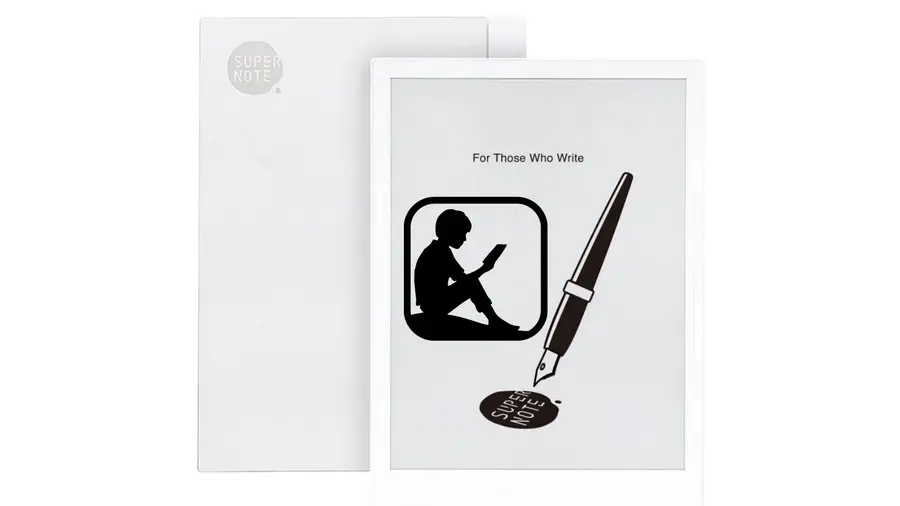
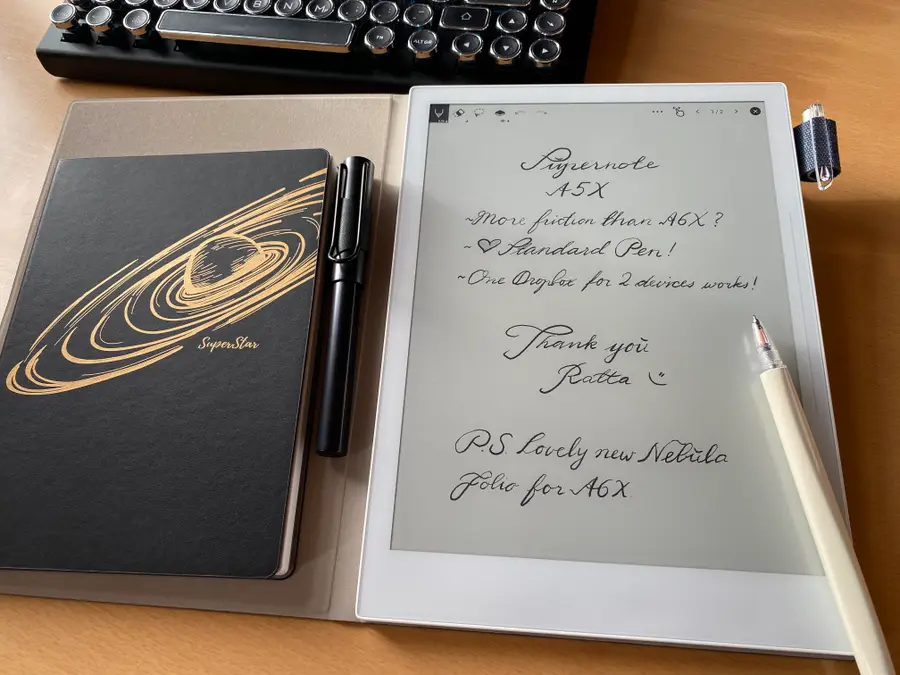
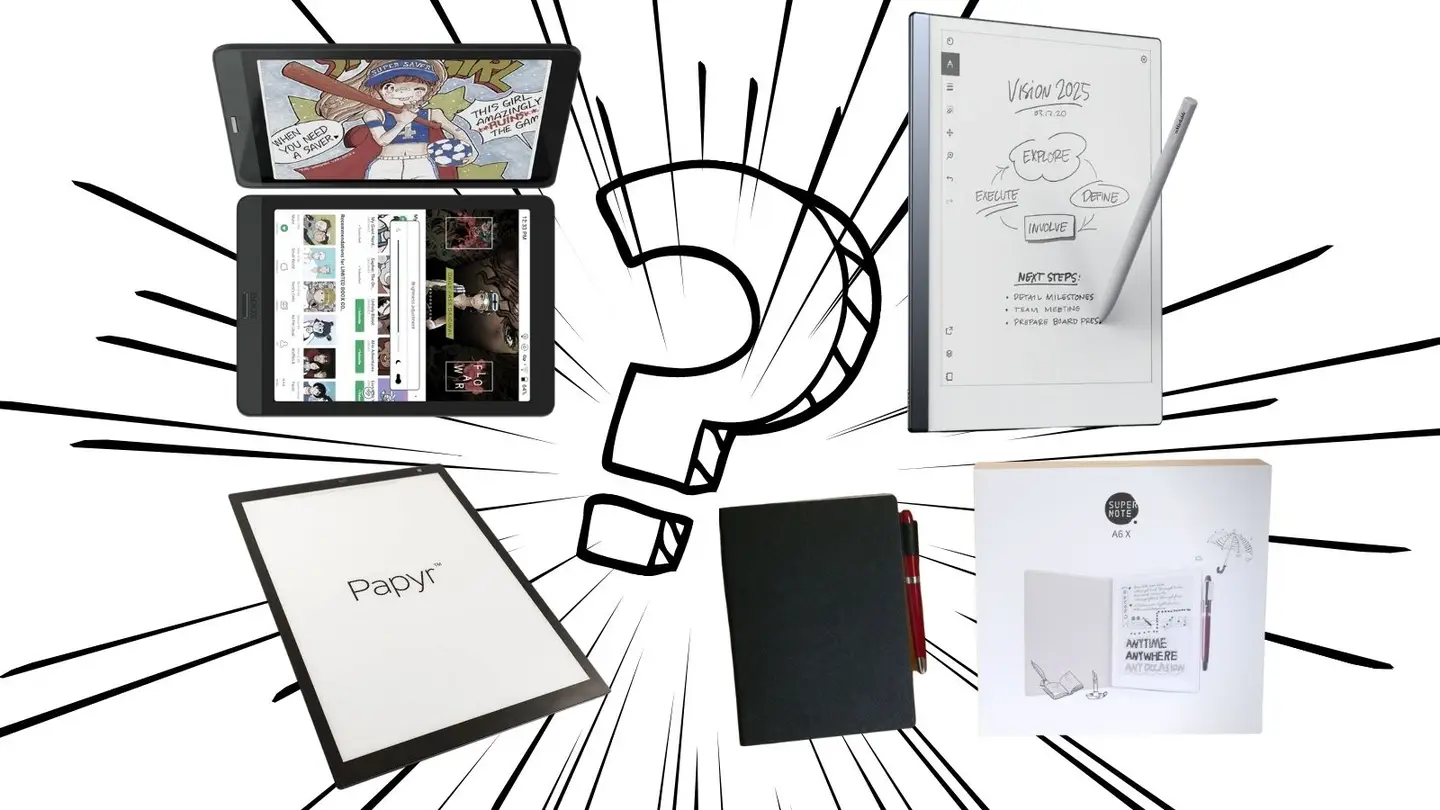
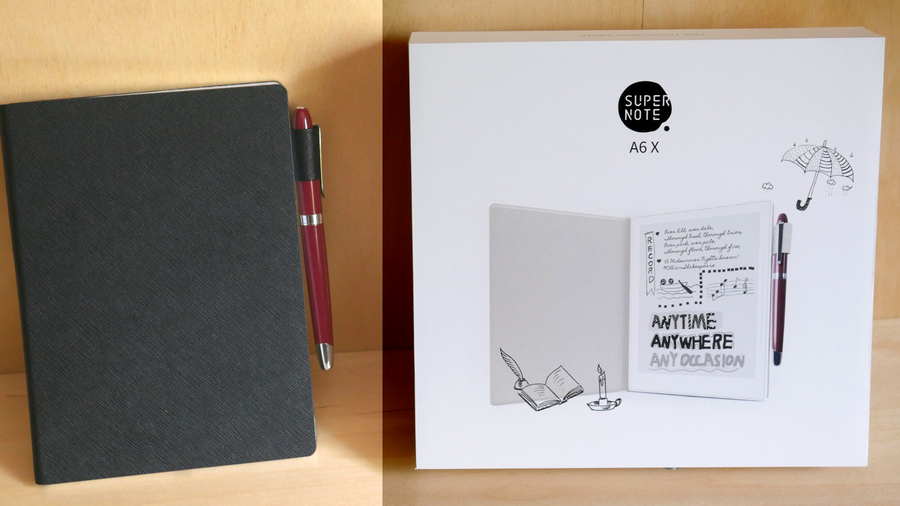
Ratta Supernote A6X and A5X: A Comprehensive E-ink Device Overview

The Supernote is the best e-ink device around, this guide explains why.
howchoo   (467)
September 29, 2023

⭐⭐⭐⭐⭐OUR RATING: 5/5 In the 1970s, Nick Sheridon made a breakthrough while working at Xerox’s Palo Alto laboratory. By suspending special spheres, mere micrometers in size, within an oil bubble inside a sheet of silicon, electrical voltage could then be applied to decide whether the black side of the sphere or the white side faced up.

Continue Reading

howchoo

 467 guides

Introducing Howchoo, an enigmatic author whose unique pen name reflects their boundless curiosity and limitless creativity. Mysterious and multifaceted, Howchoo has emerged as a captivating storyteller, leaving readers mesmerized by the uncharted realms they craft with their words. With an insatiable appetite for knowledge and a love for exploration, Howchoo’s writing transcends conventional genres, blurring the lines between fantasy, science fiction, and the surreal. Their narratives are a kaleidoscope of ideas, weaving together intricate plots, unforgettable characters, and thought-provoking themes that challenge the boundaries of imagination.

Home Interests Mac

How to Display macOS Notifications from the Command Line

howchoo
howchoo   (467)
November 24, 2023
3 minutes

Share

Interests
Posted in these interests:
 
apple • 18 guides

Mac

mac • 24 guides

In this guide, we’re going to use AppleScript and a tool called osascript to display macOS notifications. AppleScript is a scripting language created by Apple that allows us to automate control of Mac applications, and osascript is a tool that allows us to execute AppleScript from the command line.

With these tools, we can easily display macOS notifications from the command line or from within shell scripts.

1 – Use the “display” AppleScript command

Text-only notification

The display command can be run like this:

display notification "test notification!"

But if we want to execute this from the command line, we need to use osascript with the -e flag.

osascript -e 'display notification "test notification!"'

Notification with a title

osascript -e 'display notification "test notification!" with title "This is the title"'

Run any of these examples from the Terminal application (or your favorite terminal emulator), and you’ll see the notifications appear!

NEXT UP

How to Enable the “Popping” Sound When Adjusting the Volume on Your Mac

howchoo
howchoo   (467)
December 13, 2023

Starting with MacOS Sierra and High Sierra, your Mac will no longer play a “pop” sound when you adjust your volume. If you prefer to have this sound when you adjust volume up and down (as I do), this guide will teach you how to reenable it. 1 – Open Sound System Preferences Navigate to System

Continue Reading

howchoo

 467 guides

Introducing Howchoo, an enigmatic author whose unique pen name reflects their boundless curiosity and limitless creativity. Mysterious and multifaceted, Howchoo has emerged as a captivating storyteller, leaving readers mesmerized by the uncharted realms they craft with their words. With an insatiable appetite for knowledge and a love for exploration, Howchoo’s writing transcends conventional genres, blurring the lines between fantasy, science fiction, and the surreal. Their narratives are a kaleidoscope of ideas, weaving together intricate plots, unforgettable characters, and thought-provoking themes that challenge the boundaries of imagination.

Home Interests Google Docs

How to Save a Google Doc as a Word Doc (.docx)

Choose “Download.”
howchoo   (467)
November 23, 2023
3 minutes

Share

You’ll Need 1

What you’ll need
Interests
Howchoo is reader-supported. As an Amazon Associate, we may earn a small affiliate commission at no cost to you when you buy through our links.
Posted in these interests:
googledocs • 4 guides
googleworkspace • 6 guides
office365 • 1 guides

If you’re needing to share your Google Doc with someone who is using Word, then you’ll need to convert it. You can’t “save” your new file as a Word document; however, you “download” the Google Doc as a Word file and then save it. In this guide, we’ll show you how to save a Word doc in Google Docs.

Note: It’s a similar process for saving a Google Doc as a PDF.

1 – “Download” as Microsoft Word file

To save a Google Doc as a Word Doc:

  • Go to File.
  • Select Download.
  • Choose Microsoft Word (.docx).

You will be prompted to either open the new Word document or save it to a location on your computer.

2 – Open and save your new Word file

You should be able to open and view your new Word file in Microsoft Word. You’ll still have the original Google Doc saved in Google Docs, as well.

You may need to make some edits in the event that the formatting got messed up. Also, be sure to save your new Word file once you’ve edited it.

Can it be converted back?

Sure! If you need to save a Word document as a Google Doc, then we have a separate guide for that.

How to Save a Word Document as a Google Doc
Convert your Word Doc to a Google Doc…

NEXT UP

How to Search in Google Docs (Find Words)

Try ⌘ + F.
howchoo   (467)
December 13, 2023

If you just need to search and find a single word or multiple words in Google Docs, press ⌘ + F. If you want to find and replace words in your Google Doc, then we’ll show you how to do that too! 1 – Press cmd + F To find a word (or words) in

Continue Reading

howchoo

 467 guides

Introducing Howchoo, an enigmatic author whose unique pen name reflects their boundless curiosity and limitless creativity. Mysterious and multifaceted, Howchoo has emerged as a captivating storyteller, leaving readers mesmerized by the uncharted realms they craft with their words. With an insatiable appetite for knowledge and a love for exploration, Howchoo’s writing transcends conventional genres, blurring the lines between fantasy, science fiction, and the surreal. Their narratives are a kaleidoscope of ideas, weaving together intricate plots, unforgettable characters, and thought-provoking themes that challenge the boundaries of imagination.

Home Interests Guides

How To Watch Google Play Movies on Apple TV

howchoo   (467)
November 23, 2023
4 minutes

Share

Interests
Posted in these interests:
guides • 10 guides

Google Play Movies & TV is a streaming platform that allows users to permanently purchase movies or rent them for a limited amount of time, without a monthly subscription plan. This flexibility makes Google Play Movies & TV a hit, especially for parents looking to entertain their kids for an hour or two.

But how do you watch the movies once they’ve been purchased or rented? If you have Apple TV, there are multiple options.

1 – Stream Your Google Play Movie on your Apple TV via Airplay

  1. Make sure you have the Google Play Movies app downloaded on your iPhone or iPad.
  2. Turn on your Apple TV and go to Settings.
  3. Select ‘AirPlay’
  4. Turn on AirPlay
  5. On your iPhone or iPad, go to your Control Center
  6. Select your Airplay TV from the list of devices
  7. Open Google Play Movies and enjoy!

Please note: Your iPhone/iPad and Apple TV will need to be connected to the same WiFi network for this to work!

2 – Watch Google Play Movies on the YouTube app on Apple TV

While the first method is a good one, this is probably the best (and easiest) way to watch Google Play movies on your Apple TV.

  1. Open the YouTube app on Apple TV
  2. Go to the My Youtube section or click on your profile icon.
  3. Select ‘Purchases and memberships’
  4. There you’ll find a list of purchased Google Play movies that you can stream on your TV!
NEXT UP

How to Change the Windows 11 Start Menu and Button

howchoo   (467)
December 13, 2023

As with every update, Microsoft has changed Windows 11 to look different than its predecessors, and while the update looks modern and clean there are some interesting changes. Arguably the most jarring of all the changes is the one made to the Windows 11 Start Menu, which looks completely different. Instead of a clean, easy-to-navigate

Continue Reading

howchoo

 467 guides

Introducing Howchoo, an enigmatic author whose unique pen name reflects their boundless curiosity and limitless creativity. Mysterious and multifaceted, Howchoo has emerged as a captivating storyteller, leaving readers mesmerized by the uncharted realms they craft with their words. With an insatiable appetite for knowledge and a love for exploration, Howchoo’s writing transcends conventional genres, blurring the lines between fantasy, science fiction, and the surreal. Their narratives are a kaleidoscope of ideas, weaving together intricate plots, unforgettable characters, and thought-provoking themes that challenge the boundaries of imagination.

Home Interests MacOS

How to Get Dashboard on MacOS Big Sur

It’s as close to the old Dashboard as you’ll get!
howchoo   (467)
November 22, 2023
7 minutes

Share

Interests
Posted in these interests:

Mac

mac • 24 guides
macos • 20 guides

With the introduction of the new macOS, Big Sur, many things like even securely emptying your trash bin have changed. Now, Apple has permanently removed the beloved Dashboard from its operating systems. For many, this caused feelings ranging from mild discontent to full-on rage!

MacOS Big Sur users—we’re here to tell you to relax—not just because it’s good for your health, but because we’ve got a decent alternative to the classic Mac Dashboard that you might grow to love even more.

In this guide, we’ll show you how to use widgets and hot corners on your Mac to simulate your previous experience with Dashboard.

What is a widget?

Widgets are small programs like a calculator that used to appear when you opened up your dashboard. They haven’t disappeared, fortunately.

What is a hot corner?

Apple created “hot corners” that activate some applications when you hover your mouse on a selected corner of your screen. We’ll be setting one up for the Notification Center.

1 – Head over to “Mission Control”

  • Go to your Mac’s Settings.
  • Click Mission Control.

2 – Select “Hot Corners”

Mission Control is where you used to activate your Dashboard. Now, you’ll use it to activate Hot Corners.

3 – Add “Notification Center” to your desired hot corner

Using the drop-down menu arranged at your desired “hot corner”:

  • Select and add Notification Center.
  • Click OK.

I chose the bottom-left of the screen because I rarely use that part of the screen on my Mac for anything else.

4 – Use the “hot corner” to bring up your Notification Center

  • Hover your mouse on the corner of the screen you selected for your “hot corner.” (Mine is on the bottom-left.)

You should see the notification center pop-up on the right-hand side of your desktop.

How is Notification Center like the Dashboard?

The Notification Center contains many of the same tools and widgets to which you were accustomed on your previous Dashboard. Things like calculator, weather, stock prices, etc. can all be added or deleted from your Notification Center. In the next step, I’ll show you how to customize it with your favorite Dashboard widgets!

In addition, you can also see notifications from apps, calendars, etc. in the Notifications tab on the upper-right of the window.

5 – Customize the Notification Center

You can add and remove widgets from your Notification Center.

  • Click the small edit button at the bottom of the Notification Center.
  • Click and drag the widgets you want into your Notification Center
  • Drag the ones you want to remove outside.
  • Click Done.

What about other widgets?

Don’t see the widget you want? You can download more widgets in the Apple App store by clicking the App Store button at the bottom of the editing screen.

Right now there aren’t too many widgets from which to choose. There are some new ones coming out soon, however, like the addition of the universal clipboard. But we’re certain that developers will be making many more widgets in the near future.

Enjoy your new Dashboard-like Notification Center!

NEXT UP

How to Enable the “Popping” Sound When Adjusting the Volume on Your Mac

howchoo
howchoo   (467)
December 13, 2023

Starting with MacOS Sierra and High Sierra, your Mac will no longer play a “pop” sound when you adjust your volume. If you prefer to have this sound when you adjust volume up and down (as I do), this guide will teach you how to reenable it. 1 – Open Sound System Preferences Navigate to System

Continue Reading

howchoo

 467 guides

Introducing Howchoo, an enigmatic author whose unique pen name reflects their boundless curiosity and limitless creativity. Mysterious and multifaceted, Howchoo has emerged as a captivating storyteller, leaving readers mesmerized by the uncharted realms they craft with their words. With an insatiable appetite for knowledge and a love for exploration, Howchoo’s writing transcends conventional genres, blurring the lines between fantasy, science fiction, and the surreal. Their narratives are a kaleidoscope of ideas, weaving together intricate plots, unforgettable characters, and thought-provoking themes that challenge the boundaries of imagination.

Home Interests Chrome

How To Save Tab Groups in Google Chrome (Two Ways!)

Don’t lose all the work you’ve tabbed!
howchoo   (467)
November 22, 2023
4 minutes

Share

You’ll Need 1

What you’ll need
Interests
Howchoo is reader-supported. As an Amazon Associate, we may earn a small affiliate commission at no cost to you when you buy through our links.
Posted in these interests:
chrome • 7 guides
google • 9 guides
googleworkspace • 6 guides

Being able to create tab groups in Google Chrome is great, but being able to save them for the next time you open Chrome is even better. Keeping your Chrome open all the time is impractical and can negatively affect your computer’s RAM, so you need a better solution that will make accessing your tabs easy.

Great news for you: we’ve got two ways to save your tab groups in Google Chrome that you’ll be able to access whatever device you’re logged into.

1 – Changing On Startup options (Recommended)

  1. Click the three dots menu.
    – Located in the top right of the window, this is where you go for Chrome settings.
  2. Navigate to the settings page.
    – It will open in a new tab.
  3. Change the on startup settings.
    – You can navigate there by searching “on startup” in the search box or scrolling down to the bottom for the on startup box.
    – Once there, check off the “continue where you left off” option.

2 – Bookmark your Tabs

Unlike the first option, this won’t open your tabs automatically from your last session in Google Chrome. However, it will enable you to find them again should you need them.

There are a couple of easy ways to bookmark all your tabs at once! 1. Right-click in an open space beside the tabs, then select “Bookmark all tabs.” 2. Press Ctrl+Shift+D for Windows or Cm+Shift+D on Mac to bookmark all the tabs.

Chrome will save a new folder in your bookmarks for you to click on later. You can also rename it to whatever fits!

NEXT UP

How to Search in Google Docs (Find Words)

Try ⌘ + F.
howchoo   (467)
December 13, 2023

If you just need to search and find a single word or multiple words in Google Docs, press ⌘ + F. If you want to find and replace words in your Google Doc, then we’ll show you how to do that too! 1 – Press cmd + F To find a word (or words) in

Continue Reading

howchoo

 467 guides

Introducing Howchoo, an enigmatic author whose unique pen name reflects their boundless curiosity and limitless creativity. Mysterious and multifaceted, Howchoo has emerged as a captivating storyteller, leaving readers mesmerized by the uncharted realms they craft with their words. With an insatiable appetite for knowledge and a love for exploration, Howchoo’s writing transcends conventional genres, blurring the lines between fantasy, science fiction, and the surreal. Their narratives are a kaleidoscope of ideas, weaving together intricate plots, unforgettable characters, and thought-provoking themes that challenge the boundaries of imagination.

Home Interests Internet

How to Clear Your Browser Cache for Any Browser

Trouble loading web pages? Try clearing your cache!
howchoo   (467)
November 22, 2023
6 minutes

Share

Interests
Posted in these interests:
chrome • 7 guides
internet • 36 guides
safari • 1 guides

Clearing your browser cache is a great way to solve common internet issues. If a webpage isn’t loading properly, one of the first things you should try is clearing your browser cache.

This guide includes steps for the most common internet browsers—Chrome, Firefox, Safari, Internet Explorer, and Edge. If your browser isn’t listed, visit the developer’s website to look for instructions.

1 – Clear Chrome browser cache

The Chrome browser cache can be cleared from within the browser itself.

  1. Open Google Chrome.
  2. In the upper-right hand corner, select the icon that looks like three dots. This will open a menu.
  3. Go to More tools.
  4. Choose Clear browsing data.
  5. Select a time period to remove data from, or opt to delete everything.
  6. There are boxes next to the type of cached data you can delete—Browsing HistoryCookies and other site data, and Cached images and files. Check the boxes to remove the data.
  7. To delete the cache, click Clear data.

2 – Clear Firefox browser cache

Firefox has a built-in feature to help remove the cache from your browser.

  1. Open Firefox.
  2. In the upper-right hand corner, open the menu using the icon that looks like three lines.
  3. Go to Options.
  4. On the left, choose Privacy & Security.
  5. Scroll until you see Cookies and Site Data. Choose Clear Data….
  6. Place a checkmark in the box next to each type of cached data you want to remove.
  7. Click Clear and close the page.

3 – Clear Safari browser cache

You can clear the cache in Safari using the Develop drop-down menu.

  1. Open Safari.
  2. Open the Develop drop-down menu.
  3. Choose Empty Cache.

You can also use the extension Option + Command + E

If you’re missing the Develop drop-down menu, you may need to make it visible.

Show the Develop menu in Safari

  1. Open Safari.
  2. Under the Safari drop-down menu, go to Preferences.
  3. Go to the Advanced tab.
  4. Select Show Develop menu in menu bar.

4 – Clear Internet Explorer

The cache in Internet Explorer can be cleared from the browser window.

  1. Open Internet Explorer.
  2. Click on the gear-shaped icon in the upper-right hand corner of the browser.
  3. Go to Safety.
  4. Choose Delete Browsing History….
  5. Check the boxes next to the data you want to delete or options you want to use. You may not want IE to preserve your favorite website data when clearing the cache.
  6. Click Delete.

5 – Edge browser cache

Edge has a built-in feature to help clear the browser cache.

  1. Open Edge.
  2. Click the menu icon in the upper-right hand corner that looks like three dots. A drop-down menu will appear.
  3. Choose History.
  4. In the upper right, click Clear History.
  5. Check the boxes next to the type of cached data you want to remove.
  6. Choose Clear.
NEXT UP

How to Change Your Frontier WiFi Password

howchoo
howchoo   (467)
November 25, 2023

There are a few reasons you might want to update or reset your WiFi password: making your network more secure, and making your password easier to remember and type. Improved network security You can add an extra layer of security to your network by changing the WiFi password. As long as your new password is

Continue Reading

howchoo

 467 guides

Introducing Howchoo, an enigmatic author whose unique pen name reflects their boundless curiosity and limitless creativity. Mysterious and multifaceted, Howchoo has emerged as a captivating storyteller, leaving readers mesmerized by the uncharted realms they craft with their words. With an insatiable appetite for knowledge and a love for exploration, Howchoo’s writing transcends conventional genres, blurring the lines between fantasy, science fiction, and the surreal. Their narratives are a kaleidoscope of ideas, weaving together intricate plots, unforgettable characters, and thought-provoking themes that challenge the boundaries of imagination.

Home Interests Running

How to Clean Vibram Five Finger Toe Shoes Without Ruining Them

howchoo   (467)
November 22, 2023
7 minutes

Share

You’ll Need 5

What you’ll need
Interests
Bucket x 1
Hot water x 1
Howchoo is reader-supported. As an Amazon Associate, we may earn a small affiliate commission at no cost to you when you buy through our links.
Posted in these interests:
fitness • 5 guides
outdoors • 3 guides
running • 2 guides

Vibram Five Finger shoes are awesome pieces of running gear. But you can also use them for hiking and looking weird around town. Unfortunately, toe shoes start to smell if you don’t wear socks with them every time you wear them. While Vibram claims that the shoes are machine washable, you will ruin them if you wash them repeatedly.

Trust us, you don’t want to be wearing these with possible bacteria and/or fungi living inside. That will not bode well for your precious feet. Read on to see the best way to clean your Vibram Five Finger toe shoes.

1 – Place your toe shoes into a bucket

I also threw my gym gloves in there while I was at it. If you’ve never washed your gym gloves before, I would clean them separately from your toe shoes; most gym gloves (even leather ones) will release dye the first time they’re washed. This could taint your pretty toe shoes.

2 – Place a weight on top of the shoes and fill with hot water

Use a weight (I used a ceramic kitchen bowl) to keep the shoes from floating. Fill the bucket with hot water until the shoes and weight are completely covered.

3 – Add denture cleaning tablets

Drop denture cleaning tablets into the water. I used 16 tablets just to be safe — the tablets are really inexpensive and I wanted to be sure that my shoes got really clean.

4 – Let your shoes soak overnight

Place the bucket somewhere out of the way and let it sit overnight.

🛈 Denture cleaners are minty and smell nice — keep the bucket away from pets. Though the tablets aren’t toxic to humans, your dog may not have a great time after drinking a bunch of dirty denture tablet water.

5 – Rinse your shoes

Remove your shoes from the bucket and run them under a faucet. This will thoroughly remove any denture cleaning residue that might exist.

6 – Dry your shoes

This part is extremely important. If you do not dry the shoes properly, they will begin to smell right away. There are a few methods for doing this: – Hang them in front of a powerful fan for a few hours (this is what I did). – Hang them outside in an area where a nice breeze exists. – Air-tumble dry them in your dryer on the delicate setting; be sure not to use a large amount of heat as this may shrink the material. – Place them on the floor directly in front of your refrigerator; this method is only effective for certain types of refrigerators that push air and heat out beneath the front doors.

7 – Keeping them clean moving forward

The best way to keep your toe shoes clean moving forward is to always wear toe socks with them. Toe socks aren’t terribly expensive and really pay off in the long run.

NEXT UP

How to dig holes in clay

howchoo   (467)
November 22, 2023

Clay can be a real pain to dig in. Whether its footers for a backyard deck or simply potted plants, this is a great way to make it easier. 1 – Mark your hole 2 – Remove the top layer of clay from the marked area 3 – Drill small holes throughout the marked area

Continue Reading

howchoo

 467 guides

Introducing Howchoo, an enigmatic author whose unique pen name reflects their boundless curiosity and limitless creativity. Mysterious and multifaceted, Howchoo has emerged as a captivating storyteller, leaving readers mesmerized by the uncharted realms they craft with their words. With an insatiable appetite for knowledge and a love for exploration, Howchoo’s writing transcends conventional genres, blurring the lines between fantasy, science fiction, and the surreal. Their narratives are a kaleidoscope of ideas, weaving together intricate plots, unforgettable characters, and thought-provoking themes that challenge the boundaries of imagination.