Home Interests Python

Working with Datetime Objects and Timezones in Python

howchoo
howchoo   (433)
August 9, 2023
18 minutes

Share

Interests
Posted in these interests:
python • 18 guides

Working with dates and times can be tricky, especially when dealing with timezone conversions. This guide will provide an overview of Python’s datetime module with an emphasis on timezone related functions.

1 – What is a datetime object?

First, if you’ve seen datetime used in Python, you’ll notice that it’s both the name of a module and one of many classes within the module. So the datetime module can be imported like this:

import datetime

# datetime.datetime
# datetime.timedelta
# datetime.timezone  (python 3.2+)

Or you can simply import the datetime classes you care about:

from datetime import datetime, timedelta

A datetime object is an instance of the datetime.datetime class that represents a single point in time. If you are familiar with object oriented programming, a datetime object is created by instantiating the datetime class with a date.

An easy way to get a datetime object is to use datetime.now.

import datetime

datetime.datetime.now()
> datetime.datetime(2016, 11, 15, 9, 59, 25, 608206)

As you can see, the now method returned a datetime object that represents the point in time when now was called.

You can also create a datetime object by specifying which date you want to represent. At a minimum, instantiating datetime requires at least 3 arguments – year, month, and day.

Let’s instantiate my birthday.

import datetime

datetime.datetime(1985,  10, 20)
> datetime.datetime(1985, 10, 20, 0, 0)

From here, we’ll talk about manipulating, formatting and doing timezone conversions on datetime objects.

2 – Formatting datetime objects

According to the documentation, the “focus of the implementation [of the datetime library] is on efficient attribute extraction for output formatting and manipulation”. So we will discuss extracting attributes and formatting dates.

For this example, we’ll choose a random date.

import datetime

d = datetime.datetime(1984, 1, 10, 23, 30)

There are many occasions where we’ll want to format a datetime object in a specific way. For this, the strftime method comes in very handy. This method allows you to print a string formatted using a series of formatting directives. This is best understood with examples.

d.strftime("%B %d, %Y")
> 'January 10, 1984'

d.strftime("%Y/%m/%d")
> '1984/01/10'

d.strftime("%d %b %y")
> '10 Jan 84'

d.strftime("%Y-%m-%d %H:%M:%S")
> '1984-01-10 23:30:00'

As you can hopefully tell, the same datetime object is used to generate each date format. The format is specified using various formatting directives. For example, %Y corresponds to the full four digit year, while %m corresponds to the two digit decimal number representing the month. See the documentation for a full list of formatting directives.

It’s also possible to access various attributes of the datetime object directly.

d.year
> 1984

d.month
> 1

d.day
> 10

When discussing formatting, it’s valuable to be familiar with ISO 8601, which is an international standard for the representation of dates and times. Python has a method for quickly generating an ISO 8601 formatted date/time:

d.isoformat()
> '1984-01-10T23:30:00'

Now we’ll discuss the opposite of strftime, which is strptime. This is where you create a datetime object from a string. But since the string can be formatted in any way, it’s necessary to tell datetime what format to expect. Using the same set of formatting directives, we can pass in a string and the expected format to create a datetime object.

import datetime

datetime.datetime.strptime("December 25, 2010", "%B %d, %Y")
> datetime.datetime(2010, 12, 25, 0, 0)

Notice how the pattern matches the string exactly. If you use a formatting directives or date doesn’t make sense it will raise an exception.

3 – Enter timezones

So far, instantiating and formatting datetime objects is fairly easy. However, timezones add a little bit of complexity to the equation.

naive vs aware

So far we’ve been dealing only with naive datetime objects. That means the object is naive to any sort of timezone. So a datetime object can be either offset naive or offset aware.

A timezone’s offset refers to how many hours the timezone is from Coordinated Universal Time (UTC).

A naive datetime object contains no timezone information. The easiest way to tell if a datetime object is naive is by checking tzinfo. tzinfo will be set to None of the object is naive.

import datetime

naive = datetime.datetime.now()
naive.tzinfo
> None

To make a datetime object offset aware, you can use the pytz library. First, you have to instantiate a timezone object, and then use that timezone object to “localize” a datetime object. Localizing simply gives the object timezone information.

import datetime
import pytz

d = datetime.datetime.now()
timezone = pytz.timezone("America/Los_Angeles")
d_aware = timezone.localize(d)
d_aware.tzinfo
> 

A naive datetime object is limited in that it cannot locate itself in relation to offset aware datetime objects. For instance:

import datetime
import pytz

d_naive = datetime.datetime.now()
timezone = pytz.timezone("America/Los_Angeles")
d_aware = timezone.localize(d_naive)
d_naive  TypeError: can't compare offset-naive and offset-aware datetimes

When dealing with datetime objects, I’ve come across two pieces of advice with which I generally agree. First, always use “aware” datetime objects. And second, always work in UTC and do timezone conversion as a last step.

More specifically, as pointed out by user jarshwah on reddit, you should store datetimes in UTC and convert on display.

Once you’re familiar with aware datetime objects, timezone conversions are relatively easy. Let’s create a datetime object with a UTC timezone, and convert it to Pacific Standard.

import datetime
import pytz

utc_now = pytz.utc.localize(datetime.datetime.utcnow())
pst_now = utc_now.astimezone(pytz.timezone("America/Los_Angeles"))

pst_now == utc_now
> True

So pst_now and utc_now are different datetime objects with different timezones, yet they are equal. To be certain, we can print the time of each:

utc_now.isoformat()
> '2016-11-16T22:31:18.130822+00:00'

pst_now.isoformat()
> '2016-11-16T14:31:18.130822-08:00'

4 – Measuring duration with timedelta

Often we’ll be working with multiple datetime objects, and we’ll want to compare them. The timedelta class is useful for finding the difference between two dates or times. While datetime objects represent a point in time, timedelta objects represents a duration, like 5 days or 10 seconds.

Suppose I want to know exactly how much older I am than my brother. I’ll create datetime object for each of us representing the day and time of our birth.

import datetime
import pytz

my_birthday = datetime.datetime(1985, 10, 20, 17, 55)
brothers_birthday = datetime.datetime(1992, 6, 25, 18, 30)

Since we like to work with offset aware objects, we’ll add timezone information.

indy = pytz.timezone("America/Indianapolis")
my_birthday = indy.localize(my_birthday)
brothers_birthday = indy.localize(brothers_birthday)

To see how much older I am than my brother, we can simply subtract the two datetime objects. And to see the answer in a human readable way, we can simple print the difference.

diff = brothers_birthday - my_birthday
print(diff)
> 2440 days, 0:35:00

The diff variable is actually a timedelta object that looks like this datetime.timedelta(2440, 2100).

Subtracting a datetime object from another yields a timedelta object, so as you might suspect, subtracting a timedelta object from a datetime object yields a datetime object.

datetime - datetime = timedelta
# and
datetime - timedelta = datetime

Of course the same is true for addition.

This is useful for answering questions like “what was the date 3 weeks ago from yesterday?” or “what day of the week is 90 days from today?”.

To answer the second question, we need to have two things – first, a datetime object representing today and second, a timedelta object representing 90 days.

import datetime

today = datetime.datetime.now()
ninety_days = datetime.timedelta(days=90)

Then we can simply do the calculation.

target_date = today + ninety_days

And since we want to know the day of the week, we can use strftime.

target_date.strftime("%A")
> 'Wednesday'

5 – Conclusion

Dates and times can be tricky, but Python’s datetime class should make things a little bit easier. Hopefully you found this guide to be useful. If you think there are any other essentially examples or topics related to datetime objects and timezones please comment below, and I will try to add them to the guide.

NEXT UP

Class Vs. Instance Variables in Python 3

howchoo
howchoo   (433)
November 22, 2023

When learning object oriented programming in Python, there can be a few gotchas when it comes to distinguishing between class and instance variables. In this guide I’ll explain the difference between class and instance variables and provide examples demonstrating various use cases. 1 – Class vs. instance variables First, a quick review if you’re new

Continue Reading
Home Interests Coffee

How to Adjust Your Hario Mini Mill Coffee Grinder

Adjust your Hario like a pro.
howchoo   (467)
August 9, 2023
3 minutes

Share

Interests
Posted in these interests:
coffee • 3 guides
food • 7 guides

The Hario Mini Mill grinder makes an affordable, high quality coffee grinder if you set it up properly. Unfortunately, the directions are not very clear as to how to adjust for the perfect grind.

1 – Screw adjustment nut all the way down

Remove the bottom canister and screw the adjustment nut as tight as it goes. This serves as a reference for the next step.

2 – Unscrew the adjustment nut to the proper setting

The way to measure your grind is by “clicks” away from all the way tight. You’ll feel the nut click as you unscrew, so count the number of clicks. The number of clicks to unscrew should vary based on the brew method you’re using. Here’s the general guide I use:

TypeNumber of Clicks
Standard Drip Brew10 clicks
#2 Pour over10 clicks
Aeropress6-8 clicks
Espresso5 clicks
French Press12-14 clicks
Moka pot9 clicks
Chemex9 clicks

Also if you’re looking for the more vague ones:

TypeNumber of Clicks
Medium fine8 clicks
Medium10 clicks
Medium coarse12 clicks

credit to u/Iwannayoyo for the vague ones

3 – Follow this chart for options not listed

Use the attached Hario grinding chart to achieve your desired grind.

NEXT UP

HeaterMeter: Control your Grill Using a Raspberry Pi!

Fire up the summer with a new Pi project.
howchoo   (467)
November 28, 2023

With summer right around the corner, it’s time to fire up the grill! But who will watch the grill while you’re beating the heat? This year, kick things up a notch with your own Raspberry Pi-powered HeaterMeter. Don’t just throw a BBQ, be a part of it. HeaterMeter lets you keep a close eye on

Continue Reading

howchoo

 467 guides

Introducing Howchoo, an enigmatic author whose unique pen name reflects their boundless curiosity and limitless creativity. Mysterious and multifaceted, Howchoo has emerged as a captivating storyteller, leaving readers mesmerized by the uncharted realms they craft with their words. With an insatiable appetite for knowledge and a love for exploration, Howchoo’s writing transcends conventional genres, blurring the lines between fantasy, science fiction, and the surreal. Their narratives are a kaleidoscope of ideas, weaving together intricate plots, unforgettable characters, and thought-provoking themes that challenge the boundaries of imagination.

Home Interests Raspberry Pi

How to Set up WiFi on Your Raspberry Pi Without a Monitor (Headless)

No monitor, keyboard, or mouse? No problem.
howchoo   (436)
August 8, 2023
9 minutes

Share

You’ll Need 1

What you’ll need
Interests
Series
Howchoo is reader-supported. As an Amazon Associate, we may earn a small affiliate commission at no cost to you when you buy through our links.
Posted in these interests:
linux • 12 guides
pi • 91 guides
wifi • 2 guides

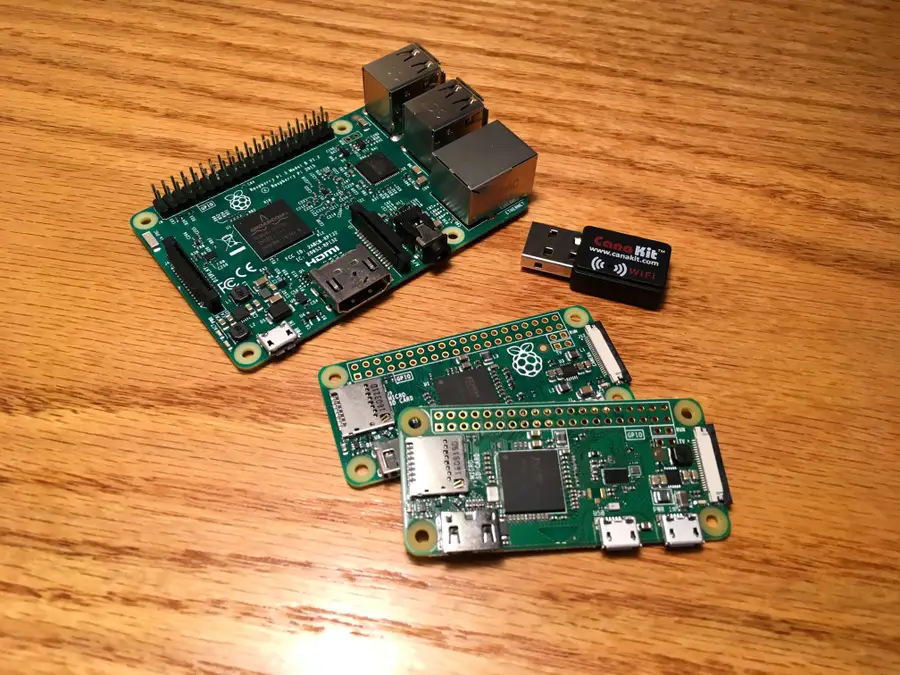
I’m one of the rare software developers that doesn’t have an extra HDMI monitor, keyboard, and ethernet connection ready to go at a moments notice. So in the past, setting up a new Raspberry Pi has been tricky. Fortunately, you can configure a WiFi connection on the Raspberry Pi without having to first connect to ethernet, a monitor, keyboard, or mouse.

1 – Put the Raspberry Pi OS SD card into your computer

If you don’t have Raspberry Pi OS installed, go ahead and install it. Make sure the SD card with Raspberry Pi OS is in your computer using an SD card slot or SD card USB adapter.

How to Install Raspberry Pi OS on Your Raspberry Pi
Get the new official Raspberry Pi OS on your Pi.

 If you're using Raspbian (an older version of Raspberry Pi OS) for some reason, thats okay too!

The SD card will mount as a drive/directory on your computer called boot. Open the drive using Finder (Mac) or Explorer (Windows).

In Finder on Mac, you can also select Go > Go to Folder from the menu bar and enter /Volumes/boot.

3 – Add your wpa_supplicant.conf file

Open a plaintext editor such as Notepad (Windows) or TextEdit (Mac) and create a new file. Add the following to the file for Raspberry Pi OSRaspbian Stretch, or Raspbian Buster:

country=US # Your 2-digit country code
ctrl_interface=DIR=/var/run/wpa_supplicant GROUP=netdev
network={
    ssid="YOUR_NETWORK_NAME"
    psk="YOUR_PASSWORD"
    key_mgmt=WPA-PSK
}

If you’re using Raspbian Jessie or older, use this instead:

network={
    ssid="YOUR_NETWORK_NAME"
    psk="YOUR_PASSWORD"
    key_mgmt=WPA-PSK
}

Finally, save the file. If you’re using TextEdit on Mac, you’ll need to go to Format > Make Plain Text in the menu bar before saving. Make sure the filename is exactly wpa_supplicant.conf (remove .txt if it gets added).

Connecting to unsecured networks

To connect to wireless networks with no password on your Raspberry Pi, use the following:

country=US # Your 2-digit country code
ctrl_interface=DIR=/var/run/wpa_supplicant GROUP=netdev # Include this line for Stretch
network={
    ssid="YOUR_NETWORK_NAME"
    key_mgmt=NONE
}

With this file in place, Raspberry Pi OS will automatically move it in /etc/wpa_supplicant/ when the Raspberry Pi is booted.

The next step is to boot the Pi and test, but while the SD card is still in your computer I’ll mention this now. If you’re going to try to connect via SSH, you may need to enable it first. The process is similar to this one.

4 – Put your SD card in the Raspberry Pi, boot, and connect

Next, put the micro SD card into the Pi, boot it, and your Wi-Fi should be connected!

The wpa_supplicant.conf file should disappear from the SD card’s boot directory automatically—so if you don’t see it next time, that’s normal.

5 – Troubleshooting

If your Pi hasn’t connected to Wi-Fi, try these wpa_supplicant troubleshooting tips:

  1. Double-check that the file was written in plaintext, without any special characters.
  2. Double-check that the file has disappeared from your boot directory.
  3. Connect the Pi to a TV or monitor via HDMI to ensure it is booting normally.
  4. If you’re using a Raspberry Pi Zero W, make sure you’re attempting to connect to a 2.4GHz network (the Zero doesn’t support 5G).
  5. If you’re using a Raspberry Pi Zero, make sure it’s a Raspberry Pi Zero W, not a regular Zero (only the W supports Wi-Fi and Bluetooth).

If you’d like to monitor your network performance with your Raspberry Pi, check out guide on setting up a network monitor with a Raspberry Pi.

NEXT UP

HeaterMeter: Control your Grill Using a Raspberry Pi!

Fire up the summer with a new Pi project.
howchoo   (436)
November 28, 2023

With summer right around the corner, it’s time to fire up the grill! But who will watch the grill while you’re beating the heat? This year, kick things up a notch with your own Raspberry Pi-powered HeaterMeter. Don’t just throw a BBQ, be a part of it. HeaterMeter lets you keep a close eye on

Continue Reading
Home Interests Raspberry Pi

How to Set up WiFi on Your Raspberry Pi Without a Monitor (Headless)

No monitor, keyboard, or mouse? No problem.
howchoo   (467)
August 8, 2023
9 minutes

Share

You’ll Need 1

What you’ll need
Interests
Series
Howchoo is reader-supported. As an Amazon Associate, we may earn a small affiliate commission at no cost to you when you buy through our links.
Posted in these interests:
linux • 12 guides
pi • 92 guides
wifi • 2 guides

I’m one of the rare software developers that doesn’t have an extra HDMI monitor, keyboard, and ethernet connection ready to go at a moments notice. So in the past, setting up a new Raspberry Pi has been tricky. Fortunately, you can configure a WiFi connection on the Raspberry Pi without having to first connect to ethernet, a monitor, keyboard, or mouse.

1 – Put the Raspberry Pi OS SD card into your computer

If you don’t have Raspberry Pi OS installed, go ahead and install it. Make sure the SD card with Raspberry Pi OS is in your computer using an SD card slot or SD card USB adapter.

How to Install Raspberry Pi OS on Your Raspberry Pi
Get the new official Raspberry Pi OS on your Pi.

 If you're using Raspbian (an older version of Raspberry Pi OS) for some reason, thats okay too!

The SD card will mount as a drive/directory on your computer called boot. Open the drive using Finder (Mac) or Explorer (Windows).

In Finder on Mac, you can also select Go > Go to Folder from the menu bar and enter /Volumes/boot.

3 – Add your wpa_supplicant.conf file

Open a plaintext editor such as Notepad (Windows) or TextEdit (Mac) and create a new file. Add the following to the file for Raspberry Pi OSRaspbian Stretch, or Raspbian Buster:

country=US # Your 2-digit country code
ctrl_interface=DIR=/var/run/wpa_supplicant GROUP=netdev
network={
    ssid="YOUR_NETWORK_NAME"
    psk="YOUR_PASSWORD"
    key_mgmt=WPA-PSK
}

If you’re using Raspbian Jessie or older, use this instead:

network={
    ssid="YOUR_NETWORK_NAME"
    psk="YOUR_PASSWORD"
    key_mgmt=WPA-PSK
}

Finally, save the file. If you’re using TextEdit on Mac, you’ll need to go to Format > Make Plain Text in the menu bar before saving. Make sure the filename is exactly wpa_supplicant.conf (remove .txt if it gets added).

Connecting to unsecured networks

To connect to wireless networks with no password on your Raspberry Pi, use the following:

country=US # Your 2-digit country code
ctrl_interface=DIR=/var/run/wpa_supplicant GROUP=netdev # Include this line for Stretch
network={
    ssid="YOUR_NETWORK_NAME"
    key_mgmt=NONE
}

With this file in place, Raspberry Pi OS will automatically move it in /etc/wpa_supplicant/ when the Raspberry Pi is booted.

The next step is to boot the Pi and test, but while the SD card is still in your computer I’ll mention this now. If you’re going to try to connect via SSH, you may need to enable it first. The process is similar to this one.

4 – Put your SD card in the Raspberry Pi, boot, and connect

Next, put the micro SD card into the Pi, boot it, and your Wi-Fi should be connected!

The wpa_supplicant.conf file should disappear from the SD card’s boot directory automatically—so if you don’t see it next time, that’s normal.

5 – Troubleshooting

If your Pi hasn’t connected to Wi-Fi, try these wpa_supplicant troubleshooting tips:

  1. Double-check that the file was written in plaintext, without any special characters.
  2. Double-check that the file has disappeared from your boot directory.
  3. Connect the Pi to a TV or monitor via HDMI to ensure it is booting normally.
  4. If you’re using a Raspberry Pi Zero W, make sure you’re attempting to connect to a 2.4GHz network (the Zero doesn’t support 5G).
  5. If you’re using a Raspberry Pi Zero, make sure it’s a Raspberry Pi Zero W, not a regular Zero (only the W supports Wi-Fi and Bluetooth).

If you’d like to monitor your network performance with your Raspberry Pi, check out guide on setting up a network monitor with a Raspberry Pi.

NEXT UP

How to Run a Minecraft Server on the Raspberry Pi

A whole world trapped inside your Pi.
howchoo   (467)
December 7, 2023

There are several ways to go about running a Minecraft server on the Raspberry Pi. In this guide, I’ll cover how to install Nukkit—a cross-platform Minecraft server that’s super easy to set up on the Raspberry Pi. This server should work with PCs, consoles, and tablets running Minecraft 1.14. I’ll be using a Raspberry Pi

Continue Reading
Home Interests Raspberry Pi

How to Set up WiFi on Your Raspberry Pi Without a Monitor (Headless)

No monitor, keyboard, or mouse? No problem.
howchoo   (467)
August 8, 2023
9 minutes

Share

You’ll Need 1

What you’ll need
Interests
Series
Howchoo is reader-supported. As an Amazon Associate, we may earn a small affiliate commission at no cost to you when you buy through our links.
Posted in these interests:
linux • 12 guides
pi • 92 guides
wifi • 2 guides

I’m one of the rare software developers that doesn’t have an extra HDMI monitor, keyboard, and ethernet connection ready to go at a moments notice. So in the past, setting up a new Raspberry Pi has been tricky. Fortunately, you can configure a WiFi connection on the Raspberry Pi without having to first connect to ethernet, a monitor, keyboard, or mouse.

1 – Put the Raspberry Pi OS SD card into your computer

If you don’t have Raspberry Pi OS installed, go ahead and install it. Make sure the SD card with Raspberry Pi OS is in your computer using an SD card slot or SD card USB adapter.

How to Install Raspberry Pi OS on Your Raspberry Pi
Get the new official Raspberry Pi OS on your Pi.

 If you're using Raspbian (an older version of Raspberry Pi OS) for some reason, thats okay too!

The SD card will mount as a drive/directory on your computer called boot. Open the drive using Finder (Mac) or Explorer (Windows).

In Finder on Mac, you can also select Go > Go to Folder from the menu bar and enter /Volumes/boot.

3 – Add your wpa_supplicant.conf file

Open a plaintext editor such as Notepad (Windows) or TextEdit (Mac) and create a new file. Add the following to the file for Raspberry Pi OSRaspbian Stretch, or Raspbian Buster:

country=US # Your 2-digit country code
ctrl_interface=DIR=/var/run/wpa_supplicant GROUP=netdev
network={
    ssid="YOUR_NETWORK_NAME"
    psk="YOUR_PASSWORD"
    key_mgmt=WPA-PSK
}

If you’re using Raspbian Jessie or older, use this instead:

network={
    ssid="YOUR_NETWORK_NAME"
    psk="YOUR_PASSWORD"
    key_mgmt=WPA-PSK
}

Finally, save the file. If you’re using TextEdit on Mac, you’ll need to go to Format > Make Plain Text in the menu bar before saving. Make sure the filename is exactly wpa_supplicant.conf (remove .txt if it gets added).

Connecting to unsecured networks

To connect to wireless networks with no password on your Raspberry Pi, use the following:

country=US # Your 2-digit country code
ctrl_interface=DIR=/var/run/wpa_supplicant GROUP=netdev # Include this line for Stretch
network={
    ssid="YOUR_NETWORK_NAME"
    key_mgmt=NONE
}

With this file in place, Raspberry Pi OS will automatically move it in /etc/wpa_supplicant/ when the Raspberry Pi is booted.

The next step is to boot the Pi and test, but while the SD card is still in your computer I’ll mention this now. If you’re going to try to connect via SSH, you may need to enable it first. The process is similar to this one.

4 – Put your SD card in the Raspberry Pi, boot, and connect

Next, put the micro SD card into the Pi, boot it, and your Wi-Fi should be connected!

The wpa_supplicant.conf file should disappear from the SD card’s boot directory automatically—so if you don’t see it next time, that’s normal.

5 – Troubleshooting

If your Pi hasn’t connected to Wi-Fi, try these wpa_supplicant troubleshooting tips:

  1. Double-check that the file was written in plaintext, without any special characters.
  2. Double-check that the file has disappeared from your boot directory.
  3. Connect the Pi to a TV or monitor via HDMI to ensure it is booting normally.
  4. If you’re using a Raspberry Pi Zero W, make sure you’re attempting to connect to a 2.4GHz network (the Zero doesn’t support 5G).
  5. If you’re using a Raspberry Pi Zero, make sure it’s a Raspberry Pi Zero W, not a regular Zero (only the W supports Wi-Fi and Bluetooth).

If you’d like to monitor your network performance with your Raspberry Pi, check out guide on setting up a network monitor with a Raspberry Pi.

NEXT UP

How to Run a Minecraft Server on the Raspberry Pi

A whole world trapped inside your Pi.
howchoo   (467)
December 7, 2023

There are several ways to go about running a Minecraft server on the Raspberry Pi. In this guide, I’ll cover how to install Nukkit—a cross-platform Minecraft server that’s super easy to set up on the Raspberry Pi. This server should work with PCs, consoles, and tablets running Minecraft 1.14. I’ll be using a Raspberry Pi

Continue Reading
Home Interests Vim

Vim: How to Copy to Your System Clipboard

howchoo
howchoo   (467)
August 8, 2023
2 minutes

Share

Interests
Posted in these interests:

Vim

vim • 5 guides

If you find yourself highlighting text in Vim with your mouse to copy and paste it elsewhere, stop. There’s a better way, using the yank command, to copy text into your clipboard on macOS or Windows.

TL;DR

"*y

Use the yank command

You may be familiar with the yank command: y to copy selected text, yy to copy the current line. To copy to the system clipboard, we’ll use the same command with a few extras modifier to select the correct register.

Choosing a register

In Vim, you choose a register using ".

The system register

For both Mac and Windows, you can select the system register by using *.

Putting it all together

Enter visual mode by hitting v. Select the text you want to copy, then type:

"*y

Now go paste freely!

NEXT UP

How to Change or Switch the Case of Characters in Vim

howchoo
howchoo   (467)
September 18, 2023

Need to change the case of characters to all caps or all lowercase? This is easily done using Vim. This guide will show you how to change the case of characters in Vim. tl;dr Toggle “Hello” to “hELLO” with g~. Uppercase “Hello” to “HELLO” with gU. Lowercase “Hello” to “hello” with gu. 1 – Select the text you’re

Continue Reading

howchoo

 467 guides

Introducing Howchoo, an enigmatic author whose unique pen name reflects their boundless curiosity and limitless creativity. Mysterious and multifaceted, Howchoo has emerged as a captivating storyteller, leaving readers mesmerized by the uncharted realms they craft with their words. With an insatiable appetite for knowledge and a love for exploration, Howchoo’s writing transcends conventional genres, blurring the lines between fantasy, science fiction, and the surreal. Their narratives are a kaleidoscope of ideas, weaving together intricate plots, unforgettable characters, and thought-provoking themes that challenge the boundaries of imagination.

Home Interests Raspberry Pi

How to Set up WiFi on Your Raspberry Pi Without a Monitor (Headless)

No monitor, keyboard, or mouse? No problem.
howchoo (467)
August 8, 2023
9 minutes

Share

You’ll Need 1
What you’ll need
Interests
Series
Howchoo is reader-supported. As an Amazon Associate, we may earn a small affiliate commission at no cost to you when you buy through our links.
Posted in these interests:
linux • 12 guides
pi • 92 guides
wifi • 2 guides
I’m one of the rare software developers that doesn’t have an extra HDMI monitor, keyboard, and ethernet connection ready to go at a moments notice. So in the past, setting up a new Raspberry Pi has been tricky. Fortunately, you can configure a WiFi connection on the Raspberry Pi without having to first connect to ethernet, a monitor, keyboard, or mouse.

1 – Put the Raspberry Pi OS SD card into your computer

If you don’t have Raspberry Pi OS installed, go ahead and install it. Make sure the SD card with Raspberry Pi OS is in your computer using an SD card slot or SD card USB adapter.
How to Install Raspberry Pi OS on Your Raspberry Pi Get the new official Raspberry Pi OS on your Pi.
 If you're using Raspbian (an older version of Raspberry Pi OS) for some reason, thats okay too!
The SD card will mount as a drive/directory on your computer called boot. Open the drive using Finder (Mac) or Explorer (Windows). In Finder on Mac, you can also select Go > Go to Folder from the menu bar and enter /Volumes/boot.

3 – Add your wpa_supplicant.conf file

Open a plaintext editor such as Notepad (Windows) or TextEdit (Mac) and create a new file. Add the following to the file for Raspberry Pi OSRaspbian Stretch, or Raspbian Buster:
country=US # Your 2-digit country code
ctrl_interface=DIR=/var/run/wpa_supplicant GROUP=netdev
network={
    ssid="YOUR_NETWORK_NAME"
    psk="YOUR_PASSWORD"
    key_mgmt=WPA-PSK
}
If you’re using Raspbian Jessie or older, use this instead:
network={
    ssid="YOUR_NETWORK_NAME"
    psk="YOUR_PASSWORD"
    key_mgmt=WPA-PSK
}
Finally, save the file. If you’re using TextEdit on Mac, you’ll need to go to Format > Make Plain Text in the menu bar before saving. Make sure the filename is exactly wpa_supplicant.conf (remove .txt if it gets added).

Connecting to unsecured networks

To connect to wireless networks with no password on your Raspberry Pi, use the following:
country=US # Your 2-digit country code
ctrl_interface=DIR=/var/run/wpa_supplicant GROUP=netdev # Include this line for Stretch
network={
    ssid="YOUR_NETWORK_NAME"
    key_mgmt=NONE
}
With this file in place, Raspberry Pi OS will automatically move it in /etc/wpa_supplicant/ when the Raspberry Pi is booted. The next step is to boot the Pi and test, but while the SD card is still in your computer I’ll mention this now. If you’re going to try to connect via SSH, you may need to enable it first. The process is similar to this one.

4 – Put your SD card in the Raspberry Pi, boot, and connect

Next, put the micro SD card into the Pi, boot it, and your Wi-Fi should be connected! The wpa_supplicant.conf file should disappear from the SD card’s boot directory automatically—so if you don’t see it next time, that’s normal.

5 – Troubleshooting

If your Pi hasn’t connected to Wi-Fi, try these wpa_supplicant troubleshooting tips:
  1. Double-check that the file was written in plaintext, without any special characters.
  2. Double-check that the file has disappeared from your boot directory.
  3. Connect the Pi to a TV or monitor via HDMI to ensure it is booting normally.
  4. If you’re using a Raspberry Pi Zero W, make sure you’re attempting to connect to a 2.4GHz network (the Zero doesn’t support 5G).
  5. If you’re using a Raspberry Pi Zero, make sure it’s a Raspberry Pi Zero W, not a regular Zero (only the W supports Wi-Fi and Bluetooth).
If you’d like to monitor your network performance with your Raspberry Pi, check out guide on setting up a network monitor with a Raspberry Pi.
NEXT UP

How to Run a Minecraft Server on the Raspberry Pi

A whole world trapped inside your Pi.
howchoo (467)
December 7, 2023
There are several ways to go about running a Minecraft server on the Raspberry Pi. In this guide, I’ll cover how to install Nukkit—a cross-platform Minecraft server that’s super easy to set up on the Raspberry Pi. This server should work with PCs, consoles, and tablets running Minecraft 1.14. I’ll be using a Raspberry Pi
Continue Reading

howchoo

 467 guides
Introducing Howchoo, an enigmatic author whose unique pen name reflects their boundless curiosity and limitless creativity. Mysterious and multifaceted, Howchoo has emerged as a captivating storyteller, leaving readers mesmerized by the uncharted realms they craft with their words. With an insatiable appetite for knowledge and a love for exploration, Howchoo’s writing transcends conventional genres, blurring the lines between fantasy, science fiction, and the surreal. Their narratives are a kaleidoscope of ideas, weaving together intricate plots, unforgettable characters, and thought-provoking themes that challenge the boundaries of imagination.
Home Interests Arris

How to Log in to an Arris Router

howchoo (467)
August 8, 2023
4 minutes

Share

You’ll Need 1
What you’ll need
Interests
Series
Howchoo is reader-supported. As an Amazon Associate, we may earn a small affiliate commission at no cost to you when you buy through our links.
Posted in these interests:
arris • 3 guides
internet • 36 guides
router • 32 guides
Your Arris router login is useful for performing router setup and configuration, enabling or disabling guest WiFi networks, securing your wireless network, and more. This guide will show you how to log into your router or modem using the Arris router IP and Arris router default password.

What is the default login and password for an Arris router?

An Arris router usually ships with the following login credentials:
username: admin
password: password
If you’re experiencing any network slowdown, then your first step should be to try resetting your Arris router and modem. This may save you from having to log in to your Arris router at all. Continue reading for detailed instructions for logging into your Arris router.

1 – Connect to your Arris network

Connect to your wireless or wired network using your phone or computer.

2 – Open a web browser and visit your router’s IP

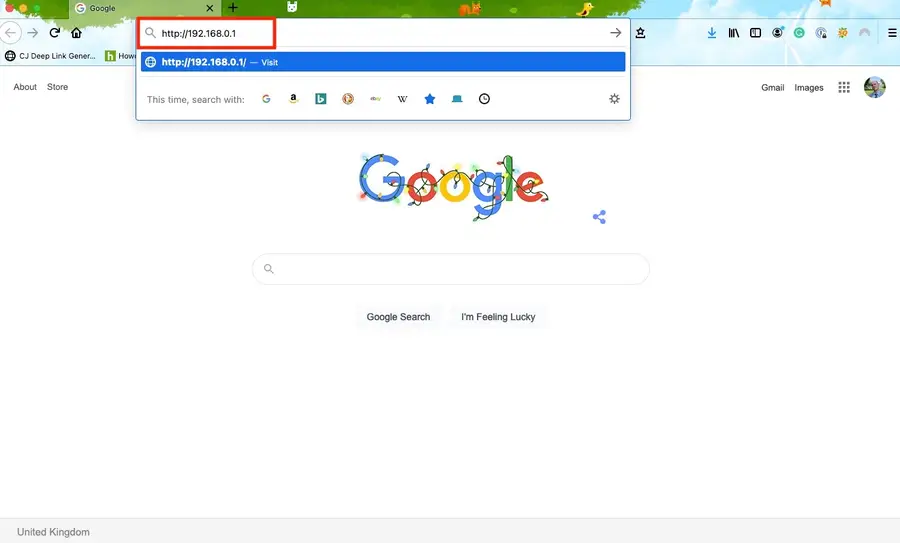
Type or paste the following into your browser: http://192.168.0.1 This is the Arris router IP address that is used to connect to the admin panel. If that address doesn’t work, try one of these alternate Arris IPs, in order:
  1. http://192.168.100.1
  2. http://192.168.1.1
  3. http://192.168.254.254
  4. http://192.168.1.254
  5. http://192.168.7.254
  6. http://10.0.0.1

3 – Enter the default Arris router password

When you arrive at the Arris router login page, use the default Arris password and username below to connect:
username: admin
password: password
If this doesn’t work, someone may have changed the router’s login credentials. If this is the case, you simply need to reset your router to factory defaults. Just note that by resetting your Arris router, any changes you have made to the router will be completely cleared. You’ll need to log in to your Arris router again with your password to make any changes.

4 – Can’t connect?

If you can’t connect to your Arris router, post in the comments section below, and I’ll do my best to help you out!
NEXT UP

How to Change Your Frontier WiFi Password

howchoo
howchoo (467)
November 25, 2023
There are a few reasons you might want to update or reset your WiFi password: making your network more secure, and making your password easier to remember and type. Improved network security You can add an extra layer of security to your network by changing the WiFi password. As long as your new password is
Continue Reading

howchoo

 467 guides
Introducing Howchoo, an enigmatic author whose unique pen name reflects their boundless curiosity and limitless creativity. Mysterious and multifaceted, Howchoo has emerged as a captivating storyteller, leaving readers mesmerized by the uncharted realms they craft with their words. With an insatiable appetite for knowledge and a love for exploration, Howchoo’s writing transcends conventional genres, blurring the lines between fantasy, science fiction, and the surreal. Their narratives are a kaleidoscope of ideas, weaving together intricate plots, unforgettable characters, and thought-provoking themes that challenge the boundaries of imagination.

This user wrote the first guide in this interest.

daynejones's profile picturedaynejones's profile picture
daynejones
Joined in 2015

Follow @howchoo and learn cool things:

Are you a passionate writer? We’re hiring!

Write for Howchoo

Like what we do?

Donate

Want to support Howchoo? When you buy a tool or material through one of our Amazon links, we earn a small commission as an Amazon Associate.

Home Interests Chrome

How to Stop Chrome from Automatically Redirecting to https

stop google chrome redirect
Prevent this major dev annoyance.
howchoo (467)
August 3, 2023
5 minutes

Share

You’ll Need 1
What you’ll need
Interests
Howchoo is reader-supported. As an Amazon Associate, we may earn a small affiliate commission at no cost to you when you buy through our links.
Posted in these interests:
chrome • 7 guides
webdev • 10 guides
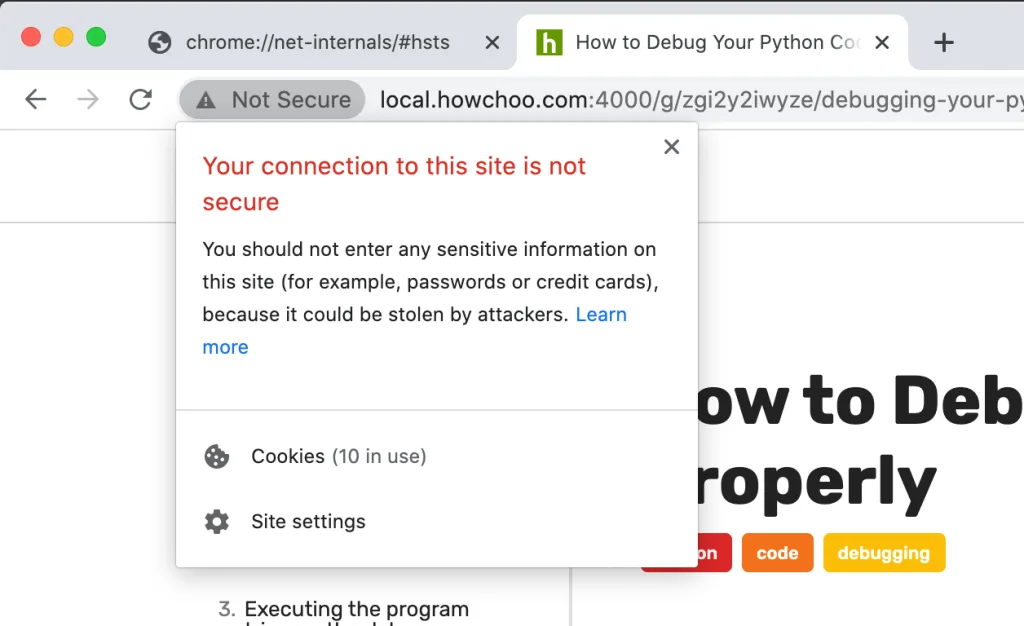
If you ever visited the https version of a website (whether it resolved or not), Google Chrome might repeatedly send you to that version. In other words, http://local.howchoo.com:4000 continually redirects you to https://local.howchoo.com:4000.

Why this happens

This is a secure caching issue where Chrome erroneously caches the redirect the first time you visit the secure version of a site—even if the site doesn’t have a valid SSL/TLS certificate.
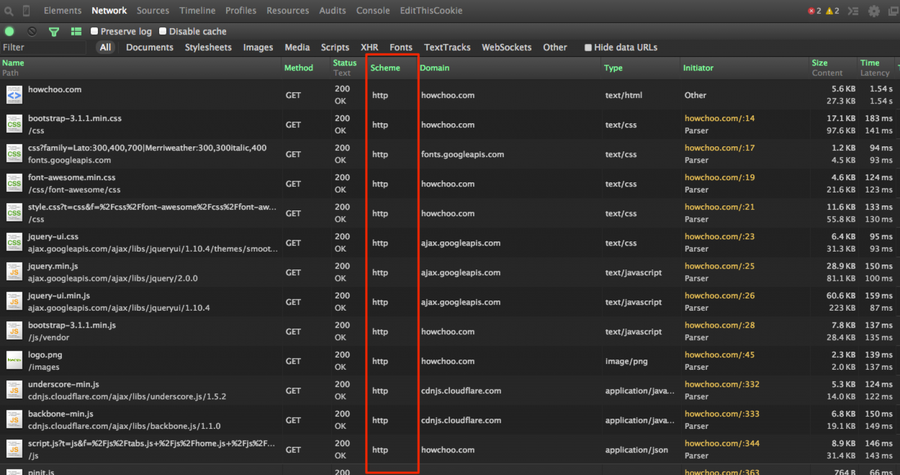
Use Chrome Developer Tools to Check Whether Resources Are Loading over SSL

A pain in local development

This is a major problem in local development where you’re often coding in a non-secure environment. This short guide will show you how to remove the automatic redirect to https in Chrome, fixing the issue.

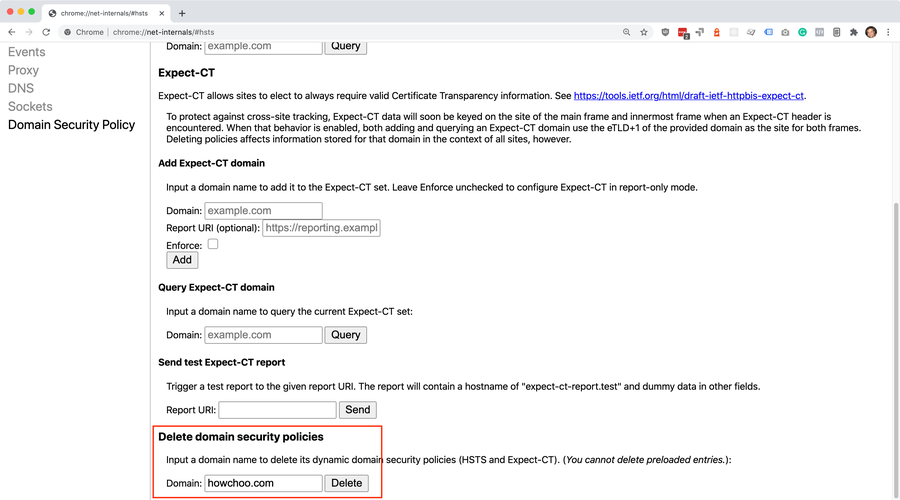
1 – Open HSTS settings in net-internals in Chrome

hsts settings
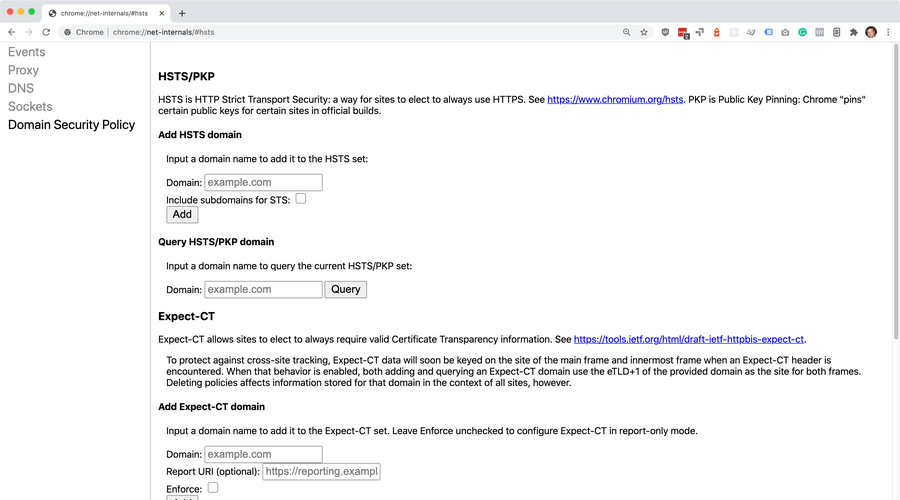
In a new browser tab, go to chrome://net-internals/#hsts. This is the configuration area for HSTS.

What is HSTS?

According to Google Chrome, an HSTS is HTTP Strict Transport Security—a way for sites to elect to always use HTTPS.

2 – Delete domain security policies for the domain

domain security policies
Scroll down to “Delete domain security policies” and enter the root domain that’s causing you issues. For example, I entered howchoo.com to prevent the domain from automatically redirecting to https. Then, click the Delete button.

3 – Visit the website to test

nonsecure domain
Visit the http version of the URL that was giving you problems. You should no longer get redirected.

Still getting redirected?

If you’re still getting redirected, try clearing your browser cache by navigating to Chrome > Settings > Privacy and security (or by visiting chrome://settings/privacy in your browser) and clear your browsing data.
How to Clear Your Browser Cache for Any Browser Trouble loading web pages? Try clearing your cache!
You can also clear data just for the specific domain by visiting the domain in your browser by navigating to View > Developer > Developer Tools > Application > Clear storage and then clicking the Clear site data button.
NEXT UP

How to Clear Your Browser Cache for Any Browser

Trouble loading web pages? Try clearing your cache!
howchoo (467)
November 22, 2023
Clearing your browser cache is a great way to solve common internet issues. If a webpage isn’t loading properly, one of the first things you should try is clearing your browser cache. This guide includes steps for the most common internet browsers—Chrome, Firefox, Safari, Internet Explorer, and Edge. If your browser isn’t listed, visit the
Continue Reading

howchoo

 467 guides
Introducing Howchoo, an enigmatic author whose unique pen name reflects their boundless curiosity and limitless creativity. Mysterious and multifaceted, Howchoo has emerged as a captivating storyteller, leaving readers mesmerized by the uncharted realms they craft with their words. With an insatiable appetite for knowledge and a love for exploration, Howchoo’s writing transcends conventional genres, blurring the lines between fantasy, science fiction, and the surreal. Their narratives are a kaleidoscope of ideas, weaving together intricate plots, unforgettable characters, and thought-provoking themes that challenge the boundaries of imagination.