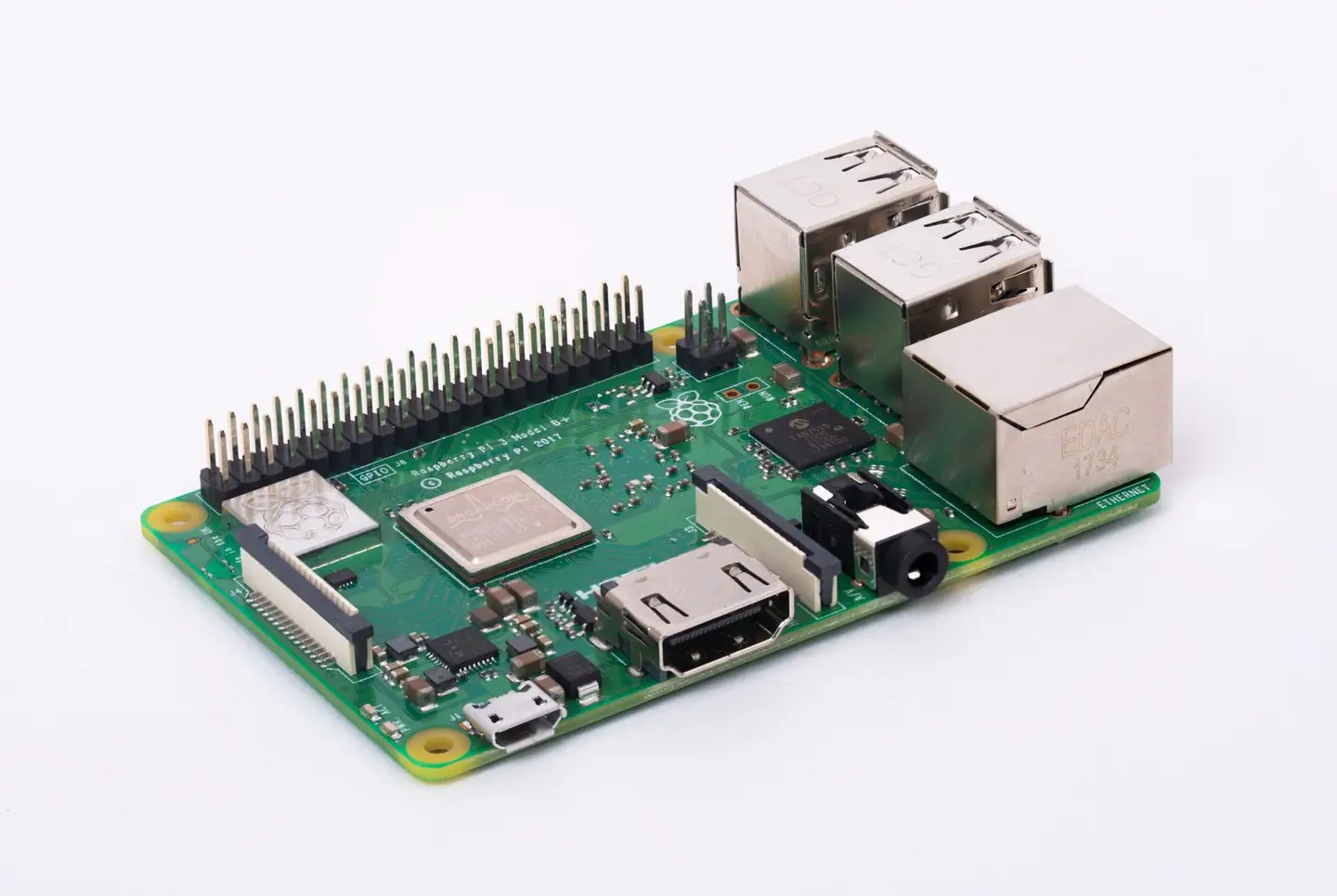
Home Interests Drones

Jaw-dropping Drone Footage of Sharks With Swimmers

No one is harmed! Just lots of close calls!
howchoo   (467)
September 29, 2023
27 minutes

Share

Interests
Posted in these interests:
drones • 1 guides
travel • 1 guides

More and more beaches have implemented the use of drones to keep swimmers and surfers safe from sharks. Drones can spot sharks gathering near the beach, and the drone operators can call in the swimmers.

Occasionally, however, these cool drones capture some pretty terrifying shots of sharks (sometimes as big as great whites) coming dangerously close to surfers or swimmers off the coast.

As scary as that sounds, remember that your odds of getting attacked by a shark while swimming at the beach are around 1 in 3.75 million. (For reference, that’s much higher than your chance of getting struck by lightning!)

Please note that in each drone sighting listed, NO ONE was harmed. There are no images of anyone being harmed by sharks below.

1 – Western Australia (Great White Shark)

Crystal clear waters and an excellent drone camera combine to bring you one of the best shots of a Great White shark heading straight for a group of kayakers and one swimmer off the coast of Australia.

What happened?

In the video of the incident, you can clearly see the Great White shark circling the kayakers. Then, he takes a dangerous turn toward the surfer. Those in the kayaks yell out to the surfer to get away.

And thankfully the surfer is able to ride the next wave back to shore.

2 – Maldives (Nurse Sharks)

This might be the craziest scene we’ve seen of someone swimming near sharks. The sharks surrounding the woman in the ocean are nurse sharks.

What happened?

While it’s hard to imagine someone intentionally jumping into the water with sharks swarming, that’s exactly what Instagram user ShadowPalmMaldives did—all for this incredible footage.

Nurse sharks are some of the most harmless sharks and are not known to attack humans. Still…who would have the courage to float around hundreds of them?!

3 – Eastern Australia (Great White Shark)

Beautiful drone footage captures a curious Great White shark approaching two children swimming on the shore. The children and man on the shore seem pretty unsuspecting and likely don’t even know the shark is so close.

What happened?

Like most encounters with sharks, the sharks appear to be more curious than threatening to the children. While the shark does get close to the kids playing, it eventually veers off toward the breakers and looks elsewhere for his next meal. The children were fine.

4 – New South Wales (Great White Shark)

Unsuspecting surfer Matt Wilkinson has the closest encounter of his life off of Ballina in New South Wales. World champion surfer, Wilkinson, heard a splash and felt something odd. Then he stopped and looked back.

What happened?

A lifesaving drone program called Surf Life Saving NSW spotted the Great White shark eying Wilkinson. The drone was able to broadcast to Wilkinson to head back to the beach. He made it safely back to shore.

In the drone video, you can see just how close the shark came to biting on Wilkinson’s feet before it swam away.

5 – Plattenburg Bay, South Africa (Great White Shark)

Sea Rescue South Africa (NSRI), a non-profit organization, released a Twitter warning to surfers and swimmers in the ocean off of the Capetown coast. The tweet included this drone footage of a Great White shark circling a group of surfers in the ocean.

What happened?

This encounter went viral and stirred up fears about sharks along the beach. No one was injured in the event, but it did cause the South African officials to close the shoreline until the shark activity subsided.

It’s amazing how oblivious the surfers were to the shark while it swam right underneath of them!

6 – Palm Beach, Australia

Referred to as the Gold Coast of Australia, the Palm Beach area is popular with surfers for its wicked waves. But, as you can see, there’s something else that’s wicked lurking just underneath of them.

What happened?

A drone was dispatched to keep an eye on the coastline after several surfers reported spotting sharks in the water. Sure enough, the drone spotted the shark circling a group of surfers.

No one was hurt, but one surfer had an almost fatal near miss when the shark swiped at his board.

7 – Pismo Beach, California

Groups of surfers off the beautiful coast of Pismo Beach in California are caught unaware as a pair of 10-foot sharks come out of nowhere right below them. (The Stork captured this incredible footage on their DJI Phantom 3 drone.)

What happened?

While this was a surprise for the drone operators, it wasn’t completely surprising to see at least a shark or two in the water. To see one so close to the surfer…well, that was scary! Luckily, the surfer caught a wave to shore and escaped unharmed.

8 – Western Australia (Tiger Sharks)

While no human was in danger during this video, this is some incredible drone footage captured by Eco Abrolhos. Nearly 100 tiger sharks swarm and feast on a dead humpback whale.

What happened?

We can only imagine what it must have been like to be on one of those tourist boats and spot the massacre of a lifetime right below! No one was in danger; though, we’re certain that danger was felt by those there.

Once the sharks finished eating, some people on the boat decided to try touching them. The sharks were very docile (having just eaten) and allowed themselves to be touched.

9 – Miami Beach, Florida (Hammerhead Shark)

Jason McIntosh, a Miami resident, was casually shooting some drone footage of a swimmer at the beach when he got the surprise of his life! Hammerheads are rare sightings, and it’s even rarer to see one so close to the shore.

What happened?

Shark attacks by hammerheads are extremely rare, so the swimmer was in relatively little-to-no danger. The swimmer was not harmed but was sure in for a shock when he finally saw just how close he was to the shark.

He was only about 40 feet away from shore at the time and gave an ominous thumbs-up to the camera as he was swimming.

10 – Kiami Beach, Australia

On Kiami Beach in southern Australia, a drone operator caught a shark circling dangerously close to some unsuspecting swimmers enjoying the good weather.

What happened?

David Finlay, the drone operator, called the surf lifesavers on the phone and notified them immediately of the situation. The lifeguards then notified the swimmers to come in immediately, and no one was harmed.

The surfers caught the next wave into the shore. Their dangling feet came awfully close to the swarming sharks, however.

11 – Florida Coast (Blacktip Sharks)

Sharks, like birds, migrate naturally to find the right water temperature for breeding. A group of surfers happened to be in the wrong place at the wrong time when this group of blacktip sharks circled nearby.

What happened?

Though there were literally hundreds of sharks surrounding the surfers, none of the sharks showed any threat to the people. They appeared to be more curious about the surfers than anything else.

This kind of response is common with sharks, who generally don’t attack humans for food.

12 – Pismo Beach, California

Wait. Is that seaweed? Or is it a shark? This drone footage was captured just off the coast of Pismo Beach in sunny California—a popular spot for surfers year-round.

What happened?

The surfers initially claimed that they thought the black spots under the water were seaweed. It wasn’t until they saw the frightening drone footage that they learned how close they came to a pair of rather large sharks.

None of the surfers were harmed or attacked.

13 – The Bahamas

The Bahamas are known as one of the best places to swim in the ocean. Sometimes danger does lurk below, however.

Here, a small boy jumped into the water to swim. A second later, a drone flown by Artem Tkachenko, captured four sharks heading right for the unsuspecting boy.

What happened?

The drone operator yelled out to the boy to run as soon as he noticed the sharks on the drone video. Luckily, the boy heard the man in time and swam quickly to safety. At one moment, the sharks were only about five feet away from the boy.

14 – Santa Cruz, California

NBC News

A large shark is seen circling a swimmer who decided to swim out far from the coastline at New Brighten State Beach in California.

What happened?

The swimmer apparently was aware of the danger around him. He spotted the signs on the beach and heard the drone operator notify him of the shark situation. He probably remembered just how unlikely a shark attack really is for a human. No harm came to him.

15 – Isla Mujeres, Mexico

Tom Gruber/Vimeo

Often when you’re snorkeling and swimming with whale sharks and rays, you don’t get to see just how incredible it looks from a birds-eye view.

What happened?

For these lucky swimmers, a drone just off the coast of Isla Mujeres captured the breathtaking scene in all its glory! What makes this sighting even more special is that whale sharks are rarely seen in groups in the wild, even if they are the largest fish in the sea.

16 – Quiz time: shark or dolphin?

Researchers at Southern Cross University and NSW Department of Primary Industries have been monitoring the beaches off the coast of New South Wales in south-eastern Australia with drones for a number of years.

They note that most “shark” sightings, particularly those that appear to be close to swimmers and surfers, are actually dolphins.

So can you tell the difference in the above image? What do you think? Dolphin…or a shark?

Which is it?

The researchers at Southern Cross University say that this is most likely a dolphin. (It’s even hard for them to tell sometimes when looking from the height of the drone.)

Maybe this will alleviate some fears about sharks swarming near beaches for some!

17 – Malibu, California

TheMalibuArtist is known for capturing some incredible shots with his ocean drones. But even he couldn’t have known just how scary the footage would be as his drone spied a great white shark getting very close to a family of kayakers.

What happened? 

As he explains in the video, he was able to warn the kayakers of the imminent danger below. They stopped paddling, which caused the shark to lose interest and swim off eventually. No one was hurt, but that family sure does have the story of a lifetime to tell.

18 – Miami, Florida

Tiger sharks are rarely seen anywhere near beaches. They tend not to get too close to shore. But drone operator Kenny Melendez, as reported by CBS Miami, was in for a shock when he saw a large shadow near this swimmer just off the beach.

What happened?

The drone got closer to the man until the operator realized it was a shark. The large tiger shark weaved in and between swimmers along the beach for about 10 minutes before heading back out to sea. Luckily no one was hurt. Tiger sharks are considered the most likely shark species to attack a human.

19 – The Bahamas

It’s amazing just how clear the water is off the coast of the Bahamas. The water is so clear that drones can easily see straight to the bottom of the ocean floor. So when The Cub Life flew his drone near the beaches, it was easy to spot this shark eyeing a swimmer.

What happened?

The swimmer looks up at the drone. The drone operator warns the swimmer of the danger. Luckily, the swimmer makes it safely back to shore unharmed. The shark appeared to be more curious than anything else.

20 – Bondi Beach, Australia

This shark seen approaching swimmer at Bondi beach in Australia may look small, but even a small shark can do some major damage and prove lethal. (Bondi Beach is a favorite destination for snorkelers and surfers, as shown in the beautiful footage of Bondi Nation.)

What happened?

Sharks are fairly common sightings at Bondi Beach in Australia—so common, in fact, that swimmers know that they will likely get close to at least one when they head out in the ocean there. The shark locals, including a nurse shark and a hammerhead shark, haven’t been known to attack humans. So no one was hurt.

howchoo

 467 guides

Introducing Howchoo, an enigmatic author whose unique pen name reflects their boundless curiosity and limitless creativity. Mysterious and multifaceted, Howchoo has emerged as a captivating storyteller, leaving readers mesmerized by the uncharted realms they craft with their words. With an insatiable appetite for knowledge and a love for exploration, Howchoo’s writing transcends conventional genres, blurring the lines between fantasy, science fiction, and the surreal. Their narratives are a kaleidoscope of ideas, weaving together intricate plots, unforgettable characters, and thought-provoking themes that challenge the boundaries of imagination.
Home Interests Woodworking

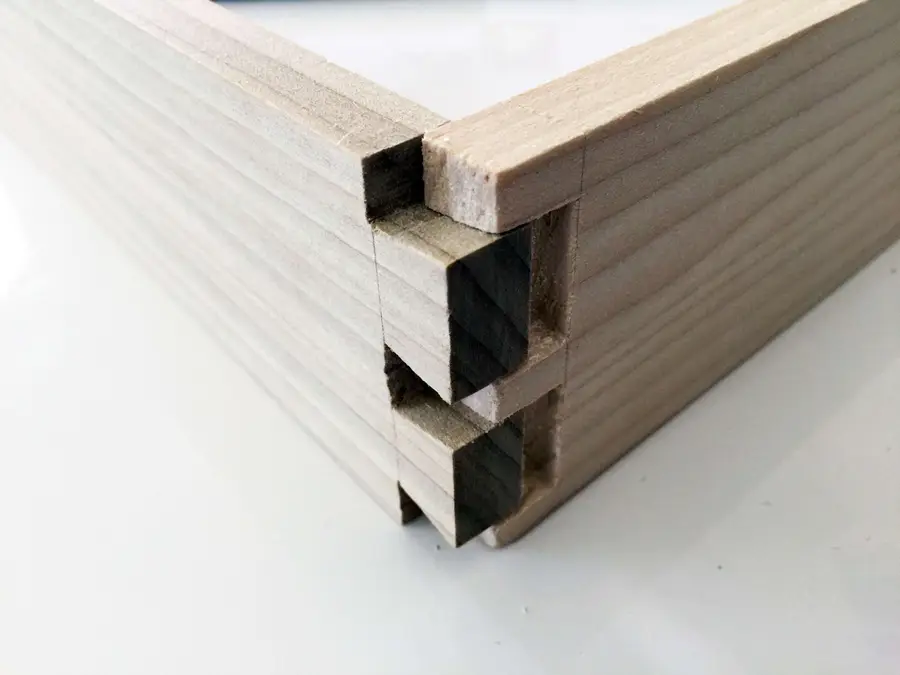
How to Make the Perfect Dovetail Joint Using Traditional Woodworking Tools

Learn how to make the perfect dovetail joint every time!
howchoo   (467)
September 29, 2023
13 minutes

Share

You’ll Need 8

What you’ll need
Interests
Howchoo is reader-supported. As an Amazon Associate, we may earn a small affiliate commission at no cost to you when you buy through our links.
Posted in these interests:

DIY

diy • 17 guides
woodworking • 4 guides

There are plenty of helpful videos on this subject, but I find guides with pictures to be useful with a project like this. I’ve added a lot of close ups for each step so the pictures should help guide you.

1 – Determine which piece of wood will be the tail board and which will be the pin board

The tail board is designed to withstand more pulling tension. If you look at the diagram below you’ll understand why. So it depends on what you’re building as to how you’ll want to situate the pins and tails.

2 – Use your marking gauge to measure the depth of the pin board

The depth of the pin board matters. Use your marking gauge to take this measurement and adjust it to the thickness of the pin board.

3 – Mark all the way around the tail board with the marking gauge

With the depth set from the pin board, make a mark on all four side of the tail board.

4 – Mark and measure the tails

You’ll need to determine the size and number of tails. For this project I’m going to use two tails. I’m also using a handy dovetail marker and a marking knife to mark the angle.

How you mark the tails will depend on the tool you’re using. In my case, I’m going to use a pencil to mark 1/4 inch from each edge. Then, I’m going to find the center and mark 1/8 inch on each side of the center. This will leave 1/4 inch in the center of the board.

Next, I’m going to use the dovetail marker to mark the angles. Start with one side of the board, and use your marking knife to mark down to your depth. Then, mark four lines across the top of the board, and use the dovetail marker again to mark the other side. The picture will be much more helpful than the paragraph above.

5 – Cut the tails starting at the top

Using your dovetail saw, cut along the line you made with your marking knife. Do not cut past the line you made with your marking gauge.

🛈 Make sure you do not cut past the line you made with your marking gauge.

6 – Cut towards the base of the tails on both sides

Now we are going to cut away the wood to leave the tails. Use the dovetail saw to cut across the wood to the base of the tail on each side of the wood. Make sure to follow your mark. Do this on both sides.

7 – To remove the wood between the tails, begin by chiseling along your mark

Tap the top of the chisel with a mallet. Don’t try to chisel too much at a time. Four or five soft hits should be plenty.

8 – Chisel away from the front

Now chisel away from the front of the wood removing only small pieces of wood at a time. This process will take some time and you shouldn’t try to rush it by chiseling away too much at once. Alternate back and forth between step 7 and step 8 until you’ve reached the center.

9 – Once you’ve reached the center, flip the board and continue

It’s important not to chisel all the way through to the other side of the wood because you’ll risk damaging the other side. So once you reach the center of the board you should flip it over and start again from the other side.

10 – Clean up the tail board

Your tail board is almost finished. You can clean up any uneven or rough edges with a file or sandpaper. You want the edges to be as straight as possible, but don’t remove too much of the wood.

11 – Measure the depth of the tail board and mark all four sides of the pin board

Just as we did with the tail board, we need measure the depth of the tail board and mark the pin board.

12 – Line up the wood to measure your pin board

There are many ways to do this, but I like to use clamps to position the boards in place.

13 – With your marking knife, trace the edges of your tail board onto the end of the pin board

Using your marking knife, trace the edges of your tail board onto the end of the pin board. Using the marking knife leaves a tight, clean line—especially compared to something rough like a pencil.

14 – Mark the edges of the pin board

Using the marks along the top of the pin board as a guide, mark straight down on both sides. You’ll want to use a square to ensure the marks are straight.

15 – Cut down the top of the pin board

Just as you did with the tail board, clamp the pin board so that you can begin cutting. Use the dovetail saw to cut down the top of the board on all four marks.

16 – Use a chisel to remove the wood in between the pins

You may have noticed the one side of the pin board has wider pins. You’ll want to start chiseling on the side with wide pins. Because the area you’re chiseling is angled, you need to be careful not to chisel into the edge of the pin. Just as you did with the tail board, remove small pieces of wood until you reach the center of the board, then flip it.

17 – Clean up the pin board

Once you’ve chiseled away in between the pins, you’re ready to clean up the wood. Again use a file or sandpaper to flat uneven edges or remove wood leftover from the saw.

18 – Place your pieces together and admire your work

Don’t worry, dovetails require practice. I’m still improving on my technique every time I make one. If the wood doesn’t fit together well don’t force it, but you may need to tap lightly with the mallet in order to make them fit. You may also need to examine where the wood is too tight and fix this with a file or sandpaper.

NEXT UP

How to Make Whiskey Simple Syrup

No whisk, no reward.
howchoo   (467)
November 20, 2023

When I was first offered a beverage flavored with whiskey simple syrup, I was in a coffee shop in San Jose, California. I wasn’t even really interested in drinking coffee. It was later in the day; I was already feeling a little tired; I figured coffee was the last thing I needed. But when the

Continue Reading

howchoo

 467 guides

Introducing Howchoo, an enigmatic author whose unique pen name reflects their boundless curiosity and limitless creativity. Mysterious and multifaceted, Howchoo has emerged as a captivating storyteller, leaving readers mesmerized by the uncharted realms they craft with their words. With an insatiable appetite for knowledge and a love for exploration, Howchoo’s writing transcends conventional genres, blurring the lines between fantasy, science fiction, and the surreal. Their narratives are a kaleidoscope of ideas, weaving together intricate plots, unforgettable characters, and thought-provoking themes that challenge the boundaries of imagination.

Home Interests Web Design

How to Trigger a Phone Call using an HTML Link

howchoo
howchoo   (467)
September 29, 2023
2 minutes

Share

Interests
Posted in these interests:

CSS

css • 1 guides
html • 1 guides
webdesign • 5 guides

If you’d like your visitors to be able to open a phone application straight from your website you can follow this quick guide.

In the body of your website, create a basic HTML link like this:

222-333-4444

2 – Add ‘tel:12223334444’ in the href attribute

When you finish your link should look like this:

222-333-4444

.. Replacing ‘12223334444’ with your phone number including the country code and area code.

If you found this guide useful, you may also want to read our guide on how to open a link in a new window with HTML.

NEXT UP

Make YouTube Video Embeds Responsive Using Pure HTML and CSS

howchoo   (467)
September 22, 2023

Surprisingly, normal YouTube embeds are not automatically sized to the browser window as it is resized. Luckily, you can make YouTube videos responsive and mobile-friendly with some simple HTML and CSS. 1 – The HTML Wrap your embed code in a unique video wrapper (the class name is arbitrary). I chose to use embed-youtube as the selector.

Continue Reading

howchoo

 467 guides

Introducing Howchoo, an enigmatic author whose unique pen name reflects their boundless curiosity and limitless creativity. Mysterious and multifaceted, Howchoo has emerged as a captivating storyteller, leaving readers mesmerized by the uncharted realms they craft with their words. With an insatiable appetite for knowledge and a love for exploration, Howchoo’s writing transcends conventional genres, blurring the lines between fantasy, science fiction, and the surreal. Their narratives are a kaleidoscope of ideas, weaving together intricate plots, unforgettable characters, and thought-provoking themes that challenge the boundaries of imagination.

Home Interests Linux

How to Test Sendmail from the Shell

howchoo
howchoo   (467)
September 29, 2023
1 minutes

Share

Interests
Posted in these interests:
bash • 2 guides
linux • 12 guides

Sendmail is an open source smtp server. Many different languages and frameworks interface with sendmail, and when debugging it’s good to be able to quickly test whether or not sendmail is working.

The following is a quick way to verify that sendmail is working.

echo "Subject: test" | /usr/lib/sendmail -v [email protected]
NEXT UP

How to Install SSHFS

howchoo
howchoo   (467)
September 29, 2023

This guide will show you how to install SSHFS on various operating systems. 1 – On macOS Using brew, install FUSE. Now install SSHFS: 2 – On Ubuntu/Debian 3 – On Windows Find the desired version of win-sshfs from this page and download it.

Continue Reading

howchoo

 467 guides

Introducing Howchoo, an enigmatic author whose unique pen name reflects their boundless curiosity and limitless creativity. Mysterious and multifaceted, Howchoo has emerged as a captivating storyteller, leaving readers mesmerized by the uncharted realms they craft with their words. With an insatiable appetite for knowledge and a love for exploration, Howchoo’s writing transcends conventional genres, blurring the lines between fantasy, science fiction, and the surreal. Their narratives are a kaleidoscope of ideas, weaving together intricate plots, unforgettable characters, and thought-provoking themes that challenge the boundaries of imagination.

Home Interests Apple

Apple AirPods Pro Review: Read Before You Buy!

Are they worth the steep investment?
howchoo   (467)
September 29, 2023
29 minutes

Share

You’ll Need 1

What you’ll need
Interests
Howchoo is reader-supported. As an Amazon Associate, we may earn a small affiliate commission at no cost to you when you buy through our links.
Posted in these interests:
 
apple • 18 guides
headphones • 3 guides

⭐⭐⭐⭐
OUR RATING: 4.0/5

Recently, Apple’s been pushing their AirPods Pro hard, offering steep discounts for the holiday season. This leaves many people wondering whether they are worth the investment for themselves or as a gift for someone else. In fact, I received the AirPods Pro as a gift and wanted to share my thoughts on them for anyone else considering purchasing these.

What I look for in a good review of a product like the AirPods Pro are honest ratings on the most important aspects of wireless headphones—things like:

  • Sound quality
  • Ease of use
  • Features
  • Battery life
  • Workout use
  • Etc.

So you can be sure that we’ll touch on those and other aspects in our comprehensive review of the Apple AirPods Pro. Note that we are not getting paid for this review and even purchased the AirPods Pro ourselves.

What are wireless Bluetooth earbuds like the AirPods Pro?

Just like traditional headphones, the AirPods Pro play music and sounds from a supported device, such as a laptop, phone, or tablet. Because they are Bluetooth headphones, the AirPods do not need to be plugged into the device to which they are connected (or “paired”). The AirPods Pro are completely wireless and do not even need to be connected to one another to operate as a whole pair.

How do we know about them?

I always like to include this in my reviews. I’ve been using the Apple AirPods Pro for a few weeks now, after switching over from the Beats Powerbeats Pro (the AirPods Pro closest competitor). So I can give you my take on the good and bad about the AirPods Pro, as well as help you make your decision between these and the Beats version.

1 – Verdict

Tenor

Maybe you don’t want to read a lengthy review before making your decision on the AirPods Pro. If the only thing you read is this section, then you should have plenty of information on whether the latest Apple earbuds are worth the investment or not.

Pros

  • Good sound quality (noticeably so)
  • Noise cancellation (that isn’t bad)
  • Size (easy to travel with)
  • Fit (comfortable to wear)

Cons

  • Price (though Apple has been offering sale prices on these of late)
  • Awkward to learn for first-time owners
  • Average battery life

Pick these up on sale

That’s where we’ve landed on the AirPods Pro. The next time Apple has a big sale on these, then definitely scoop them up. This seems to be the one Apple product that Apple is actually willing to discount during the holidays—so keep your eyes out. Otherwise, I’m just not sure they are worth the steep price over say the Amazon Echo Buds at half the cost — or over other comparable models. Of course, if you absolutely have to have the Apple products, then the AirPods Pro are a good wireless earbud that aspires to greatness at times.

2 – Specs

SpecApple AirPods Pro
Weight of earbuds0.19 ounce (5.4 grams)
Weight of case1.61 ounces (45.6 grams)
Size of earbuds1.22 inches (30.9 mm) x 0.86 inch (21.8 mm) x 0.94 inch (24.0 mm)
Size of case1.78 inches (45.2 mm) x 2.39 inches (60.6 mm) x 0.85 inch (21.7 mm)
Battery life of earbuds4.5 hrs listening time / 3.5 hrs talking time
Battery life of charging case24 hrs charging capacity / 5 minutes in case = ~1 hr of earbud time
ConnectivityBluetooth 5.0
CompatabilityiPhone 6s + / Apple Watch all models / iPad 2nd generation + / Mac all models 2012 +
Sweat and Water ResistantYes (IPX4)
Active noise cancellationYes
ChipApple H1

3 – What’s in the box?

Included when you buy the Apple AirPods Pro:

  • AirPods Pro
  • Wireless Charging Case
  • Silicone ear tips (three sizes)
  • Lightning to USB-C Cable
  • Documentation

4 – Who are the AirPods Pro best for?

I wouldn’t recommend these to just everyone. But I would recommend the AirPods Pro for people who are looking for specific uses of the earbuds.

1. Exercisers

The AirPods Pro stay in your ear really well. This is important for those looking to do any kind of strenuous activity while wearing these. I’ve worn these lifting weights, running, and doing a variety of calisthenics. They never fell out of my ear, nor did the AirPods Pro get damaged by my sweat. And the relatively low battery life of 4-5 hours shouldn’t be an issue for most workout routines. (I mean…who has time to work out for 6 + hours at a time.)

2. Multitaskers

Okay. You know what I mean here. If you’re someone who calls your parents while also wanting to get some chores done, then these are perfect. They are just really comfortable to wear while taking on the phone—so much so that you’ll likely forget you’re wearing them at all. And no judgment if you multi-task while on the phone with your parents. (I only mention it because I do it myself!)

3. The video conference attendee

The AirPods Pro are actually perfect for use with video conferencing like Zoom or Meet. You won’t have the embarrassing wires hanging across your face while talking to your boss, and you’ll hear and speak clearly through the advanced microphone. And the low battery life shouldn’t be a problem for work uses like these.

Who are they not best for?

If you are the kind of person to leave Bluetooth earbuds in your ears for long periods of time, then these are decidedly not going to work for you. Maybe you like to listen to music with them while working all day? Or maybe you listen to Youtube with them for long stretches? Either way, you’re going to run out of juice and have to charge the AirPods Pro.

Also keep in mind that if you’re using the AirPods Pro on a long flight, you’ll likely run out of battery power after about 4-5 hours. If that’s an issue, then look elsewhere for your next pair of earbuds.

5 – How do the AirPods Pro work?

Great question! (I should know because I asked it.) It’s a good question because the actual functionality of the Apple AirPods Pro (how they work) tend to be the biggest hurdle to overcome with these. Seriously…for a while, I barely used these because I was so used to the simpler functionality of the PowerBeats Pro. I would simply choose not to deal with the complexity of using the AirPods Pro.

Luckily, I’m over that now and have a deeper understanding of how to use these.

Charging

The case itself holds a charge that can be used to charge the Apple AirPods Pro earbuds. You can either just charge the case, which can then be used to charge the earbuds—or you can charge the case with the earbuds inside. Apple claims that the case holds around 24 hours of battery life that can be transferred to the earbuds, which seems about right in our testing.

Syncing

I found this relatively easy. With the AirPods Pro earbuds in the case, you simply hold down on the back button of the case until the light flashes white. Then, you search for the AirPods Pro on your device—and connect the AirPods Pro to your Android phone or iPhone.

Listening

When you put the earbuds of the AirPods Pro into your ears, they will automatically connect to the last device that is nearby enough to use. If you need to, you’ll have to disconnect them from one device to move to another. I found this can be a hassle sometimes, and I wish that Apple would add just one more feature that allows these to be switched between devices.

We’ve written guides on using the audio features of the AirPods Pro, such as:

So check those out for further information on the functionality of the Apple AirPods Pro.

Phone calls

If you need to answer the phone with the AirPods Pro, you can do that by simply pressing the “force sensor” or small white button on the AirPods Pro themselves.

6 – Noise cancellation

Wikipedia

The active noise cancellation feature in the Apple AirPods Pro are one of its biggest draws. So does it work?

Yes! When you have active noise cancellation activated, you will notice that the external sounds in your environment will be effectively neutralized. You’ll find yourself in a comfy, noiseless meadow listening to your music (even if that music is not so comfy).

I’ve tried a few different headphones and earbuds with active noise cancellation, and I can say that the AirPods Pro do a great job for earbuds of canceling external sound. The over-ear Bose headphones, for example, will certainly be noticeably better at this—but they are 10x the size of the AirPods Pro earbuds.

How does active noise cancellation work?

Essentially, a small external microphone on the earbuds of the AirPods Pro will detect the external sound waves around you. They will match that noise with active anti-noise to cancel your ability to hear the sound from those waves. In the above image, you can see how the combination of sound waves can result in a nearly neutralized wave.

7 – Sound Quality

Most of the best wireless earbuds on the market are actually using Apple’s H1 chip to power their audio, so Apple is setting the industry standard when comes to over sound quality for earbuds.

I know what you’re likely thinking…so are the AirPods Pro better than competitors when it comes to thisYes. And No. What I mean is that they are a very pleasant earbud in terms of sound quality, which many (like me) actually prefer over the kind of raw sound quality you’ll get from say…Bose. But, honestly, the quality is good, and I found it better than the PowerBeats Pro.

Bud fitting

For one, Apple has worked hard to make sure that the earbuds of the AirPods Pro fit properly in your ear by adding dynamic earbud tips that adapt to the shape of your ears. You can even test to make sure that your earbuds aren’t improperly fit on your iPhone or Mac. This greatly affects sounds loss and quality.

Microphone quality

In our own testing with the microphone, the quality was really good for an earbud microphone. The AirPods Pro might not get the job done if you’re needing professional-level sound for videos or projects, but they’ll certainly be a nice upgrade for phone conversations and Zoom usage.

8 – Spatial Audio

Apple

Spatial Audio is Apple’s version of surround sound. I wanted to mention this feature of the AirPods Pro because it’s finally a thing now that Apple has released its Big Sur OS.

When you turn on Spatial Audio when viewing content that supports it, such as Netflix, Prime, or HBO shows, then you can feel like you’re right in the middle of the action. Apple actually did a pretty good job of simulating this in a pair of earbuds. As a runner, I’m interested in the ways that virtual running can be simulated…because when I’m virtually running in Paris, I’d love to be immersed in the sounds of the street!

This feature is still in its infancy on the AirPods Pro, so we’ll have to see how this develops.

9 – Battery life

True wireless earbuds, like the Apple AirPods Pro, will have noticeably less battery life than wired earbuds/earphones. Still, this has to be a major consideration when deciding to invest in a pair of earbuds. (It doesn’t make sense to use these if they run out of juice an hour after using them.)

4.5 hours of battery life when listening

That’s Apple’s figure. In practice, I found this to be a little closer to 4 hours. And if you’re using these to talk on the phone, then that number will be a little less still—closer to 3.5 hours. That’s not bad. Compare that to the PowerBeats Pro, however, which have around 9 hours of battery life—and it feels a little disappointing.

10 – Bottom line

Not for the budget-conscious

If you’re a budget-conscious consumer for whom spending more than $200 will be a huge investment, then I actually recommend you go with a less expensive alternative to the AirPods Pro that will give you plenty of sound quality at a far less expensive price. I mentioned the Amazon Echo Buds earlier as a nice alternative that cost only $79.

Good for those who are sound enthusiasts, movie watchers, and music lovers

The overall quality of the AirPods Pro is very high, and with the H1 chip, Apple can continue to offer updates to these to improve overall sound quality and add features. The sound itself is great, and I can imagine these being great for solo-watching a movie with surround sound or really wanting a great listening experience while checking out that new album.

They also would be a great gift for anyone in the hospital, as they will allow them to talk on the phone without needing to use their hands or have wires hanging down. (They’ll already have a bunch of those!)

Note the battery life

Note that the battery life of the Apple AirPods Pro is around 4-5 hours. So if you need them for extended periods, then you should definitely look to something like the PowerBeats Pro, which last almost 9 hours before needing to be charged.

NEXT UP

How to Enable the “Popping” Sound When Adjusting the Volume on Your Mac

howchoo
howchoo   (467)
December 13, 2023

Starting with MacOS Sierra and High Sierra, your Mac will no longer play a “pop” sound when you adjust your volume. If you prefer to have this sound when you adjust volume up and down (as I do), this guide will teach you how to reenable it. 1 – Open Sound System Preferences Navigate to System

Continue Reading

howchoo

 467 guides

Introducing Howchoo, an enigmatic author whose unique pen name reflects their boundless curiosity and limitless creativity. Mysterious and multifaceted, Howchoo has emerged as a captivating storyteller, leaving readers mesmerized by the uncharted realms they craft with their words. With an insatiable appetite for knowledge and a love for exploration, Howchoo’s writing transcends conventional genres, blurring the lines between fantasy, science fiction, and the surreal. Their narratives are a kaleidoscope of ideas, weaving together intricate plots, unforgettable characters, and thought-provoking themes that challenge the boundaries of imagination.

Home Interests 3D Printing

Build your Own 3D-Printed Nintendo Switch Arcade Cabinet

Time to Switch on the fun!
howchoo   (467)
September 29, 2023
17 minutes

Share

You’ll Need 10

What you’ll need
Interests
Super glue x 1 tube
Howchoo is reader-supported. As an Amazon Associate, we may earn a small affiliate commission at no cost to you when you buy through our links.
Posted in these interests:
3dprinting • 36 guides
nintendo • 13 guides
switch • 1 guides

Today I’m going to show you how to build your own 3D-printed Nintendo Switch arcade cabinet!

Simply print all the parts, glue them together, and then install the optional electronics. These electrical bits will charge your Switch while you play, as well as provide additional cooling to help keep your Switch nice and chill.

You can even connect USB controllers to the front of the cabinet since all of these electronics connect directly to a powered USB hub. If you don’t want to install the electronics, that’s okay — this thing is still really great as a non-electronic device.

In either case, just remove the top of the cabinet, insert your Switch, and play!

Don’t have a 3D printer? No problem! Read on and I’ll show you some options for getting your parts printed.

Here’s a special shoutout to concavechest who designed this amazing arcade cabinet and uploaded it to Thingiverse. Thanks concavechest!

Watch the video:

I created a step-by-step video that will show you how to assemble your arcade cabinet and install all the electronics inside. The video does a bit more justice to the project than this written guide can. 🙂

The rest of this guide will focus on specific features of the build, so be sure to check it out too when you’re done with the video.

Obligatory disclaimer: As with anything DIY, certain risks are inherent. I’m not responsible if you damage or brick your Switch. 🙂 Since I wrote this guide in April 2019 (firmware 7.0.1), the arcade cabinet is still going strong! However, Nintendo updates their firmware all the time so anything can happen. If you’re concerned about this, you can also build the non-electronic version of the cabinet.

1 – The completed project

Just as the prophecy prophesied, first a final photo!

2 – And the back

Here’s a photo of the back of the arcade cabinet, showing the optional USB fan, fan speed controller, and power input.

3 – The completed electronics

These electronics are optional. 🙂 There are two ways to build the arcade cabinet:

  1. Just 3D print it and drop your Switch in place.
  2. Add some electronics that will charge your Switch while you play and allow you to connect USB controllers.

Because I love building things and this entire project can be done for about $50, I decided to go with option #2.

4 – Inserting the switch

After removing the Joy-Con controllers from your Switch, slide off the top of the arcade cabinet and slide your Switch into place. If you install the charging/data electronics into the cabinet, as I did, your Switch will also charge while in the cabinet — and you can even connect a USB controller!

5 – Printing the parts

First you’ll need to print all the parts. This will take a while. I think it took 18 hours of total printing on my old ANET A8, but I think this would be much faster on my new Creality Ender 3. This time can be reduced further by adjusting the print quality.

The models

There are two versions of the models available on Thingiverse: the “simple” version, which contains no openings/ports for the electronics, and the “electronic” version, which is what we’re building here.

For the electronic version, there are 8 parts to print:

  1. Top
  2. Simple Bottom and Front
  3. Simple Cradle
  4. Simple Back
  5. Left Side
  6. Right Side
  7. Filler
  8. The fan shroud

If your print bed is too small to print the sides, there’s also a “cut” version included so that you can print the sides as halves.

🛈 I printed all the parts without supports. If you orient things properly, they aren’t necessary.

6 – Don’t have a 3D printer?

No problem. A lot of people don’t know there are tons of ways to get a 3D model printed without having a printer. Here are a few of the ways:

Use an online 3D printing service

Online services like Sculpteo will print your model and ship it to you for a fee.

Find your local hackerspace/makerspace

There’s a good chance you have a nearby Hackerspace, and most of them have some sort of “Open Make Night” where you can come in and use the equipment without needing a membership. You can find your local hackerspace using this tool, which lists over 2,000 hackerspaces.

Ask a friend

Post on Facebook; you might be surprised that someone you know has a 3D printer. And in true maker fashion, they’ll probably be happy to help you out while teaching you a bit about 3D printing.

Check your local library

Tons of libraries now have 3D printers available for their patrons to use. Additionally, if you’re a student your university can likely provide you with access to one. Call your university library’s information desk and they can direct you to the college/department that can give you access.

Check Craigslist

Many people advertise 3D printing services on Craigslist for a fee.

Buy a 3D printer

In the last few years, 3D printers have become extremely affordable. I picked up my Creality Ender 3 around $200 on GearBest. I also wrote a full Ender 3 review if you want to check it out!

7 – Assembling the cabinet

An “exploded view” of the parts needed to assemble the arcade cabinet. concavechest on. Thingiverse

The cabinet assembly itself is pretty self-explanatory: just use super glue or 2-part epoxy to put everything together. I used a few books to add weight to the parts while they set.

Do not glue the top into place! This is supposed to slide off so you can insert your Switch.

🛈 As mentioned in the video, I recommend connecting the hub before gluing the cradle in place.

8 – Powering everything

Power and data for the Switch and cooling fan are provided by a powered USB-C hub. This small USB-C extension lives in the back of the unit, where a power adapter is plugged in. The hub I used connects to a 90-degree USB-C adapter which lives at the bottom of the cradle — so when you slide your Switch into place, it connects to the hub automatically.

The default Nintendo Switch AC adapter won’t work — when you use it, the Switch thinks it’s in its charging dock and the screen turns off. This is because Nintendo added an extra data pin/signal. Thus, you’ll need to use a separate AC adapter. I recommend one that provides at least 3A.

9 – Adding a fan for cooling

I added this 5V USB fan that draws power from the hub. The fan’s speed controls are accessible from the back of the cabinet. To be honest, I question whether the fan is necessary… It’s extremely inexpensive so I added it, but I don’t think the Switch will get that hot — especially considering all the natural ventilation that the case provides.

10 – Ready player two!

Because this project uses a powered data hub, you can connect any USB device that you’d normally connect to your Switch dock. This dual USB extension cable makes the power ports accessible on the front of the cabinet, which is super handy!

11 – All done

This has been a super fun, super easy project. I love having this thing on my desk so I can pop in to play a game or two when I need a break.

This cabinet is a testament to the spirit of the maker community, blending mainstream gaming with 3D printing and hobby electronics, and I’m very happy that it exists.

If you haven’t already, be sure to check out the build video for this project.

Questions? Comments?

Post in the comments section below, I’d love to hear from you!

NEXT UP

How to Update Blender

Get the latest Blender has to offer.
howchoo   (467)
November 24, 2023

Blender is one of the most popular open-source 3D creation suites today. It doesn’t cost a dime to use and everything you create is yours to own for good. The community is robust and the dev team still releases new updates on the regular. If you want to get the latest version, you may have

Continue Reading

howchoo

 467 guides

Introducing Howchoo, an enigmatic author whose unique pen name reflects their boundless curiosity and limitless creativity. Mysterious and multifaceted, Howchoo has emerged as a captivating storyteller, leaving readers mesmerized by the uncharted realms they craft with their words. With an insatiable appetite for knowledge and a love for exploration, Howchoo’s writing transcends conventional genres, blurring the lines between fantasy, science fiction, and the surreal. Their narratives are a kaleidoscope of ideas, weaving together intricate plots, unforgettable characters, and thought-provoking themes that challenge the boundaries of imagination.

Home Interests Mac

How to Install SSHFS

howchoo
howchoo   (467)
September 29, 2023
1 minutes

Share

Interests
Posted in these interests:
linux • 12 guides

Mac

mac • 24 guides

This guide will show you how to install SSHFS on various operating systems.

1 – On macOS

Using brew, install FUSE.

brew cask install osxfuse

Now install SSHFS:

brew install sshfs

2 – On Ubuntu/Debian

sudo apt-get install sshfs

3 – On Windows

Find the desired version of win-sshfs from this page and download it.

NEXT UP

How to Enable the “Popping” Sound When Adjusting the Volume on Your Mac

howchoo
howchoo   (467)
December 13, 2023

Starting with MacOS Sierra and High Sierra, your Mac will no longer play a “pop” sound when you adjust your volume. If you prefer to have this sound when you adjust volume up and down (as I do), this guide will teach you how to reenable it. 1 – Open Sound System Preferences Navigate to System

Continue Reading

howchoo

 467 guides

Introducing Howchoo, an enigmatic author whose unique pen name reflects their boundless curiosity and limitless creativity. Mysterious and multifaceted, Howchoo has emerged as a captivating storyteller, leaving readers mesmerized by the uncharted realms they craft with their words. With an insatiable appetite for knowledge and a love for exploration, Howchoo’s writing transcends conventional genres, blurring the lines between fantasy, science fiction, and the surreal. Their narratives are a kaleidoscope of ideas, weaving together intricate plots, unforgettable characters, and thought-provoking themes that challenge the boundaries of imagination.

Home Interests Terminal

How to Use the Monokai Theme in Terminal on Mac

howchoo   (467)
September 29, 2023
3 minutes

Share

Interests
Posted in these interests:

Mac

mac • 24 guides
terminal • 1 guides

As a big fan of Sublime Text, I was excited to find out that somebody made a port of the Monokai theme for macOS and OSX’s Terminal. Originally developed by Wimer Hazenberg, Monokai is a great color scheme available for a variety of text-based applications. This short guide will show you how to get Monokai into Terminal.

1 – Download monokai.terminal

Download Stephen Way’s monokai.terminal port from the project’s Github page. Unzip the file.

2 – Install monokai.terminal

Double-click Monokai.terminal to open it. This will automatically install the color scheme into Terminal.

3 – Allow installation from unidentified developers

You may see a message similar to this:

“Monokai.terminal” can’t be opened because it is from an unidentified developer

If you see this message, navigate to System Preferences > Security & Privacy > General and ensure that the App store and identified developers option is checked.

Then, click “Open Anyway”.

4 – Make Monokai your default Terminal color scheme

With Terminal open, navigate to Terminal > Preferences. Select the Profiles tab (MacOS) or Settings tab (OS X) and then click Monokai in the side pane. Finally, click the Default button.

You’re all done!

NEXT UP

How to Enable the “Popping” Sound When Adjusting the Volume on Your Mac

howchoo
howchoo   (467)
December 13, 2023

Starting with MacOS Sierra and High Sierra, your Mac will no longer play a “pop” sound when you adjust your volume. If you prefer to have this sound when you adjust volume up and down (as I do), this guide will teach you how to reenable it. 1 – Open Sound System Preferences Navigate to System

Continue Reading

howchoo

 467 guides

Introducing Howchoo, an enigmatic author whose unique pen name reflects their boundless curiosity and limitless creativity. Mysterious and multifaceted, Howchoo has emerged as a captivating storyteller, leaving readers mesmerized by the uncharted realms they craft with their words. With an insatiable appetite for knowledge and a love for exploration, Howchoo’s writing transcends conventional genres, blurring the lines between fantasy, science fiction, and the surreal. Their narratives are a kaleidoscope of ideas, weaving together intricate plots, unforgettable characters, and thought-provoking themes that challenge the boundaries of imagination.

Home Interests OctoPrint

How to Enable the OctoPrint Dark Theme

Will somebody please think of the eyes!
howchoo   (467)
September 29, 2023
2 minutes

Share

You’ll Need 1

What you’ll need
Interests
Series
OctoPrint x 1
Howchoo is reader-supported. As an Amazon Associate, we may earn a small affiliate commission at no cost to you when you buy through our links.
Posted in these interests:
3dprinting • 36 guides
octoprint • 10 guides

Like dark themes? Me too! This short guide will show you how to add a dark theme to your OctoPrint (or OctoPi) interface.

1 – Install Themeify

Themeify is one of the most popular OctoPrint plugins.

The Most Popular OctoPrint Plugins (And How to Install Them)
Wrap your tentacles around these sweet plugins!

Open OctoPrint Settings by clicking on the wrench icon.

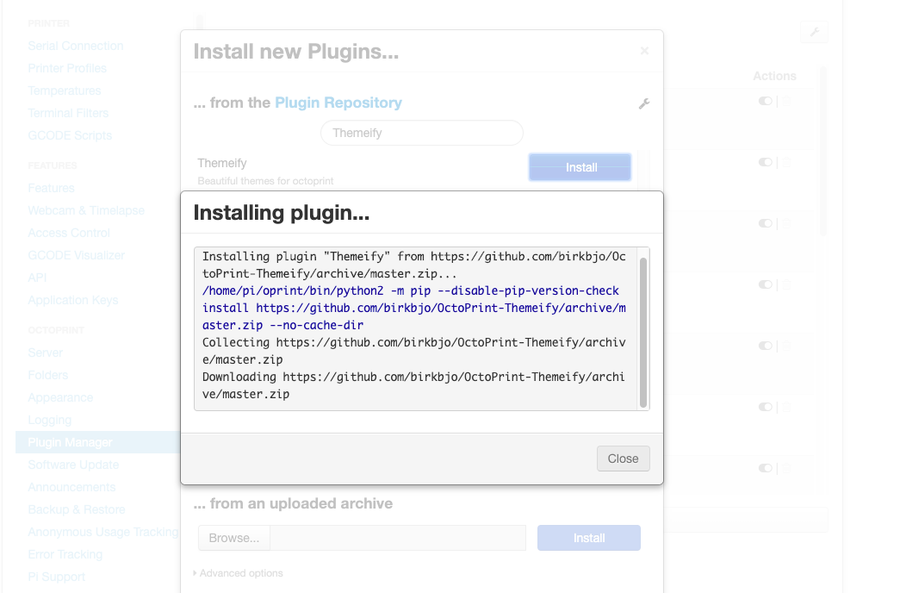
Then, select Plugin Manager and click Get More….

Finally, search for and install Themeify. When prompted, restart OctoPrint.

2 – Enable the dark theme

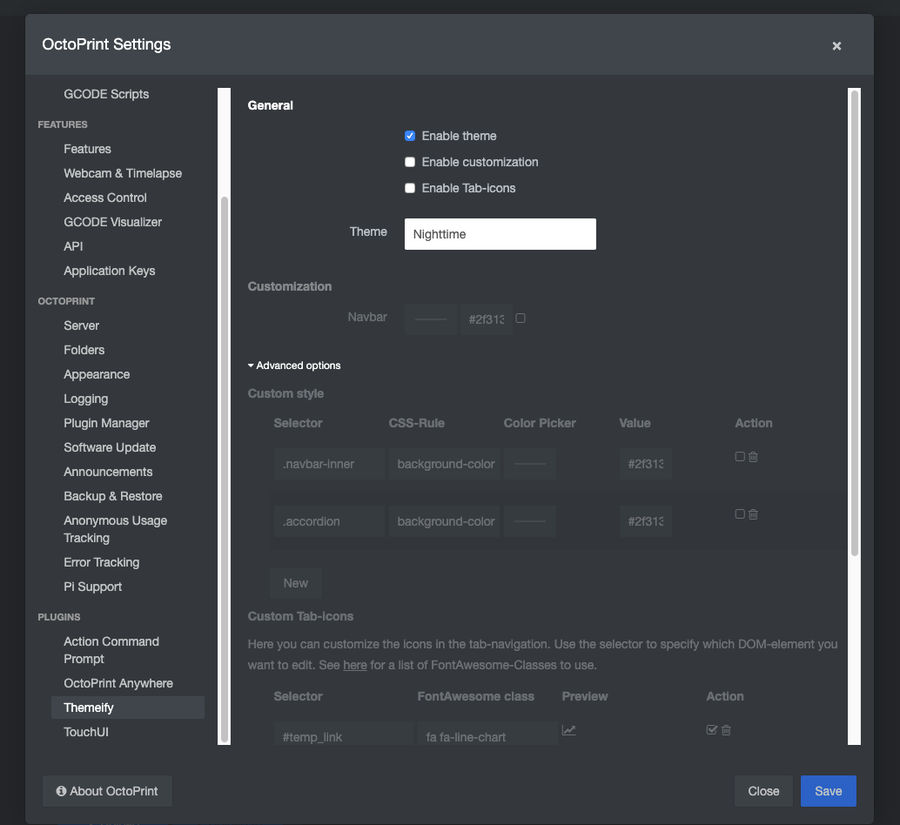
Open Settings once more and select Themeify from the sidebar.

Make sure Enable theme is checked and select Discorded or Nighttime from the Theme dropdown.

Click Save. You’re done!

NEXT UP

How to Update Blender

Get the latest Blender has to offer.
howchoo   (467)
November 24, 2023

Blender is one of the most popular open-source 3D creation suites today. It doesn’t cost a dime to use and everything you create is yours to own for good. The community is robust and the dev team still releases new updates on the regular. If you want to get the latest version, you may have

Continue Reading

howchoo

 467 guides

Introducing Howchoo, an enigmatic author whose unique pen name reflects their boundless curiosity and limitless creativity. Mysterious and multifaceted, Howchoo has emerged as a captivating storyteller, leaving readers mesmerized by the uncharted realms they craft with their words. With an insatiable appetite for knowledge and a love for exploration, Howchoo’s writing transcends conventional genres, blurring the lines between fantasy, science fiction, and the surreal. Their narratives are a kaleidoscope of ideas, weaving together intricate plots, unforgettable characters, and thought-provoking themes that challenge the boundaries of imagination.

Home Interests OctoPrint

How to Choose the Best Camera for OctoPrint (including USB)

Keep an eye on your prints!
howchoo   (467)
September 29, 2023
8 minutes

Share

You’ll Need 3

What you’ll need
Interests
Series
Howchoo is reader-supported. As an Amazon Associate, we may earn a small affiliate commission at no cost to you when you buy through our links.
Posted in these interests:
3dprinting • 36 guides
octoprint • 10 guides
pi • 92 guides

OctoPrint is a platform designed for the Raspberry Pi that makes it possible to monitor and control your 3D printer. If you want to watch what your printer is up to remotely, you’ll need a camera. But which camera is the best to use for OctoPrint?

How to set up OctoPrint

If you’re new to OctoPrint, visit our guide on how to set up OctoPrint on the Raspberry Pi to get started.

1 – Evaluate your OctoPrint environment

After you’ve installed OctoPrint, consider your priorities when it comes to streaming. Do you want a budget-friendly camera? Do you want to use a camera you already have? Perhaps you just want to stream with high resolution. Whatever your project needs are, identify what they are before investing in a new camera.

Some more factors to consider: Do you want a permanent camera or one that can be easily removed? Do you want a low profile device that doesn’t take up much space? Do you want a camera that mounts to a specific tripod or structure? Do you want a hot-swappable camera?

2 – Use a Pi Camera Module with OctoPrint

The official Raspberry Pi camera module works great with OctoPrint. The Raspberry Pi camera module is plug-and-play, so you won’t have to worry about any special setup configurations. It’s a low profile option, guaranteed to be compatible with the Raspberry Pi 1, 2, 3, and 4.
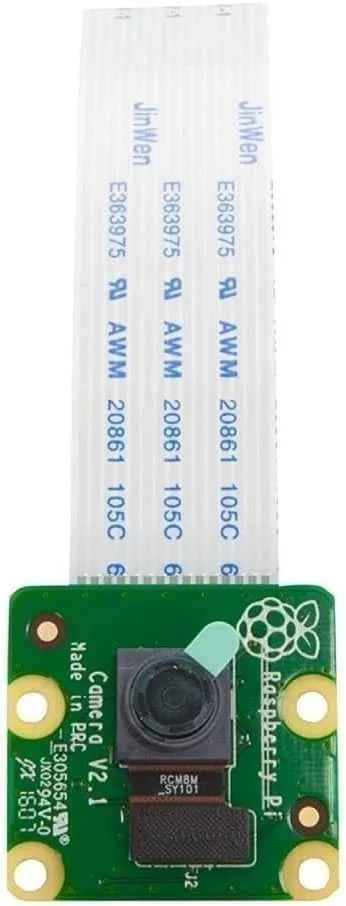
This module is designed for the Raspberry Pi and connects using the camera port on the Pi. It’s an 8-megapixel camera that can create images with a resolution of 3280 x 2464.

The whole unit is only 25mm x 23mm x 9mm (not including the cable). If you want a small camera with a good image that’s easy to mount, you may want to check out the Raspberry Pi Camera Module V2.

3 – Use a USB camera or webcam with OctoPrint

Octoprint will work with many USB cameras, but not all of them. Here’s a list of compatible webcams known to work with OctoPrint. This makes it easy to set up a camera quickly with a spare webcam or USB camera that you might have lying around the house.

The biggest benefit of using a webcam is better image quality. You will likely spend a little time configuring your webcam to work with the Raspberry Pi, but the results are worth it. OctoPrint recommends using mjpg-streamer to set up the webcam. Visit the OctoPrint page on Github for tips on setting up your camera with OctoPrint.

Best USB OctoPrint camera

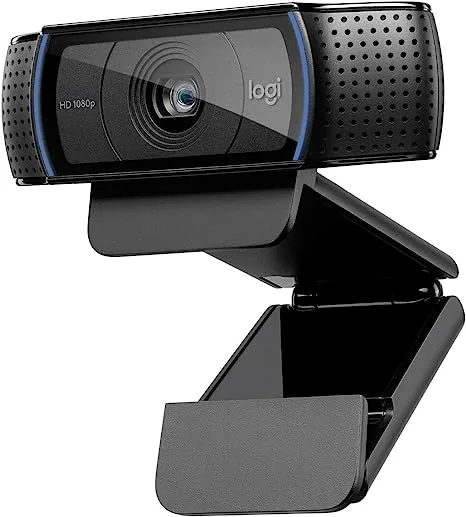
Most Logitech cameras are compatible with OctoPrint. One of the best (and most popular) for use with OctoPrint is the Logitech C920—recommended for its high resolution, wide FOV, and built-in hardware encoding.

4 – Test and optimize your OctoPrint camera setup

Once you have your camera connected, log into the OctoPrint web interface. You can use the IP address of your Raspberry Pi or put http://octopi.local into the address field of a browser window.

Look under the Control tab. This screen allows you to view and make adjustments to your Octopint video stream. Congratulations! Now you’re ready to monitor your 3D printing progress remotely.

5 – Troubleshooting the OctoPrint camera feed

If you don’t see anything, make sure the camera is properly connected. You may want to power everything off and reconnect the camera. If it still doesn’t work, make sure the camera is working on other devices.

NEXT UP

How to Run a Minecraft Server on the Raspberry Pi

A whole world trapped inside your Pi.
howchoo   (467)
December 7, 2023

There are several ways to go about running a Minecraft server on the Raspberry Pi. In this guide, I’ll cover how to install Nukkit—a cross-platform Minecraft server that’s super easy to set up on the Raspberry Pi. This server should work with PCs, consoles, and tablets running Minecraft 1.14. I’ll be using a Raspberry Pi

Continue Reading

howchoo

 467 guides

Introducing Howchoo, an enigmatic author whose unique pen name reflects their boundless curiosity and limitless creativity. Mysterious and multifaceted, Howchoo has emerged as a captivating storyteller, leaving readers mesmerized by the uncharted realms they craft with their words. With an insatiable appetite for knowledge and a love for exploration, Howchoo’s writing transcends conventional genres, blurring the lines between fantasy, science fiction, and the surreal. Their narratives are a kaleidoscope of ideas, weaving together intricate plots, unforgettable characters, and thought-provoking themes that challenge the boundaries of imagination.