Home Interests Guides

How To Fix “This Message Has Not Been Downloaded From the Server” Error on Your iPhone

Get rid of the annoying error with our helpful and quick tips.
howchoo   (467)
August 25, 2023
19 minutes

Share

Interests
Posted in these interests:

guides • 10 guides

Have you ever opened your email app on your iPhone and run into a gloomy “this message has not been downloaded from the server” pop-up message?

Have you squinted at the message, wondering what it could possibly mean but having no idea what to do about it?

If you’ve found yourself in a scenario like that, lucky for you, you’ve landed in the perfect place. This article will explain why that message pops up and how to fix it. Keep reading to avoid confusion later on when you receive that daunting message.

What Does “This Message has Not Been Downloaded From the Server” Mean?

Technology evolves daily, and while that is a good thing in some regards, sometimes older technology needs a bit to catch up with newer technological advances.

One example of this is when an iPhone presents a message that says this message has not been downloaded from the server.

This can happen on the mail app when you try to open the icon and check your messages. This message might appear only when you click on a specific email, or it might occur when you open the mail icon itself. So, why does this happen?

Why Could This Message has Not Been Downloaded From the Server Pop Up?

There are a few reasons why this cryptic message might arise when checking your mail inbox. a. There is a glitch in the software, either on the iPhone’s end or the app’s end, preventing the email from downloading in full. b. During the downloading process, the email was interrupted and unable to download the email. c. Your phone doesn’t have sufficient storage.

So, how do you fix these issues? Keep reading!

How to Fix This Message has Not Been Downloaded From the Server Message

Now that you know a few reasons to explain why you receive this message, here are a few solutions to solve the issue.

Restart your device

Sometimes all you need to fix an issue is the traditional, classic method of restarting your device. When a phone gets overloaded with information, it might put less effort into some apps and more effort into other apps. So, to get around this issue, you can try to restart the phone.

To do this, you will need to hold the power button on the right side of the phone, near the middle of the phone, and the left volume up button for about five seconds. Push these buttons down together and wait for a power-off icon to appear on the top of the screen.

Slide the icon to the right and wait for the phone to power off. Let it rest for a few moments before turning it back on.

To restart or turn on an iPhone, hold down the right side button and wait for the white apple to appear in the middle of the screen. Once the phone is on, circle back to the mail icon to see if the messages download to the server. If they do, great! You’ve fixed the issue. If they do not and you still receive the cannot download to the server message, try any of the following methods.

Re-download or update the mail app

To re-download the mail app, you will need to delete it from the home screen. To do so, hold down the icon for about five seconds until all of the apps on the screen start shaking and have x’s on the top of the icons. Push the x and confirm the deletion of the app.

Deleting the app will delete the data off the phone, but it won’t interfere with any messages you’ve received to your email account.

Once you’ve deleted the app, visit the app store, type in mail, and re-download the app. Install the app and wait for it to finalize on your iPhone. Once the download is complete, log into your account and see if the messages download to the server.

By updating the mail app, you can solve all sorts of bug issues and glitches within the app. To update the mail app, you will need to open the app store icon on your home screen; it is a blue and white icon that forms an A with white shapes. At the top right side of the screen, you will see a profile icon.

Click on that and scroll down to the apps that have available updates. If the mail icon has an available update, click to update it and wait for the process to complete. Once it completes the update, return to the mail icon and try to download the messages.

Log out and delete your actual mail account

This can solve the issue as well. To do this, open up your settings icon and toggle over to passwords and accounts. Scroll down to the email account correlated to the messages unavailable for download and select that account.

You need to click delete account and confirm the deletion. To add the account back to your iPhone, just click the add account icon, input your information and confirm the addition of the new account.

Update your iPhone

Updating an iPhone can solve a multitude of issues. Since Apple puts out software updates faster than it puts out devices, sometimes the devices struggle to keep up with the machinery.

So, to best solve these issues, you need to update your iPhone every time an update comes out. Just like updating the mail app, updating your iPhone has the potential to solve issues and glitches within the software.

So, to update your iPhone, visit the settings icon and click the general button. Underneath the general button, scroll down to software update and click on it. A few options pop up underneath this button.

You can turn on automatic updates that will update your phone each time a new update comes out without you having to put in any work, or you can download and install the newest update. But, when you download the newest update and opt out of automatic updates, you will have to update your phone’s software manually each time a new update comes out.

Make sure your phone is plugged into a power source when undergoing an update, and give it time after the update completes before you use it again. If the emails were not downloading due to an internal issue on the iPhone’s side of things, this could very well solve the issue.

Check the Connection

One huge factor covering a lot of technical issues is the network connection. Whether you connect to the internet via wifi or a cellular tower, your phone will run into some kind of connection issue at some point.

To start, you can turn your wifi signal off and back on. If you scroll down from the top right side of your iPhone, you will see a few options on the left side of the screen. Turn off the wifi icon or the horizontal white lines on top of each other highlighted in blue.

Try to download the messages with the wifi off and if it doesn’t work, turn the wifi back on and vice versa. To check your cellular data connection, drag down the same screen with the wifi, but find the green cellular tower icon next to the airplane mode icon. Click it off and wait for a few moments before toggling it back on.

Sometimes a phone needs to be disconnected from its server for a few moments to reconfigure. Speaking of airplane mode, another way to attempt to solve the issue is to turn airplane mode on and off.

Airplane mode is designed to use on airplanes; you can still use downloaded apps and music on your phone in airplane mode, just nothing that uses data because that interferes with the airplane’s machinery.

Sometimes turning airplane mode on can help a phone reset itself. To turn on airplane mode, drag down the top right screen and click on the airplane icon. If it is highlighted in orange, it is on. If it is gray, it is not on.

You can also reset your network carrier settings by visiting the settings icon. Open the settings icon and toggle to the general icon. Click reset. This will prompt you to a page asking if you want to reset your network settings.

Click reset network settings, input your password information, and wait for the phone to reset itself. Just remember to have your digital data backed up to another account or to a cloud account because resetting the network settings erases everything from passwords to apps.

If none of these methods work, you can contact your service provider or visit an Apple Store or Genius Bar for more information.

NEXT UP

How to Change the Windows 11 Start Menu and Button

howchoo   (467)
December 13, 2023

As with every update, Microsoft has changed Windows 11 to look different than its predecessors, and while the update looks modern and clean there are some interesting changes. Arguably the most jarring of all the changes is the one made to the Windows 11 Start Menu, which looks completely different. Instead of a clean, easy-to-navigate

Continue Reading

howchoo

 467 guides

Introducing Howchoo, an enigmatic author whose unique pen name reflects their boundless curiosity and limitless creativity. Mysterious and multifaceted, Howchoo has emerged as a captivating storyteller, leaving readers mesmerized by the uncharted realms they craft with their words. With an insatiable appetite for knowledge and a love for exploration, Howchoo’s writing transcends conventional genres, blurring the lines between fantasy, science fiction, and the surreal. Their narratives are a kaleidoscope of ideas, weaving together intricate plots, unforgettable characters, and thought-provoking themes that challenge the boundaries of imagination.

Home Interests Slack

How to Create a Poll in Slack

Slack polls are great ways to find a consensus quickly.
howchoo   (467)
August 25, 2023
8 minutes

Share

You’ll Need 1

What you’ll need
Interests
Slack x 1
Howchoo is reader-supported. As an Amazon Associate, we may earn a small affiliate commission at no cost to you when you buy through our links.
Posted in these interests:
remotework • 3 guides
slack • 5 guides

We love using Slack as our remote work space at Howchoo. There are so many features and tools that can be integrated into Slack work spaces and items. Creating a quick and simple poll has to be among the most useful app integrations we’ve discovered in Slack.

If you need to quickly gauge the consensus of your team on a particular item or topic, then making a Slack poll is what you’ll need to do. And there’s no need to go outside of Slack and waste time creating a complex poll when just a simple Slack poll will do.

Here’s how to create a simple poll in Slack using the aptly named “Simple Poll” app. If you’re feeling extra fancy, you can even set up a reminder in Slack to help nudge people to take your poll by a certain time.

1 – Get the “Simple Poll” app

Simple Poll is an app for Slack that allows you to create polls to share in your Slack channels and workspaces. The free version, referred to as the Hobby version, is all you need to make multi-question polls for your team. If you want to make more complex written surveys, then you’ll need to upgrade to their premium version.

In Slack:

  • Click the Add apps button on the bottom-left side of the window.
  • Search for “Simple Poll”.
  • Select the app that appears at the top called “Simple Poll”. (See image above.)

You should get redirected to the installation page where you can add “Simple Poll” to your Slack workspace.

Simple Poll asks you for your email and name when you add the app to your Slack workspace. Be sure to uncheck the box “Recieve promotional emails…,” if you don’t want to be contacted by Simple Poll.

2 – Create a poll in Simple Poll

Now, you’ll head into the Simple Poll app in Slack to create your poll.

  • Click the Simple Poll icon in your Apps at the bottom-left of your Slack window.
  • Select Create a poll in the top toolbar.
  • Choose the options for your poll.

Poll Options

Channel to post the poll in

Select the channel in which you want the poll to appear. Note: you will need to add the Simple Poll app to that channel prior to creating the poll.

To add it to the channel, – Open up the desired Slack channel. – Click Add an app at the top of the channel page. – Select Simple Poll to add it.

Question or topic

Type the question as you would like to appear to your respondents.

Option 1, Option 2, Add another option

Set the list of answers from which your respondents can choose. Make sure to click Add another option, if you want to create a poll with multiple questions.

Make poll anonymous

You can choose to make the poll anonymous. This is particularly useful if the question is such that someone might not feel comfortable attaching their name to the answer.

3 – Run the created poll

Once you’ve set all the poll questions and parameters:

  • Click Continue.
  • Click Create Poll.

The poll should automatically appear in the set Slack channel and will be viewable by the members of the channel. You’ll see little numbers appear next to the answers chosen by the respondents as they answer.

Now, all you have to do is wait for people to respond to the poll in the Slack channel. While you’re waiting why not check on that Slack to-do list you made.

NEXT UP

How to Set Up Recurring Reminders in Slack

howchoo
howchoo   (467)
September 14, 2023

This short guide will teach you how to set up recurring reminders in Slack, sending a notification to you or your team every week, month, 13th, or whatever interval you choose. 1 – Open the channel you’d like to post in Open the channel where you’d like the reminder to occur. You can post reminders

Continue Reading

howchoo

 467 guides

Introducing Howchoo, an enigmatic author whose unique pen name reflects their boundless curiosity and limitless creativity. Mysterious and multifaceted, Howchoo has emerged as a captivating storyteller, leaving readers mesmerized by the uncharted realms they craft with their words. With an insatiable appetite for knowledge and a love for exploration, Howchoo’s writing transcends conventional genres, blurring the lines between fantasy, science fiction, and the surreal. Their narratives are a kaleidoscope of ideas, weaving together intricate plots, unforgettable characters, and thought-provoking themes that challenge the boundaries of imagination.

Home Interests Git

How to Display the Current git Branch on the Command Line

howchoo   (467)
August 24, 2023
3 minutes

Share

Interests
Posted in these interests:

Git

git • 5 guides
unix • 2 guides

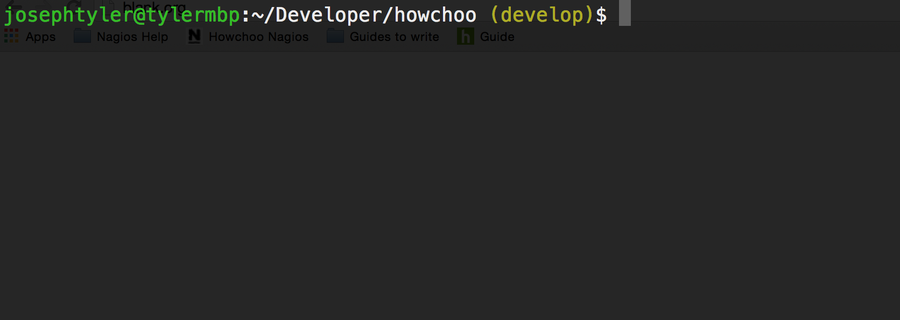
When you’re using git routinely, it’s helpful to know which branch you’re currently on without having to type git status or git branch.

Fortunately, there’s a convenient way to add your current git branch to your command line prompt. For help with remote branches, check out this guide on how to check out a remote branch.

1 – Open your .bashrc to edit

The .bashrc file contains many of your bash settings. You can open the file to edit using your command line text editor of choice. The file should be located in your home directory.

vim ~/.bashrc

2 – Add the following to your .bashrc

function parse_git_branch () {
  git branch 2> /dev/null | sed -e '/^[^*]/d' -e 's/* (.*)/ (1)/'
}
YELLOW="[33[0;33m]"
GREEN="[33[0;32m]"
NO_COLOR="[33[0m]"
PS1="$GREENu@h$NO_COLOR:w$YELLOW$(parse_git_branch)$NO_COLOR$ "

You can add this to the end. Then save and close.


3 – Source your .bashrc

If you’re in a folder with an initialized git repo, you can source your bashrc file and see the difference.

source ~/.bashrc
NEXT UP

How to Set up Git Tab Completion

howchoo
howchoo   (467)
November 26, 2023

Tab completion, or auto-completion, is essential if you’re using Git on the command line. Tab completion is a nice feature of many shells that allows you to complete a word by hitting tab. In this case, we want to be able to use tab completion for things like branches and tags in git. Fortunately, setting

Continue Reading

howchoo

 467 guides

Introducing Howchoo, an enigmatic author whose unique pen name reflects their boundless curiosity and limitless creativity. Mysterious and multifaceted, Howchoo has emerged as a captivating storyteller, leaving readers mesmerized by the uncharted realms they craft with their words. With an insatiable appetite for knowledge and a love for exploration, Howchoo’s writing transcends conventional genres, blurring the lines between fantasy, science fiction, and the surreal. Their narratives are a kaleidoscope of ideas, weaving together intricate plots, unforgettable characters, and thought-provoking themes that challenge the boundaries of imagination.

Home Interests Google

How to Choose Which Calendars to Sync in Google Calendar

howchoo
howchoo   (467)
August 24, 2023
2 minutes

Share

Interests
Posted in these interests:
 
apple • 18 guides
google • 9 guides

I’m the kind of person who uses both Google and Apple products. All of my calendar data is saved to a few different Google calendars, but I generally use Apple’s Calendar on my Mac and iPhone. Syncing is fairly simple, but it took my quite some time to figure out how to select which calendars to sync. What I mean by that is each Google Calendar has multiple sub-calendars that seem to get included in the sync process even when they are deselected from the Google Calendar interface. This resulted in duplicate calendar events like Birthdays and Holidays. Fortunately, I found a solution hidden deep in the Google Calendar docs.

1 – Log in to your Google account

Make sure you’re logged in to the Google account you want to manage.

https://www.google.com/calendar/syncselect

3 – Deselect the calendars you don’t want to be synced

Now you can enjoy a more organized calendar!

NEXT UP

How to Search in Google Docs (Find Words)

Try ⌘ + F.
howchoo   (467)
December 13, 2023

If you just need to search and find a single word or multiple words in Google Docs, press ⌘ + F. If you want to find and replace words in your Google Doc, then we’ll show you how to do that too! 1 – Press cmd + F To find a word (or words) in

Continue Reading

howchoo

 467 guides

Introducing Howchoo, an enigmatic author whose unique pen name reflects their boundless curiosity and limitless creativity. Mysterious and multifaceted, Howchoo has emerged as a captivating storyteller, leaving readers mesmerized by the uncharted realms they craft with their words. With an insatiable appetite for knowledge and a love for exploration, Howchoo’s writing transcends conventional genres, blurring the lines between fantasy, science fiction, and the surreal. Their narratives are a kaleidoscope of ideas, weaving together intricate plots, unforgettable characters, and thought-provoking themes that challenge the boundaries of imagination.

Home Interests Python

How to Check Your Python Version

Not sure what version of Python you’re running? Time to find out!
howchoo   (467)
August 24, 2023
3 minutes

Share

Interests
Posted in these interests:
code • 11 guides
python • 18 guides

It’s good to know what version of Python you’re running. Sometimes you may need a specific version to support an application. To check which version you currently have, we’ll be using command line.

tl;dr

python --version

or

python3 --version


1 – Check Python version on MacOS

MacOS users can verify their Python version through the Terminal application. To launch Terminal, open Finder, go to Applications, choose Utilities, and select Terminal.

Run the following command to retrieve your current version of Python.

python --version

If you’ve installed Python 3 alongside the system Python, the command is usually python3 and you can check the exact version using:

python3 --version

2 – Check Python version on Windows 10

Windows 10 users will need to use Windows PowerShell to check the Python version. To launch Windows PowerShell, go to the Start Menu and type powershell. Select it from the list of applications.

Type the following command and press Enter to find your current Python version.

python --version

3 – Check Python version on Linux

If you’re using a Linux-based OS, this includes Raspberry Pi users, you can use the Terminal application to check your Python version. To open Terminal, press Ctrl + Alt + T.

Type this command into the Terminal window and press Enter. This will return info containing your current Python version.

python --version
NEXT UP

Secure Your Sensitive Data with Kubernetes Secrets

Learn how to create and use Kubernetes secrets.
howchoo   (467)
November 26, 2023

Kubernetes secrets are objects that store and manage sensitive data inside your Kubernetes cluster. One mistake developers often make is storing sensitive information like database passwords, API credentials, etc in a settings file in their codebase. This is very bad practice (hopefully for obvious reasons). Most developers know this, but still choose the option because it’s easy.

Continue Reading

howchoo

 467 guides

Introducing Howchoo, an enigmatic author whose unique pen name reflects their boundless curiosity and limitless creativity. Mysterious and multifaceted, Howchoo has emerged as a captivating storyteller, leaving readers mesmerized by the uncharted realms they craft with their words. With an insatiable appetite for knowledge and a love for exploration, Howchoo’s writing transcends conventional genres, blurring the lines between fantasy, science fiction, and the surreal. Their narratives are a kaleidoscope of ideas, weaving together intricate plots, unforgettable characters, and thought-provoking themes that challenge the boundaries of imagination.

Home Interests DIY

How to Make Your Own Vinyl Record Clock

howchoo   (467)
August 24, 2023
6 minutes

Share

You’ll Need 5

What you’ll need
Interests
Howchoo is reader-supported. As an Amazon Associate, we may earn a small affiliate commission at no cost to you when you buy through our links.
Posted in these interests:
clocks • 1 guides

DIY

diy • 17 guides
music • 4 guides

If you’re a music enthusiast (or know somebody who is and expects a gift from you), nothing beats a vinyl record clock. I’m a huge fan of simplicity and this clock takes the cake. Note: I chose to purchase a clock movement kit since it was inexpensive and I didn’t have any old clocks lying around to cannibalize parts from.

1 – Choose a record

There’s no point destroying a perfectly good record (let alone one you like), so I recommend choosing one that’s no longer playable. I chose a “Hit Explosion” record that had a pretty big gouge on one side.

2 – Expand the record’s hole

I chose a 1/4″ clock movement kit because most vinyl record holes are approximately 1/4″ in diameter. This size clock kit includes a clock movement that has a 1/4″ spindle. Using your drill and a 5/16″ drill bit, widen the record’s center hole so that the spindle will more easily fit into the record.

3 – Attach the clock movement to the record

Push (or screw) the clock movement’s spindle through the record’s center hole. Using the supplied hardware (normally a nut and washer), secure the clock movement to the record. You can tighten the nut with your fingers — using a wrench is unnecessary and might crack the record.

4 – Paint the clock hands (optional)

Most clock movement kits come with black hands and, since most vinyl records are black, you might want to paint them. I painted my clock hands orange to match the label of the record I’m using. If you don’t feel like breaking out the spray paint, you can order a clock movement with silver or gold hands (though I’ve found the 1/4″ kits to be hard to find in these colors).

🛈 Be sure to use primer spray paint prior to painting your clock hands (which I neglected to do). This will make the color more vibrant Plus, the primer will help to make the paint adhere to the clock hands.

5 – Attach the clock hands

Clock movement kits vary — I recommend checking the instructions that came with your kit to ensure that you don’t break the very fragile tiny hands.

6 – Hang up your clock

The clock movement kit I ordered (which I’ve linked to at the top of this guide) has an integrated hanger. This is super useful and saves a ton of time. Now you just need to hammer a nail into the wall and voila! You’re finished!

NEXT UP

How to Make Whiskey Simple Syrup

No whisk, no reward.
howchoo   (467)
November 20, 2023

When I was first offered a beverage flavored with whiskey simple syrup, I was in a coffee shop in San Jose, California. I wasn’t even really interested in drinking coffee. It was later in the day; I was already feeling a little tired; I figured coffee was the last thing I needed. But when the

Continue Reading

howchoo

 467 guides

Introducing Howchoo, an enigmatic author whose unique pen name reflects their boundless curiosity and limitless creativity. Mysterious and multifaceted, Howchoo has emerged as a captivating storyteller, leaving readers mesmerized by the uncharted realms they craft with their words. With an insatiable appetite for knowledge and a love for exploration, Howchoo’s writing transcends conventional genres, blurring the lines between fantasy, science fiction, and the surreal. Their narratives are a kaleidoscope of ideas, weaving together intricate plots, unforgettable characters, and thought-provoking themes that challenge the boundaries of imagination.

Home Interests Retrogaming

How to Use a GameCube Controller on PC

use a gamecube controller on pc
howchoo   (434)
August 23, 2023
10 minutes

Share

Interests
Posted in these interests:
retrogaming • 29 guides

Nothing beats the original GameCube controller.

If you’re a fan of the original Nintendo GameCube, you’re not alone. But sometimes emulating GameCube games just isn’t the same if the controller doesn’t hit right. And by that we mean—you need the original hardware to make the experience. If you want to use the original GameCube controller on a PC, all you need is the right adapter and a few settings to get the classic experience you crave.

In this guide, we’ll not only cover how to connect an original GameCube controller to a PC but also how to get the hardware you need to complete the setup. If you already have a GameCube controller and PC adapter, you can skip to step 3.

If you’re interested, you should also check out our guides on how to connect a GameCube controller to a Wii, or to a Nintendo Switch!

Looking for other retro controller ideas for PC gaming?

Check out our list of the best PC gaming controllers for some inspiration!

1 – Acquire a GameCube controller

buy a gamecube controller

If you want to use a GameCube controller on the PC, you’ll need a GameCube controller. Some people might have an old controller from the console’s heyday while others may need to find one online.

You can find similar third-party facsimiles online, like a GameCube controller by Fiotok, as well as used versions of the actual controller. If you want new hardware, you may want to go with a third-party option. If you want an actual GameCube controller, you’ll likely have to settle for a used device.

It’s also worth mentioning that you aren’t limited to the wired edition. The original wireless WaveBird controller will absolutely work. I personally guarantee it—I’ve used mine on the PC for years.

2 – Find a compatible GameCube to PC adapter

gamecube to pc adapter

In order for your PC to establish a connection to the GameCube controller, you’ll need GameCube controller to PC adapter. You’ll notice the GameCube controller interface is proprietary and your PC does not have a slot for the plug to fit into (if you see one that looks close, don’t even try it—we promise that’s not it).

You will need a GameCube controller to PC adapter. There are a few available online with newer editions offering compatibility with the Nintendo Switch. The older adapters are designed to work with both the Wii U and PC. These are often a little bit cheaper due to their age and are ideal for anyone who intends to mainly connect the controller to a PC rather than a console. If you plan on using the controller with a Switch, you may want to shell out the extra money for the newer version.

3 – Set up the GameCube to PC adapter

connect gamecube to pc adapter

1. Plug the adapter into an open USB port on your computer. Drivers will automatically install.
2. Connect the GameCube controller to the adapter by plugging it into one of the ports.

In most cases, the left port is designated as Port 1 while the right port is recognized as Port 2. Keep this in mind when connecting your controller as you may need this information when configuring your controller in an emulator.

4 – Configure the GameCube controller in the OS

You may want to make sure your computer is recognizing the controller before using it in an emulator. Open the controller settings for your operating system and look for the GameCube controller. It will likely be named by the product name for the adapter you’re using. Once you confirm the adapter is recognized as a controller, you can move on to setting it up in an emulator like Dolphin.

5 – Connect the GameCube Controller to Dolphin

At this point, you can configure your controller with any emulator of your choosing. We definitely recommend using Dolphin for your GameCube emulation needs. Check out our guide on how to set up and install Dolphin for details on how to get started.

Once you have Dolphin installed, you can point the controller settings to the GameCube and PC adapter. It should appear under the devices list when configuring your controller settings. If you’re not using Dolphin, the same should generally apply. These adapters convert the GameCube input into what’s recognized by the PC as a USB controller.

Note: If your adapter isn’t working in Dolphin, you may need to install a third-party driver called Zadig. You can read more about resolving this problem on the official Dolphin website.

NEXT UP

RetroPie scrapers: what they are and how to use them

Wait, which game is this?
howchoo   (434)
September 29, 2023

You’ve put so much work into setting up RetroPie or EmulationStation. You load it up with legally obtained ROMs only to find that custom theme you installed—you remember, the one from my RetroPie themes guide—has a big blank spot for box art! The Best RetroPie Themes (And How to Install Them)You deserve some personal flair! RetroPie: Build Your

Continue Reading
Home Interests Slack

How to Make a To-Do List in Slack

Don’t lose track of to-dos across your Slack channels!
howchoo   (467)
August 23, 2023
13 minutes

Share

You’ll Need 1

What you’ll need
Interests
Slack x 1
Howchoo is reader-supported. As an Amazon Associate, we may earn a small affiliate commission at no cost to you when you buy through our links.
Posted in these interests:
remotework • 3 guides
slack • 5 guides

So many tasks arise during the course of the day while I’m using Slack that I wanted to find an easy way to add things to a to-do list. Now, whenever some task arises in a Slack conversation I’m having, I can just add it to my to-do list and feel confident that I will not forget it.

Why you should make a to-do list in Slack

The first thing you should do is hand-write an apology to every task that you’ve ever forgotten about. The second apology you should make is to the countless notebooks full of hand-written tasks that are never looked at again. Even the sharpest among us tend to forget things sometimes. It’s how our brains work! I operate best when I’m able to organize my tasks in a to-do list based on priority. I also appreciate the ability to set goals and deadlines for myself on certain tasks.

Slack Todo app

If Slack is the remote work tool your organization used, then you should take advantage of it by really utilizing its work-management features. While there is no built-in to-do feature, there is a great, free app called Todo** that integrates with Slack wonderfully.

That’s the app I’m going to introduce you to in this guide. Check out my other guides on creating a Slack poll and setting up recurring reminders to see more Slack apps in action!

1 – Get the Todo app

I should note that there other app options out there in terms of to-do lists for Slack. I have not tested them all. I’m recommending this one because it is the easiest, free app I’ve used.

In Slack:

  • Click the Add apps button on the bottom-left side of the window.
  • Search for “Todo”.
  • Select the app that appears at the top called “Todo”. (See image above.)

You should get redirected to the installation page where you can add “Todo” to your Slack apps.

🛈 This app is free forever for personal use. Should you decide you want the app to integrate across your entire team, then the publisher offers a $15/mo. version.

2 – To-do list options

When you create a to-do list using “Todo” in Slack, you’re given a number of options for the to-do. I’ll walk you through what those options are and what they mean.

  1. Due date (This is the day you want to set as the deadline for your to-do.)
  2. Assignee (If this to-do is for someone else to complete, then select their name here.)
  3. Project (If this to-do is part of a larger project that you need to keep organized, then select the project here.)
  4. Note (Add any additional notes for yourself or assignee.)
  5. Reminders (Decide how often and at what times you want Slack to send you a reminder notification.)
  6. Watchers (Do you want someone to be notified when you complete the task? If so, select their name here.)

That’s it. It’s really simple to set this up, and I tend to use the same settings for each of my to-dos within Slack.

3 – Create a to-do list from a conversation

The real benefit of using an app like Todo to create to-do lists in Slack is being able to make to-dos out of anything that emerges in a conversation. So the next time your boss says, “Hey! Would you mind having this done by Friday?,” you can easily add that as a to-do without having to type anything!

When you want to add a to-do in Slack from a conversation:

  1. Hover over the text you want to save as a to-do.
  2. Click on the three dots on the right side (“More actions).
  3. Scroll down and click Add task todo.

Now, you’ll be given the to-do list options as described in the previous step from which to choose.

Select your options and click Submit.

4 – Create a to-do list you write yourself

While the option to create to-do lists out of a conversation in Slack is great, you might need to make your own to-do list. There are two ways to do that.

Option 1: Write yourself a note

When you begin a conversation with yourself, only you can see the text. What I like to do is put any to-dos as separate messages in those private conversations. Then, when you need to turn them into to-dos, you simply:

  1. Hover over the text you want to save as a to-do.
  2. Click on the three dots on the right side (“More actions).
  3. Scroll down and click Add task todo.

Now, you’ll be given the to-do list options as described in the previous step from which to choose.

Select your options and click Submit.

Option 2: Use /todo or /todo today

From any channel, you can simply type the Slack slash command, /todo [you desired to-do task] to create a general to-do.

If you want to specify the task be done on that day, then use /todo today [your desired to-do task].

5 – Access your to-dos

Once you’ve set yourself some to-dos in Slack, you’ll want to be able to see them of course! There are two ways to view your to-dos in Slack.

To see all your to-dos

If you want to see all of your to-dos that you still have not completed:

  • Click on the “Todo” app at the bottom-left of the Slack window.
  • By default, the home screen for the app will show you your to-do list in order by the deadline.

To see to-dos associated with a specific channel

You can also view to-dos you’ve created just in specific channels by:

  • Going into that specific channel.
  • Typing /todo list

You’ll be given a list of to-dos associated with that Slack channel.

To see completed to-dos

If you need to see your completed to-dos:

  • Go into the “Todo” app by clicking it on the bottom-left of the Slack window.
  • Select Messages.
  • Scroll up to see the to-dos you’ve completed.
NEXT UP

How to Set Up Recurring Reminders in Slack

howchoo
howchoo   (467)
September 14, 2023

This short guide will teach you how to set up recurring reminders in Slack, sending a notification to you or your team every week, month, 13th, or whatever interval you choose. 1 – Open the channel you’d like to post in Open the channel where you’d like the reminder to occur. You can post reminders

Continue Reading

howchoo

 467 guides

Introducing Howchoo, an enigmatic author whose unique pen name reflects their boundless curiosity and limitless creativity. Mysterious and multifaceted, Howchoo has emerged as a captivating storyteller, leaving readers mesmerized by the uncharted realms they craft with their words. With an insatiable appetite for knowledge and a love for exploration, Howchoo’s writing transcends conventional genres, blurring the lines between fantasy, science fiction, and the surreal. Their narratives are a kaleidoscope of ideas, weaving together intricate plots, unforgettable characters, and thought-provoking themes that challenge the boundaries of imagination.

Home Interests Mac

How to Install Multiple Fonts at Once on Mac into Font Book

howchoo   (467)
August 23, 2023
2 minutes

Share

You’ll Need 1

What you’ll need
Interests
Finder x 1
Howchoo is reader-supported. As an Amazon Associate, we may earn a small affiliate commission at no cost to you when you buy through our links.
Posted in these interests:
fonts • 1 guides

Mac

mac • 24 guides
webdesign • 5 guides

If you have several fonts to install, why install each one manually? You can batch install a bunch of fonts at once.

This guide will show you how to install multiple font files at once into Font Book on Mac.

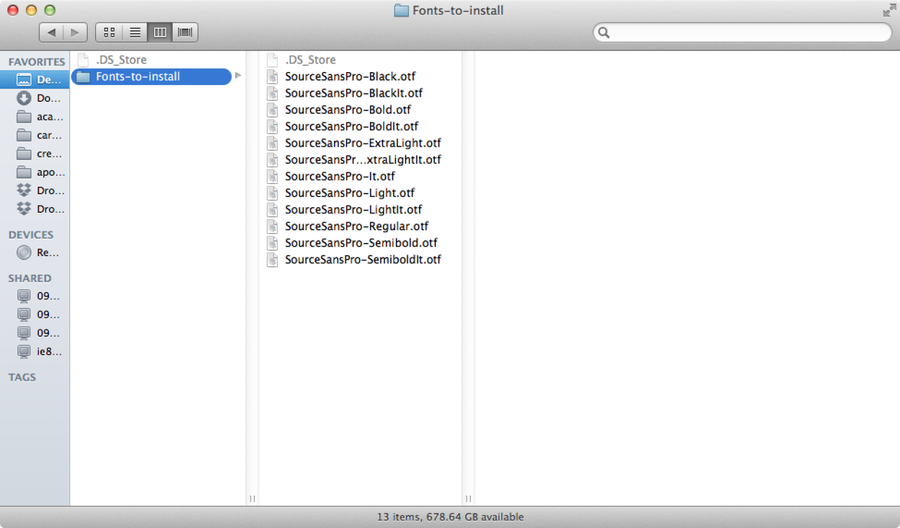
1 – Locate your fonts in Finder

Open a new Finder window and locate the fonts you’d like to install.

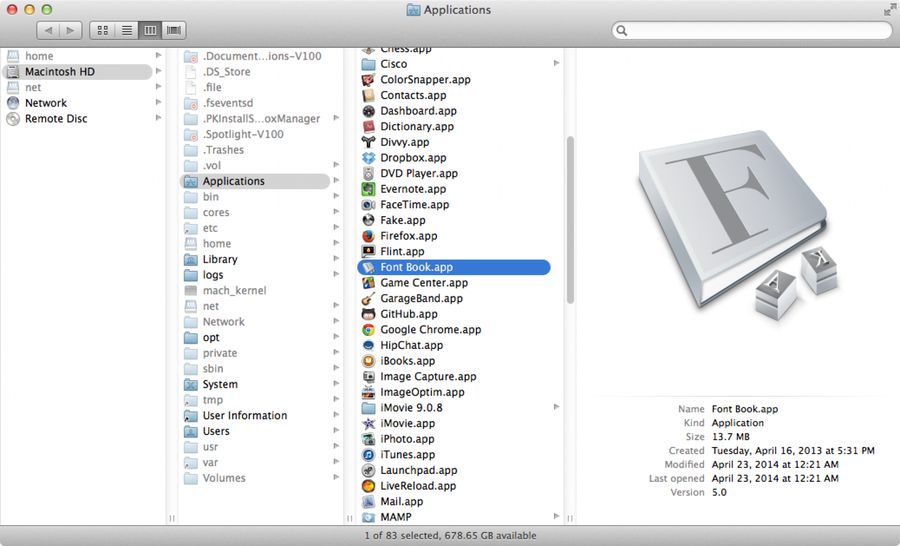
2 – Open Font Book

Navigate to Applications > Font Book (or open it using Spotlight).

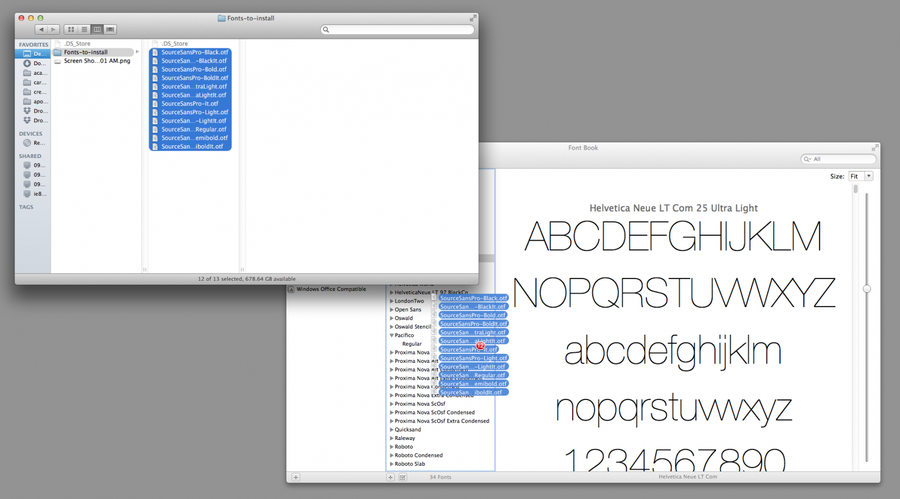
3 – Batch install the fonts

In Finder, highlight all the fonts you’d like to install and drag them into the Font Book window. You’re done!

🛈 Note: if the fonts you’re trying to install are corrupt or weren’t designed properly, you may see an error message. If you’d like to continue with installation anyways, you can check the associated checkbox to continue with installation.
NEXT UP

How to Enable the “Popping” Sound When Adjusting the Volume on Your Mac

howchoo
howchoo   (467)
December 13, 2023

Starting with MacOS Sierra and High Sierra, your Mac will no longer play a “pop” sound when you adjust your volume. If you prefer to have this sound when you adjust volume up and down (as I do), this guide will teach you how to reenable it. 1 – Open Sound System Preferences Navigate to System

Continue Reading

howchoo

 467 guides

Introducing Howchoo, an enigmatic author whose unique pen name reflects their boundless curiosity and limitless creativity. Mysterious and multifaceted, Howchoo has emerged as a captivating storyteller, leaving readers mesmerized by the uncharted realms they craft with their words. With an insatiable appetite for knowledge and a love for exploration, Howchoo’s writing transcends conventional genres, blurring the lines between fantasy, science fiction, and the surreal. Their narratives are a kaleidoscope of ideas, weaving together intricate plots, unforgettable characters, and thought-provoking themes that challenge the boundaries of imagination.

Home Interests Python

How to Install pip on Mac, Windows, and Linux

howchoo
howchoo   (467)
August 23, 2023
6 minutes

Share

Interests
Posted in these interests:
code • 11 guides
python • 18 guides

The Python standard library includes a great set of modules, but many projects will require the use of third-party modules. Python modules are grouped into packages, so in order to use external modules, we’ll need to install the appropriate package. That’s where pip comes in.

What is pip?

Python packages are maintained in a central repository call PyPI (Python Package Index). It can be pronounced “pie pee eye” or “pie pie”, but not “pie pee” or “pee pee” or anything like that. Now, you could download packages directly from this repository yourself, but that would be a pain.

Pip stands for “pip installs packages”. It’s a command-line tool that allows you to install, upgrade, and uninstall Python packages.

In this guide, we’ll cover how to install pip for Python on all major platforms.

To instead learn how to install Python 3 on Windows 10, then check out our guide.

1 – Install pip on macOS

There are a few options to install pip on MacOS:

Option 1: Use Homebrew (recommended)

Install Homebrew

Homebrew is one of the better package managers for Mac. To install Homebrew, open Terminal and type:

ruby -e "$(curl -fsSL https://raw.githubusercontent.com/Homebrew/install/master/install)"

Read more here.

Install pip using Homebrew

Using Homebrew to install python will install the latest Python (Python 3.7 currently), pip, and Setuptools.

brew install python

Option 2: Use easy_install

easy_install is the predecessor to pip, and it comes preinstalled on macOS (along with Python 2). You can use easy_install to install pip for Python 2.

sudo easy_install pip

2 – Install pip on Windows

Download the installer script

Right click on this installer script and select Save As….

Run the installer script

Open the Command Prompt, then navigate to the directory where you downloaded the script.

Now run:

python get-pip.py

3 – Install pip on Linux

The command to install pip on Linux will vary based on the distribution you’re using (and the package manager). Below I’ll list the common package managers.

APT (Advanced Packaging Tool)

Python 2.x

sudo apt-get install python-pip

Python 3.x

sudo apt-get install python3-pip

Pacman

Python 2.x

sudo pacman -S python2-pip

Python 3.x

sudo pacman -S python-pip

Yum

Python 2.x

sudo yum upgrade python-setuptools
sudo yum install python-pip python-wheel

Python 3.x

sudo yum install python3 python3-wheel

4 – Learn how to install Python packages using pip

Now that pip is installed, learn how to install Python packages using pip.

NEXT UP

Secure Your Sensitive Data with Kubernetes Secrets

Learn how to create and use Kubernetes secrets.
howchoo   (467)
November 26, 2023

Kubernetes secrets are objects that store and manage sensitive data inside your Kubernetes cluster. One mistake developers often make is storing sensitive information like database passwords, API credentials, etc in a settings file in their codebase. This is very bad practice (hopefully for obvious reasons). Most developers know this, but still choose the option because it’s easy.

Continue Reading

howchoo

 467 guides

Introducing Howchoo, an enigmatic author whose unique pen name reflects their boundless curiosity and limitless creativity. Mysterious and multifaceted, Howchoo has emerged as a captivating storyteller, leaving readers mesmerized by the uncharted realms they craft with their words. With an insatiable appetite for knowledge and a love for exploration, Howchoo’s writing transcends conventional genres, blurring the lines between fantasy, science fiction, and the surreal. Their narratives are a kaleidoscope of ideas, weaving together intricate plots, unforgettable characters, and thought-provoking themes that challenge the boundaries of imagination.