Home Interests JavaScript

How to Turn an Object into Query String Parameters in JavaScript

howchoo
howchoo   (467)
September 14, 2023
3 minutes

Share

Interests
Posted in these interests:
javascript • 4 guides
webdev • 10 guides

As a JavaScript developer, you’ll often need to construct URLs and query string parameters. One sensible way to construct query string parameters is to use a one layer object with key value pairs.

In this guide we’ll cover various ways to turn an object like this:

var params = {
    a: 1,
    b: 2,
    c: 3
};

into a query string like this:

"a=1&b=2&c=3"

1 – Using map and join

If you’re using a modern browser (or node) you can use map to create an array of strings like a=1, then use join to join them together with &.

ES6

var queryString = Object.keys(params).map(key => key + '=' + params[key]).join('&');

ES5

var queryString = Object.keys(params).map(function(key) {
    return key + '=' + params[key]
}).join('&');

2 – Using jQuery

If you’re the sort of person who uses jQuery, you’ve got a solution readily available:

var queryString = $.param(params);

3 – Using the querystring module in node

If you’re using node, you can use the querystring module:

const querystring = require('querystring');

let queryString = querystring.stringify(params);

4 – Parameter encoding

If you know you’re keys and values need to be encoded, you should use encodeURIComponent like this:

var queryString = Object.keys(params).map((key) => {
    return encodeURIComponent(key) + '=' + encodeURIComponent(params[key])
}).join('&');

It’s also possible to query by timestamp in MySQL.

NEXT UP

Make YouTube Video Embeds Responsive Using Pure HTML and CSS

howchoo   (467)
September 22, 2023

Surprisingly, normal YouTube embeds are not automatically sized to the browser window as it is resized. Luckily, you can make YouTube videos responsive and mobile-friendly with some simple HTML and CSS. 1 – The HTML Wrap your embed code in a unique video wrapper (the class name is arbitrary). I chose to use embed-youtube as the selector.

Continue Reading

howchoo

 467 guides

Introducing Howchoo, an enigmatic author whose unique pen name reflects their boundless curiosity and limitless creativity. Mysterious and multifaceted, Howchoo has emerged as a captivating storyteller, leaving readers mesmerized by the uncharted realms they craft with their words. With an insatiable appetite for knowledge and a love for exploration, Howchoo’s writing transcends conventional genres, blurring the lines between fantasy, science fiction, and the surreal. Their narratives are a kaleidoscope of ideas, weaving together intricate plots, unforgettable characters, and thought-provoking themes that challenge the boundaries of imagination.

Home Interests Code

Python time.sleep() – How to Make a Time Delay in Python

howchoo
howchoo   (467)
September 13, 2023
3 minutes

Share

You’ll Need 1

What you’ll need
Interests
python x 1
Howchoo is reader-supported. As an Amazon Associate, we may earn a small affiliate commission at no cost to you when you buy through our links.
Posted in these interests:
code • 11 guides
python • 18 guides

Learn how to use Python’s sleep function to make a timed delay.

tl;dr

import time
time.sleep(seconds)

1 – Import the time module

We will first want to import Python’s time module:

import time

This module ships with Python so it should be available on any system. Although it is not necessary for this guide, I highly recommend getting familiar with the time module. Read more about the time module here.

2 – Use time.sleep to set the delay

You can set a delay in your Python script by passing the number of seconds you want to delay to the sleep function:

time.sleep(5)

This means you want the script to delay 5 seconds before continuing. The sleep function also accepts floats if you want to give a more precise number:

time.sleep(1.75)

This will sleep for 1 second and 750 milliseconds. You can also use a float to delay for less than a second like this:

time.sleep(0.5)

This will sleep for half of a second. You can and should read more about Python’s sleep function here.

NEXT UP

Secure Your Sensitive Data with Kubernetes Secrets

Learn how to create and use Kubernetes secrets.
howchoo   (467)
November 26, 2023

Kubernetes secrets are objects that store and manage sensitive data inside your Kubernetes cluster. One mistake developers often make is storing sensitive information like database passwords, API credentials, etc in a settings file in their codebase. This is very bad practice (hopefully for obvious reasons). Most developers know this, but still choose the option because it’s easy.

Continue Reading

howchoo

 467 guides

Introducing Howchoo, an enigmatic author whose unique pen name reflects their boundless curiosity and limitless creativity. Mysterious and multifaceted, Howchoo has emerged as a captivating storyteller, leaving readers mesmerized by the uncharted realms they craft with their words. With an insatiable appetite for knowledge and a love for exploration, Howchoo’s writing transcends conventional genres, blurring the lines between fantasy, science fiction, and the surreal. Their narratives are a kaleidoscope of ideas, weaving together intricate plots, unforgettable characters, and thought-provoking themes that challenge the boundaries of imagination.

Home Interests Tennis

How to wrap overgrip tape on a tennis racket

howchoo (467)
September 13, 2023
7 minutes

Share

You’ll Need 1
What you’ll need
Interests
Howchoo is reader-supported. As an Amazon Associate, we may earn a small affiliate commission at no cost to you when you buy through our links.
Posted in these interests:
tennis • 1 guides
What is overgrip tape? Overgrip is a padded, often sticky, tape that is wrapped around the grip of the tennis racket. Tennis rackets come with a more permanent grip, but overgrip is placed over the grip and is designed to be replaced frequently. Many tennis players choose to use overgrip tape in order to get a better “grip” on the tennis racket and provide more comfort and shock absorption.

1 – Remove old overgrip tape

Removing old overgrip tape is easy. Simply remove the tape at the top of the handle that is securing the edge of the overgrip. Then unwrap until the old overgrip is completely removed.

2 – Unroll new overgrip and remove plastic

At this point you’ll want to completely unroll the new overgrip and remove the plastic. Depending on the kind of overgrip you buy, it may be secured by a piece of tape. This tape can be used later to secure the overgrip to the racket.

3 – Find the adhesive on one end of the overgrip

Some kinds of overgrip come with an adhesive strip on one end. If your overgrip doesn’t have it you can skip this step. If it does, find the end with the adhesive and remove the plastic covering it. This adhesive strip is helpful but not necessary.

4 – Begin wrapping

With the handle of your tennis racket up, place the end of the overgrip on the corner of the handle and begin to wrap from left to right. If your overgrip has adhesive, stick the adhesive strip to the corner of the racket.

5 – Make one full wrap and begin to overlap

To begin wrapping, you’ll want to spin the racket. This way the part of the handle where you are placing the overgrip is always facing you. This makes it much easier to place it evenly. Keep the overgrip very taught to avoid wrinkles. After making one full wrap you’ll begin to overlap and work your way down the handle. The overlap should be between 1/8″ and 1/4″. As you get more familiar with this process you will find what works best for you. The overgrip I’m using for this demonstration is angled at both ends. This helps set the correct angle for starting and finishing the wrap. If your overgrip does not have the angle you may want to begin with one and a quarter wraps before you start working up the handle. This will make the overgrip more secure at the base.

6 – Work your way up the handle

Continue spinning the racket and placing the overgrip maintaining a consistent overlap.

7 – Finish wrapping at the end of the handle

If you’ve maintained a consistent overlap of 1/4″ to 1/8″ you should have just the right amount of overgrip. Once you reach the end of the handle you may have to increase the size of the overlap.

8 – Place tape on the end to secure the overgrip in place

The overgrip likely came with a piece of tape that can be used to secure it in place. Place the tape at the end and wrap tightly.

howchoo

 467 guides
Introducing Howchoo, an enigmatic author whose unique pen name reflects their boundless curiosity and limitless creativity. Mysterious and multifaceted, Howchoo has emerged as a captivating storyteller, leaving readers mesmerized by the uncharted realms they craft with their words. With an insatiable appetite for knowledge and a love for exploration, Howchoo’s writing transcends conventional genres, blurring the lines between fantasy, science fiction, and the surreal. Their narratives are a kaleidoscope of ideas, weaving together intricate plots, unforgettable characters, and thought-provoking themes that challenge the boundaries of imagination.
Home Interests Virtual Reality

A Brief Guide to the Menu Toolbar on Your Oculus Quest 2

howchoo (467)
September 13, 2023
7 minutes

Share

You’ll Need 1
What you’ll need
Interests
Howchoo is reader-supported. As an Amazon Associate, we may earn a small affiliate commission at no cost to you when you buy through our links.
Posted in these interests:
READY PLAYER 1
gaming • 85 guides
oculusquest2 • 4 guides
vr • 4 guides
The Oculus Quest 2 has plenty of new internal features available, but for beginners like me, even the visible features can seem overwhelming. As someone who’s never owned or played on a VR headset before, here’s a brief overview of what’s on the menu toolbar and how to access it!
Time to delve into virtual reality!

1 – Open the Oculus menu

If the menu toolbar at the bottom of the screen is already up, then you can skip this step. Press the “O” button on the right touch controller, as shown in the image above.

2 – Quick Settings

The quick settings window shows the most important information about your Oculus Quest 2 that you’ll need. Displayed here are:
  • Battery levels for the headset and controllers
  • Date and time
  • Wi-Fi connection
  • Volume and brightness settings
  • Mute/Un-mute microphone
  • Guardian settings
You can access further settings from the button at the top right of the window.

3 – Profile

To open the profile window, click the image icon as shown above. Here you can edit your profile, switch accounts, and even create an avatar!

4 – Notifications

Anytime a notification pops onto your screen, or you want to check on the status of a download, you can do so by clicking the bell icon on the menu toolbar.

5 – Explore

The explore window is a one-stop shop for Oculus updates, news, and friend’s activity. It’s a great way to get an overview of topics related to your Quest 2 experience. You can open the Explore window by clicking the blue compass icon.

6 – Shop

The Oculus shop is where you’ll spend most of your time (and money). Here is where you can search for new games or apps to add to your VR. It’s also where you can add to your wishlist, just in case you need to have a gift list ready for people. To open the shop, click the orange shopping bag icon!

7 – People

Whether you want to find your friends or people you recently played a game with, the People app is the place to go. Here, you’ll find:
  • Current friends
  • Suggested friends
  • Recently met Oculus users
  • Facebook Messenger
  • Oculus Chat
Open the People window by clicking the purple/pink icon.

8 – Sharing

This is the place where all streamers, gamers, or content creators will want to go. The Sharing window enables players to cast to other devices, take photo screenshots, and record videos! Click the pink/red arrow icon to open the sharing window.

9 – Library

The library is just as it sounds: it holds a list of all the apps and games downloaded to your Oculus Quest 2! You can sort it multiple ways to your preference, search, and filter by category. To open the library, click the gray icon on the menu toolbar.
 
NEXT UP

Top 10 Enchantments in Minecraft

howchoo (467)
March 25, 2024
The longer you play Minecraft, the more you realize that early-game tools just won’t cut it. Exploring the enchantment feature of Minecraft can be exciting, but also intimidating. Rather than worry about researching enchantments, below are the best enchantments in Minecraft! To learn how to enchant items, check out this guide! In this guide, you’ll see
Continue Reading

howchoo

 467 guides
Introducing Howchoo, an enigmatic author whose unique pen name reflects their boundless curiosity and limitless creativity. Mysterious and multifaceted, Howchoo has emerged as a captivating storyteller, leaving readers mesmerized by the uncharted realms they craft with their words. With an insatiable appetite for knowledge and a love for exploration, Howchoo’s writing transcends conventional genres, blurring the lines between fantasy, science fiction, and the surreal. Their narratives are a kaleidoscope of ideas, weaving together intricate plots, unforgettable characters, and thought-provoking themes that challenge the boundaries of imagination.
Home Interests Virtual Reality

How To Move the UI on the Oculus Quest 2

howchoo (467)
September 13, 2023
4 minutes

Share

You’ll Need 1
What you’ll need
Interests
Howchoo is reader-supported. As an Amazon Associate, we may earn a small affiliate commission at no cost to you when you buy through our links.
Posted in these interests:
READY PLAYER 1
gaming • 85 guides
oculusquest2 • 4 guides
vr • 4 guides
The graphics of the Oculus Quest 2 are impressive, there’s no doubt. What makes VR so enticing to users is how unique their experience is compared to others! The Quest 2 enables users to choose not only their background scene, but also where the UI is positioned.
 
This guide will show you how to move both the bottom menu toolbar and the window that appears above it.

1 – Moving the menu toolbar

Keep in mind that moving the bottom UI will move the entire screen interface. A main reason to move the UI is so that it’s easier to see and at a proper viewing height. We already look down at our phones too much, it doesn’t need to be the same for a VR experience. To move the UI, use the trigger button located at the back of the controller and grab the bar underneath the toolbar. Hold and drag the UI to wherever you want!

2 – Moving the top screen

You can move the top screen vertically to position it better for viewing, separate from the menu toolbar. To do this, hold and drag the bar underneath the window with the trigger button on the touch controller. The screen will adjust its view automatically if you drag it to the highest point possible. If you’d like to learn how to take photos or [videos] on the Oculus Quest 2, check out those respective guides!
NEXT UP

Top 10 Enchantments in Minecraft

howchoo (467)
March 25, 2024
The longer you play Minecraft, the more you realize that early-game tools just won’t cut it. Exploring the enchantment feature of Minecraft can be exciting, but also intimidating. Rather than worry about researching enchantments, below are the best enchantments in Minecraft! To learn how to enchant items, check out this guide! In this guide, you’ll see
Continue Reading

howchoo

 467 guides
Introducing Howchoo, an enigmatic author whose unique pen name reflects their boundless curiosity and limitless creativity. Mysterious and multifaceted, Howchoo has emerged as a captivating storyteller, leaving readers mesmerized by the uncharted realms they craft with their words. With an insatiable appetite for knowledge and a love for exploration, Howchoo’s writing transcends conventional genres, blurring the lines between fantasy, science fiction, and the surreal. Their narratives are a kaleidoscope of ideas, weaving together intricate plots, unforgettable characters, and thought-provoking themes that challenge the boundaries of imagination.
Home Interests Xbox

How to Get Xbox Game Pass for Free (or cheap)

how-to-get-xbox-game-pass
Looking for a free pass game pass?
howchoo (467)
September 13, 2023
7 minutes

Share

You’ll Need 1
What you’ll need
Interests
Series
Howchoo is reader-supported. As an Amazon Associate, we may earn a small affiliate commission at no cost to you when you buy through our links.
Posted in these interests:
free • 2 guides
READY PLAYER 1
gaming • 85 guides
xbox • 3 guides
  • how-to-get-xbox-game-pass
    Get Xbox Game Pass Free
Xbox Game Pass lets you access over 100 popular titles on both the Xbox One console and PC. It works just like a movie streaming platform, but with video games. Members pay a monthly subscription fee in exchange for access to the game library.
Most Anticipated Video Games of 2022 Get your wishlist ready for these games!
If you’re looking for totally unlimited access to Xbox Game Pass—I’m afraid you’re out of luck. The only way to get a free subscription is to take advantage of trials. There are also special bundles that offer Game Pass access at a discounted rate. These deals can save you some serious money, so be sure to check them all out. [Updated for 2022]

1 – 1$ Xbox Game Pass 14-day trial

free-xbox-game-pass-trial
The easiest way to get nearly free access to Xbox Game Pass is to sign up as a new customer. The first two weeks of Xbox Game Pass are only $1. You can always cancel before the trial is over to avoid incurring any further charges.

How to get a $1, 14-day trial

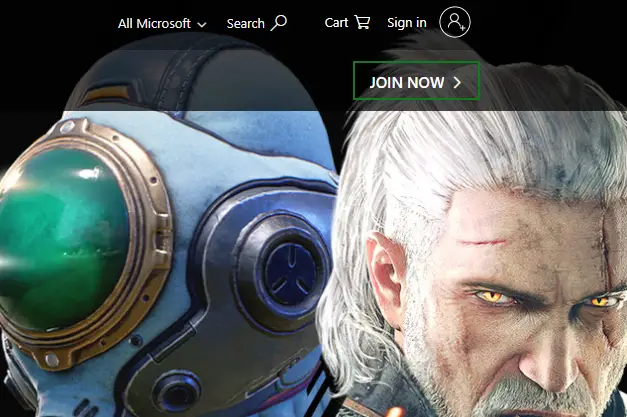
1. Visit the Xbox Game Pass website. 2. Click Join Now. 3. Follow the prompts to select a plan and create an account. You will be prompted for payment information. You’ll only be charged the initial dollar, however, if you cancel the trial in time.
How to Cancel Xbox Game Pass Ending your membership with Microsoft.

2 – Get Free Xbox Game Pass with Microsoft Rewards

microsoft-rewards-xbox-game-pass
Microsoft Rewards is a free program users can sign up for to complete tasks in exchange for points. These points can be exchanged for a variety of reward options, one of which includes an Xbox Game Pass.

How to get free Xbox Game Pass with Microsoft Rewards

1. Log into your Microsoft account or register for one if you haven’t already. 2. Go to the Microsoft Rewards page. 3. Earn points by searching with Bing and completing tasks. 4. Redeem the points for a free Xbox Game Pass.
Microsoft Celebrates 20 Years of Xbox A celebration of the past and future of Xbox

3 – Get Game Pass Ultimate for $1 per quarter

xbox-game-pass-ultimate-1-dollar
The best Game Pass deal at the moment is for Xbox Game Pass Ultimate. This service is usually sold for $44.99 for 3 months of access. You can get Ultimate right now for 98% off.

How to get Xbox Game Pass Ultimate for $1

1. Visit the Xbox Game Pass Ultimate webpage. 2. Click Join. 3. Follow the prompts to create an account and sign up for a plan. You can always cancel your subscription before the next quarterly payment goes through. This package will include three full months of unlimited access to Xbox Game Pass. It comes with an Xbox Gold membership and so much more than just a free trial to Game Pass. This is easily the best bargain of the whole list. If you want more free stuff, check out our guides on how to get free services.
NEXT UP

Top 10 Enchantments in Minecraft

howchoo (467)
March 25, 2024
The longer you play Minecraft, the more you realize that early-game tools just won’t cut it. Exploring the enchantment feature of Minecraft can be exciting, but also intimidating. Rather than worry about researching enchantments, below are the best enchantments in Minecraft! To learn how to enchant items, check out this guide! In this guide, you’ll see
Continue Reading

howchoo

 467 guides
Introducing Howchoo, an enigmatic author whose unique pen name reflects their boundless curiosity and limitless creativity. Mysterious and multifaceted, Howchoo has emerged as a captivating storyteller, leaving readers mesmerized by the uncharted realms they craft with their words. With an insatiable appetite for knowledge and a love for exploration, Howchoo’s writing transcends conventional genres, blurring the lines between fantasy, science fiction, and the surreal. Their narratives are a kaleidoscope of ideas, weaving together intricate plots, unforgettable characters, and thought-provoking themes that challenge the boundaries of imagination.
Home Interests Verizon

How to Log into a Verizon FiOS Router

howchoo
howchoo (467)
September 13, 2023
3 minutes

Share

You’ll Need 2
What you’ll need
Interests
Series
Howchoo is reader-supported. As an Amazon Associate, we may earn a small affiliate commission at no cost to you when you buy through our links.
Posted in these interests:
internet • 36 guides
router • 32 guides
verizon • 6 guides
Need to log into your Verizon router to change settings or apply updates? This guide will show you how to log into your Verizon FiOS router. Looking to add more security to your network? You can start by changing your Verizon FiOS WiFi Password.

1 – Connect to your Verizon FiOS network

You can connect using either a wired (LAN) or wifi connection.

2 – Open a browser and go to 192.168.1.1

This is the gateway for your router and a login screen will appear.

3 – Enter username and password

The default FiOS router administrator password is located on the sticker on the side of your router.
Username: admin
Password: (your password)
You’re logged in!

4 – Changing your password

Now that you’re logged in, you may as well change your password to something more secure. After all, anyone with access to your house can gain access to your router configuration, which is worse than gaining access to the network itself! To change the default administrator password, click Change Admin Password in the left navigation. If you forget your password, simply reset your FiOS router to factory defaults.
How to Reset Your Verizon FiOS Router to Factory Defaults
Managing your own network at home? Changing your Verizon FiOS network name to something less obvious can help secure your network. Check out our guide for steps to get started.
NEXT UP

How to Enable Verizon Call Forwarding

Direct your calls elsewhere.
howchoo (467)
December 1, 2023
Call forwarding is the process of directing phone calls from one number to another. Verizon allows its customers to enable call forwarding at no additional charge. Your typical call rates will still apply. This process works for all Verizon customers regardless of your carrier—including Samsung, Apple, LG, Lenovo, and more. Note: International numbers can not
Continue Reading

howchoo

 467 guides
Introducing Howchoo, an enigmatic author whose unique pen name reflects their boundless curiosity and limitless creativity. Mysterious and multifaceted, Howchoo has emerged as a captivating storyteller, leaving readers mesmerized by the uncharted realms they craft with their words. With an insatiable appetite for knowledge and a love for exploration, Howchoo’s writing transcends conventional genres, blurring the lines between fantasy, science fiction, and the surreal. Their narratives are a kaleidoscope of ideas, weaving together intricate plots, unforgettable characters, and thought-provoking themes that challenge the boundaries of imagination.
Home Interests Subaru Crosstrek

How to Change the PCV (Or Complete Control) Valve on Your Subaru XV Crosstrek or Impreza (2013+)

howchoo   (467)
September 13, 2023
7 minutes

Share

You’ll Need 4

What you’ll need
Interests
Howchoo is reader-supported. As an Amazon Associate, we may earn a small affiliate commission at no cost to you when you buy through our links.
Posted in these interests:
autos • 4 guides
subaru • 3 guides
crosstrek • 3 guides

Changing the PCV valve on your Subaru XV Crosstrek (or Impreza) is part of your recommended 30,000 mile maintenance. The dealer normally charges about $200 for this service, but you can do it yourself for $20 in about 15 minutes. Subaru also calls this part the Complete Control Valve.

This guide will show you how to easily change your own PCV valve on your 2013+ Subaru XV Crosstrek or Impreza. This guide works for either the Crosstrek or Impreza as the engine is the same (as is most of the car!).

1 – What is a PCV valve?

Your car’s PCV valve is an inexpensive but often overlooked component. Long ago, we would simply vent crankcase pressure into the atmosphere — nowadays, we vent it into the positive crankcase ventilation (PCV) system instead. The PCV valve helps to control this ventilation and also helps to regulate air flow.

A clogged PCV valve can cause increased oil consumption, which is bad, especially in Subarus. 🙂

2 – Let your engine cool fully

Don’t burn yourself. That would be bad.

3 – Locate the PCV valve

The PCV valve location on the XV Crosstrek/Impreza is denoted in the attached photo.

🛈 Subaru also calls this part the “Complete Control Valve”. Make a note of it.

4 – Detach the PCV hose

Carefully remove the hose connecting the PCV valve to the crankcase (see attached photo).

5 – Remove the old PCV valve

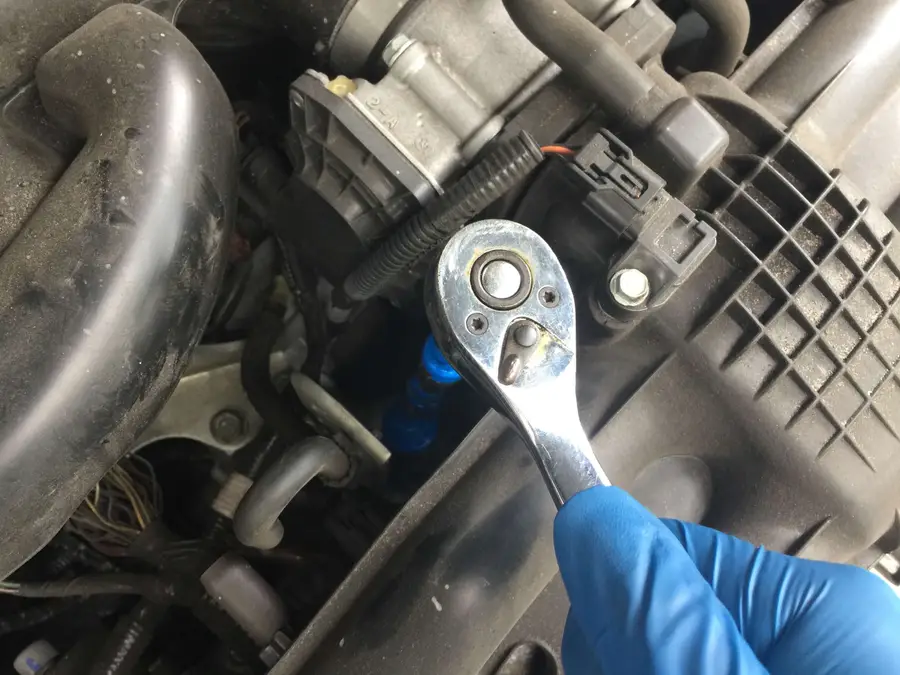
Remove the old PCV valve using a 3/4″ socket and extension. Ensure that no particulate can fall into the opening before you can install the new one.

It’s possible to inspect the existing PCV valve prior to replacing it, but I find it’s easier to simply replace it since the part is so inexpensive. If you’d like to inspect it instead, check to make sure that the ball/plunger at the end of the valve can freely move; it should make a clicking sound when you shake it.

6 – Install the new PCV valve

This is the exact PCV valve you’ll need.

Using a torque wrench is highly recommended as it ensures the PCV valve will be tightened to the proper tightness. Torque wrenches are an inexpensive but essential tool in any DIYer’s automotive toolbox.

Set your torque wrench to 14 lbf. ft (or pound-foot) and tighten the PCV valve until your torque wrench clicks.

🛈 If you don’t have a torque wrench, you can simply tighten until snug, but I recommend picking one up. It can be used to tighten everything from spark plugs to your oil pan plug to the proper torque to prevent issues.

7 – Reattach the PCV valve hose

In this case, reassembly is the reverse of disassembly. You’re all done!

Next

Next, change your Crosstrek cabin air filter in 5 minutes for about $15—you’ll be glad you did!

How to Replace the Subaru XV Crosstrek Cabin Air Filter (2013+)
Change your Crosstrek’s cabin air filter in 5 minutes for less than $15.

NEXT UP

Build Your Own Raspberry Pi Car Computer, or “Carputer”, with AutoPi

Bring your car into the future!
howchoo   (467)
September 29, 2023

Have you ever wanted to add an entertainment system to your car, only to find that most units are expensive, come with a lackluster feature set, and feature a terrible interface? Well, now you can build your own Raspberry Pi-powered car computer with AutoPi! Monitor your car’s vitals, watch movies, play retro games wiith RetroPie, use open

Continue Reading

howchoo

 467 guides

Introducing Howchoo, an enigmatic author whose unique pen name reflects their boundless curiosity and limitless creativity. Mysterious and multifaceted, Howchoo has emerged as a captivating storyteller, leaving readers mesmerized by the uncharted realms they craft with their words. With an insatiable appetite for knowledge and a love for exploration, Howchoo’s writing transcends conventional genres, blurring the lines between fantasy, science fiction, and the surreal. Their narratives are a kaleidoscope of ideas, weaving together intricate plots, unforgettable characters, and thought-provoking themes that challenge the boundaries of imagination.

Home Interests AT&T

Check AT&T Bill Balance and Due Date Via Text

howchoo (467)
September 13, 2023
2 minutes

Share

Interests
Posted in these interests:
att • 3 guides
iphone • 9 guides
wireless • 6 guides
You can check your AT&T bill balance and due date at any time by text from your iPhone, Android, or other mobile devices. Learn how to do it and avoid late fees. We recommend setting up a dashboard widget on your Mac via Calendar to remind you of important things like bill due dates.

1 – Dial *225# and press the Call button

A confirmation message will appear.

2 – Check your text messages

In a moment, you’ll receive a text containing your current balance, next bill due date, and last payment received.

3 – Other things you can check via text

You can check other things with a text too, like:
  • Your AT&T upgrade eligibility
  • Your AT&T data usage
How to Check AT&T Data Usage
Check AT&T Upgrade Eligibility Via Text
NEXT UP

How to Enable Verizon Call Forwarding

Direct your calls elsewhere.
howchoo (467)
December 1, 2023
Call forwarding is the process of directing phone calls from one number to another. Verizon allows its customers to enable call forwarding at no additional charge. Your typical call rates will still apply. This process works for all Verizon customers regardless of your carrier—including Samsung, Apple, LG, Lenovo, and more. Note: International numbers can not
Continue Reading

howchoo

 467 guides
Introducing Howchoo, an enigmatic author whose unique pen name reflects their boundless curiosity and limitless creativity. Mysterious and multifaceted, Howchoo has emerged as a captivating storyteller, leaving readers mesmerized by the uncharted realms they craft with their words. With an insatiable appetite for knowledge and a love for exploration, Howchoo’s writing transcends conventional genres, blurring the lines between fantasy, science fiction, and the surreal. Their narratives are a kaleidoscope of ideas, weaving together intricate plots, unforgettable characters, and thought-provoking themes that challenge the boundaries of imagination.
Home Interests Supernote

The Supernote A5X and A6X are “Super” for Kindle, PDFs, and Ebooks

Supernote’s a great E-reader as well as note-taker! Here’s why.
howchoo (467)
September 13, 2023
15 minutes

Share

Interests
Posted in these interests:
e-ink • 5 guides
supernote • 5 guides
technology • 20 guides
writing • 3 guides
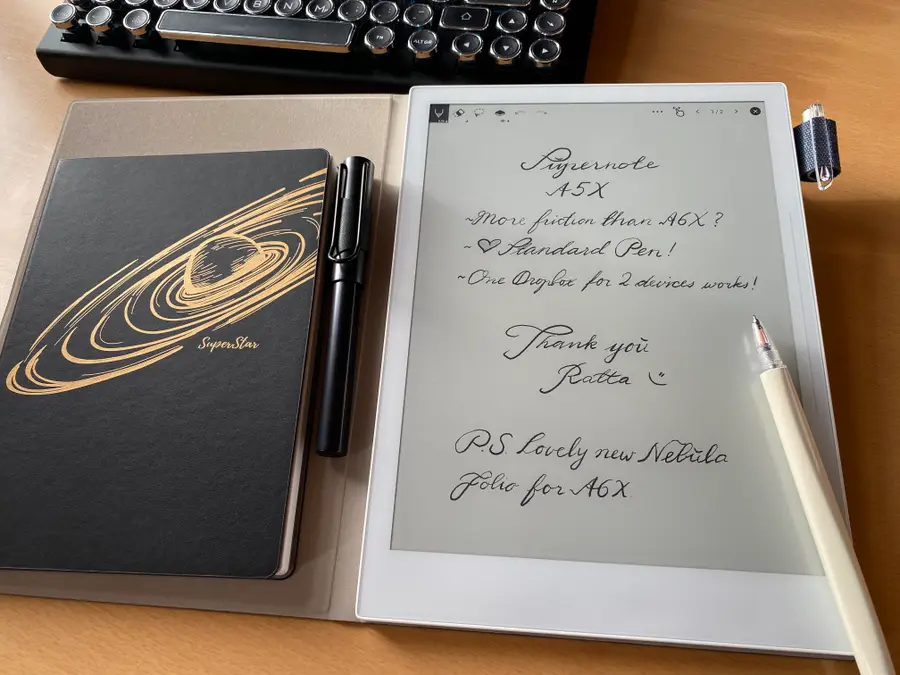
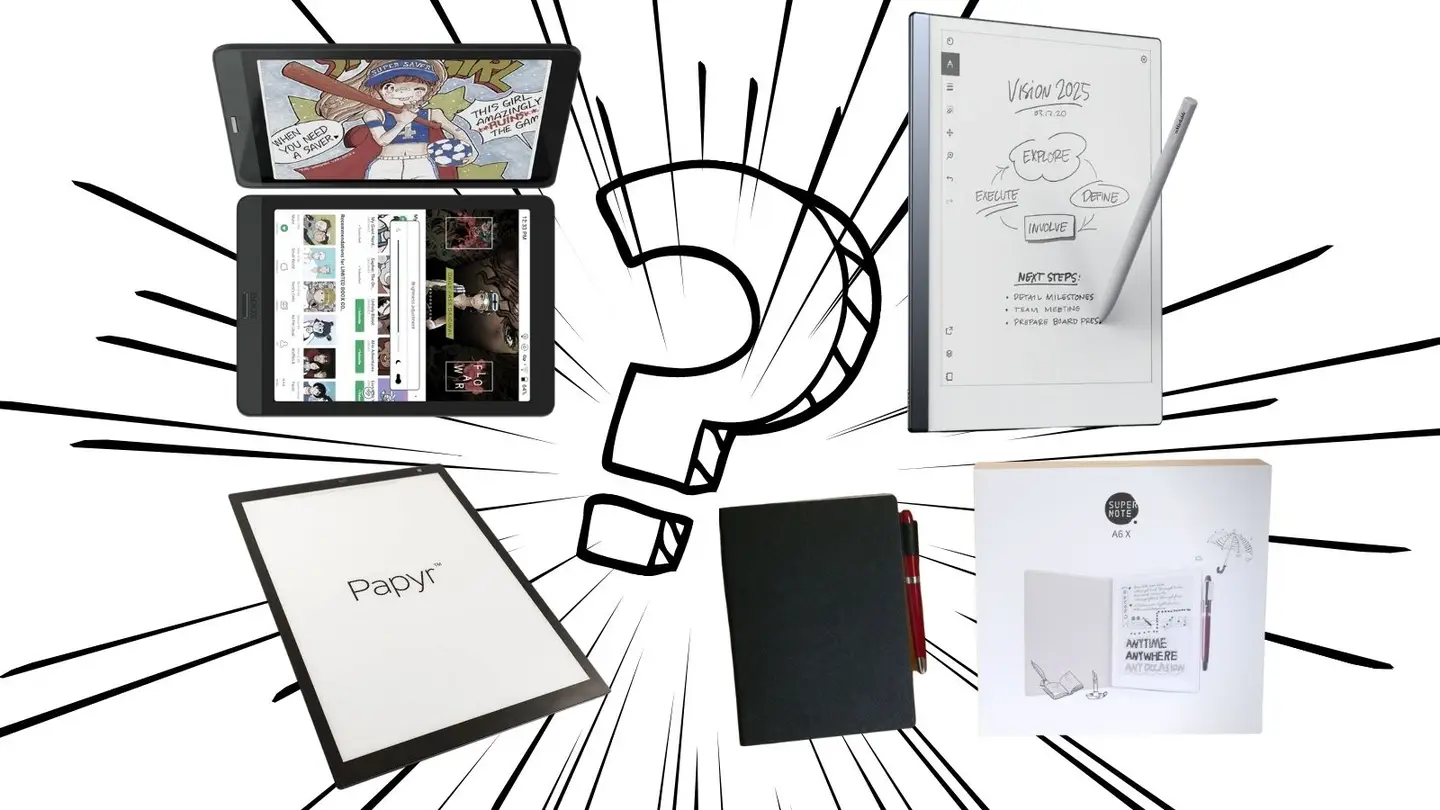
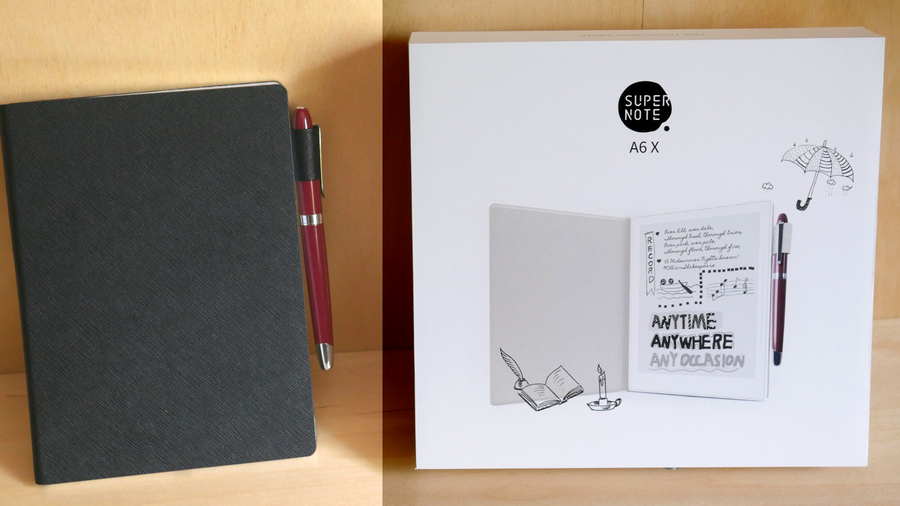
It’s no secret that I love my Supernote devices and use it constantly. There are a bunch of different E-Ink devices hitting the market right now, but Ratta’s Supernote is one of the best, especially because their team’s commitment to providing a top-notch product is head-and-shoulders above the competition. They truly love their platform and care about their customers, which is rare in this day and age.
Ratta Supernote A6X and A5X: A Comprehensive E-ink Device Overview The Supernote is the best e-ink device around, this guide explains why.
Of course, while Supernote is clearly superior to Kobo or Kindle in terms of note-taking and drawing, many will question whether or not this little device can match the big brand names when it comes to providing a good e-reader experience. The answer is: yes. The Supernote works great as an e-reader, and the ability to annotate as you go by using the native e-reader application, allows me to handle a lot of work with things like copy-editing manuscripts that I wouldn’t be able to do half as easily on a different system. Sure, I do a lot of my reading through the Kindle app on Supernote because I like to borrow books from the library, but Supernote’s own E-reader application still sees a lot of use from me. For one thing, after the December 2021 update it’s really speedy, and for another, as I already mentioned, the ability to annotate as I read is a massive game-changer. The one real con of the Supernote native app is the lack of direct integration with Kindle, Overdrive, and Libby when it comes to annotating. I can’t directly annotate in a borrowed book and save that information for later use. Then again, that’s not any different than with a real borrowed library book, so I guess I can’t complain too much!

1 – E-reader on Supernote

E-reader on Supernote
Those of us who have been using the Supernote since it came out will recognize that after the 2021 December update, the speed of these devices shot through the roof. If you’re thinking about buying the Supernote and you keep coming across reviews from before January 2022, be wary because they are going to be largely out of date! There used to be noticeable page-turn delay when reading an Ebook in Supernote… not anymore. Supernote page-flips almost instantly now, even on extremely large and graphic-heavy PDF files, something few other products can boast. You can swipe with one or two fingers for a natural page-flip experience, or you can tap the page controls with your pen directly. This latter method is marginally faster just because the Supernote doesn’t need to parse your touch-movement into an action, but for most use-cases this won’t be noticeable either way. The reading experience for Mobi and EPub file formats is superb using the in-built application, so there’s really no need to switch to Kindle unless your library of books is owned by Amazon (it’s always better to try and find ways around buying ebooks that belong to a proprietary system). The Kindle is still necessary if you want to read library books, but from responses on the Supernote Reddit forums, it’s clear that a larger app library and deeper integrations are in the works for future updates to the Supernote that will hopefully fix that. You can easily change the size of the text, the line-spacing, and event the fonts. New fonts can be added to the Supernote either via a physical cable connection to your computer, or via the handy Supernote smartphone app. Right now, you cannot change these display settings if annotations exist within the document. So make sure you get your document set to a comfortable reading display before adding any marks with the pen. Annotations in ebooks also don’t seem to receive anti-aliasing in the program, so they’ll be sightly pixelated compared to the main note app. If there’s a solve for this, however, I’m confident that the Supernote team will implement it eventually.

Search, Bookmarks, and Contrast in the Supernote

The search function is extremely fast and responsive in both the Supernote’s native e-reader application, as well in the PDF reader. You can also add bookmarks to save important places and search for any points where you made annotations. I regularly work on editing projects, and reading 300-600 page manuscripts requires ways to easily navigate through the material. I’ve had no problem doing this with my Supernote, even with documents without native chapter markers, simply because I can annotate and search as needed. Finally, if you need to adjust the contrast in any of your ebooks or PDF files, Supernote offers a simple contrast bar that gives you fine-grain control for your black/white balance. I use it occasionally for books where images don’t translate well to black and white, or where I just need a little more sharpness.

2 – Kindle on Supernote

Kindle on Supernote
One of the biggest questions that I get as a Supernote owner is “will the Supernote work with Kindle?” The answer is: yes! Supernote comes bundled with the ability to side-load the Kindle app from the start and integrate it with your account. This is pretty vital for countless people who have already committed to building a library of Kindle books, as well as for those of us who want to read library books on our Supernote. Older reviews will note that the Supernote seems quite sluggish with Kindle, but don’t believe them. The big update at the end of 2021 took amazing steps toward efficiency and speed on the Supernote, and the Kindle app now works about as well on Supernote as it does on actual Amazon devices. You can learn how to set up Kindle on your Supernote here. Supernote has confirmed through posts on their Reddit forum that they fully intend to implement more side-loaded apps in the future, including Overdrive and Libby. This will be a massive boon for those of us who like borrowing ebooks from our local libraries without having to integrate with an Amazon product. Hopefully, Supernote will have a way to integrate with other proprietary ebook libraries in the future as well. For now, I recommend trying to escape the Amazon walled garden altogether. Suffice it to say, the Supernote is my go-to for reading ebooks, no matter the source platform. When I need to take notes directly on an ebook or PDF, Supernote’s own applications are smooth, incredibly responsive, and faster than I’ve seen in almost any other e-ink device. And, even with an outside app like Kindle, the Supernote is a speed-demon, offering a seamless reading experience for my wider library of books.
NEXT UP

How to Set Up Quick Connect on a Synology NAS

Get Synology’s powerful Quickconnect running in minutes on your NAS!
howchoo (467)
November 24, 2023
Synology is one of the most popular creators of Network Attached Storage devices on the market today, and for great reason — they’re really good at what they do. They consistently make devices that stand the test of time and feature top-notch software that makes the process of running a home server as easy as
Continue Reading

howchoo

 467 guides
Introducing Howchoo, an enigmatic author whose unique pen name reflects their boundless curiosity and limitless creativity. Mysterious and multifaceted, Howchoo has emerged as a captivating storyteller, leaving readers mesmerized by the uncharted realms they craft with their words. With an insatiable appetite for knowledge and a love for exploration, Howchoo’s writing transcends conventional genres, blurring the lines between fantasy, science fiction, and the surreal. Their narratives are a kaleidoscope of ideas, weaving together intricate plots, unforgettable characters, and thought-provoking themes that challenge the boundaries of imagination.