This guide will show you how to use your Anycubic Photon or Photon S. I’ll walk you through the process of slicing, preparing, printing, and cleaning.
How the Photon works
Whether or not you’re new to 3D printing, printing on the Photon is different than most 3D printers on the market today. This is because the Photon is an SLA (Stereolithography Apparatus) printer, whereas most 3D printers are FDM (Fused Deposition Modeling).
SLA printers use a focused or UV light on a resin vat to “cure” each layer of your print, whereas FDM printers melt a spool of plastic filament to generate each layer. In other words, each layer is basically a “photo” projected using a projector. This fundamental difference means that you can’t use “normal” slicing programs such as Cura to generate files for printing, nor can you use OctoPrint.
Before each print, ensure your bed is level. I wrote a separate guide on Anycubic Photon bed leveling.
How to Level the Bed on the Anycubic Photon or Photon S
A quick and reliable method for leveling your Photon or Photon S.
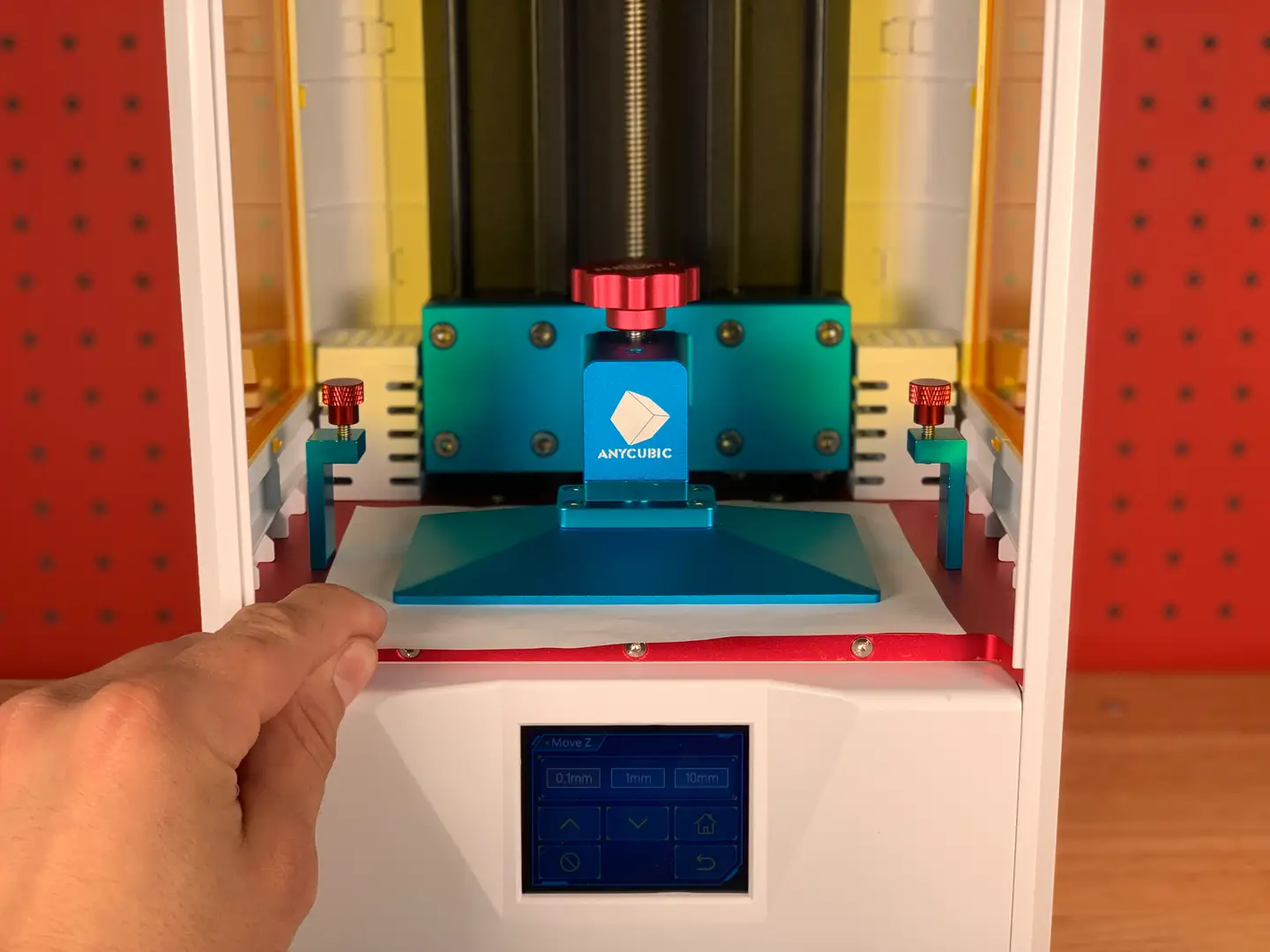
Use that guide to level your bed; in a nutshell, you’ll adjust the print head angle [once], and then use a sheet of paper to set the stop for the Z-axis.
2 – Download the slicing software
As stated previously, you can’t use Cura or any other standard slicing software to prepare prints for the Photon or Photon S. This is because the printer doesn’t use standard .gcode files. Instead, it uses a proprietary .photons file, which essentially contains a photo of each layer to be projected and cured.
SLA software options
There are basically two pieces of software that you can use: ChiTuBox or Photon Workshop. Photon Workshop can be found on the USB drive that came with your printer or downloaded from the Anycubic website.
I’m going to use ChiTuBox since it’s the industry standard for SLA/DLP/LCD 3D printing. It’s basically the “Cura” of SLA printing.
Download and install the free version from the ChiTuBox downloads page.
🛈 If you’re using a Mac, you may need to navigate to “System Preferences > Security & Privacy > Open Anyway” after attempting to launch ChiTuBox for the first time.
3 – Configure your machine
The first time you use ChiTuBox, you’ll need to configure your machine. To do this, launch ChiTuBox and click Add New Printer. Select AnyCubic Photon or AnyCubic Photon-s from the drop-down menu. Then, close the Settings panel.
4 – Configure your resin
You’ll need to configure the optimal settings for your specific resin, similar to how you must configure an FDM printer’s settings for different types of filament.
To find the settings for your resin, consult this awesome crowd-sourced list of Anycubic Photon resin settings. I’m using the green Anycubic resin that came with the printer. These are the settings from that spreadsheet for printing with a 0.04mm layer height:
Layer height
Exposure time
Off time
Bottom exposure
Bottom layers
0.04
12
3
80
5
You can set these in Settings > Print. For Light-off Delay and Bottom Light-off Delay, use the Off time value from the table.
🛈 A layer height of 0.02 is overkill for most prints; I just want to see what this thing can do at super fine detail.
5 – Choose and import your model
I’ll be printing these SLA test models, which include a Yoda, chess piece, Eiffel Tower, and tree frog.
A note on print time
One thing that’s super interesting about SLA vs. FDM printers is that adding additional models to an SLA print doesn’t always increase print time. As long as the additional models are shorter than the tallest model, there’s no difference in print time whatsoever. This is because the same number of layers are being generated. Pretty neat!
Scale the model
Drag the model into ChiTuBox to load it. If the model is larger than the print bed, click the resize button in the sidebar and then choose either the desired size or select Scale to fit. I scaled each model down an arbitrary amount for the sake of time.
Next, make sure the model is touching the plate! I made this mistake, assuming it would do this by default, but instead I had a print hovering above the build plate. To do this, click the move button in the sidebar and select Put on the plate.
6 – Optional: Hollow the model and add drain holes
This step is optional but recommended in order to save resin and reduce the peel force applied to the print when changing layers.
Hollowing is specific to SLA printing, and drain holes should be added so that resin can drain out. Sometimes you can find a model that’s already been prepared in this way; otherwise, use the Hollow and Dig Hole buttons at the top of ChiTuBox to prepare it.
Again, this is optional.
7 – Slice the model
For your first print, you can keep the default settings intact and click the Slice button to slice the model. Save the generated .photons file to an external USB drive, such as the one that came with your printer.
🛈 The file must be saved in the root directory of the USB drive or else the printer won’t read it. ¯_(ツ)_/¯
8 – Don your safety gear
Put on some Nitrile gloves and safety glasses since you don’t want uncured resin touching your skin or eyes. I recommend using UV-safe safety glasses in case you want to open the printer while printing. Otherwise, make sure the printer cover is always shut while running so that the light won’t damage your eyes.
9 – Add your resin
Shake the resin bottle for 5-10 seconds. Then, fill the resin vat up to the first bevel “line”. This amount of resin will print more than you think. If you need to add more for a very large print, you can do so while printing; just pour it very slowly and, as many will tell you, don’t pause the print as this can screw it up.
After you’ve been printing a while, you’ll be able to pour in less and less resin as you learn how much is needed for a given print.
When you’re done, close the front cover.
🛈 Make sure the printer itself is on a level surface, or the resin will all pool to one side.
10 – Load and start the print
Unfortunately, the only way to load prints into the Photon and Photon S is via USB.
Insert the USB drive containing your generated .photons file into the USB port on the right side of the printer. From the main menu, choose Print, select your print, and press the print icon that looks like a play button.
11 – Post-processing
Once the print is finished, we’ll need to clean the resin from it and let it cure fully.
Remove the print
Use the supplied print scraper to carefully pry the print from the plate. Then, run the print under your sink to get the excess resin off.
Clean the print
Next, use 99.9% isopropyl alcohol (IPA) to clean off any uncured resin. There are numerous ways to do this, including the use of an ultrasonic bath, but I normally just submerge the print into a bath of IPA for about 3 minutes.
If you spill any resin on your skin or another surface, thoroughly and immediately clean the area with soap and water.
Cure the print
Finally, let your print sit in the sun or under a UV lamp to allow it to cure fully, maximizing its strength.
Disposing of IPA
To properly dispose of the saturated IPA “bathwater”, leave the container in the sun to allow the resin to cure and then pour the water into a clean container through a coffee or paint filter for safe disposal.
🛈 Never clean your prints in the kitchen or anywhere that food is prepared, unless the resin manufacturer has published an SDS (safety data sheet) indicating that there’s no ingestion health risk.
12 – Clean the machine
While your print cures fully, let’s clean things up. Remove the resin vat and clean it using some IPA and paper towels. Put some isopropyl alcohol (IPA) onto a paper towel and carefully clean the LCD projector screen and print head.
Reusing excess resin
If you want to reuse the excess resin, you can do so by running it through the paper filters that came with the printer and pouring it back into the resin bottle. Even though resin can be expensive, I normally don’t do this, as getting particulates into the resin isn’t worth potential print problems.
13 – Admire your work!
Man, Yoda needs a tan.
This thing really does produce stunningly-detailed prints.
NEXT UP
Blender is one of the most popular open-source 3D creation suites today. It doesn’t cost a dime to use and everything you create is yours to own for good. The community is robust and the dev team still releases new updates on the regular. If you want to get the latest version, you may have

Introducing Howchoo, an enigmatic author whose unique pen name reflects their boundless curiosity and limitless creativity. Mysterious and multifaceted, Howchoo has emerged as a captivating storyteller, leaving readers mesmerized by the uncharted realms they craft with their words.
With an insatiable appetite for knowledge and a love for exploration, Howchoo’s writing transcends conventional genres, blurring the lines between fantasy, science fiction, and the surreal. Their narratives are a kaleidoscope of ideas, weaving together intricate plots, unforgettable characters, and thought-provoking themes that challenge the boundaries of imagination.
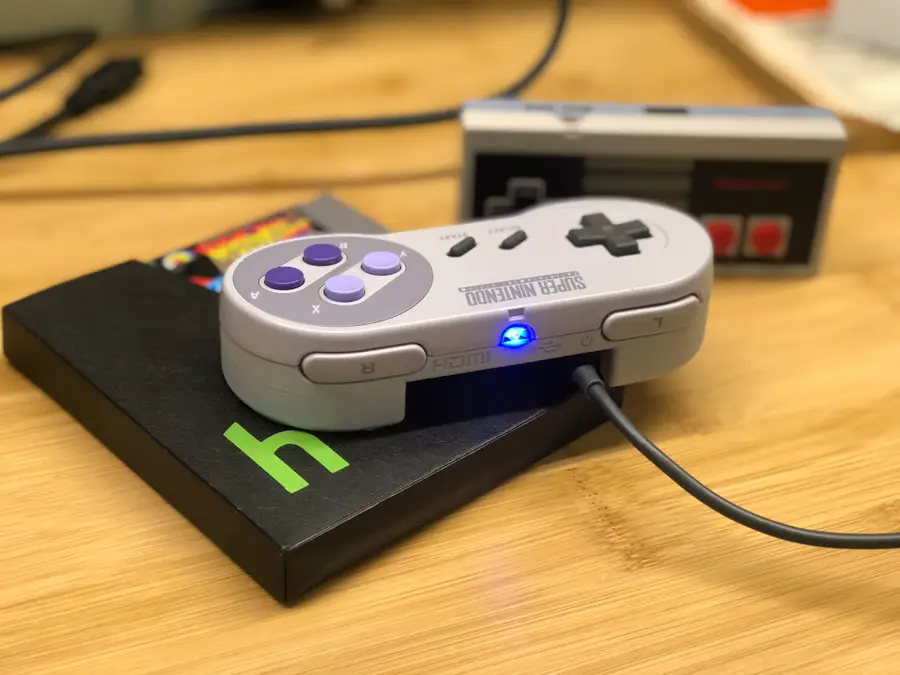
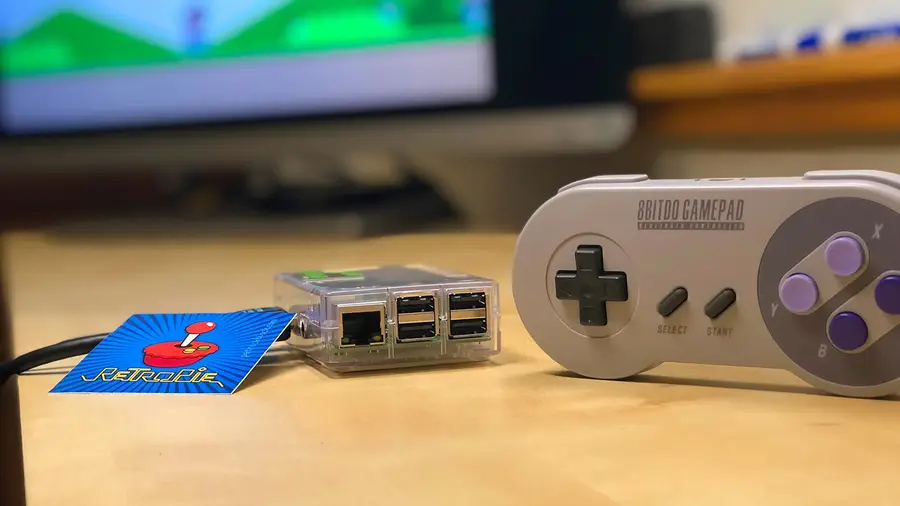
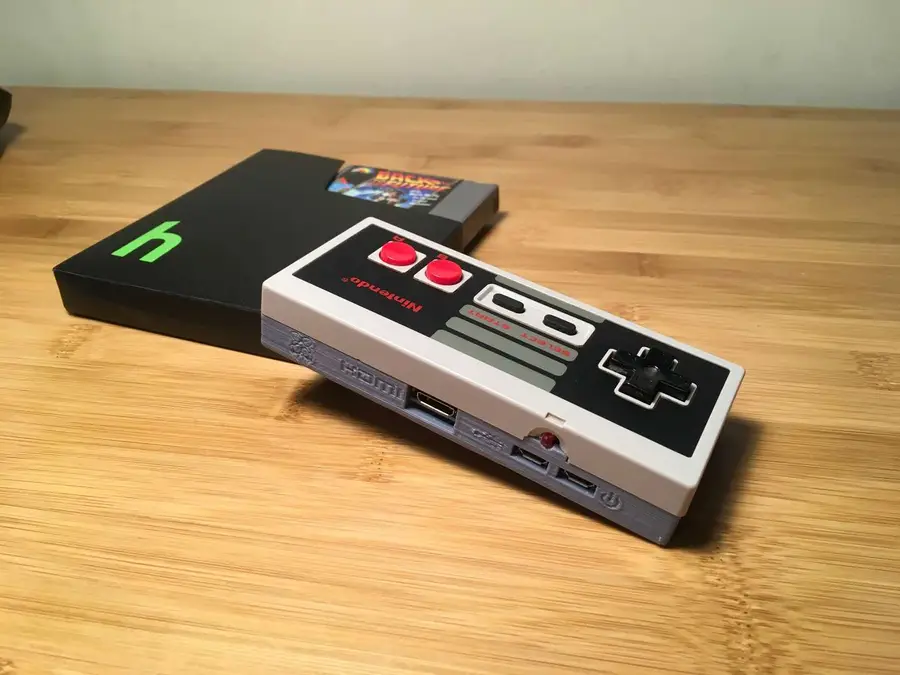
What’s cooler than running all your favorite emulated games on a $10 computer? Putting that computer into an original NES controller, of course. Introducing: the Gamepad Zero.
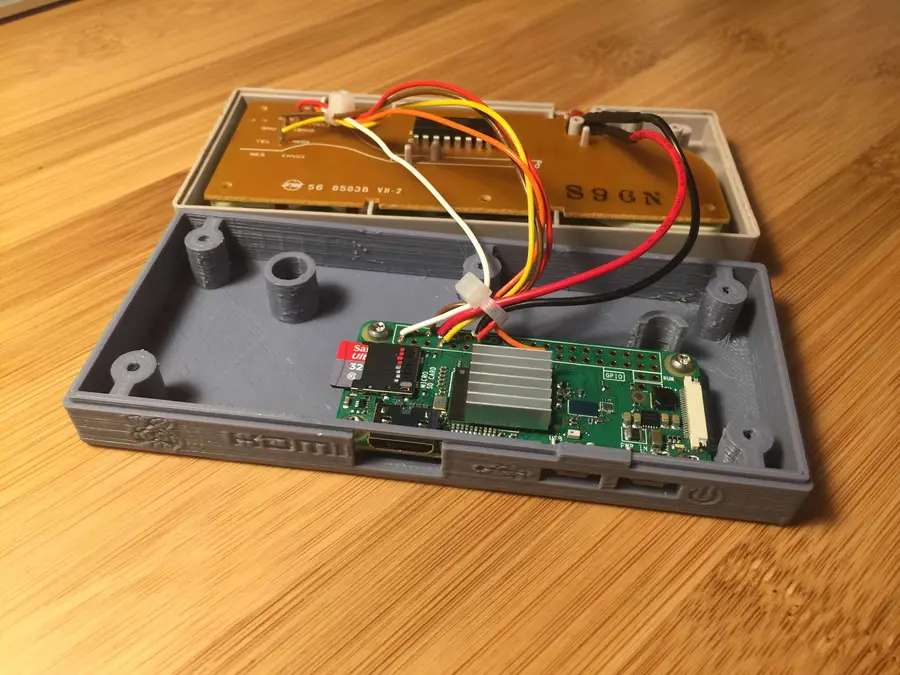
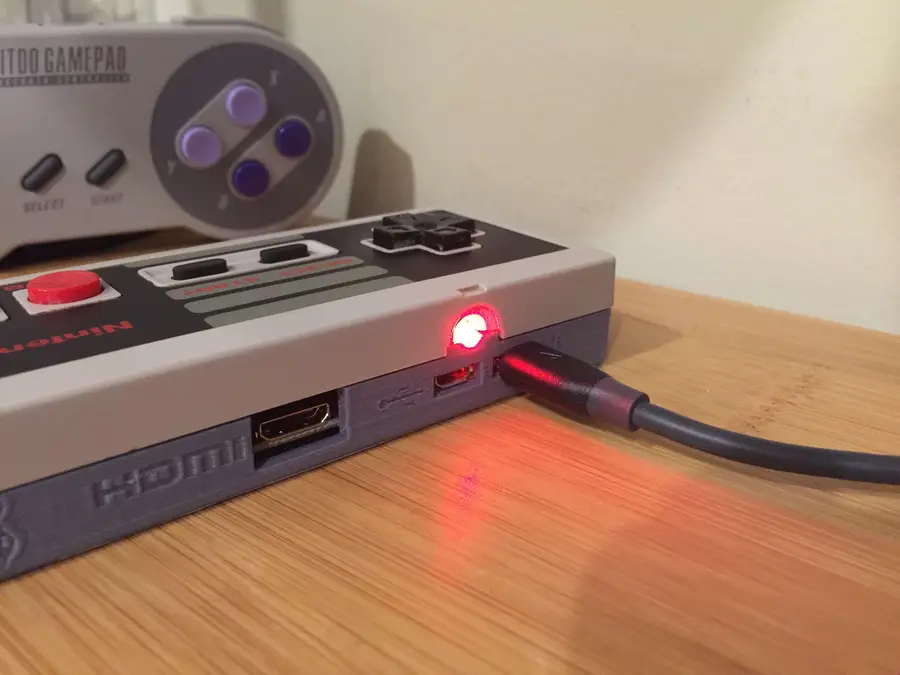
I decided to install a Raspberry Pi Zero W (wireless) into an original Nintendo controller, solder the original controller’s circuit board to the Pi’s GPIO (general-purpose input/output) pins, and 3D print a new bottom half of the controller housing to store it all neatly. This allows us to play games using the original controller. Pretty neat. 🙂
New: Be sure to check out my followup to this guide — the Super Gamepad Zero — a Raspberry Pi retro gaming rig in an original Super Nintendo controller!
Don’t have a 3D printer? No worries! Read on, and I’ll explain several options for getting your model printed.The Gamepad Zero connects directly to your TV or monitor using an HDMI cable and is powered using a normal Micro USB power supply. You can also connect a secondary bluetooth or wired USB controller. With ultimate portability in mind, you can now fit 5000+ retro games in your pocket, bring them over to a buddy’s house, and plug right in.
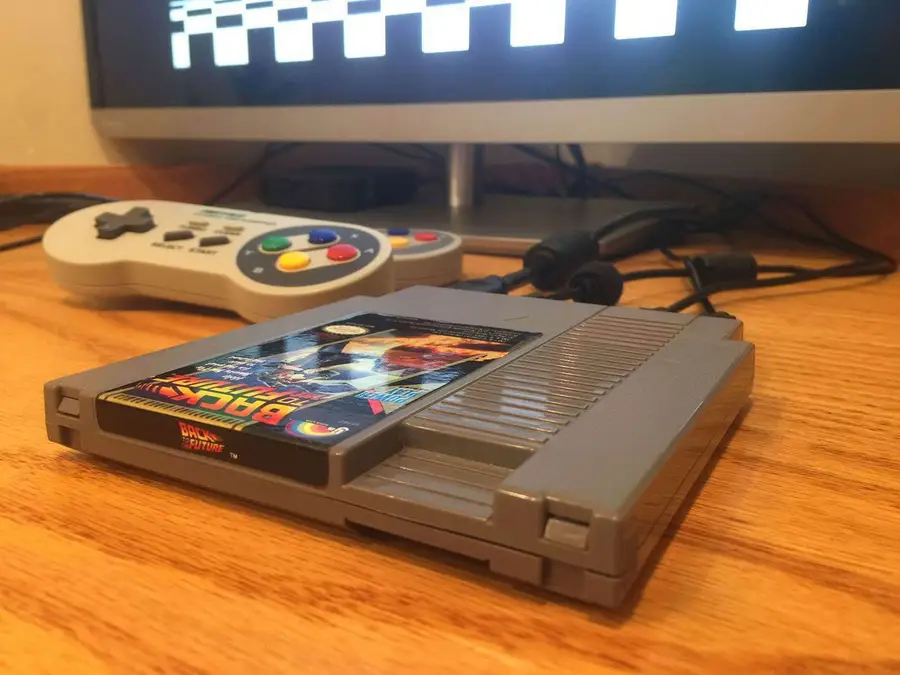
This is a super simple, super fun build. If you’re familiar with my PiCart build where I built a similar rig inside an NES cartridge, this might interest you! This build is even easier.
Today I’m going to show you how to make your own. I also created a full video for this build. Check it out below!
1 – The completed project
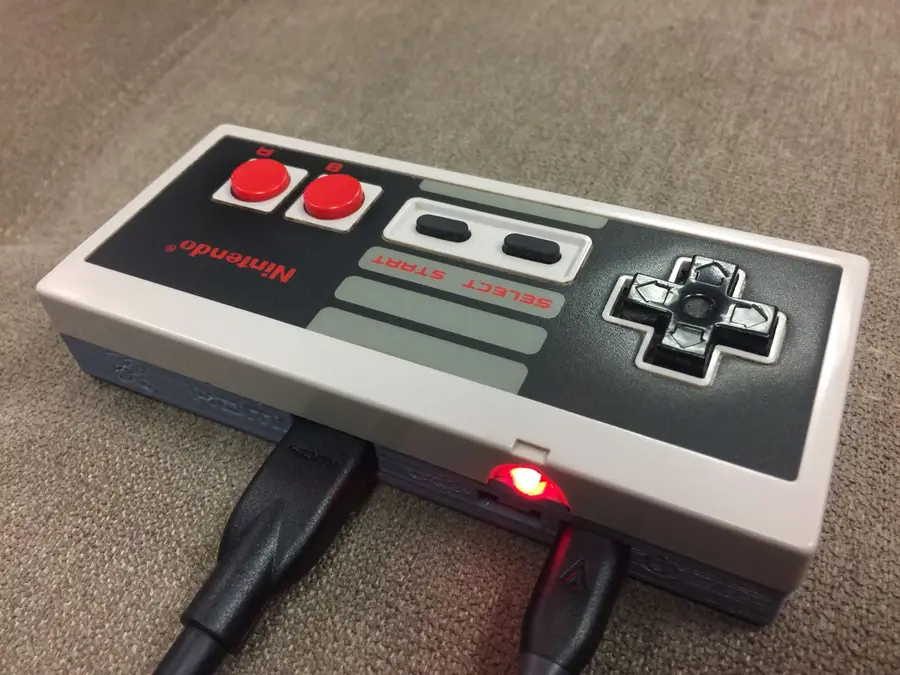
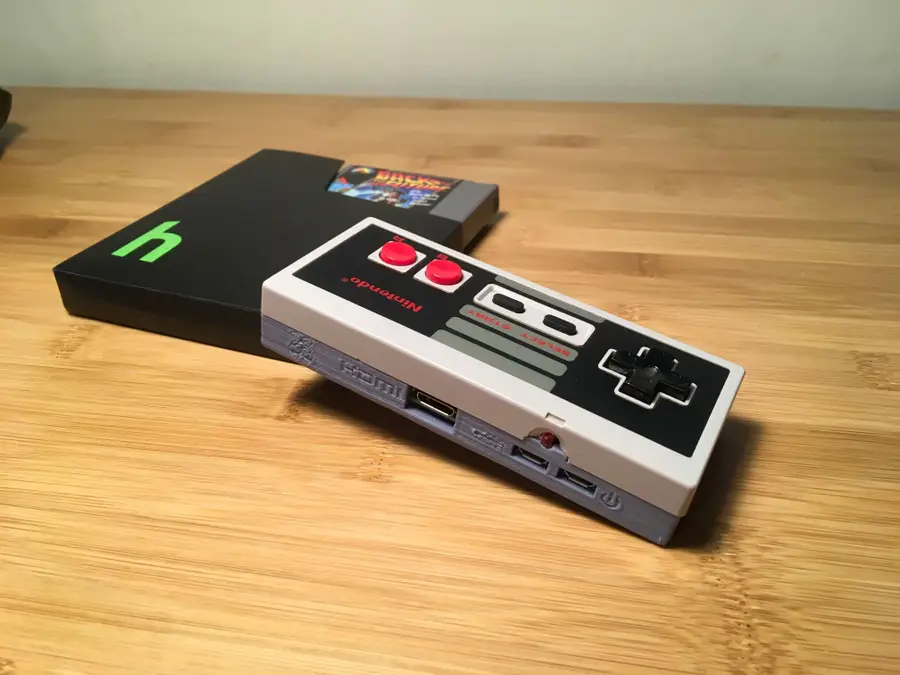
Once again, the prophecy prophesizes that I include a final photo of the completed Gamepad Zero.
2 – Overview
For this project, we’re going to build a Raspberry Pi retro gaming rig inside of an original NES controller. The top half of the controller will be reused, along with the original printed circuit board and button. Of course, we’ll be installing RetroPie.
We’re going to print a new bottom half to hold our Raspberry Pi using a model by bfesser from Thingiverse, and then solder the existing NES controller circuit board to the Raspberry Pi so that it can be used to play games. Don’t have access to a 3D printer? Read on!
Finally, we’ll install RetroPie, and the Gamepad Zero will connect directly to your television or computer monitor using a power and HDMI cable. I chose to use a 10′ version of each so I can sit way back on my TV, but you could also use a shorter one.
You can even plug an additional USB controller into your Gamepad Zero to let a buddy play (or if you require more buttons than the NES controller contains — remember, some games require many buttons). 🙂
You can also use a bluetooth controller to connect to the Gamepad Zero (more on this later!).
Project cost
The total materials for this project cost me about $50. I already had most of the tools needed.
Project time
The actual time to assemble this project was only about 30 minutes — the print took about 4 hours, and I just ran it while I was doing things around the house (and napping).
3 – Choose your Zero
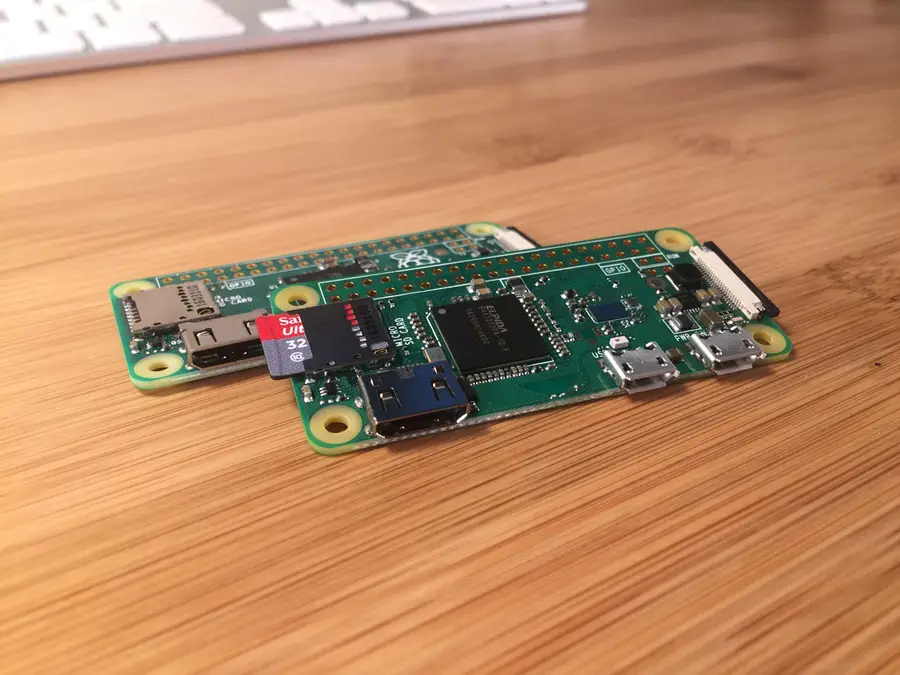
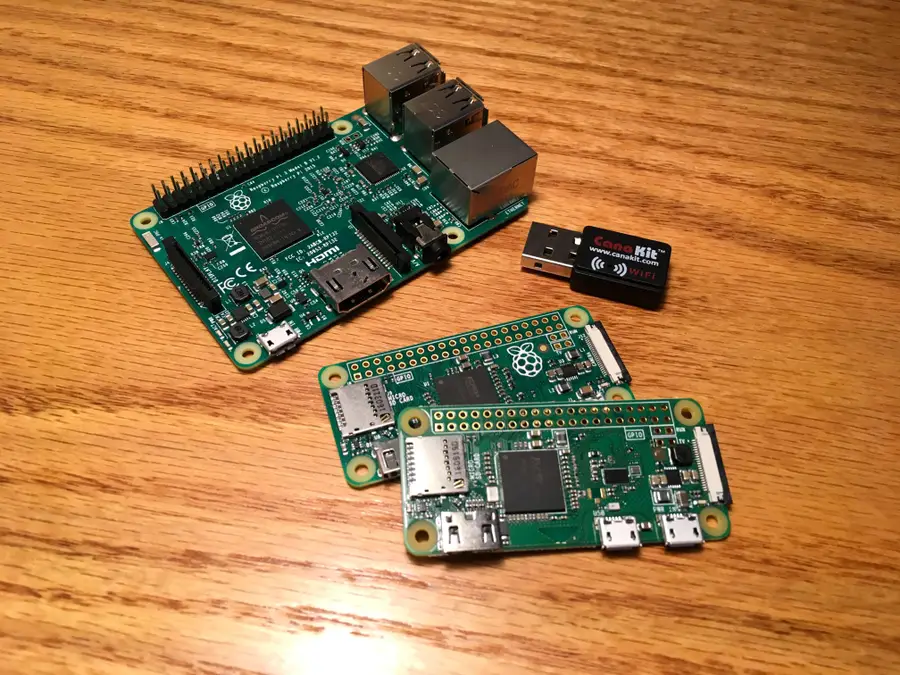
You can use either a normal Raspberry Pi Zero or the Raspberry Pi Zero W for this project. The Pi Zero W adds WiFi and bluetooth into the mix. However, since you don’t technically need wireless connectivity to run RetroPie or play any games, a Raspberry Pi Zero will do just fine.
I decided to use the Raspberry Pi Zero W because it has bulit-in WiFi/bluetooth and I wanted to have the option of using my wireless bluetooth controller as a primary or secondary controller. Even without bluetooth, your buddy can still join you by plugging his or her controller directly into yours.
4 – Print the model
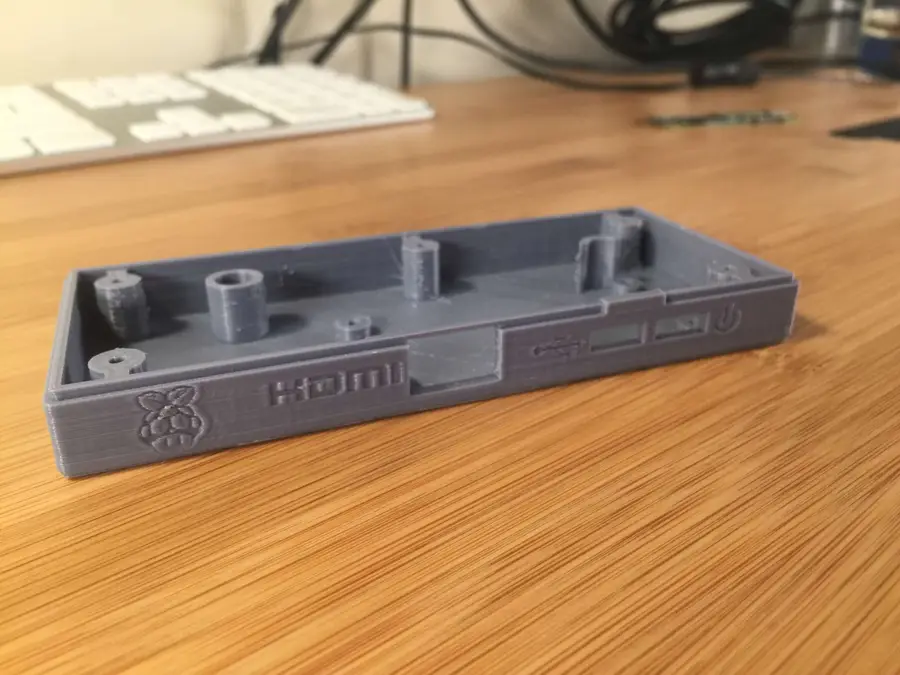
For this project, we’re going to 3D print a model that designer bfesser created and uploaded to Thingiverse. bfesser did an amazing job on this model and was the inspiration for this project. This model will serve as the housing for the bottom half of the controller and will securely store our Raspberry Pi.
Download the model and print it using your filament of choice (I used PLA+, which is a slightly stronger variant of PLA).
🛈 Thanks bfesser!
5 – Don’t have a 3D printer?
Until very recently, neither did I. But that’s okay — there are tons of other ways to get the model printed. Here are a few:
Use an online 3D printing service
Many online services exist that will print your model and ship it to you. However, make sure the model you use has a license that allows a service to print it commercially. You can order this model 3D printed on Shapeways.
Find your local hackerspace/makerspace
Chances are, there’s one near you. Most have “Open Make Nights” where you can pop in and use the equipment without needing a membership. You can find your local hackerspace using this tool.
Check your local library
You may be surprised to find that many libraries now have 3D printers available for your use. If you’re a student, your university can provide you with access to one.
Check Craigslist
Many people advertise their printing services on Craigslist.
Buy a 3D printer
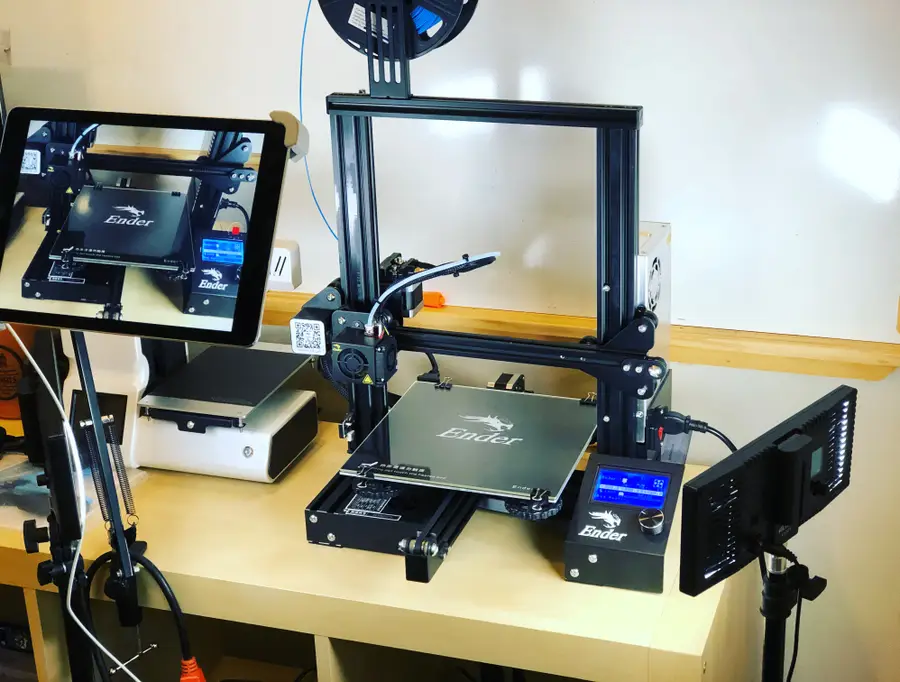
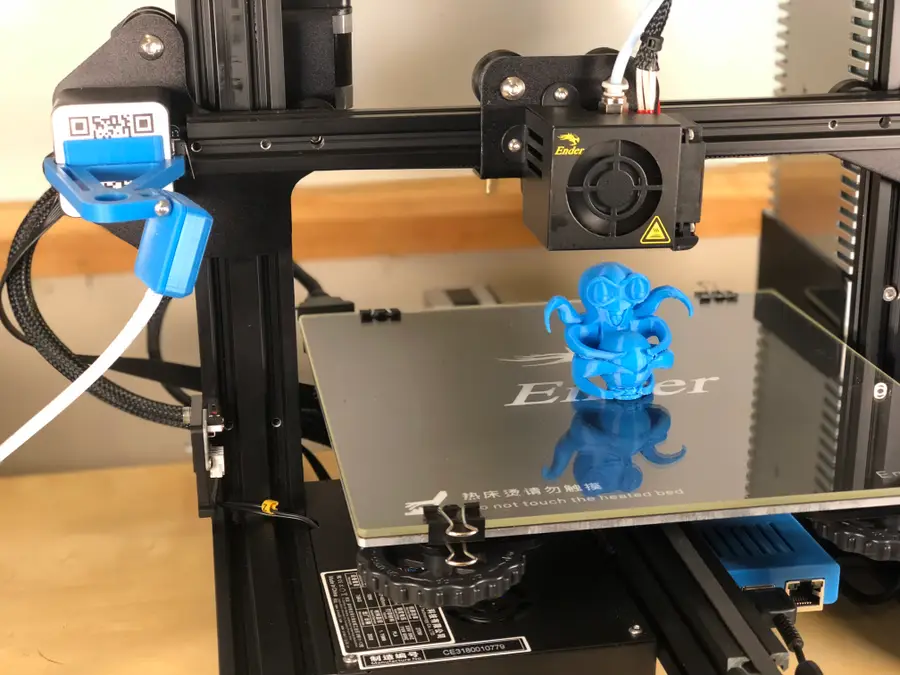
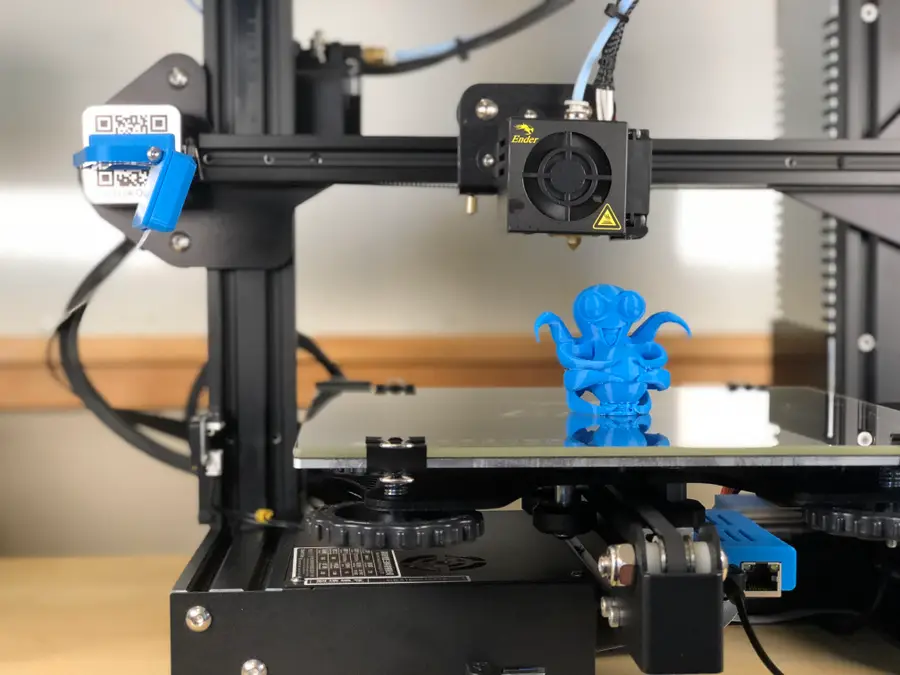
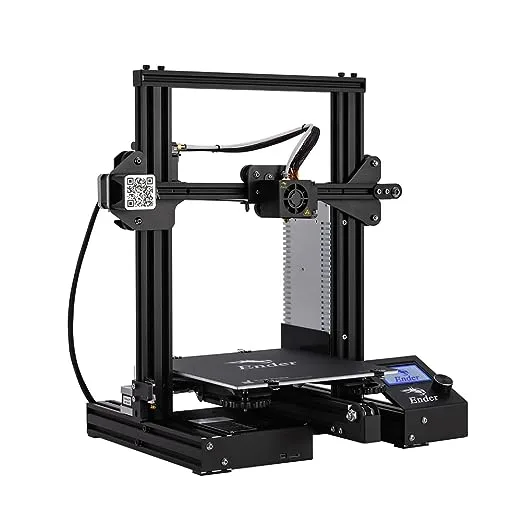
3D printers have never been cheaper. I picked up my Creality Ender 3 for under $200 here and I couldn’t be happier. For more information on the Ender 3 budget 3D printer, be sure to check out my full Ender 3 review — I highly recommend it for any 3D printing beginner or professional.
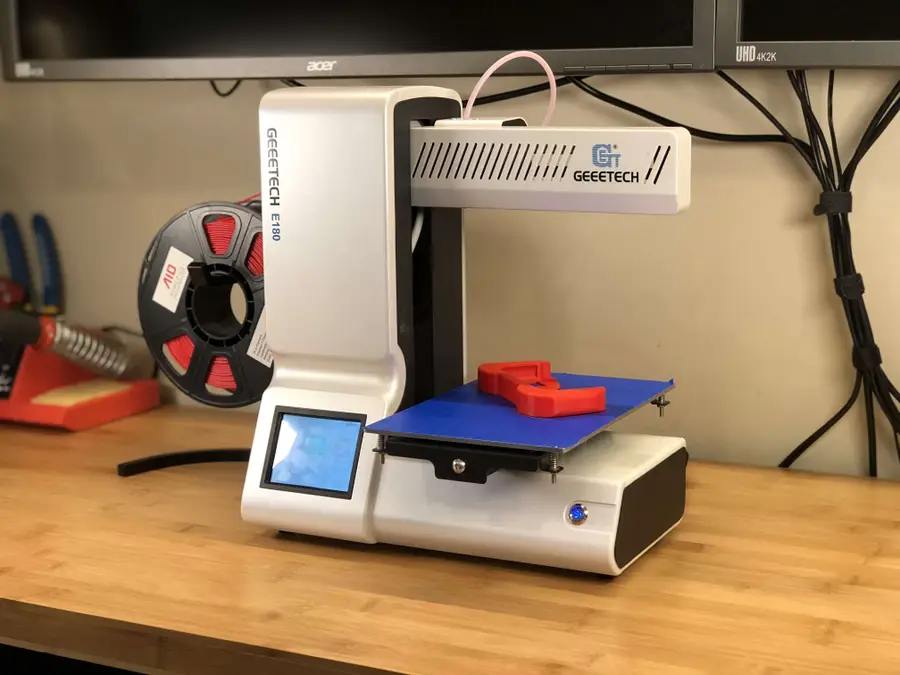
If you’re looking for a smaller budget 3D printer, also check out my recent Geeetech E180 review.
Geeetech E180 3D Printer Review: A Mini Budget 3D Printer
This tiny printer packs a lot of punch.
6 – Install RetroPie
Now is a good time to install RetroPie. RetroPie will allow us to play emulated retro video games. I wrote a separate guide on how to install RetroPie — it’s a super simple process.
I used an original NES controller made by Nintendo, as that’s what the model calls for. It’s possible that aftermarket NES controllers will also work, but I can’t guarantee that. You can pick up an original NES controller on eBay for about 10 bucks.
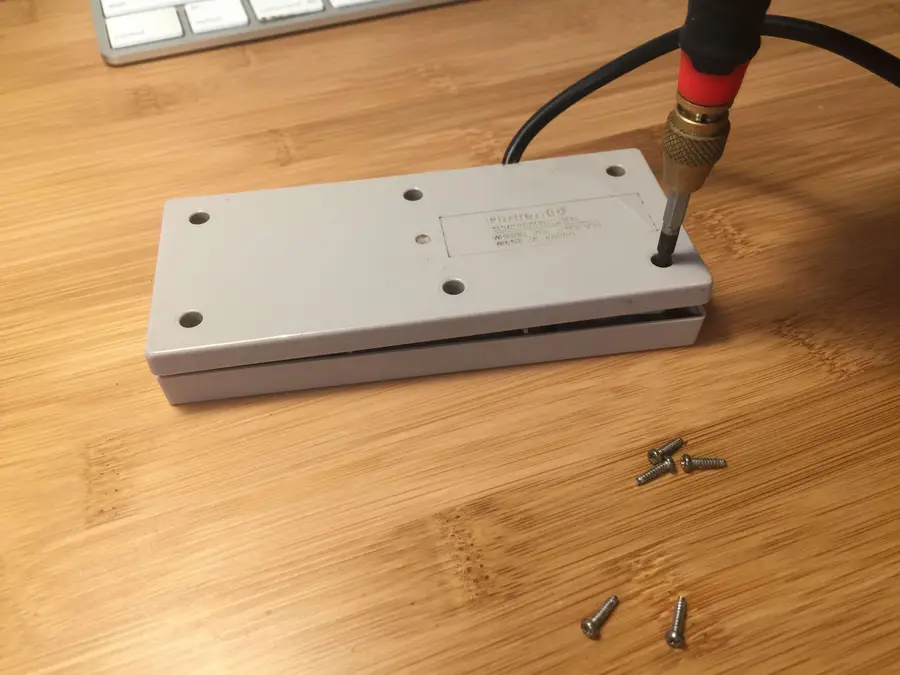
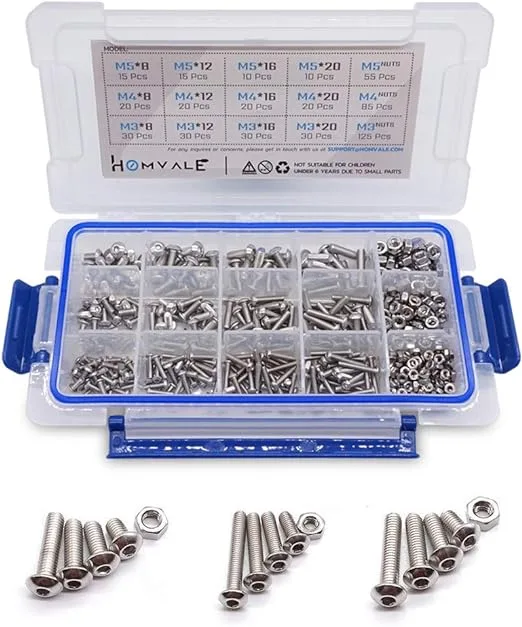
To disassemble the controller, use a small Phillips screwdriver to remove the six small screws from the back of the controller. You can either toss these screws or reuse them — I decided to toss and replace them with some stainless steel Torx screws (linked at the top of this guide) to prevent them from stripping in case I need to open my controller a few times.
🛈 Once inside, you may want to give your controller a good cleaning with some rubbing alcohol and Q-tips. There’s going to be a lot of strange build-up in there after 30+ years.
8 – Solder your connections
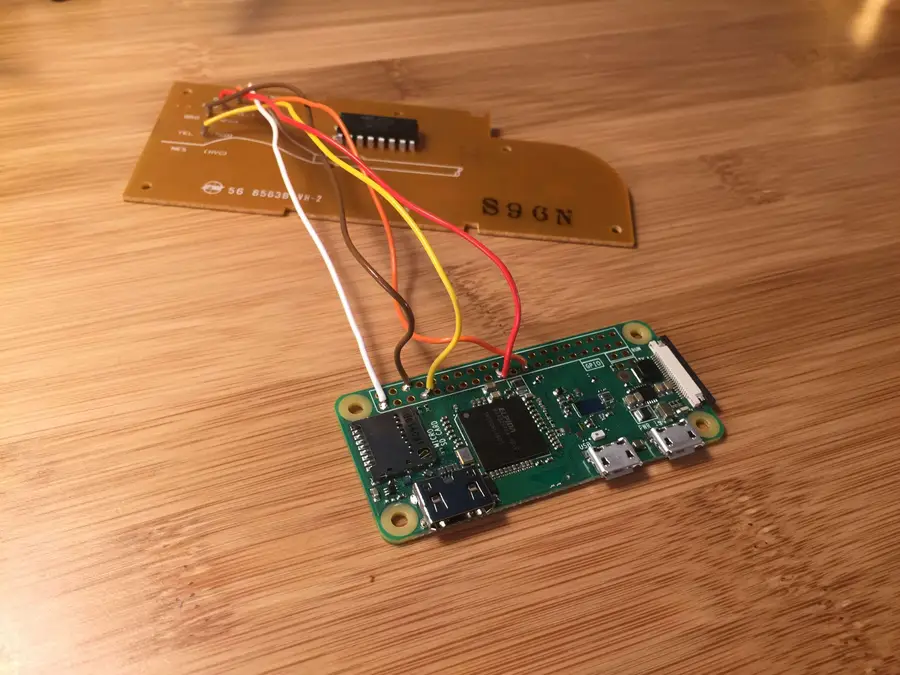
Cut the cord off your NES controller, leaving about 6″ of excess wire. We’re going to reuse the old wires and solder them directly to the Pi Zero.
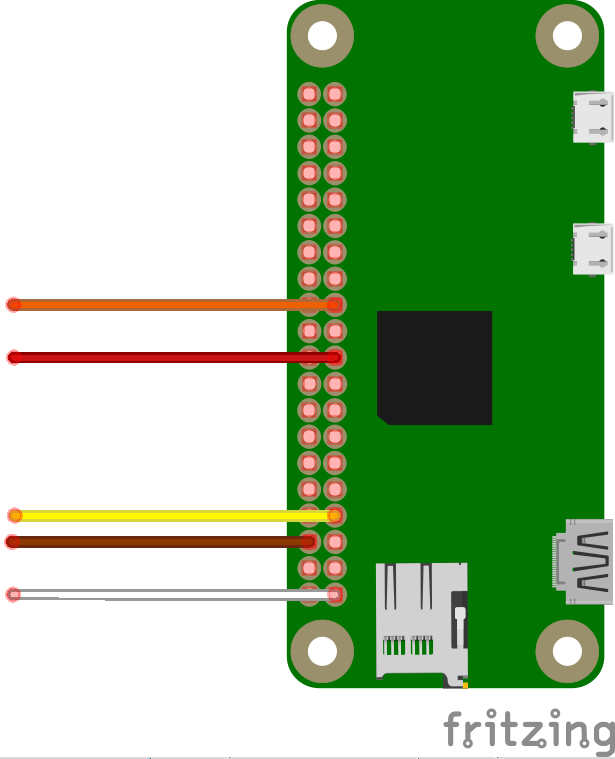
Using the attached wiring diagram, solder the 5 wires from your original NES controller onto the Pi Zero’s GPIO header. I also uploaded the Fritzing file I created for this, in case you’re into that sort of thing. 🙂
No worries, it’s easy and this is a great opportunity to learn! This video will get you started.
9 – All soldered up!
Looking good.
10 – Add a power LED (Optional)
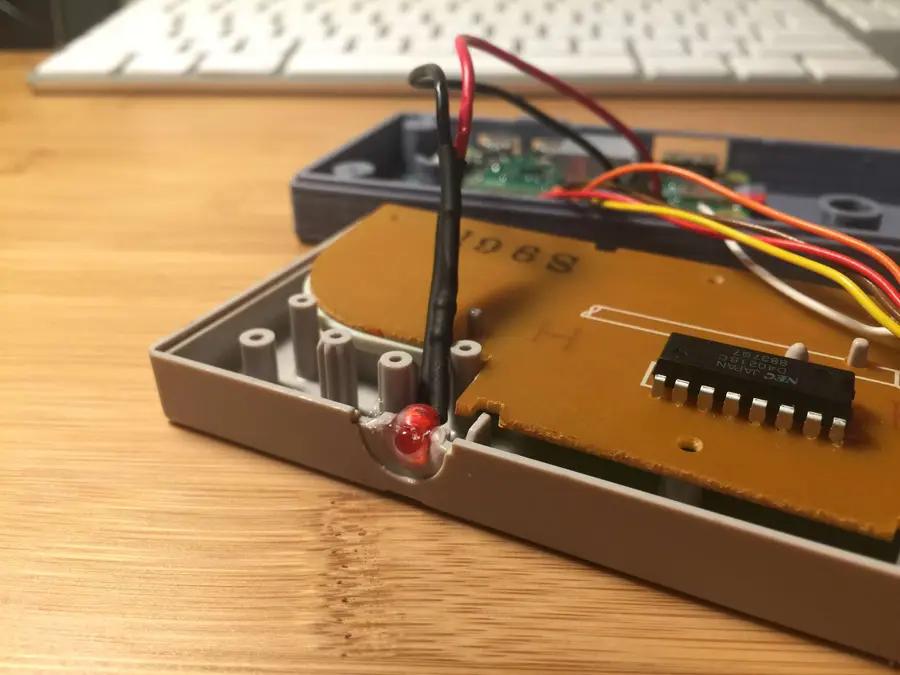
I decided to add a small LED that will tell me when the Pi is powered on. I wrote a separate guide for adding a Raspberry Pi power LED in case this interests you!
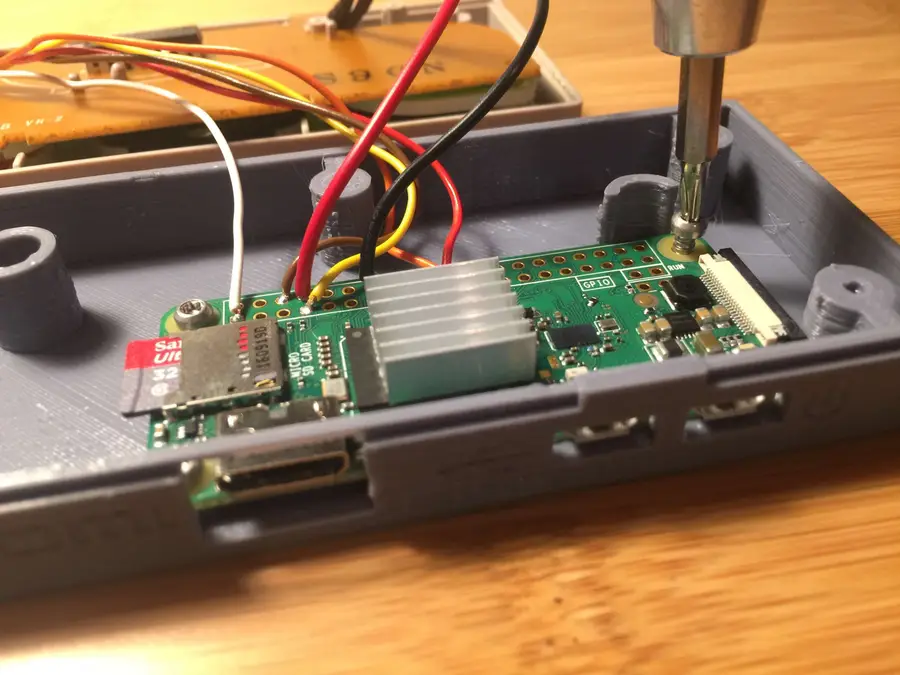
This is optional, but will keep your Pi cool during GPU-intensive games. You’ll need to offset it slightly to avoid it hitting the controller board chip when the case is closed (see photo). It only costs a few bucks so I think it’s completely worth it.
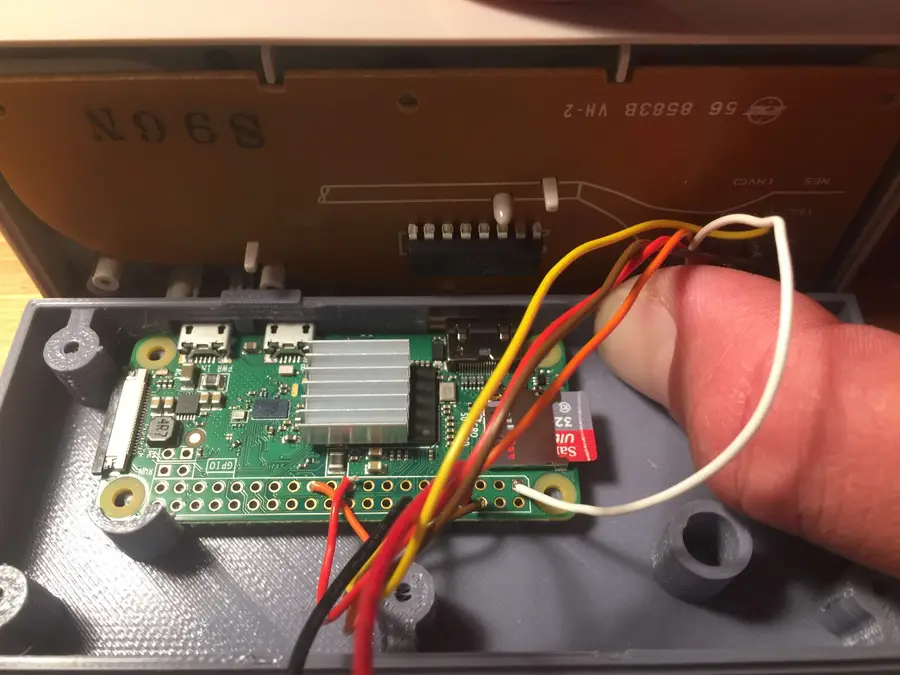
12 – Mount your Pi
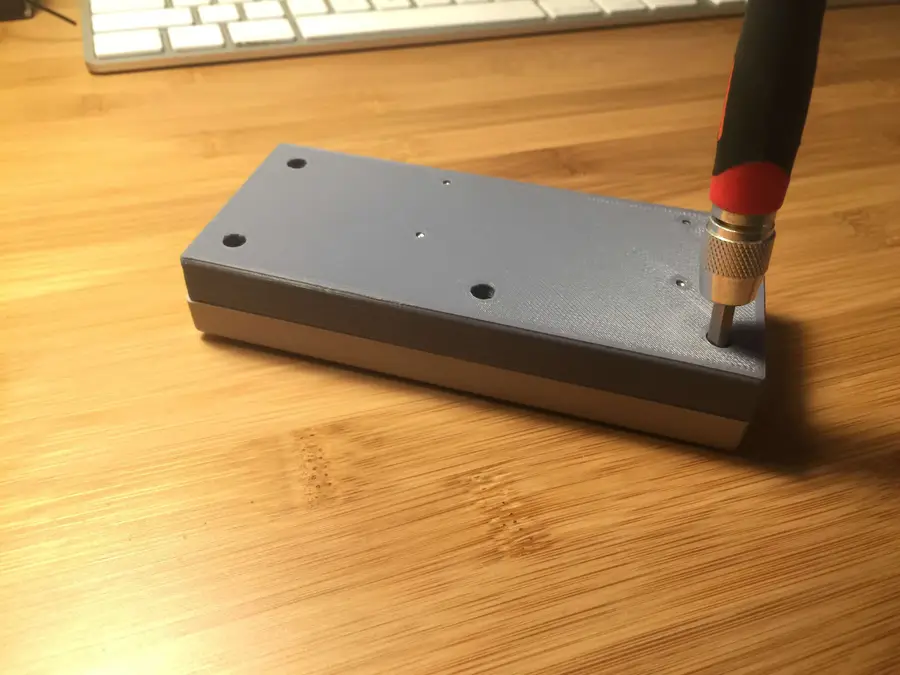
Use four 5mm screws (linked above) to secure your Pi Zero into the controller housing.
13 – Reassemble the housing
Finally, reassemble the controller using five 8mm screws.
🛈 You can also use the controller’s original screws here if you want to save a few bucks.
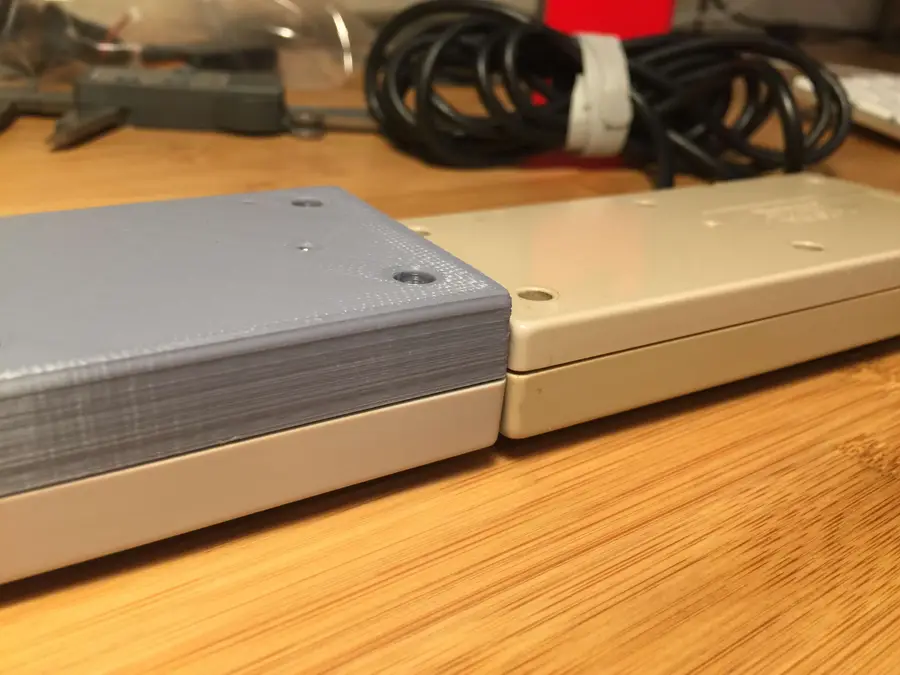
14 – Size comparison
The original NES controller is 17mm thick and the Gamepad Zero is 22mm thick. The difference is nominal, which leads to a nice, comfortable gaming experience.
15 – Configure your NES controller for RetroPie
You’ll need to add a bit of configuration to let RetroPie recognize your original NES controller. You will need to use a USB keyboard or separate USB gamepad to do this.
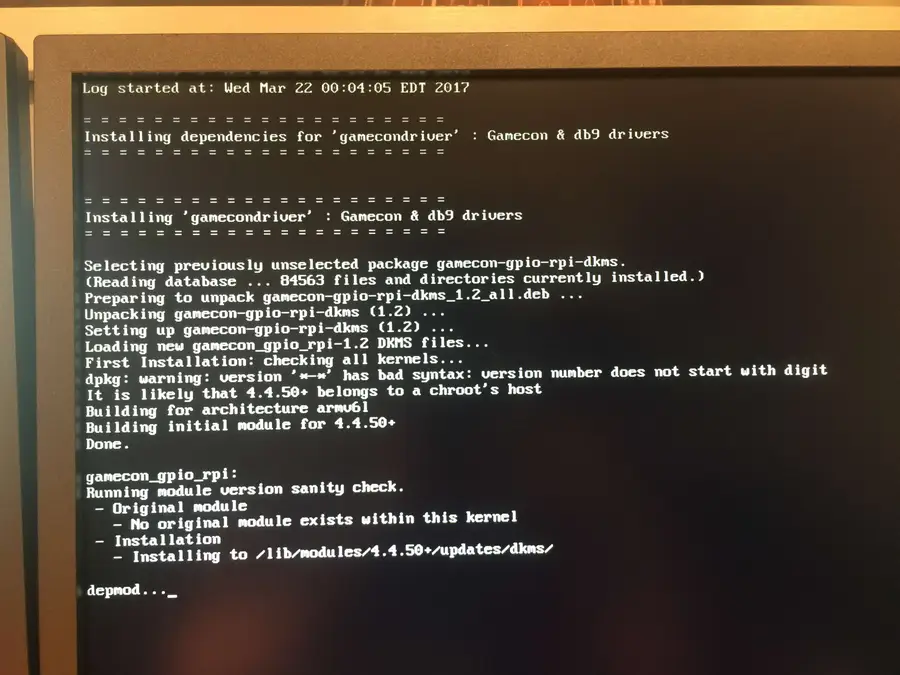
Navigate to RetroPie Setup > Manage Packages > Manage Driver Packages and select Option 809: gamecondriver.
Note: Different versions of RetroPie might list gamecondriver as a different index (e.g. 813: gamecondriver). Just select whichever gamecondriver listing you have.
Install from binary, accept the firmware warning, wait for everything to install, and select “no” if prompted to install SNES configs. Exit the setup menu.
Next, you’ll need internet access to connect to your Pi — you can connect to your wireless network using either the RetroPie settings menu or by dropping a file on your SD card.
Finally, while your PI is rebooting unplug your keyboard or USB controller and you will see the configuration menu for your NES controller! Woot woot
Note: If you don’t see the configuration menu, don’t panic. Connect a keyboard or different controller and use it to navigate to Start > Configure Input, and then use your GamePad Zero to fill out the confirmation options.
🛈 If you’re using the non-wireless version of the Raspberry Pi Zero, you’ll need to connect a USB WiFi or ethernet adapter before you can connect to your Pi.
16 – Add a power button (Optional)
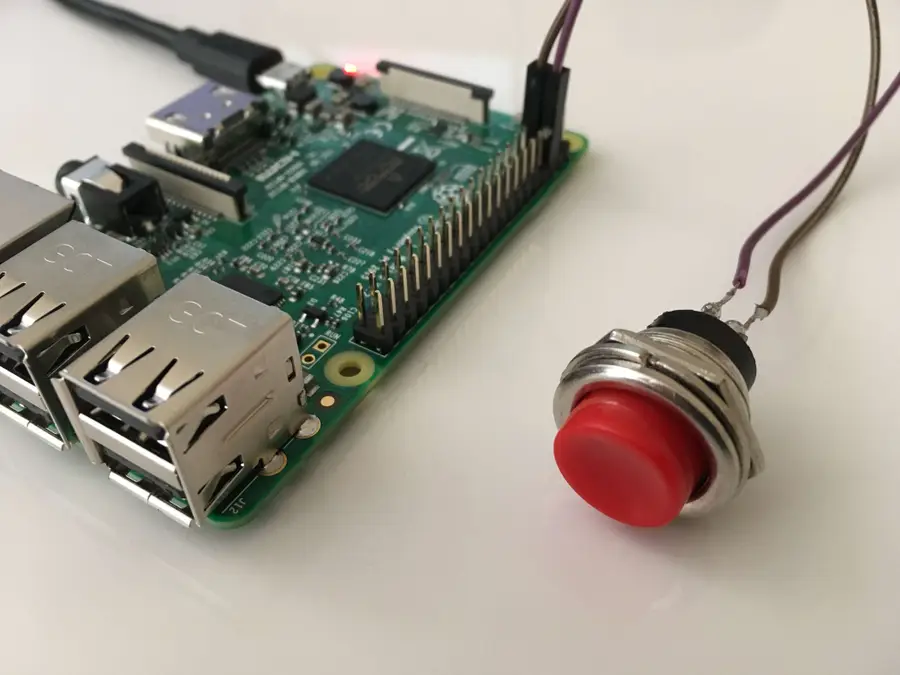
I decided not to do this since I was afraid I’d hit the button by mistake, but if you’re daring enough, howchooer Tyler wrote a guide on adding a Raspberry Pi power button (be sure to use a tiny one).
🛈 To use a bluetooth controller, you’ll need to use the Raspberry Pi Zero W or a USB bluetooth dongle.
18 – All done!
This was a super easy but fun project — especially in comparison to my original Pi Cart project — and I hope you enjoyed reading it. If you have any comments or questions, post in the comments section below and I’ll do my best to help you out! 🙂
There are several ways to go about running a Minecraft server on the Raspberry Pi. In this guide, I’ll cover how to install Nukkit—a cross-platform Minecraft server that’s super easy to set up on the Raspberry Pi. This server should work with PCs, consoles, and tablets running Minecraft 1.14. I’ll be using a Raspberry Pi
Introducing Howchoo, an enigmatic author whose unique pen name reflects their boundless curiosity and limitless creativity. Mysterious and multifaceted, Howchoo has emerged as a captivating storyteller, leaving readers mesmerized by the uncharted realms they craft with their words.
With an insatiable appetite for knowledge and a love for exploration, Howchoo’s writing transcends conventional genres, blurring the lines between fantasy, science fiction, and the surreal. Their narratives are a kaleidoscope of ideas, weaving together intricate plots, unforgettable characters, and thought-provoking themes that challenge the boundaries of imagination.
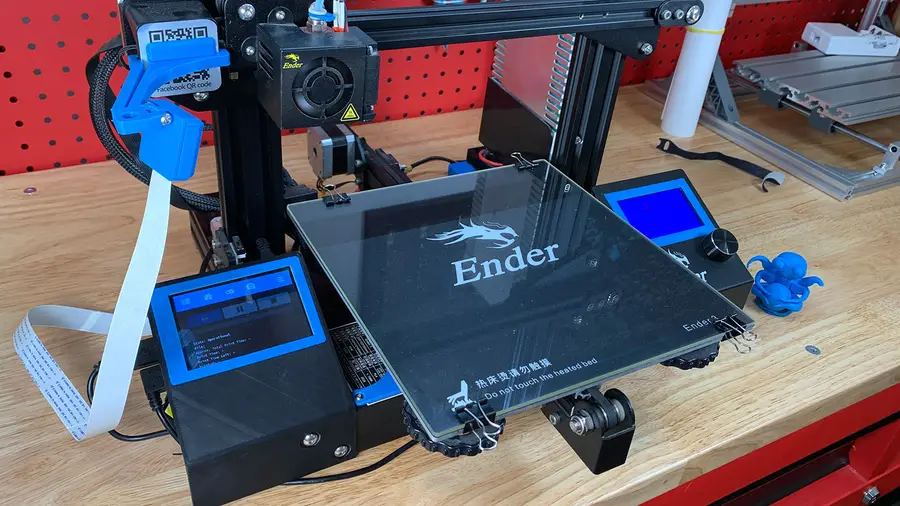
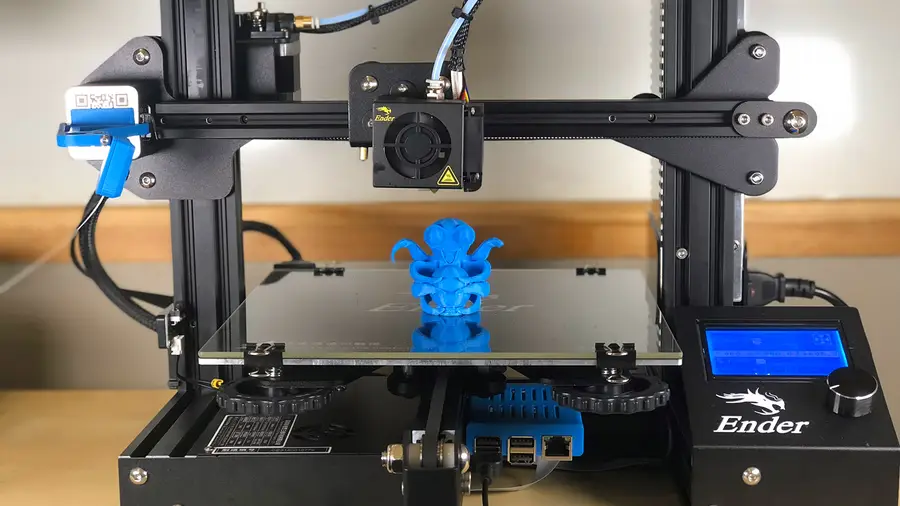
The Creality Ender 3 is amazing. The only thing that could make it more amazing is modding it so that you can control it remotely.
Well, now you can. This guide will show you everything you need to know about using OctoPrint (AKA OctoPi) with your Ender 3 or Ender 3 Pro, enabling you to start and view prints as well as view a whole host of data about your printer.
Form factor: Rectangular
Origin: Lower Left
Heated Bed: Yes (checked)
Heated Chamber: No (unchecked)
Width: 220mm
Depth: 220mm
Height: 250mm
Axes: Default**
Custom Bounding Box: No (unchecked)
Nozzle Diameter: 0.4mm
Number of Extruders: 1
Connection settings
Serial Port: /dev/ttyUSB0
Baudrate: AUTO
🛈 You’ll need to connect your Pi to the Ender 3 via USB before you can change the Connection Settings.
2 – Print the Ender 3 OctoPrint parts
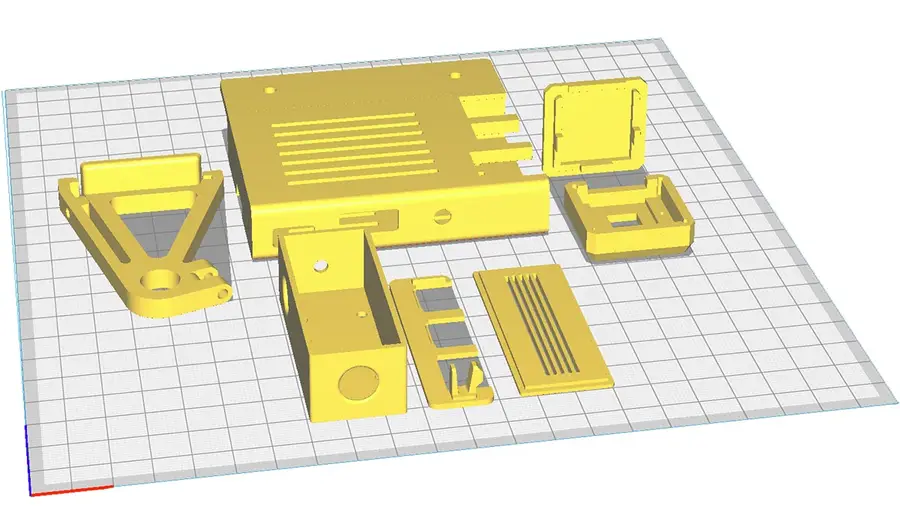
You’ll want to print a few components to mount everything to your Pi. Some of these are optional—for example, you don’t have to mount the Pi to your printer (you can keep it separate). Anyways, I recommend printing all of these for a cleaner, more organized setup.
Ender 3 camera mount
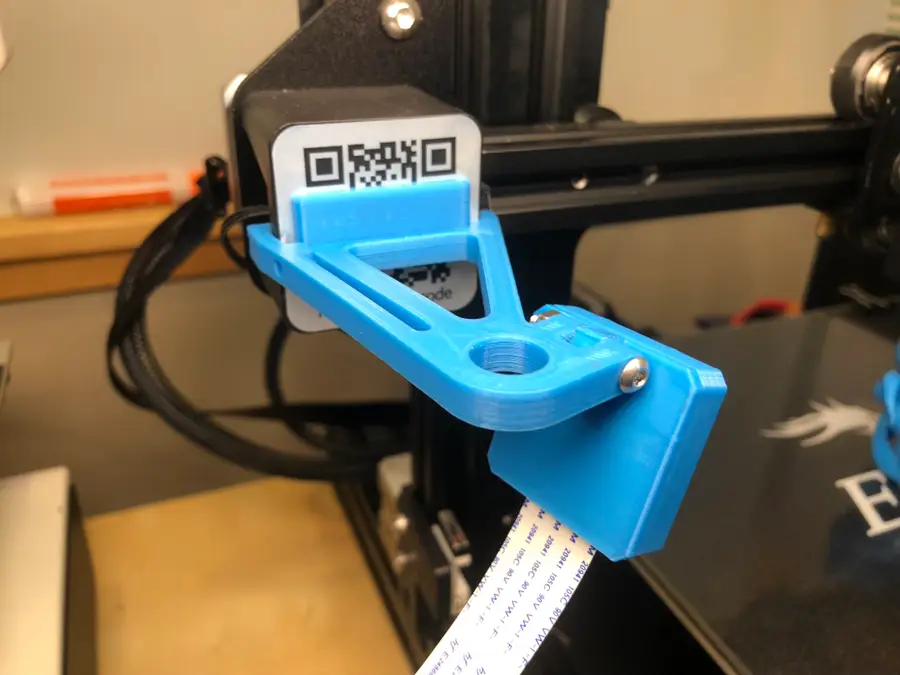
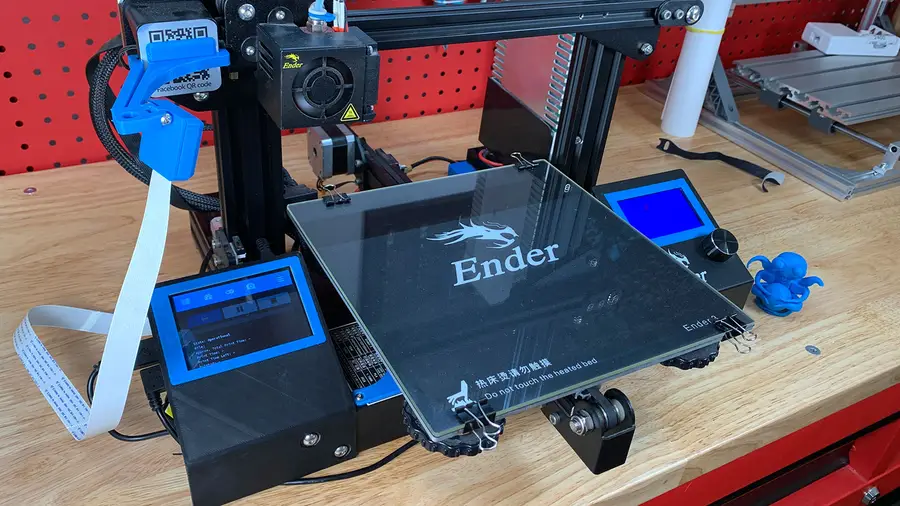
This component mounts your Raspberry Pi’s camera to the Z-axis stepper motor. This will give you a nice view of your extruder and print.
First, print this bracket/arm. If you’re using the Raspberry Pi camera v1, also print the included camera holder. If you’re using the Pi camera v2, I recommend printing this camera holder instead, as it’s much easier to work with.
Ender 3 Raspberry Pi enclosure
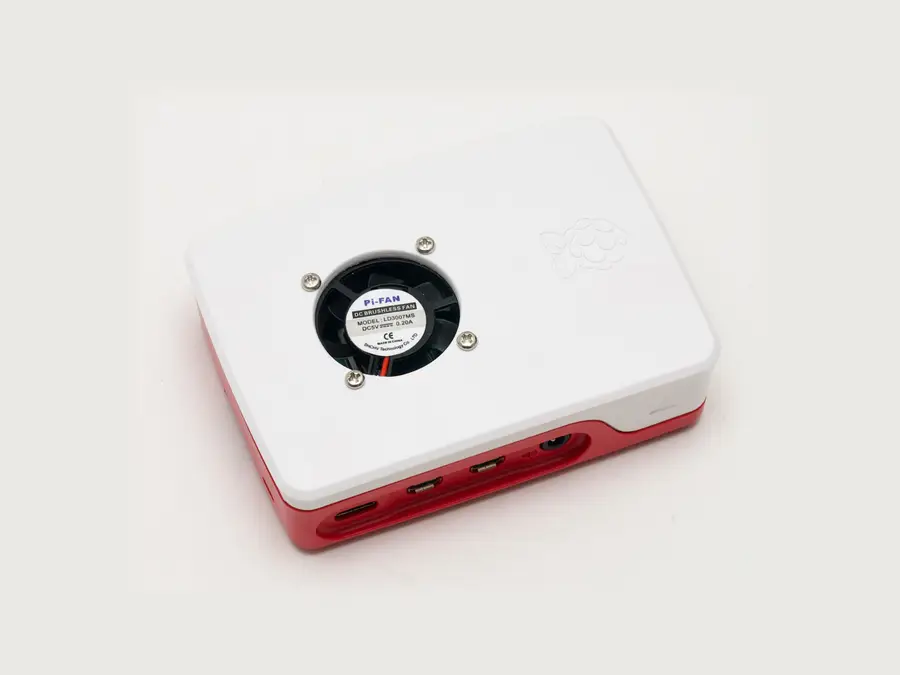
This component mounts the Raspberry Pi itself to the Ender 3’s extruded aluminum rails and can also be found on Thingiverse. There are two versions: one for the Raspberry Pi 3, and one for the Raspberry Pi 4. I’m using a Raspberry Pi 3 for OctoPrint, but the 4 will work fine too. If you decide to use a Raspberry Pi 4 for OctoPrint, I recommend adding a Raspberry Pi 4 fan to the case since things can get a bit hot.
If you plan on powering your Pi directly from the Ender 3, be sure to print out the included LM2596S buck converter enclosure as well.
Later on, I’ll show you how to connect your Pi to your Ender 3’s power supply.
3 – Mount the Raspberry Pi camera
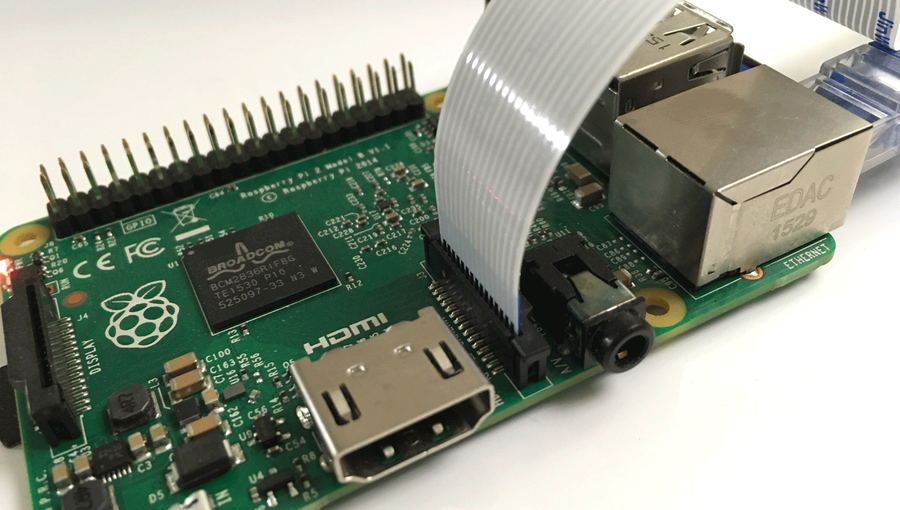
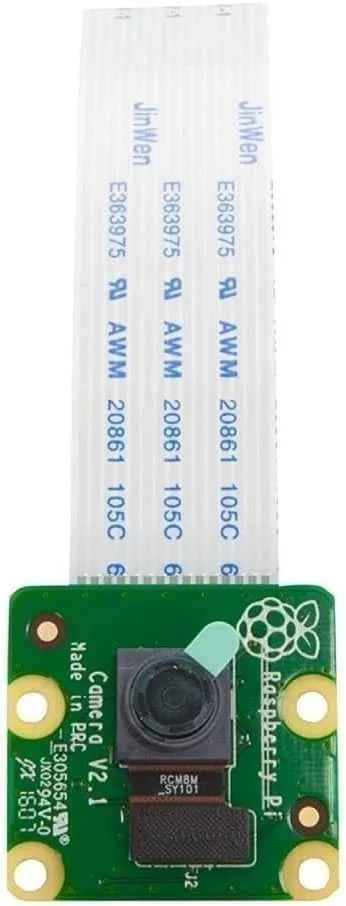
Use an M3 x 20mm bolt and nut to connect the two pieces of the Pi mount. Then, connect the Raspberry Pi ribbon cable to the camera, click the camera into place and slide the camera cover back on.
To mount the camera, you’ll need to use this Pi camera extension ribbon cable since the cable that came with your camera isn’t long enough. I’ve found the 610mm cable works perfectly.
It’s a tight fit. Be patient so that you don’t break your camera. 🙂 You might need to file some edges down. If you have no camera feed later, check and make sure the tiny connector that presses onto the camera itself hasn’t come loose.
It’s also possible to use other OctoPrint cameras and webcams rather than the official Raspberry Pi camera, though you’ll need a different mount to do this.
How to Choose the Best Camera for OctoPrint (including USB)
Keep an eye on your prints!
🛈 Before mounting everything to your printer, I recommend testing your connections in place. It’s easier to troubleshoot things without needing to connect and disconnect your mounts.
4 – Put the Pi into its case
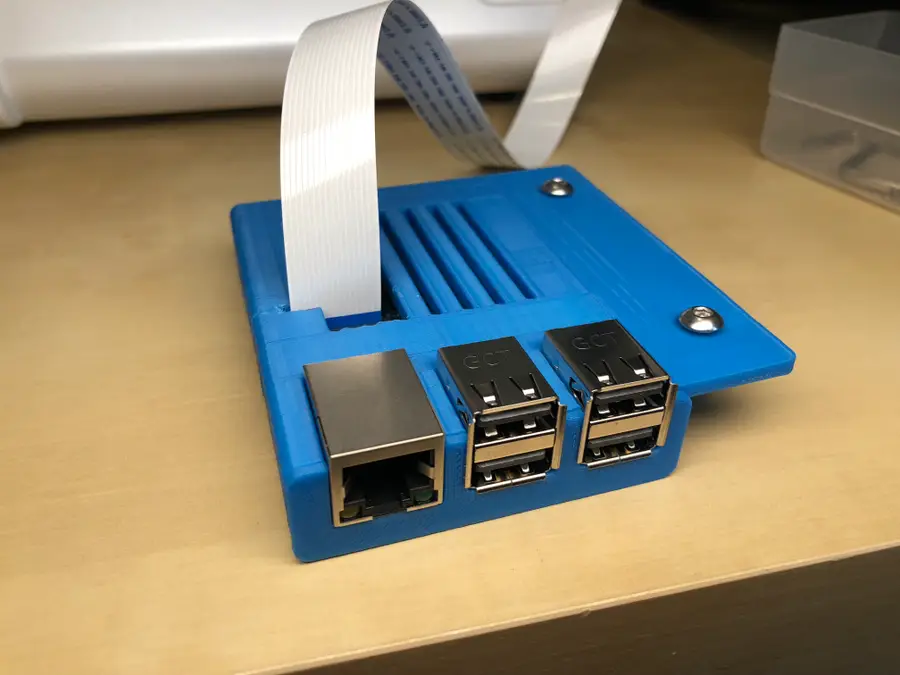
The 3D-printed Raspberry Pi case is comprised of two pieces: a port faceplate and the case itself. Attach the faceplate first.
The case I linked to above is a bit of a tight fit and doesn’t have a slot for the camera cable (as I learned while writing this guide). If you don’t want to print a different one, simply cut a small slot above the camera port, slide the Pi into its case, and then attach the camera cable.
Finally, connect your Pi to your Ender 3’s USB port using a short Mini-USB cable.
5 – Mount the Raspberry Pi
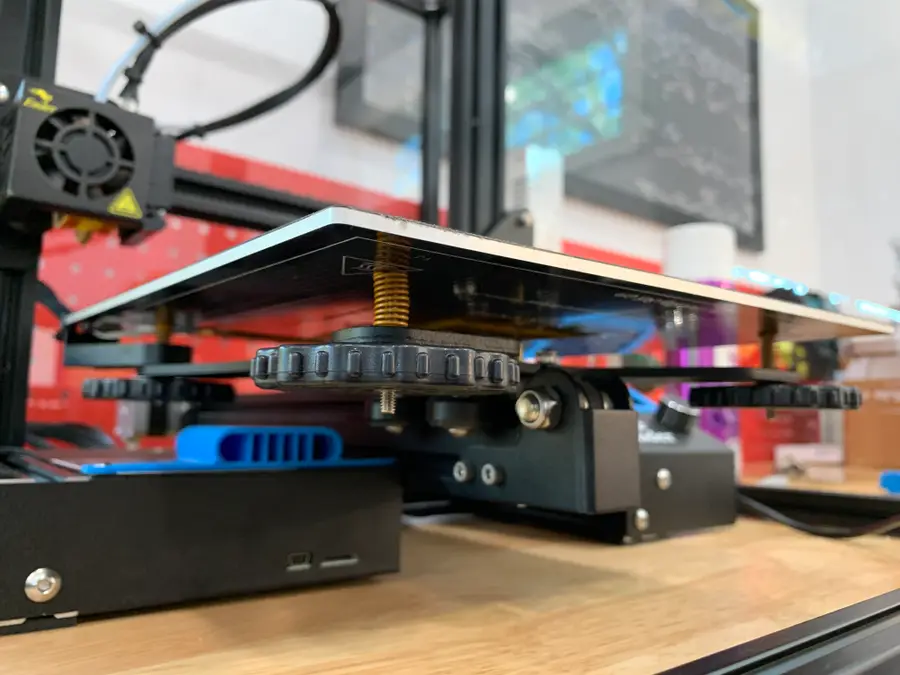
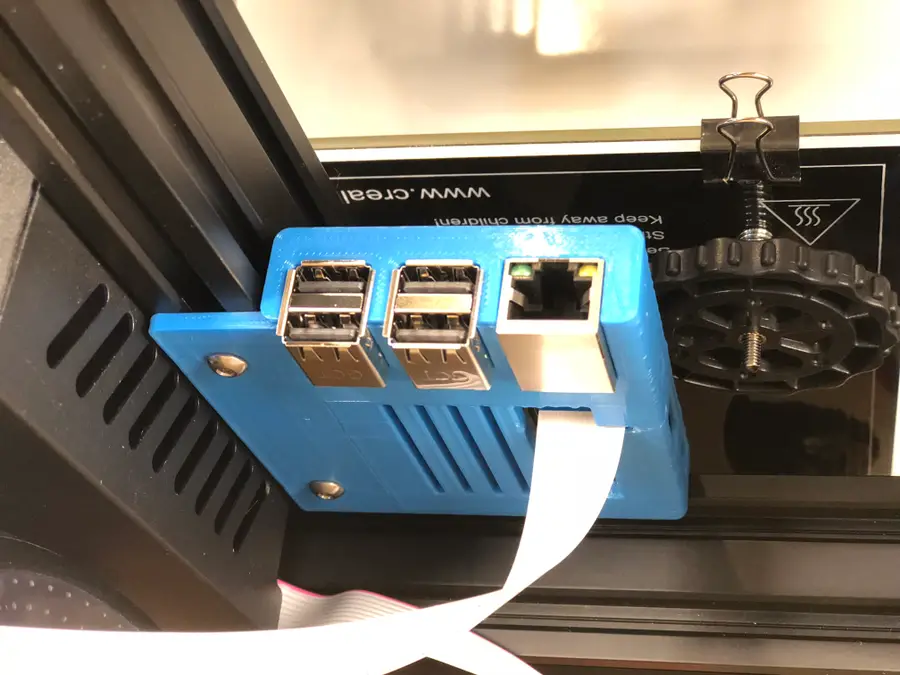
I chose to mount my Pi in the opening in the empty cavity directly beneath the bed. To do this, use two M4 x 8mm bolts and two M4 aluminum channel “T-nuts”. I reused two extra T-nuts that came with the printer.
Attach the bolts and nuts to the Pi case first (with the nuts facing up) and then slide the nut end of the bolts into the bottom piece of extruded aluminum. Finally, tighten the two screws from beneath.
Route the camera cable under the bottom of your printer, between the printer and your table. The printer’s rubber feet will allow it some freedom of movement.
🛈 You’ll need to tilt your printer back or move it to the edge of your desk to reach and tighten the bolts.
6 – Power the Pi from the Ender 3
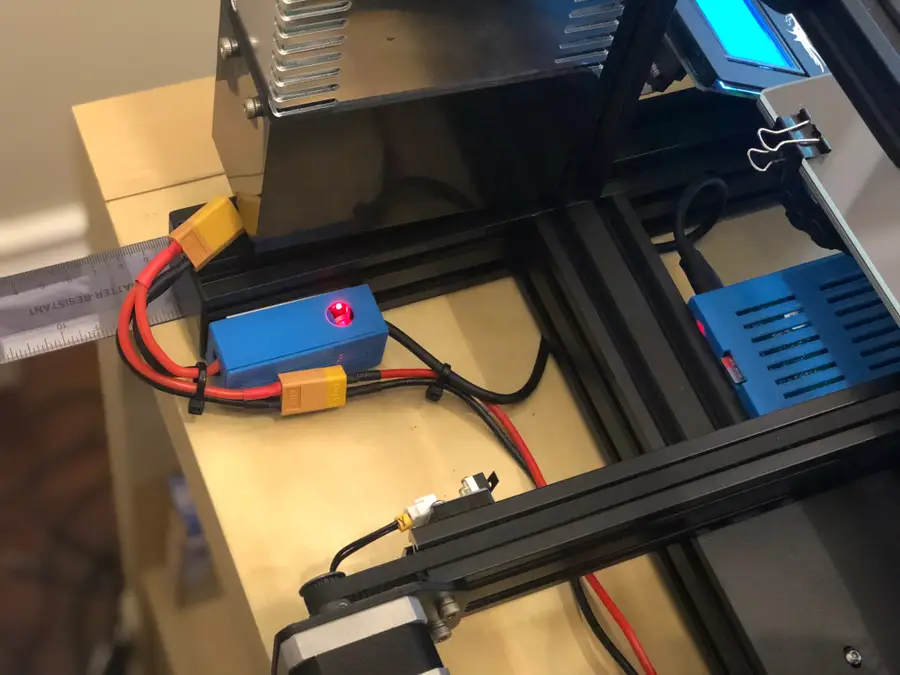
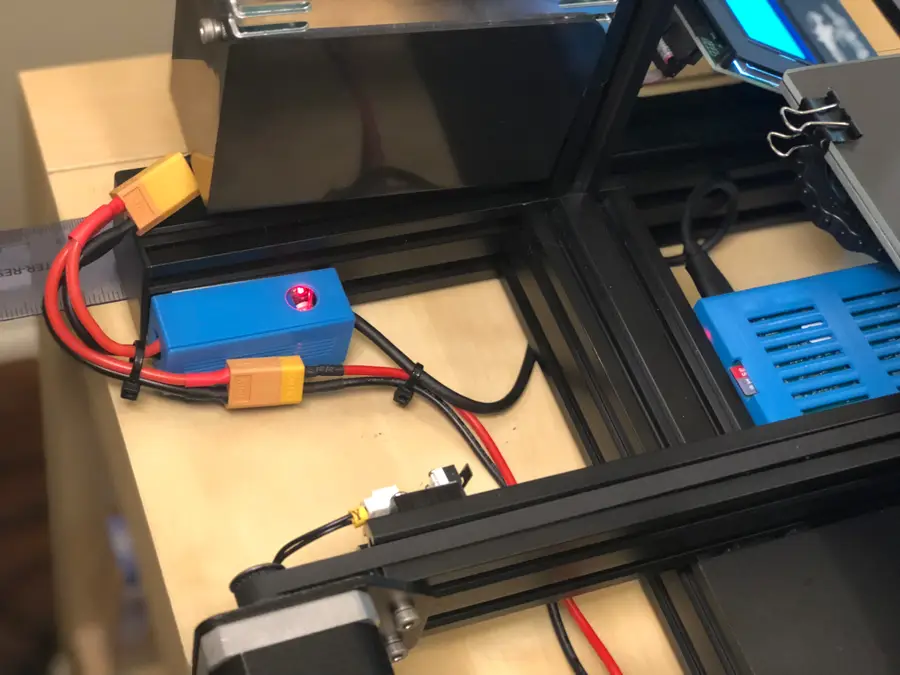
If you’d like, you can power your Raspberry Pi directly from your 3D printer’s power supply! This can be done easily by tapping into the cable coming out of the back of the Ender 3 using a Y-splitter, then reducing the voltage to 5V with a buck converter. I wrote a separate guide to show you how to power the Raspberry Pi using the 3D printer PSU if you’re interested.
This step is optional: if you just want to plug your Pi into the wall, that’s ok too.
If you already completed that guide, now is a good time to mount your buck converter enclosure to the back of your Ender 3 using foam tape.
7 – Focus the Pi camera
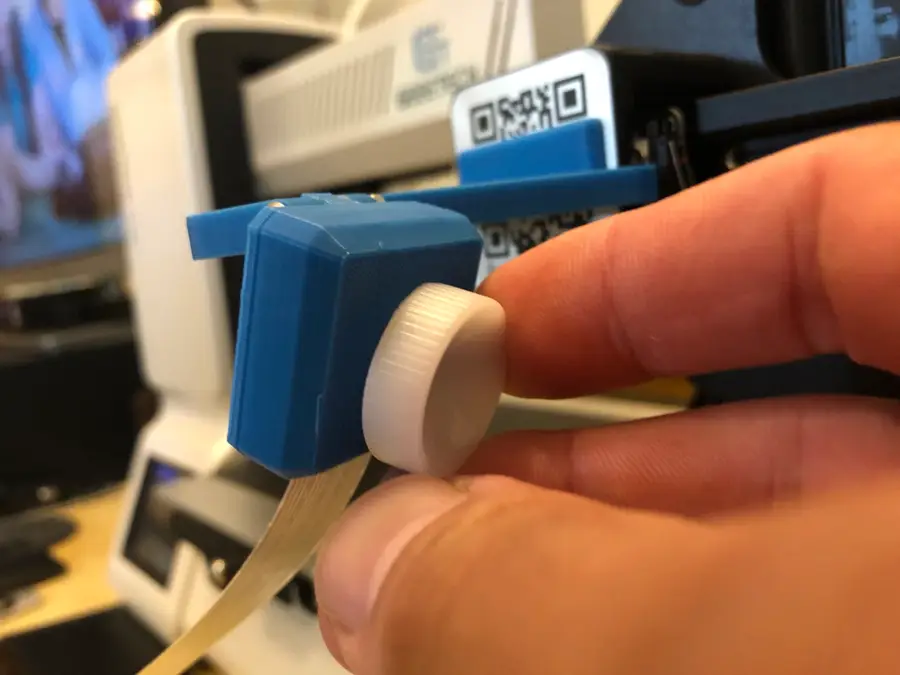
View the camera feed in the OctoPrint/OctoPi interface. Center the bed and place a small object in the middle of it. Then, use the small white wheel that came with your camera to turn the lens of the Pi camera, thus focusing it. Turn it just a tiny amount at a time (maybe 1/16 of a turn) and check the feed periodically until it’s nice and focused!
8 – Final setup!
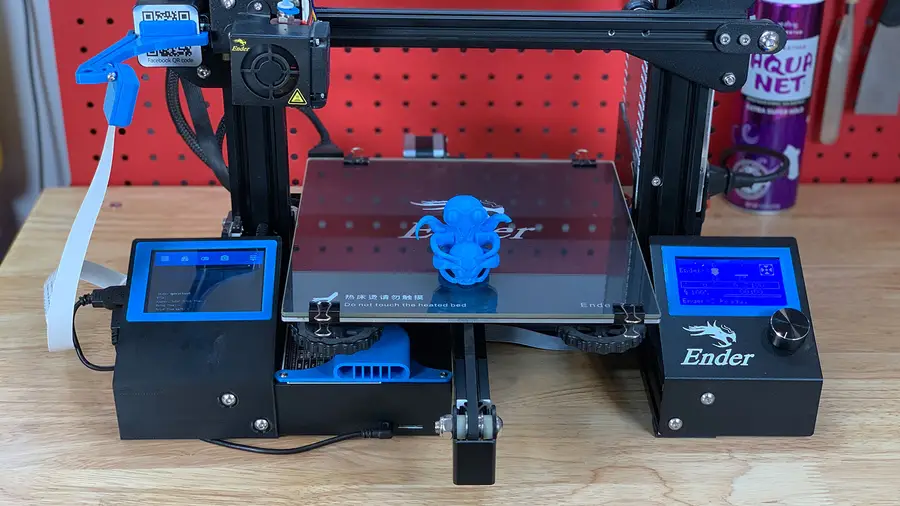
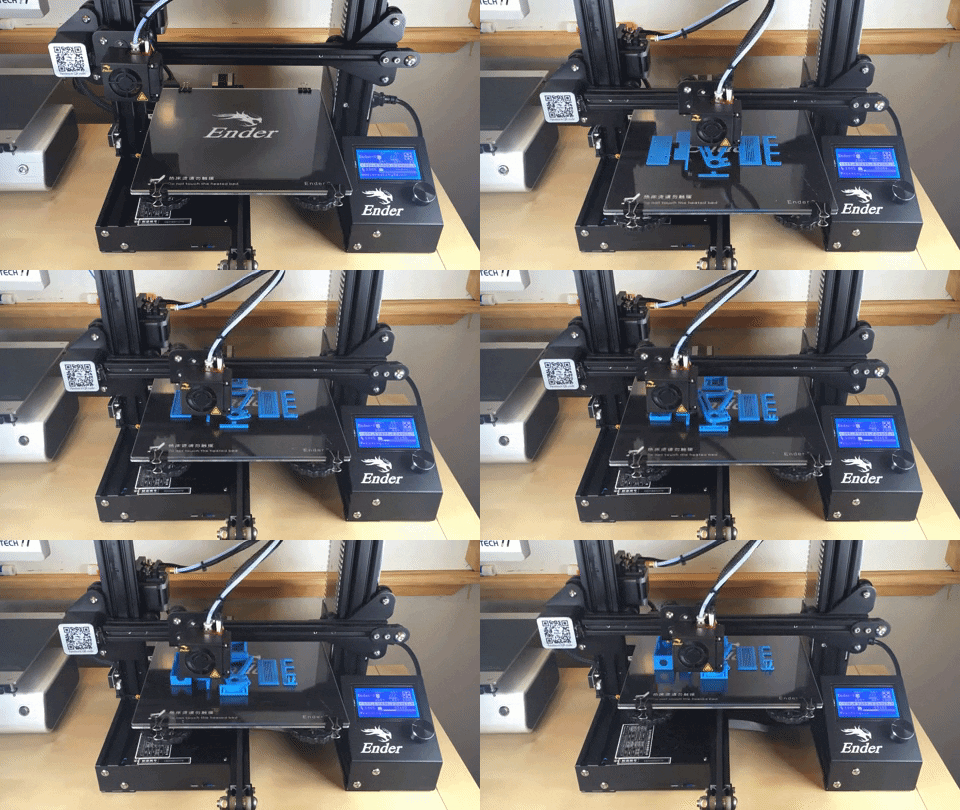
This photo shows everything fully mounted and running.
You’re all done! Be sure to check out my full OctoPrint guide if you’re still fine-tuning your OctoPrint setup. I also wrote a guide on adding an OctoPrint touchscreen to the Ender 3 if you’d like to check it out!
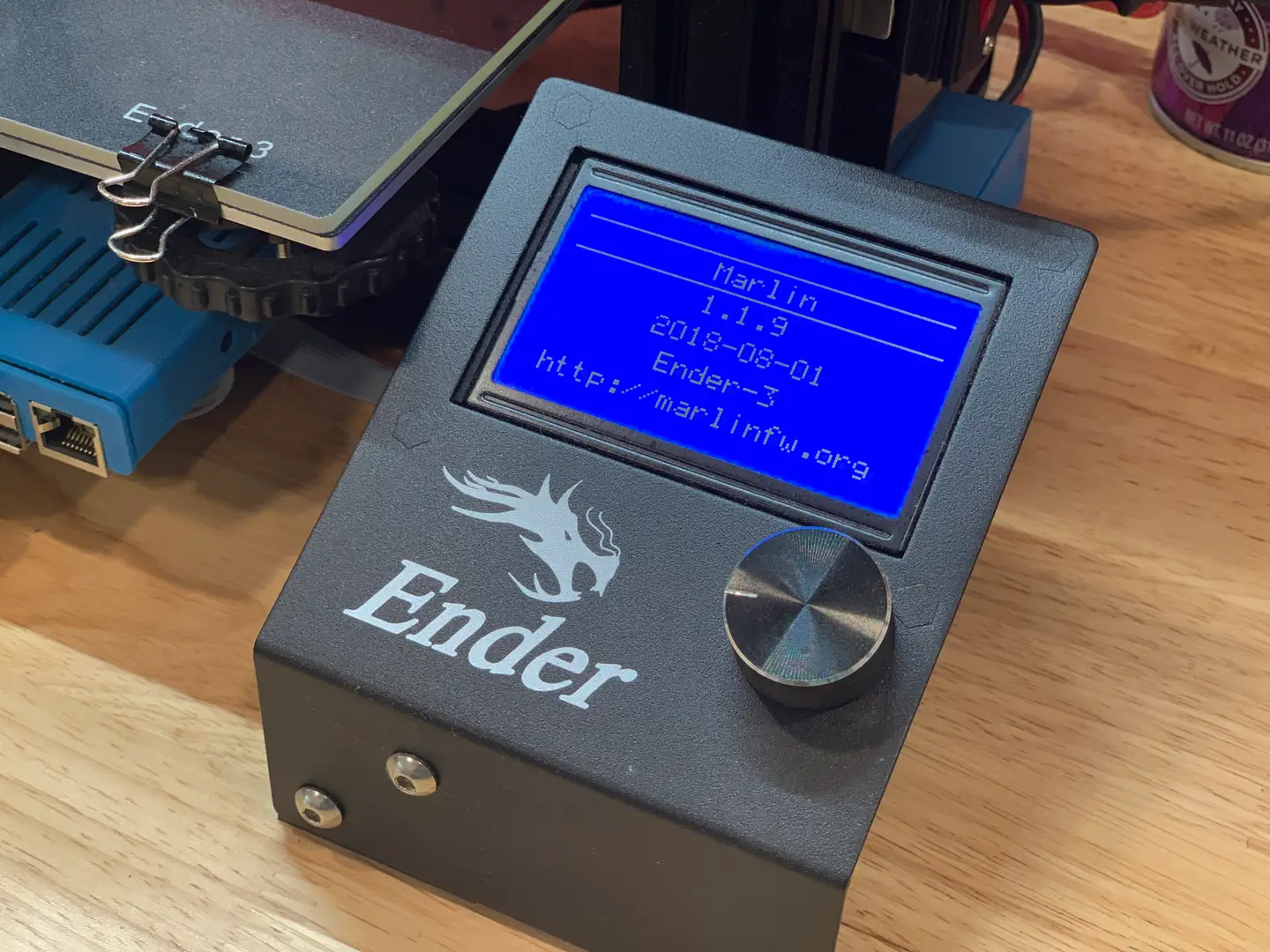
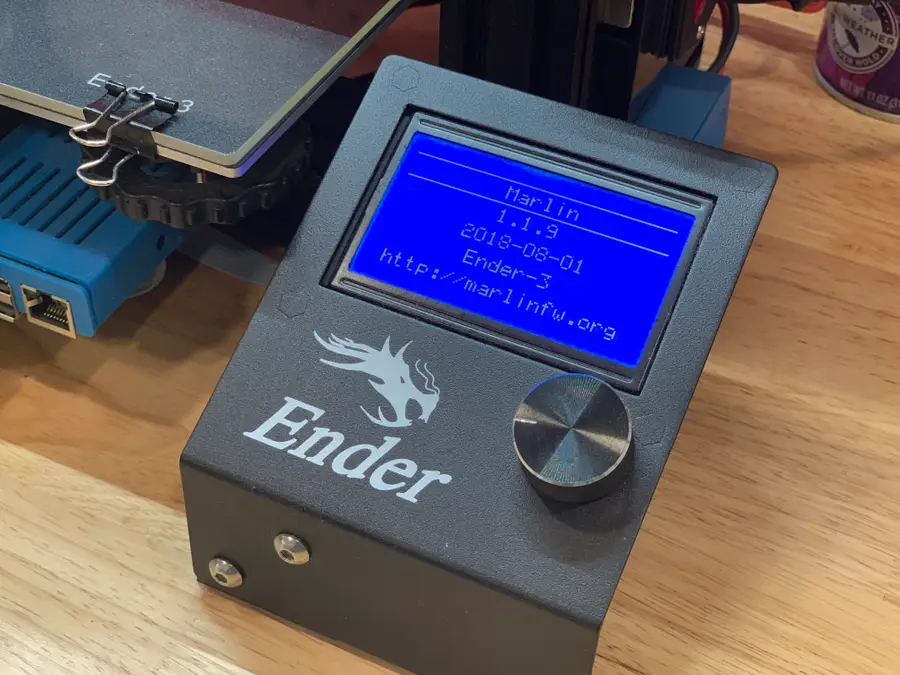
Now that you’ve gotten OctoPrint up and running, I highly recommend updating your Ender 3’s firmware. Why? The newer versions of Marlin add thermal runaway protection, which helps to prevent 3D printer fires. Also, be sure to check out my full Ender 3 upgrades and mods guide!
Blender is one of the most popular open-source 3D creation suites today. It doesn’t cost a dime to use and everything you create is yours to own for good. The community is robust and the dev team still releases new updates on the regular. If you want to get the latest version, you may have
Introducing Howchoo, an enigmatic author whose unique pen name reflects their boundless curiosity and limitless creativity. Mysterious and multifaceted, Howchoo has emerged as a captivating storyteller, leaving readers mesmerized by the uncharted realms they craft with their words.
With an insatiable appetite for knowledge and a love for exploration, Howchoo’s writing transcends conventional genres, blurring the lines between fantasy, science fiction, and the surreal. Their narratives are a kaleidoscope of ideas, weaving together intricate plots, unforgettable characters, and thought-provoking themes that challenge the boundaries of imagination.
Most likely, any mod you could want or dream of for Minecraft has already been developed, which is where this guide comes in! As an avid Minecraft player, I’ve recently become obsessed with Fabric Minecraft mods and expanding my technological skills.
This guide will go through the best technology mods available for Minecraft Fabric that let players create tools or machines within Minecraft. While some add simple building tools, others let you build usable computers or automated machinery! So whether you’re hosting a survival multiplayer server or you’re playing alone, you’ll find a mod that opens up your world even more!
This is a standalone tech mod that includes tools and machines players can use throughout the world. They can process materials, gather resources, and progress through challenging but rewarding achievements from the mod itself.
The main goal of Industrial Revolution is to allow players to build standard processing machines, like the chopper, farmer, pump, and mining rig. Currently, the mod is in early development, so expect lots of new machines in the future.
Hoppers are a useful block for a wide range of needs, but they can be costly when needed in the beginning of a playthrough. Wooden Hoppers add the wooden variation of hoppers so that players can get farms or automation going, at the cost of a cooldown and lower storage capacity.
For the sci-fi lovers, Astromine is a mod that adds futuristic technology to Minecraft. It even has a space dimension and spacesuit to go exploring with!
One of the most annoying parts about carts in Minecraft are how difficult it can be to transport multiple carts along a rail. Linkart allows carts to be connected together to create a locomotive-like chain of carts, thus making it easier to transport items, mobs, or villagers!
One of the best type of mods out there, are the ones that let you create custom items. While Iron Jetpacks includes pre-designed jetpacks, it also allows for players or server administrators to configure custom ones! The directions are easy to follow and explain everything you might need to know about designing a jetpack for the mod. I highly recommend this for those who want a unique gameplay or just like tinkering with mods!
I normally try to avoid adding in mods nearly identical, but Golden Hoppers does something so useful that I just had to. This mod adds in golden hoppers which are filterable. That’s right. No more fighting with hoppers to filter the correct item, this mod just lets it happen!
While building a base on top of a mountain comes with beautiful views, it also comes with vertical travel challenges. Whether you’re trying to get livestock to a new home or just don’t want to jump, Lifts turns adjacent blocks into moveable elevators.
Watch this video for a preview of what the mod can do:
In worlds that mimic medieval or fantasy themes, technology may not seem to fit. Mechanical Tech adds technology based upon mechanical power, such as, water wheels, windmills, and manual cranking. It’s meant to be as close to vanilla Minecraft as possible, so it can still fit in with more primitive playstyles.
This is a unique Minecraft mod because it’s heavily inspired by another video game called TIS-100. Using programmable modules, players can create multi-block computers to execute anything they can dream of. Automate redstone, create music, or just make a silly machine!
The longer you play Minecraft, the more you realize that early-game tools just won’t cut it. Exploring the enchantment feature of Minecraft can be exciting, but also intimidating. Rather than worry about researching enchantments, below are the best enchantments in Minecraft! To learn how to enchant items, check out this guide! In this guide, you’ll see
Introducing Howchoo, an enigmatic author whose unique pen name reflects their boundless curiosity and limitless creativity. Mysterious and multifaceted, Howchoo has emerged as a captivating storyteller, leaving readers mesmerized by the uncharted realms they craft with their words. With an insatiable appetite for knowledge and a love for exploration, Howchoo’s writing transcends conventional genres, blurring the lines between fantasy, science fiction, and the surreal. Their narratives are a kaleidoscope of ideas, weaving together intricate plots, unforgettable characters, and thought-provoking themes that challenge the boundaries of imagination.
The variety of mods available for Minecraft is just as vast as the worlds within the game itself. Most likely, any mod you could want or dream of has already been developed. As an avid Minecraft player, I’ve recently become obsessed with Fabric Minecraft mods and expanding the world of Minecraft, literally.
This guide will go through mods available for Minecraft Fabric that either improve the base game’s biomes or adds in new ones! If you’ve ever wanted to roam and explore new environments or dive deep into a cave, below you’ll find a mod for either. So whether you’re hosting a survival multiplayer server or you’re playing alone, you’ll find a mod that opens up your world even more!
A perfect welcome gift for players! Nature’s Compass is an item that allows players to search for a biome’s location in the world. It automatically will list biomes added from mods, so all you need to worry about is the travel time!
The BetterNether mod fills up the boring world that is the Nether dimension. It adds a bunch of new blocks, items, and structures. It’s also compatible with a handful of other mods, even ones that add other Nether biomes!
This mod takes vanilla Minecraft structures and makes them better! By adding biome variants or just new versions of structures, each building feels like it belongs in the world instead of standing out. It’s perfect for any servers that wants the players to explore.
This is my new favorite biome mod to add to a survival world. It adds over 80 biomes that each are unique. They’re not just for the Overworld either! Oh the Biomes You’ll Go adds new biomes to discover in both the Nether and End! It comes with over 40 trees, 28 wood types, and 200 new blocks and items. It’s a great mod if you’re tired of seeing the same places over and over again.
If you’re bored with Minecraft’s standard mineshafts, then download this mod to your world. It expands mineshafts with tunnels, loot, abandoned workstations, and more! There are nine biome variants, including a rare mushroom mineshaft.
Much like the Better Mineshafts mod above, this one overhauls cave systems. It adds in lava caverns, underground lakes and rivers, flooded caverns and more! It’s perfect for those wanting more exploration in caves!
With this mod, you’ll discover underground settlements of villagers that are filled with loot and resources to gain. Each village has multiple rooms and floors, with abandoned sections for players to explore.
If you’ve ever felt like the Minecraft world felt a little empty, then add Mo’ Structures to your modpack. It generates new structures throughout the world, like towers and dungeons. Each structure is meant to implement an RPG element, which occurs when players find a secret chest or books with lore inside them.
Minecraft rivers really o lack variety and proper generation. River Redux fixes that by improving generation and adding four new biome variations. This is a smaller generation mod that makes a big impact on the world’s atmosphere.
Traverse aims to not overshadow the vanilla Minecraft biomes, but add biomes that blend in as if they were there all along. Biomes include are autumnal woods, lush swamp, desert shrubland, wooded island, and more!
This mod is a remake of an older dimension mod of a similar name. It features The Aether, a dimension located in the sky filled with floating islands. It adds new ores, structures, creatures, and dungeons to create for a risky yet rewarding adventure!
If the server you’re running is quite large in members, I recommended getting the Mining Dimensions mod. It’ll help from having players cross each other in caves or caverns. This mod adds four mining dimensions for players to use for hunting mobs and mining.
Much like the River Redux mod, this mod overhauls lakes and ponds that are naturally generated in the world. It adds four new lake variations and works with modded biomes too!
This is a smaller biome mod, as it only adds in seven new biomes to the world. Still, Promenade’s biomes are beautiful and it even comes with a new duck mob!
This mod adds exactly what it sounds like. There are seven included doors that lead to various areas, dungeons, and unique player dimensional pockets to build whatever they want! It also includes a rift feature which is created when a door has been destroyed and can grow in size over time. DimensionalDoors is mod that is deceptively in depth!
Smoother Bedrock is a simple mod, not does one thing: smooths out bedrock. This will help prevent weird caverns or pockets of bedrock within the world!
Cinderscapes is a biome mod that as six new biomes for the Nether. They look similar to vanilla biomes, so they won’t feel too out of place in the world.
While biomes generated in the base game of Minecraft are beautiful, they lack a certain realistic chaos in their flora. Ecotones changes that by overhauling the designs of trees, shrubs, and even rocks to be unique to each biome. It has over 70 distinct biomes with 218 variants of flora.
If you’ve ever played survival games before, you’ll recognize the main component of this mod. EnvironmentZ adds environment temperatures to your world. Spend too much time in the snowy mountains, and you risk freezing to death.
This is another mod that greatly improves the realism of Minecraft. Fabric Seasons adds the four seasons to Minecraft that includes seasonal colormaps for foliage and grass and extend weather functions in biomes depending on season.
The longer you play Minecraft, the more you realize that early-game tools just won’t cut it. Exploring the enchantment feature of Minecraft can be exciting, but also intimidating. Rather than worry about researching enchantments, below are the best enchantments in Minecraft! To learn how to enchant items, check out this guide! In this guide, you’ll see
Introducing Howchoo, an enigmatic author whose unique pen name reflects their boundless curiosity and limitless creativity. Mysterious and multifaceted, Howchoo has emerged as a captivating storyteller, leaving readers mesmerized by the uncharted realms they craft with their words. With an insatiable appetite for knowledge and a love for exploration, Howchoo’s writing transcends conventional genres, blurring the lines between fantasy, science fiction, and the surreal. Their narratives are a kaleidoscope of ideas, weaving together intricate plots, unforgettable characters, and thought-provoking themes that challenge the boundaries of imagination.
You might be thinking: 1Password versus NordPass? It’s no contest! 1Password is huge, while NordPass is tiny! Well, it turns out we thought the same thing too. But when we reviewed each in all the major password manager categories, we discovered that it wasn’t the blow-out we would have imagined.
We’ve tested each individually
We’ve been using 1Password as our team password manager at Howchoo for quite a while now. We’ve even written a comprehensive review of 1Password that we recommend you check out supplementally to this head-to-head review. So we have quite a grasp on what 1Password is capable of.
We also recently started using NordVPN, which is a phenomenal VPN, and thought we’d give its password manager, NordPass, a shot.
So you can be sure we’ve tried each and understand exactly what each password manager is capable of!
1 – Ease of use
It’s a little uncanny just how similar 1Password and NordPass are in terms of both their user interfaces and methods of use. Here’s a head-to-head comparison GIF of each so you can see what I mean:
NordPass’s Method of Use
1Password’s Method of Use
1Password and NordPass are both extremely user-friendly, while not sacrificing security for easy auto-filling.
As you can see each password manager makes you first unlock the password manager to use its autofill feature, which prevents certain kinds of robots from accessing your accounts.
Both 1Password and NordPass use a vault system that allows you put your saved passwords in various vaults that you can set as private or shared. They also allow you to access your saved credit cards, personal information, and other login info from the application on your desktop.
In fact, both 1Password and NordPass are so similar in design and UI that we suspect NordPass may have taken some cues from 1Password in their design. Given how intuitive the overall UI is for 1Password, that really wasn’t a bad idea at all!
Winner: Draw
How could anyone choose a winner when you can hardly tell the difference between 1Password and NordPass’s applications? We certainly can’t. You’ll have to check another category when deciding which you want to use—that’s for sure!
2 – Security
Encryption
Both 1Password and NordPass use 256-bit encryption with one major difference. While 1Password uses the industry-standard AES 256-bit encryption, NordPass uses the new XChaCha20 256-bit encryption. This is a newly developed method of encrypting data that could stand the test of time if the AES method becomes crackable in the near future (as it’s showing signs of becoming).
Total Encrption / Zero-knowledge architecture
They both mean the same thing—namely, that your encrypted data is unavailable to anyone but you. Even the password managers themselves do not have your encrypted password data.
NordPass and 1Password both offer this for their users in a completely identical way.
Security Checks
And both NordPass and 1Password run security checks periodically to make sure your passwords weren’t involved in any security breaches and that you’re as secure as you can be. This feature is only available on the paid version of NordPass.
Winner: NordPass (by a small margin)
How can that be? Well…each password manager offers identical security features with NordPass offering a more advanced encryption method.
3 – Password sharing
1Password
Both 1Password and NordPass allow users to share passwords in encrypted vaults with their group plans. What this means is that you will no longer have to send the username and passwords in an email or text, which is very dangerous, but can store the username and password in an encrypted vault.
Whenever someone needs to use a shared password, they will simply access the encrypted vault and get the login info.
Here’s what it looks like at 1Password:
And at NordPass:
Cloudwards.net
Winner: draw
1Password and NordPass are identical in the way they allow you to share passwords.
4 – Device and browser compatibility
Testsigma
OS/browser
1Password
NordPass
Windows
√
√
MacOS
√
√
Linux
√
√
ChomeOS
√
Command Line
√
iOS
√
√
Android
√
√
Chrome
√
√
Firefox
√
√
Safari
√
√
Edge
√
√
Brave
√
√
Opera
√
√
Chromium
√
Winner: 1Password
Each offers support for most of the major operating systems and browsers with 1Password slightly edging out NordPass by offering support for ChromeOS, Chromium, and Command Line. So unless you use those often, there might be little here that changes your mind either way.
5 – Extra features
1Password
Here’s where 1Password jumps ahead of NordPass. 1Password definitely offers more goodies with their plans than NordPass at the moment—and some of those goodies might be worth a lot.
Data storage
1Passwords offers every account 1 GB (5 GB for Business accounts) of data storage. This means that you can securely store files you want to keep safe like passports, driver’s licenses, wills, etc.
NordPass does not offer this.
Identity storage
Both NordPass and 1Password offer the ability to store and autofill your identity information online.
Travel Mode
This one sets 1Password apart. With 1Password you can turn on “Travel Mode,” which allows you to essentially remove ALL of your stored password-data on your device. This means that a border agent who takes your computer, for instance, will not be able to access any of your accounts or personal information.
NordPass does not offer this.
iCloud and Dropbox sync
Only 1Password offers the ability to sync with iCloud and Dropbox.
Unlock with your Apple watch
You can only activate 1Password with an Apple watch at the moment. NordPass does not offer this capability.
How to Unlock 1Password With Your Apple Watch
Winner: 1Password
We think that having secure data storage is pretty valuable. And, given that every 1Password account comes with this, it could be the deciding factor for anyone trying to decide between the two.
6 – Price
Free Version (Winner: NordPass)
Only NordPass offers a free personal version to use that they claim will always remain free.
NordPass’s Free Version
Only can have 1 device active
Can’t share passwords
Can store unlimited passwords and credit cards
Individual Paid Version (Winner: NordPass)
NordPass offers more options to pay for their premium paid service, such as month-to-month ($4.99/mo), annual ($1.99/mo), and 2-year up-front ($1.49/mo).
1Password offers only the annual billing plan at a rate of $2.99/mo.
Both plans offer the same things, except that NordPass only allows you to be actively using the password manager on 6 devices at the same time. But, honestly, we have a hard time imagining an individual using more than 6 devices at the same time with a password manager. So NordPass gets the nod here.
Family Version (Winner: NordPass)
Again, both plans are identical. Both 1Password and NordPass allow up to 5 family members to share the family account and share passwords. They both offer the same features for families, as well.
NordPass’s family plan price is $3.99/mo., billed annually. 1Password’s family plan price is $4.99/mo., billed annually.
Teams/Small Businesses (Winner: 1Password)
We trust 1Password as a small team at Howchoo, and they do offer up-front flexible pricing that’s hassle-free. With NordPass, you have to request a custom quote for your business before you can have any idea of what the cost will be.
1Password for teams currently costs $3.99/mo per user, while their business plan (with unlimited users) runs $7.99/mo. and offers free family accounts.
Discounts (Winner: NordPass)
Only NordPass seems to offer any kind of discount. They currently have a student discount of 10% off when you sign up with your student email address.
Overall Price Winner: NordPass
Except for teams and small businesses, just in terms of price, NordPass is certainly a better deal and even offers a free version, which 1Password does not.
7 – Overall winner
Drumroll please…
And the winner is…
NordPass
How can that be?, you ask.
Well…unless you’re needing the secure data storage we mention above or are using a password manager for a team/business, then we recommend you give NordPass a shot. In all the major categories, NordPass and 1Password offer the same things, with NordPass edging out 1Password in terms of security.
NordPass has a free version that most individuals users will find is enough without having to upgrade, and their paid plans are less expensive across the board.
NEXT UP
How to Send and Receive Encrypted Messages Using GPG
GPG (GnuPG) is a free and complete implementation of PGP (pretty good privacy). It is a tool used for encrypting, decrypting, and signing messages (or many forms of data). In this guide, we’ll cover the steps to send and receive secure messages using GPG. For this guide, we’ll assume you want to exchange messages with your good
Introducing Howchoo, an enigmatic author whose unique pen name reflects their boundless curiosity and limitless creativity. Mysterious and multifaceted, Howchoo has emerged as a captivating storyteller, leaving readers mesmerized by the uncharted realms they craft with their words.
With an insatiable appetite for knowledge and a love for exploration, Howchoo’s writing transcends conventional genres, blurring the lines between fantasy, science fiction, and the surreal. Their narratives are a kaleidoscope of ideas, weaving together intricate plots, unforgettable characters, and thought-provoking themes that challenge the boundaries of imagination.
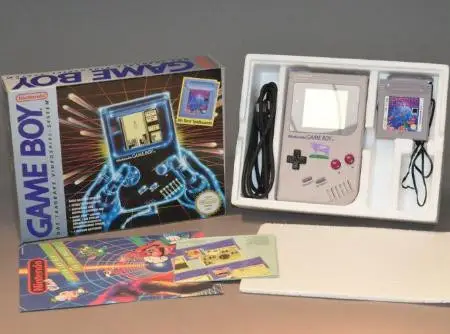
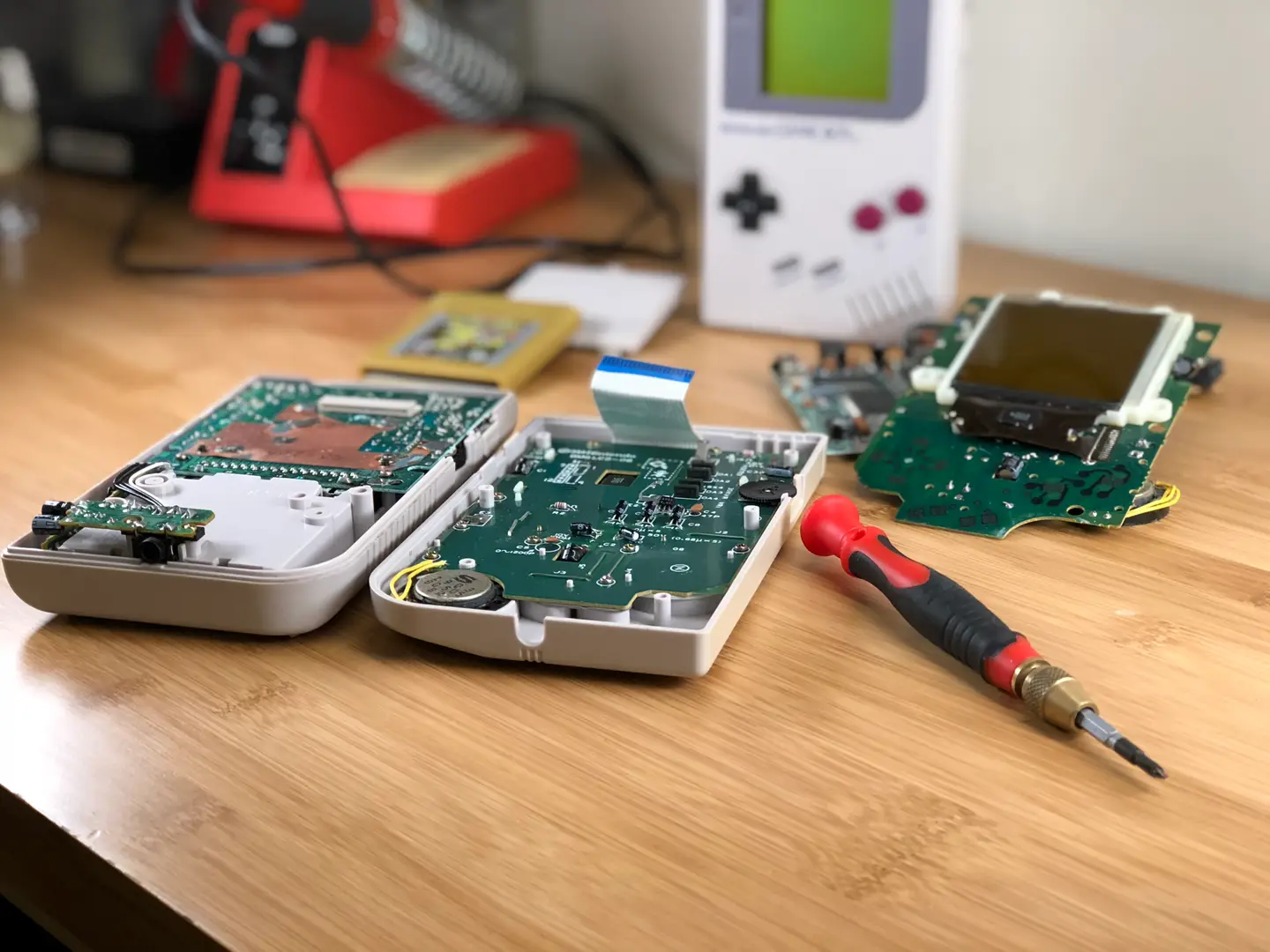
The Nintendo Game Boy is one my favorite retro hand-helds. They came in a surprising number of variations, some of which are very hard to get ahold of.
Today we’re looking at the rarest Game Boys out there. These are less than typical finds that make every Game Boy collector drool.
Note: This list isn’t sorted by rarity. There’s a lot we don’t know about some variations due to a lack of information. For example, a surprising number of promotional editions have surfaced over the years. While Nintendo has verified their existence, they have yet to provide official release numbers. Regardless, I am saving the best for last.
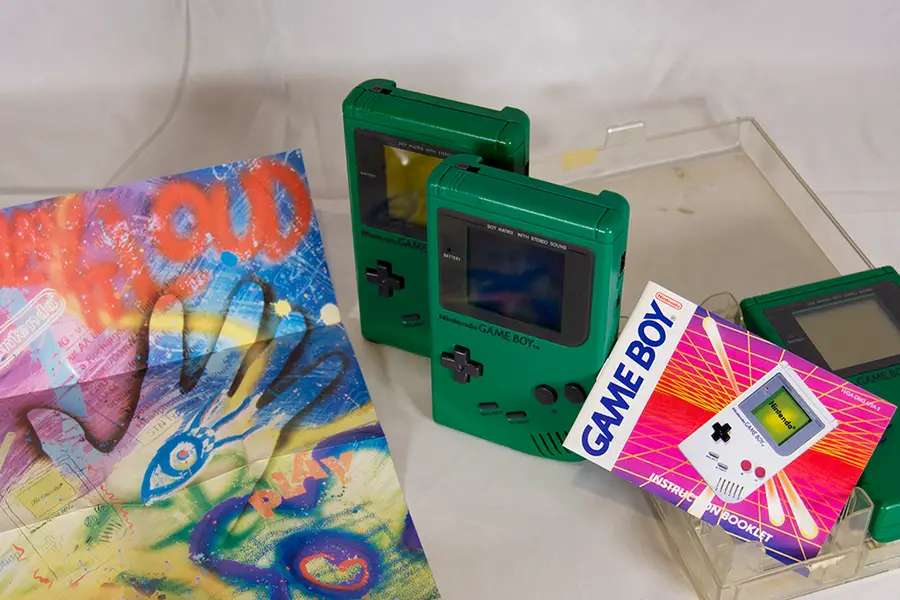
1 – Play it loud!
In March of 1995, Nintendo released the Play It Loud series. These were Game Boys with new, colorful shells. They came in red, blue, green, yellow, black, clear, and white.
The Play It Loud models have a dark gray bezel with matching dark gray buttons. Most of them have black logo and button text. The black and clear edition both have red logo/button text. There exists a rare version of the clear shell that features black text. The rarest Play It Loud edition is the white one, which can go for a few hundred online.
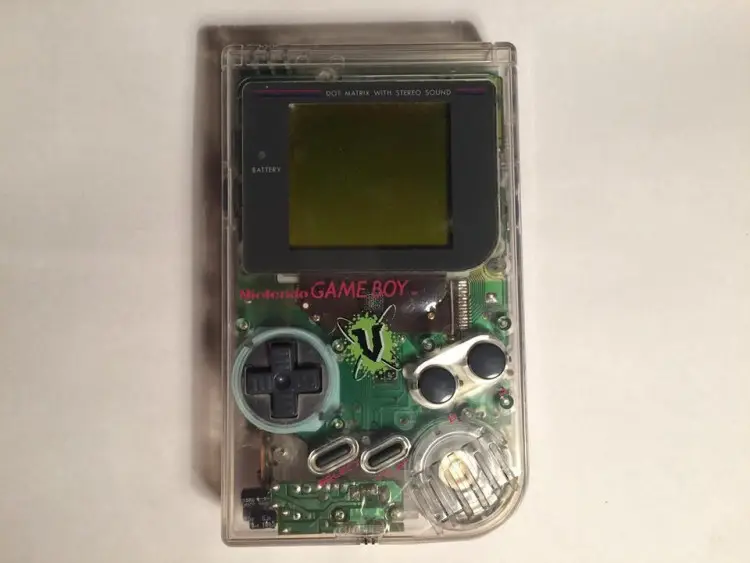
In the late 90’s, Nintendo began licensing Game Boy rights to third party companies. These companies would release custom Game Boy editions as promotional prizes, often branding them with the company logo. The V Drink Game Boy edition was released in an unknown but limited quantity. The release was isolated to Australia.
In 1995, a new deal was announced between Planet Hollywood and Nintendo. Planet Hollywood began selling custom Game Boys with the company logo printed on the shell. They were available in Planet Hollywood gift shops for a limited time. They are reported to be a European exclusive release. If you find one for sale online, they’re usually priced in the $200 range.
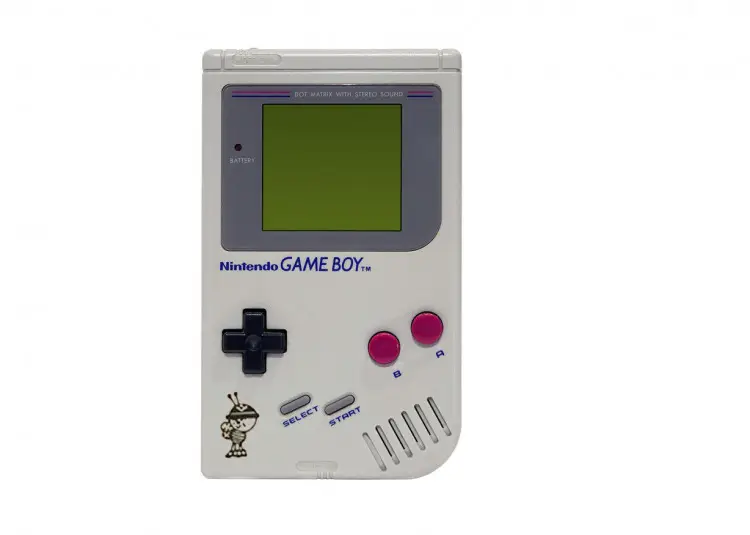
This Game Boy is another promotional item. It features a small design in the bottom left corner. It comes only in the usual off white color. The image is reported to be the logo of a company called Bee Ind.
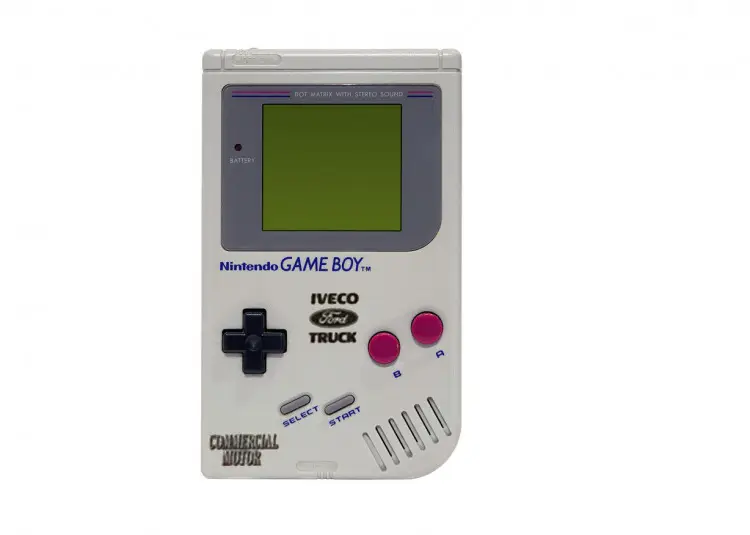
For a gaming experience that’s built Ford tough, you need the Iveco Truck edition. It was released in America as part of a contest. It features the Ford logo surrounded by “Iveco Truck”. The image is printed on the original off white Game Boy.
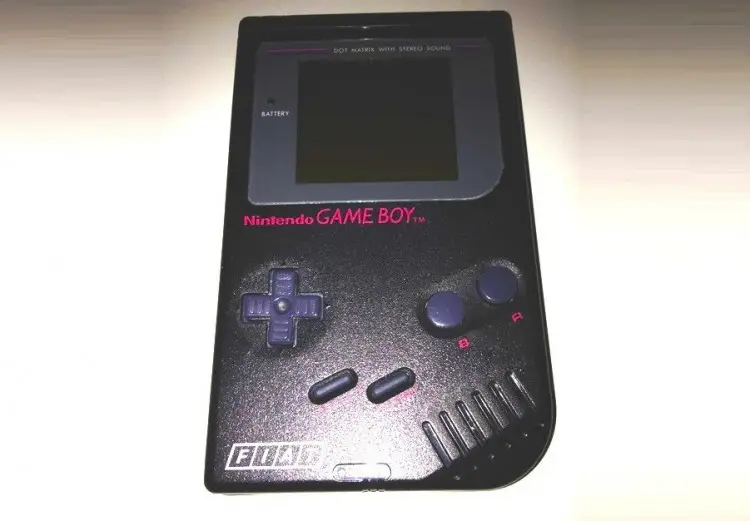
This edition was made to be won in a contest. It appears to be a black Play It Loud Game Boy, evident by the dark gray bezel/buttons and red logo/button text. The bottom left corner displays the FIAT logo in white. It’s reported that 100 of these were released.
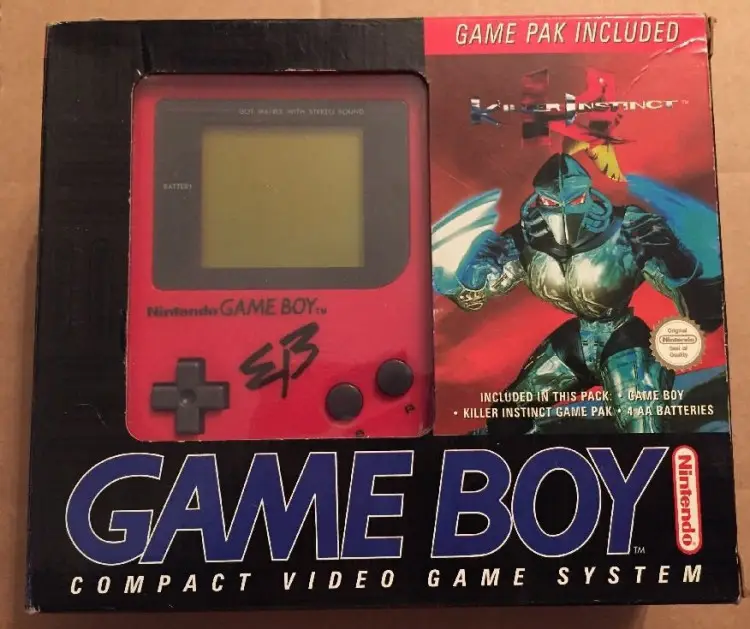
The Electronic boutique edition is another promotional item. It features the Electronic Boutique logo on what appears to be a typical red Play It Loud shell. This edition was only available in EB stores. The package, which had a really cool design, also came with Killer Instinct.
Lusticru is a French company that specializes in making pasta. Like many European businesses in the 90s, they decided to release a promotional Game Boy. The official number released is uncertain, but some estimate around 50 units exist. One thing is for sure, they are few and far between in online auctions.
This edition was released by the water-based apparel company known as Body Glove. The release was a European exclusive. It looks like a normal, black Play It Loud device. But this version features a yellow Body Glove logo in the center with the words “Limited Edition” in the bottom left.
This is the JAL edition. JAL stands for Japanese Airlines. It’s unknown exactly how many are in circulation. They feature the JAL logo on the mid-right section of an off white shell. The serial number on these editions always begins with JAL. These Game Boys are very hard to find online.
This is a really special edition. It’s the only Game Boy shell to be released in this shade of pink. There is no logo text or button text. It appears to use the original bezel and button color scheme. There is a large, red heart in the center of the Game Boy.
This Game Boy was released as a prize for a European game show. One user on Reddit claims to have one won by his mother on a show called “Ant and Dec’s Saturday Night Takeaway”. She reportedly won the Game Boy after calling in to share a Valentine’s themed poem on the show. In the thread, the user provided some of the only pictures you can find of this edition. It’s unknown how many were released.
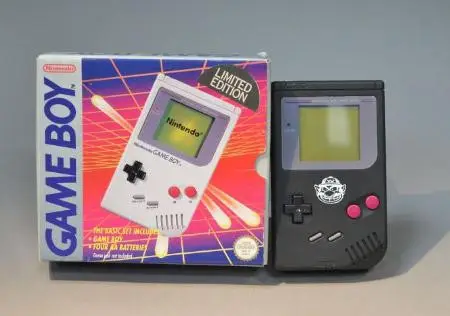
The Wario edition is another super rare find. It features your favorite baddie Wario on a solid black Game Boy. There is no logo or button text. The unit comes with the original bezel and button colors. This edition was a winnable prize on a UK TV show known as “Ghost Train Show”.
This rare Game Boy was made for the English Football club known as Manchester United. The Game Boy appears to be a red Play It Loud edition with Manchester United graphics. It says “Manchester United Football Club” across the front. A Manchester United seal is placed in the center of the Game Boy with a logo in the bottom left.
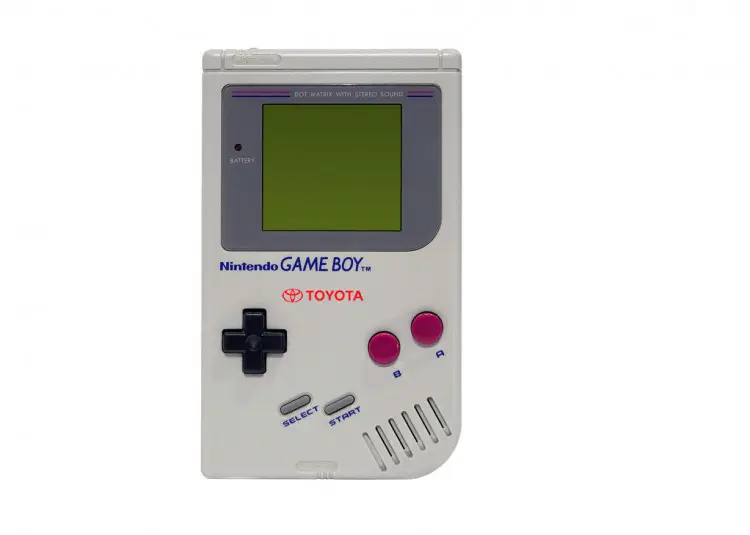
This Game Boy was released as a prize for Toyota. Contest winners would receive the custom Toyota Game Boy unit. It looks just like an original Game Boy. The only change is a small Toyota logo on the front. It’s estimated there are around 100 of these in circulation.
Milka is a German chocolate company. The Milka Game Boy edition features the Milka cow logo on the front of the shell. It was part of a sweepstakes promotion created just for Milka in the ’90s. It’s unknown how many of them were made. Some estimates put the mark around 50 possible units.
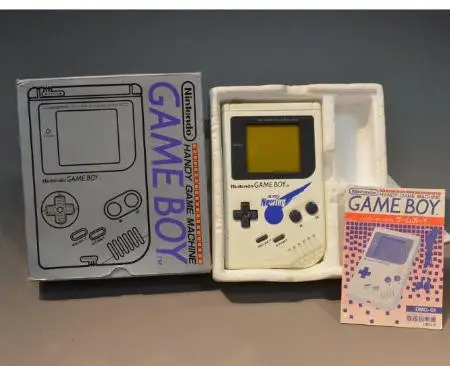
The Altus Newing edition is a really neat find. This Game Boy was released on the already rare white Play It Loud edition. It features the Altus Newing logo across the front in a striking blue print. I really like the look of these Game Boys. These variants were released in Japan and are said to have been prizes for a contest in the 90s.
This Game Boy variant has a really interesting history. Back when the Game Boy was released, there was unresolved tension between South Korea and Japan. Japanese products weren’t easily sold in South Korea. In an effort to circumvent these restrictions, Nintendo licensed the Game Boy for production under Hyundai. The Comboy, as it became known, looks almost exactly like a regular Game Boy. It features the Hyundai logo with the word “Comboy” on the front.
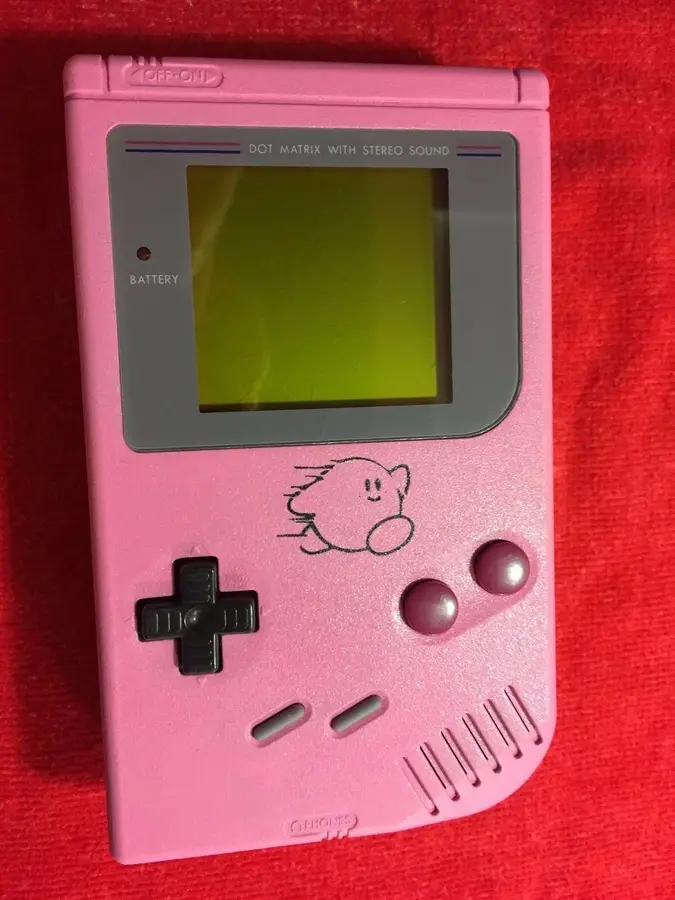
This is by far the rarest Game Boy edition. It’s known as the pink Kirby Pinball edition. It comes with a deep pink shell and features lineart of Kirby on the front. It was part of a mail-in sweepstakes promotion for a company in the UK called The Jacob’s Bakery Limited.
Only 25 units were created.
One recently appeared on ebay with a Buy It Now price of over $18,000. If you’re looking to complete your Game Boy collection, now is the time. This one still has its link port cover.
NEXT UP
RetroPie scrapers: what they are and how to use them
You’ve put so much work into setting up RetroPie or EmulationStation. You load it up with legally obtained ROMs only to find that custom theme you installed—you remember, the one from my RetroPie themes guide—has a big blank spot for box art! The Best RetroPie Themes (And How to Install Them)You deserve some personal flair! RetroPie: Build Your
Introducing Howchoo, an enigmatic author whose unique pen name reflects their boundless curiosity and limitless creativity. Mysterious and multifaceted, Howchoo has emerged as a captivating storyteller, leaving readers mesmerized by the uncharted realms they craft with their words.
With an insatiable appetite for knowledge and a love for exploration, Howchoo’s writing transcends conventional genres, blurring the lines between fantasy, science fiction, and the surreal. Their narratives are a kaleidoscope of ideas, weaving together intricate plots, unforgettable characters, and thought-provoking themes that challenge the boundaries of imagination.
For thousands of years, chamomile has been used to calm anxiety and settle sour stomachs, but recently that we’ve started broadening our chamomile horizons to simple syrup.
Certainly one of the more obscure sides of simple syrup recipes, learning how to make chamomile simple syrup is a great way to add some floral flavors to your favorite cocktails (like a Tom Collins or a Gin Fizz).
What makes this particular recipe is even tastier is the use of fresh lemon peels.
Now, grab your vegetable peeler, your sugar, and let’s learn how to make chamomile simple syrup.
What to learn how to make something really delicious? Check out my recipe for blackberry simple syrup.
1 – How to choose your chamomile flowers
Like our rose water simple syrup guide, you can use freshly grown chamomile flowers, or you can use dried flowers.
If you’re using dried flowers, try to buy organic. For example, while chamomile leaves are widely sold to be used for home growth, it’s important to make sure they’re actually safe for consumption.
Check and research everything that’s listed on the packs you’re buying. A quick search with a reputable source will help you determine whether your flowers are safe or not.
Otherwise, buying organic is always a good route to take.
Once you have your flowers, you’ll be ready to make your syrup.
2 – Add your ingredients to your sauce pan
Carefully use your vegetable peeler to peel the skin of 1 lemon. Drop the peels into your sauce pot.
Measure out 2 tbsp of chamomile flowers and add them to your lemon peel.
Measure out 1 cup of sugar and add them to your pot.
Finally, add 1 cup of water to the pan.
3 – Heat your chamomile, sugar, lemon peel, and water
Place your pot over medium-high heat.
Stirring occasionally to help your sugar dissolve, bring your syrup to a boil. Once your sugar has dissolved, turn off your stove, and remove your pot from the burner. Allow it to cool for 10 minutes.
4 – Strain your simple syrup
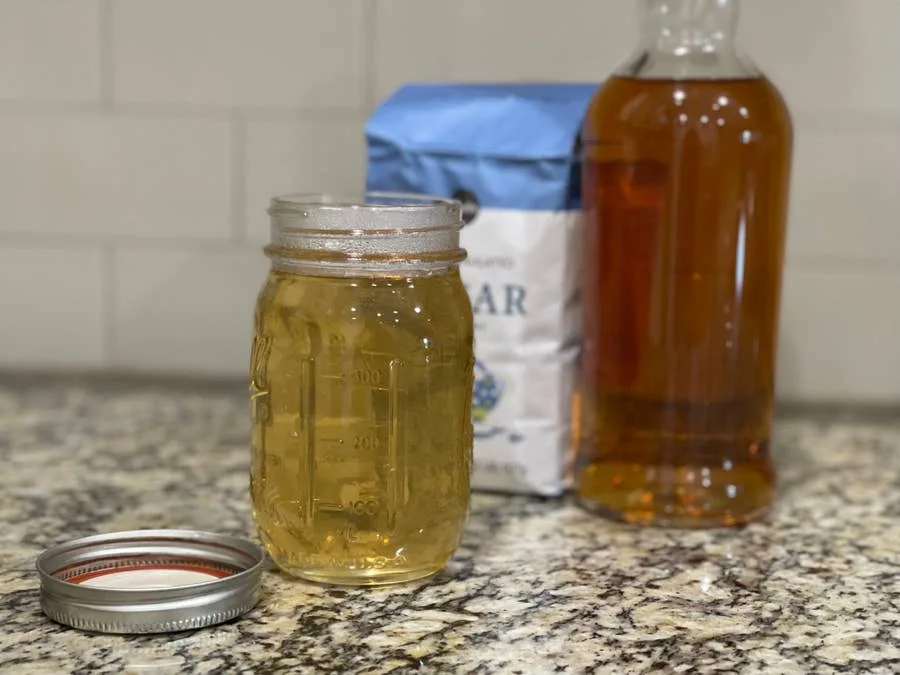
Once your pot has cooled, pour your syrup through a strainer and into your mason jar (or any airtight container).
Now that you known how to make chamomile simple syrup, it will keep in the fridge for up 4 weeks, which gives you enough time to enjoy a beverage (or two). Whether you’re pouring this syrup into a cup of tea or your favorite cocktail or a combination of the two (try a little of your simple syrup in a glass of whiskey, with a dash of honey, and your favorite sleepy tea) and enjoy!
Pro tip: Clean up your sauce pot before your sugar evaporates and crystalizes to the side of your cookware. Nothing is worse than scraping off sugar.
NEXT UP
HeaterMeter: Control your Grill Using a Raspberry Pi!
With summer right around the corner, it’s time to fire up the grill! But who will watch the grill while you’re beating the heat? This year, kick things up a notch with your own Raspberry Pi-powered HeaterMeter. Don’t just throw a BBQ, be a part of it. HeaterMeter lets you keep a close eye on
Introducing Howchoo, an enigmatic author whose unique pen name reflects their boundless curiosity and limitless creativity. Mysterious and multifaceted, Howchoo has emerged as a captivating storyteller, leaving readers mesmerized by the uncharted realms they craft with their words.
With an insatiable appetite for knowledge and a love for exploration, Howchoo’s writing transcends conventional genres, blurring the lines between fantasy, science fiction, and the surreal. Their narratives are a kaleidoscope of ideas, weaving together intricate plots, unforgettable characters, and thought-provoking themes that challenge the boundaries of imagination.
Note: This guide does not work on MacOS 11 Big Sur. Look out for an updated guide coming soon.
According to xkcd, if you can shave 5 seconds off of this task each time you perform it, it is worth spending about 12 hours to automate the task (over the course of 5 years):
XKCD
We’re big fans of automation and time-saving at howchoo! We’ve made shortcut guides in the past, such as showing you how to auto-hide your dock in MacOS and setting up a Mac mail search box shortcut.
And here’s another great one! If you follow this guide closely, it only takes 10 minutes to automate connecting your Airpods with a keyboard shortcut in macOS!
1 – Copy the following script
activate application "SystemUIServer"
tell application "System Events"
tell process "SystemUIServer"
-- Working CONNECT Script. Goes through the following:
-- Clicks on Bluetooth Menu (OSX Top Menu Bar)
-- => Clicks on SX-991 Item
-- => Clicks on Connect Item
set btMenu to (menu bar item 1 of menu bar 1 whose description contains "bluetooth")
tell btMenu
click
tell (menu item "{{ The name of your airpods here }}" of menu 1)
click
if exists menu item "Connect" of menu 1 then
click menu item "Connect" of menu 1
return "Connecting..."
else
click btMenu -- Close main BT drop down if Connect wasn't present
return "Connect menu was not found, are you already connected?"
end if
end tell
end tell
end tell
end tell
It lives in /Application/Utilities/, but just use spotlight (cmd + space).
Click New Document to get a blank editor.
3 – Paste the code
Paste the code into the editor.
4 – Carefully add the name of your airpods to the code
Find the name of your AirPods from your Bluetooth settings. Whatever shows up in the menu is the official name of your AirPods. This name is case sensitive and only allows curly quotes. A curly quote is ’, not '. A curly quote can be entered using shift + option + ]
Find the section that says {{ The name of your AirPods here }} and replace it with the name of your AirPods.
For me, “Dayne’s AirPods Pro” becomes “Dayne’s AirPods Pro”.
See the completed code below:
activate application "SystemUIServer"
tell application "System Events"
tell process "SystemUIServer"
-- Working CONNECT Script. Goes through the following:
-- Clicks on Bluetooth Menu (OSX Top Menu Bar)
-- => Clicks on SX-991 Item
-- => Clicks on Connect Item
set btMenu to (menu bar item 1 of menu bar 1 whose description contains "bluetooth")
tell btMenu
click
tell (menu item "Dayne’s AirPods Pro" of menu 1)
click
if exists menu item "Connect" of menu 1 then
click menu item "Connect" of menu 1
return "Connecting..."
else
click btMenu -- Close main BT drop down if Connect wasn't present
return "Connect menu was not found, are you already connected?"
end if
end tell
end tell
end tell
end tell
5 – Save As an Application
Hit cmd + S to save.
Select “Application.”
Give your application a catchy, memorable name.
6 – Give security privileges to your script
Go to System Preferences > Security & Privacy
If the settings are locked, click the lock at the bottom left and enter your password to unlock it.
7 – Add your new application to “Accessibility”
Select Accessibility on the left side.
Click the + sign.
Find the new Application you just created and select it.
8 – Open Automator
Open the Automator Application which can be found at /Applications/Automator, but again, just use spotlight (cmd + space).
Click New Document.
Select the cog that says “Quick Action” (it may be called “Service” on older MacOS versions).
9 – Select “no input”
In your new Automator action, under “Workflow receives”, select no input. Make sure it reads “Workflow receives no input in any application.”
10 – Select “Launch Application”
In your new Automator action, under “Workflow receives”, select no input. Make sure it reads “Workflow receives no input in any application.”
11 – Select “Launch Application”
Click the dropdown, select Other,
Find and select your new application.
12 – Save your application
Hit cmd + save and give your action a catchy name.
13 – Go to keyboard shortcuts settings
Go to System Preferences > Keyboard > Shortcuts
14 – Find your new action
Click Services on the left side and look for your new action under the “General” section. Mine was at the very bottom.
Make sure the checkbox is enabled here.
Click Add Shortcut next to it.
15 – Press a keyboard shortcut
Think of a memorable keyboard shortcut and enter it. It will appear next to the action.
16 – Test it
Hit your keyboard shortcut and, voila, things should happen! You may get a security alert the first time you run it, but other than that, you’re all set!
NEXT UP
How to Enable the “Popping” Sound When Adjusting the Volume on Your Mac
Starting with MacOS Sierra and High Sierra, your Mac will no longer play a “pop” sound when you adjust your volume. If you prefer to have this sound when you adjust volume up and down (as I do), this guide will teach you how to reenable it. 1 – Open Sound System Preferences Navigate to System
Introducing Howchoo, an enigmatic author whose unique pen name reflects their boundless curiosity and limitless creativity. Mysterious and multifaceted, Howchoo has emerged as a captivating storyteller, leaving readers mesmerized by the uncharted realms they craft with their words.
With an insatiable appetite for knowledge and a love for exploration, Howchoo’s writing transcends conventional genres, blurring the lines between fantasy, science fiction, and the surreal. Their narratives are a kaleidoscope of ideas, weaving together intricate plots, unforgettable characters, and thought-provoking themes that challenge the boundaries of imagination.
The variety of mods available for Minecraft is just as vast as the worlds within the game itself. Most likely, any mod you could want or dream of has already been developed. As an avid Minecraft player, I’ve recently become obsessed with Forge Minecraft mods and run a survival multiplayer server (SMP)!
This guide will go through mods available for Forge Minecraft multiplayer servers that add tools for server management or improves performance. The following list includes not just one type of mod, but a large variety. So whether you’re hosting a server that’s PVP or casual, you’ll find something for any type of Minecraft player!
Note that at the game versions available may change since the time of publishing. Most photos were taken using BSL Shaders and Optifine in 1.16.5.
One of the more annoying aspects of Minecraft are the floating leave blocks that sit in the air after you’ve chopped down a tree. The Fast Leaf Decay mod speeds up leaf decay, so you can get your loot and airspace back in under five seconds!
2 – Feed the Best Mods
I’ve bundled all the Feed the Beast (FTB) mods together because they’re great as a package and tend to rely on one another for full functionality. They’re what I currently use for a modded Minecraft server! My main complaint, however, is the lack of accurate documentation for some mods. Just something to keep in mind for consideration.
FTB Backups Game Versions: 1.12, 1.14, 1.15, 1.16 Provides a configurable backup system for servers and creates them only when players are online to save space from clutter!
FTB Quests Game Versions: 1.12, 1.15, 1.16 For those that want a server with quests, this is a great mod to have. It makes it easy to create custom quests for players.
FTB Chunks Game Versions: 1.15, 1.16 This mod comes with its own world map and minimap. More importantly, it allows for players to claim chunks. Only those the player allies with will be able to interact or affect blocks in the claimed area. I highly recommend using in conjunction with FTB Teams for full functionality.
FTB Teams Game Versions: 1.15, 1.16 This mod adds the ability for teams to be made. On its own, it’s not very impressive, but matched with FTB Chunks and FTB Quests, servers run smoothly.
FTB Ultimine Game Versions: 1.12, 1.15, 1.16 This is a great VeinMeiner alternative for newer game versions. With a configurable key, players can harvest multiple blocks at once. You can also configure a whitelist of blocks for the server!
FTB Essentials Game Version: 1.16 This mod adds utility commands that are essential to running and maintaining a server. It allows players to teleport to one another, change nicknames, set homes, and more!
FTB Ranks Game Versions: 1.15, 1.16 This is essential if you want to enable permissions on a server. Completely configurable, you can set ranks for new players, moderators, and any other type that give specific access to mod commands.
3 – Xaero’s Minimap and World Map
By xaero96
Game Versions: 1.12, 1.14, 1.15, 1.16, 1.17
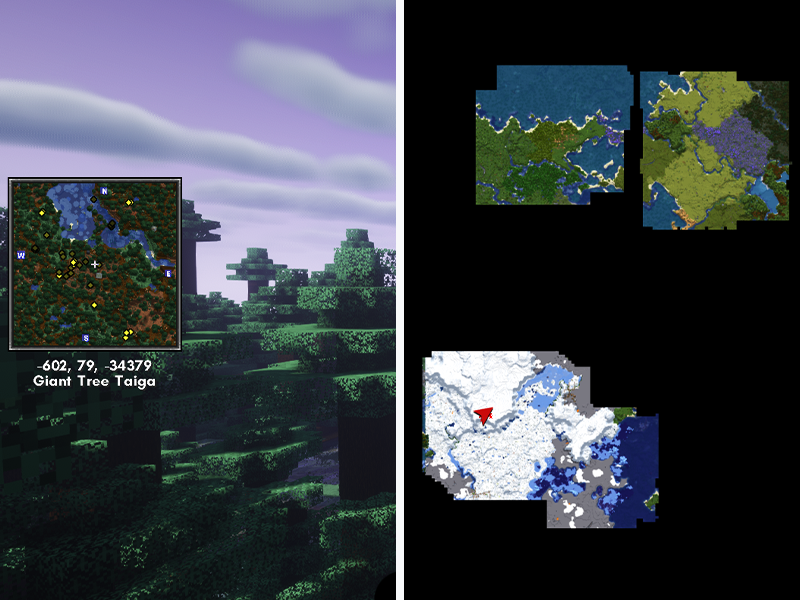
These are two mods I’ve grouped together for obvious reasons. This is an easy to use, completely customizable minimap that also benefits from the larger World Map mod, but doesn’t require it. It has an infinite amount of waypoints and integrates with the Waystones mod. It also displays dots for various items or entities on the map. I highly recommend these mods and use them frequently in my own playthrough.
This mod helps the base game deal with heavily modded worlds and take away the stress of a modded ecosystem. AI Improvements can be customized so it only affects certain AI functions, but overall does help improve server performance for older versions of the game.
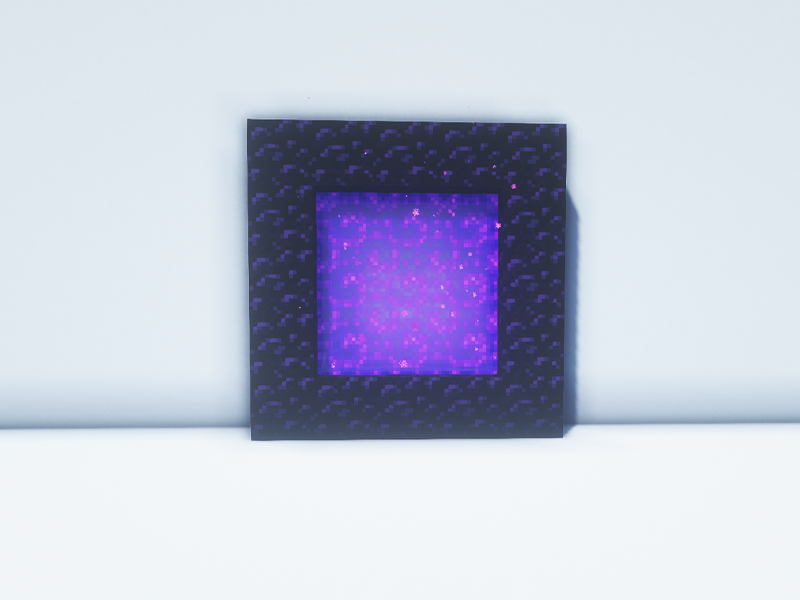
A common problem that can occur on multiplayer servers is that Nether portals will sometimes cross paths. This means that players can go through their own portal to the Nether, but end up at a neighbor’s on their way back home. This mod keeps track of which portals a player went through to make sure they go back through it properly.
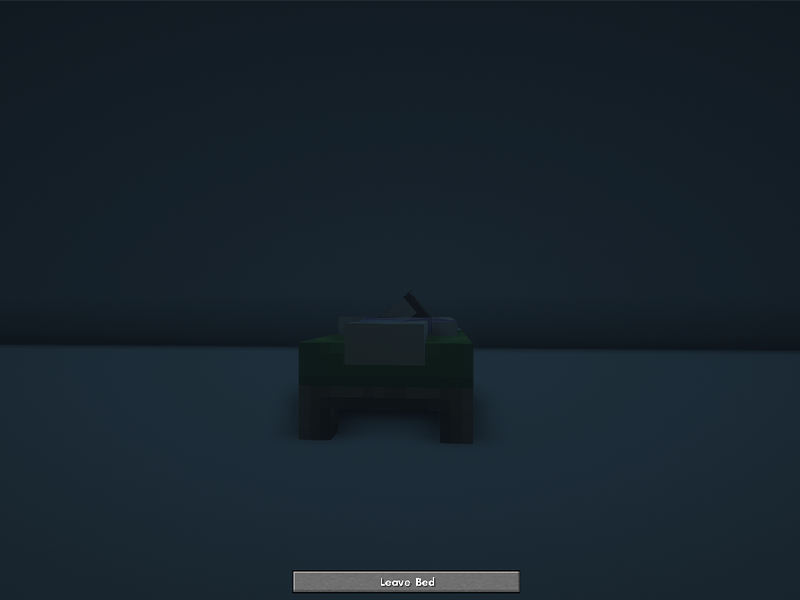
This is a server-side mod that enables for nighttime to be passed based on a pre-configured percentage. By default, it’s set to 50% of players need to be in bed in order to skip the night. You can also customize the messages that are shown in the morning.
7 – Clumps
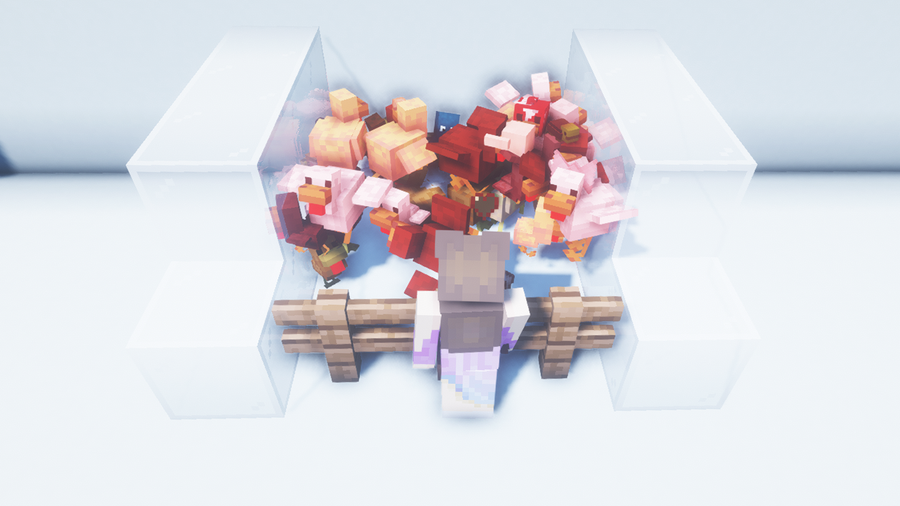
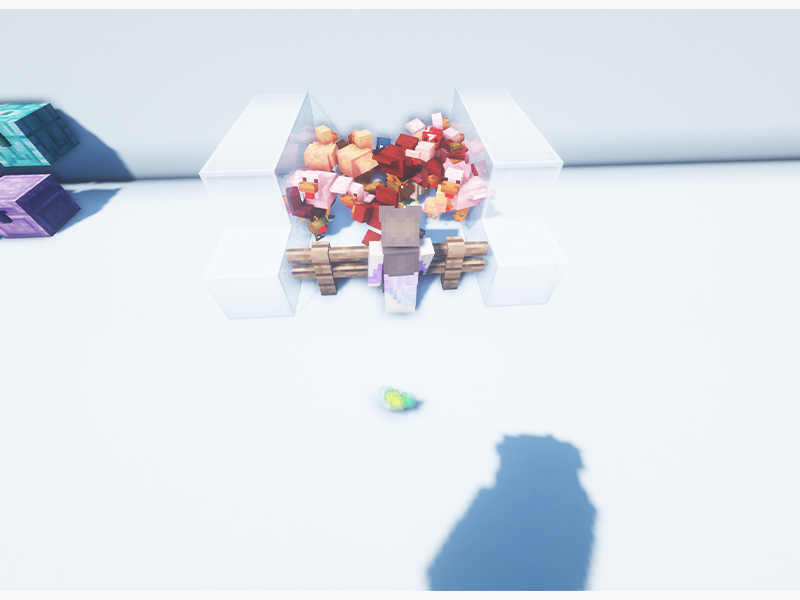
These chickens are absolutely, totally, completely fine…
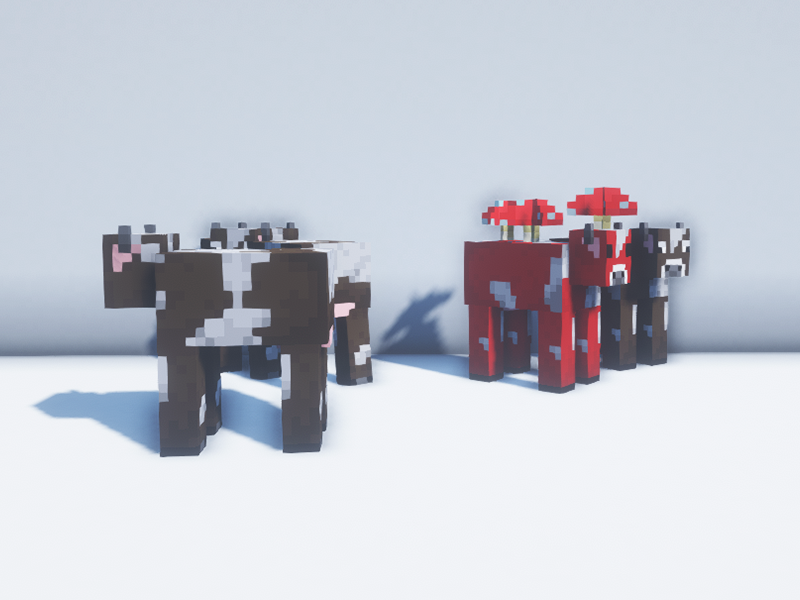
When running a server, you need to find ways to reduce lag everywhere. Experience orbs are one of the most forgotten aspects, which is why Clumps is a perfect mod for servers. It groups together XP orbs into one entity and makes the player collect them once they’re touched to help reduce lag.
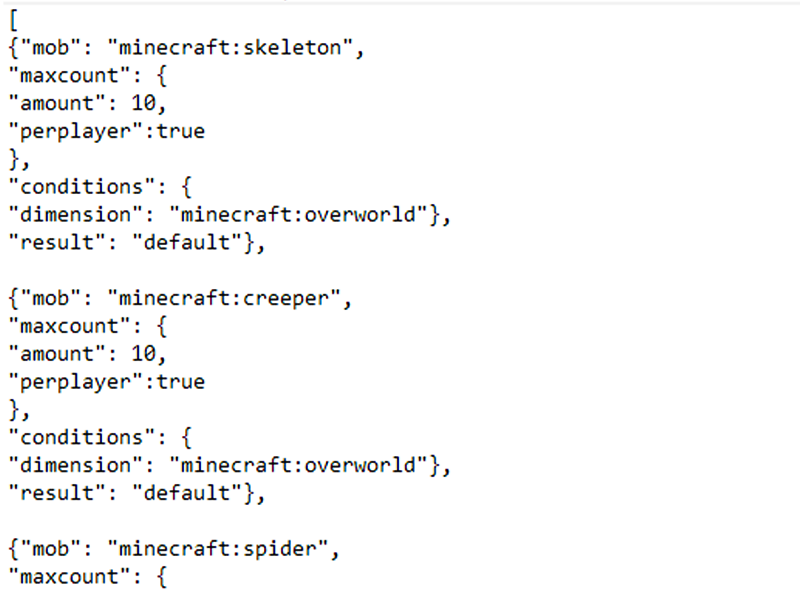
When I first started running a modded server, the biggest problem was the amount of mobs spawning around players. Even on normal mode, it was out of control. The In Control! mod makes customizing the world easy. Using the included wiki and configuration files, server owners or single players can set conditions for mob spawns and even the experience or loot dropped by mobs.
Most servers have a lot of in-game deaths and a lack of a solution for holding items at a player’s death point. Corail Tombstone has more than just graves that hold player items and experience orbs. It also comes with a perk and magic system called Knowledge of Death. You can also customize your grave or craft graves of your own to place around your area.
If there’s ever a mod that server admins need to learn, it’s WorldEdit. My entire gameplay and building has changed since learning to just the basics of WorldEdit. This is the best Minecraft map editor mod out there. Change the landscape, copy or paste blocks, import schematics, and so much more. It’s the best mod to use when wanting to build a world spawn area in a server.
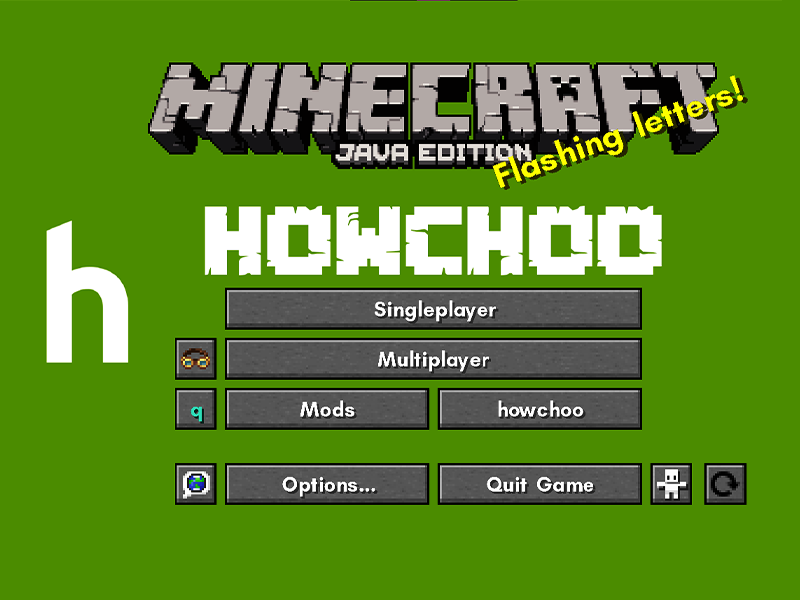
This mod is mostly for client-side, but I really wanted to include it in the list, as it enables players to change the main menu to however they see fit. For server admins, you can customize the main menu to match your server’s branding and import it into your modpack as a resource pack, so all players have the same menu!
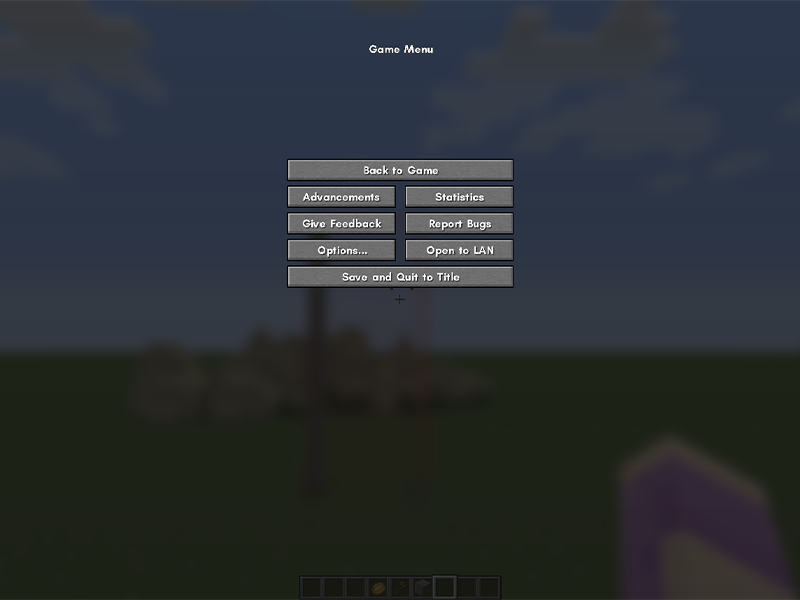
This mod helps your computer while you run Minecraft! It reduces FPS if there’s no user activity for a certain amount of time or if the game window is inactive or minimized. It also suppresses sound volume if you move to another active window and displays the current FPS on the screen for you to monitor.
This is a UI improvement mod that I personally love. Sometimes you just need to focus in on your inventory or want a less distracting look to your recorded Minecraft content. The Blur mod adds a Gaussian blur to the background of all GUIs, plus it’s configurable to your personal preference!
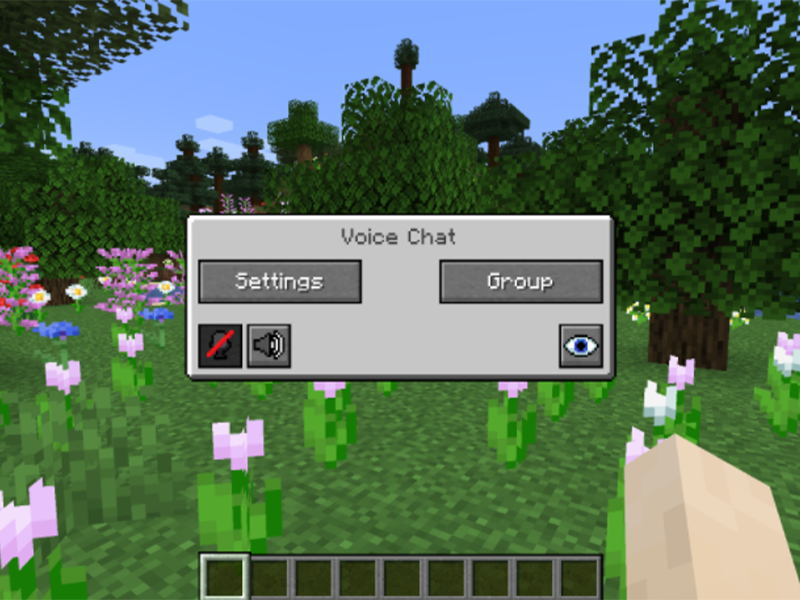
This is a must-have for servers that want to foster community as well as exploration. This adds proximity chat to the server, which can be set for push to talk or voice activation. It’s completely configurable for volume control, and you can even test your microphone with a playback feature to make sure the quality is good.
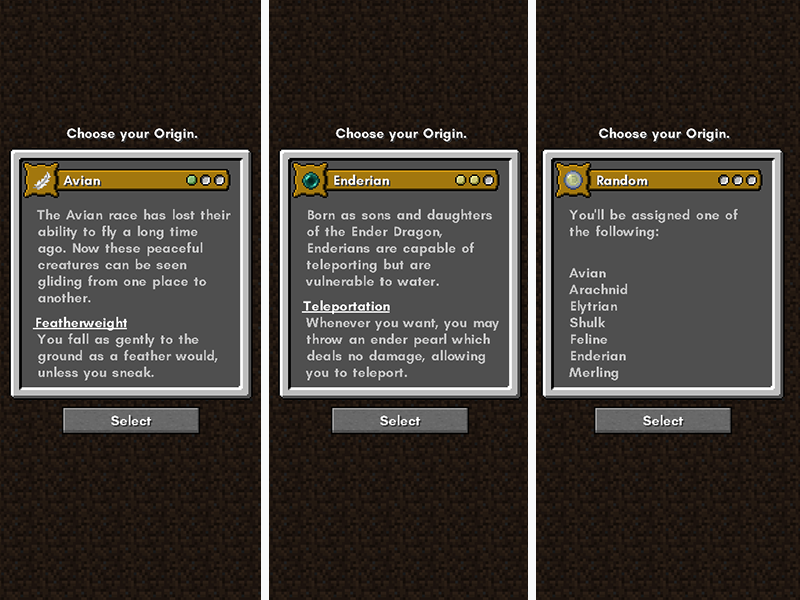
Origins enables players to choose a present origin type that have unique abilities and weaknesses that add challenge to a Minecraft playthrough. While the Forge version doesn’t have as many add-ons as the Fabric one, it’s still worth giving a try if you’re new to running an Origins SMP server.
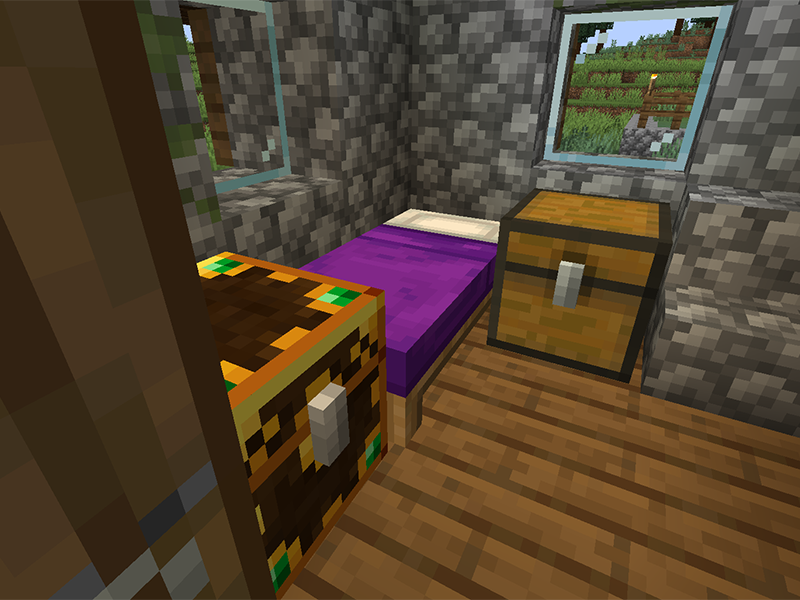
Lootr is another essential server mod. One of the more common problems in a Minecraft server is when players find a chest only to discover it’s already been looted. This mod turns each chest into a loot chest with unique inventories for every player! No more excursions that lag the server with chunk generation or disappointment when searching for resources!
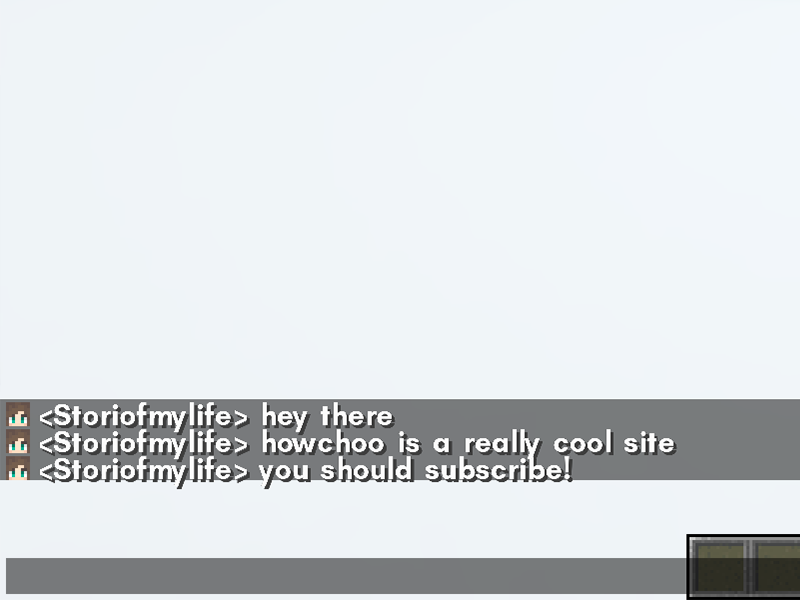
This is a mod for clients that makes chat just a little more developed. It adds the player head beside their messages, which makes it much easier to tell people apart in a larger sized server.
This could be a bit macabre, but this mod allows for players’ heads to drop upon death or a specified command. It’s a light mod to make things a little more interesting on a server!
Just like the one above, this mod adds a configurable chance for mobs to drop their heads upon death. This is great for survival servers where players can feel accomplished by their actions.
This mod is essential for multiplayer servers where players spread out and claim areas for themselves. Waystones adds blocks for the player to return to once they’re activated. There’s also Warp Scrolls and Warp Stones, which players can have on hand to use to hop to a waystone they’ve already found. It’s very customizable for server administrators to set the cost and permissions.
The longer you play Minecraft, the more you realize that early-game tools just won’t cut it. Exploring the enchantment feature of Minecraft can be exciting, but also intimidating. Rather than worry about researching enchantments, below are the best enchantments in Minecraft! To learn how to enchant items, check out this guide! In this guide, you’ll see
Introducing Howchoo, an enigmatic author whose unique pen name reflects their boundless curiosity and limitless creativity. Mysterious and multifaceted, Howchoo has emerged as a captivating storyteller, leaving readers mesmerized by the uncharted realms they craft with their words.
With an insatiable appetite for knowledge and a love for exploration, Howchoo’s writing transcends conventional genres, blurring the lines between fantasy, science fiction, and the surreal. Their narratives are a kaleidoscope of ideas, weaving together intricate plots, unforgettable characters, and thought-provoking themes that challenge the boundaries of imagination.