Home Interests Game Boy

How to Fix Speaker Whining on a Backlit Game Boy

Was that a boop or a beep? I can’t tell—let’s just fix it!
howchoo   (467)
September 8, 2023
9 minutes

Share

You’ll Need 8

What you’ll need
Interests
Series
Solder x 1
Flux x 1
Howchoo is reader-supported. As an Amazon Associate, we may earn a small affiliate commission at no cost to you when you buy through our links.
Posted in these interests:
gameboy • 8 guides
nintendo • 13 guides
retrogaming • 29 guides

Installing a Game Boy backlight is arguably one of the coolest mods today. Such a minor detail would have made a tremendous difference back in 1989. However, Game Boys weren’t exactly designed with a backlight in mind.

This mod requires a significant amount of power, affecting other areas of the device. One of the most noticeable impacts is a consistent whine from the speaker.

Thankfully, this issue is anything but detrimental. With a little bit of work, we can let more power through and cease this incessant whining!

1 – Examine the Game Boy

It’s always best to start with a thorough examination of the Game Boy. We’re looking for any missing pieces like link port covers, screws or battery covers. The Game Boy shell is held together using six screws—most of them tri-wing, but the earliest models use Phillips number 1 screws.

Because these devices are almost 30 years old, it’s not uncommon to find battery acid damage. When stored improperly, battery acid can leak into the Game Boy and affect the components inside. If your device has any signs of battery acid damage, don’t worry! We wrote a guide on cleaning Game Boy battery corrosion.
2 – Open the Game Boy

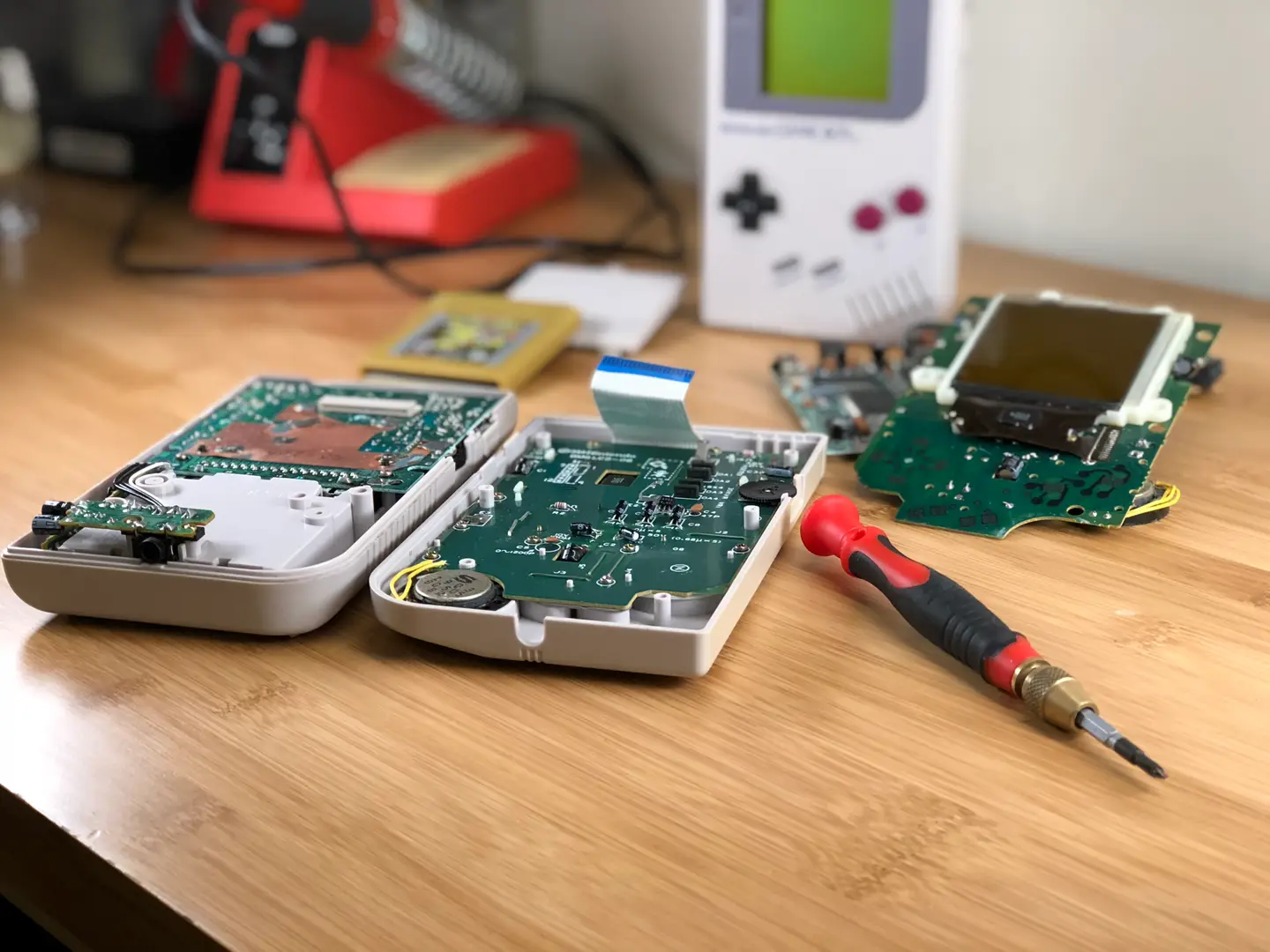
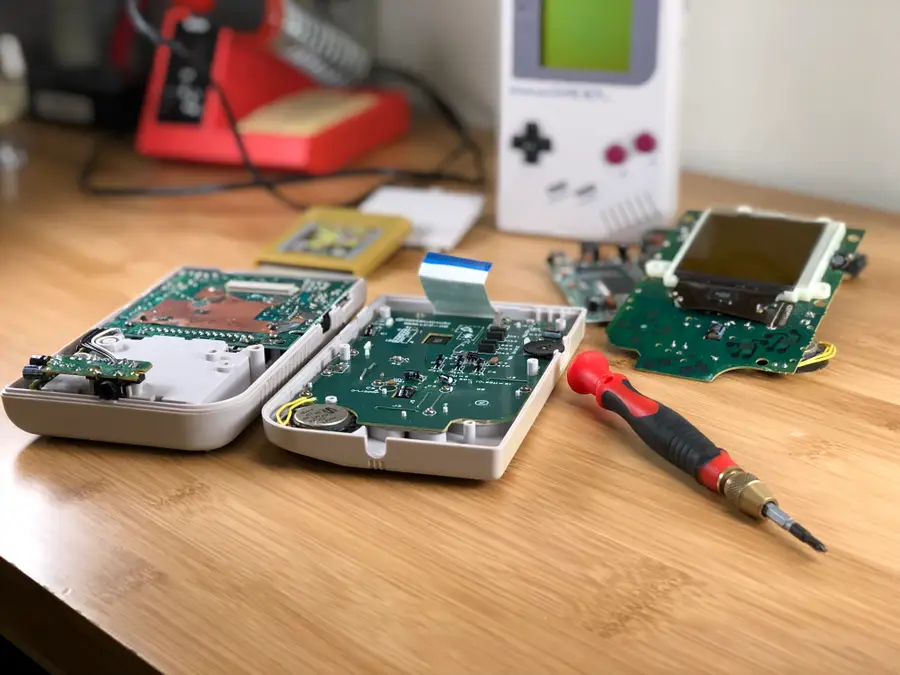
Using an appropriate screwdriver, remove all of the screws used to hold the shell together. You will need to remove the battery cover to remove every screw.

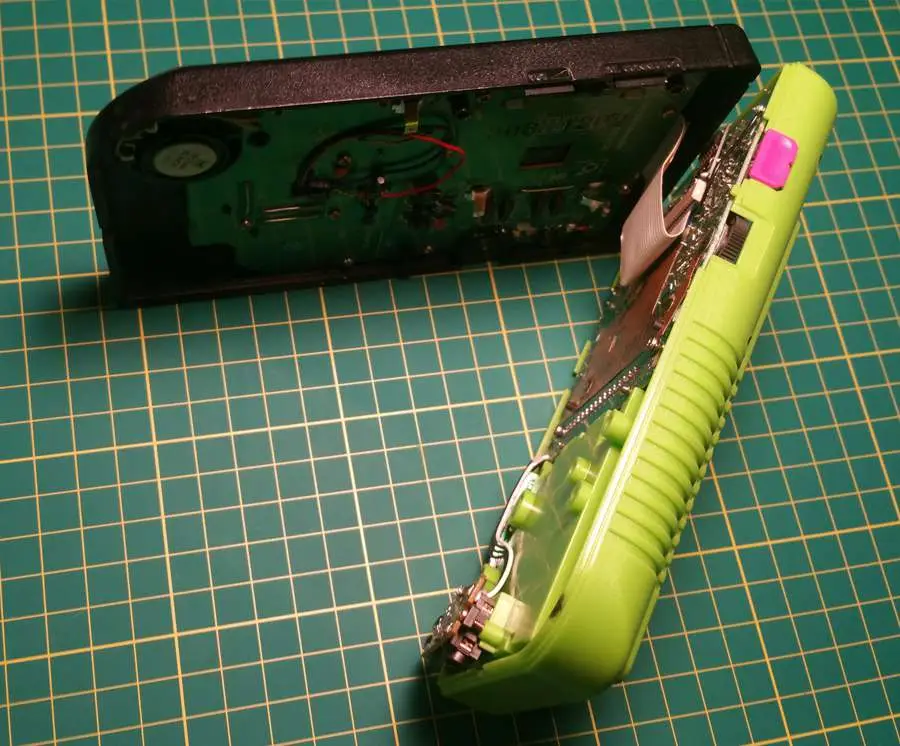
The Game Boy is comprised of two halves. These halves are held together by a very sensitive ribbon cable. This cable is responsible for feeding information to the LCD display. Exercise extreme caution when handling this cable!

Gently unplug the ribbon cable from it’s slot. The Game Boy should now be separated into two halves.

3 – Remove the back motherboard
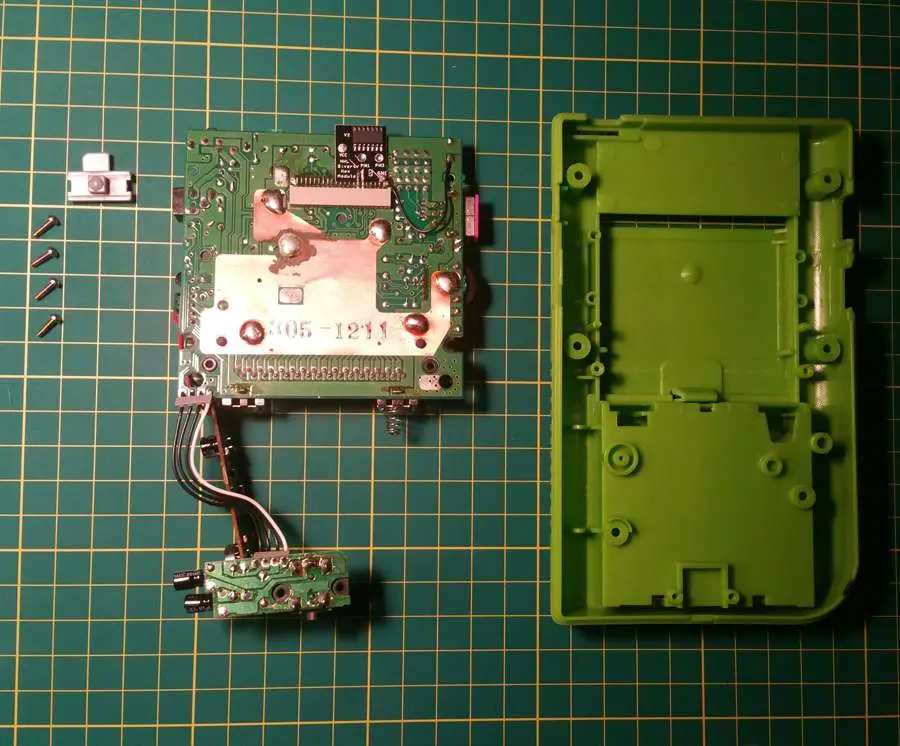
Using a Phillips number 1 screwdriver, remove the screws used to hold the back motherboard into place. There will be four screws total.

When the screws are removed, gently pull the motherboard from the back shell. Be mindful of the power switch in the upper left hand corner and set it aside during this step.

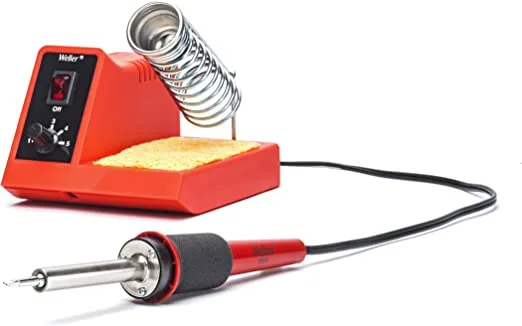
4 – Solder capacitor into place

The capacitor we’re installing will allow more power to reach the CPU. It’s this little change that makes a big difference in the quality of sound output.

The capacitor will need to be soldered onto the small motherboard attached on the side near the bottom. Please reference the picture above to ensure the component is properly soldered.

The anode (positive leg on the capacitor) will need to be soldered to the top contact, highlighted above. The cathode (negative leg on the capacitor) will need to be soldered to the second contact, also highlighted above.

I recommend placing the capacitor before bending the legs into place. After all, you want to make sure the Gameboy fits together!

For a professional finish, add some liquid electrical tape.

5 – Attach the back motherboard
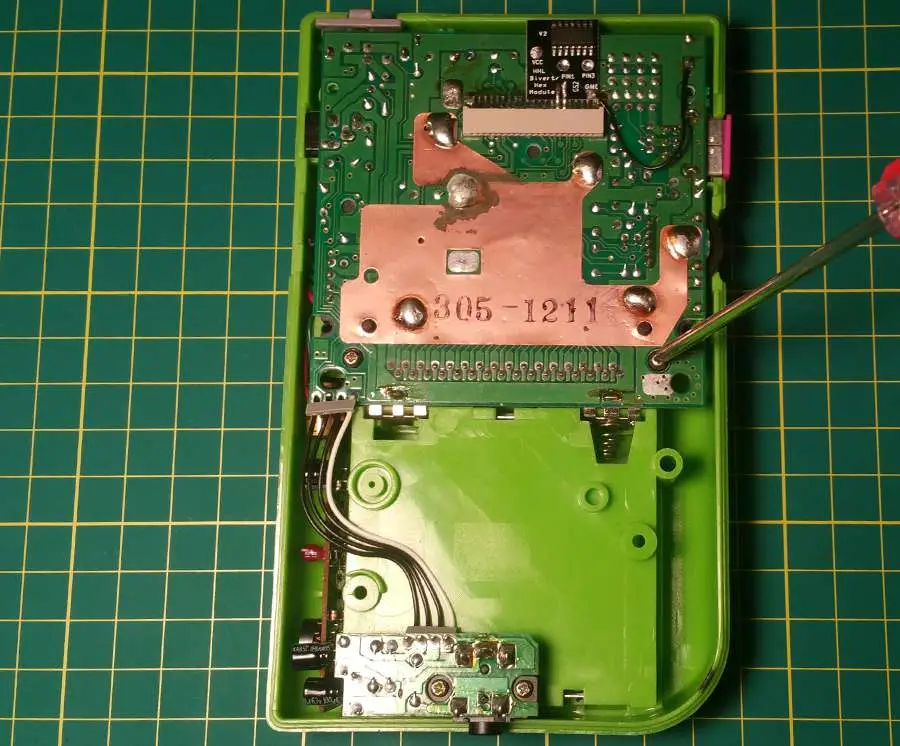
Place the back motherboard into the Game Boy shell. Don’t forget the power button placement in the upper left hand corner.

Using a Phillips number 1 screwdriver, screw the back motherboard into place. You will need four screws to mount the board to the shell.

6 – Close the Game Boy
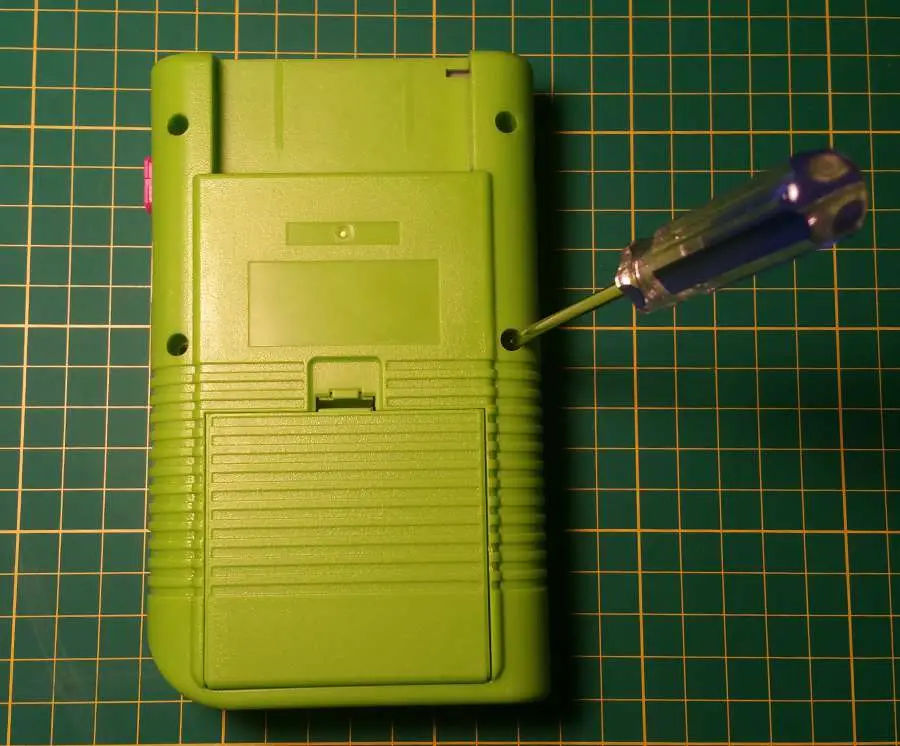
The Game Boy will need to be reconnected before we screw it back together. Be extra careful when handling the ribbon cable and plug it into the port.

Using an appropriate screwdriver, likely tri-wing, screw the Game Boy shell together. There will be six screws used during this step.

7 – Time for a test
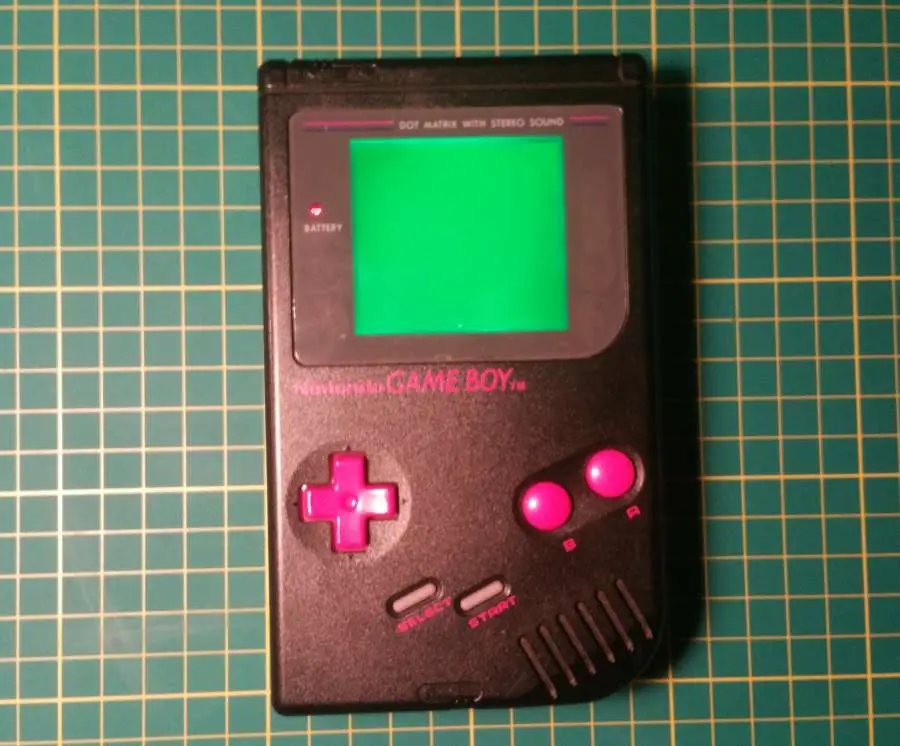
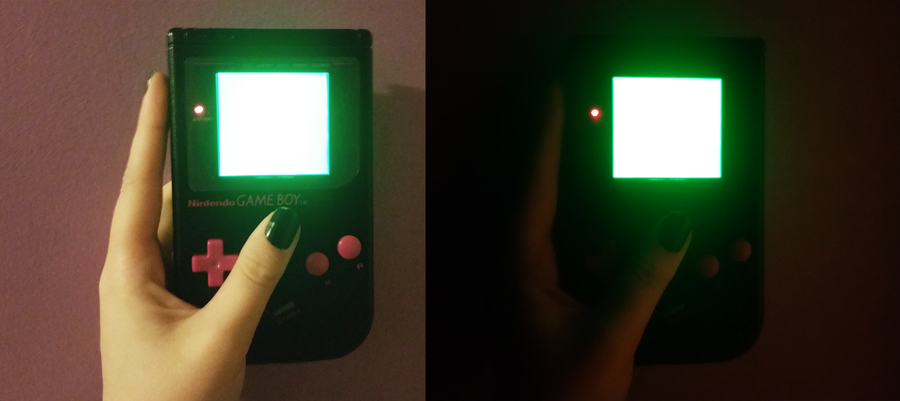
It’s time to pop in a fresh set of batteries and crank it up! If everything worked, you should have a beautifully bright screen with a clean, crisp sound to accompany your adventures.

Something Not Right?

  • The Game Boy has no power – Double check the battery installation. Keep an eye out for corrosion or battery acid damage.
  • The speaker is still whining – Open the Game Boy once more and double check the capacitor installation.
NEXT UP

RetroPie scrapers: what they are and how to use them

Wait, which game is this?
howchoo   (467)
September 29, 2023

You’ve put so much work into setting up RetroPie or EmulationStation. You load it up with legally obtained ROMs only to find that custom theme you installed—you remember, the one from my RetroPie themes guide—has a big blank spot for box art! The Best RetroPie Themes (And How to Install Them)You deserve some personal flair! RetroPie: Build Your
Continue Reading

howchoo

 467 guides

Introducing Howchoo, an enigmatic author whose unique pen name reflects their boundless curiosity and limitless creativity. Mysterious and multifaceted, Howchoo has emerged as a captivating storyteller, leaving readers mesmerized by the uncharted realms they craft with their words. With an insatiable appetite for knowledge and a love for exploration, Howchoo’s writing transcends conventional genres, blurring the lines between fantasy, science fiction, and the surreal. Their narratives are a kaleidoscope of ideas, weaving together intricate plots, unforgettable characters, and thought-provoking themes that challenge the boundaries of imagination.

Home Interests Outdoors

My $75 DIY Fire Pit

howchoo   (467)
September 8, 2023
11 minutes

Share

You’ll Need 5

What you’ll need
Interests
Shovel x 1
Howchoo is reader-supported. As an Amazon Associate, we may earn a small affiliate commission at no cost to you when you buy through our links.
Posted in these interests:

DIY

diy • 17 guides
firepits • 1 guides
outdoors • 3 guides

There’s nothing like a fire pit to bring friends together! I decided to make a budget-conscious fire pit and was able to accomplish the feat for about 75 bucks. Here’s my build guide. It took about an hour total, not counting sourcing and buying the materials.

You basically have two options when you want to build a stone fire pit that will last a reasonable amount of time:

  1. Use fire brick (which is expensive).
  2. Use a fire ring insert and surround it by cheap pavers.
  3. Just use cheap pavers, but the heat will eventually make them crumble and/or explode.

To save some money, I chose the second option. I was able to pick up a 36″ fire pit insert on Amazon for $35 on sale (this is the ring I used). I tried to find a solid one without a pattern, but those were far more expensive. I figure the small gaps in the ring won’t harm the pavers too much. They also sell them at Home Depot and Lowes, but they were out of stock when I went. From what I’ve read, a good fire pit size is generally 36-44″.

The insert arrived in four pieces and I assembled it using the included hardware.

Next, I used high-temp BBQ grill paint to paint the fire ring. This is the BBQ paint I used. This isn’t strictly necessary but I know it will extend the life of the fire pit. I don’t quite trust the coating they put on these guys, let alone the cheap hardware they included. The can was $5, totally worth extending the life of the fire pit by a few years.

Choosing the location was a fun one — I decided on a spot where the grass doesn’t grow well. I live in Tampa, where the water table is super low, so it’s a challenge to keep grass healthy here. The fire pit did a good job of masking that fact. 🙂

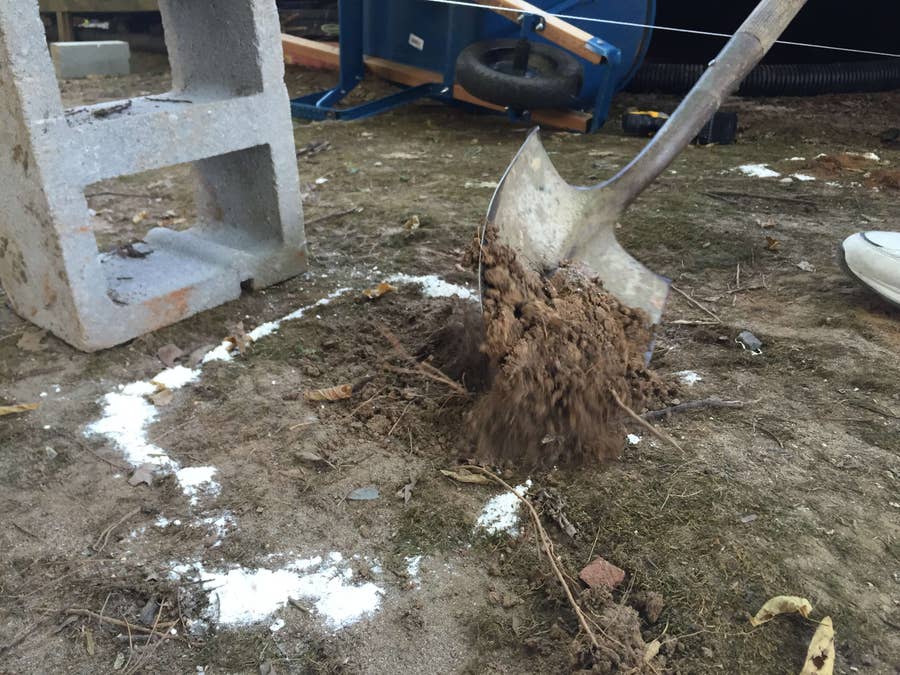
Using my shovel, I chopped around and marked where I would remove the grass. I had to be careful here not to scrape off the paint, which had dried but not fully cured yet.

Note: the spider webs are from a Halloween party I was having. 😉

Removing all the grass inside of the fire pit..

Next, I moved the fire ring and removed the grass directly surrounding it — this is so that I could compact the ground and so that my pavers would lay flat. Since I didn’t have a soil compaction tool, I just smashed the shovel (and used my own weight) to compress the soil. This is important to keep the fire pit from shifting over time.

I picked up some cheap retaining wall blocks from Home Depot. Pavers also work well, but since these are literally made to be used as a wall, they stack nicely. The fire pit is 36″ in diameter, so its circumference is about 113″. Each block is about 9″ long on the short end, so I needed 13 bricks for each “level”. I decided on two levels, so this is 26 blocks total. Each block weighs 22 pounds, so my Subaru was not too happy about 600 pounds being loaded into its rear. Anyways, as always, it made the trip without incident and I began the process of carrying them back and forth into the back yard. The blocks were $1.25 each, so the lot cost me a little over $30.

This is the easy part — since I decided not to use any mortar, the process of stacking them into a wall was easy and satisfying. I left a small gap between the ring and wall to allow for better air flow.

Layer one complete!

Adding the second layer.. I overlapped the blocks for greater structural integrity.

Walls are complete! The fire pit insert is 9″ high and each block is only 4″ high, so as you can see in this photo the lip of the insert protrudes an inch above the blocks. This didn’t look too great so later I used a rubber mallet to pound the insert into the dirt an inch. This was a pain in the ass but was totally worth it.

I added gravel to the bottom of the fire pit to keep it from getting muddy. This will allow for it to drain a bit. It’s important to use the right kind of gravel — some gravel (like river rocks) retain a lot of moisture and thus will explode when heated. Granite is a safe type of gravel to use and it’s not too expensive — about $4 for this bag.

Spreading the gravel with a rake..

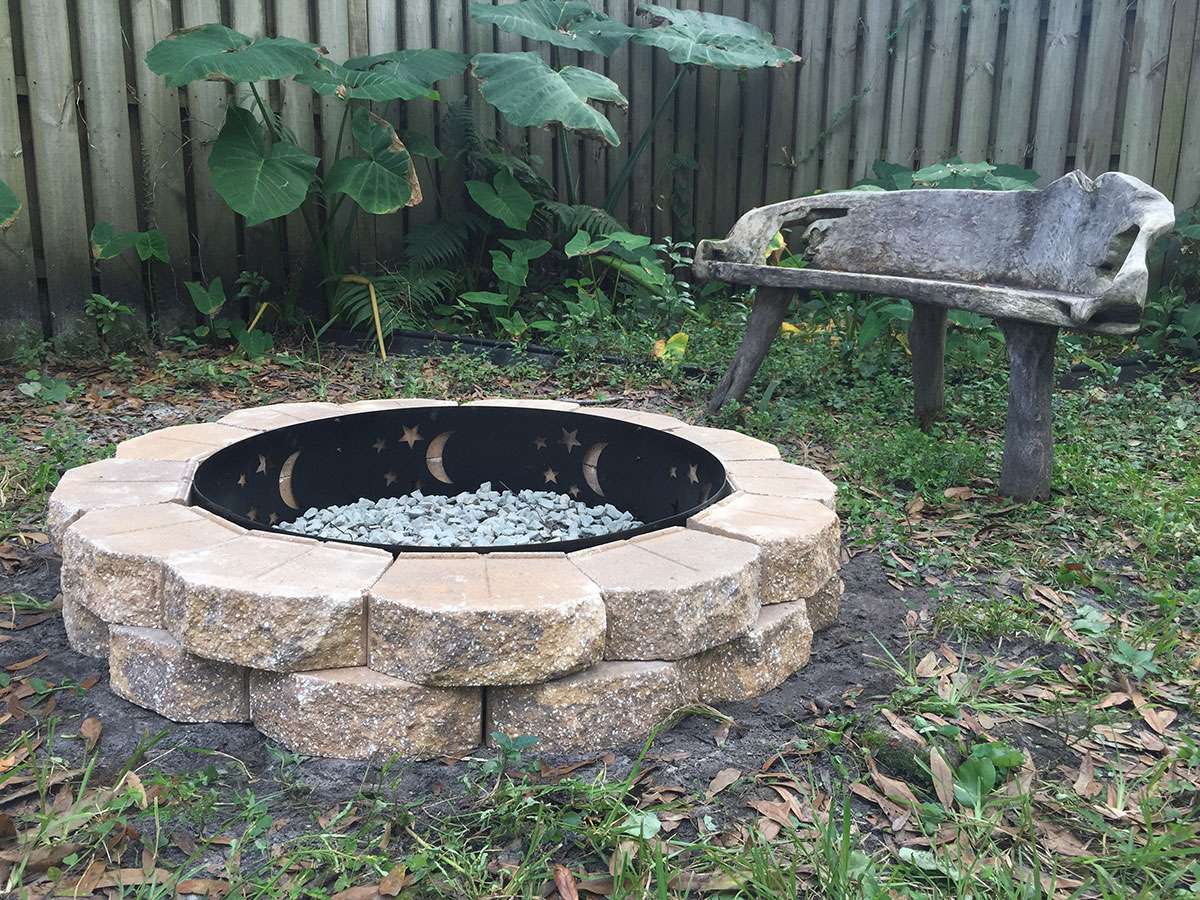
All done!

Action shot with a sweet bench that was carved from a tree trunk.

It does a good job of hiding how dead my grass is in that area. Also, Sydney likes it.

Here’s a terrible photo of it in action at night. I’ll try to get a better one next time and add it. If you want to build your own similar fire pit and have any questions, post below and I’ll be sure to help you out!

NEXT UP

How to Clean Vibram Five Finger Toe Shoes Without Ruining Them

howchoo   (467)
November 22, 2023

Vibram Five Finger shoes are awesome pieces of running gear. But you can also use them for hiking and looking weird around town. Unfortunately, toe shoes start to smell if you don’t wear socks with them every time you wear them. While Vibram claims that the shoes are machine washable, you will ruin them if you wash

Continue Reading

howchoo

 467 guides

Introducing Howchoo, an enigmatic author whose unique pen name reflects their boundless curiosity and limitless creativity. Mysterious and multifaceted, Howchoo has emerged as a captivating storyteller, leaving readers mesmerized by the uncharted realms they craft with their words. With an insatiable appetite for knowledge and a love for exploration, Howchoo’s writing transcends conventional genres, blurring the lines between fantasy, science fiction, and the surreal. Their narratives are a kaleidoscope of ideas, weaving together intricate plots, unforgettable characters, and thought-provoking themes that challenge the boundaries of imagination.

Home Interests Vim

How to install Vim plugins without a plugin manager

howchoo   (467)
September 8, 2023
5 minutes

Share

You’ll Need 1

What you’ll need
Interests
Vim x 1
Howchoo is reader-supported. As an Amazon Associate, we may earn a small affiliate commission at no cost to you when you buy through our links.
Posted in these interests:

Vim

vim • 5 guides
webdev • 10 guides

Vundle, Pathogen, Vim-plug, VAM, and the others can be great time savers but sometimes you just have to do something yourself so you can understand what exactly the time saving software is doing for you in the background. For myself, I got sick of not understanding what these were doing to my system. I realized I did not know the fundamentals of vim plugins so I set out to learn.

This is a step by step guide to teach you how to install a basic vim plugin without the help of any fancy manager.

1 – Create or find your .vim directory

Usually, you will have a .vim directory in your home folder. This is where you should put plugins and syntax files for vim. This is just a convention, however, so feel free to put them wherever you want.

2 – Create a ‘bundle’ directory inside the .vim folder.

This is another convention.

3 – Copy your plugin to this directory

If its hosted on Git, this is the place to do the following:

git clone 

If its not, that’s ok too. However you’ve obtained it, it will work as long as it follows vim’s conventions of file and directory naming. If its just a single file with a .vim filetype, I recommend creating a directory here and putting the file inside.

4 – Set your vim runtimepath

Now that your plugin is where we want it, we need to tell vim where to find it every time you start it up. Your runtimepath is where vim looks for scripts, syntax files, plugins and other things to include in your vim environment. Inside vim, you can find your runtimepath with the following command:

:set runtimepath?

To update your runtimepath and load your new plugin, we’re going to edit your .vimrc which should be located in your home folder. The syntax to add a directory to your runtime path looks like this:

set runtimepath^=~/.vim/bundle/ctrlp.vim

5 – Reload your vimrc

You can call the following command:

:source ~/.vimrc

or just close and restart vim.

6 – Disclaimer

If you see errors while starting up vim or your plugin just doesn’t work, something went wrong. Sometimes vim plugins have dependencies or other installation steps so your mileage may vary.

If you feel differently about this process or have any strong opinions whatsoever, please comment and maybe we’ll all learn something!

NEXT UP

Make YouTube Video Embeds Responsive Using Pure HTML and CSS

howchoo   (467)
September 22, 2023

Surprisingly, normal YouTube embeds are not automatically sized to the browser window as it is resized. Luckily, you can make YouTube videos responsive and mobile-friendly with some simple HTML and CSS. 1 – The HTML Wrap your embed code in a unique video wrapper (the class name is arbitrary). I chose to use embed-youtube as the selector.

Continue Reading

howchoo

 467 guides

Introducing Howchoo, an enigmatic author whose unique pen name reflects their boundless curiosity and limitless creativity. Mysterious and multifaceted, Howchoo has emerged as a captivating storyteller, leaving readers mesmerized by the uncharted realms they craft with their words. With an insatiable appetite for knowledge and a love for exploration, Howchoo’s writing transcends conventional genres, blurring the lines between fantasy, science fiction, and the surreal. Their narratives are a kaleidoscope of ideas, weaving together intricate plots, unforgettable characters, and thought-provoking themes that challenge the boundaries of imagination.

Home Interests Raspberry Pi

Create a Raspberry Pi MIDI keyboard synthesizer

Start your digital music career today.
howchoo   (467)
September 8, 2023
14 minutes

Share

You’ll Need 2

What you’ll need
Interests
Howchoo is reader-supported. As an Amazon Associate, we may earn a small affiliate commission at no cost to you when you buy through our links.
Posted in these interests:

DIY

diy • 17 guides
music • 4 guides
pi • 92 guides

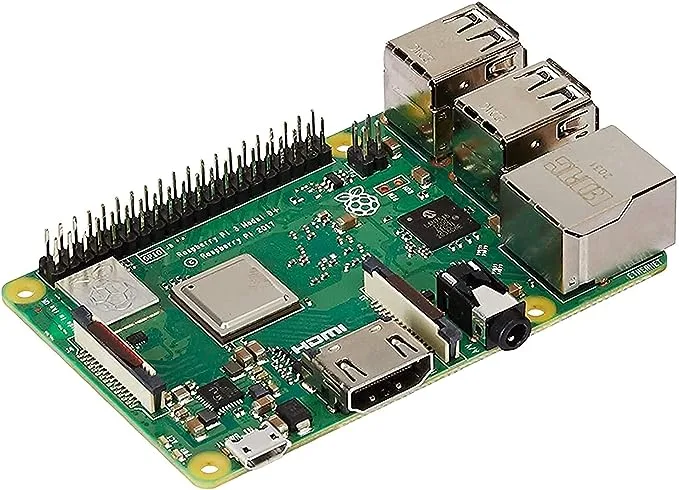
Waiting for the bass to drop? Wait no longer! Today we’re making our own Raspberry Pi-powered synth controlled with a MIDI keyboard. This project will allow us to create our own sounds and play them by pressing keys on our keyboard. I’ll be using a Yamaha keyboard with a USB MIDI port to interface with a Raspberry Pi 3 B+, but this project should work with any Raspberry Pi and keyboard with MIDI output.

Short demo video

We’ll build our synth system using a program called Pure Data (abbreviated as PD). PD was created by Miller Puckette in the late 90’s. The tool is used professionally and even runs on different operating systems, making it ideal for our project. PD uses files known as patches, which can be created on one machine and easily transferred to a different one. Follow along as we install, configure, and use Pure Data on the Raspberry Pi to work with a MIDI keyboard.

PD can be used for a lot of different projects. Today we’re using it to make a MIDI controlled synthesizer, but it’s scope of capabilities is much more broad. You can create a vocoder, autotune incoming audio streams, and even use it to make pedal boards for electric guitars.

1 – Install and update Raspberry Pi OS

Let’s get started with a fresh OS. For this project, I’m running Stretch. The latest version is called Raspberry Pi OS but all of the tools we use in this project may not work with it. Check out our guide on installing Raspbian Stretch to do what I did.

How to Install Raspberry Pi OS on Your Raspberry Pi
Get the new official Raspberry Pi OS on your Pi.

Usually, it’s just a matter of running the following code:

sudo apt-get update && sudo apt-get upgrade --yes

Follow the update with a nice reboot.

2 – Install Pure Data

Pure Data is an awesome piece of open source software. You can find all sorts of expansions and add ons to really make the most of your synth projects. But today, we’ll keep things simple by using vanilla PD. To install the basic PD package, run the following code:

sudo apt-get install puredata

Follow the prompts to ensure the package installs. As a general rule of thumb, I restart my Raspberry Pi after a new software install.

3 – Install ALSA tools and aconnectGUI

We need to install sound tools to connect our MIDI keyboard to Pure Data. ALSA tools has everything we need to create the connection. AconnectGUI will provide us with a pretty user interface to work with. If you don’t want to use the GUI, the operations can be performed via command line.

Run the following to install both ALSA tools and aconnectGUI.

sudo apt-get install alsa-base alsa-utils
sudo apt-get install aconnectgui

Follow the prompts to complete the installation and restart the Raspberry Pi.

4 – Open Pure Data

I’m running Pure Data on a Raspberry Pi with a screen. It is possible to run PD headless, you can find a complete list of Pure Data command line functions here. There are a few ways to launch Pure Data. It can be found under the start menu folder Sound & Video.

However, I’ll be launching PD via command line so it starts with admin privileges. I’m also including the tag -alsamidi so Pure Data launches with ALSA set as default. Run the following to launch Pure Data from a terminal.

sudo pd -alsamidi

5 – Adjust MIDI settings

Next we need to open virtual ports within Pure Data. We’ll use these ports to connect our MIDI keyboard. ALSA should be set as default if you opened PD via terminal in the last step. To be sure, Open Media from the top PD window menu. ALSA-MIDI should be selected. If it’s not, left click to select it.

Open Media once again and choose MIDI settings... from the drop down menu. A small window will appear with text fields next to In Ports: and Out Ports:. These text fields each need to be set to 1. Click OK. This will activate the Pure Data MIDI ports we need.

6 – Connect keyboard to Pure Data

Plug your MIDI Keyboard into a USB port on the Raspberry Pi and turn the keyboard on. I will be using the aconnectGUI to complete the connection. You can find aconnect GUI under the start menu Sound & Video folder. The application will say ALSA Sequencer at the top of the window.

There are two buttons at the top of the window: scissors and a cable. Click the cable button to enable the connection mode. Locate your MIDI keyboard in the list then drag and drop the arrows to connect it to the Pure Data ports we opened.

7 – Open a patch (or create your own!)

Now it’s time for the fun part! Pure Data uses files called patches. Starting your PD synthesizer journey only takes an afternoon. I found several useful resources along my way and want to pass them off to you to help you get started.

If you’re ready to jam now, download this MIDI patch I created and start playing immediately. Note: Patch files are built on existing patch files. The github link contains a zipped folder with 8 patch files. To launch the MIDI control module, unzip the folder and open MIDI_synth.pd.

This patch was made with the help of LWM Music tutorials on LWM Music. Dr. Lawrence W. Moore has a series of videos available on YouTube as well. The series is very well paced and thoroughly covers the basics of Pure Data. If you’re looking to build a solid foundation, this is a great place to start.

I recommend looking into different PD functions to implement them into your own patches. Additive Synthesis, for example, is a way of combining two waveforms to create unique wave patterns.

Congratulations! Your Raspberry Pi is now a funky fresh MIDI controlled synthesizer machine.

NEXT UP

How to Run a Minecraft Server on the Raspberry Pi

A whole world trapped inside your Pi.
howchoo   (467)
December 7, 2023

There are several ways to go about running a Minecraft server on the Raspberry Pi. In this guide, I’ll cover how to install Nukkit—a cross-platform Minecraft server that’s super easy to set up on the Raspberry Pi. This server should work with PCs, consoles, and tablets running Minecraft 1.14. I’ll be using a Raspberry Pi

Continue Reading

howchoo

 467 guides

Introducing Howchoo, an enigmatic author whose unique pen name reflects their boundless curiosity and limitless creativity. Mysterious and multifaceted, Howchoo has emerged as a captivating storyteller, leaving readers mesmerized by the uncharted realms they craft with their words. With an insatiable appetite for knowledge and a love for exploration, Howchoo’s writing transcends conventional genres, blurring the lines between fantasy, science fiction, and the surreal. Their narratives are a kaleidoscope of ideas, weaving together intricate plots, unforgettable characters, and thought-provoking themes that challenge the boundaries of imagination.

Home Interests Roomba

How to Unclog Your Roomba i7+ Clean Base

howchoo   (467)
September 8, 2023
5 minutes

Share

You’ll Need 2

What you’ll need
Interests
Howchoo is reader-supported. As an Amazon Associate, we may earn a small affiliate commission at no cost to you when you buy through our links.
Posted in these interests:
robotvacuum • 4 guides
roomba • 3 guides

The Roomba i7+ Clean Base is amazing because it automatically removes dirt and debris from the Roomba after completing a job. This means you don’t have to worry about cleaning out the Roomba’s dust bin all the time. After a while, however, you’ll eventually get notified that your Clean Base is clogged.

This means something from the Roomba’s dust bin got stuck in the Automatic Dirt Disposal tubes. Fortunately, this is an easy fix. Keep reading to learn how to unclog your Roomba i7+ Clean Base.

In addition to unclogging the base regularly, you’ll also want to change your Roomba i7 filter periodically to maximize suction.

1 – Unplug the Clean Base from the wall

As a protective measure, the first thing we need to do is unplug the Clean Base from the wall.

2 – Turn the Clean Base on its side

To unclog the clean base, we need to access the automatic dirt disposal tube on the bottom of the base. To do this, simply turn the Clean Base on its side.

3 – Inspect the tube underneath

If your Clean Base is clogged, it’s likely the clog is in the tubing underneath. Fortunately, the tube is clear, so you should be able to easily find the clog.

4 – Remove the tube from the bottom of the Clean Base

Unscrew the five screws securing the tube to the bottom of the Clean Base. Once you remove the screws, you can remove the tube by pressing the tube out from the top.

5 – Remove the debris clogging the tube

With the tube removed, you can easily access the debris and unclog the tube.

6 – Secure the tube back in place

Put the tube back in place, and secure it with the five screws you removed in the previous step.

If your Roomba dies before reaching the charging dock, it may be time to change your Roomba’s batteries. Visit our guide to see how it’s done.

NEXT UP

How to Replace the Edge-Sweeping Brush on Your Roomba i7

howchoo   (467)
November 20, 2023

Your Edge-Sweeping Brush needs to be replaced about once a year. Use this guide to learn how to replace the Edge-Sweeping Brush on your Roomba i7. What is the Edge-Sweeping Brush? The Edge-Sweeping Brush is the spinning brush on the right side of the robot. The Roomba uses this brush to clean around the edges

Continue Reading

howchoo

 467 guides

Introducing Howchoo, an enigmatic author whose unique pen name reflects their boundless curiosity and limitless creativity. Mysterious and multifaceted, Howchoo has emerged as a captivating storyteller, leaving readers mesmerized by the uncharted realms they craft with their words. With an insatiable appetite for knowledge and a love for exploration, Howchoo’s writing transcends conventional genres, blurring the lines between fantasy, science fiction, and the surreal. Their narratives are a kaleidoscope of ideas, weaving together intricate plots, unforgettable characters, and thought-provoking themes that challenge the boundaries of imagination.

Home Interests Roomba

How to Unclog Your Roomba i7+ Clean Base

howchoo   (467)
September 8, 2023
5 minutes

Share

You’ll Need 2

What you’ll need
Interests
Howchoo is reader-supported. As an Amazon Associate, we may earn a small affiliate commission at no cost to you when you buy through our links.
Posted in these interests:
robotvacuum • 4 guides
roomba • 3 guides

The Roomba i7+ Clean Base is amazing because it automatically removes dirt and debris from the Roomba after completing a job. This means you don’t have to worry about cleaning out the Roomba’s dust bin all the time. After a while, however, you’ll eventually get notified that your Clean Base is clogged.

This means something from the Roomba’s dust bin got stuck in the Automatic Dirt Disposal tubes. Fortunately, this is an easy fix. Keep reading to learn how to unclog your Roomba i7+ Clean Base.

In addition to unclogging the base regularly, you’ll also want to change your Roomba i7 filter periodically to maximize suction.

1 – Unplug the Clean Base from the wall

As a protective measure, the first thing we need to do is unplug the Clean Base from the wall.

2 – Turn the Clean Base on its side

To unclog the clean base, we need to access the automatic dirt disposal tube on the bottom of the base. To do this, simply turn the Clean Base on its side.

3 – Inspect the tube underneath

If your Clean Base is clogged, it’s likely the clog is in the tubing underneath. Fortunately, the tube is clear, so you should be able to easily find the clog.

4 – Remove the tube from the bottom of the Clean Base

Unscrew the five screws securing the tube to the bottom of the Clean Base. Once you remove the screws, you can remove the tube by pressing the tube out from the top.

5 – Remove the debris clogging the tube

With the tube removed, you can easily access the debris and unclog the tube.

6 – Secure the tube back in place

Put the tube back in place, and secure it with the five screws you removed in the previous step.

If your Roomba dies before reaching the charging dock, it may be time to change your Roomba’s batteries. Visit our guide to see how it’s done.

NEXT UP

How to Replace the Edge-Sweeping Brush on Your Roomba i7

howchoo   (467)
November 20, 2023

Your Edge-Sweeping Brush needs to be replaced about once a year. Use this guide to learn how to replace the Edge-Sweeping Brush on your Roomba i7. What is the Edge-Sweeping Brush? The Edge-Sweeping Brush is the spinning brush on the right side of the robot. The Roomba uses this brush to clean around the edges

Continue Reading

howchoo

 467 guides

Introducing Howchoo, an enigmatic author whose unique pen name reflects their boundless curiosity and limitless creativity. Mysterious and multifaceted, Howchoo has emerged as a captivating storyteller, leaving readers mesmerized by the uncharted realms they craft with their words. With an insatiable appetite for knowledge and a love for exploration, Howchoo’s writing transcends conventional genres, blurring the lines between fantasy, science fiction, and the surreal. Their narratives are a kaleidoscope of ideas, weaving together intricate plots, unforgettable characters, and thought-provoking themes that challenge the boundaries of imagination.

Home Interests Comcast

How to Reset a Comcast Xfinity Router or Modem

howchoo
howchoo   (467)
September 8, 2023
5 minutes

Share

You’ll Need 1

What you’ll need
Interests
Series
Howchoo is reader-supported. As an Amazon Associate, we may earn a small affiliate commission at no cost to you when you buy through our links.
Posted in these interests:
comcast • 7 guides
internet • 36 guides
router • 32 guides

If your Internet is running slowly or you’re experiencing other connectivity issues with your Comcast router or modem, it’s a good idea to either reset your gateway to factory defaults or simply restart it.

The exact method for resetting your Xfinity router or modem can vary slightly by model. For Comcast router/modem combos, resetting the router to factory settings will also reset the modem — thus, the terms “router”, “modem”, and “gateway” are often used interchangeably.

Resetting router or modem

Resetting your modem will wipe all previous router configuration — including wifi network name, password, login information, etc. — thus restoring it to factory defaults. This is different than restarting your router, which does not clear any settings and simply brings your network down and back up.

Restarting router or modem

To restart your Comcast router (without clearing any settings), simply unplug it, wait at least 30 seconds, and plug it back in.

To reset your Comcast router, use the following steps:

1 – Locate the reset button

The router reset button is located on the back of the router. The reset button is small and recessed and is normally a different color than the rest of the gateway’s housing.

For example, if the gateway is black, the button is likely orange or yellow. This makes it easier to identify.

🛈 The factory reset button is recessed to prevent you from accidentally pressing it.

2 – Press and hold the reset button

Using a paper clip or pen, gently depress the reset button and hold it until the lights on the front of the modem turn off. Once the lights turn off, release the button.

3 – Wait for the router to reinitialize

After several seconds, the lights on your router will turn back on. It may take several minutes for your wireless network to reappear. Afterwards, be sure to change your Comcast Xfinity wifi password to something more secure or memorable.

NEXT UP

How to Change Your Frontier WiFi Password

howchoo
howchoo   (467)
November 25, 2023

There are a few reasons you might want to update or reset your WiFi password: making your network more secure, and making your password easier to remember and type. Improved network security You can add an extra layer of security to your network by changing the WiFi password. As long as your new password is

Continue Reading

howchoo

 467 guides

Introducing Howchoo, an enigmatic author whose unique pen name reflects their boundless curiosity and limitless creativity. Mysterious and multifaceted, Howchoo has emerged as a captivating storyteller, leaving readers mesmerized by the uncharted realms they craft with their words. With an insatiable appetite for knowledge and a love for exploration, Howchoo’s writing transcends conventional genres, blurring the lines between fantasy, science fiction, and the surreal. Their narratives are a kaleidoscope of ideas, weaving together intricate plots, unforgettable characters, and thought-provoking themes that challenge the boundaries of imagination.

Home Interests Ender 3

How to Change the Language on Your Ender 3 V2

howchoo   (467)
September 8, 2023
3 minutes

Share

You’ll Need 1

What you’ll need
Interests
Series
Howchoo is reader-supported. As an Amazon Associate, we may earn a small affiliate commission at no cost to you when you buy through our links.
Posted in these interests:
3dprinting • 36 guides
ender3 • 19 guides

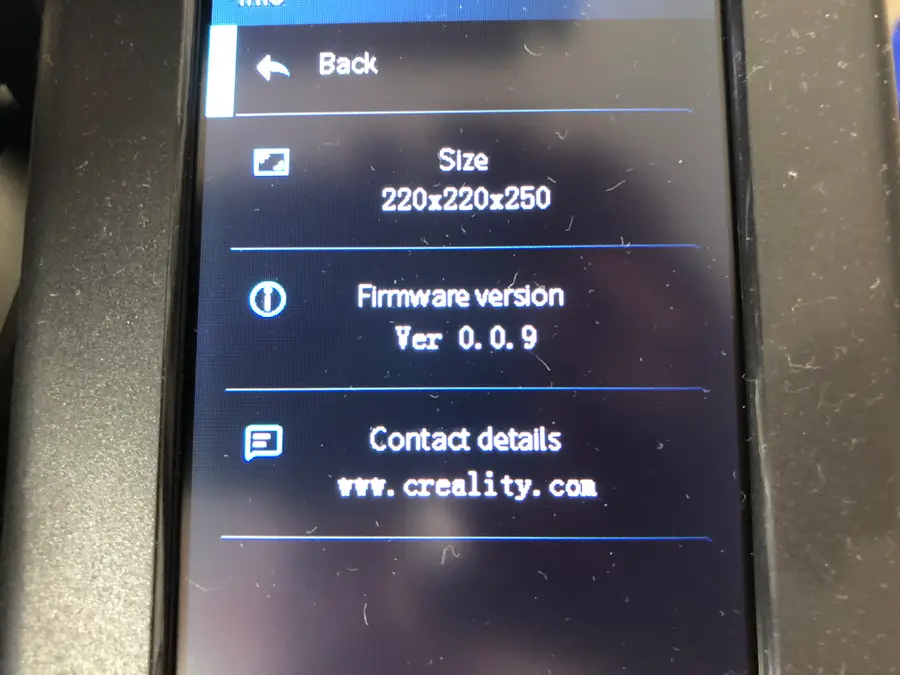
Some of Creality’s Ender 3 V2 3D printers will arrive with the default language set to Chinese. Creality is based in China, after all. And sometimes, when installing BLTouch on the Ender 3 and Ender 3 V2, the language will revert back to Chinese.

It can be quite frustrating to find the correct place on the Ender 3 V2 to change the language from Chinese to English, given that you likely don’t know Chinese.

Let us save you some time and trouble! Here’s how to change the language on your Ender 3 V2.

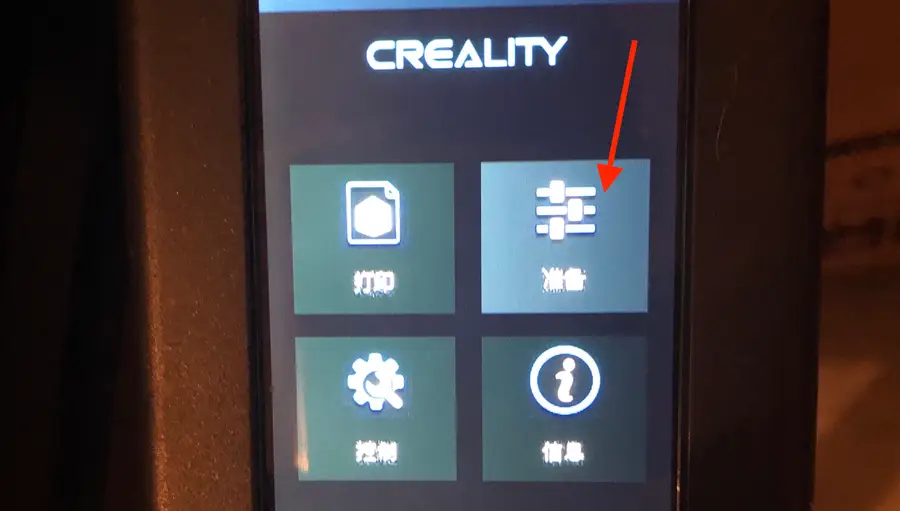
1 – Select “Prepare” (准 留)

  • Using the selection knob, rotate until the top-right selection lights up. The image looks like three horizontal dials. The Chinese characters look like this: 准 留.
  • Press down on the knob to select it.

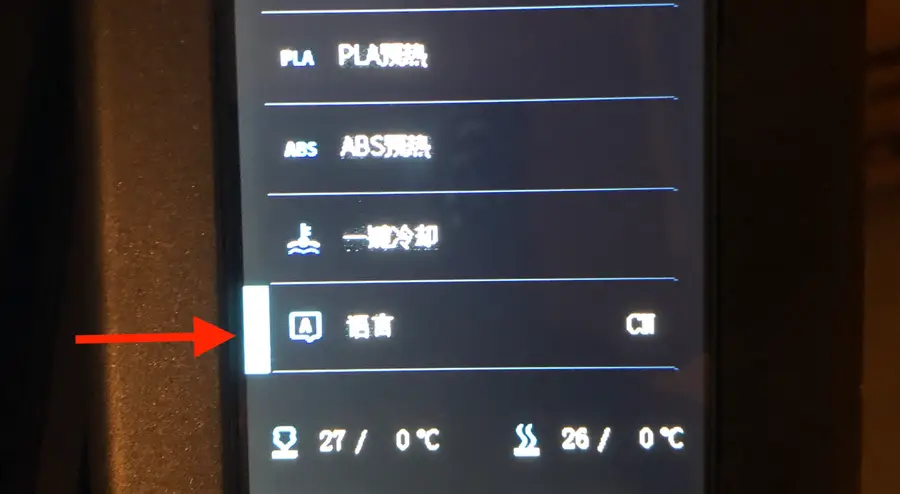
2 – Select “Language Selection” (诣 肖)

  • Use the selection knob to scroll to the bottom where you’ll see the “Language Selection” tool. The Chinese characters look like this: 诣肖.
  • Press down on the knob to change the text to English.

NEXT UP

How to Update Blender

Get the latest Blender has to offer.
howchoo   (467)
November 24, 2023

Blender is one of the most popular open-source 3D creation suites today. It doesn’t cost a dime to use and everything you create is yours to own for good. The community is robust and the dev team still releases new updates on the regular. If you want to get the latest version, you may have

Continue Reading

howchoo

 467 guides

Introducing Howchoo, an enigmatic author whose unique pen name reflects their boundless curiosity and limitless creativity. Mysterious and multifaceted, Howchoo has emerged as a captivating storyteller, leaving readers mesmerized by the uncharted realms they craft with their words. With an insatiable appetite for knowledge and a love for exploration, Howchoo’s writing transcends conventional genres, blurring the lines between fantasy, science fiction, and the surreal. Their narratives are a kaleidoscope of ideas, weaving together intricate plots, unforgettable characters, and thought-provoking themes that challenge the boundaries of imagination.

Home Interests MacOS

How to disable Chrome tab sharing (Handoff) in MacOS

How to disable Chrome tab sharing handoff in MacOS
howchoo   (467)
September 7, 2023
2 minutes

Share

Interests
Posted in these interests:

Mac

mac • 24 guides
osx • 6 guides
macos • 20 guides

By default, macOS and OSX will offer to share your Chrome tabs between your Mac and iOS devices via iCloud sharing. This short guide will show you how to disable the Google Chrome dock sharing icon and Handoff functionality in macOS and OSX.

Once you are done disabling this Handoff feature, check out our guide on how to create tab groups in google chrome with the new tab groups feature.
1 – Open System Preferences

open system references

Click the Apple icon in the top left of your screen and select System Preferences.

🛈 You can also press CMD-SPACEBAR and type System Preferences.

2 – Go to General

go to general

Click General to access the General Preferences pane.

3 – Uncheck the tab sharing option

Uncheck the tab sharing option

Uncheck the Allow Handoff between this Mac and your iCloud devices option. You’re all done!

NEXT UP

How to Enable the “Popping” Sound When Adjusting the Volume on Your Mac

howchoo
howchoo   (467)
December 13, 2023

Starting with MacOS Sierra and High Sierra, your Mac will no longer play a “pop” sound when you adjust your volume. If you prefer to have this sound when you adjust volume up and down (as I do), this guide will teach you how to reenable it. 1 – Open Sound System Preferences Navigate to System

Continue Reading

howchoo

 467 guides

Introducing Howchoo, an enigmatic author whose unique pen name reflects their boundless curiosity and limitless creativity. Mysterious and multifaceted, Howchoo has emerged as a captivating storyteller, leaving readers mesmerized by the uncharted realms they craft with their words. With an insatiable appetite for knowledge and a love for exploration, Howchoo’s writing transcends conventional genres, blurring the lines between fantasy, science fiction, and the surreal. Their narratives are a kaleidoscope of ideas, weaving together intricate plots, unforgettable characters, and thought-provoking themes that challenge the boundaries of imagination.

Home Interests Furby

How to disassemble Furby

close-up of disassembled furby
howchoo (467)
September 6, 2023
6 minutes

Share

You’ll Need 3
What you’ll need
Interests
Furby x 1
Howchoo is reader-supported. As an Amazon Associate, we may earn a small affiliate commission at no cost to you when you buy through our links.
Posted in these interests:
furby • 1 guides
teardown • 1 guides
This short teardown guide will teach you how to disassemble Furby. Perhaps you need to do this to fix your Furby, or to turn Furby into an Amazon Echo — whatever the reason, this guide will get you going.
I turned a Furby into an Amazon Echo. Introducing: Furlexa I’m sorry.
The Furby I’m disassembling is an original Furby (circa 1998), but the instructions for newer Furbies will be similar.

1 – Skin Furby alive

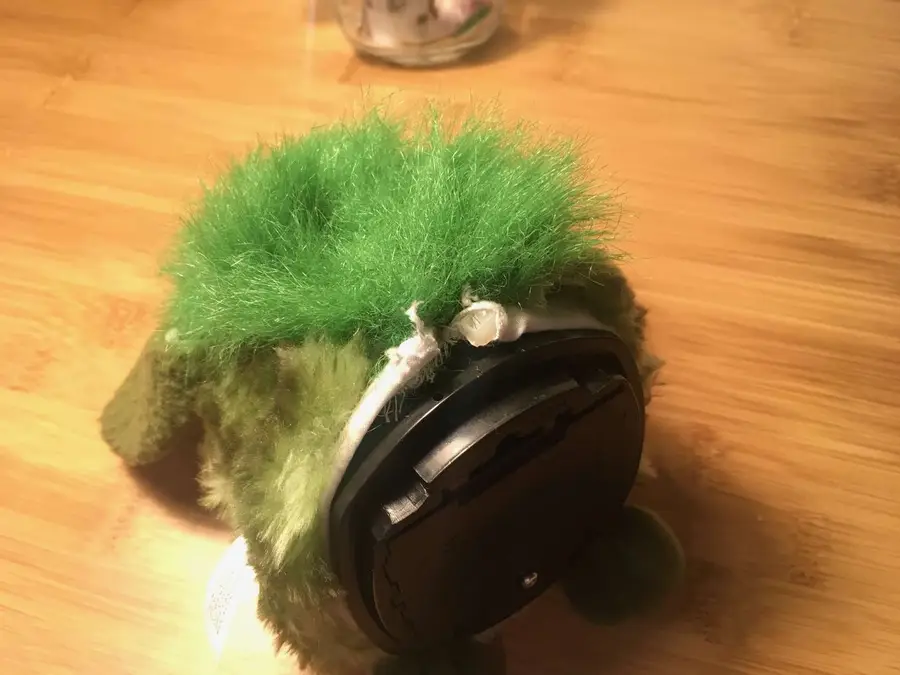
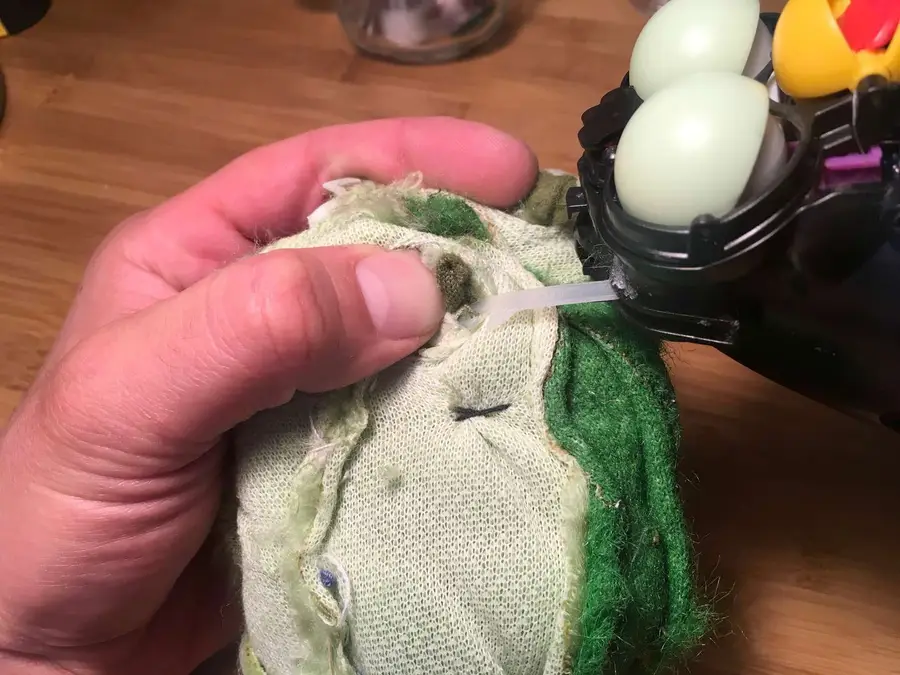
This sad but crucial step is an easy one. We need to carefully remove Furby’s fur so that we can access his insides and start transplanting Alexa. Before you start, be sure to remove Furby’s batteries. Furby’s fur is primarily held on by a small plastic zip tie at his base. Locate the head of the zip tie and snip it off with some wire cutters. We’ll replace this later with a new one. You may need to cut some of the fabric away to expose the head of the zip tie. Carefully roll Furby’s skin upwards until you reach the faceplate.
🛈 I just realized that the “Fur” in “Furby” comes from the word fur. That only took 20 years.

2 – Remove Furby’s faceplate

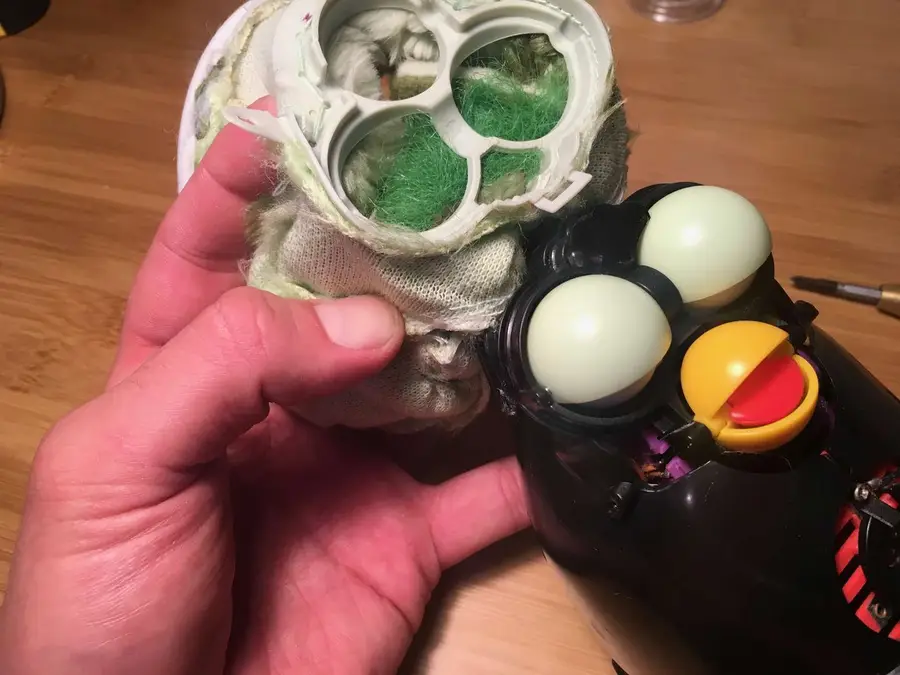
Before you can finish removing Furby’s fur, you need to remove his faceplate. Remove the two small screws on either side of his head. There is a small amount of very weak glue securing his fur on the outside of his eyes. Simply pull his fur gently to remove it from this glue. Finally, there is a small open hook at the top of the faceplate. Unclasp this hook.

3 – Free Furby’s ears

The last things holding Furby’s fur in place are his ears. His ears are plastic and have loops at the end; his fur is bound to these loops with thread. Snip this thread and remove his fur fully.

4 – Remove Furby’s carapace

Like a large insect, Furby has a hard exoskeleton. Remove the four screws that hold it in place — one on his head, one on his lower back and two on his sides. Separate the two halves and slide out the small microphone that’s embedded in his side.

5 – Remove Furby’s speaker

If you wish to remove Furby’s speaker to replace it, simply remove the red front speaker grille assembly by removing its two screws and disconnect the speaker’s white connector.
🛈 Furby’s speaker is 32 ohm and 0.25 watts and has a diameter of 40mm, in case you find that interesting.

6 – Now Furby is terrifying

Don’t look him in the eyes.

howchoo

 467 guides
Introducing Howchoo, an enigmatic author whose unique pen name reflects their boundless curiosity and limitless creativity. Mysterious and multifaceted, Howchoo has emerged as a captivating storyteller, leaving readers mesmerized by the uncharted realms they craft with their words. With an insatiable appetite for knowledge and a love for exploration, Howchoo’s writing transcends conventional genres, blurring the lines between fantasy, science fiction, and the surreal. Their narratives are a kaleidoscope of ideas, weaving together intricate plots, unforgettable characters, and thought-provoking themes that challenge the boundaries of imagination.