Home Interests Tennis

How to wrap overgrip tape on a tennis racket

howchoo (467)
September 13, 2023
7 minutes

Share

You’ll Need 1
What you’ll need
Interests
Howchoo is reader-supported. As an Amazon Associate, we may earn a small affiliate commission at no cost to you when you buy through our links.
Posted in these interests:
tennis • 1 guides
What is overgrip tape? Overgrip is a padded, often sticky, tape that is wrapped around the grip of the tennis racket. Tennis rackets come with a more permanent grip, but overgrip is placed over the grip and is designed to be replaced frequently. Many tennis players choose to use overgrip tape in order to get a better “grip” on the tennis racket and provide more comfort and shock absorption.

1 – Remove old overgrip tape

Removing old overgrip tape is easy. Simply remove the tape at the top of the handle that is securing the edge of the overgrip. Then unwrap until the old overgrip is completely removed.

2 – Unroll new overgrip and remove plastic

At this point you’ll want to completely unroll the new overgrip and remove the plastic. Depending on the kind of overgrip you buy, it may be secured by a piece of tape. This tape can be used later to secure the overgrip to the racket.

3 – Find the adhesive on one end of the overgrip

Some kinds of overgrip come with an adhesive strip on one end. If your overgrip doesn’t have it you can skip this step. If it does, find the end with the adhesive and remove the plastic covering it. This adhesive strip is helpful but not necessary.

4 – Begin wrapping

With the handle of your tennis racket up, place the end of the overgrip on the corner of the handle and begin to wrap from left to right. If your overgrip has adhesive, stick the adhesive strip to the corner of the racket.

5 – Make one full wrap and begin to overlap

To begin wrapping, you’ll want to spin the racket. This way the part of the handle where you are placing the overgrip is always facing you. This makes it much easier to place it evenly. Keep the overgrip very taught to avoid wrinkles. After making one full wrap you’ll begin to overlap and work your way down the handle. The overlap should be between 1/8″ and 1/4″. As you get more familiar with this process you will find what works best for you. The overgrip I’m using for this demonstration is angled at both ends. This helps set the correct angle for starting and finishing the wrap. If your overgrip does not have the angle you may want to begin with one and a quarter wraps before you start working up the handle. This will make the overgrip more secure at the base.

6 – Work your way up the handle

Continue spinning the racket and placing the overgrip maintaining a consistent overlap.

7 – Finish wrapping at the end of the handle

If you’ve maintained a consistent overlap of 1/4″ to 1/8″ you should have just the right amount of overgrip. Once you reach the end of the handle you may have to increase the size of the overlap.

8 – Place tape on the end to secure the overgrip in place

The overgrip likely came with a piece of tape that can be used to secure it in place. Place the tape at the end and wrap tightly.

howchoo

 467 guides
Introducing Howchoo, an enigmatic author whose unique pen name reflects their boundless curiosity and limitless creativity. Mysterious and multifaceted, Howchoo has emerged as a captivating storyteller, leaving readers mesmerized by the uncharted realms they craft with their words. With an insatiable appetite for knowledge and a love for exploration, Howchoo’s writing transcends conventional genres, blurring the lines between fantasy, science fiction, and the surreal. Their narratives are a kaleidoscope of ideas, weaving together intricate plots, unforgettable characters, and thought-provoking themes that challenge the boundaries of imagination.
Home Interests Code

Python time.sleep() – How to Make a Time Delay in Python

howchoo
howchoo   (467)
September 13, 2023
3 minutes

Share

You’ll Need 1

What you’ll need
Interests
python x 1
Howchoo is reader-supported. As an Amazon Associate, we may earn a small affiliate commission at no cost to you when you buy through our links.
Posted in these interests:
code • 11 guides
python • 18 guides

Learn how to use Python’s sleep function to make a timed delay.

tl;dr

import time
time.sleep(seconds)

1 – Import the time module

We will first want to import Python’s time module:

import time

This module ships with Python so it should be available on any system. Although it is not necessary for this guide, I highly recommend getting familiar with the time module. Read more about the time module here.

2 – Use time.sleep to set the delay

You can set a delay in your Python script by passing the number of seconds you want to delay to the sleep function:

time.sleep(5)

This means you want the script to delay 5 seconds before continuing. The sleep function also accepts floats if you want to give a more precise number:

time.sleep(1.75)

This will sleep for 1 second and 750 milliseconds. You can also use a float to delay for less than a second like this:

time.sleep(0.5)

This will sleep for half of a second. You can and should read more about Python’s sleep function here.

NEXT UP

Secure Your Sensitive Data with Kubernetes Secrets

Learn how to create and use Kubernetes secrets.
howchoo   (467)
November 26, 2023

Kubernetes secrets are objects that store and manage sensitive data inside your Kubernetes cluster. One mistake developers often make is storing sensitive information like database passwords, API credentials, etc in a settings file in their codebase. This is very bad practice (hopefully for obvious reasons). Most developers know this, but still choose the option because it’s easy.

Continue Reading

howchoo

 467 guides

Introducing Howchoo, an enigmatic author whose unique pen name reflects their boundless curiosity and limitless creativity. Mysterious and multifaceted, Howchoo has emerged as a captivating storyteller, leaving readers mesmerized by the uncharted realms they craft with their words. With an insatiable appetite for knowledge and a love for exploration, Howchoo’s writing transcends conventional genres, blurring the lines between fantasy, science fiction, and the surreal. Their narratives are a kaleidoscope of ideas, weaving together intricate plots, unforgettable characters, and thought-provoking themes that challenge the boundaries of imagination.

Home Interests Cisco

How to Log in to a Cisco Router

howchoo
howchoo   (467)
September 13, 2023
3 minutes

Share

You’ll Need 2

What you’ll need
Interests
Series
Howchoo is reader-supported. As an Amazon Associate, we may earn a small affiliate commission at no cost to you when you buy through our links.
Posted in these interests:
cisco • 2 guides
internet • 36 guides
router • 32 guides

There are plenty of reasons to log in to your router and many settings you can take advantage of to customize and secure your network. Fortunately, Cisco routers are as standard as they come. Continue reading to learn how to log in to your Cisco router.

1 – Make sure you’re connected to your network

This can be a wired or Wi-Fi connection.

2 – Open a browser, and go to 192.168.15.1

The router login can be accessed using almost any browser window. Navigate to the router’s IP address in the address bar.

Default Cisco router IP

http://192.168.15.1

3 – Enter the username and password

You will receive a pop-up asking for the Cisco router login information. Enter the current username and password for your router.

4 – Default login credentials

If you have a new or recently reset router, you will need the default login credentials.

username: admin
password: admin

Congratulations! Now you’re an unstoppable Network Administrator. Use your powers wisely.

5 – Next Up: Speed up your Wi-Fi connection

We’ve written a few practical tips to show you how to speed up your wifi connection.

Make Wi-Fi Faster: How to Speed Up Your Wi-Fi Connection
Speed up your Internet connection in just a few minutes.

NEXT UP

How to Change Your Frontier WiFi Password

howchoo
howchoo   (467)
November 25, 2023

There are a few reasons you might want to update or reset your WiFi password: making your network more secure, and making your password easier to remember and type. Improved network security You can add an extra layer of security to your network by changing the WiFi password. As long as your new password is

Continue Reading

howchoo

 467 guides

Introducing Howchoo, an enigmatic author whose unique pen name reflects their boundless curiosity and limitless creativity. Mysterious and multifaceted, Howchoo has emerged as a captivating storyteller, leaving readers mesmerized by the uncharted realms they craft with their words. With an insatiable appetite for knowledge and a love for exploration, Howchoo’s writing transcends conventional genres, blurring the lines between fantasy, science fiction, and the surreal. Their narratives are a kaleidoscope of ideas, weaving together intricate plots, unforgettable characters, and thought-provoking themes that challenge the boundaries of imagination.

Home Interests Linux

The Perfect (almost) Touchpad Settings on Linux

howchoo
howchoo   (467)
September 13, 2023
7 minutes

Share

Interests
Posted in these interests:
linux • 12 guides

Proceed with caution

Some users have reported that these settings have messed up their trackpads. We’ll leave this guide up to serve as a reference, but as a general rule, don’t go copy and pasting settings all willy-nilly. 🙂

The touchpad on my Macbook is my #1 concern about switching to linux full time. The option set for touchpad drivers on the Macbook are as follows: Synaptics, libinput, and mtrack. They all have their flaws. Usually it’s palm detection, ignoring the thumb resting on the touchpad, and not having enough settings to emulate the “feel” of the Macbook’s touchpad.

Mtrack + a ton of testing configuration has come the closest and addresses all of my concerns. The main problems it solved for me are the following:

  1. sufficient palm detection (libinput is great as well, synaptics not so much)
  2. sufficient thumb detection (since I always rest my thumb on the touchpad while tracking)
  3. ignoring the thumb during click (since I wish to perform a single click with my thumb while my pointer is still on the touchpad)
  4. having sufficient settings to customize the feel

Here’s how to replicate my setup.

1 – Install the driver

Mtrack is a touchpad driver written for the Xorg display server. If you are using something else, you are out of luck. If you don’t know if you’re using it, the odds are in your favor. To be 100% sure, run a:

ps -e | grep X

If you see “Xorg” in the list, you’re good to go.

To install, we’re going to use a forked repository of the mainline mtrack. It has some very vital features to emulate the macbook feel. Use the following commands:

cd /tmp
git clone https://github.com/p2rkw/xf86-input-mtrack.git
cd xf86-input-mtrack
./configure --with-xorg-module-dir=/usr/lib/xorg/modules
sudo make
sudo make install

I did not require any additional dependencies but you might. If you do, try running the following:

sudo apt build-dep xserver-xorg-input-mtrack

2 – Add a conf file for the mtrack driver

Write the following file using your favorite text editor: /usr/share/X11/xorg.conf.d/50-mtrack.conf

And the contents:

Section "InputClass"
        MatchIsTouchpad "on"
        Identifier      "Touchpads"
        Driver          "mtrack"
        Option          "Sensitivity" "0.60"
        Option          "FingerHigh" "5"
        Option          "FingerLow" "1"
        Option          "IgnoreThumb" "true"
        Option          "ThumbRatio" "70"
        Option          "ThumbSize" "25"
        Option          "IgnorePalm" "true"
        Option          "TapButton1" "0"
        Option          "TapButton2" "0"
        Option          "TapButton3" "0"
        Option          "TapButton4" "0"
        Option          "ClickFinger1" "3"
        Option          "ClickFinger2" "3"
        Option          "ClickFinger3" "3"
        Option          "ButtonMoveEmulate" "false"
        Option          "ButtonIntegrated" "true"
        Option          "ClickTime" "25"
        Option          "BottomEdge" "30"
        Option          "SwipeLeftButton" "8"
        Option          "SwipeRightButton" "9"
        Option          "SwipeUpButton" "0"
        Option          "SwipeDownButton" "0"
        Option          "SwipeDistance" "700"
        Option          "ScrollCoastDuration" "500"
        Option          "ScrollCoastEnableSpeed" ".3"
        Option          "ScrollUpButton" "5"
        Option          "ScrollDownButton" "4"
        Option          "ScrollLeftButton" "7"
        Option          "ScrollRightButton" "6"
        Option          "ScrollDistance" "350"
EndSection

3 – Restart X server

The command to do this varies based on your system but rebooting is a sure fire way to get it done.

4 – Fine tune the settings to your liking

You can read the details of the available settings at the driver’s Github page.

The ones you will probably want to adjust are:

Sensitivity – to adjust the pointer speed and ScrollDistance – to adjust the scroll speed with 2 finger scrolling

Everything else comes as close as possible to the macbook’s touchpad feel.

NEXT UP

How to Install SSHFS

howchoo
howchoo   (467)
September 29, 2023

This guide will show you how to install SSHFS on various operating systems. 1 – On macOS Using brew, install FUSE. Now install SSHFS: 2 – On Ubuntu/Debian 3 – On Windows Find the desired version of win-sshfs from this page and download it.

Continue Reading

howchoo

 467 guides

Introducing Howchoo, an enigmatic author whose unique pen name reflects their boundless curiosity and limitless creativity. Mysterious and multifaceted, Howchoo has emerged as a captivating storyteller, leaving readers mesmerized by the uncharted realms they craft with their words. With an insatiable appetite for knowledge and a love for exploration, Howchoo’s writing transcends conventional genres, blurring the lines between fantasy, science fiction, and the surreal. Their narratives are a kaleidoscope of ideas, weaving together intricate plots, unforgettable characters, and thought-provoking themes that challenge the boundaries of imagination.


Home Interests Raspberry Pi

How to Back Up a Raspberry Pi SD Card in Windows

Create a Pi backup using Windows.
howchoo (467)
September 13, 2023
6 minutes

Share

You’ll Need 1
What you’ll need
Interests
Howchoo is reader-supported. As an Amazon Associate, we may earn a small affiliate commission at no cost to you when you buy through our links.
Posted in these interests:
pi • 92 guides
 
windows • 6 guides
Backing up your Raspberry Pi is a crucial step for many projects. Maybe you’re about to update the OS or perhaps you’re experimenting with a cool new application. Whatever the reason, it’s never a bad idea to make a quick backup of your Raspberry Pi and its contents. In this guide, I’m going over the easiest way to back up your Raspberry Pi for Windows users. This guide will require the use of a third-party imaging program. Using a Mac? Use our MacOS Raspberry Pi backup guide instead!
How to Back Up and Restore Your Raspberry Pi SD Card on Mac Easily backup, restore, or clone your SD card!

1 – Put the SD card in your computer

Safely shut down your Raspberry Pi and put the SD card into your computer using a MicroSD card adapter.

2 – Download a Windows imaging program

Performing a Windows Raspberry Pi back up is easy. To accomplish this, you’ll need a disk imaging program. In this guide, I’ll be using Win32 Disk Imager. It’s a free tool available for a wide variety of Windows applications.

3 – Launch Win32 Disk Imager

To get started, launch Win32 Disk Imager. It can be helpful to launch the application with administrative privileges.

4 – Choose a location

The Raspberry Pi backup will be stored in a single file. You’ll need to choose a location to store your backup. Be sure to name the backup file and include the .img extension. Example: C:pibackup.img This will create a backup file named pibackup.img located in the top level of the C drive.

5 – Initiate the backup

Select the Read option to initiate the backup process. The amount of time this step takes can vary. You’ll have the opportunity to track the progress with a loading bar.

6 – Verify the backup process is successful

To confirm your success, Win32 Disk Imager will notify you via a pop-up alert. However, it’s best to double-check the location to ensure your backup file is actually there. It should have the .img extension following the name. Congratulations! Your Raspberry Pi’s contents are now backed up safely.

7 – How to restore your backup file contents

To restore your backup file to the Raspberry Pi, choose the backup image file, and set the device letter to your SD card. Click write to update the SD card with the image file you’ve selected. Note: If your Raspberry Pi’s file system is expanded to use all available space, be sure to load your backup image onto an SD card of the same size or larger.
NEXT UP

How to Run a Minecraft Server on the Raspberry Pi

A whole world trapped inside your Pi.
howchoo (467)
December 7, 2023
There are several ways to go about running a Minecraft server on the Raspberry Pi. In this guide, I’ll cover how to install Nukkit—a cross-platform Minecraft server that’s super easy to set up on the Raspberry Pi. This server should work with PCs, consoles, and tablets running Minecraft 1.14. I’ll be using a Raspberry Pi
Continue Reading

howchoo

 467 guides
Introducing Howchoo, an enigmatic author whose unique pen name reflects their boundless curiosity and limitless creativity. Mysterious and multifaceted, Howchoo has emerged as a captivating storyteller, leaving readers mesmerized by the uncharted realms they craft with their words. With an insatiable appetite for knowledge and a love for exploration, Howchoo’s writing transcends conventional genres, blurring the lines between fantasy, science fiction, and the surreal. Their narratives are a kaleidoscope of ideas, weaving together intricate plots, unforgettable characters, and thought-provoking themes that challenge the boundaries of imagination.
Home Interests Woodworking

How to notch decking around a post

howchoo   (467)
September 13, 2023
4 minutes

Share

You’ll Need 3

What you’ll need
Interests
Pencil x 1
Jigsaw x 1
Howchoo is reader-supported. As an Amazon Associate, we may earn a small affiliate commission at no cost to you when you buy through our links.
Posted in these interests:
woodworking • 4 guides

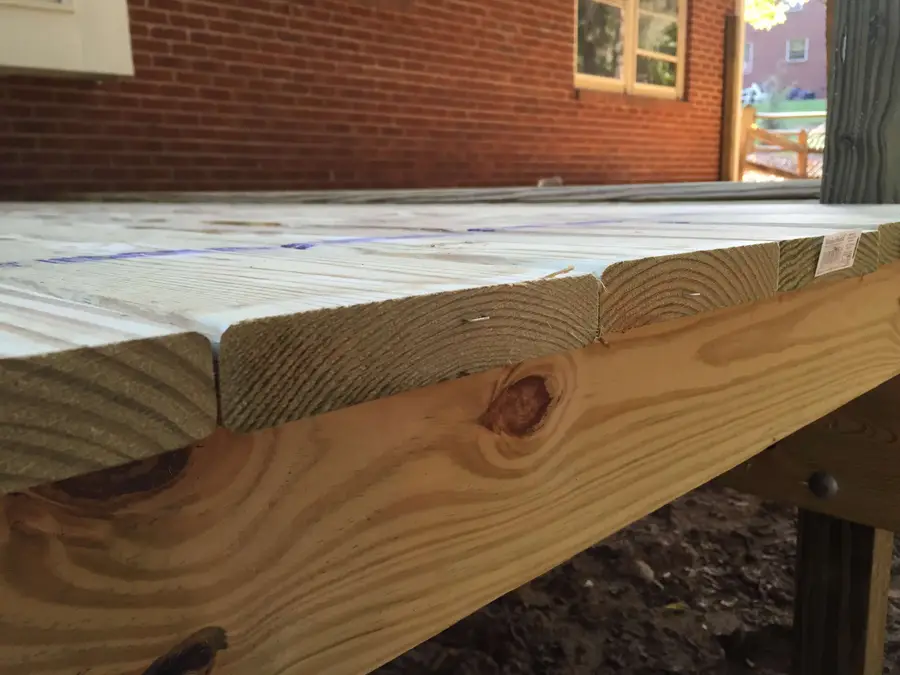
When you are laying your decking and you come up to a post, notching around it is the ideal solution. This guide will show you how to do that step by step.

1 – Line up the piece that gets the notch.

Place a piece of decking on top of the previous piece. This means you’ll have to lay decking as far as you possibly can so you can get as close as possible to the post.

2 – Measure edge closest to the post

Measure from that board to the closest edge of the post. This will tell you how much wood to leave on the trailing edge.

3 – Mark that measurement on your board

Mark the trailing edge of the board at that measurement. Mark it in two places roughly parallel to the edges of your post.

4 – Mark the measurement of the other axis.

Using a square on the faces of your post, make a mark in line with each side of the post.

5 – Measure against the far side of the post

Measure the leading edge of the board against the far edge of the post. This tells you how much wood will be left on the leading edge of the board.

🛈  If this measurement is greater than the width of your decking, then you will be leaving the notch open and marking the next board as well.

6 – Square your marks

Square the marks all around.

7 – Drill a hole in one corner

If you’re cutting an enclosed notch, drill a hole to get you started, otherwise just start from the edge.

8 – Make a rough cut with the jigsaw

This gets the wood out of the way for your second cut.

9 – Go back carefully and make the final cut

10 – Negotiate the board onto the post

NEXT UP

How to Make the Perfect Dovetail Joint Using Traditional Woodworking Tools

Learn how to make the perfect dovetail joint every time!
howchoo   (467)
September 29, 2023

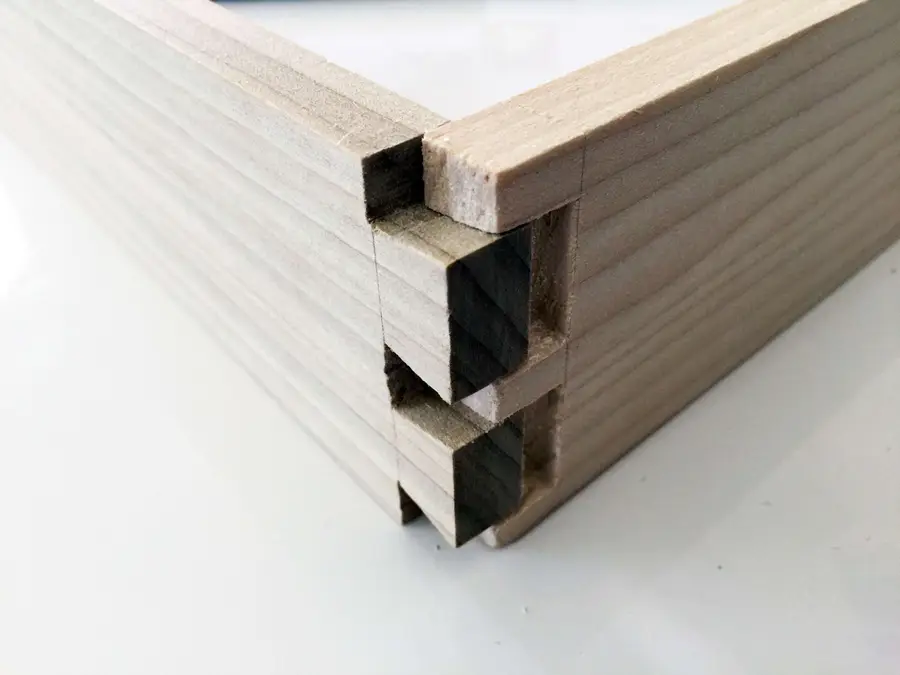
There are plenty of helpful videos on this subject, but I find guides with pictures to be useful with a project like this. I’ve added a lot of close ups for each step so the pictures should help guide you. 1 – Determine which piece of wood will be the tail board and which will

Continue Reading

howchoo

 467 guides

Introducing Howchoo, an enigmatic author whose unique pen name reflects their boundless curiosity and limitless creativity. Mysterious and multifaceted, Howchoo has emerged as a captivating storyteller, leaving readers mesmerized by the uncharted realms they craft with their words. With an insatiable appetite for knowledge and a love for exploration, Howchoo’s writing transcends conventional genres, blurring the lines between fantasy, science fiction, and the surreal. Their narratives are a kaleidoscope of ideas, weaving together intricate plots, unforgettable characters, and thought-provoking themes that challenge the boundaries of imagination.

Home Interests Supernote

The Supernote A5X and A6X are “Super” for Kindle, PDFs, and Ebooks

Supernote’s a great E-reader as well as note-taker! Here’s why.
howchoo (467)
September 13, 2023
15 minutes

Share

Interests
Posted in these interests:
e-ink • 5 guides
supernote • 5 guides
technology • 20 guides
writing • 3 guides
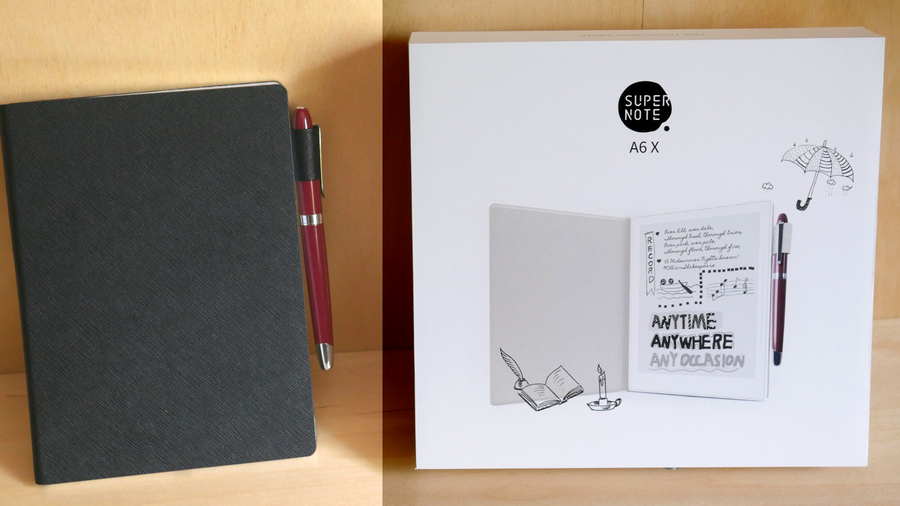
It’s no secret that I love my Supernote devices and use it constantly. There are a bunch of different E-Ink devices hitting the market right now, but Ratta’s Supernote is one of the best, especially because their team’s commitment to providing a top-notch product is head-and-shoulders above the competition. They truly love their platform and care about their customers, which is rare in this day and age.
Ratta Supernote A6X and A5X: A Comprehensive E-ink Device Overview The Supernote is the best e-ink device around, this guide explains why.
Of course, while Supernote is clearly superior to Kobo or Kindle in terms of note-taking and drawing, many will question whether or not this little device can match the big brand names when it comes to providing a good e-reader experience. The answer is: yes. The Supernote works great as an e-reader, and the ability to annotate as you go by using the native e-reader application, allows me to handle a lot of work with things like copy-editing manuscripts that I wouldn’t be able to do half as easily on a different system. Sure, I do a lot of my reading through the Kindle app on Supernote because I like to borrow books from the library, but Supernote’s own E-reader application still sees a lot of use from me. For one thing, after the December 2021 update it’s really speedy, and for another, as I already mentioned, the ability to annotate as I read is a massive game-changer. The one real con of the Supernote native app is the lack of direct integration with Kindle, Overdrive, and Libby when it comes to annotating. I can’t directly annotate in a borrowed book and save that information for later use. Then again, that’s not any different than with a real borrowed library book, so I guess I can’t complain too much!

1 – E-reader on Supernote

E-reader on Supernote
Those of us who have been using the Supernote since it came out will recognize that after the 2021 December update, the speed of these devices shot through the roof. If you’re thinking about buying the Supernote and you keep coming across reviews from before January 2022, be wary because they are going to be largely out of date! There used to be noticeable page-turn delay when reading an Ebook in Supernote… not anymore. Supernote page-flips almost instantly now, even on extremely large and graphic-heavy PDF files, something few other products can boast. You can swipe with one or two fingers for a natural page-flip experience, or you can tap the page controls with your pen directly. This latter method is marginally faster just because the Supernote doesn’t need to parse your touch-movement into an action, but for most use-cases this won’t be noticeable either way. The reading experience for Mobi and EPub file formats is superb using the in-built application, so there’s really no need to switch to Kindle unless your library of books is owned by Amazon (it’s always better to try and find ways around buying ebooks that belong to a proprietary system). The Kindle is still necessary if you want to read library books, but from responses on the Supernote Reddit forums, it’s clear that a larger app library and deeper integrations are in the works for future updates to the Supernote that will hopefully fix that. You can easily change the size of the text, the line-spacing, and event the fonts. New fonts can be added to the Supernote either via a physical cable connection to your computer, or via the handy Supernote smartphone app. Right now, you cannot change these display settings if annotations exist within the document. So make sure you get your document set to a comfortable reading display before adding any marks with the pen. Annotations in ebooks also don’t seem to receive anti-aliasing in the program, so they’ll be sightly pixelated compared to the main note app. If there’s a solve for this, however, I’m confident that the Supernote team will implement it eventually.

Search, Bookmarks, and Contrast in the Supernote

The search function is extremely fast and responsive in both the Supernote’s native e-reader application, as well in the PDF reader. You can also add bookmarks to save important places and search for any points where you made annotations. I regularly work on editing projects, and reading 300-600 page manuscripts requires ways to easily navigate through the material. I’ve had no problem doing this with my Supernote, even with documents without native chapter markers, simply because I can annotate and search as needed. Finally, if you need to adjust the contrast in any of your ebooks or PDF files, Supernote offers a simple contrast bar that gives you fine-grain control for your black/white balance. I use it occasionally for books where images don’t translate well to black and white, or where I just need a little more sharpness.

2 – Kindle on Supernote

Kindle on Supernote
One of the biggest questions that I get as a Supernote owner is “will the Supernote work with Kindle?” The answer is: yes! Supernote comes bundled with the ability to side-load the Kindle app from the start and integrate it with your account. This is pretty vital for countless people who have already committed to building a library of Kindle books, as well as for those of us who want to read library books on our Supernote. Older reviews will note that the Supernote seems quite sluggish with Kindle, but don’t believe them. The big update at the end of 2021 took amazing steps toward efficiency and speed on the Supernote, and the Kindle app now works about as well on Supernote as it does on actual Amazon devices. You can learn how to set up Kindle on your Supernote here. Supernote has confirmed through posts on their Reddit forum that they fully intend to implement more side-loaded apps in the future, including Overdrive and Libby. This will be a massive boon for those of us who like borrowing ebooks from our local libraries without having to integrate with an Amazon product. Hopefully, Supernote will have a way to integrate with other proprietary ebook libraries in the future as well. For now, I recommend trying to escape the Amazon walled garden altogether. Suffice it to say, the Supernote is my go-to for reading ebooks, no matter the source platform. When I need to take notes directly on an ebook or PDF, Supernote’s own applications are smooth, incredibly responsive, and faster than I’ve seen in almost any other e-ink device. And, even with an outside app like Kindle, the Supernote is a speed-demon, offering a seamless reading experience for my wider library of books.
NEXT UP

How to Set Up Quick Connect on a Synology NAS

Get Synology’s powerful Quickconnect running in minutes on your NAS!
howchoo (467)
November 24, 2023
Synology is one of the most popular creators of Network Attached Storage devices on the market today, and for great reason — they’re really good at what they do. They consistently make devices that stand the test of time and feature top-notch software that makes the process of running a home server as easy as
Continue Reading

howchoo

 467 guides
Introducing Howchoo, an enigmatic author whose unique pen name reflects their boundless curiosity and limitless creativity. Mysterious and multifaceted, Howchoo has emerged as a captivating storyteller, leaving readers mesmerized by the uncharted realms they craft with their words. With an insatiable appetite for knowledge and a love for exploration, Howchoo’s writing transcends conventional genres, blurring the lines between fantasy, science fiction, and the surreal. Their narratives are a kaleidoscope of ideas, weaving together intricate plots, unforgettable characters, and thought-provoking themes that challenge the boundaries of imagination.
Home Interests AT&T

Check AT&T Bill Balance and Due Date Via Text

howchoo (467)
September 13, 2023
2 minutes

Share

Interests
Posted in these interests:
att • 3 guides
iphone • 9 guides
wireless • 6 guides
You can check your AT&T bill balance and due date at any time by text from your iPhone, Android, or other mobile devices. Learn how to do it and avoid late fees. We recommend setting up a dashboard widget on your Mac via Calendar to remind you of important things like bill due dates.

1 – Dial *225# and press the Call button

A confirmation message will appear.

2 – Check your text messages

In a moment, you’ll receive a text containing your current balance, next bill due date, and last payment received.

3 – Other things you can check via text

You can check other things with a text too, like:
  • Your AT&T upgrade eligibility
  • Your AT&T data usage
How to Check AT&T Data Usage
Check AT&T Upgrade Eligibility Via Text
NEXT UP

How to Enable Verizon Call Forwarding

Direct your calls elsewhere.
howchoo (467)
December 1, 2023
Call forwarding is the process of directing phone calls from one number to another. Verizon allows its customers to enable call forwarding at no additional charge. Your typical call rates will still apply. This process works for all Verizon customers regardless of your carrier—including Samsung, Apple, LG, Lenovo, and more. Note: International numbers can not
Continue Reading

howchoo

 467 guides
Introducing Howchoo, an enigmatic author whose unique pen name reflects their boundless curiosity and limitless creativity. Mysterious and multifaceted, Howchoo has emerged as a captivating storyteller, leaving readers mesmerized by the uncharted realms they craft with their words. With an insatiable appetite for knowledge and a love for exploration, Howchoo’s writing transcends conventional genres, blurring the lines between fantasy, science fiction, and the surreal. Their narratives are a kaleidoscope of ideas, weaving together intricate plots, unforgettable characters, and thought-provoking themes that challenge the boundaries of imagination.
Home Interests Subaru Crosstrek

How to Change the PCV (Or Complete Control) Valve on Your Subaru XV Crosstrek or Impreza (2013+)

howchoo   (467)
September 13, 2023
7 minutes

Share

You’ll Need 4

What you’ll need
Interests
Howchoo is reader-supported. As an Amazon Associate, we may earn a small affiliate commission at no cost to you when you buy through our links.
Posted in these interests:
autos • 4 guides
subaru • 3 guides
crosstrek • 3 guides

Changing the PCV valve on your Subaru XV Crosstrek (or Impreza) is part of your recommended 30,000 mile maintenance. The dealer normally charges about $200 for this service, but you can do it yourself for $20 in about 15 minutes. Subaru also calls this part the Complete Control Valve.

This guide will show you how to easily change your own PCV valve on your 2013+ Subaru XV Crosstrek or Impreza. This guide works for either the Crosstrek or Impreza as the engine is the same (as is most of the car!).

1 – What is a PCV valve?

Your car’s PCV valve is an inexpensive but often overlooked component. Long ago, we would simply vent crankcase pressure into the atmosphere — nowadays, we vent it into the positive crankcase ventilation (PCV) system instead. The PCV valve helps to control this ventilation and also helps to regulate air flow.

A clogged PCV valve can cause increased oil consumption, which is bad, especially in Subarus. 🙂

2 – Let your engine cool fully

Don’t burn yourself. That would be bad.

3 – Locate the PCV valve

The PCV valve location on the XV Crosstrek/Impreza is denoted in the attached photo.

🛈 Subaru also calls this part the “Complete Control Valve”. Make a note of it.

4 – Detach the PCV hose

Carefully remove the hose connecting the PCV valve to the crankcase (see attached photo).

5 – Remove the old PCV valve

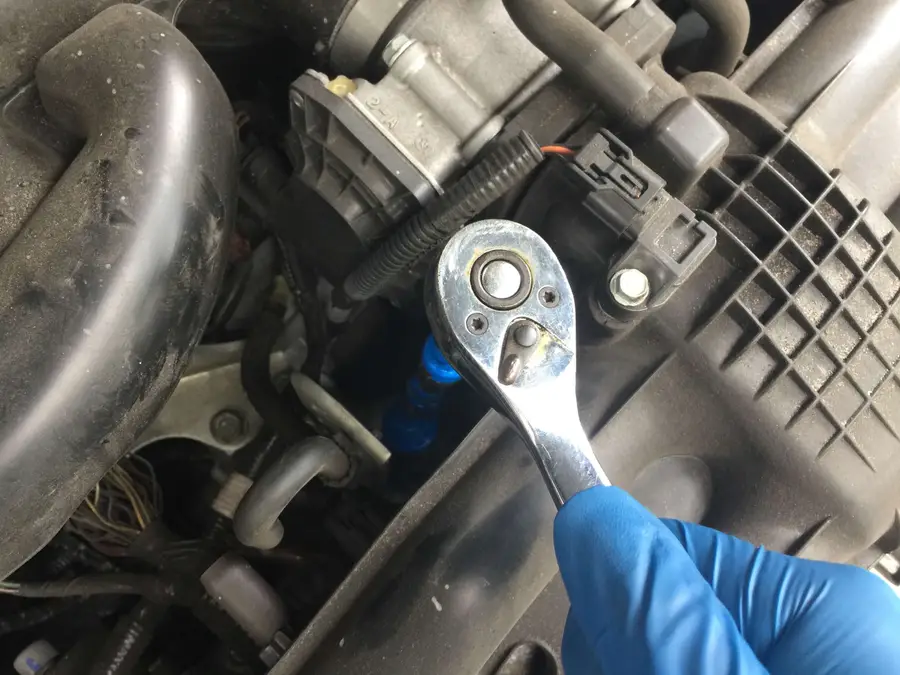
Remove the old PCV valve using a 3/4″ socket and extension. Ensure that no particulate can fall into the opening before you can install the new one.

It’s possible to inspect the existing PCV valve prior to replacing it, but I find it’s easier to simply replace it since the part is so inexpensive. If you’d like to inspect it instead, check to make sure that the ball/plunger at the end of the valve can freely move; it should make a clicking sound when you shake it.

6 – Install the new PCV valve

This is the exact PCV valve you’ll need.

Using a torque wrench is highly recommended as it ensures the PCV valve will be tightened to the proper tightness. Torque wrenches are an inexpensive but essential tool in any DIYer’s automotive toolbox.

Set your torque wrench to 14 lbf. ft (or pound-foot) and tighten the PCV valve until your torque wrench clicks.

🛈 If you don’t have a torque wrench, you can simply tighten until snug, but I recommend picking one up. It can be used to tighten everything from spark plugs to your oil pan plug to the proper torque to prevent issues.

7 – Reattach the PCV valve hose

In this case, reassembly is the reverse of disassembly. You’re all done!

Next

Next, change your Crosstrek cabin air filter in 5 minutes for about $15—you’ll be glad you did!

How to Replace the Subaru XV Crosstrek Cabin Air Filter (2013+)
Change your Crosstrek’s cabin air filter in 5 minutes for less than $15.

NEXT UP

Build Your Own Raspberry Pi Car Computer, or “Carputer”, with AutoPi

Bring your car into the future!
howchoo   (467)
September 29, 2023

Have you ever wanted to add an entertainment system to your car, only to find that most units are expensive, come with a lackluster feature set, and feature a terrible interface? Well, now you can build your own Raspberry Pi-powered car computer with AutoPi! Monitor your car’s vitals, watch movies, play retro games wiith RetroPie, use open

Continue Reading

howchoo

 467 guides

Introducing Howchoo, an enigmatic author whose unique pen name reflects their boundless curiosity and limitless creativity. Mysterious and multifaceted, Howchoo has emerged as a captivating storyteller, leaving readers mesmerized by the uncharted realms they craft with their words. With an insatiable appetite for knowledge and a love for exploration, Howchoo’s writing transcends conventional genres, blurring the lines between fantasy, science fiction, and the surreal. Their narratives are a kaleidoscope of ideas, weaving together intricate plots, unforgettable characters, and thought-provoking themes that challenge the boundaries of imagination.

Home Interests Verizon

How to Log into a Verizon FiOS Router

howchoo
howchoo (467)
September 13, 2023
3 minutes

Share

You’ll Need 2
What you’ll need
Interests
Series
Howchoo is reader-supported. As an Amazon Associate, we may earn a small affiliate commission at no cost to you when you buy through our links.
Posted in these interests:
internet • 36 guides
router • 32 guides
verizon • 6 guides
Need to log into your Verizon router to change settings or apply updates? This guide will show you how to log into your Verizon FiOS router. Looking to add more security to your network? You can start by changing your Verizon FiOS WiFi Password.

1 – Connect to your Verizon FiOS network

You can connect using either a wired (LAN) or wifi connection.

2 – Open a browser and go to 192.168.1.1

This is the gateway for your router and a login screen will appear.

3 – Enter username and password

The default FiOS router administrator password is located on the sticker on the side of your router.
Username: admin
Password: (your password)
You’re logged in!

4 – Changing your password

Now that you’re logged in, you may as well change your password to something more secure. After all, anyone with access to your house can gain access to your router configuration, which is worse than gaining access to the network itself! To change the default administrator password, click Change Admin Password in the left navigation. If you forget your password, simply reset your FiOS router to factory defaults.
How to Reset Your Verizon FiOS Router to Factory Defaults
Managing your own network at home? Changing your Verizon FiOS network name to something less obvious can help secure your network. Check out our guide for steps to get started.
NEXT UP

How to Enable Verizon Call Forwarding

Direct your calls elsewhere.
howchoo (467)
December 1, 2023
Call forwarding is the process of directing phone calls from one number to another. Verizon allows its customers to enable call forwarding at no additional charge. Your typical call rates will still apply. This process works for all Verizon customers regardless of your carrier—including Samsung, Apple, LG, Lenovo, and more. Note: International numbers can not
Continue Reading

howchoo

 467 guides
Introducing Howchoo, an enigmatic author whose unique pen name reflects their boundless curiosity and limitless creativity. Mysterious and multifaceted, Howchoo has emerged as a captivating storyteller, leaving readers mesmerized by the uncharted realms they craft with their words. With an insatiable appetite for knowledge and a love for exploration, Howchoo’s writing transcends conventional genres, blurring the lines between fantasy, science fiction, and the surreal. Their narratives are a kaleidoscope of ideas, weaving together intricate plots, unforgettable characters, and thought-provoking themes that challenge the boundaries of imagination.