Home Interests Privacy

The Best Smartwatches for Privacy and Security

Want a privacy-respecting and secure smartwatch? We’ve got you covered.
howchoo   (447)
September 20, 2023
22 minutes

Share

Interests
Posted in these interests:

privacy • 2 guides
security • 6 guides
technology • 20 guides

Options for smartwatches that are both secure and respect privacy are few and far between, but not impossible to find. Of course, going with a major brand like Apple is a good bet if you’re looking for the closest thing to standards that exist in the smartwatch market and, at least on paper, Withings offers good security practices for their technology and health data. But, if you want to take total control of your data, while still having all the great features we’ve come to expect from a smartwatch, some exciting options do exist.

Some of these watches are closer to Steve Wozniak’s DIY watch, the sort of thing you get if you love messing around with new technology, or prefer to have a highly individuated watch design. Others are a bit closer to what you’d find on the open market, however, and it seems likely that even better devices are just a short way down the road.

For those of you who already own a smartwatch, however, or for those looking to get something with a more polished set of features, don’t fret. There are some neat software projects out there that might be able to take an ordinary smartwatch and put you in total control over how your data is shared.

1 – Smartwatches designed for privacy and security

Smartwatches designed for privacy and security

There are not as many smartwatches designed for the privacy-conscious individual as there should be, which sadly drives more users toward the large commercial products. However, the last couple of years have seen a rise in open-source projects that seek to rectify this issue by bringing affordable and privacy-centered smartwatch technology to the public sphere.

When considering these smartwatches, you primarily need to figure out what features are indispensable for your needs. If you absolutely must have advanced blood pressure monitoring, only a few major brands will do. Likewise, if you want to be able to conduct payments through your smartwatch, the limitations quickly begin to stack up. If, however, you want a functional watch that contains fitness tracking and other core features, the sheer drop in price that some of these specialized smartwatches offer will likely be enough to encourage you to at least give them a run around the block (perhaps literally).

2 – The PineTime smartwatch by PINE64

The PineTime smartwatch by PINE64

PINE64 is a community platform, where the community drives the design and creation of new hardware and then works collectively to build advanced software for those devices. Working from the ground up, these Linux developers have come up with a vast array of exciting projects, all of which focus on privacy and security as native aspects of the design.

The PineTime features an Apple Watch style and all the basic features anyone could want, easily matching any sub-$100 watches on the market. Truthfully, though, since you have active support from a dedicated community, and software you can reliably trust not to be snooping on you (or simply horribly buggy), the PineTime is the main watch I’d recommend to anyone looking to get into the realm of smartwatches without breaking the bank.

The main downside of the PineTime is the lack of IP68 rating. Since it’s rated at IP67, the PineTime provides protection from water damage for 30 minutes and up to one meter, but that means it’s not going to work for those who use smartwatches to monitor swimming.

The PineTime is best, though, for people who like messing around with their electronics. You can totally use it out of the box, but the real advantages of any PINE64 product comes from interacting with the community and trying out the different community-developed apps.

3 – The Watchy by Squarofumi

The Watchy by Squarofumi

This is a geek’s happy project, an open-source, Arduino-powered smartwatch with a 1.54-inch e-paper screen. There’s also Wi-Fi, Bluetooth, a 3-axis accelerometer and four programmable buttons. The design of The Watchy is actually kinda sleek, even if some form of case is added (the Printed Circuit Board itself acts as a basic case). The catch? You’re going to be putting this together yourself, and, probably, coding it yourself as well.

While this is absolutely a project for DIYers out there, rather than something ready to go on the open market, it’s a lovely step forward in the realm of open-source smartwatch design. Hopefully, five years down the road, we start seeing these projects rival some of the established brands in terms of ease of use and features. Until then, what better way to teach your kids, or yourself, about the basics of hardware and software!

4 – The Open-SmartWatch by @pauls_3d_things

The Open-SmartWatch by @pauls_3d_things

This little beauty is another highly DIY project, though you can purchase a prebuilt model from MakerFabs. Created by “Paul’s 3D Things”, this little device has only the most basic smartwatch functions built in, but it actually looks pretty nifty. Besides, there is an updated version in the works, and its creator looks like the sort of guy who might take this project in some seriously cool directions.

5 – Bangle.js 2 smartwatch

Bangle.js 2 smartwatch

Aside from the PineTime, the Bangle.js 2 is the only open-source smartwatch that’s got the ability to appeal to a non-DIY audience. It’s a lot sleeker than the PineTime, however, and has a better feature-set out of the box. An active community provides support as well as all manner of new apps and, as with all of these projects, you can learn how to code this little beauty yourself (using JavaScript or a graphical programming language like Blockly).

I’d recommend this one over the PineTime in most cases, largely due to the excellent battery life of the Bangle. It is lacking PineTime’s Bluetooth 5, but hopefully, we see a new version before long that upgrades the hardware to a modern level. It would be nice if they offered models with some better preinstalled features and IP68 waterproofing (the Bangle only offers IP67), but the truth is that the Bangle still beats out a large swatch of similarly-priced smartwatches on the market (none of which will boast the ability to self-program or the privacy factors of the Bangle).

6 – Big name brand smartwatches good for privacy?

Big name brand smartwatches good for privacy?

But how do regular smartwatches stack up? With the deluge of smartwatches on the market these days, and the vast array of complicated differences between models, it can be hard to know which models are going to be the best for privacy and security.

Generally speaking, Apple does maintain a higher internal privacy standard than other companies at its level. That’s not to say that this internal standard is anywhere near as good as what we should have (standards imposed by an international regulatory body), but they do help set a basic benchmark for the industry. To that end, Apple’s watch is probably the best in terms of privacy and security, as long as you’ve already taken steps to secure your other Apple devices. Of course, Apple’s watch is useless without the rest of the Apple products to create the ecosystem, so you either need to have already bought in, or you’re looking at a pretty expensive switch.

Withings is another smartwatch maker to take note of, though there are some serious concerns that their company has failed to address. Mostly, Withings designs various “smart” medical devices such as thermometers, scales, and blood pressure sensors. Their watches are unique in the industry for looking great (like actual watches), having many of the same health features that the Apple Watch does (including advanced heart rate monitoring functions), and a month-long batter life. Their privacy policy and security information are a little hard to find, but they seem to have relatively good protections in place, conforming to GDPR and HIPAA standards. They don’t go out of their way to support customers in finding this information, however. Questions on their forums are unanswered, and there wasn’t any obvious notice that they never sell or provide your data to 3rd parties beyond those contractually obligated to use that data for specific functions. That’s a bit frustrating, and I hope Withings can offer greater insights in the future.

Finally, despite some recent severe data breaches, Garmin watches are a great choice because the user doesn’t need to connect their real information to the Garmin account, nor do they need to use the online connection between the Garmin app and the watch. Some users, with some models of Garmin watches, have even been able to use GadgetBridge to bypass Garmin’s app altogether, others just use a physical connection to a PC to transfer data when needed.

Whatever you do, avoid all watches “for kids” since these tend to be the worst offenders for tracking problems and security breaches. In the extremely unlikely case that your child needs a high-tech computer strapped to their wrist 24/7, get them one of the privacy-respecting models that offers limited features.

7 – AsteroidOS free and open source smartwatch software

AsteroidOS free and open source smartwatch software

One of the most promising projects in terms of open-source smartwatch software is AsteroidOS, the fully functional operating system designed for maximum privacy and security. It’s got a superb feature base, a dedicated community, and the benefit of not sharing your most personal biometric and locational data with your watch’s company. The main downside is how few watch models are supported by the OS.

8 – GadgetBridge

GadgetBridge

GadgetBridge is a powerful tool that allows you to use your Pebble, Mi Band, Amazfit Bip and HPlus device (as well as several others) without the vendor’s closed source application, and without transmitting any data to the vendor. With products like Amazfit (notoriously terrible at privacy) this is essential, it’s only a shame that GadgetBridge doesn’t support more popular products like the (truly terrible for privacy) FitBit.

NEXT UP

How to Set Up Quick Connect on a Synology NAS

Get Synology’s powerful Quickconnect running in minutes on your NAS!
howchoo   (447)
November 24, 2023

Synology is one of the most popular creators of Network Attached Storage devices on the market today, and for great reason — they’re really good at what they do. They consistently make devices that stand the test of time and feature top-notch software that makes the process of running a home server as easy as

Continue Reading
Home Interests Raspberry Pi

How to Connect to a Raspberry Pi Remotely via SSH

The preferred (and most common) method of connecting to your Pi to run commands.
howchoo   (434)
September 20, 2023
7 minutes

Share

You’ll Need 1

What you’ll need
Interests
Series
Howchoo is reader-supported. As an Amazon Associate, we may earn a small affiliate commission at no cost to you when you buy through our links.
Posted in these interests:
linux • 12 guides
pi • 91 guides

This guide will show you how to connect to your Raspberry Pi remotely via SSH from your laptop or desktop computer.

How to SSH into Raspberry Pi

SSH (Secure SHell) is the best method of connecting to your Raspberry Pi. Therefore, this is the method we’ll be using to log in.

1 – Open a command line

Connect your Pi to your WiFi (or wired) network. Then, open a new command line:

For Mac:

Open Terminal by navigating to Applications > Utilities > Terminal.

For Windows 10+:

Open Command Prompt by right-clicking the Start button and selecting Command Prompt.

Note: For Windows, you’ll need to install Putty and follow these instructions before proceeding.

🛈 For other versions of windows, simply search your computer for the Command Prompt application.

2 – Enable SSH

Older versions of Raspberry Pi OS like Raspbian Jessie, Raspbian Stretch, and Raspbian Buster have SSH disabled by default for security reasons. If you’re using an up-to-date version of Raspberry Pi OS (as you should!), you’ll need to enable SSH on your Raspberry Pi before proceeding.

How to Enable SSH on Raspberry Pi OS Without a Screen
The SSH protocol is disabled by default.

3 – Get the username and password

The default username and password for the Raspberry Pi is:

username: pi
password: raspberry

Of course, if you’ve changed the password you’ll need to use the updated password.

4 – Use the SSH command

The default hostname for the Pi is raspberrypi, so in your command line app, enter the following and press enter:

ssh pi@raspberrypi

Note: Certain distributions (like RetroPie) change the hostname by default — for example, the default hostname for RetroPie is retropie, so you’d connect using that in place of raspberrypi. You can quickly check whether your Pi uses a certain hostname by pinging it and trying each hostname:

ping raspberrypi

You can also connect using your Raspberry Pi’s IP address:

ssh [email protected]

.. where 192.168.X.X is your Pi’s IP address. You can obtain your Pi’s IP address using the ping command above.

Type the password when you see the password prompt. For security purposes you won’t see the password as you type.

You might encounter a host verification warning that ends with something like this:

The authenticity of host 'abc (abc)' can't be established.
RSA key fingerprint is 3f:1b:f4:bd:c5:aa:c1:1f:bf:4e:2e:cf:53:fa:d8:59.
Are you sure you want to continue connecting (yes/no)? 

Just type “yes” and hit enter. This is a security measure to let you know you’re trying to connect to a host for the first time. After connecting, the host will be added to the known_hosts file, and you won’t see this warning again.

🛈 Make sure your computer is on the same network as your Pi.
NEXT UP

HeaterMeter: Control your Grill Using a Raspberry Pi!

Fire up the summer with a new Pi project.
howchoo   (434)
November 28, 2023

With summer right around the corner, it’s time to fire up the grill! But who will watch the grill while you’re beating the heat? This year, kick things up a notch with your own Raspberry Pi-powered HeaterMeter. Don’t just throw a BBQ, be a part of it. HeaterMeter lets you keep a close eye on

Continue Reading
Home Interests RetroPie

How to Add ROMs to RetroPie

You gotta put ’em somewhere!
howchoo   (434)
September 20, 2023
13 minutes

Share

You’ll Need 1

What you’ll need
Interests
Series
Howchoo is reader-supported. As an Amazon Associate, we may earn a small affiliate commission at no cost to you when you buy through our links.
Posted in these interests:
pi • 91 guides
retrogaming • 29 guides
retropie • 17 guides

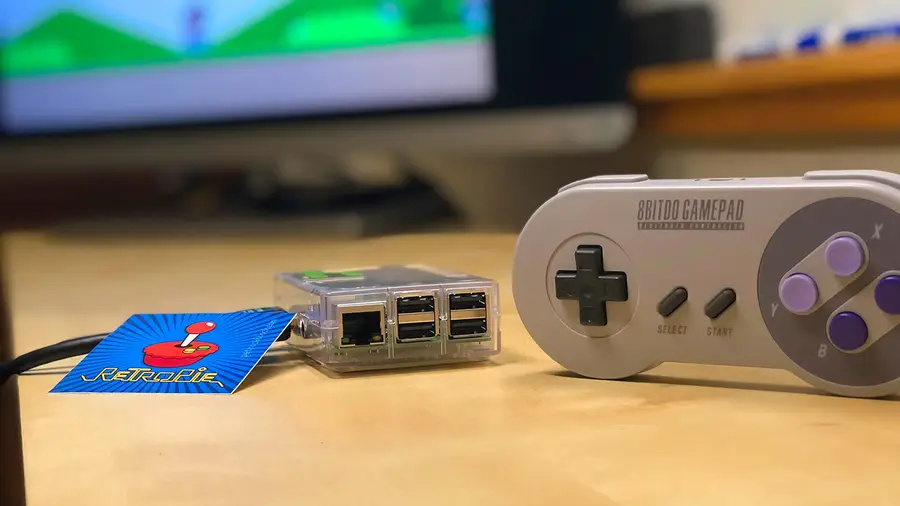
Ready to play? You’ll need some ROMs first! Today we’re going over the many different ways you can transfer ROMs to RetroPie on the Raspberry Pi. If you’re not sure where to start, one of these methods is guaranteed to put you on the right path.

What is RetroPie?

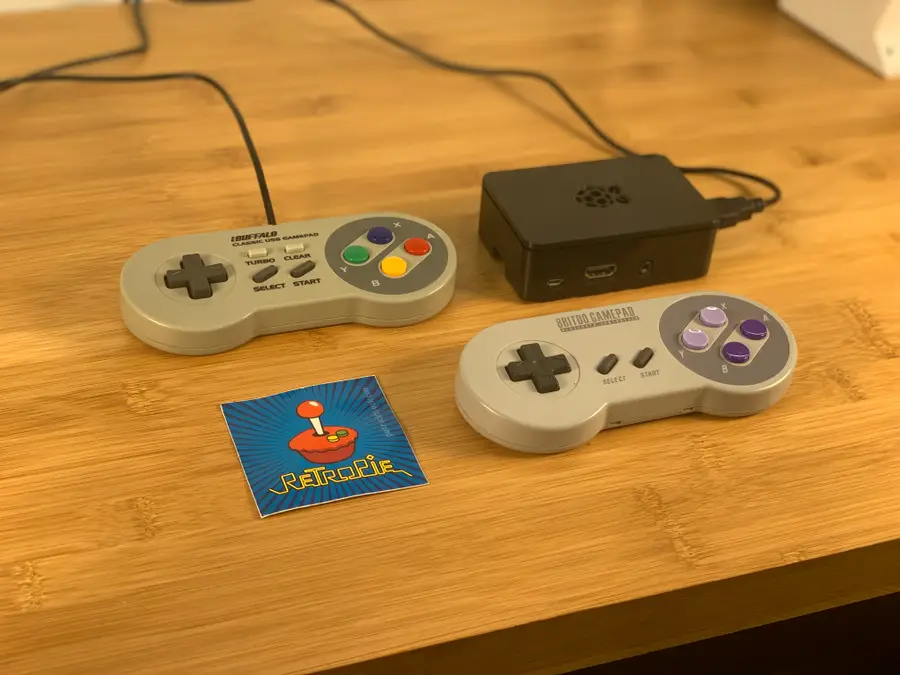
RetroPie is an open-source emulation platform. In simple terms, it’s for emulating retro video games! RetroPie is built on top of RetroArch and runs perfectly on the Raspberry Pi. You can use RetroPie to emulate both consoles and computer systems. Visit our guide to learn how to set up RetroPie on a Raspberry Pi.

RetroPie: Build Your Own Raspberry Pi Retro Gaming Rig
How to install (and use) RetroPie!

1 – Transfer ROMs via Network share on Windows

Using Samba—a software suite built into RetroPie—you can send files to RetroPie over a network. First, make sure that your Raspberry Pi and computer with ROMs are on the same network.

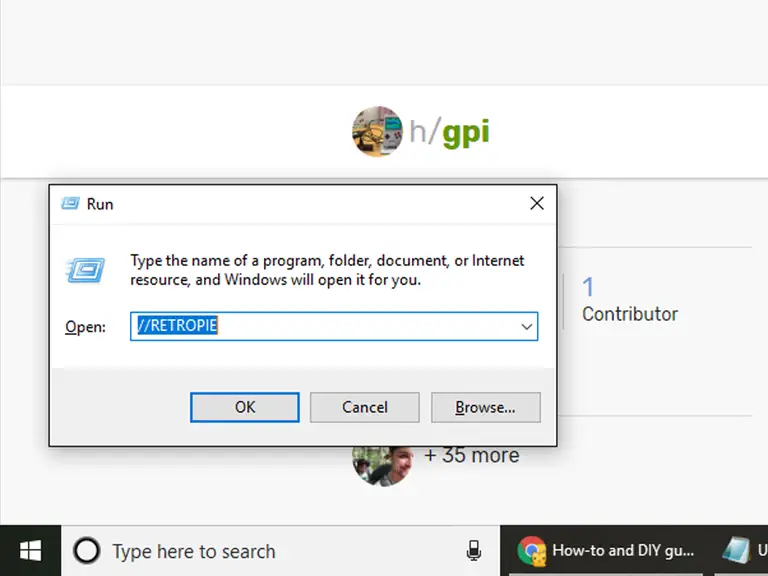
On the same computer that has your ROMs, hold down the Windows key and press R. In the Run dialogue, enter the following:

\RETROPIE

Alternatively, you can replace \RETROPIE with an IP address like this:

\127.0.0.1

Press Enter or click OK. This will open a window with folders you can move content into and out of.

ROMs need to go in the ~/RetroPie/roms/ folder. You will need to sort them by console/OS for RetroPie to launch them properly. For example, SNES games would go in the ~/RetroPie/roms/SNES folder.

2 – Transfer ROMs via Network share on Mac

Samba is built into RetroPie, it lets us add and remove content for RetroPie over the network. Make sure your Pi and computer with ROMs are on the same network.

Access the computer with your ROMs and open the Finder tool on macOS.

Browse to Network > retropie > roms

This will open the RetroPie ROMs directory on your Pi. Now you can drag and drop files directly to RetroPie. You will need to sort ROMs by console and OS. For example, you should put NES games in the ~/RetroPie/roms/NES folder.

3 – Transfer ROMs via USB

It’s also possible to transfer ROMs using a USB flash drive. Make sure it’s formatted to FAT32 to work with RetroPie.

First, connect the flash drive to your computer and create a folder named retropie on the drive.

Unplug the flash drive from your computer and connect it to the Raspberry Pi. The Pi needs to be on for this step. You will see a flashing light on the drive when it’s connected.

When the flash drive LED stops blinking, remove it from the Raspberry Pi and connect it to your computer again. Now you can add ROMs to the flash drive. Sort the ROMs into the appropriate folder for each console or system.

After the ROMs have been loaded, plug the flash drive back into the Pi. Wait for the LED to stop blinking and remove the flash drive from the Pi. You may need to relaunch RetroPie or reboot the Pi altogether to locate the new ROMs.

4 – Transfer ROMs via FTP (SFTP) on Windows

It’s really easy to transfer ROMs to RetroPie directly using an FTP setup.

First, we need to enable SSH. Visit our guide on how to enable SSH on the Raspberry Pi and come right back.

How to Enable SSH on Raspberry Pi OS Without a Screen
The SSH protocol is disabled by default.

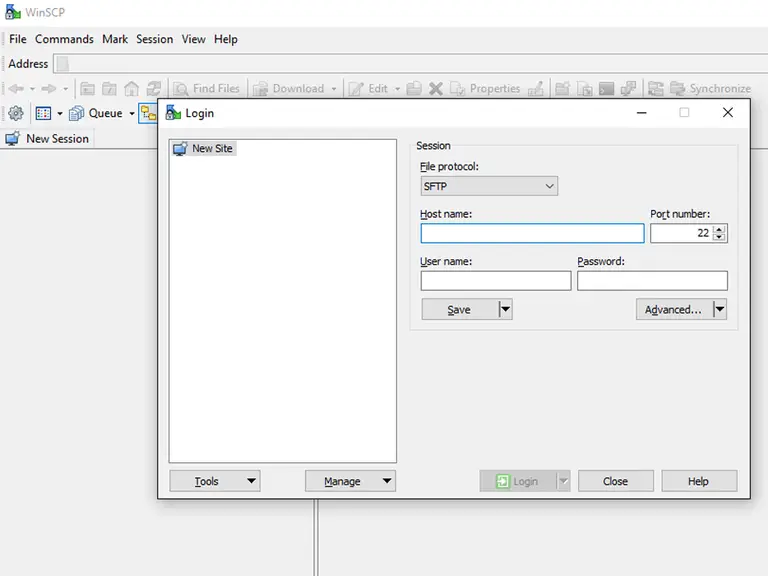
There are many FTP programs available for Windows 10. My personal favorite is WinSCP. It has everything we need and also comes recommended by the RetroPie devs on Github.

Open WinSCP (or your FTP client of choice) and enter the IP address of your Raspberry Pi. You can choose SFTP or enter port 22 if needed. The default username and password is:

Username: pi
Password: raspberry

WinSCP will load the complete directory for your Raspberry Pi. From here, navigate to the appropriate folder for each console or system you want to add ROMs to. You can typically find this under a path similar to ~/RetroPie/roms/*[console folder]*.

Drag and drop your ROM files directly to the Pi.

5 – Transfer ROMs via FTP (SFTP) on Mac

ROMs can be transferred to RetroPie directly using FTP.

First things first—we need to enable SSH. Check out our guide on how to enable SSH on the Raspberry Pi real quick. I’ll wait.

How to Enable SSH on Raspberry Pi OS Without a Screen
The SSH protocol is disabled by default.

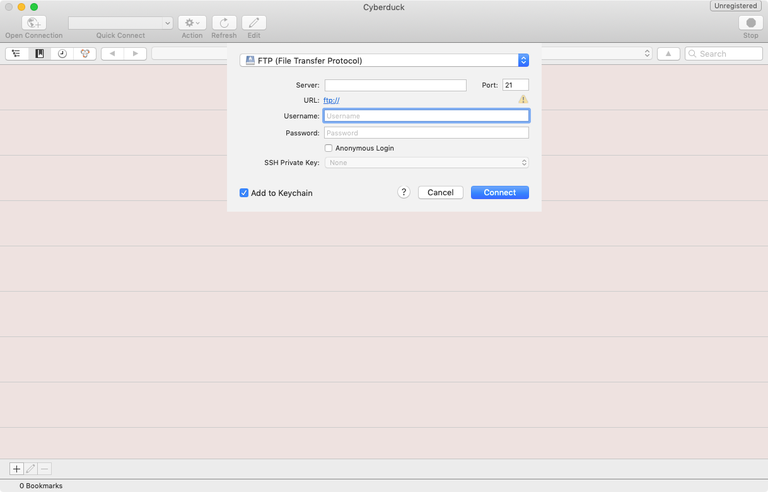
There are many different FTP applications supported by macOS. Cyberduck is officially recommended by the Github devs and will work perfectly for us.

Launch Cyberduck (or your preferred FTP client) and enter the IP address for your Pi. You can specify port 22, if necessary. The default username and password is:

Username: pi
Password: raspberry

Once logged in, you can navigate the Raspberry Pi directory from your computer. We’re looking for a specific folder to load our ROMs into. It’s usually similar to this path: ~/RetroPie/roms/*[console folder]*

From here, you can drag and drop ROMs directly to RetroPie! Be sure to sort the ROMs into the correct console or system folder.

6 – Where to find more ROMs

Looking for more ROMs? I don’t blame you. There’s tons of great content out in the world, why not build up a collection?

We have a dedicated list of free and legal ROMs for emulators on RetroPie. Check out our RetroPie ROMs guide to work on your game library!

Did you know you can play multiplayer games on RetroPie with your friends using Netplay? Check out this guide to set up multiplayer on RetroPie.

NEXT UP

HeaterMeter: Control your Grill Using a Raspberry Pi!

Fire up the summer with a new Pi project.
howchoo   (434)
November 28, 2023

With summer right around the corner, it’s time to fire up the grill! But who will watch the grill while you’re beating the heat? This year, kick things up a notch with your own Raspberry Pi-powered HeaterMeter. Don’t just throw a BBQ, be a part of it. HeaterMeter lets you keep a close eye on

Continue Reading
Home Interests Docker

How to Run a Raspberry Pi Cluster with Docker Swarm

An in-depth Raspberry Pi cluster example.
howchoo   (432)
September 20, 2023
22 minutes

Share

<!–
–> <!–

Discuss

–> <!–
–> <!–
–> <!–
–>

You’ll Need 5

What you’ll need
Interests
Howchoo is reader-supported. As an Amazon Associate, we may earn a small affiliate commission at no cost to you when you buy through our links.
Posted in these interests:
docker • 4 guides <!– –>
pi • 91 guides <!– –>

A cluster is a group of computers performing the same task, operating as a single system. Although Raspberry Pi’s are pretty incredible devices, a single Pi can only do so much.

A Raspberry Pi cluster can be used anytime you want to improve performance or availability, and there are many use cases including serving web content, mining cryptocurrency, processing large amounts of data (using tools like hadoop), and much more. This guide will show you how to run a Raspberry Pi cluster using Docker Swarm.

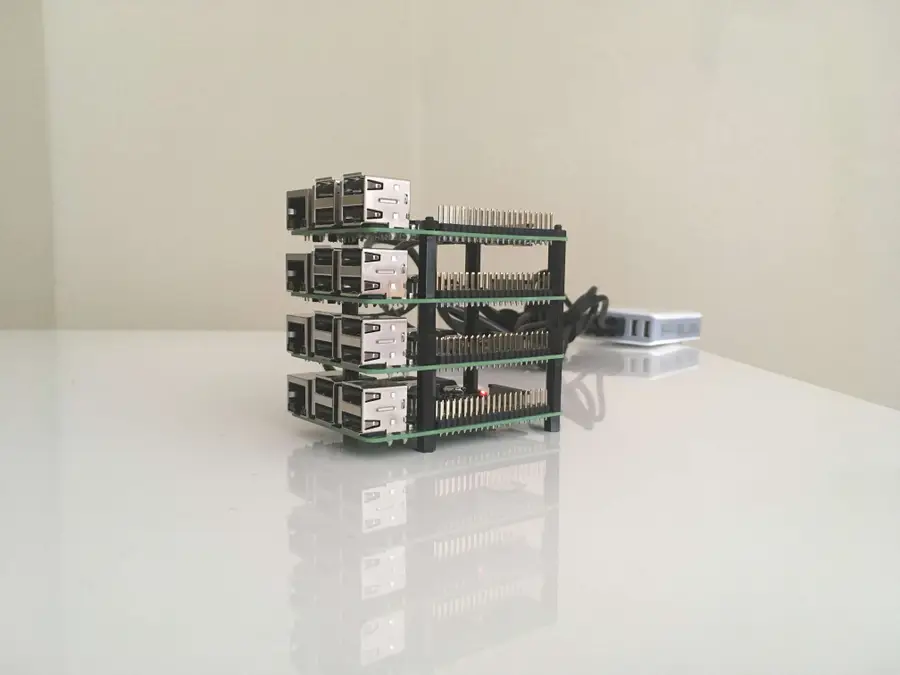
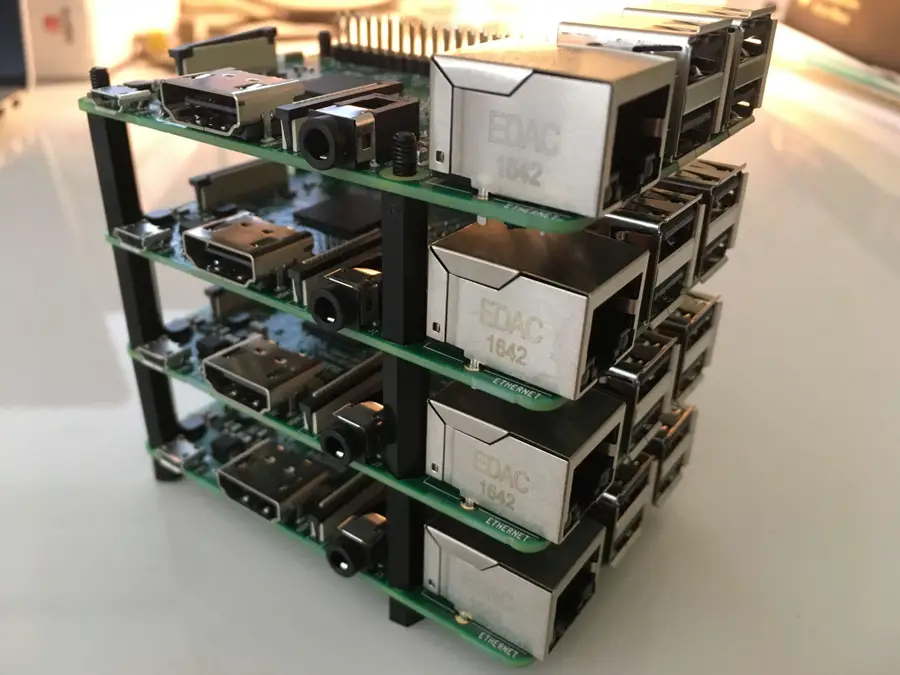
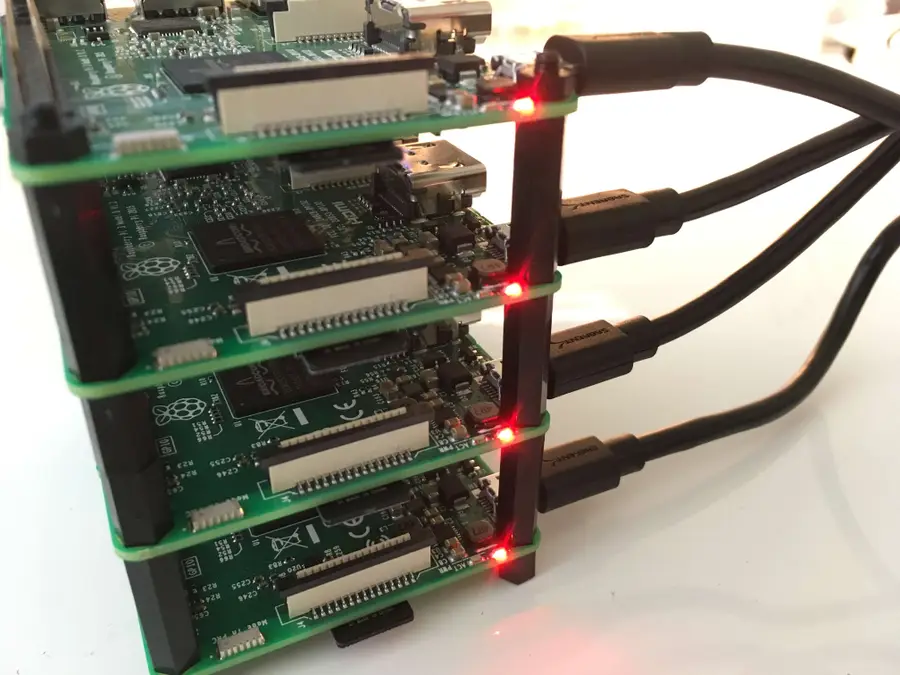
1 – Build your tower

This is fun part.

You don’t actually need a tower, but you might as well build one. Using a tower like this makes everything more organized and easier to work with.

2 – Install Raspbian Jessie on all four SD cards

We’ve written a detailed guide that will walk you through the process of installing Jessie on your Raspberry Pi. Since we’re dealing with multiple Pi’s, you’ll have to do this for each one.

Note: For each Pi we’re going to do some configuration while the SD card is in your computer. So read the next step to see what to do after installing Raspbian on each SD card.

3 – Configure Raspbian from the SD card

After installing Jessie, and while the SD card is still in your computer, we’re going make a few changes to the configuration. Follow the links in this step for detailed instructions on each change.

First, go ahead and enable SSH.

How to Enable SSH on Raspberry Pi OS Without a Screen
The SSH protocol is disabled by default.

Then set up WiFi for the Pi.

Once you’ve installed and configured each SD card, insert one into each Raspberry Pi.

*Protip: Once you’ve configured one SD card, you can use a utility such as ApplePi Baker to clone it onto the other SD cards.

4 – Power up and test

Connect your Raspberry Pi’s to their power supplies, and make sure they boot properly. Near the USB connector, you should see a solid red LED. This indicates that the Pi has power. Then you should see a green flashing LED, which indicates there is SD card activity.

5 – Find the IP address of each node

We’ve written a guide that shows you how to find the IP address of your Raspberry Pi. So follow this guide if you need more detailed instructions, but we’re going to use nmap.

sudo nmap -sn 192.168.1.0/24

Note: You might need to use a different subnet range. Follow the guide for more information on finding the correct subnet.

This will list all of the devices connected to the network, so we should see all four of our Raspberry Pi’s. When you spot them, take note of the IP address for each. Here is my output:

Starting Nmap 7.40 ( https://nmap.org ) at 2017-03-21 15:52 PDT Nmap scan report for Chromecast.attlocal.net (192.168.1.78) Host is up (0.063s latency). MAC Address: 54:60:09:06:76:0A (Google) Nmap scan report for unknownc24b2b235d18.attlocal.net (192.168.1.178) Host is up (0.0059s latency). MAC Address: C2:4B:2B:23:5D:18 (Unknown) Nmap scan report for raspberrypi.attlocal.net (192.168.1.181) Host is up (0.29s latency). MAC Address: B8:27:EB:79:49:F2 (Raspberry Pi Foundation) Nmap scan report for raspberrypi.attlocal.net (192.168.1.183) Host is up (0.17s latency). MAC Address: B8:27:EB:95:6D:7A (Raspberry Pi Foundation) Nmap scan report for raspberrypi.attlocal.net (192.168.1.184) Host is up (0.22s latency). MAC Address: B8:27:EB:6E:DE:EF (Raspberry Pi Foundation) Nmap scan report for raspberrypi.attlocal.net (192.168.1.185) Host is up (0.22s latency). MAC Address: B8:27:EB:B6:4A:6E (Raspberry Pi Foundation)

So the IP addresses for all four of my Raspberry Pi’s are:

192.168.1.181 192.168.1.183 192.168.1.184 192.168.1.185

6 – Change the hostname for each node

For each Raspberry Pi (node) in our cluster, I’m going to change the hostname so it’s easier to access. Since I’ve got four nodes I’m going to name them docker1, docker2, docker3, and docker 4.

Follow this guide to learn how to change the hostname of your Raspberry Pi.

You’ll also want to add an entry in your local /etc/hosts file that maps the new hostname to the IP address for each Pi. The end of my /etc/hosts now looks like this:

192.168.1.181 docker1 192.168.1.183 docker2 192.168.1.184 docker3 192.168.1.185 docker4

7 – Copy SSH keys to each node

This step is optional, but it will allow us to easily SSH into each node without using a password. I’ll use the ssh-copy-id command to copy my public key to the remote server.

If you don’t have a key generated already, you can do so with:

ssh-keygen -t rsa

Hit enter twice and leave the passphrase empty (unless you really want to use a passphrase).

Then copy the key to each node with:

ssh-copy-id pi@docker1

You’ll have to enter your password to copy the key. Do this for each node.

8 – Install Docker on each node

You can use this simple bash one-liner to install docker on each node.

for host in docker1 docker2 docker3 docker4; do ssh pi@$host curl -sSL https://get.docker.com | sh; done

Of course, you’ll have to use your own hostnames, but this should loop through each host and install docker. For more detailed instructions on how to install Docker on your Raspberry Pi see this guide.

9 – Create the swarm

Now that Docker is installed we need to create our swarm. We only need to do this on one of the nodes. So the order of operations will be: 1. create swarm on a single node (this node will be a manager node), 2. join one more node as a manager, and 3. join two more nodes as workers. So we’ll have a total of 2 managers and 2 workers in our swarm.

So in this step, I’ll create the swarm on docker1.

To do this, we’ll first have to get the IP address of the node. If you’re following this guide step by step, we already have the IP address in our local /etc/hosts file. If not, you can use this guide as a reference.

For me, the address of docker1 is 192.168.1.181. So I’ll use this command to create the swarm:

ssh pi@docker1 sudo docker swarm init --advertise-addr 192.168.1.181

You’ll notice that this outputs a command that can be used to join other nodes to the swarm as a worker. The command looks something like this:

docker swarm join  --token SWMTKN-1-49nj1cmql0jkz5s954yi3oex3nedyz0fb0xx14ie39trti4wxv-8vxv8rssmk743ojnwacrr2e7c  192.168.1.181:2377

Keep track of this command. Although you can regenerate a token if necessary, we’re going to use this in the next step.

Now we’ve got our swarm with one manager node. You can confirm by typing:

sudo docker node ls

10 – Add the rest of the nodes to the swarm

Now we’ve got to add the rest of the nodes to the swarm. As I mentioned in the previous step, we’re going to add one more manager and two more workers.

Let’s start by adding our next manager node on docker2. To do this, we’ll have to generate a manager token. While still logged into docker1, type:

sudo docker swarm join-token manager

This will generate another join command like the one from the previous step. So we’ll grab this command, ssh into docker2 (from our local machine), and use the manager join command.

ssh pi@docker2 sudo docker swarm join --token SWMTKN-abc...manager...xyz 192.168.1.181:2377

Keep in mind that the two swarm join commands look similar, so we’ll have to keep track of which is which. We just joined docker2 to the swarm as a manager, so now we’ll use the other token and join docker3 and docker4 as workers.

ssh pi@docker3 sudo docker swarm join --token SWMTKN-abc...worker...xyz 192.168.1.181:2377

And again from your local machine:

ssh pi@docker4 sudo docker swarm join --token SWMTKN-abc...worker...xyz 192.168.1.181:2377

Now all of our nodes have joined the swarm. Let’s run our node ls command again to confirm.

ssh pi@docker1 sudo docker node ls

And you should see all of the nodes listed:

7x52m1rsps550g89n1zngqqw2 docker4 Ready Active nck7h1z5ka7q5x05ek73iw3p2 docker3 Ready Active q0p4wnzs9wg58yj8m10fk41t3 * docker1 Ready Active Reachable tunc46ypfdl9uhvin4g4ofddz docker2 Ready Active Leader

11 – Run our first service

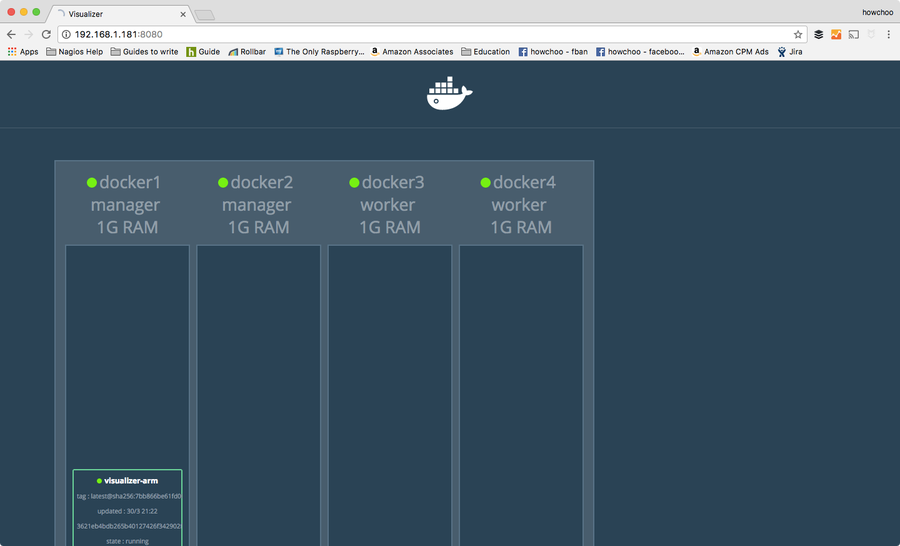
At this point we’ve accomplished the purpose of the guide, but we might as well run a service to demonstrate how to use the swarm. Our swarm can run any number of services and they can be scaled and distributed across the nodes in our cluster according to our preferences. To begin, we can run a visualizer service that will provide a web interface to visualize how the containers are distributed across the swarm.

This service is built from an image called “visualizer” originally created by Github user ManoMarks. But we’ll have to use a version of this image that was built to work on the Raspberry Pi and other ARM devices.

So let’s log on to docker1 and create our visualizer service:

ssh pi@docker1 sudo docker service create  --name viz  --publish 8080:8080/tcp  --constraint node.role==manager  --mount type=bind,src=/var/run/docker.sock,dst=/var/run/docker.sock  alexellis2/visualizer-arm:latest

This will probably take a few minutes to spin up because it has to download the image. We can check the status by typing:

sudo docker service ls

Until the service is ready, you’ll see the REPLICAS value as 0/1.

lqejzqrv0le8 viz replicated 0/1 alexellis2/visualizer-arm:latest

It will say 1/1 when it’s ready.

Once it’s ready, you can visit http://192.168.1.181:8080 (the IP of docker1 and port 8080). This will show you a nice visualization of the swarm and which containers are running on which nodes.

Of course, for your purpose you’ll be creating at least one other service. There is a lot of pertinent information about docker that won’t (and can’t) be covered in this guide, but check out the official docker documentation for more information and of course check out the Docker interest on howchoo.

NEXT UP

HeaterMeter: Control your Grill Using a Raspberry Pi!

Fire up the summer with a new Pi project.
howchoo   (432)
November 28, 2023

With summer right around the corner, it’s time to fire up the grill! But who will watch the grill while you’re beating the heat? This year, kick things up a notch with your own Raspberry Pi-powered HeaterMeter. Don’t just throw a BBQ, be a part of it. HeaterMeter lets you keep a close eye on

Continue Reading
Home Interests Nintendo

SNES battery replacement for games that won’t save

Like a 1up for your SNES cartridge.
howchoo   (467)
September 20, 2023
7 minutes

Share

You’ll Need 7

What you’ll need
Interests
Solder x 1
Flux x 1
Howchoo is reader-supported. As an Amazon Associate, we may earn a small affiliate commission at no cost to you when you buy through our links.
Posted in these interests:
READY PLAYER 1
gaming • 85 guides
nintendo • 13 guides
retrogaming • 29 guides

It’s never too late to replay your favorite Super Nintendo games. But it has been a while since these games were new. You may find your save file isn’t working and new save files aren’t saving on the SNES cartridge. This is likely due to an old battery. Failing batteries won’t necessarily affect the gameplay—but they will affect save data.

In this guide, we’ll go over how to replace old Super Nintendo batteries so you can continue saving your progress into the future.

Removing the existing battery will eliminate all current save data. Proceed with caution.

Which SNES games use a battery?

Not every SNES game uses a battery. The cartridges that have them use the power to store save data and unlockable content. You can find a complete list of SNES games that use a battery on DKoldies.

Note: This guide is only for SNES games, visit this guide to change a NES cartridge battery.

1 – Unscrew the SNES cartridge

Use a 3.8mm SNES security bit screwdriver to remove the screws from the cartridge. The cartridge shell should easily separate. There are two screws used during this step.

2 – Remove the board from the SNES cartridge shell

There are no tabs holding the board in place, it rests inside the cartridge. Lift the board from the shell.

3 – Desolder the old battery

Flip the board over so the battery is facing down.

Use a soldering iron to heat the old solder that holds the current battery in place. Remove the melted solder with a solder sucker. When enough has been removed, the battery can be wiggled loose.

4 – Fit the new battery into place

Fit the new battery inside the SNES battery slot.

You’ll need a this CR2032 battery with pre-soldered tabs for this step. Be sure to line up the positive and negative ends properly. Use the images in this guide for reference.

I’m using a CR2025, which will technically work, except that it has slightly different tabs that will need to be clipped. We had some left over after replacing a Game Boy cartridge battery.

🛈 You cannot use just any CR2032. It must have pre-soldered tabs. Soldering to a battery can cause it to explode.

5 – Solder the new battery to the SNES board

Flip over the board and solder the new battery into place. I always recommend using a bit of flux when soldering.

6 – Screw the shell together

Using the 3.8mm SNES security bit, screw the cartridge shell back together. There are two screws used during this step.

7 – Test the finished product

Who’s up for some NBA Live ’97?

It’s time to test your progress. Load up your SNES game and play enough to warrant a save. Our goal is to create new save data on the cartridge. After you save the game, restart the SNES and see if it loads.

Congratulations! You’ve added a few more years to the life of your SNES game.

NEXT UP

Top 10 Enchantments in Minecraft

howchoo   (467)
March 25, 2024

The longer you play Minecraft, the more you realize that early-game tools just won’t cut it. Exploring the enchantment feature of Minecraft can be exciting, but also intimidating. Rather than worry about researching enchantments, below are the best enchantments in Minecraft! To learn how to enchant items, check out this guide! In this guide, you’ll see

Continue Reading

howchoo

 467 guides

Introducing Howchoo, an enigmatic author whose unique pen name reflects their boundless curiosity and limitless creativity. Mysterious and multifaceted, Howchoo has emerged as a captivating storyteller, leaving readers mesmerized by the uncharted realms they craft with their words. With an insatiable appetite for knowledge and a love for exploration, Howchoo’s writing transcends conventional genres, blurring the lines between fantasy, science fiction, and the surreal. Their narratives are a kaleidoscope of ideas, weaving together intricate plots, unforgettable characters, and thought-provoking themes that challenge the boundaries of imagination.

Home Interests Raspberry Pi

How to Install Raspbian Jessie on the Raspberry Pi

howchoo   (467)
September 20, 2023
9 minutes

Share

Interests
Posted in these interests:
pi • 92 guides
raspbian • 5 guides

Raspbian is a free Debian-based operating system optimized for the Raspberry Pi. Jessie is the development code name for Debian 8. This guide will walk you through the process of installing Raspbian Jessie on your Raspberry Pi.

Note: A new version of Raspbian is available! Learn how to install Raspbian Buster.

1 – Download Raspbian

Since Jessie is no longer the latest version of Raspbian, it’s been removed from the Raspbian Downloads page. However, you can still Download Raspbian Jessie from the Raspbian Image Archive using our guide.

Download Raspbian Jessie
Need an older version of Raspbian? No problem.

Choose either full (for a desktop) or lite (for command line/CLI only).

2 – Put your micro SD card into your computer

You’ll probably need to use an adapter.

3 – Using MacOS

If you’re using MacOS, you can use the following instructions. If you’re using Windows, scroll down.

4 – Open the Disk Utility and find your SD card

To open Disk Utility you can type cmd + space bar and search. Or you can use Finder to navigate to Applications > Utilities > Disk Utility.

5 – Format the SD card

You’ll need to format the SD card to FAT-32. To do so you’ll need to click on the “Apple SDXC Reader” in the left column of Disk Utility.

Click the “Erase” tab.

Choose a name for the card (I chose Jessie). For the format, choose MS-DOS (FAT).

Click “Erase” when you’re finished.

6 – Determine the mount point

Using the df command we’re going to determine the mount point.

Type:

df -h

In the output, under the Mounted on column look for the name of your SD card. I named my JESSIE so I’m looking for /Volumes/JESSIE.

Then take note of the filesystem name in the first column. Mine is /dev/disk2s1. This is actually the partition name, but what we’re really concerned with is the device name which is disk2. Copy this device name.

7 – Unmount the volume

For this step you can use either Disk Utility or Finder. In either case look in the left column for the name of your SD card. In my case it’s JESSIE and click the eject symbol.

8 – Find the disk image

Hopefully by now the disk image is done downloading. By default, the disk image will download to your Downloads folder. Open up the Terminal application and type:

cd ~/Downloads

To locate the img type:

ls -lha | grep jessie

You should see some output like this:

Downloads> ls -lha | grep jessie
-rw-r--r--@   1 tyler  staff   292M Feb 25 15:04 2017-01-11-raspbian-jessie-lite.zip

Now unzip the image. Make sure to use the name of your file.

unzip 2017-01-11-raspbian-jessie-lite.zip

9 – Flash the disk image

Go back to Terminal (ensuring you are in the same directory as before), and type:

sudo dd bs=1m if=DISK_IMAGE_NAME of=DEVICE_NAME

Make sure to replace the values for DISK_IMAGE_NAME and DEVICE_NAME. Mine looks like this:

sudo dd bs=1m if=2017-01-11-raspbian-jessie-lite.img of=/dev/rdisk2

Enter your password, wait until it finishes, and you’re done.

Note: You may have noticed that we’re using rdisk2 instead of disk2. You can actually use either, but rdisk2 is significantly faster.

10 – Using Windows

If you’re using Windows to format the Disk you can use the following steps.

11 – Format the SD card

Open Windows Explorer and find your SD card. Right click on the icon and click Format…. Make sure Fat 32 (default) is selected and hit enter.

12 – Download and launch Win32 Disk Imager

Go here and download the app called Win32 Disk Imager. After downloading the program, click to uncompress the files, and then click Win32DiskImager.exe to launch.

13 – Flash the SD card

In the Win32 Disk Imager, click the blue folder icon and locate the Jessie image you downloaded. Then in the Device box make sure the drive letter for your SD card is selected.

Click the Write button to begin.

NEXT UP

How to Run a Minecraft Server on the Raspberry Pi

A whole world trapped inside your Pi.
howchoo   (467)
December 7, 2023

There are several ways to go about running a Minecraft server on the Raspberry Pi. In this guide, I’ll cover how to install Nukkit—a cross-platform Minecraft server that’s super easy to set up on the Raspberry Pi. This server should work with PCs, consoles, and tablets running Minecraft 1.14. I’ll be using a Raspberry Pi

Continue Reading

howchoo

 467 guides

Introducing Howchoo, an enigmatic author whose unique pen name reflects their boundless curiosity and limitless creativity. Mysterious and multifaceted, Howchoo has emerged as a captivating storyteller, leaving readers mesmerized by the uncharted realms they craft with their words. With an insatiable appetite for knowledge and a love for exploration, Howchoo’s writing transcends conventional genres, blurring the lines between fantasy, science fiction, and the surreal. Their narratives are a kaleidoscope of ideas, weaving together intricate plots, unforgettable characters, and thought-provoking themes that challenge the boundaries of imagination.

Home Interests 3D Printing

How to Add an LED Strip to Your 3D Printer to Light up Your Prints

LED there be light!
howchoo   (467)
September 20, 2023
18 minutes

Share

You’ll Need 8

What you’ll need
Interests
Solder x 1
Howchoo is reader-supported. As an Amazon Associate, we may earn a small affiliate commission at no cost to you when you buy through our links.
Posted in these interests:
3dprinting • 36 guides
ender3 • 19 guides

This guide will teach you how to install LEDs on your 3D printer, illuminating your prints!

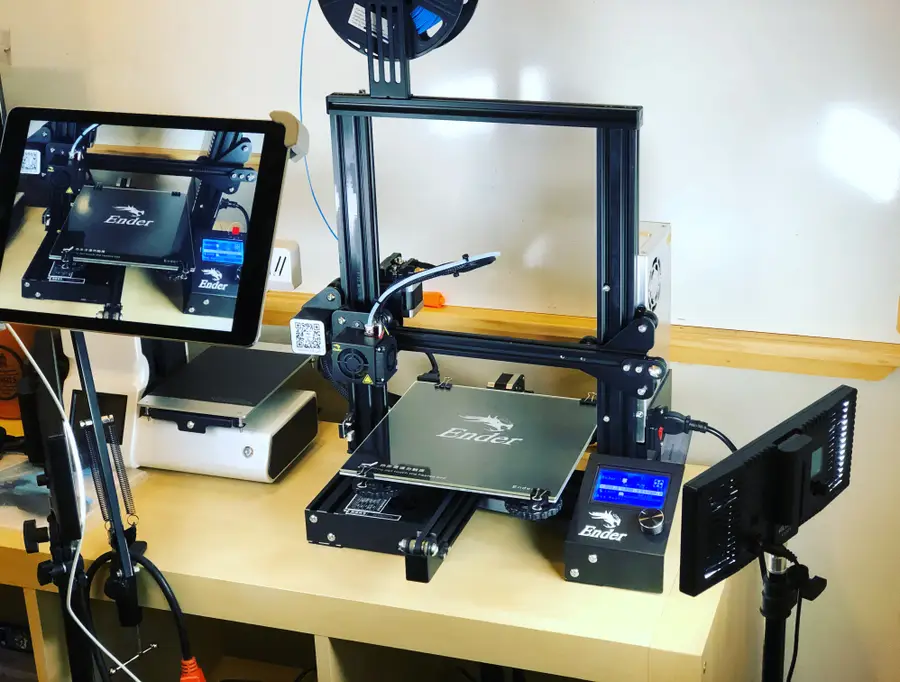
All 3D printers are different; I’ll cover instructions for all printers in this guide and will be performing this lighting upgrade on the Creality Ender 3.

Let’s get started!

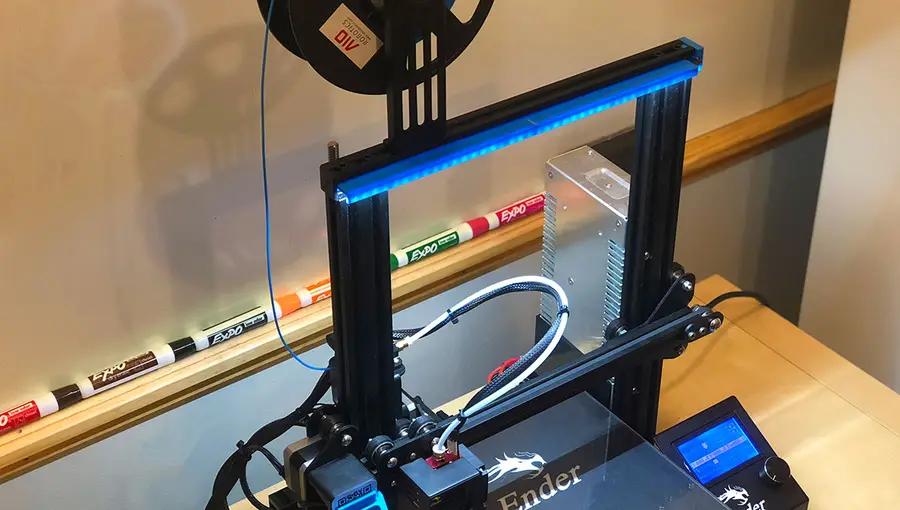
1 – The final product

First, the finished project! The LED strip is powered directly from my printer using this $5 voltage (“buck”) converter. When I turn the printer on, the lights come on too!

Note: you may want a multimeter for this project. If you don’t have one, then check out our best picks for multimeters.

The Best Multimeters for Beginners and Pros (2022)
We present you with our guide to the best multimeter in five categories.

2 – Print your LED strip holder

This will vary from printer to printer; simply search for your 3D printer and some “LED” search term on Thingiverse and you’ll find a variety of models to print for your printer.

For my Ender 3 LED strip upgrade, I chose to print this model. It slides directly into the aluminum channel at the top of my printer and fits a 5050-style LED strip (more on that later).

🛈 My printer only has space for a single strip — depending on your printer design, you may be able to add multiple strips on the sides as well! This guide works the same either way.

3 – Choose your LED strip

There are a few factors to consider when choosing an LED strip:

Voltage

LED strips come in a few different voltages, with the most common being 5V and 12V. I’m going to use a 12V strip as the LED output will be brighter despite using only a short strip of LEDs.

This is the LED strip I used for this guide. I chose it because it stays cool and has LEDs packed closely together, resulting in brighter LED output.

Type and brightness

You might notice there are different types of LED strips (SMD 3528, SMD 5050, etc.) The difference here is the physical size of the LEDs on the strip.

If you’re interested, this is how the SMG measurement translates to LED size:

TypeLED size
SMG 35283.5×2.8mm
SMG 50505.0×5.0mm

LED density

Another big factor is LED density — the number of LEDs per meter is a common measure.

Heat

Make sure your LED strip doesn’t get hot enough to melt the strip holder, which you’re probably printing in PLA — some super high output LED strips can do this. No need to go overboard.

LED color/temperature

Color temperature refers to how “warm”, or “yellow” the light is. You probably want a colder, whiter light for your 3D printer.

I went with a cool color temperature of 6000-6500K.

4 – Powering your LED strip

There are a few ways to power your LED strip:

Power it directly from your printer (recommended)

You can power your LED strip directly from your printer’s power supply unit (PSU). This way, the strip will automatically turn on and off with your printer. You can also add a switch to turn it off manually. This method works with either 12V or 5V LEDs.

This is the method I’ll cover in this guide.

Plug it into the wall

If you’re using a 5V LED strip with a USB cable attached, you can simply plug it into a phone charger in the wall. However, you’ll need to connect it each time you want to print. Also, your brightness will be more limited at 5V.

Power it from a Raspberry Pi

If you’re running OctoPrint on your 3D printer using a Raspberry Pi, you can connect a 5V LED strip directly to your Pi’s USB port. However, you’ll need to make sure your strips don’t pull too much current or your Pi won’t function properly.

5 – Power your LED strip from your 3D printer

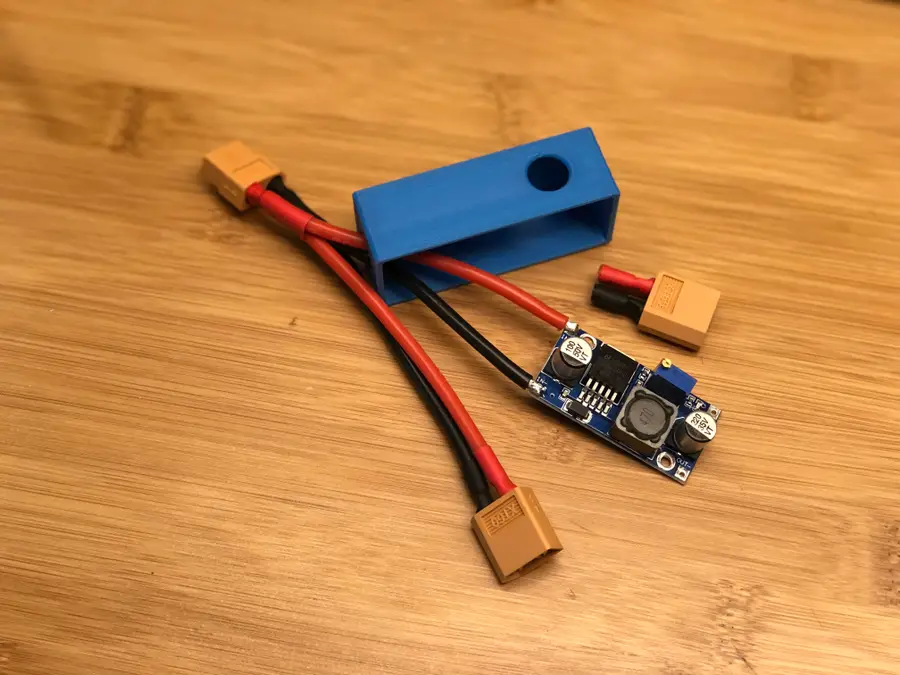
To do this, we’ll use a simple LM2596 voltage regulator or “buck converter”. In a nutshell, this little $5 board will reduce the voltage output by our printer to the voltage required by the LED strip.

The Ender 3 outputs 24V, so I’m going to “step-down” this voltage to 12V.

If your printer already outputs 12V, you don’t need to add a buck converter. Some Googling will tell you what outputs your PSU has.

I wrote a separate guide on powering a Raspberry Pi from a 3D printer. That guide lists the steps in great detail for soldering and connecting the LM2596 to your printer and reducing it to the required output.

Use that guide to create your power source and then return here to continue. Of course, don’t solder a Micro USB cable to the OUTPUT as listed in that guide; we’re going to solder the LED strip there instead!

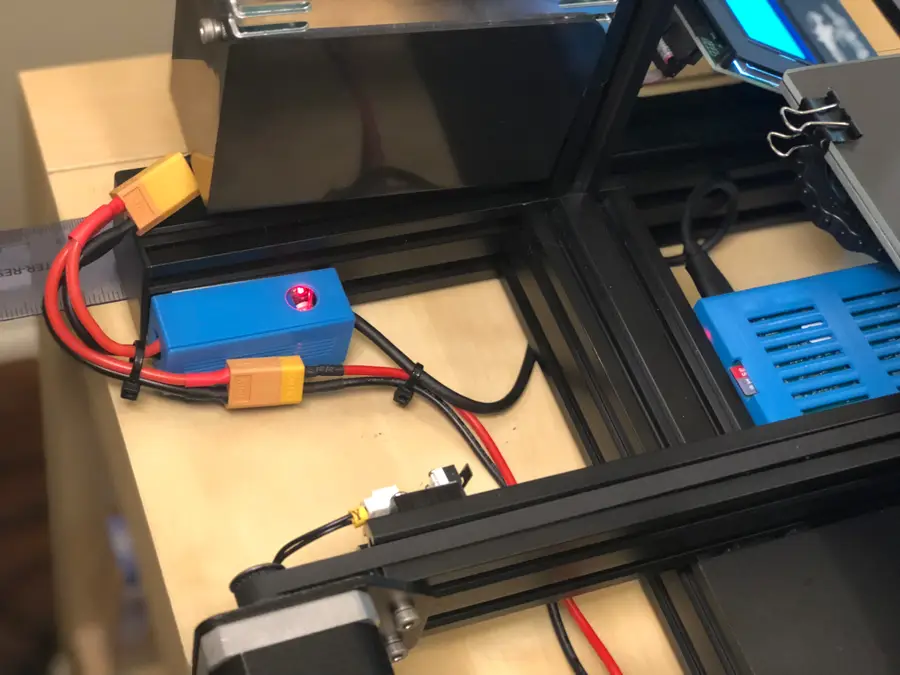
For my Ender 3, I connected the buck converter to my printer’s power supply using this XT60 cable. This method is nice since it makes the buck converter easily removable in case I want to remove or change out the power strip.

🛈 When powering your LED strip from your printer, it’s important that your printer has a built-in fuse (most printers have this, and if yours doesn’t, you should absolutely install one — LED strip or not).

6 – Soldering your LED strip

Now that you have a power source ready, we’ll connect it to to the LED strip. The attached diagram shows the soldered connections you should make.

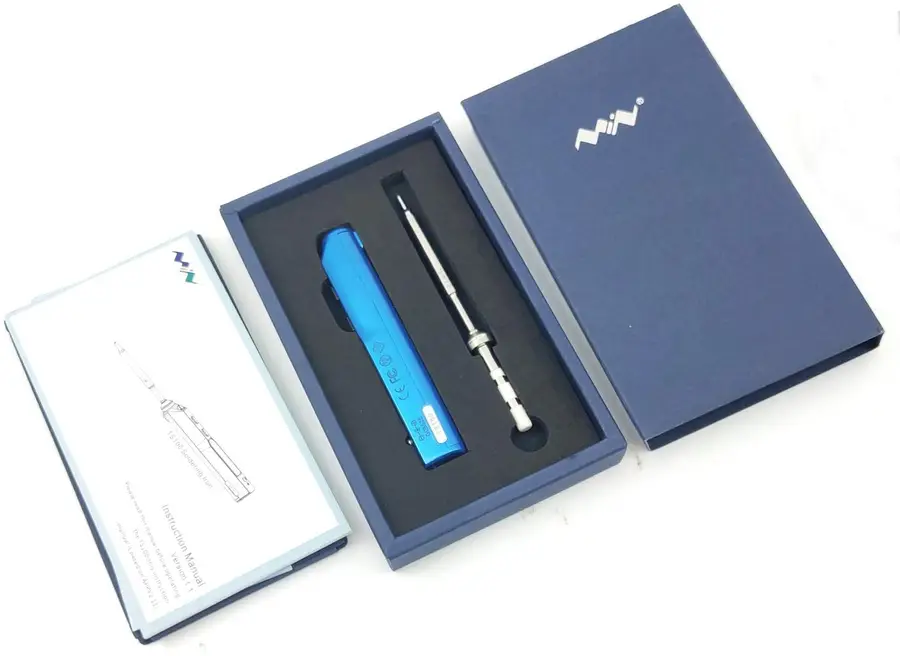
Need a soldering iron? Check out our picks for best soldering irons.

The Best Soldering Irons: Read This Before You Invest (2022)
We’ve put together a guide to help you find the best soldering iron for your next project.

7 – Cut your wires to length

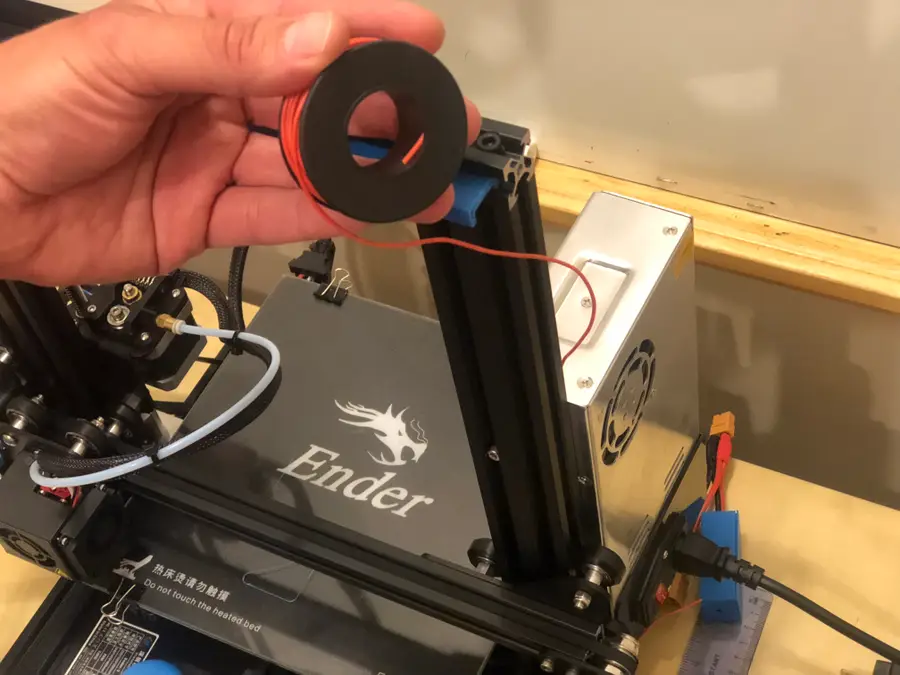
You’ll need a wire long enough to reach from the PSU to the LED strip. Be sure not to run the wires anywhere near moving parts. You don’t want a print ripping your wires out! And then shorting them and also fire perhaps. Fire bad.

I like to manually run my wire along the printer to determine its precise length before cutting and soldering it. For my Ender 3, I was able to run the wire in the extruded aluminum channel behind the power supply. Super neat!

🛈 Leave a bit of extra wire — it’s better to have a small service loop on the back than to have wires that are too short.

8 – Solder the LED strip to the power source

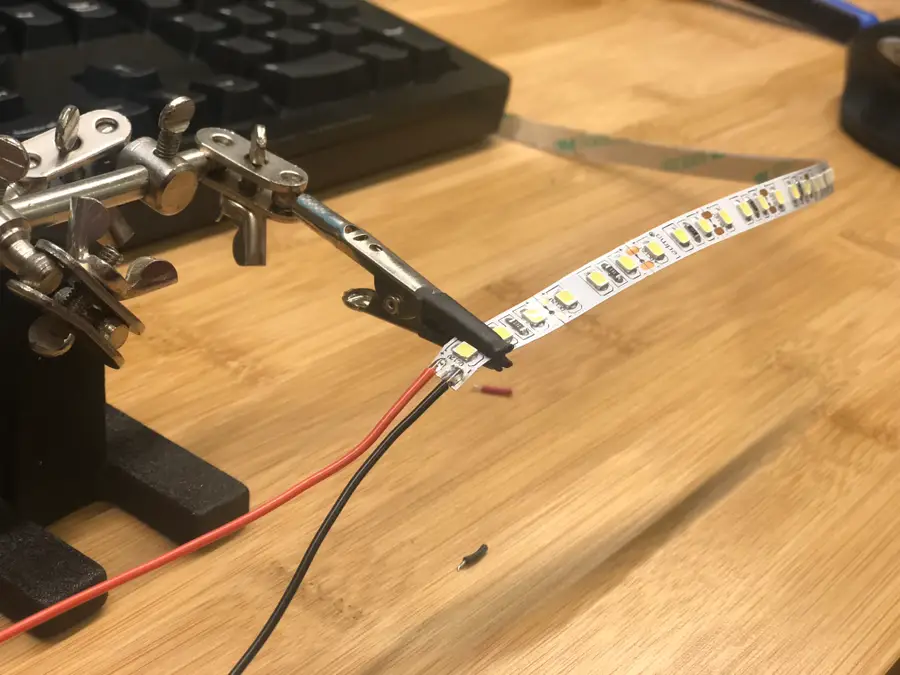
Next, we’re going to solder the red positive (+) and black negative (-) wires to our power source. If you’re powering the strip directly from your printer, simply solder these to the OUTPUT terminals of the LM2596 step-down converter.

To add a DC power switch, solder it inline with the black negative (-) wire. Make sure the switch is rated for your voltage (12V etc.) Toggling the switch on and off will break the circuit, turning the strip off.

9 – All soldered!

notbad.jpg

10 – Mount the strip to your printer

Mount the LED holder to your printer. Then, cut your LED strip to length and use the LED strip’s self-adhesive tape to connect the strip to its holder.

11 – Secure your wires

This is important. You’ll want to secure your strip’s wires carefully so that they don’t get snagged by your printer moving. You can download and print all kinds of cable clips and mounts from Thingiverse, so get creative with it!

12 – Mount the buck converter enclosure

If you’re powering your strip using a step-down converter per my Raspberry Pi 3D printer power guide, mount the step-down converter enclosure to a safe part of your printer using foam tape.

13 – All done!

Looks nice. I’ll add a switch later! 🙂

What’s next?

If you haven’t installed OctoPrint yet, give it a shot! It’s my top recommended 3D printer upgrade.

NEXT UP

How to Update Blender

Get the latest Blender has to offer.
howchoo   (467)
November 24, 2023

Blender is one of the most popular open-source 3D creation suites today. It doesn’t cost a dime to use and everything you create is yours to own for good. The community is robust and the dev team still releases new updates on the regular. If you want to get the latest version, you may have

Continue Reading

howchoo

 467 guides

Introducing Howchoo, an enigmatic author whose unique pen name reflects their boundless curiosity and limitless creativity. Mysterious and multifaceted, Howchoo has emerged as a captivating storyteller, leaving readers mesmerized by the uncharted realms they craft with their words. With an insatiable appetite for knowledge and a love for exploration, Howchoo’s writing transcends conventional genres, blurring the lines between fantasy, science fiction, and the surreal. Their narratives are a kaleidoscope of ideas, weaving together intricate plots, unforgettable characters, and thought-provoking themes that challenge the boundaries of imagination.

Home Interests Mac

How to Remap the fn (Function) key to ctrl (Control) on Mac

If you’re used to CTRL being the bottom left key, this guide will help you.
howchoo   (467)
September 20, 2023
3 minutes

Share

You’ll Need 1

What you’ll need
Interests
Howchoo is reader-supported. As an Amazon Associate, we may earn a small affiliate commission at no cost to you when you buy through our links.
Posted in these interests:

Mac

mac • 24 guides

I rarely, if ever, use the function key on my Mac keyboard. Moreso, decades of computing has taught my brain to treat the bottom-left key on the keyboard as the Control key.

This short guide will show you how to make your fn (function) key as act a ctrl (control) key in macOS. This option is only available for the Macbook keyboard, not external Apple keyboards.

1 – Open Keyboard settings in System Preferences

Navigate to System Preferences > Keyboard Settings to open the Keyboard Settings pane.

2 – Adjust Modifier Keys

Click the Modifier Keys button and select the keyboard you’d like to configure

It’s possible to convert the fn key to ctrl for your external keyboard, Macbook keyboard, or both!

3 – Remap the function key to control

To remap the fn key to ctrl in macOS, change the Function (fn) Key: dropdown to ⌃ Control. Then, press OK.

To change additional keyboards, simply select the additional keyboard from the Select keyboard: dropdown and repeat this step.

You’re all done!

🛈  There’s no option to remap your (ctrl) key to (fn) without external software, so make sure you won’t need the Function key.
NEXT UP

How to Enable the “Popping” Sound When Adjusting the Volume on Your Mac

howchoo
howchoo   (467)
December 13, 2023

Starting with MacOS Sierra and High Sierra, your Mac will no longer play a “pop” sound when you adjust your volume. If you prefer to have this sound when you adjust volume up and down (as I do), this guide will teach you how to reenable it. 1 – Open Sound System Preferences Navigate to System

Continue Reading

howchoo

 467 guides

Introducing Howchoo, an enigmatic author whose unique pen name reflects their boundless curiosity and limitless creativity. Mysterious and multifaceted, Howchoo has emerged as a captivating storyteller, leaving readers mesmerized by the uncharted realms they craft with their words. With an insatiable appetite for knowledge and a love for exploration, Howchoo’s writing transcends conventional genres, blurring the lines between fantasy, science fiction, and the surreal. Their narratives are a kaleidoscope of ideas, weaving together intricate plots, unforgettable characters, and thought-provoking themes that challenge the boundaries of imagination.

Home Interests Privacy

The Best Smartwatches for Privacy and Security

Want a privacy-respecting and secure smartwatch? We’ve got you covered.
howchoo   (467)
September 20, 2023
22 minutes

Share

Interests
Posted in these interests:
privacy • 2 guides
security • 6 guides
technology • 20 guides

Options for smartwatches that are both secure and respect privacy are few and far between, but not impossible to find. Of course, going with a major brand like Apple is a good bet if you’re looking for the closest thing to standards that exist in the smartwatch market and, at least on paper, Withings offers good security practices for their technology and health data. But, if you want to take total control of your data, while still having all the great features we’ve come to expect from a smartwatch, some exciting options do exist.

Some of these watches are closer to Steve Wozniak’s DIY watch, the sort of thing you get if you love messing around with new technology, or prefer to have a highly individuated watch design. Others are a bit closer to what you’d find on the open market, however, and it seems likely that even better devices are just a short way down the road.

For those of you who already own a smartwatch, however, or for those looking to get something with a more polished set of features, don’t fret. There are some neat software projects out there that might be able to take an ordinary smartwatch and put you in total control over how your data is shared.

1 – Smartwatches designed for privacy and security

Smartwatches designed for privacy and security

There are not as many smartwatches designed for the privacy-conscious individual as there should be, which sadly drives more users toward the large commercial products. However, the last couple of years have seen a rise in open-source projects that seek to rectify this issue by bringing affordable and privacy-centered smartwatch technology to the public sphere.

When considering these smartwatches, you primarily need to figure out what features are indispensable for your needs. If you absolutely must have advanced blood pressure monitoring, only a few major brands will do. Likewise, if you want to be able to conduct payments through your smartwatch, the limitations quickly begin to stack up. If, however, you want a functional watch that contains fitness tracking and other core features, the sheer drop in price that some of these specialized smartwatches offer will likely be enough to encourage you to at least give them a run around the block (perhaps literally).

2 – The PineTime smartwatch by PINE64

The PineTime smartwatch by PINE64

PINE64 is a community platform, where the community drives the design and creation of new hardware and then works collectively to build advanced software for those devices. Working from the ground up, these Linux developers have come up with a vast array of exciting projects, all of which focus on privacy and security as native aspects of the design.

The PineTime features an Apple Watch style and all the basic features anyone could want, easily matching any sub-$100 watches on the market. Truthfully, though, since you have active support from a dedicated community, and software you can reliably trust not to be snooping on you (or simply horribly buggy), the PineTime is the main watch I’d recommend to anyone looking to get into the realm of smartwatches without breaking the bank.

The main downside of the PineTime is the lack of IP68 rating. Since it’s rated at IP67, the PineTime provides protection from water damage for 30 minutes and up to one meter, but that means it’s not going to work for those who use smartwatches to monitor swimming.

The PineTime is best, though, for people who like messing around with their electronics. You can totally use it out of the box, but the real advantages of any PINE64 product comes from interacting with the community and trying out the different community-developed apps.

3 – The Watchy by Squarofumi

The Watchy by Squarofumi

This is a geek’s happy project, an open-source, Arduino-powered smartwatch with a 1.54-inch e-paper screen. There’s also Wi-Fi, Bluetooth, a 3-axis accelerometer and four programmable buttons. The design of The Watchy is actually kinda sleek, even if some form of case is added (the Printed Circuit Board itself acts as a basic case). The catch? You’re going to be putting this together yourself, and, probably, coding it yourself as well.

While this is absolutely a project for DIYers out there, rather than something ready to go on the open market, it’s a lovely step forward in the realm of open-source smartwatch design. Hopefully, five years down the road, we start seeing these projects rival some of the established brands in terms of ease of use and features. Until then, what better way to teach your kids, or yourself, about the basics of hardware and software!

4 – The Open-SmartWatch by @pauls_3d_things

The Open-SmartWatch by @pauls_3d_things

This little beauty is another highly DIY project, though you can purchase a prebuilt model from MakerFabs. Created by “Paul’s 3D Things”, this little device has only the most basic smartwatch functions built in, but it actually looks pretty nifty. Besides, there is an updated version in the works, and its creator looks like the sort of guy who might take this project in some seriously cool directions.

5 – Bangle.js 2 smartwatch

Bangle.js 2 smartwatch

Aside from the PineTime, the Bangle.js 2 is the only open-source smartwatch that’s got the ability to appeal to a non-DIY audience. It’s a lot sleeker than the PineTime, however, and has a better feature-set out of the box. An active community provides support as well as all manner of new apps and, as with all of these projects, you can learn how to code this little beauty yourself (using JavaScript or a graphical programming language like Blockly).

I’d recommend this one over the PineTime in most cases, largely due to the excellent battery life of the Bangle. It is lacking PineTime’s Bluetooth 5, but hopefully, we see a new version before long that upgrades the hardware to a modern level. It would be nice if they offered models with some better preinstalled features and IP68 waterproofing (the Bangle only offers IP67), but the truth is that the Bangle still beats out a large swatch of similarly-priced smartwatches on the market (none of which will boast the ability to self-program or the privacy factors of the Bangle).

6 – Big name brand smartwatches good for privacy?

Big name brand smartwatches good for privacy?

But how do regular smartwatches stack up? With the deluge of smartwatches on the market these days, and the vast array of complicated differences between models, it can be hard to know which models are going to be the best for privacy and security.

Generally speaking, Apple does maintain a higher internal privacy standard than other companies at its level. That’s not to say that this internal standard is anywhere near as good as what we should have (standards imposed by an international regulatory body), but they do help set a basic benchmark for the industry. To that end, Apple’s watch is probably the best in terms of privacy and security, as long as you’ve already taken steps to secure your other Apple devices. Of course, Apple’s watch is useless without the rest of the Apple products to create the ecosystem, so you either need to have already bought in, or you’re looking at a pretty expensive switch.

Withings is another smartwatch maker to take note of, though there are some serious concerns that their company has failed to address. Mostly, Withings designs various “smart” medical devices such as thermometers, scales, and blood pressure sensors. Their watches are unique in the industry for looking great (like actual watches), having many of the same health features that the Apple Watch does (including advanced heart rate monitoring functions), and a month-long batter life. Their privacy policy and security information are a little hard to find, but they seem to have relatively good protections in place, conforming to GDPR and HIPAA standards. They don’t go out of their way to support customers in finding this information, however. Questions on their forums are unanswered, and there wasn’t any obvious notice that they never sell or provide your data to 3rd parties beyond those contractually obligated to use that data for specific functions. That’s a bit frustrating, and I hope Withings can offer greater insights in the future.

Finally, despite some recent severe data breaches, Garmin watches are a great choice because the user doesn’t need to connect their real information to the Garmin account, nor do they need to use the online connection between the Garmin app and the watch. Some users, with some models of Garmin watches, have even been able to use GadgetBridge to bypass Garmin’s app altogether, others just use a physical connection to a PC to transfer data when needed.

Whatever you do, avoid all watches “for kids” since these tend to be the worst offenders for tracking problems and security breaches. In the extremely unlikely case that your child needs a high-tech computer strapped to their wrist 24/7, get them one of the privacy-respecting models that offers limited features.

7 – AsteroidOS free and open source smartwatch software

AsteroidOS free and open source smartwatch software

One of the most promising projects in terms of open-source smartwatch software is AsteroidOS, the fully functional operating system designed for maximum privacy and security. It’s got a superb feature base, a dedicated community, and the benefit of not sharing your most personal biometric and locational data with your watch’s company. The main downside is how few watch models are supported by the OS.

8 – GadgetBridge

GadgetBridge

GadgetBridge is a powerful tool that allows you to use your Pebble, Mi Band, Amazfit Bip and HPlus device (as well as several others) without the vendor’s closed source application, and without transmitting any data to the vendor. With products like Amazfit (notoriously terrible at privacy) this is essential, it’s only a shame that GadgetBridge doesn’t support more popular products like the (truly terrible for privacy) FitBit.

NEXT UP

How to Set Up Quick Connect on a Synology NAS

Get Synology’s powerful Quickconnect running in minutes on your NAS!
howchoo   (467)
November 24, 2023

Synology is one of the most popular creators of Network Attached Storage devices on the market today, and for great reason — they’re really good at what they do. They consistently make devices that stand the test of time and feature top-notch software that makes the process of running a home server as easy as

Continue Reading

howchoo

 467 guides

Introducing Howchoo, an enigmatic author whose unique pen name reflects their boundless curiosity and limitless creativity. Mysterious and multifaceted, Howchoo has emerged as a captivating storyteller, leaving readers mesmerized by the uncharted realms they craft with their words. With an insatiable appetite for knowledge and a love for exploration, Howchoo’s writing transcends conventional genres, blurring the lines between fantasy, science fiction, and the surreal. Their narratives are a kaleidoscope of ideas, weaving together intricate plots, unforgettable characters, and thought-provoking themes that challenge the boundaries of imagination.

Home Interests Raspberry Pi

How to Back Up and Restore Your Raspberry Pi SD Card on Mac

Easily backup, restore, or clone your SD card!
howchoo   (467)
September 20, 2023
6 minutes

Share

You’ll Need 2

What you’ll need
Interests
Howchoo is reader-supported. As an Amazon Associate, we may earn a small affiliate commission at no cost to you when you buy through our links.
Posted in these interests:

Mac

mac • 24 guides
pi • 92 guides

This short guide will show you how to create a backup image of your Raspberry Pi’s SD card on Mac (MacOS and OS X), as well as how to restore the image later. This approach will also work for cloning your SD card to another card.
Backing up a properly configured system is a good idea that will save you tons of time down the road.

Let’s get started!

1 – Connect the SD card to your computer

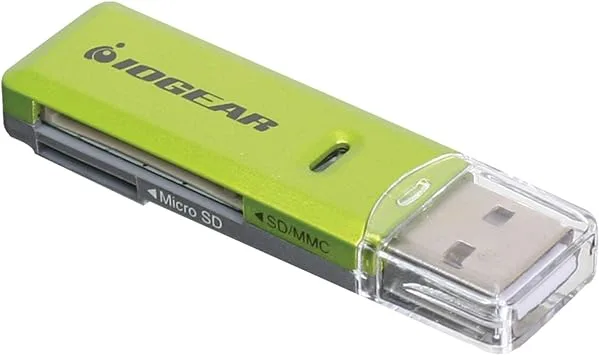
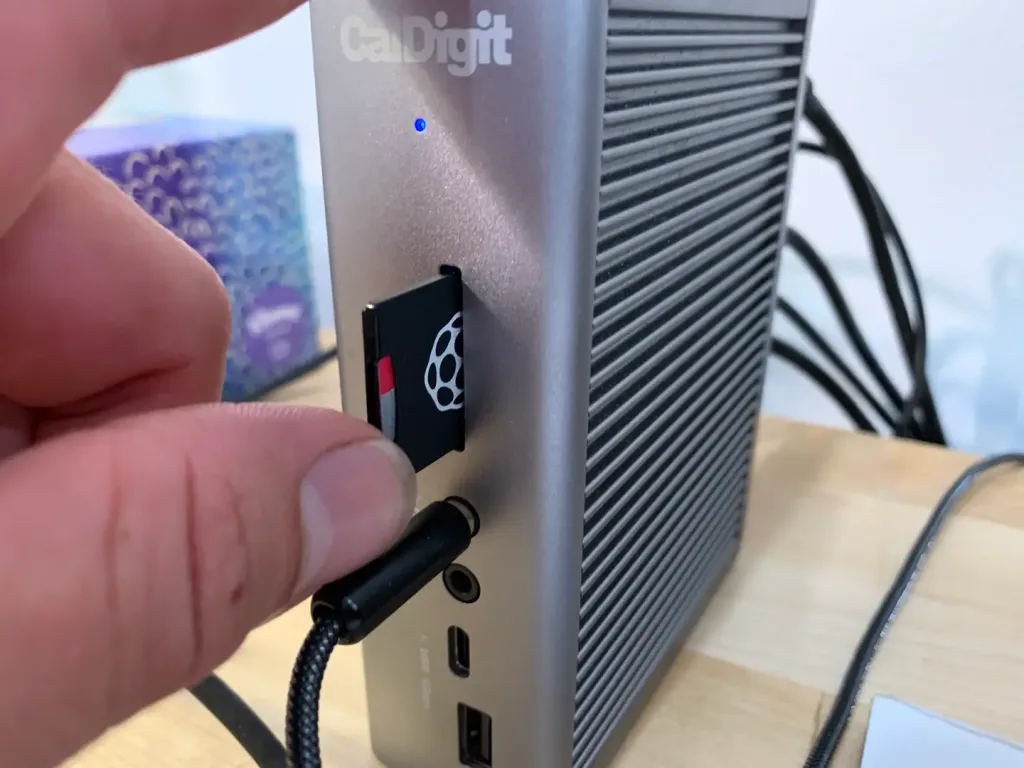
Use whatever SD card adapter you have to connect your SD card to your computer.

2 – Open Terminal

Navigate to Applications > Utilities > Terminal.

3 – Find your SD card name

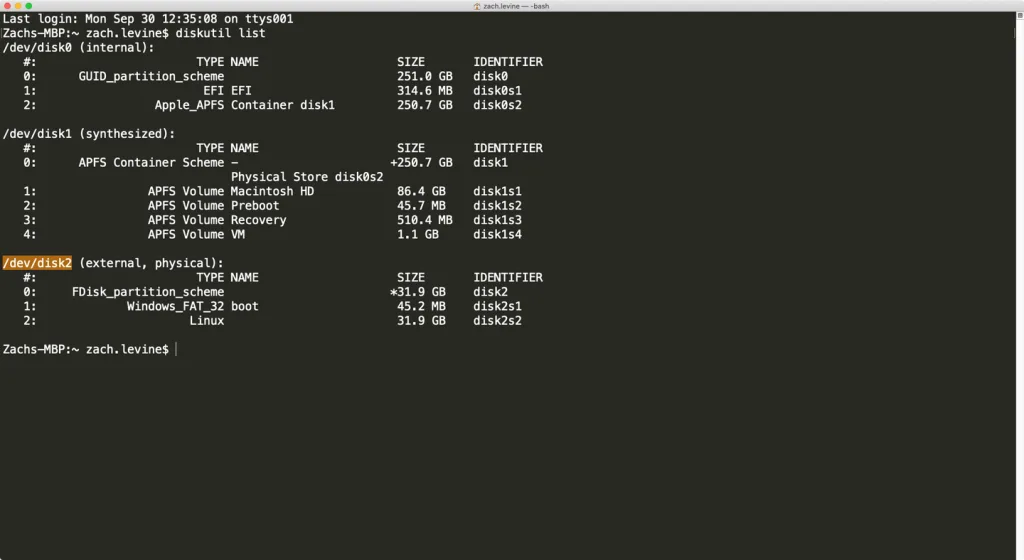
Enter the following command to find your SD card’s name:

diskutil list

You can identify your card by size and partition type. You should see the Raspberry Pi boot partition type of Windows_FAT_32 next to the drive.

For example, my card’s name is /dev/disk2.

4 – Create a full SD card backup

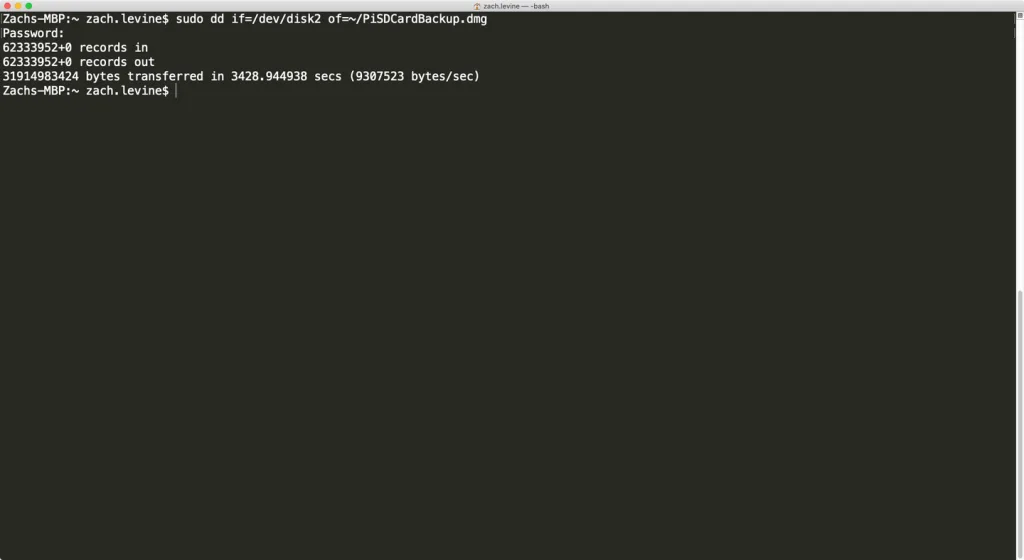
Use the following command to use the dd utility to backup your Raspberry Pi SD card, changing /dev/disk1 to your disk’s name and path:

sudo dd if=/dev/disk1 of=~/PiSDCardBackup.dmg

Enter your password when prompted.

This will create a file named PiSDCardBackup.dmg in the user directory (~). To change the filename or put it somewhere else, you can change ~/PiSDCardBackup.dmg to something else. For example, ~/Documents/OctoPrint.dmg will name the file OctoPrint.dmg and place it in your Documents folder.

While the backup process is running, you should just see a flashing | indicator.

🛈 Depending on the size of the contents of your card, this may take a while! It took about an hour to create a backup of my full 32GB SD card.

5 – Safely eject your SD card

Don’t forget to safely eject your card before removing it from your computer to prevent data corruption. You can do this in Finder by clicking the eject icon in the sidebar. You’re all done!

6 – Restoring the SD card

To restore your backup or clone it onto another SD card, reinsert it into your computer and use the following commands:

diskutil unmountDisk /dev/disk1
sudo dd if=~/PiSDCardBackup.dmg of=/dev/disk1

Be sure to replace /dev/disk1 once again with your card ID, and specify the proper location for the backup image you’re restoring from.

When you’re finished, eject your SD card once more.

🛈 The card ID might have changed since reinserting the card; be sure to always check for the card ID each time you want to back up or restore a card.
NEXT UP

How to Enable the “Popping” Sound When Adjusting the Volume on Your Mac

howchoo
howchoo   (467)
December 13, 2023

Starting with MacOS Sierra and High Sierra, your Mac will no longer play a “pop” sound when you adjust your volume. If you prefer to have this sound when you adjust volume up and down (as I do), this guide will teach you how to reenable it. 1 – Open Sound System Preferences Navigate to System

Continue Reading

howchoo

 467 guides

Introducing Howchoo, an enigmatic author whose unique pen name reflects their boundless curiosity and limitless creativity. Mysterious and multifaceted, Howchoo has emerged as a captivating storyteller, leaving readers mesmerized by the uncharted realms they craft with their words. With an insatiable appetite for knowledge and a love for exploration, Howchoo’s writing transcends conventional genres, blurring the lines between fantasy, science fiction, and the surreal. Their narratives are a kaleidoscope of ideas, weaving together intricate plots, unforgettable characters, and thought-provoking themes that challenge the boundaries of imagination.