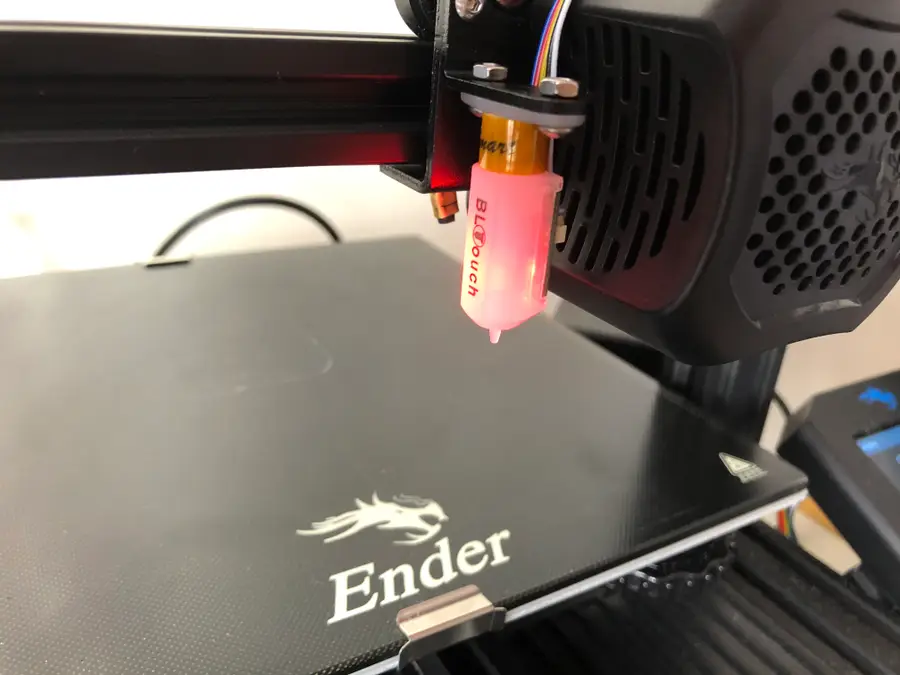
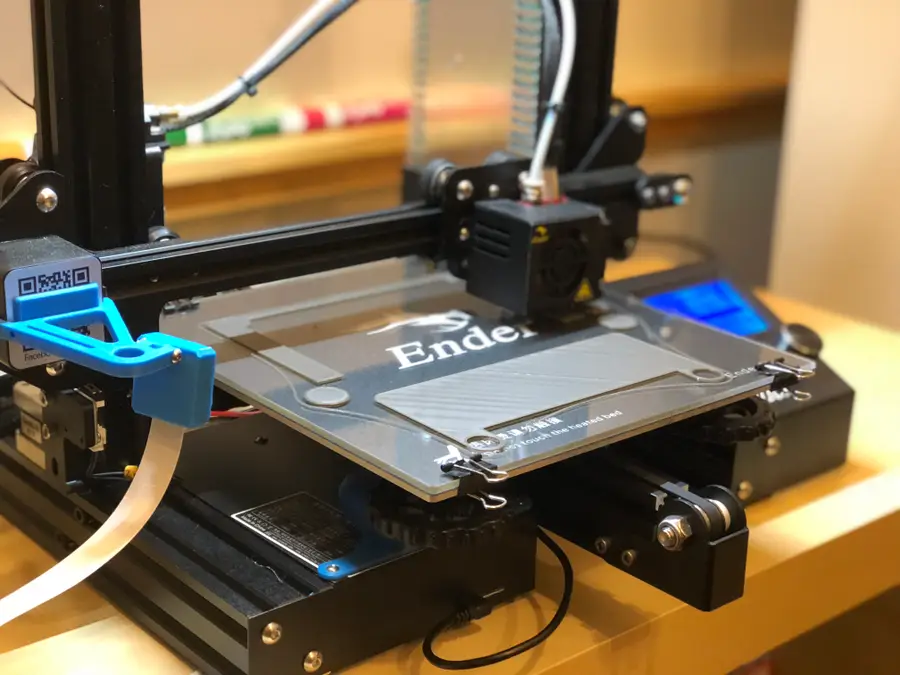
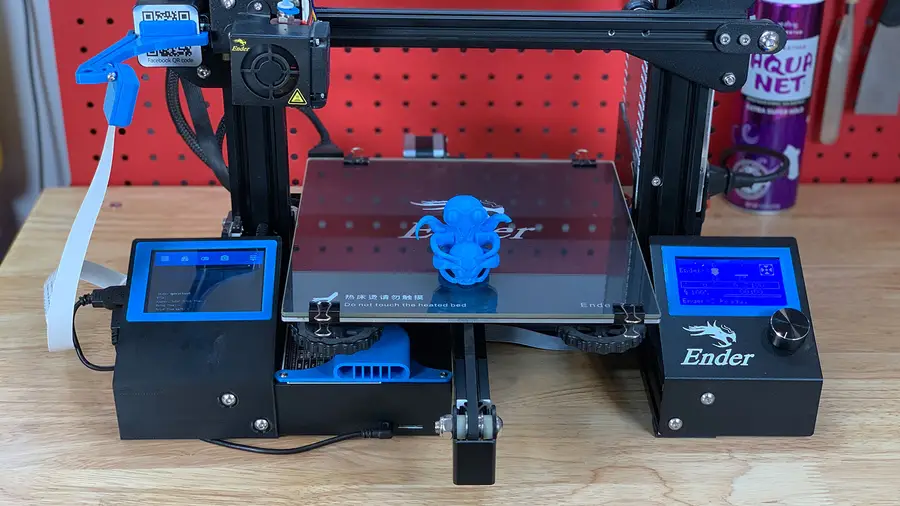
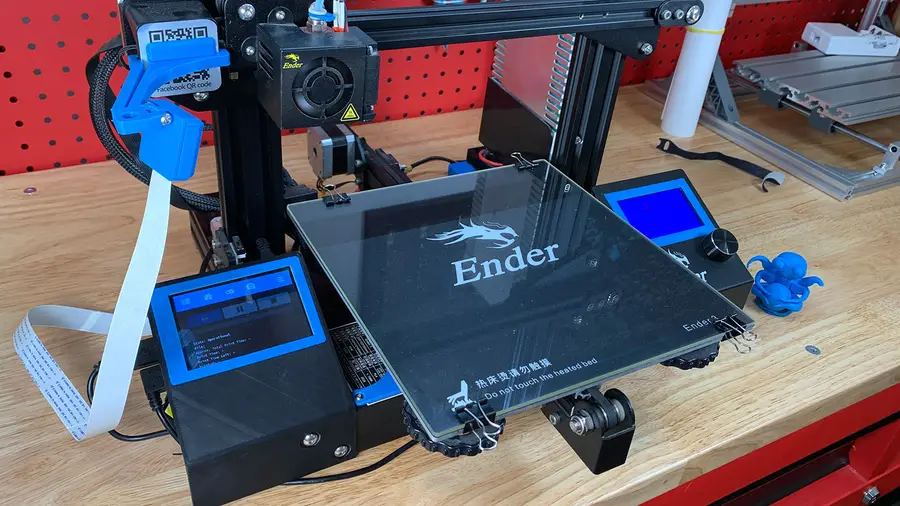
If you’ve noticed that you can’t get your Ender 3’s print bed low enough to properly level (which was my case), then you’re likely facing the issue of an improper Z-offset, which is another way of saying that your printer’s extruder is improperly aligned along the Z-axis of your printer.
What does the Z-axis limiter switch do?
The Z-axis limiter switch tells the printer where the z-axis begins on your 3D printer. When you auto-home your Ender 3, the extruder base moves down until it runs into the Z-axis limiter switch, telling it to stop moving down. This protects your print bed. But if it’s improperly aligned, whether too high or too low, then you’ll struggle to get your print bed leveled properly for printing.
The good news is that it’s quite easy to adjust the Z-offset on the Ender 3, Ender 3 V2, and Ender 3 Pro. We’ll show you how!
1 – Locate your Z-axis limiter switch
Your Z-axis limiter switch is located on the bottom-left of your Ender 3, Ender 3 V2, and Ender 3 Pro printer.
2 – Determine whether you need to adjust it up or down
Adjust up
Most of you will need to adjust your Z-axis limiter switch up a touch. You’ll find that you’ve been struggling to get the print bed far enough away from the extruder during leveling—meaning the extruder is sitting too low by default.
Adjust down
Rarely will you need to adjust it down, and you can only adjust it down so much before it doesn’t go further. If you find that you need to adjust it down beyond the bracket, then you might be having a different issue that adjusting the Z-axis limiter switch will not solve. (For example, make sure you’re leveling your print bed properly.)
3 – Adjust the Z-axis limiter switch
On your Ender 3, Ender 3 V2, and Ender 3 Pro, you’ll see two M5 bolts with two M5 t-nuts.
Carefully loosen each bolt just enough to slide the Z-axis limiter up or down the 2040 aluminum frame.
You’ll likely only need to move the Z-axis limiter switch up 1 or 2 mm to correct your issue. So only raise it a bit before testing it.
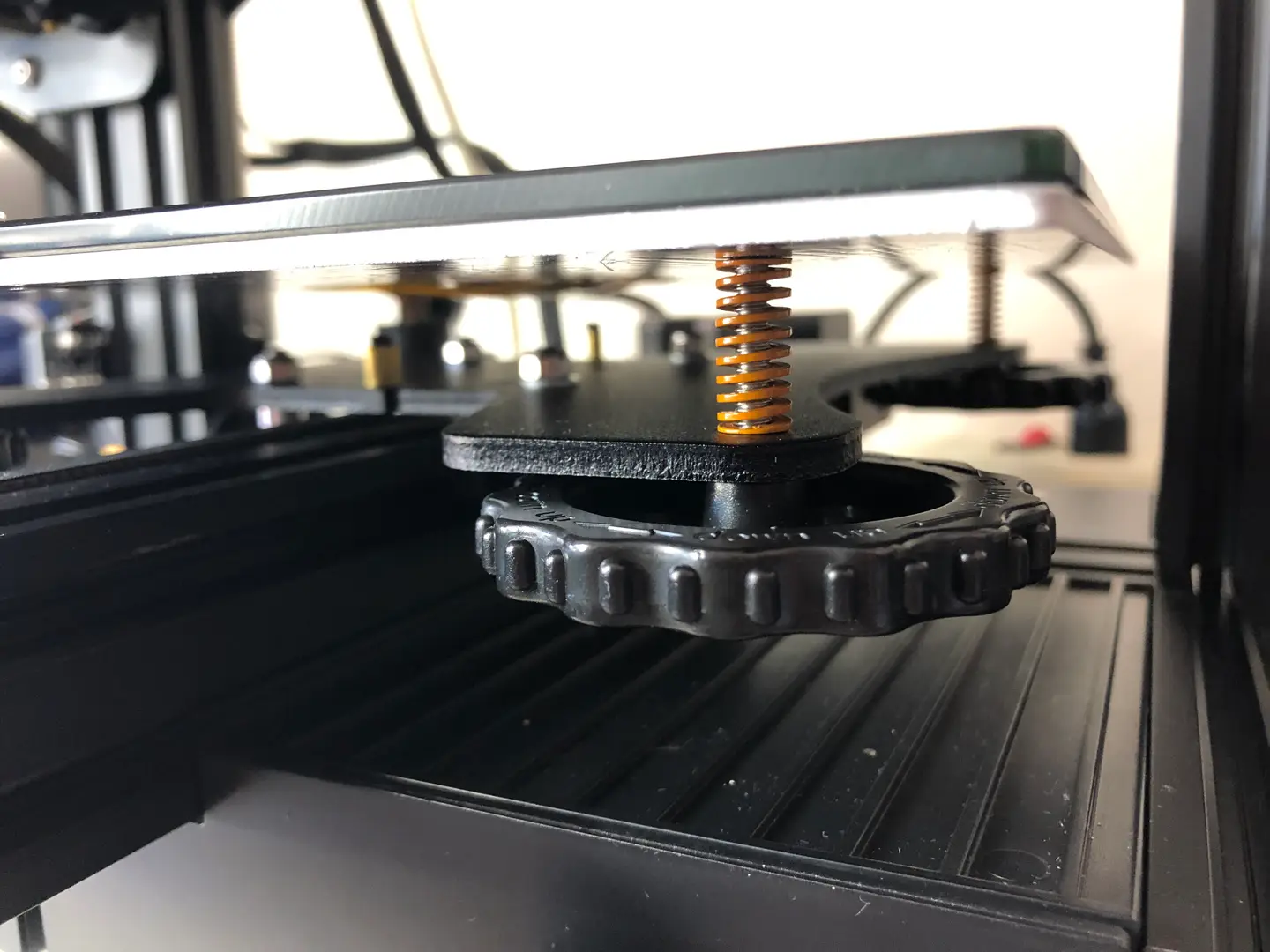
The bed should now be somewhat in the middle of the spring’s height when leveling, and the extruder shouldn’t be too far away or too near the print bed.
If you need to adjust it further, simply return to step 3—and adjust again.
NEXT UP
Ender 3 V2 – The Easiest Guide to Leveling and Test-Printing
Level your Ender 3 V2 print bed easily, and ensure a perfect print!
If you’re like me and are just starting out on your 3D printing journey, there’s little doubt in my mind that you’re probably frustrated by the Ender 3’s terrible leveling. Doing this all by hand is an epic pain, and even if you’re experienced with the Ender 3, why would you want to risk uneven prints
Introducing Howchoo, an enigmatic author whose unique pen name reflects their boundless curiosity and limitless creativity. Mysterious and multifaceted, Howchoo has emerged as a captivating storyteller, leaving readers mesmerized by the uncharted realms they craft with their words.
With an insatiable appetite for knowledge and a love for exploration, Howchoo’s writing transcends conventional genres, blurring the lines between fantasy, science fiction, and the surreal. Their narratives are a kaleidoscope of ideas, weaving together intricate plots, unforgettable characters, and thought-provoking themes that challenge the boundaries of imagination.
The world of e-ink devices is vast and confusing, with dozens of models from dozens of manufacturers.
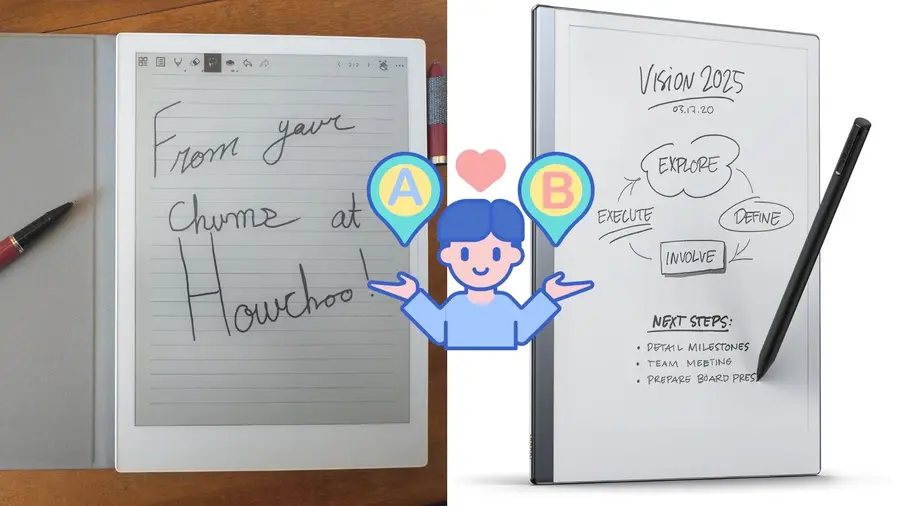
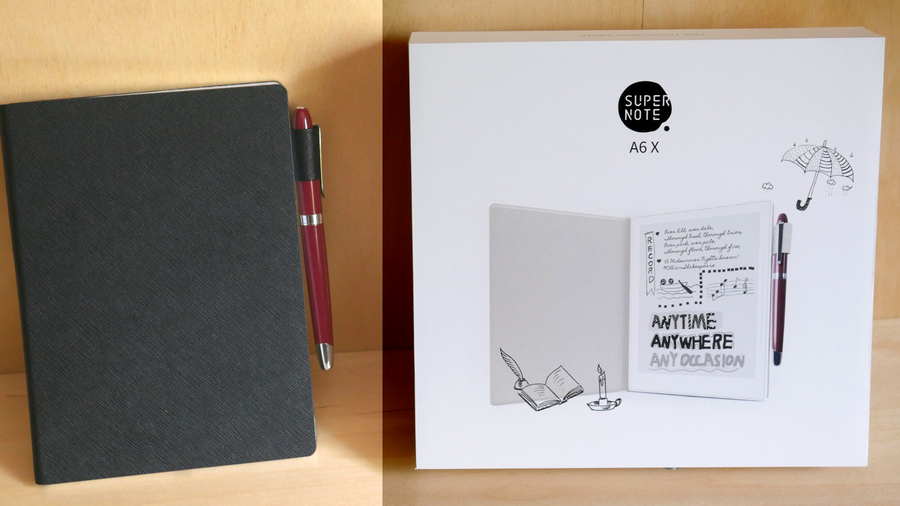
Some people will only be familiar with Amazon’s Kindle or the Kobo series of e-readers, but these are actually really limited in terms of functionality!I’ve written about how much I love the Supernote e-ink device before, but I haven’t yet touched on what makes the Supernote superior to another big name in the e-ink world: reMarkable.
ReMarkable set itself up as the “paper replacement” of e-ink devices, going so far as to create a highly paperlike experience with a special screen and a pencil-like stylus nib that wears down through use.
But, what started looking like an outstanding idea with unbeatable software, quickly became a nightmare of venture capitalism as they locked features behind a paywall. Meanwhile, Supernote actively engaged with their user community, working with their users to build what is probably the best e-ink device in its price range.
1 – reMarkable’s subscription plan
reMarkable’s subscription plan
This is the largest blow to the reMarkable because it’s never enjoyable to find a device’s features being locked behind a paywall.
ReMarkable hinted that they would be heading in this direction for some time, and they finally took the leap at the end of 2021, likely because they took tons of venture capital money and ended up desperate to make their backers happy ASAP.
Supernote has almost gone the opposite direction of reMarkable, if such a thing is possible. In a truly remarkable twist in today’s capitalist world, Supernote puts all their resources into improving existing devices instead of arbitrarily phasing out devices to make a profit, or opting for a subscription model like reMarkable.
People who purchased their reMarkable devices before October 12, 2021 got to keep a few of their so-called “premium” features for free, but all future updates that reMarkable makes won’t be included, and if you’re thinking of buying a reMarkable now…just don’t.
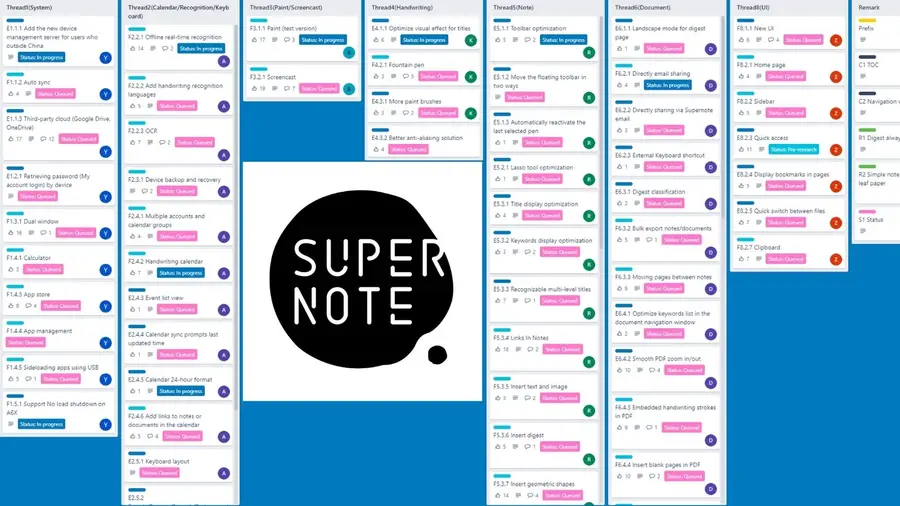
Here’s the thing: reMarkable bills itself as a paper notebook replacement, but as a side-by-side comparison shows, the features offered via any reMarkable plan simply don’t come anywhere close to the Supernote, and that includes things like writing feel and latency. How is this possible? Well, it all comes down to Supernote’s incredible roadmap.
This is a stark difference that highlights not only how great Supernote is with community engagement (and how much they care about creating an incredible product), but how the needs of the community have influenced the actual design of the device and the features that it offers.
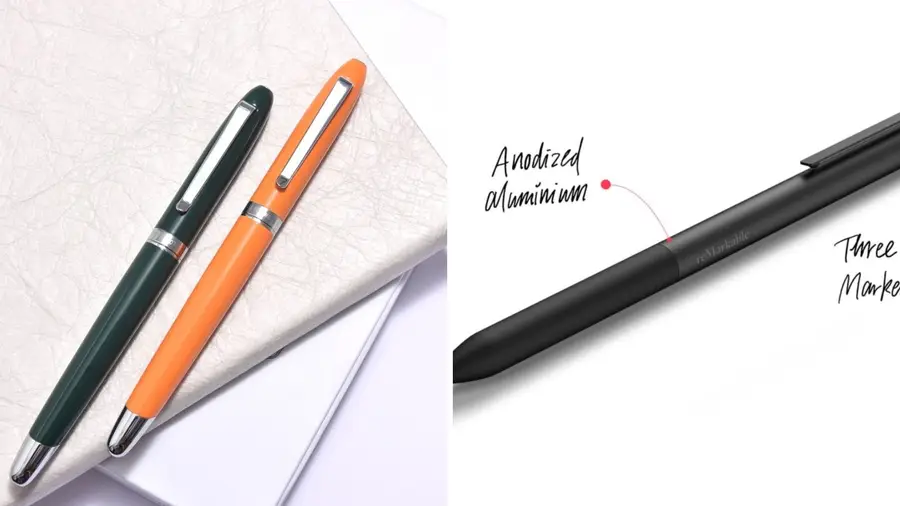
3 – Supernote stylus is better than reMarkable 2
Supernote stylus is better than reMarkable 2
’ll come right out with a hot take: for all that reMarkable does offer the writing feel of pencil on paper (it does, and, to be fair, it’s incredible how well it does this), it comes with the massive limitation of wear and tear.
Like a few other e-ink devices on the market, the reMarkable stylus wears out and, according to various reviews, wears out quite quickly. That’s a steep price for the feel of writing on paper.
The Supernote, meanwhile, approaches the experience of writing through their patented self-repairing screen film. This mimics the experience of writing with a pen on paper surprisingly well, and does so with a hard ceramic nibbed stylus that never wears out.
In fact, their Heart of Metal stylus is the best-looking and most impressive on the market, offering the feel of a high-quality pen.
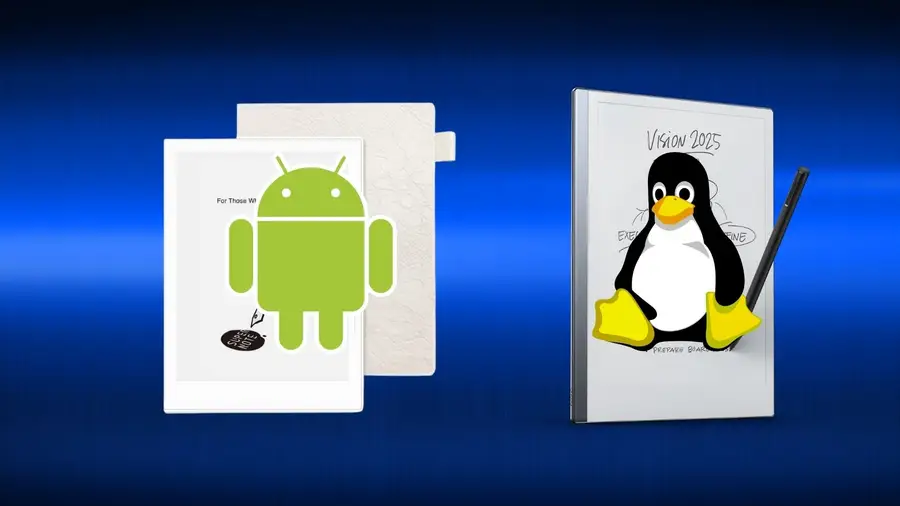
4 – Supernote’s Android OS vs reMarkable’s Linux OS
Supernote’s Android OS vs reMarkable’s Linux OS
Beneath the hood, these devices are wildly different. The reMarkable uses custom software based on Linux, the open-source GNU operating system.
When I originally heard this, I immediately thought two things: that’s awesome, and, what about all the apps that people expect to be able to use with an e-ink device? Because the reMarkable can’t run anything from the Android app store.
That means: no Kindle, no Overdrive, no Dropbox; none of the integrations that have become a mainstay of the e-ink market. To get around this, reMarkable tried to double down on their claim of their device as a “paper journal replacement” designed to focus the user’s attention on nothing but their writing. No matter that this alienates a huge potential userbase.
Supernote has a Linux line of devices, their older A5 and A6 models (and these actually feature email integration, Supernote’s own generous cloud sync, and software that is still getting major improvement updates). But Supernote’s latest devices, their A5x and A6x line of tablets, feature a heavily modified Android OS that offers massive integration potential.
Their team has stated that wider access to apps in the Android app store is on their radar, and that means that we will hopefully eventually be able to ditch Kindle altogether and use any apps we choose for our ebook pleasure.
They have also considered integration with various academic and knowledgework apps like Obsidian. Supernote even has default integration with Microsoft Word, in a major boon for writers everywhere who want to travel without their bulky laptop.
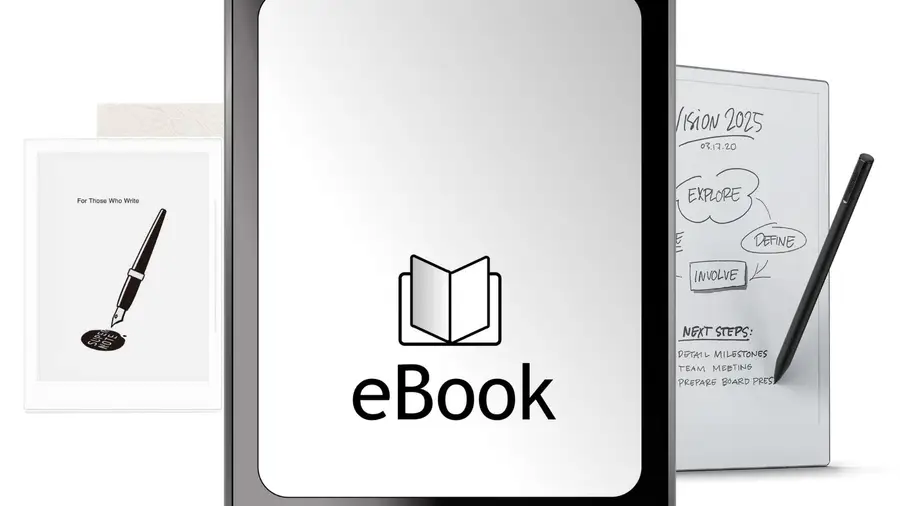
5 – Supernote beats reMarkable 2 as an e-reader
Supernote beats reMarkable 2 as an e-reader
Ever since the original reMarkable came out, users have been complaining about issues with using that device as an e-reader. To be fair, reMarkable 2 has improved things immensely, and the size of the reMarkable 2 makes it handy for viewing PDFs and other large documents.
For a long time, Supernote lagged (literally) when it came to handling very large or image-dense ebooks and PDFs. The December 2021 Supernote update changed all that.
The Supernote now absolutely matches the reMarkable in terms of speed, but provides a far more satisfactory reading experience, through multiple apps. That’s a big winner for me.
6 – Supernote has integrated Word processor and keyboard support
Supernote has integrated Word processor and keyboard support
The reMarkable is excellent when it comes to writing and drawing, without a doubt. They corner the market on superb latency and pressure sensitivity…but that’s it. For a very high price, you’re getting something that’s ultimately less functional than a good art pad and stylus.
What first attracted me to Supernote was it’s Word Processor integration. You can open and create Word documents from within Supernote directly, link a bluetooth keyboard to your device, and get straight to work.
As a professional writer, this was groundbreaking. I do actually want to escape the distractions of tech while I work, and Supernote offers me the ability to get the best of both worlds. I can work in my Word documents without eyestrain and with insane battery life, all at a quarter of the weight of my laptop.
Proofreader marks for Word in Supernote?
Supernote proofreader mark support
But then Supernote went even farther with their development of the perfect writer’s companion, and added proofreader mark support for Word documents. What does this mean?
That’s right. You can mark up your Word document using your stylus, deleting and inserting content with a strike of the pen.
And, since the massive update at the end of 2021, Supernote’s word recognition is fully functional. That means it’s possible to insert handwriting directly into a Word document—handwriting that is automatically converted to digital text.
7 – Supernote turns on when the cover opens!
Supernote turns on when the cover opens!
This is a small one, but Supernote has an ingenious cover design that automatically wakes the device when the cover is flipped open.
It wakes to whatever document you last had open and feels beautifully intuitive. It really is just like using a paper journal. No buttons to press or anything.
8 – Supernote vs reMarkable 2, which is sturdier?
Supernote vs reMarkable 2, which is sturdier?
The reMarkable has definitely seen some upset customers after cracked screen issues, but it’s not any more risky to own the reMarkable than any other glass tablet. Save, perhaps, that you can’t put an additional screen protector over it.
Still, if it’s snug in its folio, then nothing short of a drop or applied pressure needs to be a concern. But, so the consensus goes, don’t drop it, or it absolutely will break.
The Supernote A6X also uses a glass screen, but this is covered by Supernote’s special self-healing film (which gives the device it’s pen-like writing feel). This makes the device sturdier, and I’ve yet to run into any concerns with my own A6X.
Supernote’s A5X has a newer plastic screen that’s even sturdier, however, making it the ideal choice for those of us constantly on the run and more likely to be rough on our devices.
With the folio attached, both Supernote devices are pretty hard to damage. My A6X did eventually end up with some cosmetic damage after two years of rough use—the thin plastic lip at the bottom USB-C port split. It doesn’t affect the device in any way, however, and isn’t noticeable unless I’m looking right at it.
9 – Supernote vs reMarkable 2, which has the better design?
Supernote vs reMarkable 2, which has the better design?
Build quality aside, the reMarkable is incredibly thin and well-designed for a futuristic sleek factor. In an age where we want all the power of technology without any of the baggage, it definitely has something to offer.
The Supernote beats it out again for me in this department, however. Yes, the Supernote is fractionally thicker, with a design that reminds me a little like a Moleskine notebook (once it’s in its folio), but that also gives it a weight and solidity I like.
It’s very easy to hold, but has the sort of density one would expect from a notebook. I enjoy reading on it more because of this as well.
But these two features really stand out for the Supernote: the instant-wake feature I mentioned earlier. It’s intuitive and lovely to have the device snap to life as soon as I open the cover. But there’s also Supernote’s unique hardware slide.
The right side of the Supenote features a sleek groove that provides two powerful functions. Slide your thumb up and the screen instantly refreshes. For anyone who has not yet used e-ink devices, a “ghosting” effect can sometimes occur, where subtle afterimages of previous content are displayed until the page is refreshed.
Supernote makes it incredibly easy to take care of this issue. And, swiping down brings to life the system control bar, providing physical access that once again feels really natural to use.
10 – Supernote vs reMarkable 2, writing latency
Supernote vs reMarkable 2, writing latency
The big claim that reMarkable made early on was that the latency of its devices were equal to Apple’s 2nd Gen Pencil. That was a major breakthrough for e-ink devices that have historically struggled to match the writing experience of traditional devices like the iPad.
Initially, the Supernote’s writing latency was still perfectly serviceable (and, indeed, faster than a number of better-known e-ink devices), but it was double that of the reMarkable 2.
But then came the 2021 end of year update, and Supernote quietly changed the game. The Supernote now boasts a pen latency almost identical to that of the reMarkable 2 eliminating the lead that originally excited me so much about the reMarkable device.
11 – Supernote’s incredible community engagement
As I’ve mentioned, the best thing about Supernote is its community engagement. Their entire business model seems to be based on building a deep and effective rapport with their customers, taking suggestions and critiques in good faith and using them to directly improve their device. Comments that I made when I first purchased my A6X in 2019 were put on the public roadmap and solved.
The engineers and marketing team are active on the company’s Reddit page, and even their managing director is both available and extremely friendly.
I honestly have not encountered a single other company that does half as much to connect with their customers and build a community of engagement and trust. And that community works out for them, too! User feedback has provided them with a huge testing base that has allowed them to improve their device continually since its release.
The reMarkable team has been less straightforward. They do have a Reddit channel, but little official activity seems to take place there. They do have an official blog, but only a few major updates are released on it.
They will respond to emails, but I haven’t seen a glowing review of their customer support process yet. And then there’s the big problem of their subscription model, which was kept veiled from the public and only became known early through some clever investigating by Voja over at My Deep Guide.
I wish I could like the reMarkable more…it’s a neat device with so much potential. But the terrible business model, horrible user support and connectivity, and unwillingness to meet the user where the user needs to be met make it a no-go for me. The Supernote, however, is the opposite in every way.
I have experienced nothing but good will and support from the Supernote community and official team, and their devices have become a part of my daily workload for everything from writing articles, to reading books I want to review, to planning my move into a new apartment. It just doesn’t get any better than that.
NEXT UP
How to Set Up Quick Connect on a Synology NAS
Get Synology’s powerful Quickconnect running in minutes on your NAS!
Synology is one of the most popular creators of Network Attached Storage devices on the market today, and for great reason — they’re really good at what they do. They consistently make devices that stand the test of time and feature top-notch software that makes the process of running a home server as easy as
Introducing Howchoo, an enigmatic author whose unique pen name reflects their boundless curiosity and limitless creativity. Mysterious and multifaceted, Howchoo has emerged as a captivating storyteller, leaving readers mesmerized by the uncharted realms they craft with their words.
With an insatiable appetite for knowledge and a love for exploration, Howchoo’s writing transcends conventional genres, blurring the lines between fantasy, science fiction, and the surreal. Their narratives are a kaleidoscope of ideas, weaving together intricate plots, unforgettable characters, and thought-provoking themes that challenge the boundaries of imagination.
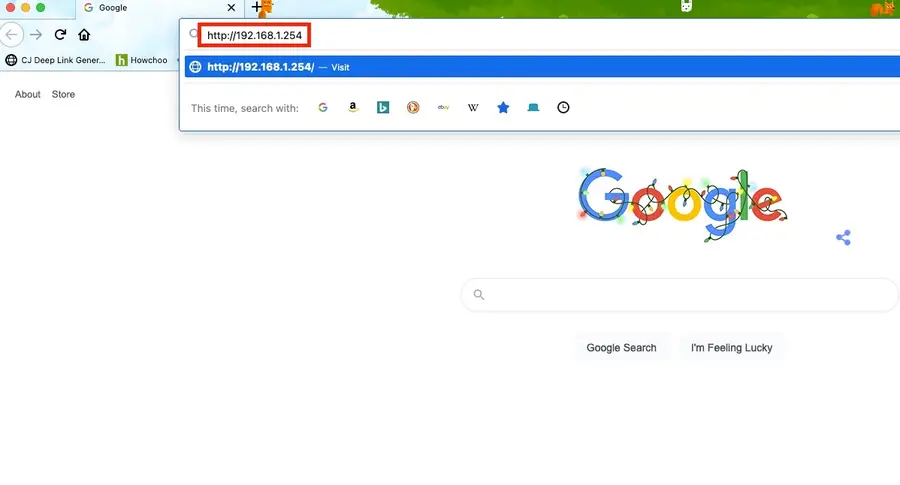
Also known as your AT&T Wireless Gateway, you can log in to your AT&T router simply by visiting this page, while connected to your AT&T network. That will allow you to log in to your AT&T router and make any changes you need.
What kinds of changes can I make once I log in to the AT&T router?
Log in to your AT&T router to change your Wi-Fi password, customize your network name, change security settings, and much more.
Note that AT&T has discontinued the U-verse router as of 2020. If you’re still using an AT&T U-verse router, however, this guide will still work for you to log in to the AT&T U-verse router.
1 – Make sure you’re connected to your AT&T router’s network
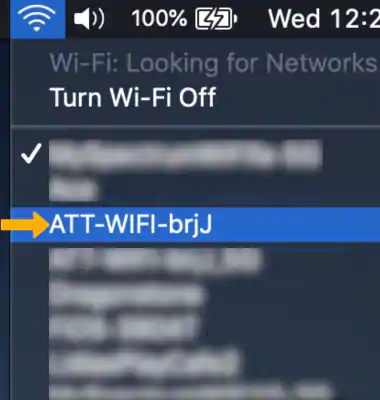
Make sure that you’re connected to your AT&T network either via WiFi or ethernet. (Hint: if you’re able to visit this website over your AT&T network, then you’re connected.)
As long as you are connected to your network, then you will not be asked for a password.
If you’re asked for a password when logging into AT&T Router
Try leaving the page blank and hitting enter.
If that does not work:
Your default username (if you haven’t made any changes) will be admin.
Try leaving the password field blank.
If that did not work: – Your password can be found on the sticker on the side of your AT&T router and/or modem. – Use that password with the admin username. – If you still can not find the password, then you’ll need to contact AT&T for help logging into your router.
There are a few reasons you might want to update or reset your WiFi password: making your network more secure, and making your password easier to remember and type. Improved network security You can add an extra layer of security to your network by changing the WiFi password. As long as your new password is
Introducing Howchoo, an enigmatic author whose unique pen name reflects their boundless curiosity and limitless creativity. Mysterious and multifaceted, Howchoo has emerged as a captivating storyteller, leaving readers mesmerized by the uncharted realms they craft with their words.
With an insatiable appetite for knowledge and a love for exploration, Howchoo’s writing transcends conventional genres, blurring the lines between fantasy, science fiction, and the surreal. Their narratives are a kaleidoscope of ideas, weaving together intricate plots, unforgettable characters, and thought-provoking themes that challenge the boundaries of imagination.
I’m one of the rare software developers that doesn’t have an extra HDMI monitor, keyboard, and ethernet connection ready to go at a moments notice. So in the past, setting up a new Raspberry Pi has been tricky. Fortunately, you can configure a WiFi connection on the Raspberry Pi without having to first connect to ethernet, a monitor, keyboard, or mouse.
Table of Contents
1 – Put the Raspberry Pi OS SD card into your computer
If you don’t have Raspberry Pi OS installed, go ahead and install it. Make sure the SD card with Raspberry Pi OS is in your computer using an SD card slot or SD card USB adapter.
Finally, save the file. If you’re using TextEdit on Mac, you’ll need to go to Format > Make Plain Text in the menu bar before saving. Make sure the filename is exactly wpa_supplicant.conf (remove .txt if it gets added).
Connecting to unsecured networks
To connect to wireless networks with no password on your Raspberry Pi, use the following:
country=US # Your 2-digit country code
ctrl_interface=DIR=/var/run/wpa_supplicant GROUP=netdev # Include this line for Stretch
network={
    ssid="YOUR_NETWORK_NAME"
    key_mgmt=NONE
}
With this file in place, Raspberry Pi OS will automatically move it in /etc/wpa_supplicant/ when the Raspberry Pi is booted.
The next step is to boot the Pi and test, but while the SD card is still in your computer I’ll mention this now. If you’re going to try to connect via SSH, you may need to enable it first. The process is similar to this one.
4 – Put your SD card in the Raspberry Pi, boot, and connect
Next, put the micro SD card into the Pi, boot it, and your Wi-Fi should be connected!
The wpa_supplicant.conf file should disappear from the SD card’s boot directory automatically—so if you don’t see it next time, that’s normal.
5 – Troubleshooting
If your Pi hasn’t connected to Wi-Fi, try these wpa_supplicant troubleshooting tips:
Double-check that the file was written in plaintext, without any special characters.
Double-check that the file has disappeared from your boot directory.
Connect the Pi to a TV or monitor via HDMI to ensure it is booting normally.
If you’re using a Raspberry Pi Zero W, make sure you’re attempting to connect to a 2.4GHz network (the Zero doesn’t support 5G).
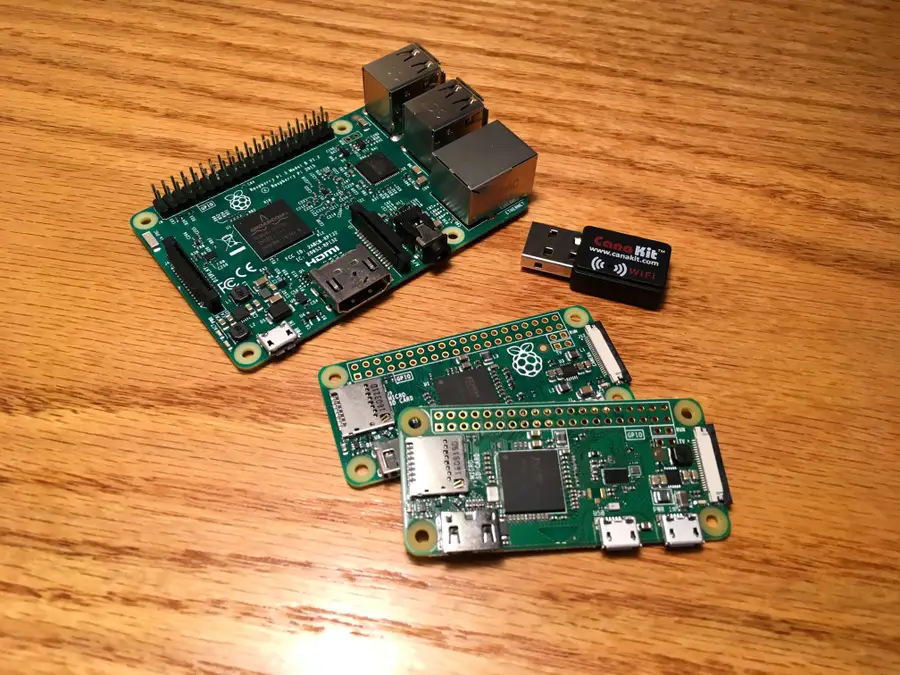
If you’re using a Raspberry Pi Zero, make sure it’s a Raspberry Pi Zero W, not a regular Zero (only the W supports Wi-Fi and Bluetooth).
If you’d like to monitor your network performance with your Raspberry Pi, check out guide on setting up a network monitor with a Raspberry Pi.
With summer right around the corner, it’s time to fire up the grill! But who will watch the grill while you’re beating the heat? This year, kick things up a notch with your own Raspberry Pi-powered HeaterMeter. Don’t just throw a BBQ, be a part of it. HeaterMeter lets you keep a close eye on
I’m one of the rare software developers that doesn’t have an extra HDMI monitor, keyboard, and ethernet connection ready to go at a moments notice. So in the past, setting up a new Raspberry Pi has been tricky. Fortunately, you can configure a WiFi connection on the Raspberry Pi without having to first connect to ethernet, a monitor, keyboard, or mouse.
1 – Put the Raspberry Pi OS SD card into your computer
If you don’t have Raspberry Pi OS installed, go ahead and install it. Make sure the SD card with Raspberry Pi OS is in your computer using an SD card slot or SD card USB adapter.
Finally, save the file. If you’re using TextEdit on Mac, you’ll need to go to Format > Make Plain Text in the menu bar before saving. Make sure the filename is exactly wpa_supplicant.conf (remove .txt if it gets added).
Connecting to unsecured networks
To connect to wireless networks with no password on your Raspberry Pi, use the following:
country=US # Your 2-digit country code
ctrl_interface=DIR=/var/run/wpa_supplicant GROUP=netdev # Include this line for Stretch
network={
    ssid="YOUR_NETWORK_NAME"
    key_mgmt=NONE
}
With this file in place, Raspberry Pi OS will automatically move it in /etc/wpa_supplicant/ when the Raspberry Pi is booted.
The next step is to boot the Pi and test, but while the SD card is still in your computer I’ll mention this now. If you’re going to try to connect via SSH, you may need to enable it first. The process is similar to this one.
4 – Put your SD card in the Raspberry Pi, boot, and connect
Next, put the micro SD card into the Pi, boot it, and your Wi-Fi should be connected!
The wpa_supplicant.conf file should disappear from the SD card’s boot directory automatically—so if you don’t see it next time, that’s normal.
5 – Troubleshooting
If your Pi hasn’t connected to Wi-Fi, try these wpa_supplicant troubleshooting tips:
Double-check that the file was written in plaintext, without any special characters.
Double-check that the file has disappeared from your boot directory.
Connect the Pi to a TV or monitor via HDMI to ensure it is booting normally.
If you’re using a Raspberry Pi Zero W, make sure you’re attempting to connect to a 2.4GHz network (the Zero doesn’t support 5G).
If you’re using a Raspberry Pi Zero, make sure it’s a Raspberry Pi Zero W, not a regular Zero (only the W supports Wi-Fi and Bluetooth).
If you’d like to monitor your network performance with your Raspberry Pi, check out guide on setting up a network monitor with a Raspberry Pi.
There are several ways to go about running a Minecraft server on the Raspberry Pi. In this guide, I’ll cover how to install Nukkit—a cross-platform Minecraft server that’s super easy to set up on the Raspberry Pi. This server should work with PCs, consoles, and tablets running Minecraft 1.14. I’ll be using a Raspberry Pi
I’m one of the rare software developers that doesn’t have an extra HDMI monitor, keyboard, and ethernet connection ready to go at a moments notice. So in the past, setting up a new Raspberry Pi has been tricky. Fortunately, you can configure a WiFi connection on the Raspberry Pi without having to first connect to ethernet, a monitor, keyboard, or mouse.
1 – Put the Raspberry Pi OS SD card into your computer
If you don’t have Raspberry Pi OS installed, go ahead and install it. Make sure the SD card with Raspberry Pi OS is in your computer using an SD card slot or SD card USB adapter.
Finally, save the file. If you’re using TextEdit on Mac, you’ll need to go to Format > Make Plain Text in the menu bar before saving. Make sure the filename is exactly wpa_supplicant.conf (remove .txt if it gets added).
Connecting to unsecured networks
To connect to wireless networks with no password on your Raspberry Pi, use the following:
country=US # Your 2-digit country code
ctrl_interface=DIR=/var/run/wpa_supplicant GROUP=netdev # Include this line for Stretch
network={
    ssid="YOUR_NETWORK_NAME"
    key_mgmt=NONE
}
With this file in place, Raspberry Pi OS will automatically move it in /etc/wpa_supplicant/ when the Raspberry Pi is booted.
The next step is to boot the Pi and test, but while the SD card is still in your computer I’ll mention this now. If you’re going to try to connect via SSH, you may need to enable it first. The process is similar to this one.
4 – Put your SD card in the Raspberry Pi, boot, and connect
Next, put the micro SD card into the Pi, boot it, and your Wi-Fi should be connected!
The wpa_supplicant.conf file should disappear from the SD card’s boot directory automatically—so if you don’t see it next time, that’s normal.
5 – Troubleshooting
If your Pi hasn’t connected to Wi-Fi, try these wpa_supplicant troubleshooting tips:
Double-check that the file was written in plaintext, without any special characters.
Double-check that the file has disappeared from your boot directory.
Connect the Pi to a TV or monitor via HDMI to ensure it is booting normally.
If you’re using a Raspberry Pi Zero W, make sure you’re attempting to connect to a 2.4GHz network (the Zero doesn’t support 5G).
If you’re using a Raspberry Pi Zero, make sure it’s a Raspberry Pi Zero W, not a regular Zero (only the W supports Wi-Fi and Bluetooth).
If you’d like to monitor your network performance with your Raspberry Pi, check out guide on setting up a network monitor with a Raspberry Pi.
There are several ways to go about running a Minecraft server on the Raspberry Pi. In this guide, I’ll cover how to install Nukkit—a cross-platform Minecraft server that’s super easy to set up on the Raspberry Pi. This server should work with PCs, consoles, and tablets running Minecraft 1.14. I’ll be using a Raspberry Pi
If you find yourself highlighting text in Vim with your mouse to copy and paste it elsewhere, stop. There’s a better way, using the yank command, to copy text into your clipboard on macOS or Windows.
TL;DR
"*y
Use the yank command
You may be familiar with the yank command: y to copy selected text, yy to copy the current line. To copy to the system clipboard, we’ll use the same command with a few extras modifier to select the correct register.
Choosing a register
In Vim, you choose a register using ".
The system register
For both Mac and Windows, you can select the system register by using *.
Putting it all together
Enter visual mode by hitting v. Select the text you want to copy, then type:
"*y
Now go paste freely!
NEXT UP
How to Change or Switch the Case of Characters in Vim
Need to change the case of characters to all caps or all lowercase? This is easily done using Vim. This guide will show you how to change the case of characters in Vim. tl;dr Toggle “Hello” to “hELLO” with g~. Uppercase “Hello” to “HELLO” with gU. Lowercase “Hello” to “hello” with gu. 1 – Select the text you’re
Introducing Howchoo, an enigmatic author whose unique pen name reflects their boundless curiosity and limitless creativity. Mysterious and multifaceted, Howchoo has emerged as a captivating storyteller, leaving readers mesmerized by the uncharted realms they craft with their words.
With an insatiable appetite for knowledge and a love for exploration, Howchoo’s writing transcends conventional genres, blurring the lines between fantasy, science fiction, and the surreal. Their narratives are a kaleidoscope of ideas, weaving together intricate plots, unforgettable characters, and thought-provoking themes that challenge the boundaries of imagination.
If your network is slower than usual, it may be time to factory reset your Arris router or modem. Rolling back to factory default settings can make a big difference in network performance. Arris makes it easy to reset their devices by providing two separate methods.
Note: This will wipe your device settings. You will have to reconfigure network settings like the network name and WiFi password.
1 – Reset using the reset button
Most Arris routers can be reset using the Reset Button.
Locate the Reset Button on your Arris modem or router (typically found on the back of the device). If you can’t find the button, search online for the router model you’re using. Most router manuals have a diagram to outline each component.
When you locate the button, press and hold it for at least 15 seconds. You may need to use a pen or paperclip to push the button.
Wait for the reset to complete—this process can take a few minutes.
2 – Reset using the router web interface
It’s also possible to reset the device using the web interface.
There are a few reasons you might want to update or reset your WiFi password: making your network more secure, and making your password easier to remember and type. Improved network security You can add an extra layer of security to your network by changing the WiFi password. As long as your new password is
Introducing Howchoo, an enigmatic author whose unique pen name reflects their boundless curiosity and limitless creativity. Mysterious and multifaceted, Howchoo has emerged as a captivating storyteller, leaving readers mesmerized by the uncharted realms they craft with their words.
With an insatiable appetite for knowledge and a love for exploration, Howchoo’s writing transcends conventional genres, blurring the lines between fantasy, science fiction, and the surreal. Their narratives are a kaleidoscope of ideas, weaving together intricate plots, unforgettable characters, and thought-provoking themes that challenge the boundaries of imagination.
Whenever you join a multiplayer server, chances are they’ve published a custom modpack through CurseForge. Overwolf’s CurseForge has become the first stop for most Minecraft players to download mods because of how easy they make it! It’s no wonder why CurseForge will be launching a $50 million Creator Fund to support mod authors, in-game app creators, and game studios.
So whether you’re creating a modpack for a server or just want to share it with friends, CurseForge is the platform to upload and publish your modpack!
In this guide, we’ll go through all the steps necessary to publish a modpack on CurseForge!
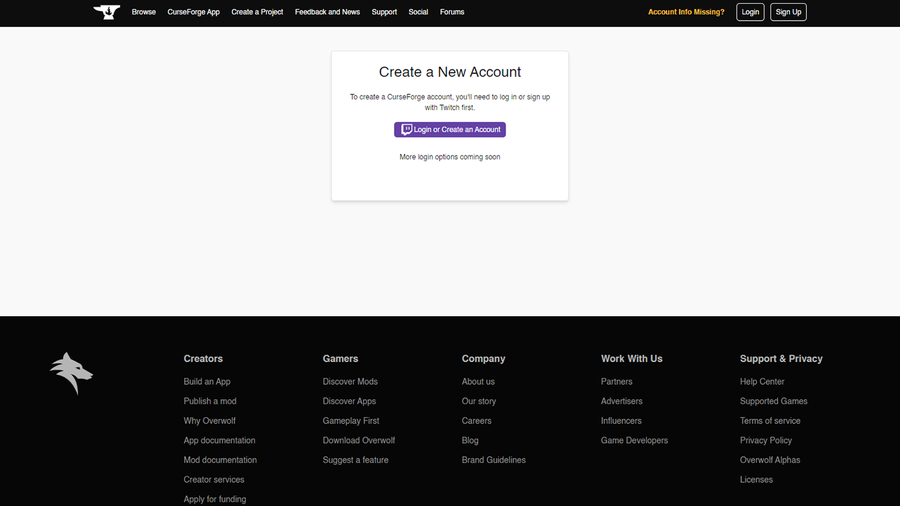
1 – Create a CurseForge account
Before we do anything, create an account on CurseForge that you will be publishing with.
Unfortunately, because CurseForge was owned by Twitch until mid-2020, you will need a Twitch account to login. Currently, there are no other signup options.
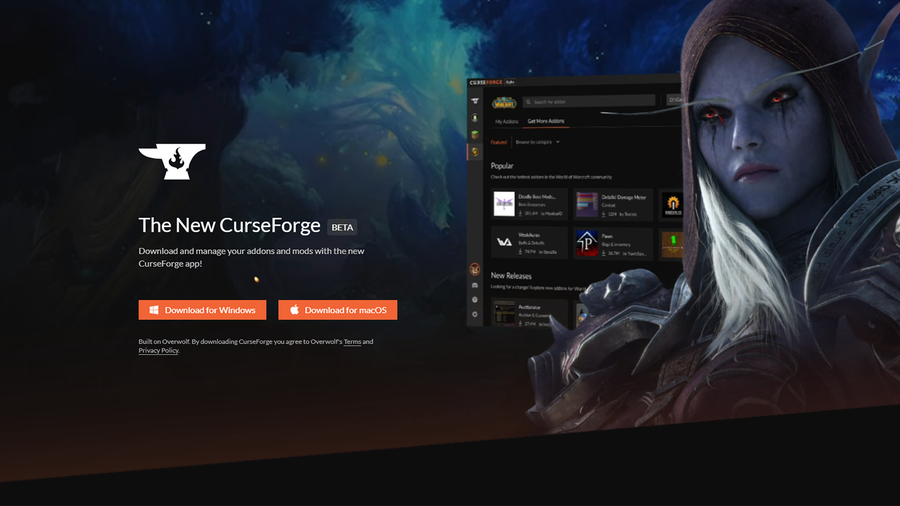
2 – Download CurseForge
If you don’t already have CurseForge downloaded, you can do so through their website. Once the download is finished, move on to the next step.
3 – Create the modpack
Now you’re ready to add mods to your modpack! The easiest process is through the CurseForge app. Below are the steps to creating a profile and adding mods:
Upon first opening, you’ll need to choose Minecraft as a game and where you’d like the files to be saved.
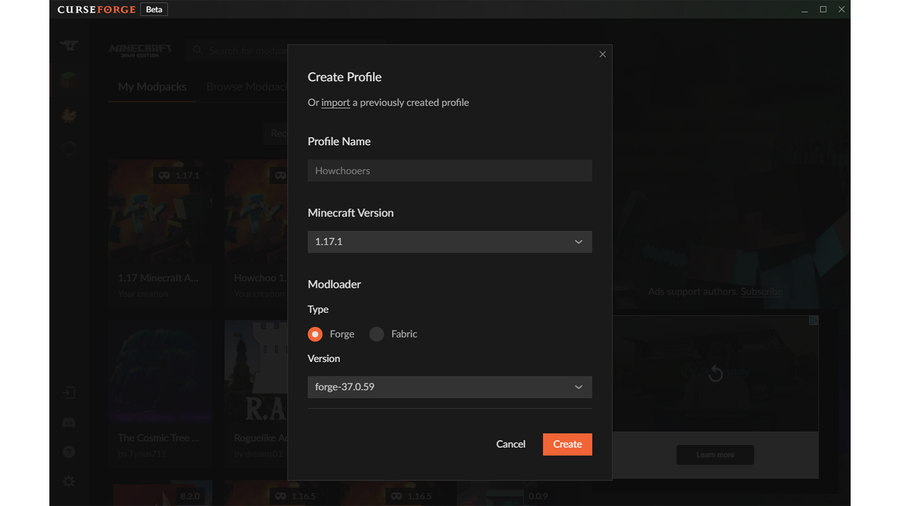
Click the Create Custom Profile button at the top right of the window.
Fill in the name and correct Minecraft version. If you’re hosting a server, make sure the Fabric or Forge modloader versions in CurseForge match the version of the server.
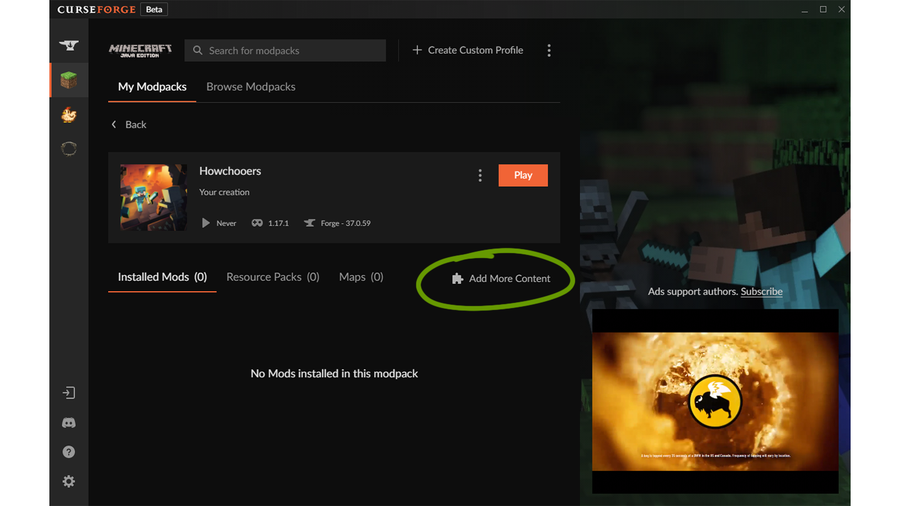
Click Create. CurseForge will create the profile and once complete, click into the modpack.
Click Add More Content as shown in the image above.
Search and browse to find the mods you’d like to add. You can add mods to the modpack by clicking the install button. If you need help deciding what mods to add, check out one of our Minecraft mod guides!
The average PC can handle up to 100 mods in a modpack, so try not to go much higher than that. Make sure you test out the modpack before exporting to make sure there are no mod conflicts or glitches!
Once you’re satisfied with your mod list, we’re ready to move on to the next step!
4 – Export the profile
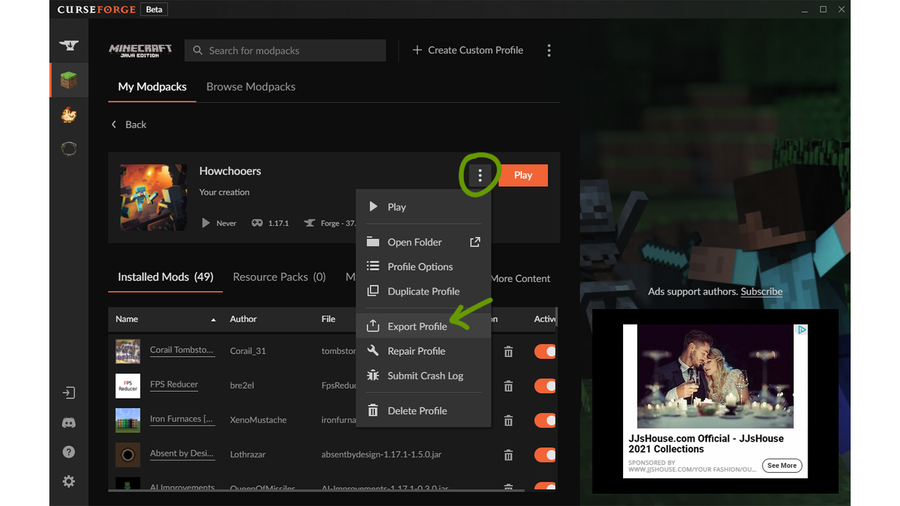
Click the triple dotted button beside the Play button to open up the modpack menu. In the drop-down, choose Export Profile.
In the pop-up that appears, name your pack in a way that will make sense to you. For example, the first version of this modpack could be named “Howchooers 1.0”.
Make sure the checkbox beside “Mods” is checked off and click Export.
Download the file to wherever you’ll find it quickly later.
Note: If you include a mod that requires configuration before publishing the modpack, do so now. When you export the profile, be sure to check off the config file for that mod.
5 – Prepare upload requirements
Contrary to what you might assume, the modpack file isn’t the only requirement to upload and publish to CurseForge.
In order for your modpack to be approved, you’ll need:
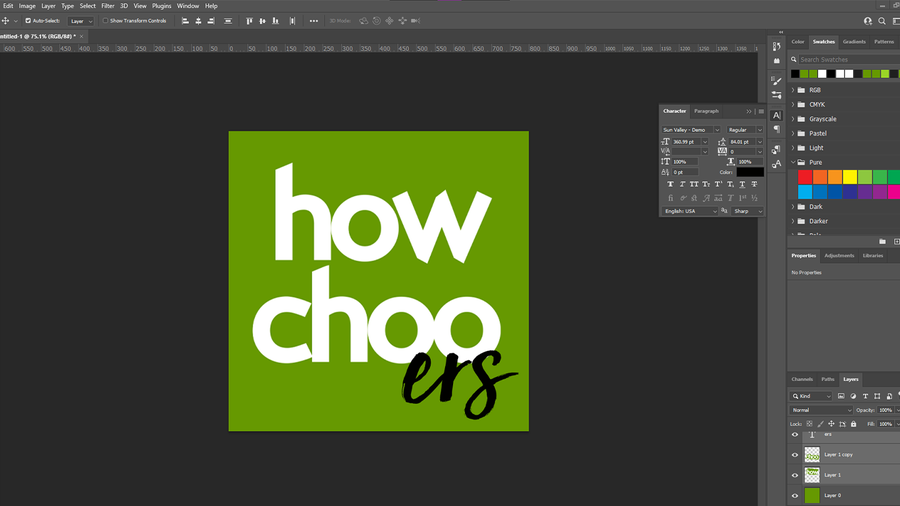
Logo that is 400×400 pixels and cannot be a blank image or just the modpacks name.
Written Description that details the modpack, its purpose, and anything else the players might need to know.
A summary that is a one line explanation that offers a sense of what your modpack offers.
Take note that the modpack name cannot include the game name, game versions, or file versions.
6 – Start a CurseForge project
It’s finally time to begin uploading. Go to curseforge.com/minecraft/modpacks and click the Start Project button at the top of the page.
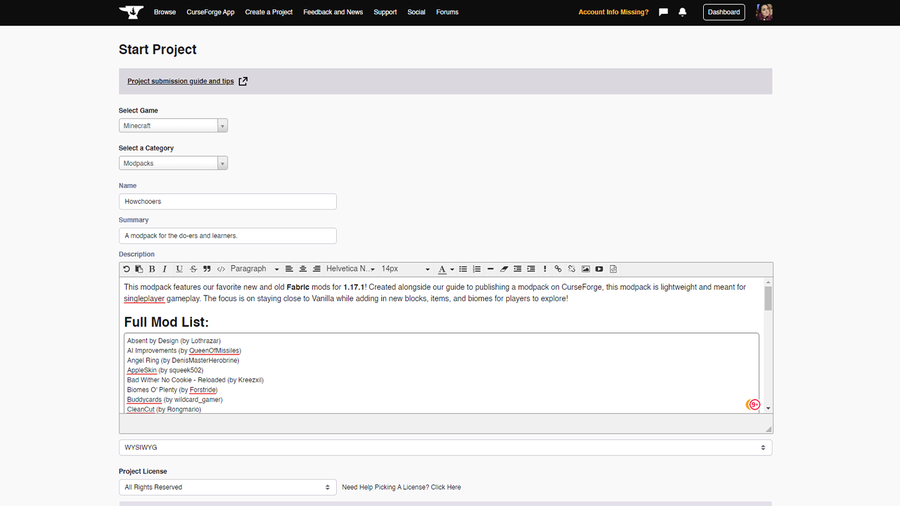
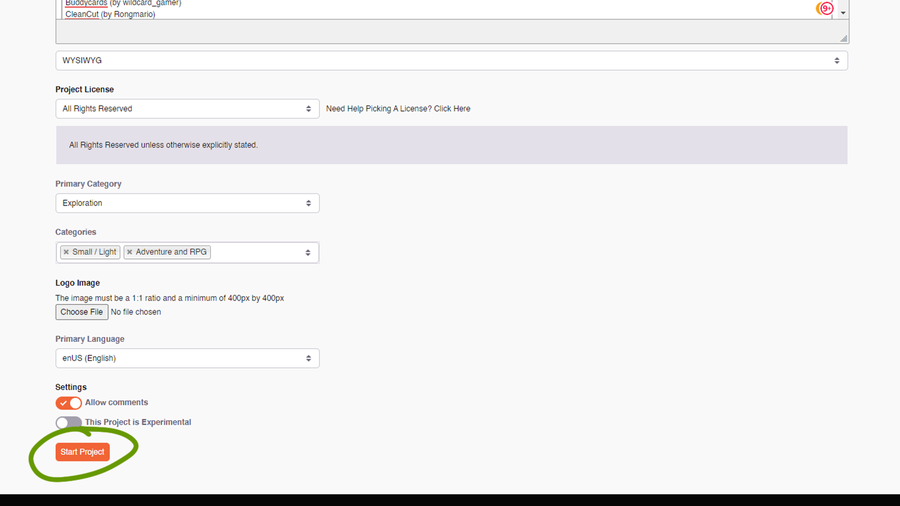
Fill in all the information you’ve already prepared! When choosing a main category, pick the one that has the most mods supported. You can choose up to five additional categories as well.
Once you’ve filled in all the required information, click Start Project at the bottom of the page.
7 – Revisions
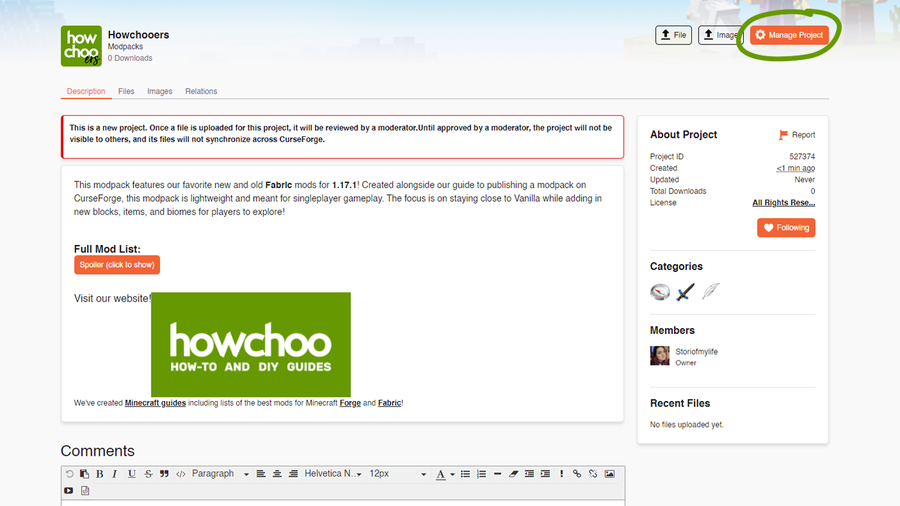
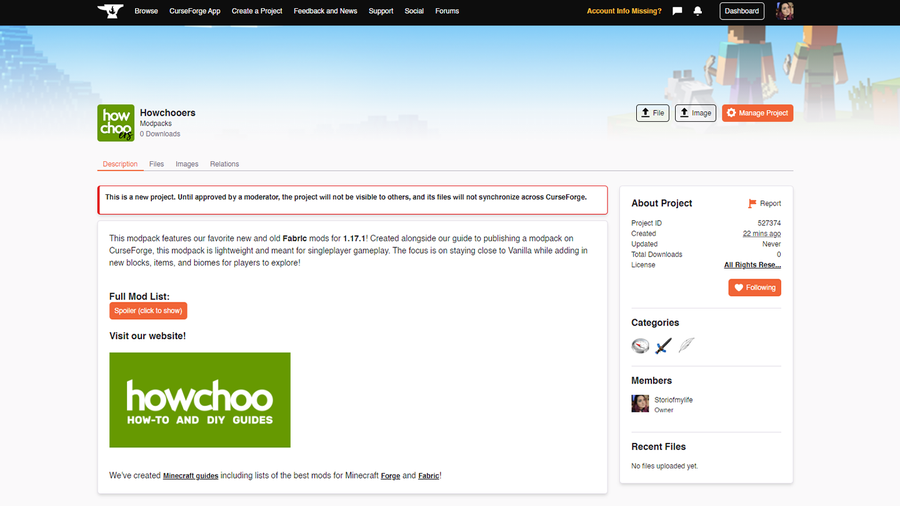
Now is a great time to see if your description needs any fixing. To do so, click the Manage Project button as shown in the image above.
On this page you can update the modpack’s description, logo, license, and more! Make sure to click Save Changes before leaving the page!
8 – Upload file
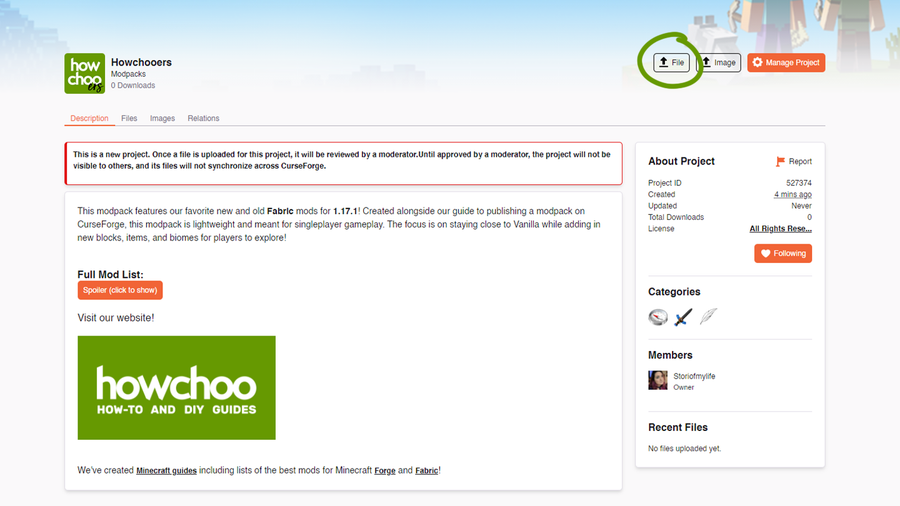
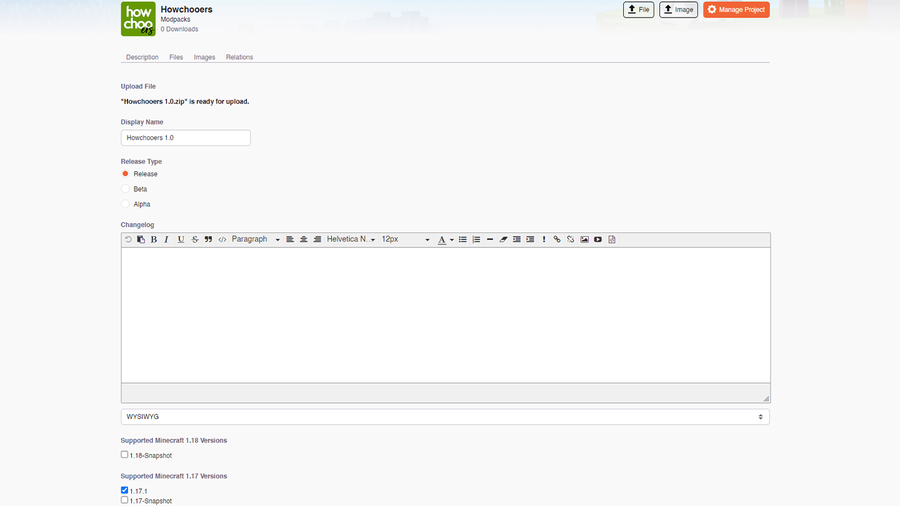
Now we have to upload our modpack ZIP file to CurseForge. Click the File button at the top of the page, as shown in the image above.
As shown in the image above, upload the modpack file you save in Step 4.
Choose a Release Type:
Release: Syncs to the CurseForge App by Default. These are the files that will auto download when a user clicks the default download button on a project. You must have at least one of these files for the project to be available on the website and client.
Beta: Will not sync to the CurseForge App unless the user chooses to receive Beta files.
Alpha: Will not sync to the CurseForge App instances set to receive Alphas.
Make sure to choose the correct game version based on your modpack’s original profile. You don’t need to fill out the Related Projects section, as once your project is approved, it will automatically populate.
Click Submit when you’re done!
9 – Wait for approval
CurseForge staffers will now review your modpack. This process can take anywhere from a few minutes to a couple of days. If your modpack is approved or rejected, you’ll receive an email or notification on CurseForge’s website. You can view a full list of your projects here.
If your modpack is accepted, then you’re ready to share it with the world!
If your modpack is rejected, the team will let you know why and what changes need to be made. View their Moderation Policies for more explanation.
Check out our published modpack called Howchooers!
10 – Update the modpack
Updating a modpack is nearly identical to publishing for the first time.
Repeat Step 4 of exporting the modpack from the original one you made in Step 3. Make sure to label the file you export with a version number, so you don’t get confused when uploading.
While on your project page, repeat Step 8 to upload a new file.
Within the Changelog box, add in anything players should know. For example, what mods were removed or added.
The updated file will go through the approval process once again. Usually it takes a couple of hours for the CurseForge app to recognize the modpack had an update, but don’t be surprised if it takes 24-48 hours either.
The longer you play Minecraft, the more you realize that early-game tools just won’t cut it. Exploring the enchantment feature of Minecraft can be exciting, but also intimidating. Rather than worry about researching enchantments, below are the best enchantments in Minecraft! To learn how to enchant items, check out this guide! In this guide, you’ll see
Introducing Howchoo, an enigmatic author whose unique pen name reflects their boundless curiosity and limitless creativity. Mysterious and multifaceted, Howchoo has emerged as a captivating storyteller, leaving readers mesmerized by the uncharted realms they craft with their words.
With an insatiable appetite for knowledge and a love for exploration, Howchoo’s writing transcends conventional genres, blurring the lines between fantasy, science fiction, and the surreal. Their narratives are a kaleidoscope of ideas, weaving together intricate plots, unforgettable characters, and thought-provoking themes that challenge the boundaries of imagination.
I’m one of the rare software developers that doesn’t have an extra HDMI monitor, keyboard, and ethernet connection ready to go at a moments notice. So in the past, setting up a new Raspberry Pi has been tricky. Fortunately, you can configure a WiFi connection on the Raspberry Pi without having to first connect to ethernet, a monitor, keyboard, or mouse.
1 – Put the Raspberry Pi OS SD card into your computer
If you don’t have Raspberry Pi OS installed, go ahead and install it. Make sure the SD card with Raspberry Pi OS is in your computer using an SD card slot or SD card USB adapter.
If you're using Raspbian (an older version of Raspberry Pi OS) for some reason, thats okay too!
2 – Navigate to the boot directory
The SD card will mount as a drive/directory on your computer called boot. Open the drive using Finder (Mac) or Explorer (Windows).
In Finder on Mac, you can also select Go > Go to Folder from the menu bar and enter /Volumes/boot.
Finally, save the file. If you’re using TextEdit on Mac, you’ll need to go to Format > Make Plain Text in the menu bar before saving. Make sure the filename is exactly wpa_supplicant.conf (remove .txt if it gets added).
Connecting to unsecured networks
To connect to wireless networks with no password on your Raspberry Pi, use the following:
country=US # Your 2-digit country code
ctrl_interface=DIR=/var/run/wpa_supplicant GROUP=netdev # Include this line for Stretch
network={
    ssid="YOUR_NETWORK_NAME"
    key_mgmt=NONE
}
With this file in place, Raspberry Pi OS will automatically move it in /etc/wpa_supplicant/ when the Raspberry Pi is booted.
The next step is to boot the Pi and test, but while the SD card is still in your computer I’ll mention this now. If you’re going to try to connect via SSH, you may need to enable it first. The process is similar to this one.
4 – Put your SD card in the Raspberry Pi, boot, and connect
Next, put the micro SD card into the Pi, boot it, and your Wi-Fi should be connected!
The wpa_supplicant.conf file should disappear from the SD card’s boot directory automatically—so if you don’t see it next time, that’s normal.
5 – Troubleshooting
If your Pi hasn’t connected to Wi-Fi, try these wpa_supplicant troubleshooting tips:
Double-check that the file was written in plaintext, without any special characters.
Double-check that the file has disappeared from your boot directory.
Connect the Pi to a TV or monitor via HDMI to ensure it is booting normally.
If you’re using a Raspberry Pi Zero W, make sure you’re attempting to connect to a 2.4GHz network (the Zero doesn’t support 5G).
If you’re using a Raspberry Pi Zero, make sure it’s a Raspberry Pi Zero W, not a regular Zero (only the W supports Wi-Fi and Bluetooth).
If you’d like to monitor your network performance with your Raspberry Pi, check out guide on setting up a network monitor with a Raspberry Pi.
There are several ways to go about running a Minecraft server on the Raspberry Pi. In this guide, I’ll cover how to install Nukkit—a cross-platform Minecraft server that’s super easy to set up on the Raspberry Pi. This server should work with PCs, consoles, and tablets running Minecraft 1.14. I’ll be using a Raspberry Pi
Introducing Howchoo, an enigmatic author whose unique pen name reflects their boundless curiosity and limitless creativity. Mysterious and multifaceted, Howchoo has emerged as a captivating storyteller, leaving readers mesmerized by the uncharted realms they craft with their words.
With an insatiable appetite for knowledge and a love for exploration, Howchoo’s writing transcends conventional genres, blurring the lines between fantasy, science fiction, and the surreal. Their narratives are a kaleidoscope of ideas, weaving together intricate plots, unforgettable characters, and thought-provoking themes that challenge the boundaries of imagination.