Home Interests MacOS

How to Turn off iMessage and Disable Messages on Mac
how to disable messages on mac
howchoo   (467)
August 10, 2023
13 minutes

Share

You’ll Need 1

What you’ll need
Interests
Howchoo is reader-supported. As an Amazon Associate, we may earn a small affiliate commission at no cost to you when you buy through our links.
Posted in these interests:

iOS

ios • 5 guides

Mac

mac • 24 guides
macos • 20 guides

iMessage is an instant messaging service exclusively made for Apple devices that can process both regular messages and iMessages. Regular messages (SMS or MMS) are those highlighted in green which can be sent and received via cellular networks. iMessages, on the other hand, are messages highlighted in blue which can only be sent and received between Apple devices with an internet connection.

Thanks to new macOS updates, you can now use iMessage to send and receive messages on Mac instead of your iPhone. However, users may find these new changes convenient or bothersome depending on their preferences. While this is certainly a novel feature, it can prove to be distracting as the feature is enabled by default, especially when you’re doing work on your Mac. Fortunately, you can disable these messages on your Apple devices without losing iMessage’s functionality.

Here are three ways you can disable messages on Mac without disabling it on your iPhone or other synced Apple devices.

1 – Disable Messages on Mac through iMessage Settings

Open the Messages App.

open messages app

On your Mac computer:

  • Open a Finder window.
  • Go to Applications.
  • Find your Messages app.

Conversely, you can use Spotlight search. Just search for “Messages.”

From the Messages app on your Mac, you can make adjustments to how your iMessages and messages function and interact between your iPhone and Mac.

Open the iMessage pane.

open the imessage pane

In the “Messages” screen, select iMessage from the menu bar.

Other things you can do in the iMessage screen is sign in and out of your Apple ID, change the phone number for your iMessages, choose to send read receipts for iMessages, and of course, disable iMessages completely.

🛈 On older versions of macOS or OS X, the tab is labeled “Accounts” instead.

Disable iMessage.

disable imessage on mac

Under your Apple ID, uncheck “Enable Messages in iCloud”.

Finally, open the Notifications & Focus pane in System Preferences. Select Messages from the sidebar and toggle “Allow Notifications” to the off position.

That’s it! Now, you’ll no longer receive message and iMessage pop-ups on your computer. All your messages, however, will still show up on your iPhone or Apple Watch.

2 – Silence iMessage Notifications

You can opt to silence notifications from iMessage in your Mac settings. If you want to have the option to check Messages on your Mac at your own leisure but not be distracted by constant pings, you can do the following instead:

  • Open the iMessage app > Messages > Settings. In the General tab, uncheck the ‘Play sound effects‘ setting. This will silence any pings when you receive new messages.
  • Another thing you can do is to navigate to the Apple menu, then System Preferences. Choose Notifications & Focus > Messages. Then, toggle Allow Notifications off.

3 – Sign out of iMessage

You can also sign out of iMessage through the app itself. 

First, go to Messages and click on Settings. Go to the iMessage tab and look for the Sign Out button. This can be found next to your Apple ID. 

Once you’ve signed out, you will no longer receive messages through this app. That means you also cannot use it, so you can choose this option if you don’t intend to use the app at all in your Mac device.

How to Disable Messages for a Specific Number in Mac

If you want to stop notifications from a certain contact instead, you can:

  • Right-click the person’s number in your Messages app.
  • Select Get Info.
  • Check Hide Alerts.

🛈 On older versions of macOS or OS X, you may need to select your account from the sidebar first.

How to Disable Messages on Mac Through Your iPhone

You can disable messages on Mac using your iPhone’s Messages settings. Follow the steps below to give it a try:

  • Go to your iPhone Settings.
  • Scroll down and tap on ‘Messages’.
  • Tap on Text Message Forwarding.
  • Look for the name of your Mac and turn it off. After this, new messages on your iPhone will no longer appear on your Mac device. You can also do this for other devices that are synced to your Messages.

If the Text Message Forwarding setting does not appear on your iPhone, here are some things you can do to fix it:

  • Make sure you have good internet connection. Text Message Fowarding may not be working due to connection issues.
  • Check that you are using the same AppleID for both devices and that your iCloud Messages are synced. If neither of these apply, you cannot use your iPhone to disable messages in your Mac.
  • Toggle the iMessage setting. Go to your iPhone settings, click on Messages, and turn the iMessage toggle off and then on again. This refreshes the setting and allows it to appear in case it didn’t load correctly the first time.
  • Restart or update your iPhone. This helps your phone identify or sync new changes during startup, or download a fix for it.

How to Disable Messages on Apple Devices Other Than Mac

Like Mac, you can also disable or turn off messages on other Apple devices such as your iPhone and your Apple Watch. However, note that Apple Watch iMessage can only be turned off instead of disabled.

To disable messages on your iPhone:

  • Go to your iPhone Settings. 
  • Scroll down and tap on Messages
  • Toggle the iMessage option off.

To turn off message alerts on your Apple Watch:

  • Using your iPhone’s Apple Watch app, go to My Watch > Messages > Custom. Then, toggle the Show Alerts setting off.
  • Using your Apple Watch, go to the Notification Center by swiping down on the screen. Select the iMessage notification you want to mute and swipe left. Tap on More, then choose how long you want to mute it.

For Apple Watch, it’s easier to use the Apple Watch app on your iPhone to turn off notifications since using the watch itself does not allow for much customization. The messages will also still appear on the Notification Center since they are simply muted.

NEXT UP

How to Enable the “Popping” Sound When Adjusting the Volume on Your Mac

howchoo
howchoo   (467)
December 13, 2023

Starting with MacOS Sierra and High Sierra, your Mac will no longer play a “pop” sound when you adjust your volume. If you prefer to have this sound when you adjust volume up and down (as I do), this guide will teach you how to reenable it. 1 – Open Sound System Preferences Navigate to System

Continue Reading

howchoo

 467 guides

Introducing Howchoo, an enigmatic author whose unique pen name reflects their boundless curiosity and limitless creativity. Mysterious and multifaceted, Howchoo has emerged as a captivating storyteller, leaving readers mesmerized by the uncharted realms they craft with their words. With an insatiable appetite for knowledge and a love for exploration, Howchoo’s writing transcends conventional genres, blurring the lines between fantasy, science fiction, and the surreal. Their narratives are a kaleidoscope of ideas, weaving together intricate plots, unforgettable characters, and thought-provoking themes that challenge the boundaries of imagination.

Home Interests Illustrator

How to Make the Background Transparent in Illustrator

Now you see it, now you don’t.
howchoo   (467)
August 10, 2023
4 minutes

Share

You’ll Need 1

What you’ll need
Interests
Series
Howchoo is reader-supported. As an Amazon Associate, we may earn a small affiliate commission at no cost to you when you buy through our links.
Posted in these interests:
 
adobe • 7 guides
illustrator • 3 guides

By default, Illustrator creates a solid white artboard in the background. This is helpful when creating artwork so you can see better, but you might not want it there when it’s time to save the file. This guide will cover what you need to do in order to have a transparent background in Illustrator.

1 – Start a new file in Illustrator

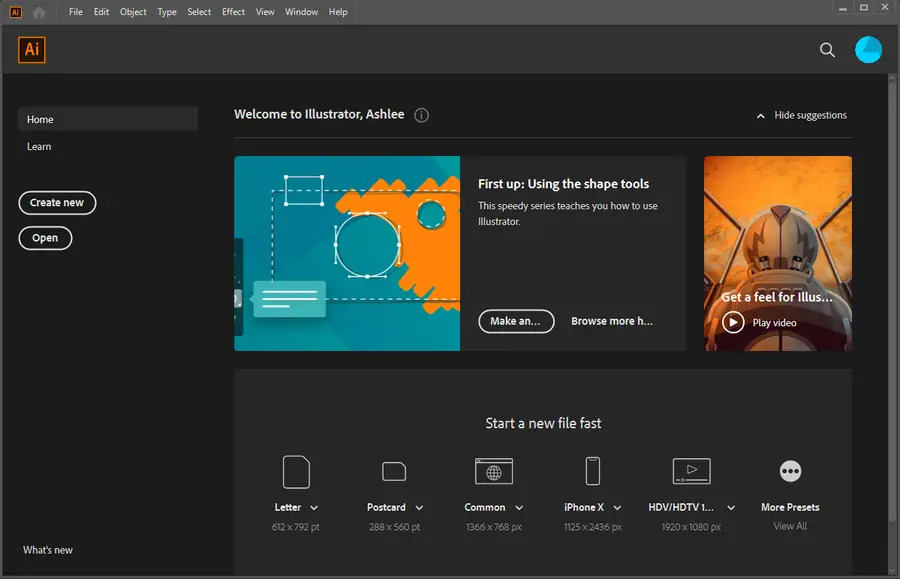
Start a new file in Illustrator by clicking Create new… on the main menu. Alternatively, you can open an existing file to edit in a transparent background. You can drag and drop the file onto the workspace or use the File > Open menu.

2 – Enable transparent background

To remove the default white artboard, enable the transparency grid. You can find this setting under the View tab at the top. Select Show Transparency Grid.

You will know it’s working when the background appears as a white and gray grid.

3 – Create an image

Now that you have a transparent background, you can create a design. The final result will have a transparent background if saved to an appropriate file type.

If you are editing an existing AI file, the transparent background should be visible where the artboard previously was.

4 – Save the file

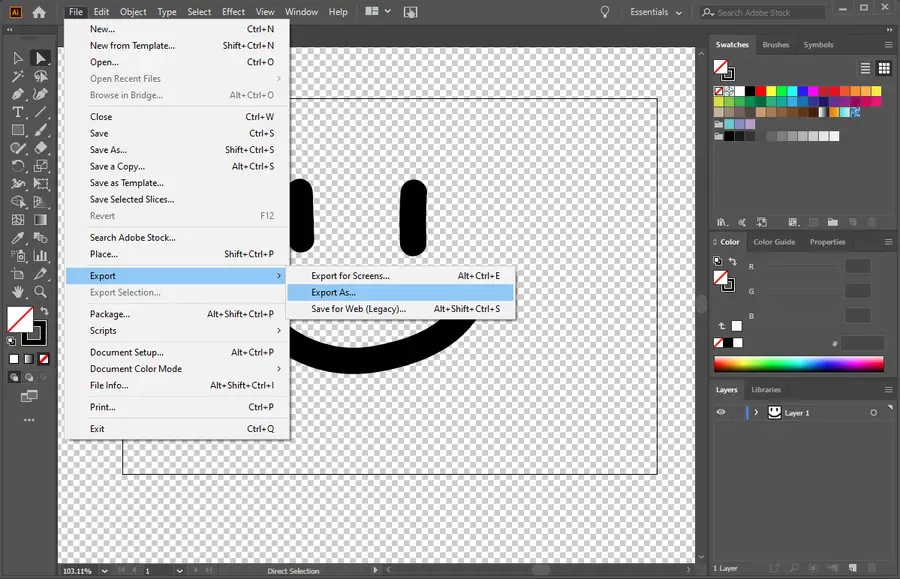
When your design is complete, save the changes with an appropriate file type so the transparency stays in the final product. You can save the image using the File > Export As… menu.

There are several file types that retain transparency. A few used by Illustrator are:

  • PNG
  • SVG
  • TIFF

If you need to create something that scales, like a logo or graphic, then you’ll want to make sure you use vectors. If you’re a developer, then we can even show you how to optimize the SVG file to make it smaller.

NEXT UP

How to Resize an Image in InDesign

There are two options for resizing in InDesign: the easy way and the precise way.
howchoo   (467)
December 7, 2023

You might think that resizing an image would be as simple as dragging the corner of the frame. Well, it is, and it isn’t! Remember that when resizing an image in InDesign, you’re essentially resizing the image’s frame. For more information, on inserting an image in InDesign and frames, check our guide. How to Insert an Image

Continue Reading

howchoo

 467 guides

Introducing Howchoo, an enigmatic author whose unique pen name reflects their boundless curiosity and limitless creativity. Mysterious and multifaceted, Howchoo has emerged as a captivating storyteller, leaving readers mesmerized by the uncharted realms they craft with their words. With an insatiable appetite for knowledge and a love for exploration, Howchoo’s writing transcends conventional genres, blurring the lines between fantasy, science fiction, and the surreal. Their narratives are a kaleidoscope of ideas, weaving together intricate plots, unforgettable characters, and thought-provoking themes that challenge the boundaries of imagination.

Home Interests Google Sheets

How to Find Duplicates in Google Sheets (Easy Method)

Find and highlight duplicate data.
howchoo   (467)
August 10, 2023
6 minutes

Share

You’ll Need 1

What you’ll need
Interests
Howchoo is reader-supported. As an Amazon Associate, we may earn a small affiliate commission at no cost to you when you buy through our links.
Posted in these interests:
google • 9 guides
googlesheets • 2 guides
googleworkspace • 6 guides

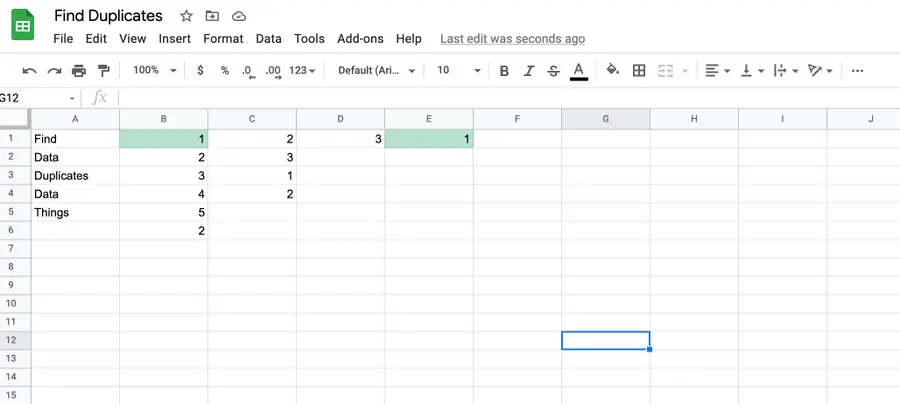
In a long list, it can be frustrating to scroll through endless items to find duplicates in Google Sheets. We often use Google Sheets when recording ideas, but we don’t want to record the same idea twice. So we’ll need to highlight, and, in some cases, remove the duplicate data from a column or row.

In this guide, we’ll show you how to easily find duplicates in a Google spreadsheet, highlight them, and then remove them (if that’s your intention).

Deleting duplicate data in Google Sheets

If you know that you’ll be deleting duplicate data, then we recommend you skip ahead to that step (Step 3).

1 – Find duplicates in a column

To find duplicate data in a column of a Google Sheet:

  • Highlight the column by clicking on the corresponding letter above it.
  • Go to Format.
  • Select Conditional formatting.
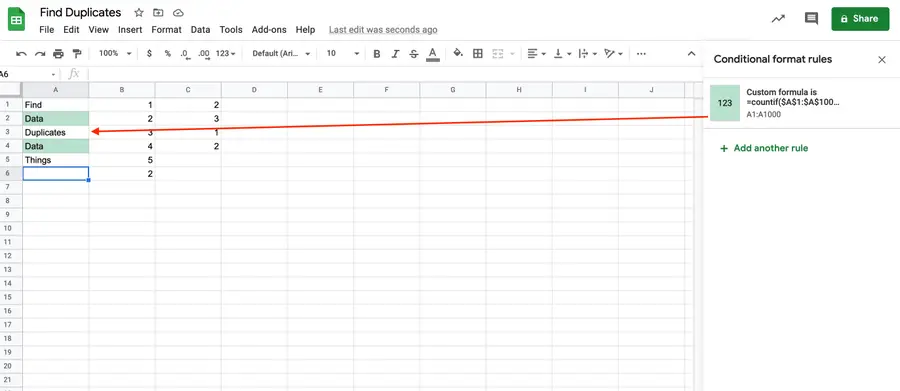
  • Under “Format rules,” select Custom formula is….
  • Input a version of the following formula, depending on the letter of the column you’ve highlighted. (In this formula, we selected column A.) You’ll need to change the letter if you’re using a different column.
=countif($A$1:$A$1000,A1)>1
  • Click Done.

You may also need to change the formula if your column starts at a different value.

2 – Find duplicates in a row

To find duplicate data in a row of a Google Sheet:

  • Highlight the row by clicking on the corresponding number next to it.
  • Go to Format.
  • Select Conditional formatting.
  • Under “Format rules,” select Custom formula is….
  • Input a version of the following formula, depending on the row you’ve highlighted. (In this formula, we selected row 1.) You’ll need to change both numbers that follow the letters if you’re using a different column.
=countif($A$1:$Z1,A1)>1
  • Click Done.

In the above, if you want to search row 2, for example, then your formula would be =countif($A$2:$Z2,A2)>1.

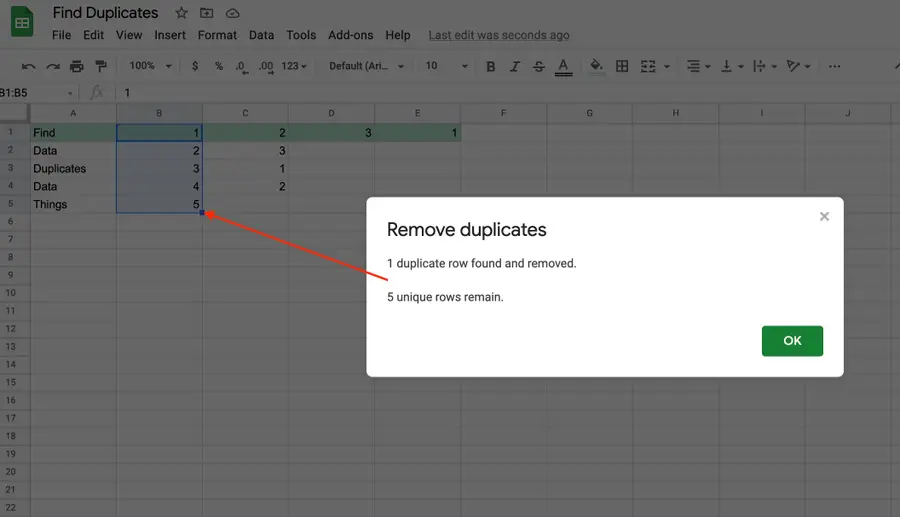
3 – Removing duplicates in Google Sheets

If all you need to do is remove duplicates from a column or row, then it’s even easier than finding and highlighting them.

  • Highlight the row or column.
  • Go to Data.
  • Select Remove duplicates.
  • Make sure that you’re selecting the right column(s) or row(s).
  • Click Remove duplicates.

You’ll be shown how many duplicates are removed. By default, duplicates are removed in Google Sheets, leaving the first instance of the data.

  • Click OK.
NEXT UP

How to Search in Google Docs (Find Words)

Try ⌘ + F.
howchoo   (467)
December 13, 2023

If you just need to search and find a single word or multiple words in Google Docs, press ⌘ + F. If you want to find and replace words in your Google Doc, then we’ll show you how to do that too! 1 – Press cmd + F To find a word (or words) in

Continue Reading

howchoo

 467 guides

Introducing Howchoo, an enigmatic author whose unique pen name reflects their boundless curiosity and limitless creativity. Mysterious and multifaceted, Howchoo has emerged as a captivating storyteller, leaving readers mesmerized by the uncharted realms they craft with their words. With an insatiable appetite for knowledge and a love for exploration, Howchoo’s writing transcends conventional genres, blurring the lines between fantasy, science fiction, and the surreal. Their narratives are a kaleidoscope of ideas, weaving together intricate plots, unforgettable characters, and thought-provoking themes that challenge the boundaries of imagination.

Home Interests Supernote

10 Reasons to Pick Supernote A6X over reMarkable 2

10 reasons to pick supernote a6x over remarkable 2
Read this if you’re on the fence about the reMarkable 2 or the Supernote.
howchoo   (455)
August 9, 2023
31 minutes

Share

Interests
Posted in these interests:
e-ink • 5 guides
supernote • 5 guides
technology • 20 guides

The world of e-ink devices is vast and confusing, with dozens of models from dozens of manufacturers.

Some people will only be familiar with Amazon’s Kindle or the Kobo series of e-readers, but these are actually really limited in terms of functionality! I’ve written about how much I love the Supernote e-ink device before, but I haven’t yet touched on what makes the Supernote superior to another big name in the e-ink world: reMarkable.

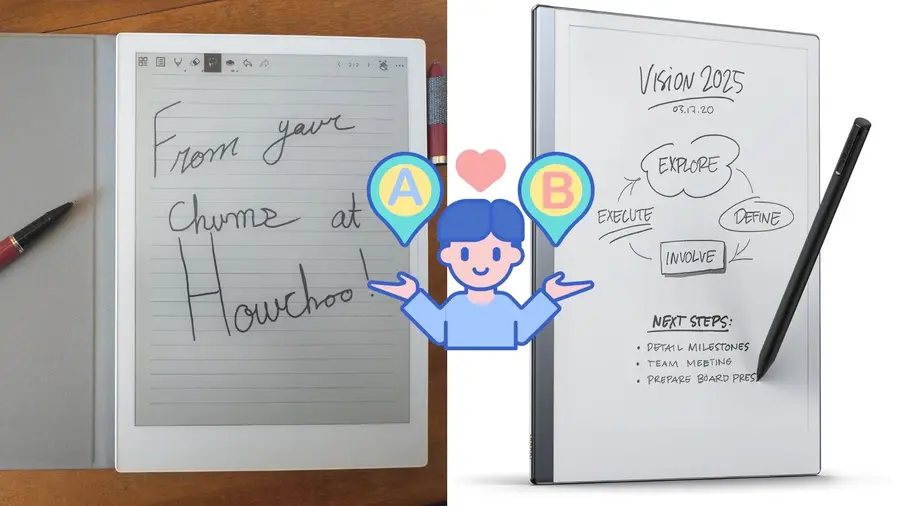
ReMarkable set itself up as the “paper replacement” of e-ink devices, going so far as to create a highly paperlike experience with a special screen and a pencil-like stylus nib that wears down through use.

But, what started looking like an outstanding idea with unbeatable software, quickly became a nightmare of venture capitalism as they locked features behind a paywall. Meanwhile, Supernote actively engaged with their user community, working with their users to build what is probably the best e-ink device in its price range.

1 – reMarkable’s subscription plan

remarkables subscription plan
reMarkable’s subscription plan

This is the largest blow to the reMarkable because it’s never enjoyable to find a device’s features being locked behind a paywall.

ReMarkable hinted that they would be heading in this direction for some time, and they finally took the leap at the end of 2021, likely because they took tons of venture capital money and ended up desperate to make their backers happy ASAP.

Supernote has almost gone the opposite direction of reMarkable, if such a thing is possible. In a truly remarkable twist in today’s capitalist world, Supernote puts all their resources into improving existing devices instead of arbitrarily phasing out devices to make a profit, or opting for a subscription model like reMarkable.

People who purchased their reMarkable devices before October 12, 2021 got to keep a few of their so-called “premium” features for free, but all future updates that reMarkable makes won’t be included, and if you’re thinking of buying a reMarkable now…just don’t.

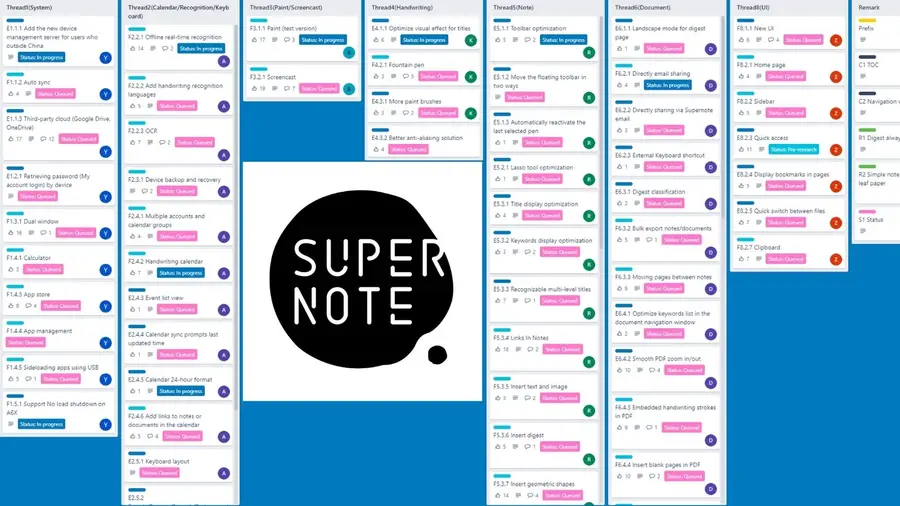
Here’s the thing: reMarkable bills itself as a paper notebook replacement, but as a side-by-side comparison shows, the features offered via any reMarkable plan simply don’t come anywhere close to the Supernote, and that includes things like writing feel and latency. How is this possible? Well, it all comes down to Supernote’s incredible roadmap.

2 – Supernote’s development roadmap

supernotes development roadmap
Supernote’s development roadmap

Supernote has a public roadmap available with all their development plans. ReMarkable offers a blog with infrequent updates when major software changes take place.

This is a stark difference that highlights not only how great Supernote is with community engagement (and how much they care about creating an incredible product), but how the needs of the community have influenced the actual design of the device and the features that it offers.

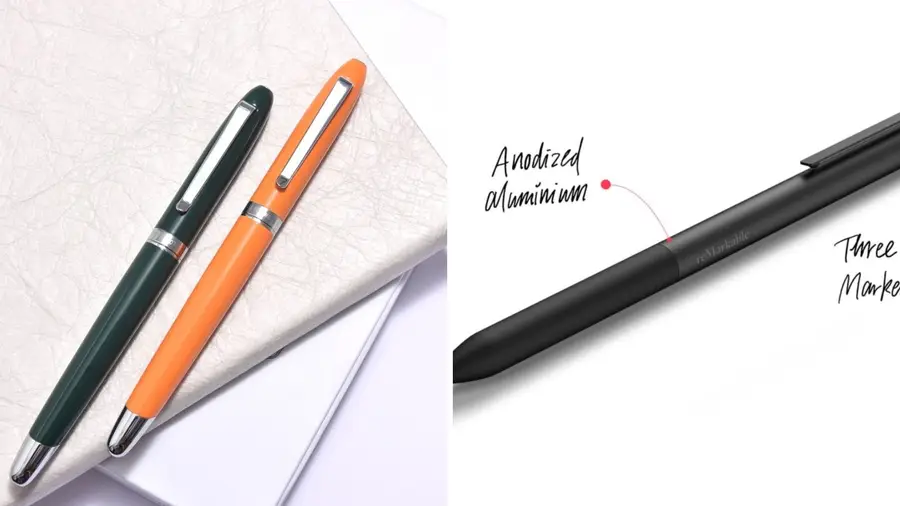
3 – Supernote stylus is better than reMarkable 2

supernote stylus is better than remarkable 2
Supernote stylus is better than reMarkable 2

’ll come right out with a hot take: for all that reMarkable does offer the writing feel of pencil on paper (it does, and, to be fair, it’s incredible how well it does this), it comes with the massive limitation of wear and tear.

Like a few other e-ink devices on the market, the reMarkable stylus wears out and, according to various reviews, wears out quite quickly. That’s a steep price for the feel of writing on paper.

The Supernote, meanwhile, approaches the experience of writing through their patented self-repairing screen film. This mimics the experience of writing with a pen on paper surprisingly well, and does so with a hard ceramic nibbed stylus that never wears out.

In fact, their Heart of Metal stylus is the best-looking and most impressive on the market, offering the feel of a high-quality pen.

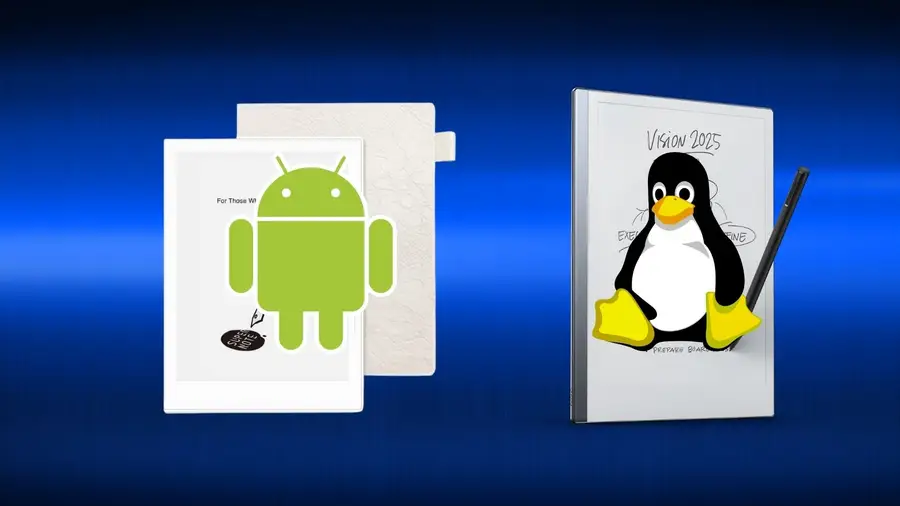
4 – Supernote’s Android OS vs reMarkable’s Linux OS

supernotes android os vs remarkables linux os
Supernote’s Android OS vs reMarkable’s Linux OS

Beneath the hood, these devices are wildly different. The reMarkable uses custom software based on Linux, the open-source GNU operating system.

When I originally heard this, I immediately thought two things: that’s awesome, and, what about all the apps that people expect to be able to use with an e-ink device? Because the reMarkable can’t run anything from the Android app store.

That means: no Kindle, no Overdrive, no Dropbox; none of the integrations that have become a mainstay of the e-ink market. To get around this, reMarkable tried to double down on their claim of their device as a “paper journal replacement” designed to focus the user’s attention on nothing but their writing. No matter that this alienates a huge potential userbase.

Supernote has a Linux line of devices, their older A5 and A6 models (and these actually feature email integration, Supernote’s own generous cloud sync, and software that is still getting major improvement updates). But Supernote’s latest devices, their A5x and A6x line of tablets, feature a heavily modified Android OS that offers massive integration potential.

Currently, Supernote supports Kindle (and, through Kindle, Supernote also supports reading books borrowed from your local library which is wonderful), as well as email, calendar, and Dropbox integration.

Their team has stated that wider access to apps in the Android app store is on their radar, and that means that we will hopefully eventually be able to ditch Kindle altogether and use any apps we choose for our ebook pleasure.

They have also considered integration with various academic and knowledgework apps like Obsidian. Supernote even has default integration with Microsoft Word, in a major boon for writers everywhere who want to travel without their bulky laptop.

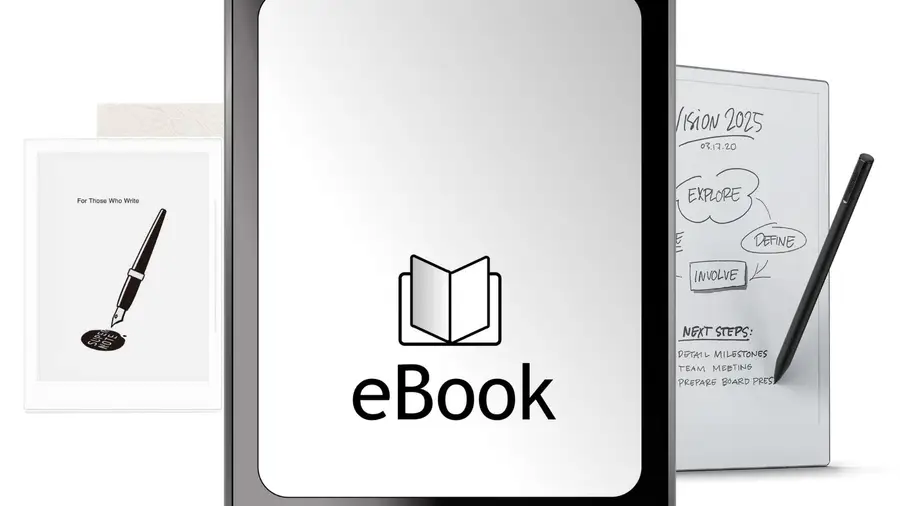
5 – Supernote beats reMarkable 2 as an e-reader

supernote beats remarkable 2 as an e reader
Supernote beats reMarkable 2 as an e-reader

Ever since the original reMarkable came out, users have been complaining about issues with using that device as an e-reader. To be fair, reMarkable 2 has improved things immensely, and the size of the reMarkable 2 makes it handy for viewing PDFs and other large documents.

But the Supernote not only comes bundled with its own extremely powerful e-reading application, it can also use the Kindle app, one of the most widely used e-reader apps around.

For a long time, Supernote lagged (literally) when it came to handling very large or image-dense ebooks and PDFs. The December 2021 Supernote update changed all that.

The Supernote now absolutely matches the reMarkable in terms of speed, but provides a far more satisfactory reading experience, through multiple apps. That’s a big winner for me.

6 – Supernote has integrated Word processor and keyboard support

supernote has integrated word processor and keyboard support
Supernote has integrated Word processor and keyboard support

The reMarkable is excellent when it comes to writing and drawing, without a doubt. They corner the market on superb latency and pressure sensitivity…but that’s it. For a very high price, you’re getting something that’s ultimately less functional than a good art pad and stylus.

What first attracted me to Supernote was it’s Word Processor integration. You can open and create Word documents from within Supernote directly, link a bluetooth keyboard to your device, and get straight to work.

As a professional writer, this was groundbreaking. I do actually want to escape the distractions of tech while I work, and Supernote offers me the ability to get the best of both worlds. I can work in my Word documents without eyestrain and with insane battery life, all at a quarter of the weight of my laptop.

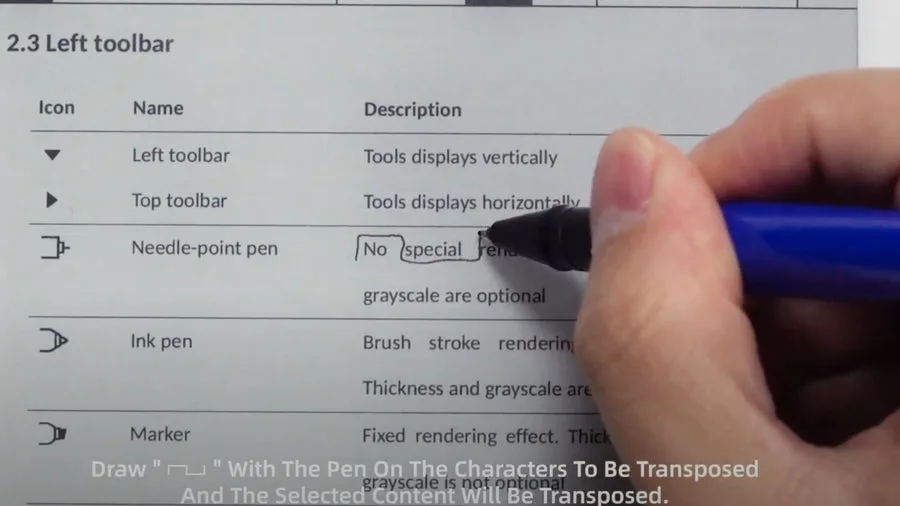
Proofreader marks for Word in Supernote?

proofreader mark support
Supernote proofreader mark support

But then Supernote went even farther with their development of the perfect writer’s companion, and added proofreader mark support for Word documents. What does this mean?

That’s right. You can mark up your Word document using your stylus, deleting and inserting content with a strike of the pen.

And, since the massive update at the end of 2021, Supernote’s word recognition is fully functional. That means it’s possible to insert handwriting directly into a Word document—handwriting that is automatically converted to digital text.

7 – Supernote turns on when the cover opens!

supernote turns on when the cover opens
Supernote turns on when the cover opens!

This is a small one, but Supernote has an ingenious cover design that automatically wakes the device when the cover is flipped open.

It wakes to whatever document you last had open and feels beautifully intuitive. It really is just like using a paper journal. No buttons to press or anything.

8 – Supernote vs reMarkable 2, which is sturdier?

supernote vs remarkable 2 which is sturdier
Supernote vs reMarkable 2, which is sturdier?

The reMarkable has definitely seen some upset customers after cracked screen issues, but it’s not any more risky to own the reMarkable than any other glass tablet. Save, perhaps, that you can’t put an additional screen protector over it.

Still, if it’s snug in its folio, then nothing short of a drop or applied pressure needs to be a concern. But, so the consensus goes, don’t drop it, or it absolutely will break.

The Supernote A6X also uses a glass screen, but this is covered by Supernote’s special self-healing film (which gives the device it’s pen-like writing feel). This makes the device sturdier, and I’ve yet to run into any concerns with my own A6X.

Supernote’s A5X has a newer plastic screen that’s even sturdier, however, making it the ideal choice for those of us constantly on the run and more likely to be rough on our devices.

With the folio attached, both Supernote devices are pretty hard to damage. My A6X did eventually end up with some cosmetic damage after two years of rough use—the thin plastic lip at the bottom USB-C port split. It doesn’t affect the device in any way, however, and isn’t noticeable unless I’m looking right at it.

9 – Supernote vs reMarkable 2, which has the better design?

supernote vs remarkable 2 which has the better-design
Supernote vs reMarkable 2, which has the better design?

Build quality aside, the reMarkable is incredibly thin and well-designed for a futuristic sleek factor. In an age where we want all the power of technology without any of the baggage, it definitely has something to offer.

The Supernote beats it out again for me in this department, however. Yes, the Supernote is fractionally thicker, with a design that reminds me a little like a Moleskine notebook (once it’s in its folio), but that also gives it a weight and solidity I like.

It’s very easy to hold, but has the sort of density one would expect from a notebook. I enjoy reading on it more because of this as well.

But these two features really stand out for the Supernote: the instant-wake feature I mentioned earlier. It’s intuitive and lovely to have the device snap to life as soon as I open the cover. But there’s also Supernote’s unique hardware slide.

The right side of the Supenote features a sleek groove that provides two powerful functions. Slide your thumb up and the screen instantly refreshes. For anyone who has not yet used e-ink devices, a “ghosting” effect can sometimes occur, where subtle afterimages of previous content are displayed until the page is refreshed.

Supernote makes it incredibly easy to take care of this issue. And, swiping down brings to life the system control bar, providing physical access that once again feels really natural to use.

10 – Supernote vs reMarkable 2, writing latency

supernote vs remarkable 2 writing latency
Supernote vs reMarkable 2, writing latency

The big claim that reMarkable made early on was that the latency of its devices were equal to Apple’s 2nd Gen Pencil. That was a major breakthrough for e-ink devices that have historically struggled to match the writing experience of traditional devices like the iPad.

Initially, the Supernote’s writing latency was still perfectly serviceable (and, indeed, faster than a number of better-known e-ink devices), but it was double that of the reMarkable 2.

But then came the 2021 end of year update, and Supernote quietly changed the game. The Supernote now boasts a pen latency almost identical to that of the reMarkable 2 eliminating the lead that originally excited me so much about the reMarkable device.

11 – Supernote’s incredible community engagement

As I’ve mentioned, the best thing about Supernote is its community engagement. Their entire business model seems to be based on building a deep and effective rapport with their customers, taking suggestions and critiques in good faith and using them to directly improve their device. Comments that I made when I first purchased my A6X in 2019 were put on the public roadmap and solved.

The engineers and marketing team are active on the company’s Reddit page, and even their managing director is both available and extremely friendly.

I honestly have not encountered a single other company that does half as much to connect with their customers and build a community of engagement and trust. And that community works out for them, too! User feedback has provided them with a huge testing base that has allowed them to improve their device continually since its release.

The reMarkable team has been less straightforward. They do have a Reddit channel, but little official activity seems to take place there. They do have an official blog, but only a few major updates are released on it.

They will respond to emails, but I haven’t seen a glowing review of their customer support process yet. And then there’s the big problem of their subscription model, which was kept veiled from the public and only became known early through some clever investigating by Voja over at My Deep Guide.

I wish I could like the reMarkable more…it’s a neat device with so much potential. But the terrible business model, horrible user support and connectivity, and unwillingness to meet the user where the user needs to be met make it a no-go for me. The Supernote, however, is the opposite in every way.

I have experienced nothing but good will and support from the Supernote community and official team, and their devices have become a part of my daily workload for everything from writing articles, to reading books I want to review, to planning my move into a new apartment. It just doesn’t get any better than that.

NEXT UP

How to Set Up Quick Connect on a Synology NAS

Get Synology’s powerful Quickconnect running in minutes on your NAS!
howchoo   (455)
November 24, 2023

Synology is one of the most popular creators of Network Attached Storage devices on the market today, and for great reason — they’re really good at what they do. They consistently make devices that stand the test of time and feature top-notch software that makes the process of running a home server as easy as

Continue Reading
Home Interests Comcast

Xfinity Router Login: How to Log in to a Comcast Xfinity Router

howchoo
howchoo   (400)
August 9, 2023
6 minutes

Share

You’ll Need 1

What you’ll need
Interests
Series
Howchoo is reader-supported. As an Amazon Associate, we may earn a small affiliate commission at no cost to you when you buy through our links.
Posted in these interests:
comcast • 7 guides
internet • 33 guides
router • 30 guides

There are many reasons you might want to access your Comcast Xfinity router. For instance, you may want to change your wireless password or set up port forwarding for a project you are working on.

In any case, if you’re looking to log in to the Xfinity Wireless Gateway, then you’ll need the Comcast Xfinity router IP address in [the second step] to log into your router. If you have an Xfinity modem/router combo, this is also known as your modem login. If you’re using a business router, the process can be a little different. Check out this guide for steps on how to log into a Comcast business router.

If you need to login to your Comcast account, visit this guide.

1 – Make sure you are connected to your Xfinity network

This can be a wired or WiFi connection.

2 – Open a browser and go to 10.0.0.1

This is the router’s gateway. It will automatically bring up a log in screen.

3 – Enter a username and password

Username: admin
Password: password

Now you’re logged in.

4 – Change your password

You can change your password by click “Change Password” at the top right of the admin panel.

5 – Can’t remember your username or password?

Username

Here’s the Xfinity page to help you find your username.

Password

Here’s the Xfinity page to help you reset your password.

6 – Other options

While the above steps are the easiest way to directly log in to your Comcast Xfinity router, here are some other options that may suit your needs, as well.

Xfinity xFi

If you’re using an xFi gateway, then you can access xFi from your account pages in both the mobile Xfinity app and on the Xfinity website.

Then you’ll simply:
1. Log in to your Comcast Xfinity account.
2. Select your network name from the top of the page.
3. From here you can view your password and make changes to your WiFi.

7 – Next up: Speed up your wifi connection

We’ve written a few practical tips to show you how to speed up your wifi connection.

Make Wi-Fi Faster: How to Speed Up Your Wi-Fi Connection
Speed up your Internet connection in just a few minutes.

Looking to upgrade your Comcast router or modem? Get a faster connection and remove equipment rental fees from your bill by finding the best Comcast compatible routers.

NEXT UP

How to Change Your Charter Spectrum WiFi Password

howchoo
howchoo   (400)
September 29, 2023

If you’re a Charter WiFi user, you need to keep your network secure. Changing your WiFi password is a simple and effective way to add an additional layer of security to your network. This guide covers the best ways to manage your Charter Spectrum Network password. 1 – Change Wifi Password You can change the

Continue Reading
Home Interests Raspberry Pi

How to Enable SSH on Raspberry Pi OS Without a Screen

howchoo
howchoo   (436)
August 9, 2023
4 minutes

Share

Interests
Posted in these interests:
pi • 91 guides

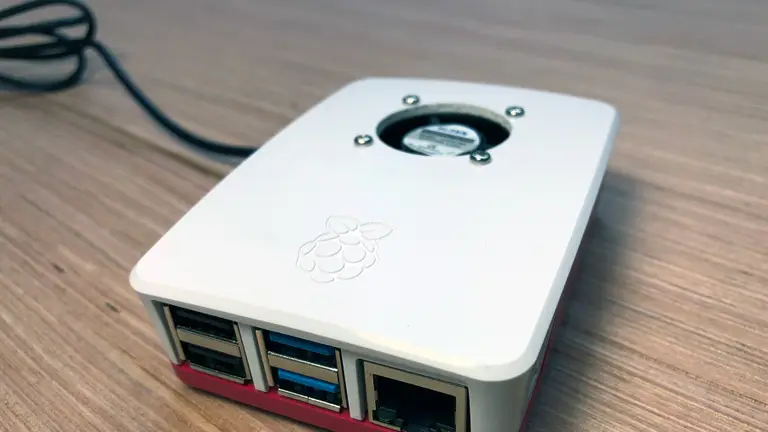
If you’re like me, you don’t always have a spare keyboard/monitor available to set up your Raspberry Pi. I rely heavily on SSH to set up my Pi, but in late 2016 Raspbian images started shipping with SSH disabled for security reasons. Fortunately, you can still enable SSH without a screen using the latest operating system, Raspberry Pi OS.

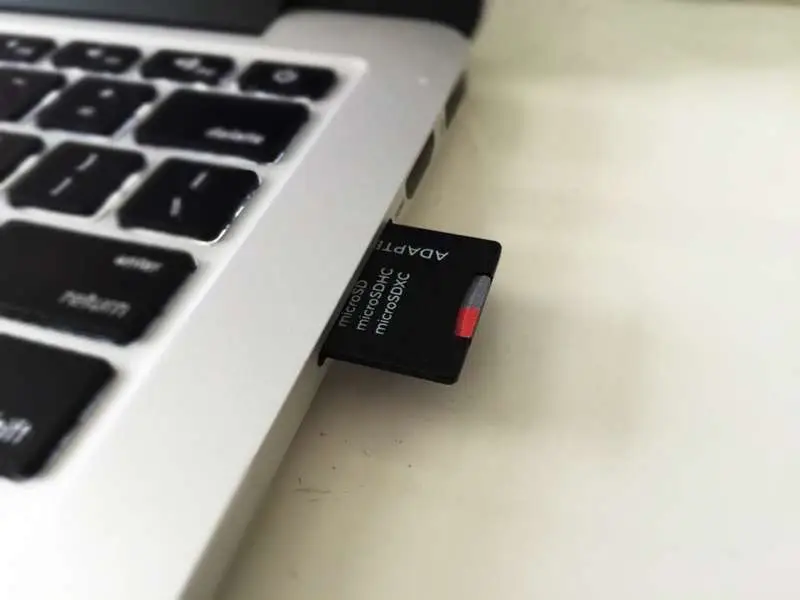
1 – Put the micro SD card into your computer

This guide assumes that you’ve already installed Raspberry Pi OS on your Pi. If not, go ahead and install it. Then put the SD card into your computer.

How to Install Raspberry Pi OS on Your Raspberry Pi
Get the new official Raspberry Pi OS on your Pi.

You’ll have to locate the boot directory, on my Mac it’s in /Volumes/boot.

If you’re on a Mac, open Terminal (Applications > Utilities > Terminal) and type:

cd /Volumes/boot

On Windows, you’ll need to use Command Prompt instead.

3 – Create an empty file called ssh

All you have to do is create an empty file called ssh.

touch ssh

If this file exists, ssh will be enabled when the pi is booted.

4 – Insert the SD card into the Pi and power on

Connect the Pi to a power source to power it on. As long as the Pi is connected via an Ethernet cable (or wifi), you should now be able to ssh in to the Pi.

How to Connect to a Raspberry Pi Remotely via SSH
The preferred (and most common) method of connecting to your Pi to run commands.

If you don’t have easy access to an ethernet connection, you can configure a WiFi connection similar to how we enabled SSH.

NEXT UP

HeaterMeter: Control your Grill Using a Raspberry Pi!

Fire up the summer with a new Pi project.
howchoo   (436)
November 28, 2023

With summer right around the corner, it’s time to fire up the grill! But who will watch the grill while you’re beating the heat? This year, kick things up a notch with your own Raspberry Pi-powered HeaterMeter. Don’t just throw a BBQ, be a part of it. HeaterMeter lets you keep a close eye on

Continue Reading
Home Interests Python

Working with Datetime Objects and Timezones in Python

howchoo
howchoo   (433)
August 9, 2023
18 minutes

Share

Interests
Posted in these interests:
python • 18 guides

Working with dates and times can be tricky, especially when dealing with timezone conversions. This guide will provide an overview of Python’s datetime module with an emphasis on timezone related functions.

1 – What is a datetime object?

First, if you’ve seen datetime used in Python, you’ll notice that it’s both the name of a module and one of many classes within the module. So the datetime module can be imported like this:

import datetime

# datetime.datetime
# datetime.timedelta
# datetime.timezone  (python 3.2+)

Or you can simply import the datetime classes you care about:

from datetime import datetime, timedelta

A datetime object is an instance of the datetime.datetime class that represents a single point in time. If you are familiar with object oriented programming, a datetime object is created by instantiating the datetime class with a date.

An easy way to get a datetime object is to use datetime.now.

import datetime

datetime.datetime.now()
> datetime.datetime(2016, 11, 15, 9, 59, 25, 608206)

As you can see, the now method returned a datetime object that represents the point in time when now was called.

You can also create a datetime object by specifying which date you want to represent. At a minimum, instantiating datetime requires at least 3 arguments – year, month, and day.

Let’s instantiate my birthday.

import datetime

datetime.datetime(1985,  10, 20)
> datetime.datetime(1985, 10, 20, 0, 0)

From here, we’ll talk about manipulating, formatting and doing timezone conversions on datetime objects.

2 – Formatting datetime objects

According to the documentation, the “focus of the implementation [of the datetime library] is on efficient attribute extraction for output formatting and manipulation”. So we will discuss extracting attributes and formatting dates.

For this example, we’ll choose a random date.

import datetime

d = datetime.datetime(1984, 1, 10, 23, 30)

There are many occasions where we’ll want to format a datetime object in a specific way. For this, the strftime method comes in very handy. This method allows you to print a string formatted using a series of formatting directives. This is best understood with examples.

d.strftime("%B %d, %Y")
> 'January 10, 1984'

d.strftime("%Y/%m/%d")
> '1984/01/10'

d.strftime("%d %b %y")
> '10 Jan 84'

d.strftime("%Y-%m-%d %H:%M:%S")
> '1984-01-10 23:30:00'

As you can hopefully tell, the same datetime object is used to generate each date format. The format is specified using various formatting directives. For example, %Y corresponds to the full four digit year, while %m corresponds to the two digit decimal number representing the month. See the documentation for a full list of formatting directives.

It’s also possible to access various attributes of the datetime object directly.

d.year
> 1984

d.month
> 1

d.day
> 10

When discussing formatting, it’s valuable to be familiar with ISO 8601, which is an international standard for the representation of dates and times. Python has a method for quickly generating an ISO 8601 formatted date/time:

d.isoformat()
> '1984-01-10T23:30:00'

Now we’ll discuss the opposite of strftime, which is strptime. This is where you create a datetime object from a string. But since the string can be formatted in any way, it’s necessary to tell datetime what format to expect. Using the same set of formatting directives, we can pass in a string and the expected format to create a datetime object.
import datetime

datetime.datetime.strptime("December 25, 2010", "%B %d, %Y")
> datetime.datetime(2010, 12, 25, 0, 0)

Notice how the pattern matches the string exactly. If you use a formatting directives or date doesn’t make sense it will raise an exception.

3 – Enter timezones

So far, instantiating and formatting datetime objects is fairly easy. However, timezones add a little bit of complexity to the equation.

naive vs aware

So far we’ve been dealing only with naive datetime objects. That means the object is naive to any sort of timezone. So a datetime object can be either offset naive or offset aware.

A timezone’s offset refers to how many hours the timezone is from Coordinated Universal Time (UTC).

A naive datetime object contains no timezone information. The easiest way to tell if a datetime object is naive is by checking tzinfo. tzinfo will be set to None of the object is naive.

import datetime

naive = datetime.datetime.now()
naive.tzinfo
> None

To make a datetime object offset aware, you can use the pytz library. First, you have to instantiate a timezone object, and then use that timezone object to “localize” a datetime object. Localizing simply gives the object timezone information.

import datetime
import pytz

d = datetime.datetime.now()
timezone = pytz.timezone("America/Los_Angeles")
d_aware = timezone.localize(d)
d_aware.tzinfo
> 

A naive datetime object is limited in that it cannot locate itself in relation to offset aware datetime objects. For instance:

import datetime
import pytz

d_naive = datetime.datetime.now()
timezone = pytz.timezone("America/Los_Angeles")
d_aware = timezone.localize(d_naive)
d_naive  TypeError: can't compare offset-naive and offset-aware datetimes

When dealing with datetime objects, I’ve come across two pieces of advice with which I generally agree. First, always use “aware” datetime objects. And second, always work in UTC and do timezone conversion as a last step.

More specifically, as pointed out by user jarshwah on reddit, you should store datetimes in UTC and convert on display.

Once you’re familiar with aware datetime objects, timezone conversions are relatively easy. Let’s create a datetime object with a UTC timezone, and convert it to Pacific Standard.

import datetime
import pytz

utc_now = pytz.utc.localize(datetime.datetime.utcnow())
pst_now = utc_now.astimezone(pytz.timezone("America/Los_Angeles"))

pst_now == utc_now
> True

So pst_now and utc_now are different datetime objects with different timezones, yet they are equal. To be certain, we can print the time of each:

utc_now.isoformat()
> '2016-11-16T22:31:18.130822+00:00'

pst_now.isoformat()
> '2016-11-16T14:31:18.130822-08:00'

4 – Measuring duration with timedelta

Often we’ll be working with multiple datetime objects, and we’ll want to compare them. The timedelta class is useful for finding the difference between two dates or times. While datetime objects represent a point in time, timedelta objects represents a duration, like 5 days or 10 seconds.

Suppose I want to know exactly how much older I am than my brother. I’ll create datetime object for each of us representing the day and time of our birth.

import datetime
import pytz

my_birthday = datetime.datetime(1985, 10, 20, 17, 55)
brothers_birthday = datetime.datetime(1992, 6, 25, 18, 30)

Since we like to work with offset aware objects, we’ll add timezone information.

indy = pytz.timezone("America/Indianapolis")
my_birthday = indy.localize(my_birthday)
brothers_birthday = indy.localize(brothers_birthday)

To see how much older I am than my brother, we can simply subtract the two datetime objects. And to see the answer in a human readable way, we can simple print the difference.

diff = brothers_birthday - my_birthday
print(diff)
> 2440 days, 0:35:00

The diff variable is actually a timedelta object that looks like this datetime.timedelta(2440, 2100).

Subtracting a datetime object from another yields a timedelta object, so as you might suspect, subtracting a timedelta object from a datetime object yields a datetime object.

datetime - datetime = timedelta
# and
datetime - timedelta = datetime

Of course the same is true for addition.

This is useful for answering questions like “what was the date 3 weeks ago from yesterday?” or “what day of the week is 90 days from today?”.

To answer the second question, we need to have two things – first, a datetime object representing today and second, a timedelta object representing 90 days.

import datetime

today = datetime.datetime.now()
ninety_days = datetime.timedelta(days=90)

Then we can simply do the calculation.

target_date = today + ninety_days

And since we want to know the day of the week, we can use strftime.

target_date.strftime("%A")
> 'Wednesday'

5 – Conclusion

Dates and times can be tricky, but Python’s datetime class should make things a little bit easier. Hopefully you found this guide to be useful. If you think there are any other essentially examples or topics related to datetime objects and timezones please comment below, and I will try to add them to the guide.

NEXT UP

Class Vs. Instance Variables in Python 3

howchoo
howchoo   (433)
November 22, 2023

When learning object oriented programming in Python, there can be a few gotchas when it comes to distinguishing between class and instance variables. In this guide I’ll explain the difference between class and instance variables and provide examples demonstrating various use cases. 1 – Class vs. instance variables First, a quick review if you’re new

Continue Reading
Home Interests Coffee

How to Adjust Your Hario Mini Mill Coffee Grinder

Adjust your Hario like a pro.
howchoo   (467)
August 9, 2023
3 minutes

Share

Interests
Posted in these interests:
coffee • 3 guides
food • 7 guides

The Hario Mini Mill grinder makes an affordable, high quality coffee grinder if you set it up properly. Unfortunately, the directions are not very clear as to how to adjust for the perfect grind.

1 – Screw adjustment nut all the way down

Remove the bottom canister and screw the adjustment nut as tight as it goes. This serves as a reference for the next step.

2 – Unscrew the adjustment nut to the proper setting

The way to measure your grind is by “clicks” away from all the way tight. You’ll feel the nut click as you unscrew, so count the number of clicks. The number of clicks to unscrew should vary based on the brew method you’re using. Here’s the general guide I use:

TypeNumber of Clicks
Standard Drip Brew10 clicks
#2 Pour over10 clicks
Aeropress6-8 clicks
Espresso5 clicks
French Press12-14 clicks
Moka pot9 clicks
Chemex9 clicks

Also if you’re looking for the more vague ones:

TypeNumber of Clicks
Medium fine8 clicks
Medium10 clicks
Medium coarse12 clicks

credit to u/Iwannayoyo for the vague ones

3 – Follow this chart for options not listed

Use the attached Hario grinding chart to achieve your desired grind.

NEXT UP

HeaterMeter: Control your Grill Using a Raspberry Pi!

Fire up the summer with a new Pi project.
howchoo   (467)
November 28, 2023

With summer right around the corner, it’s time to fire up the grill! But who will watch the grill while you’re beating the heat? This year, kick things up a notch with your own Raspberry Pi-powered HeaterMeter. Don’t just throw a BBQ, be a part of it. HeaterMeter lets you keep a close eye on

Continue Reading

howchoo

 467 guides

Introducing Howchoo, an enigmatic author whose unique pen name reflects their boundless curiosity and limitless creativity. Mysterious and multifaceted, Howchoo has emerged as a captivating storyteller, leaving readers mesmerized by the uncharted realms they craft with their words. With an insatiable appetite for knowledge and a love for exploration, Howchoo’s writing transcends conventional genres, blurring the lines between fantasy, science fiction, and the surreal. Their narratives are a kaleidoscope of ideas, weaving together intricate plots, unforgettable characters, and thought-provoking themes that challenge the boundaries of imagination.

Home Interests Comcast

Xfinity Router Login: How to Log in to a Comcast Xfinity Router

howchoo
howchoo   (467)
August 9, 2023
6 minutes

Share

You’ll Need 1

What you’ll need
Interests
Series
Howchoo is reader-supported. As an Amazon Associate, we may earn a small affiliate commission at no cost to you when you buy through our links.
Posted in these interests:
comcast • 7 guides
internet • 36 guides
router • 32 guides

There are many reasons you might want to access your Comcast Xfinity router. For instance, you may want to change your wireless password or set up port forwarding for a project you are working on.

In any case, if you’re looking to log in to the Xfinity Wireless Gateway, then you’ll need the Comcast Xfinity router IP address in [the second step] to log into your router. If you have an Xfinity modem/router combo, this is also known as your modem login. If you’re using a business router, the process can be a little different. Check out this guide for steps on how to log into a Comcast business router.

If you need to login to your Comcast account, visit this guide.

1 – Make sure you are connected to your Xfinity network

This can be a wired or WiFi connection.

2 – Open a browser and go to 10.0.0.1

This is the router’s gateway. It will automatically bring up a log in screen.

3 – Enter a username and password

Username: admin
Password: password

Now you’re logged in.

4 – Change your password

You can change your password by click “Change Password” at the top right of the admin panel.

5 – Can’t remember your username or password?

Username

Here’s the Xfinity page to help you find your username.

Password

Here’s the Xfinity page to help you reset your password.

6 – Other options

While the above steps are the easiest way to directly log in to your Comcast Xfinity router, here are some other options that may suit your needs, as well.

Xfinity xFi

If you’re using an xFi gateway, then you can access xFi from your account pages in both the mobile Xfinity app and on the Xfinity website.

Then you’ll simply:
1. Log in to your Comcast Xfinity account.
2. Select your network name from the top of the page.
3. From here you can view your password and make changes to your WiFi.

7 – Next up: Speed up your wifi connection

We’ve written a few practical tips to show you how to speed up your wifi connection.

Make Wi-Fi Faster: How to Speed Up Your Wi-Fi Connection
Speed up your Internet connection in just a few minutes.

Looking to upgrade your Comcast router or modem? Get a faster connection and remove equipment rental fees from your bill by finding the best Comcast compatible routers.

NEXT UP

How to Change Your Frontier WiFi Password

howchoo
howchoo   (467)
November 25, 2023

There are a few reasons you might want to update or reset your WiFi password: making your network more secure, and making your password easier to remember and type. Improved network security You can add an extra layer of security to your network by changing the WiFi password. As long as your new password is

Continue Reading

howchoo

 467 guides

Introducing Howchoo, an enigmatic author whose unique pen name reflects their boundless curiosity and limitless creativity. Mysterious and multifaceted, Howchoo has emerged as a captivating storyteller, leaving readers mesmerized by the uncharted realms they craft with their words. With an insatiable appetite for knowledge and a love for exploration, Howchoo’s writing transcends conventional genres, blurring the lines between fantasy, science fiction, and the surreal. Their narratives are a kaleidoscope of ideas, weaving together intricate plots, unforgettable characters, and thought-provoking themes that challenge the boundaries of imagination.

Home Interests Python

Working with Datetime Objects and Timezones in Python

howchoo
howchoo   (467)
August 9, 2023
18 minutes

Share

Interests
Posted in these interests:
python • 18 guides

Working with dates and times can be tricky, especially when dealing with timezone conversions. This guide will provide an overview of Python’s datetime module with an emphasis on timezone related functions.

1 – What is a datetime object?

First, if you’ve seen datetime used in Python, you’ll notice that it’s both the name of a module and one of many classes within the module. So the datetime module can be imported like this:

import datetime

# datetime.datetime
# datetime.timedelta
# datetime.timezone  (python 3.2+)

Or you can simply import the datetime classes you care about:

from datetime import datetime, timedelta

A datetime object is an instance of the datetime.datetime class that represents a single point in time. If you are familiar with object oriented programming, a datetime object is created by instantiating the datetime class with a date.

An easy way to get a datetime object is to use datetime.now.

import datetime

datetime.datetime.now()
> datetime.datetime(2016, 11, 15, 9, 59, 25, 608206)

As you can see, the now method returned a datetime object that represents the point in time when now was called.

You can also create a datetime object by specifying which date you want to represent. At a minimum, instantiating datetime requires at least 3 arguments – year, month, and day.

Let’s instantiate my birthday.

import datetime

datetime.datetime(1985,  10, 20)
> datetime.datetime(1985, 10, 20, 0, 0)

From here, we’ll talk about manipulating, formatting and doing timezone conversions on datetime objects.

2 – Formatting datetime objects

According to the documentation, the “focus of the implementation [of the datetime library] is on efficient attribute extraction for output formatting and manipulation”. So we will discuss extracting attributes and formatting dates.

For this example, we’ll choose a random date.

import datetime

d = datetime.datetime(1984, 1, 10, 23, 30)

There are many occasions where we’ll want to format a datetime object in a specific way. For this, the strftime method comes in very handy. This method allows you to print a string formatted using a series of formatting directives. This is best understood with examples.

d.strftime("%B %d, %Y")
> 'January 10, 1984'

d.strftime("%Y/%m/%d")
> '1984/01/10'

d.strftime("%d %b %y")
> '10 Jan 84'

d.strftime("%Y-%m-%d %H:%M:%S")
> '1984-01-10 23:30:00'

As you can hopefully tell, the same datetime object is used to generate each date format. The format is specified using various formatting directives. For example, %Y corresponds to the full four digit year, while %m corresponds to the two digit decimal number representing the month. See the documentation for a full list of formatting directives.

It’s also possible to access various attributes of the datetime object directly.

d.year
> 1984

d.month
> 1

d.day
> 10

When discussing formatting, it’s valuable to be familiar with ISO 8601, which is an international standard for the representation of dates and times. Python has a method for quickly generating an ISO 8601 formatted date/time:

d.isoformat()
> '1984-01-10T23:30:00'

Now we’ll discuss the opposite of strftime, which is strptime. This is where you create a datetime object from a string. But since the string can be formatted in any way, it’s necessary to tell datetime what format to expect. Using the same set of formatting directives, we can pass in a string and the expected format to create a datetime object.

import datetime

datetime.datetime.strptime("December 25, 2010", "%B %d, %Y")
> datetime.datetime(2010, 12, 25, 0, 0)

Notice how the pattern matches the string exactly. If you use a formatting directives or date doesn’t make sense it will raise an exception.

3 – Enter timezones

So far, instantiating and formatting datetime objects is fairly easy. However, timezones add a little bit of complexity to the equation.

naive vs aware

So far we’ve been dealing only with naive datetime objects. That means the object is naive to any sort of timezone. So a datetime object can be either offset naive or offset aware.

A timezone’s offset refers to how many hours the timezone is from Coordinated Universal Time (UTC).

A naive datetime object contains no timezone information. The easiest way to tell if a datetime object is naive is by checking tzinfo. tzinfo will be set to None of the object is naive.

import datetime

naive = datetime.datetime.now()
naive.tzinfo
> None

To make a datetime object offset aware, you can use the pytz library. First, you have to instantiate a timezone object, and then use that timezone object to “localize” a datetime object. Localizing simply gives the object timezone information.

import datetime
import pytz

d = datetime.datetime.now()
timezone = pytz.timezone("America/Los_Angeles")
d_aware = timezone.localize(d)
d_aware.tzinfo
> 

A naive datetime object is limited in that it cannot locate itself in relation to offset aware datetime objects. For instance:

import datetime
import pytz

d_naive = datetime.datetime.now()
timezone = pytz.timezone("America/Los_Angeles")
d_aware = timezone.localize(d_naive)
d_naive  TypeError: can't compare offset-naive and offset-aware datetimes

When dealing with datetime objects, I’ve come across two pieces of advice with which I generally agree. First, always use “aware” datetime objects. And second, always work in UTC and do timezone conversion as a last step.

More specifically, as pointed out by user jarshwah on reddit, you should store datetimes in UTC and convert on display.

Once you’re familiar with aware datetime objects, timezone conversions are relatively easy. Let’s create a datetime object with a UTC timezone, and convert it to Pacific Standard.

import datetime
import pytz

utc_now = pytz.utc.localize(datetime.datetime.utcnow())
pst_now = utc_now.astimezone(pytz.timezone("America/Los_Angeles"))

pst_now == utc_now
> True

So pst_now and utc_now are different datetime objects with different timezones, yet they are equal. To be certain, we can print the time of each:

utc_now.isoformat()
> '2016-11-16T22:31:18.130822+00:00'

pst_now.isoformat()
> '2016-11-16T14:31:18.130822-08:00'

4 – Measuring duration with timedelta

Often we’ll be working with multiple datetime objects, and we’ll want to compare them. The timedelta class is useful for finding the difference between two dates or times. While datetime objects represent a point in time, timedelta objects represents a duration, like 5 days or 10 seconds.

Suppose I want to know exactly how much older I am than my brother. I’ll create datetime object for each of us representing the day and time of our birth.

import datetime
import pytz

my_birthday = datetime.datetime(1985, 10, 20, 17, 55)
brothers_birthday = datetime.datetime(1992, 6, 25, 18, 30)

Since we like to work with offset aware objects, we’ll add timezone information.

indy = pytz.timezone("America/Indianapolis")
my_birthday = indy.localize(my_birthday)
brothers_birthday = indy.localize(brothers_birthday)

To see how much older I am than my brother, we can simply subtract the two datetime objects. And to see the answer in a human readable way, we can simple print the difference.

diff = brothers_birthday - my_birthday
print(diff)
> 2440 days, 0:35:00

The diff variable is actually a timedelta object that looks like this datetime.timedelta(2440, 2100).

Subtracting a datetime object from another yields a timedelta object, so as you might suspect, subtracting a timedelta object from a datetime object yields a datetime object.

datetime - datetime = timedelta
# and
datetime - timedelta = datetime

Of course the same is true for addition.

This is useful for answering questions like “what was the date 3 weeks ago from yesterday?” or “what day of the week is 90 days from today?”.

To answer the second question, we need to have two things – first, a datetime object representing today and second, a timedelta object representing 90 days.

import datetime

today = datetime.datetime.now()
ninety_days = datetime.timedelta(days=90)

Then we can simply do the calculation.

target_date = today + ninety_days

And since we want to know the day of the week, we can use strftime.

target_date.strftime("%A")
> 'Wednesday'

5 – Conclusion

Dates and times can be tricky, but Python’s datetime class should make things a little bit easier. Hopefully you found this guide to be useful. If you think there are any other essentially examples or topics related to datetime objects and timezones please comment below, and I will try to add them to the guide.

NEXT UP

Class Vs. Instance Variables in Python 3

howchoo
howchoo   (467)
November 22, 2023

When learning object oriented programming in Python, there can be a few gotchas when it comes to distinguishing between class and instance variables. In this guide I’ll explain the difference between class and instance variables and provide examples demonstrating various use cases. 1 – Class vs. instance variables First, a quick review if you’re new

Continue Reading

howchoo

 467 guides

Introducing Howchoo, an enigmatic author whose unique pen name reflects their boundless curiosity and limitless creativity. Mysterious and multifaceted, Howchoo has emerged as a captivating storyteller, leaving readers mesmerized by the uncharted realms they craft with their words. With an insatiable appetite for knowledge and a love for exploration, Howchoo’s writing transcends conventional genres, blurring the lines between fantasy, science fiction, and the surreal. Their narratives are a kaleidoscope of ideas, weaving together intricate plots, unforgettable characters, and thought-provoking themes that challenge the boundaries of imagination.